User Guide: Advanced Permissions
Support: http://amasty.com/support.html
Page 1
Advanced Permissions
Magento Extension
User Guide
Official extension page: Advanced Permissions
Table of contents:
1. How to create user with advanced permissions ………………………………….. 3
2. Template 1 ……………………………………………………………………………….……. 11
3. Template 2 ……………………………………………………………………………………. 13
User Guide: Advanced Permissions
Support: http://amasty.com/support.html
Page 2
1. How to create user with advanced permissions
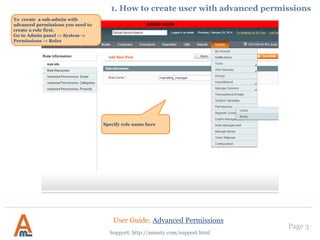
To create a sub-admin with
advanced permissions you need to
create a role first.
Go to Admin panel -> System ->
Permissions -> Roles
Specify role name here
User Guide: Advanced Permissions
Support: http://amasty.com/support.html
Page 3
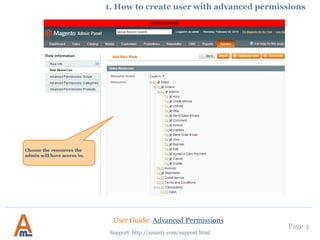
1. How to create user with advanced permissions
Choose the resources the
admin will have access to.
User Guide: Advanced Permissions
Support: http://amasty.com/support.html
Page 4
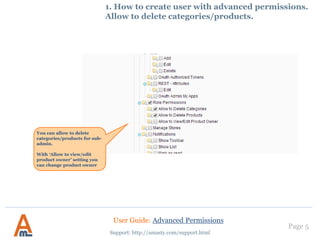
1. How to create user with advanced permissions.
Allow to delete categories/products.
You can allow to delete
categories/products for sub-
admin.
With ‘Allow to view/edit
product owner’ setting you
can change product owner
User Guide: Advanced Permissions
Support: http://amasty.com/support.html
Page 5
1. How to create user with advanced permissions.
Allow/deny category creation
User Guide: Advanced Permissions
Support: http://amasty.com/support.html
Page 6
You can restrict users
from category creation.
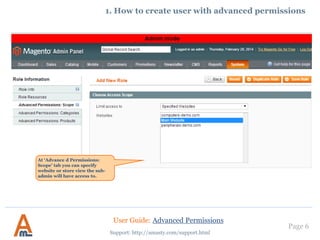
At ‘Advance d Permissions:
Scope’ tab you can specify
website or store view the sub-
admin will have access to.
1. How to create user with advanced permissions
User Guide: Advanced Permissions
Support: http://amasty.com/support.html
Page 7
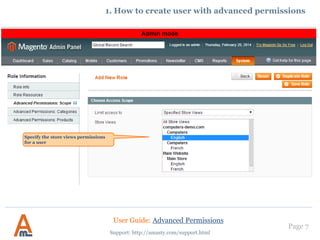
Specify the store views permissions
for a user
1. How to create user with advanced permissions
User Guide: Advanced Permissions
Support: http://amasty.com/support.html
Page 8
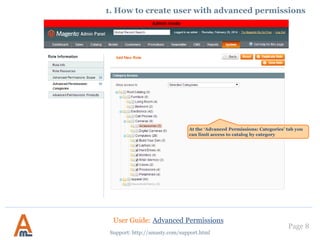
At the ‘Advanced Permissions: Categories’ tab you
can limit access to catalog by category
1. How to create user with advanced permissions
User Guide: Advanced Permissions
Support: http://amasty.com/support.html
Page 9
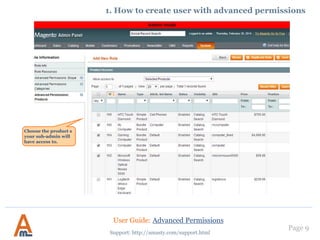
Choose the product s
your sub-admin will
have access to.
1. How to create user with advanced permissions
User Guide: Advanced Permissions
Support: http://amasty.com/support.html
Page 10
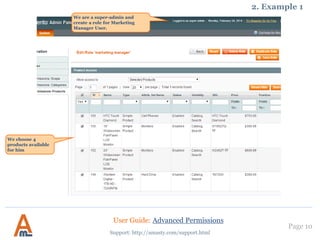
We are a super-admin and
create a role for Marketing
Manager User.
2. Example 1
We choose 4
products available
for him
User Guide: Advanced Permissions
Support: http://amasty.com/support.html
Page 11
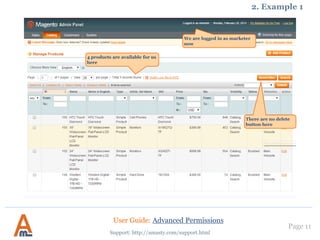
We are logged in as marketer
now
2. Example 1
4 products are available for us
here
There are no delete
button here
User Guide: Advanced Permissions
Support: http://amasty.com/support.html
Page 12
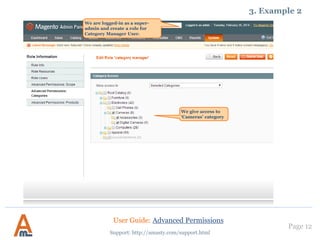
3. Example 2
We are logged-in as a super-
admin and create a role for
Category Manager User.
We give access to
‘Cameras’ category
User Guide: Advanced Permissions
Support: http://amasty.com/support.html
Page 13
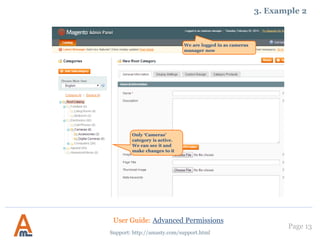
Only ‘Cameras’
category is active.
We can see it and
make changes to it
3. Example 2
We are logged in as cameras
manager now
User Guide: Advanced Permissions
Support: http://amasty.com/support.html
Page 14
Thank you!
Your feedback is absolutely welcome!
Should you have any questions or feature suggestions, please contact us at:
http://amasty.com/support.html
User Guide: Advanced Permissions
Support: http://amasty.com/support.html
Page 15

Advanced Permissions: Magento Extension by Amasty. User Guide.

  • 1.
    User Guide: AdvancedPermissions Support: http://amasty.com/support.html Page 1 Advanced Permissions Magento Extension User Guide Official extension page: Advanced Permissions
  • 2.
    Table of contents: 1.How to create user with advanced permissions ………………………………….. 3 2. Template 1 ……………………………………………………………………………….……. 11 3. Template 2 ……………………………………………………………………………………. 13 User Guide: Advanced Permissions Support: http://amasty.com/support.html Page 2
  • 3.
    1. How tocreate user with advanced permissions To create a sub-admin with advanced permissions you need to create a role first. Go to Admin panel -> System -> Permissions -> Roles Specify role name here User Guide: Advanced Permissions Support: http://amasty.com/support.html Page 3
  • 4.
    1. How tocreate user with advanced permissions Choose the resources the admin will have access to. User Guide: Advanced Permissions Support: http://amasty.com/support.html Page 4
  • 5.
    1. How tocreate user with advanced permissions. Allow to delete categories/products. You can allow to delete categories/products for sub- admin. With ‘Allow to view/edit product owner’ setting you can change product owner User Guide: Advanced Permissions Support: http://amasty.com/support.html Page 5
  • 6.
    1. How tocreate user with advanced permissions. Allow/deny category creation User Guide: Advanced Permissions Support: http://amasty.com/support.html Page 6 You can restrict users from category creation.
  • 7.
    At ‘Advance dPermissions: Scope’ tab you can specify website or store view the sub- admin will have access to. 1. How to create user with advanced permissions User Guide: Advanced Permissions Support: http://amasty.com/support.html Page 7
  • 8.
    Specify the storeviews permissions for a user 1. How to create user with advanced permissions User Guide: Advanced Permissions Support: http://amasty.com/support.html Page 8
  • 9.
    At the ‘AdvancedPermissions: Categories’ tab you can limit access to catalog by category 1. How to create user with advanced permissions User Guide: Advanced Permissions Support: http://amasty.com/support.html Page 9
  • 10.
    Choose the products your sub-admin will have access to. 1. How to create user with advanced permissions User Guide: Advanced Permissions Support: http://amasty.com/support.html Page 10
  • 11.
    We are asuper-admin and create a role for Marketing Manager User. 2. Example 1 We choose 4 products available for him User Guide: Advanced Permissions Support: http://amasty.com/support.html Page 11
  • 12.
    We are loggedin as marketer now 2. Example 1 4 products are available for us here There are no delete button here User Guide: Advanced Permissions Support: http://amasty.com/support.html Page 12
  • 13.
    3. Example 2 Weare logged-in as a super- admin and create a role for Category Manager User. We give access to ‘Cameras’ category User Guide: Advanced Permissions Support: http://amasty.com/support.html Page 13
  • 14.
    Only ‘Cameras’ category isactive. We can see it and make changes to it 3. Example 2 We are logged in as cameras manager now User Guide: Advanced Permissions Support: http://amasty.com/support.html Page 14
  • 15.
    Thank you! Your feedbackis absolutely welcome! Should you have any questions or feature suggestions, please contact us at: http://amasty.com/support.html User Guide: Advanced Permissions Support: http://amasty.com/support.html Page 15