Layered Navigation Pro
User Manual for Magento
Aitoc
Aitoc
Table of Content
1. Enabling the extension in Magento.
2. Configuring Layered Navigation Pro.
3. Configuring visual attributes.
4. Visualize Your Attributes settings.
5. Color swatch settings.
Aitoc1. Enabling the extension in Magento
In System > Manage Aitoc Modules, check
Layered Navigation Pro (both units -
Visualize Your Attributes and Layered
Navigation Pro).
Click "Save modules settings" on the top
right.
Aitoc1. Enabling the extension in Magento
To enable Layered Navigation for a
Category, select the necessary category
and set “Is Anchor” to “Yes” in Display
Settings.
Catalog > Manage Categories > Display Settings
Aitoc2. Configuring Layered Navigation Pro
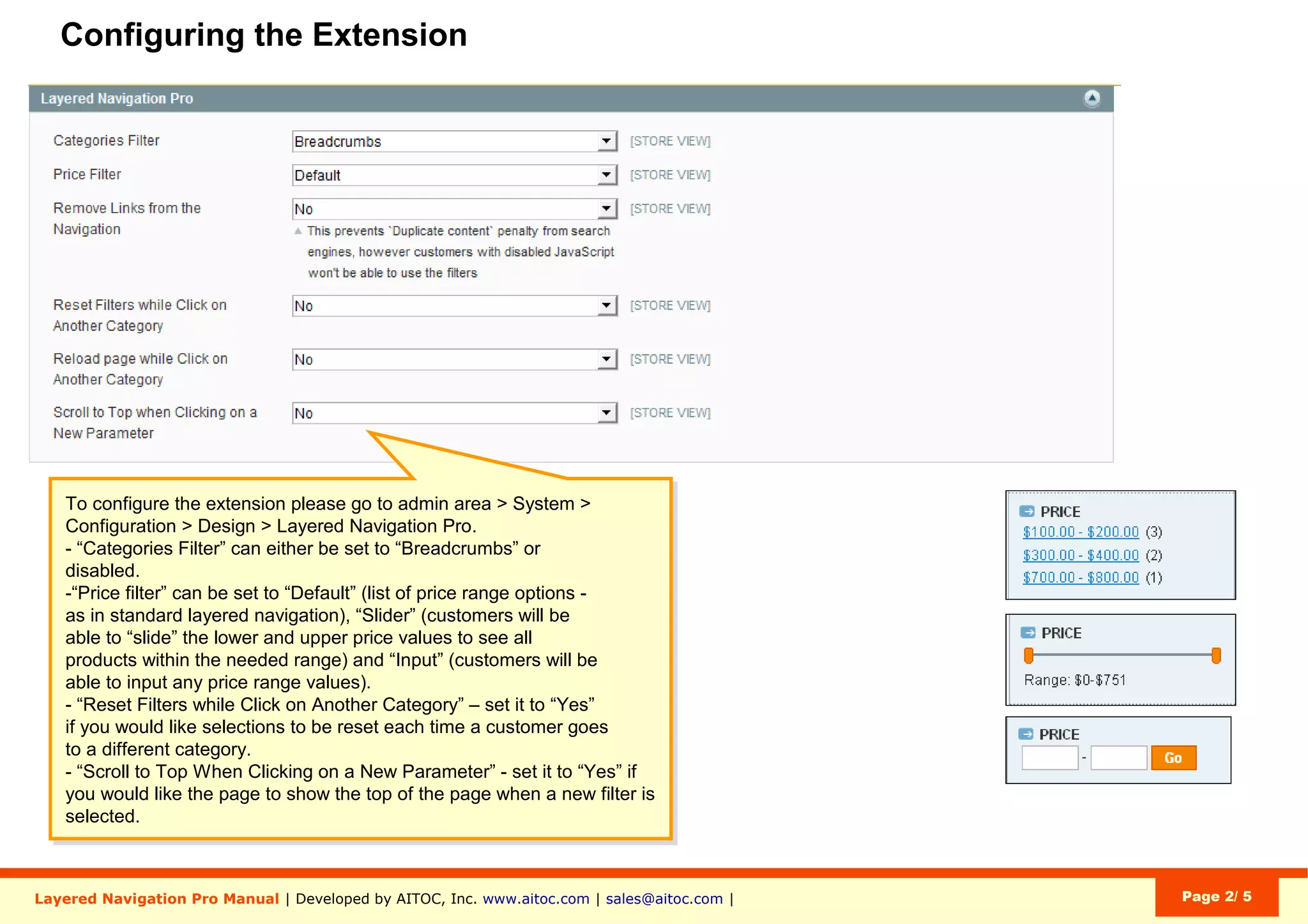
In “Categories Filter”, you can switch on /
off the “Category” block (filter).
In “Categories Display Block”, you can
either show this block in the Sidebar or at
the Top.
In “Categories Display Type”, you can
choose between 3 types of Category
display: Default (List), Dropdown, Whole
Category Tree.
System > Configuration > Design > Layered Navigation
Aitoc2. Configuring Layered Navigation Pro
In “Price Filter”, you can choose between 3
types of price display: Default, Slider and
Input (customer can enter the price
manually).
System > Configuration > Design > Layered Navigation
Aitoc2. Configuring Layered Navigation Pro
If you set this to “Yes”, customers will be
able to follow links in your navigation
(thanks to Ajax), while search engines will
see no hyperlinks associated with your
navigation attributes (an SEO feature).
System > Configuration > Design > Layered Navigation
Aitoc2. Configuring Layered Navigation Pro
"Reset Filters while Click on Another
Category" – set it to "Yes" if you wish the
filters to be reset each time a customer
goes to a different category.
"Scroll to Top When Clicking on a New
Parameter" - set it to "Yes" if you wish
customers to be taken to the top of the
page when a new filter is selected.
System > Configuration > Design > Layered Navigation
Aitoc2. Configuring Layered Navigation Pro
If you set this to “Yes”, pagination tags will
be added to the code of your category
pages. These tags tell search engines that a
particular page belongs to a series of
pages, e.g. it’s page 3 of the series (an SEO
feature).
System > Configuration > Design > Layered Navigation
Aitoc2. Configuring Layered Navigation Pro
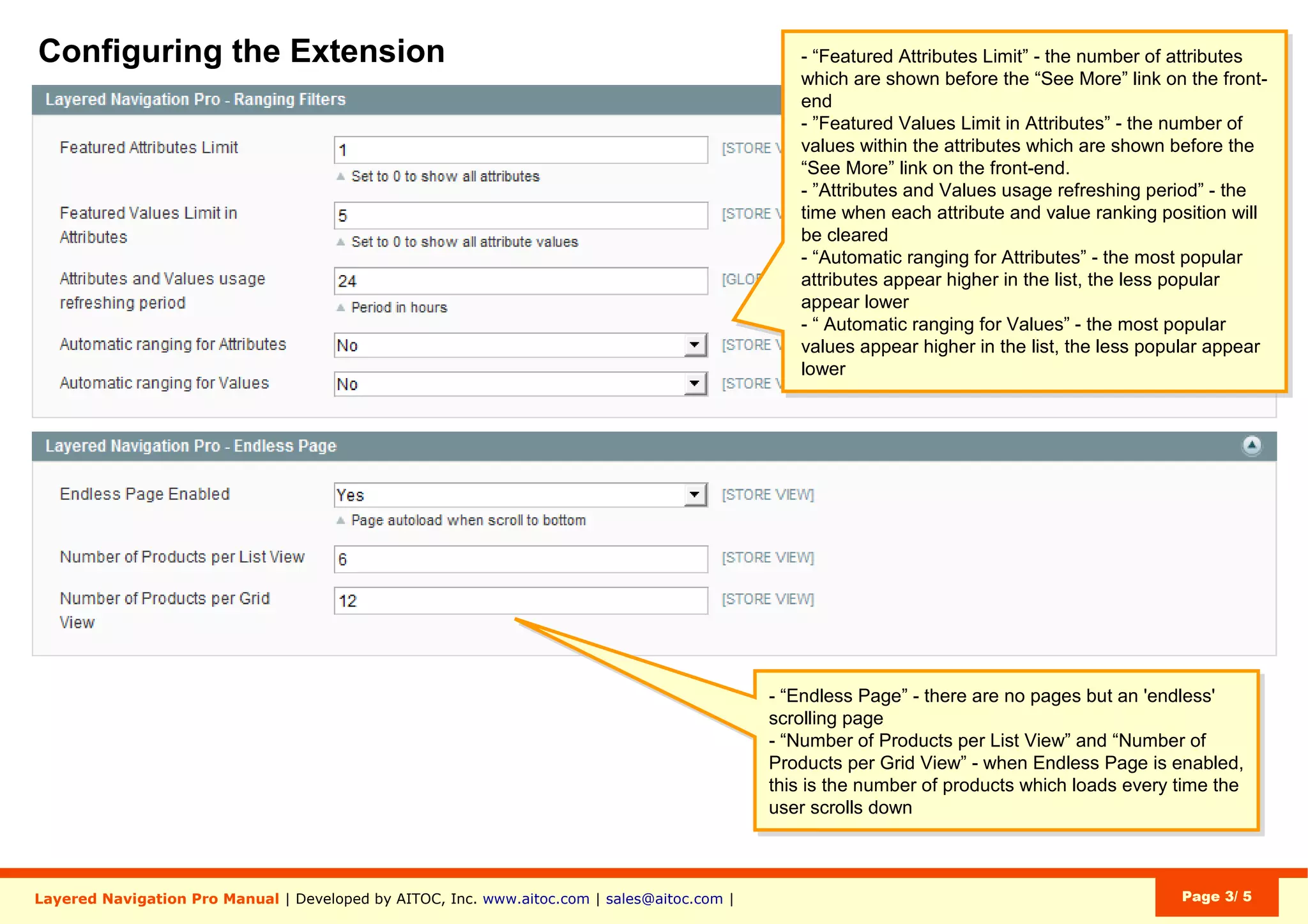
The number of attributes visible in
navigation before the “Show More
Attributes” link. “0” will show them all.
System > Configuration > Design > Layered Navigation
Aitoc2. Configuring Layered Navigation Pro
The number of attribute values before the
“Show More” link. “0” will show all attribute
values.
System > Configuration > Design > Layered Navigation
Aitoc2. Configuring Layered Navigation Pro
The time before every attribute and value
ranking position will be cleared.
When it’s set to “Yes” most popular
attributes / values will appear higher in the
list - least popular ones will appear lower.
System > Configuration > Design > Layered Navigation
Aitoc2. Configuring Layered Navigation Pro
You can choose to activate an endless page
of search results (similar to how Google
Images work).
System > Configuration > Design > Layered Navigation
Aitoc3. Configuring visual attributes
Click “Add New” to add a new attribute.
Catalog > Attributes > Visualize Your Attributes
Aitoc3. Configuring visual attributes
Choose the attribute to visualize.
Attribute visuals will appear on product
pages.
Catalog > Attributes > Visualize Your Attributes - Add New
Aitoc3. Configuring visual attributes
You can choose to show in navigation:
(1) icons + text + quantity
(2) icons + text
(3) icons OR text + quantity
(4) icons only
(5) text only
Catalog > Attributes > Visualize Your Attributes - Add New
Aitoc3. Configuring visual attributes
If you choose “Custom Images”, you’ll be
able to add image icons for values of the
attribute you’re creating / editing.
Catalog > Attributes > Visualize Your Attributes > Attribute Visualization Type > Custom Images
Aitoc3. Configuring visual attributes
Catalog > Attributes > Visualize Your Attributes > Attribute Visualization Type > Color
If you choose “Color”, you’ll be able to
specify color-code values for the attribute.
Aitoc3. Configuring visual attributes
If you choose “Text Icons”, you’ll be able to
add geometrical-shape icons with text /
numerals in them for your attribute values.
You can also specify icon and text color.
Catalog > Attributes > Visualize Your Attributes > Attribute Visualization Type > Text Icons
Aitoc4. Visualize Your Attributes settings
Visual attributes appear in:
1. Product pages
2. Product list
3. Layered navigation filters
4. Configurable product options
You can specify icon size and font size
separately for each of these places.
System > > Configuration > Design > Attribute Icons
Aitoc5. Color swatch settings
Here you can add a set of images for each
configurable option.
Important: the extension works for the first
configurable attribute in the product.
Catalog > Manage Products - Any configurable product > Additional Images
Aitoc5. Color swatch settings
Color swatches - front-end examples.
AitocUseful resources
Useful Resources
1. Introduction Video (1.45 min) - http://bit.ly/1YDqJj7
2. Demo - http://bit.ly/21oPphI
3. Installation guide - http://bit.ly/1SDOTGo
Aitoc
Brought to you by
You can purchase Layered Navigation Pro at
www.aitoc.com/en/magentomods_layered_navigation_pro.html
For questions please email at sales@aitoc.com

Magento Layered Navigation Pro user manual by Aitoc

  • 1.
    Layered Navigation Pro UserManual for Magento Aitoc
  • 2.
    Aitoc Table of Content 1.Enabling the extension in Magento. 2. Configuring Layered Navigation Pro. 3. Configuring visual attributes. 4. Visualize Your Attributes settings. 5. Color swatch settings.
  • 3.
    Aitoc1. Enabling theextension in Magento In System > Manage Aitoc Modules, check Layered Navigation Pro (both units - Visualize Your Attributes and Layered Navigation Pro). Click "Save modules settings" on the top right.
  • 4.
    Aitoc1. Enabling theextension in Magento To enable Layered Navigation for a Category, select the necessary category and set “Is Anchor” to “Yes” in Display Settings. Catalog > Manage Categories > Display Settings
  • 5.
    Aitoc2. Configuring LayeredNavigation Pro In “Categories Filter”, you can switch on / off the “Category” block (filter). In “Categories Display Block”, you can either show this block in the Sidebar or at the Top. In “Categories Display Type”, you can choose between 3 types of Category display: Default (List), Dropdown, Whole Category Tree. System > Configuration > Design > Layered Navigation
  • 6.
    Aitoc2. Configuring LayeredNavigation Pro In “Price Filter”, you can choose between 3 types of price display: Default, Slider and Input (customer can enter the price manually). System > Configuration > Design > Layered Navigation
  • 7.
    Aitoc2. Configuring LayeredNavigation Pro If you set this to “Yes”, customers will be able to follow links in your navigation (thanks to Ajax), while search engines will see no hyperlinks associated with your navigation attributes (an SEO feature). System > Configuration > Design > Layered Navigation
  • 8.
    Aitoc2. Configuring LayeredNavigation Pro "Reset Filters while Click on Another Category" – set it to "Yes" if you wish the filters to be reset each time a customer goes to a different category. "Scroll to Top When Clicking on a New Parameter" - set it to "Yes" if you wish customers to be taken to the top of the page when a new filter is selected. System > Configuration > Design > Layered Navigation
  • 9.
    Aitoc2. Configuring LayeredNavigation Pro If you set this to “Yes”, pagination tags will be added to the code of your category pages. These tags tell search engines that a particular page belongs to a series of pages, e.g. it’s page 3 of the series (an SEO feature). System > Configuration > Design > Layered Navigation
  • 10.
    Aitoc2. Configuring LayeredNavigation Pro The number of attributes visible in navigation before the “Show More Attributes” link. “0” will show them all. System > Configuration > Design > Layered Navigation
  • 11.
    Aitoc2. Configuring LayeredNavigation Pro The number of attribute values before the “Show More” link. “0” will show all attribute values. System > Configuration > Design > Layered Navigation
  • 12.
    Aitoc2. Configuring LayeredNavigation Pro The time before every attribute and value ranking position will be cleared. When it’s set to “Yes” most popular attributes / values will appear higher in the list - least popular ones will appear lower. System > Configuration > Design > Layered Navigation
  • 13.
    Aitoc2. Configuring LayeredNavigation Pro You can choose to activate an endless page of search results (similar to how Google Images work). System > Configuration > Design > Layered Navigation
  • 14.
    Aitoc3. Configuring visualattributes Click “Add New” to add a new attribute. Catalog > Attributes > Visualize Your Attributes
  • 15.
    Aitoc3. Configuring visualattributes Choose the attribute to visualize. Attribute visuals will appear on product pages. Catalog > Attributes > Visualize Your Attributes - Add New
  • 16.
    Aitoc3. Configuring visualattributes You can choose to show in navigation: (1) icons + text + quantity (2) icons + text (3) icons OR text + quantity (4) icons only (5) text only Catalog > Attributes > Visualize Your Attributes - Add New
  • 17.
    Aitoc3. Configuring visualattributes If you choose “Custom Images”, you’ll be able to add image icons for values of the attribute you’re creating / editing. Catalog > Attributes > Visualize Your Attributes > Attribute Visualization Type > Custom Images
  • 18.
    Aitoc3. Configuring visualattributes Catalog > Attributes > Visualize Your Attributes > Attribute Visualization Type > Color If you choose “Color”, you’ll be able to specify color-code values for the attribute.
  • 19.
    Aitoc3. Configuring visualattributes If you choose “Text Icons”, you’ll be able to add geometrical-shape icons with text / numerals in them for your attribute values. You can also specify icon and text color. Catalog > Attributes > Visualize Your Attributes > Attribute Visualization Type > Text Icons
  • 20.
    Aitoc4. Visualize YourAttributes settings Visual attributes appear in: 1. Product pages 2. Product list 3. Layered navigation filters 4. Configurable product options You can specify icon size and font size separately for each of these places. System > > Configuration > Design > Attribute Icons
  • 21.
    Aitoc5. Color swatchsettings Here you can add a set of images for each configurable option. Important: the extension works for the first configurable attribute in the product. Catalog > Manage Products - Any configurable product > Additional Images
  • 22.
    Aitoc5. Color swatchsettings Color swatches - front-end examples.
  • 23.
    AitocUseful resources Useful Resources 1.Introduction Video (1.45 min) - http://bit.ly/1YDqJj7 2. Demo - http://bit.ly/21oPphI 3. Installation guide - http://bit.ly/1SDOTGo
  • 24.
    Aitoc Brought to youby You can purchase Layered Navigation Pro at www.aitoc.com/en/magentomods_layered_navigation_pro.html For questions please email at sales@aitoc.com