Configurable Products Pro
User Manual for Magento
Aitoc
Aitoc
Table of Content
1. Enabling the extension in Magento.
2. Configurable Products Pro.
3. Simple associated product generation.
4. Product configuration.
5. Handling duplicate simple products.
6. Creating a new simple product.
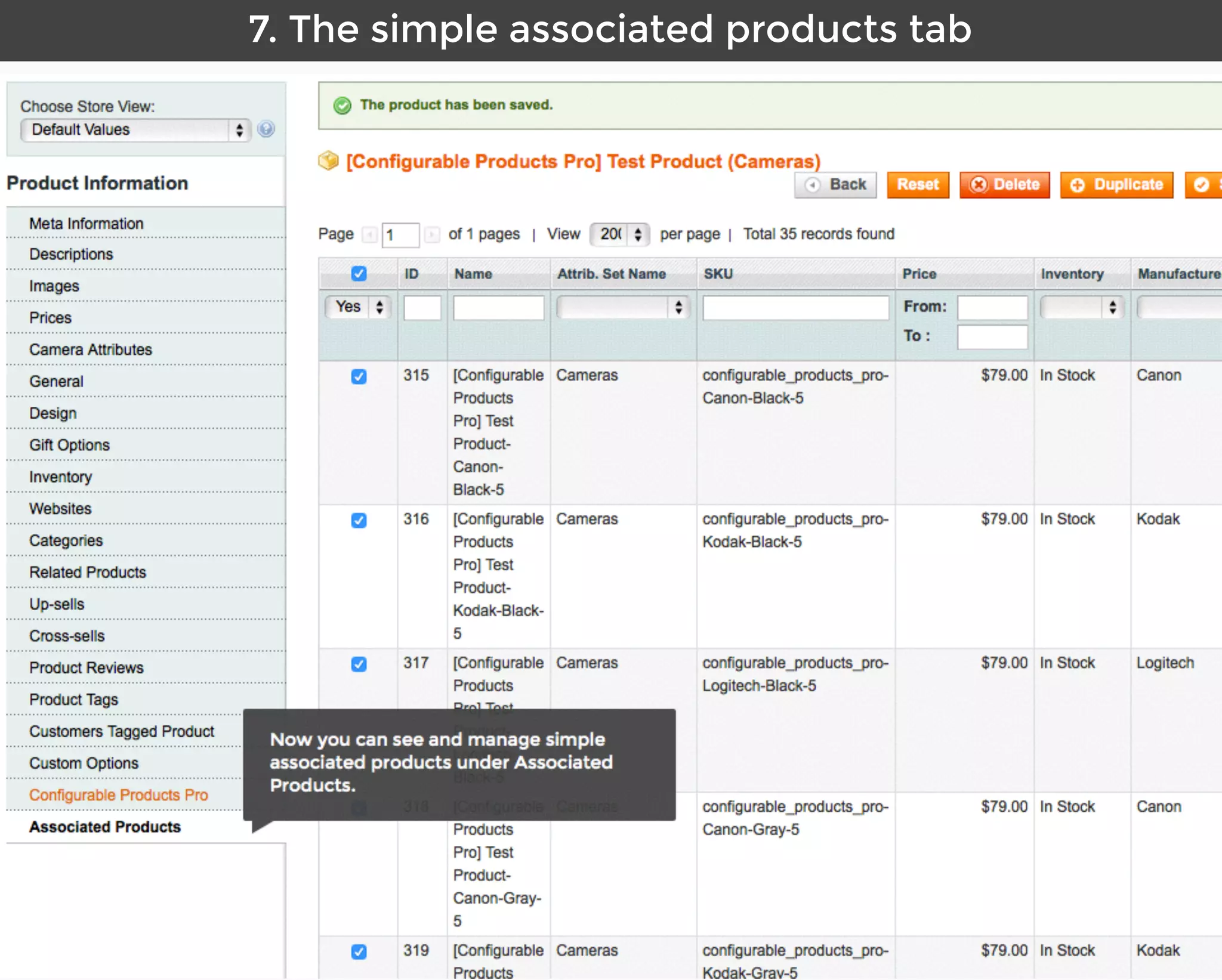
7. The simple associated products tab.
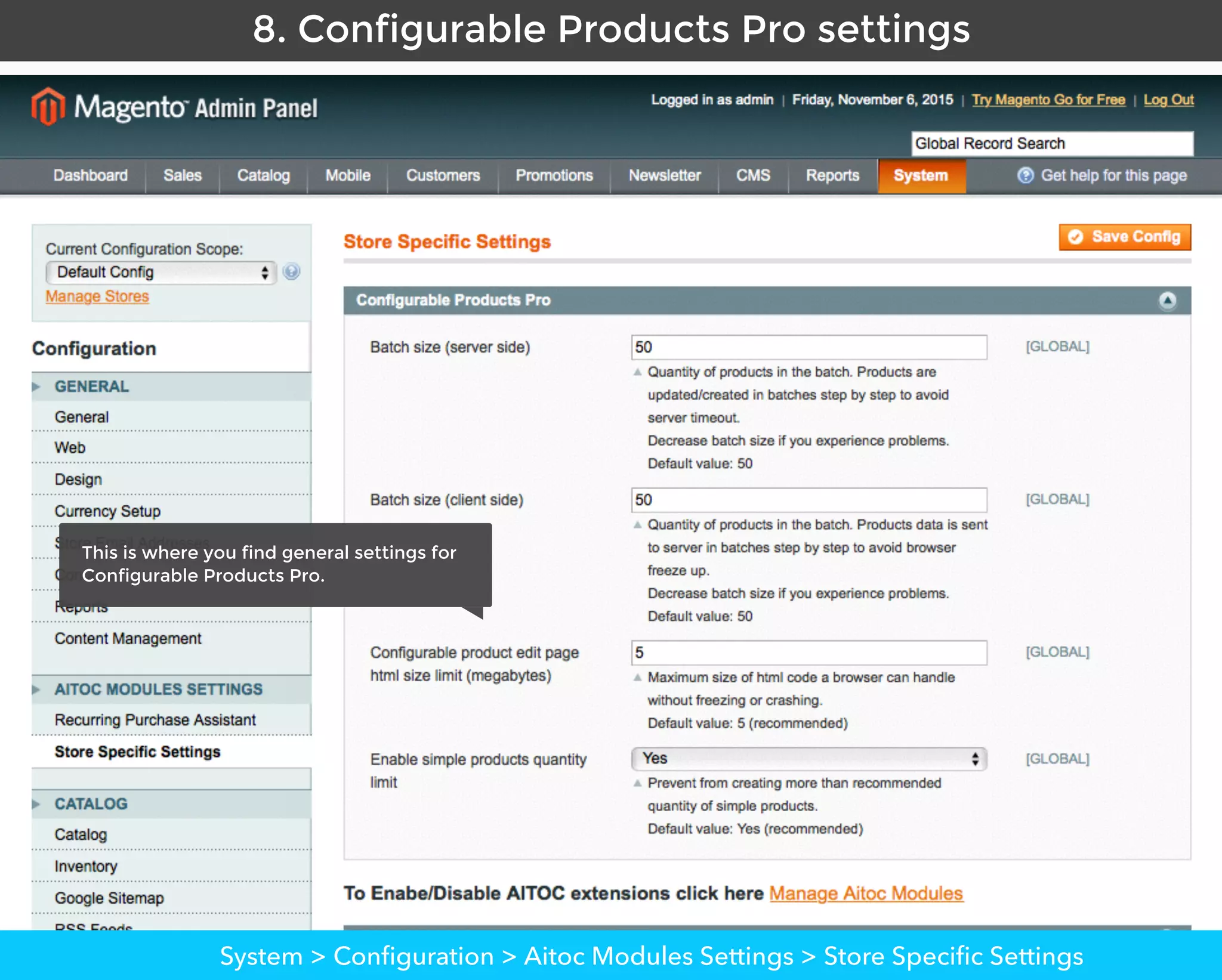
8. Configurable Products Pro settings.
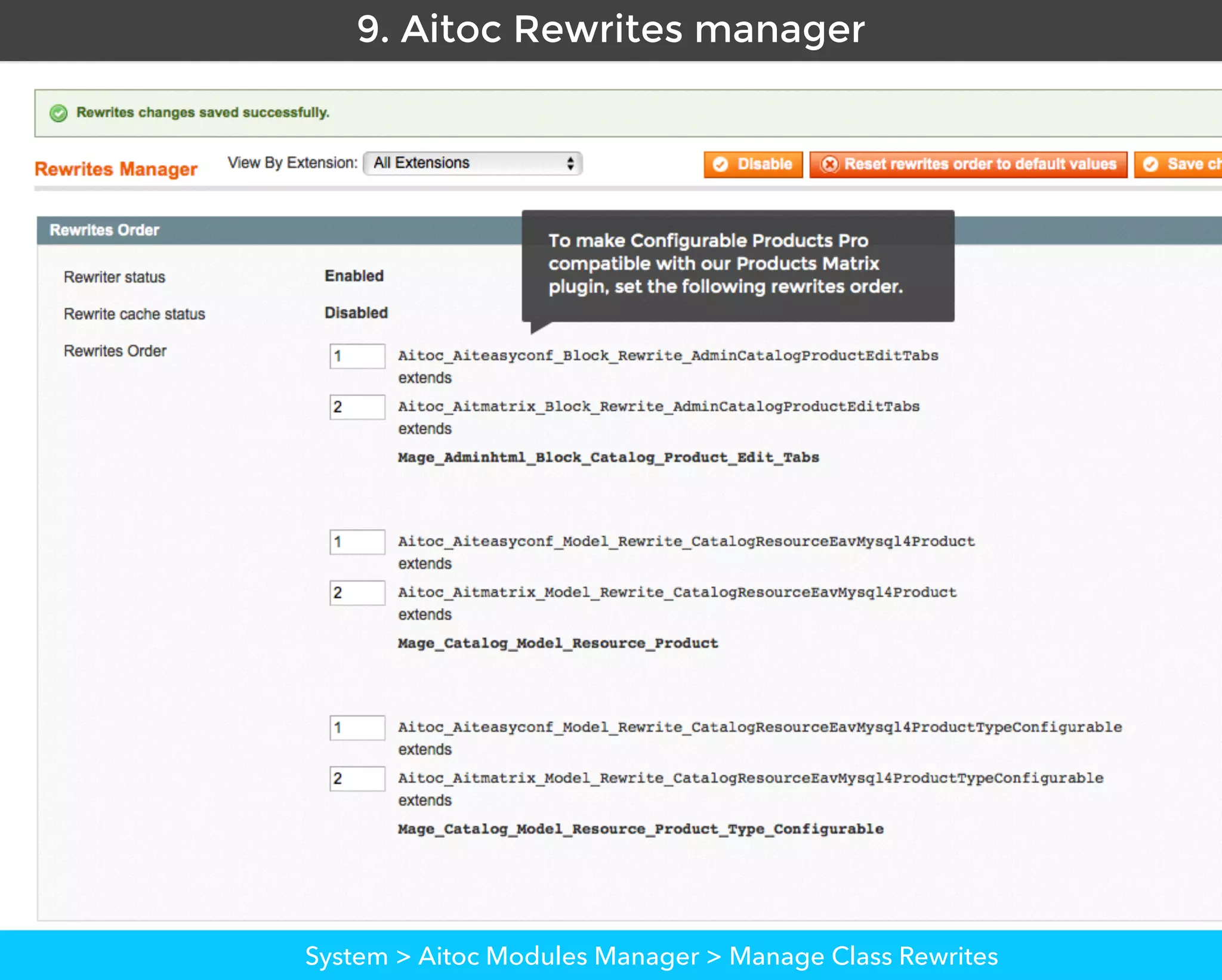
9. Aitoc Rewrites manager.
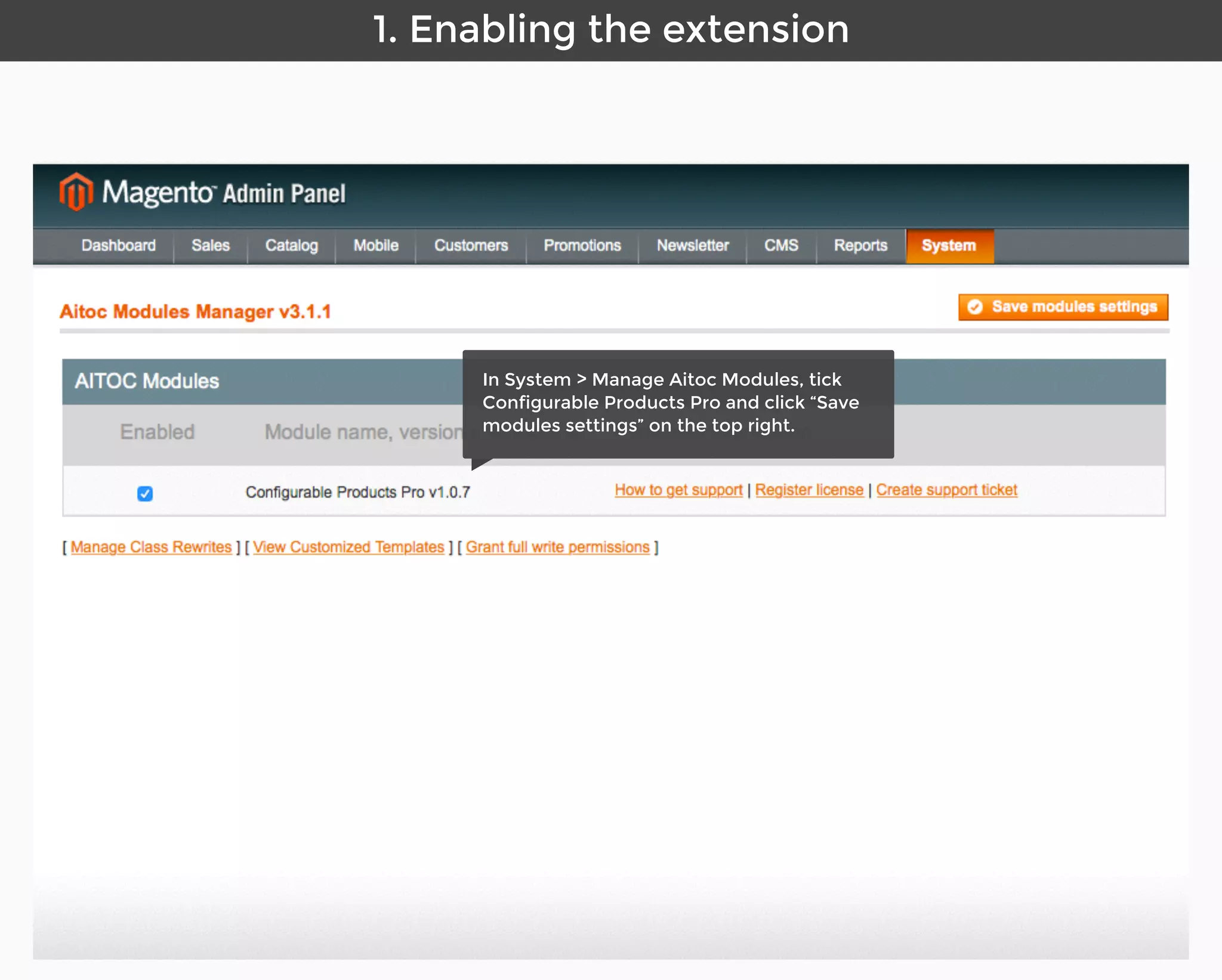
Aitoc1. Enabling the extension in Magento
In System > Manage Aitoc Modules, check
Configurable Products Pro and click "Save
modules settings" on the top right.
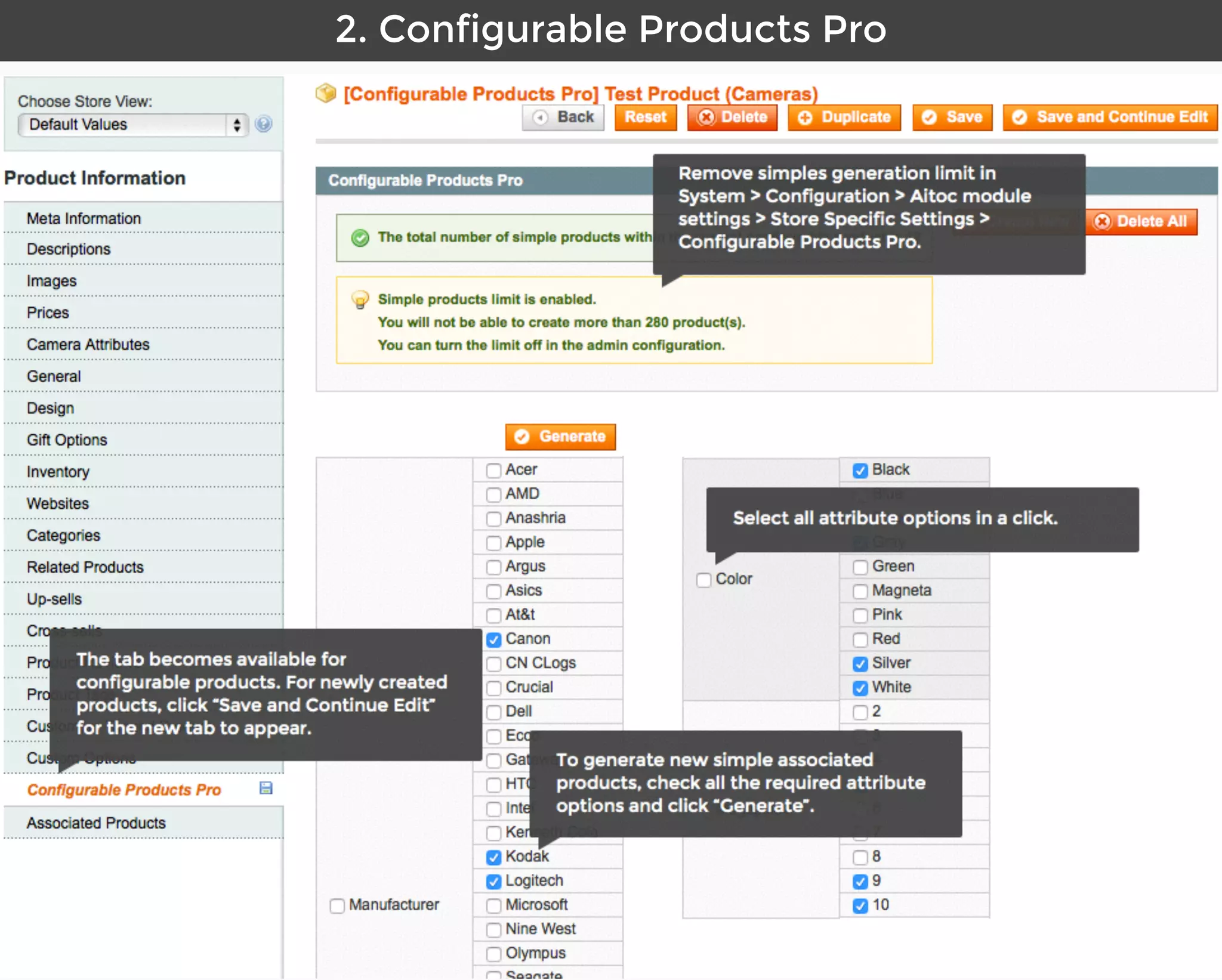
Aitoc2. Configurable Products Pro
Select all attribute options in a click.
The tab becomes available for
configurable products. For newly created
products, click “Save and Continue Edit”
for the new tab to appear.
To generate new simple associated
products, check all the required attribute
options and click “Generate”.
Remove simples generation limit in
System > Configuration > Aitoc module
settings > Store Specific Settings >
Configurable Products Pro.
Aitoc3. Simple associated product generation
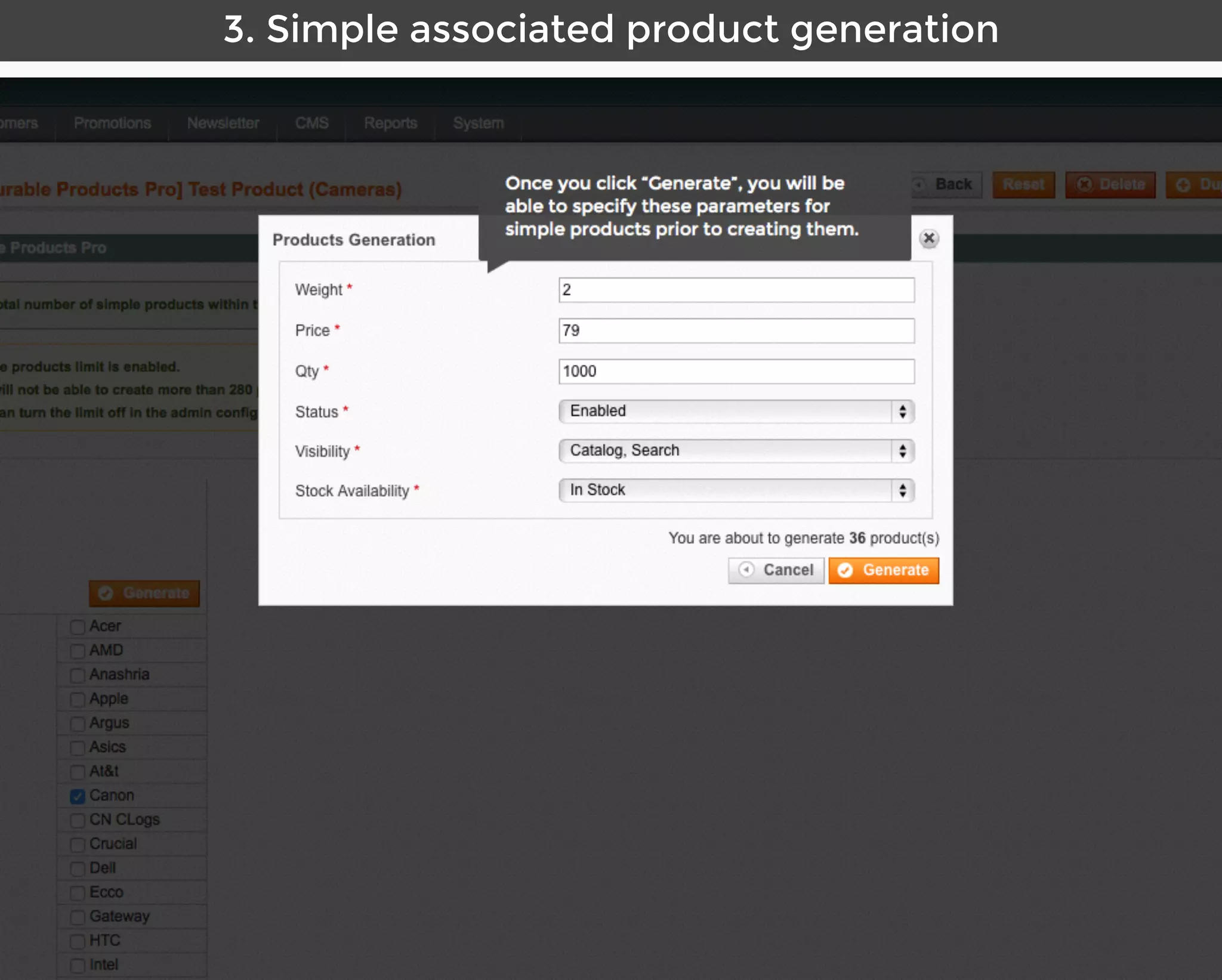
Once you click “Generate”, you will be
able to specify these parameters for
simple products prior to creating them.
Aitoc3. Simple associated product generation
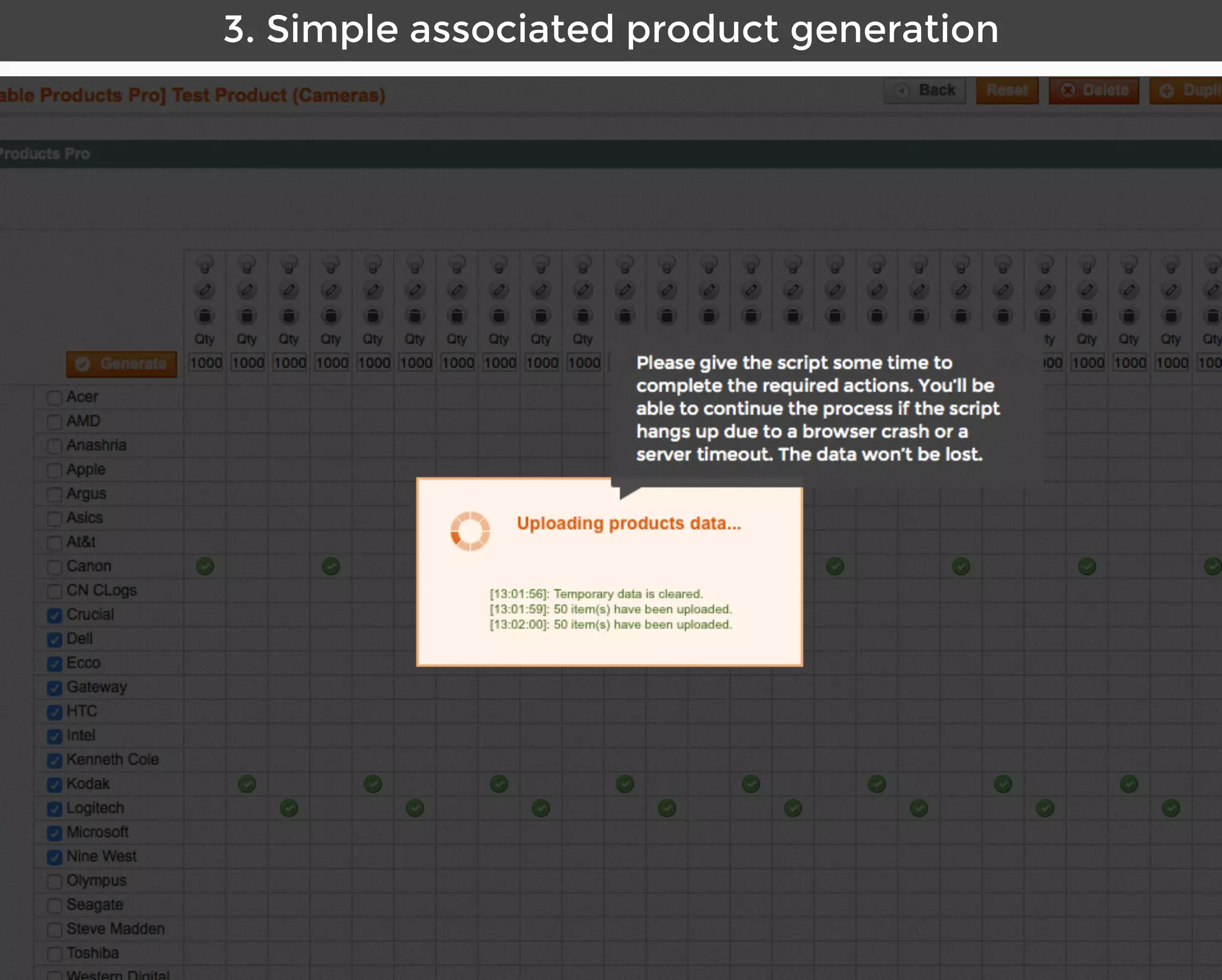
Please give the script some time to
complete the required actions. You’ll be
able to continue the process if the script
hangs up due to a browser crash or a
server timeout. The data won’t be lost.
Aitoc3. Simple associated product generation
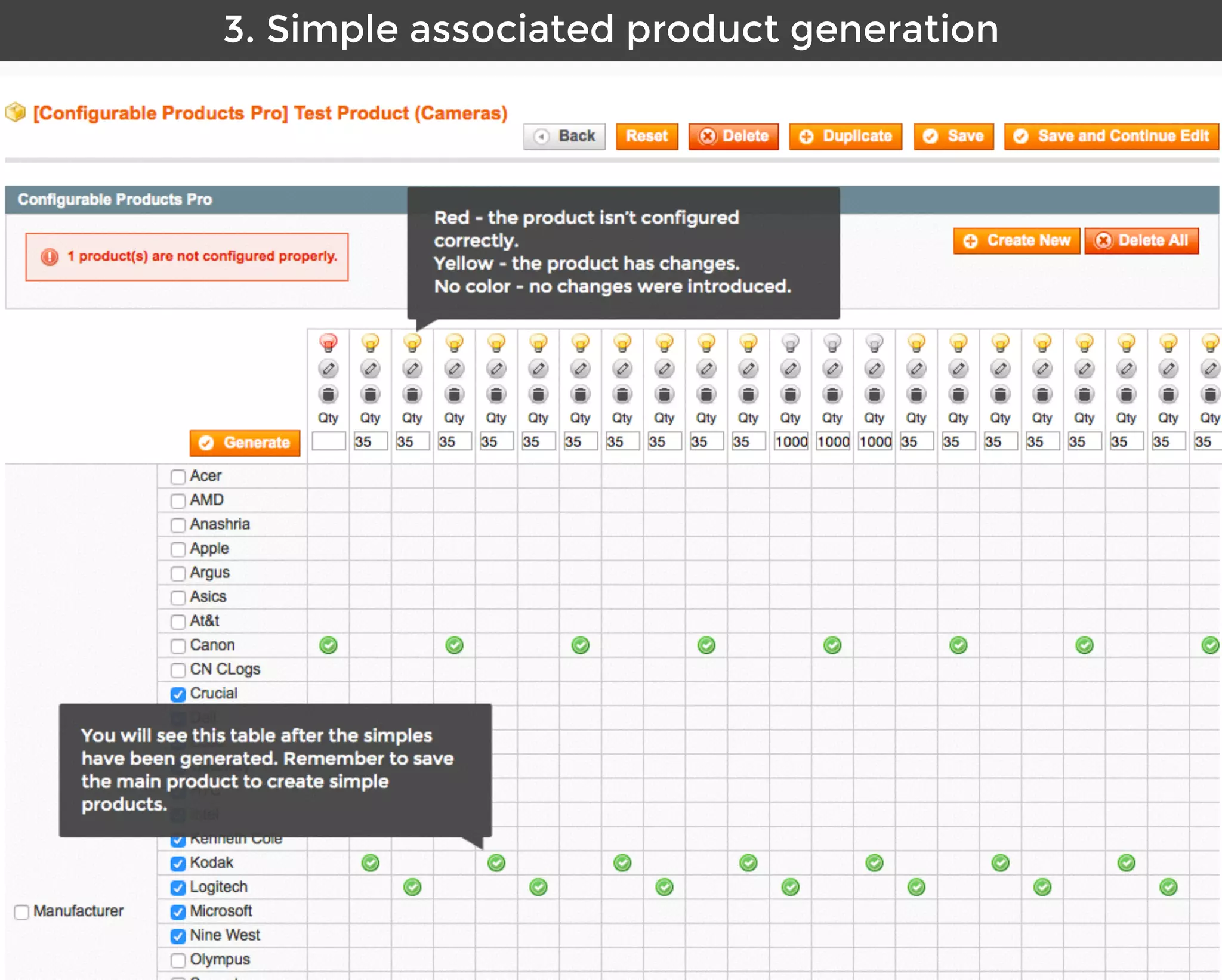
Red - the product isn’t configured
correctly.
Yellow - the product has changes.
No color - no changes were introduced.
You will see this table after the simples
have been generated. Remember to save
the main product to create simple
products.
Aitoc3. Simple associated product generation
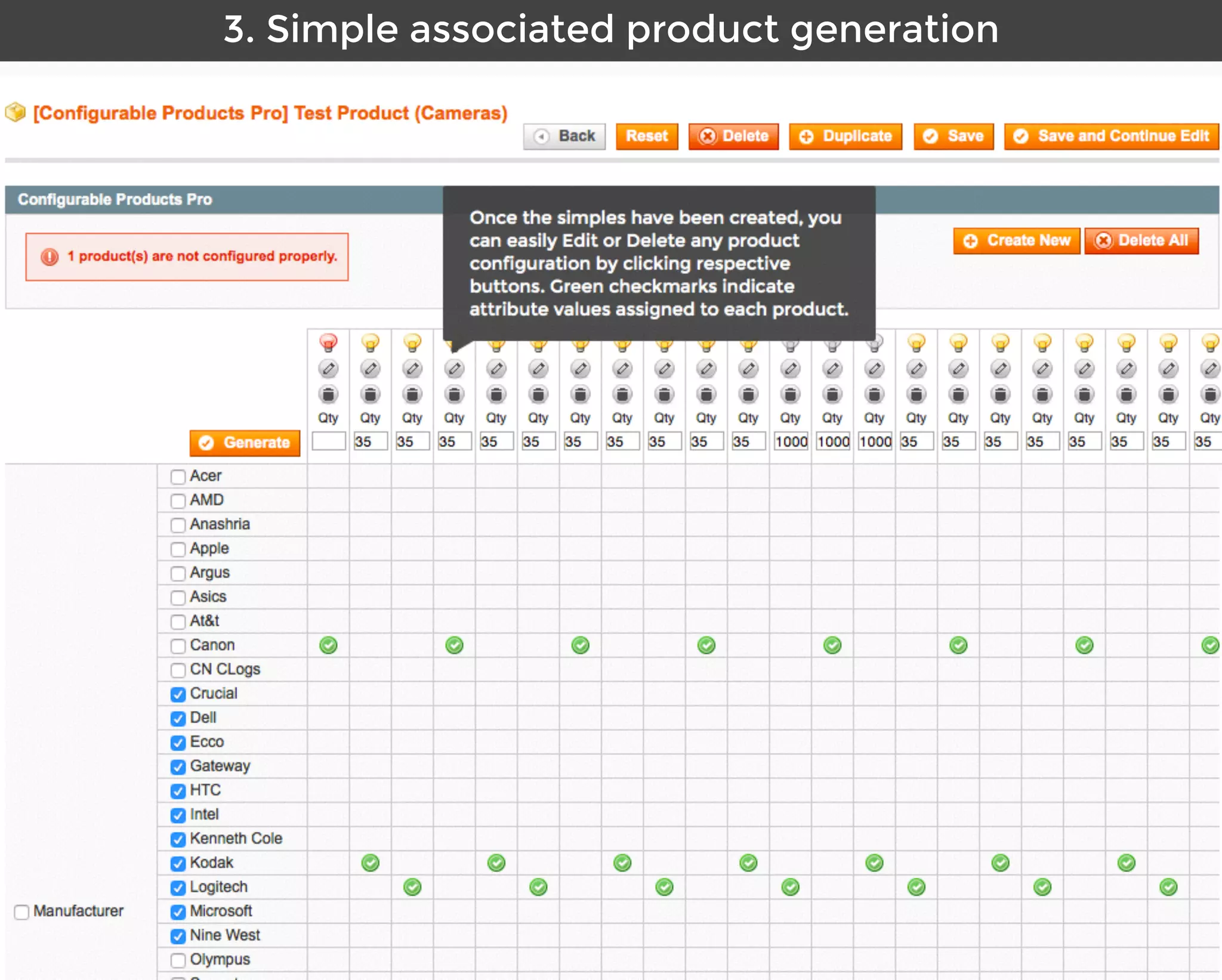
Once the simples have been created, you
can easily Edit or Delete any product
configuration by clicking respective
buttons. Green checkmarks indicate
attribute values assigned to each product.
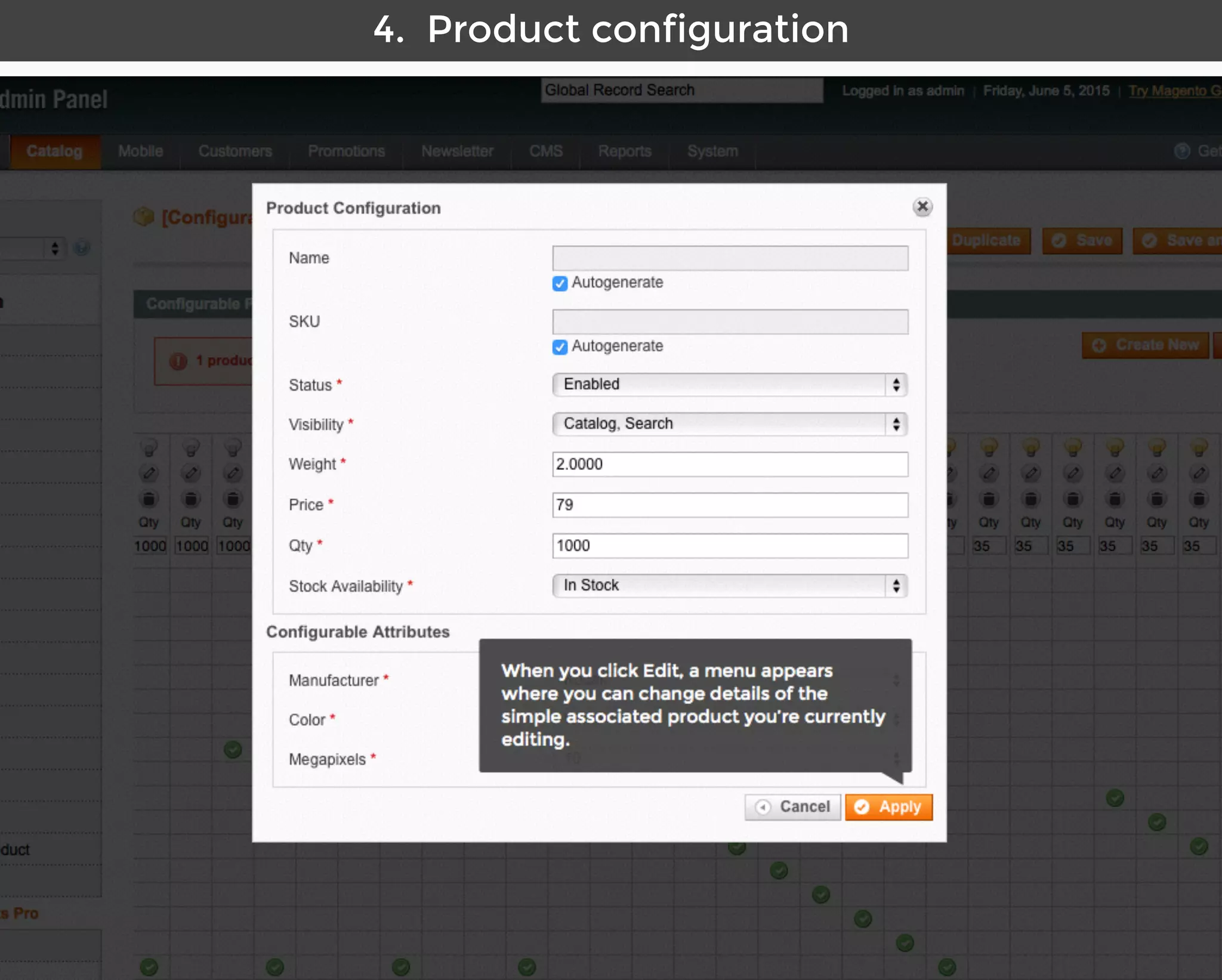
Aitoc4. Product configuration
When you click Edit, a menu appears
where you can change details of the
simple associated product you’re currently
editing.
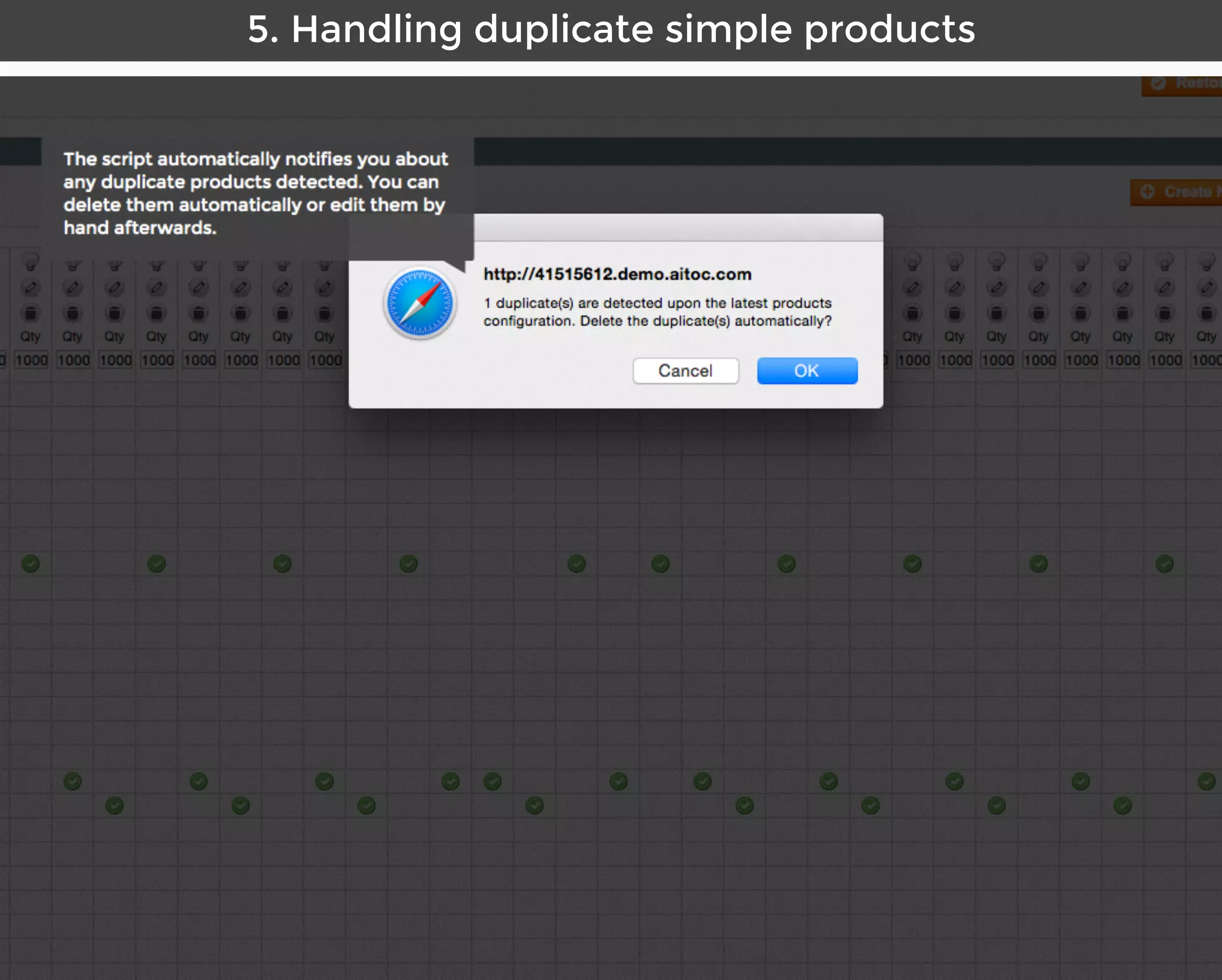
Aitoc5. Handling duplicate simple products
System > Import/Export > Dataflow - Profiles
The script automatically notifies you about
any duplicate products detected. You can
delete them automatically or edit them by
hand afterwards.
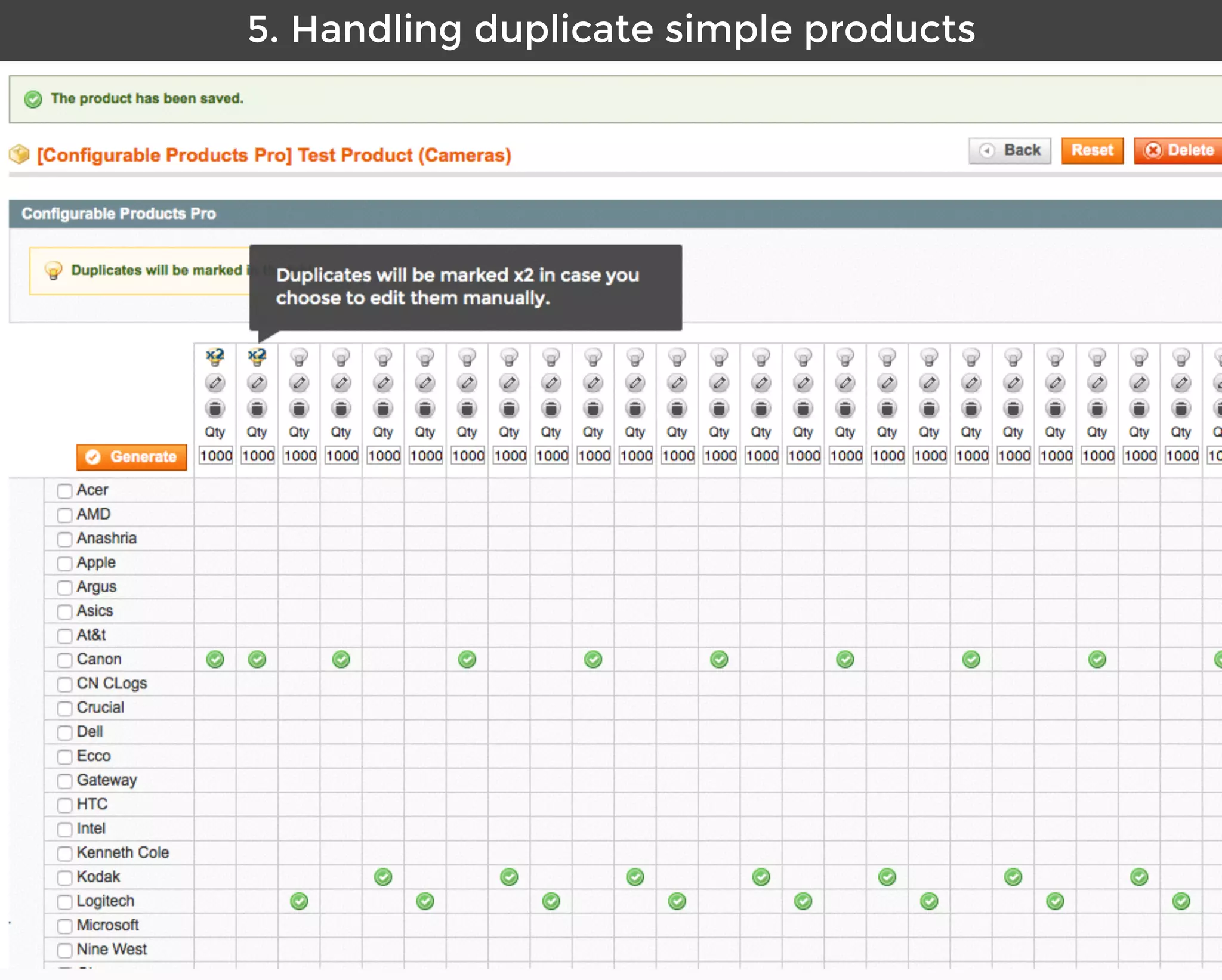
Aitoc5. Handling duplicate simple products
Duplicates will be marked x2 in case you
choose to edit them manually.
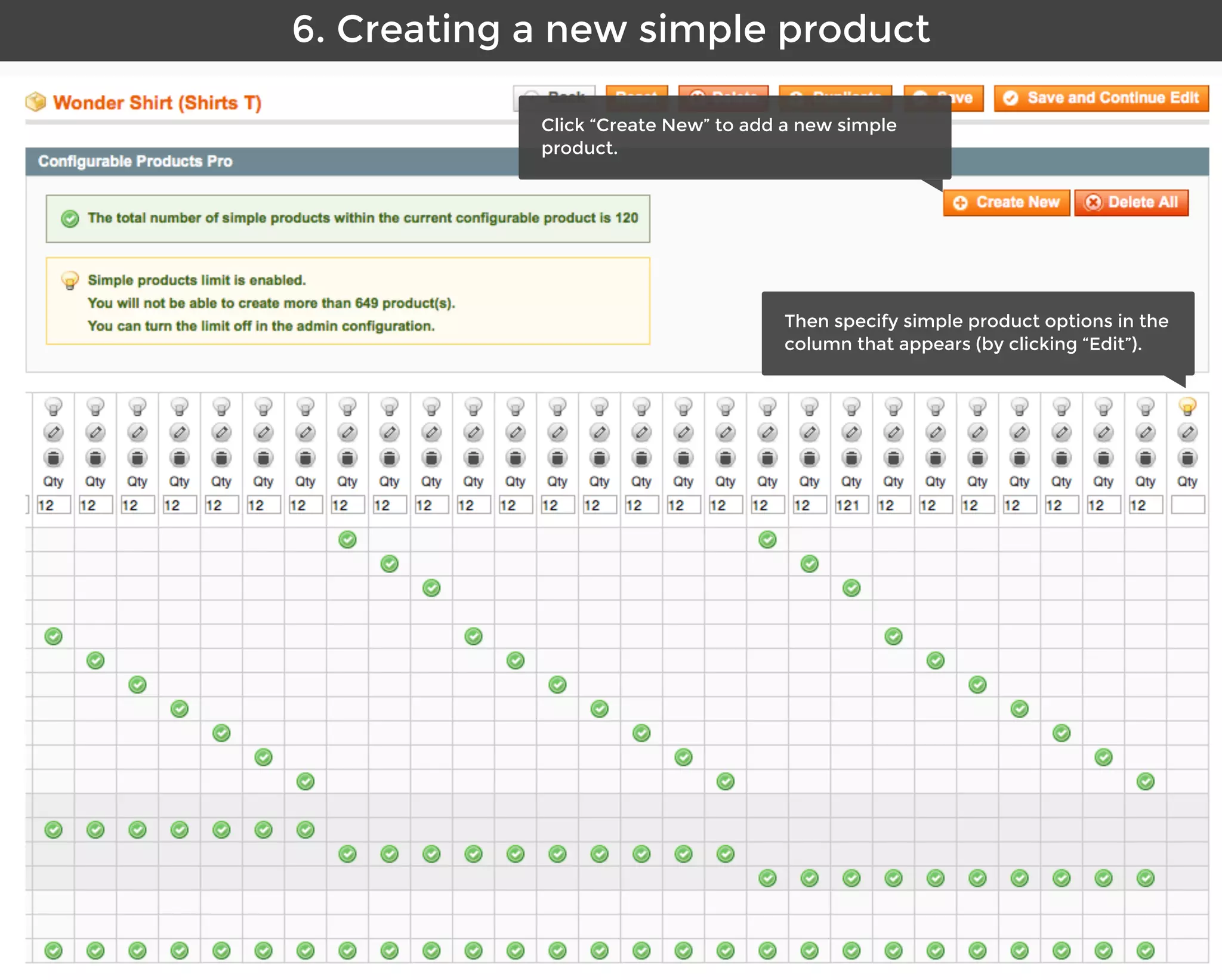
Aitoc6. Creating a new simple product
Click “Create New” to add a new simple
product.
Then specify simple product options in the
column that appears (by clicking “Edit”).
Aitoc7. The simple associated products tab
Now you can see and manage simple
associated products under Associated
Products.
Aitoc8. Configurable Products Pro settings
This is where you find general settings for
Configurable Products Pro.
System > Configuration > Aitoc Modules Settings > Store Specific SettingsClick “Create New” to add a new simple
Aitoc9. Aitoc Rewrites manager
To make Configurable Products Pro
compatible with our Products Matrix
plugin, set the following rewrites order.
System > Aitoc Modules Manager > Manage Class Rewrites
System > Configuration > Aitoc Modules Settings > Store Specific Settings
AitocUseful resources
Useful Resources
1. Introduction Video (4.47 min) - http://bit.ly/1NsFW4Z
2. Live demo - http://bit.ly/1lJLf3B
3. Magento Enterprise Version - http://bit.ly/1lhMHcX
System > Aitoc Modules Manager > Manage Class Rewrites
Aitoc
Brought to you by
You can purchase Configurable Products Pro at
www.aitoc.com/en/magentomods_configurable_products.html
For questions please email at sales@aitoc.com

Configurable products pro user manual by Aitoc

  • 1.
    Configurable Products Pro UserManual for Magento Aitoc
  • 2.
    Aitoc Table of Content 1.Enabling the extension in Magento. 2. Configurable Products Pro. 3. Simple associated product generation. 4. Product configuration. 5. Handling duplicate simple products. 6. Creating a new simple product. 7. The simple associated products tab. 8. Configurable Products Pro settings. 9. Aitoc Rewrites manager.
  • 3.
    Aitoc1. Enabling theextension in Magento In System > Manage Aitoc Modules, check Configurable Products Pro and click "Save modules settings" on the top right.
  • 4.
    Aitoc2. Configurable ProductsPro Select all attribute options in a click. The tab becomes available for configurable products. For newly created products, click “Save and Continue Edit” for the new tab to appear. To generate new simple associated products, check all the required attribute options and click “Generate”. Remove simples generation limit in System > Configuration > Aitoc module settings > Store Specific Settings > Configurable Products Pro.
  • 5.
    Aitoc3. Simple associatedproduct generation Once you click “Generate”, you will be able to specify these parameters for simple products prior to creating them.
  • 6.
    Aitoc3. Simple associatedproduct generation Please give the script some time to complete the required actions. You’ll be able to continue the process if the script hangs up due to a browser crash or a server timeout. The data won’t be lost.
  • 7.
    Aitoc3. Simple associatedproduct generation Red - the product isn’t configured correctly. Yellow - the product has changes. No color - no changes were introduced. You will see this table after the simples have been generated. Remember to save the main product to create simple products.
  • 8.
    Aitoc3. Simple associatedproduct generation Once the simples have been created, you can easily Edit or Delete any product configuration by clicking respective buttons. Green checkmarks indicate attribute values assigned to each product.
  • 9.
    Aitoc4. Product configuration Whenyou click Edit, a menu appears where you can change details of the simple associated product you’re currently editing.
  • 10.
    Aitoc5. Handling duplicatesimple products System > Import/Export > Dataflow - Profiles The script automatically notifies you about any duplicate products detected. You can delete them automatically or edit them by hand afterwards.
  • 11.
    Aitoc5. Handling duplicatesimple products Duplicates will be marked x2 in case you choose to edit them manually.
  • 12.
    Aitoc6. Creating anew simple product Click “Create New” to add a new simple product. Then specify simple product options in the column that appears (by clicking “Edit”).
  • 13.
    Aitoc7. The simpleassociated products tab Now you can see and manage simple associated products under Associated Products.
  • 14.
    Aitoc8. Configurable ProductsPro settings This is where you find general settings for Configurable Products Pro. System > Configuration > Aitoc Modules Settings > Store Specific SettingsClick “Create New” to add a new simple
  • 15.
    Aitoc9. Aitoc Rewritesmanager To make Configurable Products Pro compatible with our Products Matrix plugin, set the following rewrites order. System > Aitoc Modules Manager > Manage Class Rewrites System > Configuration > Aitoc Modules Settings > Store Specific Settings
  • 16.
    AitocUseful resources Useful Resources 1.Introduction Video (4.47 min) - http://bit.ly/1NsFW4Z 2. Live demo - http://bit.ly/1lJLf3B 3. Magento Enterprise Version - http://bit.ly/1lhMHcX System > Aitoc Modules Manager > Manage Class Rewrites
  • 17.
    Aitoc Brought to youby You can purchase Configurable Products Pro at www.aitoc.com/en/magentomods_configurable_products.html For questions please email at sales@aitoc.com