User Guide: Favorite Products
Page 1
Favorite Products
Support: http://amasty.com/support.html
Magento Extension
User Guide
Official extension page: Favorite Products
Table of contents:
1. Enabling the extension .……………………………..…………………………………….. 3
2. Adding Products to Favorites ……..………………..………………………………….. 4
3. Favorites Management .…………………..…….……..…………………………………. 5
4. Save Shopping Carts ……………………………………………………………………….. 8
5. View Customer’s Favorites in Admin Panel ..………………………..……………. 10
6. Using Favorites for Admin Orders .……………………………………..……………. 11
Page 2
Support: http://amasty.com/support.html
User Guide: Favorite Products
Page 3
Support: http://amasty.com/support.html
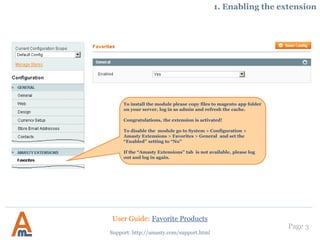
To install the module please copy files to magento app folder
on your server, log in as admin and refresh the cache.
Congratulations, the extension is activated!
To disable the module go to System > Configuration >
Amasty Extensions > Favorites > General and set the
β€œEnabled” setting to β€œNo”
If the β€œAmasty Extensions” tab is not available, please log
out and log in again.
1. Enabling the extension
User Guide: Favorite Products
Page 4
Support: http://amasty.com/support.html
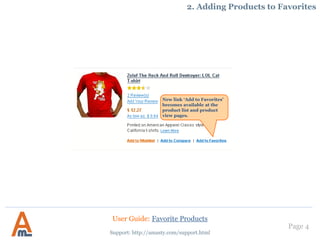
New link β€˜Add to Favorites’
becomes available at the
product list and product
view pages.
2. Adding Products to Favorites
User Guide: Favorite Products
Page 5
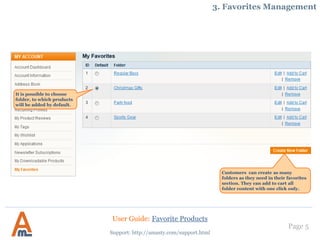
Customers can create as many
folders as they need in their favorites
section. They can add to cart all
folder content with one click only.
Support: http://amasty.com/support.html
3. Favorites Management
It is possible to choose
folder, to which products
will be added by default.
User Guide: Favorite Products
Page 6
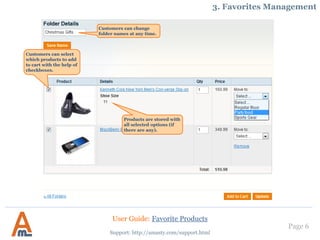
Customers can change
folder names at any time.
Support: http://amasty.com/support.html
3. Favorites Management
Customers can select
which products to add
to cart with the help of
checkboxes.
Products are stored with
all selected options (if
there are any).
User Guide: Favorite Products
Page 7
Support: http://amasty.com/support.html
3. Favorites Management
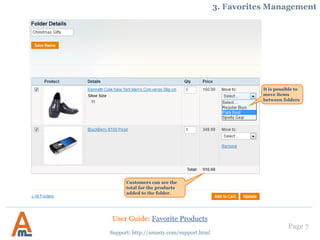
It is possible to
move items
between folders
Customers can see the
total for the products
added to the folder.
User Guide: Favorite Products
Page 8
Support: http://amasty.com/support.html
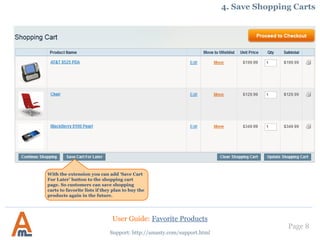
4. Save Shopping Carts
With the extension you can add β€˜Save Cart
For Later’ button to the shopping cart
page. So customers can save shopping
carts to favorite lists if they plan to buy the
products again in the future.
User Guide: Favorite Products
Page 9
Support: http://amasty.com/support.html
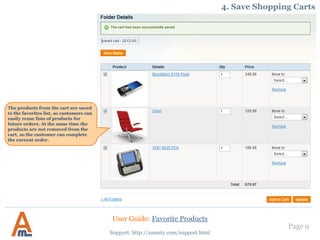
The products from the cart are saved
to the favorites list, so customers can
easily reuse lists of products for
future orders. At the same time the
products are not removed from the
cart, so the customer can complete
the current order.
4. Save Shopping Carts
User Guide: Favorite Products
Page 10
Support: http://amasty.com/support.html
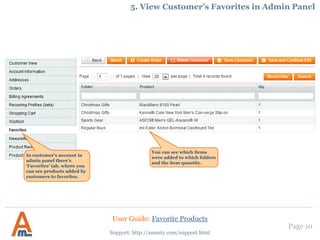
5. View Customer’s Favorites in Admin Panel
In customer’s account in
admin panel there’s
β€˜Favorites’ tab, where you
can see products added by
customers to favorites.
You can see which items
were added to which folders
and the item quantity.
User Guide: Favorite Products
Page 11
Support: http://amasty.com/support.html
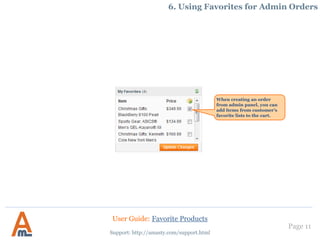
6. Using Favorites for Admin Orders
When creating an order
from admin panel, you can
add items from customer’s
favorite lists to the cart.
User Guide: Favorite Products
Thank you!
Your feedback is absolutely welcome!
Page 12
Support: http://amasty.com/support.html
Should you have any questions or feature suggestions, please contact us at:
http://amasty.com/support.html
User Guide: Favorite Products

Favorite Products: Magento Extension by Amasty. User Guide.

  • 1.
    User Guide: FavoriteProducts Page 1 Favorite Products Support: http://amasty.com/support.html Magento Extension User Guide Official extension page: Favorite Products
  • 2.
    Table of contents: 1.Enabling the extension .……………………………..…………………………………….. 3 2. Adding Products to Favorites ……..………………..………………………………….. 4 3. Favorites Management .…………………..…….……..…………………………………. 5 4. Save Shopping Carts ……………………………………………………………………….. 8 5. View Customer’s Favorites in Admin Panel ..………………………..……………. 10 6. Using Favorites for Admin Orders .……………………………………..……………. 11 Page 2 Support: http://amasty.com/support.html User Guide: Favorite Products
  • 3.
    Page 3 Support: http://amasty.com/support.html Toinstall the module please copy files to magento app folder on your server, log in as admin and refresh the cache. Congratulations, the extension is activated! To disable the module go to System > Configuration > Amasty Extensions > Favorites > General and set the β€œEnabled” setting to β€œNo” If the β€œAmasty Extensions” tab is not available, please log out and log in again. 1. Enabling the extension User Guide: Favorite Products
  • 4.
    Page 4 Support: http://amasty.com/support.html Newlink β€˜Add to Favorites’ becomes available at the product list and product view pages. 2. Adding Products to Favorites User Guide: Favorite Products
  • 5.
    Page 5 Customers cancreate as many folders as they need in their favorites section. They can add to cart all folder content with one click only. Support: http://amasty.com/support.html 3. Favorites Management It is possible to choose folder, to which products will be added by default. User Guide: Favorite Products
  • 6.
    Page 6 Customers canchange folder names at any time. Support: http://amasty.com/support.html 3. Favorites Management Customers can select which products to add to cart with the help of checkboxes. Products are stored with all selected options (if there are any). User Guide: Favorite Products
  • 7.
    Page 7 Support: http://amasty.com/support.html 3.Favorites Management It is possible to move items between folders Customers can see the total for the products added to the folder. User Guide: Favorite Products
  • 8.
    Page 8 Support: http://amasty.com/support.html 4.Save Shopping Carts With the extension you can add β€˜Save Cart For Later’ button to the shopping cart page. So customers can save shopping carts to favorite lists if they plan to buy the products again in the future. User Guide: Favorite Products
  • 9.
    Page 9 Support: http://amasty.com/support.html Theproducts from the cart are saved to the favorites list, so customers can easily reuse lists of products for future orders. At the same time the products are not removed from the cart, so the customer can complete the current order. 4. Save Shopping Carts User Guide: Favorite Products
  • 10.
    Page 10 Support: http://amasty.com/support.html 5.View Customer’s Favorites in Admin Panel In customer’s account in admin panel there’s β€˜Favorites’ tab, where you can see products added by customers to favorites. You can see which items were added to which folders and the item quantity. User Guide: Favorite Products
  • 11.
    Page 11 Support: http://amasty.com/support.html 6.Using Favorites for Admin Orders When creating an order from admin panel, you can add items from customer’s favorite lists to the cart. User Guide: Favorite Products
  • 12.
    Thank you! Your feedbackis absolutely welcome! Page 12 Support: http://amasty.com/support.html Should you have any questions or feature suggestions, please contact us at: http://amasty.com/support.html User Guide: Favorite Products