Margaret Koopman 2011
 
Outline Web-based reference management service used for storing, organizing and searching your references Create a personal database accessible from any computer linked to the Internet without having to download or install special software use Write-N-Cite together with Wordprocessor to automatically insert in-text citations into documents and create bibliographies in the citation style of your choice* *When you are in  Write-N-Cite you can work offline to overcome the frustration of response time lags Import bibliographies from Mendeley to Refworks UCT staff and students may use RefWorks on campus and also off-campus (by logging in via EZProxy)
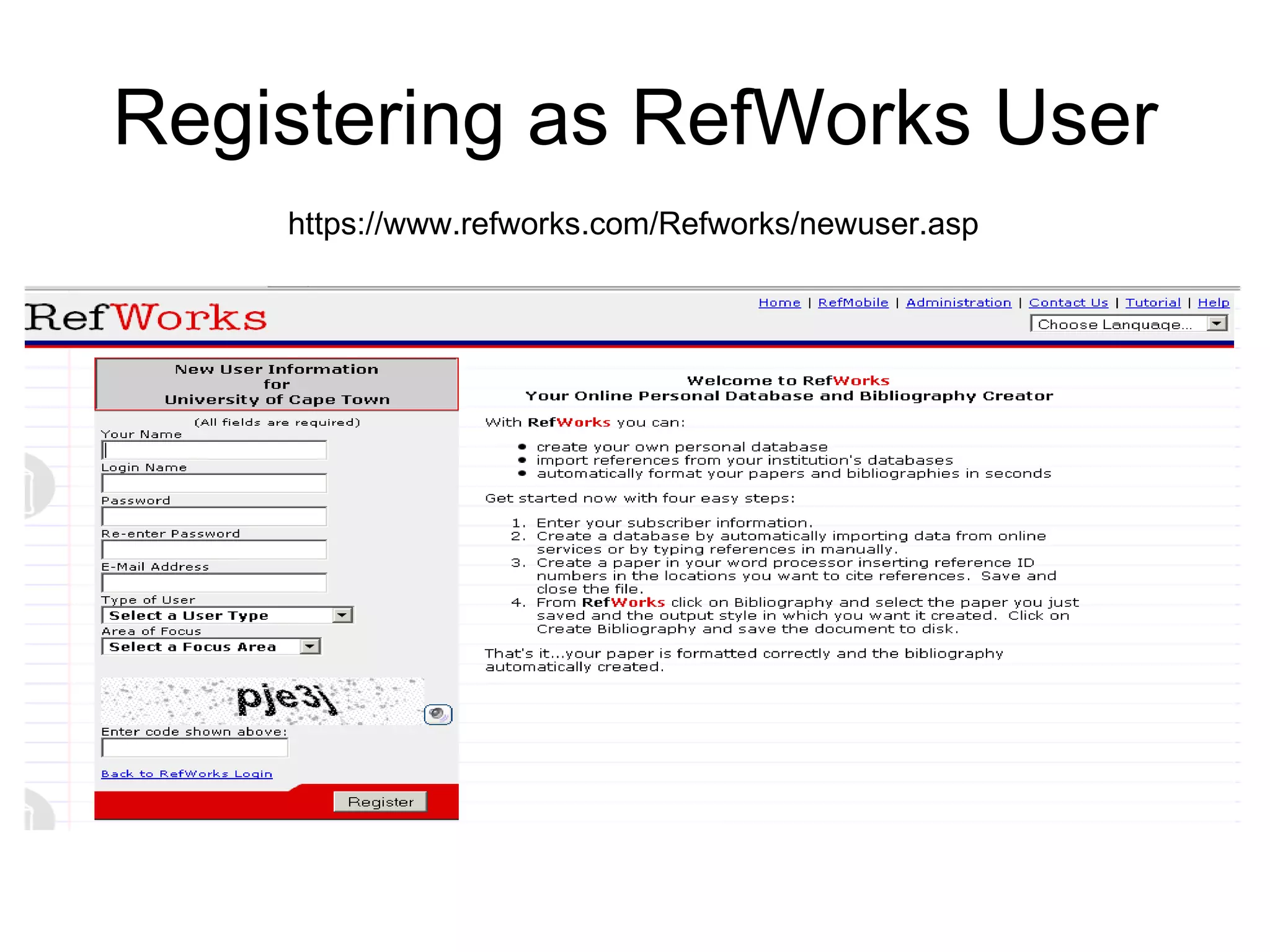
Registering as RefWorks User https://www.refworks.com/Refworks/newuser.asp
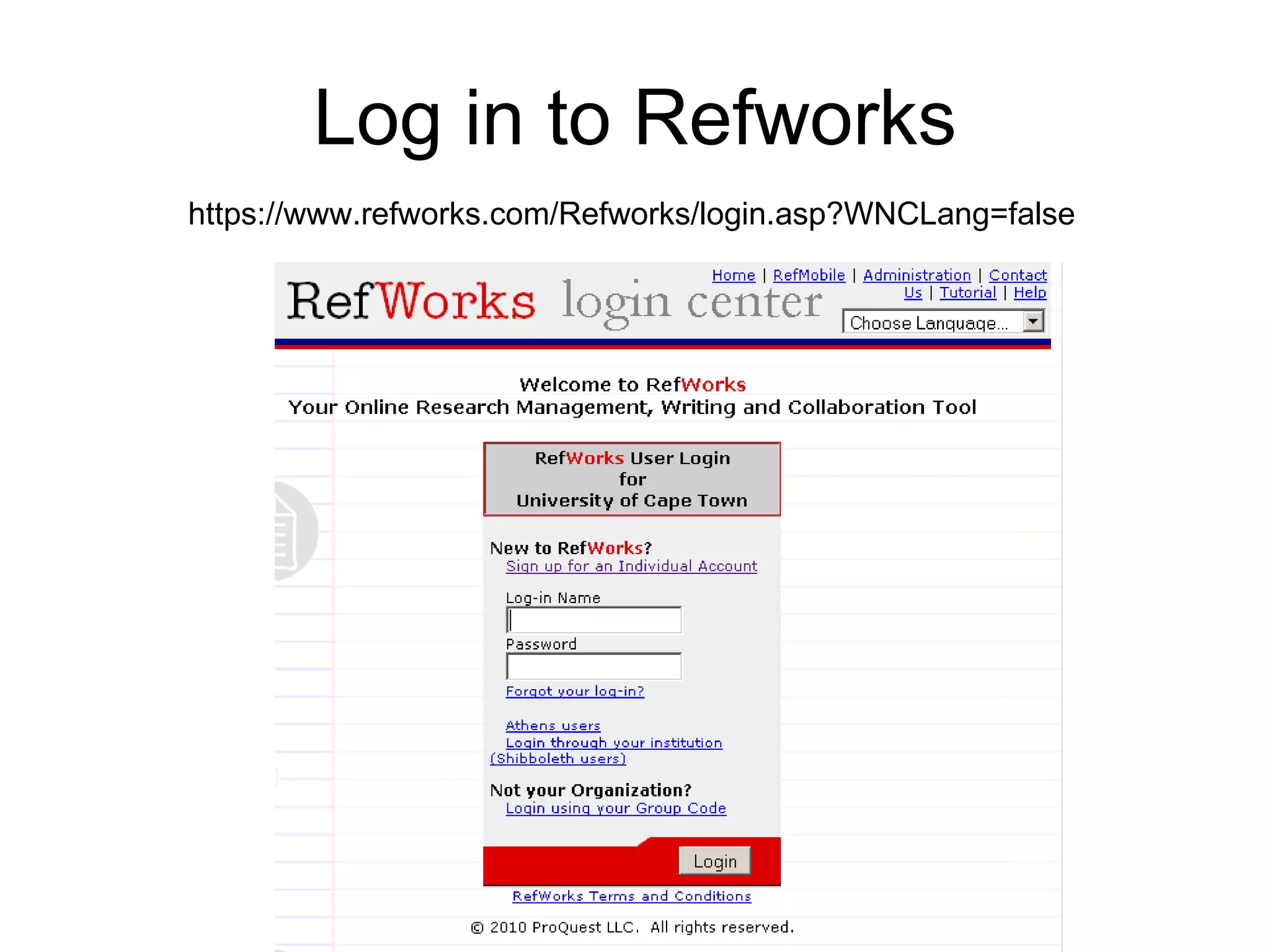
Log in to Refworks https://www.refworks.com/Refworks/login.asp?WNCLang=false
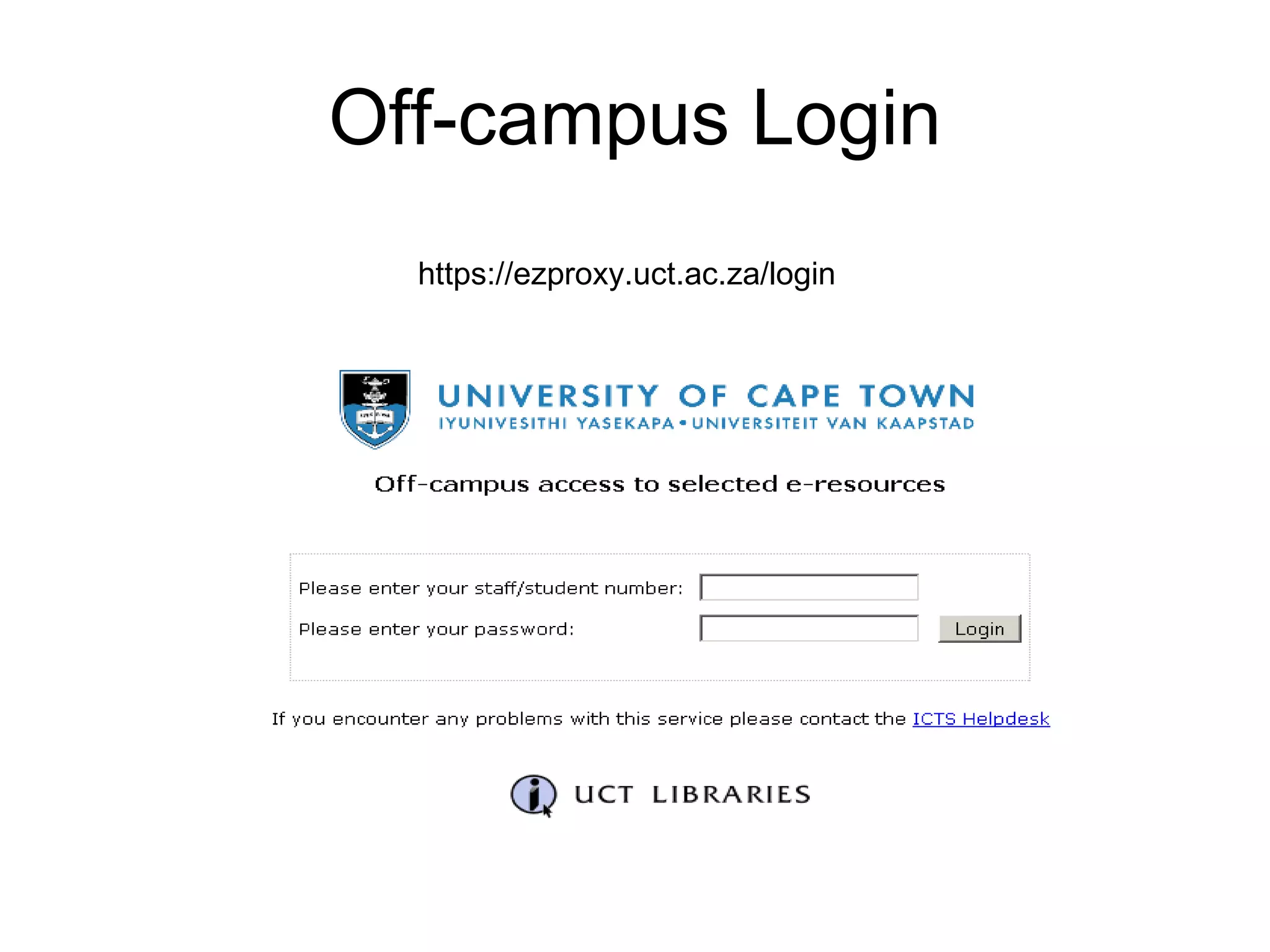
Off-campus Login https://ezproxy.uct.ac.za/login
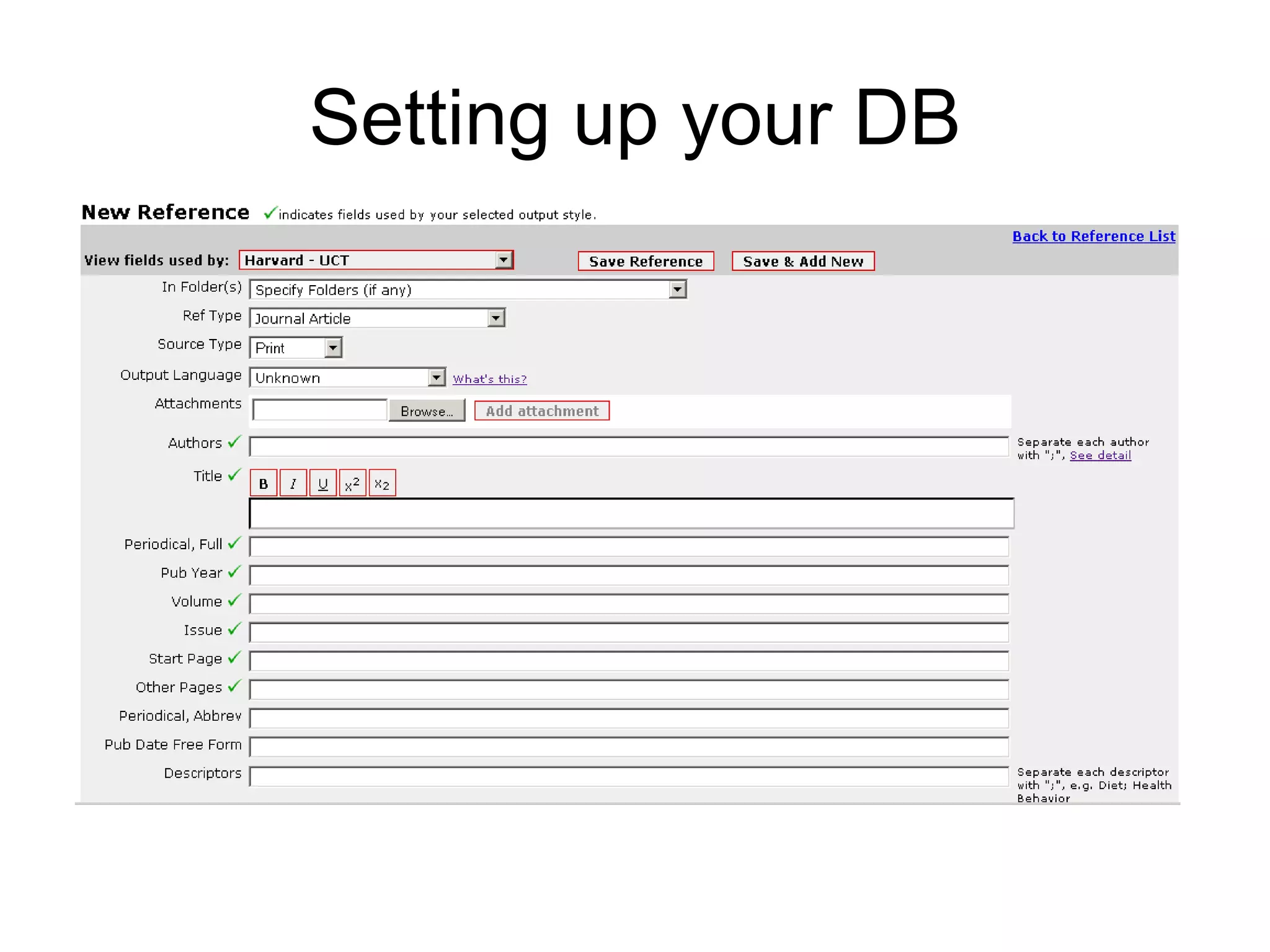
Setting up your DB
What can you do? Export/Import references from Google Scholar Web of Knowledge (Thomson Reuters) Word Processor doc Text EndNote (or similar DB) Mendeley
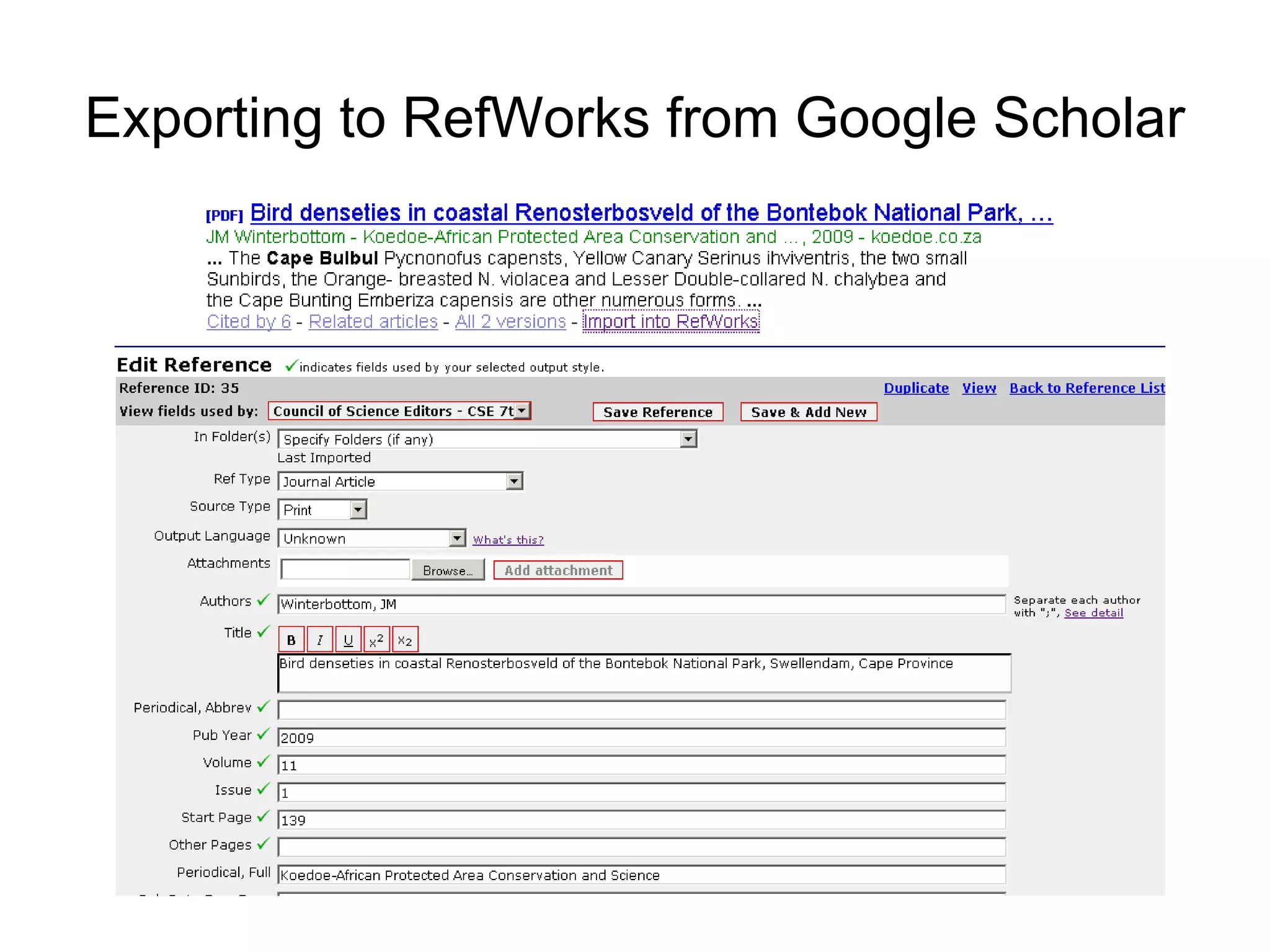
Exporting to RefWorks from Google Scholar click on Scholar Preferences.
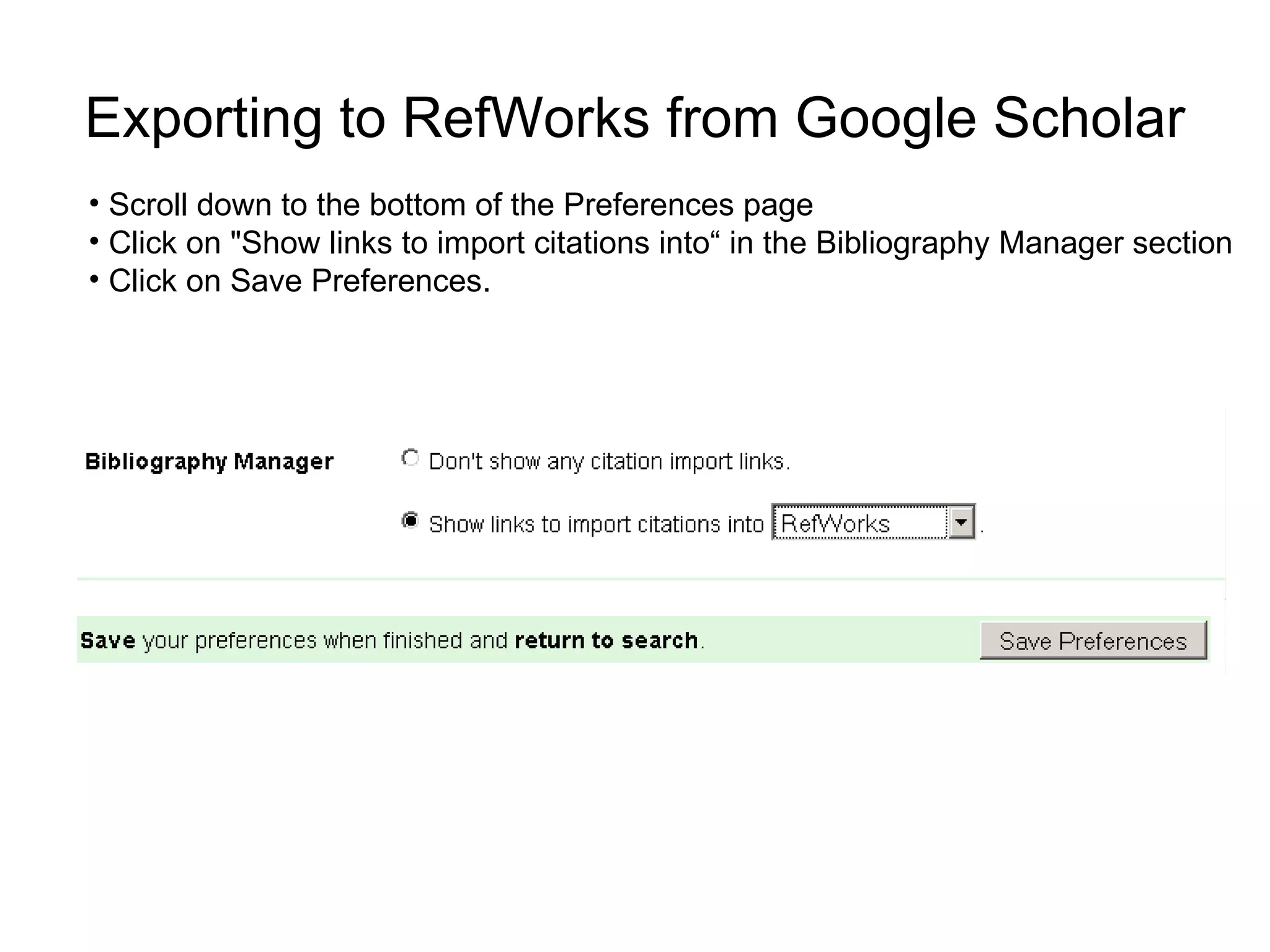
Exporting to RefWorks from Google Scholar Scroll down to the bottom of the Preferences page Click on "Show links to import citations into“ in the Bibliography Manager section Click on Save Preferences.
Exporting to RefWorks from Google Scholar
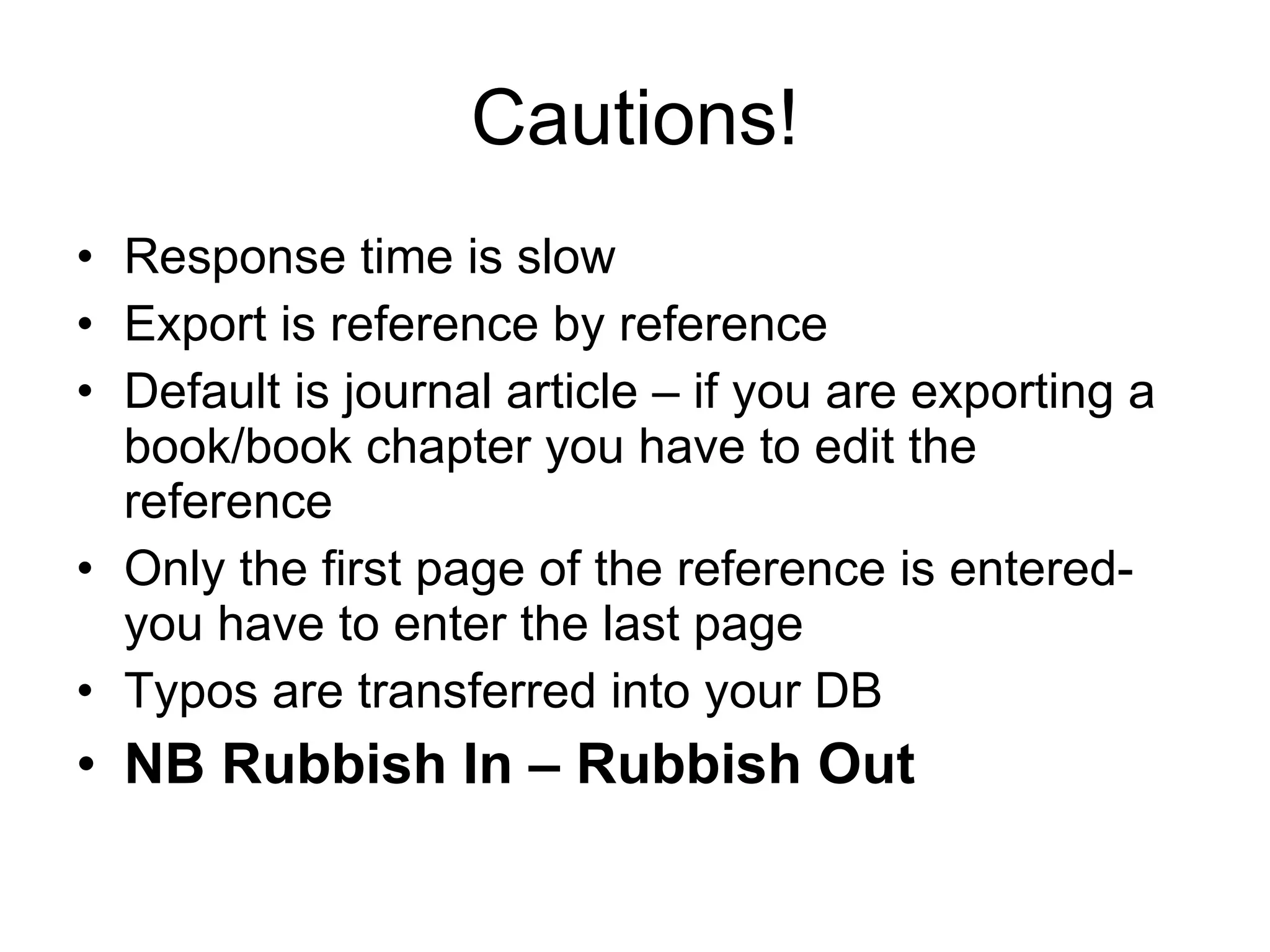
Cautions! Response time is slow Export is reference by reference Default is journal article – if you are exporting a book/book chapter you have to edit the reference Only the first page of the reference is entered- you have to enter the last page Typos are transferred into your DB NB Rubbish In – Rubbish Out
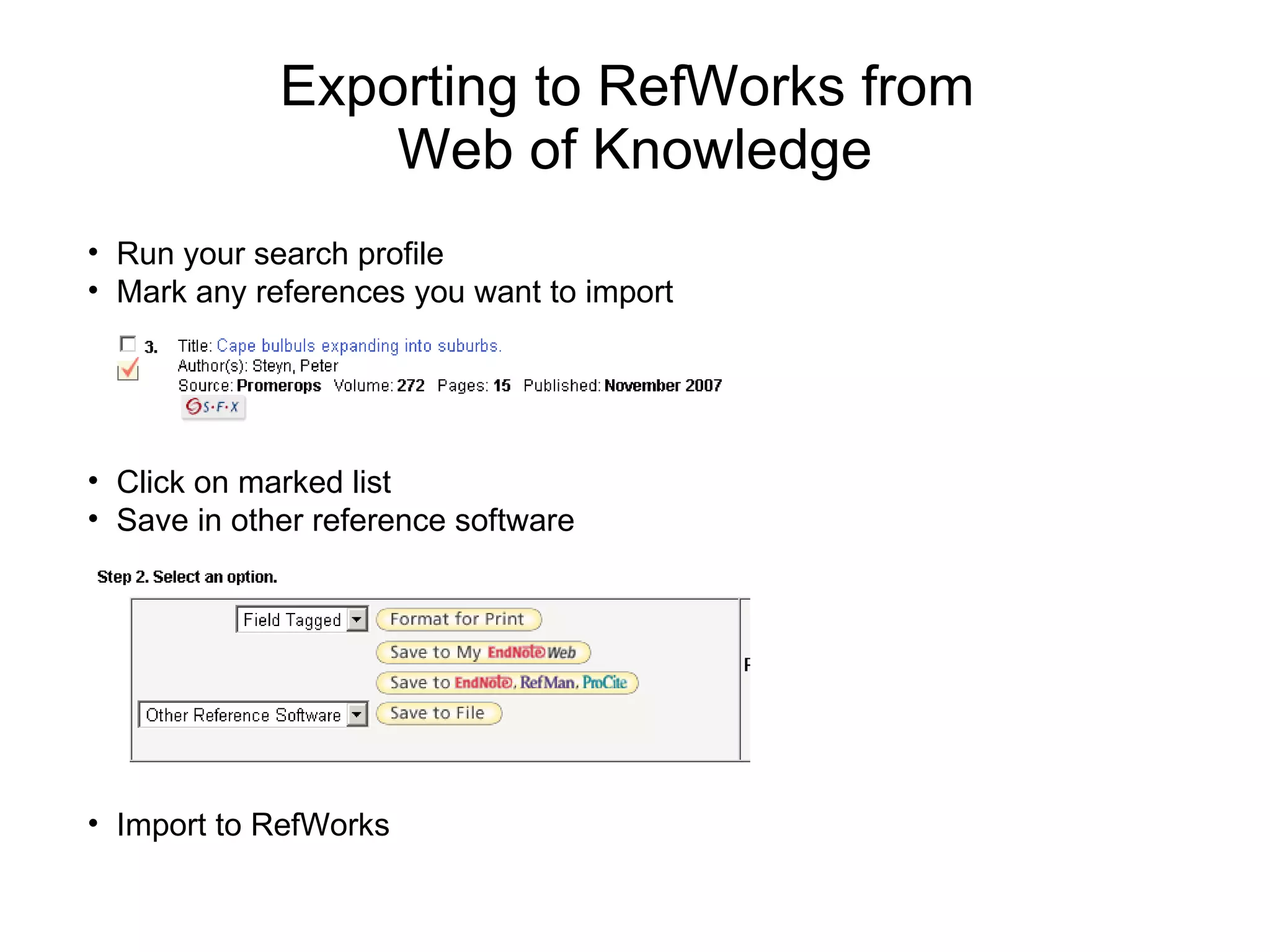
Exporting to RefWorks from  Web of Knowledge Run your search profile Mark any references you want to import Click on marked list Save in other reference software Import to RefWorks
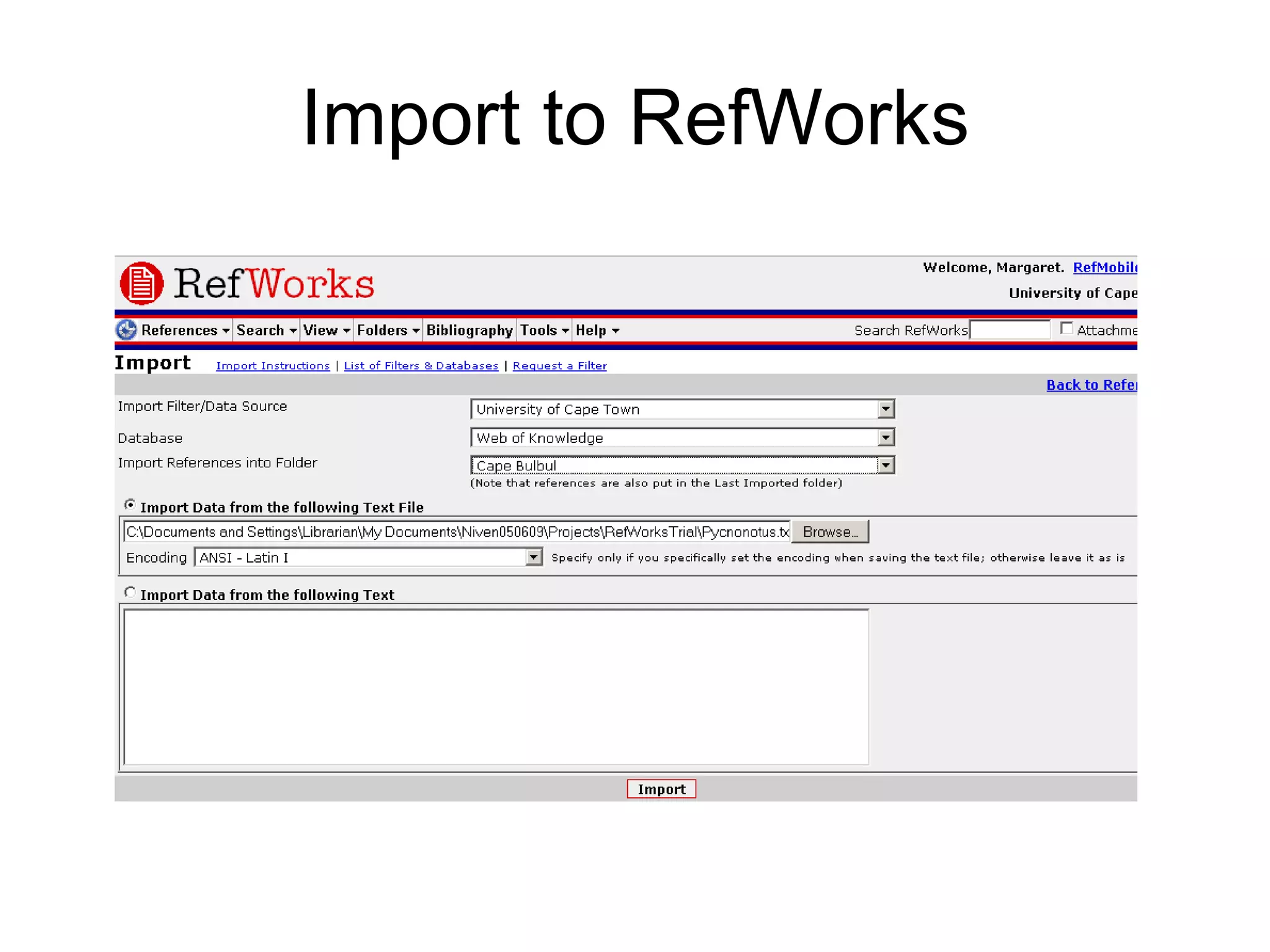
Import to RefWorks
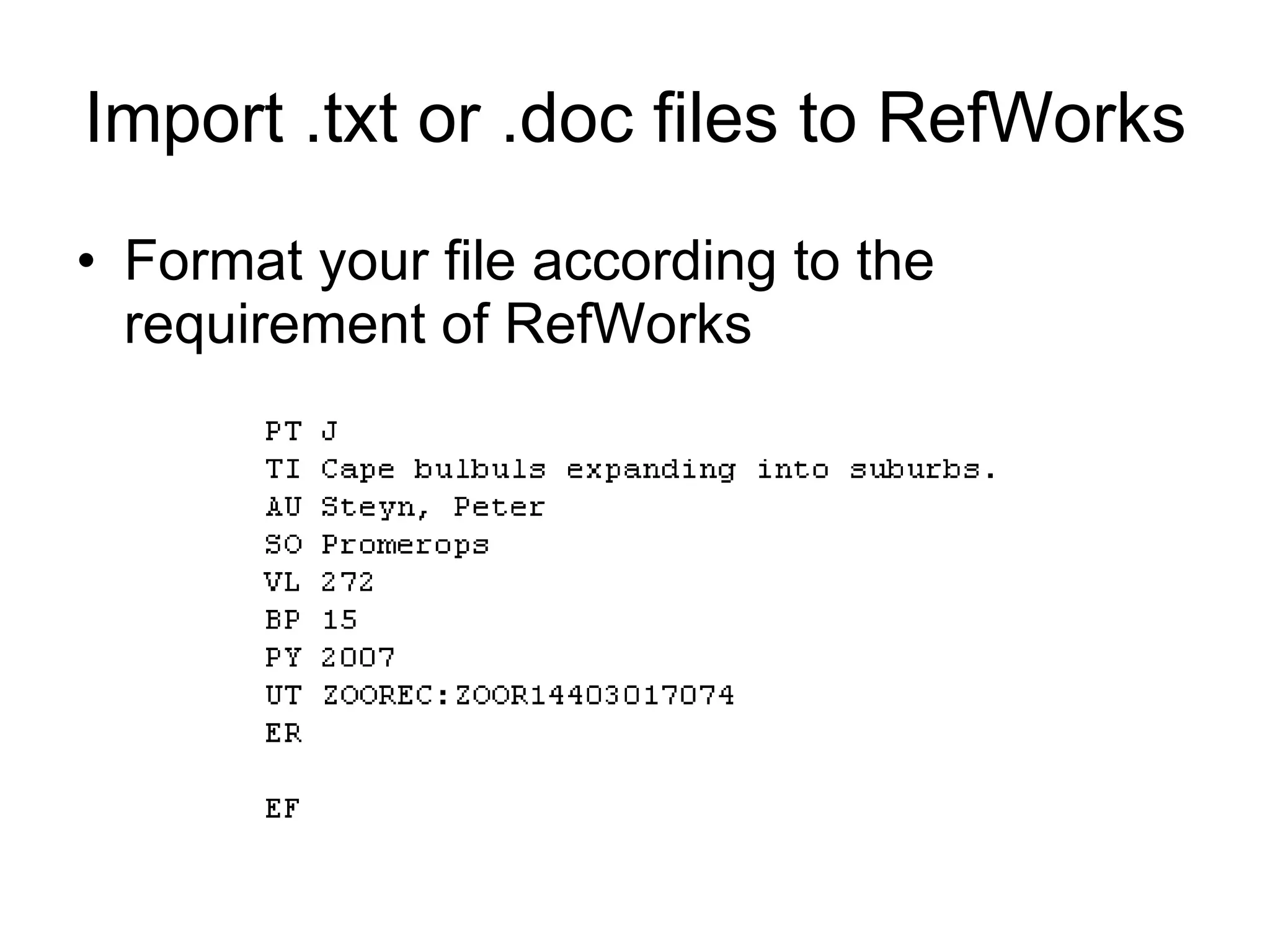
Import .txt or .doc files to RefWorks Format your file according to the requirement of RefWorks
Export bibliography from Mendeley Mendeley does not have a suitable range of bibliographic styles In order to export from Mendeley, create a collection to hold the references you wish to export In RefWorks create a folder in which you wish to import the bibliography
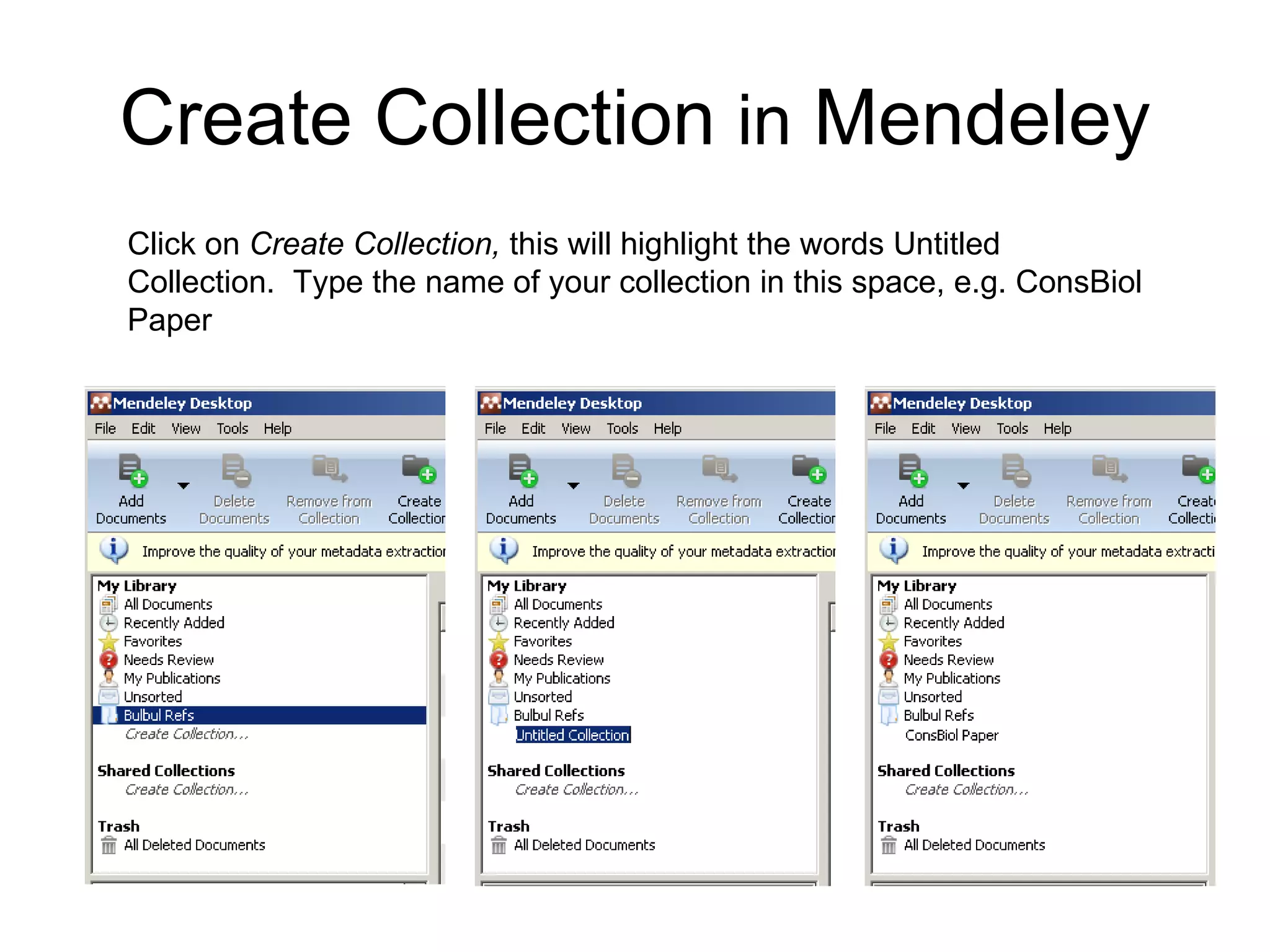
Create Collection  in  Mendeley Click on  Create Collection,  this will highlight the words Untitled Collection.  Type the name of your collection in this space, e.g. ConsBiol Paper
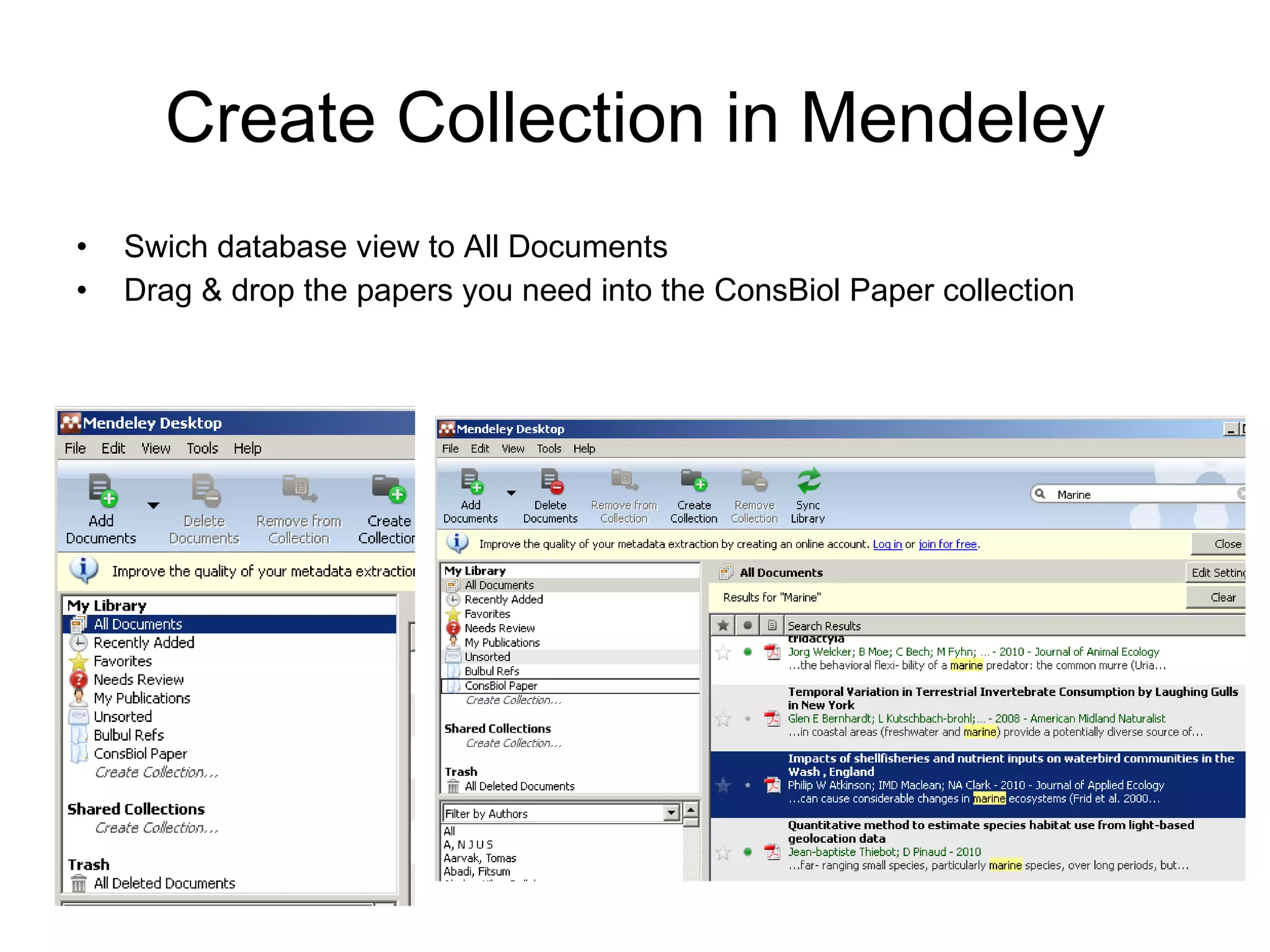
Create Collection in Mendeley Swich database view to All Documents Drag & drop the papers you need into the ConsBiol Paper collection
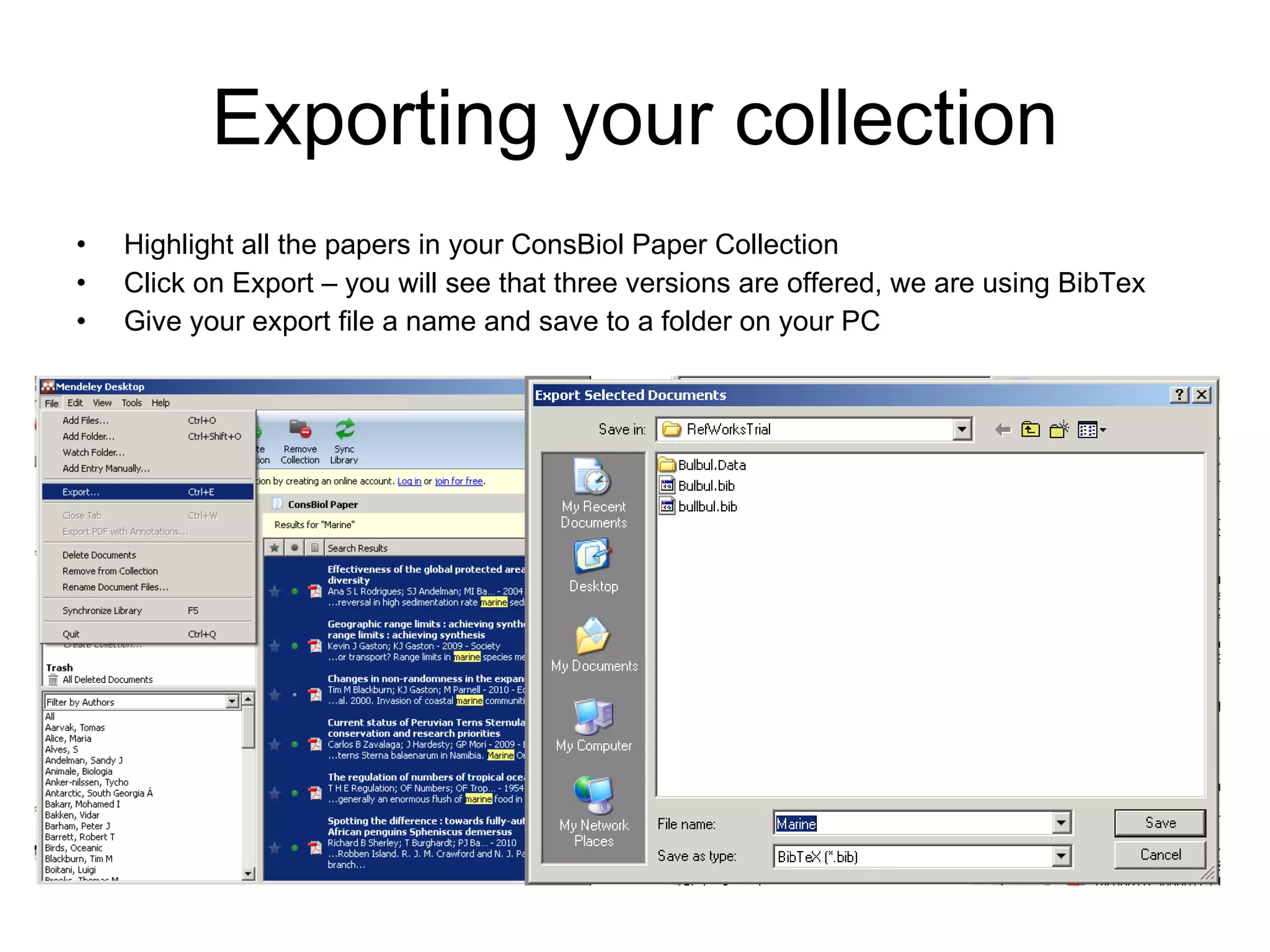
Exporting your collection Highlight all the papers in your ConsBiol Paper Collection Click on Export – you will see that three versions are offered, we are using BibTex Give your export file a name and save to a folder on your PC
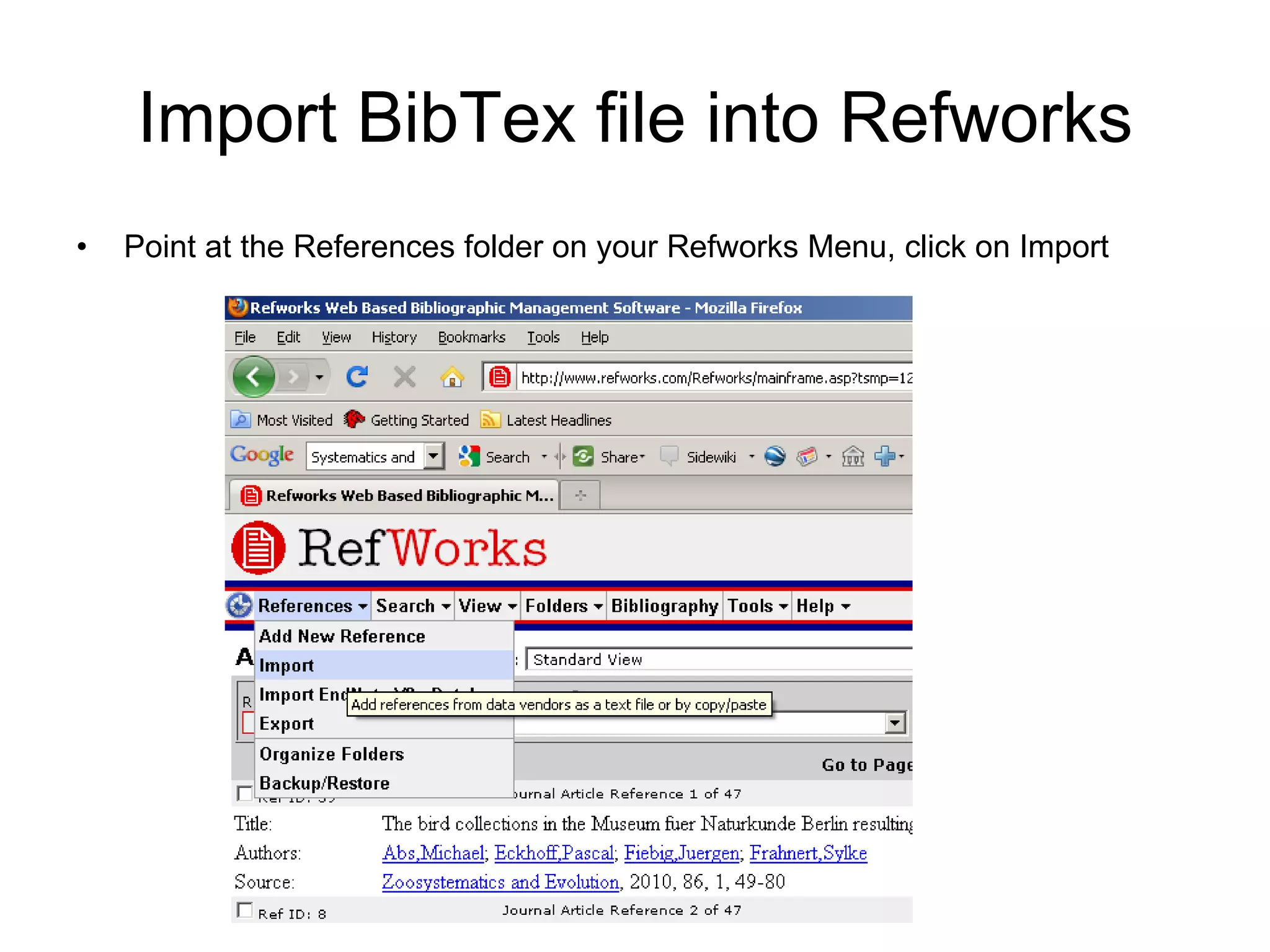
Import BibTex file into Refworks Point at the References folder on your Refworks Menu, click on Import
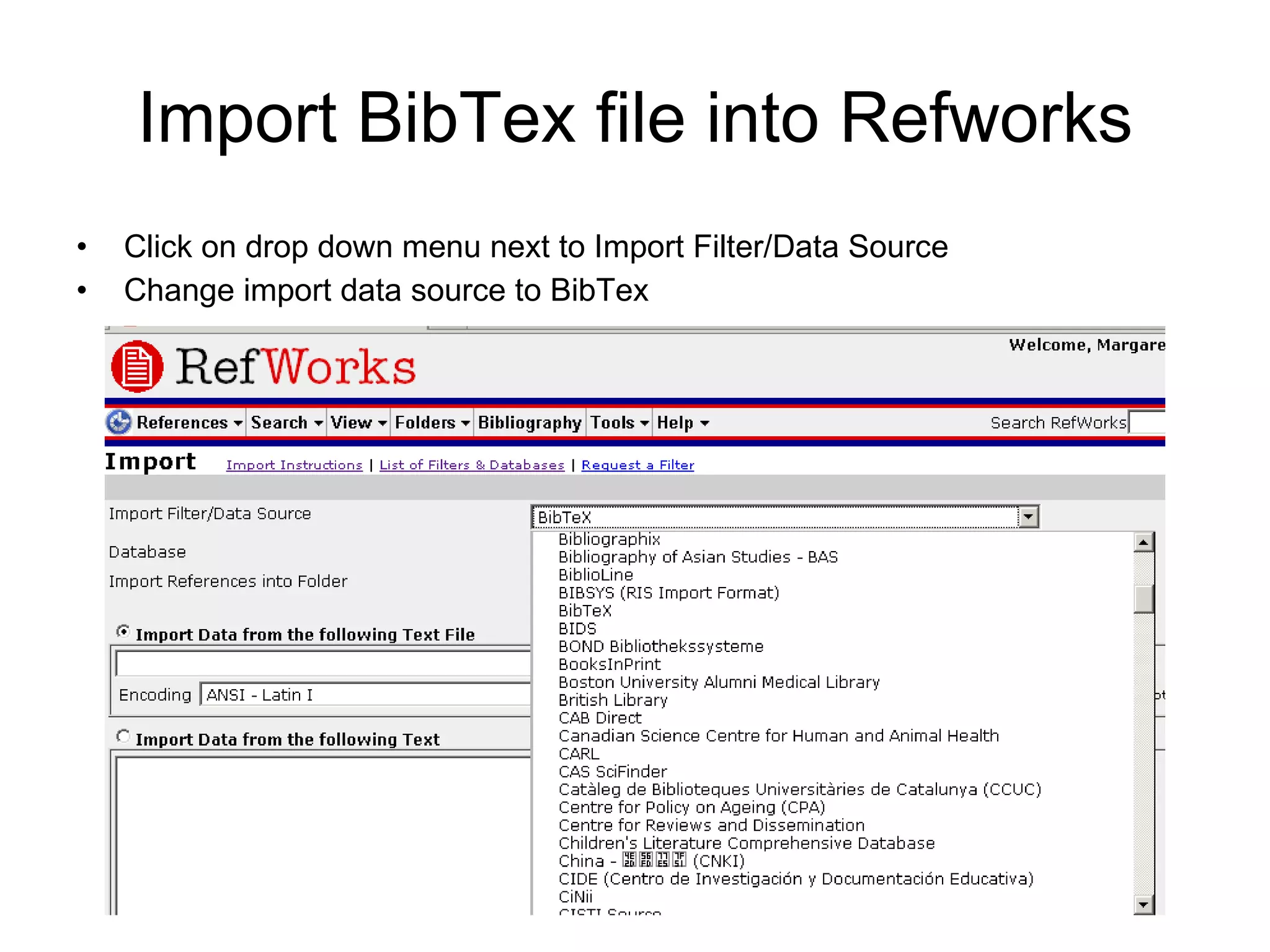
Import BibTex file into Refworks Click on drop down menu next to Import Filter/Data Source Change import data source to BibTex
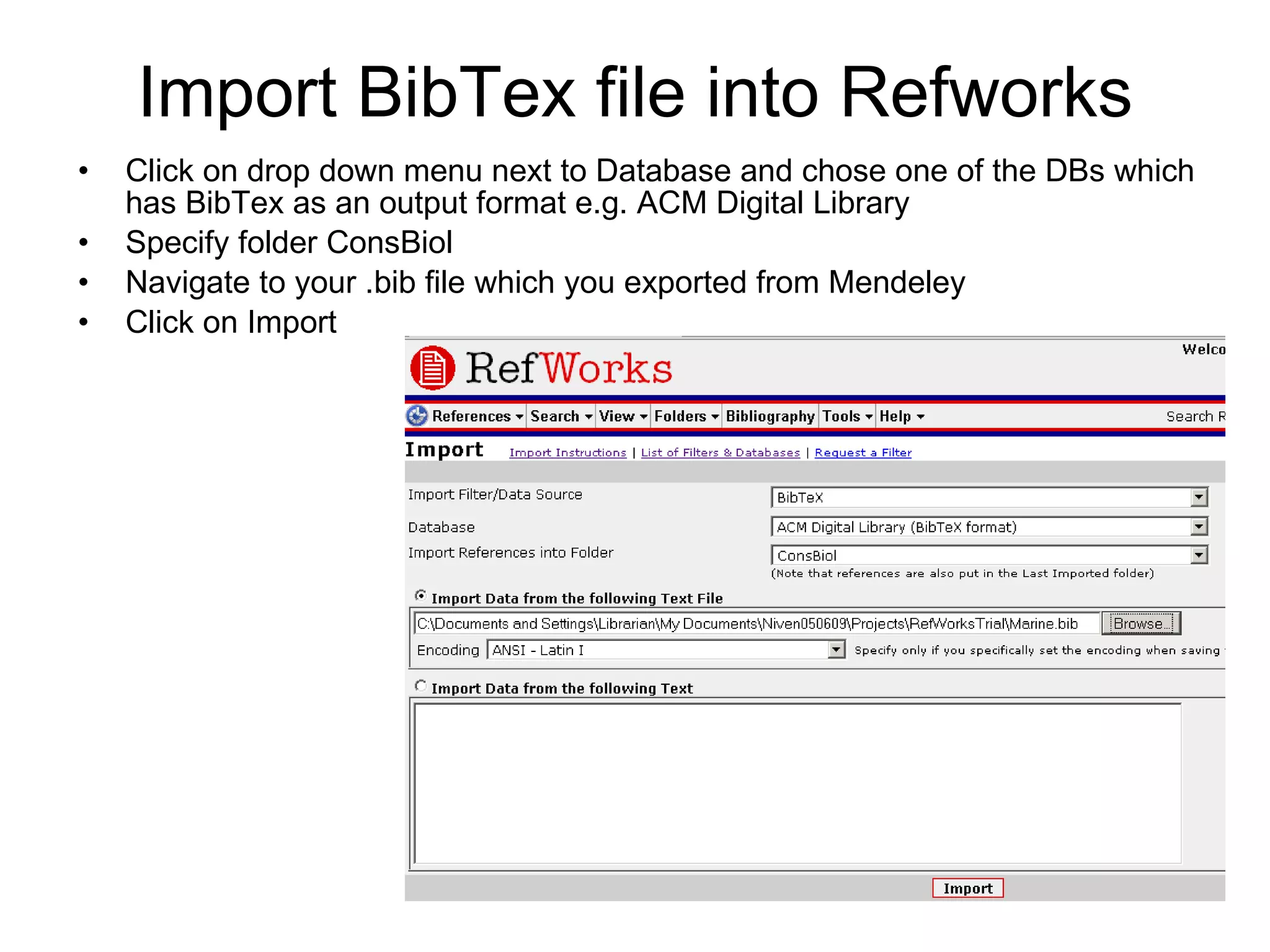
Import BibTex file into Refworks Click on drop down menu next to Database and chose one of the DBs which has BibTex as an output format e.g. ACM Digital Library Specify folder ConsBiol Navigate to your .bib file which you exported from Mendeley Click on Import
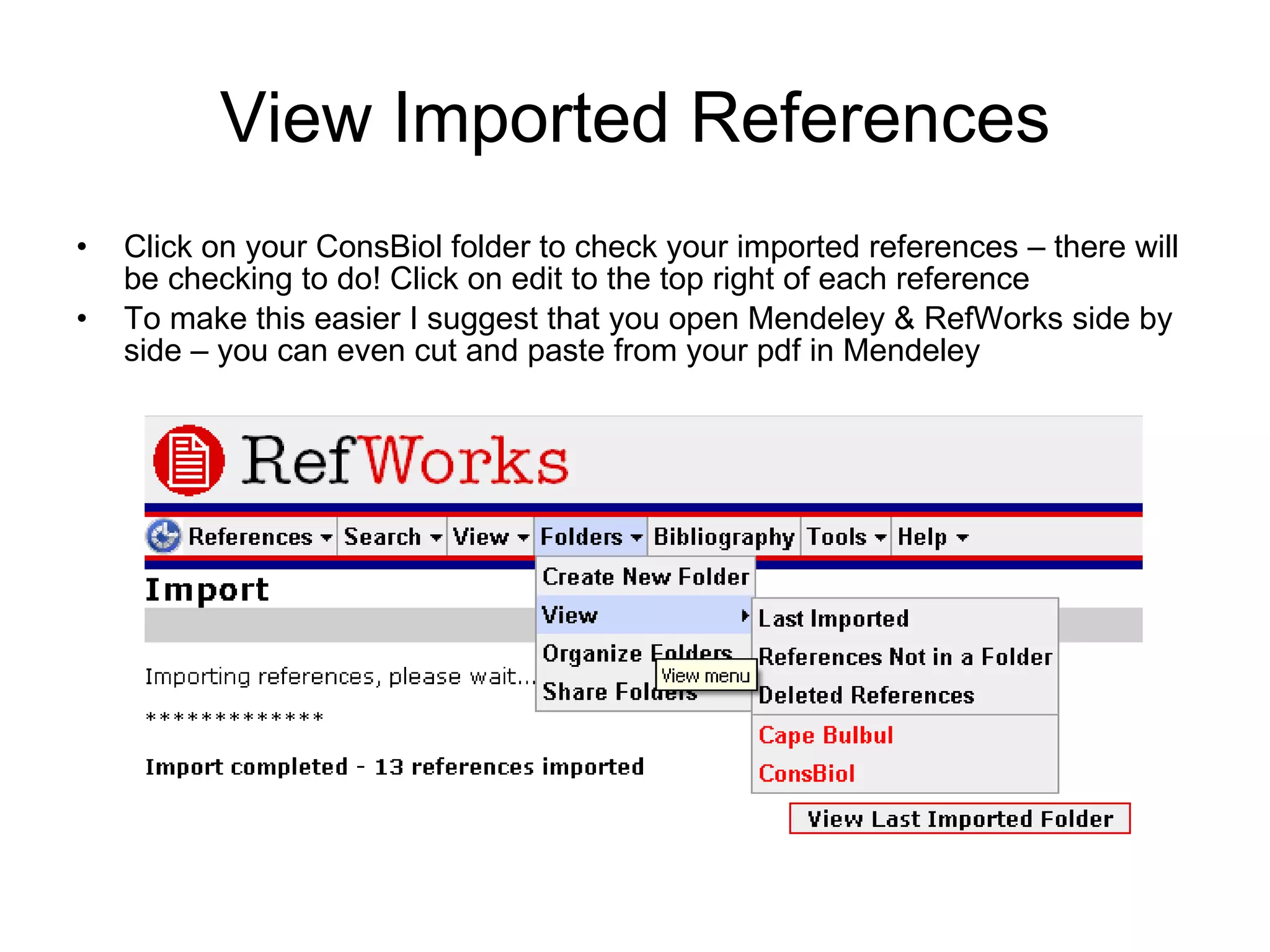
View Imported References Click on your ConsBiol folder to check your imported references – there will be checking to do! Click on edit to the top right of each reference To make this easier I suggest that you open Mendeley & RefWorks side by side – you can even cut and paste from your pdf in Mendeley
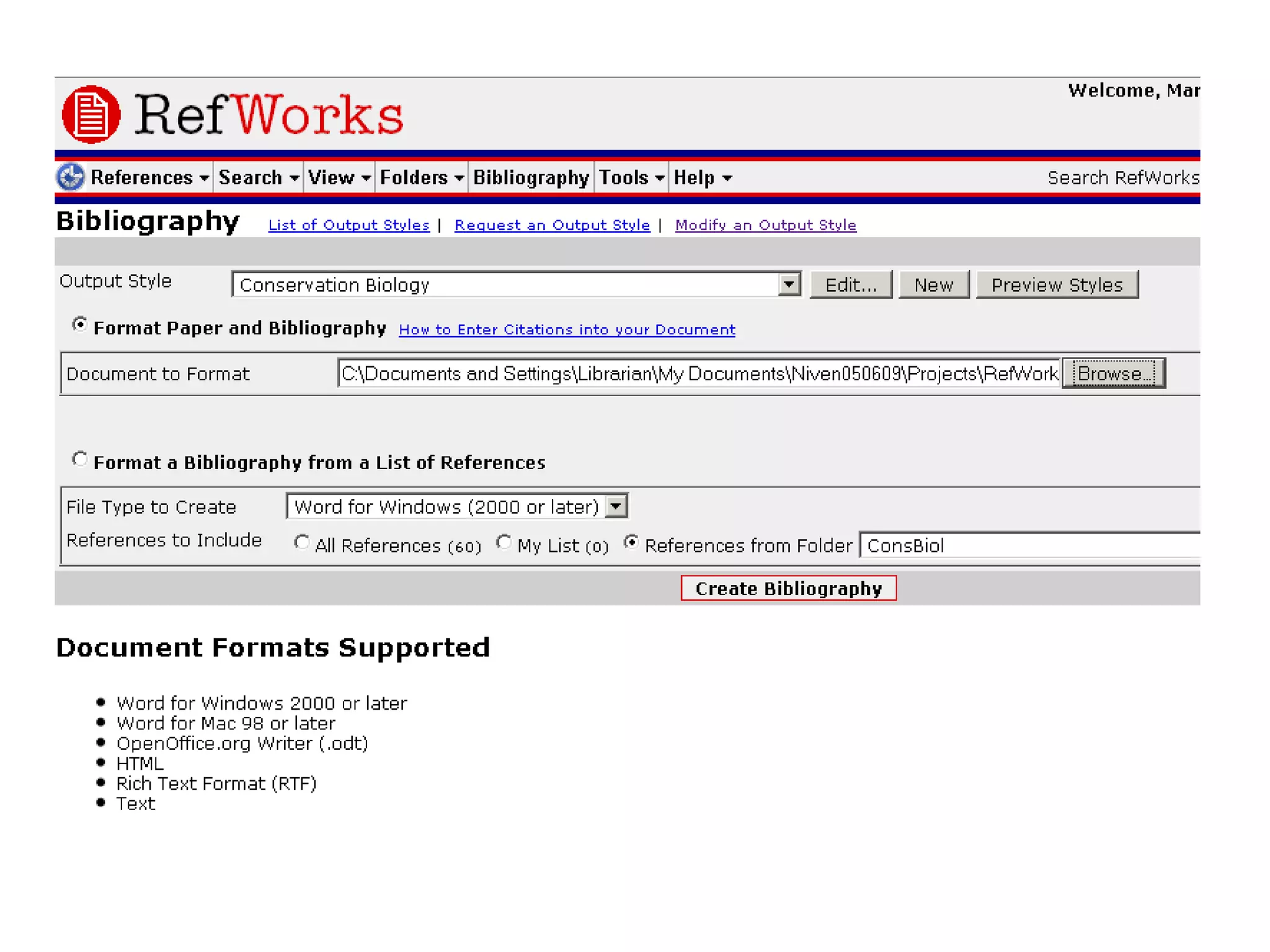
Create your bibliography Jump to slide 29 for the instructions to convert your style to Conservation Biology Click on Bibliography Change Output Style  to Conservation Biology Find the document you are working with Change File Type to Create to the word processing package you are using Specify the folder your  references are in Click on Create Bibliography NB you should have a valid document which is already populated with the citations from Mendeley
 
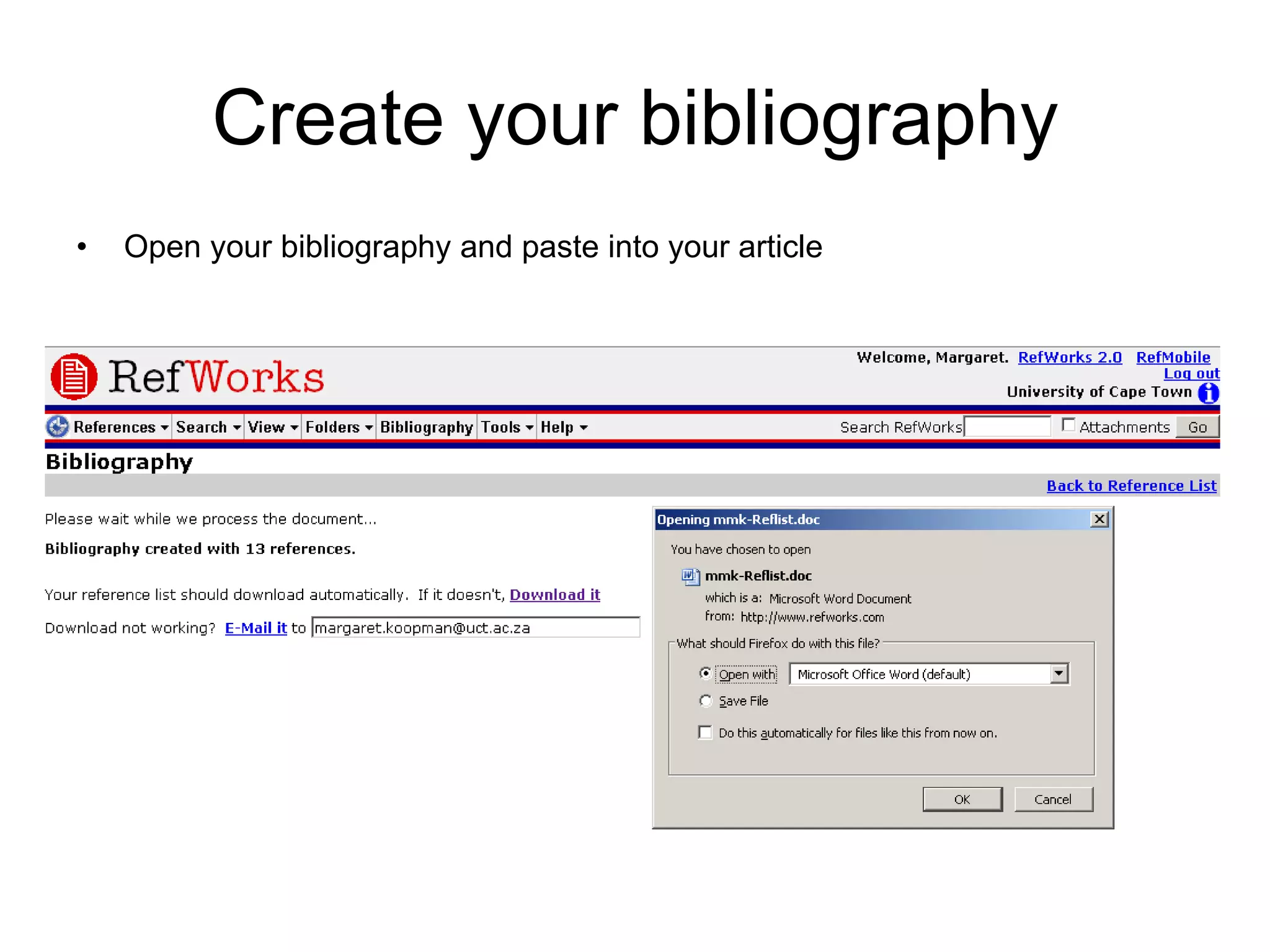
Create your bibliography Open your bibliography and paste into your article
Write-N-Cite Download software for Write-N-Cite III for Windows MS Vista and Word 2007 compatibility Also compatible with XP and Word 2003 Single document formatting Faster formatting for large documents Includes Ability to Write and Format Papers Offline Write-N-Cite v.2 for Windows Two document formatting (draft and final versions) Compatible with XP and Word 2003 and lower Write-N-Cite v.2.5 for Mac Microsoft Word for Mac 2008 compatibility Mac OS X version 10.3 or later (including Leopard) compatibility Write-N-Cite v.2 for Mac Compatibility with Microsoft Word for Mac X and lower Mac OS X version 10.3 or earlier
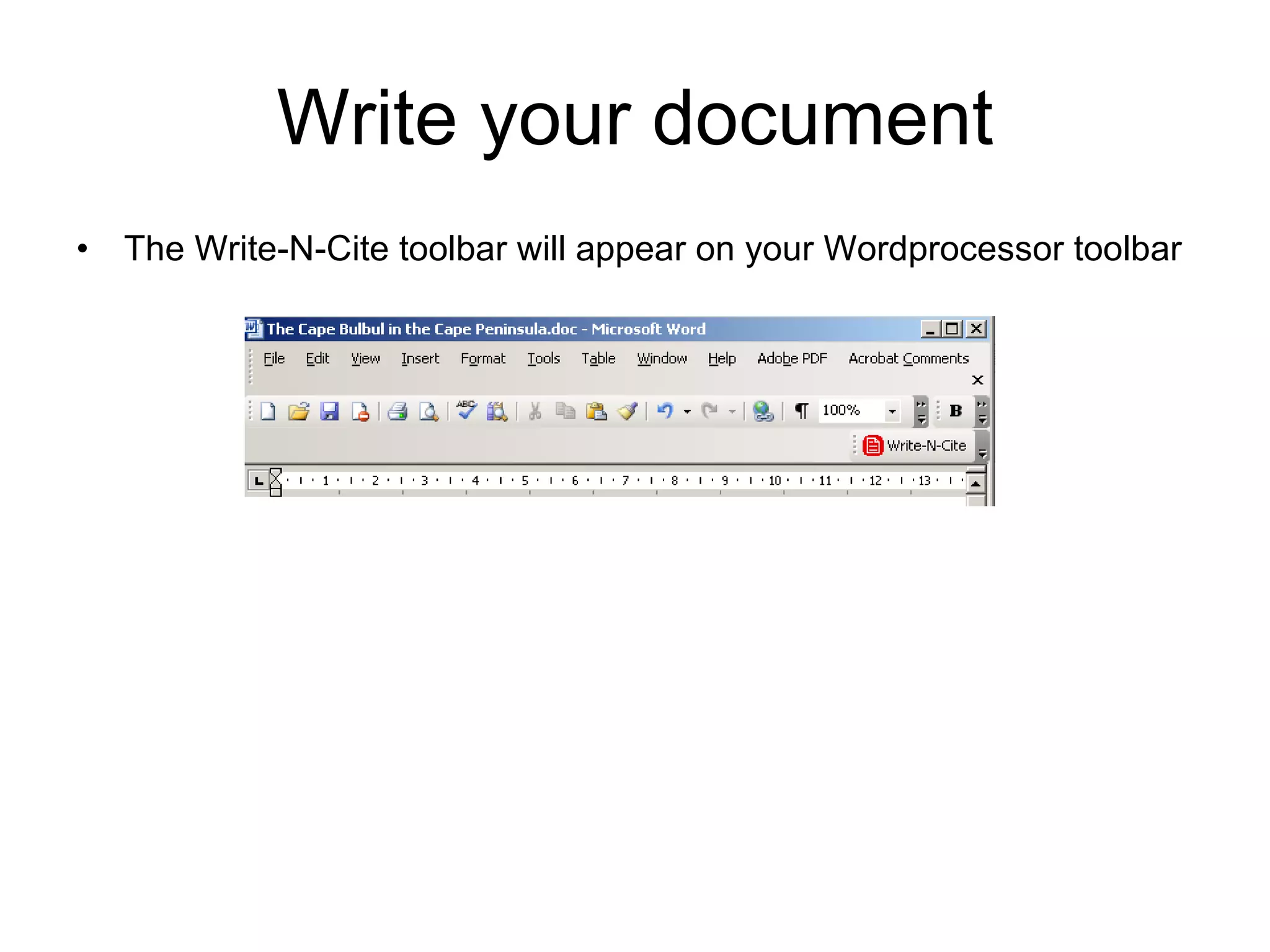
Write your document The Write-N-Cite toolbar will appear on your Wordprocessor toolbar
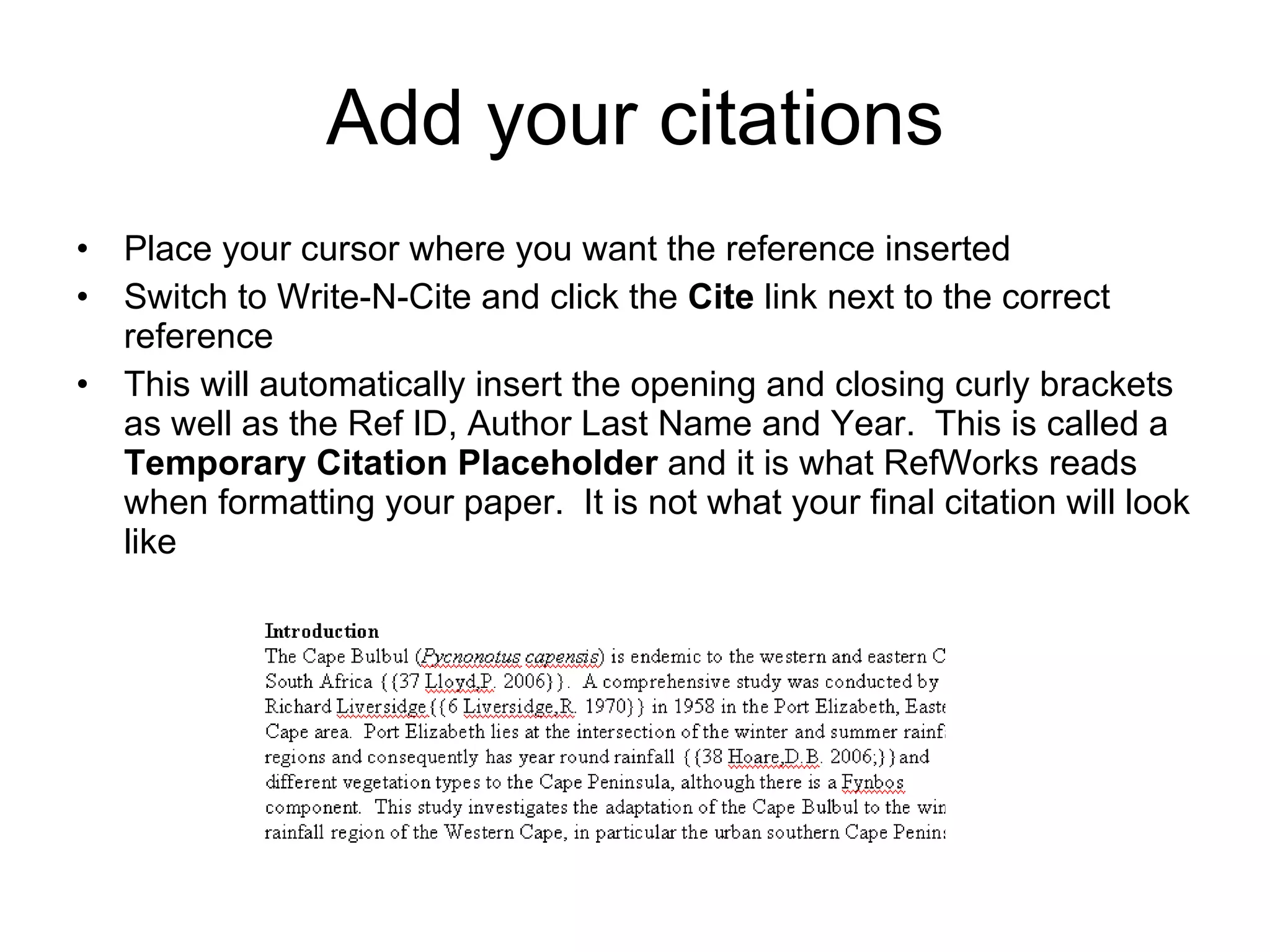
Add your citations Place your cursor  where you want the reference inserted Switch to Write-N-Cite and click the  Cite  link next to the correct reference This will automatically insert the opening and closing curly brackets as well as the Ref ID, Author Last Name and Year.  This is called a  Temporary Citation Placeholder  and it is what RefWorks reads when formatting your paper.  It is not what your final citation will look like
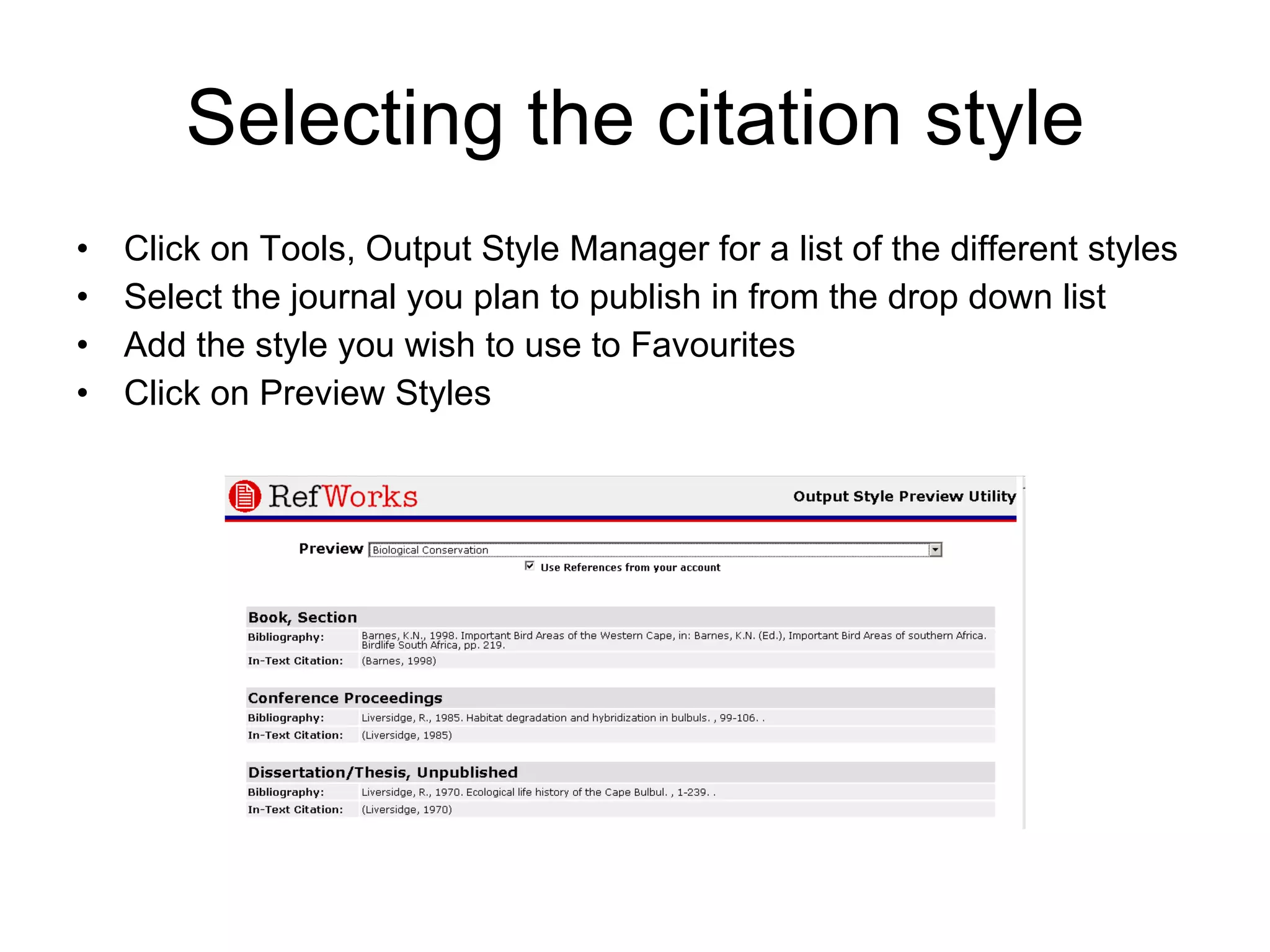
Selecting the citation style Click on Tools, Output Style Manager for a list of the different styles Select the journal you plan to publish in from the drop down list Add the style you wish to use to Favourites Click on Preview Styles
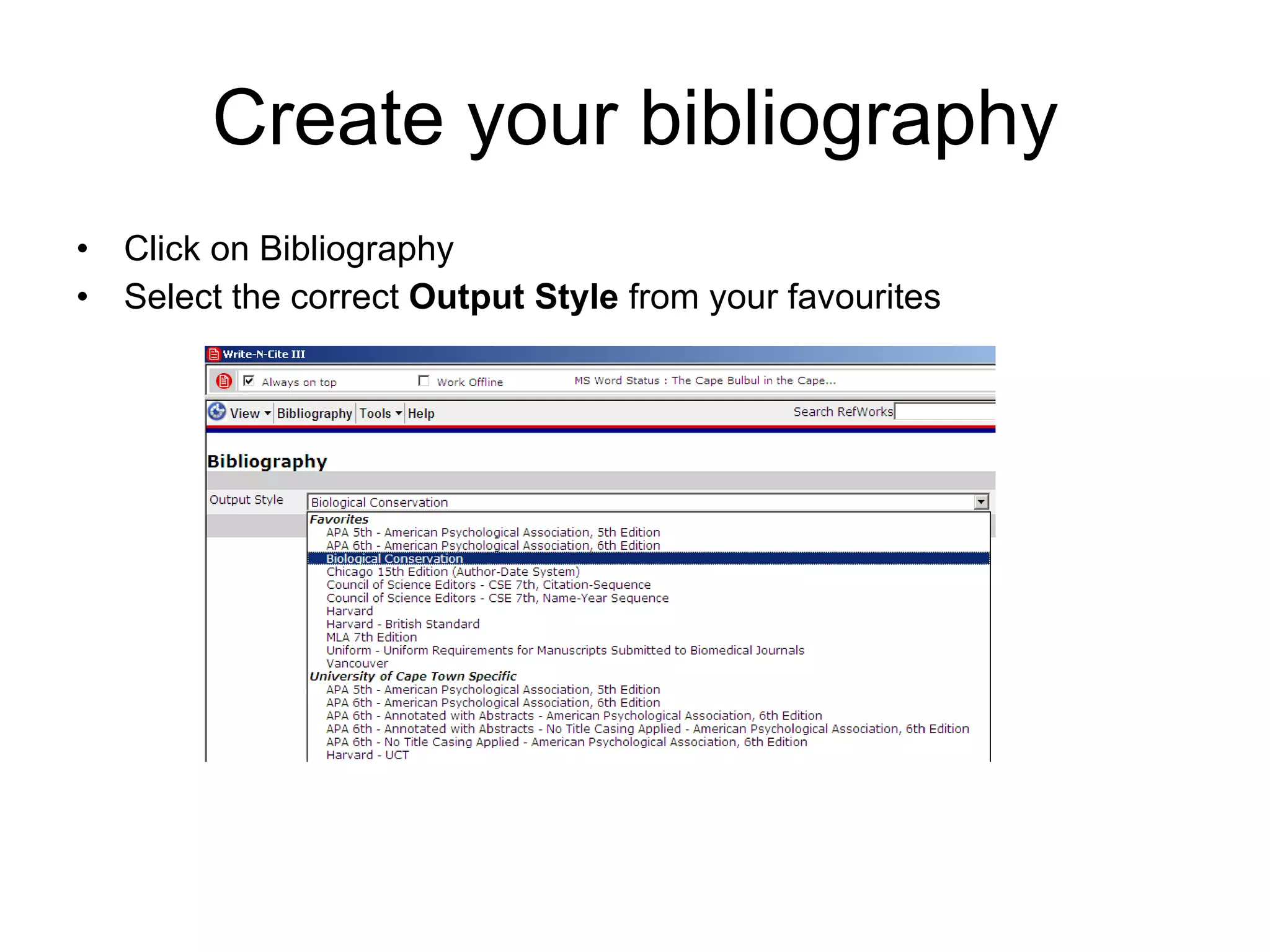
Create your bibliography Click on Bibliography Select the correct  Output Style  from your favourites
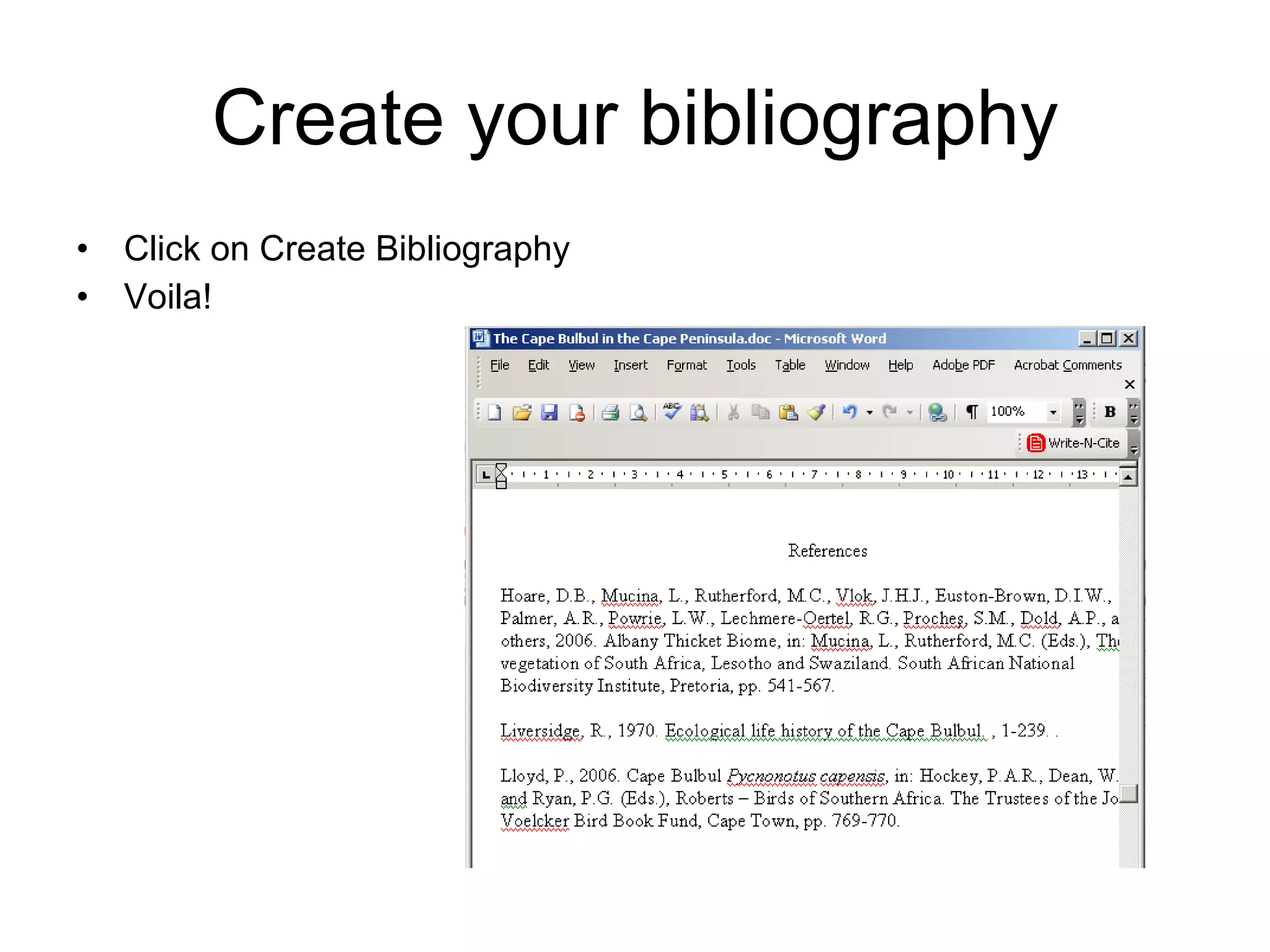
Create your bibliography Click on Create Bibliography Voila!

Ref works 2011

  • 1.
  • 2.
  • 3.
    Outline Web-based referencemanagement service used for storing, organizing and searching your references Create a personal database accessible from any computer linked to the Internet without having to download or install special software use Write-N-Cite together with Wordprocessor to automatically insert in-text citations into documents and create bibliographies in the citation style of your choice* *When you are in Write-N-Cite you can work offline to overcome the frustration of response time lags Import bibliographies from Mendeley to Refworks UCT staff and students may use RefWorks on campus and also off-campus (by logging in via EZProxy)
  • 4.
    Registering as RefWorksUser https://www.refworks.com/Refworks/newuser.asp
  • 5.
    Log in toRefworks https://www.refworks.com/Refworks/login.asp?WNCLang=false
  • 6.
  • 7.
  • 8.
    What can youdo? Export/Import references from Google Scholar Web of Knowledge (Thomson Reuters) Word Processor doc Text EndNote (or similar DB) Mendeley
  • 9.
    Exporting to RefWorksfrom Google Scholar click on Scholar Preferences.
  • 10.
    Exporting to RefWorksfrom Google Scholar Scroll down to the bottom of the Preferences page Click on "Show links to import citations into“ in the Bibliography Manager section Click on Save Preferences.
  • 11.
    Exporting to RefWorksfrom Google Scholar
  • 12.
    Cautions! Response timeis slow Export is reference by reference Default is journal article – if you are exporting a book/book chapter you have to edit the reference Only the first page of the reference is entered- you have to enter the last page Typos are transferred into your DB NB Rubbish In – Rubbish Out
  • 13.
    Exporting to RefWorksfrom Web of Knowledge Run your search profile Mark any references you want to import Click on marked list Save in other reference software Import to RefWorks
  • 14.
  • 15.
    Import .txt or.doc files to RefWorks Format your file according to the requirement of RefWorks
  • 16.
    Export bibliography fromMendeley Mendeley does not have a suitable range of bibliographic styles In order to export from Mendeley, create a collection to hold the references you wish to export In RefWorks create a folder in which you wish to import the bibliography
  • 17.
    Create Collection in Mendeley Click on Create Collection, this will highlight the words Untitled Collection. Type the name of your collection in this space, e.g. ConsBiol Paper
  • 18.
    Create Collection inMendeley Swich database view to All Documents Drag & drop the papers you need into the ConsBiol Paper collection
  • 19.
    Exporting your collectionHighlight all the papers in your ConsBiol Paper Collection Click on Export – you will see that three versions are offered, we are using BibTex Give your export file a name and save to a folder on your PC
  • 20.
    Import BibTex fileinto Refworks Point at the References folder on your Refworks Menu, click on Import
  • 21.
    Import BibTex fileinto Refworks Click on drop down menu next to Import Filter/Data Source Change import data source to BibTex
  • 22.
    Import BibTex fileinto Refworks Click on drop down menu next to Database and chose one of the DBs which has BibTex as an output format e.g. ACM Digital Library Specify folder ConsBiol Navigate to your .bib file which you exported from Mendeley Click on Import
  • 23.
    View Imported ReferencesClick on your ConsBiol folder to check your imported references – there will be checking to do! Click on edit to the top right of each reference To make this easier I suggest that you open Mendeley & RefWorks side by side – you can even cut and paste from your pdf in Mendeley
  • 24.
    Create your bibliographyJump to slide 29 for the instructions to convert your style to Conservation Biology Click on Bibliography Change Output Style to Conservation Biology Find the document you are working with Change File Type to Create to the word processing package you are using Specify the folder your references are in Click on Create Bibliography NB you should have a valid document which is already populated with the citations from Mendeley
  • 25.
  • 26.
    Create your bibliographyOpen your bibliography and paste into your article
  • 27.
    Write-N-Cite Download softwarefor Write-N-Cite III for Windows MS Vista and Word 2007 compatibility Also compatible with XP and Word 2003 Single document formatting Faster formatting for large documents Includes Ability to Write and Format Papers Offline Write-N-Cite v.2 for Windows Two document formatting (draft and final versions) Compatible with XP and Word 2003 and lower Write-N-Cite v.2.5 for Mac Microsoft Word for Mac 2008 compatibility Mac OS X version 10.3 or later (including Leopard) compatibility Write-N-Cite v.2 for Mac Compatibility with Microsoft Word for Mac X and lower Mac OS X version 10.3 or earlier
  • 28.
    Write your documentThe Write-N-Cite toolbar will appear on your Wordprocessor toolbar
  • 29.
    Add your citationsPlace your cursor where you want the reference inserted Switch to Write-N-Cite and click the Cite link next to the correct reference This will automatically insert the opening and closing curly brackets as well as the Ref ID, Author Last Name and Year.  This is called a Temporary Citation Placeholder and it is what RefWorks reads when formatting your paper.  It is not what your final citation will look like
  • 30.
    Selecting the citationstyle Click on Tools, Output Style Manager for a list of the different styles Select the journal you plan to publish in from the drop down list Add the style you wish to use to Favourites Click on Preview Styles
  • 31.
    Create your bibliographyClick on Bibliography Select the correct Output Style from your favourites
  • 32.
    Create your bibliographyClick on Create Bibliography Voila!