UNLV LibrariesGetting Started with RefWorks 2.0
What is RefWorks?Definition - an online research management, writing and collaboration tool -- designed to help researchers easily gather, manage, store and share all types of information, as well as generate citations and bibliographies. In a nutshell, RefWorks is An online personal database
A tool to import references automatically
A bibliography and citation creatorWhy use RefWorks?It’s free! (UNLV students, staff /faculty, alumni)Accessible anywhere from the InternetOrganizes your research citations onlineCreates bibliographies and in-text citations
What we’ll cover today…Creating your own RefWorks accountExporting citations from online databasesCreating a bibliographyCreating in-text citationsWhere to go for more help
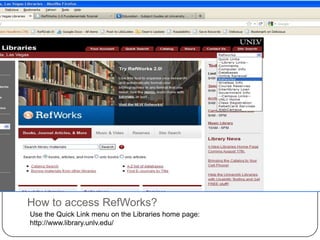
How to access RefWorks?Use the Quick Link menu on the Libraries home page: http://www.library.unlv.edu/
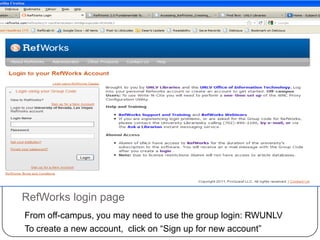
RefWorks login pageFrom off-campus, you may need to use the group login: RWUNLVTo create a new account,  click on “Sign up for new account”
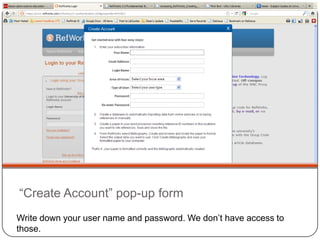
“Create Account” pop-up formWrite down your user name and password. We don’t have access to those.
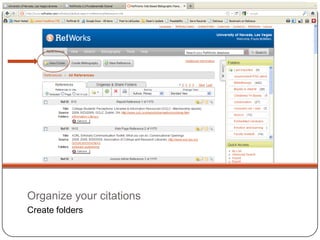
Organize your citationsCreate folders
Exporting from a database: EbscoFrom any Ebsco database, e.g., ERIC, PsycInfo, follow these steps:Click on “Add to Folder” to select articlesClick on Folder to see selected articlesCheck the box for articles you want to exportClick on the icon with the white paper and green arrow
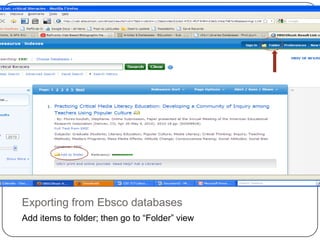
Exporting from Ebsco databasesAdd items to folder; then go to “Folder” view
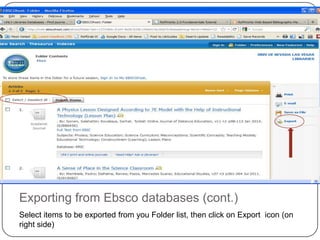
Exporting from Ebsco databases (cont.)Select items to be exported from you Folder list, then click on Export  icon (on right side)
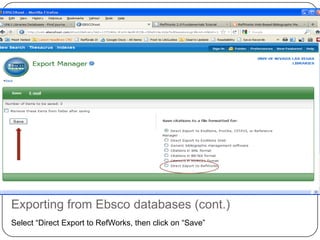
Exporting from Ebsco databases (cont.)Select “Direct Export to RefWorks, then click on “Save”
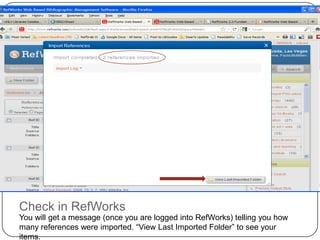
Check in RefWorksYou will get a message (once you are logged into RefWorks) telling you how many references were imported. “View Last Imported Folder” to see your items.
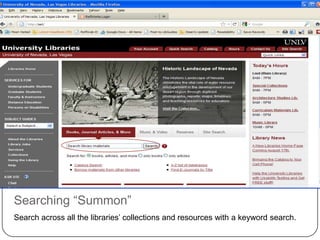
Searching “Summon”Search across all the libraries’ collections and resources with a keyword search.
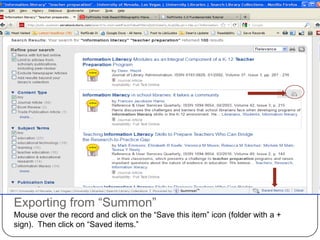
Exporting from “Summon” Mouse over the record and click on the “Save this item” icon (folder with a + sign).  Then click on “Saved items.”
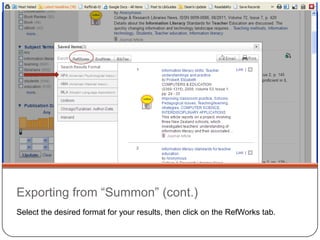
Exporting from “Summon” (cont.)Select the desired format for your results, then click on the RefWorks tab.
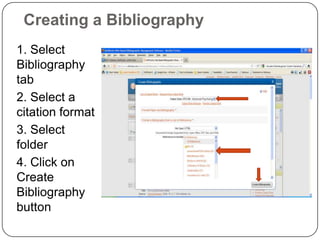
Creating a Bibliography1. Select Bibliography tab2. Select a citation format3. Select folder4. Click on Create Bibliography button
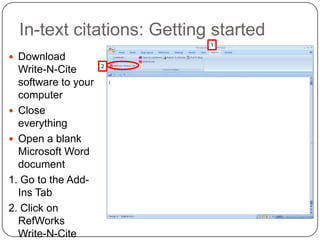
In-text citations: Getting started1Download Write-N-Cite software to your computerClose everythingOpen a blank Microsoft Word document1. Go to the Add-Ins Tab2. Click on RefWorks Write-N-Cite2
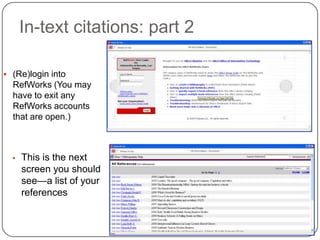
In-text citations: part 2(Re)login into RefWorks (You may have to exit any RefWorks accounts that are open.)
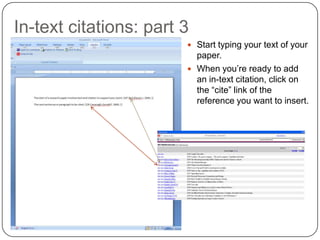
This is the next screen you should see—a list of your referencesIn-text citations: part 3Start typing your text of your paper.When you’re ready to add an in-text citation, click on the “cite” link of the reference you want to insert.
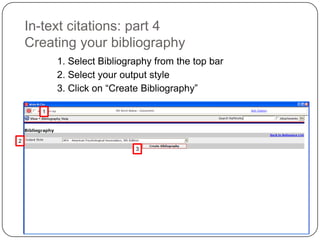
In-text citations: part 4 Creating your bibliography1. Select Bibliography from the top bar2. Select your output style3. Click on “Create Bibliography”123

Ref works 2

  • 1.
  • 2.
    What is RefWorks?Definition- an online research management, writing and collaboration tool -- designed to help researchers easily gather, manage, store and share all types of information, as well as generate citations and bibliographies. In a nutshell, RefWorks is An online personal database
  • 3.
    A tool toimport references automatically
  • 4.
    A bibliography andcitation creatorWhy use RefWorks?It’s free! (UNLV students, staff /faculty, alumni)Accessible anywhere from the InternetOrganizes your research citations onlineCreates bibliographies and in-text citations
  • 5.
    What we’ll covertoday…Creating your own RefWorks accountExporting citations from online databasesCreating a bibliographyCreating in-text citationsWhere to go for more help
  • 6.
    How to accessRefWorks?Use the Quick Link menu on the Libraries home page: http://www.library.unlv.edu/
  • 7.
    RefWorks login pageFromoff-campus, you may need to use the group login: RWUNLVTo create a new account, click on “Sign up for new account”
  • 8.
    “Create Account” pop-upformWrite down your user name and password. We don’t have access to those.
  • 9.
  • 10.
    Exporting from adatabase: EbscoFrom any Ebsco database, e.g., ERIC, PsycInfo, follow these steps:Click on “Add to Folder” to select articlesClick on Folder to see selected articlesCheck the box for articles you want to exportClick on the icon with the white paper and green arrow
  • 11.
    Exporting from EbscodatabasesAdd items to folder; then go to “Folder” view
  • 12.
    Exporting from Ebscodatabases (cont.)Select items to be exported from you Folder list, then click on Export icon (on right side)
  • 13.
    Exporting from Ebscodatabases (cont.)Select “Direct Export to RefWorks, then click on “Save”
  • 14.
    Check in RefWorksYouwill get a message (once you are logged into RefWorks) telling you how many references were imported. “View Last Imported Folder” to see your items.
  • 15.
    Searching “Summon”Search acrossall the libraries’ collections and resources with a keyword search.
  • 16.
    Exporting from “Summon”Mouse over the record and click on the “Save this item” icon (folder with a + sign). Then click on “Saved items.”
  • 17.
    Exporting from “Summon”(cont.)Select the desired format for your results, then click on the RefWorks tab.
  • 18.
    Creating a Bibliography1.Select Bibliography tab2. Select a citation format3. Select folder4. Click on Create Bibliography button
  • 19.
    In-text citations: Gettingstarted1Download Write-N-Cite software to your computerClose everythingOpen a blank Microsoft Word document1. Go to the Add-Ins Tab2. Click on RefWorks Write-N-Cite2
  • 20.
    In-text citations: part2(Re)login into RefWorks (You may have to exit any RefWorks accounts that are open.)
  • 21.
    This is thenext screen you should see—a list of your referencesIn-text citations: part 3Start typing your text of your paper.When you’re ready to add an in-text citation, click on the “cite” link of the reference you want to insert.
  • 22.
    In-text citations: part4 Creating your bibliography1. Select Bibliography from the top bar2. Select your output style3. Click on “Create Bibliography”123