Library Session Agenda
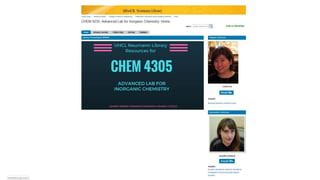
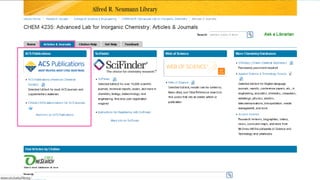
• CHEM 4235 Course Guide
• EndNote setup
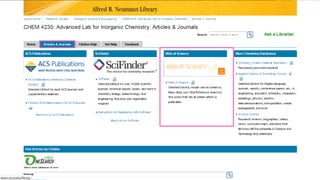
• Tools for Chemistry Research
• ACS Publications
• SciFinder
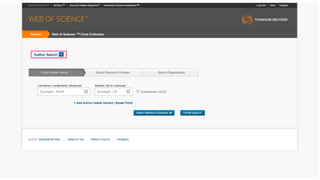
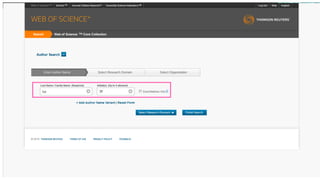
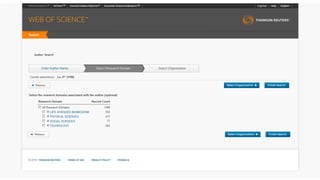
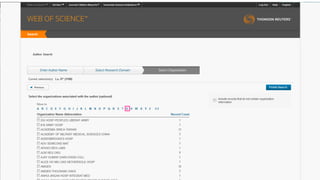
• Web of Science
• OneSearch
• ILLiad Interlibrary Loan
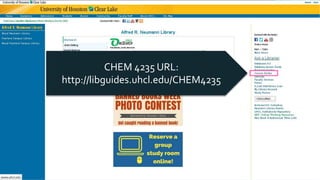
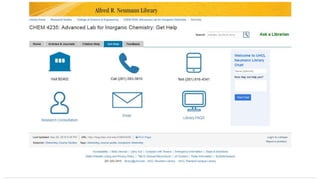
CHEM 4235 Course Guide
CHEM 4235 URL:
http://libguides.uhcl.edu/CHEM4235
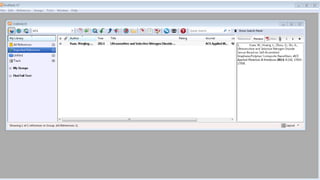
EndNote Setup
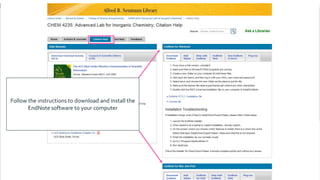
Follow the instructions to download and install the
EndNote software to your computer
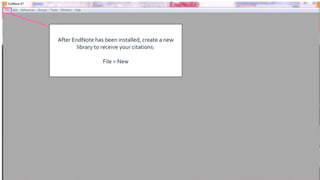
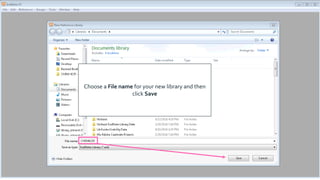
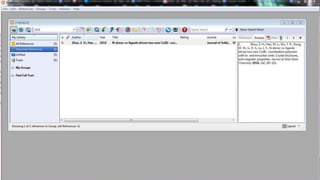
After EndNote has been installed, create a new
library to receive your citations:
File > New
Choose a File name for your new library and then
click Save
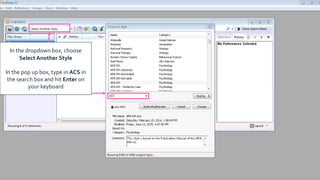
In the dropdown box, choose
Select Another Style
In the pop up box, type in ACS in
the search box and hit Enter on
your keyboard
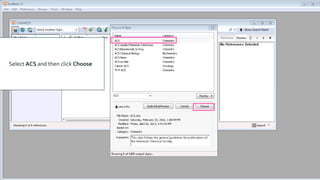
Select ACS and then click Choose
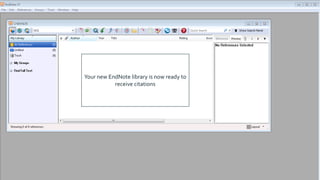
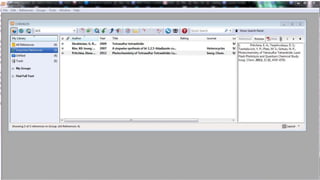
Your new EndNote library is now ready to
receive citations
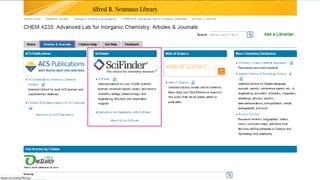
Tools for Chemistry Research
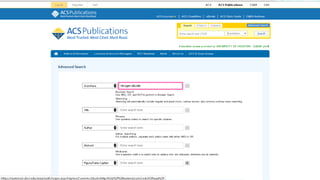
•ACS Publications
•SciFinder
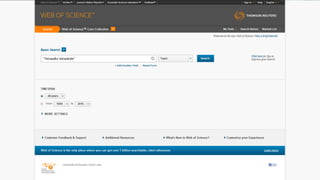
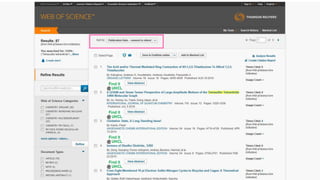
•Web of Science
•OneSearch
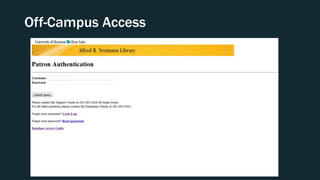
Off-Campus Access
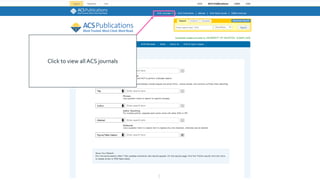
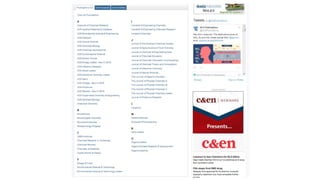
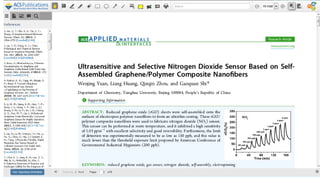
Click to view all ACS journals
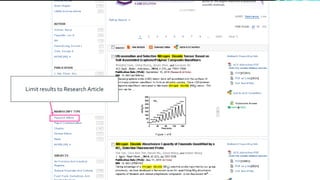
Limit results to Research Article
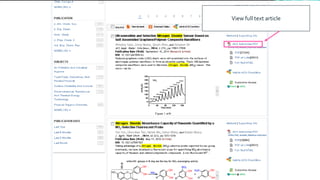
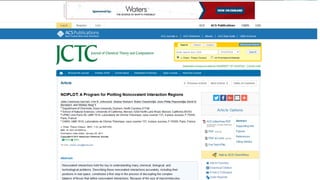
View full text article
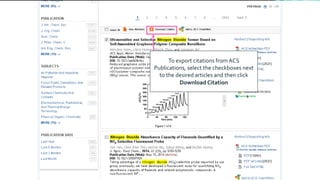
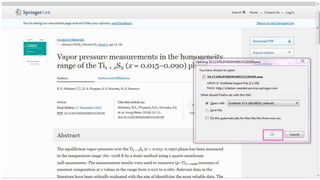
To export citations from ACS
Publications, select the checkboxes next
to the desired articles and then click
Download Citation
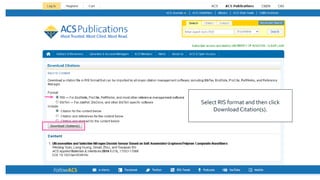
Select RIS format and then click
Download Citation(s).
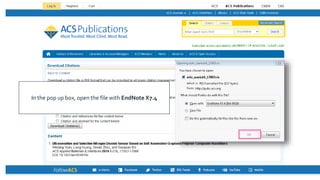
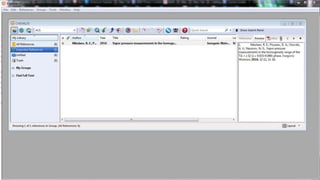
In the pop up box, open the file with EndNote X7.4
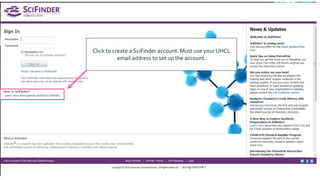
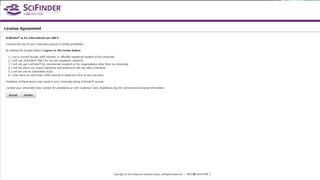
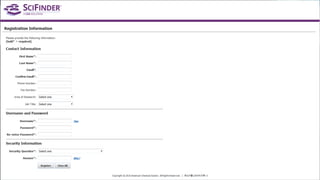
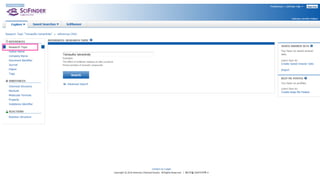
Click to create a SciFinder account. Must use your UHCL
email address to set up the account.
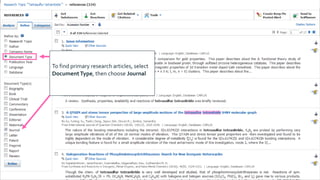
Click to refine search results
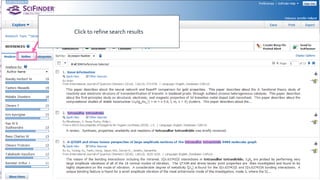
To find primary research articles, select
DocumentType, then choose Journal
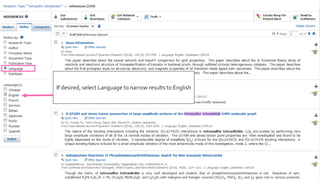
If desired, select Language to narrow results to English
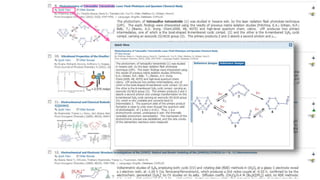
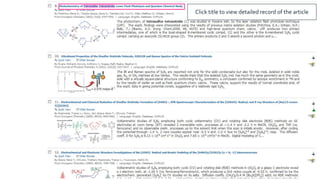
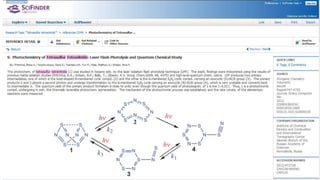
Click title to view detailed record of the article
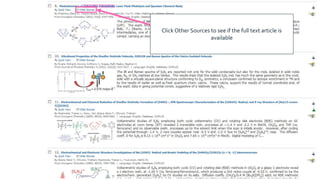
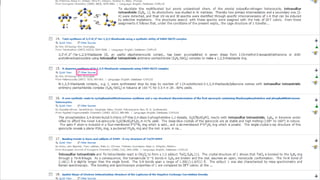
Click Other Sources to see if the full text article is
available
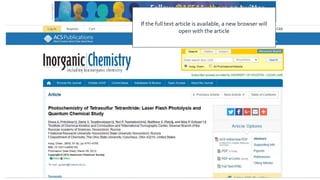
If the full text article is available, a new browser will
open with the article
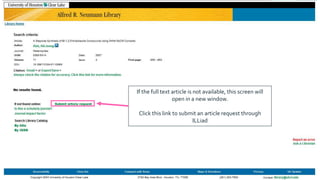
If the full text article is not available, this screen will
open in a new window.
Click this link to submit an article request through
ILLiad
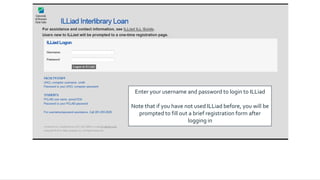
Enter your username and password to login to ILLiad
Note that if you have not used ILLiad before, you will be
prompted to fill out a brief registration form after
logging in
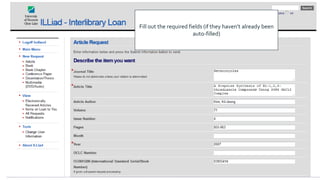
Fill out the required fields (if they haven’t already been
auto-filled)
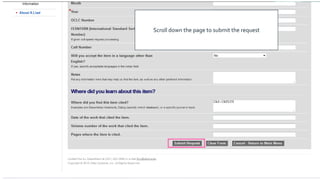
Scroll down the page to submit the request
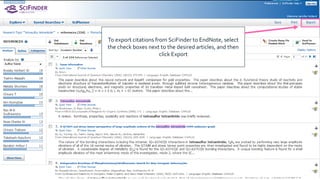
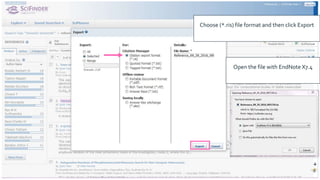
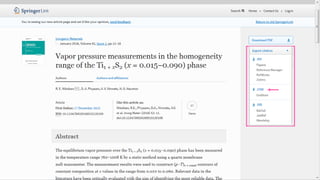
To export citations from SciFinder to EndNote, select
the check boxes next to the desired articles, and then
click Export
Choose (*.ris) file format and then click Export
Open the file with EndNote X7.4
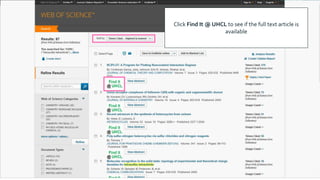
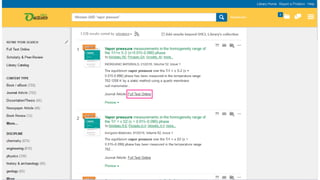
Click Find It @ UHCL to see if the full text article is
available
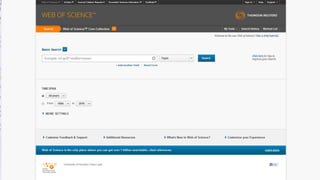
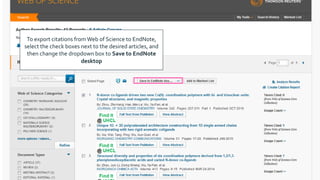
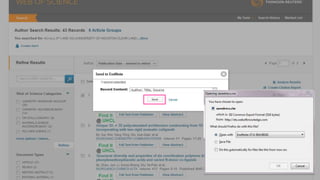
To export citations fromWeb of Science to EndNote,
select the check boxes next to the desired articles, and
then change the dropdown box to Save to EndNote
desktop
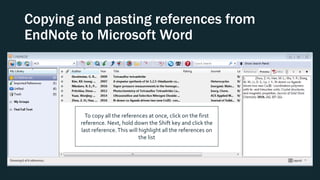
Copying and pasting references from
EndNote to Microsoft Word
To copy all the references at once, click on the first
reference. Next, hold down the Shift key and click the
last reference.This will highlight all the references on
the list
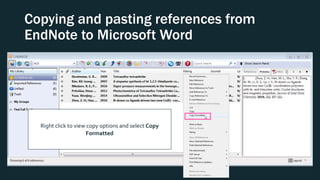
Copying and pasting references from
EndNote to Microsoft Word
Right click to view copy options and select Copy
Formatted
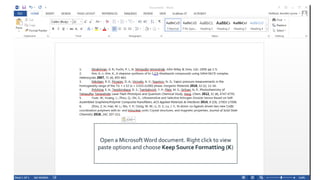
Open a MicrosoftWord document. Right click to view
paste options and choose Keep Source Formatting (K)
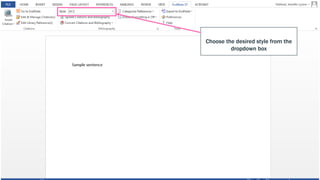
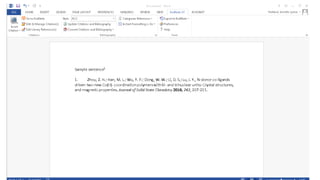
To create in-text citations in a Word
document, select the EndNote X7
tab.
Choose the desired style from the
dropdown box
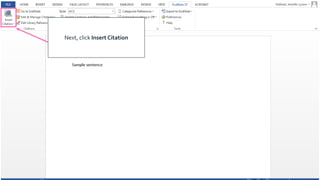
Next, click Insert Citation
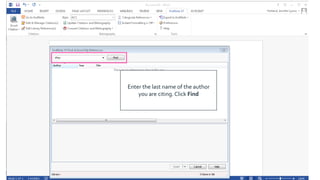
Enter the last name of the author
you are citing.Click Find
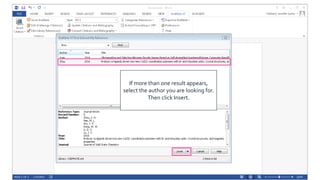
If more than one result appears,
select the author you are looking for.
Then click Insert.
Chem 4235 sept2016 jh

Chem 4235 sept2016 jh

Editor's Notes

  • #19 Possible search examples: “Tetrasulfur tetranitride”; “nitrogen dioxide”
  • #36 Look up: what is the difference between “containing…as entered” and “containing the concept …”?