MC University
R03|Basics of Reporting: Report Setup (Part 1)
MC University
Report Setup Defined
Sorting and Grouping
Agenda
MC University
Report Setup Overview
Field List Defined
Removing Fields
Reordering Fields
Report Setup Defined
MC University
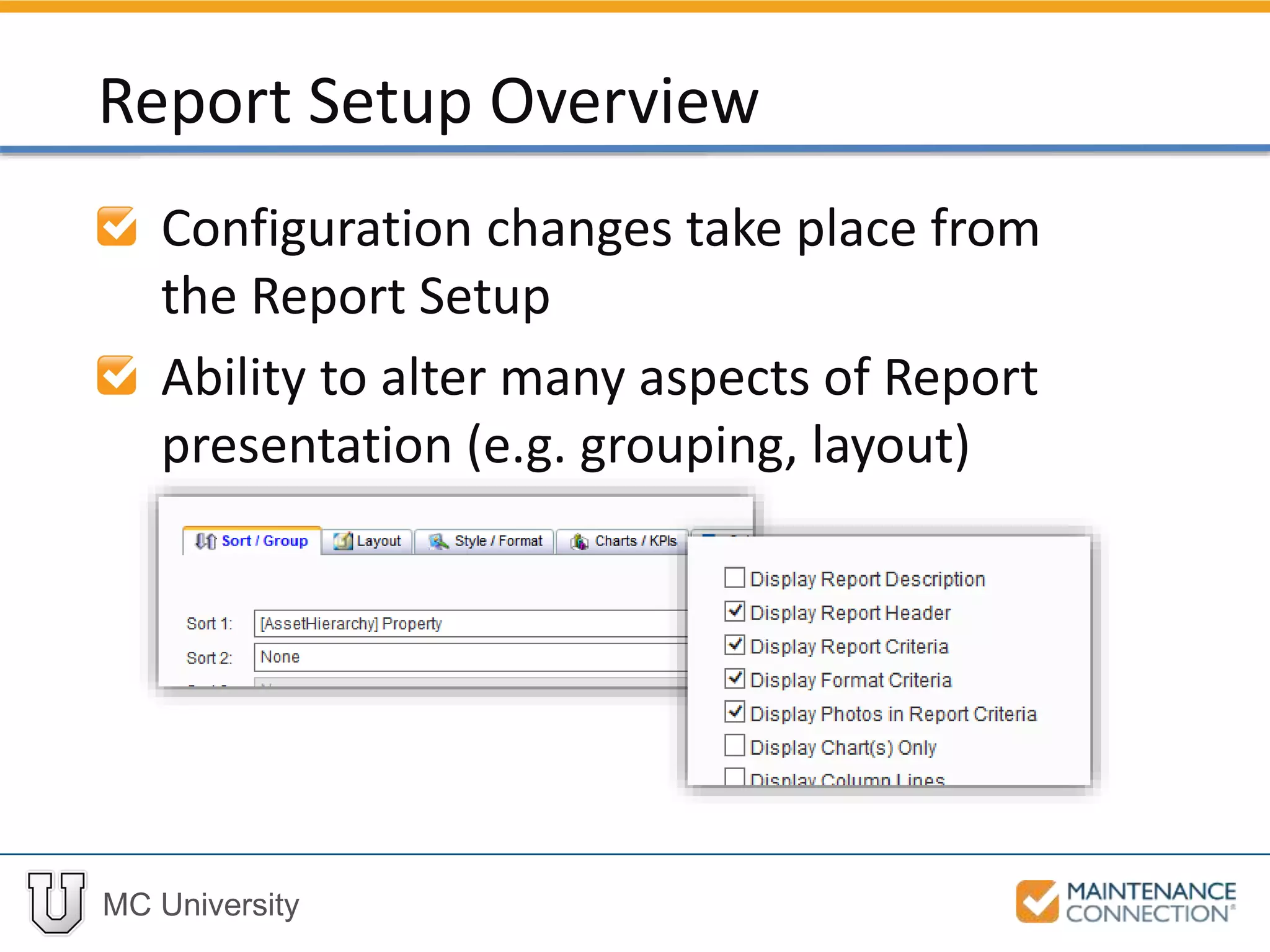
Configuration changes take place from
the Report Setup
Ability to alter many aspects of Report
presentation (e.g. grouping, layout)
Report Setup Overview
MC University
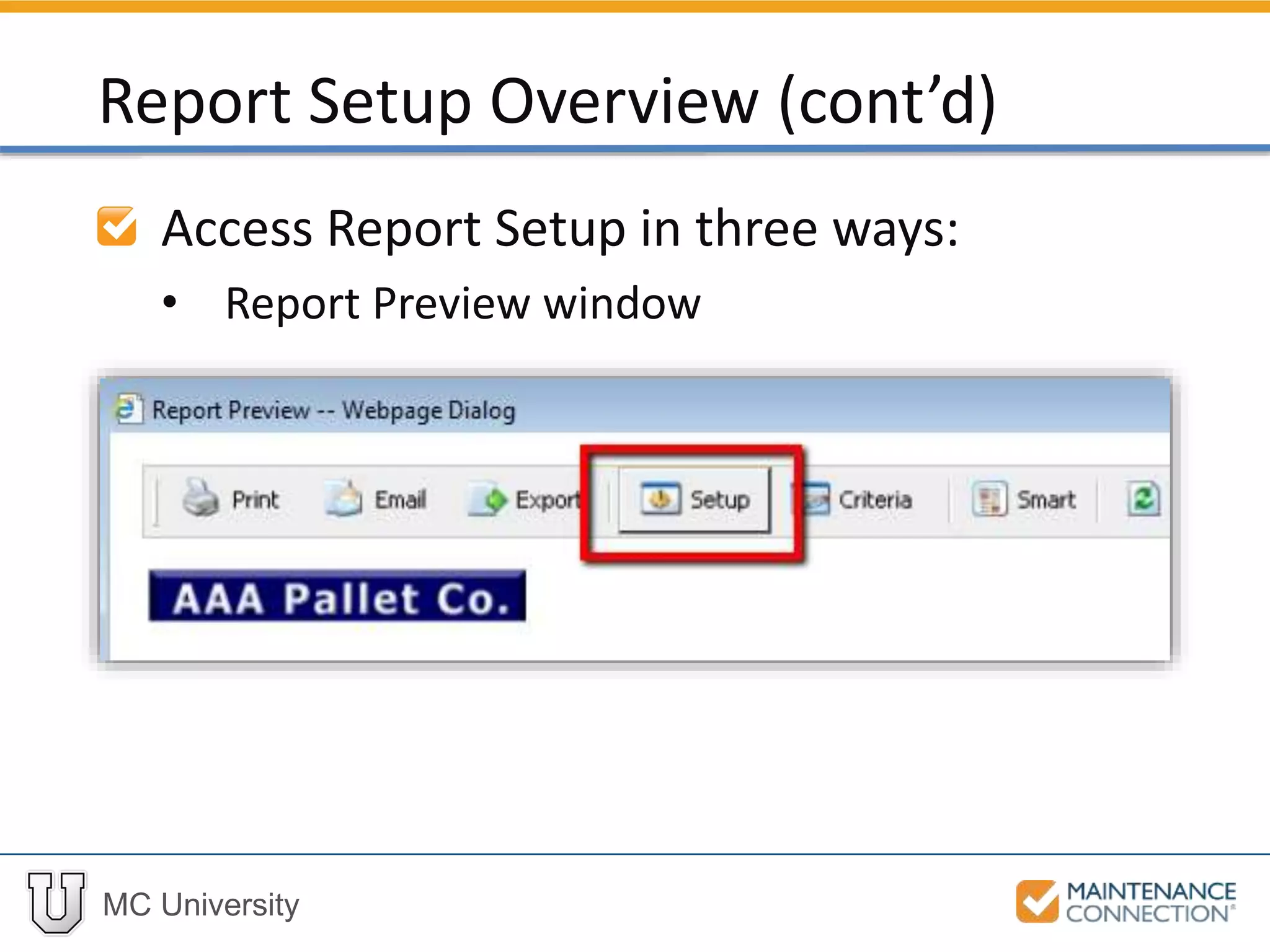
Access Report Setup in three ways:
• Report Preview window
Report Setup Overview (cont’d)
MC University
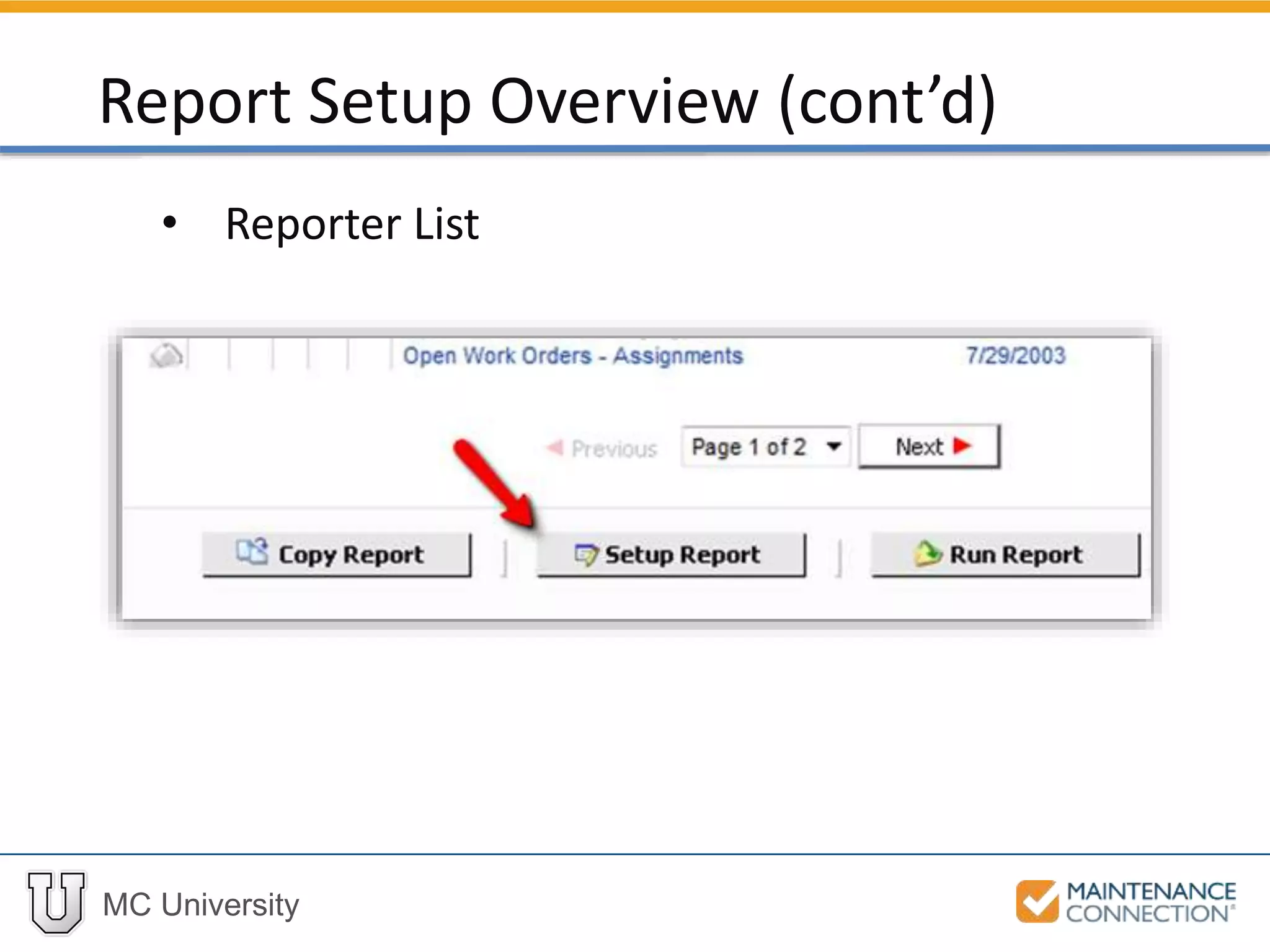
• Reporter List
Report Setup Overview (cont’d)
MC University
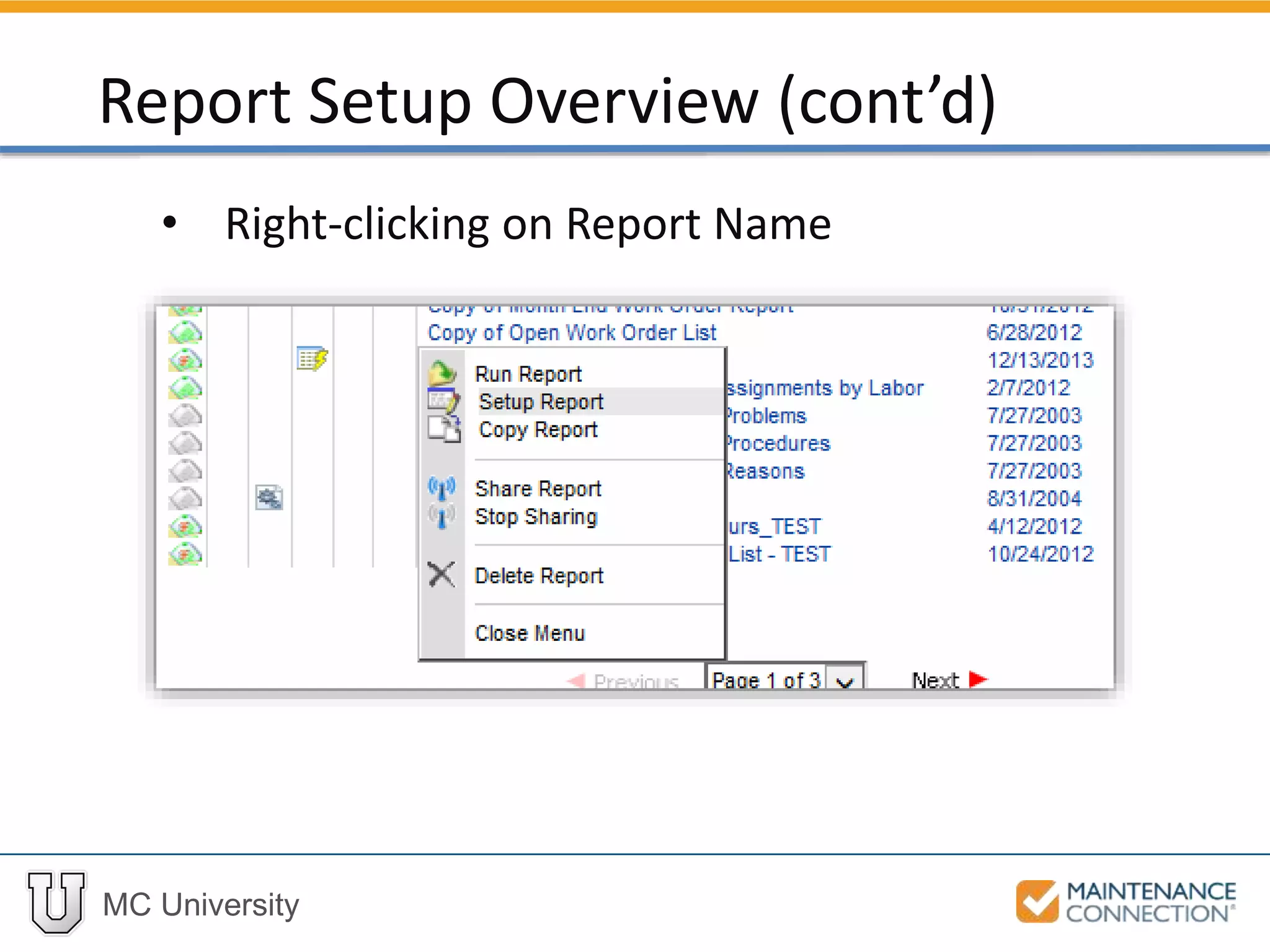
• Right-clicking on Report Name
Report Setup Overview (cont’d)
MC University
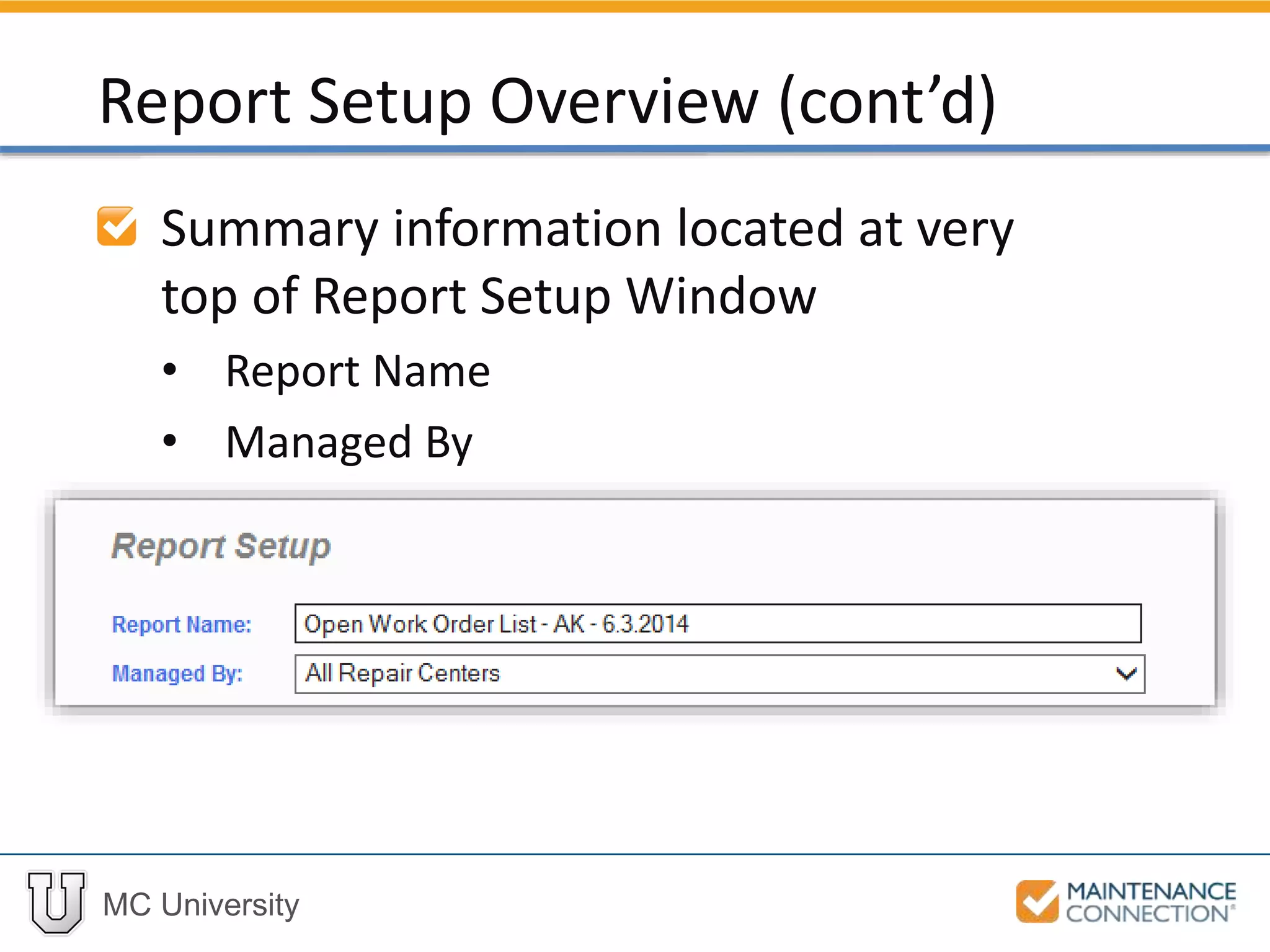
Summary information located at very
top of Report Setup Window
• Report Name
• Managed By
Report Setup Overview (cont’d)
MC University
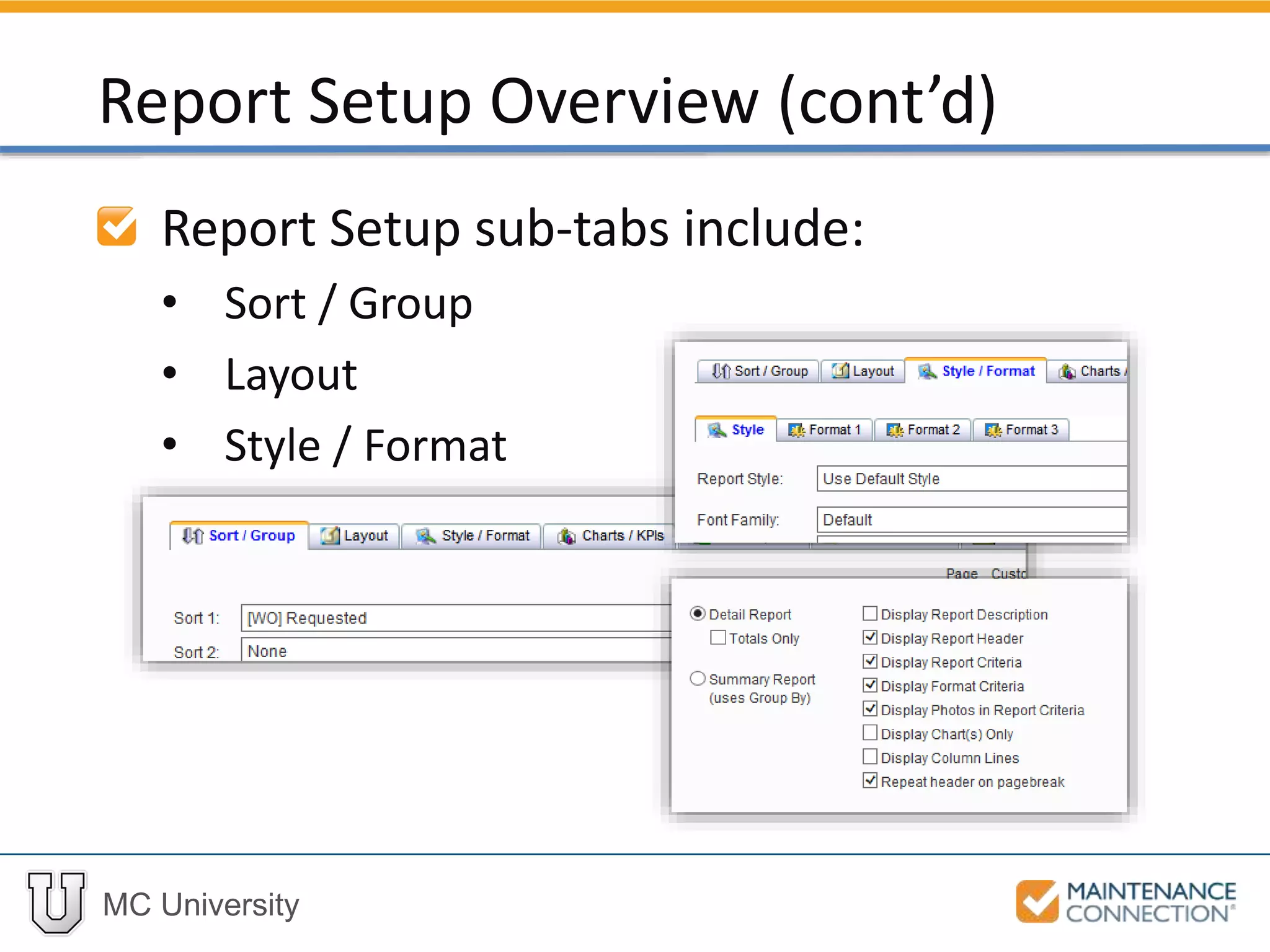
Report Setup sub-tabs include:
• Sort / Group
• Layout
• Style / Format
Report Setup Overview (cont’d)
MC University
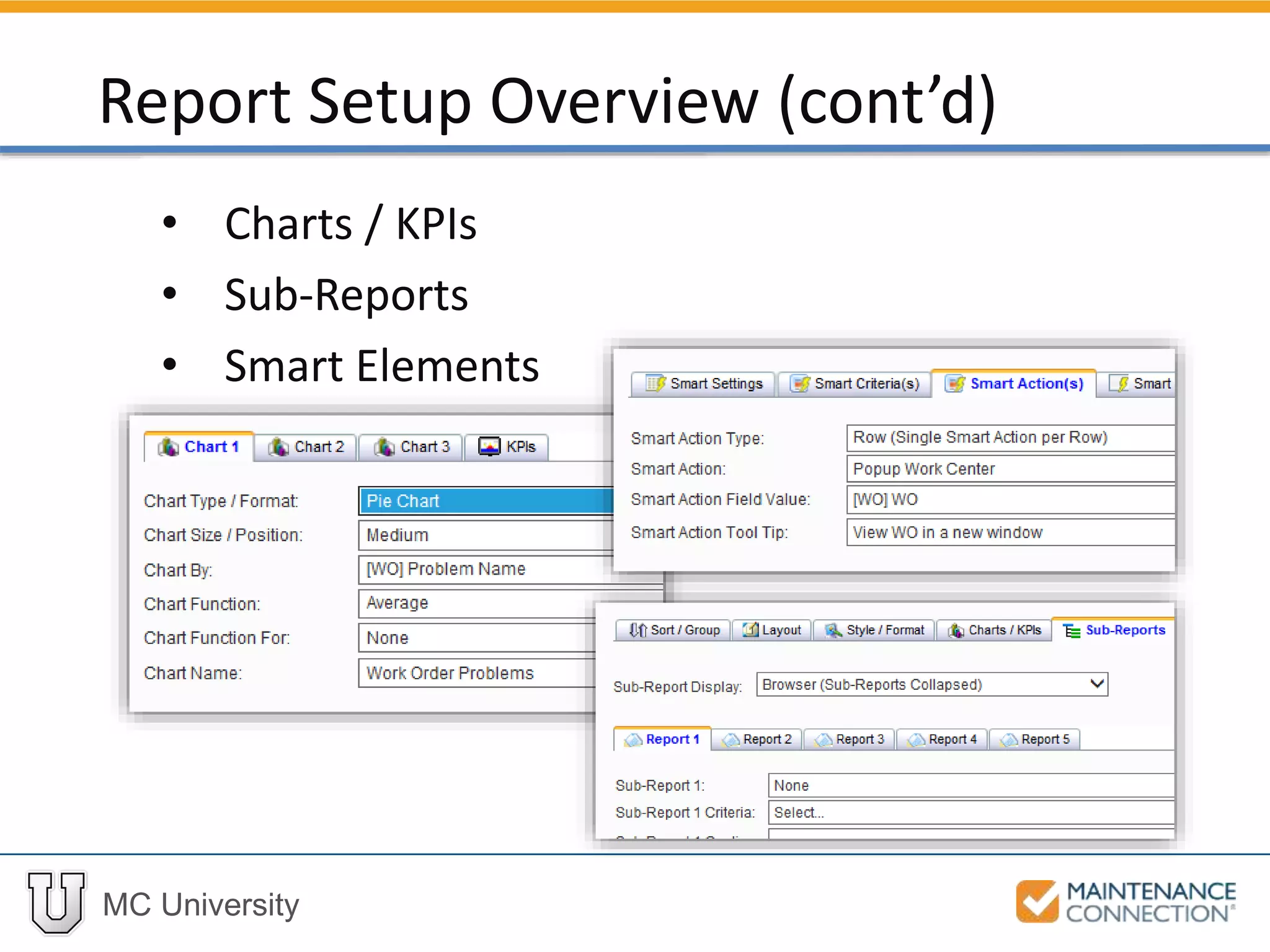
• Charts / KPIs
• Sub-Reports
• Smart Elements
Report Setup Overview (cont’d)
MC University
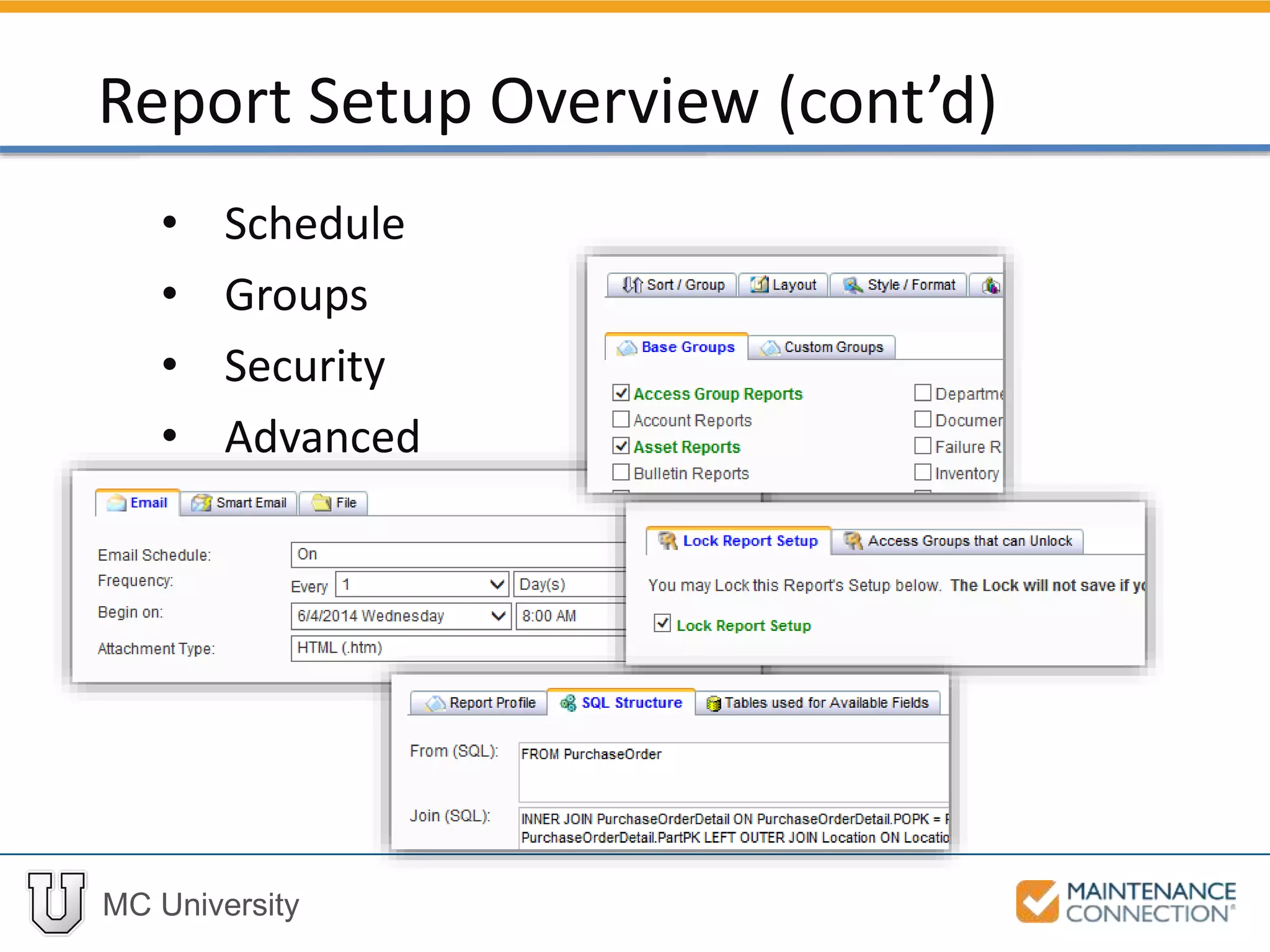
• Schedule
• Groups
• Security
• Advanced
Report Setup Overview (cont’d)
MC University
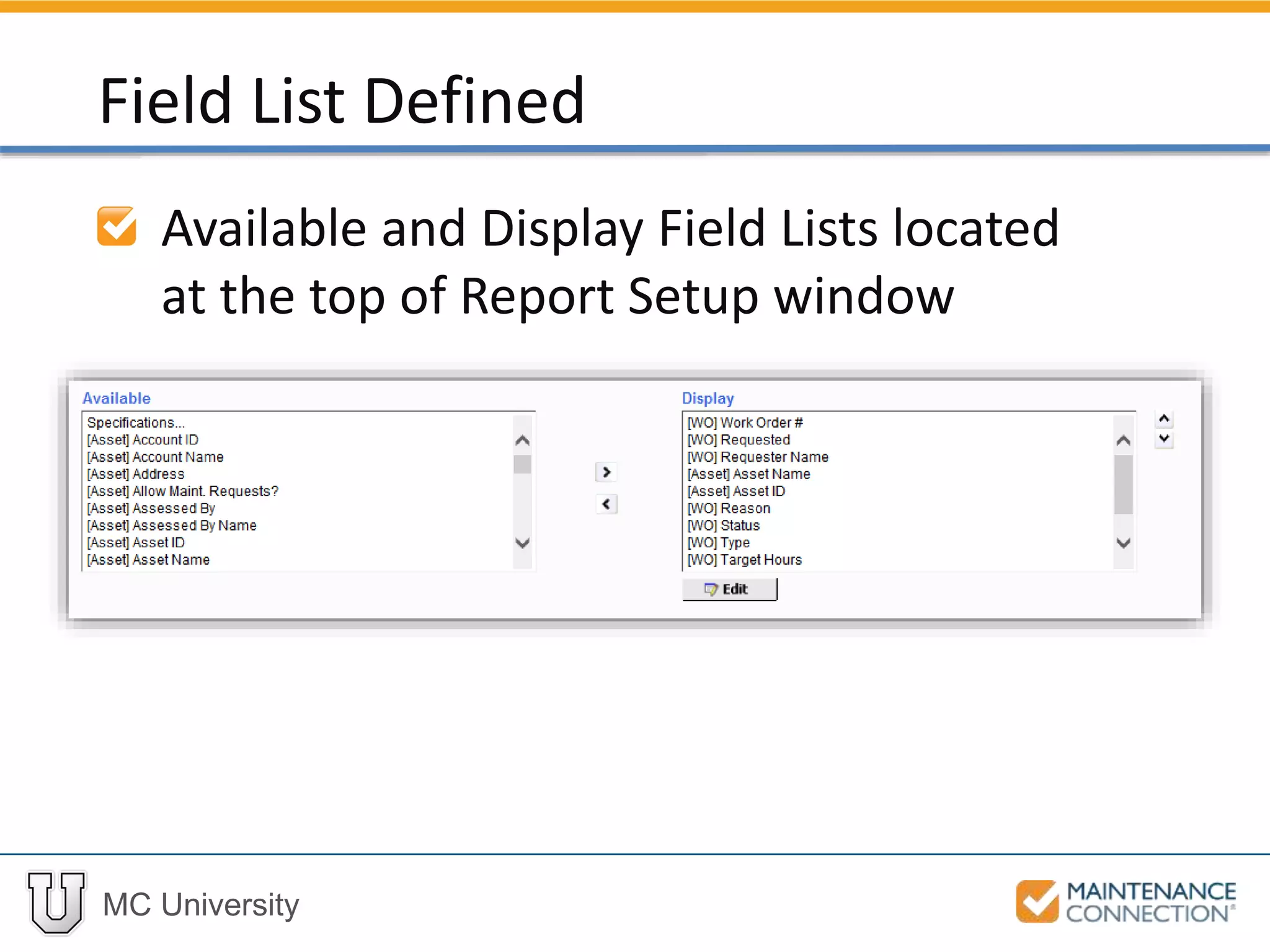
Available and Display Field Lists located
at the top of Report Setup window
Field List Defined
MC University
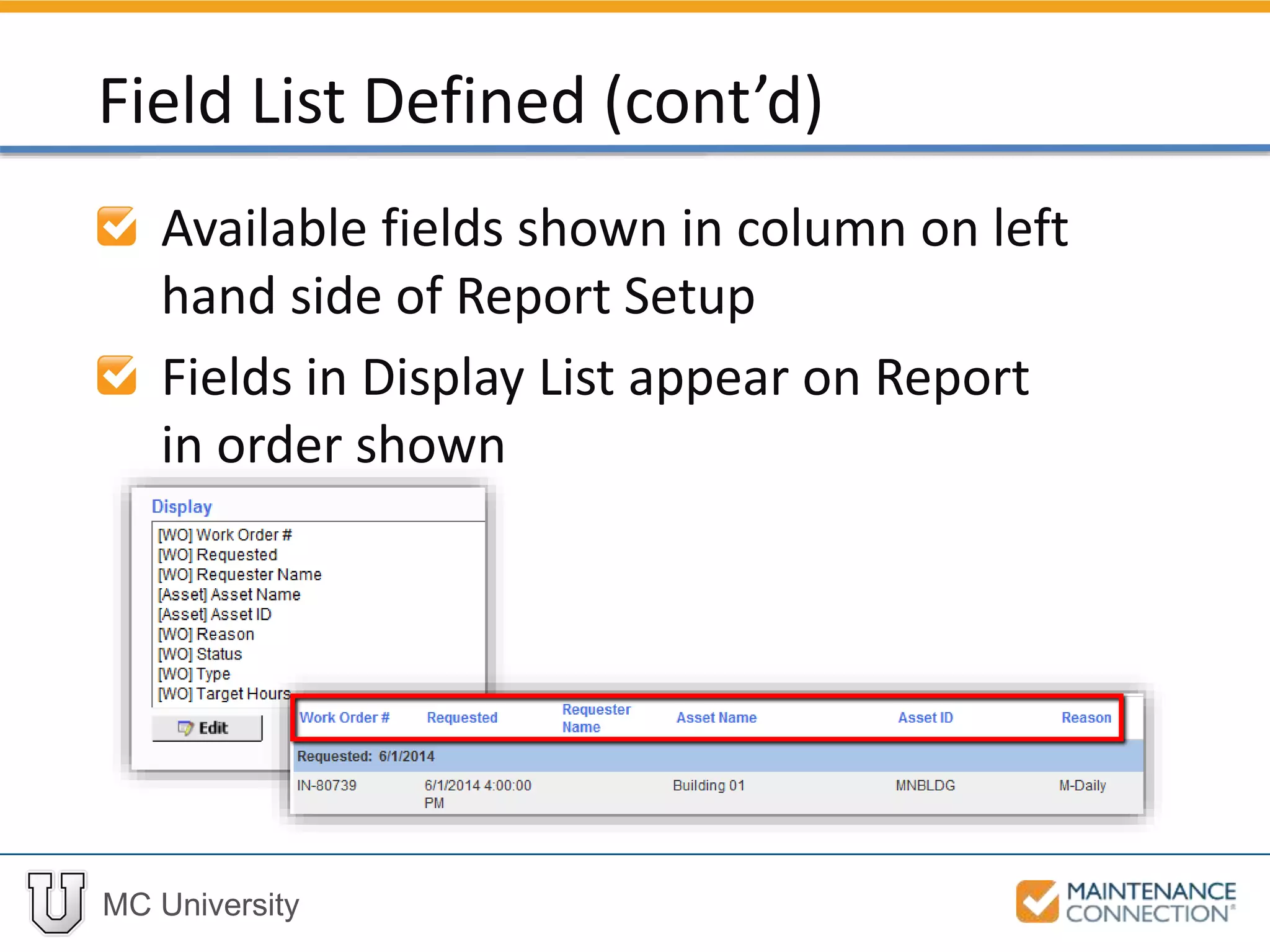
Available fields shown in column on left
hand side of Report Setup
Fields in Display List appear on Report
in order shown
Field List Defined (cont’d)
MC University
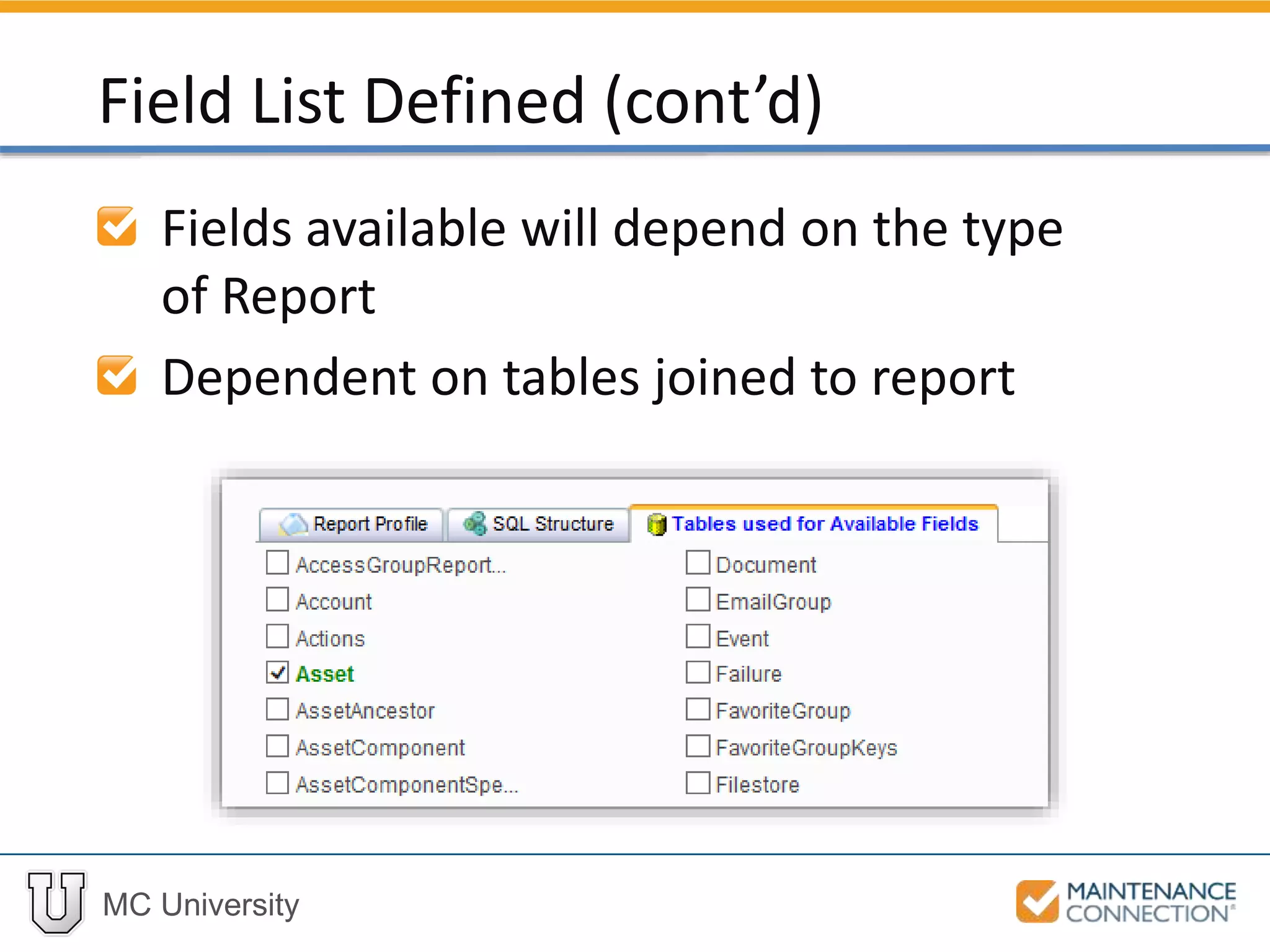
Fields available will depend on the type
of Report
Dependent on tables joined to report
Field List Defined (cont’d)
MC University
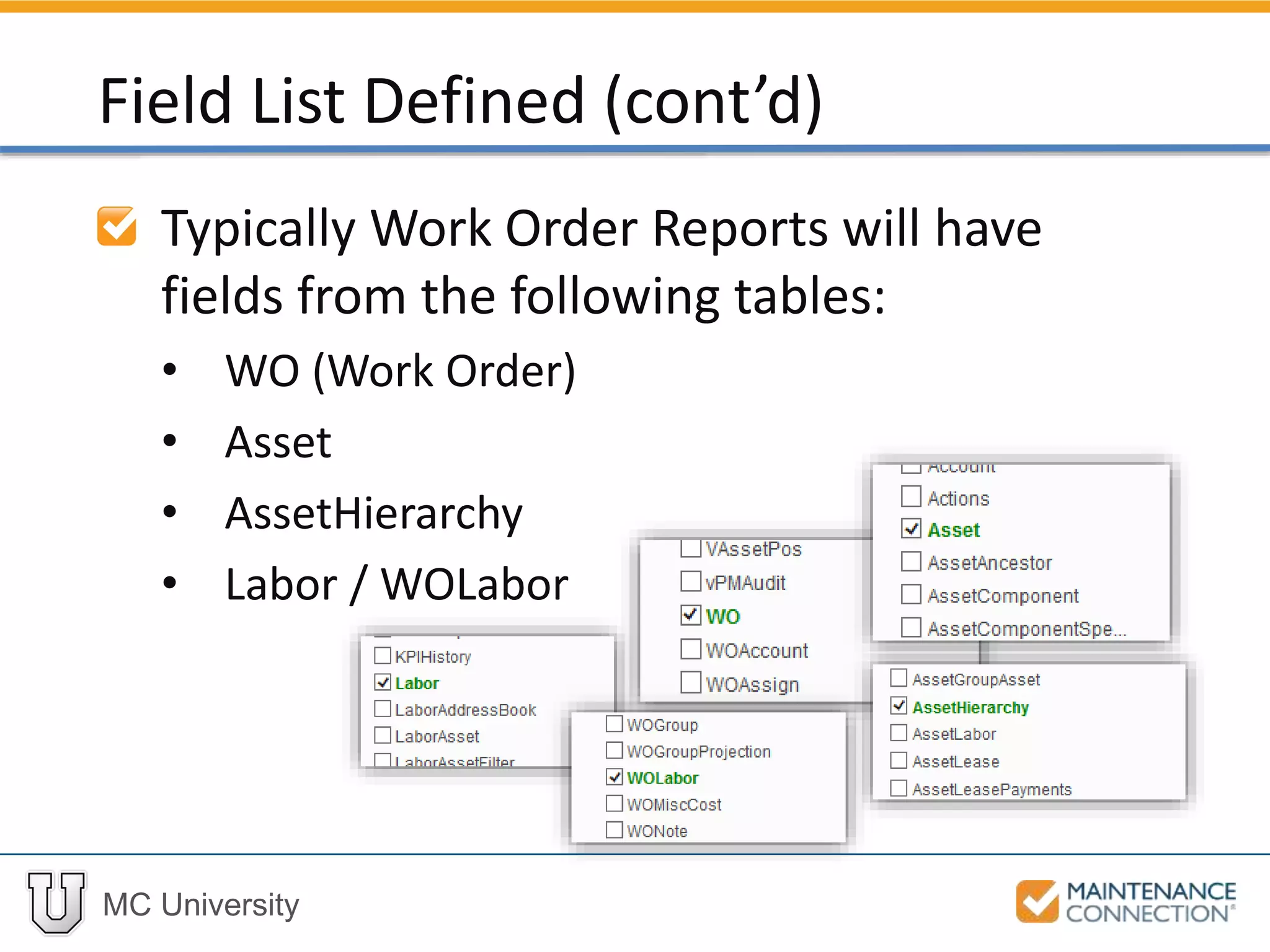
Typically Work Order Reports will have
fields from the following tables:
• WO (Work Order)
• Asset
• AssetHierarchy
• Labor / WOLabor
Field List Defined (cont’d)
MC University
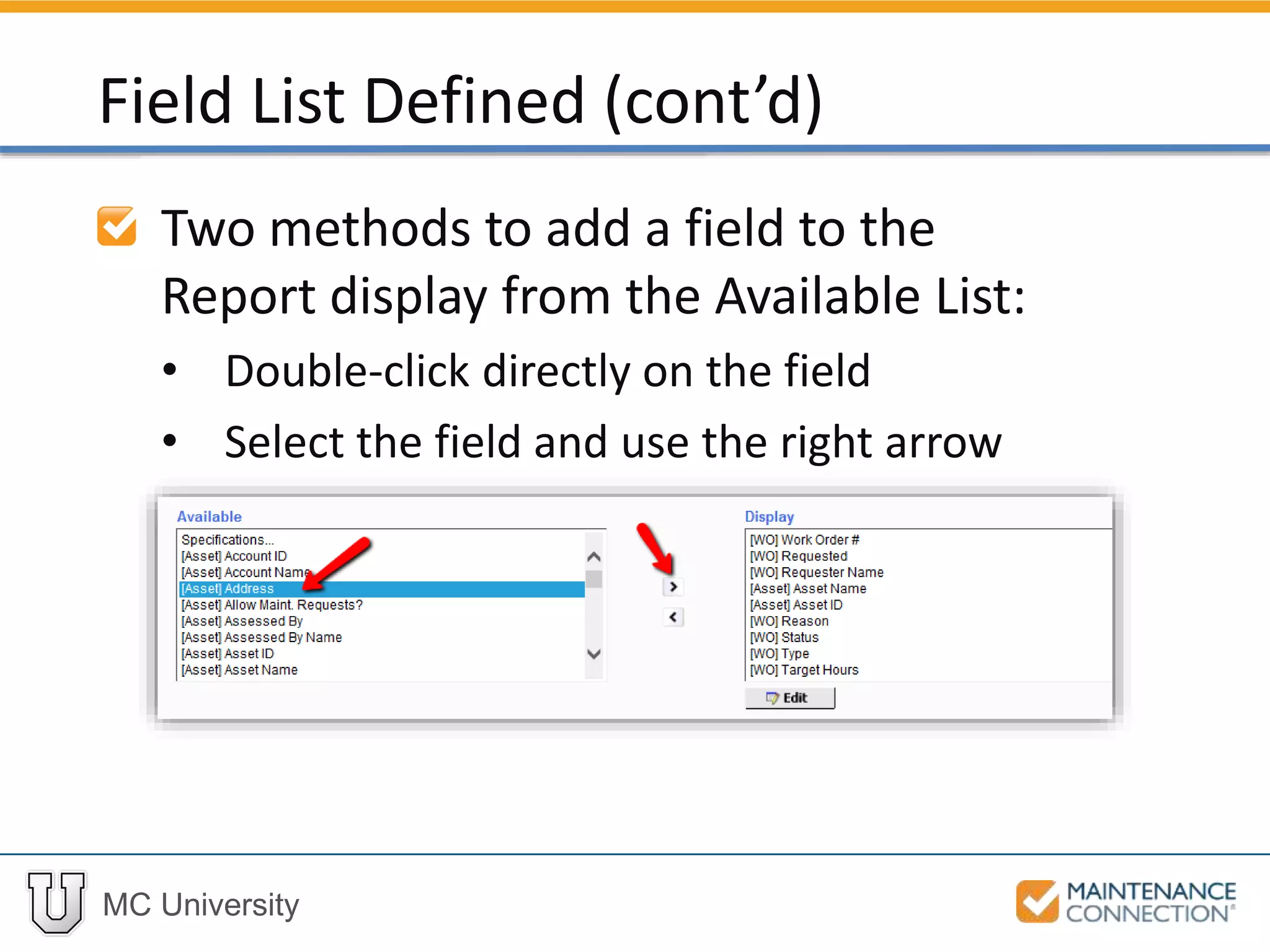
Two methods to add a field to the
Report display from the Available List:
• Double-click directly on the field
• Select the field and use the right arrow
Field List Defined (cont’d)
MC University
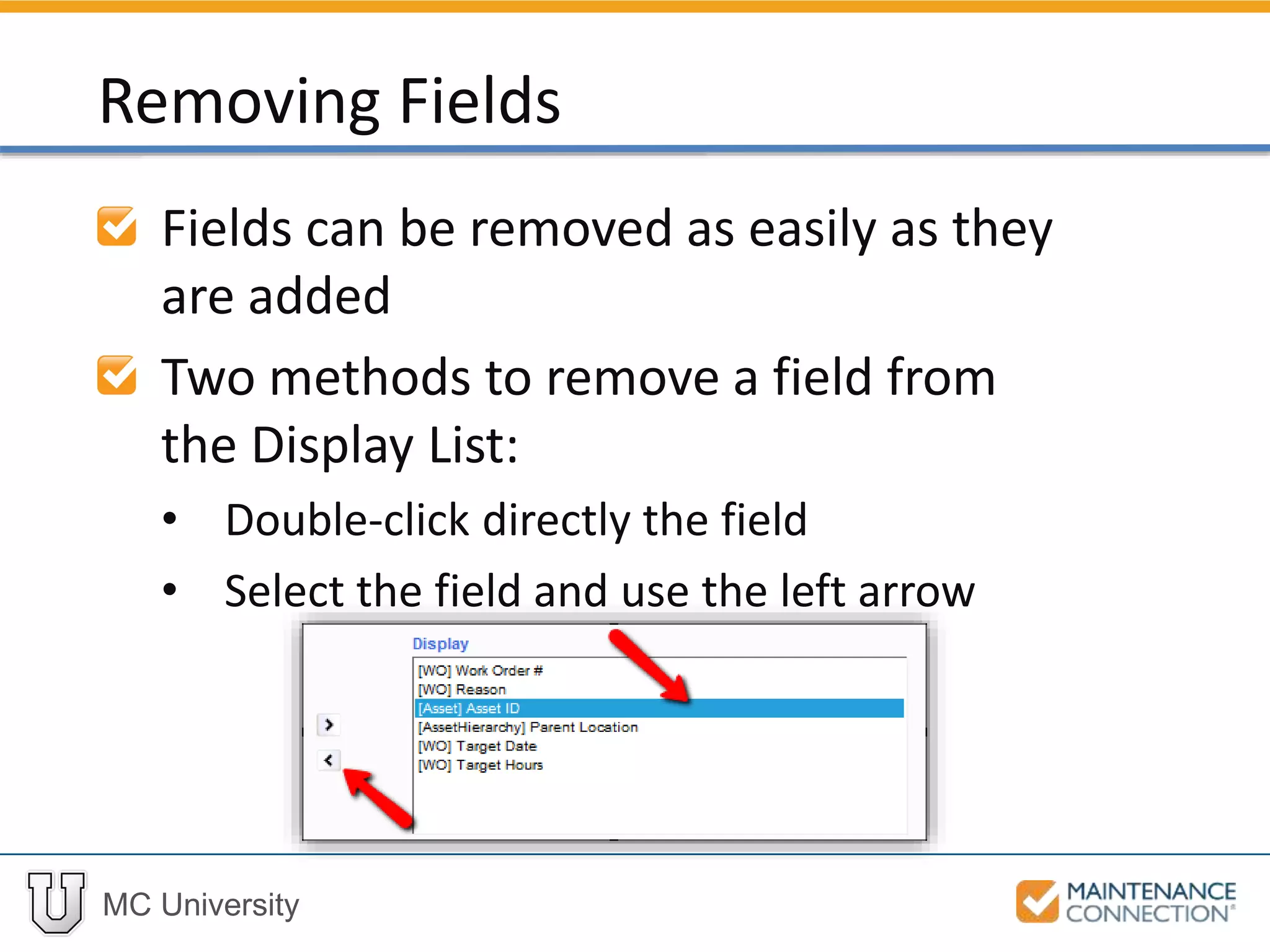
Fields can be removed as easily as they
are added
Two methods to remove a field from
the Display List:
• Double-click directly the field
• Select the field and use the left arrow
Removing Fields
MC University
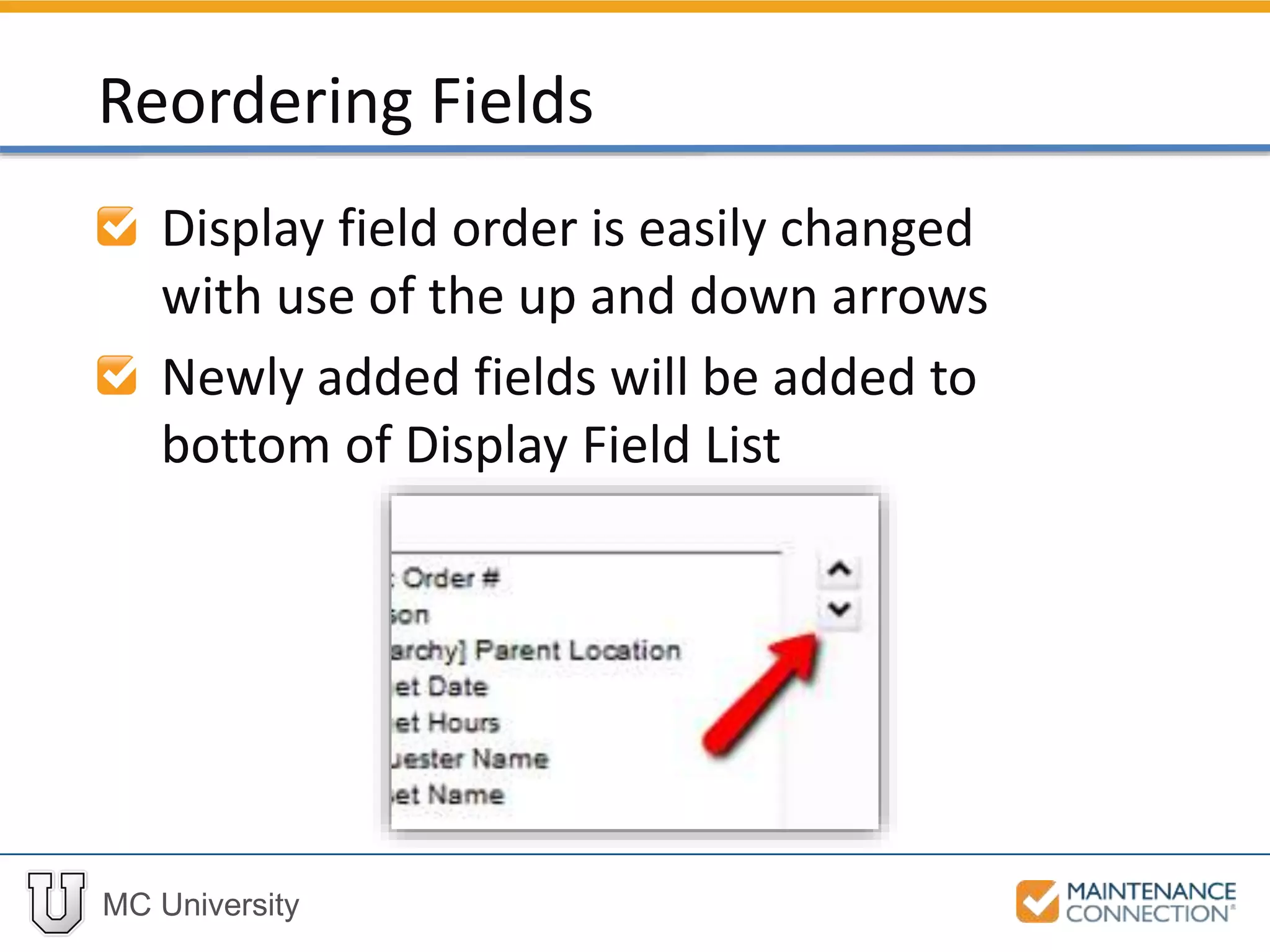
Display field order is easily changed
with use of the up and down arrows
Newly added fields will be added to
bottom of Display Field List
Reordering Fields
MC University
Now let’s practice adding fields to a
report, removing unnecessary fields,
and reordering fields!
Adding, Removing, and Reordering Fields: Hands-On
MC University
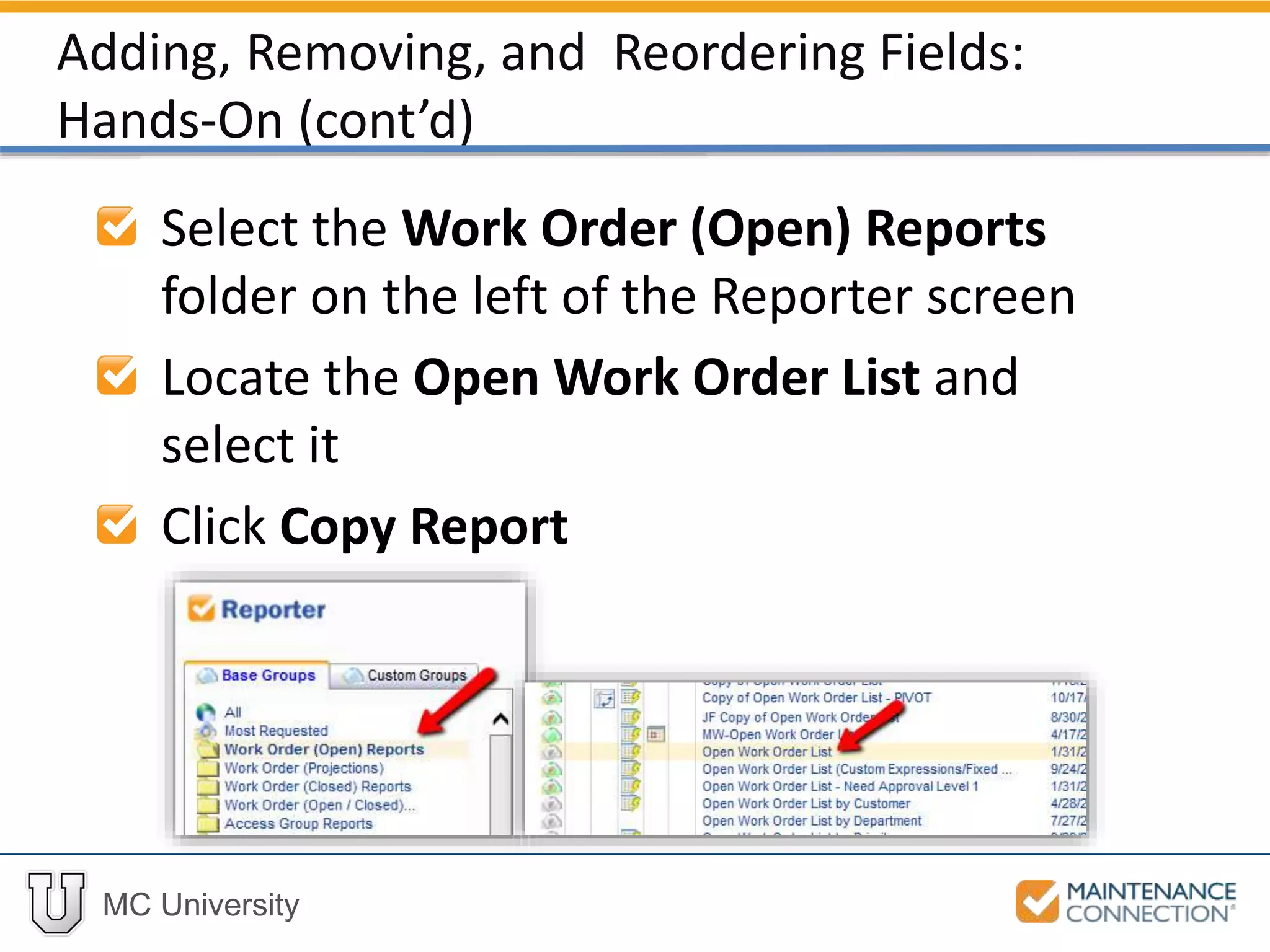
Select the Work Order (Open) Reports
folder on the left of the Reporter screen
Locate the Open Work Order List and
select it
Click Copy Report
Adding, Removing, and Reordering Fields:
Hands-On (cont’d)
MC University
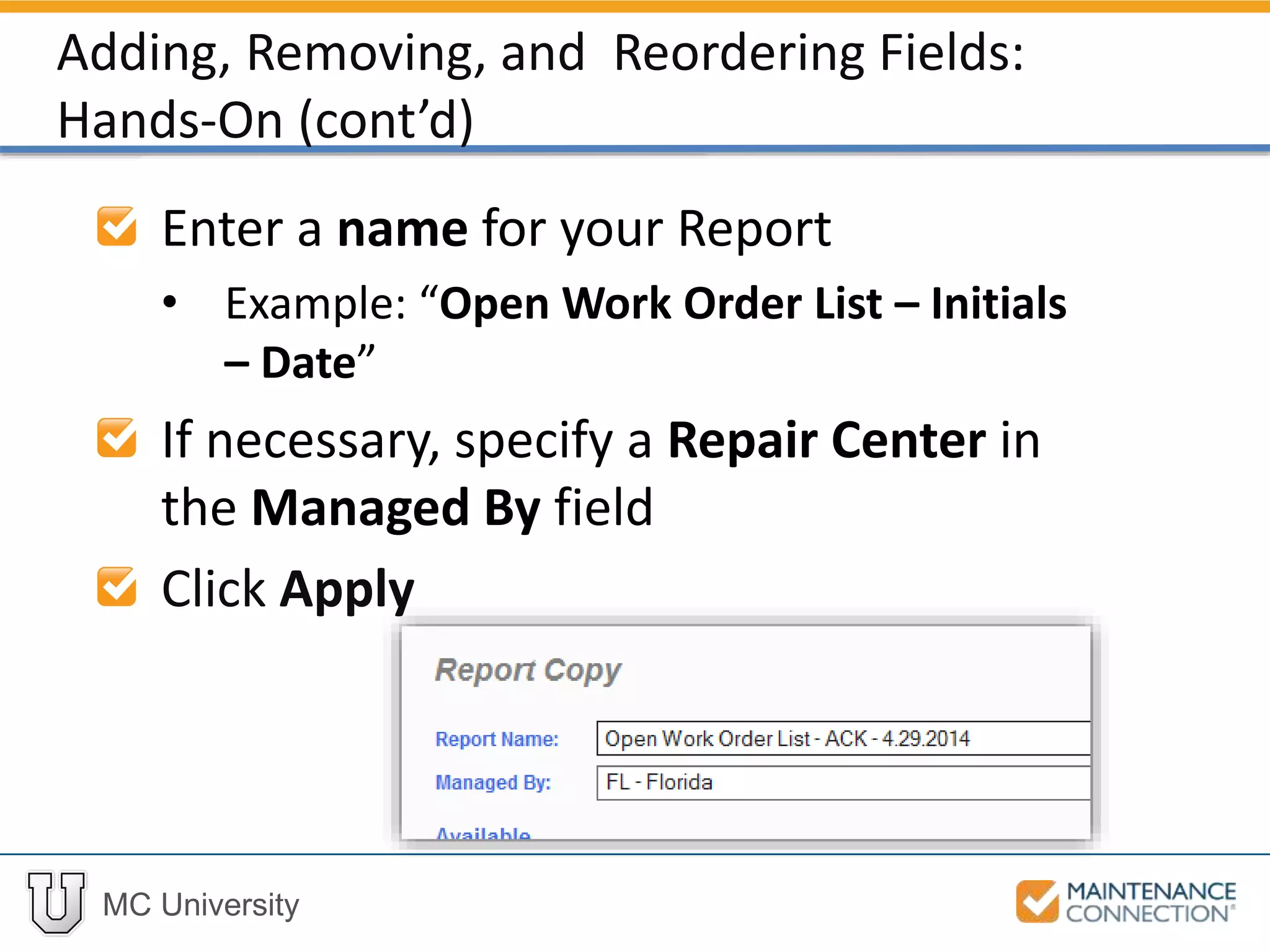
Enter a name for your Report
• Example: “Open Work Order List – Initials
– Date”
If necessary, specify a Repair Center in
the Managed By field
Click Apply
Adding, Removing, and Reordering Fields:
Hands-On (cont’d)
MC University
Locate your Report in the Report List
Open the Report Setup
Scroll down Available field list and find
[WO] Requester Name
Adding, Removing, and Reordering Fields:
Hands-On (cont’d)
MC University
Click on the [WO] Requester Name
field and click on the right arrow
The [WO] Requester Name field will
move to the Display list
Adding, Removing, and Reordering Fields:
Hands-On (cont’d)
MC University
Locate the [Asset] Asset ID field in the
Display fields list
Select the [Asset] Asset ID field and
select the left arrow
The [Asset] Asset ID field will be
removed from the Display List
Adding, Removing, and Reordering Fields:
Hands-On (cont’d)
MC University
Find the [Asset] Asset Name field in the
Available field list
Double-click on the [Asset] Asset
Name field to move to the Display
fields
Adding, Removing, and Reordering Fields:
Hands-On (cont’d)
MC University
Find and select the [Asset] Asset Name
field in the Display List
Click the up arrow until the field is
displayed above the Parent Location
Adding, Removing, and Reordering Fields:
Hands-On (cont’d)
MC University
Move the [WO] Requester Name field
to just below the [WO] Work Order #
field
Apply the Report Setup changes
Adding, Removing, and Reordering Fields:
Hands-On (cont’d)
MC University
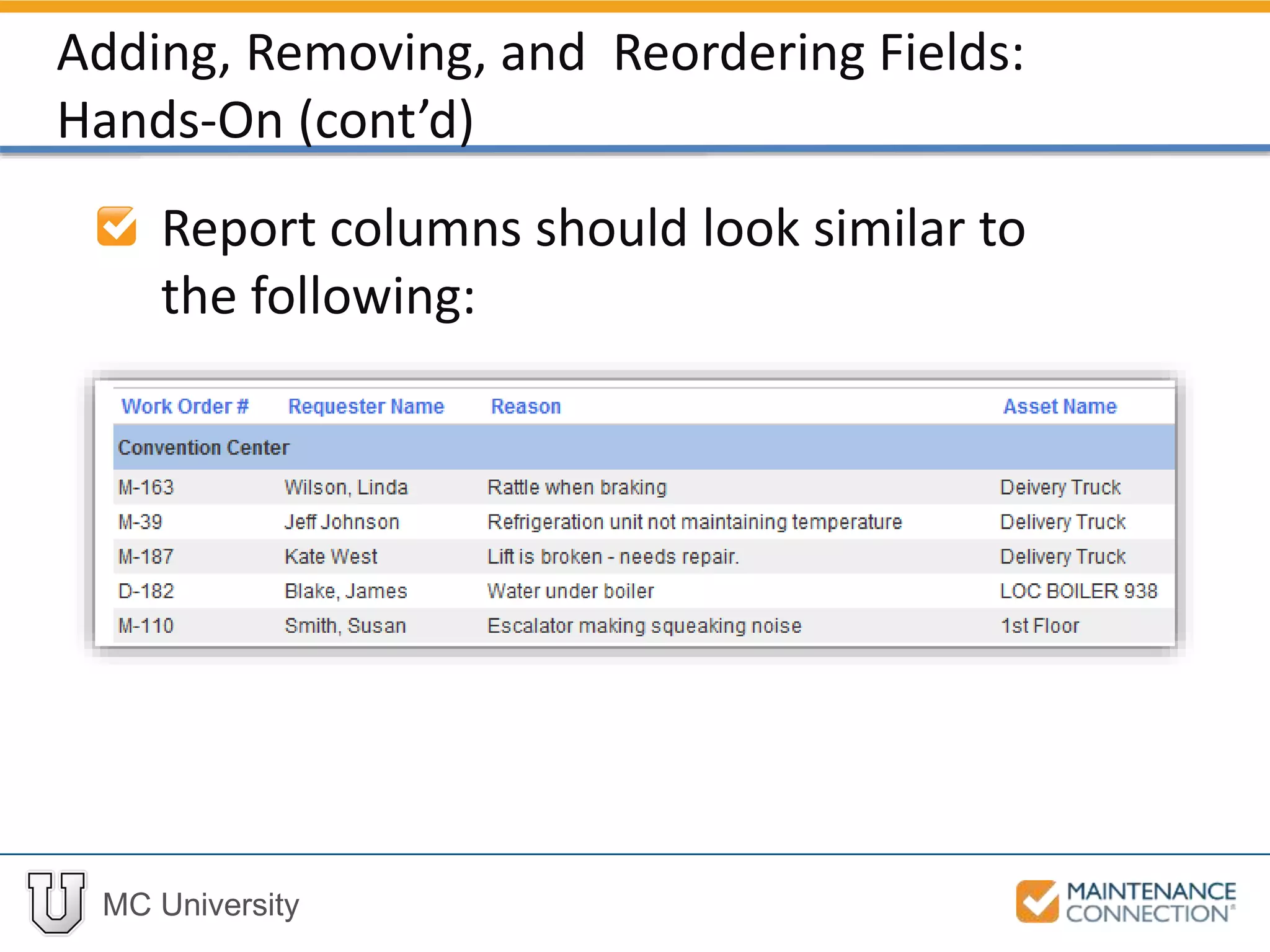
Report columns should look similar to
the following:
Adding, Removing, and Reordering Fields:
Hands-On (cont’d)
MC University
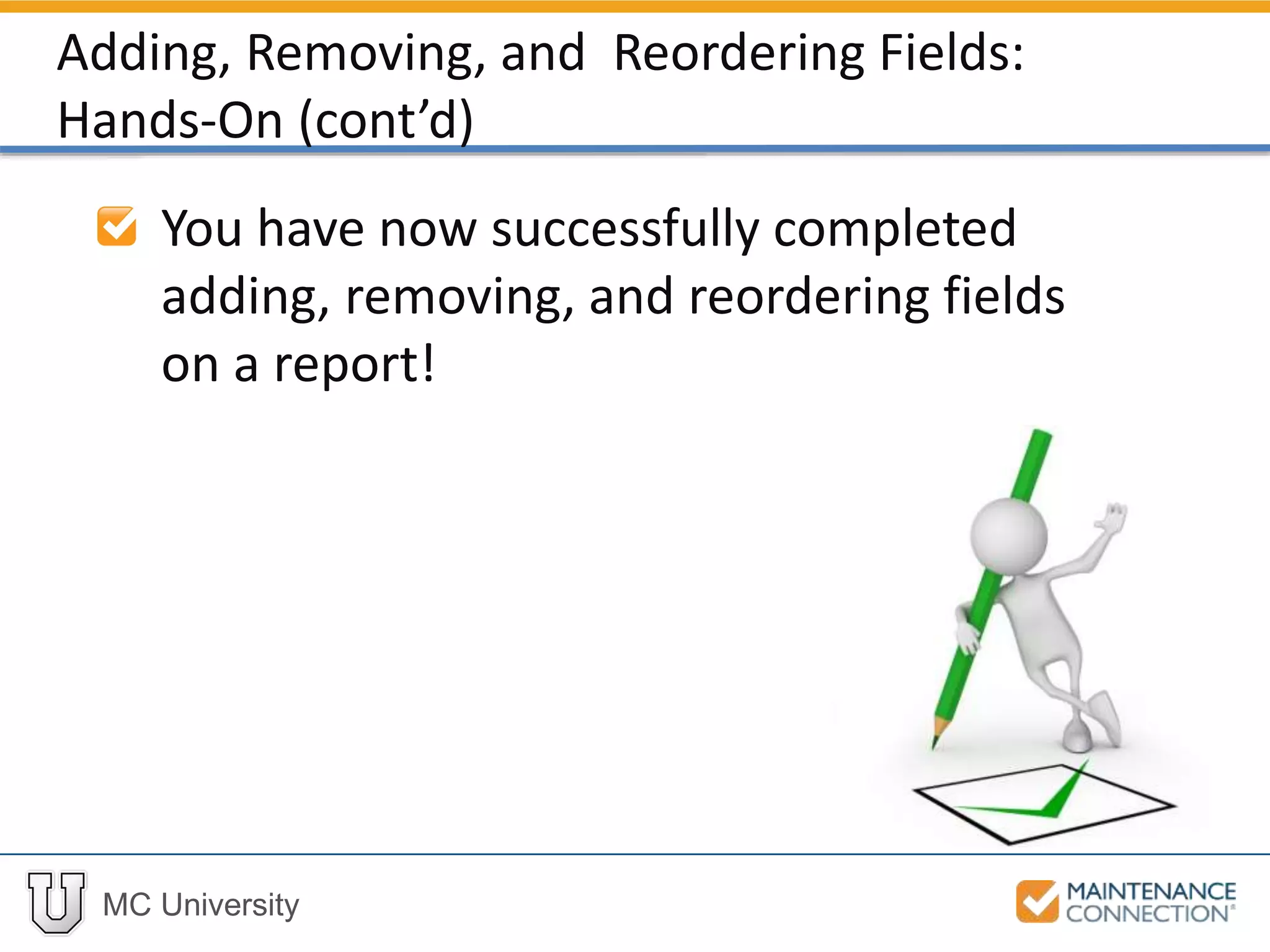
You have now successfully completed
adding, removing, and reordering fields
on a report!
Adding, Removing, and Reordering Fields:
Hands-On (cont’d)
MC University
Sorting and Grouping Overview
Sorting Results
Grouping Results
Sorting and Grouping
MC University
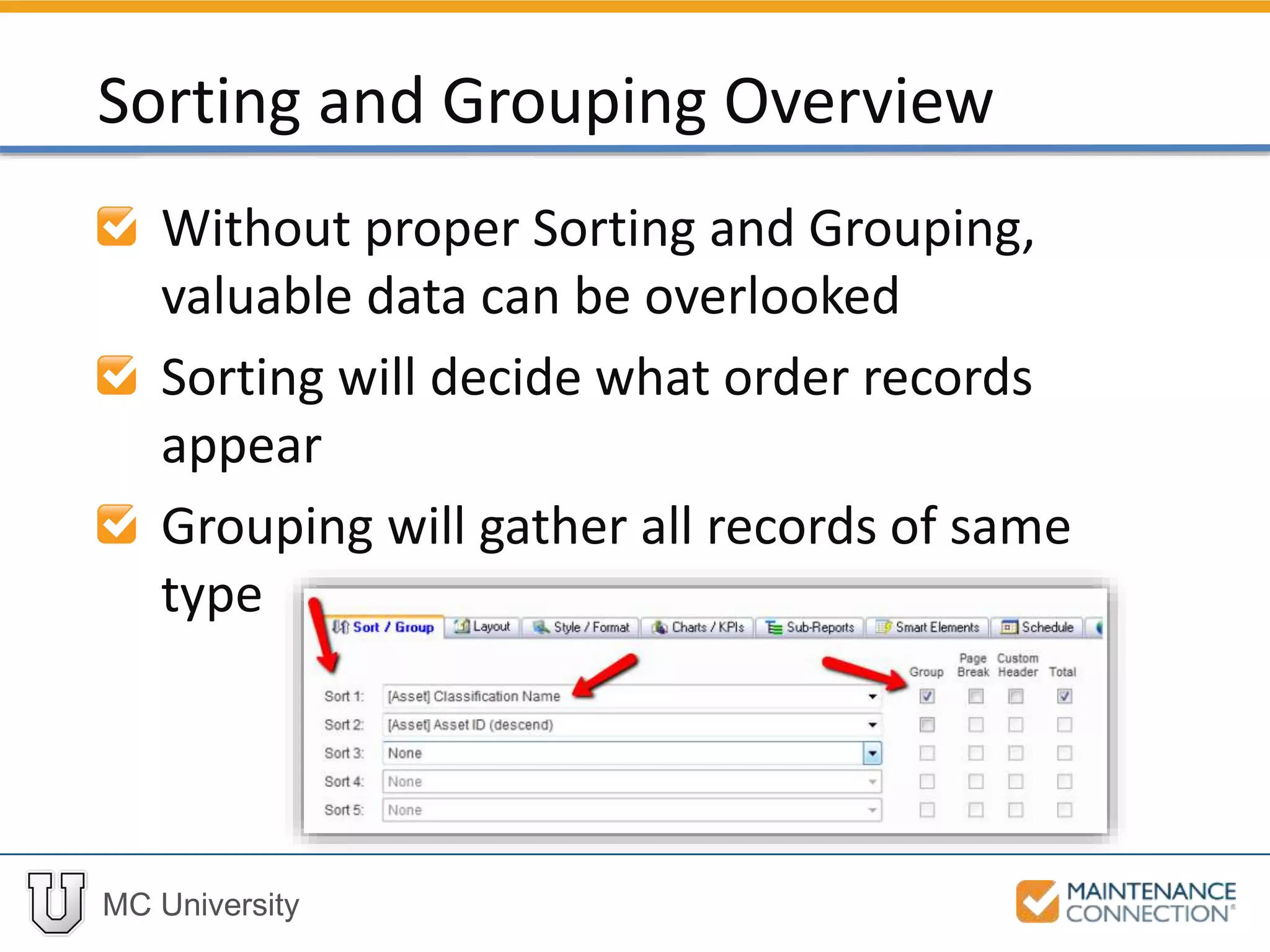
Without proper Sorting and Grouping,
valuable data can be overlooked
Sorting will decide what order records
appear
Grouping will gather all records of same
type
Sorting and Grouping Overview
MC University
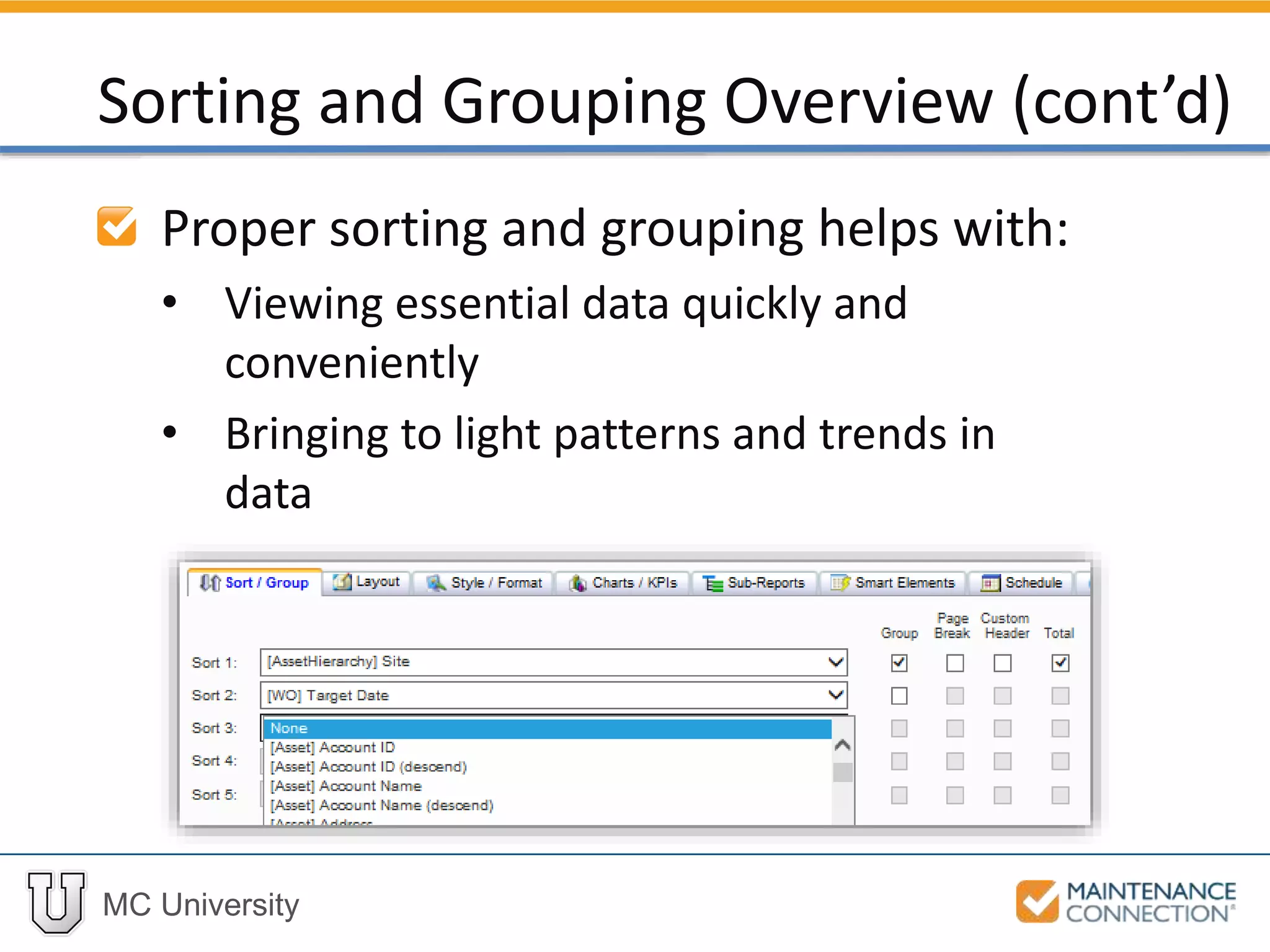
Proper sorting and grouping helps with:
• Viewing essential data quickly and
conveniently
• Bringing to light patterns and trends in
data
Sorting and Grouping Overview (cont’d)
MC University
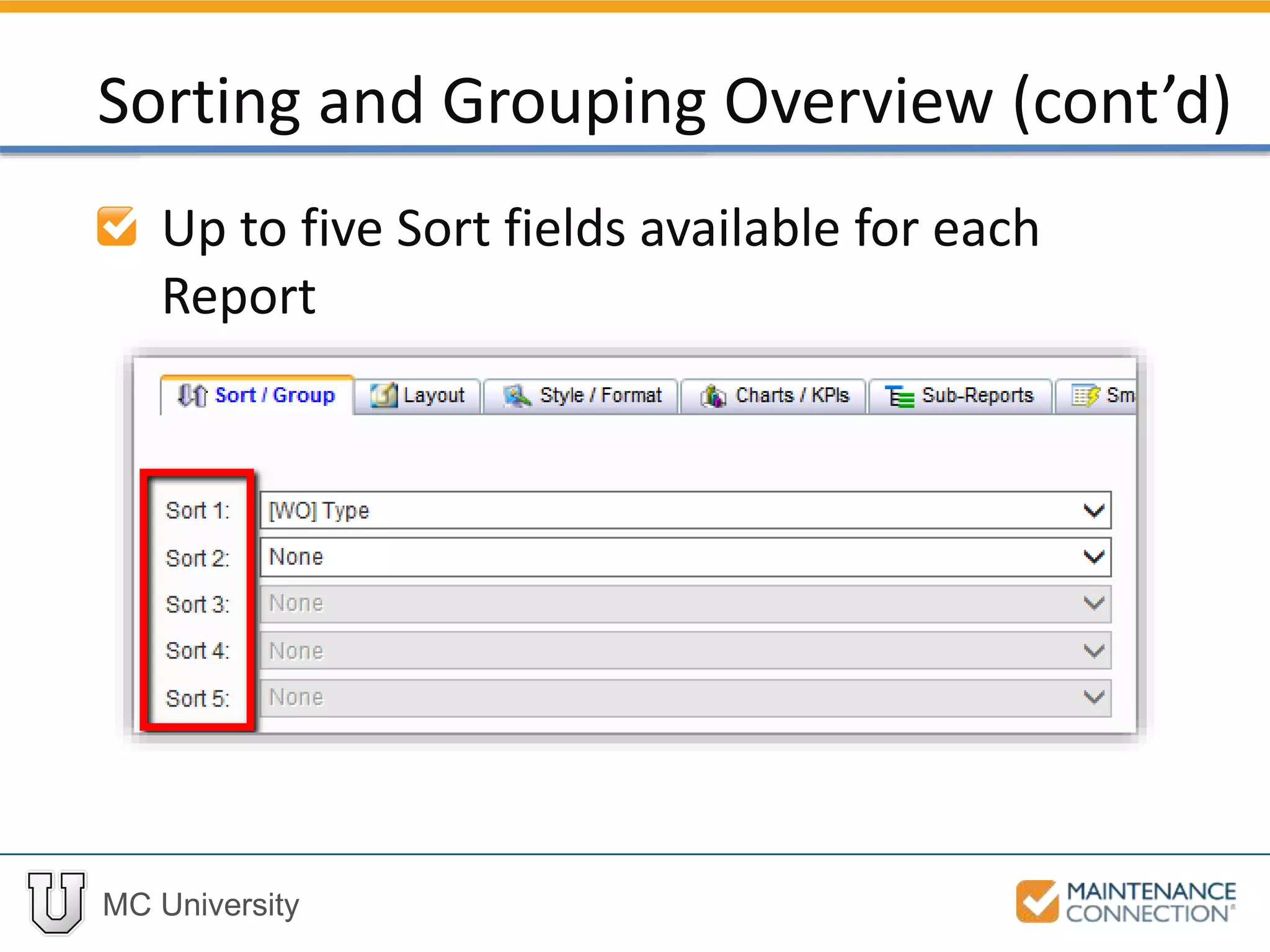
Up to five Sort fields available for each
Report
Sorting and Grouping Overview (cont’d)
MC University
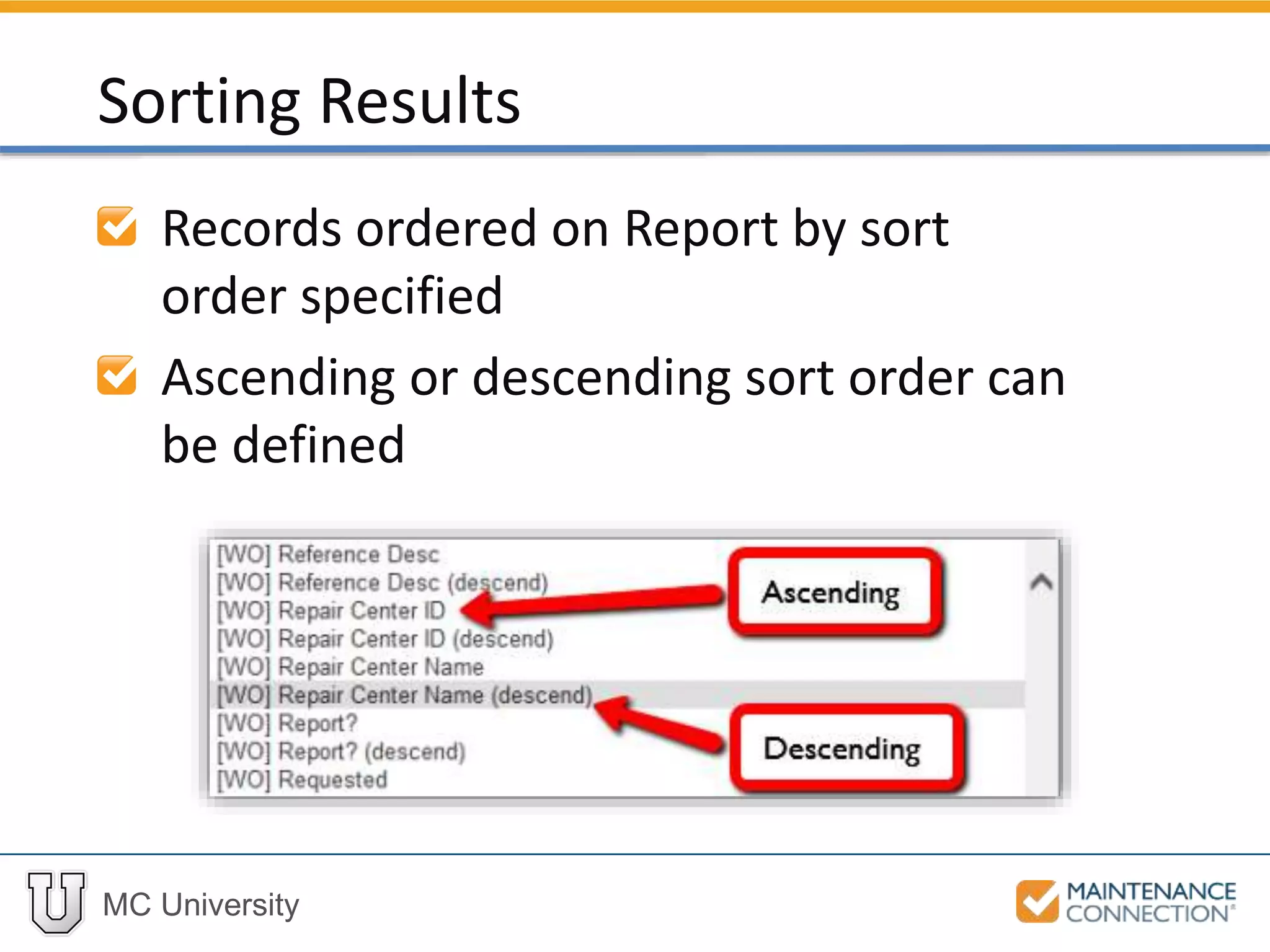
Records ordered on Report by sort
order specified
Ascending or descending sort order can
be defined
Sorting Results
MC University
Typically, sorting is best when starting
with the highest level of grouping
• Example: Repair Center  Priority Desc
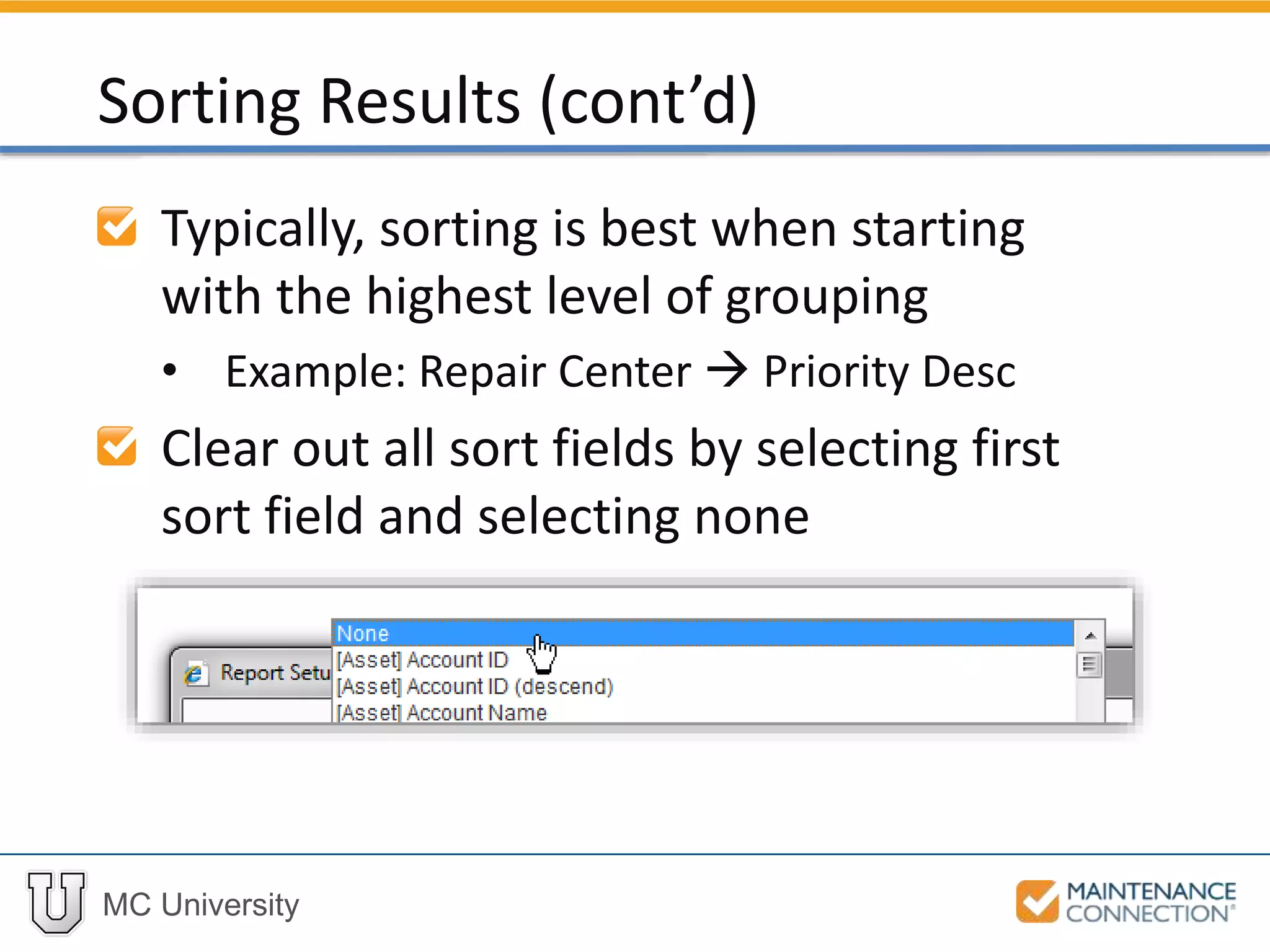
Clear out all sort fields by selecting first
sort field and selecting none
Sorting Results (cont’d)
MC University
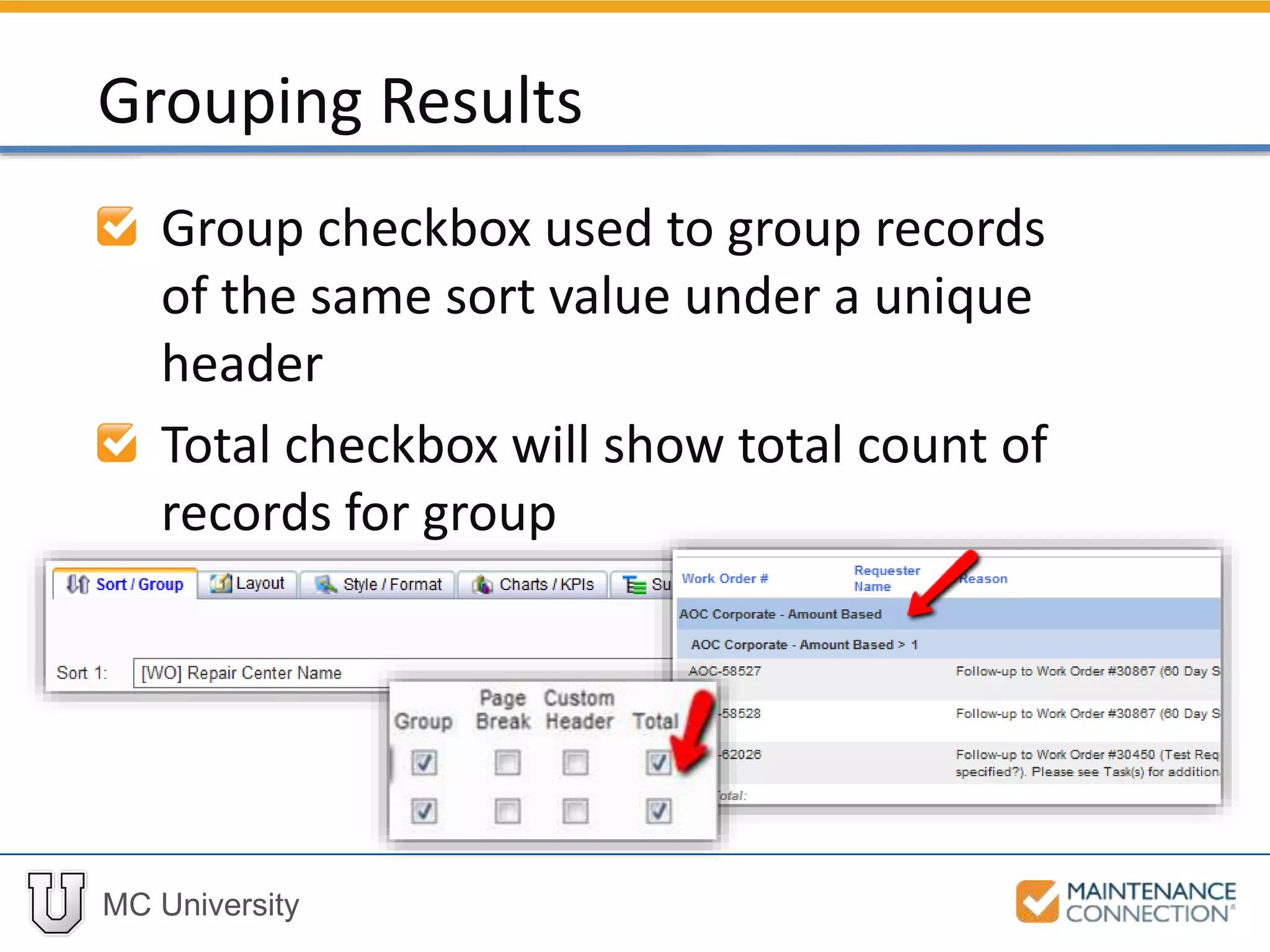
Group checkbox used to group records
of the same sort value under a unique
header
Total checkbox will show total count of
records for group
Grouping Results
MC University
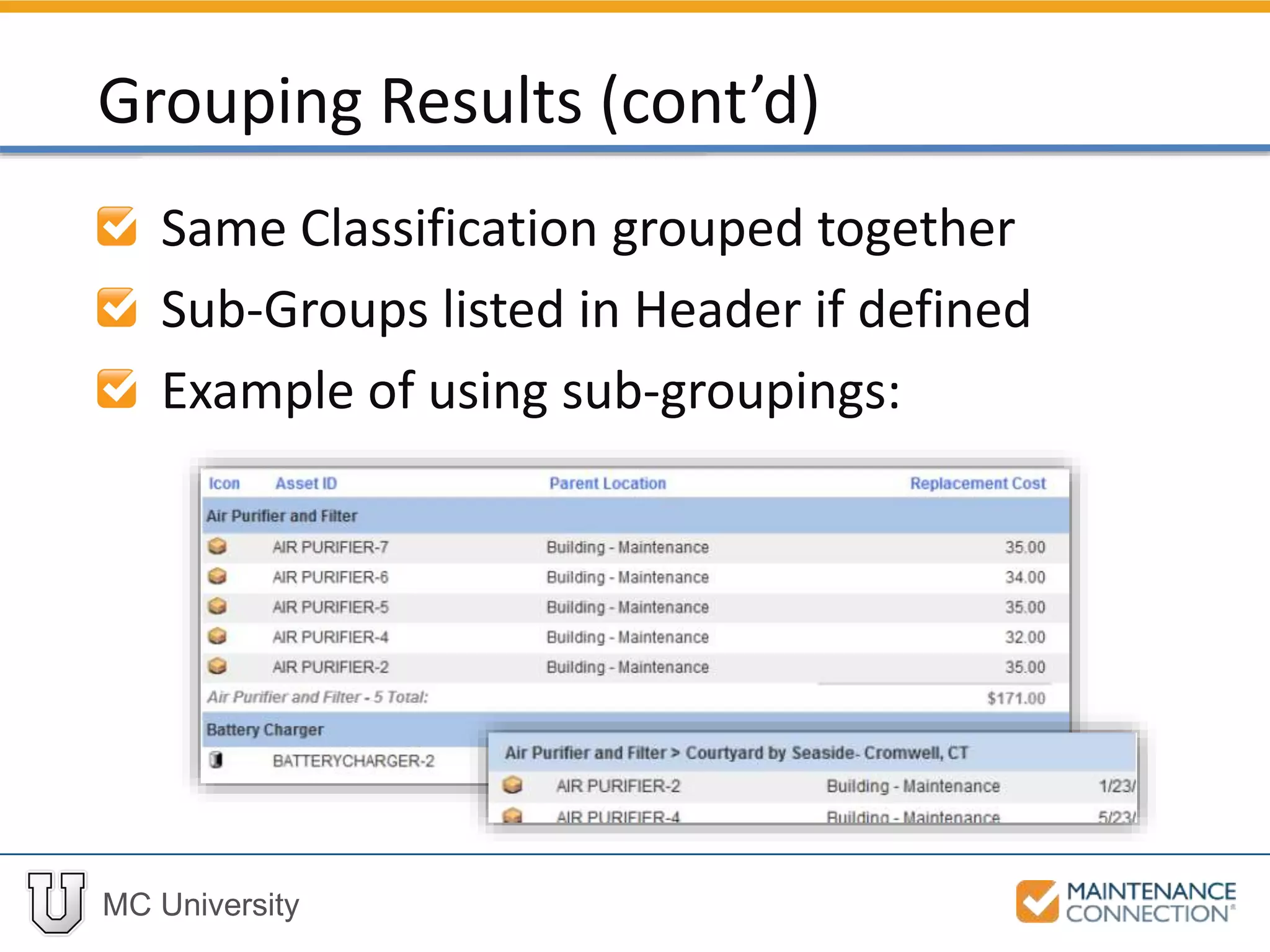
Same Classification grouped together
Sub-Groups listed in Header if defined
Example of using sub-groupings:
Grouping Results (cont’d)
MC University
Now let’s practice adding Sorting and
Grouping to a report!
Sorting and Grouping: Hands-On
MC University
Navigate to the Report Setup
Select None from the Sort 1 dropdown
Click on the Sort 1 dropdown and find
the [WO] Repair Center Name field
Select [WO] Repair Center Name
Sorting and Grouping: Hands-On (cont’d)
MC University
Click on the Sort 2 dropdown and scroll
down to the [WO] Priority Desc field
Select [WO] Priority Desc
Sorting and Grouping: Hands-On (cont’d)
MC University
Mark indicators for Group and Total for
both Sort 1 and Sort 2
Select the [WO] Target Date field for
the Sort 3 prompt
Sorting and Grouping: Hands-On (cont’d)
MC University
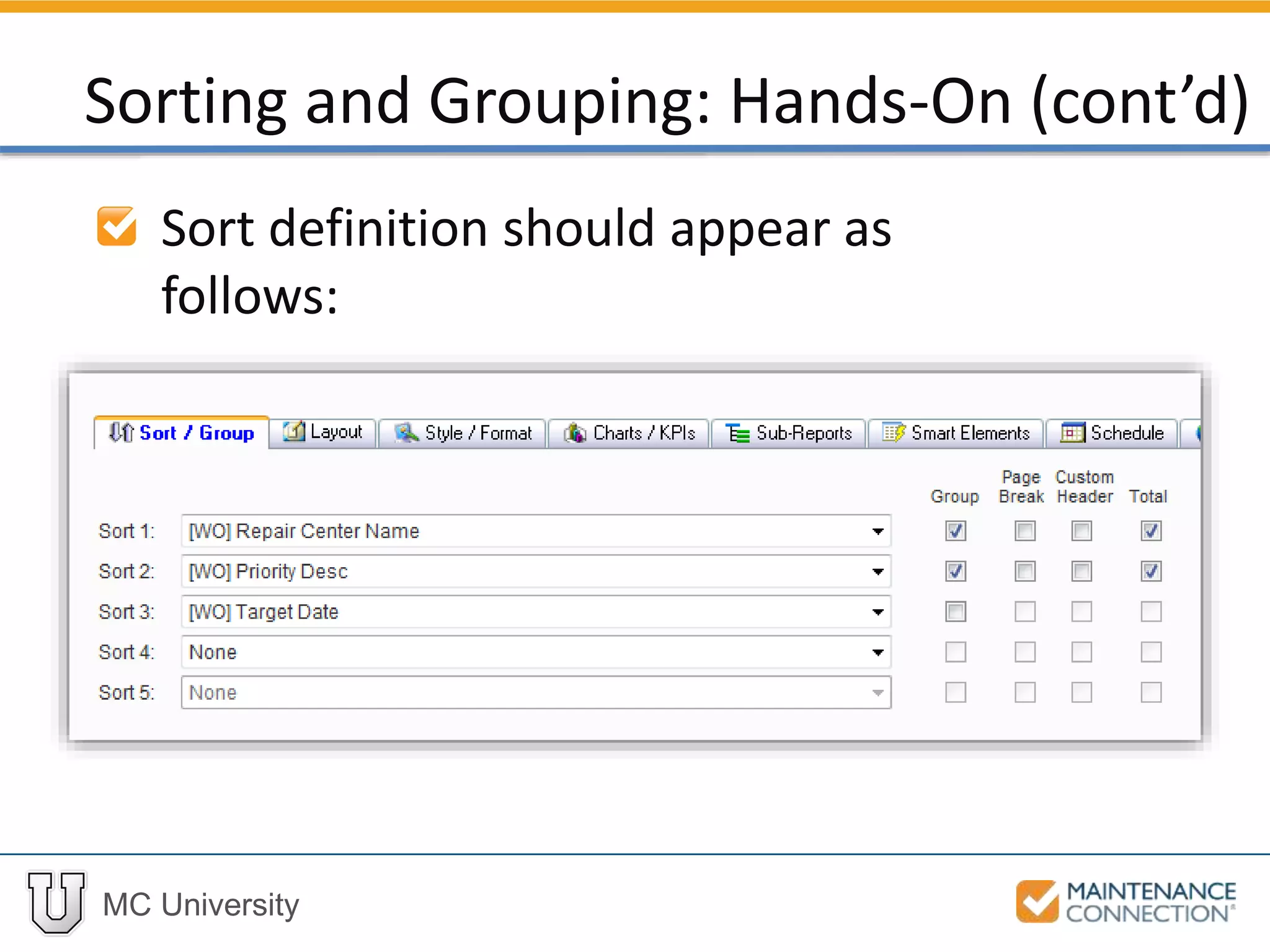
Sort definition should appear as
follows:
Sorting and Grouping: Hands-On (cont’d)
MC University
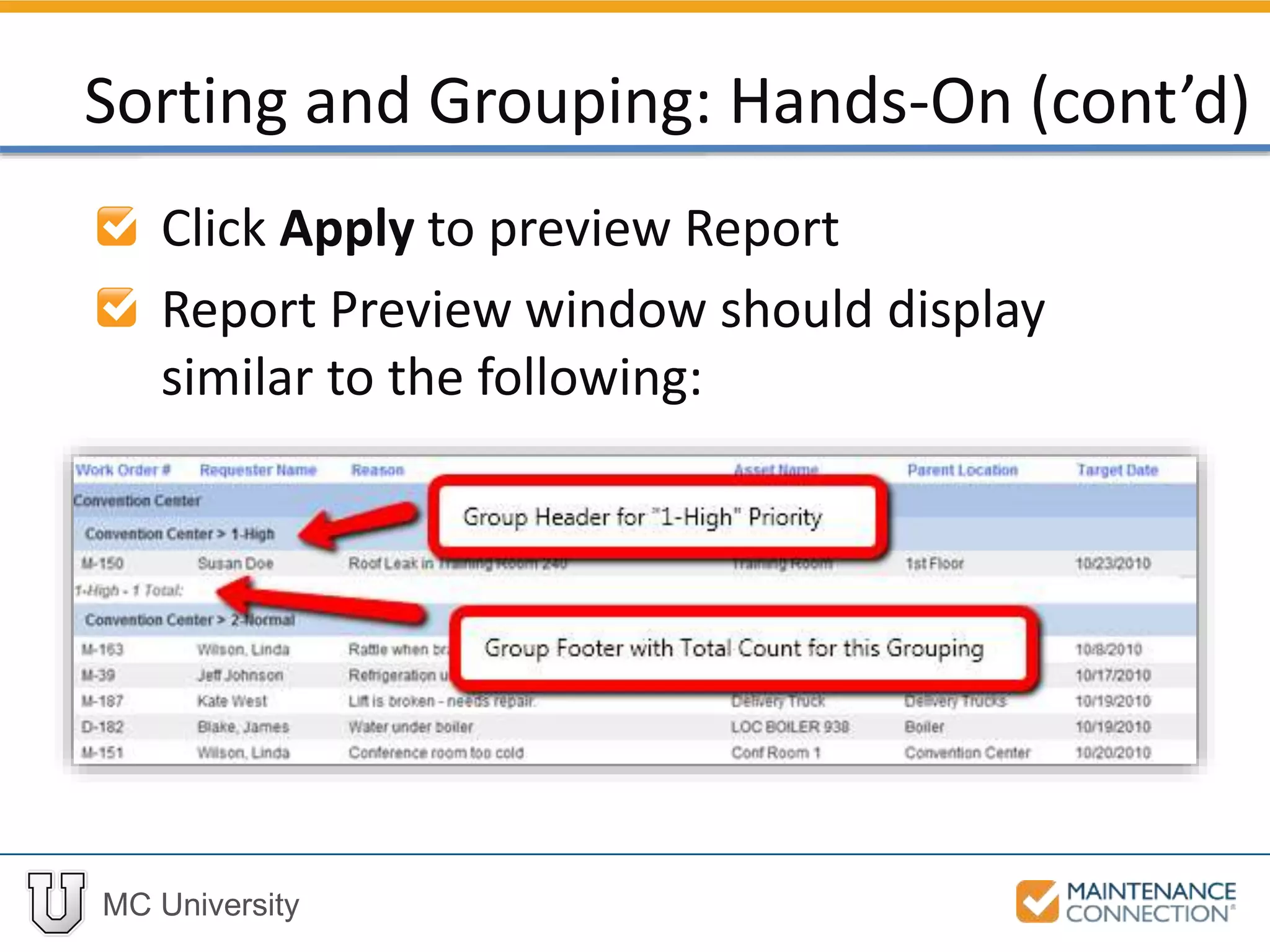
Click Apply to preview Report
Report Preview window should display
similar to the following:
Sorting and Grouping: Hands-On (cont’d)
MC University
You have now successfully added
Sorting and Grouping to a report!
Sorting and Grouping: Hands-On (cont’d)
Thank You for
Watching!

R03 - Basics of Reporting Report Setup Part 1 (MCU)

  • 1.
    MC University R03|Basics ofReporting: Report Setup (Part 1)
  • 2.
    MC University Report SetupDefined Sorting and Grouping Agenda
  • 3.
    MC University Report SetupOverview Field List Defined Removing Fields Reordering Fields Report Setup Defined
  • 4.
    MC University Configuration changestake place from the Report Setup Ability to alter many aspects of Report presentation (e.g. grouping, layout) Report Setup Overview
  • 5.
    MC University Access ReportSetup in three ways: • Report Preview window Report Setup Overview (cont’d)
  • 6.
    MC University • ReporterList Report Setup Overview (cont’d)
  • 7.
    MC University • Right-clickingon Report Name Report Setup Overview (cont’d)
  • 8.
    MC University Summary informationlocated at very top of Report Setup Window • Report Name • Managed By Report Setup Overview (cont’d)
  • 9.
    MC University Report Setupsub-tabs include: • Sort / Group • Layout • Style / Format Report Setup Overview (cont’d)
  • 10.
    MC University • Charts/ KPIs • Sub-Reports • Smart Elements Report Setup Overview (cont’d)
  • 11.
    MC University • Schedule •Groups • Security • Advanced Report Setup Overview (cont’d)
  • 12.
    MC University Available andDisplay Field Lists located at the top of Report Setup window Field List Defined
  • 13.
    MC University Available fieldsshown in column on left hand side of Report Setup Fields in Display List appear on Report in order shown Field List Defined (cont’d)
  • 14.
    MC University Fields availablewill depend on the type of Report Dependent on tables joined to report Field List Defined (cont’d)
  • 15.
    MC University Typically WorkOrder Reports will have fields from the following tables: • WO (Work Order) • Asset • AssetHierarchy • Labor / WOLabor Field List Defined (cont’d)
  • 16.
    MC University Two methodsto add a field to the Report display from the Available List: • Double-click directly on the field • Select the field and use the right arrow Field List Defined (cont’d)
  • 17.
    MC University Fields canbe removed as easily as they are added Two methods to remove a field from the Display List: • Double-click directly the field • Select the field and use the left arrow Removing Fields
  • 18.
    MC University Display fieldorder is easily changed with use of the up and down arrows Newly added fields will be added to bottom of Display Field List Reordering Fields
  • 19.
    MC University Now let’spractice adding fields to a report, removing unnecessary fields, and reordering fields! Adding, Removing, and Reordering Fields: Hands-On
  • 20.
    MC University Select theWork Order (Open) Reports folder on the left of the Reporter screen Locate the Open Work Order List and select it Click Copy Report Adding, Removing, and Reordering Fields: Hands-On (cont’d)
  • 21.
    MC University Enter aname for your Report • Example: “Open Work Order List – Initials – Date” If necessary, specify a Repair Center in the Managed By field Click Apply Adding, Removing, and Reordering Fields: Hands-On (cont’d)
  • 22.
    MC University Locate yourReport in the Report List Open the Report Setup Scroll down Available field list and find [WO] Requester Name Adding, Removing, and Reordering Fields: Hands-On (cont’d)
  • 23.
    MC University Click onthe [WO] Requester Name field and click on the right arrow The [WO] Requester Name field will move to the Display list Adding, Removing, and Reordering Fields: Hands-On (cont’d)
  • 24.
    MC University Locate the[Asset] Asset ID field in the Display fields list Select the [Asset] Asset ID field and select the left arrow The [Asset] Asset ID field will be removed from the Display List Adding, Removing, and Reordering Fields: Hands-On (cont’d)
  • 25.
    MC University Find the[Asset] Asset Name field in the Available field list Double-click on the [Asset] Asset Name field to move to the Display fields Adding, Removing, and Reordering Fields: Hands-On (cont’d)
  • 26.
    MC University Find andselect the [Asset] Asset Name field in the Display List Click the up arrow until the field is displayed above the Parent Location Adding, Removing, and Reordering Fields: Hands-On (cont’d)
  • 27.
    MC University Move the[WO] Requester Name field to just below the [WO] Work Order # field Apply the Report Setup changes Adding, Removing, and Reordering Fields: Hands-On (cont’d)
  • 28.
    MC University Report columnsshould look similar to the following: Adding, Removing, and Reordering Fields: Hands-On (cont’d)
  • 29.
    MC University You havenow successfully completed adding, removing, and reordering fields on a report! Adding, Removing, and Reordering Fields: Hands-On (cont’d)
  • 30.
    MC University Sorting andGrouping Overview Sorting Results Grouping Results Sorting and Grouping
  • 31.
    MC University Without properSorting and Grouping, valuable data can be overlooked Sorting will decide what order records appear Grouping will gather all records of same type Sorting and Grouping Overview
  • 32.
    MC University Proper sortingand grouping helps with: • Viewing essential data quickly and conveniently • Bringing to light patterns and trends in data Sorting and Grouping Overview (cont’d)
  • 33.
    MC University Up tofive Sort fields available for each Report Sorting and Grouping Overview (cont’d)
  • 34.
    MC University Records orderedon Report by sort order specified Ascending or descending sort order can be defined Sorting Results
  • 35.
    MC University Typically, sortingis best when starting with the highest level of grouping • Example: Repair Center  Priority Desc Clear out all sort fields by selecting first sort field and selecting none Sorting Results (cont’d)
  • 36.
    MC University Group checkboxused to group records of the same sort value under a unique header Total checkbox will show total count of records for group Grouping Results
  • 37.
    MC University Same Classificationgrouped together Sub-Groups listed in Header if defined Example of using sub-groupings: Grouping Results (cont’d)
  • 38.
    MC University Now let’spractice adding Sorting and Grouping to a report! Sorting and Grouping: Hands-On
  • 39.
    MC University Navigate tothe Report Setup Select None from the Sort 1 dropdown Click on the Sort 1 dropdown and find the [WO] Repair Center Name field Select [WO] Repair Center Name Sorting and Grouping: Hands-On (cont’d)
  • 40.
    MC University Click onthe Sort 2 dropdown and scroll down to the [WO] Priority Desc field Select [WO] Priority Desc Sorting and Grouping: Hands-On (cont’d)
  • 41.
    MC University Mark indicatorsfor Group and Total for both Sort 1 and Sort 2 Select the [WO] Target Date field for the Sort 3 prompt Sorting and Grouping: Hands-On (cont’d)
  • 42.
    MC University Sort definitionshould appear as follows: Sorting and Grouping: Hands-On (cont’d)
  • 43.
    MC University Click Applyto preview Report Report Preview window should display similar to the following: Sorting and Grouping: Hands-On (cont’d)
  • 44.
    MC University You havenow successfully added Sorting and Grouping to a report! Sorting and Grouping: Hands-On (cont’d)
  • 45.