
MC University
R02|Basics of Reporting: Overview (Part 2)
MC University
Running Reports Defined
Report Criteria Defined
Agenda
MC University
Accessing Reports and Report Groups
Running Reports
Report Criteria
Running Reports
MC University
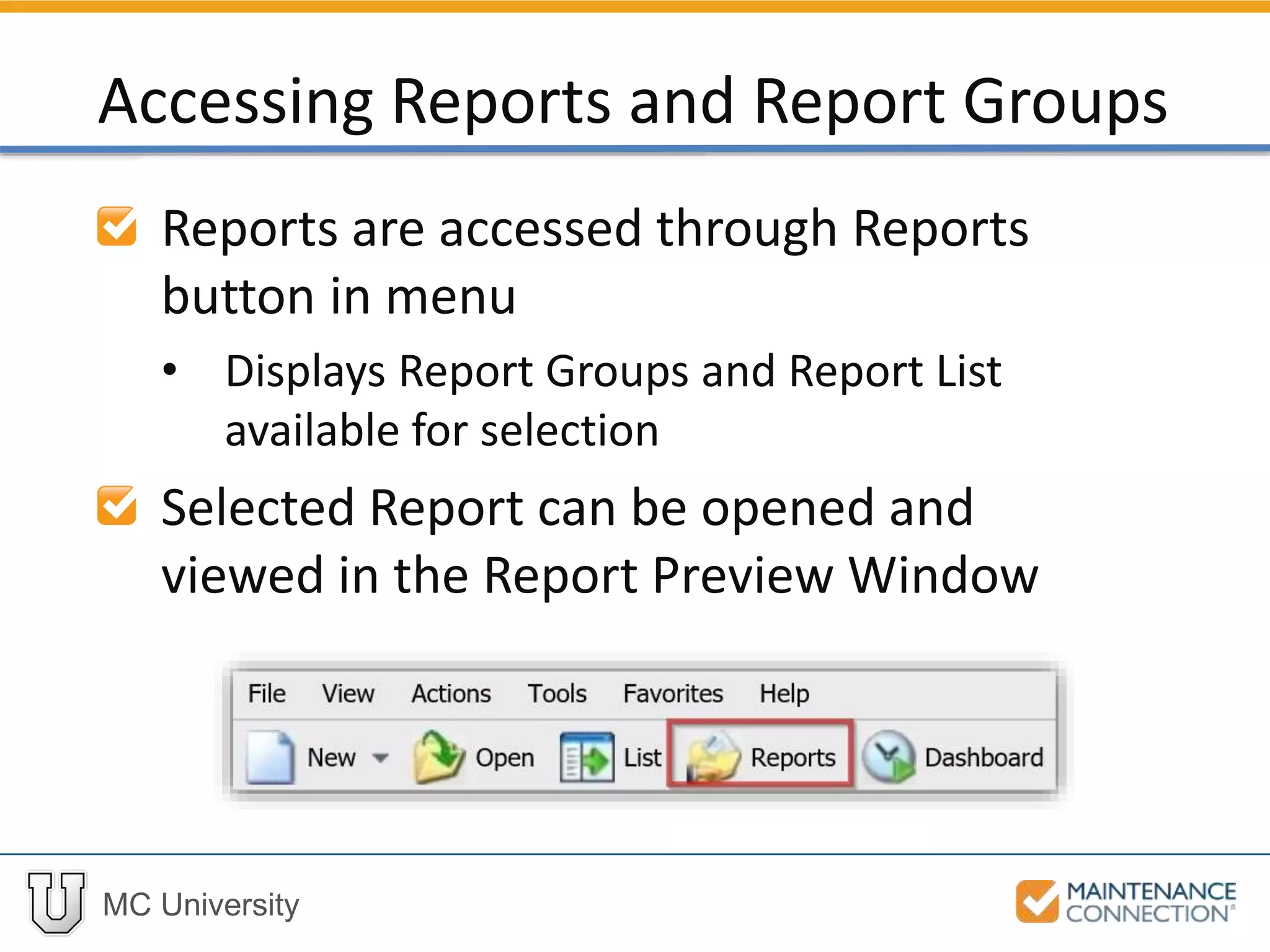
Reports are accessed through Reports
button in menu
• Displays Report Groups and Report List
available for selection
Selected Report can be opened and
viewed in the Report Preview Window
Accessing Reports and Report Groups
MC University
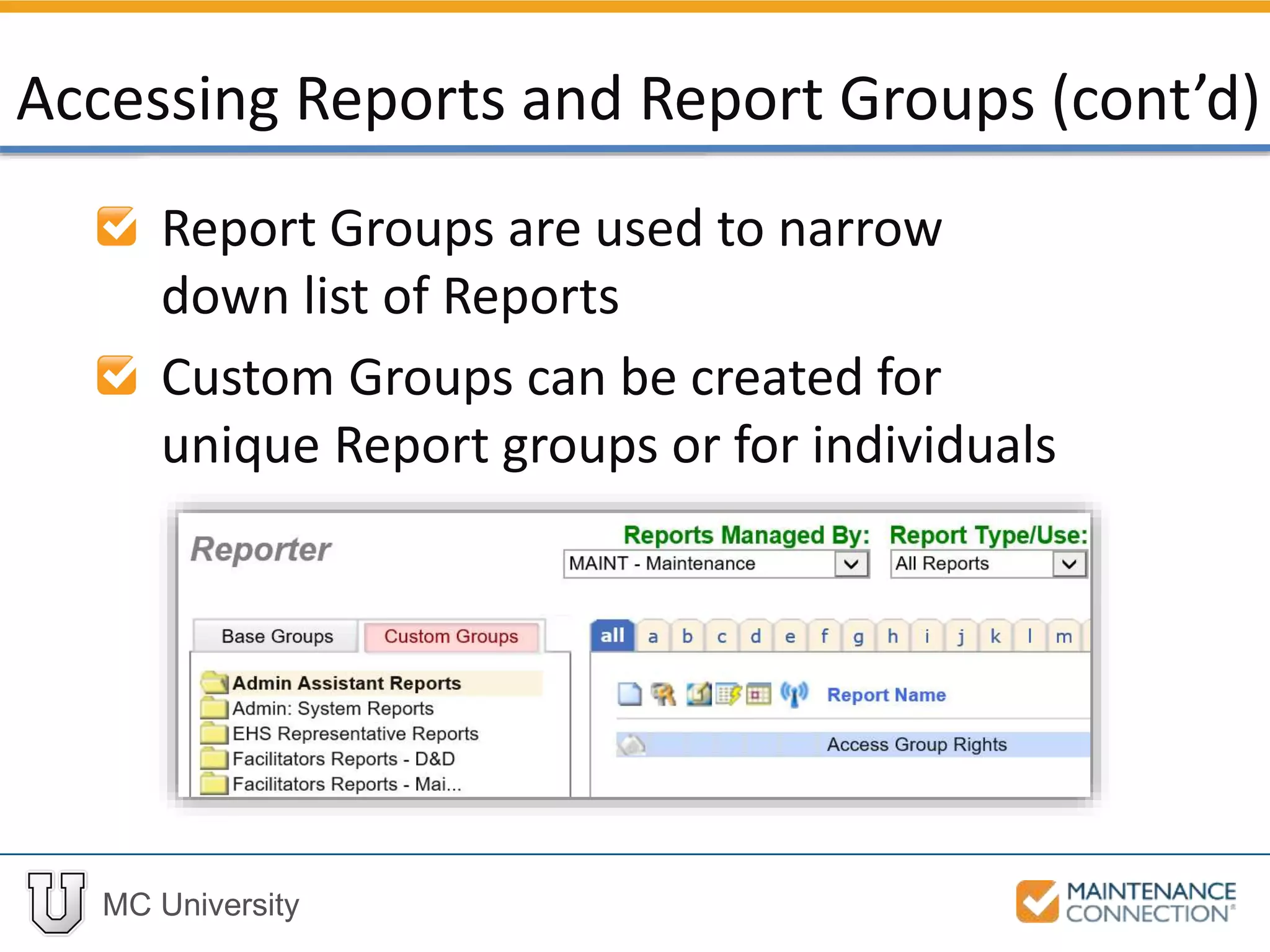
Report Groups are used to narrow
down list of Reports
Custom Groups can be created for
unique Report groups or for individuals
Accessing Reports and Report Groups (cont’d)
MC University
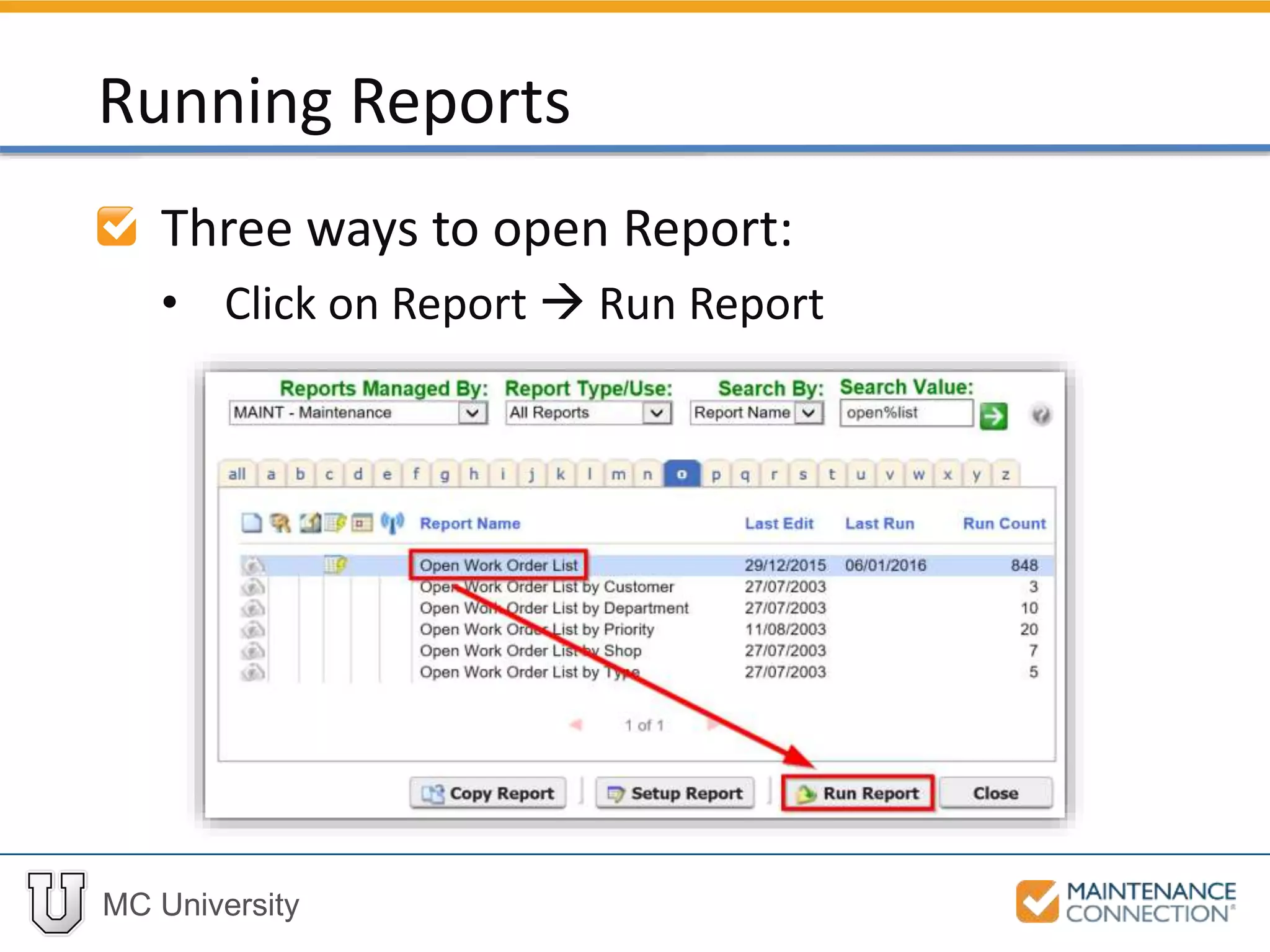
Three ways to open Report:
• Click on Report  Run Report
Running Reports
MC University
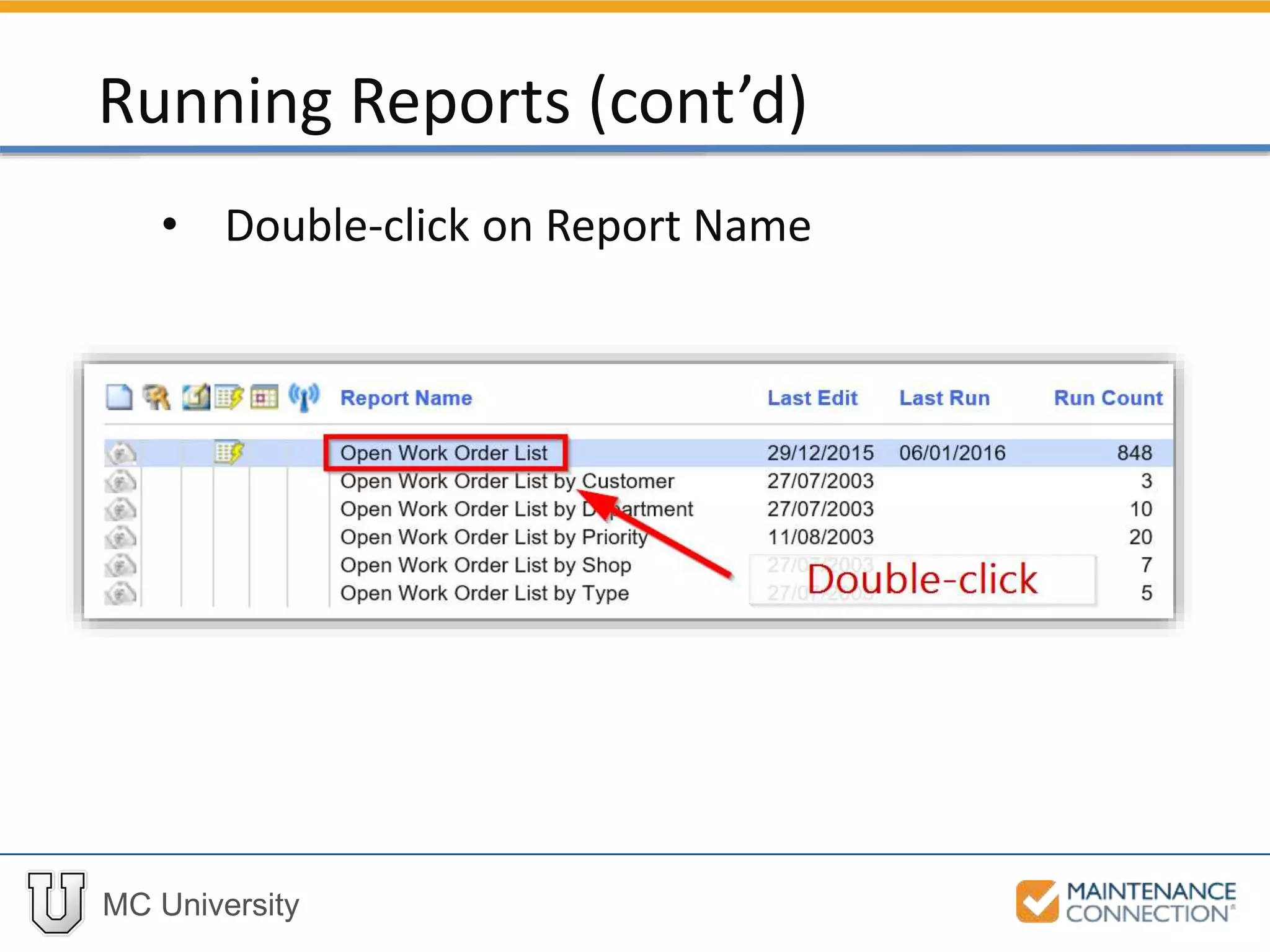
• Double-click on Report Name
Running Reports (cont’d)
MC University
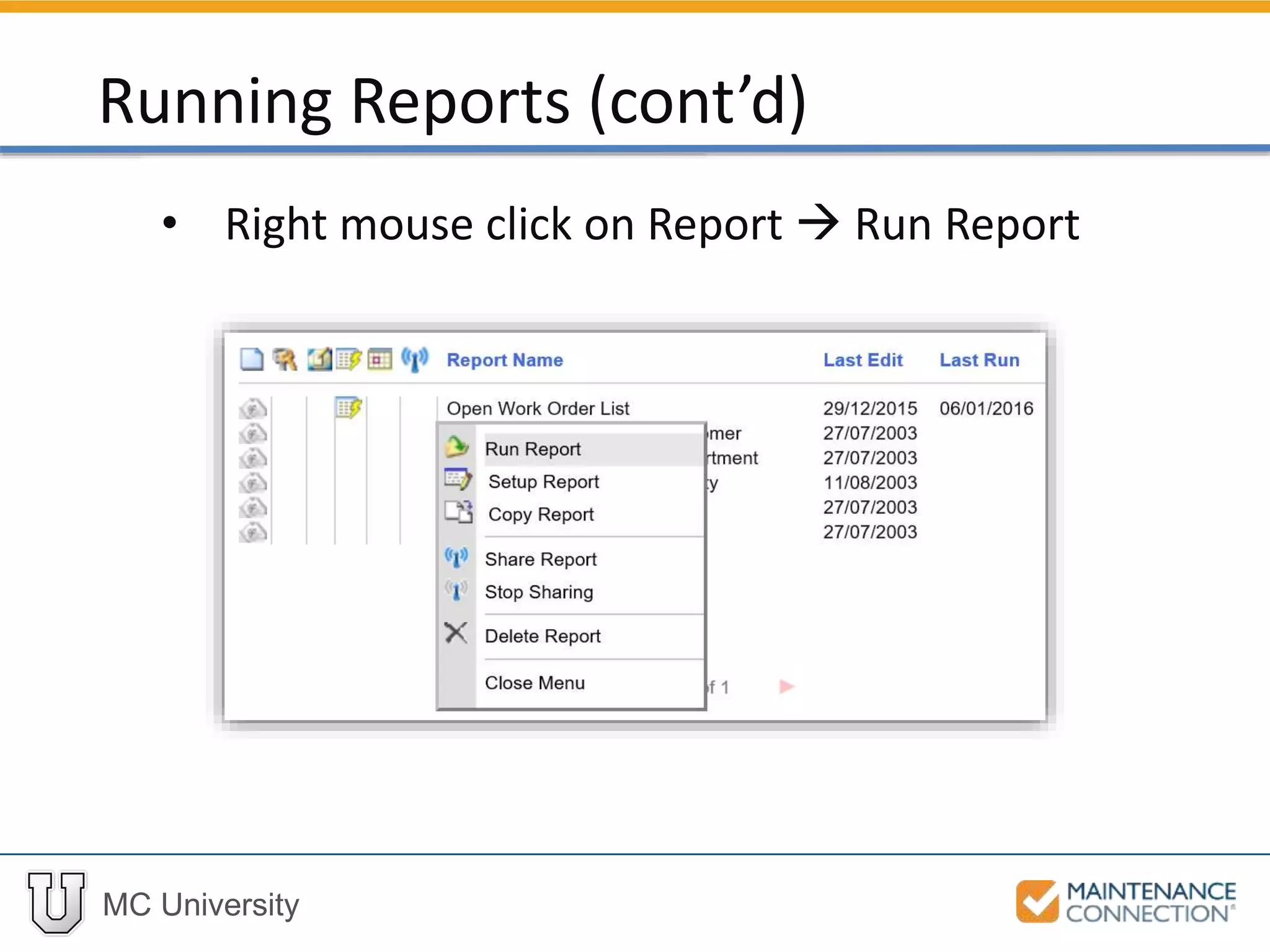
• Right mouse click on Report  Run Report
Running Reports (cont’d)
MC University
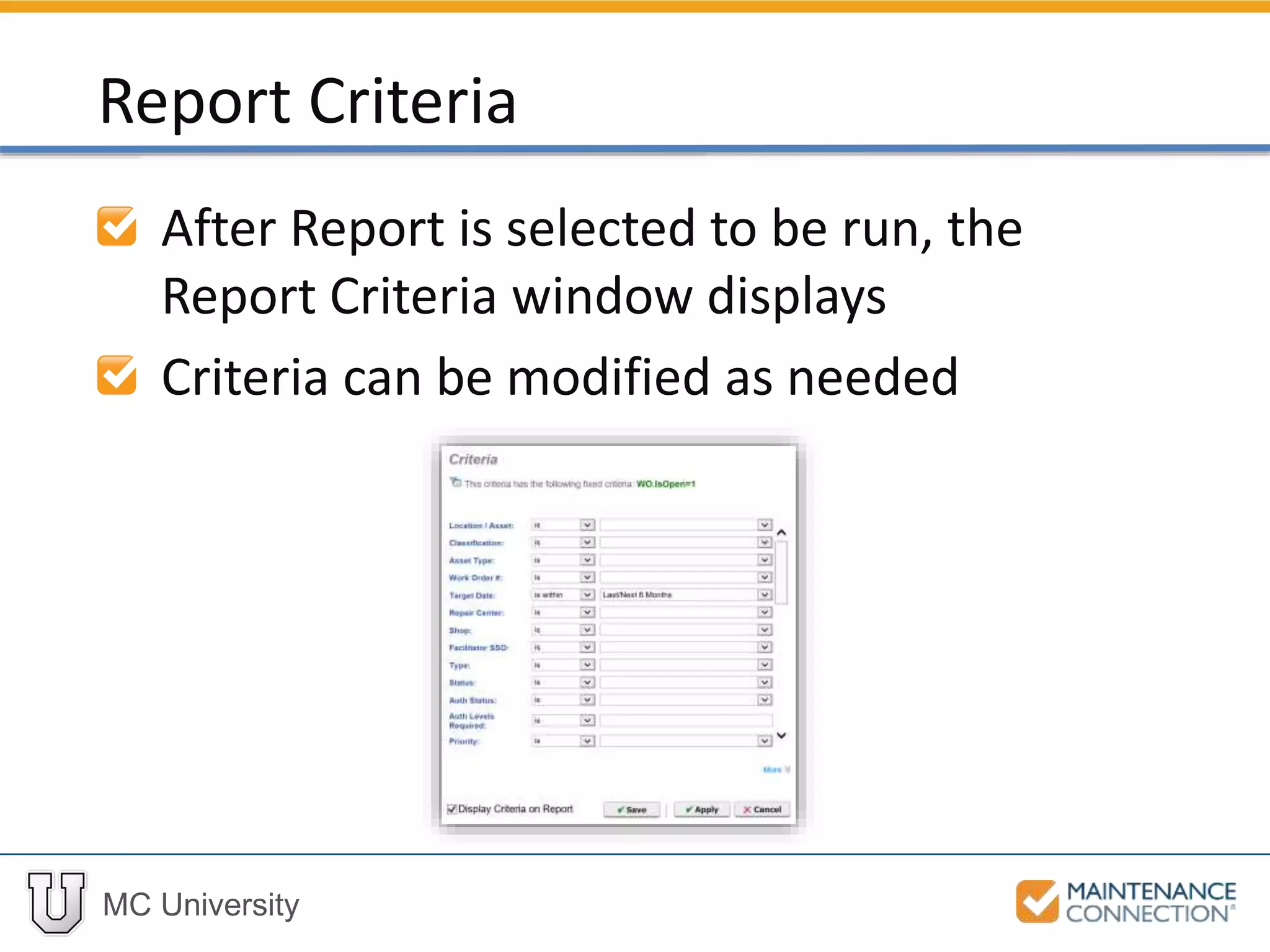
After Report is selected to be run, the
Report Criteria window displays
Criteria can be modified as needed
Report Criteria
MC University
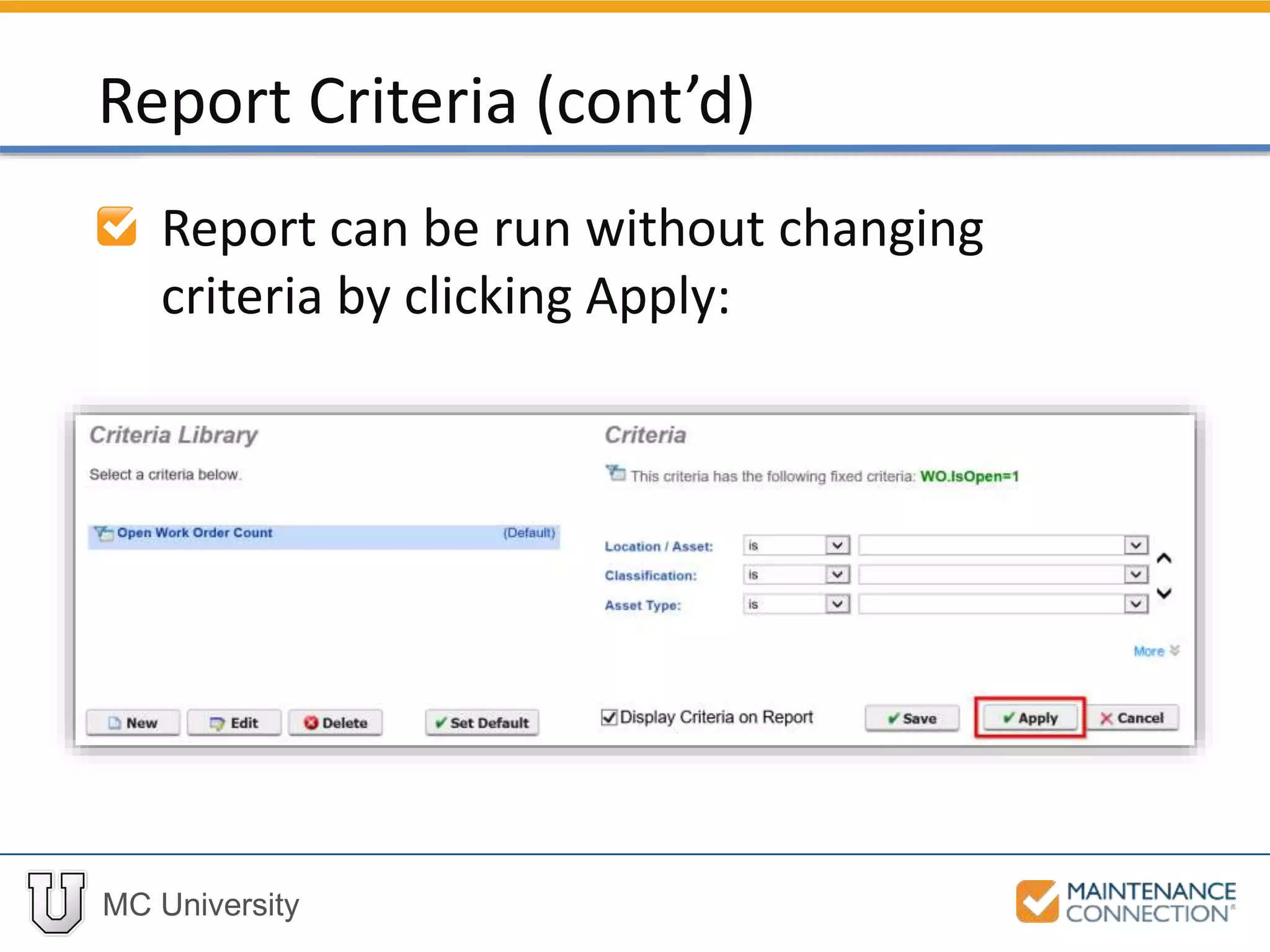
Report can be run without changing
criteria by clicking Apply:
Report Criteria (cont’d)
MC University
Report Criteria Overview
Criteria Components
Report Criteria Examples
Report Criteria Defined
MC University
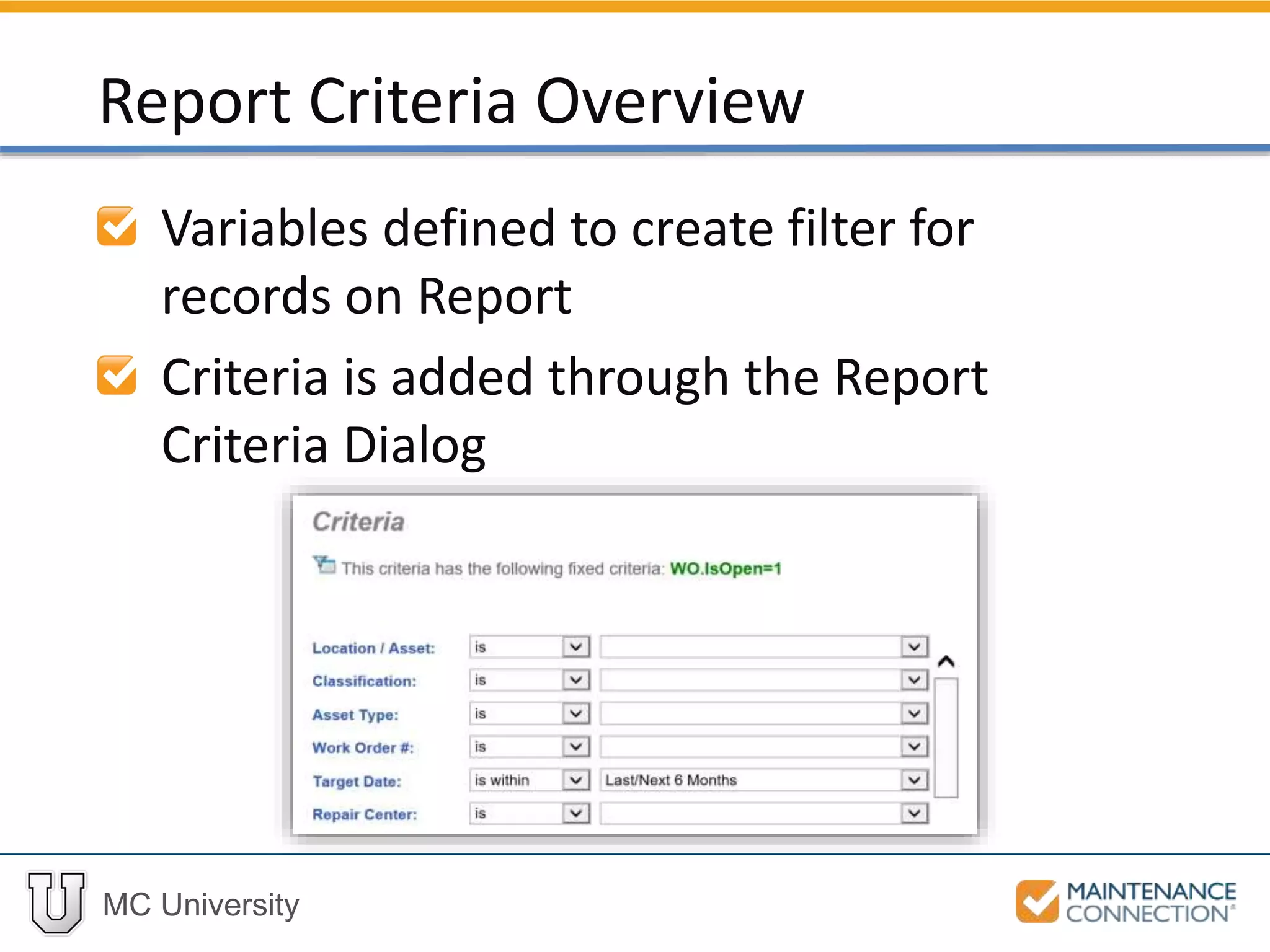
Variables defined to create filter for
records on Report
Criteria is added through the Report
Criteria Dialog
Report Criteria Overview
MC University
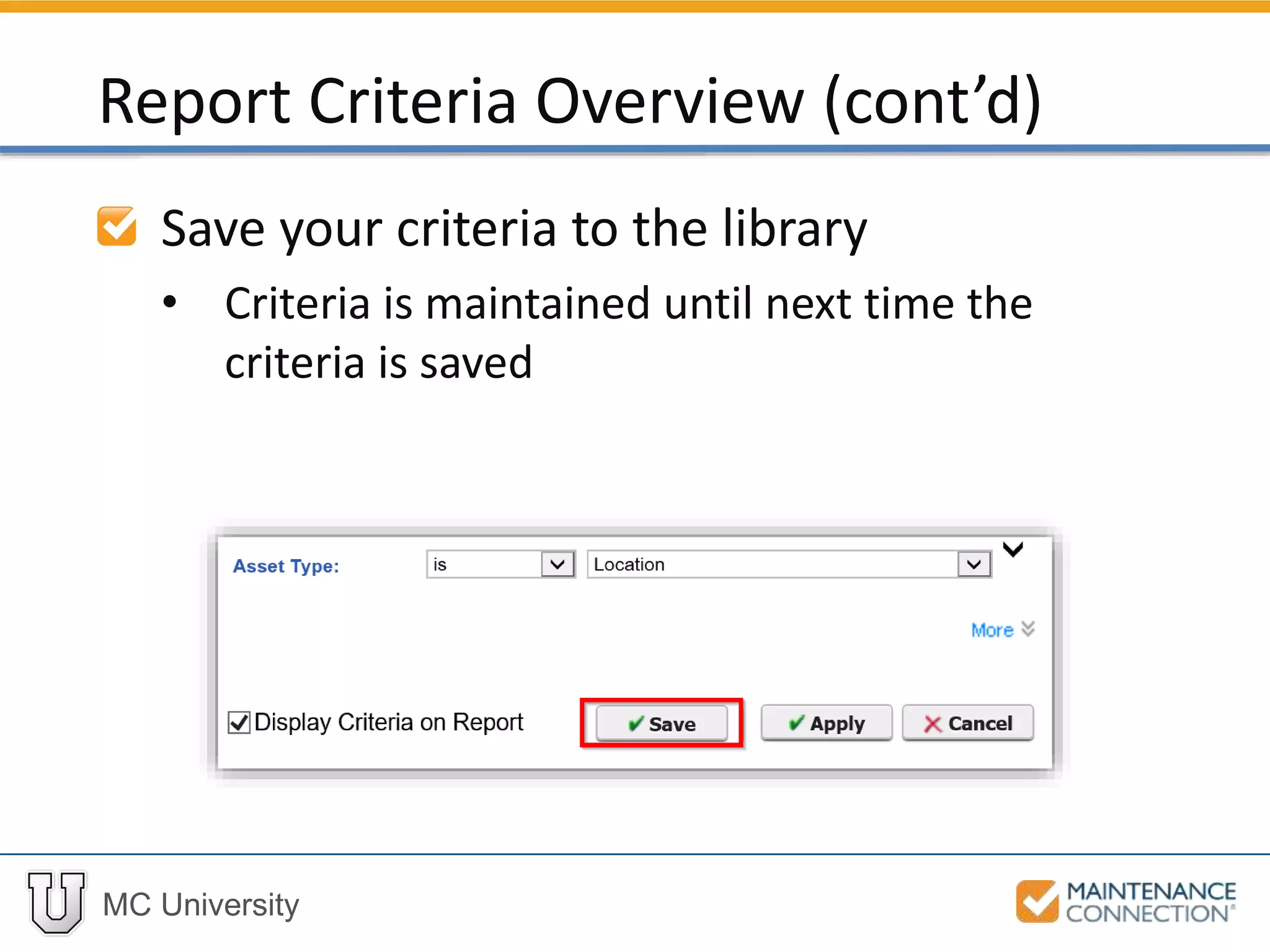
Save your criteria to the library
• Criteria is maintained until next time the
criteria is saved
Report Criteria Overview (cont’d)
MC University
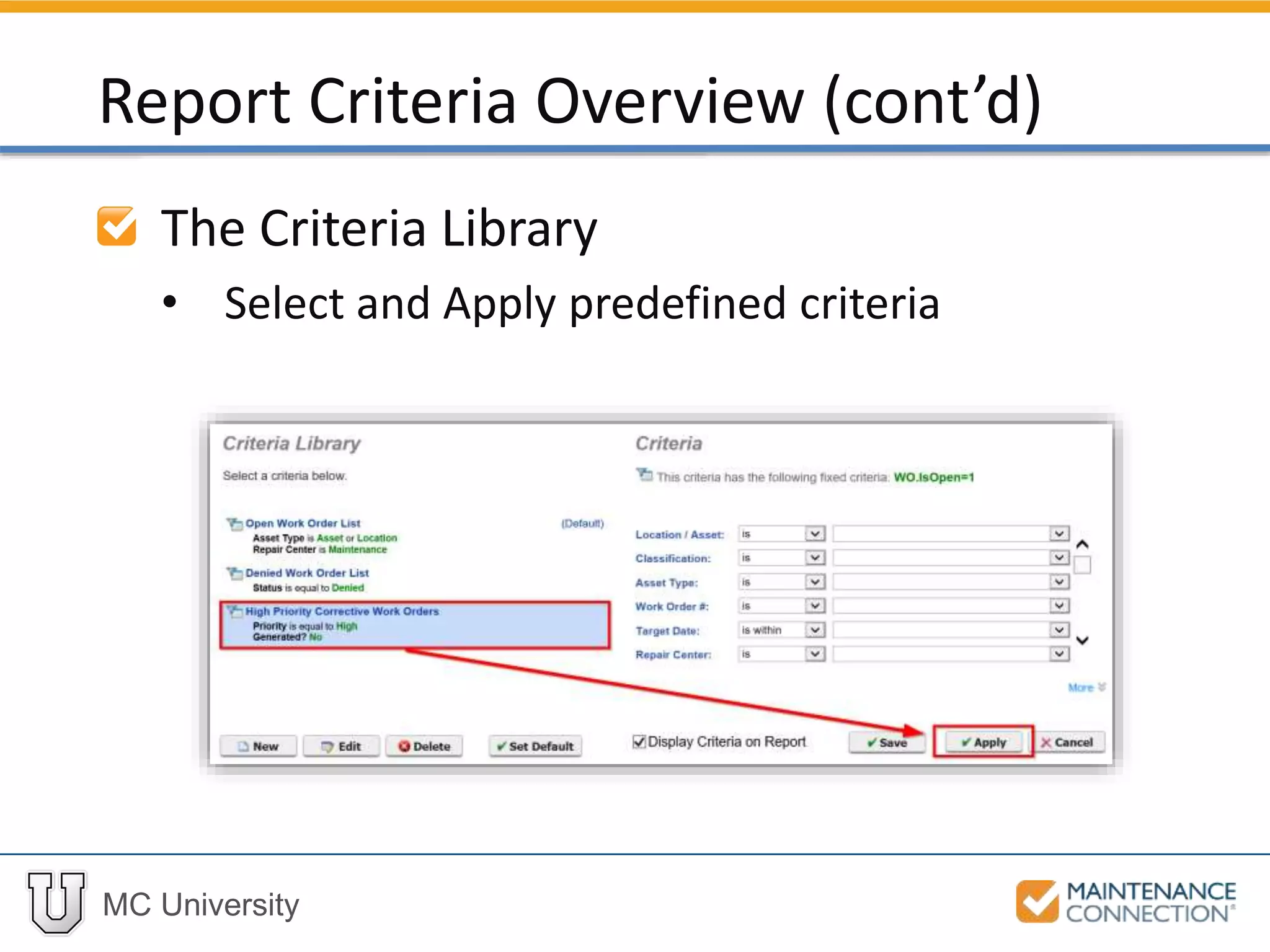
The Criteria Library
• Select and Apply predefined criteria
Report Criteria Overview (cont’d)
MC University
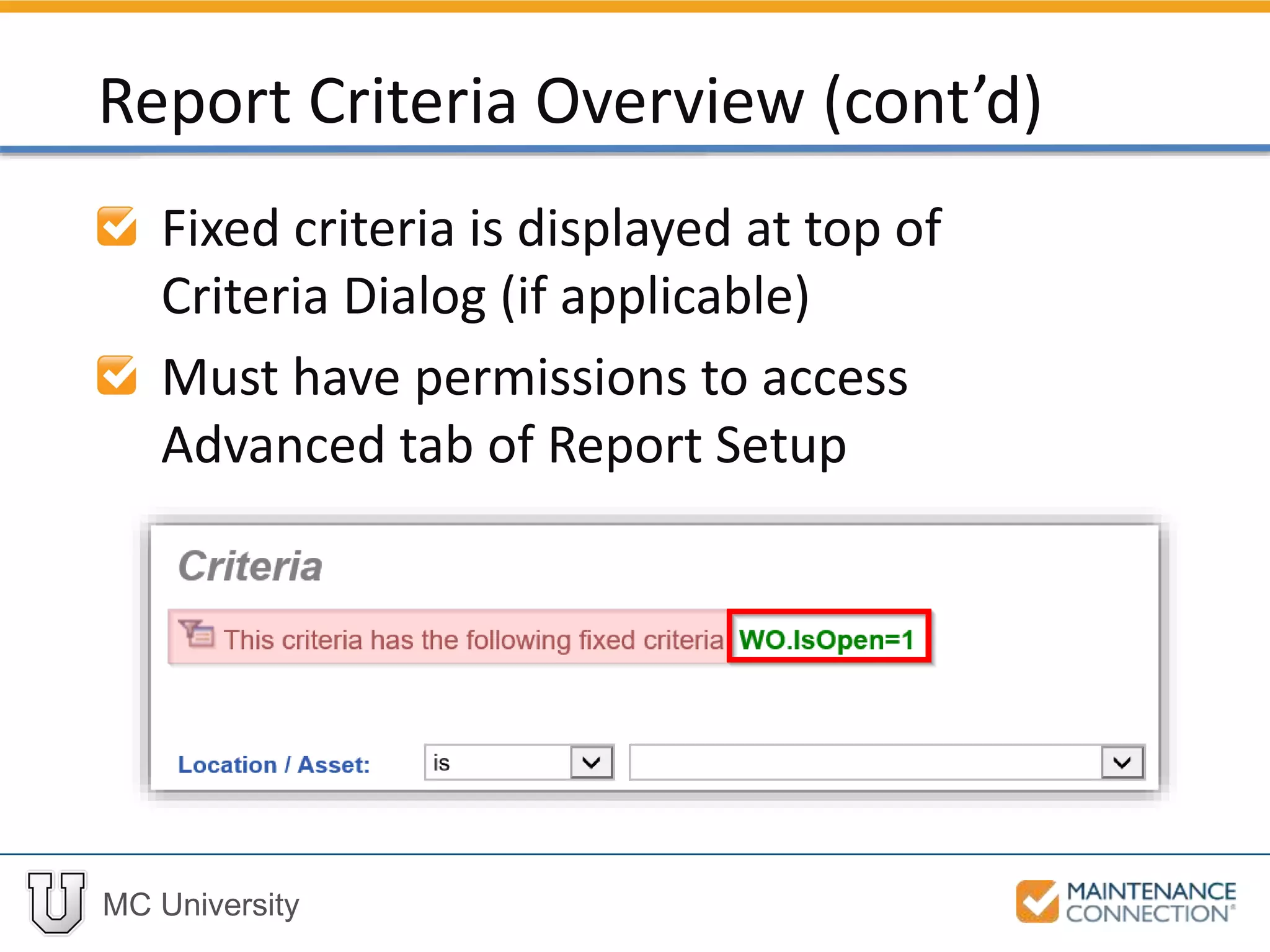
Fixed criteria is displayed at top of
Criteria Dialog (if applicable)
Must have permissions to access
Advanced tab of Report Setup
Report Criteria Overview (cont’d)
MC University
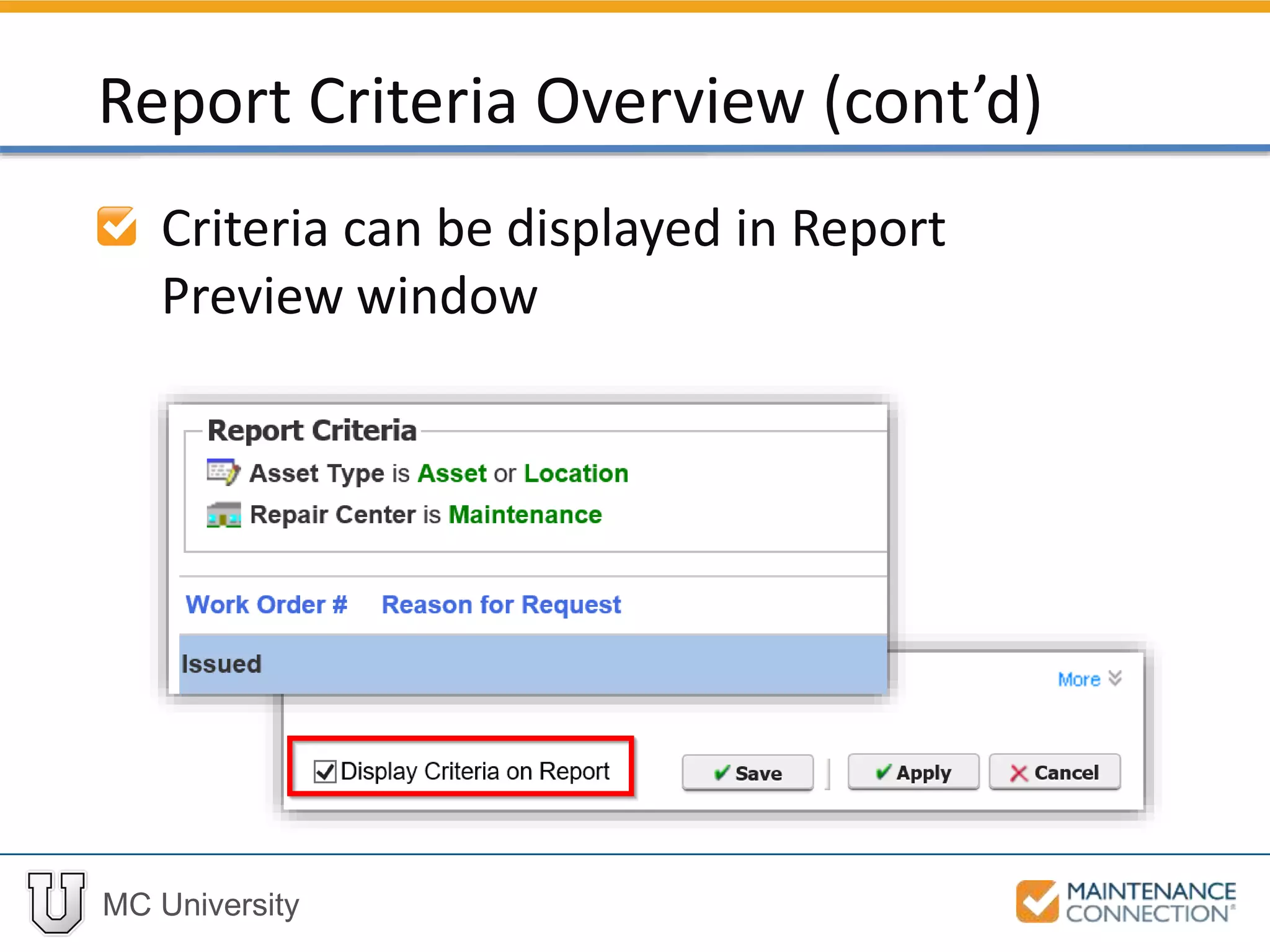
Criteria can be displayed in Report
Preview window
Report Criteria Overview (cont’d)
MC University
Interactive Example
Let’s practice the skill you just learned! Check
out the following interactive example, located
under the MCU course slides:
• R02 – Fixed Criteria, Save Criteria, Display
Criteria Example 1
MC University
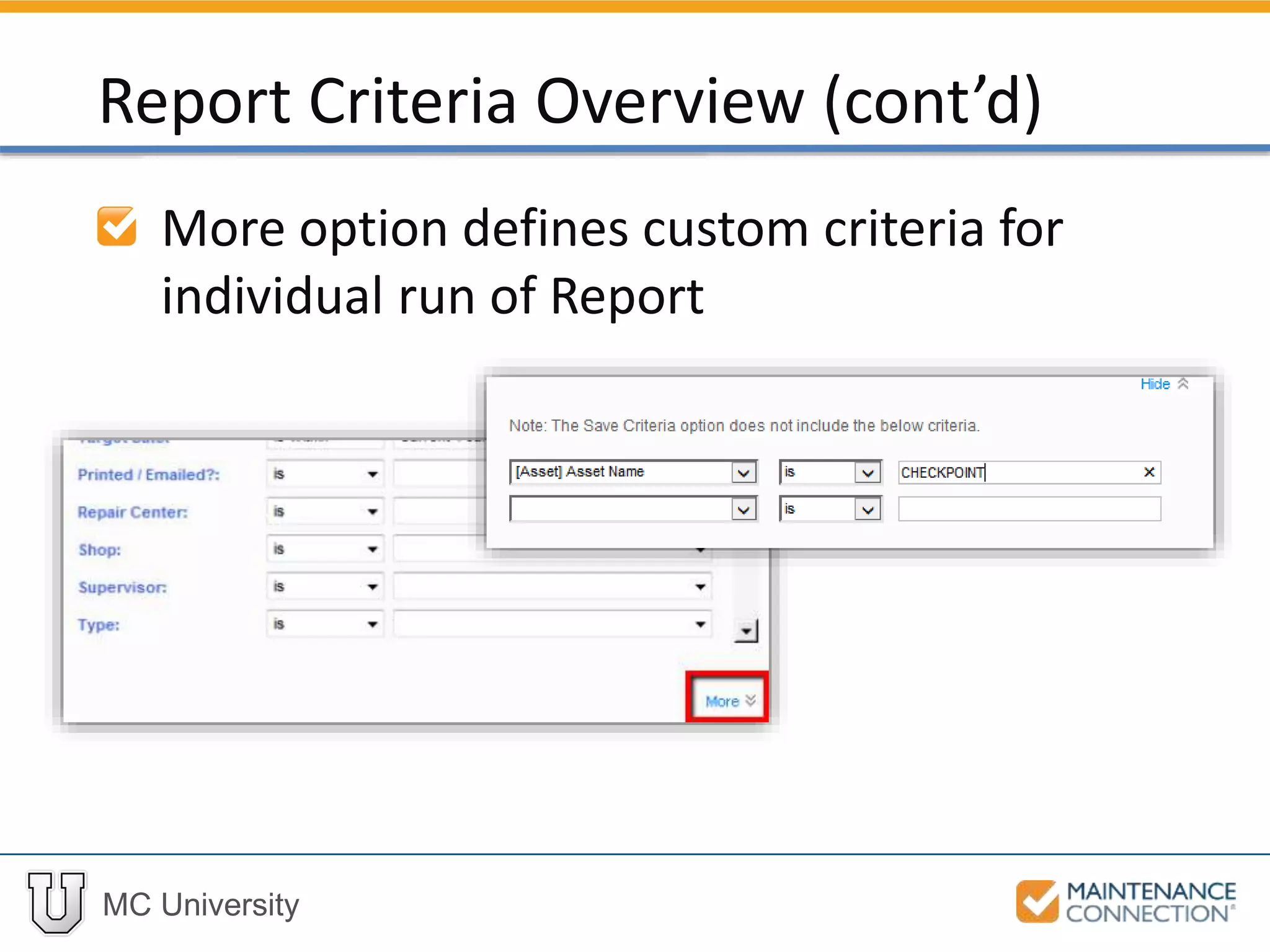
More option defines custom criteria for
individual run of Report
Report Criteria Overview (cont’d)
MC University
Interactive Example
Let’s practice the skill you just learned! Check
out the following interactive example, located
under the MCU course slides:
• R02 – Custom Criteria Settings Example 2
MC University
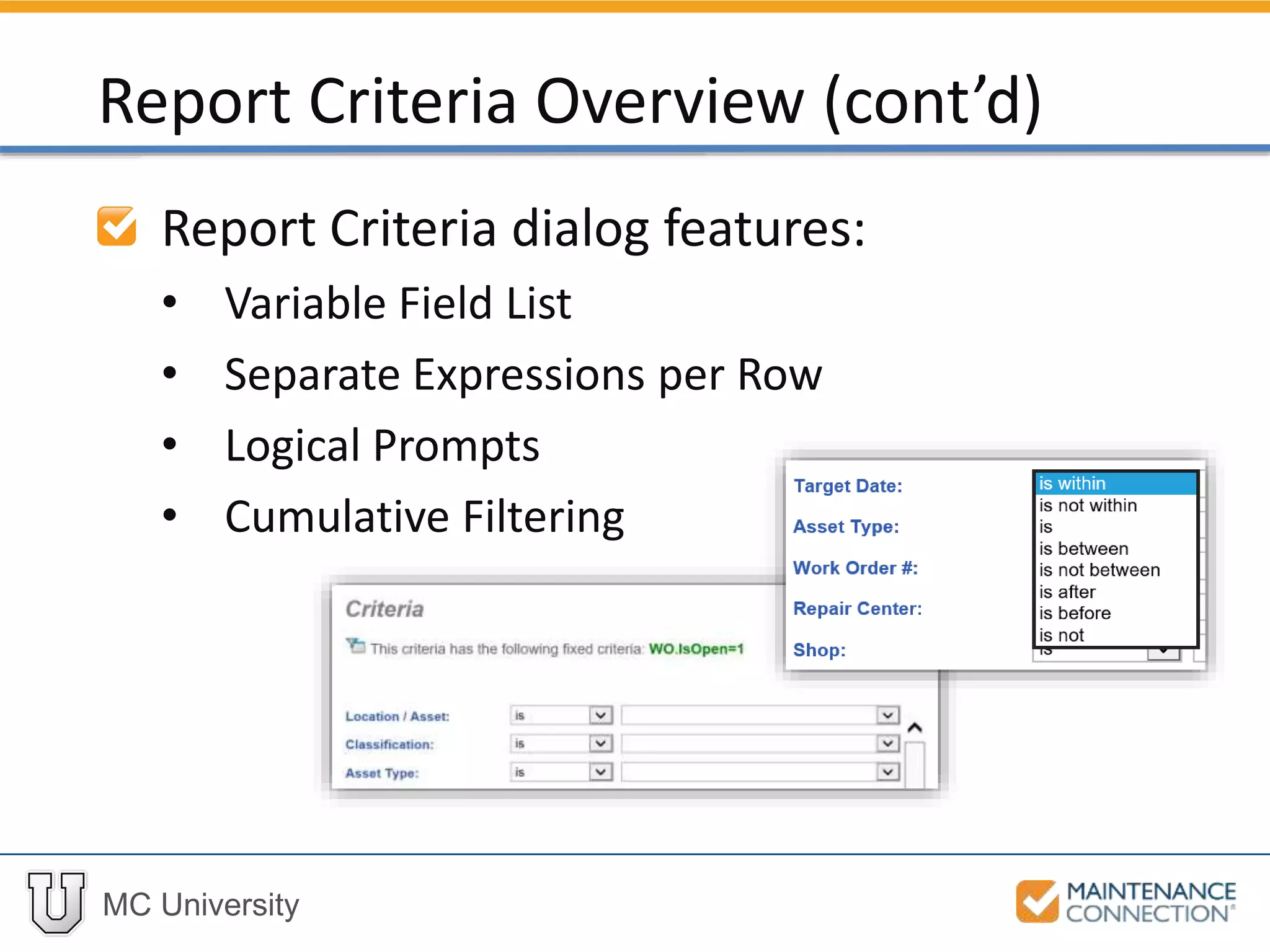
Report Criteria dialog features:
• Variable Field List
• Separate Expressions per Row
• Logical Prompts
• Cumulative Filtering
Report Criteria Overview (cont’d)
MC University
Each expression used to define criteria
has three components:
• Field on which the expression is based
• Value that the expression must meet
• Control that defines relationship between
field and value
Criteria Components
MC University
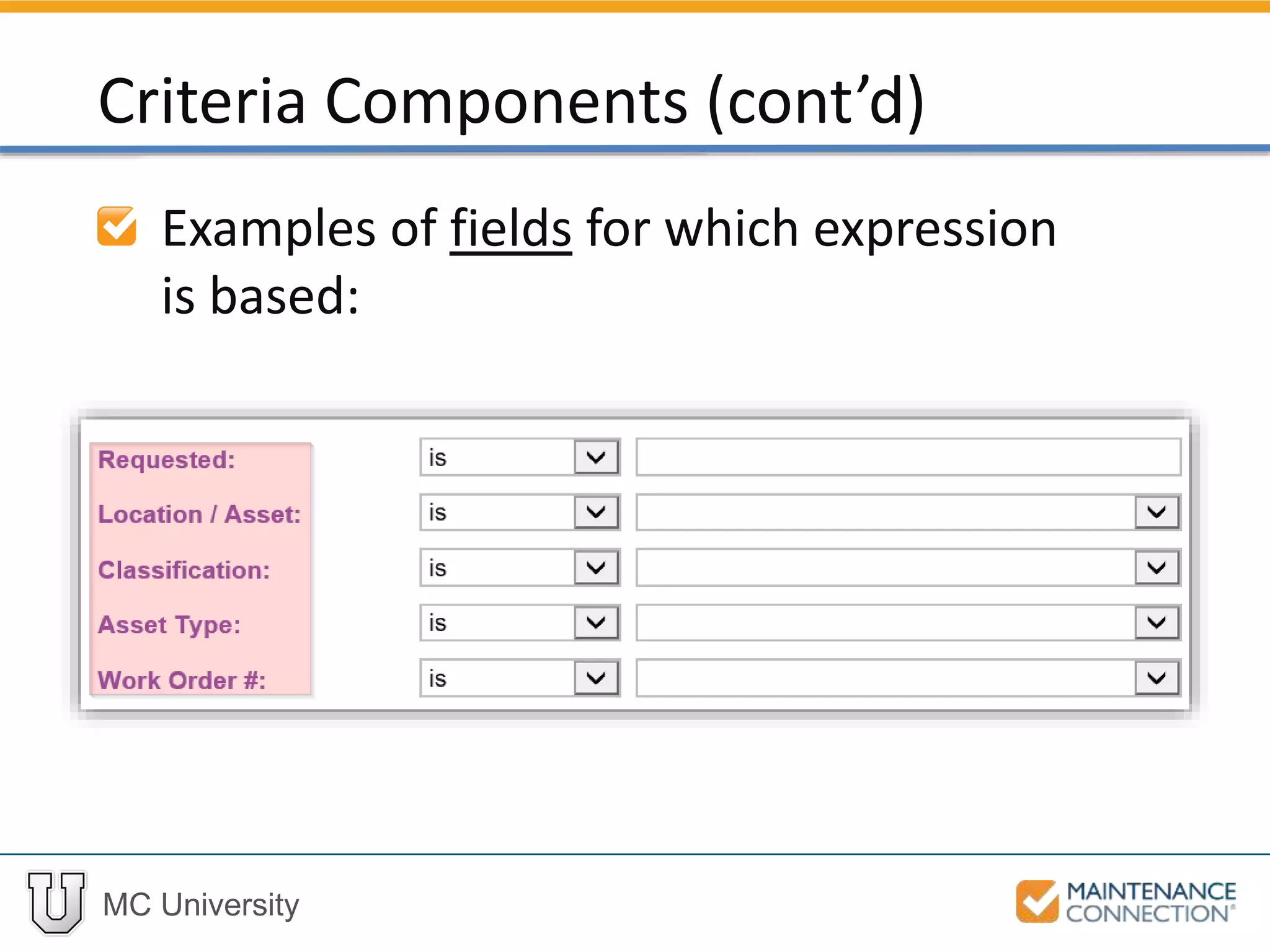
Examples of fields for which expression
is based:
Criteria Components (cont’d)
MC University
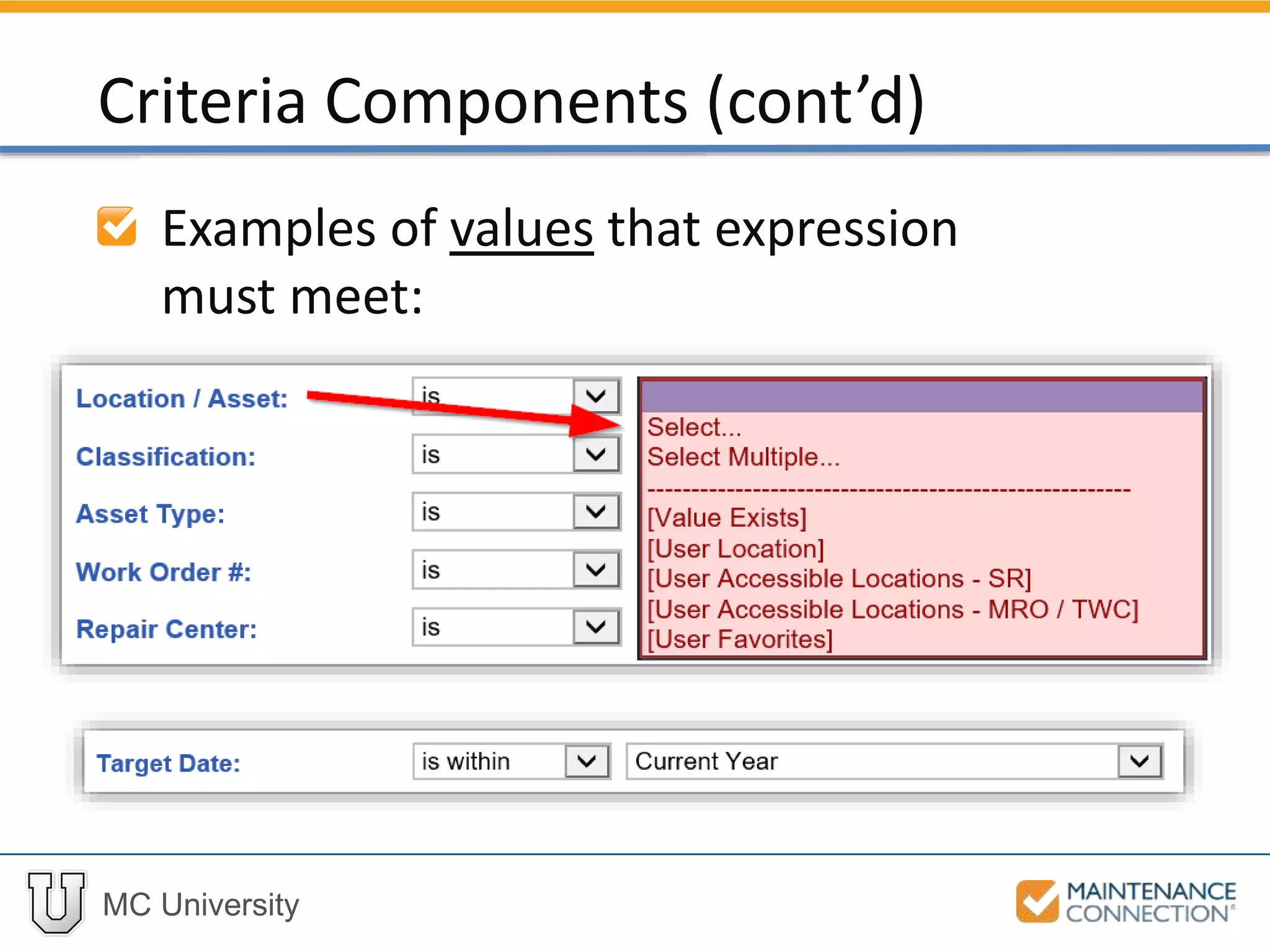
Examples of values that expression
must meet:
Criteria Components (cont’d)
MC University
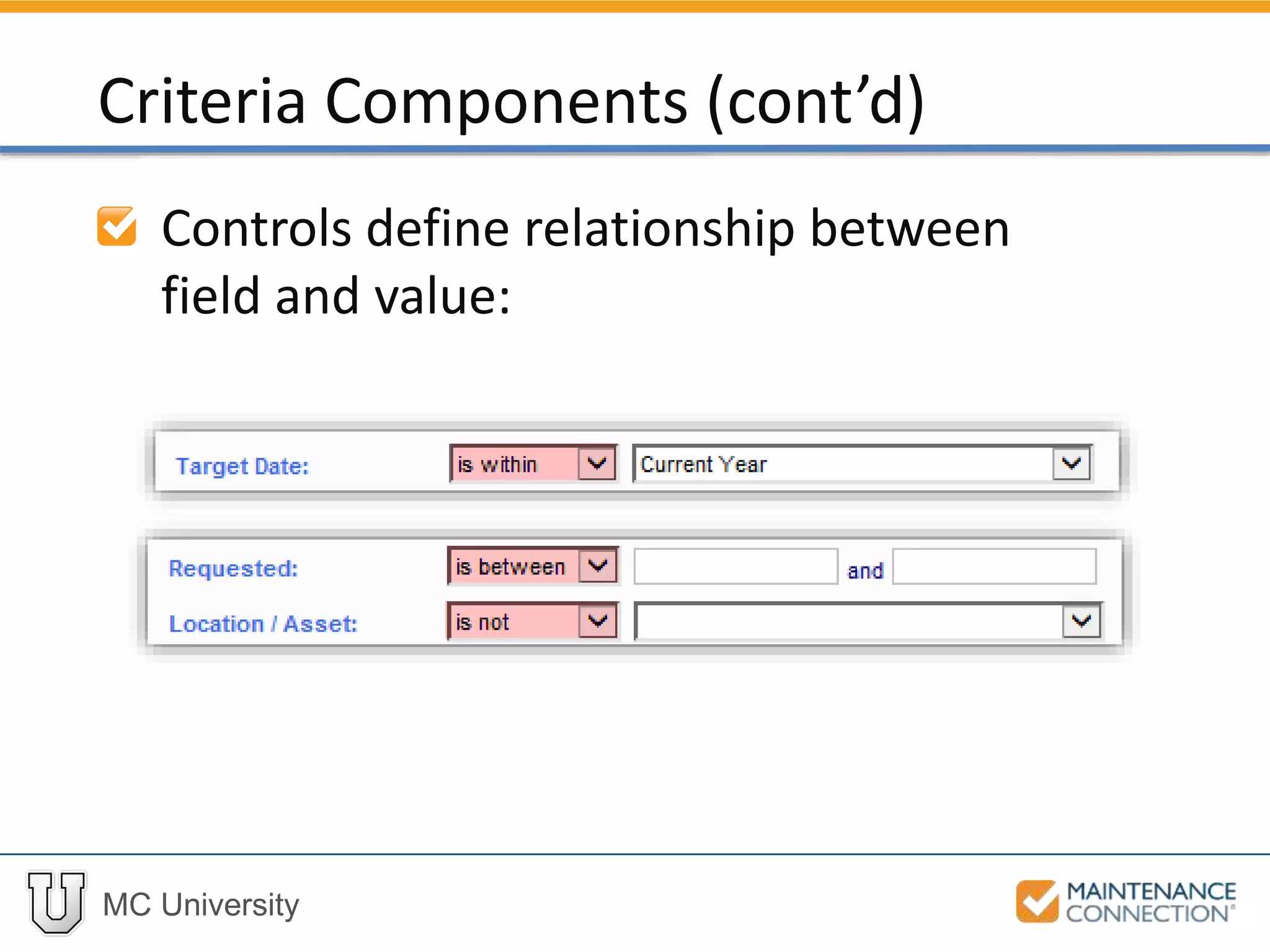
Controls define relationship between
field and value:
Criteria Components (cont’d)
MC University
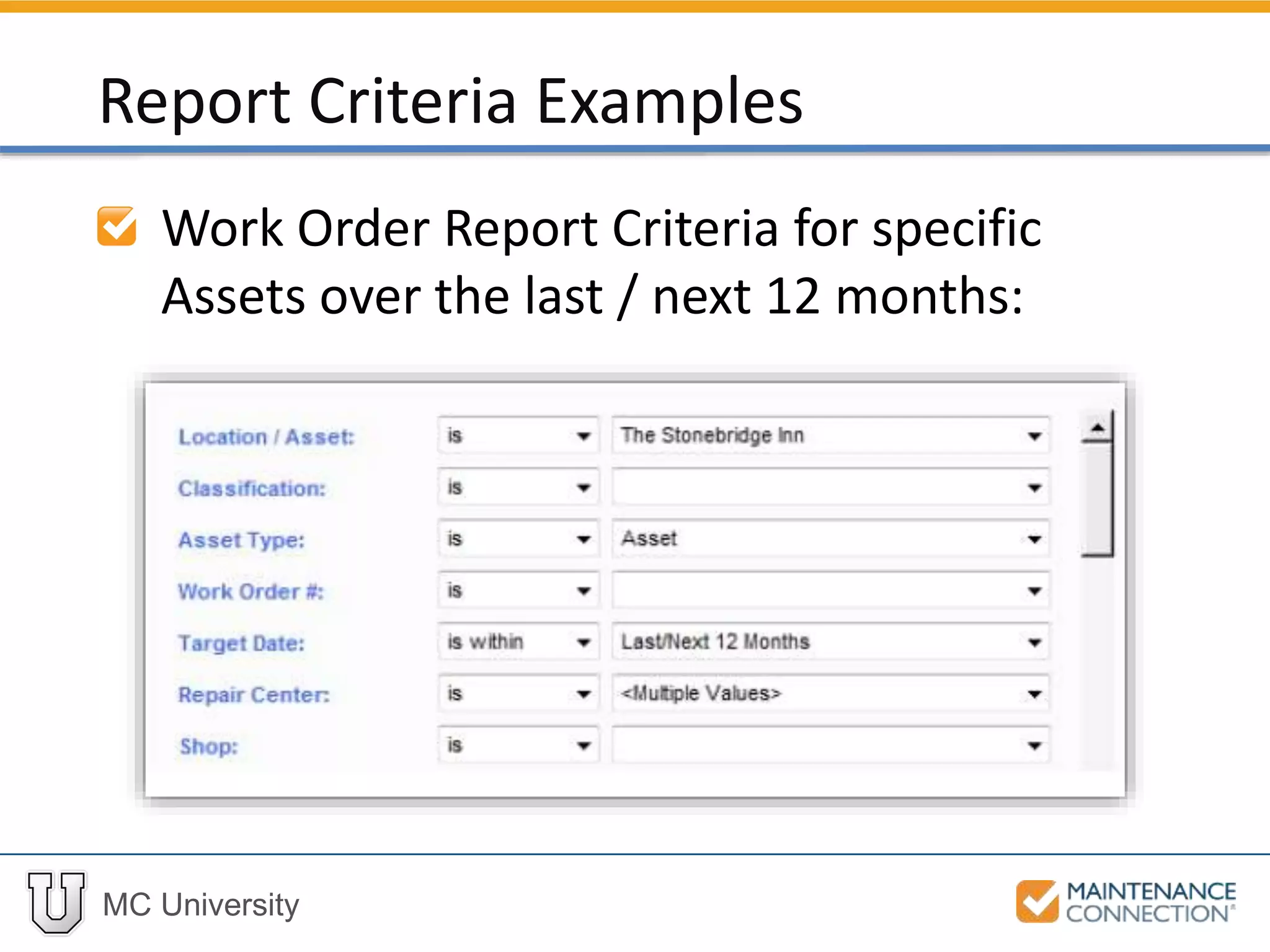
Work Order Report Criteria for specific
Assets over the last / next 12 months:
Report Criteria Examples
MC University
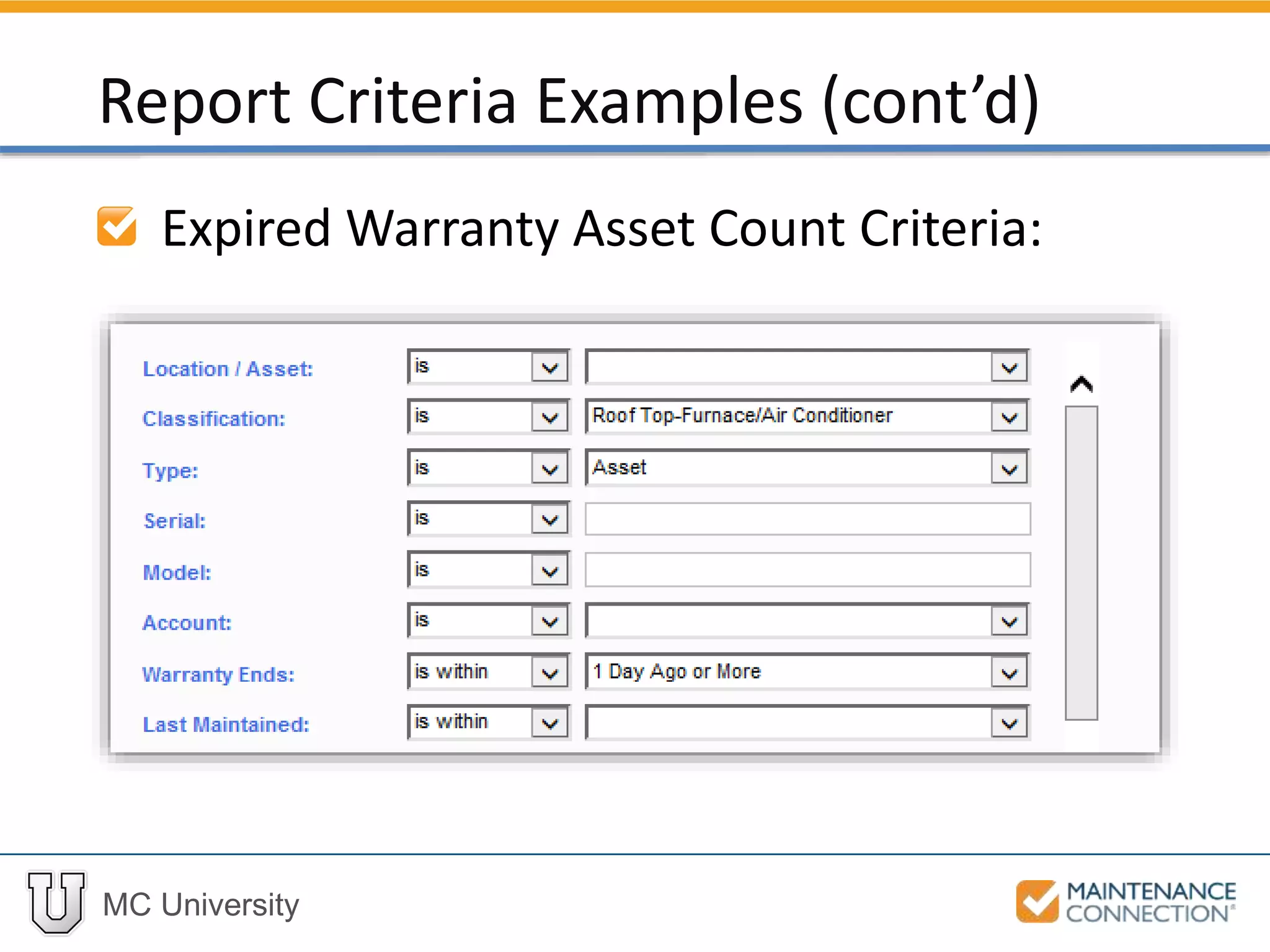
Expired Warranty Asset Count Criteria:
Report Criteria Examples (cont’d)
MC University
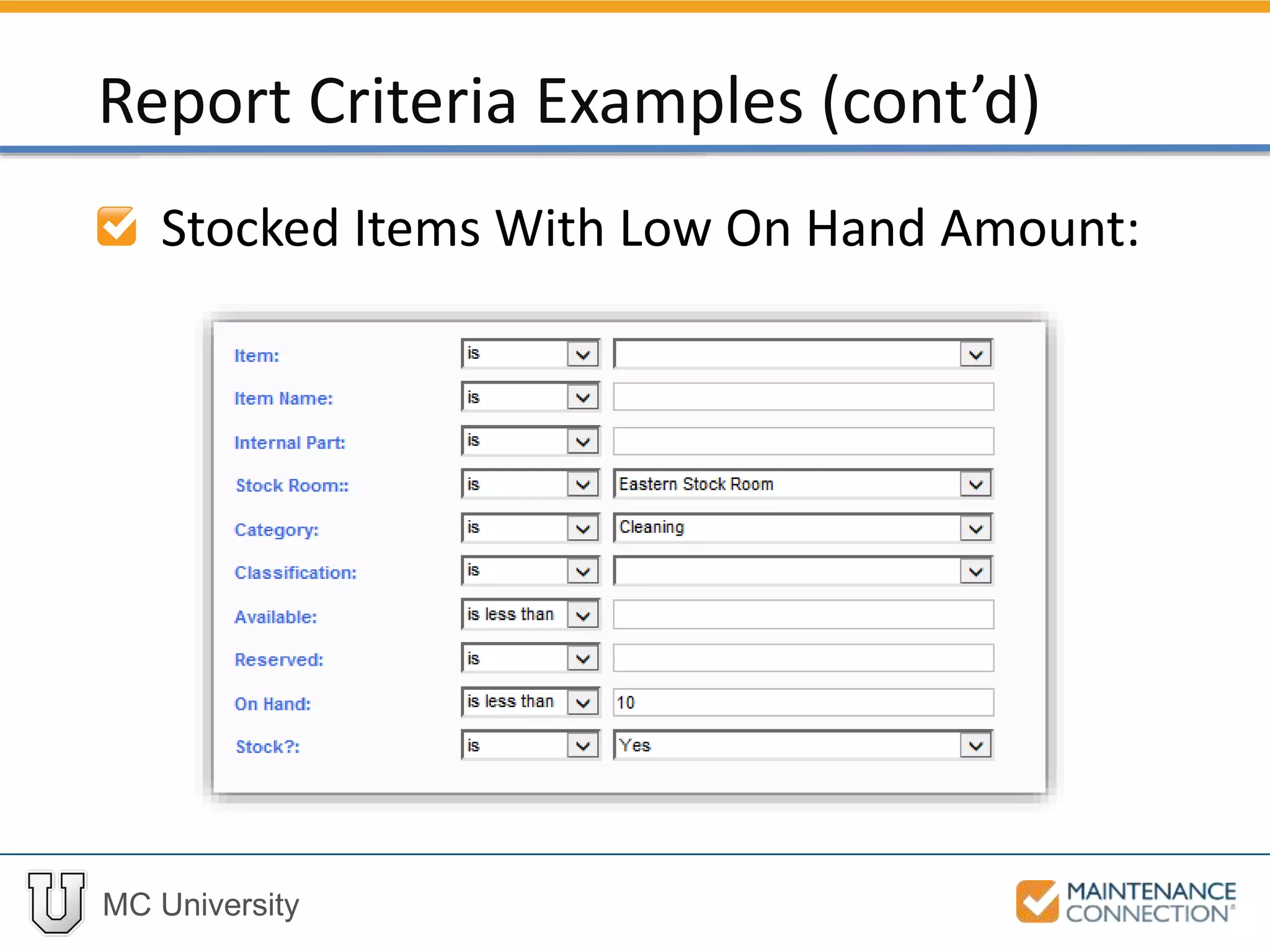
Stocked Items With Low On Hand Amount:
Report Criteria Examples (cont’d)
MC University
Interactive Example
Let’s practice the skill you just learned! Check
out the following interactive example, located
under the MCU course slides:
• R02 – Adding Multiple Criteria Example 3
Thank You for
Attending!

R02 | Basics of Reporting Overview Part 2 (MCUI)