

MC University
R04|Basics of Reporting: Report Setup (Part 2)
MC University
Report Charts Defined
Reporting Tips and Tricks
Agenda
MC University
Report Charts Overview
Defining Charts
Report Charts Defined
MC University
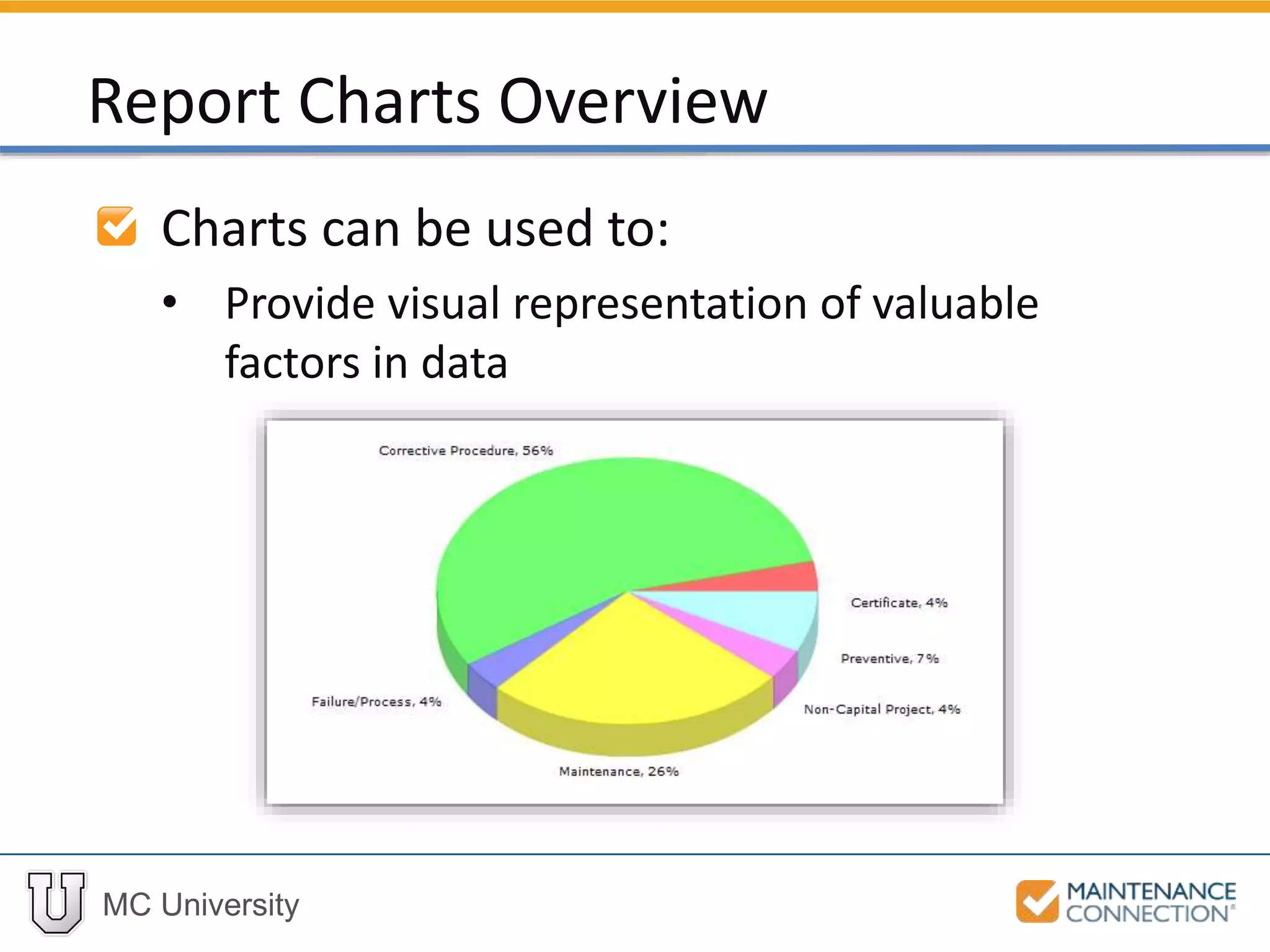
Charts can be used to:
• Provide visual representation of valuable
factors in data
Report Charts Overview
MC University
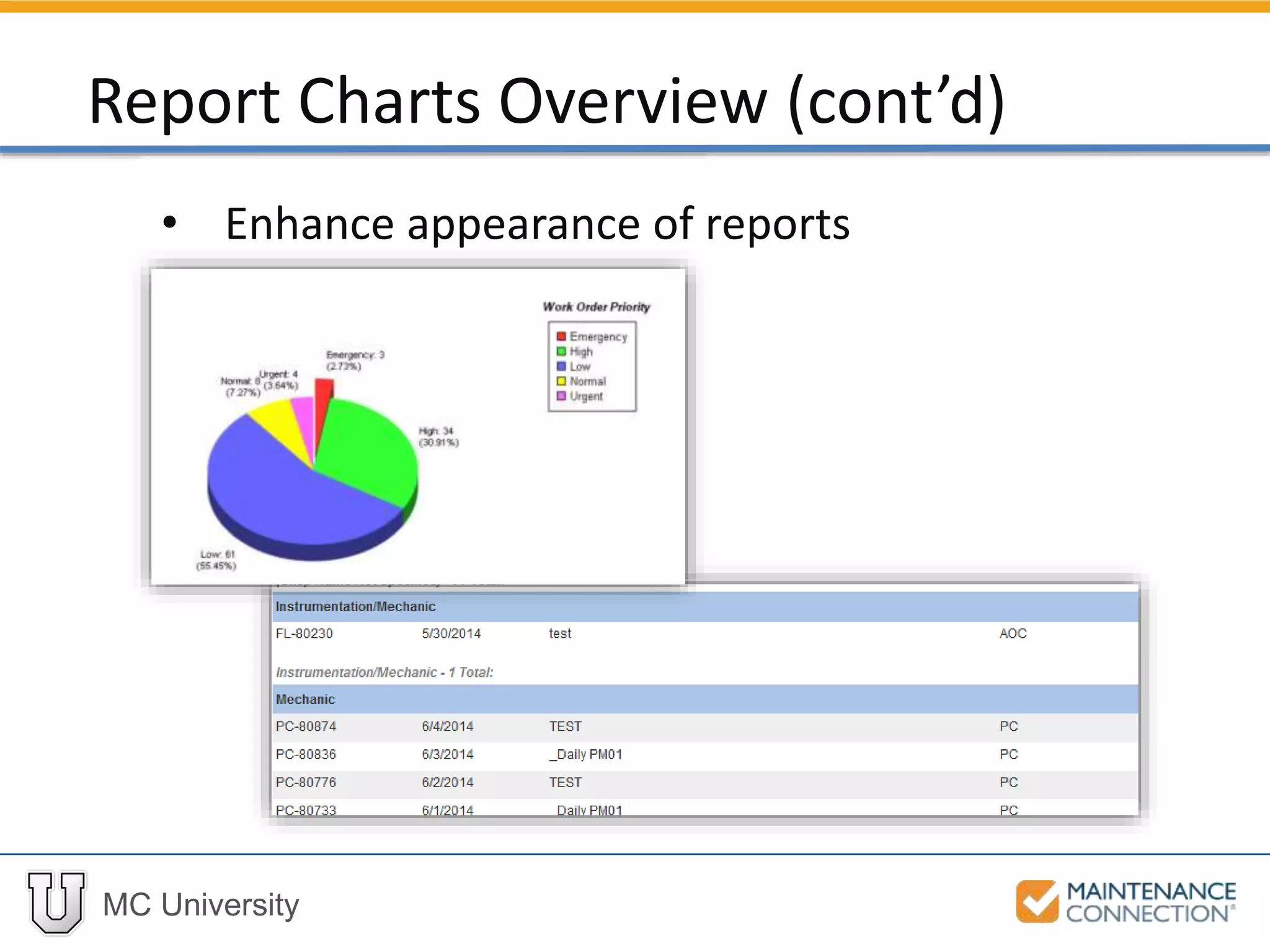
• Enhance appearance of reports
Report Charts Overview (cont’d)
MC University
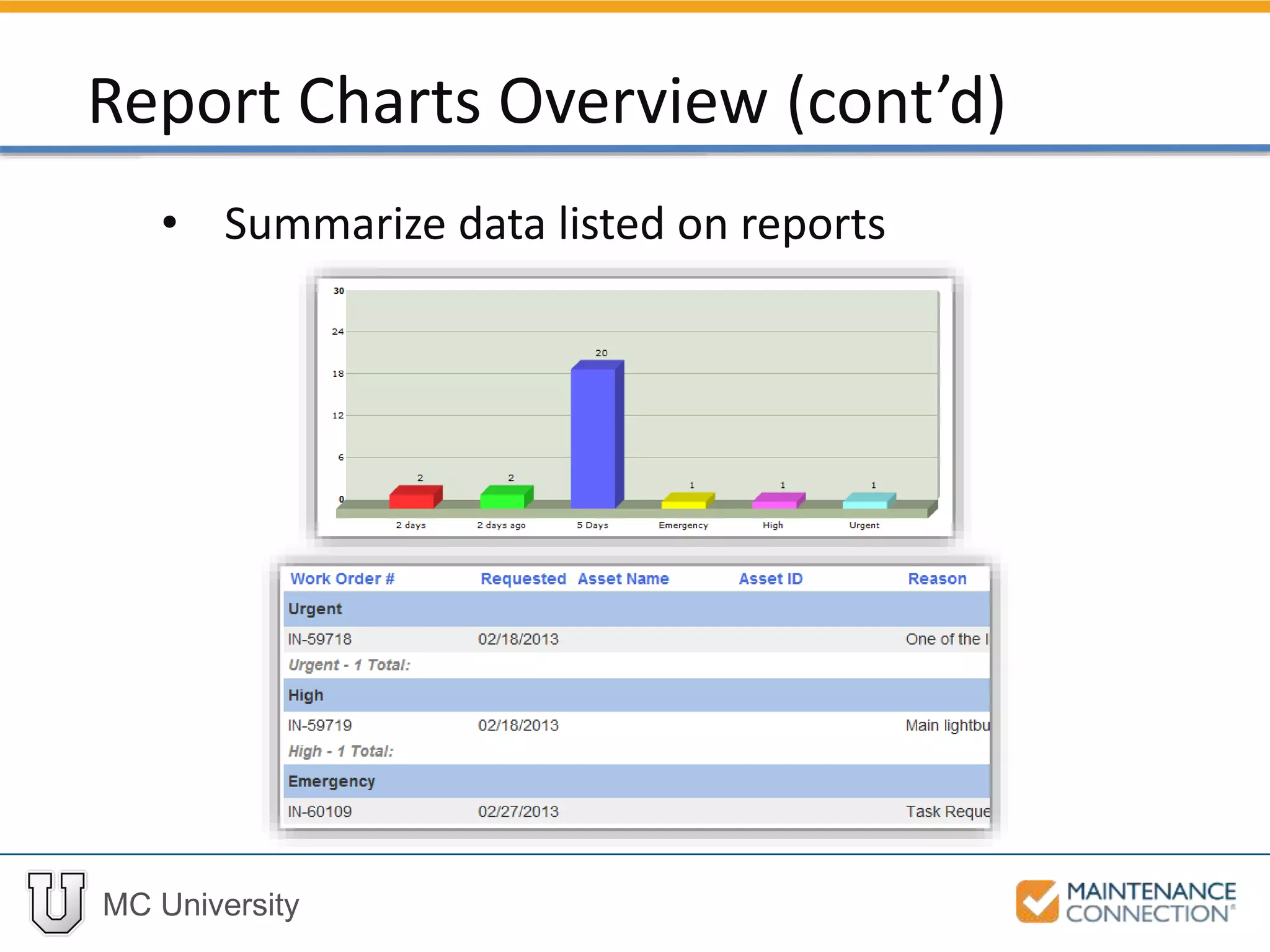
• Summarize data listed on reports
Report Charts Overview (cont’d)
MC University
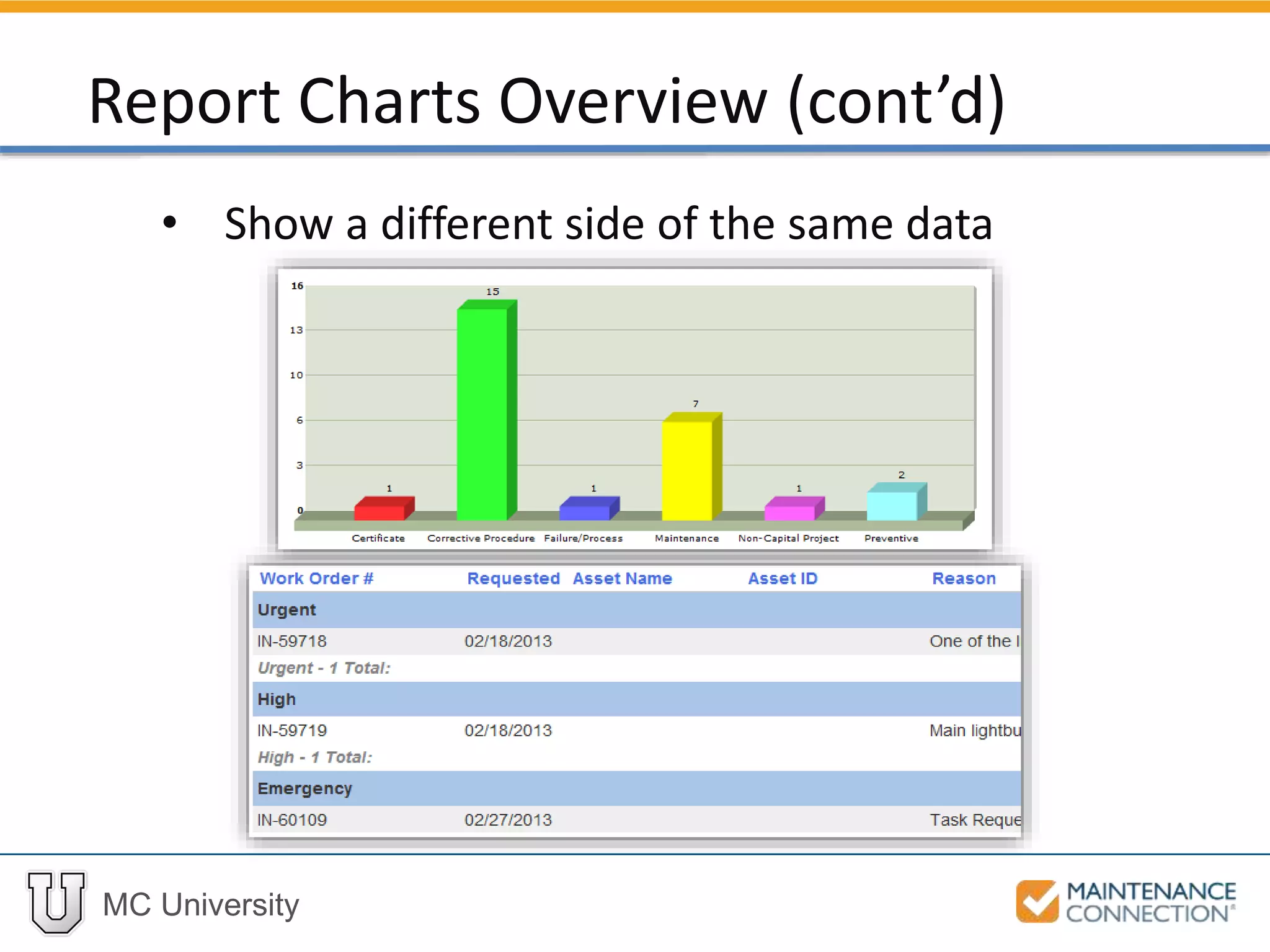
• Show a different side of the same data
Report Charts Overview (cont’d)
MC University
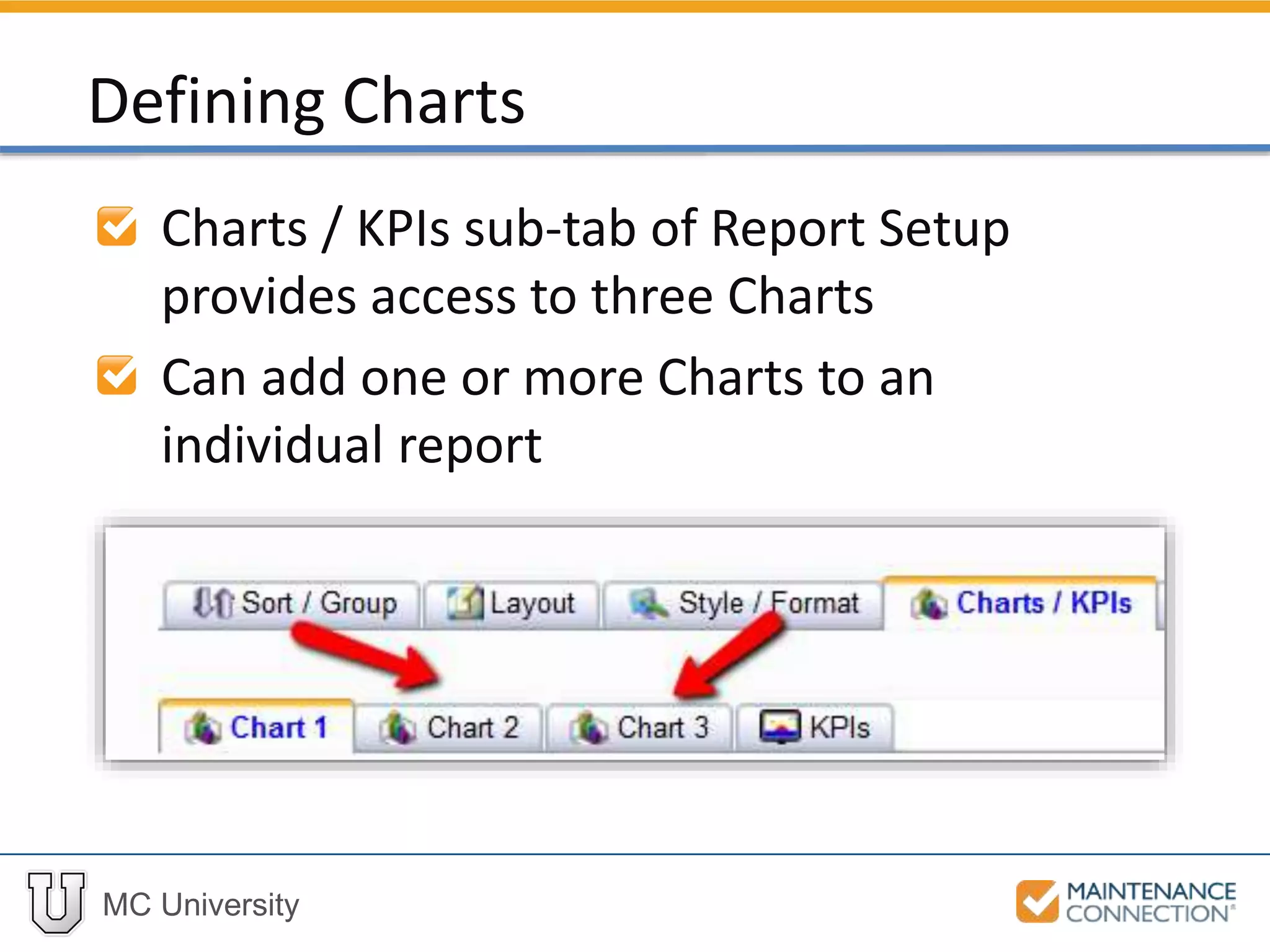
Charts / KPIs sub-tab of Report Setup
provides access to three Charts
Can add one or more Charts to an
individual report
Defining Charts
MC University
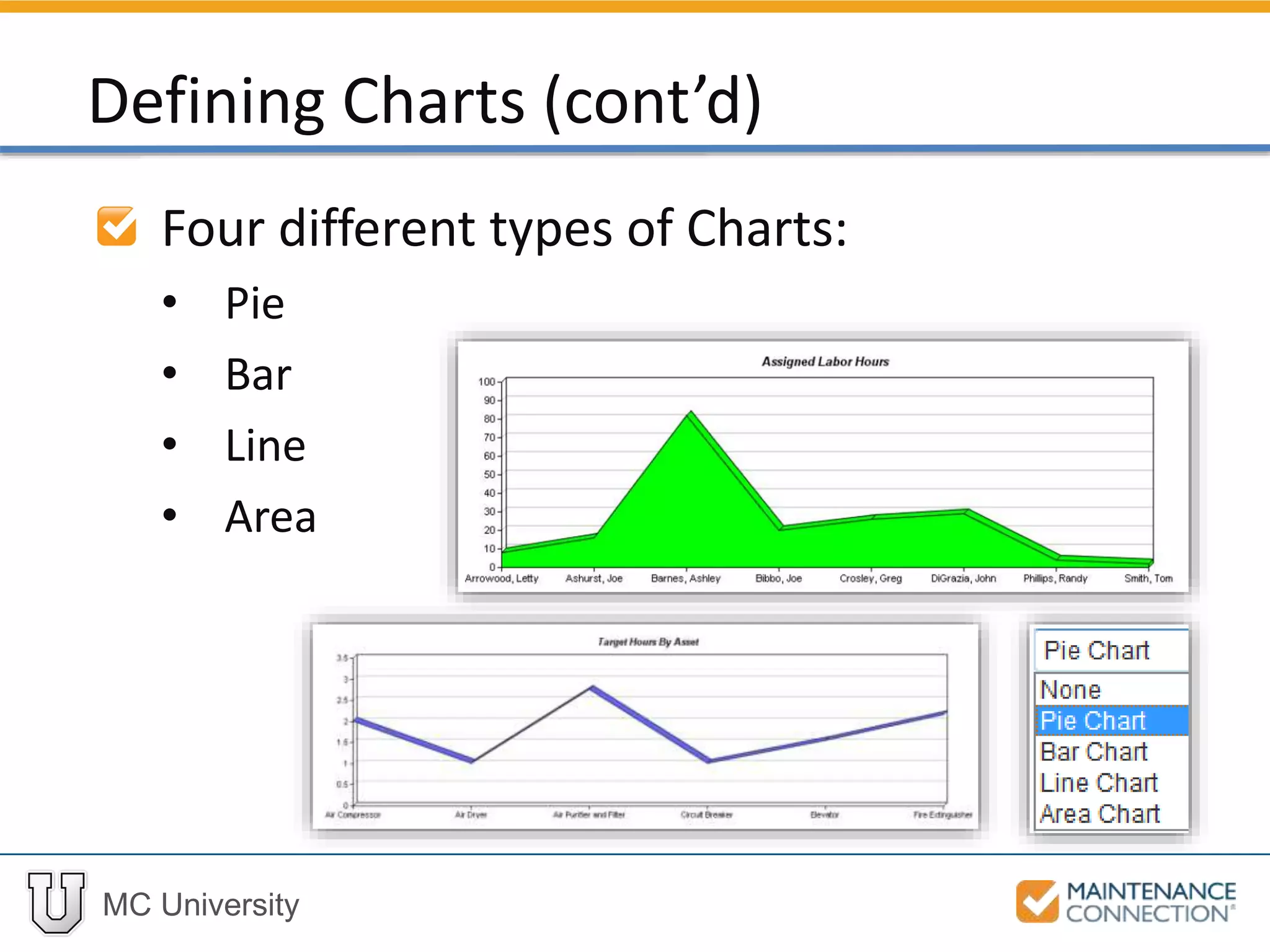
Four different types of Charts:
• Pie
• Bar
• Line
• Area
Defining Charts (cont’d)
MC University
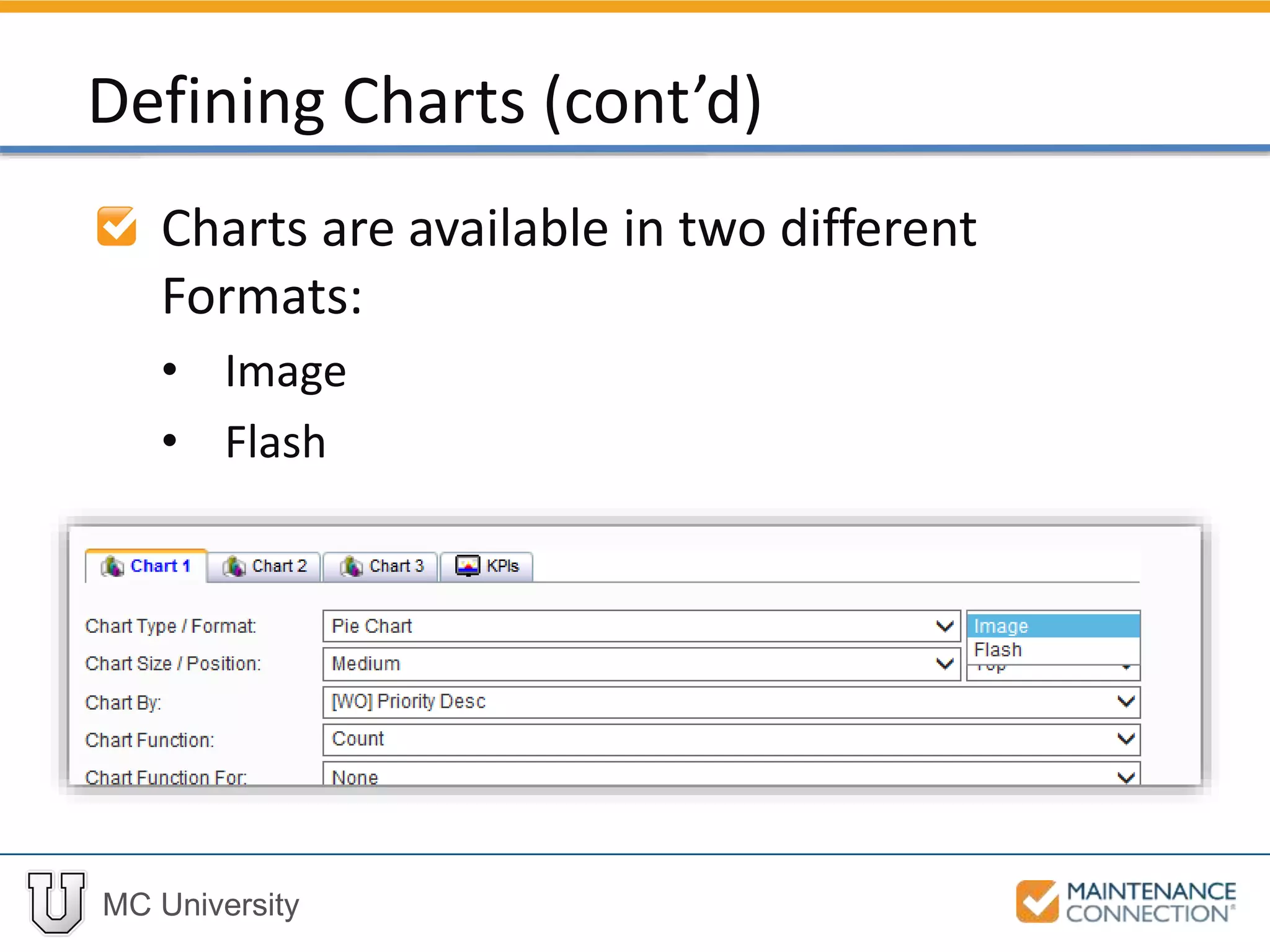
Charts are available in two different
Formats:
• Image
• Flash
Defining Charts (cont’d)
MC University
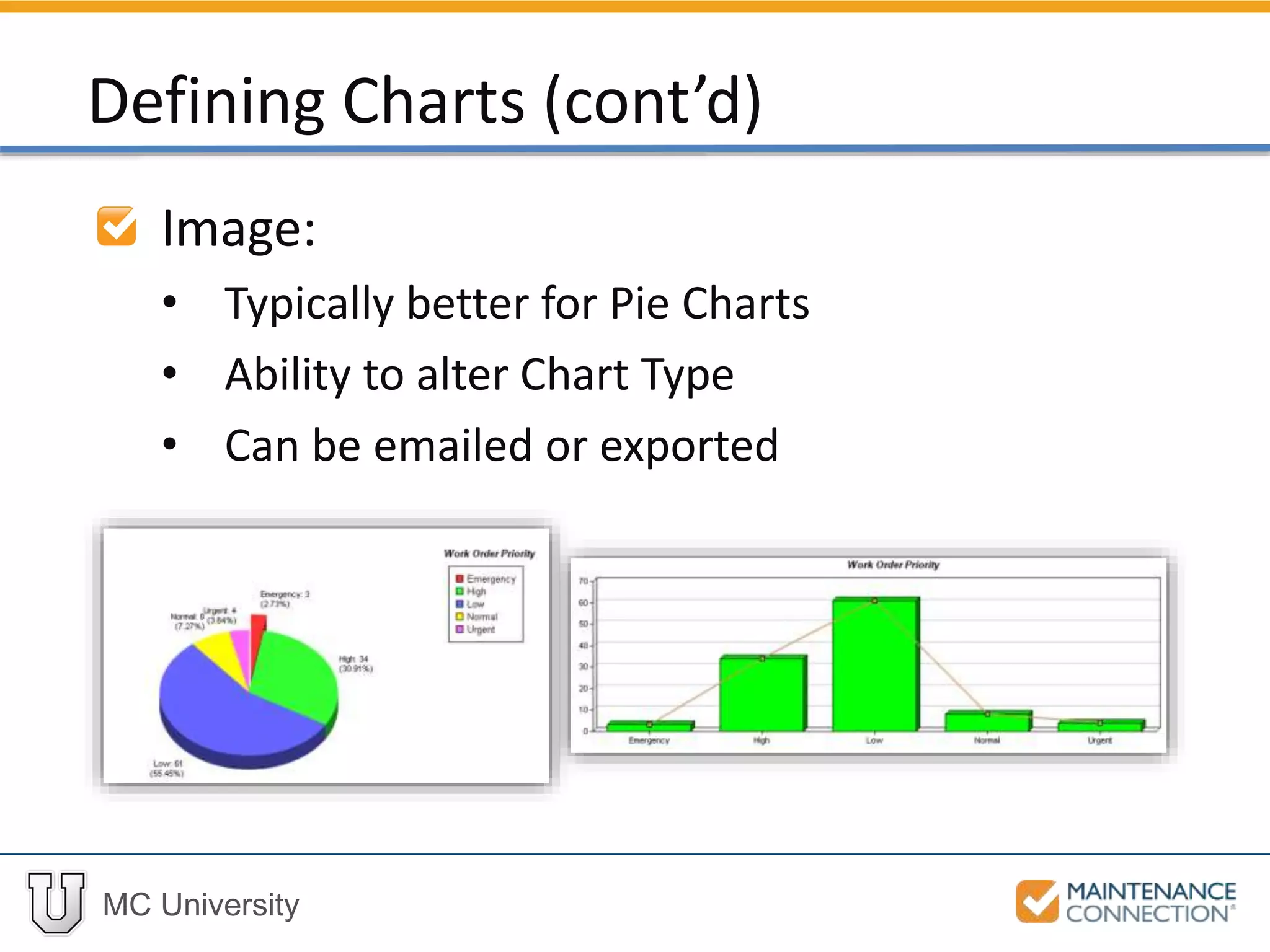
Image:
• Typically better for Pie Charts
• Ability to alter Chart Type
• Can be emailed or exported
Defining Charts (cont’d)
MC University
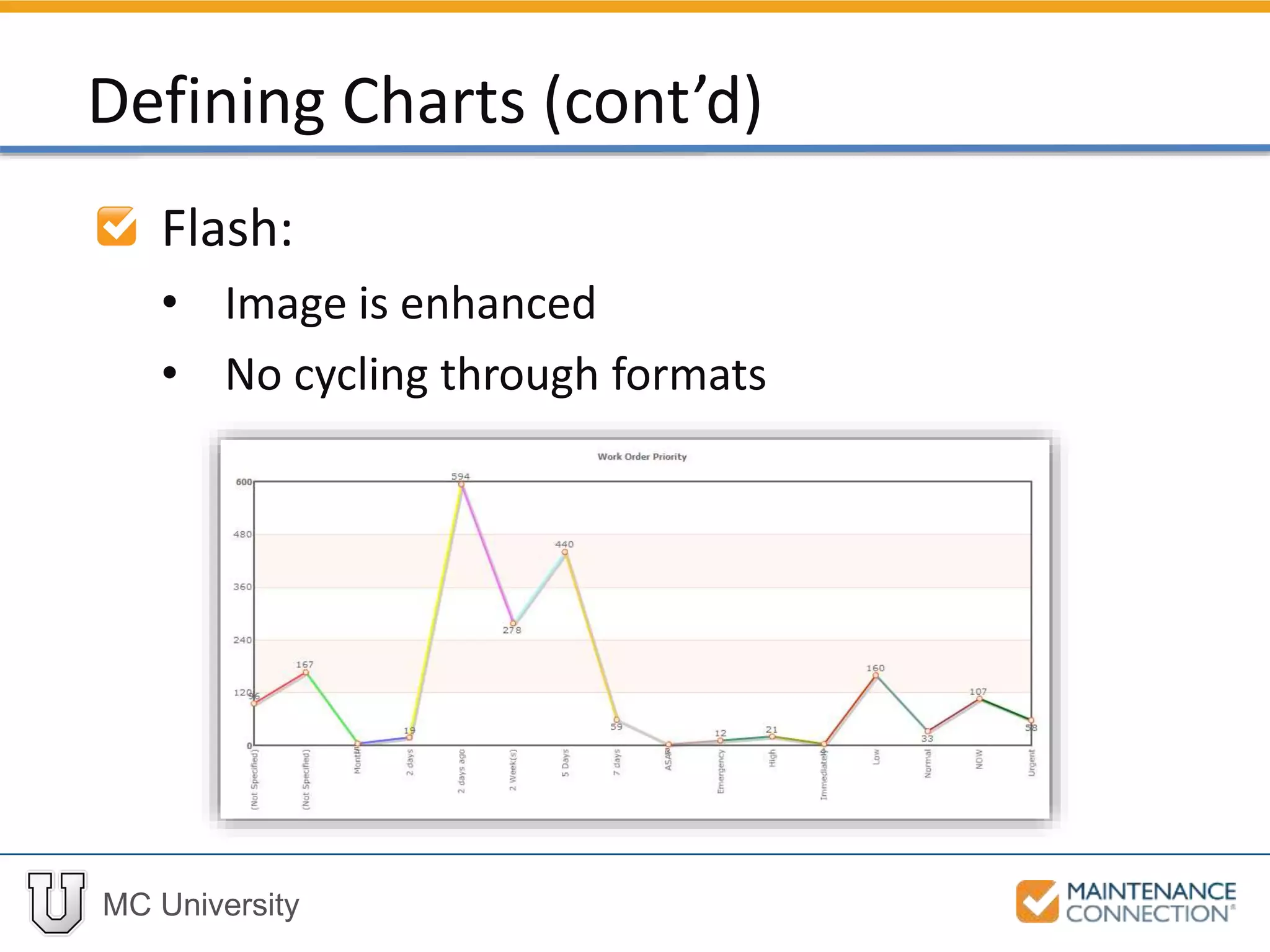
Flash:
• Image is enhanced
• No cycling through formats
Defining Charts (cont’d)
MC University
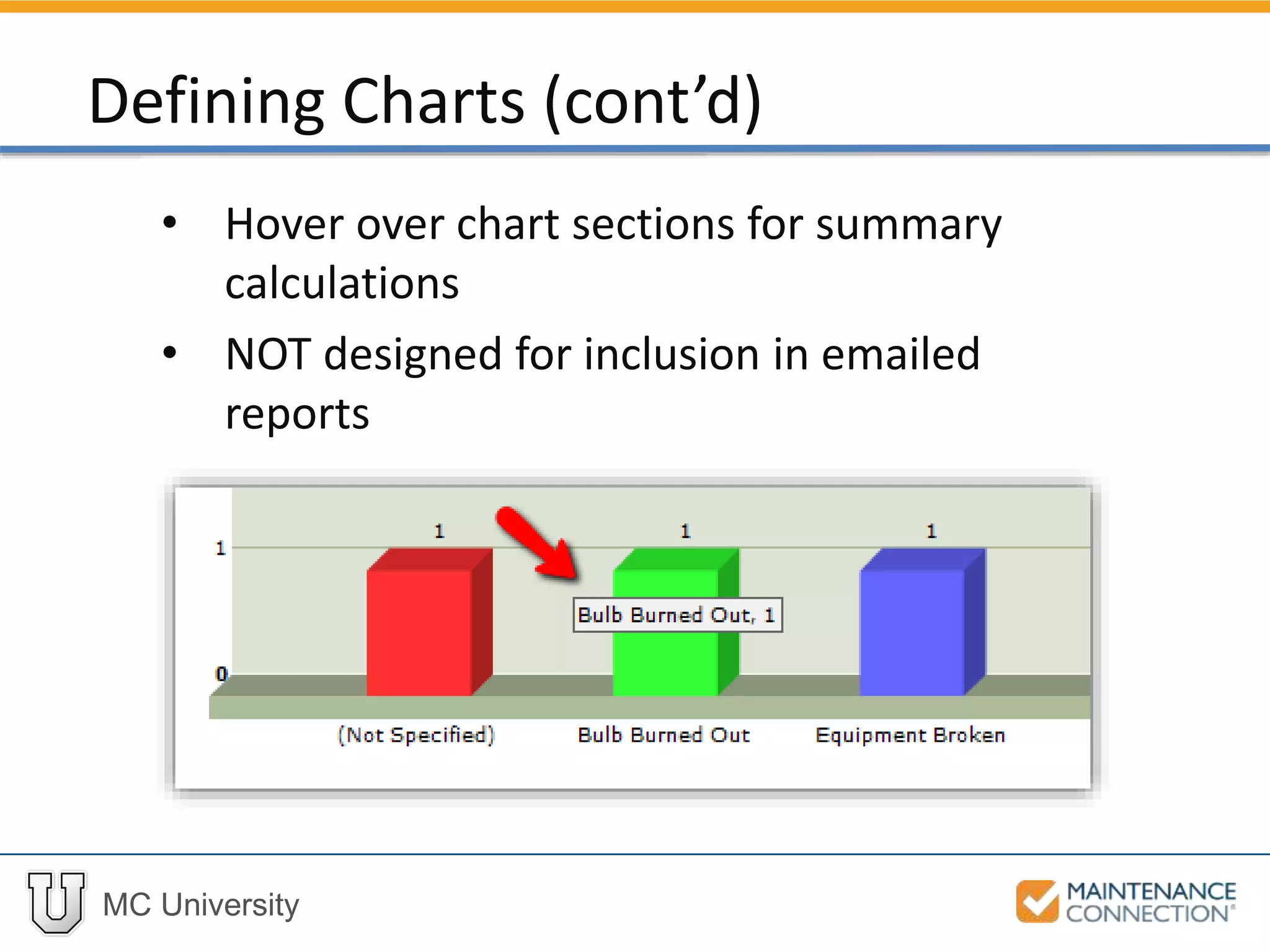
• Hover over chart sections for summary
calculations
• NOT designed for inclusion in emailed
reports
Defining Charts (cont’d)
MC University
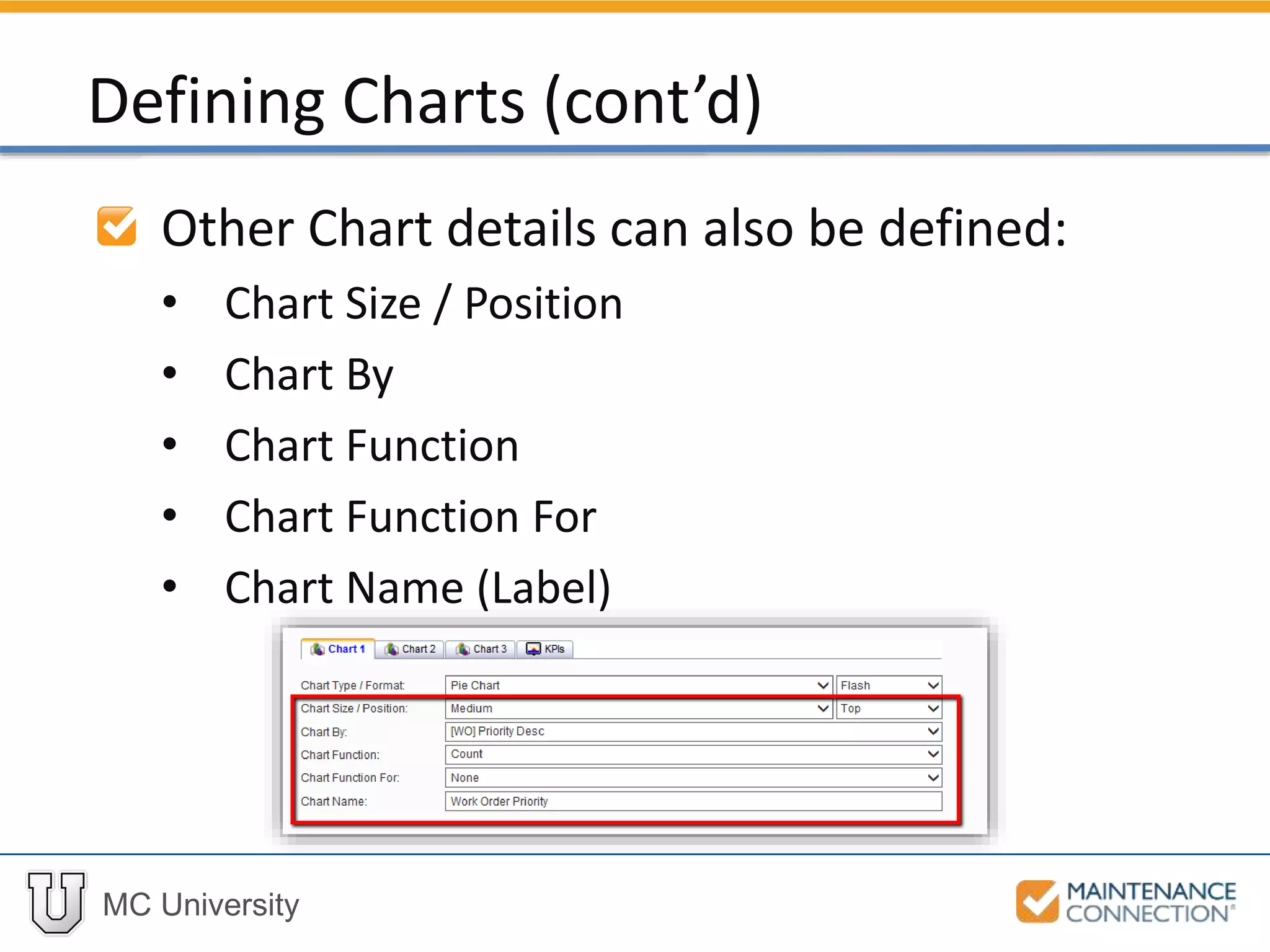
Other Chart details can also be defined:
• Chart Size / Position
• Chart By
• Chart Function
• Chart Function For
• Chart Name (Label)
Defining Charts (cont’d)
MC University
Defining Charts: Example
Now let’s take a look at defining a Chart for a
Report!
MC University
Edit Field Labels
Edit Report Description
Drag and Drop Columns
Report Layout Indicators
Report Tips and Tricks
MC University
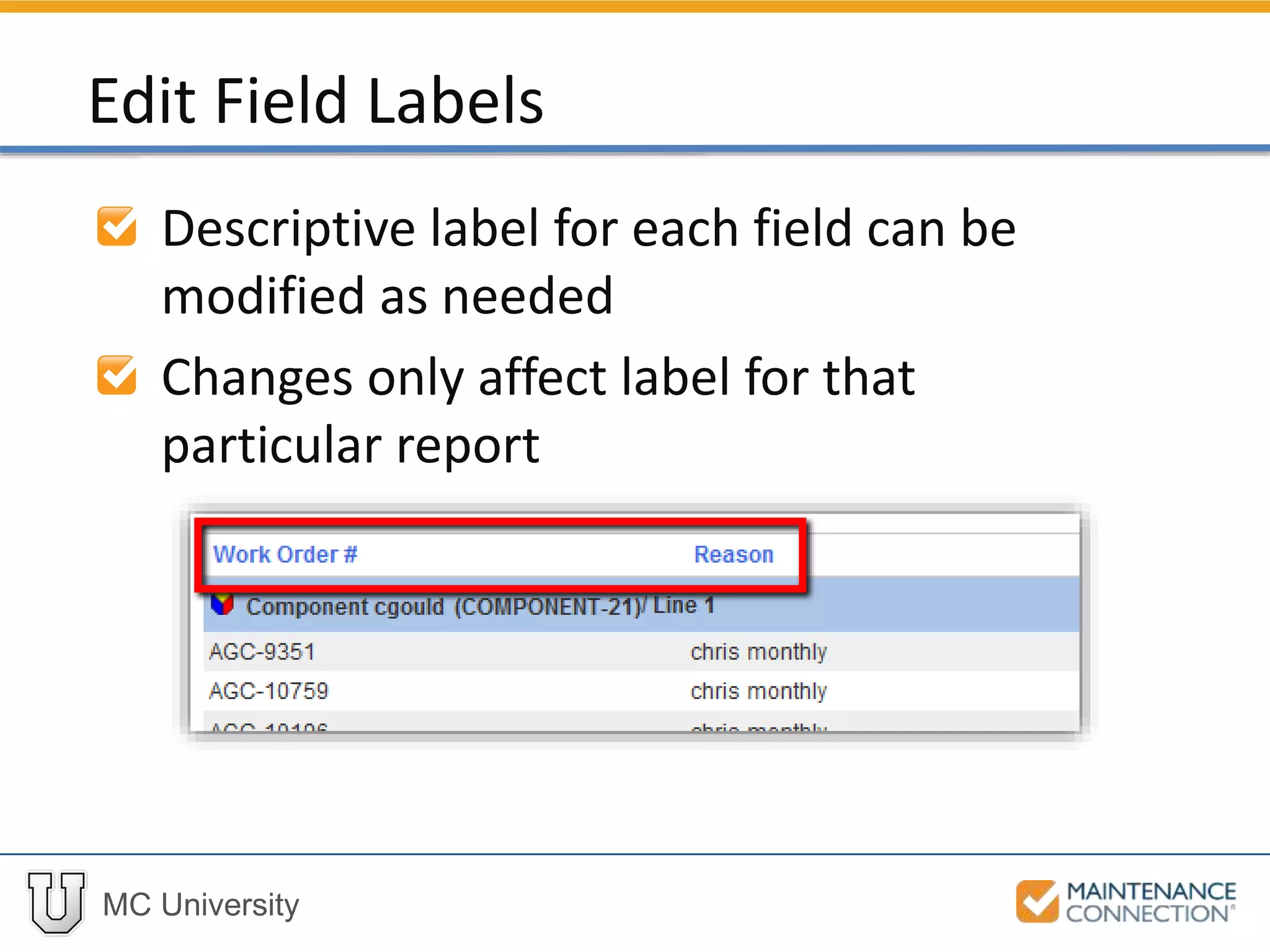
Descriptive label for each field can be
modified as needed
Changes only affect label for that
particular report
Edit Field Labels
MC University
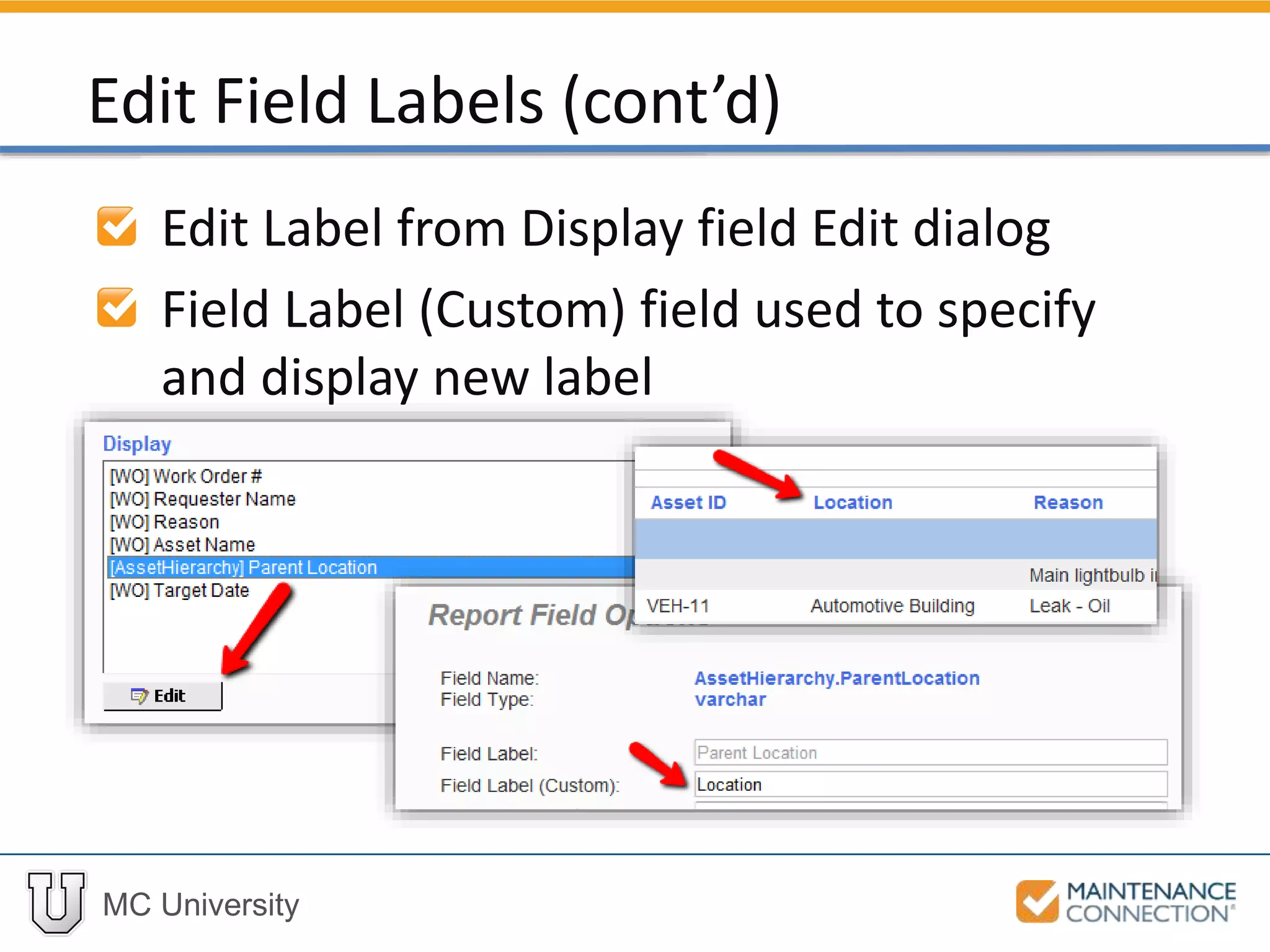
Edit Label from Display field Edit dialog
Field Label (Custom) field used to specify
and display new label
Edit Field Labels (cont’d)
MC University
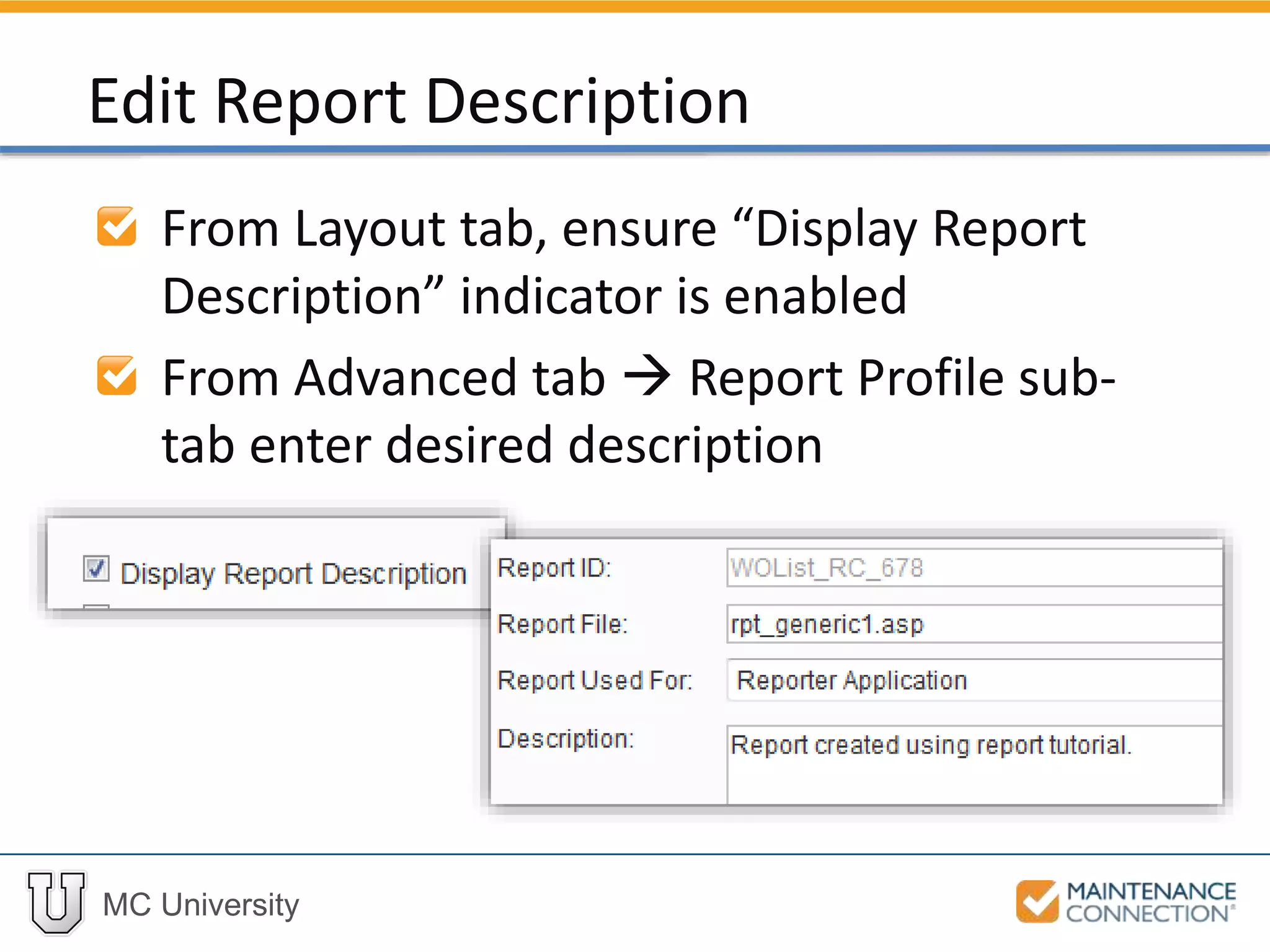
From Layout tab, ensure “Display Report
Description” indicator is enabled
From Advanced tab  Report Profile sub-
tab enter desired description
Edit Report Description
MC University
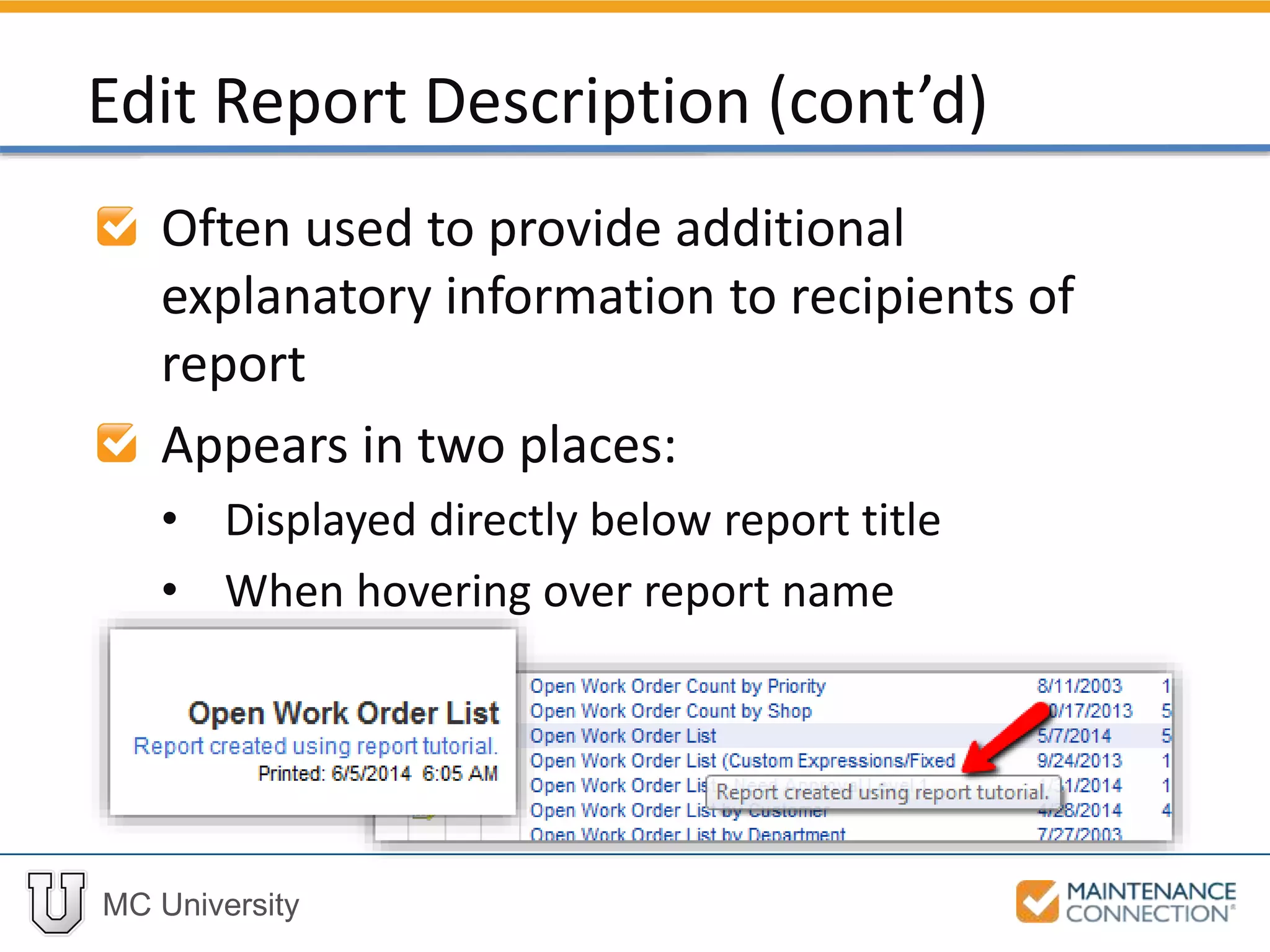
Often used to provide additional
explanatory information to recipients of
report
Appears in two places:
• Displayed directly below report title
• When hovering over report name
Edit Report Description (cont’d)
MC University
Edit Field Labels and Description: Example
Now let’s take a look at editing Field Labels
and the Report Description!
MC University
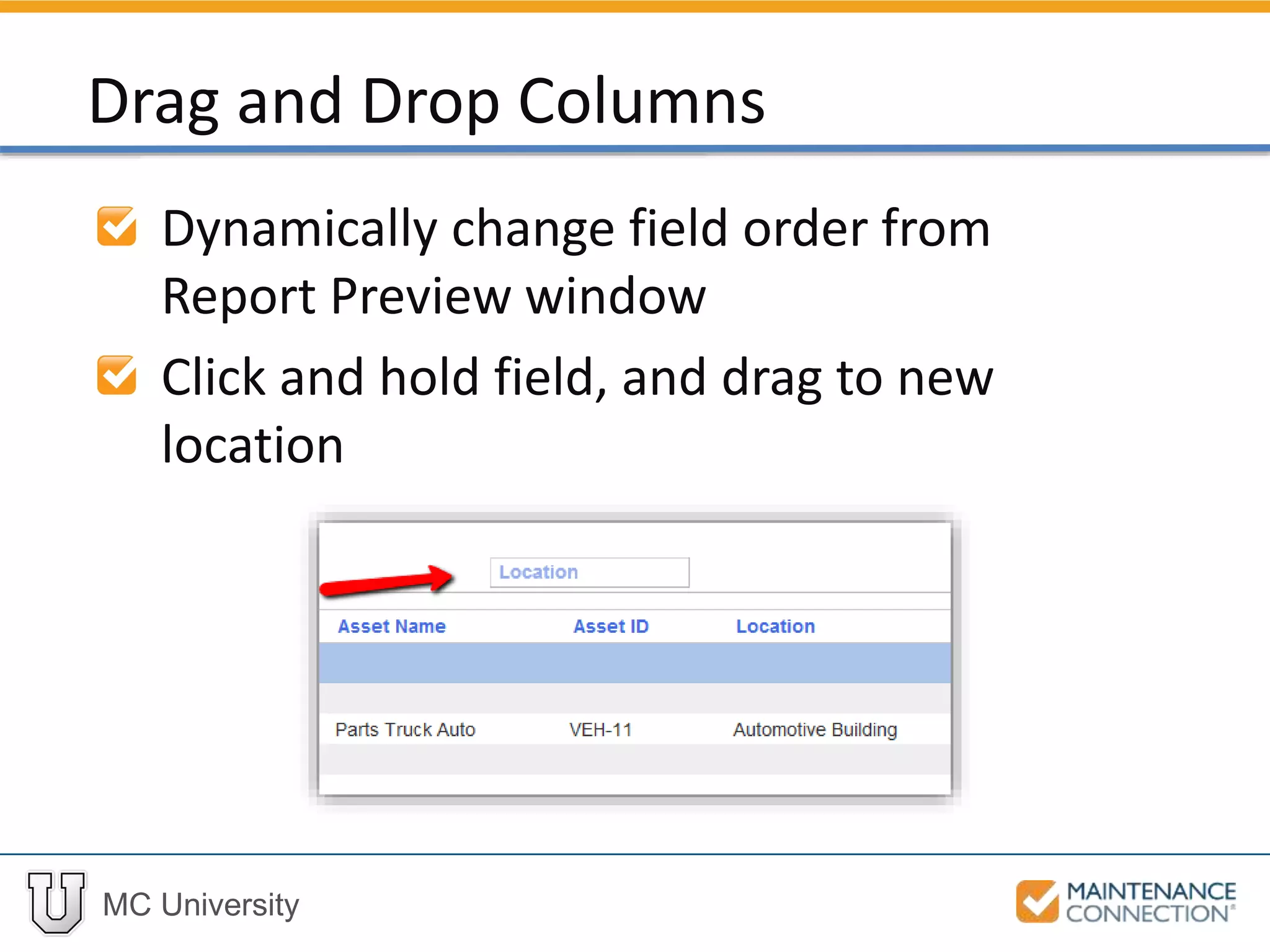
Dynamically change field order from
Report Preview window
Click and hold field, and drag to new
location
Drag and Drop Columns
MC University
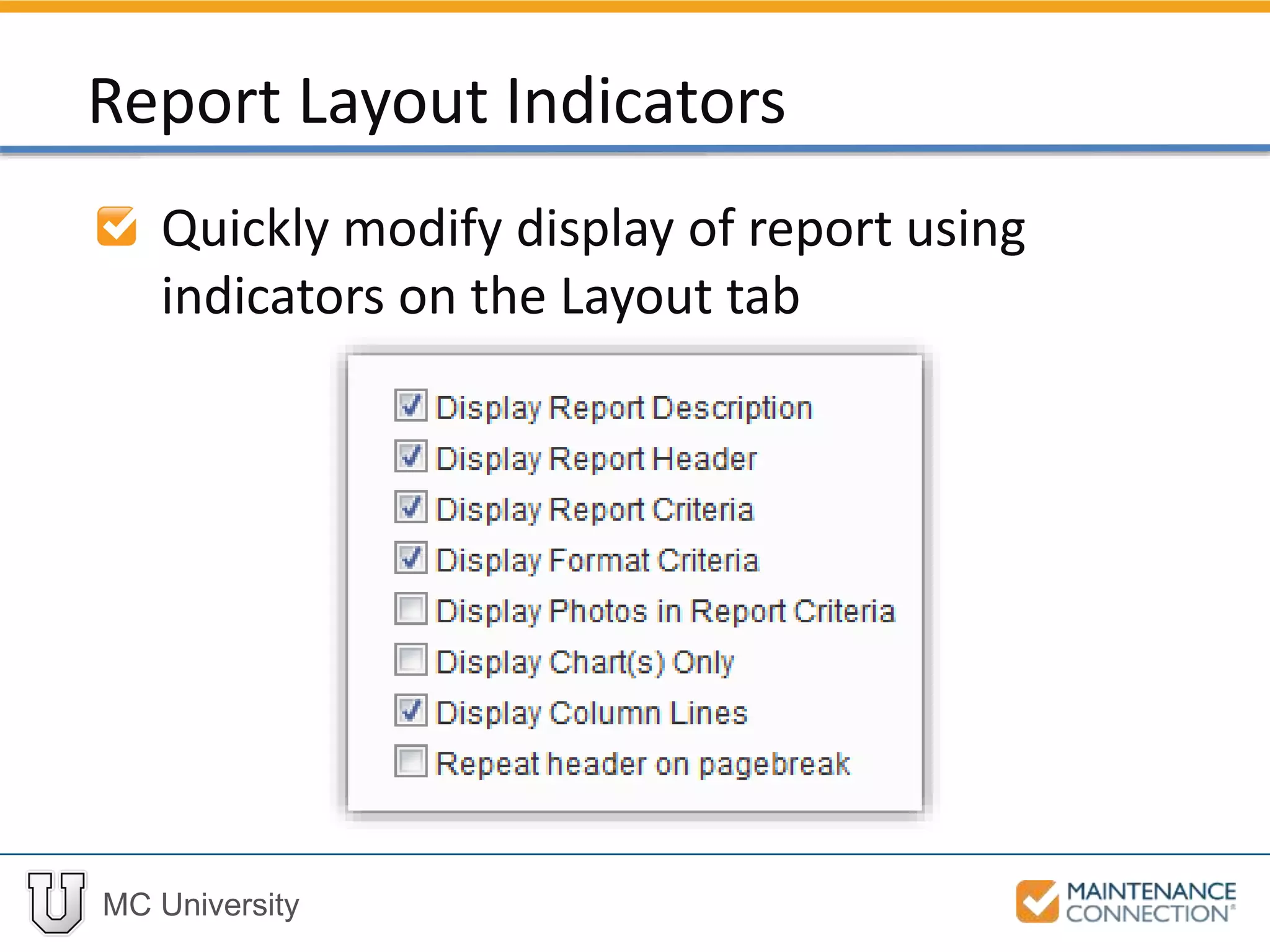
Quickly modify display of report using
indicators on the Layout tab
Report Layout Indicators
MC University
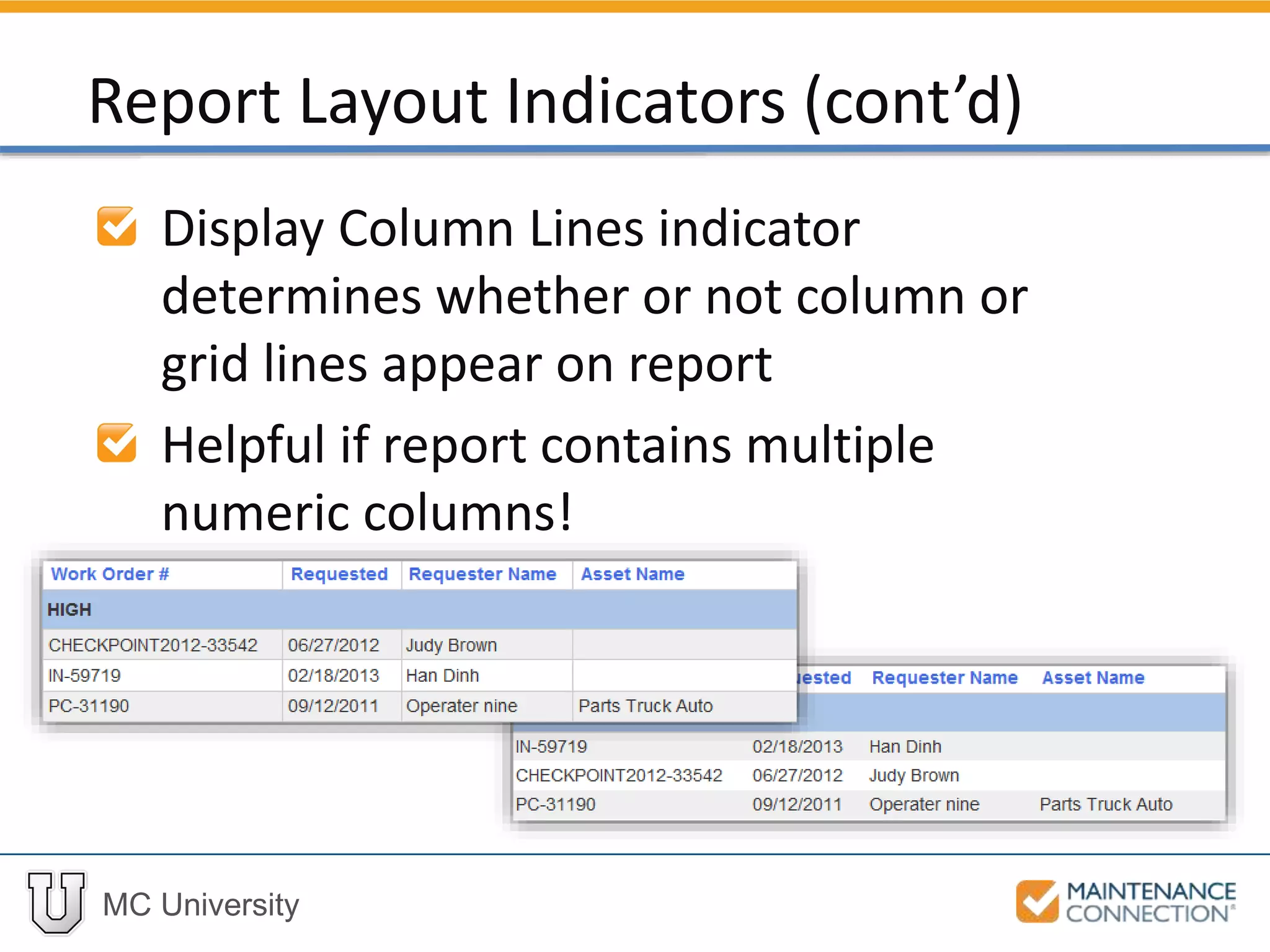
Display Column Lines indicator
determines whether or not column or
grid lines appear on report
Helpful if report contains multiple
numeric columns!
Report Layout Indicators (cont’d)
MC University
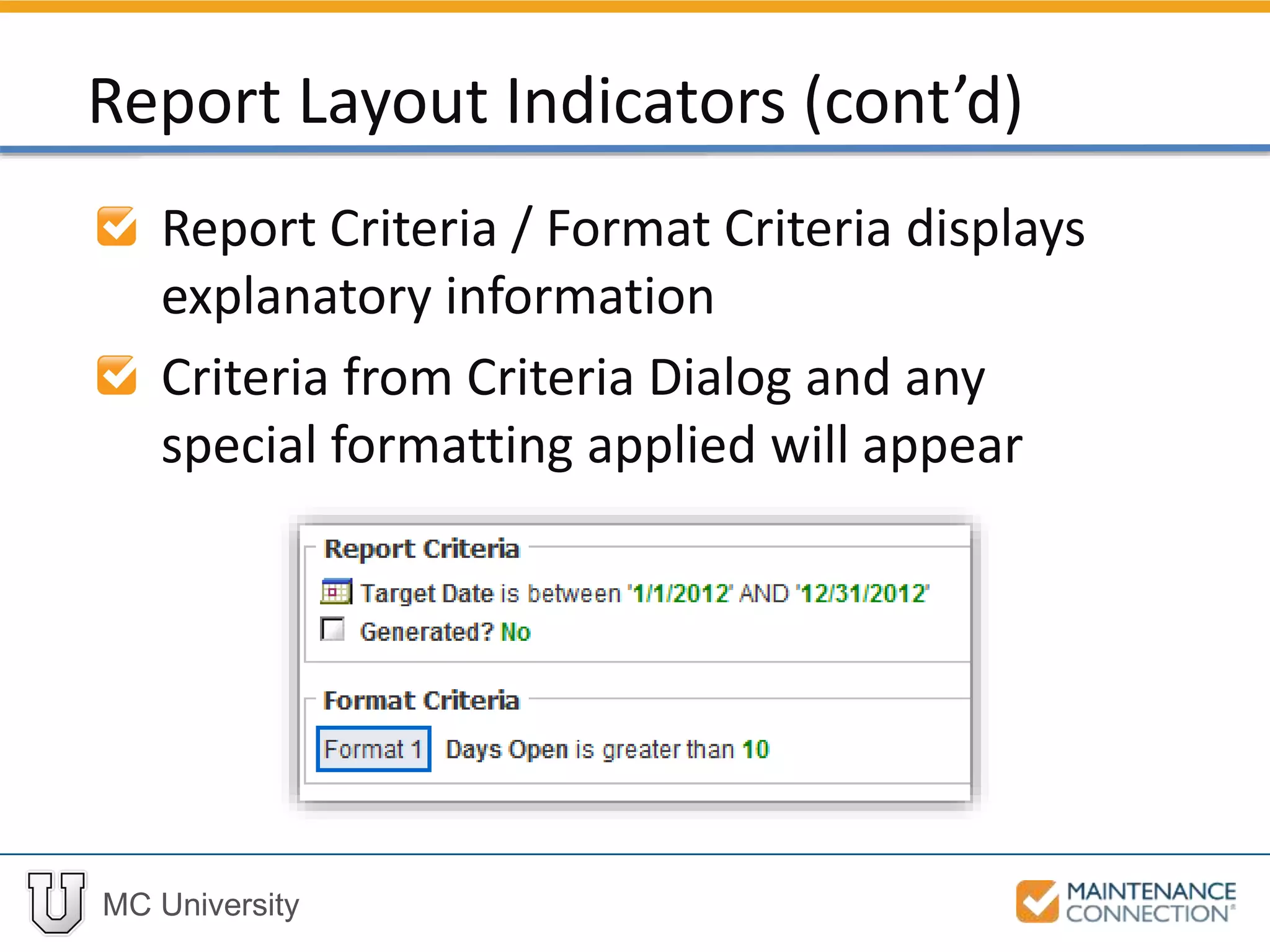
Report Criteria / Format Criteria displays
explanatory information
Criteria from Criteria Dialog and any
special formatting applied will appear
Report Layout Indicators (cont’d)
MC University
Drag / Drop Columns and Display Column Lines: Example
Now let’s take a look at dragging and
dropping columns, as well as displaying
column lines on a Report!
Thank You for
Watching!

R04 - Basics of Reporting: Report Setup (Part 2) (MCU)

Editor's Notes

  • #16 Navigate to the Report Setup Select None from the Sort 1 dropdown Click on the Sort 1 dropdown and find the [WO] Repair Center Name field Select [WO] Repair Center Name Click on the Sort 2 dropdown and scroll down to the [WO] Priority Desc field Select [WO] Priority Desc Mark indicators for Group and Total for both Sort 1 and Sort 2 Select the [WO] Target Date field for the Sort 3 prompt
  • #22 Navigate to the Report Setup Select None from the Sort 1 dropdown Click on the Sort 1 dropdown and find the [WO] Repair Center Name field Select [WO] Repair Center Name Click on the Sort 2 dropdown and scroll down to the [WO] Priority Desc field Select [WO] Priority Desc Mark indicators for Group and Total for both Sort 1 and Sort 2 Select the [WO] Target Date field for the Sort 3 prompt
  • #27 Navigate to the Report Setup Select None from the Sort 1 dropdown Click on the Sort 1 dropdown and find the [WO] Repair Center Name field Select [WO] Repair Center Name Click on the Sort 2 dropdown and scroll down to the [WO] Priority Desc field Select [WO] Priority Desc Mark indicators for Group and Total for both Sort 1 and Sort 2 Select the [WO] Target Date field for the Sort 3 prompt