

MC University
R07|Intermediate Reporting: Smart Reports
MC University
Smart Reports Defined
Smart Actions and Criteria
Agenda
MC University
Smart Reports Overview
Smart Settings and Email
Smart Buttons
Smart Reports Defined
MC University
Almost all Detail Reports can become
“smart”
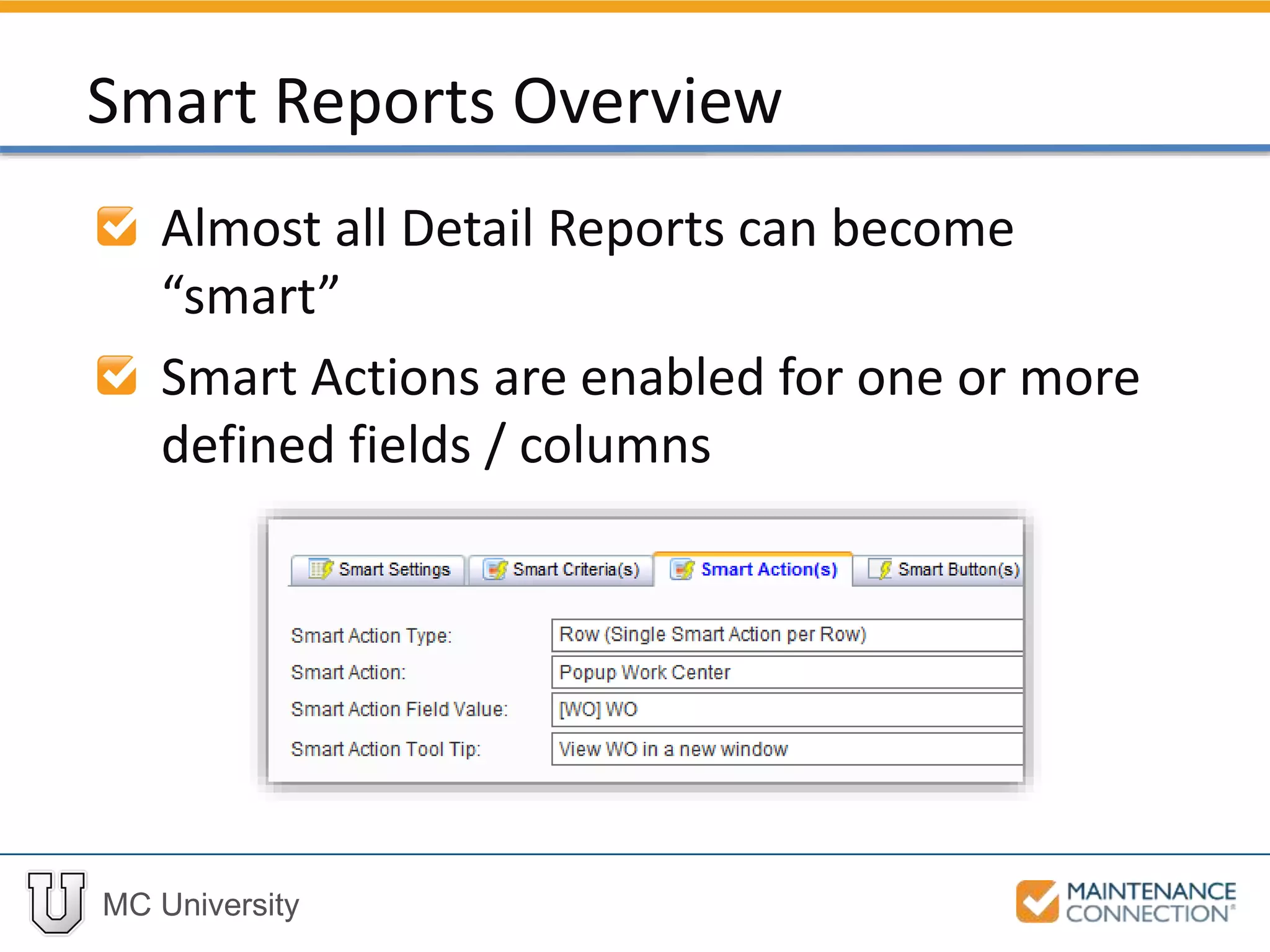
Smart Actions are enabled for one or more
defined fields / columns
Smart Reports Overview
MC University
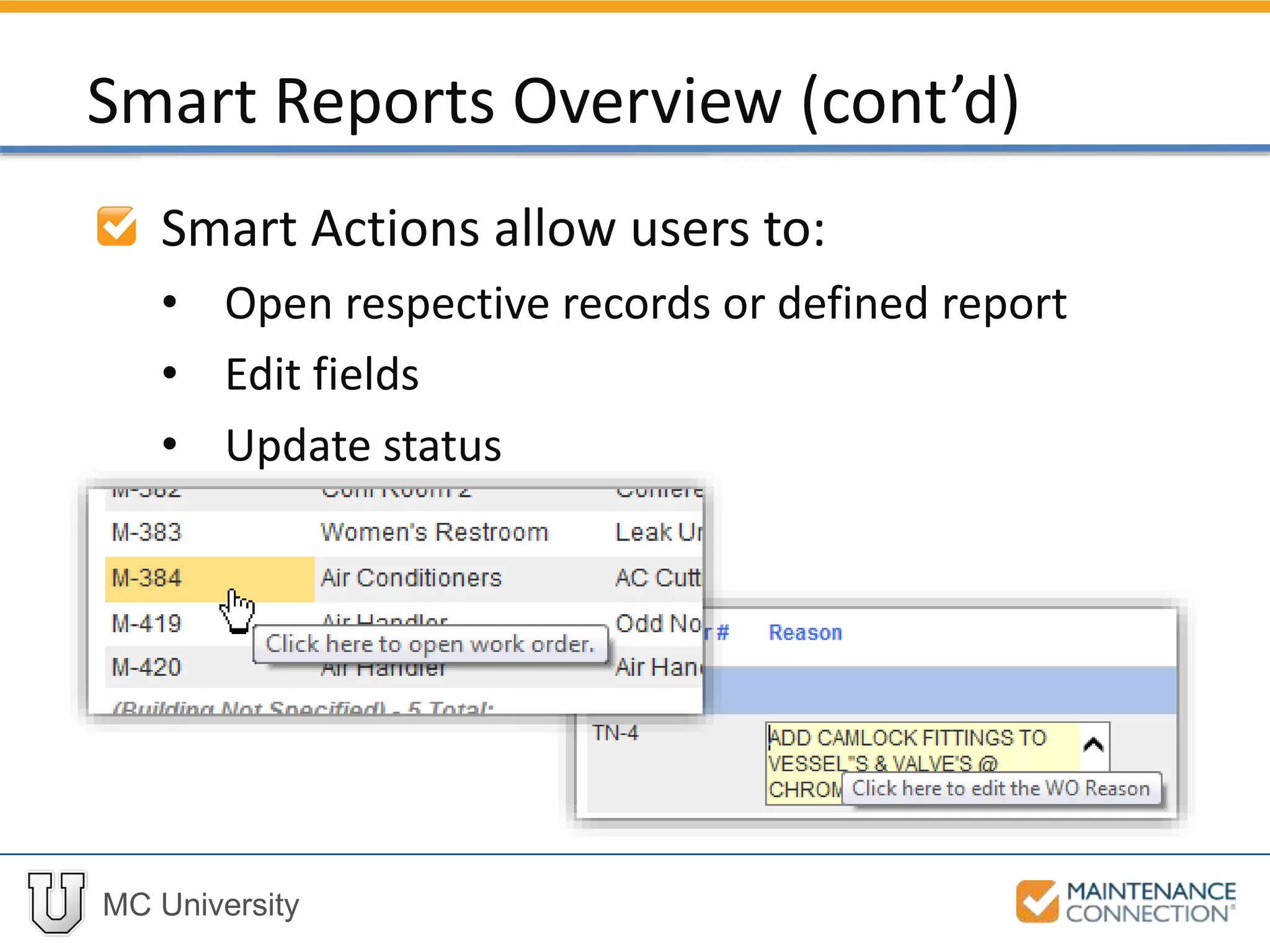
Smart Actions allow users to:
• Open respective records or defined report
• Edit fields
• Update status
Smart Reports Overview (cont’d)
MC University
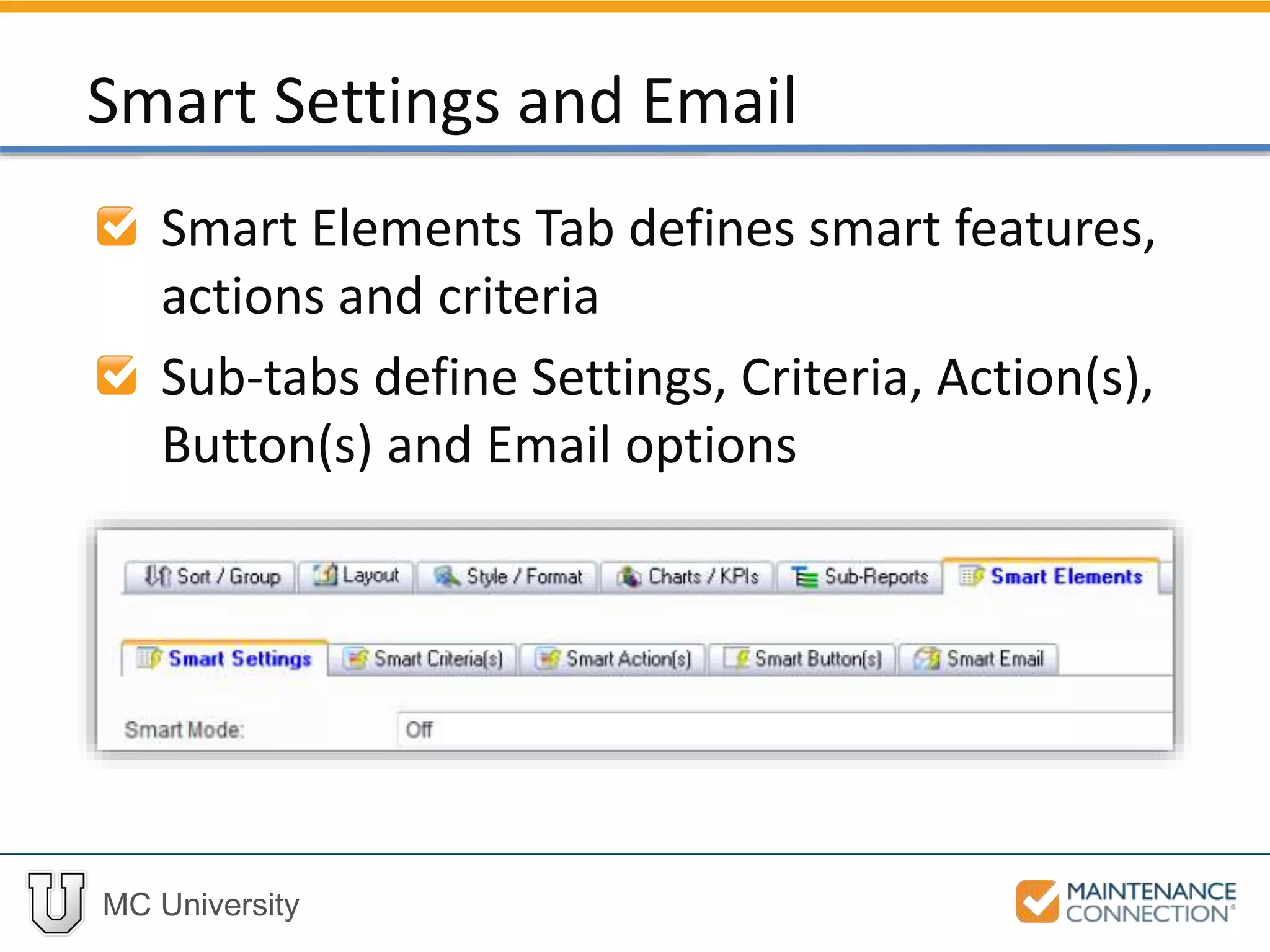
Smart Elements Tab defines smart features,
actions and criteria
Sub-tabs define Settings, Criteria, Action(s),
Button(s) and Email options
Smart Settings and Email
MC University
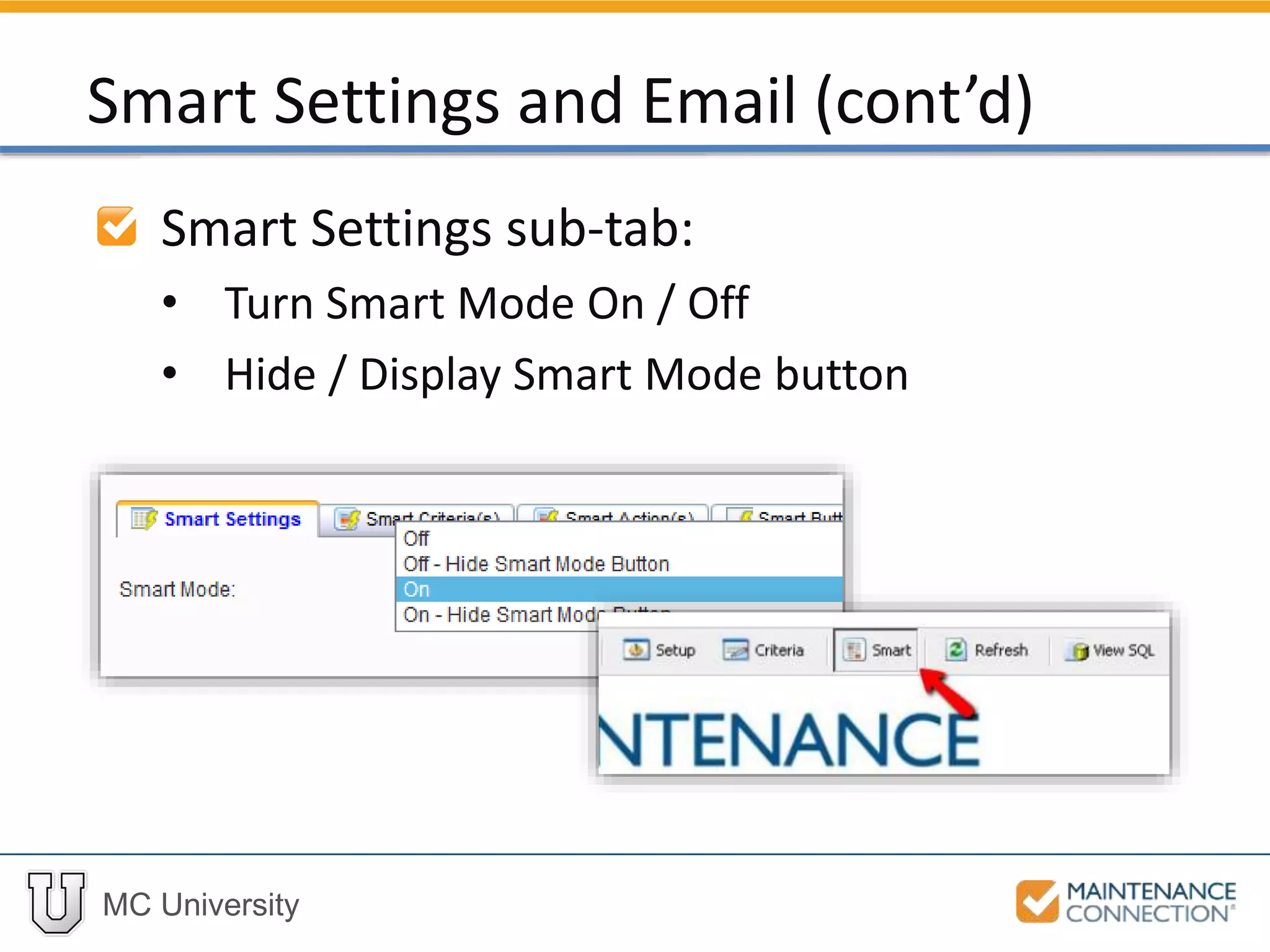
Smart Settings sub-tab:
• Turn Smart Mode On / Off
• Hide / Display Smart Mode button
Smart Settings and Email (cont’d)
MC University
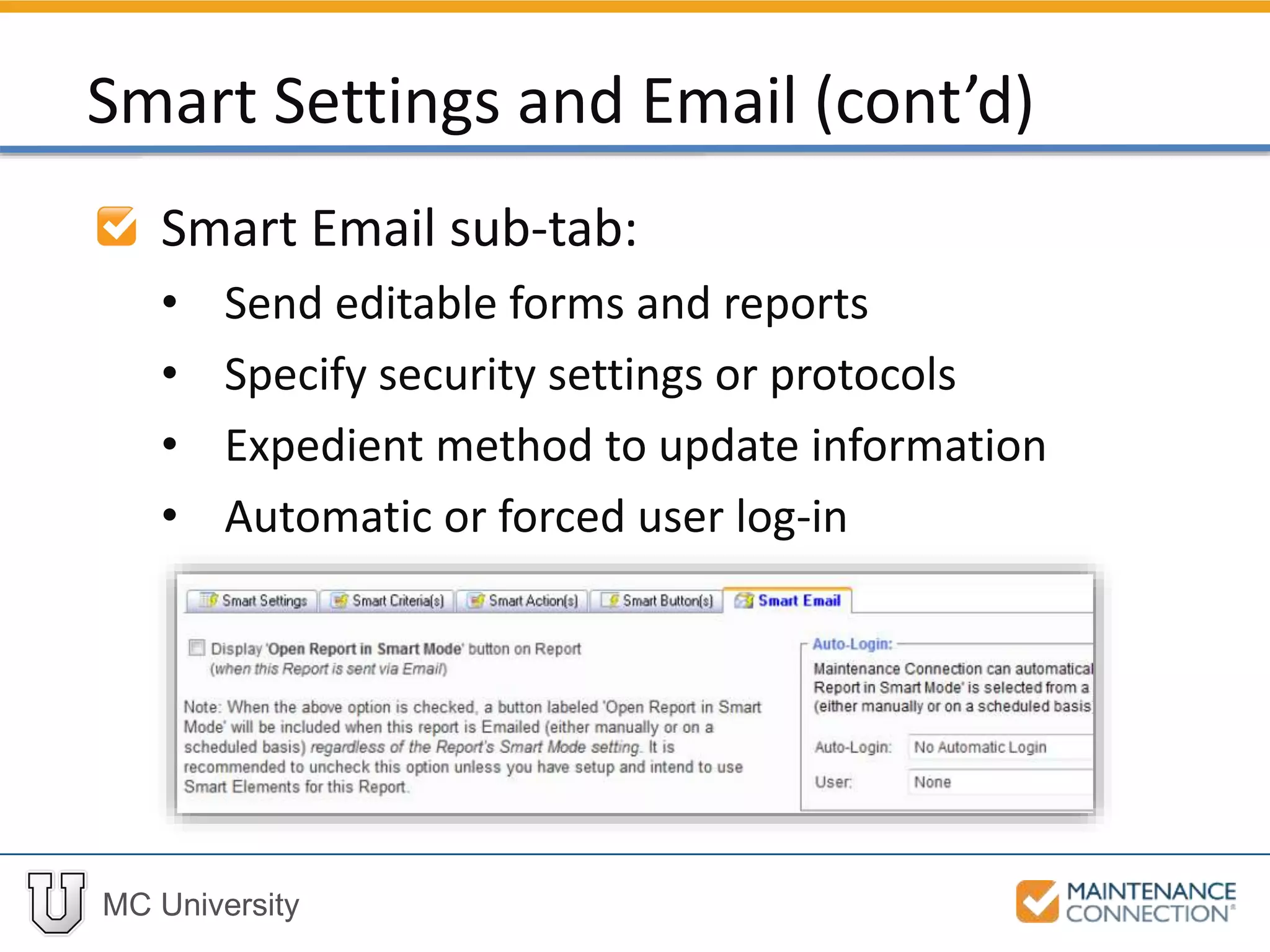
Smart Email sub-tab:
• Send editable forms and reports
• Specify security settings or protocols
• Expedient method to update information
• Automatic or forced user log-in
Smart Settings and Email (cont’d)
MC University
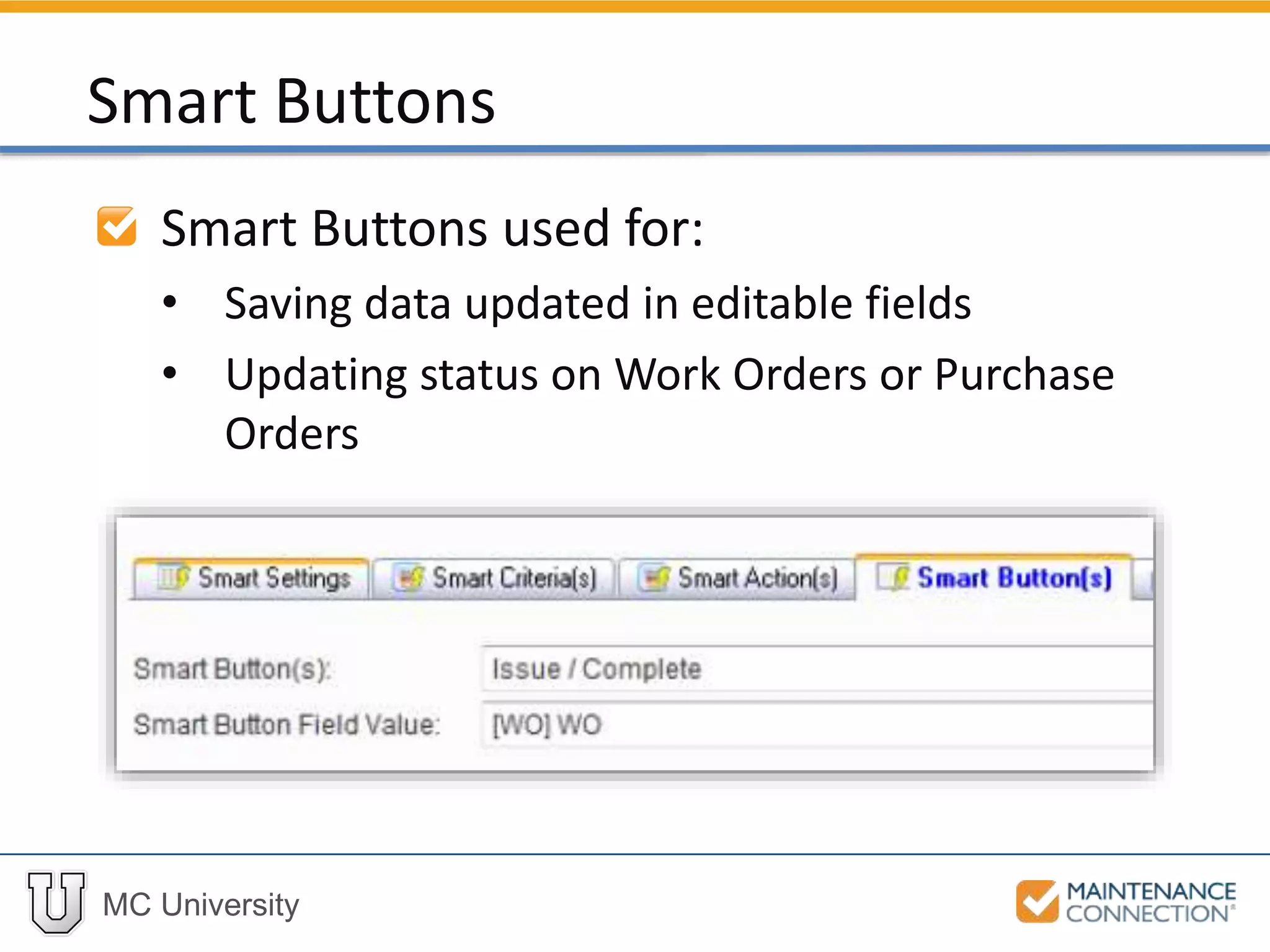
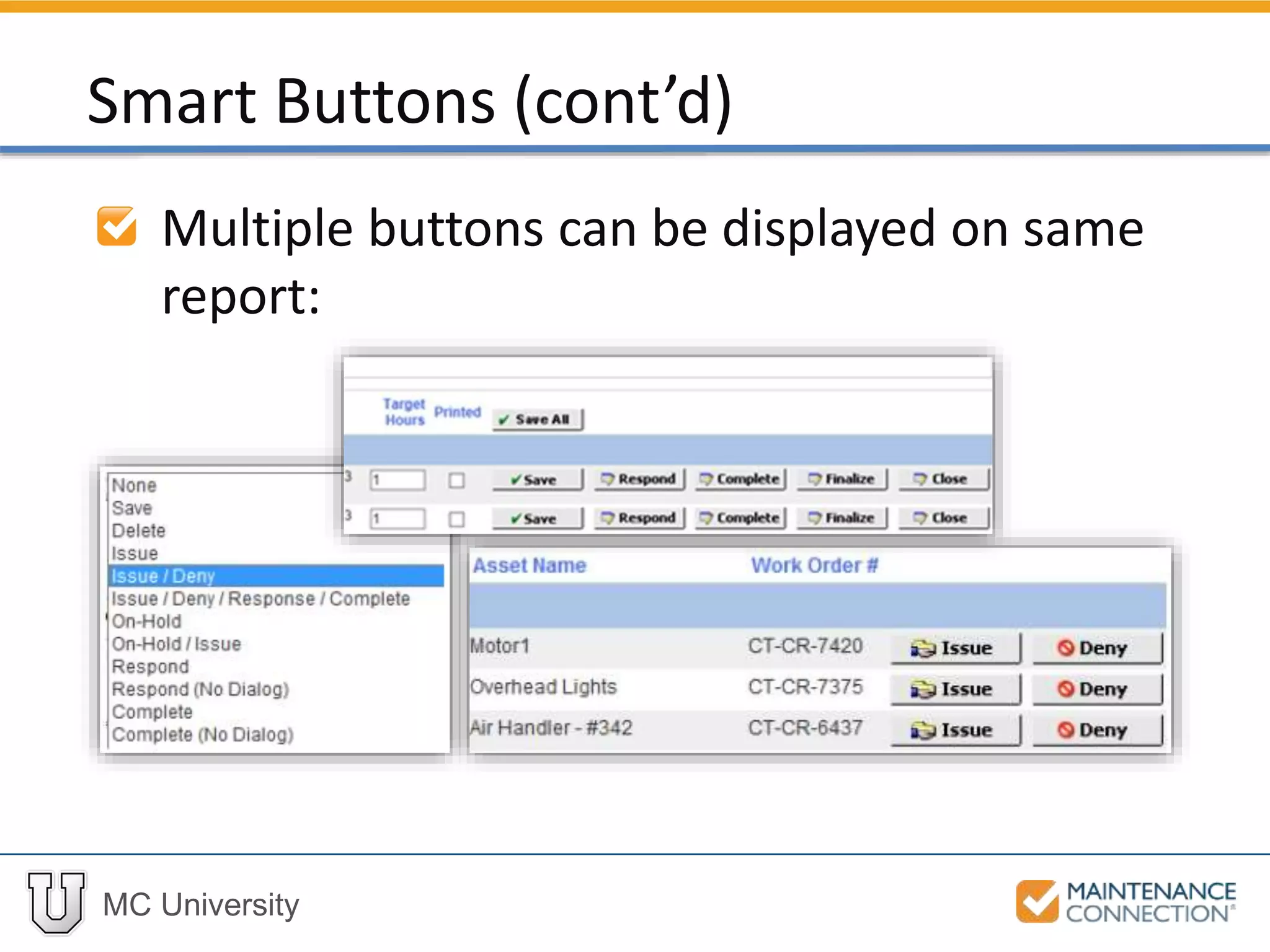
Smart Buttons used for:
• Saving data updated in editable fields
• Updating status on Work Orders or Purchase
Orders
Smart Buttons
MC University
Multiple buttons can be displayed on same
report:
Smart Buttons (cont’d)
MC University
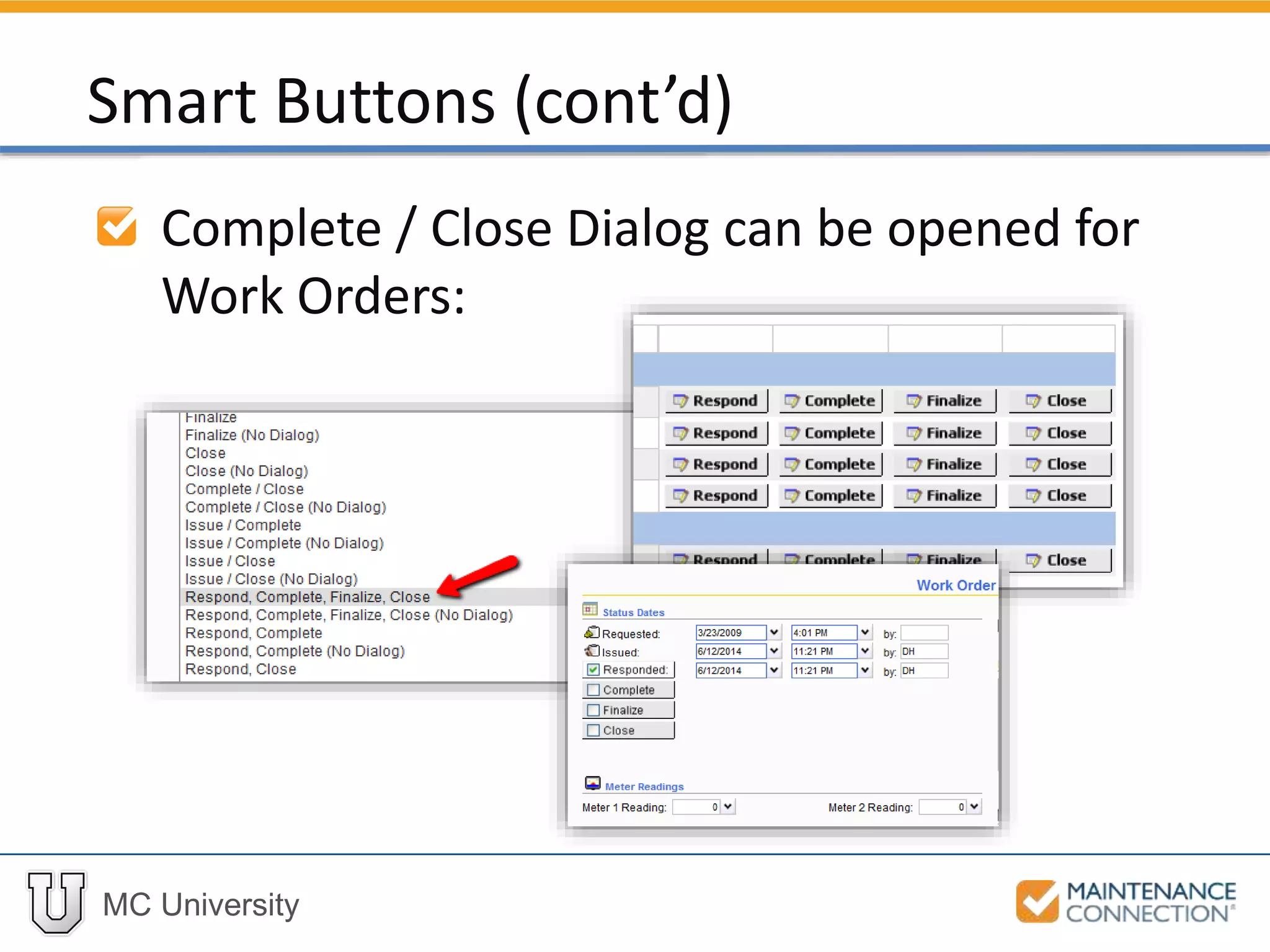
Complete / Close Dialog can be opened for
Work Orders:
Smart Buttons (cont’d)
MC University
Smart Actions
Smart Criteria
Smart Actions and Criteria
MC University
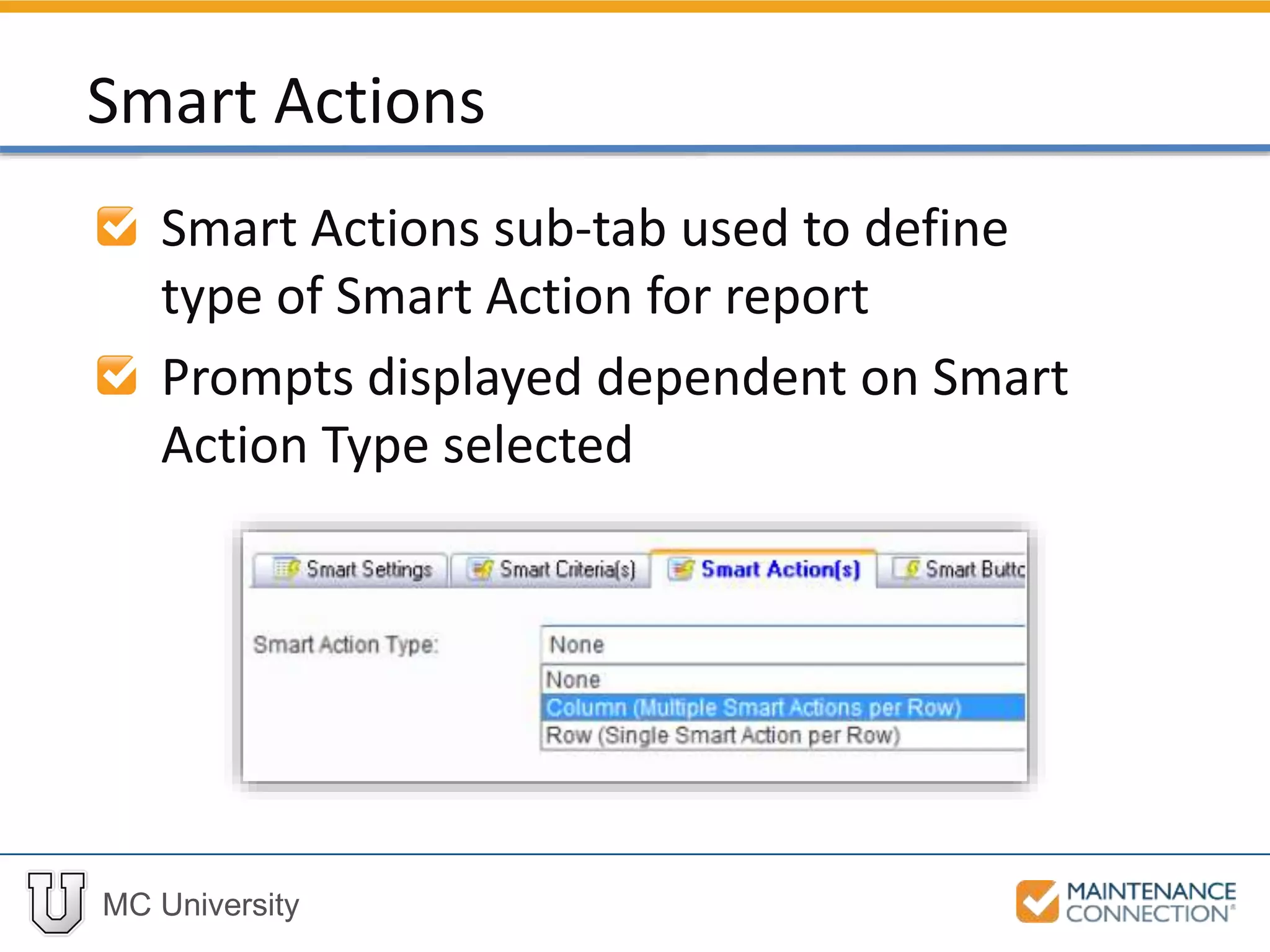
Smart Actions sub-tab used to define
type of Smart Action for report
Prompts displayed dependent on Smart
Action Type selected
Smart Actions
MC University
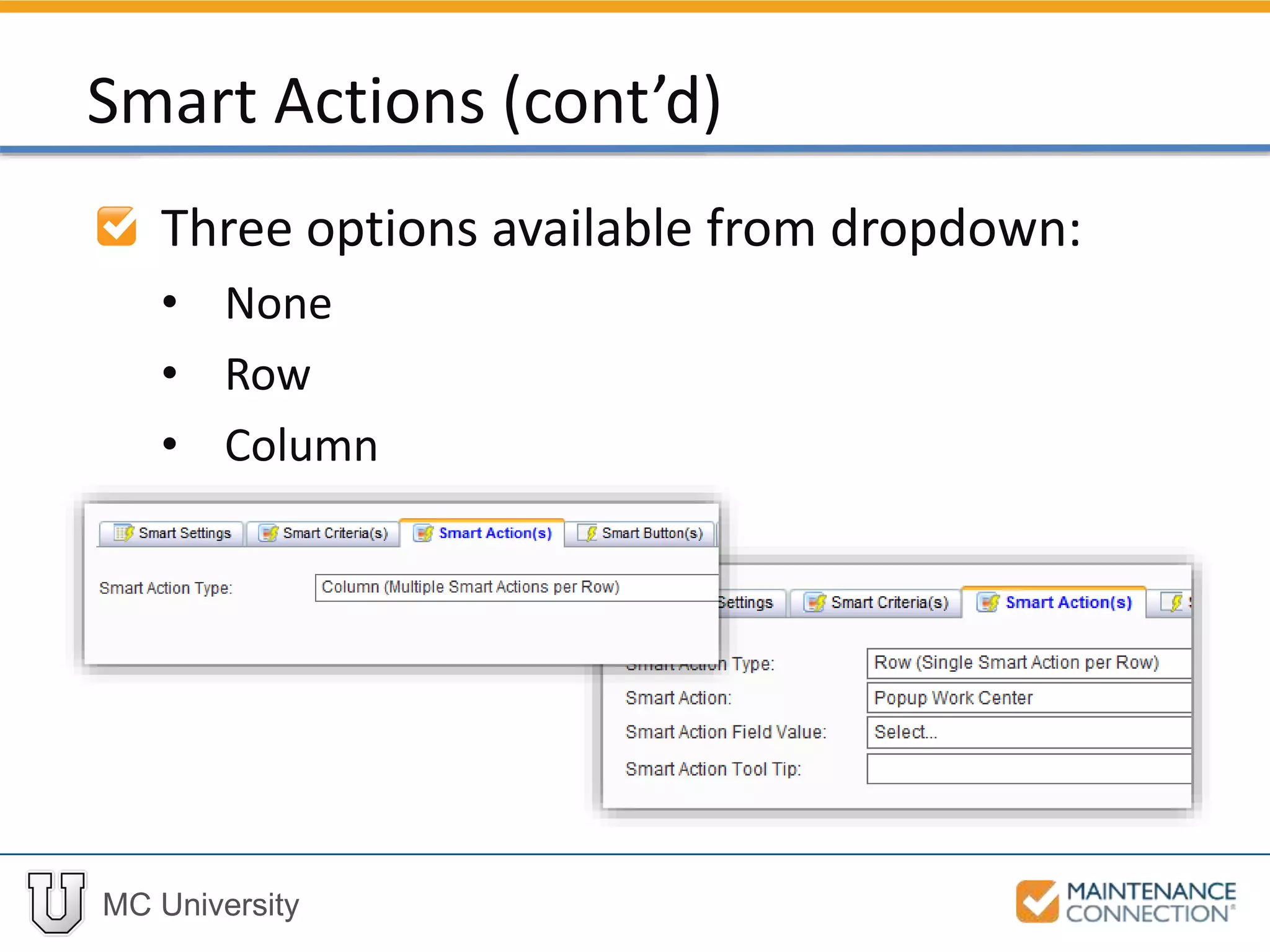
Three options available from dropdown:
• None
• Row
• Column
Smart Actions (cont’d)
MC University
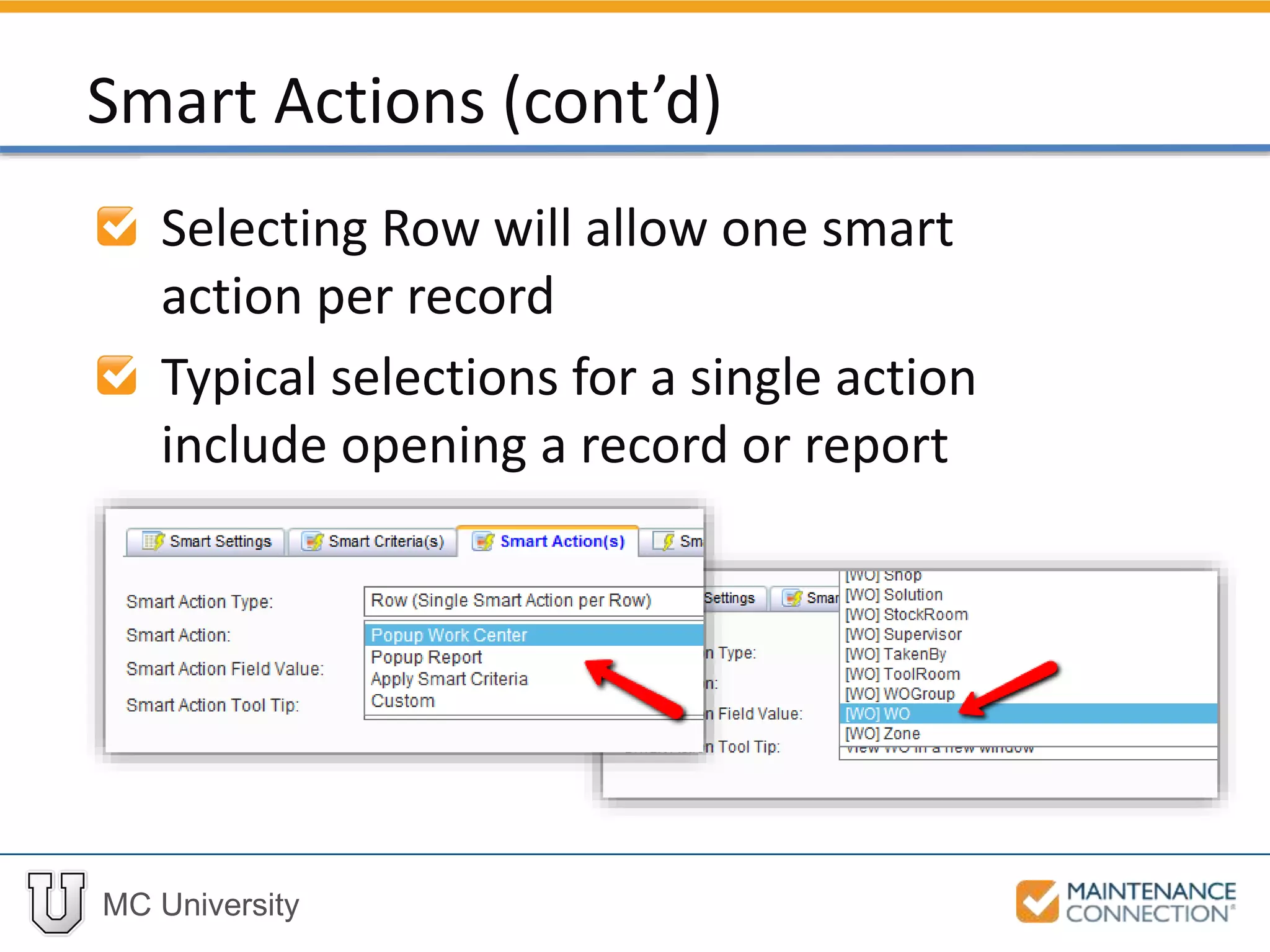
Selecting Row will allow one smart
action per record
Typical selections for a single action
include opening a record or report
Smart Actions (cont’d)
MC University
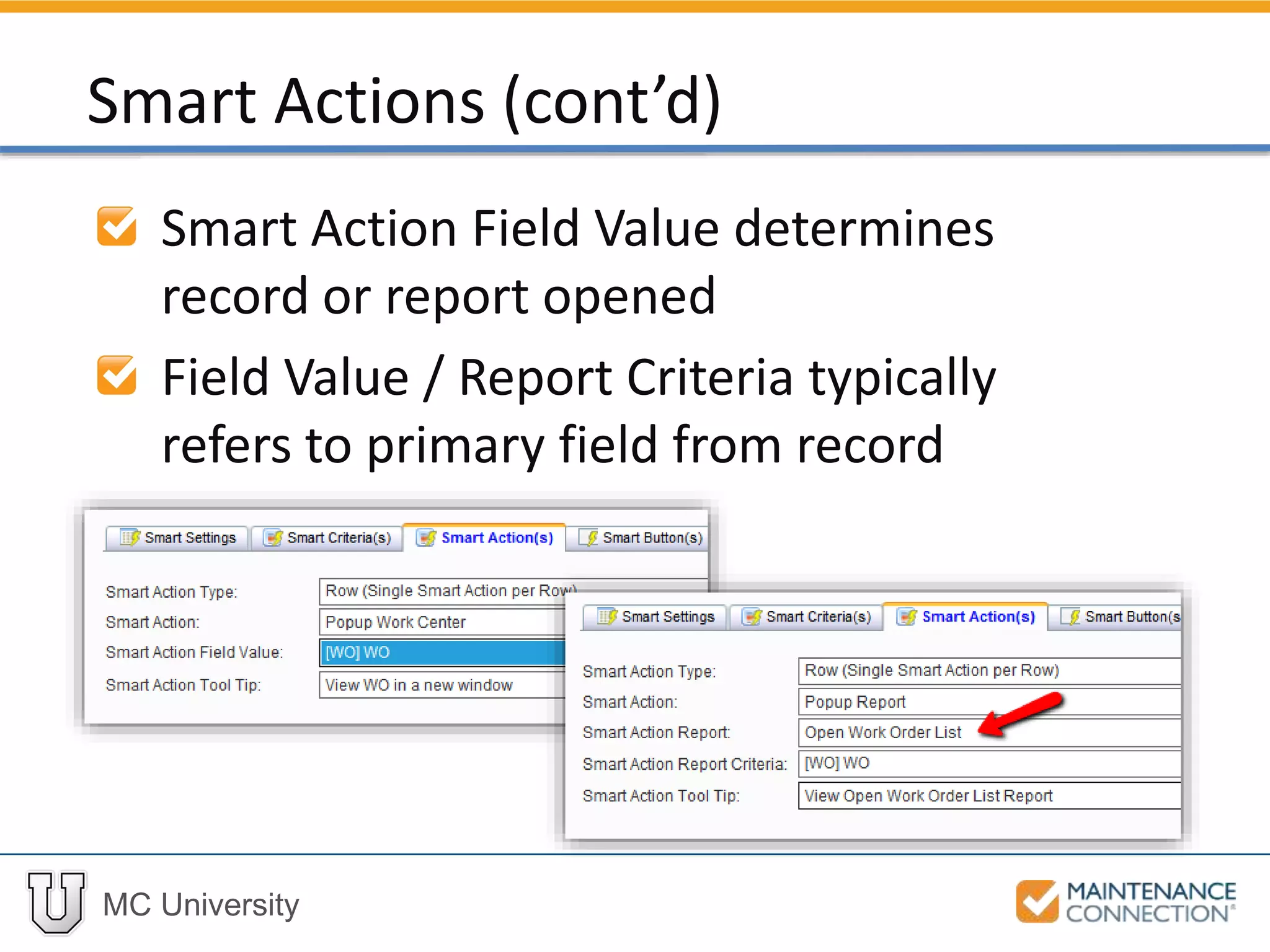
Smart Action Field Value determines
record or report opened
Field Value / Report Criteria typically
refers to primary field from record
Smart Actions (cont’d)
MC University
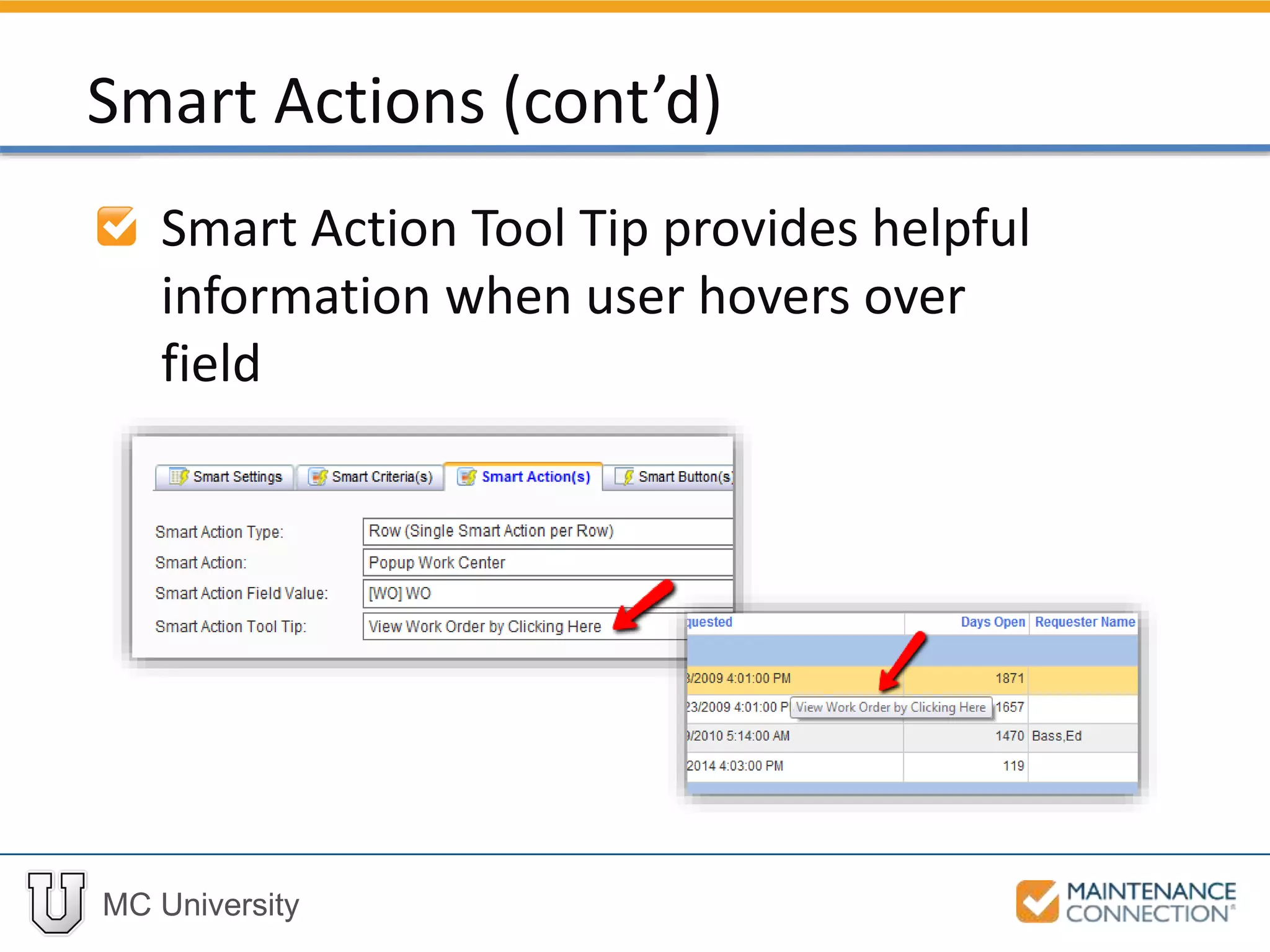
Smart Action Tool Tip provides helpful
information when user hovers over
field
Smart Actions (cont’d)
MC University
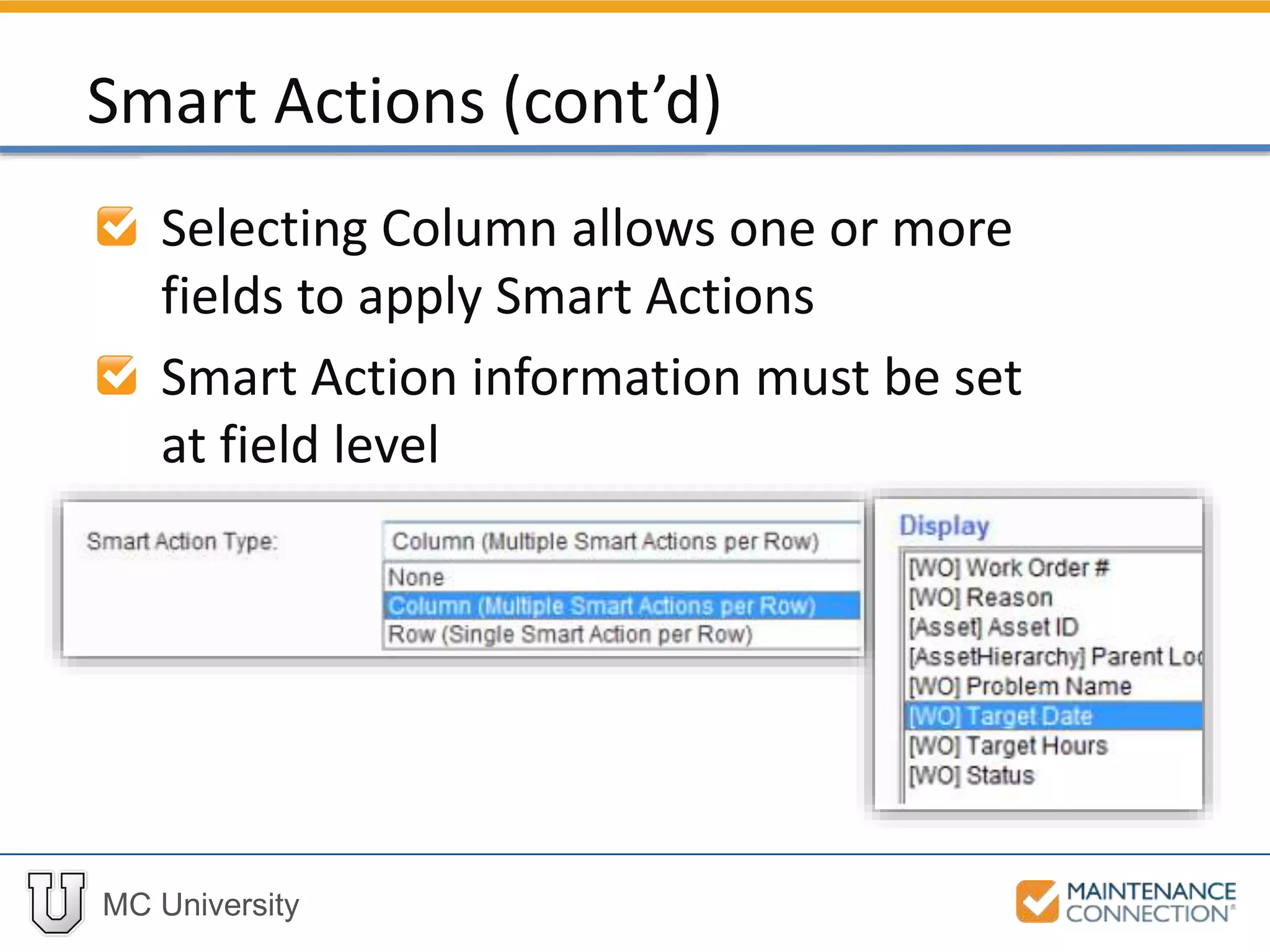
Selecting Column allows one or more
fields to apply Smart Actions
Smart Action information must be set
at field level
Smart Actions (cont’d)
MC University
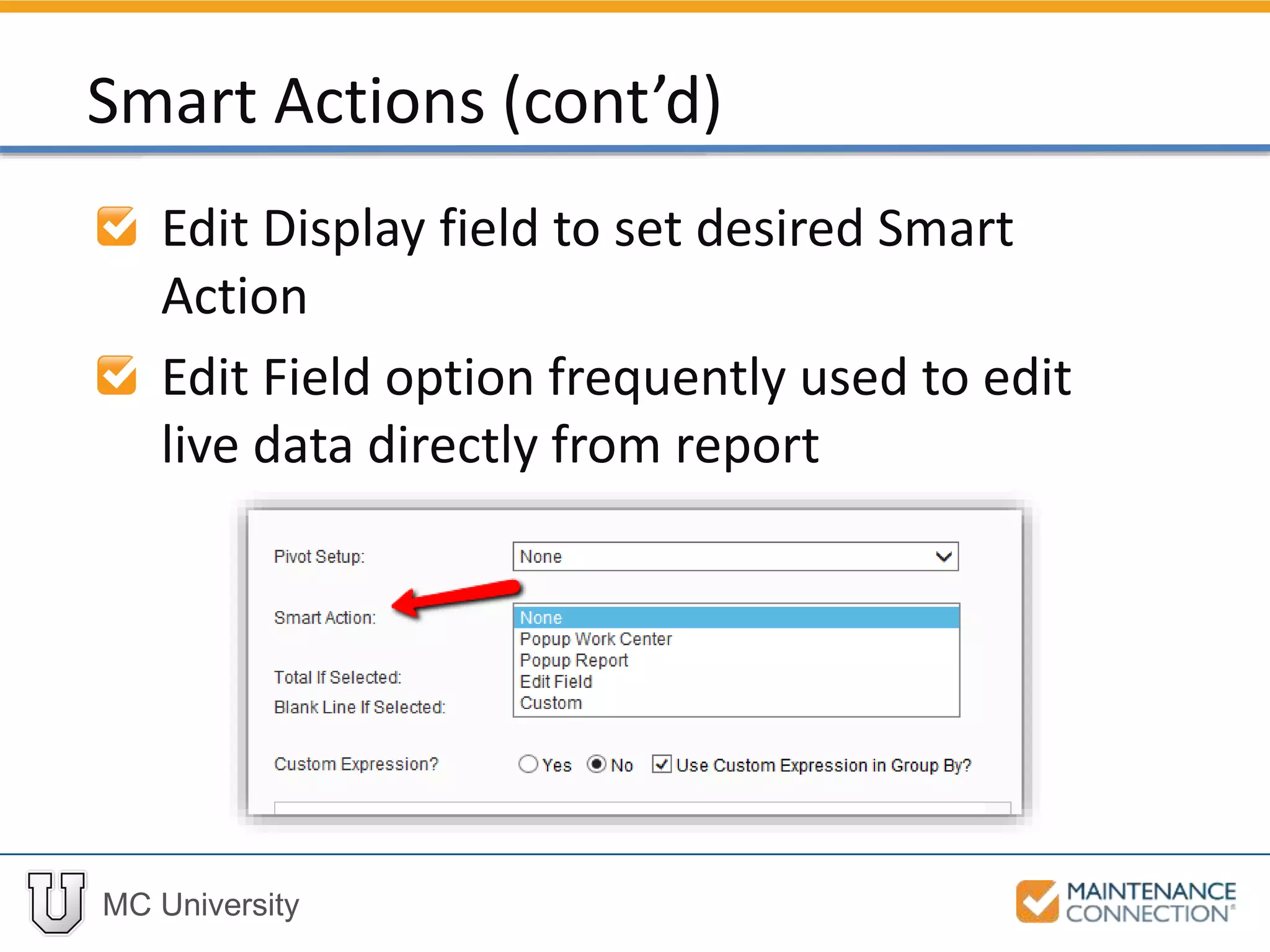
Edit Display field to set desired Smart
Action
Edit Field option frequently used to edit
live data directly from report
Smart Actions (cont’d)
MC University
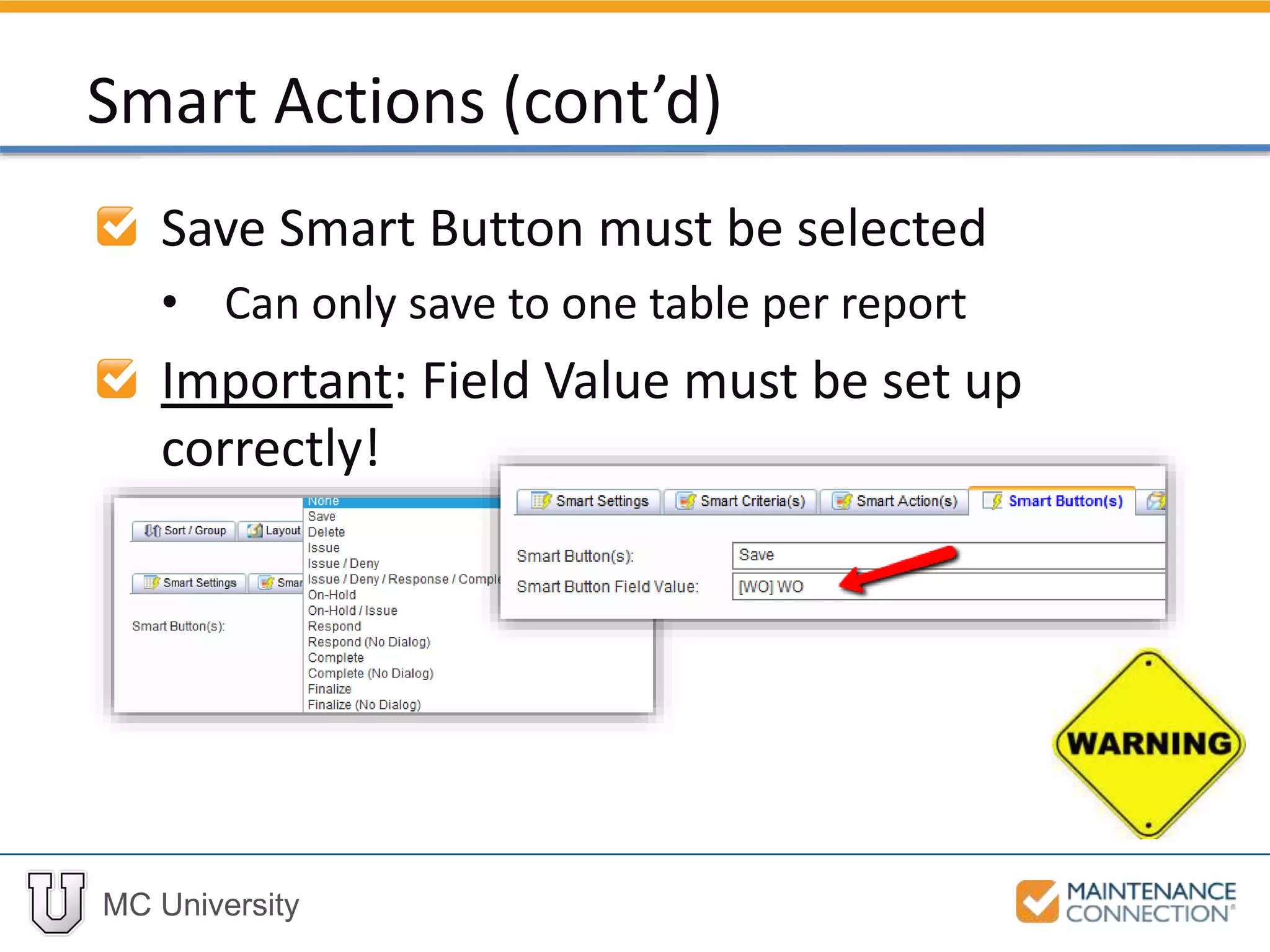
Save Smart Button must be selected
• Can only save to one table per report
Important: Field Value must be set up
correctly!
Smart Actions (cont’d)
MC University
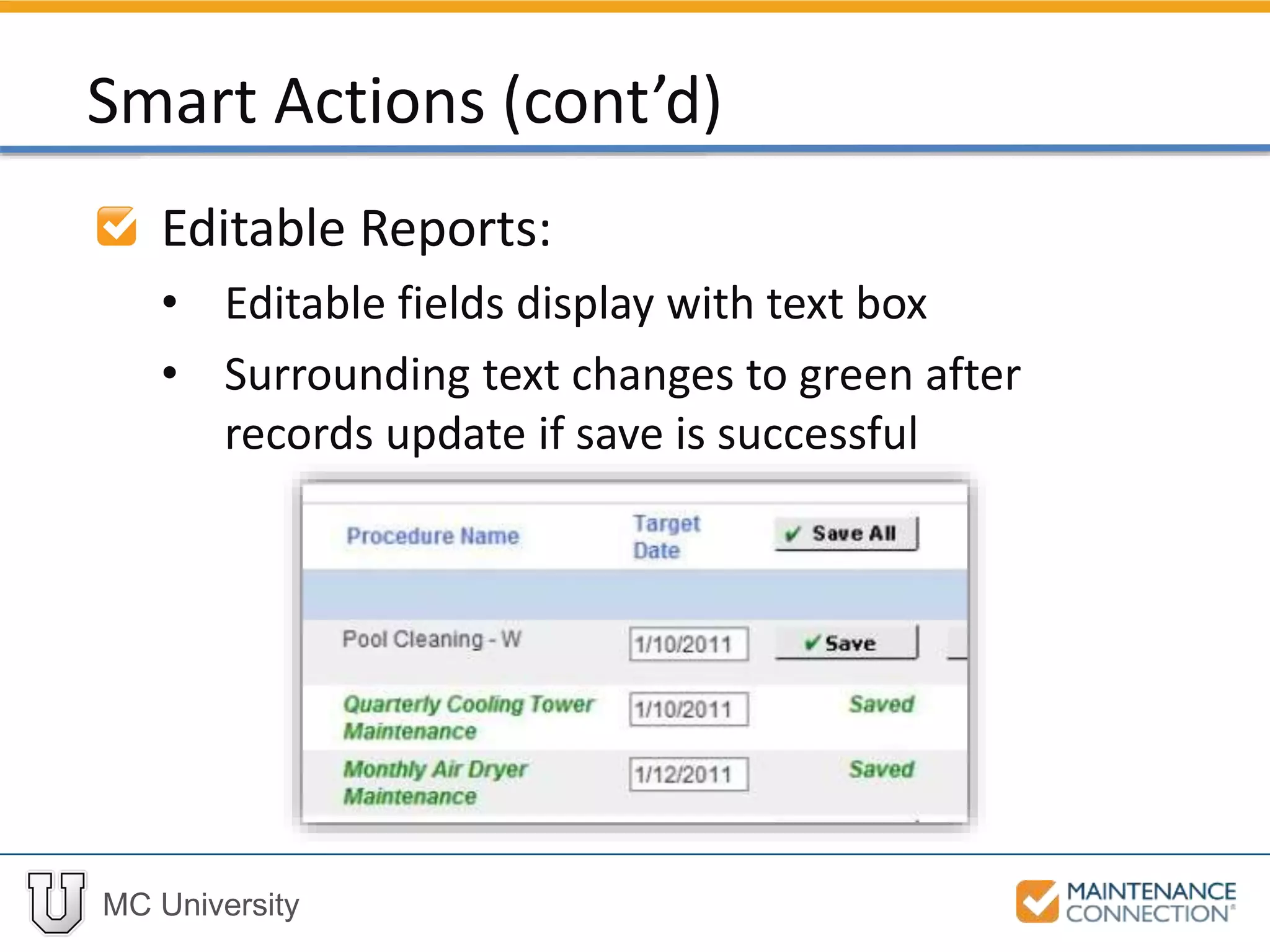
Editable Reports:
• Editable fields display with text box
• Surrounding text changes to green after
records update if save is successful
Smart Actions (cont’d)
MC University
Now let’s take a look at adding Smart
Actions to open Work Order records
directly from a report!
Applying Smart Actions: Example
MC University
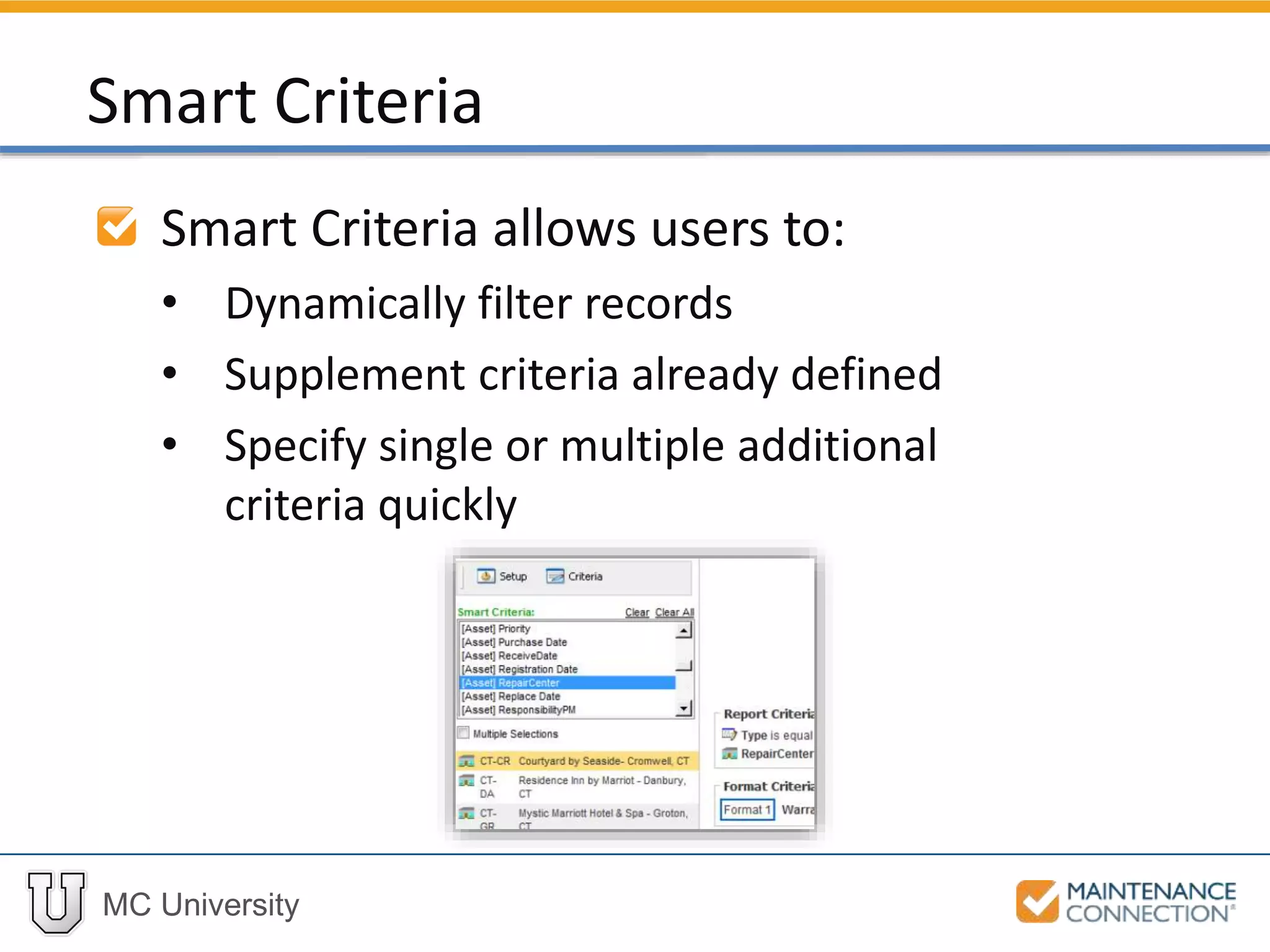
Smart Criteria allows users to:
• Dynamically filter records
• Supplement criteria already defined
• Specify single or multiple additional
criteria quickly
Smart Criteria
MC University
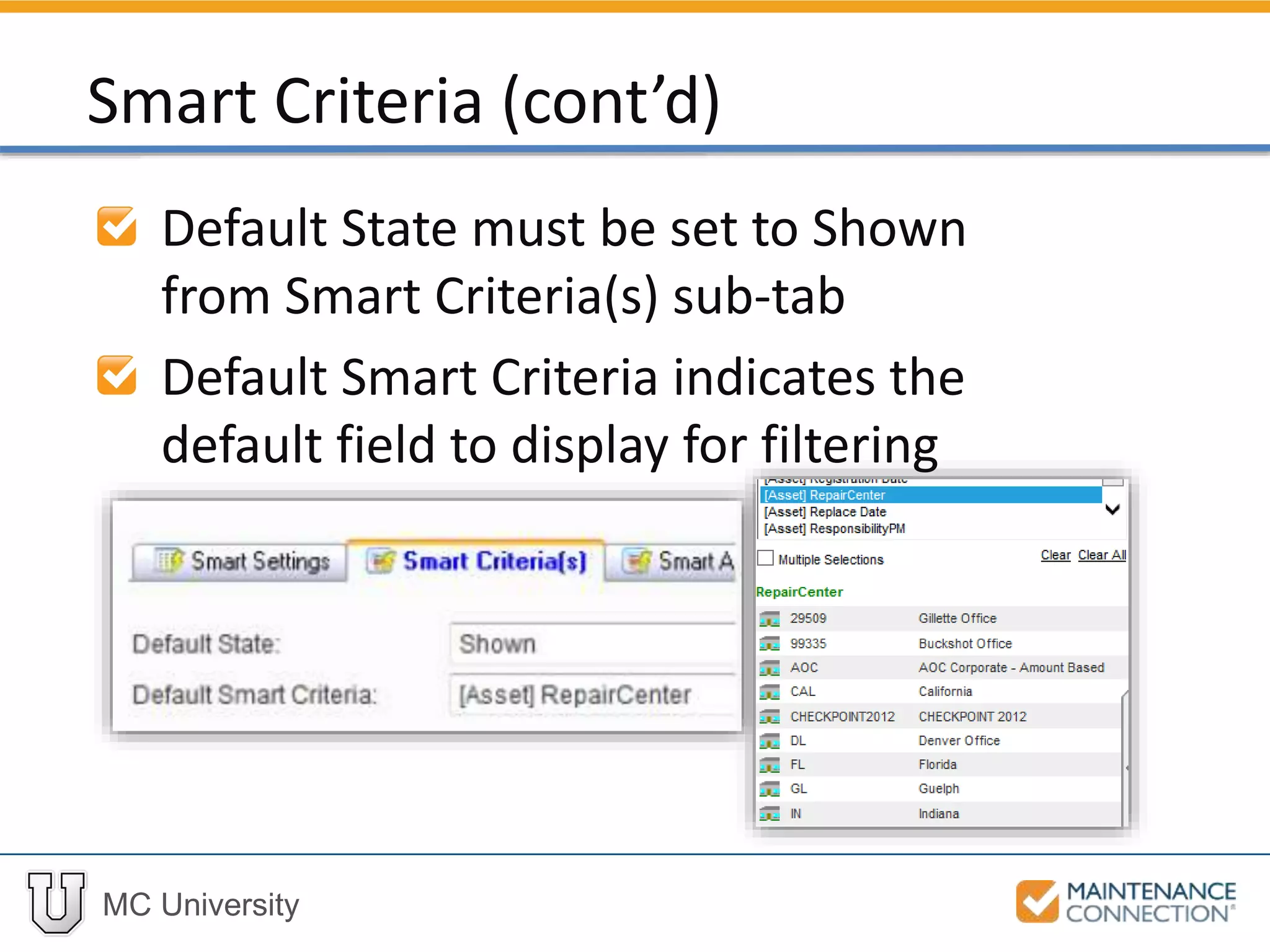
Default State must be set to Shown
from Smart Criteria(s) sub-tab
Default Smart Criteria indicates the
default field to display for filtering
Smart Criteria (cont’d)
MC University
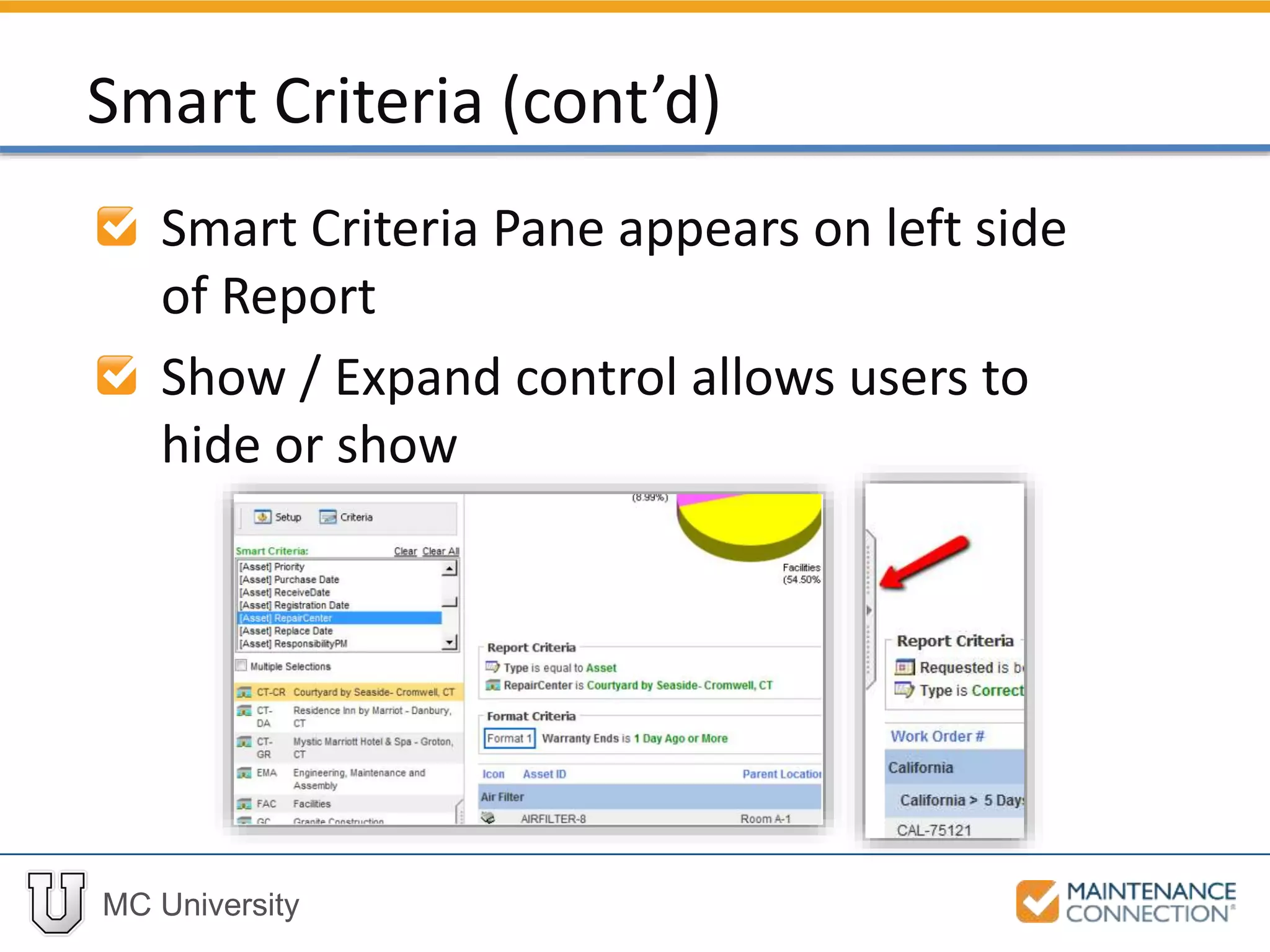
Smart Criteria Pane appears on left side
of Report
Show / Expand control allows users to
hide or show
Smart Criteria (cont’d)
MC University
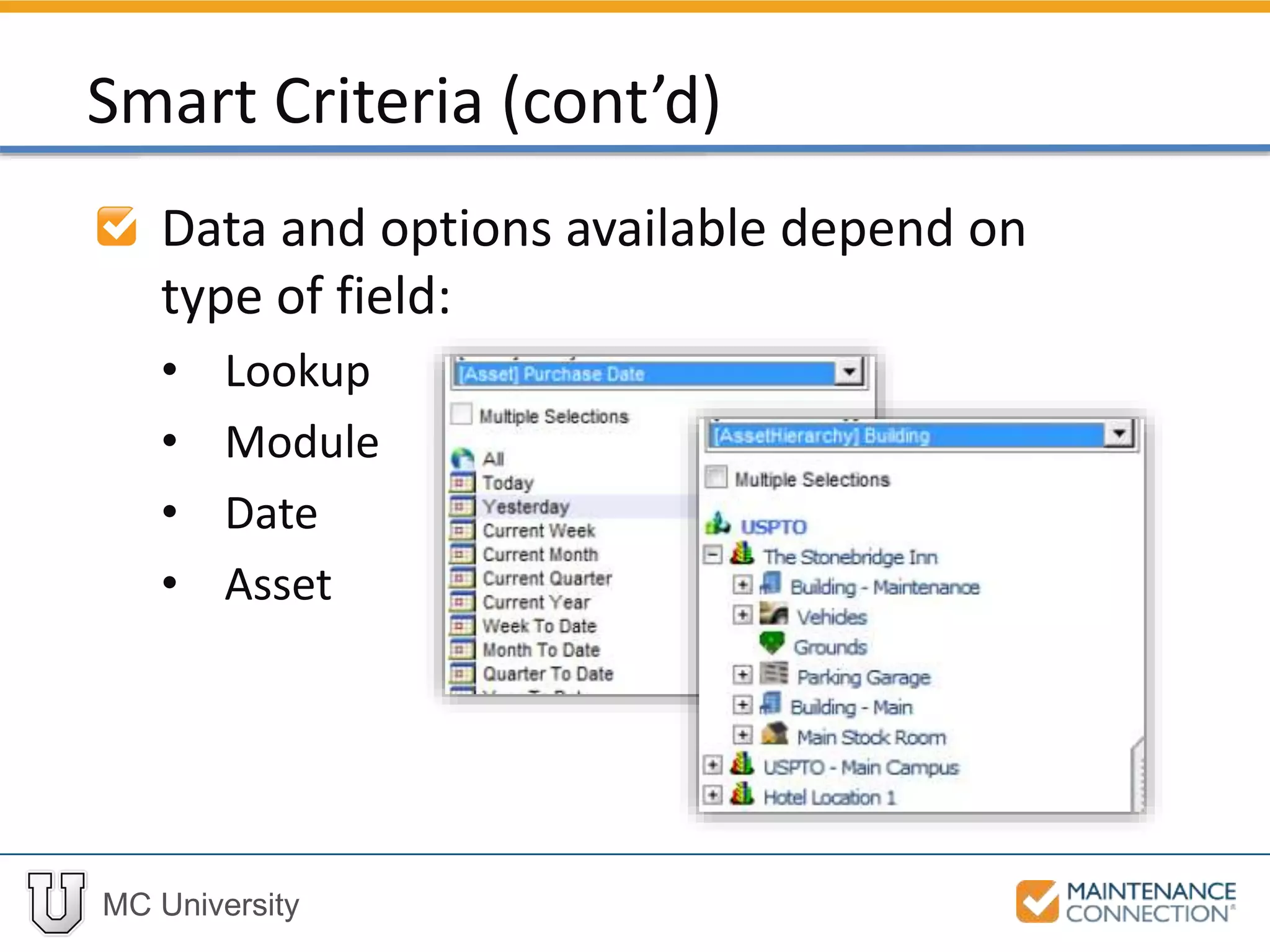
Data and options available depend on
type of field:
• Lookup
• Module
• Date
• Asset
Smart Criteria (cont’d)
MC University
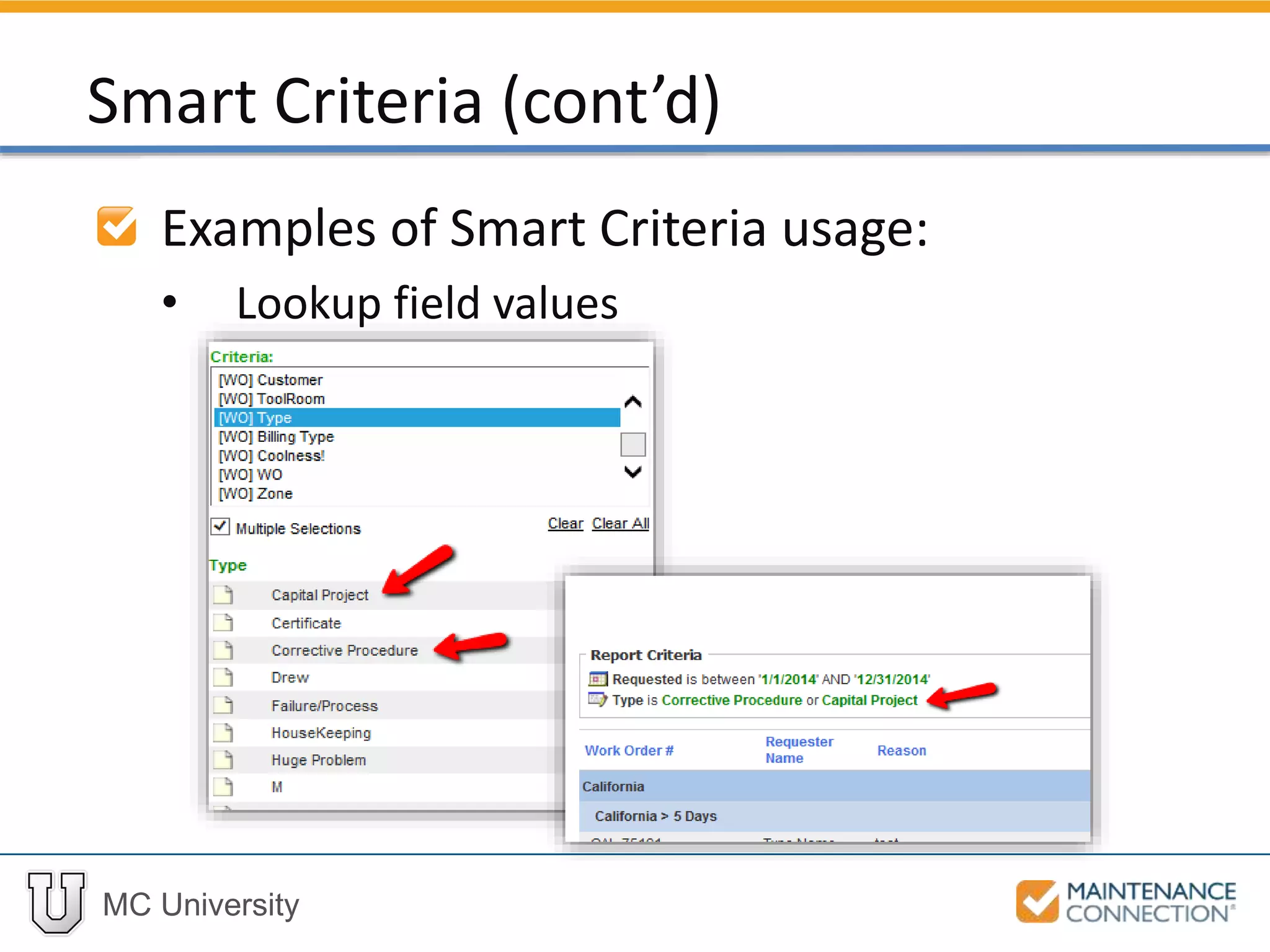
Examples of Smart Criteria usage:
• Lookup field values
Smart Criteria (cont’d)
MC University
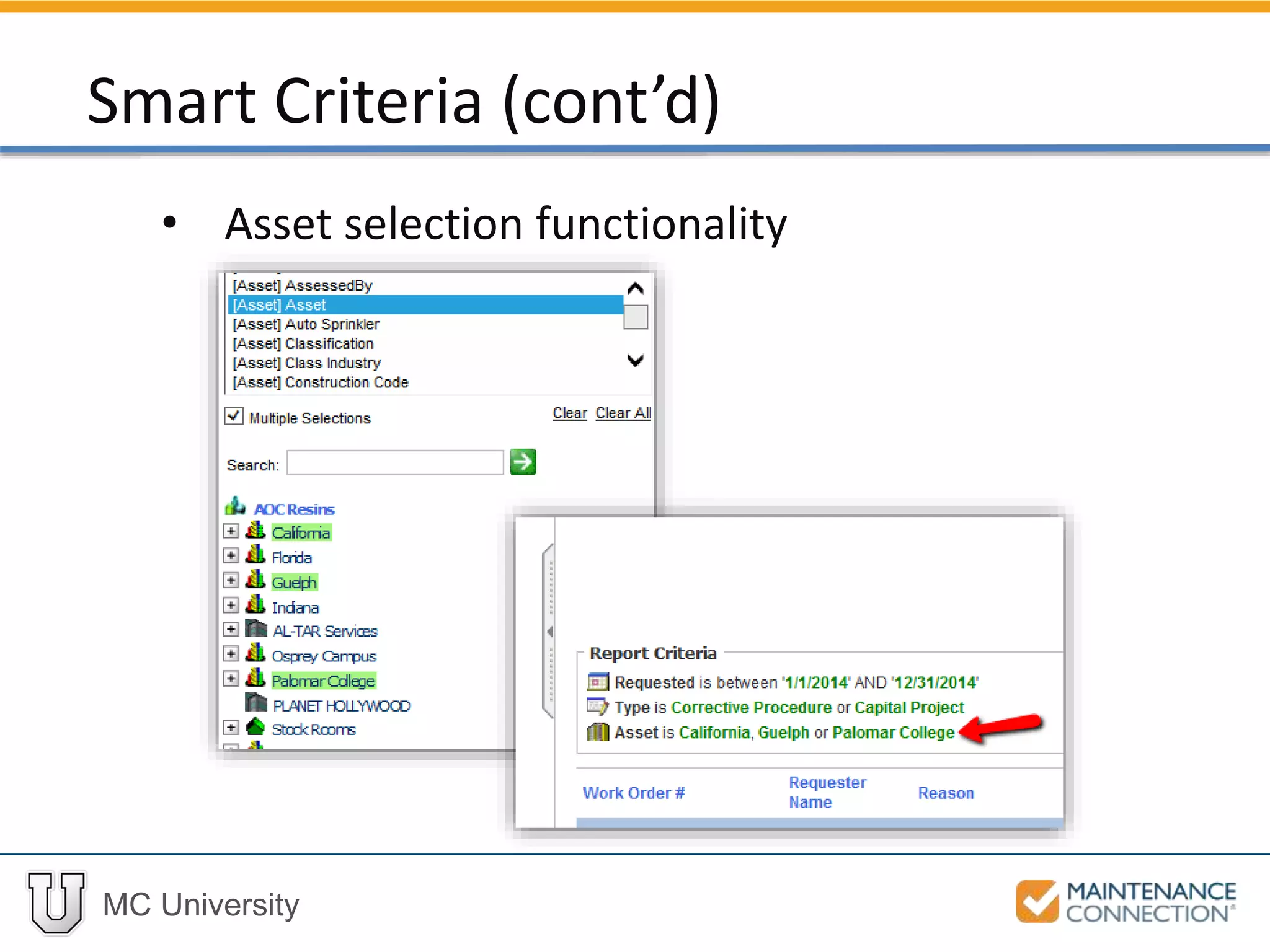
• Asset selection functionality
Smart Criteria (cont’d)
MC University
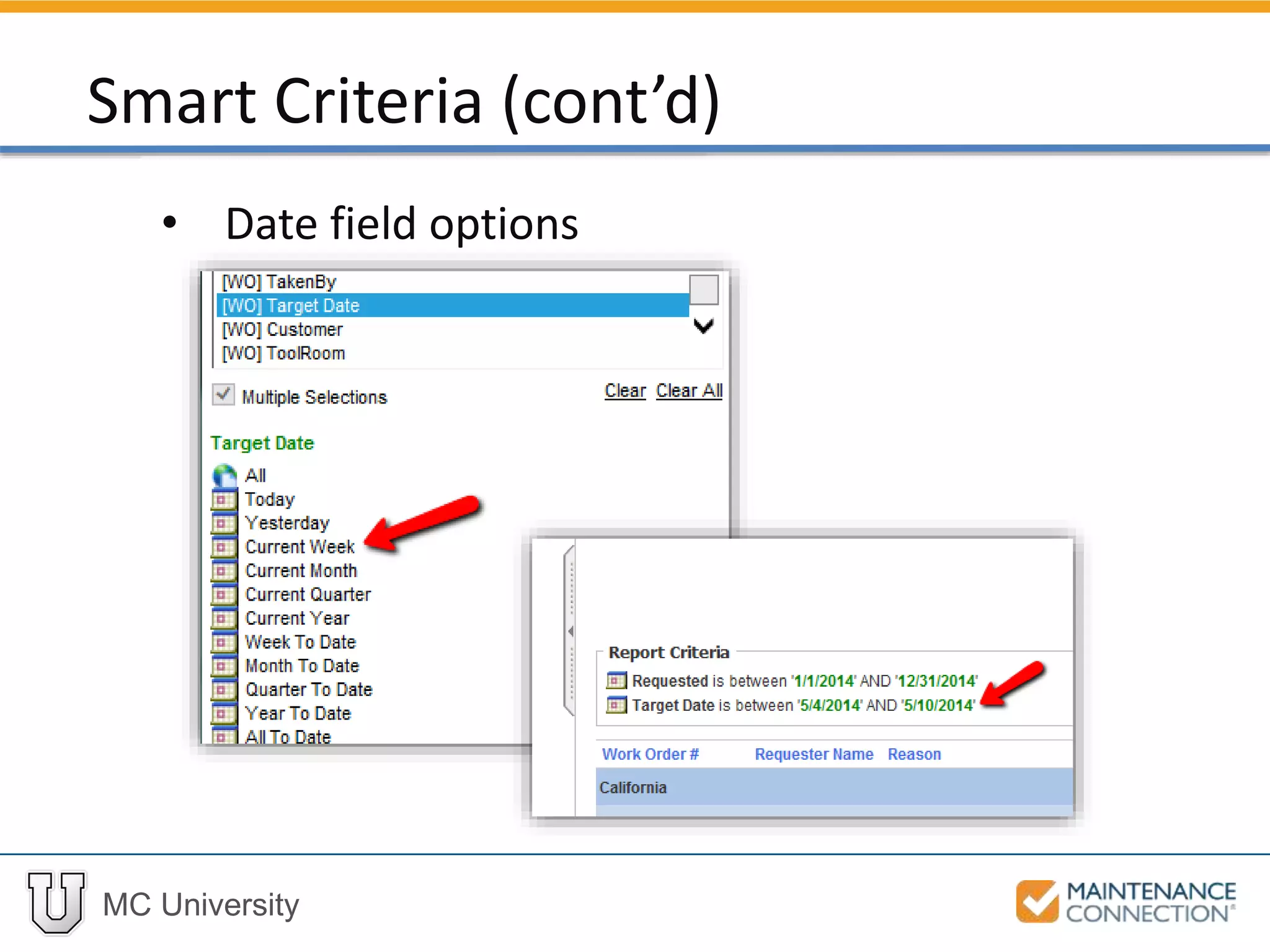
• Date field options
Smart Criteria (cont’d)
MC University
Now let’s take a look at adding and
applying Smart Criteria!
Applying Smart Criteria: Example
Thank You for
Watching!

R07 - Intermediate Reporting: Smart Reports (MCU)

Editor's Notes

  • #23 Copy the Closed Work Order List Enter a unique Report Name Example: “Closed Work Order List with Smart Actions – Initials – Date” Select the Smart Elements Tab Turn the Smart Mode to On from the Smart Settings sub-tab Select the Smart Action(s) sub-tab and select Row (Single Smart Action per Row) Select Popup WorkCenter from the Smart Action dropdown Scroll to the bottom of the Smart Action Field Value and select [WO] WO Enter Click here to open this Work Order for the Smart Action Tool Tip Click Apply Locate and generate your Report The Report will now open the Work Order associated with the row when selected:
  • #31 Navigate back the Report Setup of your Report Click on the Smart Elements tab and select the Smart Criteria(s) sub-tab Change the Default State to Shown Select [WO] Priority from the options for Default Smart Criteria Click Apply to return to the Report Preview Window The Smart Criteria pane will display on the left of the Report Preview [WO] Priority will be automatically selected Click on a Priority value from the options Click the Multiple Selections indicator and select another value Report Criteria selection is added to existing Criteria