PRESENTATION
SOFTWARE
A presentation software is a
type of computer software used
to create, edit, and deliver visual
presentations. These
presentations typically involve a
combination of text, images,
graphics, charts, and multimedia
elements, such as videos and
Microsoft PowerPoint
• is one of the most
widely used
presentation
software. It is part of
the Microsoft Office
suite and offers a
wide range of features
for creating
professional
Google Slides
• is a cloud-based or
online presentation tool
offered by Google as
part of Google
Workspace (formerly G
Suite). It allows for easy
collaboration and
sharing, with the
advantage of cloud
Canva
• is an online design
platform that includes
a presentation maker.
It offers a user-
friendly interface and
numerous templates
for creating visually
appealing
presentations. It has a
free and paid version.
Apple Keynote
• is Apple's
presentation
software for
macOS and iOS. It
is known for its
sleek design and
powerful graphics
capabilities.
Prezi
• offers a unique
approach to
presentations
through a zooming
interface. It is
designed to create
dynamic and
visually engaging
presentations.
Zoho Show
• is a cloud-based
presentation tool
that offers
collaboration
features and
templates for
creating
presentations.
Key Features of
Presentation
Software
1. Slide Creation Presentation
software allows users to create
individual slides, each containing
content, such as text, images, charts,
and multimedia.
2. Templates Many presentation tools
offer templates that provide pre-
designed layouts and themes, making
it easier to create visually appealing
3. Slide Transitions - Users can add
transitions between slides to create
visual effects when moving from one
slide to another.
4. Animations Presentation software
often include animation options for
objects on slides, enabling them to
appear, disappear, or move in
different ways during the
presentation.
5. Import and Export Users can typically
import content from other files or
sources (e.g. Word documents, Excel
spreadsheets, and images) and export
one's presentations in various formats
(e.g., PowerPoint, PDF).
6. Presenter View - During a presentation,
users often have access to a presenter
view that displays speaker notes, a timer,
and the next slide to help the presenter
Rules in Creating a
Presentation
1. Make use of headings. Think of and
consider the heading as the introductory
sentence in the presentation. Making use
of the right headings enhance the quality
of the presentation.
2. Spend only the necessary amount of
time per slide. Clearly define what needs to
be discussed and remove information that
is not relevant to the presentation. An ideal
slide presentation should only take one
minute or less to discuss each slide.
3. Include only the essential points. Be
sure to include only the important points
or content in the slide which the audience
should to focus on.
4. Use graphics effectively. Balance the
text with graphics and use pictures that
would describe the information or
message of the presentation.
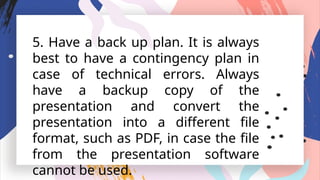
5. Have a back up plan. It is always
best to have a contingency plan in
case of technical errors. Always
have a backup copy of the
presentation and convert the
presentation into a different file
format, such as PDF, in case the file
from the presentation software
cannot be used.
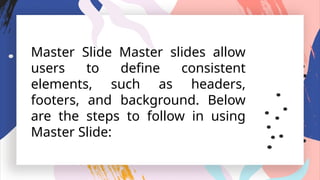
Master Slide Master slides allow
users to define consistent
elements, such as headers,
footers, and background. Below
are the steps to follow in using
Master Slide:
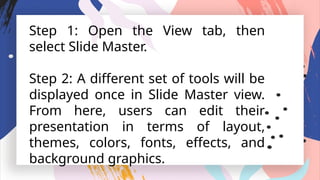
Step 1: Open the View tab, then
select Slide Master.
Step 2: A different set of tools will be
displayed once in Slide Master view.
From here, users can edit their
presentation in terms of layout,
themes, colors, fonts, effects, and
background graphics.
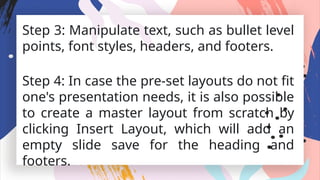
Step 3: Manipulate text, such as bullet level
points, font styles, headers, and footers.
Step 4: In case the pre-set layouts do not fit
one's presentation needs, it is also possible
to create a master layout from scratch by
clicking Insert Layout, which will add an
empty slide save for the heading and
footers.
THANK YOU!

presentation software power point presentation

  • 1.
  • 2.
    A presentation softwareis a type of computer software used to create, edit, and deliver visual presentations. These presentations typically involve a combination of text, images, graphics, charts, and multimedia elements, such as videos and
  • 3.
    Microsoft PowerPoint • isone of the most widely used presentation software. It is part of the Microsoft Office suite and offers a wide range of features for creating professional
  • 4.
    Google Slides • isa cloud-based or online presentation tool offered by Google as part of Google Workspace (formerly G Suite). It allows for easy collaboration and sharing, with the advantage of cloud
  • 5.
    Canva • is anonline design platform that includes a presentation maker. It offers a user- friendly interface and numerous templates for creating visually appealing presentations. It has a free and paid version.
  • 6.
    Apple Keynote • isApple's presentation software for macOS and iOS. It is known for its sleek design and powerful graphics capabilities.
  • 7.
    Prezi • offers aunique approach to presentations through a zooming interface. It is designed to create dynamic and visually engaging presentations.
  • 8.
    Zoho Show • isa cloud-based presentation tool that offers collaboration features and templates for creating presentations.
  • 9.
  • 10.
    1. Slide CreationPresentation software allows users to create individual slides, each containing content, such as text, images, charts, and multimedia. 2. Templates Many presentation tools offer templates that provide pre- designed layouts and themes, making it easier to create visually appealing
  • 11.
    3. Slide Transitions- Users can add transitions between slides to create visual effects when moving from one slide to another. 4. Animations Presentation software often include animation options for objects on slides, enabling them to appear, disappear, or move in different ways during the presentation.
  • 12.
    5. Import andExport Users can typically import content from other files or sources (e.g. Word documents, Excel spreadsheets, and images) and export one's presentations in various formats (e.g., PowerPoint, PDF). 6. Presenter View - During a presentation, users often have access to a presenter view that displays speaker notes, a timer, and the next slide to help the presenter
  • 13.
    Rules in Creatinga Presentation
  • 14.
    1. Make useof headings. Think of and consider the heading as the introductory sentence in the presentation. Making use of the right headings enhance the quality of the presentation. 2. Spend only the necessary amount of time per slide. Clearly define what needs to be discussed and remove information that is not relevant to the presentation. An ideal slide presentation should only take one minute or less to discuss each slide.
  • 15.
    3. Include onlythe essential points. Be sure to include only the important points or content in the slide which the audience should to focus on. 4. Use graphics effectively. Balance the text with graphics and use pictures that would describe the information or message of the presentation.
  • 16.
    5. Have aback up plan. It is always best to have a contingency plan in case of technical errors. Always have a backup copy of the presentation and convert the presentation into a different file format, such as PDF, in case the file from the presentation software cannot be used.
  • 17.
    Master Slide Masterslides allow users to define consistent elements, such as headers, footers, and background. Below are the steps to follow in using Master Slide:
  • 18.
    Step 1: Openthe View tab, then select Slide Master. Step 2: A different set of tools will be displayed once in Slide Master view. From here, users can edit their presentation in terms of layout, themes, colors, fonts, effects, and background graphics.
  • 19.
    Step 3: Manipulatetext, such as bullet level points, font styles, headers, and footers. Step 4: In case the pre-set layouts do not fit one's presentation needs, it is also possible to create a master layout from scratch by clicking Insert Layout, which will add an empty slide save for the heading and footers.
  • 20.