S
A
M
P
L
E
1ICT Multimedia Essentials
Lesson 1: Using Presentation
Software
After completing this lesson, you will be able to:
ď‚· Describe presentation software and the ways it can be used.
ď‚· Create and/or modify a "slide master" or template to apply a consistent appearance to a
presentation.
ď‚· Add and format titles, subtitles and talking points in presentation slides.
ď‚· Add slide numbers and/or date and time codes to presentation slides.
ď‚· Insert and format images/graphics in presentation slides.
ď‚· Insert new or duplicate slides in a presentation.
ď‚· Modify slide transitions in a presentation to include animation.
ď‚· Insert and/or modify sound settings and timing in a presentation.
ď‚· Modify the sequence of slides in a presentation.
ď‚· Produce a presentation that includes text, graphics and images, and present it.
ď‚· Modify a presentation's setup to repeat (i.e., loop) the presentation continuously.
ď‚· Create a multimedia presentation that incorporates edited video, animation, music and/or
narration, and that applies principles of good design, smooth transitions and effective
message delivery.
animation
placeholder
presentation software
slide layout
slide layout master
slide master
theme
transition
LESSON SKILLS
KEY TERMS
S
A
M
P
L
E
ICT Multimedia Essentials - Lesson 1: Using Presentation Software 1-2
© 2016 Certification Partners, LLC. — All Rights Reserved. Version 2.0
Points to Ponder
These Points to Ponder are designed to help you focus on key elements in this lesson. They are also
suitable for use to spark discussions or individual research.
ď‚· Think of a slide show presentation you have seen. What did you like about the presentation? What did
you dislike?
ď‚· Describe how using a theme makes creating presentations easier.
ď‚· What are slide transitions and how are they best used?
ď‚· Think about a presentation for which you were an audience member.
o What did the presenter do well, or what the presenter could have done to make the presentation
more engaging?
ď‚· What are the differences between selecting a pre-existing theme and importing a theme?
ď‚· What are slide masters? Why use them?
ď‚· Describe the difference between "transition" and "animation" in a presentation.
ď‚· Define the difference between a theme and a template.
ď‚· Compare and contrast a slide master and slide layout.
o How would you use each of those?
S
A
M
P
L
E
ICT Multimedia Essentials - Lesson 1: Using Presentation Software 1-3
© 2016 Certification Partners, LLC. — All Rights Reserved. Version 2.0
Overview
In this lesson, you will learn fundamental presentation skills. You will learn how to design effective
presentations, use presentation software, and create a slide presentation with titles, text and images. You
will also learn how to incorporate multimedia, transitions and animation into a presentation.
Presentation Software Basics
Objective
6.1.1: Describe presentation software and the ways it can be used.
In this section, you will explore the purpose and types of presentation software. You will also analyze
examples of presentations to determine the features that create an effective presentation.
We use presentation software to produce professional, interactive slide shows to enhance the
presentation of information to an audience. Most presentation applications create graphic presentations
incorporating text with graphics, audio, and/or multimedia with slides, visual aids, and/or handouts.
There are many different applications available to create a presentation below is a list of the most
common features:
 Multimedia – text, graphics, sound and multimedia files can be included in the presentation.
 Templates – a large number of professional looking templates are typically provided with the
software. Additional templates can be downloaded from the internet for little or no cost.
 Slide designs/layouts – there are a large number of slide designs/layouts which can be used to
create a well-designed slide very quickly.
 Animations – a set of effects, which can be applied to animate objects to add visual interest.
 Transitions – a set of effects, which can be applied from one slide to the next to add visual interest.
 Speed and timing – the speed and the timing of the transitions control how fast one slide advances
to the next, and when the transition begins.
 Loops – the presentation can be set to loop so that it will play continuously.
 Handouts – a copy of the slides can be printed out and given to the audience to write notes on or to
keep as a reminder of the presentation.
Some of the advantages of presentation software are:
ď‚· the software is intuitive and require minimal skills to begin using.
ď‚· the software can create colorful, attractive designs using the standard templates and themes.
ď‚· the software makes it easy to insert sounds and multimedia to clarify or emphasize a point.
ď‚· the presenter is not necessarily tethered to a desk or lectern to deliver the presentation.
Some of the disadvantages of presentation software are:
ď‚· it can be tempting to use too much text, which makes the information difficult to read from a
distance.
S
A
M
P
L
E
ICT Multimedia Essentials - Lesson 1: Using Presentation Software 1-4
© 2016 Certification Partners, LLC. — All Rights Reserved. Version 2.0
ď‚· audio and visual effects can be distracting.
ď‚· without care, presentations can look amateurish as people get carried away with features such as
Word Art, background colors, animations, timings, etc.
ď‚· You need to have a computer and projection equipment in place to display the slides to the audience.
Click the icons below to see examples of what a presentation looks like.
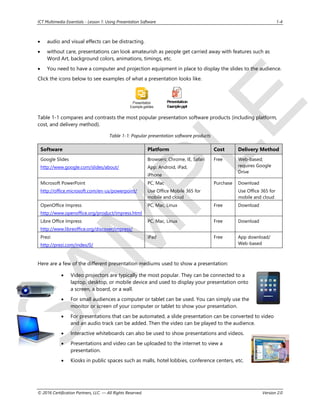
Table 1-1 compares and contrasts the most popular presentation software products (including platform,
cost, and delivery method).
Table 1-1: Popular presentation software products
Software Platform Cost Delivery Method
Google Slides
http://www.google.com/slides/about/
Browsers: Chrome, IE, Safari
App: Android, iPad,
iPhone
Free Web-based;
requires Google
Drive
Microsoft PowerPoint
http://office.microsoft.com/en-us/powerpoint/
PC, Mac
Use Office Mobile 365 for
mobile and cloud
Purchase Download
Use Office 365 for
mobile and cloud
OpenOffice Impress
http://www.openoffice.org/product/impress.html
PC, Mac, Linux Free Download
Libre Office Impress
http://www.libreoffice.org/discover/impress/
PC, Mac, Linux Free Download
Prezi
http://prezi.com/index/0/
iPad Free App download/
Web-based
Here are a few of the different presentation mediums used to show a presentation:
ď‚· Video projectors are typically the most popular. They can be connected to a
laptop, desktop, or mobile device and used to display your presentation onto
a screen, a board, or a wall.
ď‚· For small audiences a computer or tablet can be used. You can simply use the
monitor or screen of your computer or tablet to show your presentation.
ď‚· For presentations that can be automated, a slide presentation can be converted to video
and an audio track can be added. Then the video can be played to the audience.
ď‚· Interactive whiteboards can also be used to show presentations and videos.
ď‚· Presentations and video can be uploaded to the internet to view a
presentation.
ď‚· Kiosks in public spaces such as malls, hotel lobbies, conference centers, etc.
S
A
M
P
L
E
ICT Multimedia Essentials - Lesson 1: Using Presentation Software 1-5
© 2016 Certification Partners, LLC. — All Rights Reserved. Version 2.0
Creating Effective Presentations
Here are a few things to consider when creating an effective presentation:
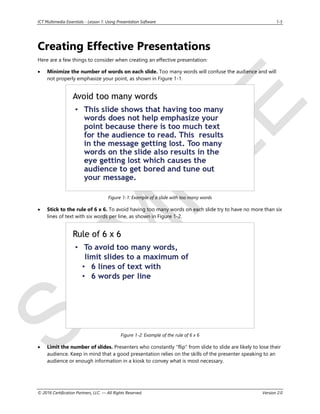
ď‚· Minimize the number of words on each slide. Too many words will confuse the audience and will
not properly emphasize your point, as shown in Figure 1-1.
Figure 1-1: Example of a slide with too many words
ď‚· Stick to the rule of 6 x 6. To avoid having too many words on each slide try to have no more than six
lines of text with six words per line, as shown in Figure 1-2.
Figure 1-2: Example of the rule of 6 x 6
ď‚· Limit the number of slides. Presenters who constantly "flip" from slide to slide are likely to lose their
audience. Keep in mind that a good presentation relies on the skills of the presenter speaking to an
audience or enough information in a kiosk to convey what is most necessary.
S
A
M
P
L
E
ICT Multimedia Essentials - Lesson 1: Using Presentation Software 1-31
© 2016 Certification Partners, LLC. — All Rights Reserved. Version 2.0
Publishing a Presentation to the Web
Objective
6.1.11: Modify a presentation's setup to repeat (i.e., loop) the presentation continuously.
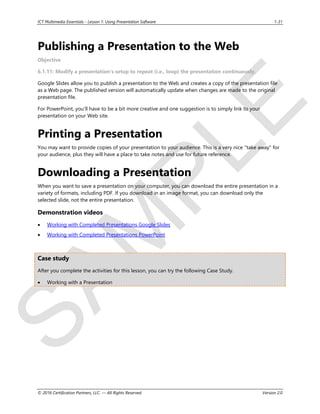
Google Slides allow you to publish a presentation to the Web and creates a copy of the presentation file
as a Web page. The published version will automatically update when changes are made to the original
presentation file.
For PowerPoint, you'll have to be a bit more creative and one suggestion is to simply link to your
presentation on your Web site.
Printing a Presentation
You may want to provide copies of your presentation to your audience. This is a very nice "take away" for
your audience, plus they will have a place to take notes and use for future reference.
Downloading a Presentation
When you want to save a presentation on your computer, you can download the entire presentation in a
variety of formats, including PDF. If you download in an image format, you can download only the
selected slide, not the entire presentation.
Demonstration videos
ď‚· Working with Completed Presentations Google Slides
ď‚· Working with Completed Presentations PowerPoint
Case study
After you complete the activities for this lesson, you can try the following Case Study.
ď‚· Working with a Presentation
S
A
M
P
L
E
Analyzing Presentation Examples
Note: This activity is suitable for a group or individual to complete.
In this activity, you will view and analyze examples of various slide show presentations.
1. Open a web browser and search for “Great slideshow presentation examples” in any search engine. Or
go to www.pptsearchengine.net to find examples of presentations on a subject of your choosing.
2. Examine two or three of the example presentations.
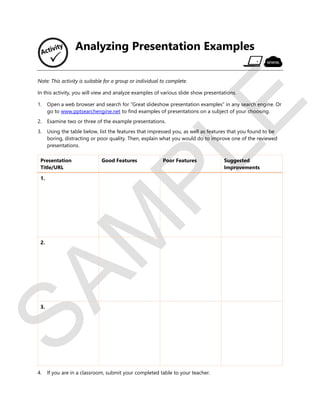
3. Using the table below, list the features that impressed you, as well as features that you found to be
boring, distracting or poor quality. Then, explain what you would do to improve one of the reviewed
presentations.
Presentation
Title/URL
Good Features Poor Features Suggested
Improvements
1.
2.
3.
4. If you are in a classroom, submit your completed table to your teacher.
S
A
M
P
L
E
Case Study: Working with a Presentation
Note: This case study may also be broken into several smaller activities for use throughout the lesson.
Please review the case study and explain or demonstrate the skills necessary to enable students to complete
the project successfully, such as how to display and expand the Notes panel.
The Notes panel of each slide contains the instructions needed to complete the slide activity.
If you would prefer the students to have a hard copy of the instructions and slide thumbnails, you can print
the Case Study Lesson 1 PDF Slides with Notes.pdf document.
Students can share the presentation with their classmates for feedback and practice using the Share and
Comment features in Google Slides.
In this case study project, you will apply the skills you have learned in this lesson. Following the
instructions in the slide notes panel of the Case Study Lesson 1.pptx presentation (located in your student
data files), you will:
ď‚· Import an existing presentation.
ď‚· Change a presentation theme.
ď‚· Edit the slide master.
ď‚· Change slide layout and background.
ď‚· Insert and format a table, shapes and text
boxes.
ď‚· Create and edit lists.
ď‚· Present the slide show.
ď‚· Rename a presentation.
ď‚· Modify and format existing slide text and
placeholders.
ď‚· Insert, delete and duplicate slides.
ď‚· Insert and format a video, images, links and
word art.
ď‚· Use the Arrange, Group and Order options.
ď‚· Add animations and transitions.
1. Sign in to your Google account.
2. Click the Apps icon to open the Apps gallery, and then click the Drive icon to open Google Drive.
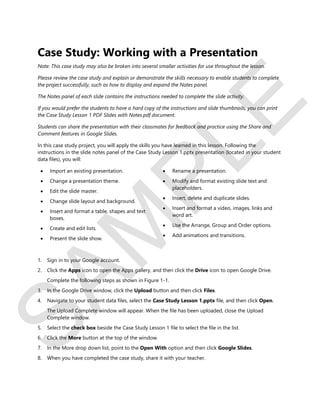
Complete the following steps as shown in Figure 1-1.
3. In the Google Drive window, click the Upload button and then click Files.
4. Navigate to your student data files, select the Case Study Lesson 1.pptx file, and then click Open.
The Upload Complete window will appear. When the file has been uploaded, close the Upload
Complete window.
5. Select the check box beside the Case Study Lesson 1 file to select the file in the list.
6. Click the More button at the top of the window.
7. In the More drop down list, point to the Open With option and then click Google Slides.
8. When you have completed the case study, share it with your teacher.
S
A
M
P
L
E
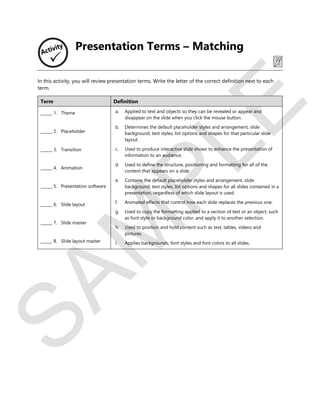
Presentation Terms – Matching
In this activity, you will review presentation terms. Write the letter of the correct definition next to each
term.
Term Definition
______ 1. Theme
______ 2. Placeholder
______ 3. Transition
______ 4. Animation
______ 5. Presentation software
______ 6. Slide layout
______ 7. Slide master
______ 8. Slide layout master
a. Applied to text and objects so they can be revealed or appear and
disappear on the slide when you click the mouse button.
b. Determines the default placeholder styles and arrangement, slide
background, text styles, list options and shapes for that particular slide
layout.
c. Used to produce interactive slide shows to enhance the presentation of
information to an audience.
d. Used to define the structure, positioning and formatting for all of the
content that appears on a slide.
e. Contains the default placeholder styles and arrangement, slide
background, text styles, list options and shapes for all slides contained in a
presentation, regardless of which slide layout is used.
f. Animated effects that control how each slide replaces the previous one.
g. Used to copy the formatting applied to a section of text or an object, such
as font style or background color, and apply it to another selection.
h. Used to position and hold content such as text, tables, videos and
pictures.
i. Applies backgrounds, font styles and font colors to all slides.

Sample_Multimedia_v2.0.pdf

  • 1.
    S A M P L E 1ICT Multimedia Essentials Lesson1: Using Presentation Software After completing this lesson, you will be able to: ď‚· Describe presentation software and the ways it can be used. ď‚· Create and/or modify a "slide master" or template to apply a consistent appearance to a presentation. ď‚· Add and format titles, subtitles and talking points in presentation slides. ď‚· Add slide numbers and/or date and time codes to presentation slides. ď‚· Insert and format images/graphics in presentation slides. ď‚· Insert new or duplicate slides in a presentation. ď‚· Modify slide transitions in a presentation to include animation. ď‚· Insert and/or modify sound settings and timing in a presentation. ď‚· Modify the sequence of slides in a presentation. ď‚· Produce a presentation that includes text, graphics and images, and present it. ď‚· Modify a presentation's setup to repeat (i.e., loop) the presentation continuously. ď‚· Create a multimedia presentation that incorporates edited video, animation, music and/or narration, and that applies principles of good design, smooth transitions and effective message delivery. animation placeholder presentation software slide layout slide layout master slide master theme transition LESSON SKILLS KEY TERMS
  • 2.
    S A M P L E ICT Multimedia Essentials- Lesson 1: Using Presentation Software 1-2 © 2016 Certification Partners, LLC. — All Rights Reserved. Version 2.0 Points to Ponder These Points to Ponder are designed to help you focus on key elements in this lesson. They are also suitable for use to spark discussions or individual research.  Think of a slide show presentation you have seen. What did you like about the presentation? What did you dislike?  Describe how using a theme makes creating presentations easier.  What are slide transitions and how are they best used?  Think about a presentation for which you were an audience member. o What did the presenter do well, or what the presenter could have done to make the presentation more engaging?  What are the differences between selecting a pre-existing theme and importing a theme?  What are slide masters? Why use them?  Describe the difference between "transition" and "animation" in a presentation.  Define the difference between a theme and a template.  Compare and contrast a slide master and slide layout. o How would you use each of those?
  • 3.
    S A M P L E ICT Multimedia Essentials- Lesson 1: Using Presentation Software 1-3 © 2016 Certification Partners, LLC. — All Rights Reserved. Version 2.0 Overview In this lesson, you will learn fundamental presentation skills. You will learn how to design effective presentations, use presentation software, and create a slide presentation with titles, text and images. You will also learn how to incorporate multimedia, transitions and animation into a presentation. Presentation Software Basics Objective 6.1.1: Describe presentation software and the ways it can be used. In this section, you will explore the purpose and types of presentation software. You will also analyze examples of presentations to determine the features that create an effective presentation. We use presentation software to produce professional, interactive slide shows to enhance the presentation of information to an audience. Most presentation applications create graphic presentations incorporating text with graphics, audio, and/or multimedia with slides, visual aids, and/or handouts. There are many different applications available to create a presentation below is a list of the most common features:  Multimedia – text, graphics, sound and multimedia files can be included in the presentation.  Templates – a large number of professional looking templates are typically provided with the software. Additional templates can be downloaded from the internet for little or no cost.  Slide designs/layouts – there are a large number of slide designs/layouts which can be used to create a well-designed slide very quickly.  Animations – a set of effects, which can be applied to animate objects to add visual interest.  Transitions – a set of effects, which can be applied from one slide to the next to add visual interest.  Speed and timing – the speed and the timing of the transitions control how fast one slide advances to the next, and when the transition begins.  Loops – the presentation can be set to loop so that it will play continuously.  Handouts – a copy of the slides can be printed out and given to the audience to write notes on or to keep as a reminder of the presentation. Some of the advantages of presentation software are:  the software is intuitive and require minimal skills to begin using.  the software can create colorful, attractive designs using the standard templates and themes.  the software makes it easy to insert sounds and multimedia to clarify or emphasize a point.  the presenter is not necessarily tethered to a desk or lectern to deliver the presentation. Some of the disadvantages of presentation software are:  it can be tempting to use too much text, which makes the information difficult to read from a distance.
  • 4.
    S A M P L E ICT Multimedia Essentials- Lesson 1: Using Presentation Software 1-4 © 2016 Certification Partners, LLC. — All Rights Reserved. Version 2.0  audio and visual effects can be distracting.  without care, presentations can look amateurish as people get carried away with features such as Word Art, background colors, animations, timings, etc.  You need to have a computer and projection equipment in place to display the slides to the audience. Click the icons below to see examples of what a presentation looks like. Table 1-1 compares and contrasts the most popular presentation software products (including platform, cost, and delivery method). Table 1-1: Popular presentation software products Software Platform Cost Delivery Method Google Slides http://www.google.com/slides/about/ Browsers: Chrome, IE, Safari App: Android, iPad, iPhone Free Web-based; requires Google Drive Microsoft PowerPoint http://office.microsoft.com/en-us/powerpoint/ PC, Mac Use Office Mobile 365 for mobile and cloud Purchase Download Use Office 365 for mobile and cloud OpenOffice Impress http://www.openoffice.org/product/impress.html PC, Mac, Linux Free Download Libre Office Impress http://www.libreoffice.org/discover/impress/ PC, Mac, Linux Free Download Prezi http://prezi.com/index/0/ iPad Free App download/ Web-based Here are a few of the different presentation mediums used to show a presentation:  Video projectors are typically the most popular. They can be connected to a laptop, desktop, or mobile device and used to display your presentation onto a screen, a board, or a wall.  For small audiences a computer or tablet can be used. You can simply use the monitor or screen of your computer or tablet to show your presentation.  For presentations that can be automated, a slide presentation can be converted to video and an audio track can be added. Then the video can be played to the audience.  Interactive whiteboards can also be used to show presentations and videos.  Presentations and video can be uploaded to the internet to view a presentation.  Kiosks in public spaces such as malls, hotel lobbies, conference centers, etc.
  • 5.
    S A M P L E ICT Multimedia Essentials- Lesson 1: Using Presentation Software 1-5 © 2016 Certification Partners, LLC. — All Rights Reserved. Version 2.0 Creating Effective Presentations Here are a few things to consider when creating an effective presentation:  Minimize the number of words on each slide. Too many words will confuse the audience and will not properly emphasize your point, as shown in Figure 1-1. Figure 1-1: Example of a slide with too many words  Stick to the rule of 6 x 6. To avoid having too many words on each slide try to have no more than six lines of text with six words per line, as shown in Figure 1-2. Figure 1-2: Example of the rule of 6 x 6  Limit the number of slides. Presenters who constantly "flip" from slide to slide are likely to lose their audience. Keep in mind that a good presentation relies on the skills of the presenter speaking to an audience or enough information in a kiosk to convey what is most necessary.
  • 6.
    S A M P L E ICT Multimedia Essentials- Lesson 1: Using Presentation Software 1-31 © 2016 Certification Partners, LLC. — All Rights Reserved. Version 2.0 Publishing a Presentation to the Web Objective 6.1.11: Modify a presentation's setup to repeat (i.e., loop) the presentation continuously. Google Slides allow you to publish a presentation to the Web and creates a copy of the presentation file as a Web page. The published version will automatically update when changes are made to the original presentation file. For PowerPoint, you'll have to be a bit more creative and one suggestion is to simply link to your presentation on your Web site. Printing a Presentation You may want to provide copies of your presentation to your audience. This is a very nice "take away" for your audience, plus they will have a place to take notes and use for future reference. Downloading a Presentation When you want to save a presentation on your computer, you can download the entire presentation in a variety of formats, including PDF. If you download in an image format, you can download only the selected slide, not the entire presentation. Demonstration videos  Working with Completed Presentations Google Slides  Working with Completed Presentations PowerPoint Case study After you complete the activities for this lesson, you can try the following Case Study.  Working with a Presentation
  • 7.
    S A M P L E Analyzing Presentation Examples Note:This activity is suitable for a group or individual to complete. In this activity, you will view and analyze examples of various slide show presentations. 1. Open a web browser and search for “Great slideshow presentation examples” in any search engine. Or go to www.pptsearchengine.net to find examples of presentations on a subject of your choosing. 2. Examine two or three of the example presentations. 3. Using the table below, list the features that impressed you, as well as features that you found to be boring, distracting or poor quality. Then, explain what you would do to improve one of the reviewed presentations. Presentation Title/URL Good Features Poor Features Suggested Improvements 1. 2. 3. 4. If you are in a classroom, submit your completed table to your teacher.
  • 8.
    S A M P L E Case Study: Workingwith a Presentation Note: This case study may also be broken into several smaller activities for use throughout the lesson. Please review the case study and explain or demonstrate the skills necessary to enable students to complete the project successfully, such as how to display and expand the Notes panel. The Notes panel of each slide contains the instructions needed to complete the slide activity. If you would prefer the students to have a hard copy of the instructions and slide thumbnails, you can print the Case Study Lesson 1 PDF Slides with Notes.pdf document. Students can share the presentation with their classmates for feedback and practice using the Share and Comment features in Google Slides. In this case study project, you will apply the skills you have learned in this lesson. Following the instructions in the slide notes panel of the Case Study Lesson 1.pptx presentation (located in your student data files), you will: ď‚· Import an existing presentation. ď‚· Change a presentation theme. ď‚· Edit the slide master. ď‚· Change slide layout and background. ď‚· Insert and format a table, shapes and text boxes. ď‚· Create and edit lists. ď‚· Present the slide show. ď‚· Rename a presentation. ď‚· Modify and format existing slide text and placeholders. ď‚· Insert, delete and duplicate slides. ď‚· Insert and format a video, images, links and word art. ď‚· Use the Arrange, Group and Order options. ď‚· Add animations and transitions. 1. Sign in to your Google account. 2. Click the Apps icon to open the Apps gallery, and then click the Drive icon to open Google Drive. Complete the following steps as shown in Figure 1-1. 3. In the Google Drive window, click the Upload button and then click Files. 4. Navigate to your student data files, select the Case Study Lesson 1.pptx file, and then click Open. The Upload Complete window will appear. When the file has been uploaded, close the Upload Complete window. 5. Select the check box beside the Case Study Lesson 1 file to select the file in the list. 6. Click the More button at the top of the window. 7. In the More drop down list, point to the Open With option and then click Google Slides. 8. When you have completed the case study, share it with your teacher.
  • 9.
    S A M P L E Presentation Terms –Matching In this activity, you will review presentation terms. Write the letter of the correct definition next to each term. Term Definition ______ 1. Theme ______ 2. Placeholder ______ 3. Transition ______ 4. Animation ______ 5. Presentation software ______ 6. Slide layout ______ 7. Slide master ______ 8. Slide layout master a. Applied to text and objects so they can be revealed or appear and disappear on the slide when you click the mouse button. b. Determines the default placeholder styles and arrangement, slide background, text styles, list options and shapes for that particular slide layout. c. Used to produce interactive slide shows to enhance the presentation of information to an audience. d. Used to define the structure, positioning and formatting for all of the content that appears on a slide. e. Contains the default placeholder styles and arrangement, slide background, text styles, list options and shapes for all slides contained in a presentation, regardless of which slide layout is used. f. Animated effects that control how each slide replaces the previous one. g. Used to copy the formatting applied to a section of text or an object, such as font style or background color, and apply it to another selection. h. Used to position and hold content such as text, tables, videos and pictures. i. Applies backgrounds, font styles and font colors to all slides.