PowerPoint Presentations on the iPad
PowerPoint on the iPad Ways to access PowerPoint presentations on your iPad from these sources: Web sites E-mail On your computer
PowerPoint on the iPad Accessing PowerPoints from Web Sites….
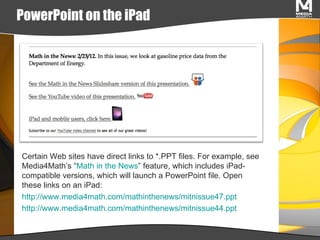
PowerPoint on the iPad Certain Web sites have direct links to *.PPT files. For example, see Media4Math’s “ Math in the News ” feature, which includes iPad-compatible versions, which will launch a PowerPoint file. Open these links on an iPad: http://www.media4math.com/mathinthenews/mitnissue47.ppt http://www.media4math.com/mathinthenews/mitnissue44.ppt
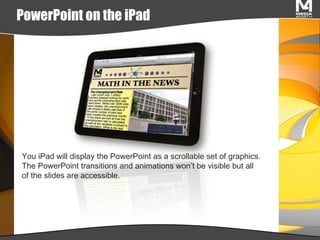
PowerPoint on the iPad You iPad will display the PowerPoint as a scrollable set of graphics. The PowerPoint transitions and animations won’t be visible but all of the slides are accessible.
PowerPoint on the iPad To see the PowerPoint presentation  as  a PowerPoint presentation, download the free app SlideShark.
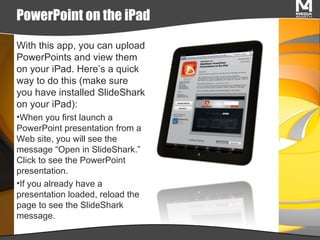
PowerPoint on the iPad With this app, you can upload PowerPoints and view them on your iPad. Here’s a quick way to do this (make sure you have installed SlideShark on your iPad): When you first launch a PowerPoint presentation from a Web site, you will see the message “Open in SlideShark.” Click to see the PowerPoint presentation. If you already have a presentation loaded, reload the page to see the SlideShark message.
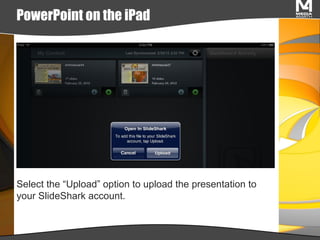
PowerPoint on the iPad Select the “Upload” option to upload the presentation to your SlideShark account.
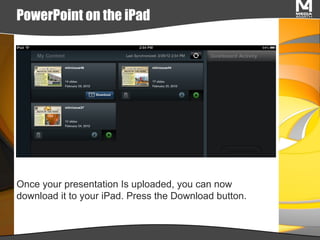
PowerPoint on the iPad Once your presentation Is uploaded, you can now download it to your iPad. Press the Download button.
PowerPoint on the iPad Once your presentation is downloaded, you can play it as a PowerPoint, transitions and animations included.
PowerPoint on the iPad Accessing PowerPoints from E-mail….
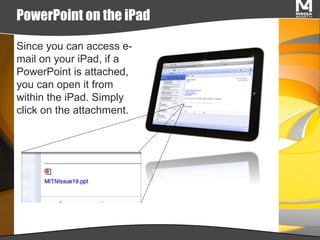
PowerPoint on the iPad Since you can access e-mail on your iPad, if a PowerPoint is attached, you can open it from within the iPad. Simply click on the attachment.
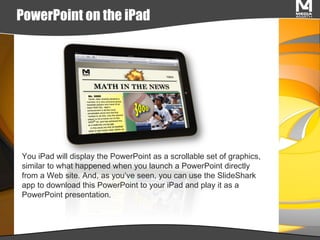
PowerPoint on the iPad You iPad will display the PowerPoint as a scrollable set of graphics, similar to what happened when you launch a PowerPoint directly from a Web site. And, as you’ve seen, you can use the SlideShark app to download this PowerPoint to your iPad and play it as a PowerPoint presentation.
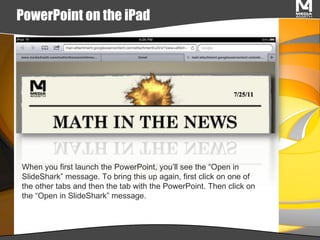
PowerPoint on the iPad When you first launch the PowerPoint, you’ll see the “Open in SlideShark” message. To bring this up again, first click on one of the other tabs and then the tab with the PowerPoint. Then click on the “Open in SlideShark” message.
PowerPoint on the iPad Accessing PowerPoints from Your Computer….
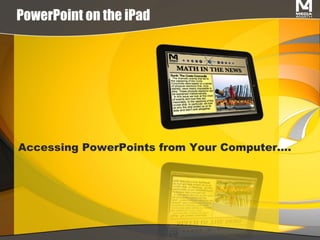
PowerPoint on the iPad By far the most likely place for you to access your PowerPoints is your own computer. The good news is that the SplashTop app provides a way to access these presentations from your iPad.
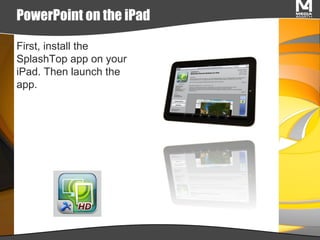
PowerPoint on the iPad First, install the SplashTop app on your iPad. Then launch the app.
PowerPoint on the iPad Meanwhile, install the Splashtop Streamer to your computer. You can find it at  http://www.splashtop.com/remote .
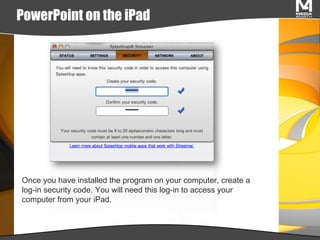
PowerPoint on the iPad Once you have installed the program on your computer, create a log-in security code. You will need this log-in to access your computer from your iPad.
PowerPoint on the iPad When you launch the SplashTop app from your iPad, the program searches for any computers running SplashTop Streamer. Select the computer and use the log-in.
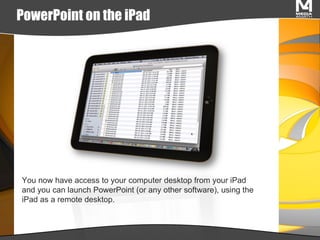
PowerPoint on the iPad You now have access to your computer desktop from your iPad and you can launch PowerPoint (or any other software), using the iPad as a remote desktop.
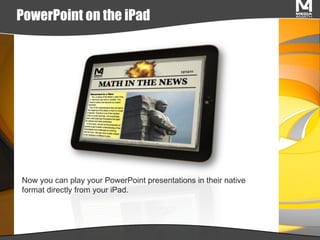
PowerPoint on the iPad Now you can play your PowerPoint presentations in their native format directly from your iPad.

PowerPoint Presentations on the iPad

  • 1.
  • 2.
    PowerPoint on theiPad Ways to access PowerPoint presentations on your iPad from these sources: Web sites E-mail On your computer
  • 3.
    PowerPoint on theiPad Accessing PowerPoints from Web Sites….
  • 4.
    PowerPoint on theiPad Certain Web sites have direct links to *.PPT files. For example, see Media4Math’s “ Math in the News ” feature, which includes iPad-compatible versions, which will launch a PowerPoint file. Open these links on an iPad: http://www.media4math.com/mathinthenews/mitnissue47.ppt http://www.media4math.com/mathinthenews/mitnissue44.ppt
  • 5.
    PowerPoint on theiPad You iPad will display the PowerPoint as a scrollable set of graphics. The PowerPoint transitions and animations won’t be visible but all of the slides are accessible.
  • 6.
    PowerPoint on theiPad To see the PowerPoint presentation as a PowerPoint presentation, download the free app SlideShark.
  • 7.
    PowerPoint on theiPad With this app, you can upload PowerPoints and view them on your iPad. Here’s a quick way to do this (make sure you have installed SlideShark on your iPad): When you first launch a PowerPoint presentation from a Web site, you will see the message “Open in SlideShark.” Click to see the PowerPoint presentation. If you already have a presentation loaded, reload the page to see the SlideShark message.
  • 8.
    PowerPoint on theiPad Select the “Upload” option to upload the presentation to your SlideShark account.
  • 9.
    PowerPoint on theiPad Once your presentation Is uploaded, you can now download it to your iPad. Press the Download button.
  • 10.
    PowerPoint on theiPad Once your presentation is downloaded, you can play it as a PowerPoint, transitions and animations included.
  • 11.
    PowerPoint on theiPad Accessing PowerPoints from E-mail….
  • 12.
    PowerPoint on theiPad Since you can access e-mail on your iPad, if a PowerPoint is attached, you can open it from within the iPad. Simply click on the attachment.
  • 13.
    PowerPoint on theiPad You iPad will display the PowerPoint as a scrollable set of graphics, similar to what happened when you launch a PowerPoint directly from a Web site. And, as you’ve seen, you can use the SlideShark app to download this PowerPoint to your iPad and play it as a PowerPoint presentation.
  • 14.
    PowerPoint on theiPad When you first launch the PowerPoint, you’ll see the “Open in SlideShark” message. To bring this up again, first click on one of the other tabs and then the tab with the PowerPoint. Then click on the “Open in SlideShark” message.
  • 15.
    PowerPoint on theiPad Accessing PowerPoints from Your Computer….
  • 16.
    PowerPoint on theiPad By far the most likely place for you to access your PowerPoints is your own computer. The good news is that the SplashTop app provides a way to access these presentations from your iPad.
  • 17.
    PowerPoint on theiPad First, install the SplashTop app on your iPad. Then launch the app.
  • 18.
    PowerPoint on theiPad Meanwhile, install the Splashtop Streamer to your computer. You can find it at http://www.splashtop.com/remote .
  • 19.
    PowerPoint on theiPad Once you have installed the program on your computer, create a log-in security code. You will need this log-in to access your computer from your iPad.
  • 20.
    PowerPoint on theiPad When you launch the SplashTop app from your iPad, the program searches for any computers running SplashTop Streamer. Select the computer and use the log-in.
  • 21.
    PowerPoint on theiPad You now have access to your computer desktop from your iPad and you can launch PowerPoint (or any other software), using the iPad as a remote desktop.
  • 22.
    PowerPoint on theiPad Now you can play your PowerPoint presentations in their native format directly from your iPad.