Ready the Technology
OverviewTo ready your technology this presentation will take you through the following steps:Technology RequirementsProductivity & Access NeedsDownload Plug-insAdobe Connect Connection TestSet up AccountsGoogle
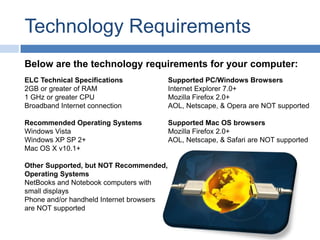
BlogTechnology RequirementsBelow are the technology requirements for your computer:ELC Technical Specifications2GB or greater of RAM1 GHz or greater CPUBroadband Internet connectionRecommended Operating SystemsWindows VistaWindows XP SP 2+Mac OS X v10.1+Other Supported, but NOT Recommended, Operating SystemsNetBooksand Notebook computers with small displaysPhone and/or handheld Internet browsers are NOT supportedSupported PC/Windows BrowsersInternet Explorer 7.0+Mozilla Firefox 2.0+AOL, Netscape, & Opera are NOT supportedSupported Mac OS browsersMozilla Firefox 2.0+AOL, Netscape, & Safari are NOT supported
Productivity & Access NeedsPlease be sure that your skills meet the Productivity and Access Needs listed below:Productivity Tool Needs:   Microsoft Office (Word, PowerPoint, and Excel included)
   Windows Media Player
   Adobe Flash Player 8+ (free download)
  Headset with microphoneAccess Needs:Daily access to the Internet and email during courses
   Ability to actively participate in course activities    throughout the week
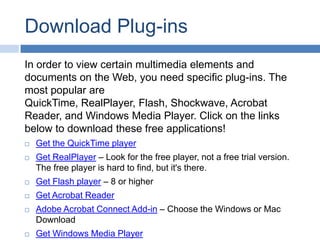
Download Plug-insIn order to view certain multimedia elements and documents on the Web, you need specific plug-ins. The most popular are QuickTime, RealPlayer, Flash, Shockwave, Acrobat Reader, and Windows Media Player. Click on the links below to download these free applications!Get the QuickTime playerGet RealPlayer – Look for the free player, not a free trial version. The free player is hard to find, but it's there. Get Flash player– 8 or higherGet Acrobat ReaderAdobe Acrobat Connect Add-in – Choose the Windows or Mac DownloadGet Windows Media Player
Test your ConnectionDuring the Online Learning Orientation and throughout your courses there will be online synchronous class sessions that will be conducted via Adobe Connect. Test your connection via the link below, prior to the session. Please test your connection using the same computer you will use for the live meetings. This link will test to make sure you have all the necessary software requirements.Test Your Connection Here!If you have a headset or microphone, please feel free to use that for this session so you can talk. If you don't have one yet, we recommend that you purchase the Logitech USB headset.
Throughout your program you will be required to use Google Docs, an online collaborative tool that allows you to build and edit documents, presentations, and spreadsheets collaboratively.  In order to use Google Docs, you will need to establish a Google account if you don't already have one. Set up your Google Account!
Create a Google AccountIf you or your team decide to use Google Docs to complete specific assignments, below are some guidelines to help you get started.In order to collaboratively edit documents, you will need to create a Google Account. You can use a Gmail account (free) or any other email address that you choose.To create an account, go to http://docs.google.comand click the blue Create an Account button on the bottom right of the screen.Enter all of the required information and click the I Accept and Create my account button.
Collaborating in Google Docs When you use Google Docs in your classes some quick tips are:One member of the team (ideally, the week's team facilitator) should create the document.The person who uploads the template or creates the document should share it with his/her teammates.  To effectively collaborate, you may want to assign color coding to each person. 
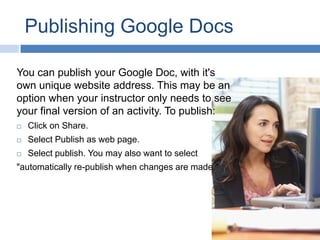
Publishing Google DocsYou can publish your Google Doc, with it's own unique website address. This may be an option when your instructor only needs to see your final version of an activity. To publish: Click on Share.Select Publish as web page.Select publish. You may also want to select "automatically re-publish when changes are made."

Ready the Technology

  • 1.
  • 2.
    OverviewTo ready yourtechnology this presentation will take you through the following steps:Technology RequirementsProductivity & Access NeedsDownload Plug-insAdobe Connect Connection TestSet up AccountsGoogle
  • 3.
    BlogTechnology RequirementsBelow arethe technology requirements for your computer:ELC Technical Specifications2GB or greater of RAM1 GHz or greater CPUBroadband Internet connectionRecommended Operating SystemsWindows VistaWindows XP SP 2+Mac OS X v10.1+Other Supported, but NOT Recommended, Operating SystemsNetBooksand Notebook computers with small displaysPhone and/or handheld Internet browsers are NOT supportedSupported PC/Windows BrowsersInternet Explorer 7.0+Mozilla Firefox 2.0+AOL, Netscape, & Opera are NOT supportedSupported Mac OS browsersMozilla Firefox 2.0+AOL, Netscape, & Safari are NOT supported
  • 4.
    Productivity & AccessNeedsPlease be sure that your skills meet the Productivity and Access Needs listed below:Productivity Tool Needs: Microsoft Office (Word, PowerPoint, and Excel included)
  • 5.
    Windows Media Player
  • 6.
    Adobe Flash Player 8+ (free download)
  • 7.
    Headsetwith microphoneAccess Needs:Daily access to the Internet and email during courses
  • 8.
    Ability to actively participate in course activities throughout the week
  • 9.
    Download Plug-insIn orderto view certain multimedia elements and documents on the Web, you need specific plug-ins. The most popular are QuickTime, RealPlayer, Flash, Shockwave, Acrobat Reader, and Windows Media Player. Click on the links below to download these free applications!Get the QuickTime playerGet RealPlayer – Look for the free player, not a free trial version. The free player is hard to find, but it's there. Get Flash player– 8 or higherGet Acrobat ReaderAdobe Acrobat Connect Add-in – Choose the Windows or Mac DownloadGet Windows Media Player
  • 10.
    Test your ConnectionDuringthe Online Learning Orientation and throughout your courses there will be online synchronous class sessions that will be conducted via Adobe Connect. Test your connection via the link below, prior to the session. Please test your connection using the same computer you will use for the live meetings. This link will test to make sure you have all the necessary software requirements.Test Your Connection Here!If you have a headset or microphone, please feel free to use that for this session so you can talk. If you don't have one yet, we recommend that you purchase the Logitech USB headset.
  • 11.
    Throughout your programyou will be required to use Google Docs, an online collaborative tool that allows you to build and edit documents, presentations, and spreadsheets collaboratively.  In order to use Google Docs, you will need to establish a Google account if you don't already have one. Set up your Google Account!
  • 12.
    Create a GoogleAccountIf you or your team decide to use Google Docs to complete specific assignments, below are some guidelines to help you get started.In order to collaboratively edit documents, you will need to create a Google Account. You can use a Gmail account (free) or any other email address that you choose.To create an account, go to http://docs.google.comand click the blue Create an Account button on the bottom right of the screen.Enter all of the required information and click the I Accept and Create my account button.
  • 13.
    Collaborating in GoogleDocs When you use Google Docs in your classes some quick tips are:One member of the team (ideally, the week's team facilitator) should create the document.The person who uploads the template or creates the document should share it with his/her teammates.  To effectively collaborate, you may want to assign color coding to each person. 
  • 14.
    Publishing Google DocsYoucan publish your Google Doc, with it's own unique website address. This may be an option when your instructor only needs to see your final version of an activity. To publish: Click on Share.Select Publish as web page.Select publish. You may also want to select "automatically re-publish when changes are made."