Advanced Session
February 12, 2002
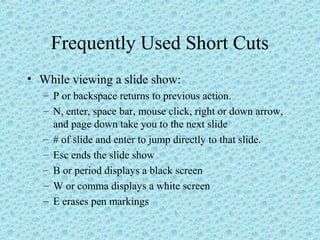
Frequently Used Short Cuts
• While viewing a slide show:
– P or backspace returns to previous action.
– N, enter, space bar, mouse click, right or down arrow,
and page down take you to the next slide
– # of slide and enter to jump directly to that slide.
– Esc ends the slide show
– B or period displays a black screen
– W or comma displays a white screen
– E erases pen markings
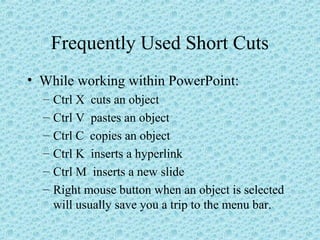
Frequently Used Short Cuts
• While working within PowerPoint:
– Ctrl X cuts an object
– Ctrl V pastes an object
– Ctrl C copies an object
– Ctrl K inserts a hyperlink
– Ctrl M inserts a new slide
– Right mouse button when an object is selected
will usually save you a trip to the menu bar.
Changing the Background
• From the format menu choose Background.
• This can spice things up a bit visually to
give your presentation a unique look.
• Use pictures you have saved as a
background. Apply to all or just one slide.
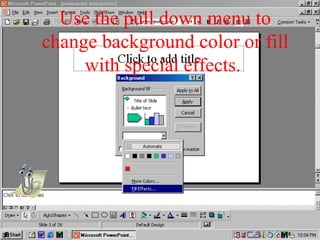
Use the pull down menu to
change background color or fill
with special effects.
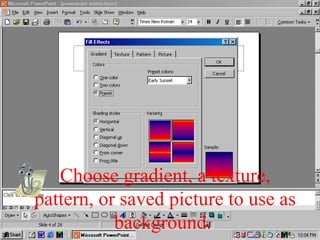
Choose gradient, a texture,
pattern, or saved picture to use as
background.
Custom Animation
• This is the heart of this program.
• Found in the Slide Show menu, it allows
text or objects to animate upon arrival to the
screen.
• You can also add a sound when the
animation occurs through this command.
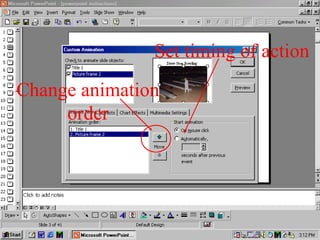
• You can also choose the order and timing of
animations.
Drew Goes Bowling
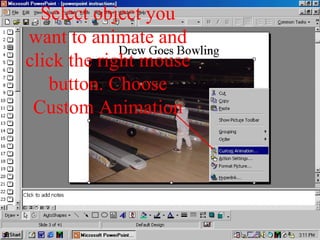
Select object you
want to animate and
click the right mouse
button. Choose
Custom Animation
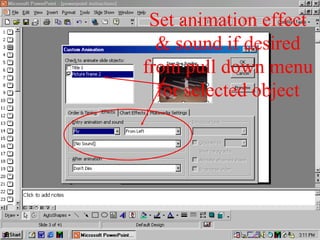
Set animation effect
& sound if desired
from pull down menu
for selected object
Change animation
order
Set timing of action
Sounds
• There are a ton of sounds on the internet you can
use that will have students paying close attention
to each and every slide you show.
• Add sounds within Slide Show/Custom
Animation, not the insert menu.
• Be sure to animate and link the sound with the
correct object.
• The file must be .wav format.
• Some websites to find these clips:
– www.wavplace.com
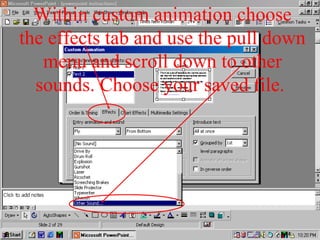
Within custom animation choose
the effects tab and use the pull down
menu and scroll down to other
sounds. Choose your saved file.
To Record a Sound
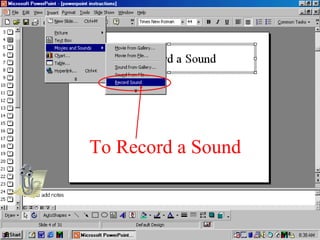
• From the Insert menu, choose Movies and
Sounds, then select Record Sound.
• Just hit record and speak into the
microphone. Press stop when done and
name the file.
• An icon will appear that you can custom
animate to play whenever you desire on that
slide.
To Record a Sound
Adding a Picture from the Internet
• You may want your students to be able to pull
pictures off the internet to display their knowledge
of a topic.
• You may want to find pictures about a topic on the
web and use them to enhance your notes.
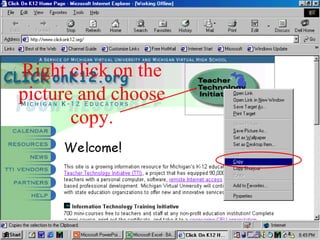
• Simply right-click on the picture and choose copy.
Then hit Ctrl & V to paste it into PowerPoint. You
could also choose save picture as to use later if
you like.
Right click on the
picture and choose
copy.
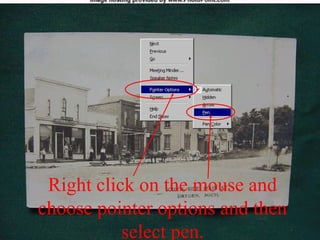
Right click on the mouse and
choose pointer options and then
select pen.
Animated Gifs
• Can only be used in Office 2000.
PowerPoint 97 cannot handle that
technology and the picture will just appear
as a still picture.
• Use a search engine to find sites with
animated gifs available for free downloads.
• Use as a background or just to spice up a
presentation.
Insert a Hyperlink
• This command does more than just allow you to
link your presentation to a web page.
• You can use it to link to any file stored on your
computer. PowerPoint will automatically launch
the program and file you specify.
• You can have a picture or text jump to the link.
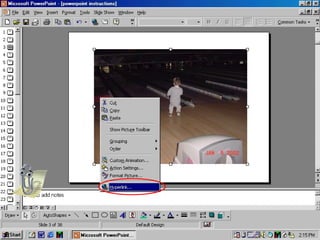
• Right click on an object and select Hyperlink.
• Allows for Jeopardy to be electronic!!!
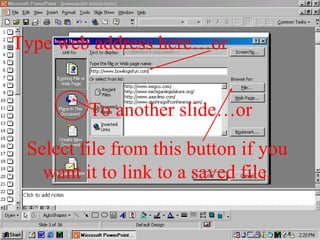
Type web address here…or
Select file from this button if you
want it to link to a saved file.
To another slide…or
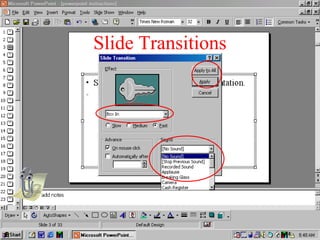
Slide Transitions
• Should create a flow for your presentation.
• A quick way to make things look professional.
• From the Slide Show menu click slide transition.
• You are able to apply a transition to all slides or
just to an individual slide.
• You can also have a sound play when the
transition occurs.
• Use the pull down menu to choose the type of
effect and speed you desire.
Slide Transitions
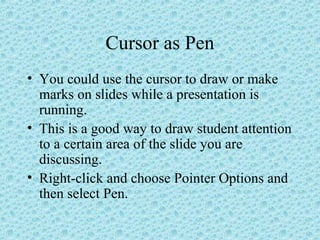
Cursor as Pen
• You could use the cursor to draw or make
marks on slides while a presentation is
running.
• This is a good way to draw student attention
to a certain area of the slide you are
discussing.
• Right-click and choose Pointer Options and
then select Pen.
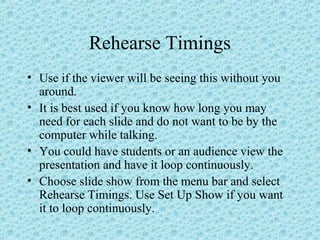
Rehearse Timings
• Use if the viewer will be seeing this without you
around.
• It is best used if you know how long you may
need for each slide and do not want to be by the
computer while talking.
• You could have students or an audience view the
presentation and have it loop continuously.
• Choose slide show from the menu bar and select
Rehearse Timings. Use Set Up Show if you want
it to loop continuously.
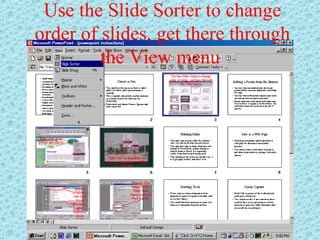
Use the Slide Sorter to change
order of slides, get there through
the View menu
Save as a Web Page
• Student presentations can be posted as a
web page for alternative assessment
projects.
• You could create a slide show of pictures
and share them online or perhaps with other
classes.
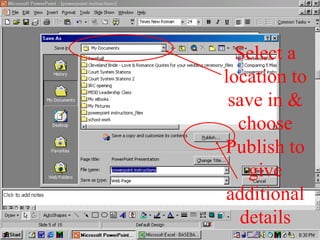
Select a
location to
save in &
choose
Publish to
give
additional
details
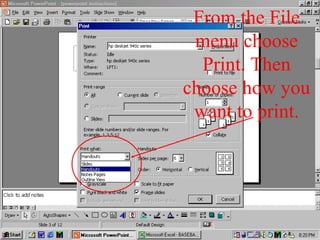
From the File
menu choose
Print. Then
choose how you
want to print.
Printing Slides
• You may want to print slides for students
who were absent the day you gave notes.
• You may also want to share ideas that were
created in PowerPoint without having to
transfer them to Word. It is especially
useful if you have used drawing tools.
• You could print the slides out normal size, 3
or 6 per page, outline, and notes view.
Screen Capture
• Use the Prnt Scrn key to copy and hit Ctrl V
to paste.
• You would use this if you wanted to show
students how to use a program or to draw
attention to parts of a whole document that
you could not cut and paste.
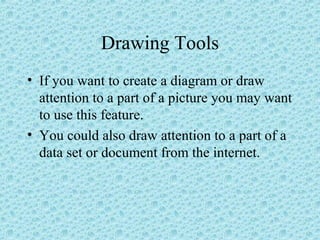
Drawing Tools
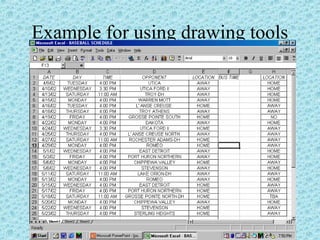
• If you want to create a diagram or draw
attention to a part of a picture you may want
to use this feature.
• You could also draw attention to a part of a
data set or document from the internet.
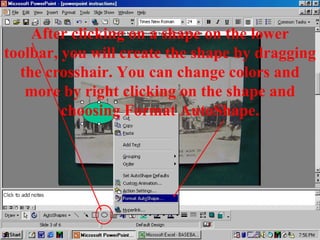
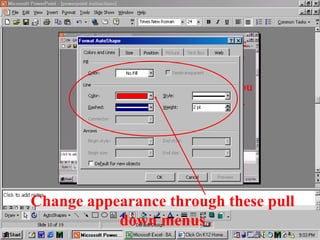
After clicking on a shape on the lower
toolbar, you will create the shape by dragging
the crosshair. You can change colors and
more by right clicking on the shape and
choosing Format AutoShape.
Change appearance through these pull
down menus
Example for using drawing tools
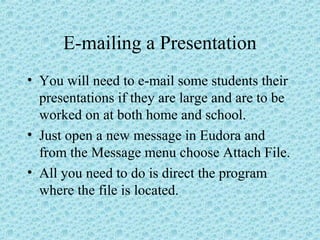
E-mailing a Presentation
• You will need to e-mail some students their
presentations if they are large and are to be
worked on at both home and school.
• Just open a new message in Eudora and
from the Message menu choose Attach File.
• All you need to do is direct the program
where the file is located.
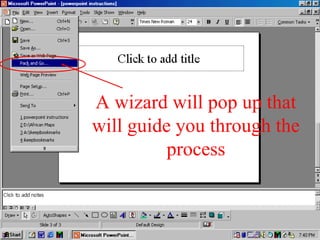
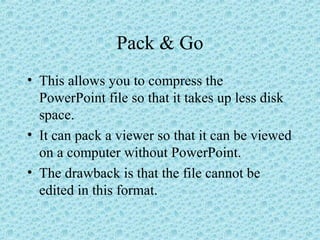
Pack & Go
• This allows you to compress the
PowerPoint file so that it takes up less disk
space.
• It can pack a viewer so that it can be viewed
on a computer without PowerPoint.
• The drawback is that the file cannot be
edited in this format.
A wizard will pop up that
will guide you through the
process

Powerpoint instructions

  • 1.
  • 2.
    Frequently Used ShortCuts • While viewing a slide show: – P or backspace returns to previous action. – N, enter, space bar, mouse click, right or down arrow, and page down take you to the next slide – # of slide and enter to jump directly to that slide. – Esc ends the slide show – B or period displays a black screen – W or comma displays a white screen – E erases pen markings
  • 3.
    Frequently Used ShortCuts • While working within PowerPoint: – Ctrl X cuts an object – Ctrl V pastes an object – Ctrl C copies an object – Ctrl K inserts a hyperlink – Ctrl M inserts a new slide – Right mouse button when an object is selected will usually save you a trip to the menu bar.
  • 4.
    Changing the Background •From the format menu choose Background. • This can spice things up a bit visually to give your presentation a unique look. • Use pictures you have saved as a background. Apply to all or just one slide.
  • 5.
    Use the pulldown menu to change background color or fill with special effects.
  • 6.
    Choose gradient, atexture, pattern, or saved picture to use as background.
  • 7.
    Custom Animation • Thisis the heart of this program. • Found in the Slide Show menu, it allows text or objects to animate upon arrival to the screen. • You can also add a sound when the animation occurs through this command. • You can also choose the order and timing of animations.
  • 8.
  • 9.
    Select object you wantto animate and click the right mouse button. Choose Custom Animation
  • 10.
    Set animation effect &sound if desired from pull down menu for selected object
  • 11.
  • 12.
    Sounds • There area ton of sounds on the internet you can use that will have students paying close attention to each and every slide you show. • Add sounds within Slide Show/Custom Animation, not the insert menu. • Be sure to animate and link the sound with the correct object. • The file must be .wav format. • Some websites to find these clips: – www.wavplace.com
  • 13.
    Within custom animationchoose the effects tab and use the pull down menu and scroll down to other sounds. Choose your saved file.
  • 14.
    To Record aSound • From the Insert menu, choose Movies and Sounds, then select Record Sound. • Just hit record and speak into the microphone. Press stop when done and name the file. • An icon will appear that you can custom animate to play whenever you desire on that slide.
  • 15.
  • 16.
    Adding a Picturefrom the Internet • You may want your students to be able to pull pictures off the internet to display their knowledge of a topic. • You may want to find pictures about a topic on the web and use them to enhance your notes. • Simply right-click on the picture and choose copy. Then hit Ctrl & V to paste it into PowerPoint. You could also choose save picture as to use later if you like.
  • 17.
    Right click onthe picture and choose copy.
  • 18.
    Right click onthe mouse and choose pointer options and then select pen.
  • 19.
    Animated Gifs • Canonly be used in Office 2000. PowerPoint 97 cannot handle that technology and the picture will just appear as a still picture. • Use a search engine to find sites with animated gifs available for free downloads. • Use as a background or just to spice up a presentation.
  • 20.
    Insert a Hyperlink •This command does more than just allow you to link your presentation to a web page. • You can use it to link to any file stored on your computer. PowerPoint will automatically launch the program and file you specify. • You can have a picture or text jump to the link. • Right click on an object and select Hyperlink. • Allows for Jeopardy to be electronic!!!
  • 22.
    Type web addresshere…or Select file from this button if you want it to link to a saved file. To another slide…or
  • 23.
    Slide Transitions • Shouldcreate a flow for your presentation. • A quick way to make things look professional. • From the Slide Show menu click slide transition. • You are able to apply a transition to all slides or just to an individual slide. • You can also have a sound play when the transition occurs. • Use the pull down menu to choose the type of effect and speed you desire.
  • 24.
  • 25.
    Cursor as Pen •You could use the cursor to draw or make marks on slides while a presentation is running. • This is a good way to draw student attention to a certain area of the slide you are discussing. • Right-click and choose Pointer Options and then select Pen.
  • 26.
    Rehearse Timings • Useif the viewer will be seeing this without you around. • It is best used if you know how long you may need for each slide and do not want to be by the computer while talking. • You could have students or an audience view the presentation and have it loop continuously. • Choose slide show from the menu bar and select Rehearse Timings. Use Set Up Show if you want it to loop continuously.
  • 27.
    Use the SlideSorter to change order of slides, get there through the View menu
  • 28.
    Save as aWeb Page • Student presentations can be posted as a web page for alternative assessment projects. • You could create a slide show of pictures and share them online or perhaps with other classes.
  • 29.
    Select a location to savein & choose Publish to give additional details
  • 30.
    From the File menuchoose Print. Then choose how you want to print.
  • 31.
    Printing Slides • Youmay want to print slides for students who were absent the day you gave notes. • You may also want to share ideas that were created in PowerPoint without having to transfer them to Word. It is especially useful if you have used drawing tools. • You could print the slides out normal size, 3 or 6 per page, outline, and notes view.
  • 32.
    Screen Capture • Usethe Prnt Scrn key to copy and hit Ctrl V to paste. • You would use this if you wanted to show students how to use a program or to draw attention to parts of a whole document that you could not cut and paste.
  • 33.
    Drawing Tools • Ifyou want to create a diagram or draw attention to a part of a picture you may want to use this feature. • You could also draw attention to a part of a data set or document from the internet.
  • 34.
    After clicking ona shape on the lower toolbar, you will create the shape by dragging the crosshair. You can change colors and more by right clicking on the shape and choosing Format AutoShape.
  • 35.
    Change appearance throughthese pull down menus
  • 36.
    Example for usingdrawing tools
  • 37.
    E-mailing a Presentation •You will need to e-mail some students their presentations if they are large and are to be worked on at both home and school. • Just open a new message in Eudora and from the Message menu choose Attach File. • All you need to do is direct the program where the file is located.
  • 38.
    Pack & Go •This allows you to compress the PowerPoint file so that it takes up less disk space. • It can pack a viewer so that it can be viewed on a computer without PowerPoint. • The drawback is that the file cannot be edited in this format.
  • 39.
    A wizard willpop up that will guide you through the process