DEVELOPMENT OF
POWERPOINT SLIDES
By
Mr. Manjinder Singh
BMS Institute of Education
Bughipura Moga.
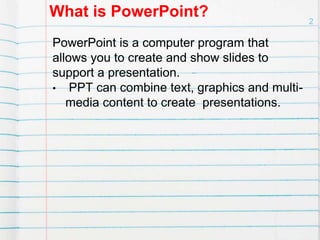
What is PowerPoint?
PowerPoint is a computer program that
allows you to create and show slides to
support a presentation.
• PPT can combine text, graphics and multi-
media content to create presentations.
2
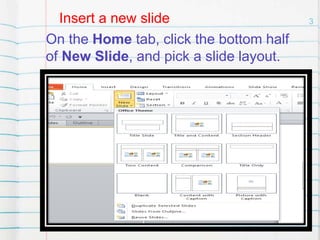
3Insert a new slide
On the Home tab, click the bottom half
of New Slide, and pick a slide layout.
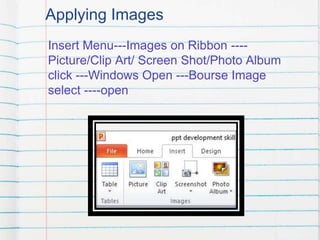
Applying Images
Insert Menu---Images on Ribbon ----
Picture/Clip Art/ Screen Shot/Photo Album
click ---Windows Open ---Bourse Image
select ----open
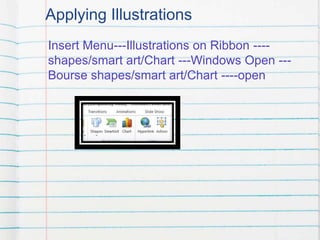
Applying Illustrations
Insert Menu---Illustrations on Ribbon ----
shapes/smart art/Chart ---Windows Open ---
Bourse shapes/smart art/Chart ----open
Applying a Slide Design
Click on design menu --- Ribbon contain
• Page setup
a) Page setup
b) Slide Orientation
• Themes
a) Built in themes
b) Built in colors, Fonts and Effects
• Background
a) Background Styles
b) Hide Background Graphics
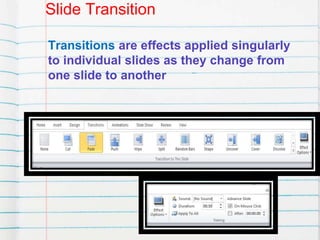
Slide Transition
Transitions are effects applied singularly
to individual slides as they change from
one slide to another
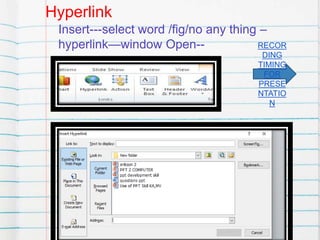
Hyperlink
Insert---select word /fig/no any thing –
hyperlink—window Open-- RECOR
DING
TIMING
FOR
PRESE
NTATIO
N
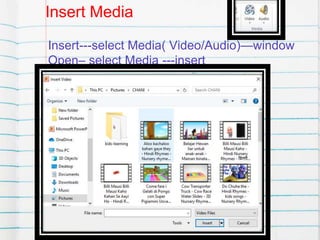
Insert Media
Insert---select Media( Video/Audio)—window
Open– select Media ---insert
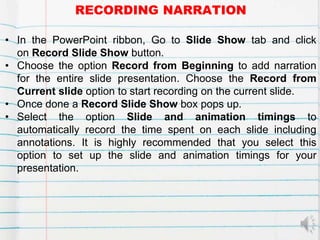
RECORDING NARRATION
• In the PowerPoint ribbon, Go to Slide Show tab and click
on Record Slide Show button.
• Choose the option Record from Beginning to add narration
for the entire slide presentation. Choose the Record from
Current slide option to start recording on the current slide.
• Once done a Record Slide Show box pops up.
• Select the option Slide and animation timings to
automatically record the time spent on each slide including
annotations. It is highly recommended that you select this
option to set up the slide and animation timings for your
presentation.
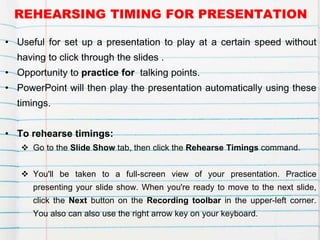
REHEARSING TIMING FOR PRESENTATION
• Useful for set up a presentation to play at a certain speed without
having to click through the slides .
• Opportunity to practice for talking points.
• PowerPoint will then play the presentation automatically using these
timings.
• To rehearse timings:
 Go to the Slide Show tab, then click the Rehearse Timings command.
 You'll be taken to a full-screen view of your presentation. Practice
presenting your slide show. When you're ready to move to the next slide,
click the Next button on the Recording toolbar in the upper-left corner.
You also can also use the right arrow key on your keyboard.
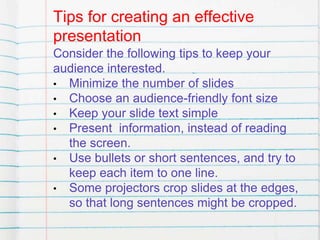
Tips for creating an effective
presentation
Consider the following tips to keep your
audience interested.
• Minimize the number of slides
• Choose an audience-friendly font size
• Keep your slide text simple
• Present information, instead of reading
the screen.
• Use bullets or short sentences, and try to
keep each item to one line.
• Some projectors crop slides at the edges,
so that long sentences might be cropped.
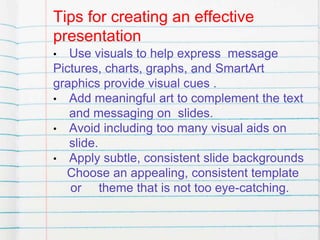
Tips for creating an effective
presentation
• Use visuals to help express message
Pictures, charts, graphs, and SmartArt
graphics provide visual cues .
• Add meaningful art to complement the text
and messaging on slides.
• Avoid including too many visual aids on
slide.
• Apply subtle, consistent slide backgrounds
Choose an appealing, consistent template
or theme that is not too eye-catching.
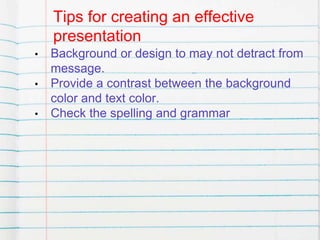
Tips for creating an effective
presentation
• Background or design to may not detract from
message.
• Provide a contrast between the background
color and text color.
• Check the spelling and grammar
THANKS

Ppt development skill

  • 1.
    DEVELOPMENT OF POWERPOINT SLIDES By Mr.Manjinder Singh BMS Institute of Education Bughipura Moga.
  • 2.
    What is PowerPoint? PowerPointis a computer program that allows you to create and show slides to support a presentation. • PPT can combine text, graphics and multi- media content to create presentations. 2
  • 3.
    3Insert a newslide On the Home tab, click the bottom half of New Slide, and pick a slide layout.
  • 4.
    Applying Images Insert Menu---Imageson Ribbon ---- Picture/Clip Art/ Screen Shot/Photo Album click ---Windows Open ---Bourse Image select ----open
  • 5.
    Applying Illustrations Insert Menu---Illustrationson Ribbon ---- shapes/smart art/Chart ---Windows Open --- Bourse shapes/smart art/Chart ----open
  • 6.
    Applying a SlideDesign Click on design menu --- Ribbon contain • Page setup a) Page setup b) Slide Orientation • Themes a) Built in themes b) Built in colors, Fonts and Effects • Background a) Background Styles b) Hide Background Graphics
  • 7.
    Slide Transition Transitions areeffects applied singularly to individual slides as they change from one slide to another
  • 8.
    Hyperlink Insert---select word /fig/noany thing – hyperlink—window Open-- RECOR DING TIMING FOR PRESE NTATIO N
  • 9.
    Insert Media Insert---select Media(Video/Audio)—window Open– select Media ---insert
  • 10.
    RECORDING NARRATION • Inthe PowerPoint ribbon, Go to Slide Show tab and click on Record Slide Show button. • Choose the option Record from Beginning to add narration for the entire slide presentation. Choose the Record from Current slide option to start recording on the current slide. • Once done a Record Slide Show box pops up. • Select the option Slide and animation timings to automatically record the time spent on each slide including annotations. It is highly recommended that you select this option to set up the slide and animation timings for your presentation.
  • 11.
    REHEARSING TIMING FORPRESENTATION • Useful for set up a presentation to play at a certain speed without having to click through the slides . • Opportunity to practice for talking points. • PowerPoint will then play the presentation automatically using these timings. • To rehearse timings:  Go to the Slide Show tab, then click the Rehearse Timings command.  You'll be taken to a full-screen view of your presentation. Practice presenting your slide show. When you're ready to move to the next slide, click the Next button on the Recording toolbar in the upper-left corner. You also can also use the right arrow key on your keyboard.
  • 12.
    Tips for creatingan effective presentation Consider the following tips to keep your audience interested. • Minimize the number of slides • Choose an audience-friendly font size • Keep your slide text simple • Present information, instead of reading the screen. • Use bullets or short sentences, and try to keep each item to one line. • Some projectors crop slides at the edges, so that long sentences might be cropped.
  • 13.
    Tips for creatingan effective presentation • Use visuals to help express message Pictures, charts, graphs, and SmartArt graphics provide visual cues . • Add meaningful art to complement the text and messaging on slides. • Avoid including too many visual aids on slide. • Apply subtle, consistent slide backgrounds Choose an appealing, consistent template or theme that is not too eye-catching.
  • 14.
    Tips for creatingan effective presentation • Background or design to may not detract from message. • Provide a contrast between the background color and text color. • Check the spelling and grammar
  • 15.