Introduction to PowerPoint 2007
              (PPT)
      Statement of Responsibility
     (When, For Whom, By Whom)
Selecting, Adding & Deleting slides


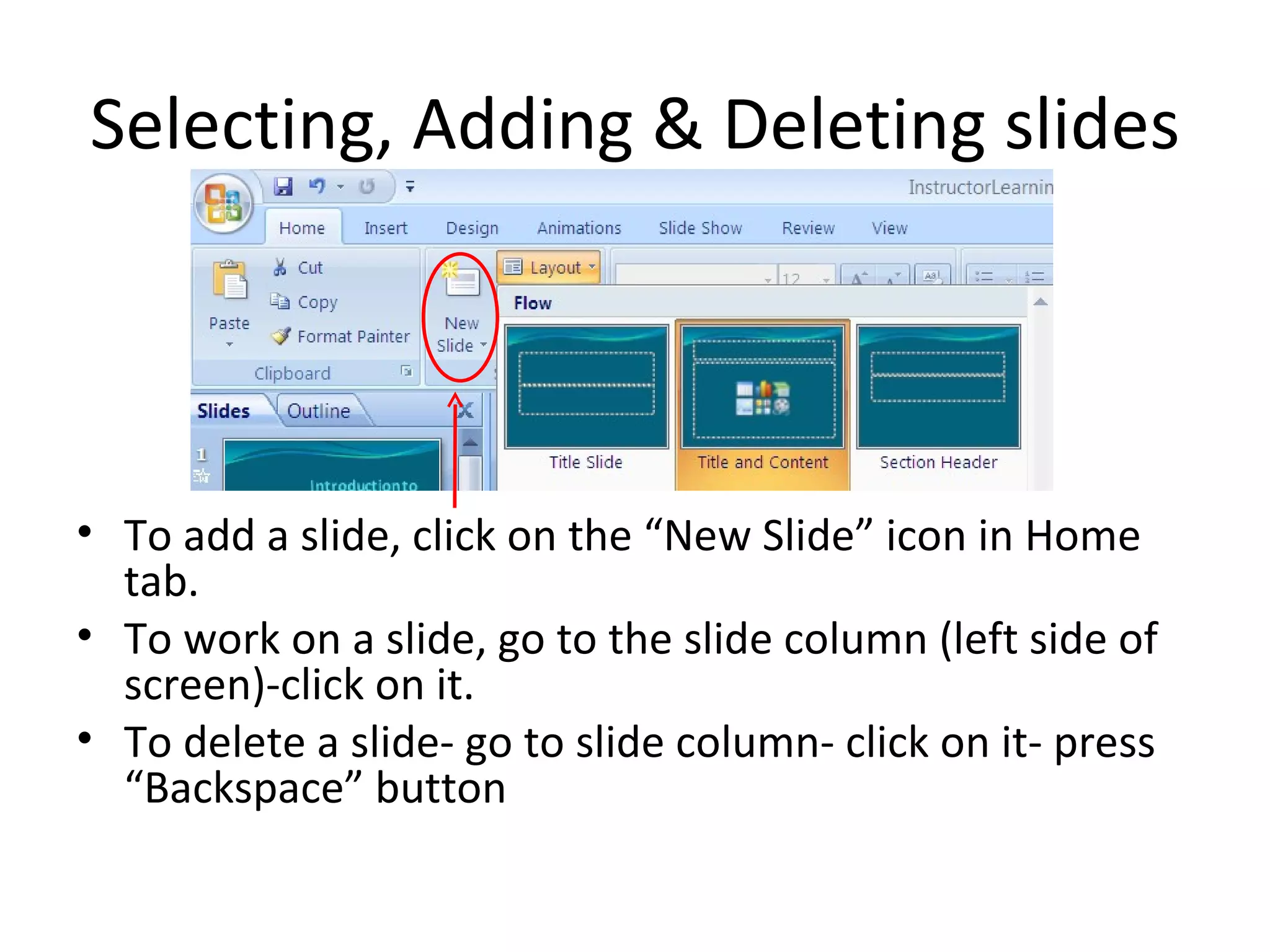
• To add a slide, click on the “New Slide” icon in Home
  tab.
• To work on a slide, go to the slide column (left side of
  screen)-click on it.
• To delete a slide- go to slide column- click on it- press
  “Backspace” button
Home Tab- slide layouts
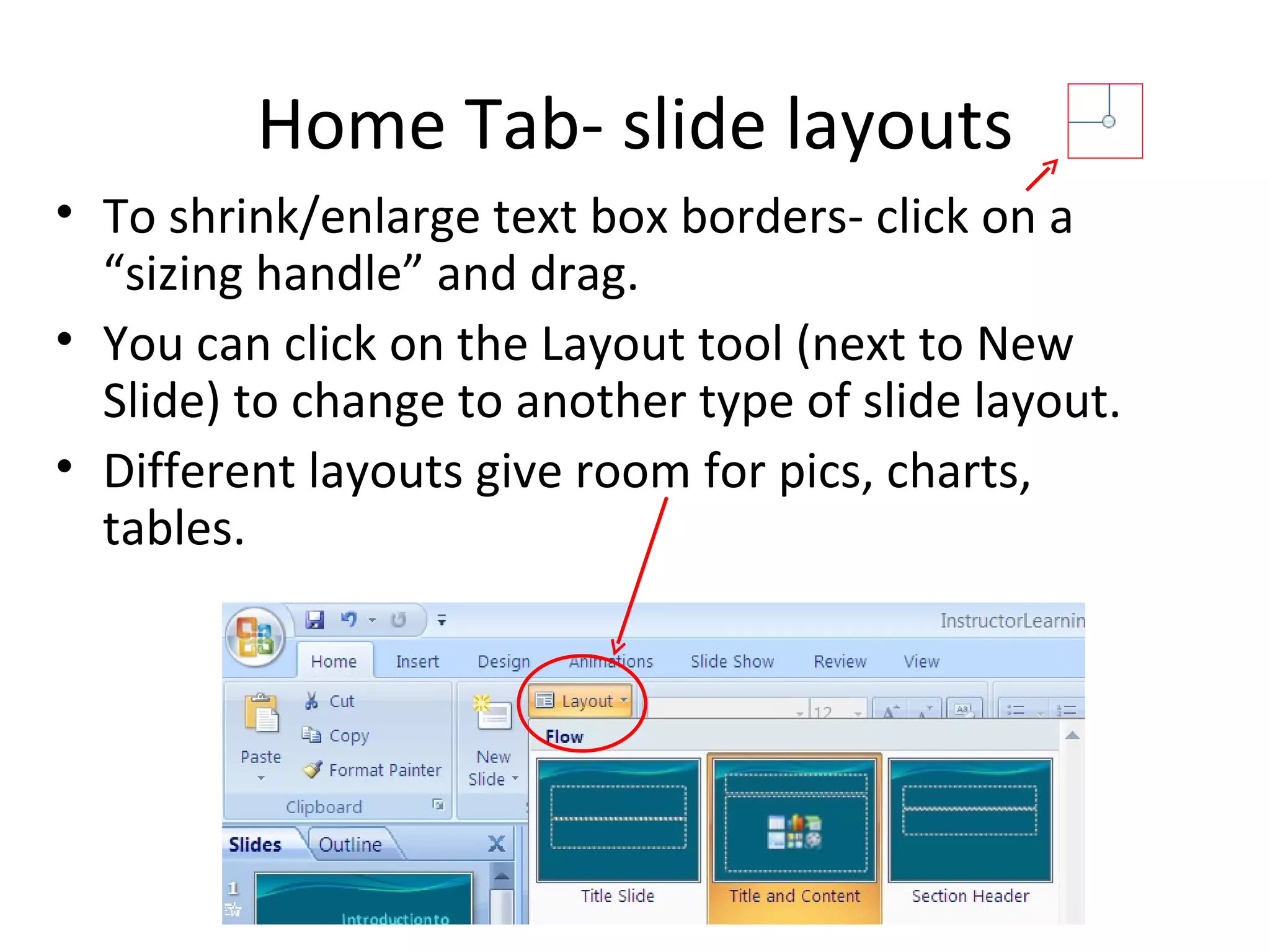
• To shrink/enlarge text box borders- click on a
  “sizing handle” and drag.
• You can click on the Layout tool (next to New
  Slide) to change to another type of slide layout.
• Different layouts give room for pics, charts,
  tables.
Shortcuts and Right-clicking
• Ctrl-Z to undo changes, Ctrl-Y to
  redo changes.
• To select text, highlight with
  mouse or press Ctrl-A to select
  all text in a text box
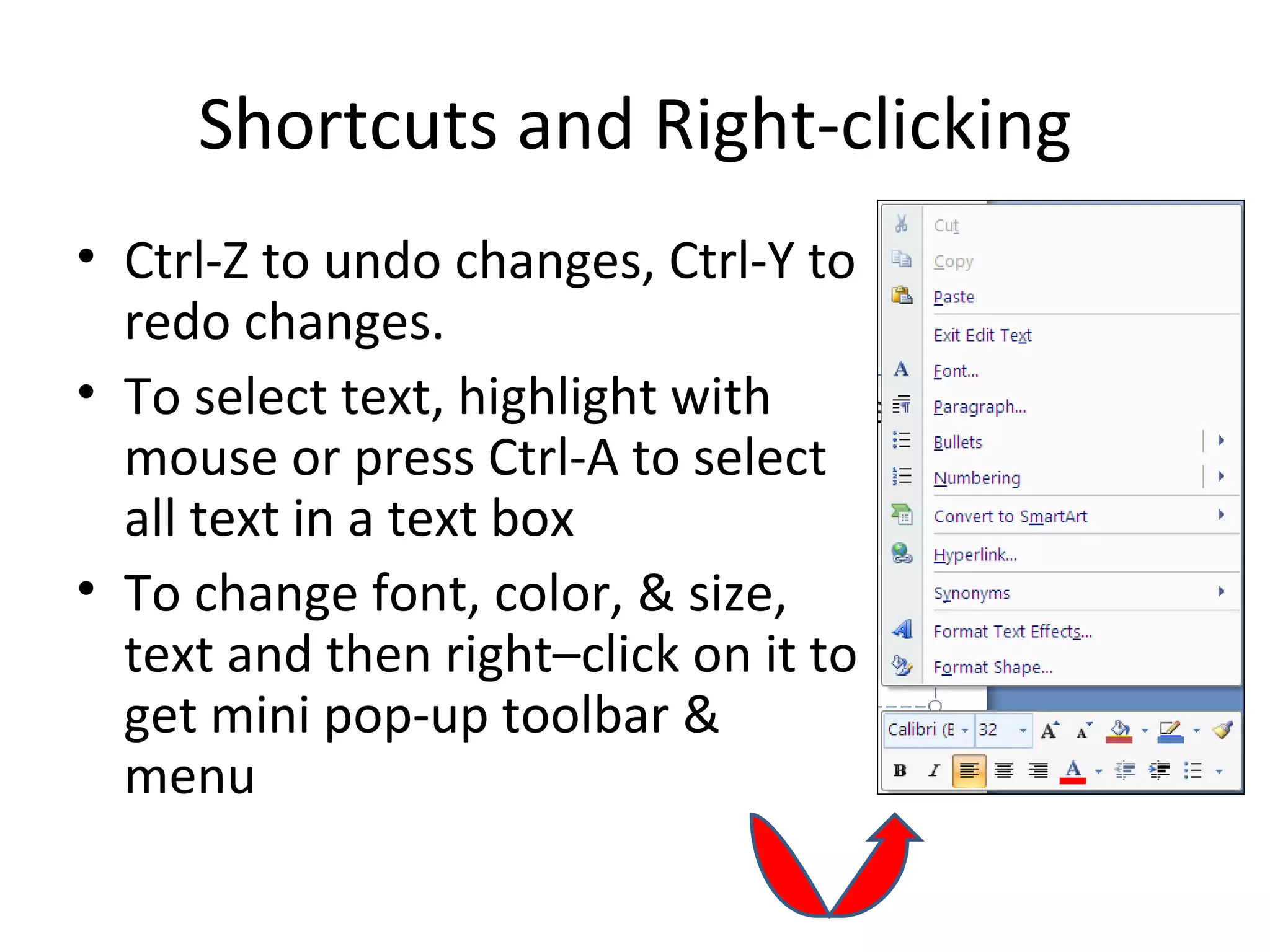
• To change font, color, & size,
  text and then right–click on it to
  get mini pop-up toolbar &
  menu
Home Tab- bullet Points
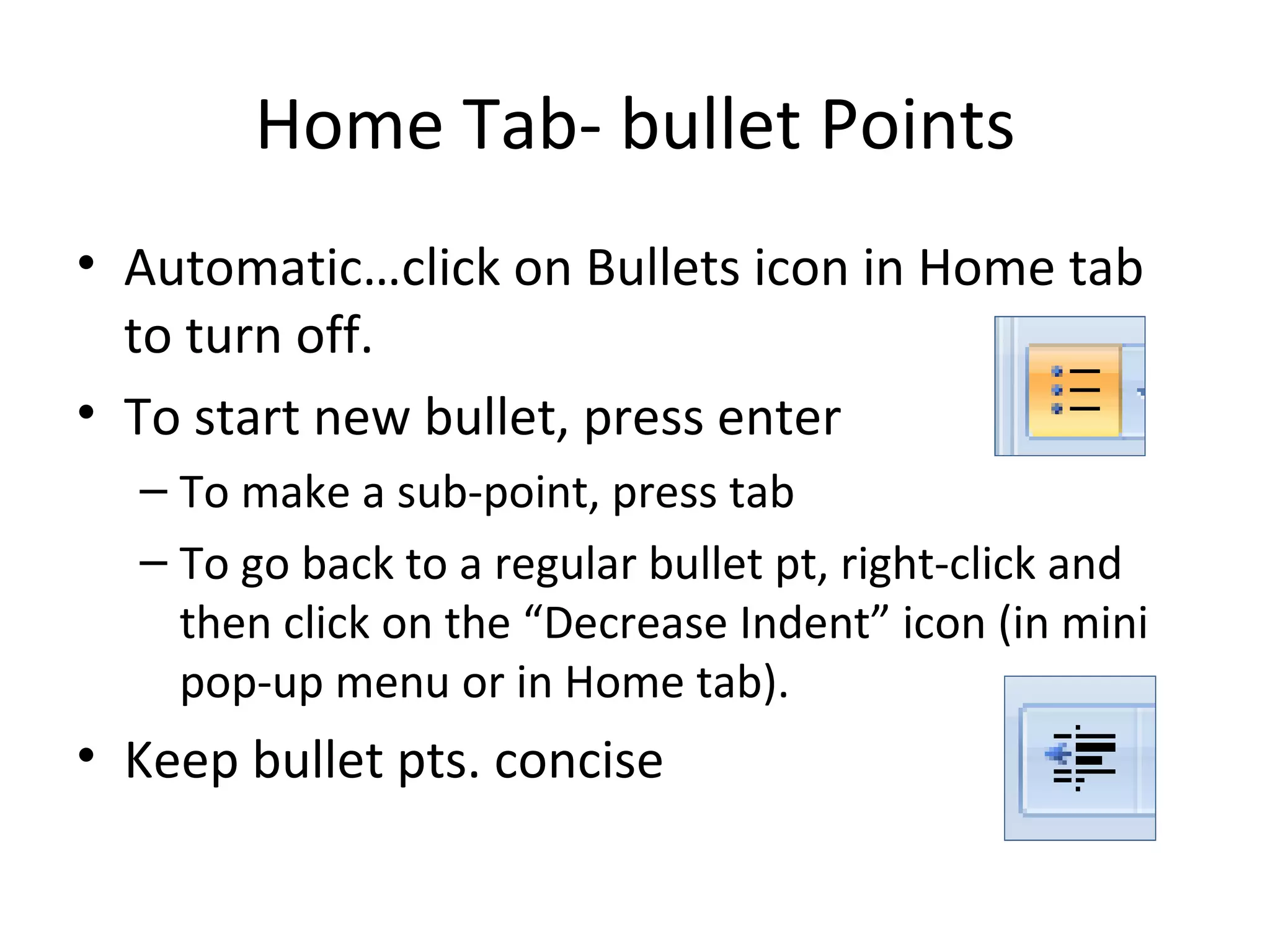
• Automatic…click on Bullets icon in Home tab
  to turn off.
• To start new bullet, press enter
  – To make a sub-point, press tab
  – To go back to a regular bullet pt, right-click and
    then click on the “Decrease Indent” icon (in mini
    pop-up menu or in Home tab).
• Keep bullet pts. concise
Saving and Printing
• Check your text for errors by
  pressing F7.
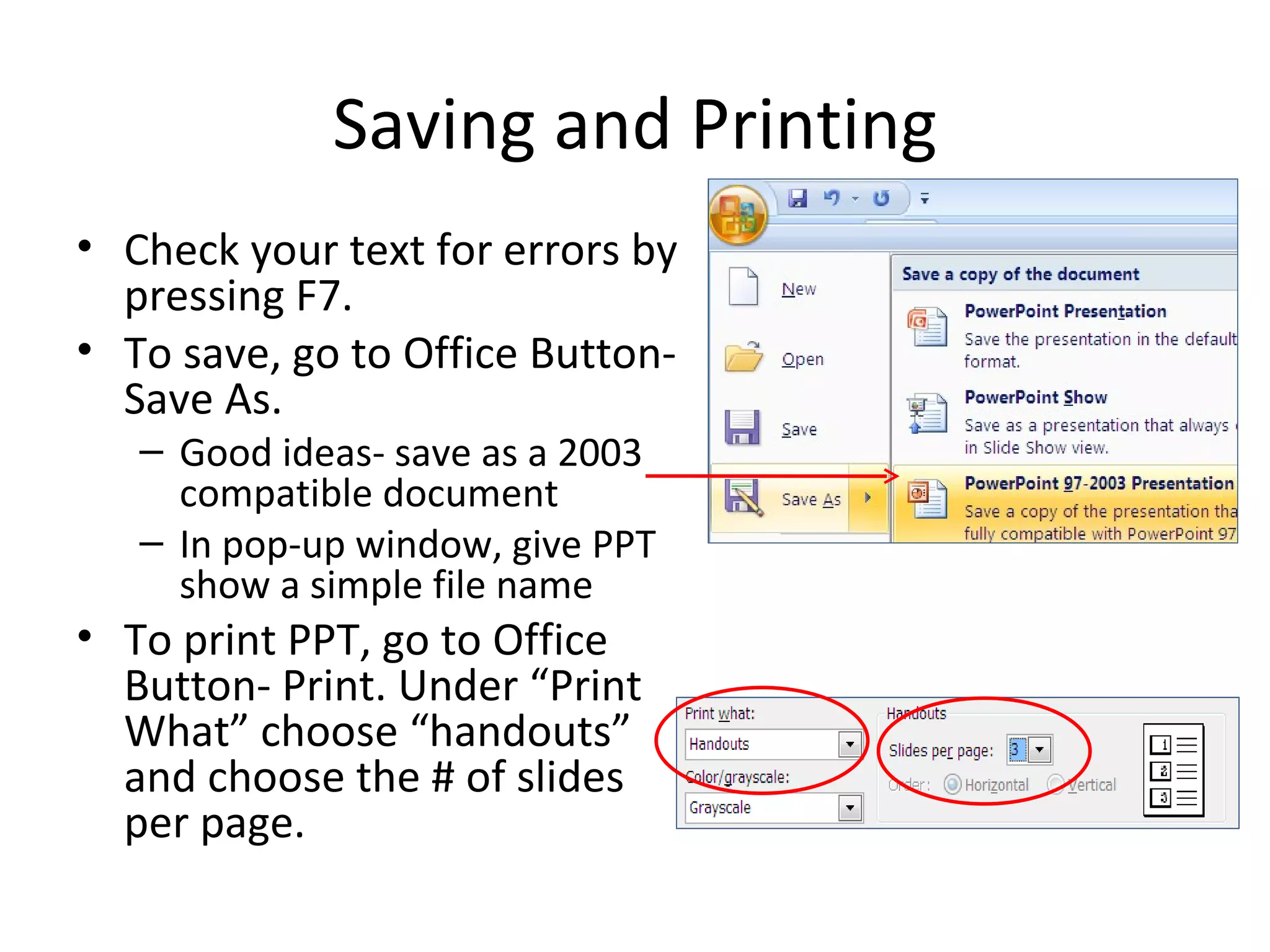
• To save, go to Office Button-
  Save As.
   – Good ideas- save as a 2003
     compatible document
   – In pop-up window, give PPT
     show a simple file name
• To print PPT, go to Office
  Button- Print. Under “Print
  What” choose “handouts”
  and choose the # of slides
  per page.
Insert Tab- adding Clip Art
• First make room for pics!
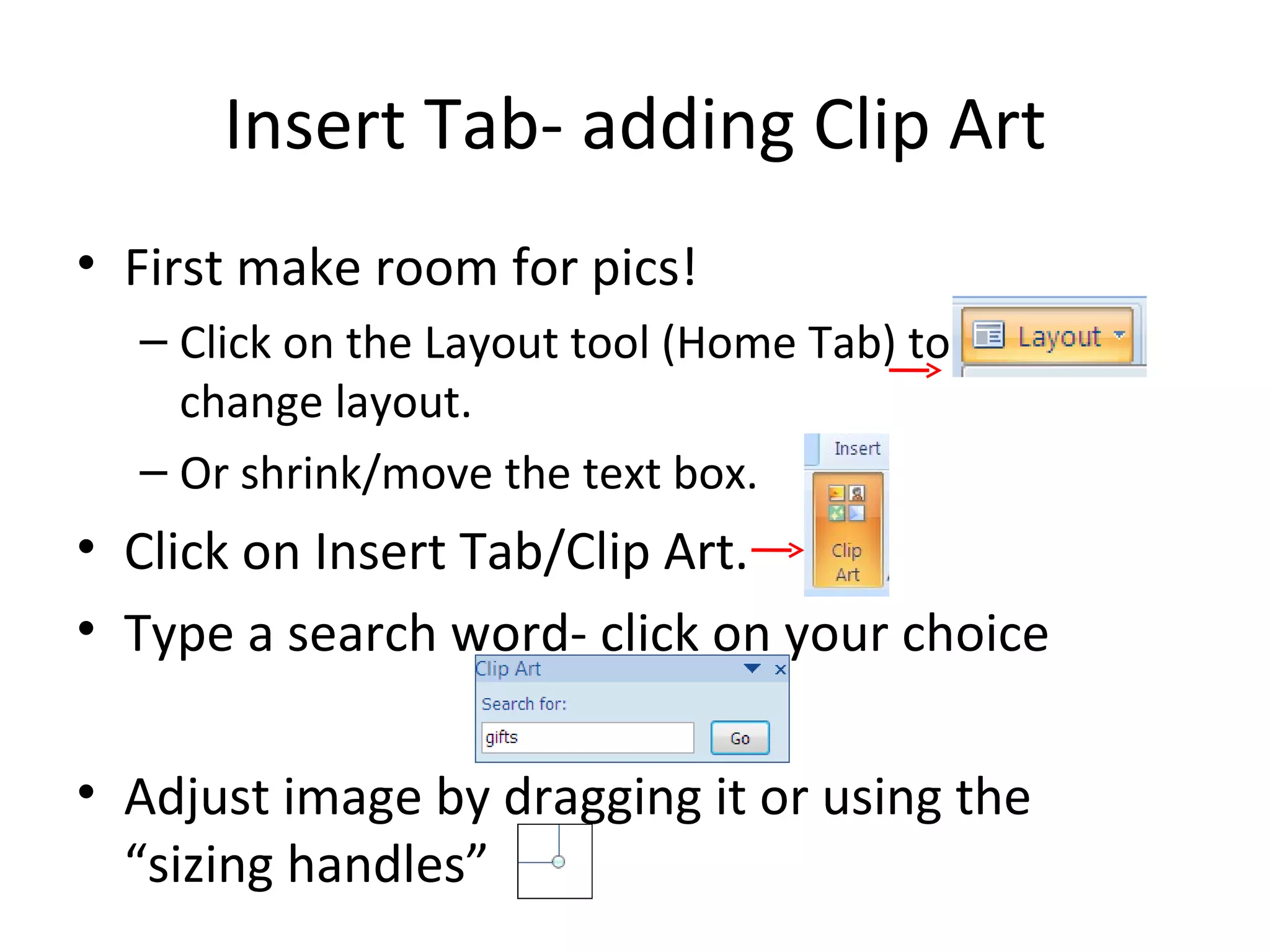
  – Click on the Layout tool (Home Tab) to
    change layout.
  – Or shrink/move the text box.
• Click on Insert Tab/Clip Art.
• Type a search word- click on your choice

• Adjust image by dragging it or using the
  “sizing handles”
Insert Tab- add Pictures from file
• First make room!
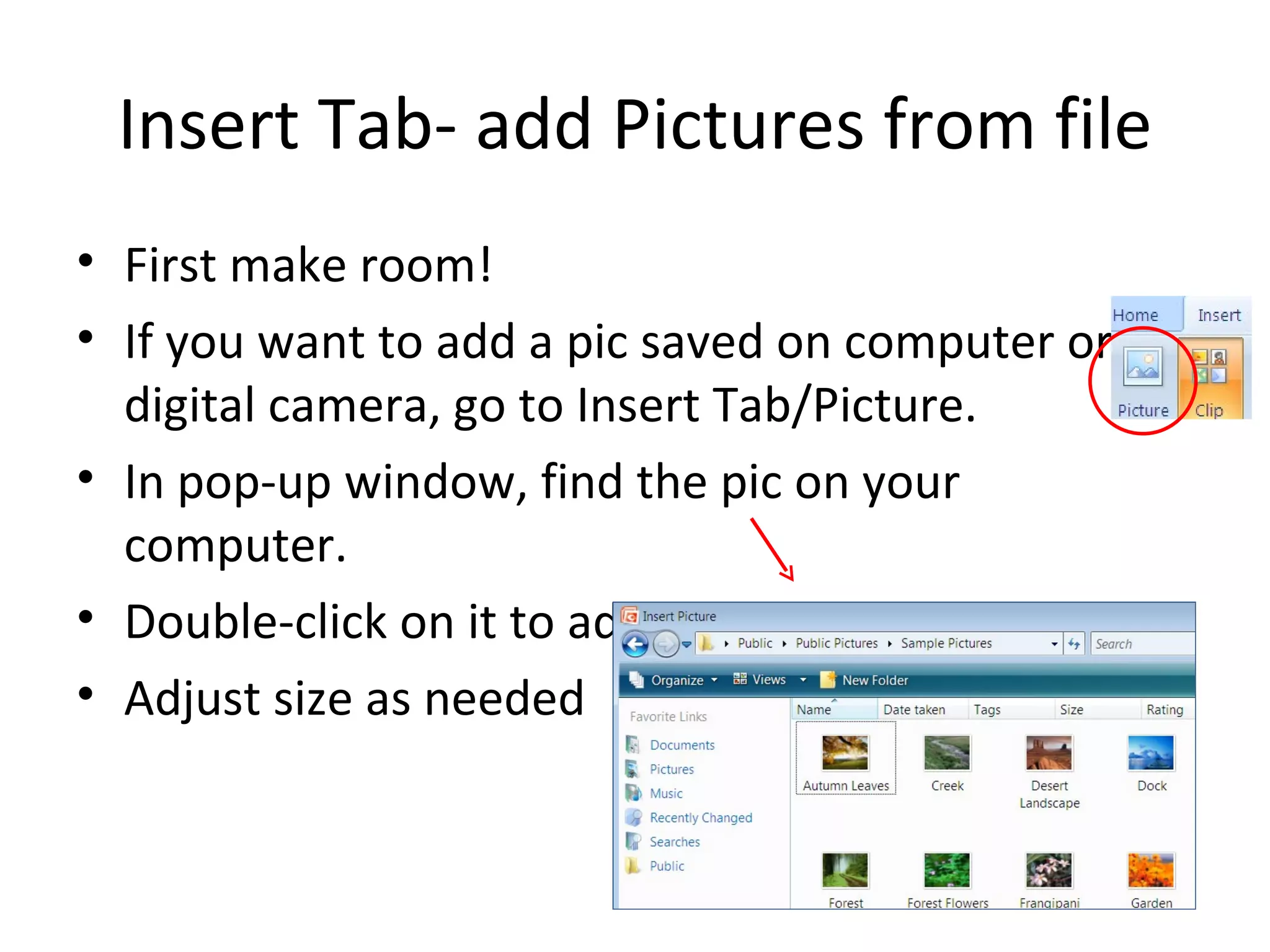
• If you want to add a pic saved on computer or
  digital camera, go to Insert Tab/Picture.
• In pop-up window, find the pic on your
  computer.
• Double-click on it to add it.
• Adjust size as needed
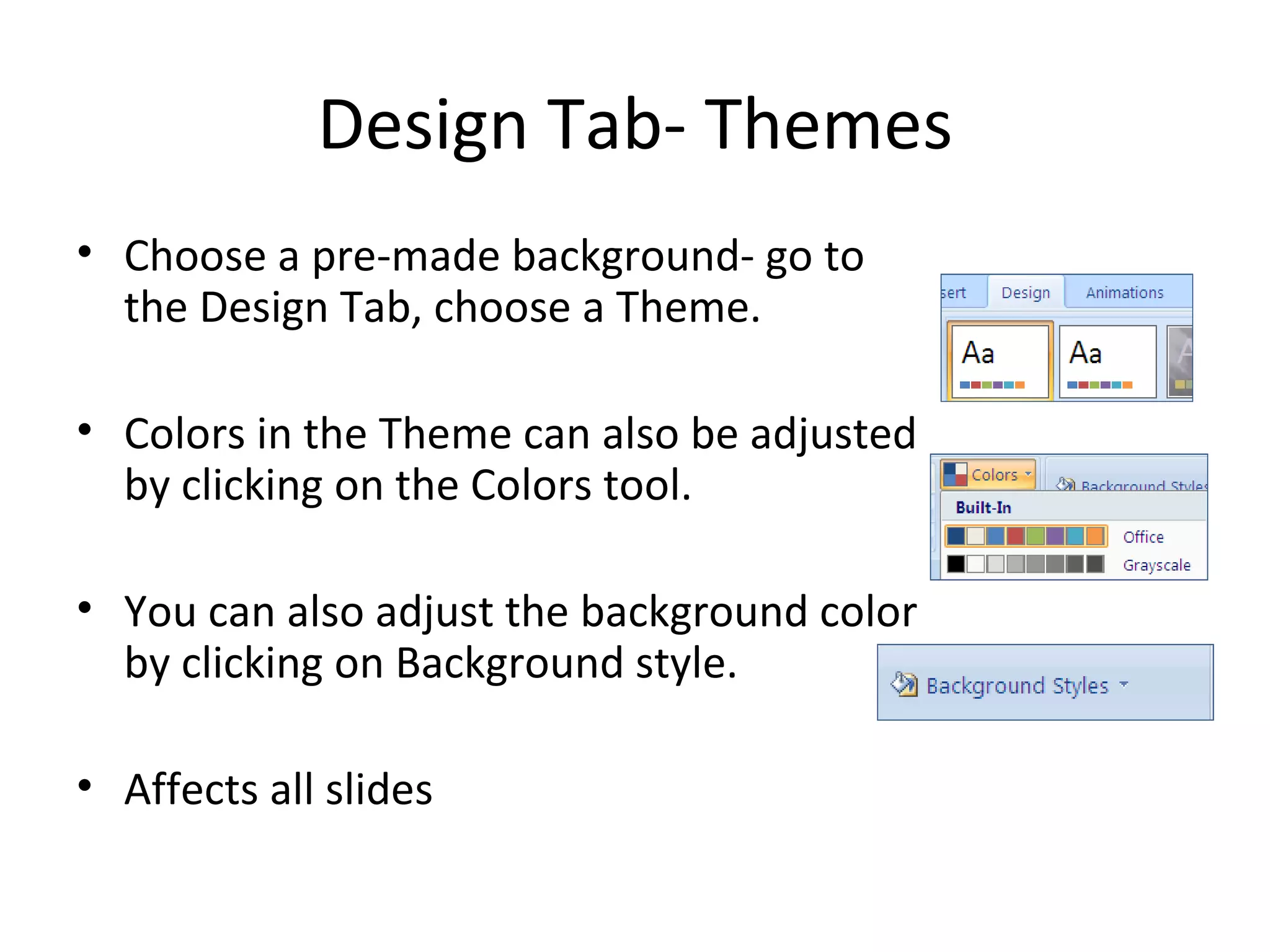
Design Tab- Themes
• Choose a pre-made background- go to
  the Design Tab, choose a Theme.

• Colors in the Theme can also be adjusted
  by clicking on the Colors tool.

• You can also adjust the background color
  by clicking on Background style.

• Affects all slides
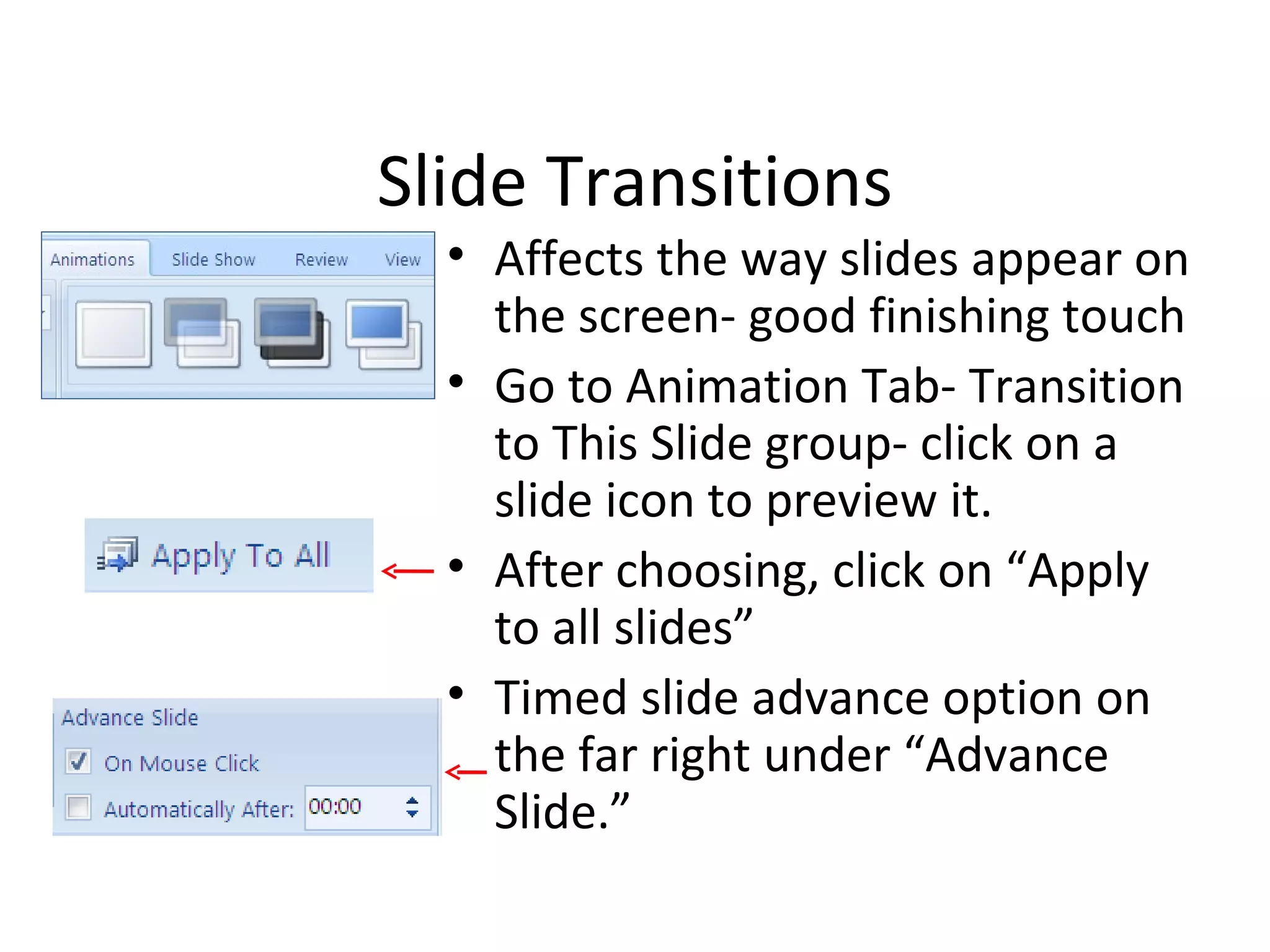
Slide Transitions
  • Affects the way slides appear on
    the screen- good finishing touch
  • Go to Animation Tab- Transition
    to This Slide group- click on a
    slide icon to preview it.
  • After choosing, click on “Apply
    to all slides”
  • Timed slide advance option on
    the far right under “Advance
    Slide.”
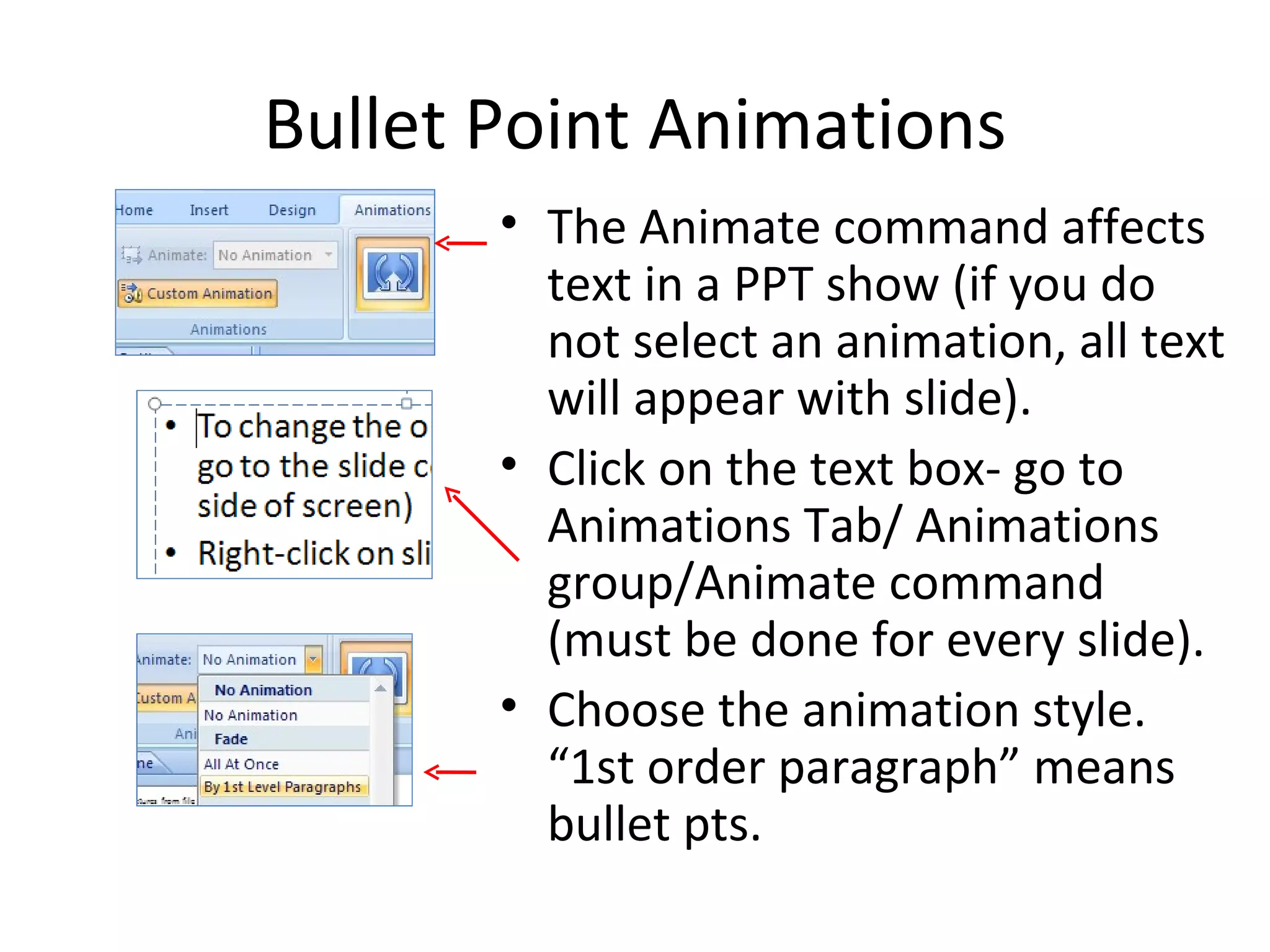
Bullet Point Animations
       • The Animate command affects
         text in a PPT show (if you do
         not select an animation, all text
         will appear with slide).
       • Click on the text box- go to
         Animations Tab/ Animations
         group/Animate command
         (must be done for every slide).
       • Choose the animation style.
         “1st order paragraph” means
         bullet pts.
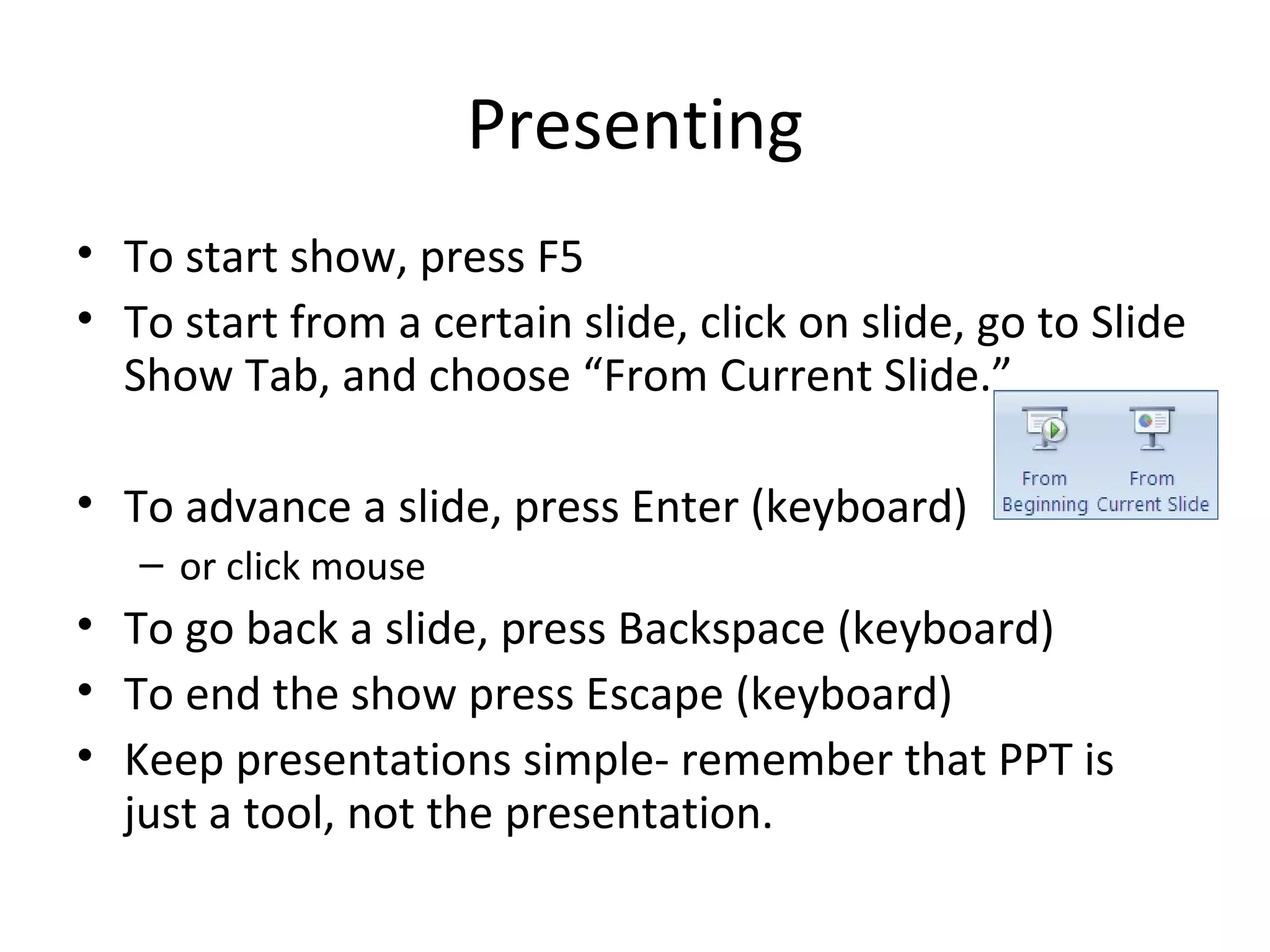
Presenting
• To start show, press F5
• To start from a certain slide, click on slide, go to Slide
  Show Tab, and choose “From Current Slide.”

• To advance a slide, press Enter (keyboard)
   – or click mouse
• To go back a slide, press Backspace (keyboard)
• To end the show press Escape (keyboard)
• Keep presentations simple- remember that PPT is
  just a tool, not the presentation.
Adding YouTube
• Go to the Office Button/ PowerPoint options.
• Click “Show Developer tab in ribbon” checkbox.
• Go to Developer tab/ Control Group/ More
  Controls…choose “Shockwave Flash Object.”
• Draw a box on the screen, right-click on it, select
  “properties.” Copy the video URL.
• In the pop-up menu, paste the Youtube URL in
  the box next to “Movie.” In the URL, delete
  “watch?” and replace the = sign after the capital
  “V” with a forward slash (/).

Power point2007instruction

  • 1.
    Introduction to PowerPoint2007 (PPT) Statement of Responsibility (When, For Whom, By Whom)
  • 2.
    Selecting, Adding &Deleting slides • To add a slide, click on the “New Slide” icon in Home tab. • To work on a slide, go to the slide column (left side of screen)-click on it. • To delete a slide- go to slide column- click on it- press “Backspace” button
  • 3.
    Home Tab- slidelayouts • To shrink/enlarge text box borders- click on a “sizing handle” and drag. • You can click on the Layout tool (next to New Slide) to change to another type of slide layout. • Different layouts give room for pics, charts, tables.
  • 4.
    Shortcuts and Right-clicking •Ctrl-Z to undo changes, Ctrl-Y to redo changes. • To select text, highlight with mouse or press Ctrl-A to select all text in a text box • To change font, color, & size, text and then right–click on it to get mini pop-up toolbar & menu
  • 5.
    Home Tab- bulletPoints • Automatic…click on Bullets icon in Home tab to turn off. • To start new bullet, press enter – To make a sub-point, press tab – To go back to a regular bullet pt, right-click and then click on the “Decrease Indent” icon (in mini pop-up menu or in Home tab). • Keep bullet pts. concise
  • 6.
    Saving and Printing •Check your text for errors by pressing F7. • To save, go to Office Button- Save As. – Good ideas- save as a 2003 compatible document – In pop-up window, give PPT show a simple file name • To print PPT, go to Office Button- Print. Under “Print What” choose “handouts” and choose the # of slides per page.
  • 7.
    Insert Tab- addingClip Art • First make room for pics! – Click on the Layout tool (Home Tab) to change layout. – Or shrink/move the text box. • Click on Insert Tab/Clip Art. • Type a search word- click on your choice • Adjust image by dragging it or using the “sizing handles”
  • 8.
    Insert Tab- addPictures from file • First make room! • If you want to add a pic saved on computer or digital camera, go to Insert Tab/Picture. • In pop-up window, find the pic on your computer. • Double-click on it to add it. • Adjust size as needed
  • 9.
    Design Tab- Themes •Choose a pre-made background- go to the Design Tab, choose a Theme. • Colors in the Theme can also be adjusted by clicking on the Colors tool. • You can also adjust the background color by clicking on Background style. • Affects all slides
  • 10.
    Slide Transitions • Affects the way slides appear on the screen- good finishing touch • Go to Animation Tab- Transition to This Slide group- click on a slide icon to preview it. • After choosing, click on “Apply to all slides” • Timed slide advance option on the far right under “Advance Slide.”
  • 11.
    Bullet Point Animations • The Animate command affects text in a PPT show (if you do not select an animation, all text will appear with slide). • Click on the text box- go to Animations Tab/ Animations group/Animate command (must be done for every slide). • Choose the animation style. “1st order paragraph” means bullet pts.
  • 12.
    Presenting • To startshow, press F5 • To start from a certain slide, click on slide, go to Slide Show Tab, and choose “From Current Slide.” • To advance a slide, press Enter (keyboard) – or click mouse • To go back a slide, press Backspace (keyboard) • To end the show press Escape (keyboard) • Keep presentations simple- remember that PPT is just a tool, not the presentation.
  • 13.
    Adding YouTube • Goto the Office Button/ PowerPoint options. • Click “Show Developer tab in ribbon” checkbox. • Go to Developer tab/ Control Group/ More Controls…choose “Shockwave Flash Object.” • Draw a box on the screen, right-click on it, select “properties.” Copy the video URL. • In the pop-up menu, paste the Youtube URL in the box next to “Movie.” In the URL, delete “watch?” and replace the = sign after the capital “V” with a forward slash (/).

Editor's Notes

  • #2 Before creating a PPT, instructors should go over the basic layout. This slide will be visible when users open the premade file. The word “Statement” is misspelled on the student version for spellchecking purposes.
  • #3 Students’ second slide will be empty except for a text box that says “RESIZE ME.” They should practice resizing the text box, then they should delete that slide and add a new slide. Start the 2 nd slide with this slide content.
  • #4 Have student try different layouts
  • #5 In this slide students should understand the process of selecting text, by using both the mouse to drag-highlight, and using the Ctrl-A function. Also the right-click formatting menu should be demo’d. Have students highlight and adjust text font, font color, and styles.
  • #6 Have students experiment with bullet points and sub-bullet points…the 6 x 6 or 7 x 7 rule could be covered (see PPT design and copyright handout)
  • #7 Have them save their file on the computer…explain the fact that Office 2003 is unable to open Office 2007 docs unless they are saved in a compatible version.
  • #8 Have them choose a layout w/room or move text box. Then add Clip Art, move the pic, and adjust the size. Emphasize the multimedia aspects of PPT and the importance of avoiding text-heavy presentations.
  • #9 Have them choose a layout w/room or move text box. Then add Picture, move the pic, and adjust the size. If desired the instructor oculd also cover copying and pasting images from the Internet.
  • #10 Have students apply a theme to the slides, and experiment with colors and backgrounds. Emphasize that a properly designed PPT should look unified, i.e. the slides should be the same stylistically.
  • #11 Students should apply an animation style to all slides.
  • #12 Have them animate bullet points within the presentation- emphasize that if they do not select this option, all text in a slide will appear
  • #13 This is the point where instructors should emphasize the design tips that are in the PPT design and copyright handout.