Basic Computer Class
To receive the full benefit of this course, the staff
of the Montgomery County Public Library strongly
recommends attending in person. Individual
assistance with each exercise is provided in class as
well as a Question & Answer session with our
instructors.
Objectives:
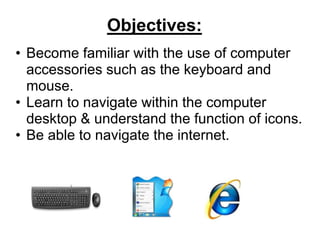
• Become familiar with the use of computer
  accessories such as the keyboard and
  mouse.
• Learn to navigate within the computer
  desktop & understand the function of icons.
• Be able to navigate the internet.
The Desktop

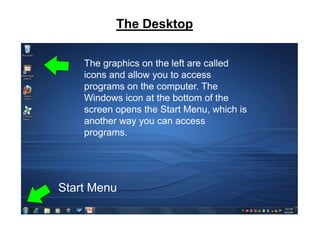
       The graphics on the left are called
       icons and allow you to access
       programs on the computer. The
       Windows icon at the bottom of the
       screen opens the Start Menu, which is
       another way you can access
       programs.


   Start Menu
Start menu
Using a Mouse
• The mouse allows you to navigate the computer
  screen. When you are on the desktop, the mouse is
  represented by a white arrow called the cursor.
  It also may be seen on the computer as a straight
  flashing line.

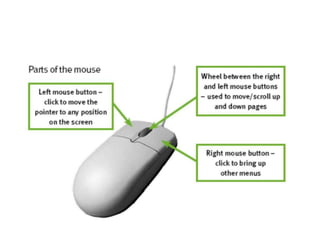
• The mouse has two areas. The left area is generally used for
  issuing commands to your computer. The right area is used to
  access special menus.

• To open a program, press down on the left-mouse twice in rapid
  succession, known as a double-click.

• Scrolling up and down the computer screen is done by rolling the
  wheel on the mouse or moving the mouse on the table.
Using the mouse
• To practice using a mouse, please log on to:

    www.seniornet.org/howto/mouseexercises
Using the keyboard
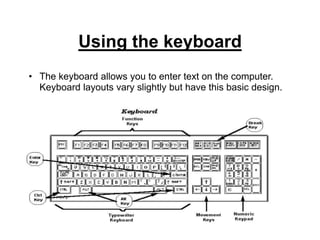
• The keyboard allows you to enter text on the computer.
  Keyboard layouts vary slightly but have this basic design.
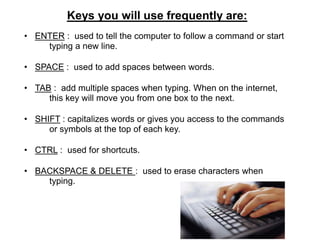
Keys you will use frequently are:
• ENTER : used to tell the computer to follow a command or start
    typing a new line.

• SPACE : used to add spaces between words.

• TAB : add multiple spaces when typing. When on the internet,
     this key will move you from one box to the next.

• SHIFT : capitalizes words or gives you access to the commands
     or symbols at the top of each key.

• CTRL : used for shortcuts.

• BACKSPACE & DELETE : used to erase characters when
    typing.
Using the keyboard:


• To practice using the keyboard, please log on to:
  www.freetypinggame.net/play15.asp
      choose the beginner level, game #9
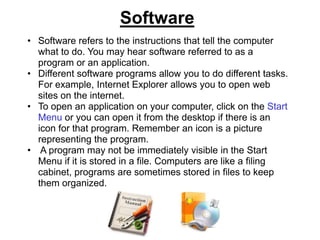
Software
• Software refers to the instructions that tell the computer
  what to do. You may hear software referred to as a
  program or an application.
• Different software programs allow you to do different tasks.
  For example, Internet Explorer allows you to open web
  sites on the internet.
• To open an application on your computer, click on the Start
  Menu or you can open it from the desktop if there is an
  icon for that program. Remember an icon is a picture
  representing the program.
• A program may not be immediately visible in the Start
  Menu if it is stored in a file. Computers are like a filing
  cabinet, programs are sometimes stored in files to keep
  them organized.
Software Practice

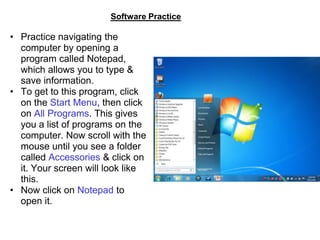
• Practice navigating the
  computer by opening a
  program called Notepad,
  which allows you to type &
  save information.
• To get to this program, click
  on the Start Menu, then click
  on All Programs. This gives
  you a list of programs on the
  computer. Now scroll with the
  mouse until you see a folder
  called Accessories & click on
  it. Your screen will look like
  this.
• Now click on Notepad to
  open it.
Software Practice cont.


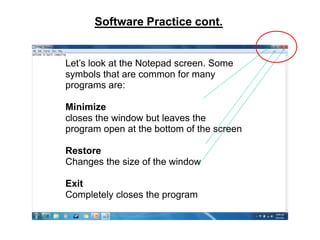
Let’s look at the Notepad screen. Some
symbols that are common for many
programs are:

Minimize
closes the window but leaves the
program open at the bottom of the screen

Restore
Changes the size of the window

Exit
Completely closes the program
Software Practice cont.
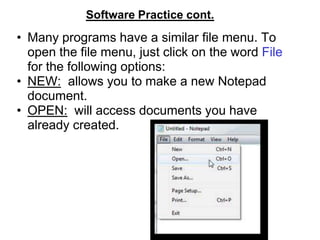
• Many programs have a similar file menu. To
  open the file menu, just click on the word File
  for the following options:
• NEW: allows you to make a new Notepad
  document.
• OPEN: will access documents you have
  already created.
Software Practice cont.
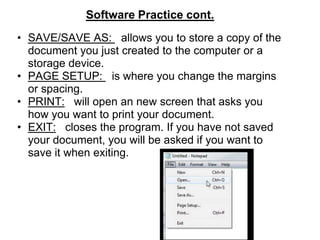
• SAVE/SAVE AS: allows you to store a copy of the
  document you just created to the computer or a
  storage device.
• PAGE SETUP: is where you change the margins
  or spacing.
• PRINT: will open an new screen that asks you
  how you want to print your document.
• EXIT: closes the program. If you have not saved
  your document, you will be asked if you want to
  save it when exiting.
Software Practice cont.

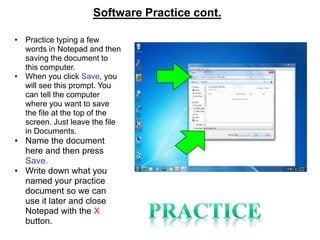
• Practice typing a few
  words in Notepad and then
  saving the document to
  this computer.
• When you click Save, you
  will see this prompt. You
  can tell the computer
  where you want to save
  the file at the top of the
  screen. Just leave the file
  in Documents.
• Name the document
  here and then press
  Save.
• Write down what you
  named your practice
  document so we can
  use it later and close
  Notepad with the X
  button.
How to do a search on the computer

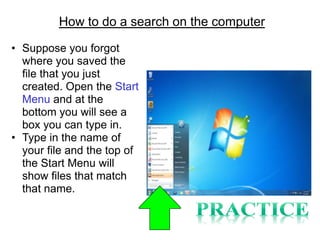
• Suppose you forgot
  where you saved the
  file that you just
  created. Open the Start
  Menu and at the
  bottom you will see a
  box you can type in.
• Type in the name of
  your file and the top of
  the Start Menu will
  show files that match
  that name.
Using the Internet
• The Internet is a worldwide connection of computers
  with information stored on web pages. You need an
  internet provider to access the internet (the company
  you pay for internet service) and a web browser to open
  web pages.

• A web browser is just a program that opens the internet
  on your computer. The web browser we will be
  using is Internet Explorer and
  is represented by this icon.
Using the Internet cont.

• A web site is a collection of web pages.

• Each web site has its own address. If you know the address
  of the web site you are looking for, just open the web browser
  and type in the address.

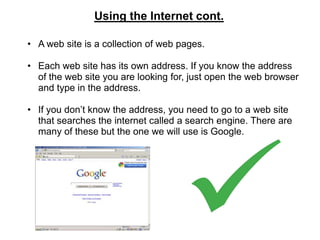
• If you don’t know the address, you need to go to a web site
  that searches the internet called a search engine. There are
  many of these but the one we will use is Google.
Internet Practice

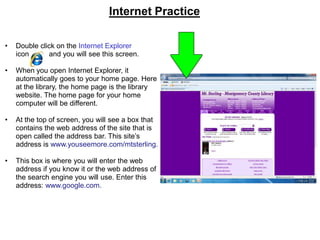
•   Double click on the Internet Explorer
    icon      and you will see this screen.

•   When you open Internet Explorer, it
    automatically goes to your home page. Here
    at the library, the home page is the library
    website. The home page for your home
    computer will be different.

•   At the top of screen, you will see a box that
    contains the web address of the site that is
    open called the address bar. This site’s
    address is www.youseemore.com/mtsterling.

•   This box is where you will enter the web
    address if you know it or the web address of
    the search engine you will use. Enter this
    address: www.google.com.
Internet Practice cont.
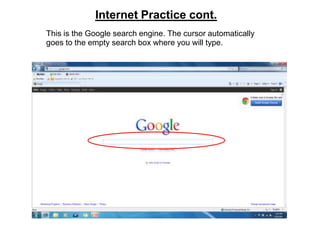
This is the Google search engine. The cursor automatically
goes to the empty search box where you will type.
Internet Practice cont.

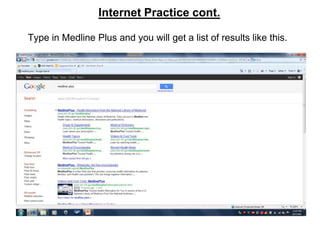
Type in Medline Plus and you will get a list of results like this.
Internet Practice cont.
Websites ending in .com are commercial sites so they may not be
accurate. Web addresses that end in .org or .gov are more likely to
have accurate information because they are created by government or
non-profit organizations.

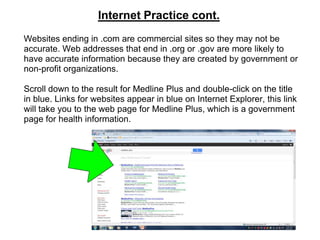
Scroll down to the result for Medline Plus and double-click on the title
in blue. Links for websites appear in blue on Internet Explorer, this link
will take you to the web page for Medline Plus, which is a government
page for health information.
Internet Practice cont.


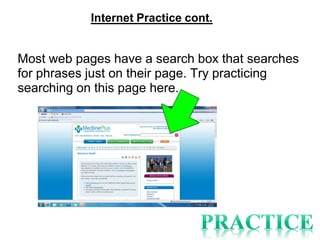
Most web pages have a search box that searches
for phrases just on their page. Try practicing
searching on this page here.
Basic Computer Training

Basic Computer Training

  • 1.
  • 2.
    To receive thefull benefit of this course, the staff of the Montgomery County Public Library strongly recommends attending in person. Individual assistance with each exercise is provided in class as well as a Question & Answer session with our instructors.
  • 3.
    Objectives: • Become familiarwith the use of computer accessories such as the keyboard and mouse. • Learn to navigate within the computer desktop & understand the function of icons. • Be able to navigate the internet.
  • 4.
    The Desktop The graphics on the left are called icons and allow you to access programs on the computer. The Windows icon at the bottom of the screen opens the Start Menu, which is another way you can access programs. Start Menu Start menu
  • 5.
    Using a Mouse •The mouse allows you to navigate the computer screen. When you are on the desktop, the mouse is represented by a white arrow called the cursor. It also may be seen on the computer as a straight flashing line. • The mouse has two areas. The left area is generally used for issuing commands to your computer. The right area is used to access special menus. • To open a program, press down on the left-mouse twice in rapid succession, known as a double-click. • Scrolling up and down the computer screen is done by rolling the wheel on the mouse or moving the mouse on the table.
  • 7.
    Using the mouse •To practice using a mouse, please log on to: www.seniornet.org/howto/mouseexercises
  • 8.
    Using the keyboard •The keyboard allows you to enter text on the computer. Keyboard layouts vary slightly but have this basic design.
  • 9.
    Keys you willuse frequently are: • ENTER : used to tell the computer to follow a command or start typing a new line. • SPACE : used to add spaces between words. • TAB : add multiple spaces when typing. When on the internet, this key will move you from one box to the next. • SHIFT : capitalizes words or gives you access to the commands or symbols at the top of each key. • CTRL : used for shortcuts. • BACKSPACE & DELETE : used to erase characters when typing.
  • 10.
    Using the keyboard: •To practice using the keyboard, please log on to: www.freetypinggame.net/play15.asp choose the beginner level, game #9
  • 11.
    Software • Software refersto the instructions that tell the computer what to do. You may hear software referred to as a program or an application. • Different software programs allow you to do different tasks. For example, Internet Explorer allows you to open web sites on the internet. • To open an application on your computer, click on the Start Menu or you can open it from the desktop if there is an icon for that program. Remember an icon is a picture representing the program. • A program may not be immediately visible in the Start Menu if it is stored in a file. Computers are like a filing cabinet, programs are sometimes stored in files to keep them organized.
  • 12.
    Software Practice • Practicenavigating the computer by opening a program called Notepad, which allows you to type & save information. • To get to this program, click on the Start Menu, then click on All Programs. This gives you a list of programs on the computer. Now scroll with the mouse until you see a folder called Accessories & click on it. Your screen will look like this. • Now click on Notepad to open it.
  • 13.
    Software Practice cont. Let’slook at the Notepad screen. Some symbols that are common for many programs are: Minimize closes the window but leaves the program open at the bottom of the screen Restore Changes the size of the window Exit Completely closes the program
  • 14.
    Software Practice cont. •Many programs have a similar file menu. To open the file menu, just click on the word File for the following options: • NEW: allows you to make a new Notepad document. • OPEN: will access documents you have already created.
  • 15.
    Software Practice cont. •SAVE/SAVE AS: allows you to store a copy of the document you just created to the computer or a storage device. • PAGE SETUP: is where you change the margins or spacing. • PRINT: will open an new screen that asks you how you want to print your document. • EXIT: closes the program. If you have not saved your document, you will be asked if you want to save it when exiting.
  • 16.
    Software Practice cont. •Practice typing a few words in Notepad and then saving the document to this computer. • When you click Save, you will see this prompt. You can tell the computer where you want to save the file at the top of the screen. Just leave the file in Documents. • Name the document here and then press Save. • Write down what you named your practice document so we can use it later and close Notepad with the X button.
  • 17.
    How to doa search on the computer • Suppose you forgot where you saved the file that you just created. Open the Start Menu and at the bottom you will see a box you can type in. • Type in the name of your file and the top of the Start Menu will show files that match that name.
  • 18.
    Using the Internet •The Internet is a worldwide connection of computers with information stored on web pages. You need an internet provider to access the internet (the company you pay for internet service) and a web browser to open web pages. • A web browser is just a program that opens the internet on your computer. The web browser we will be using is Internet Explorer and is represented by this icon.
  • 19.
    Using the Internetcont. • A web site is a collection of web pages. • Each web site has its own address. If you know the address of the web site you are looking for, just open the web browser and type in the address. • If you don’t know the address, you need to go to a web site that searches the internet called a search engine. There are many of these but the one we will use is Google.
  • 20.
    Internet Practice • Double click on the Internet Explorer icon and you will see this screen. • When you open Internet Explorer, it automatically goes to your home page. Here at the library, the home page is the library website. The home page for your home computer will be different. • At the top of screen, you will see a box that contains the web address of the site that is open called the address bar. This site’s address is www.youseemore.com/mtsterling. • This box is where you will enter the web address if you know it or the web address of the search engine you will use. Enter this address: www.google.com.
  • 21.
    Internet Practice cont. Thisis the Google search engine. The cursor automatically goes to the empty search box where you will type.
  • 22.
    Internet Practice cont. Typein Medline Plus and you will get a list of results like this.
  • 23.
    Internet Practice cont. Websitesending in .com are commercial sites so they may not be accurate. Web addresses that end in .org or .gov are more likely to have accurate information because they are created by government or non-profit organizations. Scroll down to the result for Medline Plus and double-click on the title in blue. Links for websites appear in blue on Internet Explorer, this link will take you to the web page for Medline Plus, which is a government page for health information.
  • 24.
    Internet Practice cont. Mostweb pages have a search box that searches for phrases just on their page. Try practicing searching on this page here.