INTRODUCTION TO
POWERPOINT
Team work
Abin Rimal
Pratik Dhaubhadel
Rijion Yogi
WHAT IS POWERPOINT
 A program created by Microsoft that uses slides to display
information in a presentation
• A slide presentation software package
 You can add:
• Text
• Images
• Video
• Audio
• Charts and more
IMPORTANT PARTS/TERMS
 Quick access toolbar
 Ribbon
 Slides Tab
 Outline Tab
 Zoom Control
 Slide Views
 Animation
 Transition
 Theme
THE RIBBON
PREPARING POWERPOINT
 Customize the Ribbon
 Minimize/Maximize the Ribbon
 Customize the Quick Access Toolbar
SLIDES
 Slides contain placeholders –
areas on the slide that are
enclosed by dotted borders
 Placeholders can contain: text,
images, video, charts, etc.
 What do the icons mean in a
placeholder?
SLIDELAYOUTS
SLIDE VIEWS
 Normal view
• Default view
• Slides can be moved in the slides tab on the left
 Slide Sorter View
• Miniature views are arranged on the screen
• You can easily drag/drop and rearrange slides
 Slide show view
• This view fits the entire computer screen
• What the audience will see
THEME
 A theme is a predefined combination of colors, fonts, and effects
that can be applied to your presentation
 Theme colors: available from every color menu
 Theme fonts: available from the font menu
 Shape styles: available in the Format tab when you click on a
shape)
TRANSITIONS
Transitions are motion effects that, when in Slide Show View, add
movement to your slides as you advance from one slide to another.
There are many transitions to choose from; each one allows you to
control the speed, and even add sound.
THANK YOU
 Thank you for being a part of this class!

power point

  • 1.
    INTRODUCTION TO POWERPOINT Team work AbinRimal Pratik Dhaubhadel Rijion Yogi
  • 2.
    WHAT IS POWERPOINT A program created by Microsoft that uses slides to display information in a presentation • A slide presentation software package  You can add: • Text • Images • Video • Audio • Charts and more
  • 3.
    IMPORTANT PARTS/TERMS  Quickaccess toolbar  Ribbon  Slides Tab  Outline Tab  Zoom Control  Slide Views  Animation  Transition  Theme
  • 4.
  • 5.
    PREPARING POWERPOINT  Customizethe Ribbon  Minimize/Maximize the Ribbon  Customize the Quick Access Toolbar
  • 6.
    SLIDES  Slides containplaceholders – areas on the slide that are enclosed by dotted borders  Placeholders can contain: text, images, video, charts, etc.  What do the icons mean in a placeholder?
  • 7.
  • 8.
    SLIDE VIEWS  Normalview • Default view • Slides can be moved in the slides tab on the left  Slide Sorter View • Miniature views are arranged on the screen • You can easily drag/drop and rearrange slides  Slide show view • This view fits the entire computer screen • What the audience will see
  • 9.
    THEME  A themeis a predefined combination of colors, fonts, and effects that can be applied to your presentation  Theme colors: available from every color menu  Theme fonts: available from the font menu  Shape styles: available in the Format tab when you click on a shape)
  • 10.
    TRANSITIONS Transitions are motioneffects that, when in Slide Show View, add movement to your slides as you advance from one slide to another. There are many transitions to choose from; each one allows you to control the speed, and even add sound.
  • 11.
    THANK YOU  Thankyou for being a part of this class!

Editor's Notes

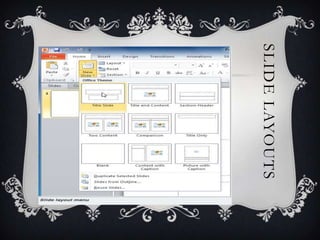
  • #8 How to change the layout of an existing slideDeleting a placeholderAdding a text boxUsing a blank slide