How to make a Webpage
   using FrontPage


     A Basic
    Tutorial
First, open Microsoft
FrontPage 2003:

Go to: start
        All Programs
            Microsoft Office
                  Microsoft Office
                  FrontPage 2003
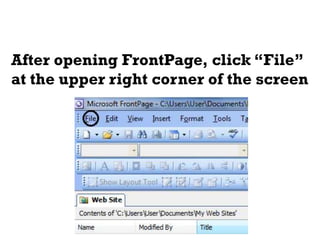
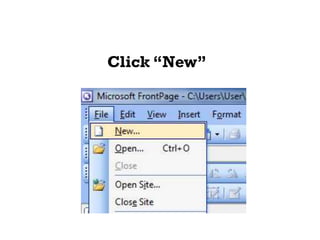
After opening FrontPage, click “File”
at the upper right corner of the screen
Click “New”
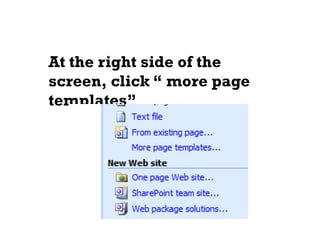
At the right side of the
screen, click “ more page
templates”
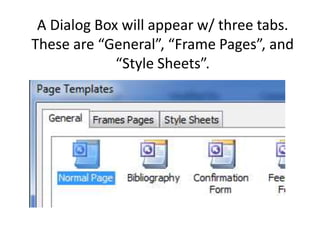
A Dialog Box will appear w/ three tabs.
These are “General”, “Frame Pages”, and
             “Style Sheets”.
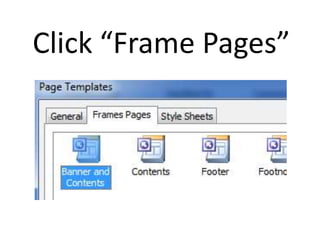
Click “Frame Pages”
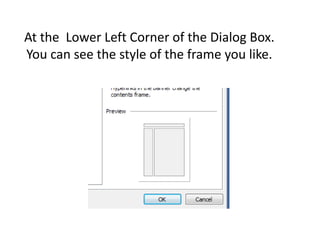
At the Lower Left Corner of the Dialog Box.
You can see the style of the frame you like.
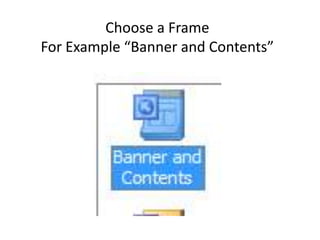
Choose a Frame
For Example “Banner and Contents”
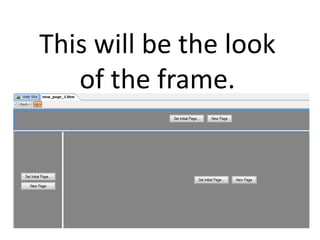
This will be the look
   of the frame.
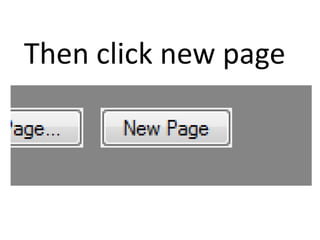
Then click new page
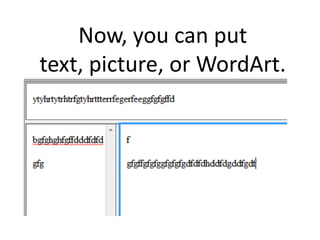
Now, you can put
text, picture, or WordArt.
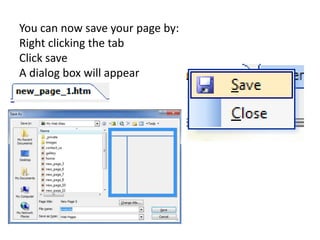
You can now save your page by:
Right clicking the tab
Click save
A dialog box will appear
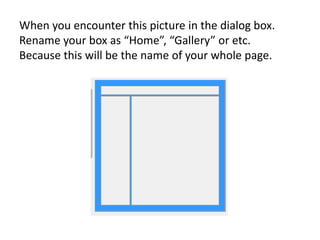
When you encounter this picture in the dialog box.
Rename your box as “Home”, “Gallery” or etc.
Because this will be the name of your whole page.
How to
Hyperlink
Make your: By doing
Home page
Gallery Page the
Etc.
             previous
             steps again
             and again
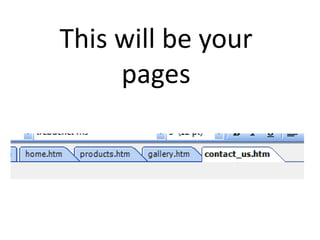
This will be your
     pages
After Designing your
        page
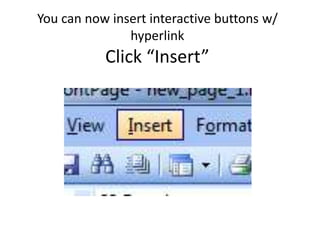
You can now insert interactive buttons w/
               hyperlink
           Click “Insert”
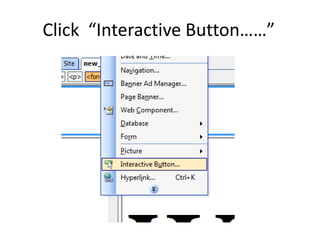
Click “Interactive Button……”
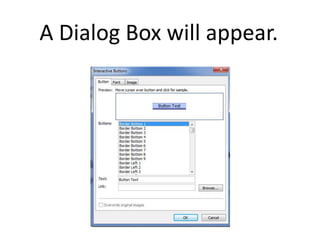
A Dialog Box will appear.
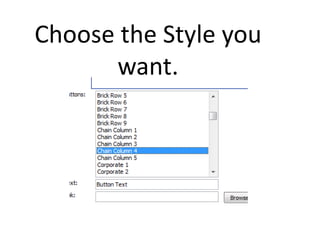
Choose the Style you
      want.
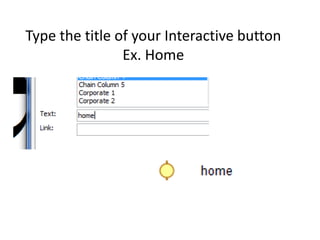
Type the title of your Interactive button
                Ex. Home
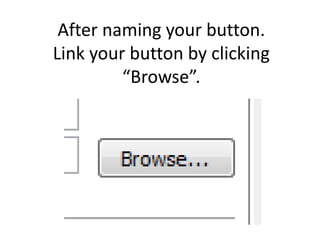
After naming your button.
Link your button by clicking
         “Browse”.
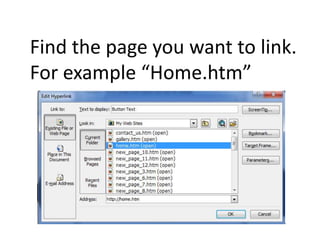
Find the page you want to link.
For example “Home.htm”
Then Click “ok”
 After linking copy
the button and put
  it to the other
       pages.

Do this to
  other       Depending
 Pages.       on the Pages
And make
  many        you made
Interactive
 Buttons
Inserting a
  Theme
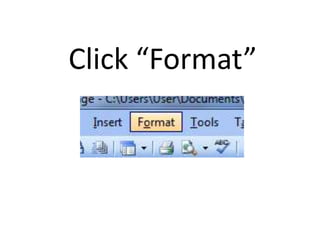
Click “Format”
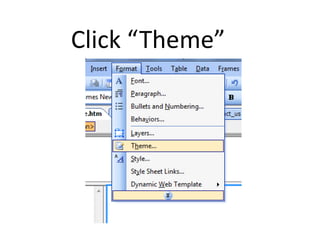
Click “Theme”
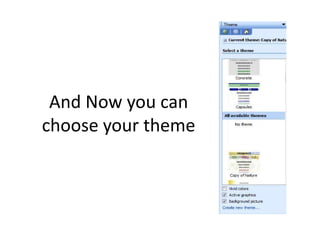
And Now you can
choose your theme

basic tutorial for frontpage 2003