e-Learning Workshop
By
Hasnain Zafar Baloch
Zaid Ali Asagoff
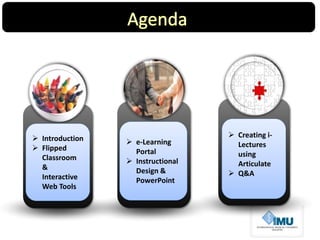
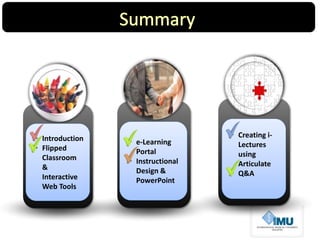
 Introduction
 Flipped
Classroom
&
Interactive
Web Tools
 e-Learning
Portal
 Instructional
Design &
PowerPoint
 Creating i-
Lectures
using
Articulate
 Q&A
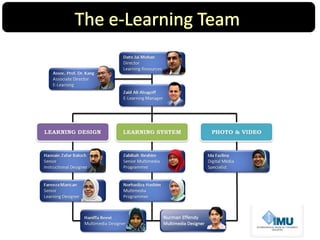
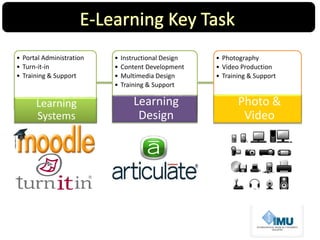
• Portal Administration
• Turn-it-in
• Training & Support
Learning
Systems
• Instructional Design
• Content Development
• Multimedia Design
• Training & Support
Learning
Design
• Photography
• Video Production
• Training & Support
Photo &
Video
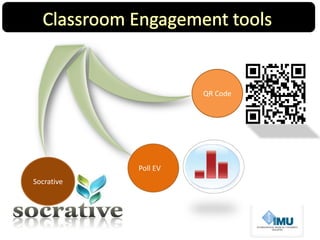
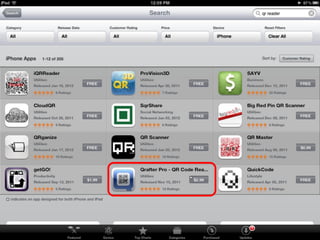
QR Code
Poll EV
Socrative
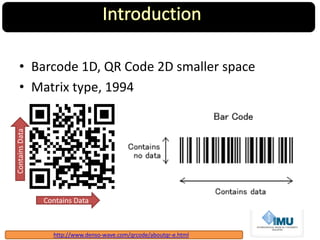
• Barcode 1D, QR Code 2D smaller space
• Matrix type, 1994
ContainsData
Contains Data
http://www.denso-wave.com/qrcode/aboutqr-e.html
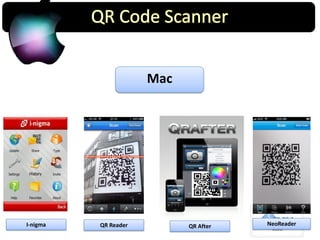
Mac
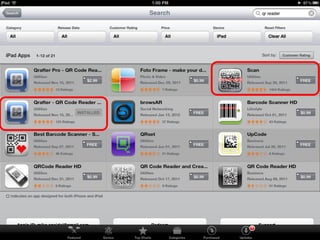
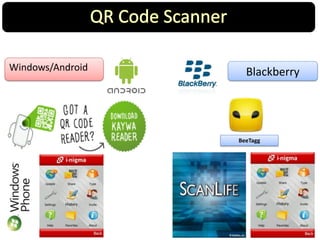
QR Reader NeoReaderI-nigma QR After
BlackberryWindows/Android
BeeTagg
http://www.qrstuff.com/
http://goo.gl/
http://www.polleverywhere.com
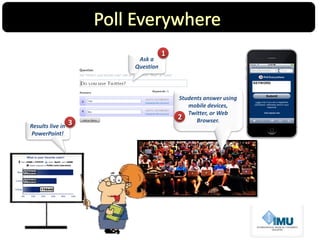
Ask a
Question
Results live in
PowerPoint!
Students answer using
mobile devices,
Twitter, or Web
Browser.2
3
1
http://www.socrative.com/
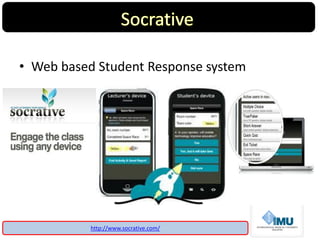
• Web based Student Response system
http://www.socrative.com/
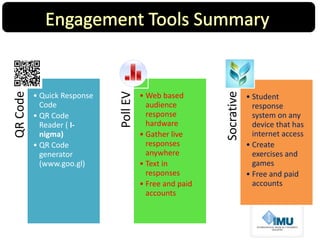
QRCode
• Quick Response
Code
• QR Code
Reader ( I-
nigma)
• QR Code
generator
(www.goo.gl)
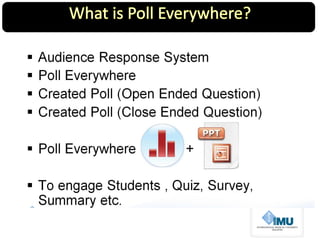
PollEV
• Web based
audience
response
hardware
• Gather live
responses
anywhere
• Text in
responses
• Free and paid
accounts
Socrative
• Student
response
system on any
device that has
internet access
• Create
exercises and
games
• Free and paid
accounts
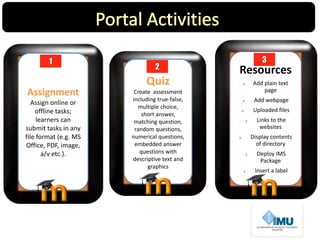
Assignment
Assign online or
offline tasks;
learners can
submit tasks in any
file format (e.g. MS
Office, PDF, image,
a/v etc.).
1
Resources
 Add plain text
page
 Add webpage
 Uploaded files
 Links to the
websites
 Display contents
of directory
 Deploy IMS
Package
 Insert a label
3
Quiz
Create assessment
including true-false,
multiple choice,
short answer,
matching question,
random questions,
numerical questions,
embedded answer
questions with
descriptive text and
graphics
2
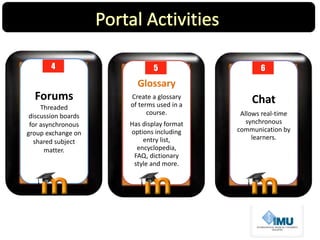
Forums
Threaded
discussion boards
for asynchronous
group exchange on
shared subject
matter.
4
Glossary
Create a glossary
of terms used in a
course.
Has display format
options including
entry list,
encyclopedia,
FAQ, dictionary
style and more.
5
Chat
Allows real-time
synchronous
communication by
learners.
6
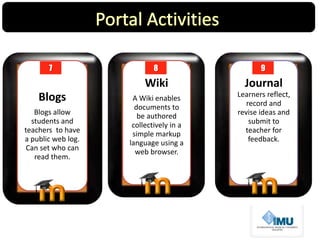
Wiki
A Wiki enables
documents to
be authored
collectively in a
simple markup
language using a
web browser.
8
Journal
Learners reflect,
record and
revise ideas and
submit to
teacher for
feedback.
9
Blogs
Blogs allow
students and
teachers to have
a public web log.
Can set who can
read them.
7
http://www.youtube.com/results?search_query=Moodle+2.0+tutorials&aq=f
http://www.nwlink.com/~donclark/hrd/sat4.html
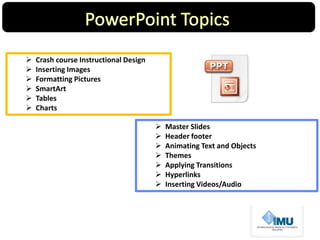
 Crash course Instructional Design
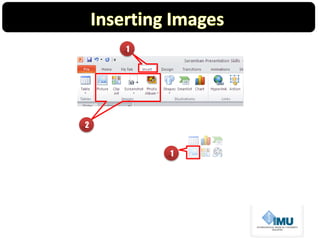
 Inserting Images
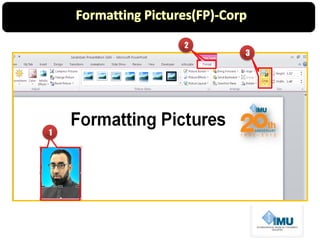
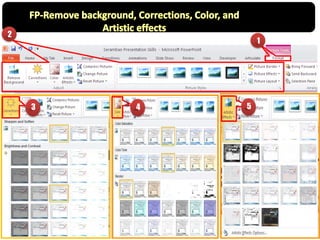
 Formatting Pictures
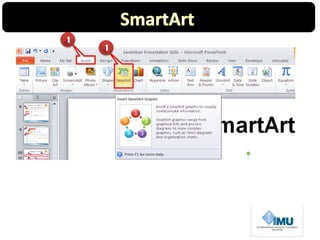
 SmartArt
 Tables
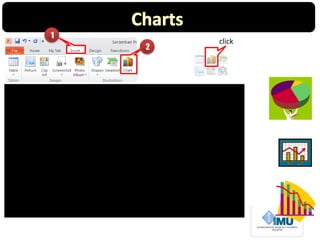
 Charts
 Master Slides
 Header footer
 Animating Text and Objects
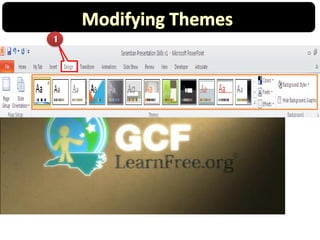
 Themes
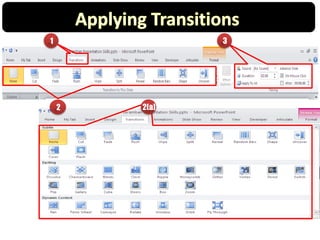
 Applying Transitions
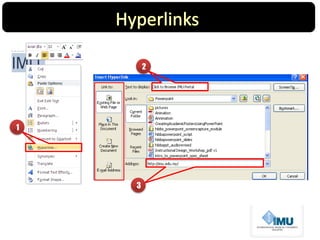
 Hyperlinks
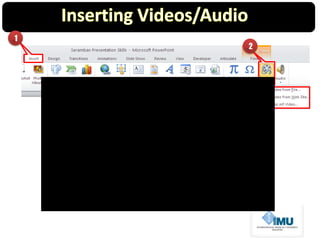
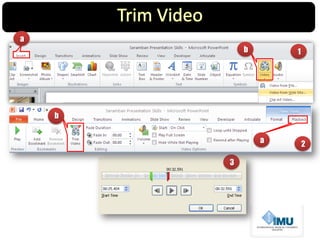
 Inserting Videos/Audio
1
2
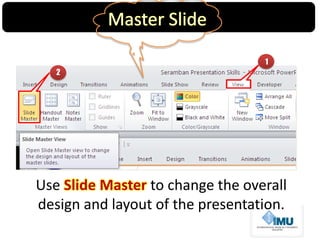
Use Slide Master to change the overall
design and layout of the presentation.
1
2
3
1
2
1
2
3
1
1 3
2(a)2
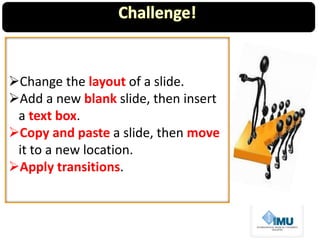
Change the layout of a slide.
Add a new blank slide, then insert
a text box.
Copy and paste a slide, then move
it to a new location.
Apply transitions.
1
2
1
1
2
3
1
2
3 4 5
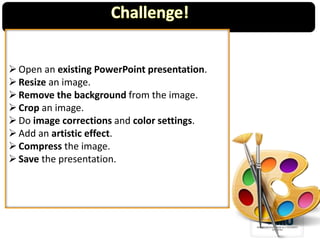
Open an existing PowerPoint presentation.
Resize an image.
Remove the background from the image.
Crop an image.
Do image corrections and color settings.
Add an artistic effect.
Compress the image.
Save the presentation.
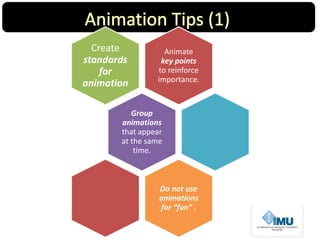
Animate
key points
to reinforce
importance.
Create
standards
for
animation
Group
animations
that appear
at the same
time.
Do not use
animations
for “fun” .
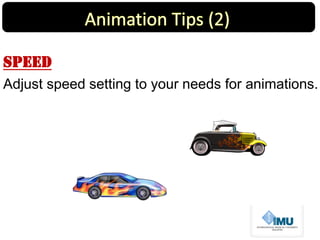
Speed
Adjust speed setting to your needs for animations.
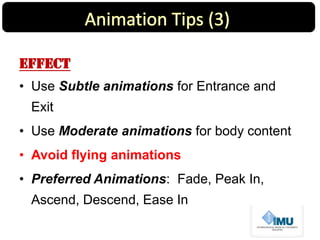
Effect
• Use Subtle animations for Entrance and
Exit
• Use Moderate animations for body content
• Avoid flying animations
• Preferred Animations: Fade, Peak In,
Ascend, Descend, Ease In
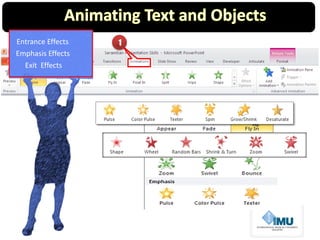
1Entrance Effects
Emphasis Effects
Exit Effects
1
2
3
1
1
1
1
3
2
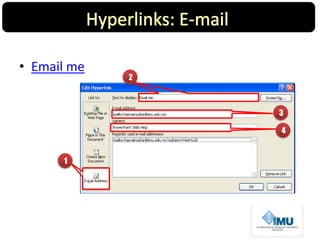
• Email me
2
3
4
1
Semester 1 Semester2 Semester3 Semester3
100 20 12 100
80 15 12 100
12 12 20 100
12 12 12 30
40 40 40 40
1
2
3
1
2
click
1
a
b
3
a
b
2
1
2
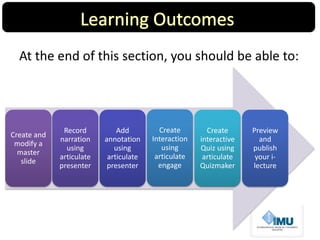
At the end of this section, you should be able to:
Create and
modify a
master
slide
Record
narration
using
articulate
presenter
Add
annotation
using
articulate
presenter
Preview
and
publish
your i-
lecture
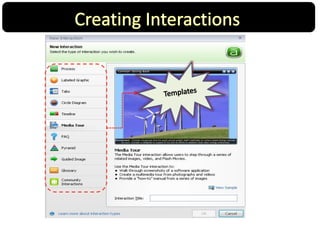
Create
Interaction
using
articulate
engage
Create
interactive
Quiz using
articulate
Quizmaker
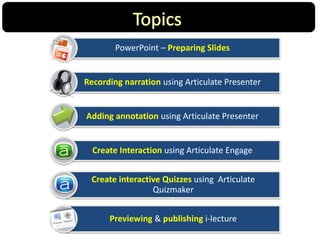
PowerPoint – Preparing Slides
Recording narration using Articulate Presenter
Adding annotation using Articulate Presenter
Create Interaction using Articulate Engage
Create interactive Quizzes using Articulate
Quizmaker
Previewing & publishing i-lecture
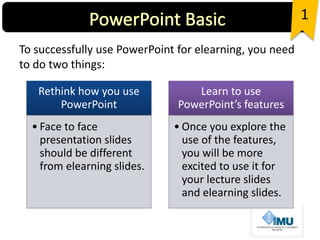
Rethink how you use
PowerPoint
• Face to face
presentation slides
should be different
from elearning slides.
Learn to use
PowerPoint’s features
• Once you explore the
use of the features,
you will be more
excited to use it for
your lecture slides
and elearning slides.
To successfully use PowerPoint for elearning, you need
to do two things:
1
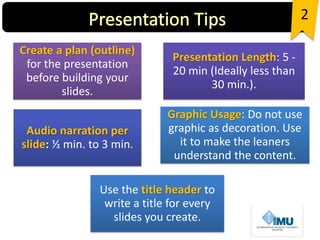
Create a plan (outline)
for the presentation
before building your
slides.
Presentation Length: 5 -
20 min (Ideally less than
30 min.).
Audio narration per
slide: ½ min. to 3 min.
Graphic Usage: Do not use
graphic as decoration. Use
it to make the leaners
understand the content.
Use the title header to
write a title for every
slides you create.
2
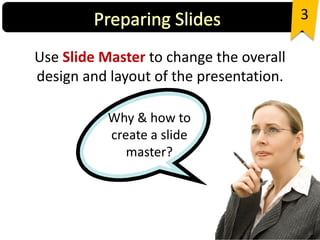
Use Slide Master to change the overall
design and layout of the presentation.
Why & how to
create a slide
master?
3
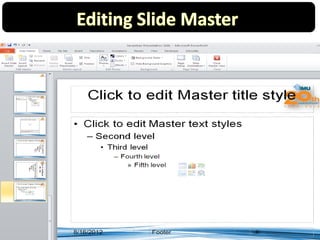
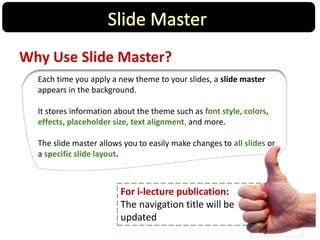
Why Use Slide Master?
Each time you apply a new theme to your slides, a slide master
appears in the background.
It stores information about the theme such as font style, colors,
effects, placeholder size, text alignment, and more.
The slide master allows you to easily make changes to all slides or
a specific slide layout.
For i-lecture publication:
The navigation title will be
updated
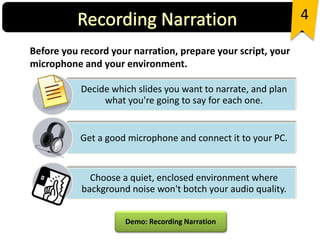
Before you record your narration, prepare your script, your
microphone and your environment.
4
Decide which slides you want to narrate, and plan
what you're going to say for each one.
Get a good microphone and connect it to your PC.
Choose a quiet, enclosed environment where
background noise won't botch your audio quality.
Demo: Recording Narration
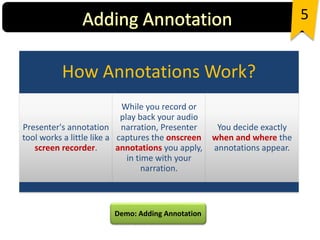
5
Demo: Adding Annotation
How Annotations Work?
Presenter's annotation
tool works a little like a
screen recorder.
While you record or
play back your audio
narration, Presenter
captures the onscreen
annotations you apply,
in time with your
narration.
You decide exactly
when and where the
annotations appear.
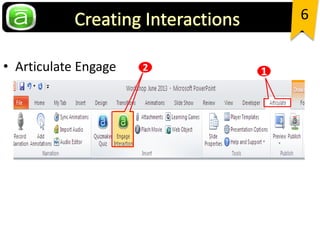
• Articulate Engage
6
12
6
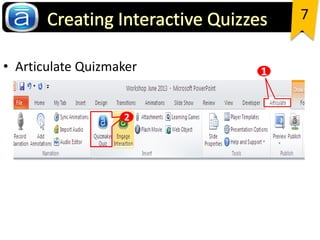
• Articulate Quizmaker
7
1
2
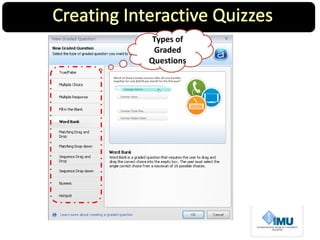
Types of
Graded
Questions
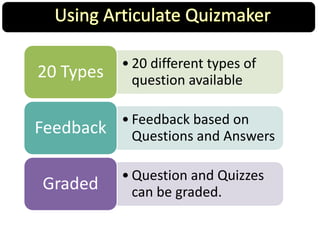
• 20 different types of
question available20 Types
• Feedback based on
Questions and AnswersFeedback
• Question and Quizzes
can be graded.Graded
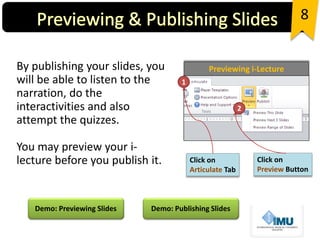
By publishing your slides, you
will be able to listen to the
narration, do the
interactivities and also
attempt the quizzes.
You may preview your i-
lecture before you publish it.
8
Click on
Articulate Tab
Click on
Preview Button
1
2
Previewing i-Lecture
Demo: Previewing Slides Demo: Publishing Slides
Importing & Editing Audio
• You can import your audio for one or several slides in
your course.
• Your recorded audio is too slow? Don’t worry. If the
sound of your recorded narration is too slow, or
suddenly too loud, it can be edited by using the Audio
Editor.
Demo: Importing Audio Demo: Editing Audio
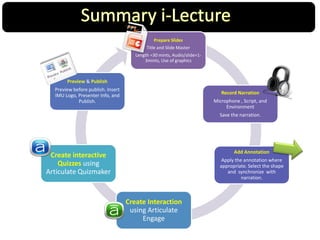
Prepare Slides
Title and Slide Master
Length =30 mints, Audio/slide=1-
3mints, Use of graphics
Record Narration
Microphone , Script, and
Environment
Save the narration.
Add Annotation
Apply the annotation where
appropriate. Select the shape
and synchronize with
narration.
Preview & Publish
Preview before publish. Insert
IMU Logo, Presenter Info, and
Publish.
Create Interaction
using Articulate
Engage
Create interactive
Quizzes using
Articulate Quizmaker
• Creating Master Slide in PowerPoint
• Recording Narration Tutorial
• 13 Tips to Record like a Pro
• Syncing Animations And Recording Narration At The
Same Time
• Publishing a Presentation
• E-Learning Licence (Rapid E-Learning)
8
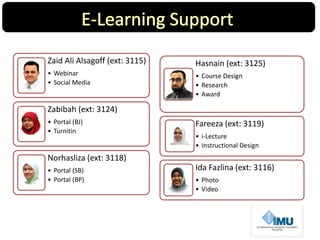
Zaid Ali Alsagoff (ext: 3115)
• Webinar
• Social Media
Zabibah (ext: 3124)
• Portal (BJ)
• Turnitin
Norhasliza (ext: 3118)
• Portal (SB)
• Portal (BP)
Hasnain (ext: 3125)
• Course Design
• Research
• Award
Fareeza (ext: 3119)
• i-Lecture
• Instructional Design
Ida Fazlina (ext: 3116)
• Photo
• Video
www.slideshare.com/hasnainzafar
https://hasnainzafar.wordpress.com/
@hbaloch
 Introduction
 Flipped
Classroom
&
Interactive
Web Tools
 e-Learning
Portal
 Instructional
Design &
PowerPoint
 Creating i-
Lectures
using
Articulate
 Q&A
E-learning Workshop for 21 Century Academics

E-learning Workshop for 21 Century Academics

  • 1.
    e-Learning Workshop By Hasnain ZafarBaloch Zaid Ali Asagoff
  • 2.
     Introduction  Flipped Classroom & Interactive WebTools  e-Learning Portal  Instructional Design & PowerPoint  Creating i- Lectures using Articulate  Q&A
  • 5.
    • Portal Administration •Turn-it-in • Training & Support Learning Systems • Instructional Design • Content Development • Multimedia Design • Training & Support Learning Design • Photography • Video Production • Training & Support Photo & Video
  • 7.
  • 10.
    • Barcode 1D,QR Code 2D smaller space • Matrix type, 1994 ContainsData Contains Data http://www.denso-wave.com/qrcode/aboutqr-e.html
  • 11.
  • 14.
  • 15.
  • 16.
  • 17.
    Ask a Question Results livein PowerPoint! Students answer using mobile devices, Twitter, or Web Browser.2 3 1
  • 19.
  • 20.
    • Web basedStudent Response system http://www.socrative.com/
  • 21.
    QRCode • Quick Response Code •QR Code Reader ( I- nigma) • QR Code generator (www.goo.gl) PollEV • Web based audience response hardware • Gather live responses anywhere • Text in responses • Free and paid accounts Socrative • Student response system on any device that has internet access • Create exercises and games • Free and paid accounts
  • 24.
    Assignment Assign online or offlinetasks; learners can submit tasks in any file format (e.g. MS Office, PDF, image, a/v etc.). 1 Resources  Add plain text page  Add webpage  Uploaded files  Links to the websites  Display contents of directory  Deploy IMS Package  Insert a label 3 Quiz Create assessment including true-false, multiple choice, short answer, matching question, random questions, numerical questions, embedded answer questions with descriptive text and graphics 2
  • 25.
    Forums Threaded discussion boards for asynchronous groupexchange on shared subject matter. 4 Glossary Create a glossary of terms used in a course. Has display format options including entry list, encyclopedia, FAQ, dictionary style and more. 5 Chat Allows real-time synchronous communication by learners. 6
  • 26.
    Wiki A Wiki enables documentsto be authored collectively in a simple markup language using a web browser. 8 Journal Learners reflect, record and revise ideas and submit to teacher for feedback. 9 Blogs Blogs allow students and teachers to have a public web log. Can set who can read them. 7
  • 27.
  • 28.
  • 29.
     Crash courseInstructional Design  Inserting Images  Formatting Pictures  SmartArt  Tables  Charts  Master Slides  Header footer  Animating Text and Objects  Themes  Applying Transitions  Hyperlinks  Inserting Videos/Audio
  • 30.
    1 2 Use Slide Masterto change the overall design and layout of the presentation.
  • 32.
  • 33.
  • 34.
  • 35.
  • 36.
  • 37.
    Change the layoutof a slide. Add a new blank slide, then insert a text box. Copy and paste a slide, then move it to a new location. Apply transitions.
  • 38.
  • 39.
  • 40.
  • 41.
    Open an existingPowerPoint presentation. Resize an image. Remove the background from the image. Crop an image. Do image corrections and color settings. Add an artistic effect. Compress the image. Save the presentation.
  • 42.
  • 43.
    Speed Adjust speed settingto your needs for animations.
  • 44.
    Effect • Use Subtleanimations for Entrance and Exit • Use Moderate animations for body content • Avoid flying animations • Preferred Animations: Fade, Peak In, Ascend, Descend, Ease In
  • 45.
  • 49.
  • 50.
  • 51.
  • 52.
  • 53.
    Semester 1 Semester2Semester3 Semester3 100 20 12 100 80 15 12 100 12 12 20 100 12 12 12 30 40 40 40 40 1 2 3
  • 54.
  • 55.
  • 57.
  • 59.
    At the endof this section, you should be able to: Create and modify a master slide Record narration using articulate presenter Add annotation using articulate presenter Preview and publish your i- lecture Create Interaction using articulate engage Create interactive Quiz using articulate Quizmaker
  • 60.
    PowerPoint – PreparingSlides Recording narration using Articulate Presenter Adding annotation using Articulate Presenter Create Interaction using Articulate Engage Create interactive Quizzes using Articulate Quizmaker Previewing & publishing i-lecture
  • 61.
    Rethink how youuse PowerPoint • Face to face presentation slides should be different from elearning slides. Learn to use PowerPoint’s features • Once you explore the use of the features, you will be more excited to use it for your lecture slides and elearning slides. To successfully use PowerPoint for elearning, you need to do two things: 1
  • 62.
    Create a plan(outline) for the presentation before building your slides. Presentation Length: 5 - 20 min (Ideally less than 30 min.). Audio narration per slide: ½ min. to 3 min. Graphic Usage: Do not use graphic as decoration. Use it to make the leaners understand the content. Use the title header to write a title for every slides you create. 2
  • 63.
    Use Slide Masterto change the overall design and layout of the presentation. Why & how to create a slide master? 3
  • 64.
    Why Use SlideMaster? Each time you apply a new theme to your slides, a slide master appears in the background. It stores information about the theme such as font style, colors, effects, placeholder size, text alignment, and more. The slide master allows you to easily make changes to all slides or a specific slide layout. For i-lecture publication: The navigation title will be updated
  • 65.
    Before you recordyour narration, prepare your script, your microphone and your environment. 4 Decide which slides you want to narrate, and plan what you're going to say for each one. Get a good microphone and connect it to your PC. Choose a quiet, enclosed environment where background noise won't botch your audio quality. Demo: Recording Narration
  • 66.
    5 Demo: Adding Annotation HowAnnotations Work? Presenter's annotation tool works a little like a screen recorder. While you record or play back your audio narration, Presenter captures the onscreen annotations you apply, in time with your narration. You decide exactly when and where the annotations appear.
  • 67.
  • 68.
  • 69.
  • 70.
  • 71.
    • 20 differenttypes of question available20 Types • Feedback based on Questions and AnswersFeedback • Question and Quizzes can be graded.Graded
  • 72.
    By publishing yourslides, you will be able to listen to the narration, do the interactivities and also attempt the quizzes. You may preview your i- lecture before you publish it. 8 Click on Articulate Tab Click on Preview Button 1 2 Previewing i-Lecture Demo: Previewing Slides Demo: Publishing Slides
  • 73.
    Importing & EditingAudio • You can import your audio for one or several slides in your course. • Your recorded audio is too slow? Don’t worry. If the sound of your recorded narration is too slow, or suddenly too loud, it can be edited by using the Audio Editor. Demo: Importing Audio Demo: Editing Audio
  • 74.
    Prepare Slides Title andSlide Master Length =30 mints, Audio/slide=1- 3mints, Use of graphics Record Narration Microphone , Script, and Environment Save the narration. Add Annotation Apply the annotation where appropriate. Select the shape and synchronize with narration. Preview & Publish Preview before publish. Insert IMU Logo, Presenter Info, and Publish. Create Interaction using Articulate Engage Create interactive Quizzes using Articulate Quizmaker
  • 75.
    • Creating MasterSlide in PowerPoint • Recording Narration Tutorial • 13 Tips to Record like a Pro • Syncing Animations And Recording Narration At The Same Time • Publishing a Presentation • E-Learning Licence (Rapid E-Learning) 8
  • 76.
    Zaid Ali Alsagoff(ext: 3115) • Webinar • Social Media Zabibah (ext: 3124) • Portal (BJ) • Turnitin Norhasliza (ext: 3118) • Portal (SB) • Portal (BP) Hasnain (ext: 3125) • Course Design • Research • Award Fareeza (ext: 3119) • i-Lecture • Instructional Design Ida Fazlina (ext: 3116) • Photo • Video
  • 77.
  • 78.
     Introduction  Flipped Classroom & Interactive WebTools  e-Learning Portal  Instructional Design & PowerPoint  Creating i- Lectures using Articulate  Q&A