What is
 Microsoft
FrontPage?
Microsoft FrontPage is a
WYSIWYG HTML editor
and web site
administration tool from
Microsoft for the
Microsoft Windows line
of operating systems.
It was branded as part of
the Microsoft Office suite
from 1997 to 2003.
Microsoft FrontPage has
since been replaced by
Microsoft Expression Web
and Sharepoint
Designer, which were first
released in December 2006.
Views
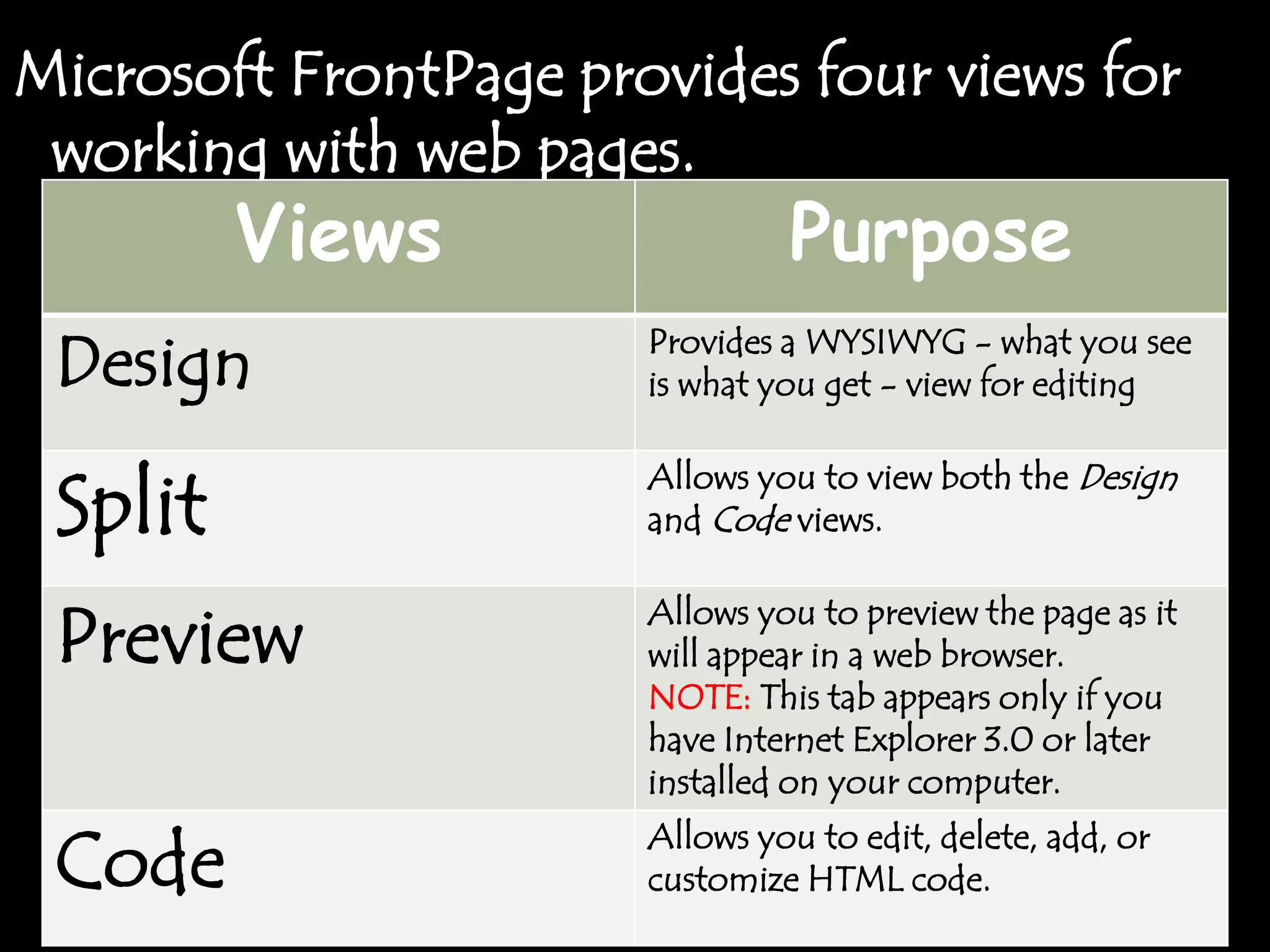
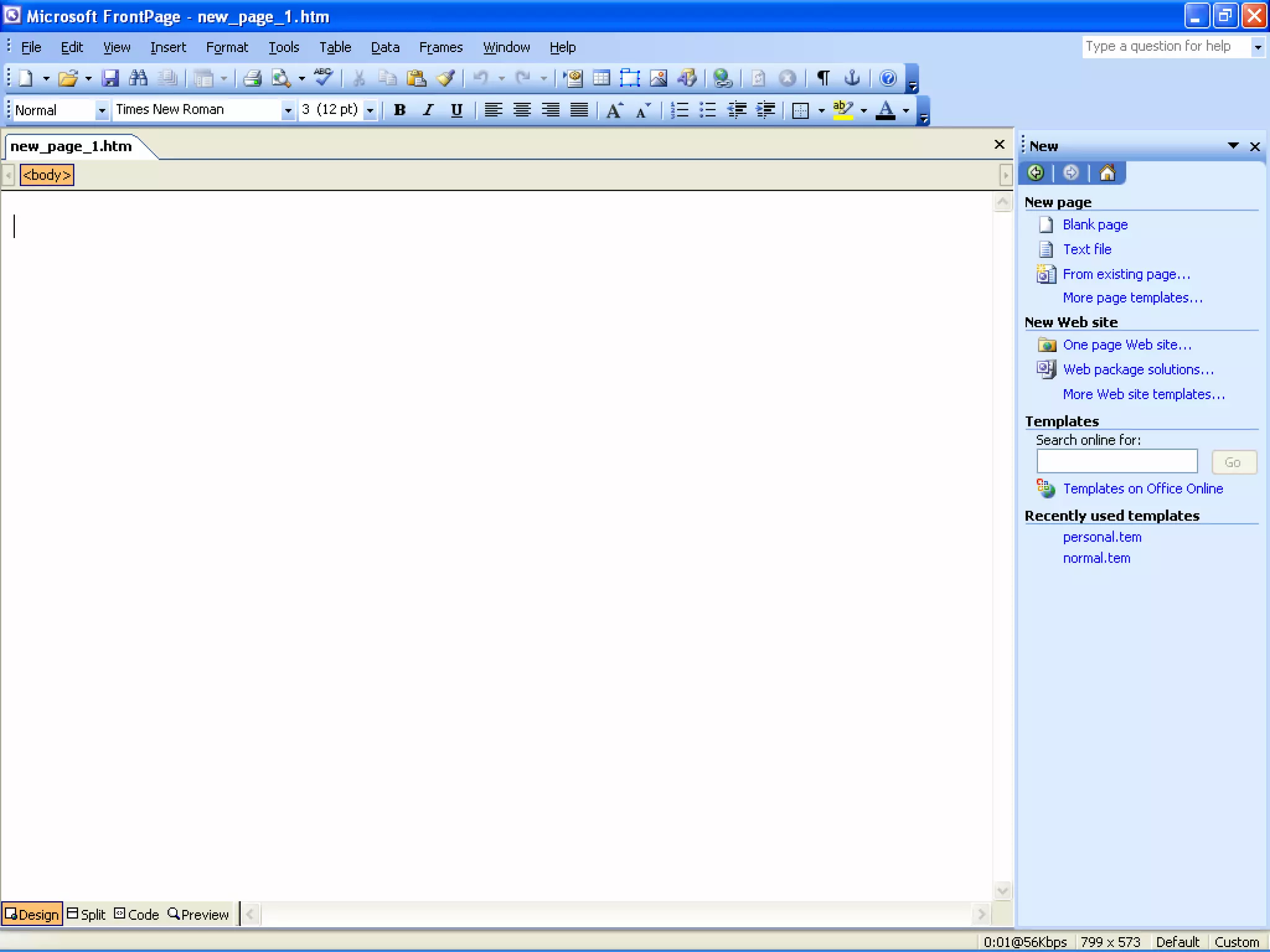
Microsoft FrontPage provides four views for
 working with web pages.
         Views                  Purpose
 Design                Provides a WYSIWYG - what you see
                       is what you get - view for editing


 Split
                       Allows you to view both the Design
                       and Code views.


 Preview               Allows you to preview the page as it
                       will appear in a web browser.
                       NOTE: This tab appears only if you
                       have Internet Explorer 3.0 or later
                       installed on your computer.

 Code                  Allows you to edit, delete, add, or
                       customize HTML code.
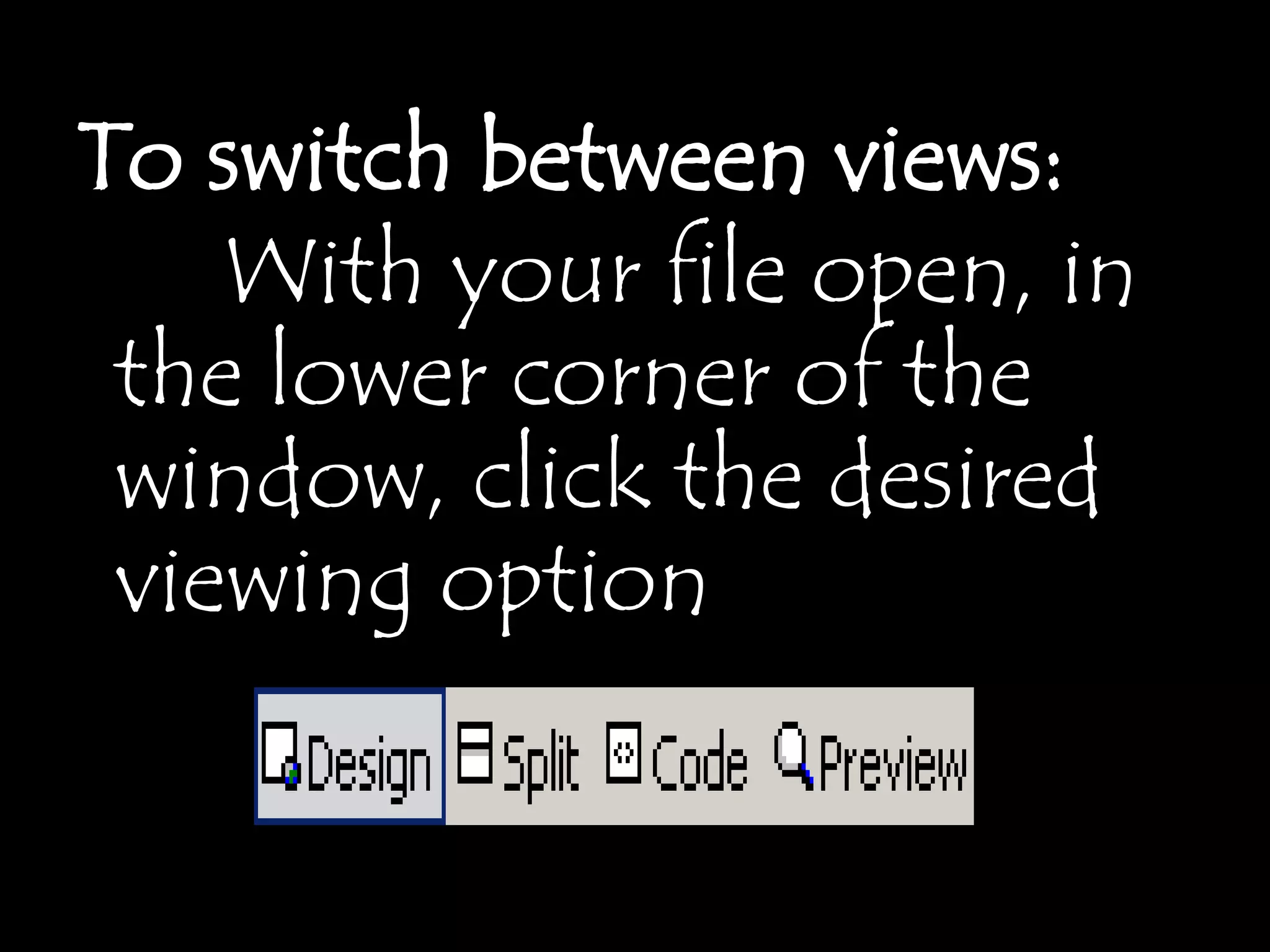
To switch between views:
    With your file open, in
 the lower corner of the
 window, click the desired
 viewing option
Opening a
   MS
FrontPage
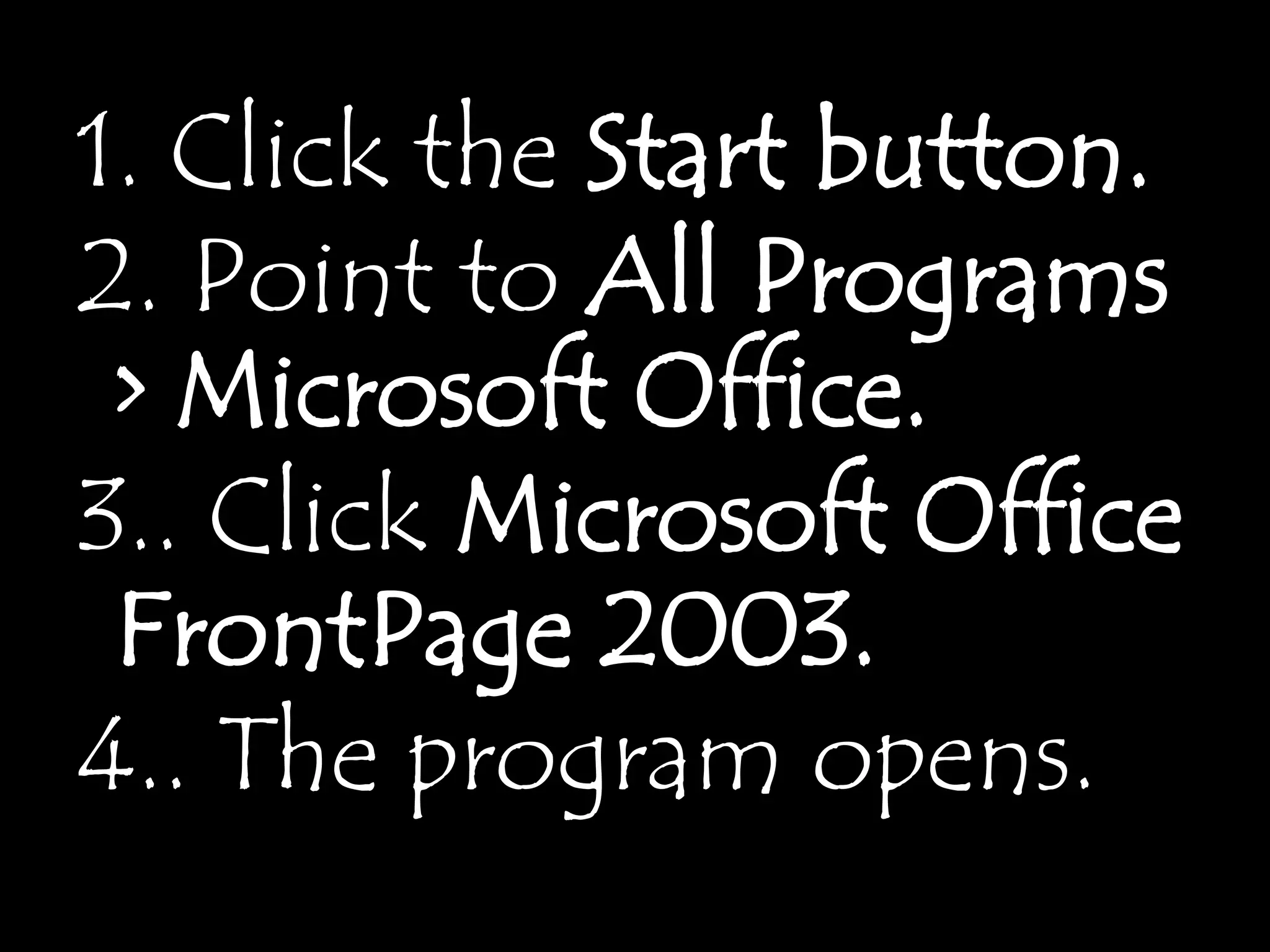
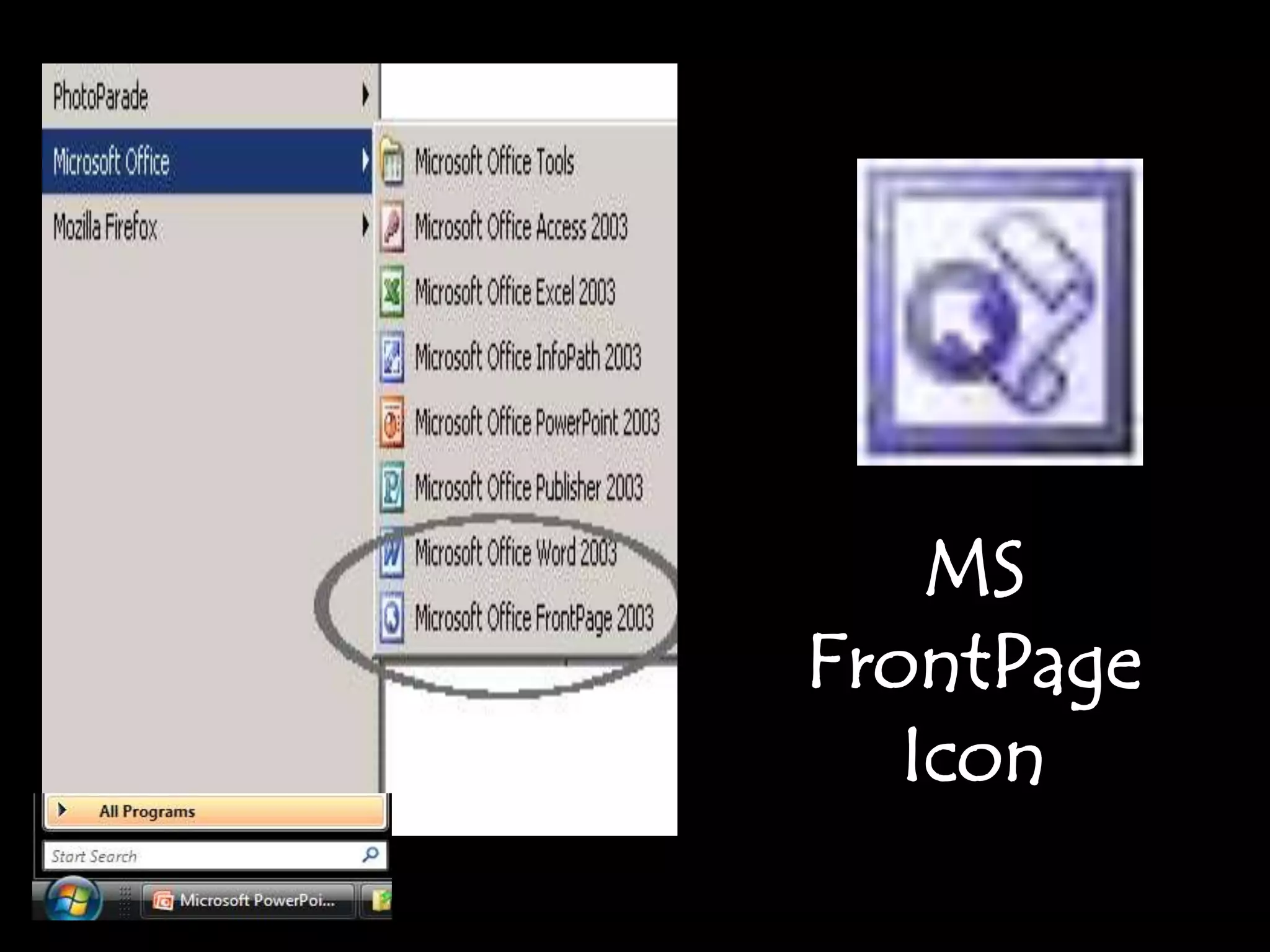
1. Click the Start button.
2. Point to All Programs
 > Microsoft Office.
3.. Click Microsoft Office
 FrontPage 2003.
4.. The program opens.
MS
FrontPage
   Icon
Creating a
New Web
   Page
To create a new, blank web
 page, use the following
 instructions:
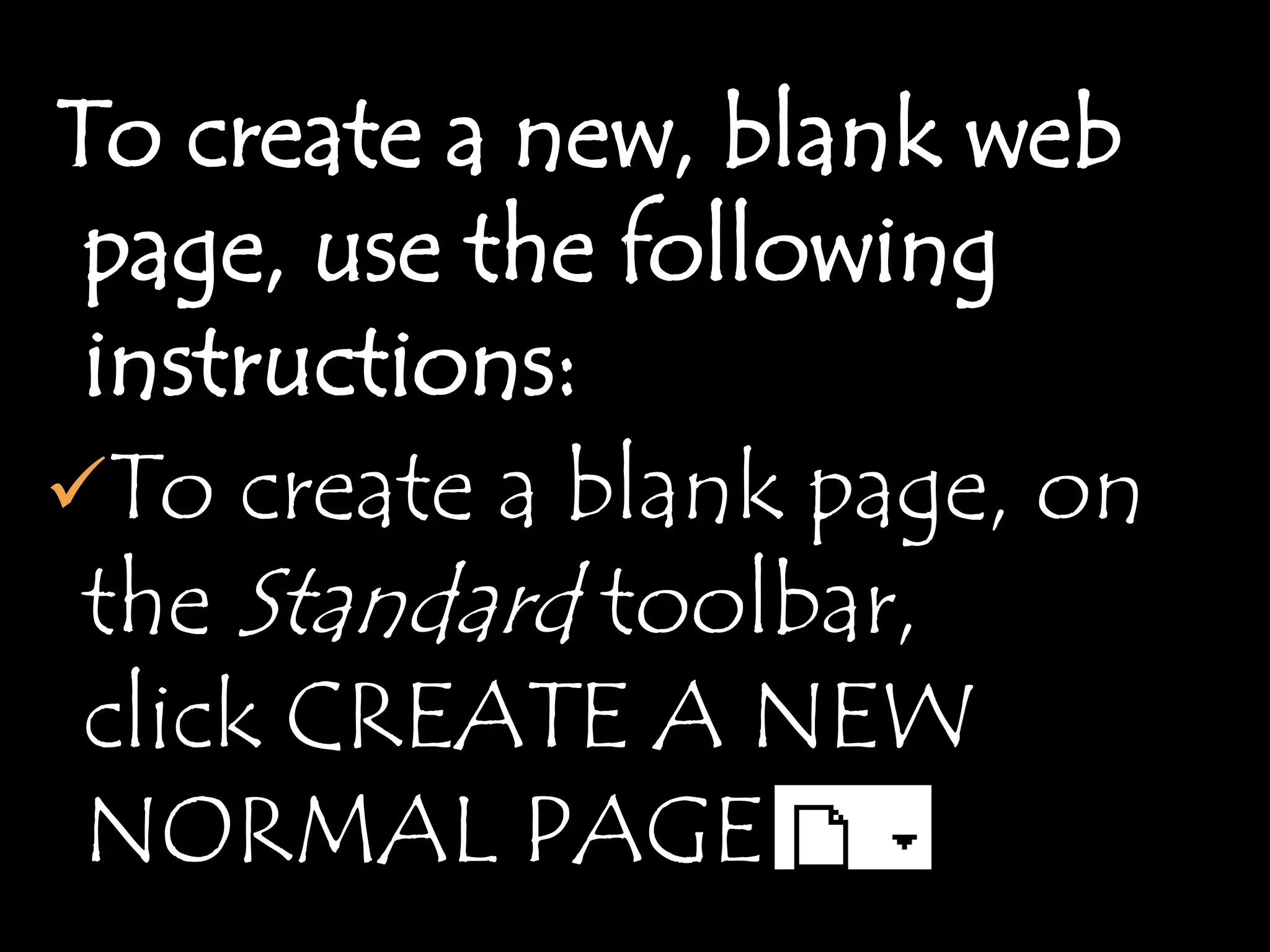
To create a blank page, on
 the Standard toolbar,
 click CREATE A NEW
 NORMAL PAGE
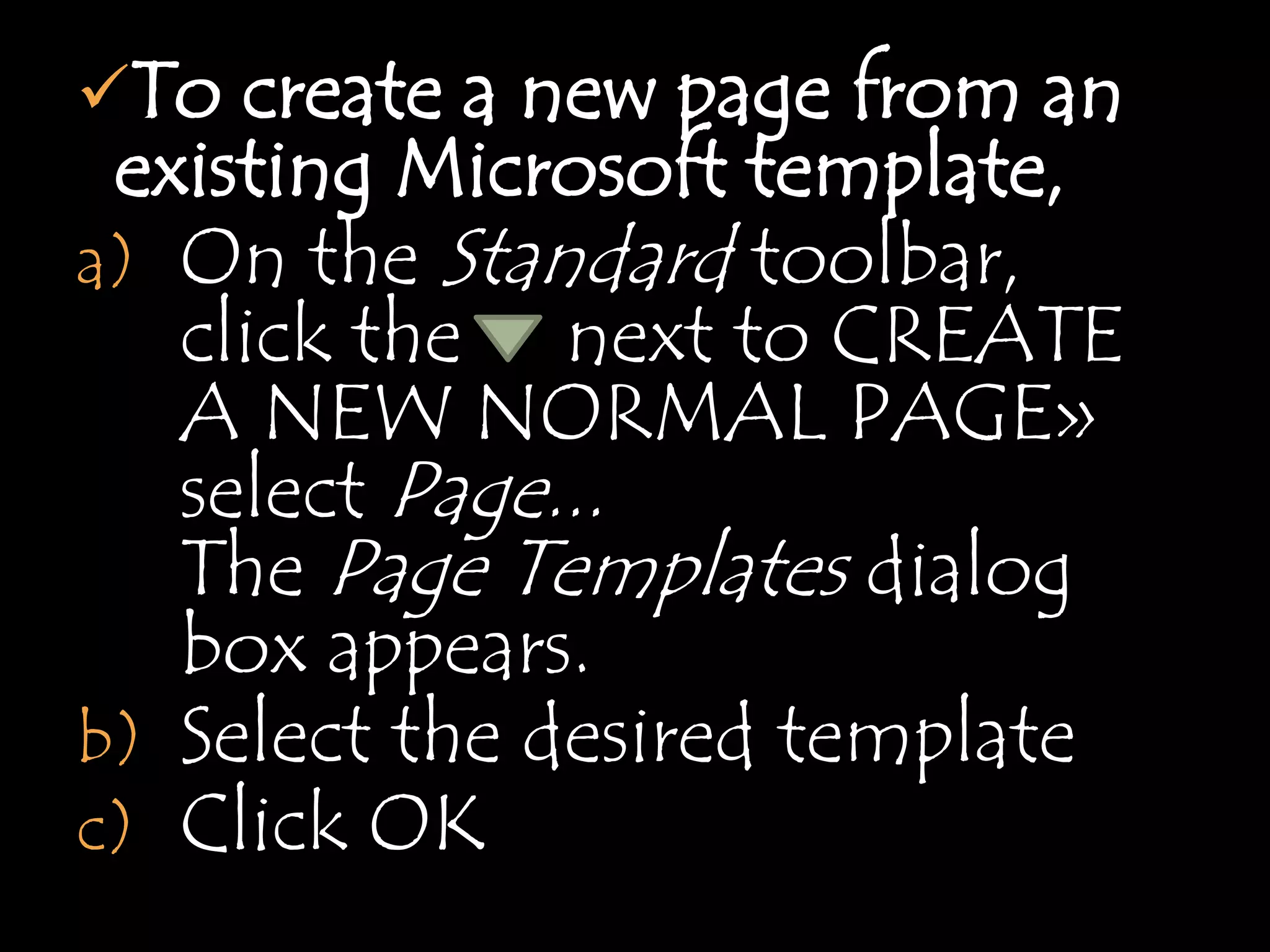
To create a new page from an
 existing Microsoft template,
a) On the Standard toolbar,
   click the next to CREATE
   A NEW NORMAL PAGE»
   select Page...
   The Page Templates dialog
   box appears.
b) Select the desired template
c) Click OK
Creating a
 New Web
Page: Menu
  Option
• From the   File menu, select New...
  The New task pane appears.
 To create a blank page, click BLANK
  PAGE
 To create a new page from an existing
  Microsoft template,
  a) Under New page, click MORE PAGE
    TEMPLATES...
    The Page Templates dialog box
    appears.
 b) Select the desired template
 c) Click OK
Adding or
Modifying a
  Title
The title of a web page is
 used to identify browser
 bookmarks, is used by
 search engines to locate
 pages, and makes pages
 more accessible for all
 users.
Steps
a) From
   the File menu, select Properties...
   The Page Properties dialog box
   appears.
b) Select the General tab
c) In the Title text box, type the
   desired title
d) Click OK
Saving
   a
Web Page
To save a web page, you must give
the page a filename. The filename is the
name of the page as it appears in your
operating system. Web pages require
an .htm or .html file extension. This is
essential for the web browser to
identify your file as a web page. For
more information, refer to Naming
Files & Understanding URLs in
the UWEC Web Development
Tools series.
 From theFile menu, select Save As...
 The Save As dialog box appears.
 If necessary, change the save location
 In the   File name text box, type the
  desired filename
  NOTE: The filename must have
  an .htm or .html extension.
  EXAMPLE: Type mydoc.html
 Click SAVE
Exiting
FrontPage
When you are finished
using FrontPage, simply exit
the program. If you have not
saved recently, a dialog box
may appear, asking if you
want to save before closing
the program.
From the   File menu, select Exit
OR
In the upper right corner of the
window, click the X
A dialog box may appear,
asking if you want to save your
changes to any open
documents.
 To save changes and exit
 FrontPage, click YES
To discard changes and exit
 FrontPage, click NO
To continue working in
 FrontPage, click CANCEL

MS frontpage 2003

  • 2.
  • 3.
    Microsoft FrontPage isa WYSIWYG HTML editor and web site administration tool from Microsoft for the Microsoft Windows line of operating systems.
  • 4.
    It was brandedas part of the Microsoft Office suite from 1997 to 2003. Microsoft FrontPage has since been replaced by Microsoft Expression Web and Sharepoint Designer, which were first released in December 2006.
  • 5.
  • 6.
    Microsoft FrontPage providesfour views for working with web pages. Views Purpose Design Provides a WYSIWYG - what you see is what you get - view for editing Split Allows you to view both the Design and Code views. Preview Allows you to preview the page as it will appear in a web browser. NOTE: This tab appears only if you have Internet Explorer 3.0 or later installed on your computer. Code Allows you to edit, delete, add, or customize HTML code.
  • 7.
    To switch betweenviews: With your file open, in the lower corner of the window, click the desired viewing option
  • 8.
    Opening a MS FrontPage
  • 9.
    1. Click theStart button. 2. Point to All Programs > Microsoft Office. 3.. Click Microsoft Office FrontPage 2003. 4.. The program opens.
  • 10.
  • 12.
  • 13.
    To create anew, blank web page, use the following instructions: To create a blank page, on the Standard toolbar, click CREATE A NEW NORMAL PAGE
  • 14.
    To create anew page from an existing Microsoft template, a) On the Standard toolbar, click the next to CREATE A NEW NORMAL PAGE» select Page... The Page Templates dialog box appears. b) Select the desired template c) Click OK
  • 15.
    Creating a NewWeb Page: Menu Option
  • 16.
    • From the File menu, select New... The New task pane appears.  To create a blank page, click BLANK PAGE  To create a new page from an existing Microsoft template, a) Under New page, click MORE PAGE TEMPLATES... The Page Templates dialog box appears. b) Select the desired template c) Click OK
  • 17.
  • 18.
    The title ofa web page is used to identify browser bookmarks, is used by search engines to locate pages, and makes pages more accessible for all users.
  • 19.
    Steps a) From the File menu, select Properties... The Page Properties dialog box appears. b) Select the General tab c) In the Title text box, type the desired title d) Click OK
  • 20.
    Saving a Web Page
  • 21.
    To save aweb page, you must give the page a filename. The filename is the name of the page as it appears in your operating system. Web pages require an .htm or .html file extension. This is essential for the web browser to identify your file as a web page. For more information, refer to Naming Files & Understanding URLs in the UWEC Web Development Tools series.
  • 22.
     From theFilemenu, select Save As... The Save As dialog box appears.  If necessary, change the save location  In the File name text box, type the desired filename NOTE: The filename must have an .htm or .html extension. EXAMPLE: Type mydoc.html  Click SAVE
  • 23.
  • 24.
    When you arefinished using FrontPage, simply exit the program. If you have not saved recently, a dialog box may appear, asking if you want to save before closing the program.
  • 25.
    From the File menu, select Exit OR In the upper right corner of the window, click the X A dialog box may appear, asking if you want to save your changes to any open documents.
  • 26.
     To savechanges and exit FrontPage, click YES To discard changes and exit FrontPage, click NO To continue working in FrontPage, click CANCEL