www.MostafaElzoghbi.com
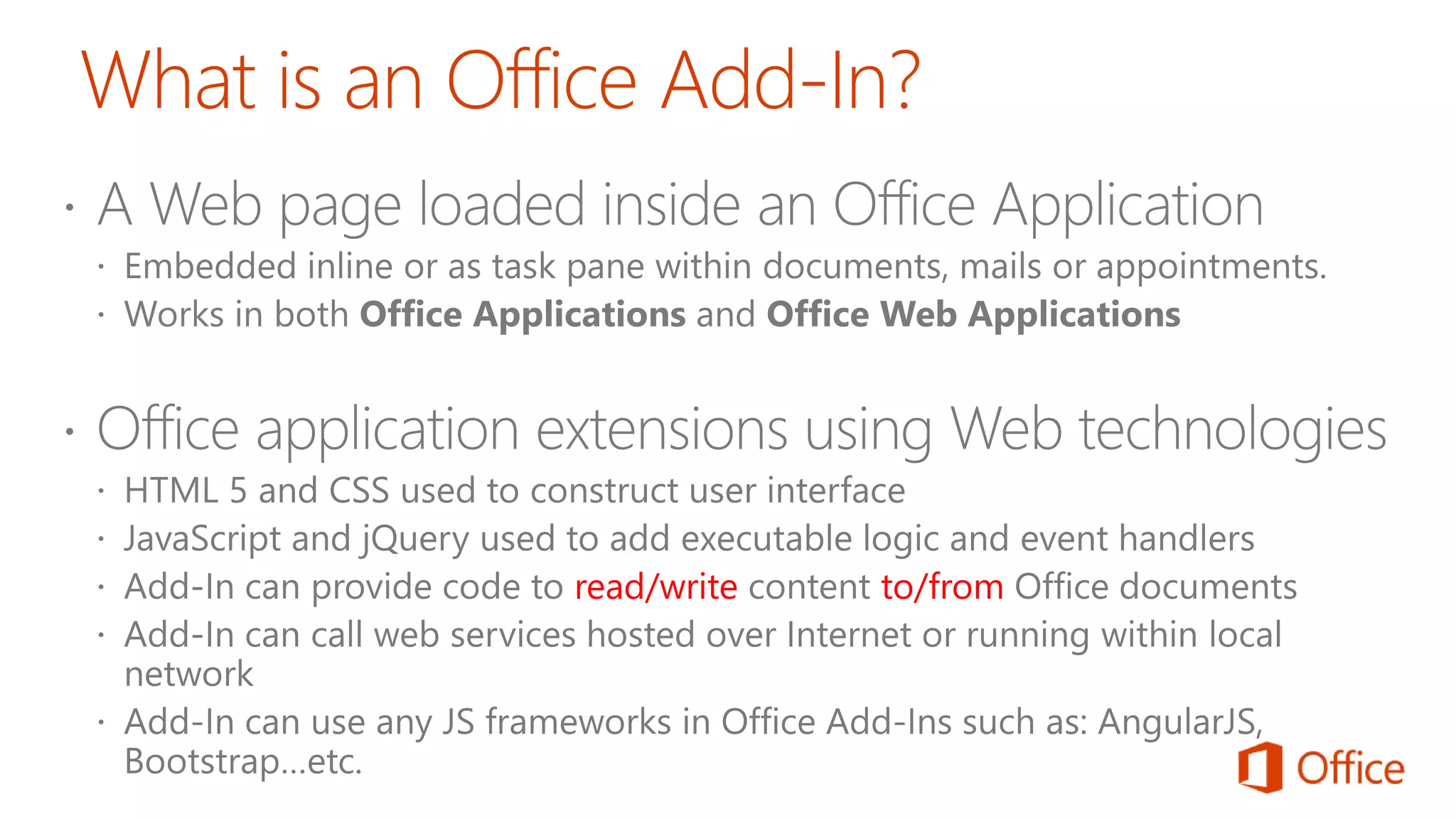
read/write to/from
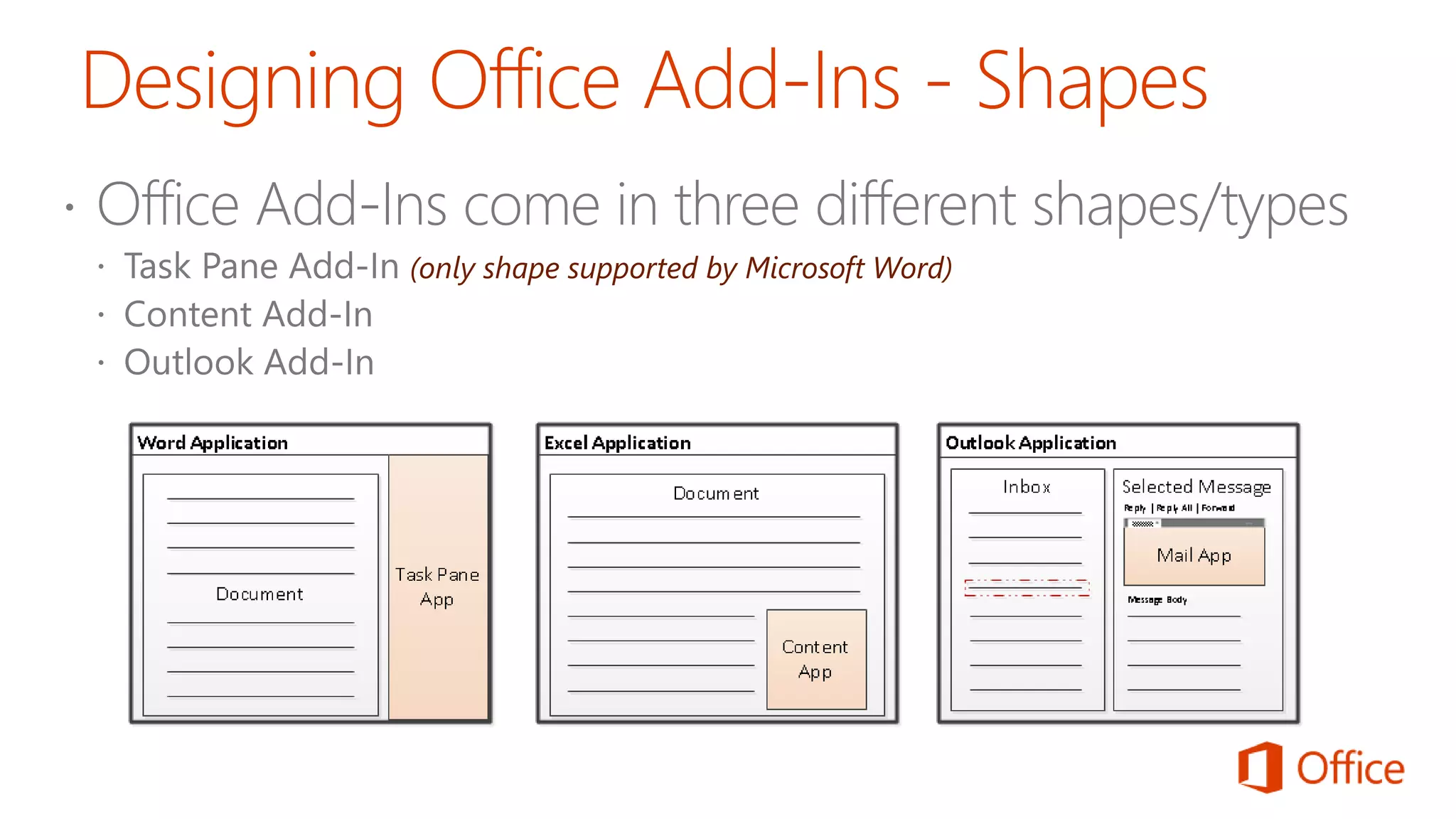
(only shape supported by Microsoft Word)
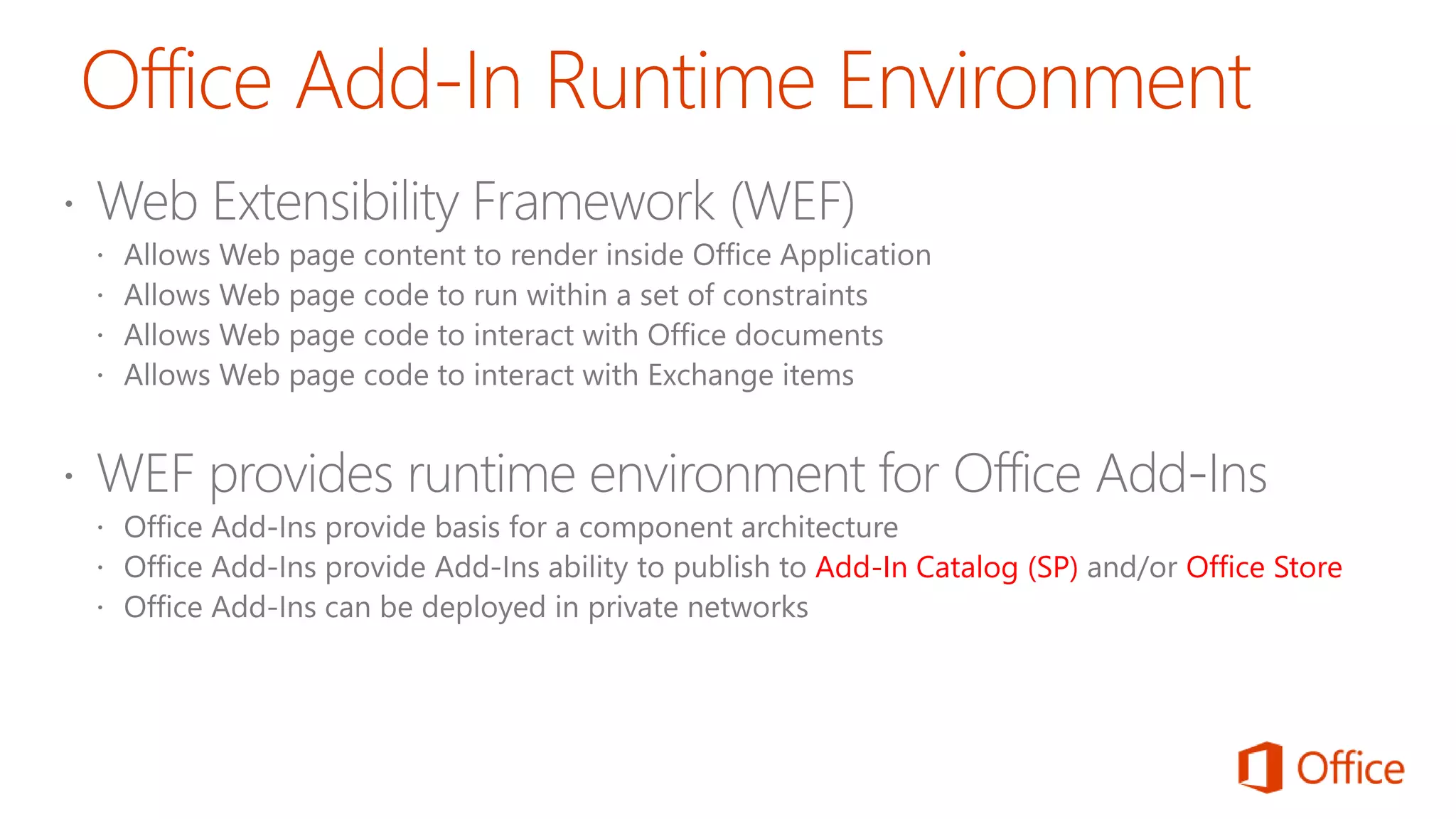
Add-In Catalog (SP) Office Store
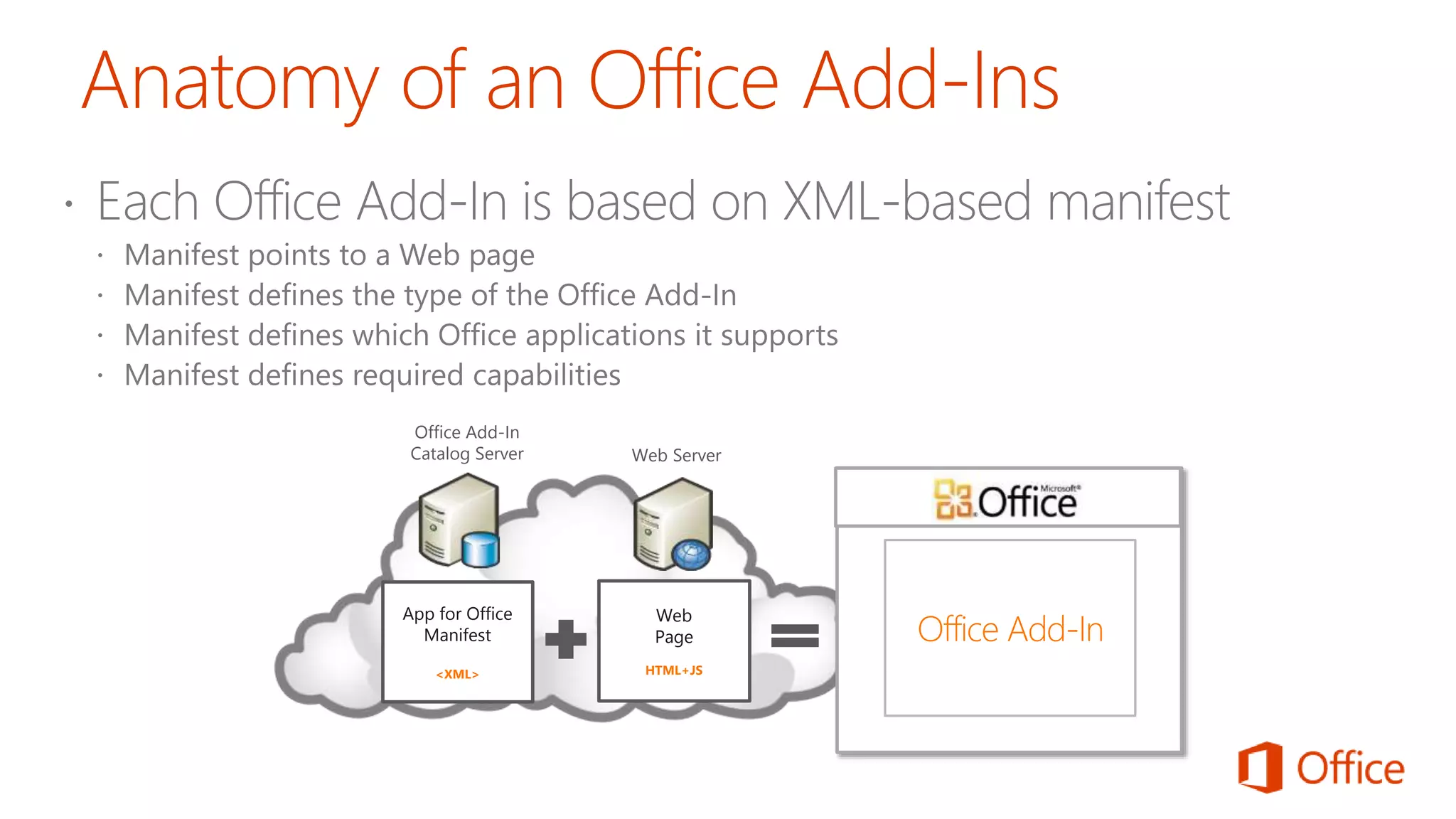
App for Office
Manifest
<XML>
Web
Page
HTML+JS
Office Add-In
Catalog Server Web Server
Office Add-In
accessibility
responsive
touch
Office UI Fabric OSS
ASP.NET
Azure + o365
• Fully flexible: Private, on premises,
hybrid or cloud
• The power of o365: Leverage Office,
SharePoint and Exchange Online as

your application building blocks
• Identity is the glue that makes all of
that possible
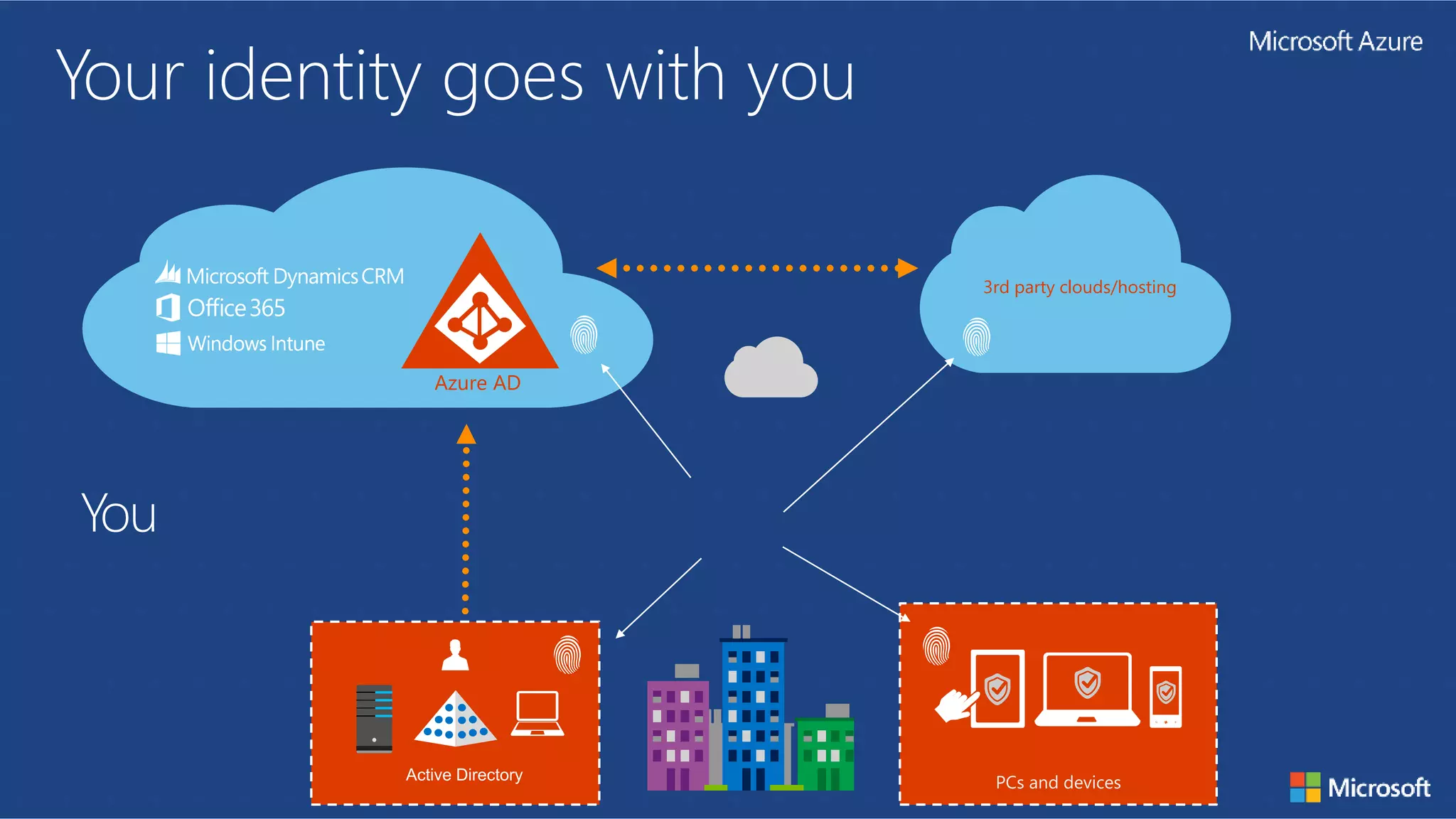
Your identity goes with you
3rd party clouds/hosting
Azure AD
You
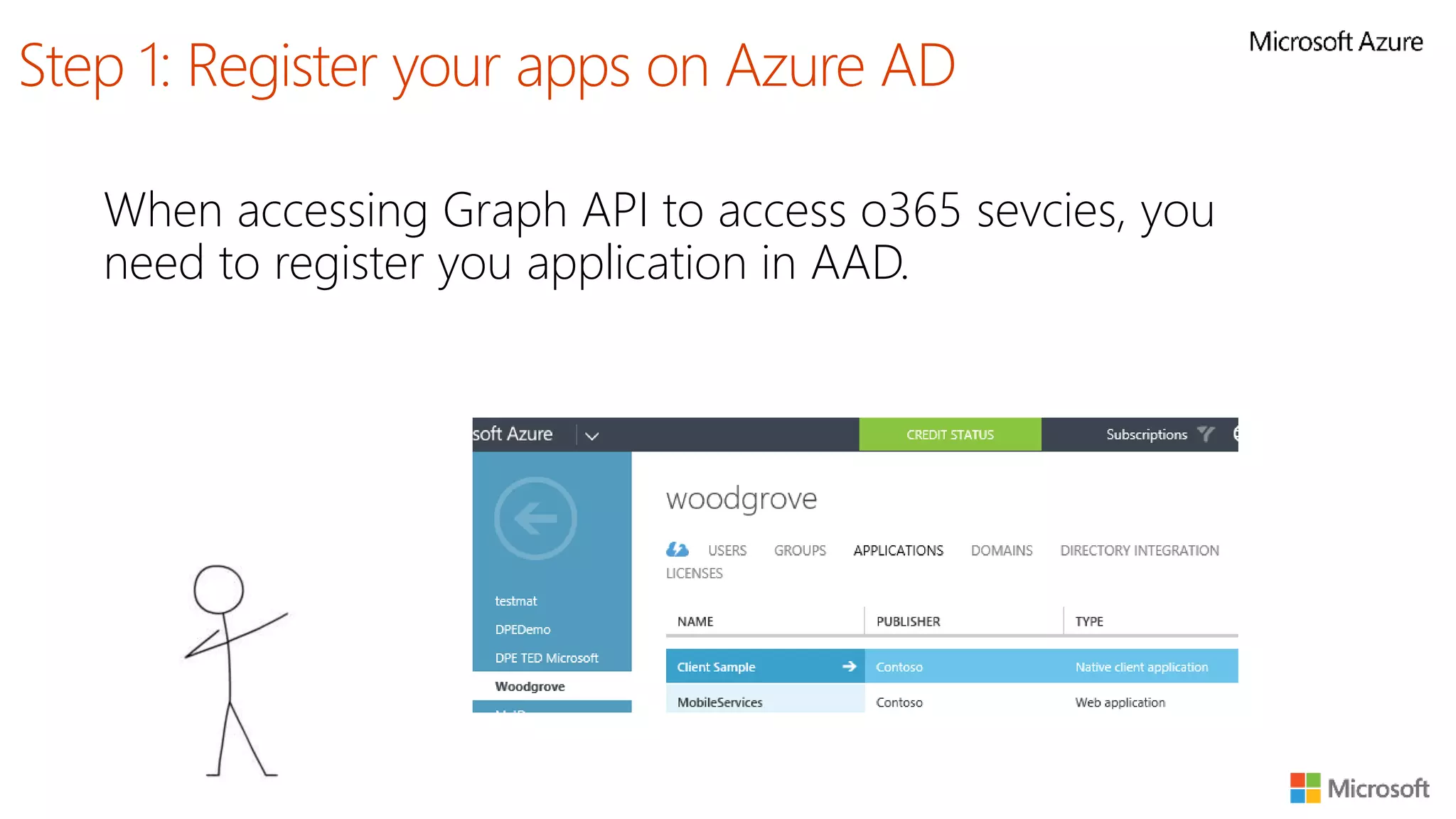
When accessing Graph API to access o365 sevcies, you
need to register you application in AAD.
Step 1: Register your apps on Azure AD
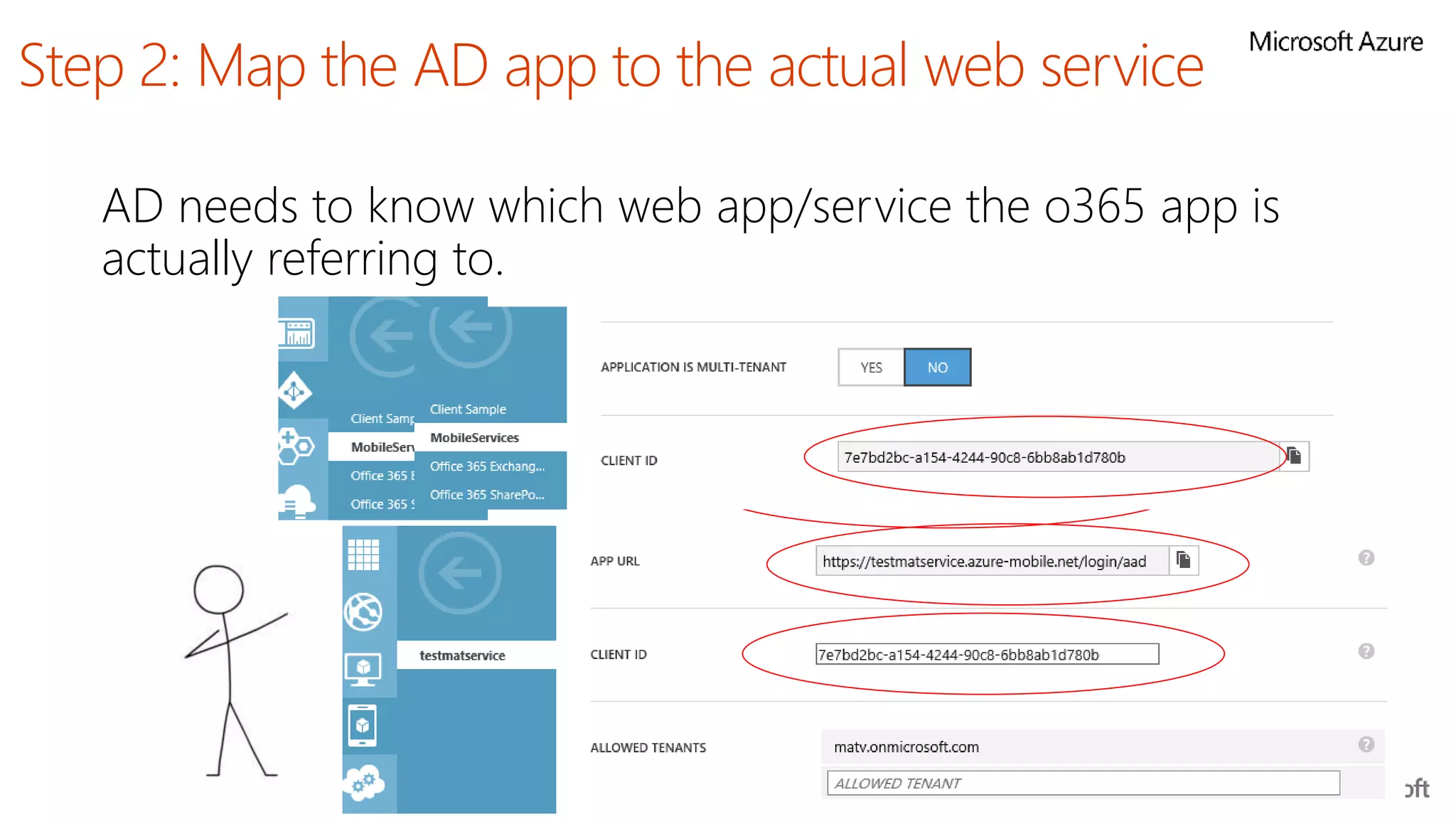
AD needs to know which web app/service the o365 app is
actually referring to.
Step 2: Map the AD app to the actual web service
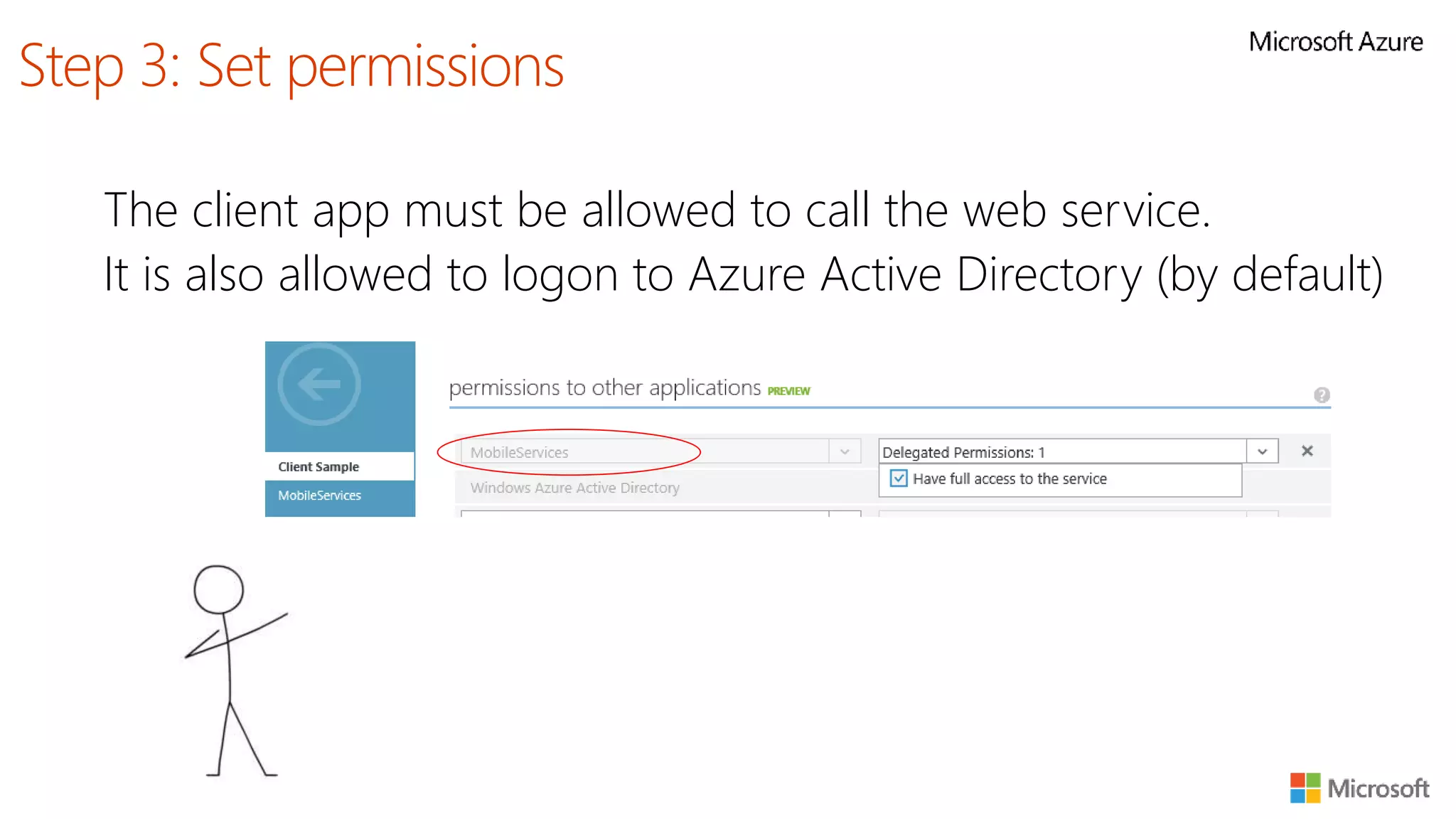
The client app must be allowed to call the web service.
It is also allowed to logon to Azure Active Directory (by default)
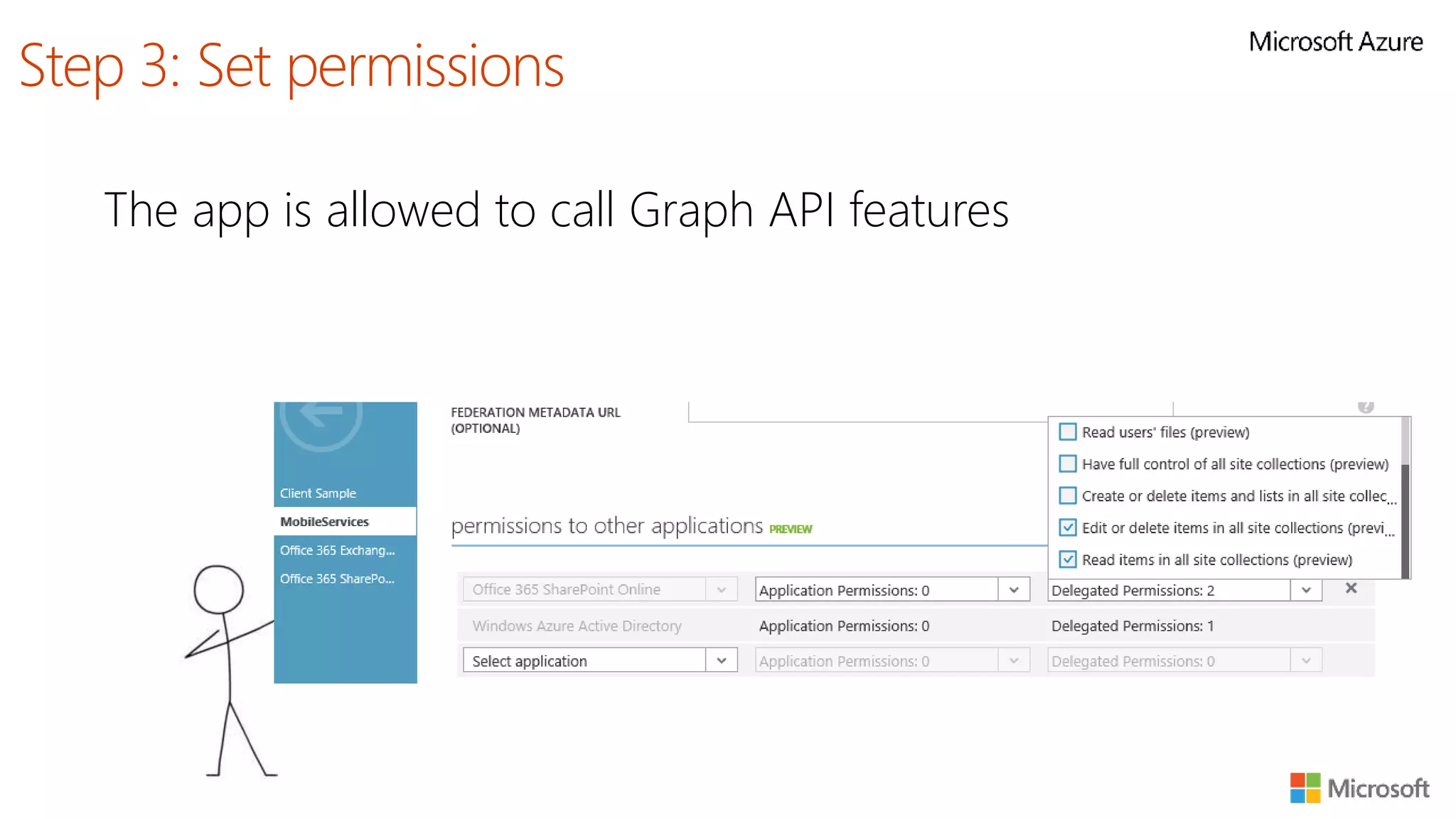
Step 3: Set permissions
The app is allowed to call Graph API features
Step 3: Set permissions
http://dev.office.com/
http://dev.office.com/patterns-and-practices
https://github.com/OfficeDev/PnP-OfficeAddins
WWW.MOSTAFAELZOGHBI.COM

PnP in building office add ins - public

Editor's Notes

  • #4 An App for Office can be seen as a Web page loaded inside an Office Application. In some cases it will appear embedded inline within the document. In other cases it might appear as a task pane or within a message in Outlook. Note that the architecture for Apps for Office has been designed to work in both Office Applications and Office Web Applications. WEF and Apps for Office allow Office applications to be extended in such as way so that they can leverage Web technologies such as HTML 5 and CSS for rendering user interface as well as JavaScript and jQuery to add behavior. When you write the JavaScript code for an App for Office, you can call REST APIs such as those added to SharePoint 2013 to retrieve and update data from across network.
  • #5 When you begin to design an add-in, you must pick one of the three different shapes. You can create a document-based add-in as either a Task Pane add-in or a Content add-in. Alternatively, you can create a Outlook Add-In that targets Outlook and Outlook OWA. Requirements for running Office Add-Ins: https://msdn.microsoft.com/EN-US/library/office/dn833104.aspx
  • #6 The Web Extensibility Framework (WEF) is a new development platform used to extend Office applications. This platform allows Web page content to render inside Office Application and to interact with Office documents such as Word document and Excel workbooks and Exchange items such as messages and appointments. The WEF development platform is used to develop Office Add-Ins. Office Add-Ins provide basis for a component architecture which allows developers to build apps which target Office application and Office Web applications such as Excel services and Outlook Web Access. WEF and the Office Add-Ins development model provide foundation for distribution of apps using an app directory such as the Office Store and the App Corporate Catalog used to deploy apps in private networks.
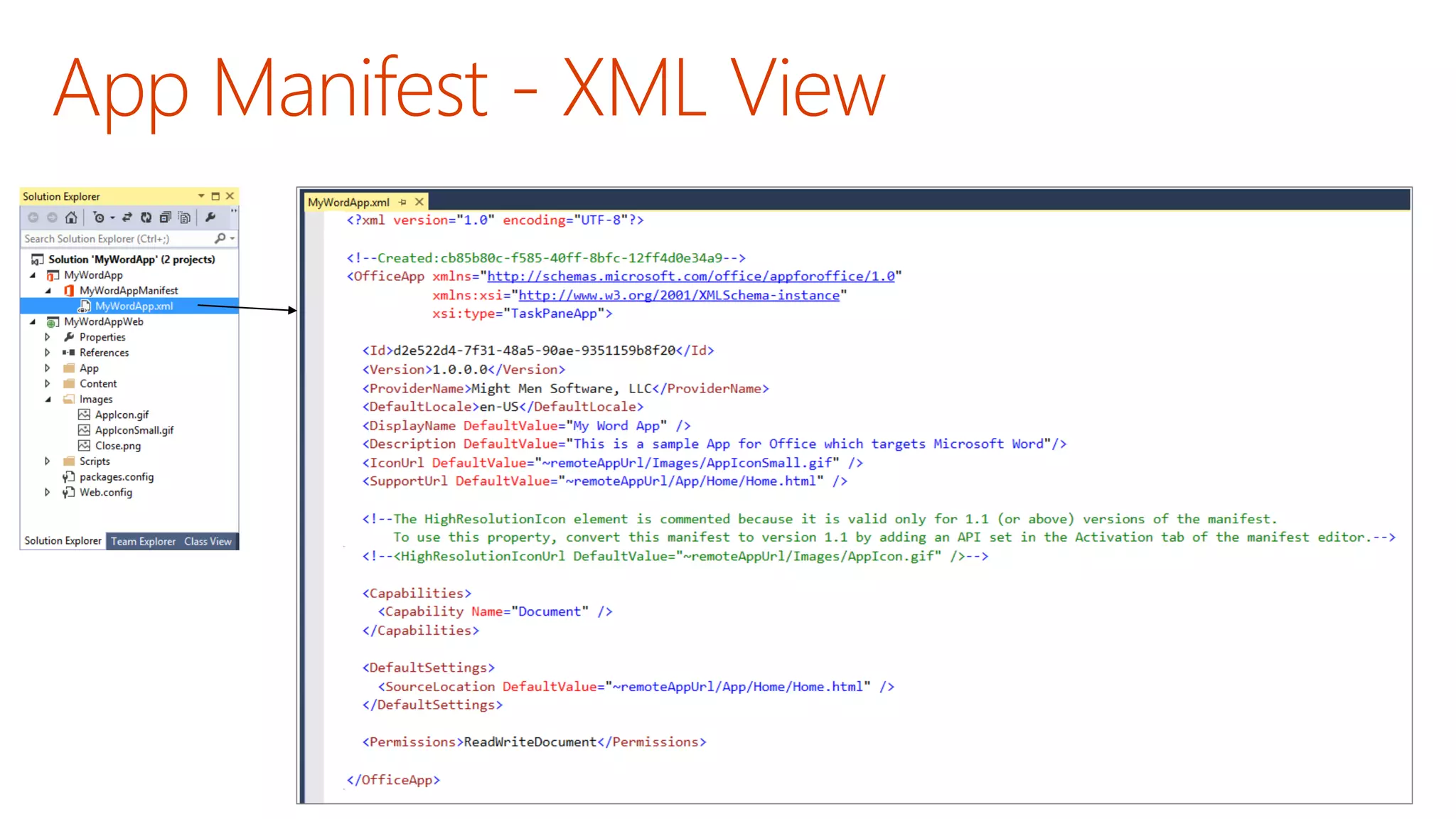
  • #7 Every Office Add-In must be distributed with an XML-based manifest which contains information about the app itself. For example, the app manifest contains an address to a Web page on the Internet which is used to load the app. The app manifest also includes information which indicates which Office applications it supports. The app manifest also defines the required capabilities which represent the set of permissions that the app needs in order to run and complete its work.
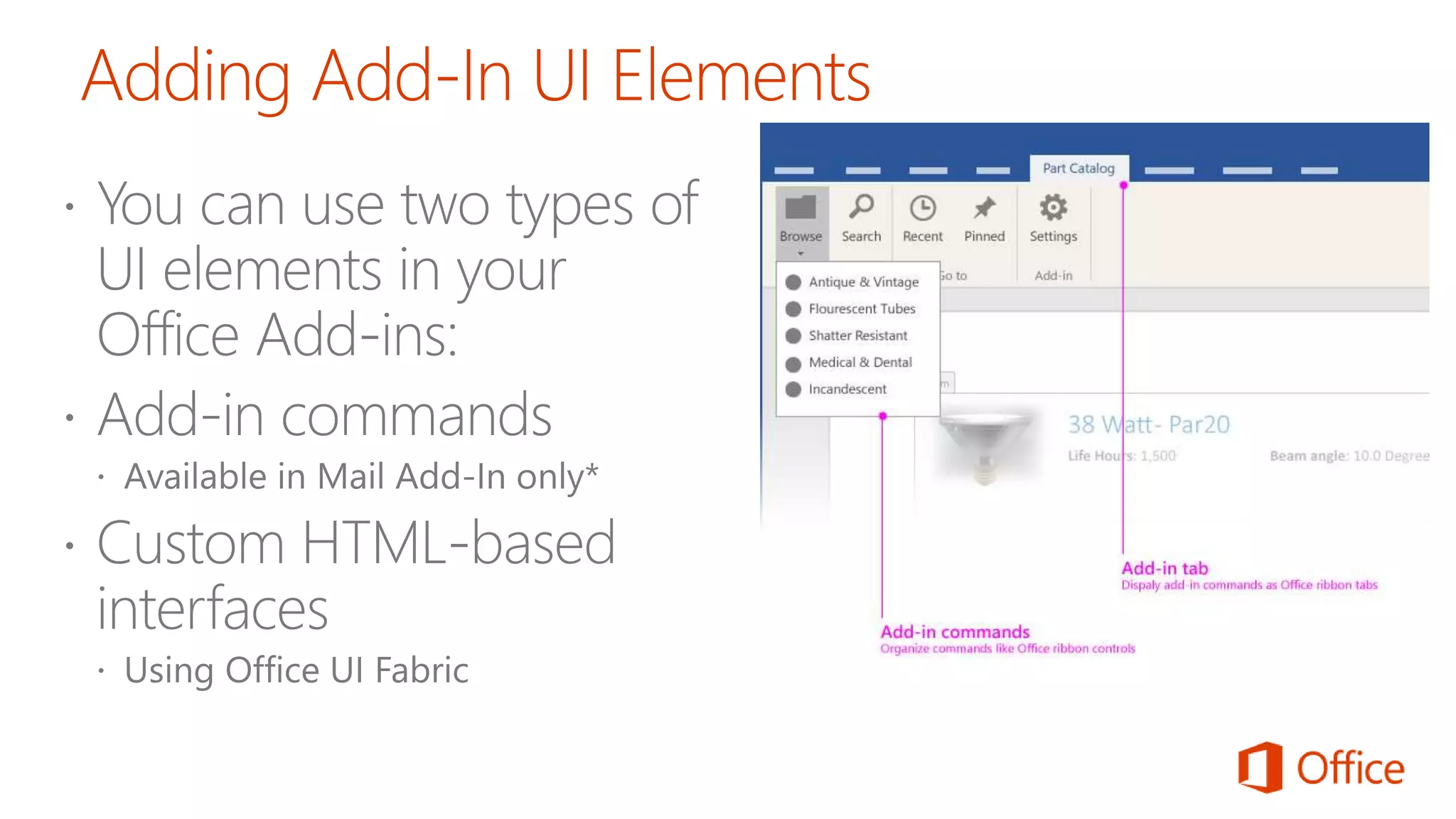
  • #8 Currently, add-in commands are only supported for mail add-ins. To learn more, see Add-in commmands for mail. Excel, PowerPoint, and Word have predefined entry points for task pane and content add-ins on the Insert tab in the Office ribbon. Custom command functionality for content and task pane add-ins will be available soon. Ref: https://msdn.microsoft.com/EN-US/library/office/mt484314.aspx
  • #9 Url: https://www.napacloudapp.com/Getting-Started Create content add-in (Basic & Visualization) Create Task Pane add-in Create Mail Add-In
  • #10 Ref.: https://msdn.microsoft.com/EN-US/library/office/mt590883.aspx
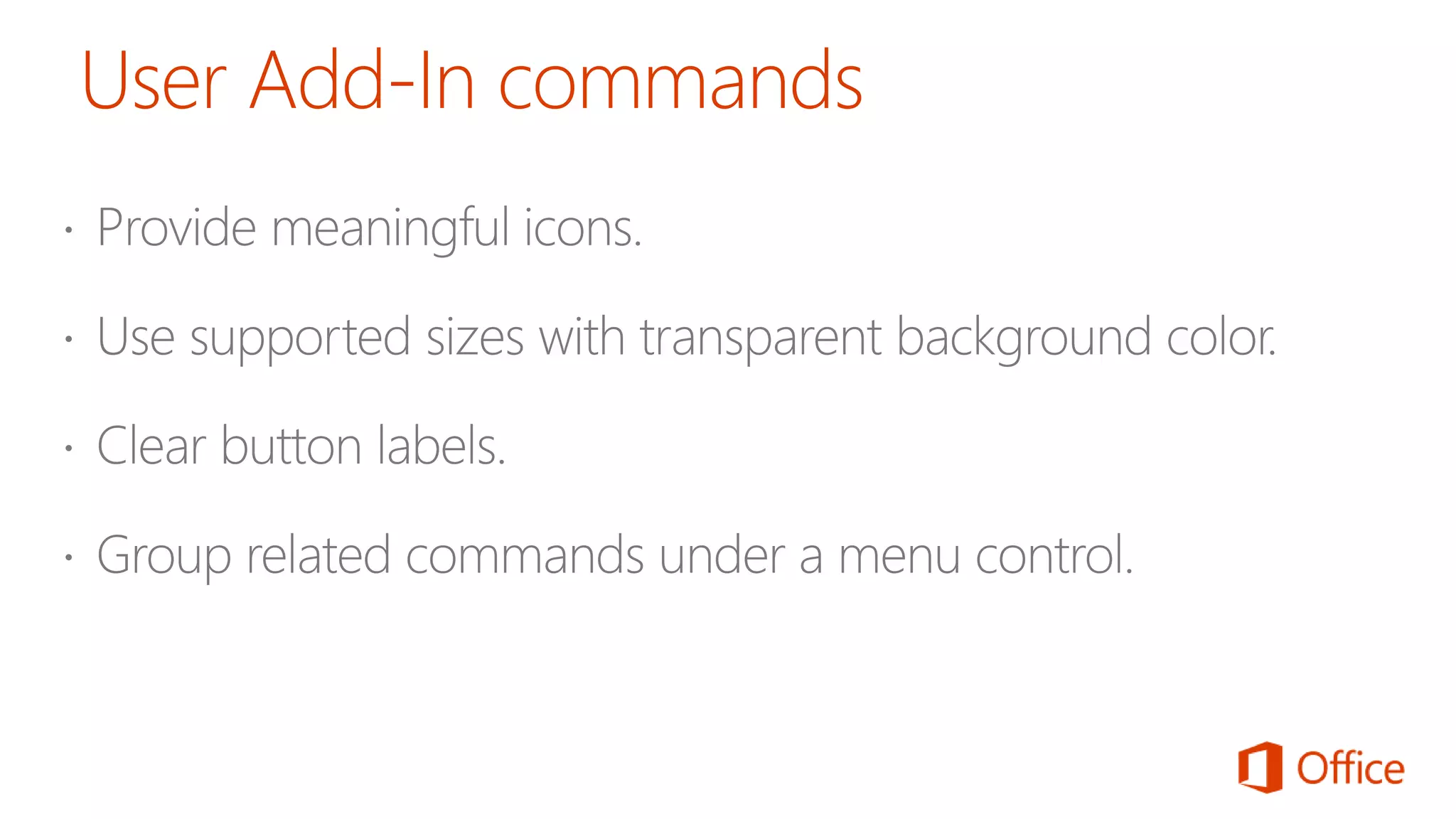
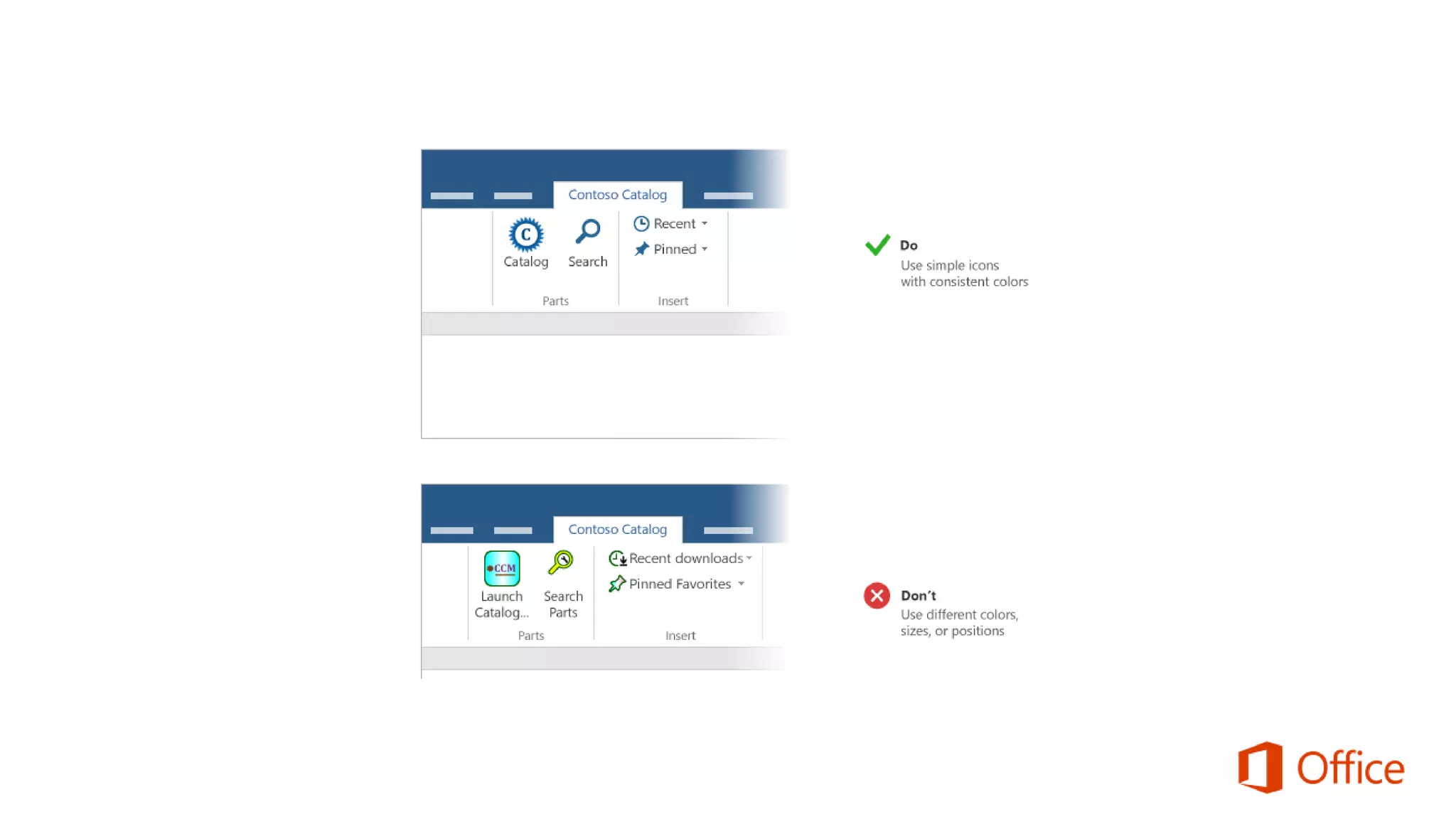
  • #13 Add-in command design best practices Use commands to represent a specific action with a clear and specific outcome for users. Do not combine multiple actions in a single button. Provide granular actions that make common tasks within your add-in more efficient to perform. Minimize the number of steps an action takes to complete. Provide meaningful icons and labels for buttons that clearly identify the action the user is taking. For all icons: Use PNG format with a transparent background. Include all eight supported sizes. This creates the best experience for all supported resolutions. Match the Office visual style. For example: Keep your shapes simple and avoid multiple colors. Complex graphics are difficult to see at smaller sizes and resolutions. Don't reuse visual metaphors for dissimilar commands. The same icon used for different actions will cause confusion. Make your button labels clear and succinct. Use a combination of visual and textual information to convey meaning. Test your icons in light and dark Office themes and high contrast settings. Note that icons might be difficult to see on dark backgrounds or in high contrast mode. Use consistent icon sizes and positions to help with visual alignment on the ribbon.
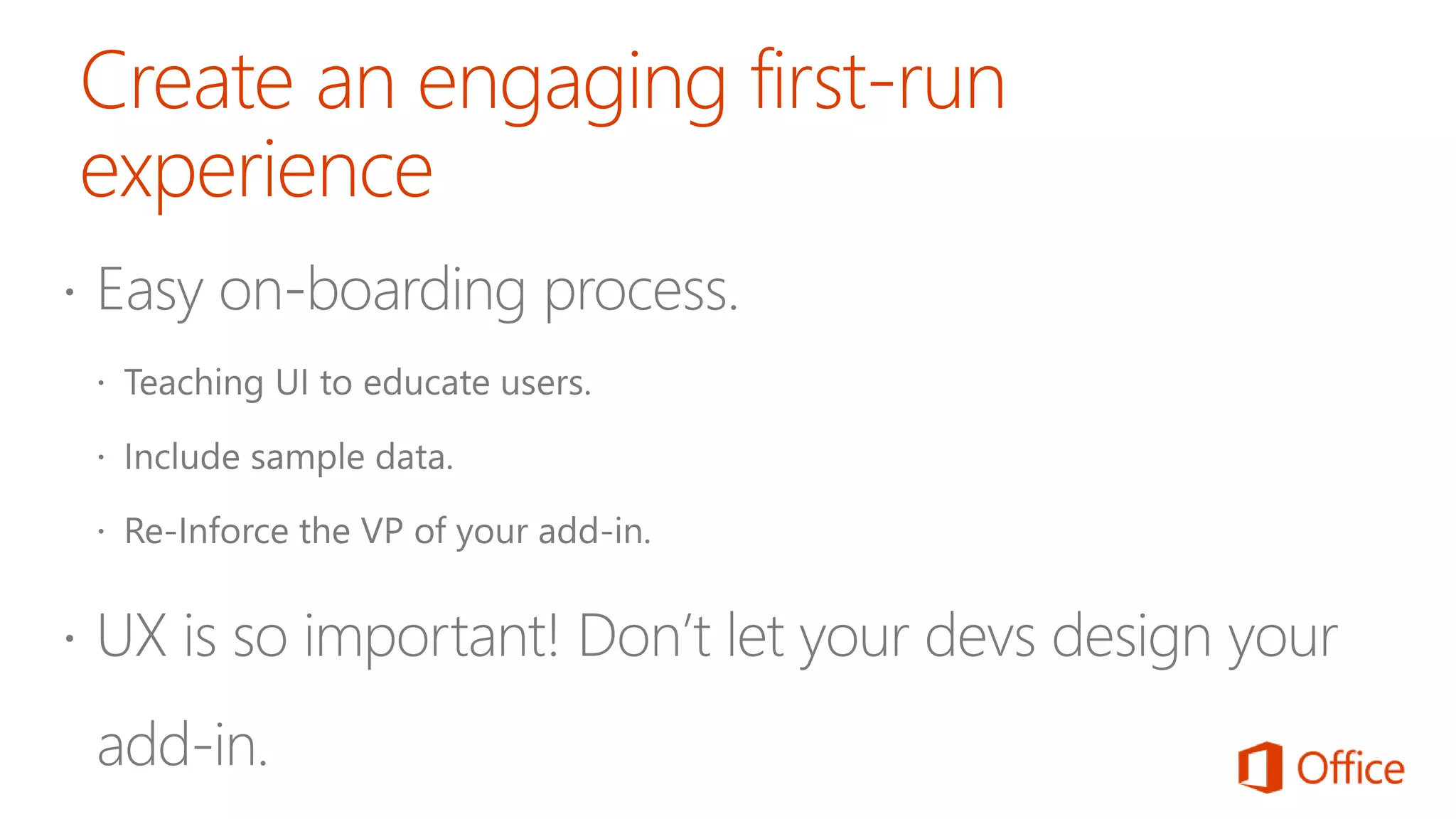
  • #14  Ref.: https://msdn.microsoft.com/EN-US/library/office/mt590883.aspx#bk_firstrun
  • #16 Office UI Fabric is a responsive, mobile-first, front-end framework that you can use to apply the Office Design Language to your web experiences. Whether you’re creating a new app or add-in or updating an existing one, Fabric makes it easy to get up and running. Office UI Fabric: https://github.com/OfficeDev/Office-UI-Fabric#get-started
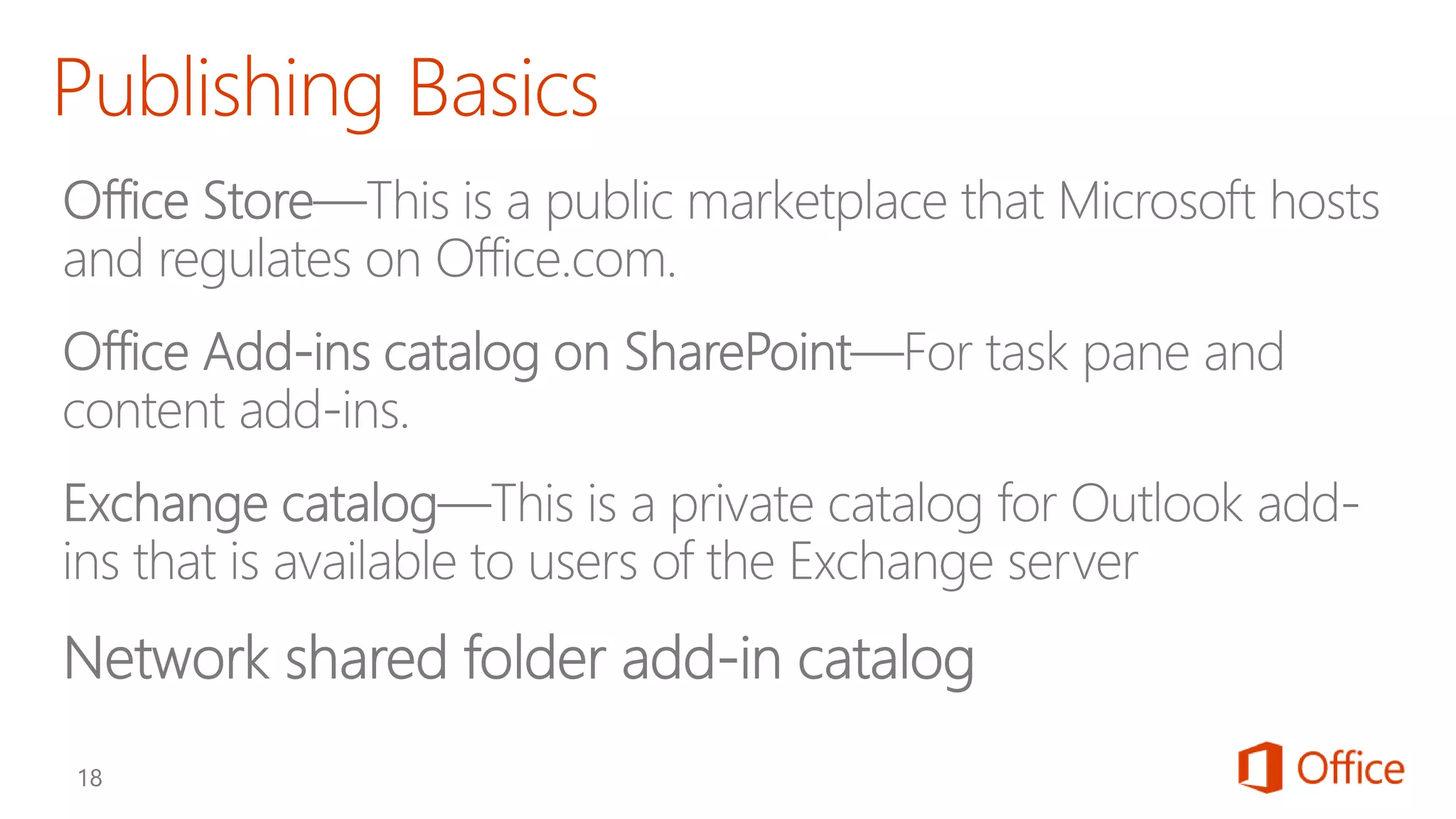
  • #19 Office Store: In the Office Store, developers around the world can publish and sell their custom Office solutions, and then end users and IT professionals can download them for personal or corporate use. When a developer uploads an add-in to the Office Store, Microsoft validates the code. For example, it verifies that the add-in manifest markup is valid and complete. If the code is valid, Microsoft digitally signs the add-in package. The Office Store then takes care of the consumer download experience from discovery to purchase, upgrades, and updates. Office Add-Ins catalog on SP: This new catalog and development platform enables IT departments to use a streamlined method to distribute Office and SharePoint Add-ins to managed users from a central location. Add-in catalogs are available to all SharePoint 2013 customers (including Office 365 and SharePoint on-premise). An add-in catalog enables publishing and management of both internally created add-ins as well as add-ins that are available in the Office Store and licensed for corporate use. Exchange catalog: It enables publishing and management of corporate Outlook add-ins, including internally created add-ins as well as add-ins that are available in the Office Store and licensed for corporate use. Network shared folder add-in catalog: IT departments and developers can also deploy task pane and content add-ins to a central network shared folder, where the manifest files will be stored and managed. Users can then acquire add-ins by specifying this shared folder as a trusted catalog, or IT departments can configure this shared folder as a trusted catalog by using a registry setting.
  • #20 Go through the components and files of office UI fabric CSS, JS , Components, Forms, Icons and Samples. Getting Started Ref: http://dev.office.com/fabric/getting-started#download Office Fabric UI git Repo: https://github.com/OfficeDev/Office-UI-Fabric Office UI Fabric: http://dev.office.com/fabric/what-is-fabric
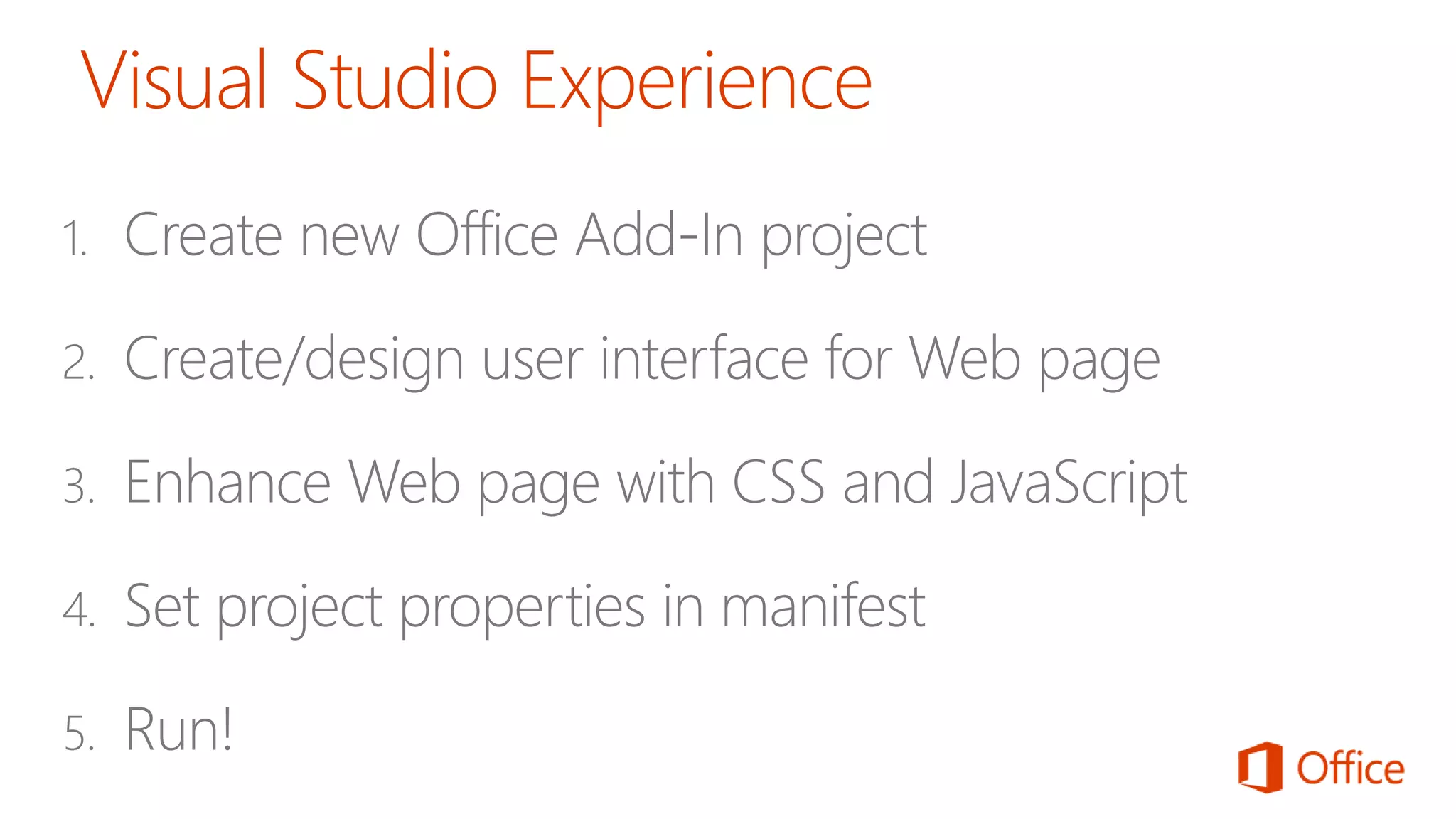
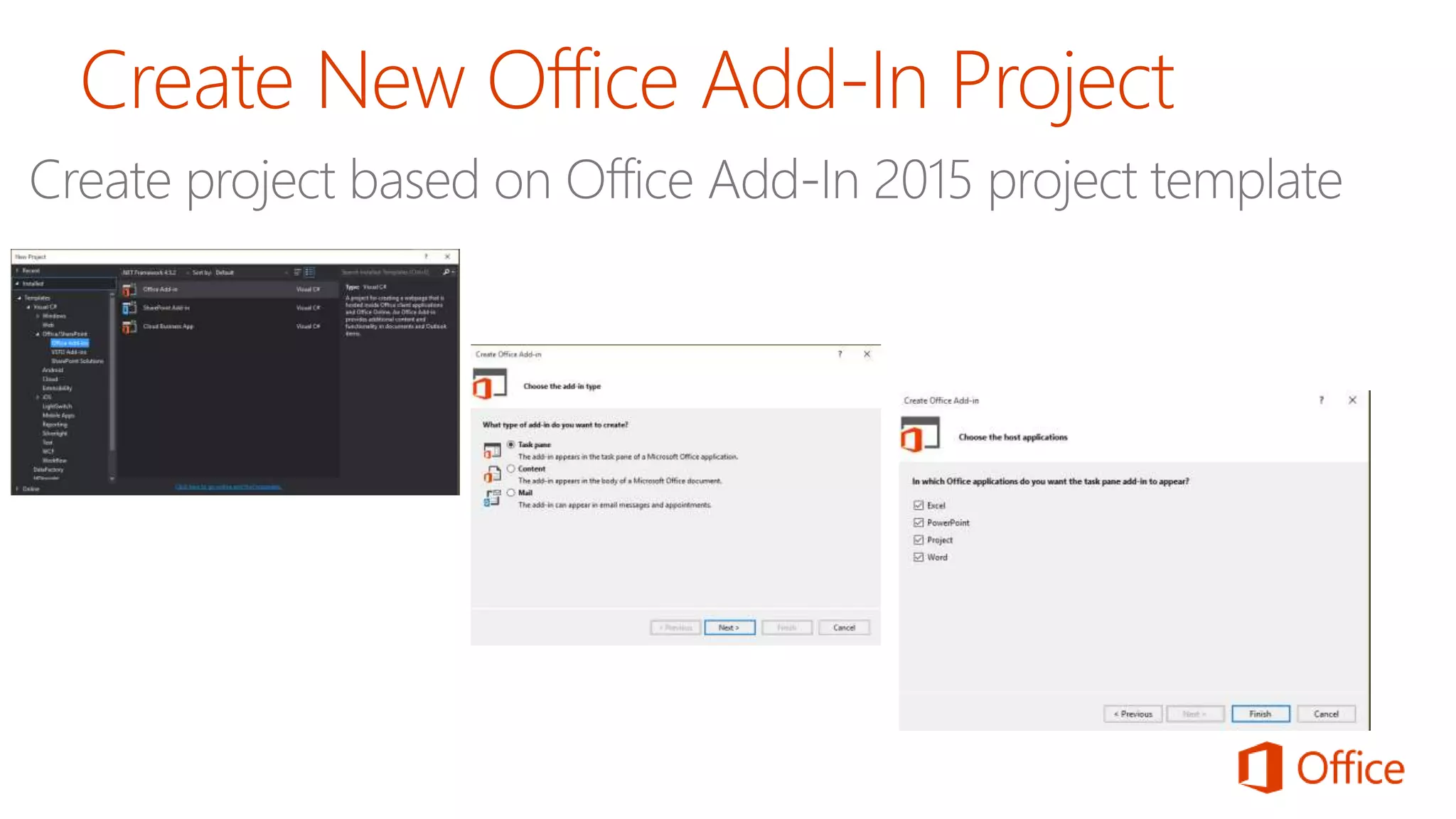
  • #22 This slide is pretty self-explanatory and demonstrates just how easy it is to create and test your first App for Office using Visual Studio 2012. First, you will create a new project using one of the new project templates in Visual Studio 2012. Next, you will create the user interface for the app using HTML5 and CSS. After that, you add behavior to the app by writing JavaScript. Finally, you will update the XML file which serves as the app manifest. After that, you can press the {F5} key to test and debug your app.
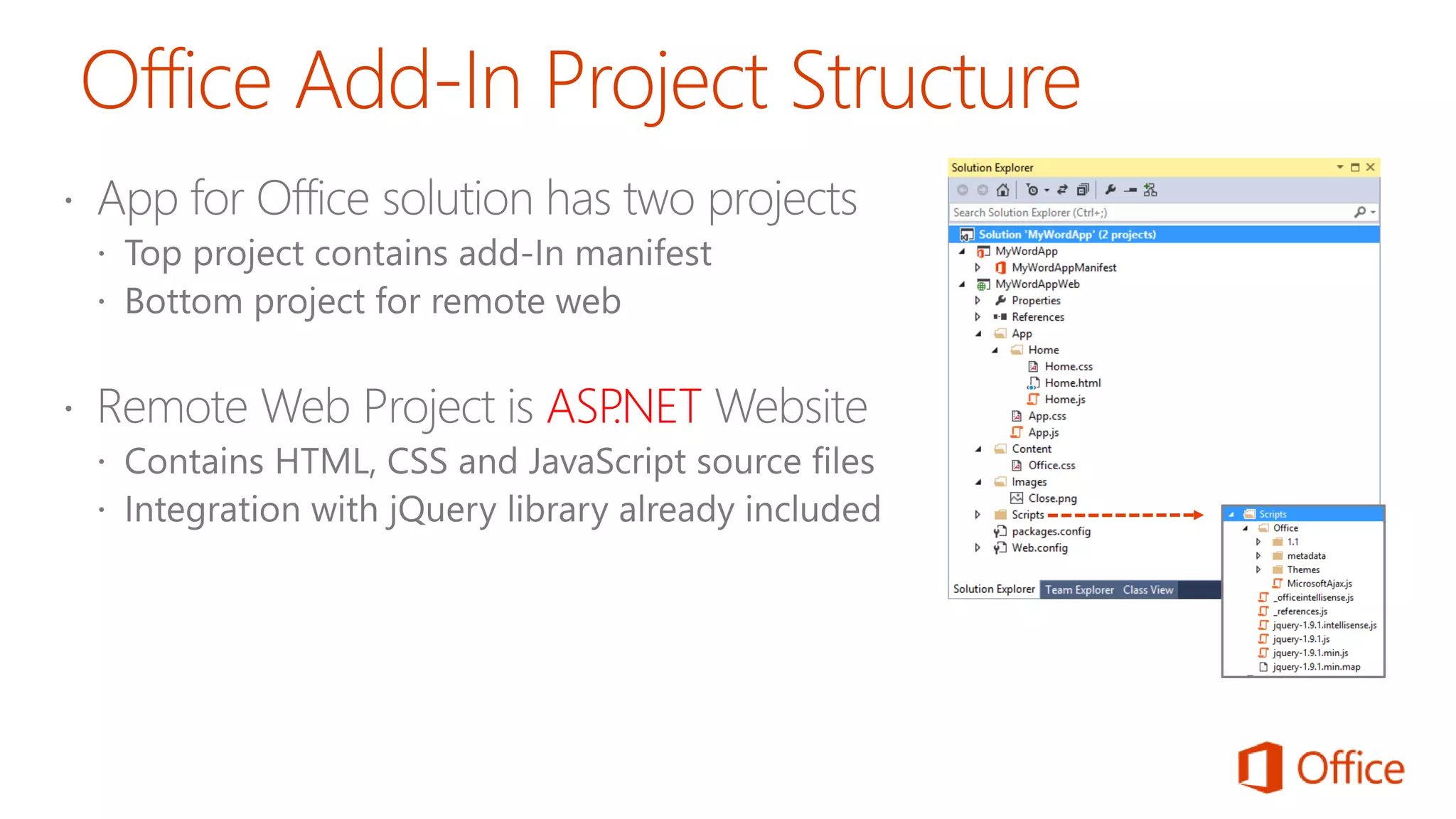
  • #24 The slide shows the initial structure of a task pane app created with the Visual Studio 2012.
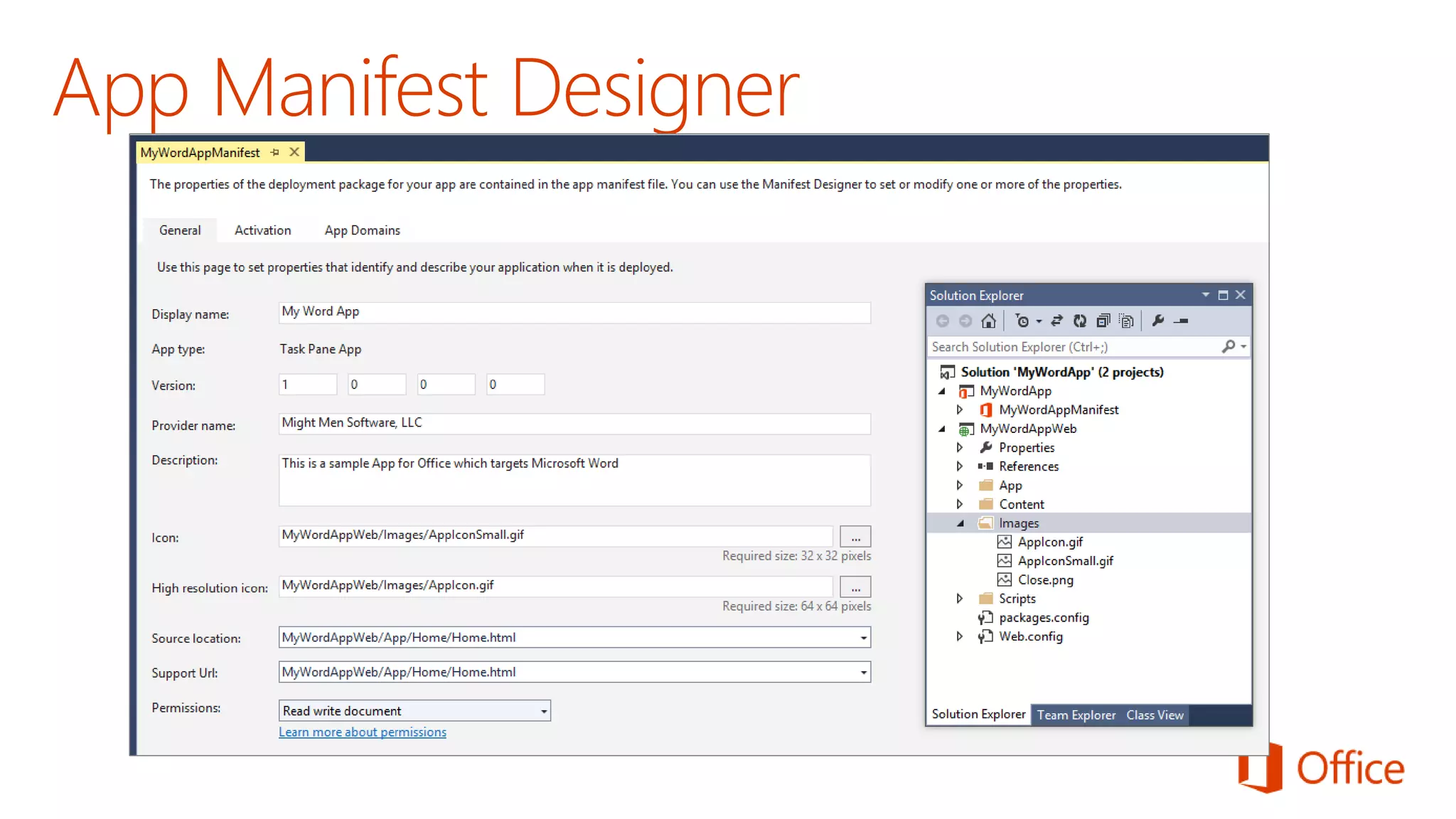
  • #25 This slide shows the Visual Studio designer for an app manifest in a task pane app. It will look different for other types of Apps for Office.
  • #26 There are times when it is also useful or necessary to examine or update the manifest in XML view. You can enter XML view by clicking the XML file in the Solution Explorer.
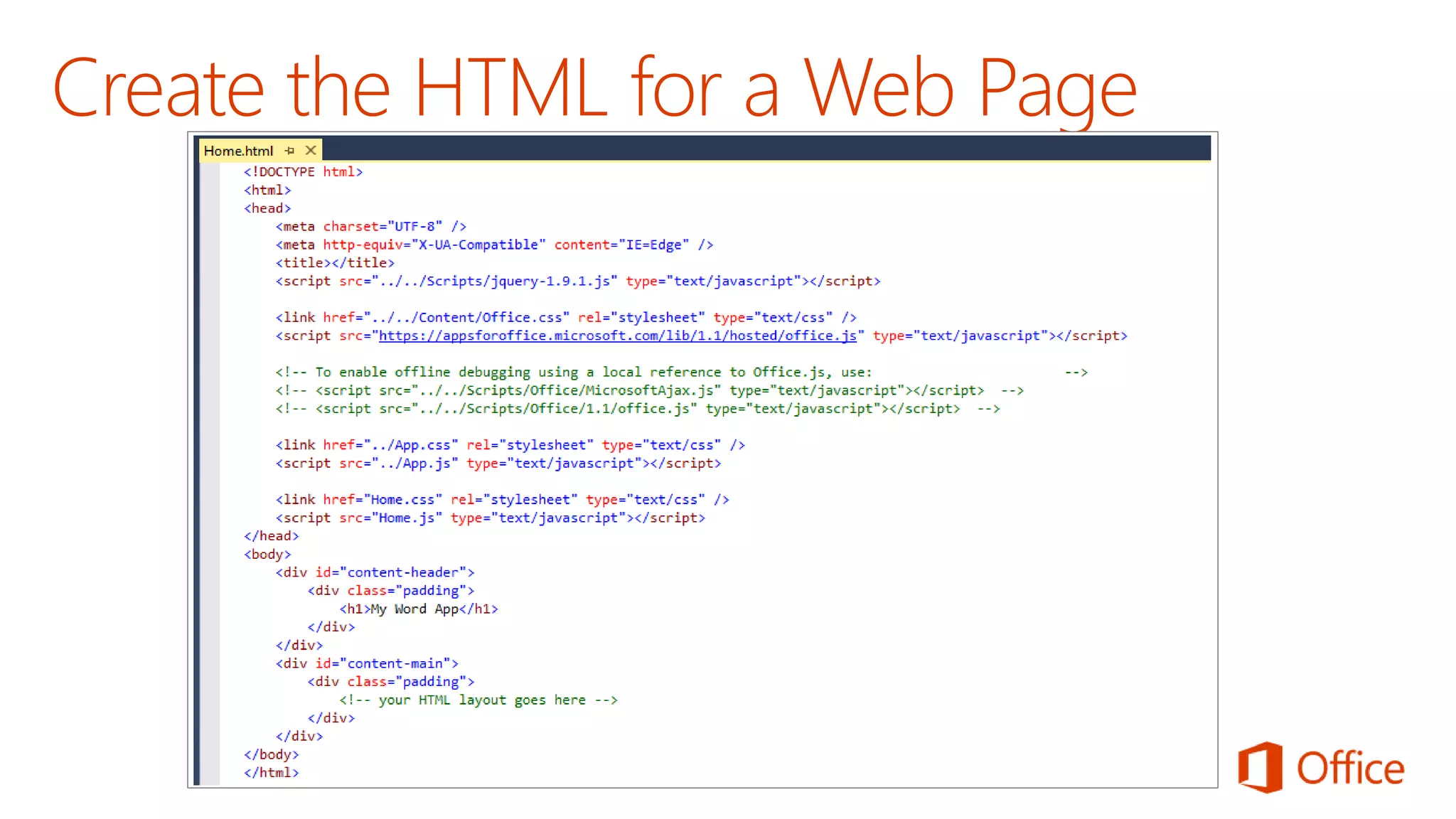
  • #27 Each app has a source location which points to a entry point Web page somewhere on the Internet. Here is an example of a simple Web page that is used to load a task pane app. Note that this page must link to any required CSS files and JavaScript that will be adding styles or behavior behind the app. Visual Studio automatically adds the links for jQuery and ASP.NET AJAX. Also note that the page adds HTML elements which are often created with ids and/or classes.