AZURE & POWER AUTOMATE:
A PERFECT MATCH
Ashley Rogers
ASHLEY ROGERS
• SharePoint & Power Automate
• Speaker & Blogger
• https://SPinBetween.blogspot.com/
• @AshRgrs
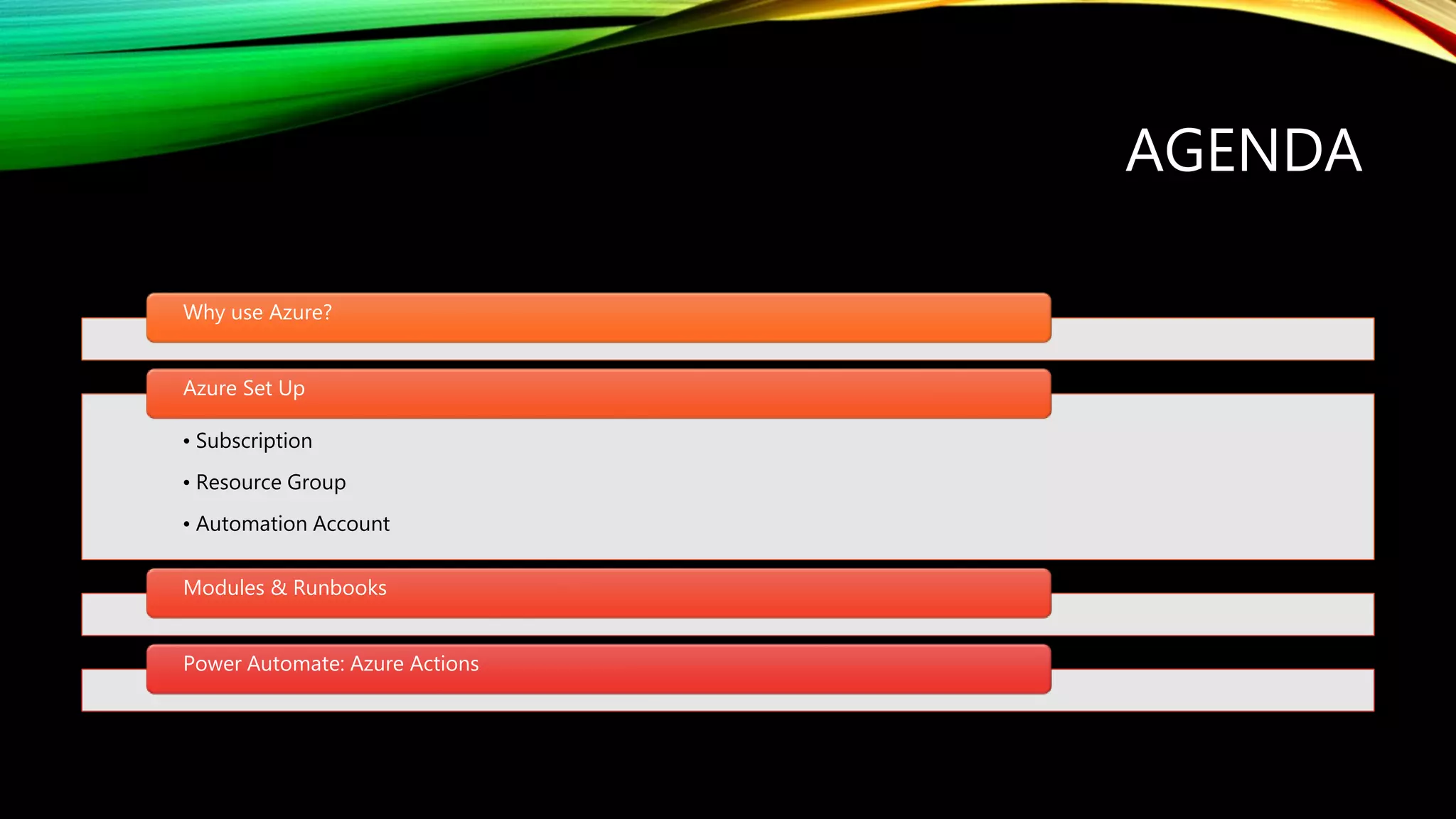
AGENDA
Why use Azure?
• Subscription
• Resource Group
• Automation Account
Azure Set Up
Modules & Runbooks
Power Automate: Azure Actions
AZURE AUTOMATION: WHY?
Automate PowerShell tasks in the Familiar Tool: Power Automate Roles:
Citizen Developer
SharePoint Admin/Developer
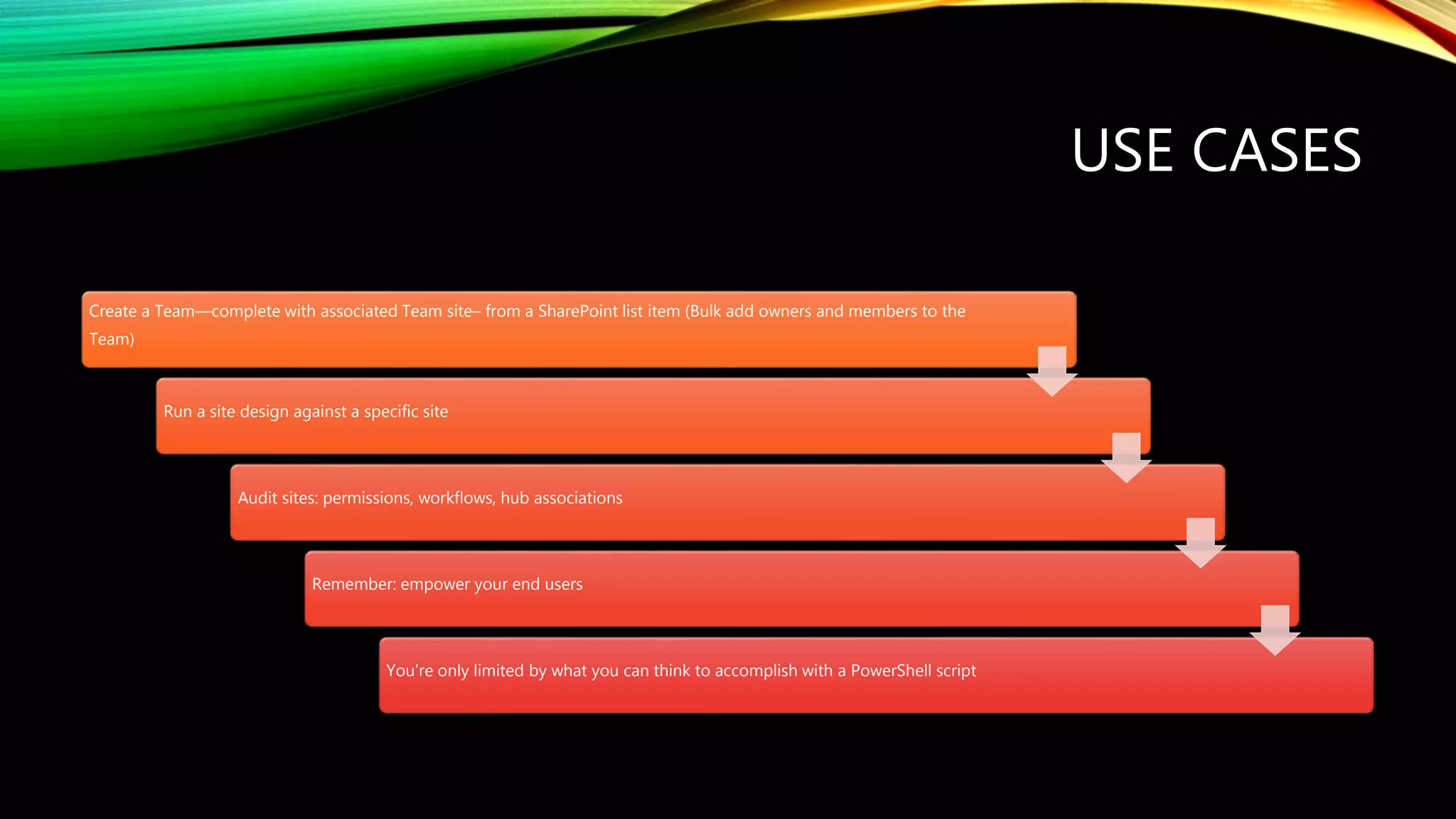
USE CASES
Create a Team—complete with associated Team site– from a SharePoint list item (Bulk add owners and members to the
Team)
Run a site design against a specific site
Audit sites: permissions, workflows, hub associations
Remember: empower your end users
You’re only limited by what you can think to accomplish with a PowerShell script
REQUIREMENTS
Azure Admin or Global Admin
Azure Subscription
Power Automate: Premium
License
AZURE SETUP (Painful, but necessary)
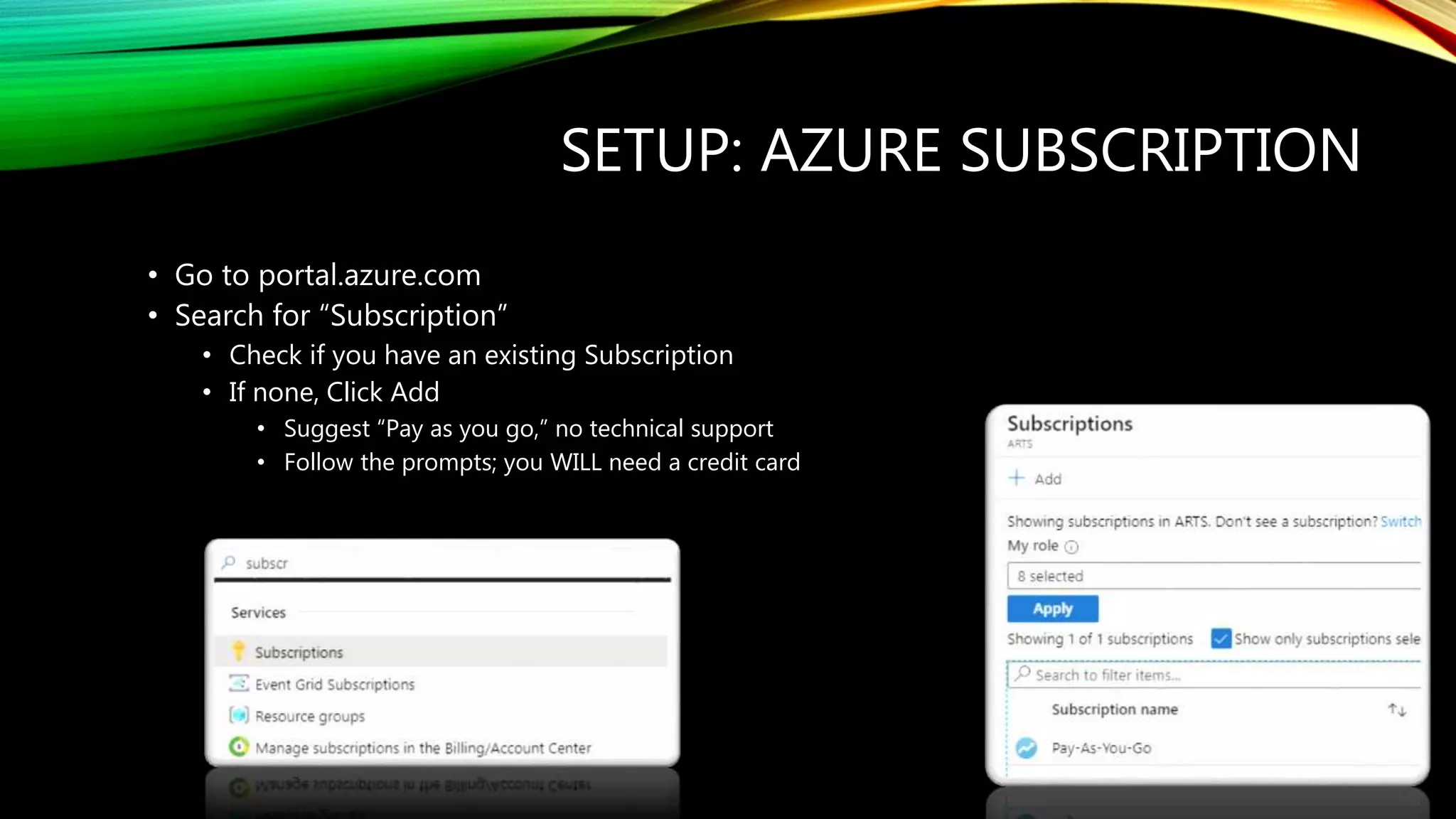
SETUP: AZURE SUBSCRIPTION
• Go to portal.azure.com
• Search for “Subscription”
• Check if you have an existing Subscription
• If none, Click Add
• Suggest “Pay as you go,” no technical support
• Follow the prompts; you WILL need a credit card
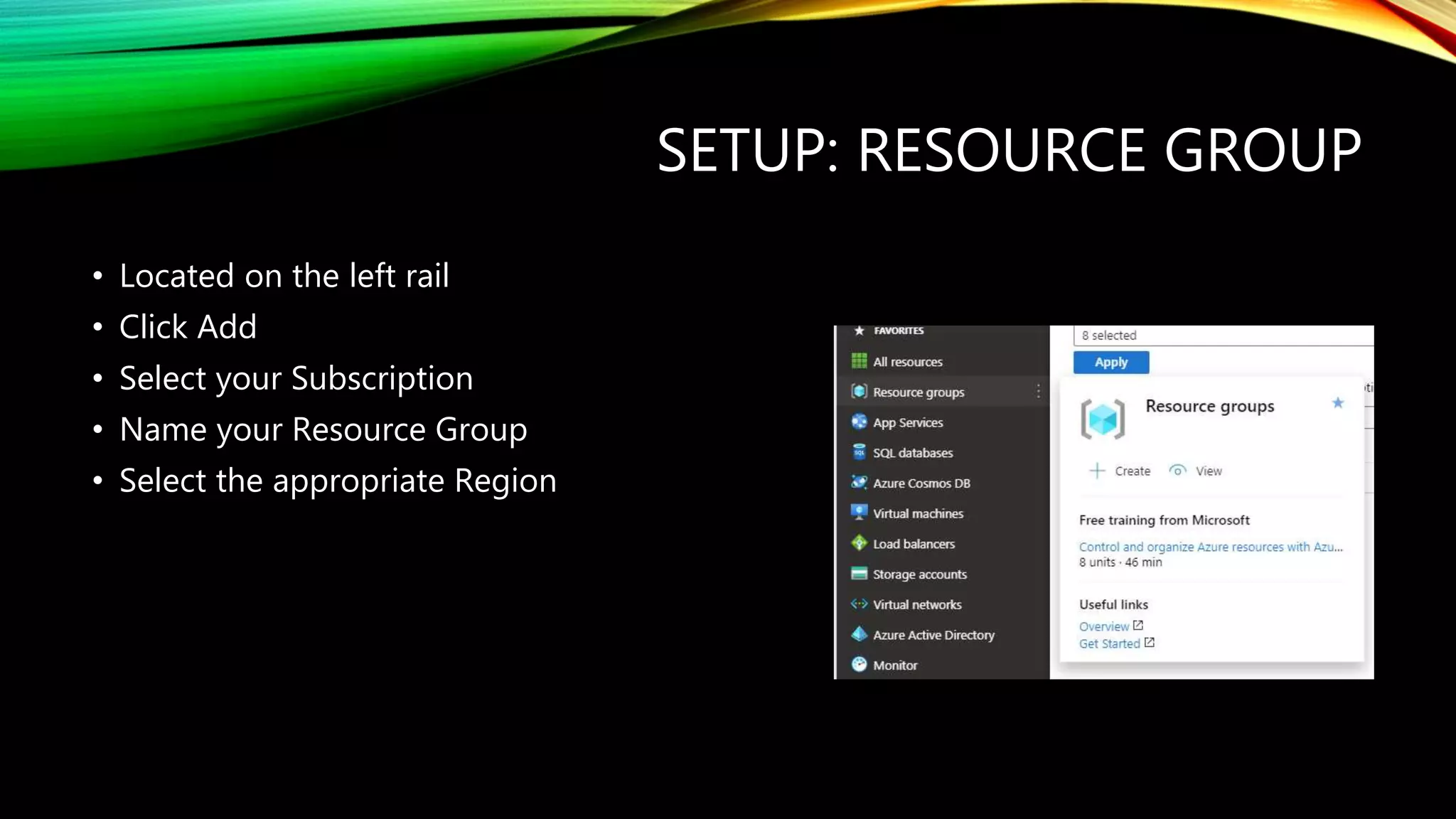
SETUP: RESOURCE GROUP
• Located on the left rail
• Click Add
• Select your Subscription
• Name your Resource Group
• Select the appropriate Region
SETUP: CREATE AZURE
AUTOMATION ACCOUNT
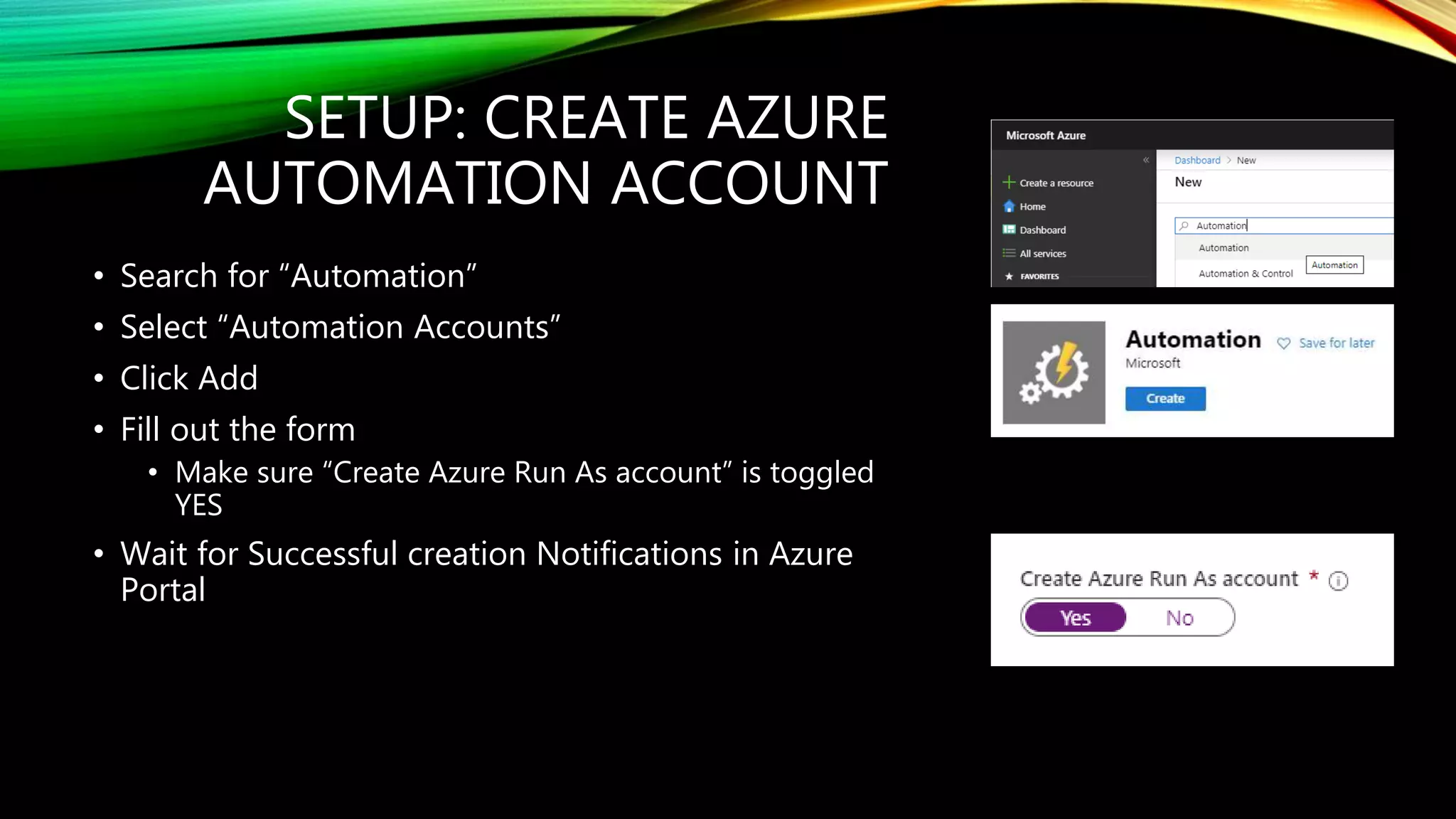
• Search for “Automation”
• Select “Automation Accounts”
• Click Add
• Fill out the form
• Make sure “Create Azure Run As account” is toggled
YES
• Wait for Successful creation Notifications in Azure
Portal
MODULES,
CREDENTIALS, &
RUNBOOKS
(This is the fun stuff!)
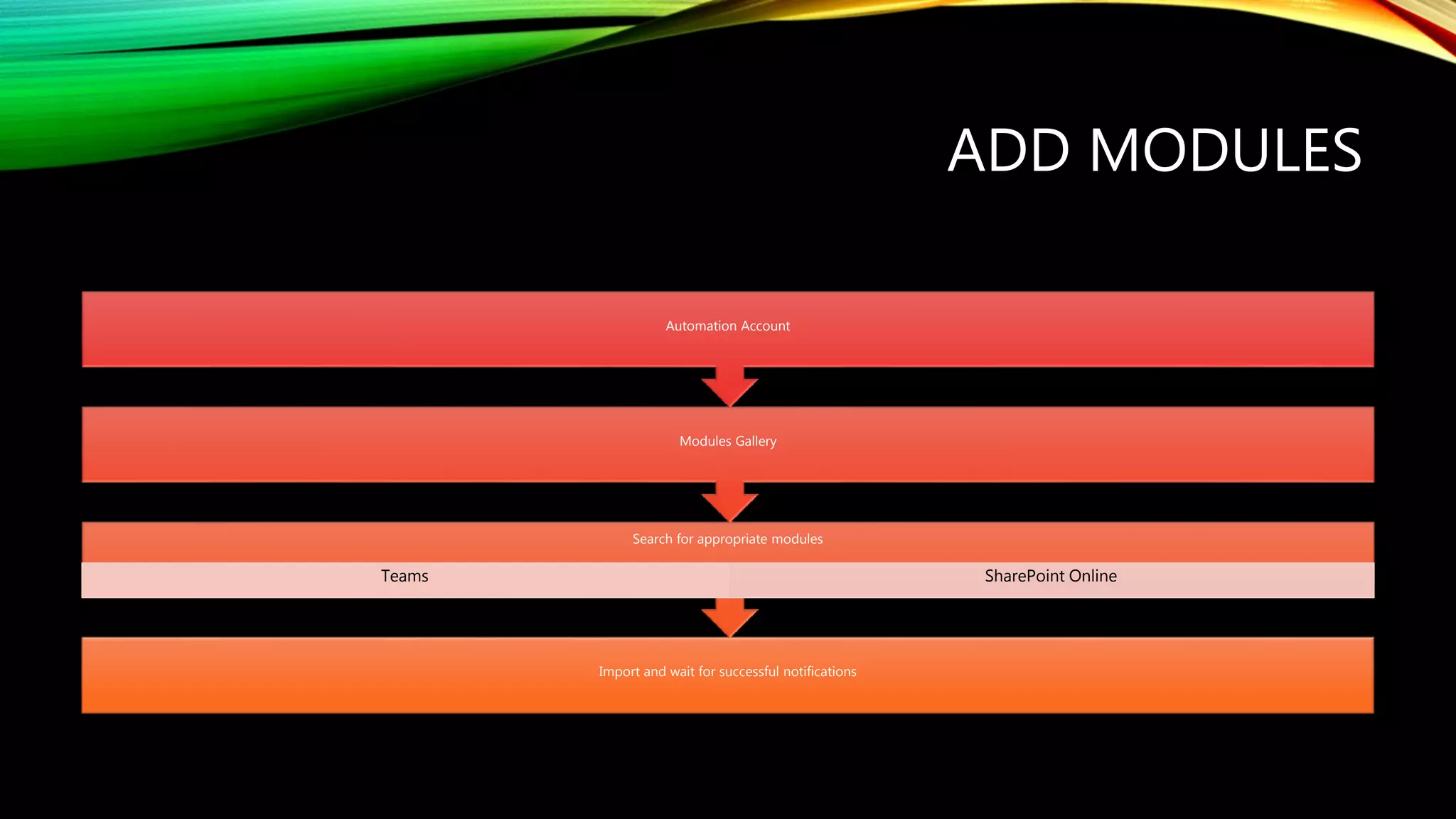
ADD MODULES
Import and wait for successful notifications
Search for appropriate modules
Teams SharePoint Online
Modules Gallery
Automation Account
ADD CREDENTIALS
• Don’t forgot to add appropriate credentials to your Automation Account
• What you need to add will depend on your use case and the required modules
• Must be accounts with the proper access/permissions to your resources
• Do not include credentials in your PowerShell scripts!! As with anything, these may
change depending on your password policies.
• Updating the credentials in the automation account is easier than updating multiple
entries in various runbooks.
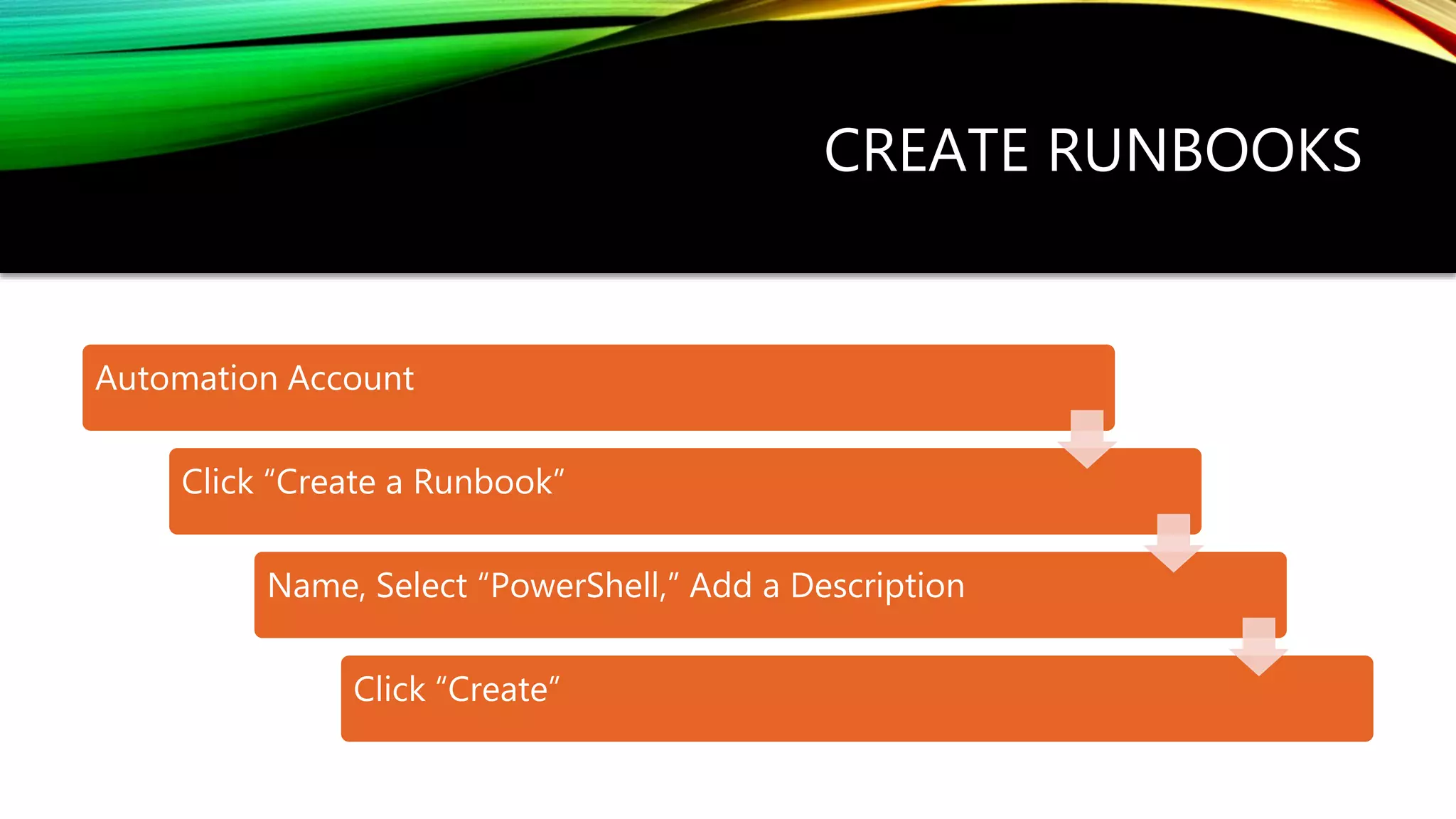
CREATE RUNBOOKS
Automation Account
Click “Create a Runbook”
Name, Select “PowerShell,” Add a Description
Click “Create”
DEMO: RUNBOOKS Let’s Do This!
DEMO: POWER
AUTOMATE
Let’s Do This!
@ASHRGRS
HTTPS://SPINBETWEEN.BLOGSPOT.COM/
THANK YOU!

Azure and Power Automate: A Perfect Match

  • 1.
    AZURE & POWERAUTOMATE: A PERFECT MATCH Ashley Rogers
  • 2.
    ASHLEY ROGERS • SharePoint& Power Automate • Speaker & Blogger • https://SPinBetween.blogspot.com/ • @AshRgrs
  • 3.
    AGENDA Why use Azure? •Subscription • Resource Group • Automation Account Azure Set Up Modules & Runbooks Power Automate: Azure Actions
  • 4.
    AZURE AUTOMATION: WHY? AutomatePowerShell tasks in the Familiar Tool: Power Automate Roles: Citizen Developer SharePoint Admin/Developer
  • 5.
    USE CASES Create aTeam—complete with associated Team site– from a SharePoint list item (Bulk add owners and members to the Team) Run a site design against a specific site Audit sites: permissions, workflows, hub associations Remember: empower your end users You’re only limited by what you can think to accomplish with a PowerShell script
  • 6.
    REQUIREMENTS Azure Admin orGlobal Admin Azure Subscription Power Automate: Premium License
  • 7.
    AZURE SETUP (Painful,but necessary)
  • 8.
    SETUP: AZURE SUBSCRIPTION •Go to portal.azure.com • Search for “Subscription” • Check if you have an existing Subscription • If none, Click Add • Suggest “Pay as you go,” no technical support • Follow the prompts; you WILL need a credit card
  • 9.
    SETUP: RESOURCE GROUP •Located on the left rail • Click Add • Select your Subscription • Name your Resource Group • Select the appropriate Region
  • 10.
    SETUP: CREATE AZURE AUTOMATIONACCOUNT • Search for “Automation” • Select “Automation Accounts” • Click Add • Fill out the form • Make sure “Create Azure Run As account” is toggled YES • Wait for Successful creation Notifications in Azure Portal
  • 11.
  • 12.
    ADD MODULES Import andwait for successful notifications Search for appropriate modules Teams SharePoint Online Modules Gallery Automation Account
  • 13.
    ADD CREDENTIALS • Don’tforgot to add appropriate credentials to your Automation Account • What you need to add will depend on your use case and the required modules • Must be accounts with the proper access/permissions to your resources • Do not include credentials in your PowerShell scripts!! As with anything, these may change depending on your password policies. • Updating the credentials in the automation account is easier than updating multiple entries in various runbooks.
  • 14.
    CREATE RUNBOOKS Automation Account Click“Create a Runbook” Name, Select “PowerShell,” Add a Description Click “Create”
  • 15.
  • 16.
  • 17.