Tecnomatix Plant
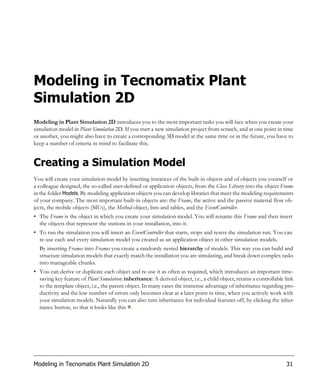
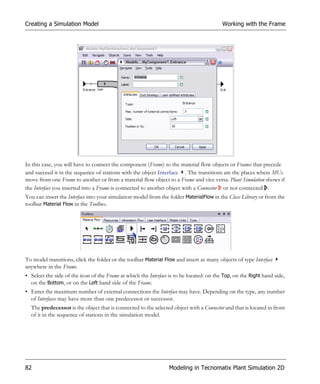
          Simulation 10.1
         Step-by-Step Help

Copyright © 2011 Siemens Product Lifecycle Management Software Inc. All rights reserved.
This documentation is proprietary to Siemens Product Lifecycle Management Software Inc.
This document contains proprietary information and is protected by copyright. No part of this document may be
reproduced, stored in a retrieval system, translated, transcribed, or transmitted, in any form or by any means, without
the prior explicit written consent of Siemens Product Lifecycle Management Software Inc.
Information in this document is subject to change without notice.


07 November 2011
Proprietary and Restricted Rights Notice
Siemens and the Siemens logo are registered trademarks of Siemens AG. Tecnomatix and the Tecnomatix logo are
registered trademarks of Siemens Product Lifecycle Management Software Inc.
All other product names or brand names are trademarks or registered trademarks of their respective owners.
3D Labs is a registered mark or trademark of 3Dlabs, Inc. or its subsidiaries in the US and other countries.
Adobe is a registered mark or trademark of Adobe Systems Incorporated or its subsidiaries in the US and other
countries.
Apache is a registered mark or trademark of The Apache Software Foundation or its subsidiaries in the US and
other countries.
ATI is a registered mark or trademark of ATI Technologies Inc. or its subsidiaries in the US and other countries.
AutoCAD is a registered mark or trademark of Autodesk, Inc. or its subsidiaries in the US and other countries.
Beyond Compare copyright © by Scooter Software.
HP is a registered mark or trademark of Hewlett-Packard Company or its subsidiaries in the US and other countries.
IBM is a registered mark or trademark of International Business Machines Corporation or its subsidiaries in the US
and other countries.
Intel is a registered mark or trademark of Intel Corporation or its subsidiaries in the US and other countries.
Java and iPlanet are registered marks or trademarks of Sun Microsystems, Inc. or its subsidiaries in the US and other
countries.
Microsoft is a registered mark or trademark of Microsoft Corporation or its subsidiaries in the US and other coun-
tries.
Microstation is a registered mark or trademark of Bentley Systems, Incorporated or its subsidiaries in the US and
other countries.
Netscape is a registered mark or trademark of Netscape Communications Corp.or its subsidiaries in the US and
other countries.
NVIDIA a registered mark or trademark of NVIDIA Corporation or its subsidiaries in the US and other countries.
Oracle is a registered mark or trademark of Oracle Corporation or its subsidiaries in the US and other countries.
Siemens is a registered mark or trademark of Siemens Corp. or its subsidiaries in the US and other countries.
UNIX is a registered mark or trademark of The Open Group or its subsidiaries in the US and other countries.
VizStream is a registered mark or trademark of RealityWave Inc. or its subsidiaries in the US and other countries.
RAMIS is a trademark of Human Solutions. The software is sub-licensed by Human Solutions GmbH, Kaiserslau-
tern, Germany.
Body Builder is a trademark of Human Solutions. The software is sub-licensed by Human Solutions GmbH, Kai-
serslautern, Germany.
VarChart, copyright © NETRONIC Software GmbH 2004. All rights reserved. The software is sub-licensed by
NETRONIC Software GmbH, Aachen, Germany.
GigaSoft® ProEssentials™ v3.0 copyright © 1994–1999 by Gigasoft, Inc. All rights reserved.
Adobe and Acrobat and FrameMaker are trademarks of Adobe Systems Incorporated.
Paint Shop Pro copyright © by Jasc., Inc.
SnagIt copyright © 1996–2007 TechSmith Corporation.
WinMerge copyright © by Dean P. Grimm/Thingamahoochie Software
3D Studio Max® R3 copyright © 1999 Autodesk, Inc. Microsoft® and Windows® are registered trademarks and
Gif is a Service Mark property of CompuServe, Inc.
Crossroads, copyright © 1995–1998 by Keith Rule.
Trend Micro Office Scan is a trademark of Trend Micro, Inc. © 1998–2009 Trend Micro, Inc. All rights reserved.
All other trademarks belong to their respective holders.
Table of Contents

Getting to Know Tecnomatix Plant Simulation . . . . . . . . . . . . . . . . . . . . . . . . . 1
      Simulation and Modeling Concepts . . . . . . . . . . . . . . . . . . . . . . . . . . . . . . . . . . . . . . . . . . . . . . . . . . . . . . . 1
                What is Simulation? . . . . . . . . . . . . . . . . . . . . . . . . . . . . . . . . . . . . . . . . . . . . . . . . . . . . . . . . . . . . . . 1
                Time-Oriented Simulation and Event-Controlled Simulation. . . . . . . . . . . . . . . . . . . . . . . . . . . . . 2
                Why Employ Simulation? . . . . . . . . . . . . . . . . . . . . . . . . . . . . . . . . . . . . . . . . . . . . . . . . . . . . . . . . . 3
                Implement a Simulation Project . . . . . . . . . . . . . . . . . . . . . . . . . . . . . . . . . . . . . . . . . . . . . . . . . . . . 4
      Getting to Know the Program . . . . . . . . . . . . . . . . . . . . . . . . . . . . . . . . . . . . . . . . . . . . . . . . . . . . . . . . . . . 6
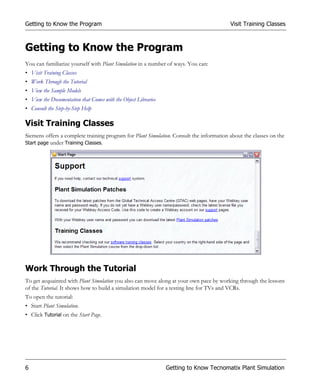
                Visit Training Classes . . . . . . . . . . . . . . . . . . . . . . . . . . . . . . . . . . . . . . . . . . . . . . . . . . . . . . . . . . . . 6
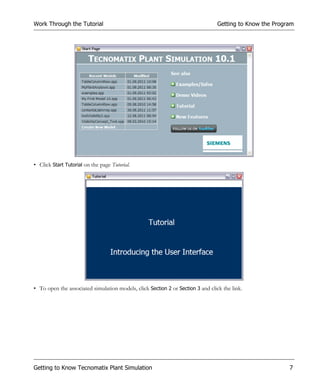
                Work Through the Tutorial. . . . . . . . . . . . . . . . . . . . . . . . . . . . . . . . . . . . . . . . . . . . . . . . . . . . . . . . 6
                View the Sample Models. . . . . . . . . . . . . . . . . . . . . . . . . . . . . . . . . . . . . . . . . . . . . . . . . 8
                View the Documentation that Comes with the Object Libraries . . . . . . . . . . . . . . . . . . . . . . 8
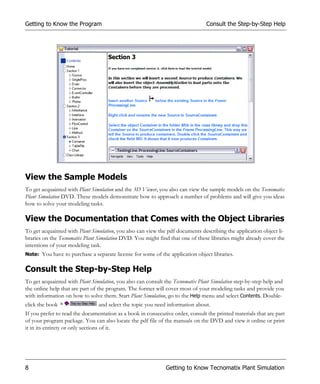
                Consult the Step-by-Step Help . . . . . . . . . . . . . . . . . . . . . . . . . . . . . . . . . . . . . . . . . . . . . . . . . . . . . 8
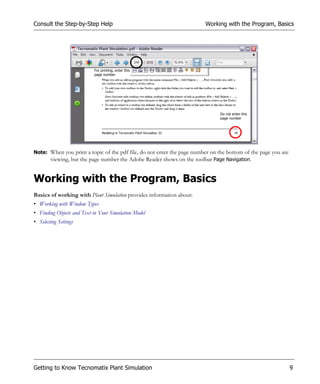
      Working with the Program, Basics . . . . . . . . . . . . . . . . . . . . . . . . . . . . . . . . . . . . . . . . . . . . . . . . . . . . . . . . 9
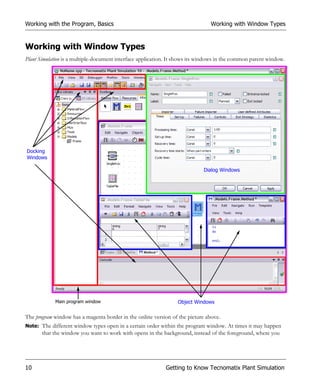
                Working with Window Types . . . . . . . . . . . . . . . . . . . . . . . . . . . . . . . . . . . . . . . . . . . . . . . . . . . . . 10
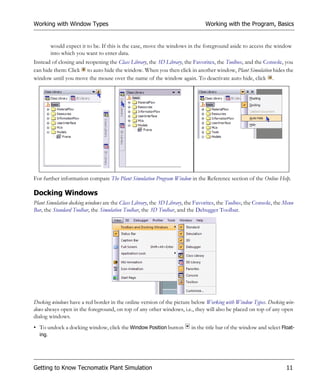
                      Docking Windows . . . . . . . . . . . . . . . . . . . . . . . . . . . . . . . . . . . . . . . . . . . . . . . . . . . . . . . . 11
                      Dialog Windows . . . . . . . . . . . . . . . . . . . . . . . . . . . . . . . . . . . . . . . . . . . . . . . . . . . . . . . . . 14
                      Object Windows . . . . . . . . . . . . . . . . . . . . . . . . . . . . . . . . . . . . . . . . . . . . . . . . . . . . . . . . . 15
                Selecting Settings . . . . . . . . . . . . . . . . . . . . . . . . . . . . . . . . . . . . . . . . . . . . . . . . . . . . . . . . . . . . . . . 17
                        Select General Options . . . . . . . . . . . . . . . . . . . . . . . . . . . . . . . . . . . . . . . . . . . . . . . . . . . . 18
                        Select Modeling Options for the Frame . . . . . . . . . . . . . . . . . . . . . . . . . . . . . . . . . . . . . . . 20
                        Select Options for Units and for Displaying the Time . . . . . . . . . . . . . . . . . . . . . . . . . . . 22
                Finding Objects and Text in Your Simulation Model . . . . . . . . . . . . . . . . . . . . . . . . . . . . . . . . . . 24
                       Find the Name of an Object . . . . . . . . . . . . . . . . . . . . . . . . . . . . . . . . . . . . . . . . . . . . . . . . 25
                       Find a Condition of an Object . . . . . . . . . . . . . . . . . . . . . . . . . . . . . . . . . . . . . . . . . . . . . . 27
                       Find Any Text within a Built-in or a User-defined Attribute of an Object . . . . . . . . . . . 28
                       Find Any Source Code in a Method . . . . . . . . . . . . . . . . . . . . . . . . . . . . . . . . . . . . . . . . . . 28
                       Find Any Value Within a List or Table . . . . . . . . . . . . . . . . . . . . . . . . . . . . . . . . . . . . . . . 30


                                                                                                                                                                      I
Modeling in Tecnomatix Plant Simulation 2D . . . . . . . . . . . . . . . . . . . . . . . . . 31
      Creating a Simulation Model . . . . . . . . . . . . . . . . . . . . . . . . . . . . . . . . . . . . . . . . . . . . . . . . . . . . . . . . . . . . 31
                Creating a Simple Simulation Model. . . . . . . . . . . . . . . . . . . . . . . . . . . . . . . . . . . . . . . . . . . . . . . . 34
                       Insert Objects into the Frame. . . . . . . . . . . . . . . . . . . . . . . . . . . . . . . . . . . . . . . . . . . . . . . 35
                       Connect Objects in the Frame . . . . . . . . . . . . . . . . . . . . . . . . . . . . . . . . . . . . . . . . . . . . . . 36
                       Run the Simulation . . . . . . . . . . . . . . . . . . . . . . . . . . . . . . . . . . . . . . . . . . . . . . . . . . . . . . . 37
                       View the Results of the Simulation Run. . . . . . . . . . . . . . . . . . . . . . . . . . . . . . . . . . . . . . . 37
                Introducing Classes . . . . . . . . . . . . . . . . . . . . . . . . . . . . . . . . . . . . . . . . . . . . . . . . . . . . . . . . . . . . . 39
                       Classes, Subclasses and Instances . . . . . . . . . . . . . . . . . . . . . . . . . . . . . . . . . . . . . . . . . . . . 40
                       Replacing and Merging Objects with Drag and Drop . . . . . . . . . . . . . . . . . . . . . . . . . . . . 41
                       Using Inheritance. . . . . . . . . . . . . . . . . . . . . . . . . . . . . . . . . . . . . . . . . . . . . . . . . . . . . . . . . 41
                              Show Inheritance Relations in the Class Library . . . . . . . . . . . . . . . . . . . . . . . . . 42
                              Show the Origin of an Object in the Class Library . . . . . . . . . . . . . . . . . . . . . . . . 42
                Working with Classes in the Class Library . . . . . . . . . . . . . . . . . . . . . . . . . . . . . . . . . . . . . . . . . . . 42
                      Configure the Class Library. . . . . . . . . . . . . . . . . . . . . . . . . . . . . . . . . . . . . . . . . . . . . . . . . 43
                              Add Basic Objects to the Class Library or Remove Them from It . . . . . . . . . . . 43
                              Add a Library or a Tool to or Remove it from the Class Library . . . . . . . . . . . . 44
                              Add a Library, which You Yourself Developed . . . . . . . . . . . . . . . . . . . . . . . . . . 46
                              Update a Library . . . . . . . . . . . . . . . . . . . . . . . . . . . . . . . . . . . . . . . . . . . . . . . . . . . 47
                      Create a Folder Structure for Your Simulation Model . . . . . . . . . . . . . . . . . . . . . . . . . . . 49
                      Set the Root Folder for Your Simulation Model . . . . . . . . . . . . . . . . . . . . . . . . . . . . . . . . 50
                      Create Your Own Classes . . . . . . . . . . . . . . . . . . . . . . . . . . . . . . . . . . . . . . . . . . . . . . . . . . 51
                      Work with Folders, Frames and Objects in the Class Library. . . . . . . . . . . . . . . . . . . . . . 52
                      Show the Contents of a Frame in the Class Library . . . . . . . . . . . . . . . . . . . . . . . . . . . . . 53
                      Saving a Folder or an Object and Loading it into Another Model . . . . . . . . . . . . . . . . . . 54
                              Save a Folder as a Library . . . . . . . . . . . . . . . . . . . . . . . . . . . . . . . . . . . . . . . . . . . 54
                              Save an Object or a Folder as an Object . . . . . . . . . . . . . . . . . . . . . . . . . . . . . . . . 58
                              Load an Object or a Folder into Your Simulation Model . . . . . . . . . . . . . . . . . . 59
                              Load an Object or a Folder into Another Folder . . . . . . . . . . . . . . . . . . . . . . . . . 60
                      Update the Class Library . . . . . . . . . . . . . . . . . . . . . . . . . . . . . . . . . . . . . . . . . . . . . . . . . . . 60
                Working with Objects in the Toolbox . . . . . . . . . . . . . . . . . . . . . . . . . . . . . . . . . . . . . . . . . . . . . . 61
                      Add Objects to the Toolbox or Delete Them from It . . . . . . . . . . . . . . . . . . . . . . . . . . . 62
                      Copy Objects from Toolbar to Toolbar. . . . . . . . . . . . . . . . . . . . . . . . . . . . . . . . . . . . . . . 62


II
Modeling Hierarchically. . . . . . . . . . . . . . . . . . . . . . . . . . . . . . . . . . . . . . . . . . . . . . . . . . . . . . . . . . 62
                Test a Component You Modeled . . . . . . . . . . . . . . . . . . . . . . . . . . . . . . . . . . . . . . . . . . . . 64
          Working with the Frame . . . . . . . . . . . . . . . . . . . . . . . . . . . . . . . . . . . . . . . . . . . . . . . . . . . . . . . . . 65
                Select Options in the Frame . . . . . . . . . . . . . . . . . . . . . . . . . . . . . . . . . . . . . . . . . . . . . . . . 66
                Model with Objects from the Class Library . . . . . . . . . . . . . . . . . . . . . . . . . . . . . . . . . . . . 67
                       Insert an Object from the Class Library . . . . . . . . . . . . . . . . . . . . . . . . . . . . . . . . 67
                       Insert an Object from the Toolbox . . . . . . . . . . . . . . . . . . . . . . . . . . . . . . . . . . . . 68
                Add a Graphic and a Color to the Background or the Icon of the Frame . . . . . . . . . . . . 69
                Draw Vector Graphics or Text onto the Background of the Frame . . . . . . . . . . . . . . . . 71
                Create Your Own Menu/Context Menu in the Frame . . . . . . . . . . . . . . . . . . . . . . . . . . . 72
                Work with Objects in the Frame Window . . . . . . . . . . . . . . . . . . . . . . . . . . . . . . . . . . . . . 76
                Connect Objects with the Connector. . . . . . . . . . . . . . . . . . . . . . . . . . . . . . . . . . . . . . . . . 79
                Model Transitions between Frames . . . . . . . . . . . . . . . . . . . . . . . . . . . . . . . . . . . . . . . . . . 81
          Controlling the Simulation with the EventController . . . . . . . . . . . . . . . . . . . . . . . . . . . . . . . . . . 84
                Select Settings for the Simulation . . . . . . . . . . . . . . . . . . . . . . . . . . . . . . . . . . . . . . . . . . . . 86
                Working with the Event Debugger. . . . . . . . . . . . . . . . . . . . . . . . . . . . . . . . . . . . . . . . . . . 87
                        Example 1 . . . . . . . . . . . . . . . . . . . . . . . . . . . . . . . . . . . . . . . . . . . . . . . . . . . . . . . . 88
                        Example 2 . . . . . . . . . . . . . . . . . . . . . . . . . . . . . . . . . . . . . . . . . . . . . . . . . . . . . . . . 89
                        Example 3 . . . . . . . . . . . . . . . . . . . . . . . . . . . . . . . . . . . . . . . . . . . . . . . . . . . . . . . . 89
                        Example 4 . . . . . . . . . . . . . . . . . . . . . . . . . . . . . . . . . . . . . . . . . . . . . . . . . . . . . . . . 90
                        Example 5 . . . . . . . . . . . . . . . . . . . . . . . . . . . . . . . . . . . . . . . . . . . . . . . . . . . . . . . . 90
          Delete Parts with the Mouse or When Resetting the Model . . . . . . . . . . . . . . . . . . . . . . . . . . . . . 91
          Work with Drag-and-Drop . . . . . . . . . . . . . . . . . . . . . . . . . . . . . . . . . . . . . . . . . . . . . . . . . . . . . . . 92
Modeling the Flow of Materials, Basics . . . . . . . . . . . . . . . . . . . . . . . . . . . . . . . . . . . . . . . . . . . . . . . . . . . 93
          Active and Passive Objects . . . . . . . . . . . . . . . . . . . . . . . . . . . . . . . . . . . . . . . . . . . . . . . . . . . . . . . 93
          Producing Parts with the Source. . . . . . . . . . . . . . . . . . . . . . . . . . . . . . . . . . . . . . . . . . . . . . . . . . . 94
                Select How the Source Proceeds, When it Cannot Produce MUs . . . . . . . . . . . . . . . . . . 94
                Produce Parts According to a Delivery Table . . . . . . . . . . . . . . . . . . . . . . . . . . . . . . . . . . 95
                Produce Parts During an Interval Which You Define. . . . . . . . . . . . . . . . . . . . . . . . . . . . 97
                       Produce a Single Part Type Only . . . . . . . . . . . . . . . . . . . . . . . . . . . . . . . . . . . . . . 98
                       Produce Parts in a Fixed Sequence Over and Over Again . . . . . . . . . . . . . . . . . . 98
                       Produce Parts in a Fixed Sequence One Time Only . . . . . . . . . . . . . . . . . . . . . 100
                       Produce Parts According to a Random Frequency Which You Enter into a Table
                       101
                       Produce Parts According to a Percentage Which You Enter into a Table . . . . 102


                                                                                                                                                     III
Produce the Number of Parts You Need. . . . . . . . . . . . . . . . . . . . . . . . . . . . . . . . . . . . . 102
               Produce Parts Using a Trigger Object . . . . . . . . . . . . . . . . . . . . . . . . . . . . . . . . . . . . . . . 104
     Producing and Processing Parts with a Work Plan . . . . . . . . . . . . . . . . . . . . . . . . . . . . . . . . . . . 106
           Create the Processing Stations . . . . . . . . . . . . . . . . . . . . . . . . . . . . . . . . . . . . . . . . . . . . . 107
                  Define Times in the Class of the Processing Stations . . . . . . . . . . . . . . . . . . . . 108
                  Define Set-up Behavior in the Class of the Processing Stations . . . . . . . . . . . . 110
                  Enter the Name of the Exit Control in the Class of the Processing Stations . . 110
           Create the Work Plan . . . . . . . . . . . . . . . . . . . . . . . . . . . . . . . . . . . . . . . . . . . . . . . . . . . . 111
           Produce the Parts with a Source Using a Sequence Table. . . . . . . . . . . . . . . . . . . . . . . . 112
           Program the Exit Control . . . . . . . . . . . . . . . . . . . . . . . . . . . . . . . . . . . . . . . . . . . . . . . . . 114
     Removing Parts from the Installation with the Drain . . . . . . . . . . . . . . . . . . . . . . . . . . . . . . . . . 115
     Transferring Parts from Station to Station . . . . . . . . . . . . . . . . . . . . . . . . . . . . . . . . . . . . . . . . . . 116
            Use the Standard Transfer Behavior. . . . . . . . . . . . . . . . . . . . . . . . . . . . . . . . . . . . . . . . . 116
            Select an Exit Strategy . . . . . . . . . . . . . . . . . . . . . . . . . . . . . . . . . . . . . . . . . . . . . . . . . . . . 118
                    Carry Part Away . . . . . . . . . . . . . . . . . . . . . . . . . . . . . . . . . . . . . . . . . . . . . . . . . . 120
                    Cyclic . . . . . . . . . . . . . . . . . . . . . . . . . . . . . . . . . . . . . . . . . . . . . . . . . . . . . . . . . . . 120
                    Cyclic Sequence . . . . . . . . . . . . . . . . . . . . . . . . . . . . . . . . . . . . . . . . . . . . . . . . . . 121
                    Least Recent Demand . . . . . . . . . . . . . . . . . . . . . . . . . . . . . . . . . . . . . . . . . . . . . 122
                    Linear Sequence . . . . . . . . . . . . . . . . . . . . . . . . . . . . . . . . . . . . . . . . . . . . . . . . . . 122
                    Maximum Contents . . . . . . . . . . . . . . . . . . . . . . . . . . . . . . . . . . . . . . . . . . . . . . . 123
                    Maximum Number In . . . . . . . . . . . . . . . . . . . . . . . . . . . . . . . . . . . . . . . . . . . . . 123
                    Maximum Processing Time . . . . . . . . . . . . . . . . . . . . . . . . . . . . . . . . . . . . . . . . . 123
                    Maximum Relative Occupation . . . . . . . . . . . . . . . . . . . . . . . . . . . . . . . . . . . . . . 123
                    Maximum Set-up Time . . . . . . . . . . . . . . . . . . . . . . . . . . . . . . . . . . . . . . . . . . . . . 124
                    Minimum Contents . . . . . . . . . . . . . . . . . . . . . . . . . . . . . . . . . . . . . . . . . . . . . . . 124
                    Minimum Number In . . . . . . . . . . . . . . . . . . . . . . . . . . . . . . . . . . . . . . . . . . . . . . 124
                    Minimum Processing Time . . . . . . . . . . . . . . . . . . . . . . . . . . . . . . . . . . . . . . . . . 124
                    Minimum Relative Occupation . . . . . . . . . . . . . . . . . . . . . . . . . . . . . . . . . . . . . . 125
                    Minimum Set-up Time . . . . . . . . . . . . . . . . . . . . . . . . . . . . . . . . . . . . . . . . . . . . . 125
                    Most Recent Demand . . . . . . . . . . . . . . . . . . . . . . . . . . . . . . . . . . . . . . . . . . . . . 125
                    MU Attribute . . . . . . . . . . . . . . . . . . . . . . . . . . . . . . . . . . . . . . . . . . . . . . . . . . . . 125
                    Percentage . . . . . . . . . . . . . . . . . . . . . . . . . . . . . . . . . . . . . . . . . . . . . . . . . . . . . . . 126
                    Random . . . . . . . . . . . . . . . . . . . . . . . . . . . . . . . . . . . . . . . . . . . . . . . . . . . . . . . . . 127
                    Start at Successor 1 . . . . . . . . . . . . . . . . . . . . . . . . . . . . . . . . . . . . . . . . . . . . . . . . 127


IV
Load, Unload, and Reload Parts with the TransferStation . . . . . . . . . . . . . . . . . . . . . . . 128
                            Load Parts with the Transfer Station . . . . . . . . . . . . . . . . . . . . . . . . . . . . . . . . . . 129
                            Reload Parts with the Transfer Station . . . . . . . . . . . . . . . . . . . . . . . . . . . . . . . . 132
                            Unload Parts with the Transfer Station . . . . . . . . . . . . . . . . . . . . . . . . . . . . . . . . 135
          Setting a Station Up . . . . . . . . . . . . . . . . . . . . . . . . . . . . . . . . . . . . . . . . . . . . . . . . . . . . . . . . . . . . 137
                  Select Set-up Options . . . . . . . . . . . . . . . . . . . . . . . . . . . . . . . . . . . . . . . . . . . . . . . . . . . . 137
                          Set the Station Up Automatically . . . . . . . . . . . . . . . . . . . . . . . . . . . . . . . . . . . . . 138
                          Only Set the Station Up When it is Empty . . . . . . . . . . . . . . . . . . . . . . . . . . . . . 138
                          Set the Station Up after it Processed a Certain Number of Parts . . . . . . . . . . . 138
                          Select the Set-Up Criteria . . . . . . . . . . . . . . . . . . . . . . . . . . . . . . . . . . . . . . . . . . . 139
                  Select the Set-Up Time . . . . . . . . . . . . . . . . . . . . . . . . . . . . . . . . . . . . . . . . . . . . . . . . . . . 139
          Defining Processing Times . . . . . . . . . . . . . . . . . . . . . . . . . . . . . . . . . . . . . . . . . . . . . . . . . . . . . . 141
                 Enter Times . . . . . . . . . . . . . . . . . . . . . . . . . . . . . . . . . . . . . . . . . . . . . . . . . . . . . . . . . . . . 142
                 Enter Data of a Probability Distribution . . . . . . . . . . . . . . . . . . . . . . . . . . . . . . . . . . . . . 143
                 Define Processing Times Depending on the Type of MU . . . . . . . . . . . . . . . . . . . . . . . 143
                 Define Processing Times in a Formula . . . . . . . . . . . . . . . . . . . . . . . . . . . . . . . . . . . . . . 144
                 Define Processing Times for a ParallelProc. . . . . . . . . . . . . . . . . . . . . . . . . . . . . . . . . . . 145
          Modeling Failures . . . . . . . . . . . . . . . . . . . . . . . . . . . . . . . . . . . . . . . . . . . . . . . . . . . . . . . . . . . . . 146
                Define Failures. . . . . . . . . . . . . . . . . . . . . . . . . . . . . . . . . . . . . . . . . . . . . . . . . . . . . . . . . . 147
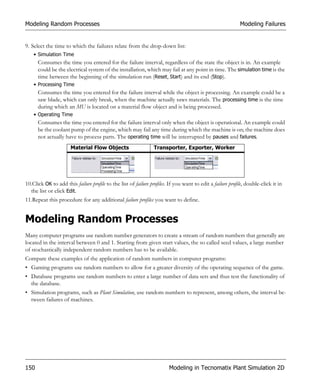
Modeling Random Processes . . . . . . . . . . . . . . . . . . . . . . . . . . . . . . . . . . . . . . . . . . . . . . . . . . . . . . . . . . 150
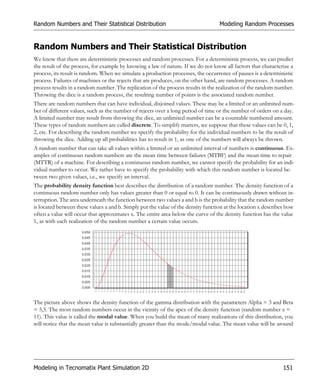
          Random Numbers and Their Statistical Distribution . . . . . . . . . . . . . . . . . . . . . . . . . . . . . . . . . 151
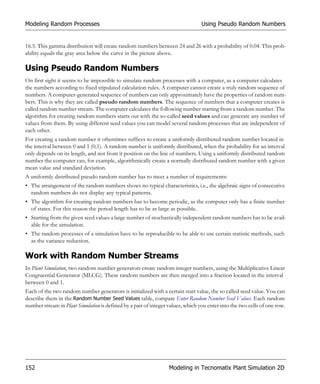
          Using Pseudo Random Numbers . . . . . . . . . . . . . . . . . . . . . . . . . . . . . . . . . . . . . . . . . . . . . . . . . 152
          Work with Random Number Streams . . . . . . . . . . . . . . . . . . . . . . . . . . . . . . . . . . . . . . . . . . . . . 152
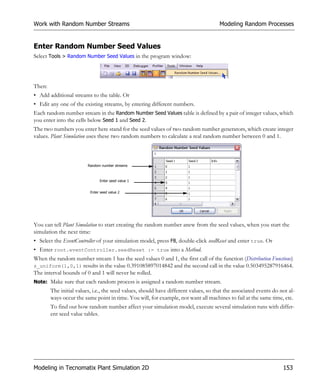
                Enter Random Number Seed Values . . . . . . . . . . . . . . . . . . . . . . . . . . . . . . . . . . . . . . . . 153
          Use Probability Distributions . . . . . . . . . . . . . . . . . . . . . . . . . . . . . . . . . . . . . . . . . . . . . . . . . . . . 154
Modeling the Flow of Materials, Advanced . . . . . . . . . . . . . . . . . . . . . . . . . . . . . . . . . . . . . . . . . . . . . . . 155
          Create Entrance and Exit Controls. . . . . . . . . . . . . . . . . . . . . . . . . . . . . . . . . . . . . . . . . . . . . . . . 155
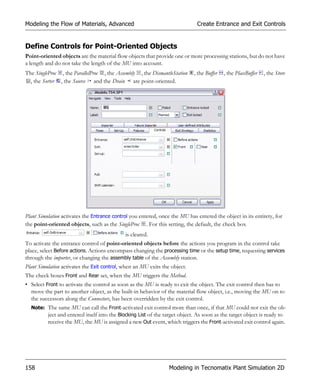
                 Define Controls for Point-Oriented Objects . . . . . . . . . . . . . . . . . . . . . . . . . . . . . . . . . . 158
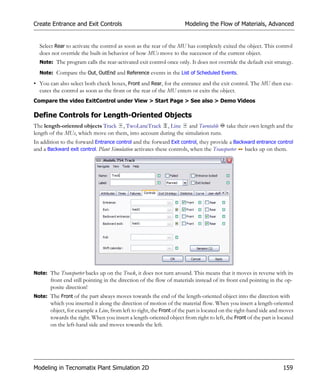
                 Define Controls for Length-Oriented Objects . . . . . . . . . . . . . . . . . . . . . . . . . . . . . . . . 159
          Create Sensors . . . . . . . . . . . . . . . . . . . . . . . . . . . . . . . . . . . . . . . . . . . . . . . . . . . . . . . . . . . . . . . . 161
          Create Observers . . . . . . . . . . . . . . . . . . . . . . . . . . . . . . . . . . . . . . . . . . . . . . . . . . . . . . . . . . . . . . 164


                                                                                                                                                               V
Customize the Behavior of Objects . . . . . . . . . . . . . . . . . . . . . . . . . . . . . . . . . . . . . . . . . . . . . . . 167
                     Define Controls . . . . . . . . . . . . . . . . . . . . . . . . . . . . . . . . . . . . . . . . . . . . . . . . . . . . . . . . . 167
                            Assign a Control Method . . . . . . . . . . . . . . . . . . . . . . . . . . . . . . . . . . . . . . . . . . . 168
                            Create a Control which is Part of the Object . . . . . . . . . . . . . . . . . . . . . . . . . . . 169
                     Create a User-defined Attribute . . . . . . . . . . . . . . . . . . . . . . . . . . . . . . . . . . . . . . . . . . . . 171
     Modeling Workers and the Jobs They Do . . . . . . . . . . . . . . . . . . . . . . . . . . . . . . . . . . . . . . . . . . . . . . . 173
               Model a Worker Who Works at a Machine . . . . . . . . . . . . . . . . . . . . . . . . . . . . . . . . . . . . . . . . . 174
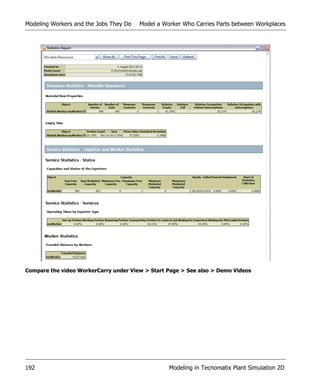
               under View > Start Page > See also > Demo VideosModel a Worker Who Repairs a Machine179
               Model a Worker Who Carries Parts between Workplaces. . . . . . . . . . . . . . . . . . . . . . . . . . . . . . 182
               Model Workers with Importer, Broker and Exporter . . . . . . . . . . . . . . . . . . . . . . . . . . . . . . . . . 193
                     Model Processing Jobs . . . . . . . . . . . . . . . . . . . . . . . . . . . . . . . . . . . . . . . . . . . . . . . . . . . 193
                     Model Processing and Set-up Jobs . . . . . . . . . . . . . . . . . . . . . . . . . . . . . . . . . . . . . . . . . . 198
     Modeling a Shift System . . . . . . . . . . . . . . . . . . . . . . . . . . . . . . . . . . . . . . . . . . . . . . . . . . . . . . . . . . . . . 204
               Defining Shifts with the ShiftCalendar . . . . . . . . . . . . . . . . . . . . . . . . . . . . . . . . . . . . . . . . . . . . . 205
                      Enter the Names of the Shifts, the Corresponding Times and Days . . . . . . . . . . . . . . . 205
                      Enter Times During which the Installation Works Part of the Time . . . . . . . . . . . . . . . 207
                      Enter the Stations which the ShiftCalendar Controls . . . . . . . . . . . . . . . . . . . . . . . . . . . 208
                      Schedule Date and Time to Start or to Finish the Production Process . . . . . . . . . . . . . 209
               Pausing Material Flow Objects and Pausing Frames . . . . . . . . . . . . . . . . . . . . . . . . . . . . . . . . . . 210
                      Paused Material Flow Objects. . . . . . . . . . . . . . . . . . . . . . . . . . . . . . . . . . . . . . . . . . . . . . 210
                      Paused Frames . . . . . . . . . . . . . . . . . . . . . . . . . . . . . . . . . . . . . . . . . . . . . . . . . . . . . . . . . . 211
                             Example of a Pause Control . . . . . . . . . . . . . . . . . . . . . . . . . . . . . . . . . . . . . . . . 211
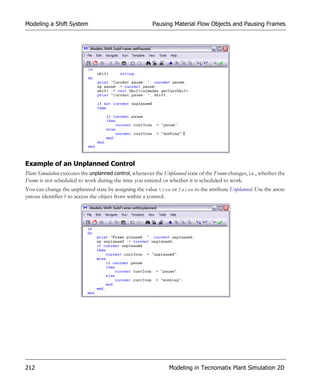
                             Example of an Unplanned Control . . . . . . . . . . . . . . . . . . . . . . . . . . . . . . . . . . . 212
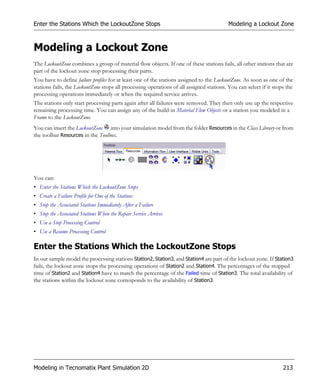
     Modeling a Lockout Zone. . . . . . . . . . . . . . . . . . . . . . . . . . . . . . . . . . . . . . . . . . . . . . . . . . . . . . . . . . . . 213
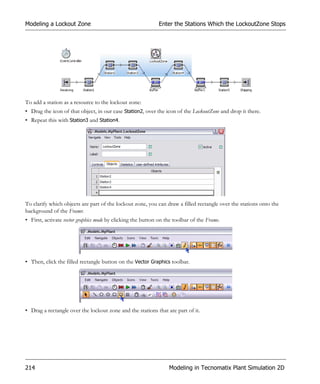
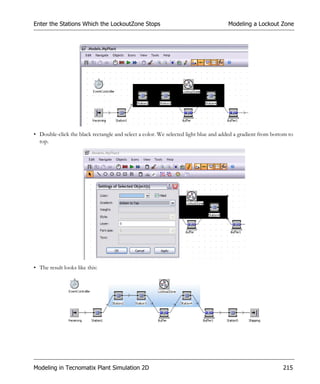
               Enter the Stations Which the LockoutZone Stops . . . . . . . . . . . . . . . . . . . . . . . . . . . . . . . . . . . 213
               Create a Failure Profile for One of the Stations. . . . . . . . . . . . . . . . . . . . . . . . . . . . . . . . . . . . . . 216
               Stop the Associated Stations Immediately After a Failure. . . . . . . . . . . . . . . . . . . . . . . . . . . . . . 217
               Stop the Associated Stations When the Repair Service Arrives . . . . . . . . . . . . . . . . . . . . . . . . . 220
               Use a Stop Processing Control . . . . . . . . . . . . . . . . . . . . . . . . . . . . . . . . . . . . . . . . . . . . . . . . . . . 222
               Use a Resume Processing Control . . . . . . . . . . . . . . . . . . . . . . . . . . . . . . . . . . . . . . . . . . . . . . . . 223
               Stopped Material Flow Objects and Stopped Frames . . . . . . . . . . . . . . . . . . . . . . . . . . . . . . . . . 224
     Modeling a Kanban System. . . . . . . . . . . . . . . . . . . . . . . . . . . . . . . . . . . . . . . . . . . . . . . . . . . . . . . . . . . 225
               Create the Sequence of Stations within the Line . . . . . . . . . . . . . . . . . . . . . . . . . . . . . . . . . . . . . 227


VI
Configure the Assembly Station . . . . . . . . . . . . . . . . . . . . . . . . . . . . . . . . . . . . . . . . . . . . . . . . . . 228
          Configure the Kanban Station which Orders the Parts . . . . . . . . . . . . . . . . . . . . . . . . . . . . . . . . 229
          Configure the Kanban Sources which Produce the Parts . . . . . . . . . . . . . . . . . . . . . . . . . . . . . . 231
          Configure the Kanban Buffer which Manages Storing and Ordering of Parts . . . . . . . . . . . . . 233
          Program a Control which Orders Parts from the Kanban Buffer . . . . . . . . . . . . . . . . . . . . . . . 235
Modeling Transport Systems. . . . . . . . . . . . . . . . . . . . . . . . . . . . . . . . . . . . . . . . . . . . . . . . . . . . . . . . . . . 236
          Working with Curved Objects . . . . . . . . . . . . . . . . . . . . . . . . . . . . . . . . . . . . . . . . . . . . . . . . . . . 237
                Insert Curved and Straight Segments . . . . . . . . . . . . . . . . . . . . . . . . . . . . . . . . . . . . . . . . 238
                Draw Straight and Curved Segments with a 90° Angle (Fixed Values) . . . . . . . . . . . . . 241
                Draw Straight and Curved Segments without Fixed Values . . . . . . . . . . . . . . . . . . . . . . 244
                Change the Shape of a Segment . . . . . . . . . . . . . . . . . . . . . . . . . . . . . . . . . . . . . . . . . . . . 245
                Create a Curved Object with SimTalk Commands . . . . . . . . . . . . . . . . . . . . . . . . . . . . . 245
                Import Settings of a Curved Object from Another Simulation Model. . . . . . . . . . . . . . 246
                Keyboard Shortcuts for Inserting a Curved Object. . . . . . . . . . . . . . . . . . . . . . . . . . . . . 248
          Modeling a Transport System with Active Objects of Type Line. . . . . . . . . . . . . . . . . . . . . . . . 248
                Model a Simple Conveyor Between Two Stations. . . . . . . . . . . . . . . . . . . . . . . . . . . . . . 249
                Model an Accumulating/a Non-Accumulating Conveyor Between Stations. . . . . . . . . 249
          Modeling a Transport System with Passive Objects of Type Track . . . . . . . . . . . . . . . . . . . . . . 251
                Model with the Library CrossSlidingCar . . . . . . . . . . . . . . . . . . . . . . . . . . . . . . . . . . . . . 254
                       Model a Simple Cross-sliding Car . . . . . . . . . . . . . . . . . . . . . . . . . . . . . . . . . . . . 256
                       Model a Cross-sliding Car that Distributes and Brings Together Parts . . . . . . . 258
                       Model a Cross-sliding Car with an Application-specific Strategy . . . . . . . . . . . 259
                Model a Facility Using a Storage Crane . . . . . . . . . . . . . . . . . . . . . . . . . . . . . . . . . . . . . . 262
                       Automatically Place Parts into Stock and Remove Parts from Stock . . . . . . . . 262
                       Automatically Place Parts into Stock, Remove Parts from Stock on Demand . 264
                       Place Parts into Stock on Demand, Remove Parts from Stock Automatically . 265
                       Place Parts into Stock on Demand, Remove Parts from Stock on Demand . . 266
                       Temporarily Store Parts, Put together the Order, Remove the Parts from Stock 268
                               Define How the Source Creates Parts and Moves Them On . . . . . . . . 268
                               Shuffle the Sequence of Orders . . . . . . . . . . . . . . . . . . . . . . . . . . . . . . . . 270
                               Place Parts into Stock . . . . . . . . . . . . . . . . . . . . . . . . . . . . . . . . . . . . . . . . 270
                               Remove Parts from Stock . . . . . . . . . . . . . . . . . . . . . . . . . . . . . . . . . . . . 274
                       Load a Train with the Storage Crane . . . . . . . . . . . . . . . . . . . . . . . . . . . . . . . . . . 274
                               Produce the Parts and Place them into the Storage Area of the Crane . 275
                               Parameterize the Crane . . . . . . . . . . . . . . . . . . . . . . . . . . . . . . . . . . . . . . 276


                                                                                                                                                 VII
Create the Train . . . . . . . . . . . . . . . . . . . . . . . . . . . . . . . . . . . . . . . . . . . . 277
                                        Load the Train . . . . . . . . . . . . . . . . . . . . . . . . . . . . . . . . . . . . . . . . . . . . . 280
                                        Unload the Train . . . . . . . . . . . . . . . . . . . . . . . . . . . . . . . . . . . . . . . . . . . 282
                                 Feed Machines with an Overhead Crane . . . . . . . . . . . . . . . . . . . . . . . . . . . . . . 282
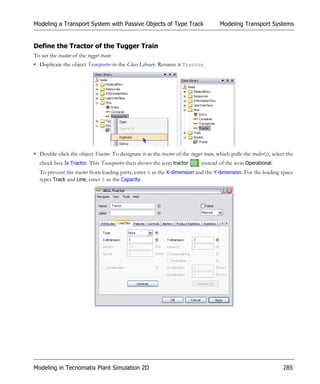
                           Model a Tugger Train . . . . . . . . . . . . . . . . . . . . . . . . . . . . . . . . . . . . . . . . . . . . . . . . . . . . 284
                                 Define the Tractor of the Tugger Train . . . . . . . . . . . . . . . . . . . . . . . . . . . . . . . 285
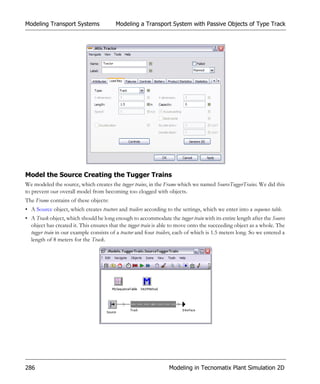
                                 Model the Source Creating the Tugger Trains . . . . . . . . . . . . . . . . . . . . . . . . . . 286
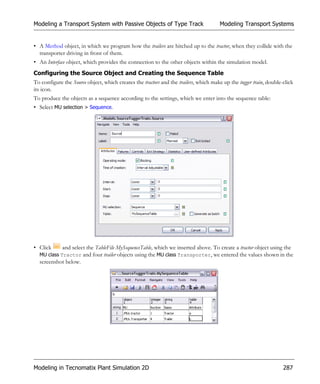
                                        Configuring the Source Object and Creating the Sequence Table . . . . . 287
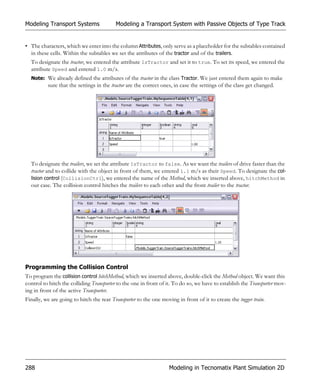
                                        Programming the Collision Control . . . . . . . . . . . . . . . . . . . . . . . . . . . . 288
                                 Model the Track System on which the Tugger Trains Move . . . . . . . . . . . . . . . 289
                                 Configure the Loading and Unloading Stations . . . . . . . . . . . . . . . . . . . . . . . . . 290
       Preparing Data for the Simulation with DataFit . . . . . . . . . . . . . . . . . . . . . . . . . . . . . . . . . . . . . . . . . . 293
                 Step 1: Define the Task and the Objectives . . . . . . . . . . . . . . . . . . . . . . . . . . . . . . . . . . . . . . . . . 293
                 Step 2: Collect and Prepare Data . . . . . . . . . . . . . . . . . . . . . . . . . . . . . . . . . . . . . . . . . . . . . . . . . 294
                 Step 3: Decide which Distribution to Use . . . . . . . . . . . . . . . . . . . . . . . . . . . . . . . . . . . . . . . . . . 295
                         Distribution-Fitting with DataFit . . . . . . . . . . . . . . . . . . . . . . . . . . . . . . . . . . . . . . . . . . . 295
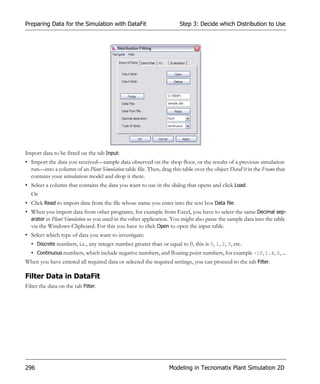
                         Input Data in DataFit . . . . . . . . . . . . . . . . . . . . . . . . . . . . . . . . . . . . . . . . . . . . . . . . . . . . 295
                         Filter Data in DataFit . . . . . . . . . . . . . . . . . . . . . . . . . . . . . . . . . . . . . . . . . . . . . . . . . . . . 296
                         Fit Data in DataFit . . . . . . . . . . . . . . . . . . . . . . . . . . . . . . . . . . . . . . . . . . . . . . . . . . . . . . 297
                         Evaluate Data in DataFit. . . . . . . . . . . . . . . . . . . . . . . . . . . . . . . . . . . . . . . . . . . . . . . . . . 298
                 Use Distributions with Bounds. . . . . . . . . . . . . . . . . . . . . . . . . . . . . . . . . . . . . . . . . . . . . . . . . . . 299
       Executing Simulation Experiments. . . . . . . . . . . . . . . . . . . . . . . . . . . . . . . . . . . . . . . . . . . . . . . . . . . . . . 300
                 Execute Experiments with the ExperimentManager . . . . . . . . . . . . . . . . . . . . . . . . . . . . . . . . . 301
                       Execute a Simple Simulation Study . . . . . . . . . . . . . . . . . . . . . . . . . . . . . . . . . . . . . . . . . 302
                              Step 1: Define input values and output values of the experiments . . . . . . . . . . 302
                              Step 2: Run the experiments with the settings you defined . . . . . . . . . . . . . . . . 305
                              Step 3: Evaluate the results of the simulation study . . . . . . . . . . . . . . . . . . . . . . 306
                                      View the Results as a Table . . . . . . . . . . . . . . . . . . . . . . . . . . . . . . . . . . . 306
                                      View the Results in a Chart . . . . . . . . . . . . . . . . . . . . . . . . . . . . . . . . . . . 308
                                      View the Results as a Report . . . . . . . . . . . . . . . . . . . . . . . . . . . . . . . . . . 309
                       Refine the Settings . . . . . . . . . . . . . . . . . . . . . . . . . . . . . . . . . . . . . . . . . . . . . . . . . . . . . . . 311
                              Set Static Parameters . . . . . . . . . . . . . . . . . . . . . . . . . . . . . . . . . . . . . . . . . . . . . . 311
                                      Modify Settings in the Configuration Method . . . . . . . . . . . . . . . . . . . . 311
                              Set Dynamic Parameters . . . . . . . . . . . . . . . . . . . . . . . . . . . . . . . . . . . . . . . . . . . 312
                                      Create a Rule of Your Own . . . . . . . . . . . . . . . . . . . . . . . . . . . . . . . . . . . 313


VIII
Optimize Models with Genetic Algorithms                            . . . . . . . . . . . . . . . . . . . . . . . . . . . . . . . . . . . . . . 315
     Packing a Model and Sending it to Somebody Else. . . . . . . . . . . . . . . . . . . . . . . . . . . . . . . . . . . . . . . . . 316

Animating the Simulation Model and Viewing the Results . . . . . . . . . . . . . . 319
     Animating Your Simulation Model. . . . . . . . . . . . . . . . . . . . . . . . . . . . . . . . . . . . . . . . . . . . . . . . . . . . . . 319
               Activate and Deactivate the Animation . . . . . . . . . . . . . . . . . . . . . . . . . . . . . . . . . . . . . . . . . . . . 320
               Working with Object Icons. . . . . . . . . . . . . . . . . . . . . . . . . . . . . . . . . . . . . . . . . . . . . . . . . . . . . . 320
                     Editing an Icon . . . . . . . . . . . . . . . . . . . . . . . . . . . . . . . . . . . . . . . . . . . . . . . . . . . . . . . . . 320
                     Creating an Icon . . . . . . . . . . . . . . . . . . . . . . . . . . . . . . . . . . . . . . . . . . . . . . . . . . . . . . . . 321
                     Defining the Rotation of an Object . . . . . . . . . . . . . . . . . . . . . . . . . . . . . . . . . . . . . . . . . 322
                     Making Areas of an Icon Transparent . . . . . . . . . . . . . . . . . . . . . . . . . . . . . . . . . . . . . . . 323
               Set and Link Animation Points and Animation Lines . . . . . . . . . . . . . . . . . . . . . . . . . . . . . . . . . 324
     Viewing and Visualizing Statistics . . . . . . . . . . . . . . . . . . . . . . . . . . . . . . . . . . . . . . . . . . . . . . . . . . . . . . . 326
               Viewing Statistics in the Dialogs of the Objects . . . . . . . . . . . . . . . . . . . . . . . . . . . . . . . . . . . . . 327
                     Check How Many Parts Were Introduced into the Plant . . . . . . . . . . . . . . . . . . . . . . . . 330
                     Check How Many Parts Left the Plant. . . . . . . . . . . . . . . . . . . . . . . . . . . . . . . . . . . . . . . 331
                     Check Statistics of the Individual Stations . . . . . . . . . . . . . . . . . . . . . . . . . . . . . . . . . . . . 332
                     Check Product Statistics of Parts . . . . . . . . . . . . . . . . . . . . . . . . . . . . . . . . . . . . . . . . . . . 333
                     Check Statistics of Exporter and Worker. . . . . . . . . . . . . . . . . . . . . . . . . . . . . . . . . . . . . 335
               Viewing the Statistics Report . . . . . . . . . . . . . . . . . . . . . . . . . . . . . . . . . . . . . . . . . . . . . . . . . . . . 336
               Showing Statistics with Display Panels in Your Model . . . . . . . . . . . . . . . . . . . . . . . . . . . . . . . . 342
                     Show Values as Text . . . . . . . . . . . . . . . . . . . . . . . . . . . . . . . . . . . . . . . . . . . . . . . . . . . . . 342
                     Show Values as Bars . . . . . . . . . . . . . . . . . . . . . . . . . . . . . . . . . . . . . . . . . . . . . . . . . . . . . 345
                     Show States with LEDs. . . . . . . . . . . . . . . . . . . . . . . . . . . . . . . . . . . . . . . . . . . . . . . . . . . 348
               Showing Statistics in a Chart . . . . . . . . . . . . . . . . . . . . . . . . . . . . . . . . . . . . . . . . . . . . . . . . . . . . . 349
                     Select Settings in the Statistics Wizard . . . . . . . . . . . . . . . . . . . . . . . . . . . . . . . . . . . . . . . 350
                     Select Where the Data Comes From . . . . . . . . . . . . . . . . . . . . . . . . . . . . . . . . . . . . . . . . 352
                     Selecting How the Chart Shows the Data . . . . . . . . . . . . . . . . . . . . . . . . . . . . . . . . . . . . 354
                             Show Values in a Chart . . . . . . . . . . . . . . . . . . . . . . . . . . . . . . . . . . . . . . . . . . . . 354
                             Show Values in a Histogram . . . . . . . . . . . . . . . . . . . . . . . . . . . . . . . . . . . . . . . . 355
                             Show Values as the Chart Plots Them . . . . . . . . . . . . . . . . . . . . . . . . . . . . . . . . 356
                             Show Values as an XY Graph . . . . . . . . . . . . . . . . . . . . . . . . . . . . . . . . . . . . . . . 357
                             Select the Chart Type . . . . . . . . . . . . . . . . . . . . . . . . . . . . . . . . . . . . . . . . . . . . . . 359
                             Select Additional Display Options . . . . . . . . . . . . . . . . . . . . . . . . . . . . . . . . . . . . 361
                     Add Labels, Format Them and Add a Legend. . . . . . . . . . . . . . . . . . . . . . . . . . . . . . . . . 366


                                                                                                                                                                IX
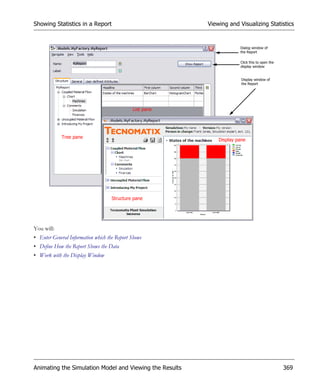
Showing Statistics in a Report. . . . . . . . . . . . . . . . . . . . . . . . . . . . . . . . . . . . . . . . . . . . . . . . . . . . 368
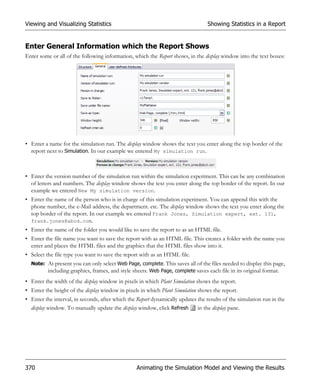
                    Enter General Information which the Report Shows . . . . . . . . . . . . . . . . . . . . . . . . . . . 370
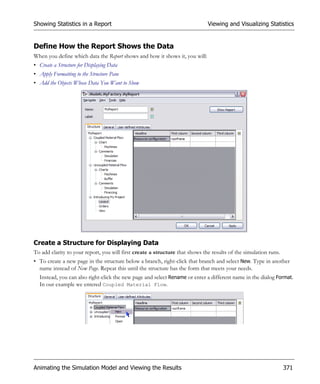
                    Define How the Report Shows the Data . . . . . . . . . . . . . . . . . . . . . . . . . . . . . . . . . . . . . 371
                            Create a Structure for Displaying Data . . . . . . . . . . . . . . . . . . . . . . . . . . . . . . . . 371
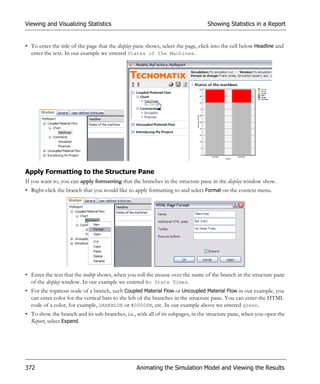
                            Apply Formatting to the Structure Pane . . . . . . . . . . . . . . . . . . . . . . . . . . . . . . . 372
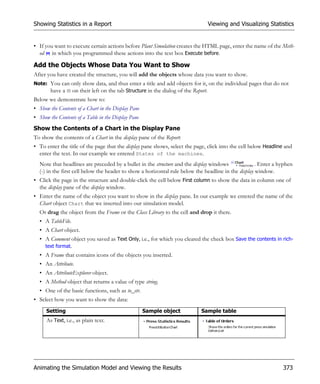
                            Add the Objects Whose Data You Want to Show . . . . . . . . . . . . . . . . . . . . . . . 373
                                     Show the Contents of a Chart in the Display Pane . . . . . . . . . . . . . . . . 373
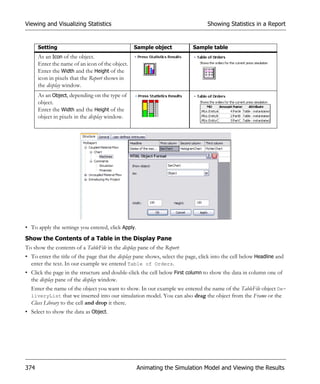
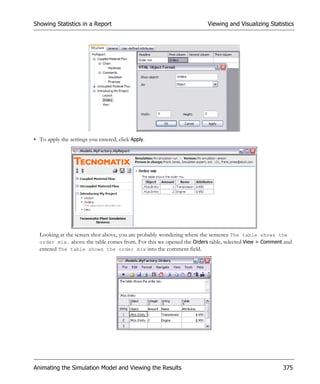
                                     Show the Contents of a Table in the Display Pane . . . . . . . . . . . . . . . . 374
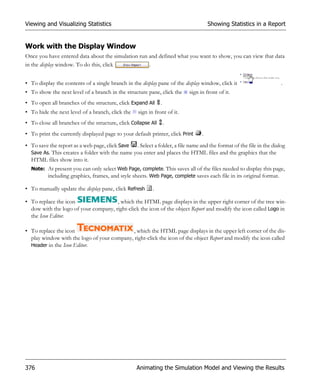
                    Work with the Display Window . . . . . . . . . . . . . . . . . . . . . . . . . . . . . . . . . . . . . . . . . . . . 376
              Showing Values During the Simulation Run with the Display . . . . . . . . . . . . . . . . . . . . . . . . . . 377
                    Select which Data the Display Shows. . . . . . . . . . . . . . . . . . . . . . . . . . . . . . . . . . . . . . . . 377
                    Select How the Display Shows the Data . . . . . . . . . . . . . . . . . . . . . . . . . . . . . . . . . . . . . 378
              Showing Statistics During the Simulation Run in Excel . . . . . . . . . . . . . . . . . . . . . . . . . . . . . . . 379
                    Set the Variable Up . . . . . . . . . . . . . . . . . . . . . . . . . . . . . . . . . . . . . . . . . . . . . . . . . . . . . . 380
                    Set Excel Up . . . . . . . . . . . . . . . . . . . . . . . . . . . . . . . . . . . . . . . . . . . . . . . . . . . . . . . . . . . 381
                    Embed the Excel File into the Model Using the Object FileLink . . . . . . . . . . . . . . . . . 383
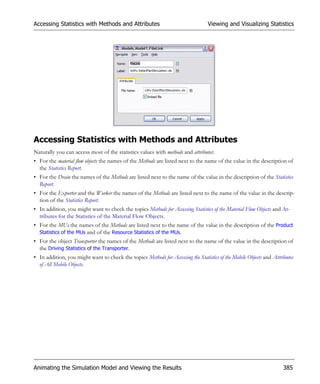
              Accessing Statistics with Methods and Attributes . . . . . . . . . . . . . . . . . . . . . . . . . . . . . . . . . . . . 385
    Toggling States and Executing Actions . . . . . . . . . . . . . . . . . . . . . . . . . . . . . . . . . . . . . . . . . . . . . . . . . 386
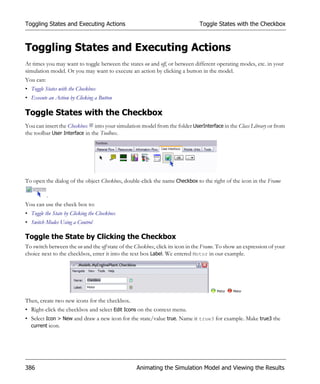
              Toggle States with the Checkbox . . . . . . . . . . . . . . . . . . . . . . . . . . . . . . . . . . . . . . . . . . . . . . . . . 386
                     Toggle the State by Clicking the Checkbox . . . . . . . . . . . . . . . . . . . . . . . . . . . . . . . . . . . 386
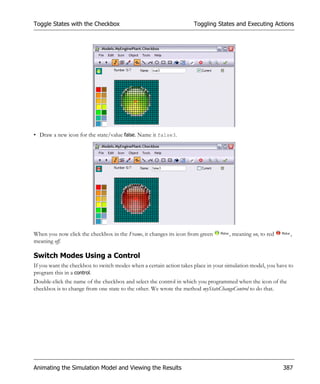
                     Switch Modes Using a Control . . . . . . . . . . . . . . . . . . . . . . . . . . . . . . . . . . . . . . . . . . . . . 387
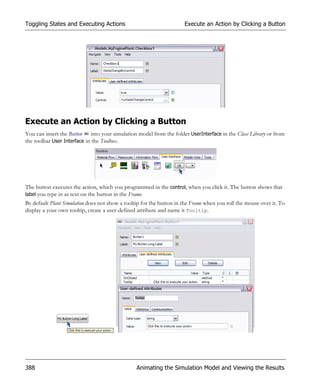
              Execute an Action by Clicking a Button . . . . . . . . . . . . . . . . . . . . . . . . . . . . . . . . . . . . . . . . . . . 388
    Working with Evaluation Tools . . . . . . . . . . . . . . . . . . . . . . . . . . . . . . . . . . . . . . . . . . . . . . . . . . . . . . . 391
              BottleneckAnalyzer . . . . . . . . . . . . . . . . . . . . . . . . . . . . . . . . . . . . . . . . . . . . . . . . . . . . . . . . . . . . 391
                     Configuring the BottleneckAnalyzer Through Other Objects . . . . . . . . . . . . . . . . . . . . 391
                     Analyze . . . . . . . . . . . . . . . . . . . . . . . . . . . . . . . . . . . . . . . . . . . . . . . . . . . . . . . . . . . . . . . . 391
                     Remove . . . . . . . . . . . . . . . . . . . . . . . . . . . . . . . . . . . . . . . . . . . . . . . . . . . . . . . . . . . . . . . 392
                     Open. . . . . . . . . . . . . . . . . . . . . . . . . . . . . . . . . . . . . . . . . . . . . . . . . . . . . . . . . . . . . . . . . . 392
                     Resources . . . . . . . . . . . . . . . . . . . . . . . . . . . . . . . . . . . . . . . . . . . . . . . . . . . . . . . . . . . . . . 392
                     Display . . . . . . . . . . . . . . . . . . . . . . . . . . . . . . . . . . . . . . . . . . . . . . . . . . . . . . . . . . . . . . . . 392
                     Navigate Menu. . . . . . . . . . . . . . . . . . . . . . . . . . . . . . . . . . . . . . . . . . . . . . . . . . . . . . . . . . 392
                     Help Menu . . . . . . . . . . . . . . . . . . . . . . . . . . . . . . . . . . . . . . . . . . . . . . . . . . . . . . . . . . . . . 392
                            Contents . . . . . . . . . . . . . . . . . . . . . . . . . . . . . . . . . . . . . . . . . . . . . . . . . . . . . . . . 392
                            Index . . . . . . . . . . . . . . . . . . . . . . . . . . . . . . . . . . . . . . . . . . . . . . . . . . . . . . . . . . . 393
                            Help on BottleneckAnalyzer . . . . . . . . . . . . . . . . . . . . . . . . . . . . . . . . . . . . . . . . 393


X
SankeyDiagram . . . . . . . . . . . . . . . . . . . . . . . . . . . . . . . . . . . . . . . . . . . . . . . . . . . . . . . . . . . . . . . 393
                      Active . . . . . . . . . . . . . . . . . . . . . . . . . . . . . . . . . . . . . . . . . . . . . . . . . . . . . . . . . . . . . . . . 394
                      Display . . . . . . . . . . . . . . . . . . . . . . . . . . . . . . . . . . . . . . . . . . . . . . . . . . . . . . . . . . . . . . . 394
                      MUs to be watched . . . . . . . . . . . . . . . . . . . . . . . . . . . . . . . . . . . . . . . . . . . . . . . . . . . . . . 394
                      Color. . . . . . . . . . . . . . . . . . . . . . . . . . . . . . . . . . . . . . . . . . . . . . . . . . . . . . . . . . . . . . . . . . 395
                      Maximum width of the flows . . . . . . . . . . . . . . . . . . . . . . . . . . . . . . . . . . . . . . . . . . . . . . 395
                      Display the flows on layer/Graphics in layer . . . . . . . . . . . . . . . . . . . . . . . . . . . . . . . . . . 395
                      Navigate Menu. . . . . . . . . . . . . . . . . . . . . . . . . . . . . . . . . . . . . . . . . . . . . . . . . . . . . . . . . . 395
                      Help Menu . . . . . . . . . . . . . . . . . . . . . . . . . . . . . . . . . . . . . . . . . . . . . . . . . . . . . . . . . . . . . 395
                              Contents . . . . . . . . . . . . . . . . . . . . . . . . . . . . . . . . . . . . . . . . . . . . . . . . . . . . . . . . 395
                              Index . . . . . . . . . . . . . . . . . . . . . . . . . . . . . . . . . . . . . . . . . . . . . . . . . . . . . . . . . . . 395
                              Help on SankeyDiagram . . . . . . . . . . . . . . . . . . . . . . . . . . . . . . . . . . . . . . . . . . . 395

Importing Data for the Simulation . . . . . . . . . . . . . . . . . . . . . . . . . . . . . . . . . 397
      Importing and Exporting Data . . . . . . . . . . . . . . . . . . . . . . . . . . . . . . . . . . . . . . . . . . . . . . . . . . . . . . . . . 397
                Import a Text File or an Object File into a List. . . . . . . . . . . . . . . . . . . . . . . . . . . . . . . . . . . . . . 398
                Import Data from a Microsoft Excel Worksheet . . . . . . . . . . . . . . . . . . . . . . . . . . . . . . . . . . . . 400
                Import a Services List, a List of Shifts, etc. into an Object . . . . . . . . . . . . . . . . . . . . . . . . . . . . . 402
                Import Data in XML Format . . . . . . . . . . . . . . . . . . . . . . . . . . . . . . . . . . . . . . . . . . . . . . . . . . . . 404
                      Select the File Name, the Context and the Import Method . . . . . . . . . . . . . . . . . . . . . . 405
                      Read and Write Data Sequentially. . . . . . . . . . . . . . . . . . . . . . . . . . . . . . . . . . . . . . . . . . . 406
                      Read and Access Data Randomly . . . . . . . . . . . . . . . . . . . . . . . . . . . . . . . . . . . . . . . . . . . 407
                      Access and Traverse Data Randomly . . . . . . . . . . . . . . . . . . . . . . . . . . . . . . . . . . . . . . . . 410
                Import Data from a Database. . . . . . . . . . . . . . . . . . . . . . . . . . . . . . . . . . . . . . . . . . . . . . . . . . . . 410
                      Import Data from an ODBC Database . . . . . . . . . . . . . . . . . . . . . . . . . . . . . . . . . . . . . . 411
                              Set the Data Source Up . . . . . . . . . . . . . . . . . . . . . . . . . . . . . . . . . . . . . . . . . . . . 411
                              Import Data into Your Simulation Model . . . . . . . . . . . . . . . . . . . . . . . . . . . . . 412
                              Export Data to the Database . . . . . . . . . . . . . . . . . . . . . . . . . . . . . . . . . . . . . . . . 416
                      Import Data from an Oracle Database . . . . . . . . . . . . . . . . . . . . . . . . . . . . . . . . . . . . . . 418
                Import or Export Data in ASCII Format . . . . . . . . . . . . . . . . . . . . . . . . . . . . . . . . . . . . . . . . . . 419
      Working with Lists and Tables . . . . . . . . . . . . . . . . . . . . . . . . . . . . . . . . . . . . . . . . . . . . . . . . . . . . . . . . . 420
                Set the Data Type of a Column . . . . . . . . . . . . . . . . . . . . . . . . . . . . . . . . . . . . . . . . . . . . . . . . . . 421
                Set the Dimension of a List. . . . . . . . . . . . . . . . . . . . . . . . . . . . . . . . . . . . . . . . . . . . . . . . . . . . . . 423
                Set Alignment and Colors of Cells . . . . . . . . . . . . . . . . . . . . . . . . . . . . . . . . . . . . . . . . . . . . . . . . 425
                Insert, Cut and Delete Rows and Columns . . . . . . . . . . . . . . . . . . . . . . . . . . . . . . . . . . . . . . . . . 426


                                                                                                                                                                 XI
Work with Data in a List . . . . . . . . . . . . . . . . . . . . . . . . . . . . . . . . . . . . . . . . . . . . . . . . . . . . . . . . 429
               Work with Data in the TableFile . . . . . . . . . . . . . . . . . . . . . . . . . . . . . . . . . . . . . . . . . . . . . . . . . 430
               Accessing Data in Lists . . . . . . . . . . . . . . . . . . . . . . . . . . . . . . . . . . . . . . . . . . . . . . . . . . . . . . . . . 431
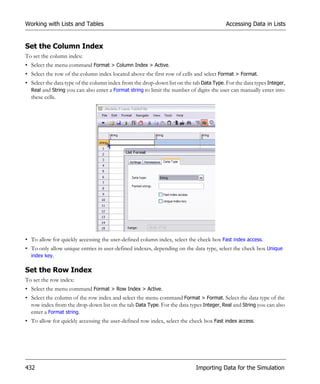
                      Set the Column Index . . . . . . . . . . . . . . . . . . . . . . . . . . . . . . . . . . . . . . . . . . . . . . . . . . . . 432
                      Set the Row Index . . . . . . . . . . . . . . . . . . . . . . . . . . . . . . . . . . . . . . . . . . . . . . . . . . . . . . . 432
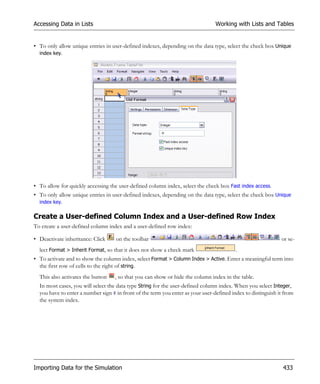
                      Create a User-defined Column Index and a User-defined Row Index . . . . . . . . . . . . . . 433
                      Set and Get the Upper Bound of a List . . . . . . . . . . . . . . . . . . . . . . . . . . . . . . . . . . . . . . 434
                      Address Columns and Rows with Methods . . . . . . . . . . . . . . . . . . . . . . . . . . . . . . . . . . . 435
                              Set the Format of Columns and Rows . . . . . . . . . . . . . . . . . . . . . . . . . . . . . . . . 436
                              Get the Format of Columns or Rows . . . . . . . . . . . . . . . . . . . . . . . . . . . . . . . . . 436
               Search Lists with Methods . . . . . . . . . . . . . . . . . . . . . . . . . . . . . . . . . . . . . . . . . . . . . . . . . . . . . . 436
               Search Manually within Lists. . . . . . . . . . . . . . . . . . . . . . . . . . . . . . . . . . . . . . . . . . . . . . . . . . . . . 437
               Create Lists within Lists and Tables . . . . . . . . . . . . . . . . . . . . . . . . . . . . . . . . . . . . . . . . . . . . . . . 438
               Sort CardFile, TableFile and TimeSequence . . . . . . . . . . . . . . . . . . . . . . . . . . . . . . . . . . . . . . . . 440
               Make Calculations with a Formula . . . . . . . . . . . . . . . . . . . . . . . . . . . . . . . . . . . . . . . . . . . . . . . . 440
               Import or Export the Contents of a List . . . . . . . . . . . . . . . . . . . . . . . . . . . . . . . . . . . . . . . . . . . 442
               Open a List as a Dialog Window in the Foreground . . . . . . . . . . . . . . . . . . . . . . . . . . . . . . . . . . 445

Setting Parameters in Your Model . . . . . . . . . . . . . . . . . . . . . . . . . . . . . . . . 449
      Set Parameters for Objects in Your Own Dialog. . . . . . . . . . . . . . . . . . . . . . . . . . . . . . . . . . . . . . . . . . . 449
               Plan the Layout and the Structure of Your Dialog . . . . . . . . . . . . . . . . . . . . . . . . . . . . . . . . . . . 450
               Design a Simple Dialog . . . . . . . . . . . . . . . . . . . . . . . . . . . . . . . . . . . . . . . . . . . . . . . . . . . . . . . . . 452
                     Add a Menu and Menu Commands . . . . . . . . . . . . . . . . . . . . . . . . . . . . . . . . . . . . . . . . . 455
                     Add a Static Text Box . . . . . . . . . . . . . . . . . . . . . . . . . . . . . . . . . . . . . . . . . . . . . . . . . . . . 457
                     Add a Text Box . . . . . . . . . . . . . . . . . . . . . . . . . . . . . . . . . . . . . . . . . . . . . . . . . . . . . . . . . 458
                     Add a Drop-down List . . . . . . . . . . . . . . . . . . . . . . . . . . . . . . . . . . . . . . . . . . . . . . . . . . . 459
                     Add a Group Box Around Dialog Items . . . . . . . . . . . . . . . . . . . . . . . . . . . . . . . . . . . . . 460
                     Add a Set of Radio Buttons . . . . . . . . . . . . . . . . . . . . . . . . . . . . . . . . . . . . . . . . . . . . . . . 461
                     Add a Check Box. . . . . . . . . . . . . . . . . . . . . . . . . . . . . . . . . . . . . . . . . . . . . . . . . . . . . . . . 462
               Design a Tabbed Dialog . . . . . . . . . . . . . . . . . . . . . . . . . . . . . . . . . . . . . . . . . . . . . . . . . . . . . . . . 463
                     Add a Tab Control. . . . . . . . . . . . . . . . . . . . . . . . . . . . . . . . . . . . . . . . . . . . . . . . . . . . . . . 465
                     Add Tabs to a Tab Control . . . . . . . . . . . . . . . . . . . . . . . . . . . . . . . . . . . . . . . . . . . . . . . . 466
                     Add a List Box . . . . . . . . . . . . . . . . . . . . . . . . . . . . . . . . . . . . . . . . . . . . . . . . . . . . . . . . . . 467
                     Add a List View . . . . . . . . . . . . . . . . . . . . . . . . . . . . . . . . . . . . . . . . . . . . . . . . . . . . . . . . . 468


XII
Add a Button . . . . . . . . . . . . . . . . . . . . . . . . . . . . . . . . . . . . . . . . . . . . . . . . . . . . . . . . . . . 470
                            Add an Image. . . . . . . . . . . . . . . . . . . . . . . . . . . . . . . . . . . . . . . . . . . . . . . . . . . . . . . . . . . 470
                 Program Actions which the Dialog Items Execute . . . . . . . . . . . . . . . . . . . . . . . . . . . . . . . . . . . 471
                 Program Actions for Interacting with the Dialog . . . . . . . . . . . . . . . . . . . . . . . . . . . . . . . . . . . . 473
       Set Parameters with the AttributeExplorer . . . . . . . . . . . . . . . . . . . . . . . . . . . . . . . . . . . . . . . . . . . . . . . 474
                 Enter the Objects You Want to Parameterize . . . . . . . . . . . . . . . . . . . . . . . . . . . . . . . . . . . . . . . 475
                 Enter the Attributes You Want to View or Change . . . . . . . . . . . . . . . . . . . . . . . . . . . . . . . . . . 476
                 Select How to Show the Objects and the Names . . . . . . . . . . . . . . . . . . . . . . . . . . . . . . . . . . . . 477
                 Find Objects and Attributes . . . . . . . . . . . . . . . . . . . . . . . . . . . . . . . . . . . . . . . . . . . . . . . . . . . . . 480

Modeling in the 3D Viewer . . . . . . . . . . . . . . . . . . . . . . . . . . . . . . . . . . . . . . . 483
       Create a Model in 3D. . . . . . . . . . . . . . . . . . . . . . . . . . . . . . . . . . . . . . . . . . . . . . . . . . . . . . . . . . . . . . . . . 483
                 Introducing 3D Objects . . . . . . . . . . . . . . . . . . . . . . . . . . . . . . . . . . . . . . . . . . . . . . . 486
       Modeling in 3D or in 2D? . . . . . . . . . . . . . . . . . . . . . . . . . . . . . . . . . . . . . . . . . . . . . . . . . . . . . . . . . . . . . 488
       Creating a 3D Model from a 2D Model . . . . . . . . . . . . . . . . . . . . . . . . . . . . . . . . . . . . . . . . . . . . . . . . . . 489
                 Synchronizing the 2D View and the 3D View . . . . . . . . . . . . . . . . . . . . . . . . . . . . . . . . . . . . . . . 490
                 Working with the 3D Model . . . . . . . . . . . . . . . . . . . . . . . . . . . . . . . . . . . . . . . . . . . . . . . . . . . . . 492
                 Creating a 3D Library from an Existing 2D Library . . . . . . . . . . . . . . . . . . . . . . . . . . . . . . . . . . 493
                            Execute these Steps in 2D . . . . . . . . . . . . . . . . . . . . . . . . . . . . . . . . . . . . . . . . 493
                            Execute these Steps in 3D. . . . . . . . . . . . . . . . . . . . . . . . . . . . . . . . . . . . . . . . . . . . . . . . . 494
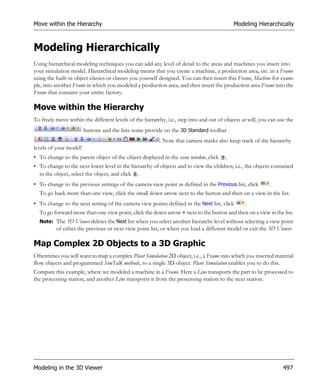
       Modeling Hierarchically. . . . . . . . . . . . . . . . . . . . . . . . . . . . . . . . . . . . . . . . . . . . . . . . . . . . . . . . . . . . . . . 497
                 Move within the Hierarchy . . . . . . . . . . . . . . . . . . . . . . . . . . . . . . . . . . . . . . . . . . . . . . . . . . . . . . 497
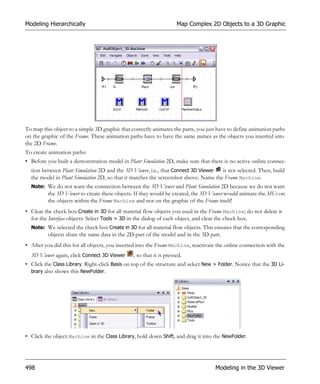
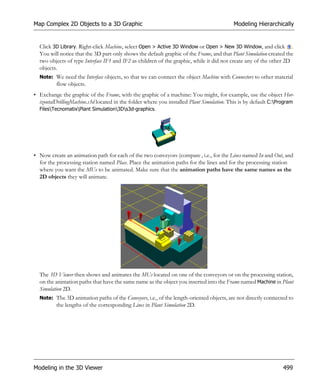
                 Map Complex 2D Objects to a 3D Graphic . . . . . . . . . . . . . . . . . . . . . . . . . . . . . . . . . . . . . . . . 497
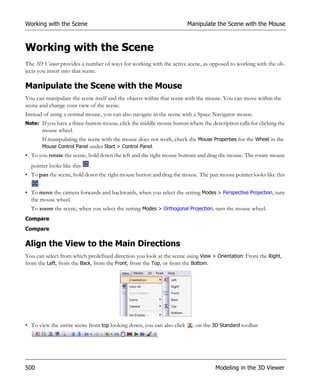
       Working with the Scene. . . . . . . . . . . . . . . . . . . . . . . . . . . . . . . . . . . . . . . . . . . . . . . . . . . . . . . . . . . . . . . 500
                 Manipulate the Scene with the Mouse . . . . . . . . . . . . . . . . . . . . . . . . . . . . . . . . . . . . . . . . . . . . . 500
                 Align the View to the Main Directions. . . . . . . . . . . . . . . . . . . . . . . . . . . . . . . . . . . . . . . . . . . . . 500
                 Save a View with a Model and Return to a View . . . . . . . . . . . . . . . . . . . . . . . . . . . . . . . . . . . . . 502
                 Navigate Through the Hierarchy of the Scene. . . . . . . . . . . . . . . . . . . . . . . . . . . . . . . . . . . . . . . 503
                       Automatically Saving a View Point. . . . . . . . . . . . . . . . . . . . . . . . . . . . . . . . . . . . . . . . . . 504
                       Selecting an Automatically Saved View Point . . . . . . . . . . . . . . . . . . . . . . . . . . . . . . . . . 504
                 Set the Background Color of the Scene . . . . . . . . . . . . . . . . . . . . . . . . . . . . . . . . . . . . . . . . . . . . 505
                 Move Through the Scene on a Predefined Path . . . . . . . . . . . . . . . . . . . . . . . . . . . . . . . . . . . . . 505


                                                                                                                                                              XIII
Map Coordinates in Plant Simulation 2D and in the 3D Viewer . . . . . . . . . . . . . . . . . . . . . . . . 505
                     Edit How Plant Simulation 2D Maps 3D Viewer Coordinates. . . . . . . . . . . . . . . . . . . . 506
      Controlling Your View . . . . . . . . . . . . . . . . . . . . . . . . . . . . . . . . . . . . . . . . . . . . . . . . . . . . . . . . . . . . . . . 507
                Set the Main Directions. . . . . . . . . . . . . . . . . . . . . . . . . . . . . . . . . . . . . . . . . . . . . . . . . . . . . . . . . 507
                Set View Points . . . . . . . . . . . . . . . . . . . . . . . . . . . . . . . . . . . . . . . . . . . . . . . . . . . . . . . . . . . . . . . 507
                Attach a Camera to an Object and Detach it . . . . . . . . . . . . . . . . . . . . . . . . . . . . . . . . . . . . . . . . 507
                Animate the Camera . . . . . . . . . . . . . . . . . . . . . . . . . . . . . . . . . . . . . . . . . . . . . . . . . . . . . . . . . . . 507
      Working with the Grid . . . . . . . . . . . . . . . . . . . . . . . . . . . . . . . . . . . . . . . . . . . . . . . . . . . . . . . . . . . . . . . 508
                Show and Hide the Grid . . . . . . . . . . . . . . . . . . . . . . . . . . . . . . . . . . . . . . . . . . . . . . . . . . . . . . . . 508
                Set Grid Properties . . . . . . . . . . . . . . . . . . . . . . . . . . . . . . . . . . . . . . . . . . . . . . . . . . . . . . . . . . . . 508
                Edit Grid Lines . . . . . . . . . . . . . . . . . . . . . . . . . . . . . . . . . . . . . . . . . . . . . . . . . . . . . . . . . . . . . . . 509
                Set the Grid Size . . . . . . . . . . . . . . . . . . . . . . . . . . . . . . . . . . . . . . . . . . . . . . . . . . . . . . . . . . . . . . 511
                Set the Snap Points . . . . . . . . . . . . . . . . . . . . . . . . . . . . . . . . . . . . . . . . . . . . . . . . . . . . . . . . . . . . 511
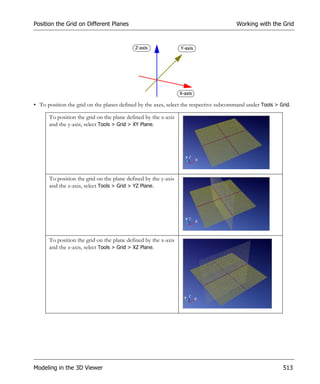
                Position the Grid on Different Planes . . . . . . . . . . . . . . . . . . . . . . . . . . . . . . . . . . . . . . . . . . . . . 512
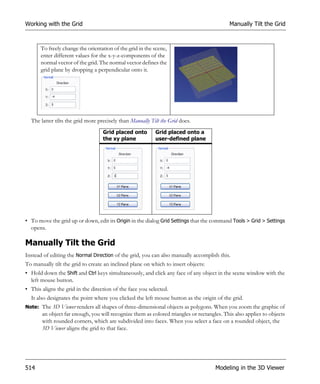
                Manually Tilt the Grid . . . . . . . . . . . . . . . . . . . . . . . . . . . . . . . . . . . . . . . . . . . . . . . . . . . . . . . . . . 514
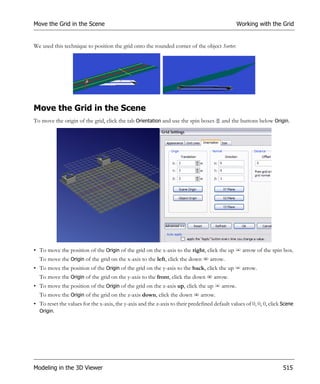
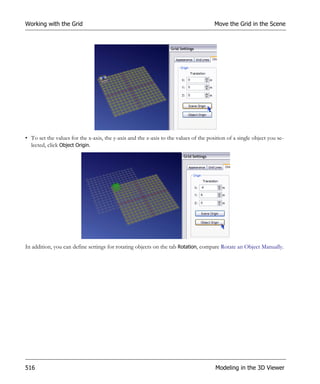
                Move the Grid in the Scene . . . . . . . . . . . . . . . . . . . . . . . . . . . . . . . . . . . . . . . . . . . . . . . . . . . . . 515
      Working with Objects . . . . . . . . . . . . . . . . . . . . . . . . . . . . . . . . . . . . . . . . . . . . . . . . . . . . . . . . . . . . . . . 517
                Model with the Built-in Object Classes . . . . . . . . . . . . . . . . . . . . . . . . . . . . . . . . . . . . . . . . . . . . 517
                Insert an Object . . . . . . . . . . . . . . . . . . . . . . . . . . . . . . . . . . . . . . . . . . . . . . . . . . . . . . . . . . . . . . . 517
                Simultaneously Paste/Insert Multiple Copies . . . . . . . . . . . . . . . . . . . . . . . . . . . . . . . . . . . . . . . 518
                Connect Objects . . . . . . . . . . . . . . . . . . . . . . . . . . . . . . . . . . . . . . . . . . . . . . . . . . . . . . . . . . . . . . 519
                Manipulate an Object with Keyboard Keys . . . . . . . . . . . . . . . . . . . . . . . . . . . . . . . . . . . . . . . . . 520
                Manipulate an Object with the Mouse . . . . . . . . . . . . . . . . . . . . . . . . . . . . . . . . . . . . . . . . . . . . . 521
                Manipulate an Object Precisely . . . . . . . . . . . . . . . . . . . . . . . . . . . . . . . . . . . . . . . . . . . . . . . . . . . 521
                Move an Object Precisely . . . . . . . . . . . . . . . . . . . . . . . . . . . . . . . . . . . . . . . . . . . . . . . . . . . . . . . 522
                Manipulate a Group of Plain Graphic Objects . . . . . . . . . . . . . . . . . . . . . . . . . . . . . . . . . . . . . . 523
                Rotate an Object . . . . . . . . . . . . . . . . . . . . . . . . . . . . . . . . . . . . . . . . . . . . . . . . . . . . . . . . . . . . . . 524
                       Rotate an Object Manually . . . . . . . . . . . . . . . . . . . . . . . . . . . . . . . . . . . . . . . . . . . . . . . . 524
                       Rotate an Object Precisely . . . . . . . . . . . . . . . . . . . . . . . . . . . . . . . . . . . . . . . . . . . . . . . . 525
                              Accept Rotating the Object . . . . . . . . . . . . . . . . . . . . . . . . . . . . . . . . . . . . . . . . . 526
                Precisely Scale an Object . . . . . . . . . . . . . . . . . . . . . . . . . . . . . . . . . . . . . . . . . . . . . . . . . . . . . . . . 526
                               Accept Scaling the Object . . . . . . . . . . . . . . . . . . . . . . . . . . . . . . . . . . . . . . . . . . 527


XIV
Select the Color of the Object. . . . . . . . . . . . . . . . . . . . . . . . . . . . . . . . . . . . . . . . . . . . . . . . . . . . 527
          Using a Different Graphic for an Object . . . . . . . . . . . . . . . . . . . . . . . . . . . . . . . . . . . . . . . . . . . 528
          Place Objects onto Other Objects Using Animation Paths . . . . . . . . . . . . . . . . . . . . . . . . . . . . 529
                 Define the Capacity of a Material Flow Object in Plant Simulation 2D. . . . . . . . . . . . . 530
                 Define Locations on a 3D Viewer Object . . . . . . . . . . . . . . . . . . . . . . . . . . . . . . . . . . . . 530
                        Select How Coordinates are Mapped . . . . . . . . . . . . . . . . . . . . . . . . . . . . . . . . . 531
                        Enter the Number of Locations . . . . . . . . . . . . . . . . . . . . . . . . . . . . . . . . . . . . . 532
                        Enter a Position Offset . . . . . . . . . . . . . . . . . . . . . . . . . . . . . . . . . . . . . . . . . . . . 533
                        Define the Loading Space . . . . . . . . . . . . . . . . . . . . . . . . . . . . . . . . . . . . . . . . . . 533
          Use Identical Lengths and Positions. . . . . . . . . . . . . . . . . . . . . . . . . . . . . . . . . . . . . . . . . . . . . . . 534
          Update the Model . . . . . . . . . . . . . . . . . . . . . . . . . . . . . . . . . . . . . . . . . . . . . . . . . . . . . . . . . . . . . 534
          Setting the Representation of an Object. . . . . . . . . . . . . . . . . . . . . . . . . . . . . . . . . . . . . . . . . . . . 535
                  Illustrating the Representation of Objects . . . . . . . . . . . . . . . . . . . . . . . . . . . . . . . . . . . . 536
          Creating Your Own 3D Objects . . . . . . . . . . . . . . . . . . . . . . . . . . . . . . . . . . . . . . . . . . . . . . . . . . 538
                 Import a 3D Geometry . . . . . . . . . . . . . . . . . . . . . . . . . . . . . . . . . . . . . . . . . . . . . . . . . . . 538
                 Employing Graphic Inheritance . . . . . . . . . . . . . . . . . . . . . . . . . . . . . . . . . . . . . . . . . . . . 539
                 Create a 3D Shape . . . . . . . . . . . . . . . . . . . . . . . . . . . . . . . . . . . . . . . . . . . . . . . . . . . . . . . 540
                 Create a Textured Plate . . . . . . . . . . . . . . . . . . . . . . . . . . . . . . . . . . . . . . . . . . . . . . . . . . . 541
                 Attach a 3D Shape to an Object . . . . . . . . . . . . . . . . . . . . . . . . . . . . . . . . . . . . . . . . . . . . 544
Animating the Simulation Model . . . . . . . . . . . . . . . . . . . . . . . . . . . . . . . . . . . . . . . . . . . . . . . . . . . . . . . 545
          Display State Objects in the 3D Viewer . . . . . . . . . . . . . . . . . . . . . . . . . . . . . . . . . . . . . . . . . . . . 545
          Start the Animation When an MU Moves Onto the Object . . . . . . . . . . . . . . . . . . . . . . . . . . . . 545
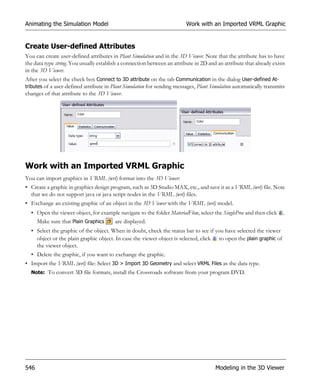
                  Create User-defined Attributes . . . . . . . . . . . . . . . . . . . . . . . . . . . . . . . . . . . . . . . . . . . . . 546
          Work with an Imported VRML Graphic . . . . . . . . . . . . . . . . . . . . . . . . . . . . . . . . . . . . . . . . . . . 546
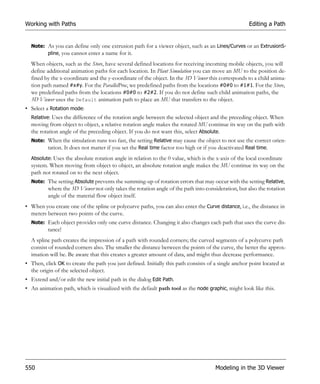
Working with Paths . . . . . . . . . . . . . . . . . . . . . . . . . . . . . . . . . . . . . . . . . . . . . . . . . . . . . . . . . . . . . . . . . . 547
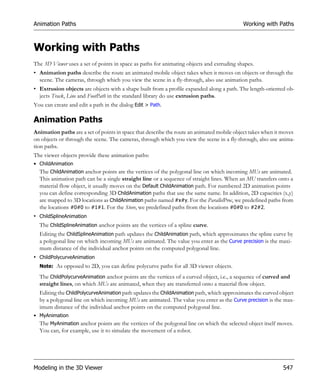
          Animation Paths . . . . . . . . . . . . . . . . . . . . . . . . . . . . . . . . . . . . . . . . . . . . . . . . . . . . . . . . . . . . . . 547
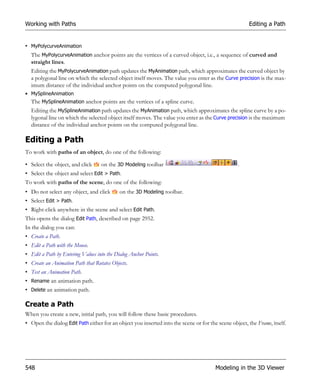
          Editing a Path . . . . . . . . . . . . . . . . . . . . . . . . . . . . . . . . . . . . . . . . . . . . . . . . . . . . . . . . . . . . . . . . 548
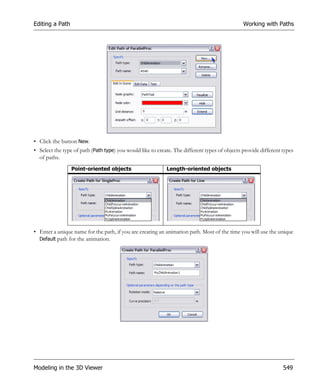
                 Create a Path . . . . . . . . . . . . . . . . . . . . . . . . . . . . . . . . . . . . . . . . . . . . . . . . . . . . . . . . . . . 548
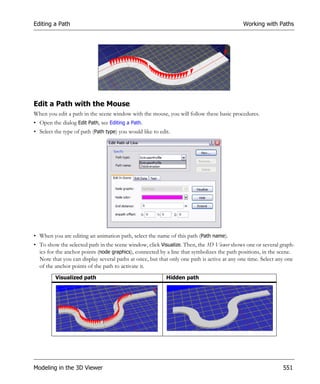
                 Edit a Path with the Mouse. . . . . . . . . . . . . . . . . . . . . . . . . . . . . . . . . . . . . . . . . . . . . . . . 551
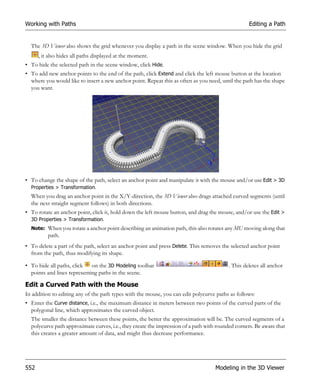
                        Edit a Curved Path with the Mouse . . . . . . . . . . . . . . . . . . . . . . . . . . . . . . . . . . 552
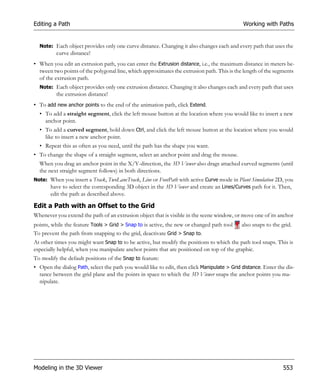
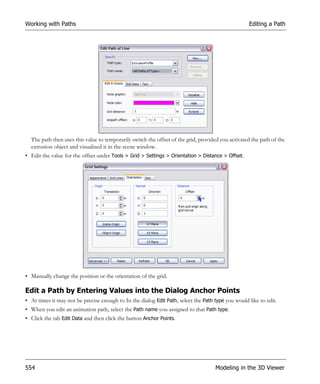
                        Edit a Path with an Offset to the Grid . . . . . . . . . . . . . . . . . . . . . . . . . . . . . . . . 553
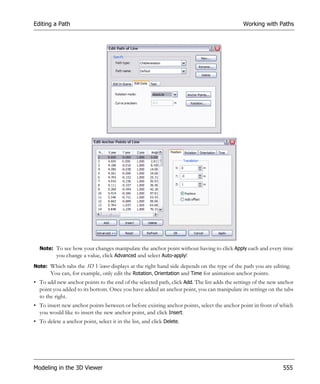
                 Edit a Path by Entering Values into the Dialog Anchor Points . . . . . . . . . . . . . . . . . . . 554
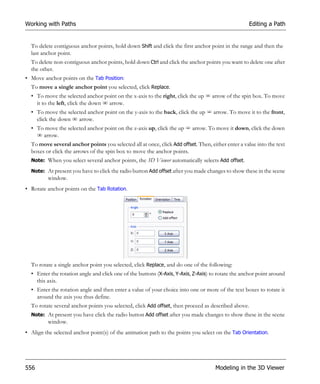
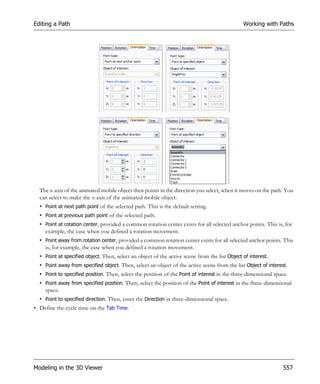
                 Create an Animation Path that Rotates Objects . . . . . . . . . . . . . . . . . . . . . . . . . . . . . . . 558
                 Test an Animation Path. . . . . . . . . . . . . . . . . . . . . . . . . . . . . . . . . . . . . . . . . . . . . . . . . . . 560


                                                                                                                                                          XV
Modeling a Fly Through . . . . . . . . . . . . . . . . . . . . . . . . . . . . . . . . . . . . . . . . . . . . . . . . . . . . . . . . . . . . . 561
                Attach a Camera to an Object. . . . . . . . . . . . . . . . . . . . . . . . . . . . . . . . . . . . . . . . . . . . . . . . . . . . 561
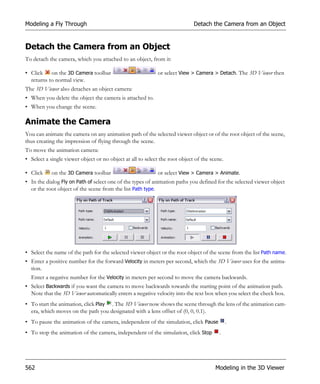
                Detach the Camera from an Object . . . . . . . . . . . . . . . . . . . . . . . . . . . . . . . . . . . . . . . . . . . . . . . 562
                Animate the Camera . . . . . . . . . . . . . . . . . . . . . . . . . . . . . . . . . . . . . . . . . . . . . . . . . . . . . . . . . . . 562
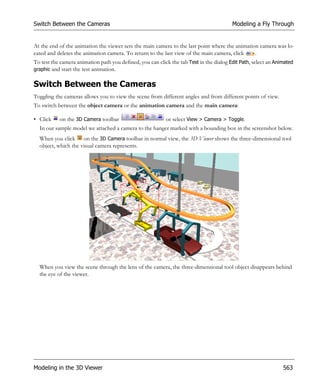
                Switch Between the Cameras . . . . . . . . . . . . . . . . . . . . . . . . . . . . . . . . . . . . . . . . . . . . . . . . . . . . 563
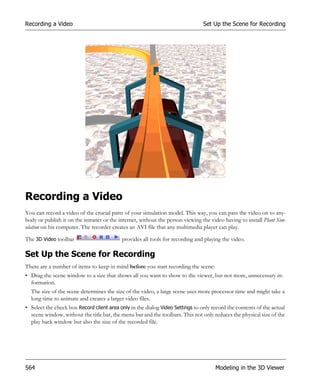
      Recording a Video . . . . . . . . . . . . . . . . . . . . . . . . . . . . . . . . . . . . . . . . . . . . . . . . . . . . . . . . . . . . . . . . . . . 564
                Set Up the Scene for Recording . . . . . . . . . . . . . . . . . . . . . . . . . . . . . . . . . . . . . . . . . . . . . . . . . . 564
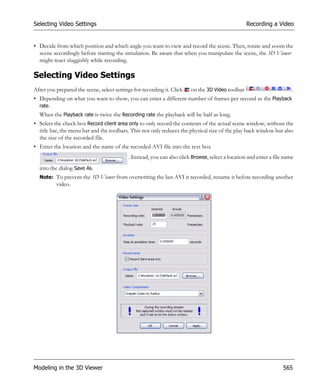
                Selecting Video Settings . . . . . . . . . . . . . . . . . . . . . . . . . . . . . . . . . . . . . . . . . . . . . . . . . . . . . . . . 565
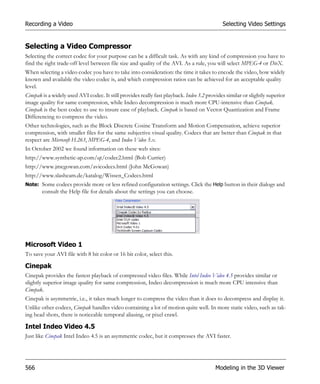
                        Selecting a Video Compressor . . . . . . . . . . . . . . . . . . . . . . . . . . . . . . . . . . . . . . . . . . . . . 566
                                Microsoft Video 1 . . . . . . . . . . . . . . . . . . . . . . . . . . . . . . . . . . . . . . . . . . . . . . . . . 566
                                Cinepak . . . . . . . . . . . . . . . . . . . . . . . . . . . . . . . . . . . . . . . . . . . . . . . . . . . . . . . . . 566
                                Intel Indeo Video 4.5 . . . . . . . . . . . . . . . . . . . . . . . . . . . . . . . . . . . . . . . . . . . . . . 566
                                DivX . . . . . . . . . . . . . . . . . . . . . . . . . . . . . . . . . . . . . . . . . . . . . . . . . . . . . . . . . . . 567
                Record the Video . . . . . . . . . . . . . . . . . . . . . . . . . . . . . . . . . . . . . . . . . . . . . . . . . . . . . . . . . . . . . . 567
                Play the Video . . . . . . . . . . . . . . . . . . . . . . . . . . . . . . . . . . . . . . . . . . . . . . . . . . . . . . . . . . . . . . . . 567
      Advanced Features. . . . . . . . . . . . . . . . . . . . . . . . . . . . . . . . . . . . . . . . . . . . . . . . . . . . . . . . . . . . . . . . . . . 568
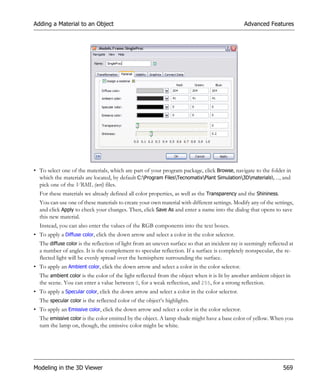
                Adding a Material to an Object. . . . . . . . . . . . . . . . . . . . . . . . . . . . . . . . . . . . . . . . . . . . . . . . . . . 568
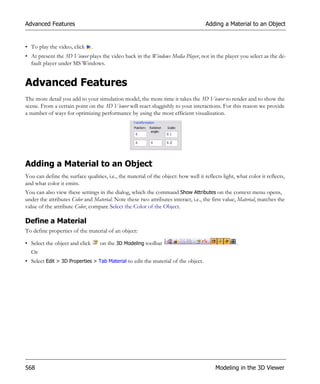
                      Define a Material . . . . . . . . . . . . . . . . . . . . . . . . . . . . . . . . . . . . . . . . . . . . . . . . . . . . . . . . 568
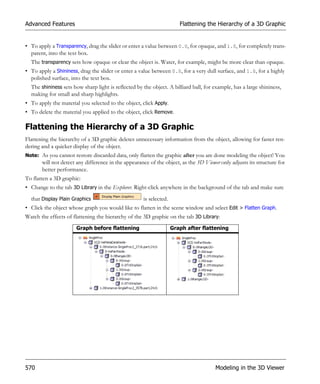
                Flattening the Hierarchy of a 3D Graphic . . . . . . . . . . . . . . . . . . . . . . . . . . . . . . . . . . . . . . . . . . 570


XVI
Getting to Know Tecnomatix Plant
Simulation
Getting to know Tecnomatix Plant Simulation introduces you to the basic concepts that simulation is based on
and to the basics of working with Plant Simulation.


Simulation and Modeling Concepts
Simulation concepts and modeling concepts introduce you to the theoretical background of simulation as such
and show you what to keep in mind before you start modeling.
In general, operations research processes are intended to allow you to make the right decisions, qualitatively as well
as quantitatively. They formulate optimization models, containing all relevant factors, such as destination function,
conditions and destination description. These processes require large amounts of processing power the more de-
tailed the model is. Besides, the results and acceptance of operations research processes often are not satisfactory.
In addition to linear optimization models nowadays simulation is increasingly used for making the right decisions.
It offers good solutions for complex problems but does not automatically create the actual optimum. This is justi-
fied by the comparatively low amount of mathematical expenditure to obtain that result.
As processes to be analyzed become more complicated and complex and as more factors have to included, the more
important simulation becomes with its analysis of real processes. These processes cannot be covered by mathemat-
ical solution processes or optimization processes or they may be realized only by using a large amount of resources.
The aim of simulation is to arrive at objective decisions by dynamic analysis, to enable managers to safely plan and,
in the end, to reduce cost.
Thus, if real systems and plants are too expensive for conducting experiments and the time to conduct trials is too
limited and too expensive, modeling, simulation and animation are excellent tools for analyzing and optimizing time
dynamic processes.

What is Simulation?
VDI (Verein Deutscher Ingenieure, Association of German Engineers) Directive 3633 defines simulation as the
emulation of a system, including its dynamic processes, in a model one can experiment with. It aims at achieving
results that can be transferred to a real world installation. In addition, simulation defines the preparation, execution
and evaluation of carefully directed experiments within a simulation model.


Getting to Know Tecnomatix Plant Simulation                                                                           1
Simulation and Modeling Concepts                  Time-Oriented Simulation and Event-Controlled Simulation


As a rule, you will execute a simulation study like this:
• You first check out the real-world installation you want to model and collect the data you need for creating your
  simulation model.
• You then abstract this real-world installation and create your simulation model according to the aims of the sim-
  ulation studies.
• After this, you run experiments, i.e., execute simulation runs, within the simulation model. This will produce a
  number of results, such as how often machines fail, how often they are blocked, which set-up times accrue for
  the individual types of station, which utilization the machines have, etc.
• The next step will be to interpret the data the simulation runs produce.
• Finally, management will use the results as a base for its decisions about optimizing the real installation.
Developing your simulation model is a cyclical and evolutionary process. You will start out with a first draft of your
model and then refine and modify it to make use of the intermediary results the simulation runs provide. Eventually,
after several cycles, you will arrive at your final model.
As a simulation expert, you must never loose sight of these questions:
• What do you want to accomplish with the simulation study?
• What are you examining?
• Which conclusions do you draw from the results of the simulation study?
• How do you transfer the results of the simulation study to the real-world installation?

Time-Oriented Simulation and Event-Controlled Simulation
Plant Simulation is a discrete, event-controlled simulation program, i.e., it only inspects those points in time, at which
events take place within the simulation model.
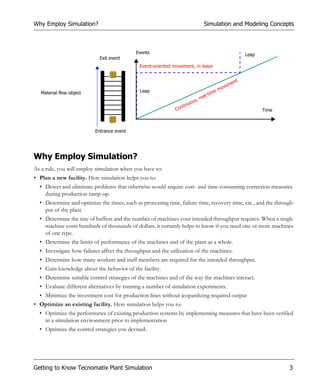
In reality, on the other hand, time elapses continually. When watching a part move along a conveyor system, you
will detect no leaps in time. The curve for the distance covered, and the time it takes to cover it, is continuous, it is
a straight line.
A discrete, event-controlled simulation program on the other hand only takes points in time (events) into consid-
eration that are of importance to the further course of the simulation. Such events may, for example, be a part en-
tering a station or leaving it or of it moving on to another machine. Any movements in between are of little interest
to the simulation as such. It is only important that the entrance and the exit (Out) events are displayed correctly.
When a part enters a material flow object, Plant Simulation calculates the time until it exits that object and enters an
exit event into the list of scheduled events of the EventController for this point in time.
Thus, the simulation time that the EventController displays, leaps from event to event. This happens as soon as an
event is processed.


2                                                                 Getting to Know Tecnomatix Plant Simulation
Why Employ Simulation?                                                            Simulation and Modeling Concepts


                                            Events                                                           Leap
                            Exit event
                                              Event-oriented movement, in leaps


                                                                                                       ent
                                                                                                ve m
                                              Leap                                        e   mo
   Material flow object                                                              -tim
                                                                                 eal
                                                                         ou s, r
                                                                  tinu
                                                              Con                                                   Time


                          Entrance event


Why Employ Simulation?
As a rule, you will employ simulation when you have to:
• Plan a new facility. Here simulation helps you to:
  • Detect and eliminate problems that otherwise would require cost- and time-consuming correction measures
    during production ramp-up.
  • Determine and optimize the times, such as processing time, failure time, recovery time, etc., and the through-
    put of the plant.
  • Determine the size of buffers and the number of machines your intended throughput requires. When a single
    machine costs hundreds of thousands of dollars, it certainly helps to know if you need one or more machines
    of one type.
  • Determine the limits of performance of the machines and of the plant as a whole.
  • Investigate how failures affect the throughput and the utilization of the machines.
  • Determine how many workers and staff members are required for the intended throughput.
  • Gain knowledge about the behavior of the facility.
  • Determine suitable control strategies of the machines and of the way the machines interact.
  • Evaluate different alternatives by running a number of simulation experiments.
  • Minimize the investment cost for production lines without jeopardizing required output
• Optimize an existing facility. Here simulation helps you to:
  • Optimize the performance of existing production systems by implementing measures that have been verified
    in a simulation environment prior to implementation
  • Optimize the control strategies you devised.


Getting to Know Tecnomatix Plant Simulation                                                                                3
Simulation and Modeling Concepts                                                   Implement a Simulation Project


    • Optimize the sequence of orders that have to be fulfilled to make as few tool changes necessary as possible.
    • Test the daily proceedings to make sure that everything works smoothly.
• Put the plan you formulated into practise. Here simulation helps you to:
    • Develop a template for creating the control strategies.
    • Test different scenarios during the warm-up phase of the facility.
    • Train the operators of the machines in the different states, which machines and the facility can be in.
In general, you will reap these benefits from employing simulation:
• Enhance the productivity of existing production facilities.
• Reduce investment in planning new production facilities.
• Cut inventory and throughput time.
• Optimize system dimensions, including buffer sizes.
• Reduce investment risks by early proof of concept.
• Maximize use of manufacturing resources.
• Improve line design and schedule.

Implement a Simulation Project
As you remember, developing your simulation model is a cyclical and evolutionary process. You will start out with
a first draft of your model and then refine and modify it to make use of the intermediary results the simulation runs
provide. Eventually, after several cycles, you will arrive at your final model.
Before you start implementing your simulation project, you will, more or less, proceed like this. You will:
• Describe the project.
    Determine the goals, so that the purpose of the simulation project becomes clear. Why are you examining a prob-
    lem? Which questions do you want answered? Put the definition of the project in writing and consult it repeatedly
    during the course of the project, as the purpose of the simulation study determines the efforts to be made.
• Plan the project.
    Create a concept of your model, with its initial values, its model items, variables, logic of proceeding and a pre-
    liminary description of the simulation experiments. Which parameters do you have to change, which data do you
    have to collect and how do you interpret this data? Make a list of all functional units that the installation you are
    modeling will contain. Think about which functional units have identical or similar functionality. Combine them
    and derive a list of application objects you and your colleagues have to create. Consider re-using existing objects.
    Specify and plan the remaining objects on paper. Define and describe the interfaces for material and information
    flow. Outline reset and init methods.


4                                                                 Getting to Know Tecnomatix Plant Simulation
Implement a Simulation Project                                               Simulation and Modeling Concepts


• Find out about the data you need and how to acquire it.
  Ensure early on that the data you need to run the simulation experiments is going to be available. Frequently a
  lot of time and effort is involved to acquire the data. Make sure that you have the name of a person who respon-
  sible for acquiring the data from your client, which may, for example, be another department of your company.
• Build the simulation model.
  Build a first version of the simulation model in its simplest, most basic form. Build the application objects you
  need and test them one by one. After you are sure that all objects work the way they are supposed to do, put
  together the overall model. Document the model in a clearly arranged manner, as six months or a year from the
  time you modeled you might not remember how you accomplished a certain task or why you solved a specific
  problem the way you did.
• Verify the simulation model and check its validity.
  After you are finished building the simulation model, you have to verify it, i.e., check if the components you mod-
  eled perform the tasks you programmed them to do. Test each and every object you created. Check for the cor-
  rect functioning and for concurrence with the specifications. Test the objects in combination with other objects
  and then in the overall model. Make sure that all parameters are set to the correct values. Once you have verified
  the model, check it for its validity: Make sure the functionality of the model is as expected and conforms to the
  functionality of the planned or real installation and see if the results are plausible and credible. Make an estimate
  of the most important results and compare them with the results of the simulation. Introduce your model to a
  production or planning expert and discuss the results, the proceedings and your modeling approach with him.
• Execute simulation experiments and collect the results.
  Execute simulation experiments according to your final trial plans to arrive at the desired data. Plan a number of
  simulation runs and prepare for the variation of parameters and models to get reliable results.
• Analyze the results of the experiments.
  Analyze and interpret the results of the simulation experiments. Conduct a sensitivity analysis of the most im-
  portant parameters, data and results.
• Author the final documentation of the entire simulation project.
  Once you are finished with the simulation project, update the notes you made while modeling to create the final
  documentation of the entire simulation project. This will help you, when you have to update or extend your sim-
  ulation model or any of its components. Executing simulation experiments is a cyclical and evolutionary process.
  You will modify and improve your initial simulation model a number of times as you incorporate new insights
  from previous simulation runs. Thus you will arrive at your final simulation model after several cycles after con-
  tinuously changing your initial draft of your simulation model.


Getting to Know Tecnomatix Plant Simulation                                                                         5
Getting to Know the Program                                                              Visit Training Classes


Getting to Know the Program
You can familiarize yourself with Plant Simulation in a number of ways. You can:
• Visit Training Classes
• Work Through the Tutorial
• View the Sample Models
• View the Documentation that Comes with the Object Libraries
• Consult the Step-by-Step Help

Visit Training Classes
Siemens offers a complete training program for Plant Simulation. Consult the information about the classes on the
Start page under Training Classes.


Work Through the Tutorial
To get acquainted with Plant Simulation you also can move along at your own pace by working through the lessons
of the Tutorial. It shows how to build a simulation model for a testing line for TVs and VCRs.
To open the tutorial:
• Start Plant Simulation.
• Click Tutorial on the Start Page.


6                                                               Getting to Know Tecnomatix Plant Simulation
Work Through the Tutorial                                                        Getting to Know the Program


• Click Start Tutorial on the page Tutorial.


• To open the associated simulation models, click Section 2 or Section 3 and click the link.


Getting to Know Tecnomatix Plant Simulation                                                               7
Getting to Know the Program                                                     Consult the Step-by-Step Help


View the Sample Models
To get acquainted with Plant Simulation and the 3D Viewer, you also can view the sample models on the Tecnomatix
Plant Simulation DVD. These models demonstrate how to approach a number of problems and will give you ideas
how to solve your modeling tasks.

View the Documentation that Comes with the Object Libraries
To get acquainted with Plant Simulation, you also can view the pdf documents describing the application object li-
braries on the Tecnomatix Plant Simulation DVD. You might find that one of these libraries might already cover the
intentions of your modeling task.
Note: You have to purchase a separate license for some of the application object libraries.


Consult the Step-by-Step Help
To get acquainted with Plant Simulation, you also can consult the Tecnomatix Plant Simulation step-by-step help and
the online help that are part of the program. The former will cover most of your modeling tasks and provide you
with information on how to solve them. Start Plant Simulation, go to the Help menu and select Contents. Double-
click the book                  and select the topic you need information about.
If you prefer to read the documentation as a book in consecutive order, consult the printed materials that are part
of your program package. You can also locate the pdf file of the manuals on the DVD and view it online or print
it in its entirety or only sections of it.


8                                                             Getting to Know Tecnomatix Plant Simulation
Consult the Step-by-Step Help                                           Working with the Program, Basics


                           For printing, enter this
                           page number


                                                                               Do not enter this
                                                                               page number


Note: When you print a topic of the pdf file, do not enter the page number on the bottom of the page you are
      viewing, but the page number the Adobe Reader shows on the toolbar Page Navigation.


Working with the Program, Basics
Basics of working with Plant Simulation provides information about:
• Working with Window Types
• Finding Objects and Text in Your Simulation Model
• Selecting Settings


Getting to Know Tecnomatix Plant Simulation                                                                    9
Working with the Program, Basics                                                Working with Window Types


Working with Window Types
Plant Simulation is a multiple-document interface application. It shows its windows in the common parent window.


Docking
Windows

                                                                             Dialog Windows


            Main program window                                  Object Windows

The program window has a magenta border in the online version of the picture above.
Note: The different window types open in a certain order within the program window. At times it may happen
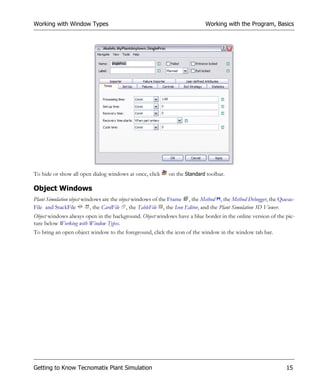
       that the window you want to work with opens in the background, instead of the foreground, where you


10                                                          Getting to Know Tecnomatix Plant Simulation
Working with Window Types                                                       Working with the Program, Basics


       would expect it to be. If this is the case, move the windows in the foreground aside to access the window
       into which you want to enter data.
Instead of closing and reopening the Class Library, the 3D Library, the Favorites, the Toolbox, and the Console, you
can hide them: Click to auto hide the window. When you then click in another window, Plant Simulation hides the
window until you move the mouse over the name of the window again. To deactivate auto hide, click .


For further information compare The Plant Simulation Program Window in the Reference section of the Online Help.

Docking Windows
Plant Simulation docking windows are the Class Library, the 3D Library, the Favorites, the Toolbox, the Console, the Menu
Bar, the Standard Toolbar, the Simulation Toolbar, the 3D Toolbar, and the Debugger Toolbar.


Docking windows have a red border in the online version of the picture below Working with Window Types. Docking win-
dows always open in the foreground, on top of any other windows, i.e., they will also be placed on top of any open
dialog windows.
• To undock a docking window, click the Window Position button           in the title bar of the window and select Float-
  ing.


Getting to Know Tecnomatix Plant Simulation                                                                          11
Working with the Program, Basics                                                    Working with Window Types


• To redock a floating window again, right-click the title bar of the window and select Docking.


  Or
  Click the title bar of the docking window and hold down the mouse button. Plant Simulation shows a docking
  guide in the middle of the window pointing to the top, the bottom, the right, and the left edge of the program
  window. Drag the mouse onto the respective docking arrow where you want to dock the window. Plant Simulation
  highlights that area, i.e., the destination, in blue. Release the mouse button when the docking position is correct.
  Plant Simulation then docks the window to the respective docking (child) window.


  Plant Simulation also shows individual docking guides       at the four sides of the parent window, i.e., of the
  Tecnomatix Plant Simulation program window.


12                                                             Getting to Know Tecnomatix Plant Simulation
Working with Window Types                                                      Working with the Program, Basics


  Drag the mouse onto the respective docking arrow where you want to dock the window. Plant Simulation high-
  lights that area, i.e., the destination, in blue. Release the mouse button when the docking position is correct. Plant
  Simulation then docks the window to the respective edge of the parent window, i.e., the Tecnomatix Plant Simu-
  lation program window.


• To dock a toolbar to any of the sides of the program window, drag the move handle on a toolbar, or drag the
  title bar on a floating window to another location. When you drag the window to the edge of the program win-
  dow or to a location beside another docked window, it docks there.
  Note: When you move a docked window, this might affect the location and size of other windows in the same
         row within the program window.


Getting to Know Tecnomatix Plant Simulation                                                                         13
Working with the Program, Basics                                                         Working with Window Types


• To prevent a floating window from docking when you drag it, hold down Ctrl, and move the window to a position
  of your choice.
• To make a docked window a floating window, double-click the move handle or hold down Ctrl, and drag the
  window.
• To dock a floating window again, double-click its title bar or drag the window to one of the sides of the program
  window or to a location beside another docked window, it docks there.
• To close a floating window, click Close        on the title bar.
• To show or hide a docking window, right-click the Menu Bar in the program window and select the name of the
  toolbar you want to show or hide. A displayed toolbar shows a check mark     to its left. Or
  Select Tools > Customize, click Toolbars and select the check box with the name of the toolbar.

• To show or hide the Class Library, click       on the Standard toolbar                                                    .
• To show or hide the 3D Library, click         on the Standard toolbar
• To show or hide the Favorites window, click          on the Standard toolbar
• To show or hide the Toolbox, click        on the Standard toolbar.
• To show or hide the Console, click        on the Standard toolbar.
• To customize the menu bar, the toolbars or keyboard shortcuts, click the menu bar or the toolbar with the right
  mouse button and select the menu command Customize on the context menu.
Compare the video UndockingDocking in Help > Videos

Dialog Windows
Plant Simulation dialog windows are the dialog windows of the Plant Simulation material flow objects, the mobile objects, the
resource objects, the information flow objects, and the user interface objects.
Dialog windows have a green border in the online version of the picture below Working with Window Types.
A dialog window always opens in the front as it expects that you select or enter something. You cannot minimize or
maximize it.
You can drag a dialog window outside of the program window and move it around on the entire screen.


14                                                                   Getting to Know Tecnomatix Plant Simulation
Working with Window Types                                                  Working with the Program, Basics


To hide or show all open dialog windows at once, click     on the Standard toolbar.

Object Windows
Plant Simulation object windows are the object windows of the Frame , the Method , the Method Debugger, the Queue-
File and StackFile         , the CardFile , the TableFile , the Icon Editor, and the Plant Simulation 3D Viewer.
Object windows always open in the background. Object windows have a blue border in the online version of the pic-
ture below Working with Window Types.
To bring an open object window to the foreground, click the icon of the window in the window tab bar.


Getting to Know Tecnomatix Plant Simulation                                                                   15
Working with the Program, Basics                                                  Working with Window Types


To bring an open object window to the foreground or to arrange the windows, you can also click the Window Menu
and select the name of the window.


Note: You can also open the CardFile, the QueueFile, the StackFile, and the TableFile in the foreground as a dialog
       window with the method openDialogBox.
       You can close all object windows with the function closeAllWindows.
You can minimize and maximize an Object window and move it around within the program window. When you
maximize an object window, Plant Simulation adds the button combination Minimize, Maximize, Close that is
otherwise located in the title bar of the window, to the Menu Bar.


16                                                            Getting to Know Tecnomatix Plant Simulation
Selecting Settings                                                              Working with the Program, Basics


You can also add links to the following object windows to the Favorites:
• Frame       windows
• Method      windows
• CardFile     windows
• windows of QueueFile and StackFile
• TableFile    windows
• windows of user-defined attributes of type method, table, list, stack, and queue.
You can then quickly open the respective window by double-clicking its name in the favorites list.


Selecting Settings
Before you start working with Plant Simulation, you might want to change some of the default settings that affect
your simulation model.
• To select settings, which apply to the active model, select Tools > Model Settings. Plant Simulation saves these set-
  tings in the mode file.


• To select settings, which apply to new models, select Tools > Preferences. On the tabs General, Modeling, User
  Interface and Editor you can select general settings, which are independent of the simulation model. On the tabs
  Simulation and Units you can select model-specific settings, which apply to new models.


Getting to Know Tecnomatix Plant Simulation                                                                        17
Working with the Program, Basics                                                                Selecting Settings


You will:
• Select General Options
• Select Modeling Options for the Frame
• Select Options for Units and for Displaying the Time

Select General Options
Select the language Plant Simulation uses when it creates a new simulation model. This language determines the
names of folders and objects, such as MaterialFlow or Materialfluss, SingleProc or Einzelstation, etc.
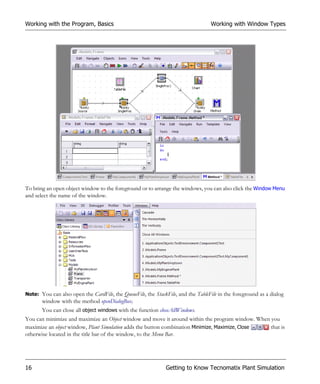
Note: The language of the operating system of your computer determines the language of the Plant Simulation user
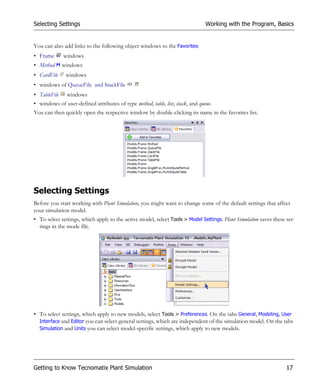
        interface.
The language determines:
• The name of the items of the drop-down lists, such as the names of the distributions (Uniform or Gleich).
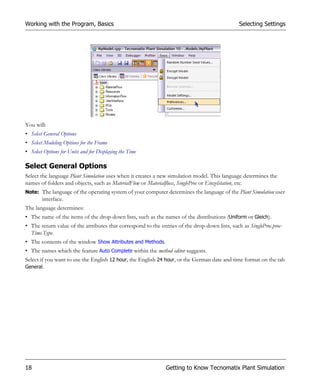
• The return value of the attributes that correspond to the entries of the drop-down lists, such as SingleProc.proc-
  Time.Type.
• The contents of the window Show Attributes and Methods.
• The names which the feature Auto Complete within the method editor suggests.
Select if you want to use the English 12 hour, the English 24 hour, or the German date and time format on the tab
General.


18                                                             Getting to Know Tecnomatix Plant Simulation
Selecting Settings                                                         Working with the Program, Basics


                            Date and time format           Looks like this
                            yyyy/mm/dd 12 hour

                            yyyy/mm/dd 24 hour

                            dd.mm.yyyy 24 hour

Select which kind of comment Plant Simulation adds to your model file, each time you save it:
• Without comment adds no comment to the model (.spp) file.
• With comment opens a comment window, each time when you save the model. Enter your comment here.
• When you select Without comment or With comment Plant Simulation adds a row to the dialog Model Saving History
  each time you save the model.
  When the model crashes, Plant Simulation adds a description of the problem to the model history window instead
  of a comment. This helps our software engineers detect what caused the crash.
• None does not save the history of how you saved your model.
  To view the comment you entered:
  Select File > Show Model History in the program window.


Getting to Know Tecnomatix Plant Simulation                                                                  19
Working with the Program, Basics                                                           Selecting Settings


Select Modeling Options for the Frame
Select which items the Frame shows on the tab Modeling. Which features you want to show or hide largely depends
on your modeling situation. The more items you choose to show in the Frame the more cluttered its display gets.
We recommend to experiment with the different settings.
Note: You can override these settings for each individual Frame under View > Options.


20                                                          Getting to Know Tecnomatix Plant Simulation
Selecting Settings                                                         Working with the Program, Basics


If it annoys you that Plant Simulation opens a dialog prompting you to confirm, when you delete objects, clear the
check box Confirm.


Getting to Know Tecnomatix Plant Simulation                                                                    21
Working with the Program, Basics                                                                 Selecting Settings


If the icons of your objects are small, you can enter a smaller Size for the Toolbox buttons. The smaller the icons,
the more icons the Toolbox can display without having to scroll. Compare the settings 32 pixels and 24 pixels.


Note: The icons of the Toolbox buttons of the built-in objects by default have a size of 32 by 32 pixels and look
       the best at this size. Smaller icons might loose sharpness or not perfectly fit the allotted space.
If you want to use another spacing for the grid in the Frame, enter a larger or a smaller number for the Frame grid.

Select Options for Units and for Displaying the Time
As daylight saving time is widely used internationally, you will also use it in your simulation model.


Note: To select units and time settings, which only apply to the active model, select Tools > Model Settings > Units.
To select units and time settings, which apply to all new models, select Tools > Preferences > Units.
• Select the check box Daylight saving time.


22                                                             Getting to Know Tecnomatix Plant Simulation
Selecting Settings                                                           Working with the Program, Basics


• If the facility you are modeling is located in the European Union, you do not have to change the default settings.
  Here summer time starts at 02:00 o’clock in the morning Greenwich Mean Time (GMT) on the last Sunday in
  March. It ends at 03:00 o’clock in the morning on the last Sunday in October. In the EU, all time zones change
  at the same moment.
• If the facility you are modeling is located in the United States of America, you have to change the settings. For
  most of the US daylight saving time starts at 02:00 o’clock in the morning on the second Sunday of March. It
  ends at 02:00 o’clock in the morning on the first Sunday of November.


If your specific modeling needs require it, you can also change the display of the Time scale. You can enter a number
between 0 and 86400. You can enter an integer greater than 1 into the text boxes next to Transfer if.


You might, for example, divide a minute into 100 units, instead of in 60 seconds, or you might want to read 1:50
as 1.5 hours instead of 1 minute and 50 seconds.
Note: You can only change the display of the time scale, not the time scale itself.
A time statement consists of four numbers, separated by colons, normally in the format days:hours:minutes:sec-
onds. Plant Simulation stores the value itself in seconds and converts it at output time for the display.
Plant Simulation converts times according to the values you enter into the text boxes Time scale and Transfer if.
The following examples illustrate what to enter to achieve different displays of the time:
• If you want to use the standard time format, 24 hours to the day, 60 minutes to the hour, 60 seconds to the
  minute, use the default setting Time Scale 1/1.0 Transfer if 24:60:60.
• If you want to simulate a longer period of time and want to display the time in the format
  years:months:days:hours, enter Time Scale 1/3600 Transfer if 12:30:24, as an hour has 3600 seconds, a year has
  12 months, a month has 30 days, and a day has 24 hours.
• If you want to divide a minute into 100 subunits instead of 60 seconds, enter Time Scale 1/0.6 Transfer if
  24:60:100.


Getting to Know Tecnomatix Plant Simulation                                                                         23
Working with the Program, Basics                             Finding Objects and Text in Your Simulation Model


Finding Objects and Text in Your Simulation Model
To find the name of an object, a condition, an expression contained in an attribute, part of the source code of a
Method, or an expression contained in a table in your simulation model:
1. Click the right mouse button anywhere in the Class Library and select Find Object on the context menu.


2. Select what you want to find from the left drop-down list. You can select to:
  Find the Name of an Object
  Find a Condition of an Object
  Find Any Text within a Built-in or a User-defined Attribute of an Object
  Find Any Source Code in a Method
  Find Any Value Within a List or Table


24                                                                  Getting to Know Tecnomatix Plant Simulation
Finding Objects and Text in Your Simulation Model                               Working with the Program, Basics


Find the Name of an Object
To find the name of an object you inserted into your simulation model:
1. Select Name from the left drop-down list.
2. Type in the name of the object you want to find into the right drop-down list. We entered singleproc.
3. When you do not select the check box Match whole word only, Plant Simulation finds all words that contain the
   word you entered. In our example it finds all word containing the word SingleProc, such as SingleProc, SingleProc1,
   SingleProc11, mySingleProc, etc.


4. Type in the name of the folder or the Frame into the text box Look in, where Plant Simulation is going to start
   searching for the expression you entered into the text box.

  Instead, you can also click        and select a folder or a Frame in the dialog Select Object.
  To search on the highest level of the structure, accept the default setting that Plant Simulation enters, namely the
  period (.).
5. Select Include subframes to also search all Frames located in the Frame in which the item you are searching for is
   located.
6. Click Find, to start searching.
7. Double-click the name of the object in the results field, to open its dialog. You can then change any settings.
8. When you select Match whole word only, Plant Simulation only finds entire words that exactly match the word you
   entered. In our example it only finds the word singleproc.


Getting to Know Tecnomatix Plant Simulation                                                                       25
Working with the Program, Basics                         Finding Objects and Text in Your Simulation Model


9. When you select Match whole word only, and also select Match case, Plant Simulation only finds words that exactly
   match the word you entered, including upper and lower casing. In our example it only finds the word singleProc.


10.When you select Regular expression, Plant Simulation also finds the regular expression you select. Click     and
  select any of the items displayed in the window Regular Expression. Plant Simulation enters the special characters
  designating that expression into the right drop-down list.
                         Select                                   To enter and to find
                         Any single character                     .
                         Beginning of line                        ^
                         End of Line                              $
                         Beginning of word                        <
                         End of word                              >
                         Group                                    ()
                         Zero or one matches                      ?
                         Zero or more matches                     *


26                                                            Getting to Know Tecnomatix Plant Simulation
Finding Objects and Text in Your Simulation Model                            Working with the Program, Basics


                         Select                                      To enter and to find
                         One or more matches                         +
                         Any one character in the set                []
                         Any one character not in the set            [^]
                         Or                                          |

  Searching with regular expressions allows you to use wild cards in the string you are searching for.
  • To find all strings that contain a sequence of the character a, followed by any character, and the character b,
    enter a.b into the text box.
  • To find all objects whose name starts with an upper case S, enter ^[S].
  • To find all objects whose name does not end with an e, enter [^e]$.
  • To find all objects whose name contains an upper case L, followed by any character, followed by proc, enter
    L.*proc into the text box.
11.Click Find.

Find a Condition of an Object
To find a condition of an object you inserted into your simulation model:
1. Select Condition from the left drop-down list.
2. Enter any SimTalk expression whose attributes or methods are identical to the expression you enter in the drop-
   down combo box. You might, for example, enter the name of an attribute or a method and the expression you are
   looking for, such as Proctime = 100, or OpenCtrl = void, etc.


3. Repeat steps 4 to 7 described under Find the Name of an Object.
4. Click Find.


Getting to Know Tecnomatix Plant Simulation                                                                     27
Working with the Program, Basics                          Finding Objects and Text in Your Simulation Model


Find Any Text within a Built-in or a User-defined Attribute of an Object
To find any text or any value contained in a built-in or a user-defined attribute of an object which you inserted into
your simulation model:
1. Select Attribute from the left drop-down list.
2. Enter any text or value contained within a built-in or a user-defined attribute of an object in the search scope.


3. Repeat steps 4 to 7 described under Find the Name of an Object.
4. Click Find.

Find Any Source Code in a Method
To find any text, which you entered as source code into any Method object which you inserted into your simulation
model or in any user-defined attribute of type Method:
1. Select Source Code from the left drop-down list.


2. Repeat steps 4 to 10 described under Find the Name of an Object.


28                                                             Getting to Know Tecnomatix Plant Simulation
Finding Objects and Text in Your Simulation Model                             Working with the Program, Basics


3. When you select Ignore inherited name or text Plant Simulation then only finds the original source code you en-
   tered into a Method object, and not the source code in derived or duplicated objects.
4. To replace the found source code with other source code, right-click one or several Methods in the results list and
   select the command Replace With. Then, enter the replacing source code into the dialog which opens.


5. Click Find.


Getting to Know Tecnomatix Plant Simulation                                                                       29
Working with the Program, Basics                         Finding Objects and Text in Your Simulation Model


Find Any Value Within a List or Table
To find any text or value contained in a list or table which you inserted into your simulation model:
1. Select Table from the left drop-down list.
2. Enter any text or any value contained within a list or table in the search scope.


3. Repeat steps 4 to 7 described under Find the Name of an Object.
4. Click Find.


30                                                             Getting to Know Tecnomatix Plant Simulation
Modeling in Tecnomatix Plant
Simulation 2D
Modeling in Plant Simulation 2D introduces you to the most important tasks you will face when you create your
simulation model in Plant Simulation 2D. If you start a new simulation project from scratch, and at one point in time
or another, you might also have to create a corresponding 3D model at the same time or in the future, you have to
keep a number of criteria in mind to facilitate this.


Creating a Simulation Model
You will create your simulation model by inserting instances of the built-in objects and of objects you yourself or
a colleague designed, the so-called user-defined or application objects, from the Class Library into the object Frame
in the folder Models. By modeling application objects you can develop libraries that meet the modeling requirements
of your company. The most important built-in objects are: the Frame, the active and the passive material flow ob-
jects, the mobile objects (MUs), the Method object, lists and tables, and the EventController.
• The Frame is the object in which you create your simulation model. You will rename this Frame and then insert
  the objects that represent the stations in your installation, into it.
• To run the simulation you will insert an EventController that starts, stops and resets the simulation run. You can
  re-use each and every simulation model you created as an application object in other simulation models.
  By inserting Frames into Frames you create a randomly nested hierarchy of models. This way you can build and
  structure simulation models that exactly match the installation you are simulating, and break down complex tasks
  into manageable chunks.
• You can derive or duplicate each object and re-use it as often as required, which introduces an important time-
  saving key feature of Plant Simulation: inheritance: A derived object, i.e., a child object, retains a controllable link
  to the template object, i.e., the parent object. In many cases the immense advantage of inheritance regarding pro-
  ductivity and the low number of errors only becomes clear at a later point in time, when you actively work with
  your simulation models. Naturally you can also turn inheritance for individual features off, by clicking the inher-
  itance button, so that it looks like this .


Modeling in Tecnomatix Plant Simulation 2D                                                                            31
Creating a Simulation Model


• The active material flow objects transport and/or actively process mobile objects (MUs), i.e., parts, within the
  simulation models.


  The passive material flow objects do not actively process parts. They store parts and represent tracks on which
  the processed parts are moved.
• The mobile objects (MUs) represent the parts that are created in, stored in, transported in, processed in and
  removed from your simulation model.


• The resource objects are intended for modeling how and when Workers move from the WorkerPool to the Work-
  places at the stations.


• Employing objects of type method you can program the actions that you need to take place when the conditions
  you program become true. For this we integrated a powerful programming language into Plant Simulation. The
  Methods are either activated as controls by the material flow objects or by other Method objects. The Method also
  provides a Debugger to locate errors and allow you to correct faulty code.
• Lists and tables ensure the random exchange of information between all objects. The powerful processing of
  information in Plant Simulation is the result of a variety of functions, data types and operators.


32                                                             Modeling in Tecnomatix Plant Simulation 2D
Creating a Simulation Model


• The objects Chart and HTML Report allow you to graphically display the statistical values that the material flow
  objects collect during the simulation runs.


• With the object Dialog you can create a dialog window similar to the built-in dialog windows that Plant Simulation
  provides. This way you can provide a simple user interface for complex simulation models other users work with.
  You can also prevent another user from manipulating a Frame. To accomplish this, insert a Method object as an
  open control into the Frame. Double-clicking the Frame will then not open it any longer, but call the control method
  in which you might, for example, program it to open a dialog, where the user can then select the settings.
• With the objects BottleneckAnalyzer and SankeyDiagram you can analyze and evaluate the results the simulation runs
  provided. Use the ExperimentManager to define how Plant Simulation executes the simulation experiments.


• Naturally you can also exchange data with other programs and processes using the interfaces we provide. For
  integration purposes with other software it is important that data can be exchanged not only at the beginning and
  the end of the simulation run but also during the simulation run.


Modeling in Tecnomatix Plant Simulation 2D                                                                        33
Creating a Simulation Model                                               Creating a Simple Simulation Model


Creating a Simple Simulation Model
Creating a simple simulation model demonstrates how easy it is to quickly create a simple simulation model. We
will build a simple production line with a Source object, several SingleProcs and a Drain.


The Source produces the parts that the stations, symbolized by the SingleProcs, are going to process. The Drain re-
moves the parts, symbolized by the Entities, from the production line after the SingleProcs have processed them. The
Source can represent the receiving department, while the Drain can represent the shipping department. We also insert
a Chart that visualizes the results of our simulation run in different ways.
You will:
• Insert Objects into the Frame
• Connect Objects in the Frame


34                                                              Modeling in Tecnomatix Plant Simulation 2D
Creating a Simple Simulation Model                                                   Creating a Simulation Model


• Run the Simulation
• View the Results of the Simulation Run
Compare the video SimpleModel under View > Start Page > See also > Demo Videos

Insert Objects into the Frame
Proceed as follows to insert the objects, which symbolize the machines and stations in your installation, into the
Frame that symbolizes the installation or plant you are modeling:
• Start Plant Simulation and open a new model: Click Create New Model on the Start Page, select File > New or click
      on the Standard toolbar                                               .
  This opens the Class Library with the built-in objects Plant Simulation provides, the Toolbox and an empty Frame—
  in the folder Models—for creating your simulation model.
• To insert an object into the Frame, do one of the following:
  • Click the icon of the object you would like to insert in the toolbox, move the mouse pointer, which then turns
    into crosshairs (+), to the location in the Frame into which you would like to insert it and click the left mouse
    button once.
  • Use drag-and-drop to insert objects from the class library into the Frame.
• Insert the objects, so that your model matches the screenshot.
  • Click the folder or the tab Material Flow and insert a Source   , three SingleProcs   , and a Drain   .
  • Click the folder or the tab User Interface and insert a Chart   .


Modeling in Tecnomatix Plant Simulation 2D                                                                       35
Creating a Simulation Model                                                Creating a Simple Simulation Model


• To move an object in the Frame, do one of the following:
  • Click the object once with the left mouse button, hold the button down, move the icon to the desired location,
    and release the mouse button.
  • To move the selected object one pixel at a time in the direction of the key, press one of the arrow keys.
  • To move the selected object one grid unit at a time, hold down the Shift key, and press one of the arrow keys.
• To align all objects to grid points in the Frame window, select all objects by dragging a marquee over them and
  select Icons > Align to Grid.
• To delete an object, press the Delete key on the keyboard or right-click it and select Delete.

Connect Objects in the Frame
Once you have inserted the objects, you have to connect them, so that Plant Simulation can move the parts from
object to object through the installation.
• Click the Connector in the Toolbox to activate connect mode. The mouse pointer turns into crosshairs (+), when
  it is located over an object to which you can attach a Connector.
• Click on the Source and then on the SingleProc to the right of it. This establishes the connection between the two
  objects, symbolized by a line. The arrow in the middle shows the direction of the connection.
• Repeat this for the other objects.
  Note: To connect several objects one after the other without having to return to the Toolbox each time you es-
        tablished a connection, hold down Ctrl, while you establish the connection.
Your model should now match the screenshot.


36                                                              Modeling in Tecnomatix Plant Simulation 2D
Creating a Simple Simulation Model                                                   Creating a Simulation Model


Run the Simulation
To run the simulation, click     or     on the toolbar of the Frame, to insert an EventController into the model.
• Double-click the EventController     to open its dialog window.
• Click the Start button to start the simulation, click Stop to stop it.
• Click Step     to process one simulation event at a time and to proceed through your model step by step.
• Drag the slider to set the speed of the simulation. The slower the simulation is running the better you will be able
  to watch how the parts move through the model.
Now change different components of the model and check the impact of these changes. You might:
• Manually pause SingleProc1 for a while, re-start the simulation, remove the pause and continue the simulation.
• Change the processing time of SingleProc1 or SingleProc2.
• Select a different Exit strategy for the SingleProc to see how it distributes the parts to the succeeding machines.
• Change the type of MU the Source produces: Double-click the Source and click MU. Select the Container in the di-
  alog Select Object.


View the Results of the Simulation Run
Once the simulation run is finished, you will be eager to check its results. You can view the statistics of each indi-
vidual object in its dialog window and you can visualize the statistics of as many objects as you like in a chart.
• To view the values resulting from the simulation runs for the individual stations, click the tab Statistics in the
  dialog of the respective object. There, the object shows the most important data.


Modeling in Tecnomatix Plant Simulation 2D                                                                          37
Creating a Simulation Model                                                   Creating a Simple Simulation Model


• To view the statistics, which the object collected, in the statistics report, select the object and press F6. This opens
  a report showing the most important statistics value in meaningful overview.
• To present the results of our simulation run to management, we will use the object Chart . Drag the objects
  whose data you would like to show over the icon of the Chart and drop them there or right-click the Chart and
  select Statistics Wizard. Then, select the objects there.
  Right-click the Chart and select Show.
  If you want to, you can play around with the settings to show the values in different ways.


38                                                                 Modeling in Tecnomatix Plant Simulation 2D
Introducing Classes                                                                   Creating a Simulation Model


Introducing Classes
Imagine that, for example, you have to find the optimum type of store for a production plant. First, you have to
come up with different types or stores that might work for the specific installation, such as fully automated high
bay warehouse, manually operated shelving system, etc. To be able to compare the different types of stores, you are
going to build several simulation models, execute simulation runs and suggest the type of store with the best
cost/gain relation.
Your simulation models are going to be variants of a single basic model, i.e., you are going to use the same produc-
tion installation and are going to modify the store.
When creating the model variants you are going to build the basic model first. In conventional systems you would
then copy this basic model until you arrive at the number of variants you need. In Plant Simulation, on the other
hand, you will inherit this basic model, which we call the parent model, and arrive at child models. The main dif-
ference between a copied and an inherited model is that a child model recognizes which parent it is derived from
while a copied model knows nothing about its origin.
Now you are going to insert the different types of stores into the model variants you created. If you now find a
modeling error while modeling the basic model or if a specification changed, a conventional system requires chang-
ing all copies, which is time-consuming and error prone.
In Plant Simulation, on the other hand, you make the change once in the parent model. It then immediately propa-
gates all of your changes to all of its children, provided you did not change the setting in the child model. This saves
a considerable amount of time and the hassle of manually updating a number of sub-models.


Modeling in Tecnomatix Plant Simulation 2D                                                                          39
Creating a Simulation Model                                                                       Introducing Classes


Classes, Subclasses and Instances
When creating your simulation model, keep in mind that:
• A class is the template for an instance, which you insert into a Frame. All objects in the Class Library, those we
  built-in as well as those you yourself define, are class objects. You can add more detail to these classes and thus
  create new classes that inherit properties from the master classes.
  By changing a property in the class object, you change that property for all objects you derived from this class.
  This is much less error-prone than having to change the same property for each and every individual object over
  and over again.
  • A class passes all of its properties on to an instance you derive from it.
  • A class passes those of its properties on to a subclass you derive from it, for which you do not deactivate inher-
    itance. Remember that a button that looks like this means that inheritance is active.
  Note: Inheritance only works from class to subclass/instance, not the other way around!

• A subclass is an object in the Class Library, which inherits some, but not all, of its properties from another class.
  By deactivating inheritance for certain dialog items, you can define properties that only apply to this subclass. An
  example of subclasses could be several lines that only differ in their length.
  To create a subclass from a class, right-click the class in the Class Library and select Derive. When you open the
  dialog of the derived object, you will notice that inheritance is active for all dialog items, denoted by button that
  looks like this .
  Instead, you can hold down Ctrl and Shift, and click the object you wish to derive an instance from with the left
  mouse button. Then, hold down the mouse button, drag the object to the location of your choice, for example
  into another folder in the Class Library, and release both keys and the mouse button.
• To create a copy from a class, right-click the class in the Class Library and select Duplicate. When you open the
  dialog of the duplicated object, you will notice that inheritance is deactivated for all dialog items, denoted by but-
  ton that looks like this .
  Instead, you can hold down Ctrl, and click the object you wish to duplicate with the left mouse button. Then,
  hold down the mouse button, drag the copy to the location of your choice in the Class Library, and release Ctrl
  and the mouse button.
• An instance is an object, which you insert into your simulation model from the Class Library or the Toolbox by
  dragging a class object to a Frame and dropping it there.
The objects use class relations and origin relations to inherit their properties from other objects:
• The object inherits all of its basic properties from its class object. This includes settings it has by default, build-
  in Methods, basic functionalities, etc. The class is the object in the Class Library you instantiated the selected object
  from.
• The object inherits its settings from the originating object, provided you did not change them locally within the
  object. The origin of the selected object is the object you derived it from.
Making full use of the potentials of inheritance saves a considerable amount of time and effort during modeling.


40                                                                 Modeling in Tecnomatix Plant Simulation 2D
Introducing Classes                                                                     Creating a Simulation Model


Replacing and Merging Objects with Drag and Drop
While creating your simulation model you can:
• Replace an instance with a class by holding down Alt while dragging the class object on the instance and drop-
  ping it there. This way you can, for example, replace a SingleProc with an Assembly station. Plant Simulation preserves
  all connected Connectors, but deletes all MUs on the object. Plant Simulation also lets you copy the attribute values
  of the previous instance into the new instance. When you select to not do this, the new instance is in the same
  state as an instance you inserted from the Class Library, i.e., all built-in attributes are inherited and all user-defined
  attributes and sensors, which you defined in the previous instance, will be discarded.
• Merge objects by holding the Alt key and the left mouse button down. Then click the replacing object, drag it
  over the object to be replaced, and drop it there.

Using Inheritance
Inheritance allows one class or object to incorporate data or behavior of another.
Inheritance has a number of applications:
• Specialization of existing classes or objects. In specialization, the new class or object has data or behavior as-
  pects, which are not part of the inherited class.
• Extension to provide additional data or behavior features. In contrast to the case of specialization, with exten-
  sion the new data or behaviors could have been provided in the inherited class because they are generally appli-
  cable to all instances of the class.
• Code re-use to allow a new class to re-use code, in our case any of the settings you selected, which already exists
  in another class.
The toggle button to the right of a dialog item activates or deactivates inheritance               for that item in the di-
alogs of the Plant Simulation objects.
• A button that looks like this means that inheritance is active. Then the object inherits, i.e., uses, the value from
  the origin object from which you derived it. When you modify the value of the origin object, Plant Simulation also
  modifies the value of the derived object.
  Let us illustrate this with an example. We derive the SingleProc in the Class Library and insert it from the Class Li-
  brary into the Frame Model1. Then, we derive Model2 from Model1. The origin of the SingleProc in Model2 is the Sin-
  gleProc in Model1. When we now change the value of an attribute that inherits its value in the SingleProc in Model1,
  the SingleProc in Model2 also applies this value.
• A that looks like this button    means that inheritance is not active. The values you enter only apply to the current
  object.
Note: The object might display the current value only after you click Apply.


Modeling in Tecnomatix Plant Simulation 2D                                                                              41
Creating a Simulation Model                                           Working with Classes in the Class Library


Show Inheritance Relations in the Class Library
The objects can use class and origin relations to inherit some, or all of their properties from other objects. To get
an overview over which object inherits from which other object, right-click the object you are interested in in the
Class Library and select Show Inheritance. The dialog Inheritance shows the paths of all objects that are derived from
the selected object and thus inherit some or all of its properties from it.


Show the Origin of an Object in the Class Library
The objects can use class and origin relations to inherit some, or all of their properties from other objects.
To select the object in the Class Library that the selected object was instantiated from, right-click the object you are
interested in in the Class Library and select Show Origin.
You can repeat this to move up in the hierarchy until Plant Simulation does not select another object. Then you have
reached the object the selected object was derived from originally, i.e., its origin.

Working with Classes in the Class Library
The Class Library shows the built-in objects in a hierarchical structure in folders and subfolders. By default the Class
Library contains a folder with MaterialFlow objects, with Resource objects, with InformationFlow objects, with MUs, with
UserInterface objects, for Models and for Tools. When you start modeling, you will derive child objects from the built-
in class objects or from class objects you, or a co-worker, built from scratch.


42                                                                Modeling in Tecnomatix Plant Simulation 2D
Working with Classes in the Class Library                                             Creating a Simulation Model


Plant Simulation initially opens the frame Frame for creating your simulation model, and any other Frames you add
later on, in the Models folder. The folders in the tree window share a number of properties with the other objects.
Among others you can apply a number of control methods, for example the rename control, etc.
When you add an add-in program, the Class Library also shows its objects—either loose or in a folder of its own—
on the topmost level of the structure below Basis. Note that Basis designates the Class Library itself, compare the
anonymous identifier basis.


Configure the Class Library
You can configure the Class Library to best meet your needs. You can do this for new simulation models which you
create and for any of your existing models. This results in a lean Class Library and an uncluttered Toolbox, preserving
precious screen space. You can:
• Add Basic Objects to the Class Library or Remove Them from It. Naturally you can also add or delete objects at a later
  point in time.
• Add a Library or a Tool to or Remove it from the Class Library.
• Add a Library, which You Yourself Developed.
• Update a Library.
When you select the command File > New for the first time, Plant Simulation opens the dialog Manage Class Library
by default.

Add Basic Objects to the Class Library or Remove Them from It
To add the built-in objects, which are part of your program package, to the Class Library and to the Toolbox:
• Select the objects, which you need for creating the current and future simulation models.
  Deselect the objects, which you do not need.


Modeling in Tecnomatix Plant Simulation 2D                                                                           43
Creating a Simulation Model                                         Working with Classes in the Class Library


• Click Apply to add the selected objects to the Class Library and to the Toolbox or to remove them from it.
• If you want Plant Simulation to always show this dialog, when you open a new model, select the check box Always
  show this dialog when you open a new model. Then you can configure each simulation model to your liking. If
  you want to use the same settings for all new simulation models, clear the check box.
• If you want Plant Simulation to apply the settings you selected in the dialog to all new models, which you create
  hereafter, click Apply to New Models.

Add a Library or a Tool to or Remove it from the Class Library
To add any of the built-in tools or libraries, which are part of your program package, to the Class Library and to
the Toolbox:
• Select one or several tools and libraries, which you need for creating the current and future simulation models.
  Deselect the tools or libraries, which you do not need.


44                                                              Modeling in Tecnomatix Plant Simulation 2D
Working with Classes in the Class Library                                           Creating a Simulation Model


• Click Apply to add the selected objects to the Class Library and to the Toolbox or to remove them from it.
• As we want to update the class in the class library with the loaded class, we select that radio button in the dialog
  Replace or Rename Class.


Modeling in Tecnomatix Plant Simulation 2D                                                                        45
Creating a Simulation Model                                           Working with Classes in the Class Library


  Plant Simulation adds the folder AGVS within the folder Application Objects to the Class Library and the Toolbar
  AGVS to the Toolbox.


Add a Library, which You Yourself Developed
To add one of the libraries, which you yourself developed to the Class Library and to the Toolbox:
• First you have to tell Plant Simulation where to look for the library, which you are going to add. This location may
  be a folder on a local computer or on a network drive.
  Select Tools > Preferences. Click       to the right of Libraries directories and select the path.
  You can also type in several directories separated by a semicolon. The library manager checks this folder/these
  folders for the most up-to-date version of a library and lets you download it to your hard drive from there. This
  allows you to add company-specific and project-specific libraries to your simulation model.
  Click OK.


• The dialog Manage Class Library shows the library, My Library in our example, on the tab Libraries under Ad-
  ditional Libraries.


46                                                               Modeling in Tecnomatix Plant Simulation 2D
Working with Classes in the Class Library                                         Creating a Simulation Model


• Click OK to add My Library to the Class Library and to the Toolbox.

Update a Library
You can also update an outdated library on your computer with a newer version with the library manager. Let’s say
you have to update a model, which you haven’t worked with for a while and which contains a library. If the library
manager finds a newer version of the used library in the directory, which you entered under Tools > Preferences >
Libraries directories, the Caption Bar shows this message:


• Click Manage Libraries. The dialog shows libraries in red for which a newer version is available.


• Click in the cell below version to show the version number of the newest version and select it if you want to
  update the Class Library. Click OK.


Modeling in Tecnomatix Plant Simulation 2D                                                                     47
Creating a Simulation Model                                      Working with Classes in the Class Library


  Plant Simulation shows a Merge Report with detailed information about added and deleted objects, about the in-
  stances of the objects which were affected by the changes and which classes were deleted.


• Click OK, when you’re done configuring the Class Library.


48                                                            Modeling in Tecnomatix Plant Simulation 2D
Working with Classes in the Class Library                                             Creating a Simulation Model


Create a Folder Structure for Your Simulation Model
Before you start modeling, we recommend to think about the structure in the Class Library of your simulation mod-
el, as a clear structure will facilitate locating the objects.
To get an idea about structuring, you might want to take a look at the application object libraries that were installed,
when you set up Plant Simulation. By default these are located in C:Program FilesTecnomatixPlant SimulationLi-
braries.
When you start modeling, we recommend to create new folders for the objects you use in your model, rather than
store the objects within the built-in folders. Otherwise the risk of changing the built-in objects inadvertently might
have confusing and unpredictable effects. This also facilitates saving your application object libraries as an object
file, which you can then load into any existing simulation model.
To create a new folder:
• Right-click Basis in the Class Library if you want to insert the new folder on the same level as the built-in folders.
• Right-click any folder in the Class Library if you want to insert the new folder into that folder.
• Select New > Folder.


• Rename the folder: Click NewFolder once and type in a meaningful name. In our application object libraries we
  use ApplicationObjects.


We also recommend to create a subfolder for the basic, built-in objects that your simulation model uses, within the
folder ApplicationObjects. In our application object libraries we named this subfolder BasicObjects. This facili-
tates that your application object libraries are independent of the language of the model that the user selects and of


Modeling in Tecnomatix Plant Simulation 2D                                                                          49
Creating a Simulation Model                                            Working with Classes in the Class Library


the naming conventions of the built-in objects you use in your model. In addition, this simplifies loading the appli-
cation object library into other models, as this mechanism makes merging objects superfluous.

Set the Root Folder for Your Simulation Model
To prevent Plant Simulation from wasting RAM, you might, for example, not want to insert a Method that has a large
number of instances into a large number of Frames. Instead, you can directly call this Method in which you pro-
grammed an action that many object use, from the Class Library. In this case, you can use the anonymous identifier
rootFolder to avoid long paths.
When you use rootFolder in a Method, the rootfolder is a folder in the Class Library for which you have set the attribute
RootFolder to true. Then, Plant Simulation searches for that folder, starting with the class of the Method, upwards in
the hierarchy of objects.
In your application object library, you will, as a rule, set the top folder that contains all your application objects as
the rootfolder. This allows you to access any of the application objects you created, to access any of the dialogs you,
or your colleagues designed, and so on.
To set the root folder:
• Use the attribute RootFolder. You might, for example, enter into a Method:
     .ApplicationObjects.Transport.RootFolder := true;
  Or
• Right-click the folder you would like to use as the root folder in the Class Library. Select Show Attributes and Meth-
  ods, and click in the window. Press r on the keyboard and scroll down to RootFolder. Double-click it. Plant Sim-
  ulation adds an upper-case R to the icon of the folder .


This example from our application object library Transport illustrates one of the usages of the root folder.
We designated the folder Transport as the RootFolder. We inserted all objects that a large number of other objects
use into the Frame Internal > Tools. An example is the method openBB that opens a context menu for the objects
and that provides the command Open. This allows us to access openBB from this one central location by entering
rootfolder.Internal.Tools.openBB under View > User-defined Context Menu > Configure of the Frames for
which we want to provide a context menu.


50                                                                 Modeling in Tecnomatix Plant Simulation 2D
Working with Classes in the Class Library                                              Creating a Simulation Model


You can also use the anonymous identifier rootFolder within Methods in which you programmed controls. Here Plant
Simulation looks for the folder for which you set the attribute RootFolder, starting with the class of the Frame into
which you inserted the object in which you programmed the control.

Create Your Own Classes
To create your own customized classes, you can either derive one of the built-in classes in the Class Library and
modify its features, or you can built a class of your own from scratch, for example in a Frame in the Class Library.
To create a class that shares all of its features with the parent class:
• Do not change anything in the class object you want to derive an instance from. Then, right-click that object in
  its folder in the Class Library and select Derive. This adds the derived class to the bottom of that folder, below
  the icon for the toolbar and adds a number to its name, for example SingleProc1. Then, rename the new class.
  Or
• Select multiple objects in the Frame and drag-and-drop them onto the respective folder in the structure in the
  Class Library to create classes of these objects.
  Or
• Hold down Ctrl and Shift, and click the object with the left mouse button. While holding the mouse button down,
  drag the object into another folder in the Class Library, and release both keys and the mouse button. Be aware
  that the class object keeps its previous name, when you proceed like this. Then, you can rename the new class.
To create a subclass that shares some, but not all, of its features with the parent class:
• Deactivate inheritance in the class object for the features you want to modify in each of the instances separately.
  Remember that a button that looks like this denotes that. The features with active inheritance will be passed
  on unchanged to the instances of the class object.
• Right-click the class in its folder in the Class Library that has the features you would like to use and select Derive.
  This adds the derived class to the bottom of the folder, below the icon for the toolbar and adds a number to
  its name, for example SingleProc1. Then, rename the new class.
  Or
• Hold down Ctrl and Shift, and click the object with the left mouse button. While holding the mouse button down,
  drag the object into another folder in the Class Library, and release both keys and the mouse button. Be aware
  that here the class object keeps its previous name. Then, you can rename the new class.
To create a class of its own, which originally shares the settings of the original class, but does not keep an inher-
itance relation with it:


Modeling in Tecnomatix Plant Simulation 2D                                                                           51
Creating a Simulation Model                                           Working with Classes in the Class Library


• Right-click the class in its folder in the Class Library that has the features you would like to use and select Dupli-
  cate. This copies the selected object or model and creates a new class from it, severing all inheritance relations.
  Changes you make to the original class object are not passed on to the copy you create. Or
• Hold down Ctrl, and click the object you wish to duplicate with the left mouse button. While holding the mouse
  button down, drag the copy to another folder in the Class Library, and release Ctrl and the mouse button.
Compare the video CreatingAClass under View > Start Page > See also > Demo Videos

Work with Folders, Frames and Objects in the Class Library
To move a folder       in the tree window:
• Select the folder you want to move in the tree window by clicking it with the left mouse button.
• Drag it to the folder above which you want to place it in the structure and drop it there.
To move a folder, a Frame or an object into another folder in the tree window:
• Click the folder, Frame or object you want to move into another folder with the left mouse button to select it.
• Hold down the Shift key, drag the object to the destination folder and drop it there.
  The move pointer looks like this      .
To copy a folder, a Frame or an object into another folder in the tree window:
• Click the folder, Frame or object you want to copy into another folder with the left mouse button to select it.
• Hold down the Ctrl key, drag the object to the destination folder and drop it there.

  The copy pointer looks like this      .
To merge folders, hold down Alt and drag the replacing folder in the Class Library onto the folder to be replaced
and drop it there. Plant Simulation then forms the superset of both folders and merges those classes, which are
present in both folders.
To merge objects, hold down Alt and drag the replacing object in the Class Library onto the object to be replaced
and drop it there.
To arrange the order in which Plant Simulation shows objects within a folder in the tree window, for example
sort them by function or by name:
• Click the object with the left mouse button to select it.
• Hold the mouse button down, drag the object to the location of your choice in the folder and drop it there.
To add icons of objects to the toolbar in the tree window:
• Click the object with the left mouse button to select it.
• Drag the object to the object <name of the toolbar>            located at the bottom of the respective folder and
  drop it there.
To rename an object, do one of the following:
• Double-click it, and enter another name into the text box Name.


52                                                                Modeling in Tecnomatix Plant Simulation 2D
Working with Classes in the Class Library                                             Creating a Simulation Model


• Press F2 and enter another name.
• Select Rename on the context menu and enter another name.
• To rename an open object, press F4 and enter another name into the dialog Rename.

Show the Contents of a Frame in the Class Library
Plant Simulation does not show objects you insert into any Frame       in the Models folder, as it only shows classes of
objects in the Class Library, not instances of those classes.
To view the hierarchical structure of objects within a Frame, right-click the Frame in the Class Library and select Show
Structure on the context menu.


Modeling in Tecnomatix Plant Simulation 2D                                                                          53
Creating a Simulation Model                                              Working with Classes in the Class Library


Saving a Folder or an Object and Loading it into Another Model
You can load an application object, which may be a single object or an entire simulation model you created in a
Frame, into other simulation models or share it with your co-workers.
As compared to an object file a library is a collection of objects for which you enter a version, which you main-
tain over time and which you share with your colleagues. The version number enables you to either update your
simulation models with a newer version of the library or to stay with the present dated version.


You can:
• Save a Folder as a Library
• Save an Object or a Folder as an Object
• Load an Object or a Folder into Your Simulation Model
• Load an Object or a Folder into Another Folder

Save a Folder as a Library
To save a folder as a Plant Simulation library (.lib), right-click it in the Class Library and select Make Library.


54                                                                  Modeling in Tecnomatix Plant Simulation 2D
Working with Classes in the Class Library                                        Creating a Simulation Model


This opens the dialog Library Information.


• Type in the name of the library. You can type in any combination of letters, numbers, spaces, and special char-
  acters.


Modeling in Tecnomatix Plant Simulation 2D                                                                   55
Creating a Simulation Model                                              Working with Classes in the Class Library


• Type in the version of the library. You can enter any number of number and letters separated by periods.
• Type in a meaningful description of the library. The dialog Manage Class Library then shows this description.


• Click OK.
Plant Simulation saves the folder and all objects it contains as a library. The icon of a library in the Class Library looks
like this              .
You can then load this application object library into other simulation models and share it with your co-workers.
To do so, click    on the Standard toolbar                                                     in the program window or
select File > Manage Class Library.
You can edit the information you typed in when you created the library by clicking the library with the right mouse
button in the Class Library and by selecting Edit Library Information.


In addition, you can type in one or more alternative paths for your library. As a rule, you will not enter an alternative
path.


56                                                                  Modeling in Tecnomatix Plant Simulation 2D
Working with Classes in the Class Library                                              Creating a Simulation Model


Plant Simulation identifies a library by its absolute path to the library folder in the Class Library. When you type in an
alternative path, this absolute path will also be assigned to this library. This may be helpful for two reasons:
1. When you rename the library folder in a new version of your library or when you move the library into another
   folder, the absolute path of the library changes.


  Plant Simulation will from then on treat the library as another library. If you do not want this, you can type in the
  previous path to the library as an alternative path. This way you can update a model, for which the library is still
  located under the previous path, with the new library. For this model, the library remains at its previous location
  in the Class Library.


2. You can use alternative paths to assign several names in different languages to the library folder. We, for example,
   also assigned the German path .Tools.EngpassAnalyse language to the library .Tools.BottleneckAnalyzer. For
   this reason Plant Simulation considers both folders as the same library and can thus update both folders with the
   same library file.
  Note: When you type in the name of a language between $ signs in front of the alternative path, for example
        $German$ or $Japanese$, Plant Simulation will automatically use this path, when you load this library
          into a model with this language, i.e., when the model did not already contain this library. The alternative
          path for the BottleneckAnalyzer is $German$.Tools.EngpassAnalyse for example.
  Note: You can type in any number of alternative paths. Separate alternative paths with a line break.

When renaming a library in the Class Library, pay heed to the messages that Plant Simulation displays!


Click No in the dialog to retain the library properties of the folder. Clicking Yes will make the folder a normal folder
again without any of the properties that designate a library.


Modeling in Tecnomatix Plant Simulation 2D                                                                            57
Creating a Simulation Model                                              Working with Classes in the Class Library


If you want the renamed library to be treated as a different library from now on, click Yes.


Renaming the library folder does not changed the name of the library as such, it will still have the same name as
before.


Save an Object or a Folder as an Object
To save an application object as an Plant Simulation object file (.obj), right-click it in the Class Library and select Save
Object As.
Enter a name into the dialog Save As and specify a location. Plant Simulation saves the object, and all objects, which
that object uses, together with their folders and paths.
To save a folder, which may contain an entire application object library, as an Plant Simulation object file (.obj), right-
click it and select Save Folder As.
Enter a name into the dialog Save As and specify a location. Plant Simulation saves the folder and all objects it con-
tains.


58                                                                  Modeling in Tecnomatix Plant Simulation 2D
Working with Classes in the Class Library                                              Creating a Simulation Model


Load an Object or a Folder into Your Simulation Model
To load an object or a Frame/folder into your open or into another simulation model, right-click any folder and select
Load Object. Plant Simulation loads the object with all of its existing paths and the folders, sub-folder and classes the
object inherit values from into the Class Library at the Basis level.
To preserve the existing objects in your simulation model, and to discard duplicate objects that are contained in the
model you load, you will use Load Object, and then select to Replace the loaded class with the one in the class library.
To port a lower version of a simulation model or of an application object library to a higher version with modified
and improved classes, you will use Update Class Library.
• Right-click any folder in the Class Library and select Load Object on the context menu.
• Select the object in the dialog Open.
• If an object or a Frame with the same name as the object to be loaded already exists in your simulation model,
  Plant Simulation opens the dialog Replace or Rename Class.


• To Replace the loaded class with the one in the class library, select the radio button. Then, Plant Simulation does
  not load the new object, but replaces it with the existing object and merges all inheritance hierarchies into one.
• To replace all duplicate objects, click Replace All.
• To Rename and keep the duplicate class, select this.
• Enter a new name for the duplicate object into the text box.
  Note: When the object to be replaced is a Frame, select Tools > Replacement Mode in the Frame. Then, select if
        you want to Merge the contents of the new Frame with the existing one or if you want to Exchange the
          existing Frame with the new Frame.
  Repeat this until all duplicate objects are renamed or replaced.
  If you are unsure if both classes are identical, we recommend that you enter a new name and compare the classes.
  You can still replace the objects at a later point in time:
  • Hold down the Alt key, click the replacing object and drag it over the object to be replaced while holding the
    left mouse button down.


Modeling in Tecnomatix Plant Simulation 2D                                                                           59
Creating a Simulation Model                                           Working with Classes in the Class Library


  • When replacing and merging is possible, a dialog opens where you can confirm that you want to replace the
    object or not replace it.
Instead of using Load Object, you can also drag an .obj file from the Windows Explorer to the Class Library, and drop
it there.

Load an Object or a Folder into Another Folder
To load an object or a Frame that you saved as an object file (.obj), into the folder in the Class Library, which you
select, right-click the folder and select Load Object into Folder. Plant Simulation loads the object, with its complete
structure of objects, which this object uses and which are used by it, into this new folder.
Note: As a rule, you will create a new folder before you load the object or the folder.
You will use Load Object into Folder, when you do not want to replace any of the existing objects and their hierar-
chical structure in your simulation model with the object/objects you are going to load.
The tools in the Tools folder in the Class Library, such as the BottleneckAnalyzer, use this technique and provide their
own parameterized BasicObjects that are independent of the object classes in the built-in folders.

Update the Class Library
To update an application object library, you and your coworkers are working on, with the most up-to-date classes
you developed or to port a lower version of a simulation model or of an application object library to a higher version
with modified and improved classes:
• Save the object as an object file (.obj): Right-click it and select Save Object As.
• Right-click any folder in the Class Library and select Save/Load > Update Class Library. This loads the object into
  the Class Library at the Basis level.
When loading the object file, Plant Simulation supposes that the classes in the file it is loading are the most recent
ones, and replaces any existing classes with the same name in your model file. Note that this replaces the old class
with the new class, but attaches any instances of the old class to the new class, and thus preserves the settings you
made in these instances. This applies for classes that are located in the hierarchy directly below the newly saved
class.
For classes that were saved through an inheritance relation, and that are located outside of this hierarchy below a
class, Plant Simulation opens a dialog, where you have to select to replace any duplicate classes or to rename them.


60                                                                Modeling in Tecnomatix Plant Simulation 2D
Working with Objects in the Toolbox                                                  Creating a Simulation Model


Working with Objects in the Toolbox
The Toolbox is a container for the different Plant Simulation toolbars that hold the objects of the Class Library. By
default, the Toolbox shows the built-in objects on the toolbars Material Flow, Resources, Information Flow, User In-
terface, and Tools. You find the toolbars for the objects at the very bottom of their folders next to the icon .


When you add an add-in program with the menu command File > Manage Class Library, Plant Simulation also adds
a tab/toolbar with the objects of this add-in.
• To add your own toolbars to the Toolbox, right-click the folder you want to add the toolbar to and select New >
  Toolbar.
  Plant Simulation adds toolbars you define, toolbars with the objects of add-in products (File > Manage Class Li-
  brary), and toolbars of application object libraries to the right of or below the tabs of the built-in objects in the
  Toolbox.
• To add an object to a toolbar you defined, drag the object from a folder of the tree view in the Class Library to
  the window/toolbar you defined into the Toolbox and drop it there.
  Note: After you inserted an object from the Toolbox into a Frame, Plant Simulation automatically switches back to
            the tool Select   on the toolbars of the Toolbox.
• To change the name Plant Simulation shows on the toolbar, go to the folder that contains the objects in the tree
  view, select the icon at the very bottom of the folder, press the F2 key and enter a term of your choice into
  the text box Label. If you do not enter a label, Plant Simulation shows Toolbar, i.e., the name of the toolbar in the
  Toolbox.
• To change the size of the icons of the objects in the Toolbox, select Tools > Preferences > Modeling > Toolbox
  buttons in the program window.
  Note: The icons of the Toolbox buttons of the built-in objects by default have a size of 32 by 32 pixels and look
            the best at this size. Smaller icons might loose sharpness.
• To open the class of the object, right-click it and select Show Class.
You will:
• Add Objects to the Toolbox or Delete Them from It
• Copy Objects from Toolbar to Toolbar
• Insert an Object from the Toolbox


Modeling in Tecnomatix Plant Simulation 2D                                                                         61
Creating a Simulation Model                                                               Modeling Hierarchically


Add Objects to the Toolbox or Delete Them from It
You can add a single or multiple objects to and remove them from the Toolbox and change the order of the icons:
• To add an object to a toolbar, drag it from its folder in the Class Library to the toolbar of your choice and drop
  it there.
  Note: When you derive an object from another object in the Class Library, modify the icon of the new object,
          and add it to the toolbar, you might have to resize the window before Plant Simulation displays the new
          icon.
• To add multiple objects to a toolbar, select them and drag them from their folder in the Class Library to the tool-
  bar of your choice and drop them there.
• To remove a button/object from the toolbar, right-click it and select Delete from Toolbar.
• To change the order in which the icons of the objects are displayed on the toolbar, click the button you would
  like to move and drag it to a different location on the toolbar.

Copy Objects from Toolbar to Toolbar
To adapt simulation models that you created in previous versions of Plant Simulation, you can use this technique to
copy objects from one toolbar of the Toolbox to another. This is especially handy for Toolboxes that contain a large
number of objects:
• First, select the toolbar containing the object you would like to add to another tab.
• Right-click the folder whose tab you would like to add the object to in the tree window and select Show Structure.
  This opens the window Structure. Expand the folder here.
• Hold down the Ctrl key and click the object you would like to copy on its toolbar in the Toolbox. This selects the
  object in the tree window.
• Drag the object from the tree window to the icon of the toolbar       in the dialog Structure.

Modeling Hierarchically
Modeling hierarchically is the concept of inserting components, which you modeled in a Frame, into other Frames.
This way you can model, and test, the individual components of your simulation model detached from the Frame
which holds your complete simulation model.


62                                                              Modeling in Tecnomatix Plant Simulation 2D
Modeling Hierarchically                                                             Creating a Simulation Model


You can combine any number of components in the Frame in which you build your overall model. In our example
we modeled a component in the Frame MyComponent1 and inserted it into Frame MyPlantAnytown, which holds our
complete simulation model.


• To move up in the hierarchy of Frames, closing the active Frame, and opening the Frame one level up in the struc-
  ture, click . In our example, clicking Up One Level closes MyComponent1 and selects it in MyPlantAnytown.
• To open the window of the Frame from which the current Frame was derived, click . In our example, clicking
  Open Origin opens the Frame MyComponent1 in the folder ApplicationObjects > Components in the Class Library.
You can thus model the components, such as large machines or entire departments, to match their counterpart in
your real-life facility as closely as possible. You can also insert these components several times. You can use these
components in exactly the same way as you use any of the other user-defined or built-in objects. You can create
icons for them and insert them into your model just as you would any of the material flow objects. In addition it
allows you to clearly structure your simulation model.


Modeling in Tecnomatix Plant Simulation 2D                                                                       63
Creating a Simulation Model                                                                Modeling Hierarchically


Another advantage of modeling hierarchically is the fact that you can distribute developing the simulation model
among several colleagues, even among several sites. You can then integrate the components into the complete mod-
el at any point in time.

Test a Component You Modeled
Modeling hierachically allows you to test the components detached from your complete simulation model, thus en-
suring that they work as intended, before integrating them. For this you can create a testing environment with the
desired level of detail. Insert the component into the test Frame, insert a Source and a Drain, connect all objects and
run the simulation.


64                                                               Modeling in Tecnomatix Plant Simulation 2D
Working with the Frame                                                               Creating a Simulation Model


Working with the Frame
As a rule you will create your simulation models in the Frame        that we placed in the folder Models in the Class
Library. Naturally, you can also insert additional Frames into this folder and model there.
To rename this Frame, so that it matches the name of the installation you are modeling, do one of the following:
• Right-click it in the Class Library and select Rename.
• Select it in the Class Library and press F2.
• In the Frame window itself, select Tools > Rename or press F4.
To build your simulation model, you will insert any of the built-in objects or any objects you yourself design, and
connect these objects, which represent your stations, with the Connector.
To run the simulation you will insert an EventController that starts, stops and resets the simulation run. You can
use each and every simulation model as an application object to create additional simulation models.
By placing Frames within Frames you can build hierarchically structured models. This way you can build and structure
simulation models that exactly match the real world systems you want to simulate. It also enables you to break down
complex tasks into manageable chunks and distribute a laborious task to several co-workers.
You will:
• Select Options in the Frame
• Model with Objects from the Class Library
• Work with Folders, Frames and Objects in the Class Library
• Work with Objects in the Frame Window


Modeling in Tecnomatix Plant Simulation 2D                                                                         65
Creating a Simulation Model                                                             Working with the Frame


• Connect Objects with the Connector
• Model Transitions between Frames
• Add a Graphic and a Color to the Background or the Icon of the Frame
• Draw Vector Graphics or Text onto the Background of the Frame
• Create Your Own Menu/Context Menu in the Frame

Select Options in the Frame
You can select general options for modeling under Tools > Model Settings/Model Settings in the program window.
You can also select options for each Frame individually, which only apply to that Frame:
• By clicking the buttons                     on the toolbar of the Frame.
                            To                                                      Click
                            Hide or show the names of objects in the Frame.

                            Hide or show Connectors in the Frame.

                            Hide or show Comment objects in the Frame.

                            Hide or show the grid in the Frame.

                            Deactivate or activate Modify Structure, allowing you
                            to insert objects into the Frame or to change them.

• By selecting View > Options on the menu bar of the Frame.
  Initially, any Frame you insert into your model uses the settings you selected under Tools > Preferences in the
  program window. Select any of the commands to activate or deactivate them for the selected Frame. To restore
  the built-in settings, and deactivate any of your changes, select Inherit Settings.


66                                                                 Modeling in Tecnomatix Plant Simulation 2D
Working with the Frame                                                              Creating a Simulation Model


                   Option                           On                        Off
                   Show Object Names


                   Show Object Labels


                   Show Predecessors


                   Show Successors


                   Show Comments

                   Show Connections


Model with Objects from the Class Library
To create a simulation model, you will insert instances of the class objects from the Class Library folders into your
model. This, as a rule, will be the Frame that is located in the folder Models in the Class Library.
You can modify and expand the structure of the Class Library to meet the requirements of your simulation project.
You might, for example, add additional folders to save your simulation models, the test runs and the different com-
ponents of your model to.
Note: You can rename any object in the Class Library. Be aware though that your simulation model may not run
        correctly any more when you rename an object that you entered as entrance or exit control into another
        object or MUs Plant Simulation entered in a Source object under Attributes > MU Selection > MU. In these cases
        the path statements will be wrong after renaming objects.
You can:
• Insert an Object from the Class Library
• Insert an Object from the Toolbox

Insert an Object from the Class Library
In the structure, navigate to the folder and then to the object you would like to insert. Note that the objects are
grouped according to their functions and to the frequency you use them.
To insert an instance of the class object into the Frame:
• Click the object of your choice with the left mouse button to select it. The insert cursor looks like this    .


Modeling in Tecnomatix Plant Simulation 2D                                                                          67
Creating a Simulation Model                                                               Working with the Frame


• While holding the mouse button down, drag the object to the target position in the Frame window and drop it.


Insert an Object from the Toolbox
You can insert objects from the Toolbox that contains the objects grouped on tabs/toolbars. You might, for exam-
ple, insert one of the built-in material flow objects from the toolbar Material Flow.


• Click the toolbar, i.e., the tab, which contains the object you would like to insert.
• Move the mouse to the icon of the object.
• Click the object with the left mouse button to select it.
• Move the mouse to the target position in the Frame window and click the mouse button once. Or
• Drag the mouse to the target position in the Frame window and click the mouse button once. The insert cursor
  looks like this .
• To insert several instances of the same object class, hold down the Shift or the Ctrl key while you click the mouse
  button in the Frame window. This way you do not have to return to the Toolbox each time after inserting an object.
• To go to the class of an object, press the Ctrl key and click the object in the Toolbox. Note that Plant Simulation
  highlights the class object in the tree window in the Class Library. Double-click that object in the tree window to


68                                                               Modeling in Tecnomatix Plant Simulation 2D
Working with the Frame                                                             Creating a Simulation Model


  edit class properties or hold down the Ctrl+Alt keys and click the object in the Toolbox. Note that this does not
  work, when the object is already selected.

Add a Graphic and a Color to the Background or the Icon of the Frame
To add a graphic to the background of a Frame, do one of the following:
• Drag a .gif, .bmp, .ppm, .ppm raw, .dxf or a .dwg file from the Windows Explorer, the Internet Browser, the icon
  library etc. over the background of the Frame and drop it there.
  This new graphic will then replace the icon named background of the Frame. If you have not assigned a background
  icon, Plant Simulation automatically creates a background icon. Note that Plant Simulation does not automatically
  scale the size of the background icon to the size of the Frame!
  You can also add a background picture with the method setBackgroundImage.
• Drag a layout drawing you created in Autodesk over the background of the Frame and drop it there.
  You can use this layout drawing as the actual background of the Frame and insert the Plant Simulation objects on
  top of it. This is feasible when your simulation model is not too complex.
  Note: If you are modeling a complex installation, this might not be practicable, as it might lead to a very clut-
         tered layout. Then, you might want the layout drawing to be one of the icons of the Frame, and have the
         MUs move through the installation on the animation lines you define in the class of that Frame.
  Be aware that these .dxf or .dwg files are vector based, whereas Plant Simulation uses pixel based graphics. This
  means that you have to think about how to transfer one size to the other.


  Proceed as follows to scale an AutoCAD drawing so that it fits onto the background of your Frame.
  • Measure the dimensions of your AutoCAD drawing with the AutoCAD measurement tools and convert these
    dimensions to meters! Then compare the x-dimension with the y-dimension and establish the maximum value,
    let’s say 90 meters.
  • Divide this value by the Frame size you want to use. The maximum Frame size is 6000 x 6000 pixels. In our
    example we divide 90 by 6000 which results in the value 0.015. This is the required scaling factor for our Frame.


Modeling in Tecnomatix Plant Simulation 2D                                                                       69
Creating a Simulation Model                                                                 Working with the Frame


  • Select Tools > Scaling factor in the Frame and enter the scaling factor 0.015.


  • When you drag the .dwg drawing onto the background of the Frame and drop it there, a dialog opens asking
    for the scaling factor of the drawing. Enter the factor to convert the drawing units to meters. If the drawing
    units are millimeters for example, you will enter 0.001.


  To make the background graphic transparent, so that the background color of the Frame shines through:
  • Open the Icon Editor (View > Edit Frame Icons).

  • Click Next Icon on the toolbar                                                                            to navigate
    to the icon called background.
  • Click the color picker   and click in the background of the icon. This makes that color the active drawing
    color, which we want to replace.
  • Select Edit > Replace Color.
  • Select the transparency color in the Color Palette that replaces the active drawing color.
     If the transparency color is not part of the color palette, double-click any field in the Color Palette that contains
     a color you do not need, and enter 0, 128, 128 into the dialog Colors > Custom and click OK.
  • Select Icon > Transparent.
  • Click Apply Changes        to make the dxf file transparent.
• Open the Icon Editor (View > Edit Frame Icons), select File > Open and then select the type of file and the actual
  file you would like to open.
• Draw an icon for the Frame and name it background. Plant Simulation uses this graphic as the new background
  graphic.
To set a color of your choice for the background of the Frame:


70                                                                 Modeling in Tecnomatix Plant Simulation 2D
Working with the Frame                                                               Creating a Simulation Model


• Select View > Background > Select Color. If you do not like the white frame around the icons of objects you in-
  serted into the Frame, select the icon with the number 0 in the Icon Editor and select Icon > Transparent.

Draw Vector Graphics or Text onto the Background of the Frame
To draw vector graphics onto the background or in the foreground of the Frame, you can use the features of the
Vector Graphics Toolbar of the Frame. As opposed to the pixel-based graphics Plant Simulation uses by default, you
can scale vector graphics or text without loss of quality.

• Click   on the toolbar of the Frame                                                                      to activate
  vector graphics mode and to show the Vector Graphics toolbar                                                     in
  the Frame. The shape of the cursor changes to        .
  Note: As long as vector graphics mode is active, you cannot manipulate any objects in the Frame. To deactivate
          it, and to return to normal mode, click the button, so that it looks like this    .
• Select the shape you would like to draw:
                                  To                                        Click
                                  Draw a line.
                                  Draw the outline of an ellipse.
                                  Draw a filled ellipse.
                                  Draw the outline of a rectangle.
                                  Draw a filled rectangle.
                                  Enter text that appears in the Frame.

  To force a line break when entering text, enter n and continue typing.
• Drag the mouse into the Frame window, click the left mouse button once and drag the mouse until the shape has
  the form you need.
• To change the properties of the shape/text you drew, double-click it and edit its settings in the dialog Graphic
  Settings.
• To change the form of the shape or to move it, select it, click one of the handles       and drag the mouse.
  The move mouse pointer looks like this       .
  The change shape mouse pointer looks like this       .
• To move a vector graphics object one pixel at a time, press the respective arrow key.
  To move a vector graphics object one grid unit at a time, hold down Shift press the respective arrow key.
• To enlarge a vector graphics object by one pixel, hold down Ctrl and press the respective arrow key.


Modeling in Tecnomatix Plant Simulation 2D                                                                        71
Creating a Simulation Model                                                                 Working with the Frame


• To enlarge a vector graphics object by one grid unit, hold down Ctrl and Shift and press the respective arrow key.
• To place an object onto a different layer, click         and enter the number of the layer into the text box Layer.
  The layers serve two purposes: They allow you to define the drawing order of the item you placed onto a layer.
  • When you enter a negative number, -1 for example, Plant Simulation draws the shape you created onto the fore-
    ground of the Frame.
  • When you enter a positive number Plant Simulation draws the shape onto the background of the Frame.
  They allow you to delete all objects on a certain layer: Click       and enter the number of the layer you would like
  to delete into the text box Layer.
• To delete all objects on all layers, click   .
• To group any number of objects, hold down Shift and click each object with the left mouse button, or drag a
  marquee over them, and click .
• To ungroup a group, select it, and click         .
• To delete the selected shape, press Delete or click        .
• To delete all objects on a certain layer, click      .
  Enter the number of the layer you would like to delete into the text box Layer.
To draw vector objects, you can also use the methods drawEllipse, drawLine, drawRectangle and drawText. To de-
lete the vector objects you can use the methods eraseLayer and eraseAllLayers.

Create Your Own Menu/Context Menu in the Frame
To create a user-defined menu or a user-defined context menu with your own, frequently used, menu commands:
• Select View > User-defined Menu > Configure or select View > User-defined Context Menu > Configure.


72                                                                   Modeling in Tecnomatix Plant Simulation 2D
Working with the Frame                                                            Creating a Simulation Model


  Note: To create a user-defined menu in a Frame, which you inserted into another Frame, deactivate the menu
        command Inherit, so that it does not show a check mark to the left.


• Enter the Title of the User-defined Menu with which Plant Simulation shows the menu next to the built-in menu bar
  of the Frame.
• To show the User-defined Menu below the built-in menu bar of the Frame, for which you defined it, select Active.
• Enter the name of the menu command that Plant Simulation shows on the User-defined Menu in the Frame. Enter an
  & (ampersand) in front of a letter to make this letter the access key. You can select this menu command by hold-
  ing down the Alt key and by pressing that letter. The built-in Plant Simulation access keys take precedence over
  any access keys you define!
  You can also enter a formula as a menu command. A formula is designated by a leading question mark. When
  you enter ?Method1 for example, the method Method1 will be called. The return value of this method has to be
  of data type string. This way you can toggle between different texts, for example between Activate and Deactivate
  and you can translate the menu commands into different languages. If the methods return an empty string (""),
  Plant Simulation hides the respective menu command.
  Note: You can use any formulas, even for example a method call with parameters, such as ?Method1(42) or a
        table access, such as ?TableFile[1,3].


Modeling in Tecnomatix Plant Simulation 2D                                                                     73
Creating a Simulation Model                                                            Working with the Frame


• Enter the Methods, which the menu commands execute into the text boxes below executed method.
  If the method expects a parameter, Plant Simulation automatically passes it. To this parameter, which has to be of
  data type list, the selected objects, which are located within the same Frame as the Frame whose menu or context
  menu is opened, are passed.
  When Methods are called from the user-defined menu, the anonymous identifier ? (question mark) points to the
  Frame in which you selected the menu command. This way you can access objects within the respective Frame.
  Note: The commands on the user-defined context menu only apply to the selected object(s) within the Frame
         for which you defined the context menu.

     User-defined menu of a Frame                          User-defined context menu of a Frame


74                                                             Modeling in Tecnomatix Plant Simulation 2D
Working with the Frame                                                            Creating a Simulation Model


• To create the user-defined menu or the user-defined context menu, click OK.


• To open a user-defined dialog from the user-defined menu:
  • Enter the name of the menu command, which opens the user-defined dialog, into the text box below menu
    command.

  • Click       to enter the path to and the name of the Method   , which tells Plant Simulation to open the dialog,
    into the text box below executed method.


  • Create a Method with the name you entered above and enter
    <name_of_your_user_defined_dialog>.open.


Modeling in Tecnomatix Plant Simulation 2D                                                                      75
Creating a Simulation Model                                                                Working with the Frame


Work with Objects in the Frame Window
Use these techniques to manipulate the objects, Plant Simulation objects as well as vector graphics you drew and in-
serted into the Frame.


• To open the object or the Frame window, double-click the object or a Frame in the model Frame, PlantAnytown in
  our sample model.
• To insert an object in the Frame, select the object in the Class Library or the Toolbox, drag it over the Frame window
  and drop it there.
• To show or hide the grid in the Frame window, click        . Showing the grid makes it easier to insert an object at
  exactly the position you need it to be at.
• To select an object, click it with the left mouse button. You can then move it in the Frame by dragging the mouse.
• To nudge the selected object one pixel at a time in a direction, press the respective arrow keys on the keyboard.
  To move the selected object one grid unit at a time, press Shift+the respective arrow key.
• To deselect a selected object, click another object or click anywhere in the Frame.


76                                                                Modeling in Tecnomatix Plant Simulation 2D
Working with the Frame                                                                  Creating a Simulation Model


• To select more than one object in a Frame at a time, hold down Shift, and click the objects you wish to mark or
  drag a marquee over the objects: Hold the left mouse button down, and drag the mouse over the objects, making
  sure the marquee encloses all of them, and then release the mouse button. You can also combine both methods.
  To select all objects in the Frame window, you can use the method selectContents.
• To search for any object in the Frame window, click in the Frame window and start typing its name. Plant Simulation
  then finds and selects the object.
• To connect objects, use the Connector. The Connector displays handles        after you select it. Click a handle to
  change its shape, i.e., to make the Connector longer or shorter or to move the anchor point up or down.
• To show or hide connections between objects you established with the Connector, click          .
• To show objects that are not connected to another object, click        .
• To zoom the contents of the Frame in, click       .
• To zoom the selected icons in the Frame to the greatest possible zoom factor, drag a marquee over the icons with
  the right mouse button and release the mouse button. To return to the original size of the icon, select View >
  Original Size.

• To zoom the contents of the Frame out, click          .

• To show or hide the names of the objects you inserted into the Frame, click           .
• To prevent another user from modifying the structure of the model, click          .
• To edit the icons of the Frame, and to add animation structures to it, click     .
• To model transitions between Frames use the Interface. When you connect Frames, which have several Interfaces,
  with objects, Plant Simulation opens the dialog Select Interface. Select the Interface the Connector attaches to and
  click OK.
• To change the size of the icon of an object you inserted in a Frame, hold down Ctrl and Shift. Then, click anywhere
  on the border of the icon and drag the mouse until the size of the icon meets your needs. To return to the original
  size of the icon, select Icon > Original Size.
  Note: This does not work for a rotated icon.

• To open the Frame you double-click and to close the Frame it is contained in, press the Shift key and double-click
  a Frame located within a Frame.
• To move down in the hierarchy of Frames, closing the active Frame, and opening the next Frame one level down
  in the structure, select Down one Level on the context menu.
• To move up in the hierarchy of Frames, closing the active Frame, and opening the next Frame one level up in the
  structure, click    on the toolbar.
• To open the window of the Frame from which the current Frame was derived, click Open Origin             .
• To close the active Frame and open its location, click Open Location        in a Frame.


Modeling in Tecnomatix Plant Simulation 2D                                                                          77
Creating a Simulation Model                                                                Working with the Frame


• To assign the different states a Frame can be in, you can use the attributes StateBlocked, StateEntryShut, StateResour-
  ceMissing, StateSetup, StateWorking, Stopped, and Unplanned. The Frame then shows the state it is in in the LED area
  along the top of the icon.
                      LED            Means that the Frame is                   Looks like this
                      red            Failed

                      pink           Stopped

                      blue           Paused

                      light blue     Unplanned

                      green          Working

                      yellow         Blocked

                      brown          Setting-Up

                      cyan           recovering or has a closed entrance
                      orange         Waiting for a resource (Exporter)


• To manipulate any of the vector graphics, which you inserted into the Frame, click         on the toolbar
                                                                         , double-click the shape and edit the Graphic
  Settings.
• To show the stacking order of the mobile objects in the Frame in a tooltip, drag the mouse over the part.


• To open help for the selected object, press F1.
Note: The menus Objects and Icons are active only after you select an object in the Frame window.
After you start 3D Viewer, the 2D Frame window shows the x-axis and the y-axis in red. The point where these two
red lines intersect is the point, which will be mapped to the zero point, i.e., the Origin of the grid, in 3D.
You can set the origin of the grid in 2D with the method AxesOrigin.


78                                                                Modeling in Tecnomatix Plant Simulation 2D
Working with the Frame                                                              Creating a Simulation Model


Connect Objects with the Connector
The objects you insert into your simulation model represent stations in a production process. Each material flow
object in your model has entrance points which receive parts, and exit points from where the parts move on to the
succeeding objects in the sequence of stations.
In real installations the relation between the different stations is obvious by the way in which the machines are ar-
ranged on the shop floor. Plant Simulation, on the other hand, handles this somewhat differently.
To clarify to which other object parts are to be moved when leaving an object, you have to establish connections
between these objects.
• To connect the stations that represent the flow of materials:
  Click the Connector   in the Toolbox to activate connect mode. The mouse pointer turns into crosshairs (+). When
  you connect objects in the Frame, Plant Simulation attaches the connecting line to the front end of the cursor    ,
  allowing you to actually see the connection before setting it.
  To connect object A and object B, first click object A and then object B.
  Note: Plant Simulation only shows the connection, when you select View > Options > Show Connections.

• To connect several objects one after the other without having to return to the Toolbox each time you estab-
  lished a connection, hold down Ctrl, while you establish the connection.
• To automatically connect the objects while you insert them, place the objects right next to each other, when you
  insert them. You will then have to manually move the objects to their final position.
  Note: This only works, when Tools > Preferences > Modeling > Connect automatically is active. In addition the
          position of the exit of the one and the entrance of the other object are to be no more than 3 pixels apart.


Modeling in Tecnomatix Plant Simulation 2D                                                                         79
Creating a Simulation Model                                                                Working with the Frame


• To tell Plant Simulation where and how to place the Connector in the Frame, hold down Shift, Ctrl, or Alt while you
  establish the connection:
  • Connector, no key: Plant Simulation aligns the connection to the grid, i.e., to the grid points next to the location
    where you click the mouse button.
  • Connector+Ctrl: Plant Simulation stays in connect mode, so you can connect several objects one after the other
    without having to return to the Toolbox each time you established a connection.
  • Connector+Shift: Plant Simulation inserts the connection at a right angle, regardless of where you click.
  • Connector+Alt: Plant Simulation sets anchor points of the connection at the location where you click. Note that
    this is similar to the freehand drawing feature.
• To create a non-straight connection, set one or more anchor points: First, click object A, proceed to point 1
  and click once, then proceed to point 2, click once, and finally move to object B and click the mouse button once
  to establish the connection.
• To create a right-angled connection, hold down Shift and click the left mouse button to set the anchor point.
• To move an anchor point, click on it, hold the mouse button down, and drag the handle                  to the desired
  location. Plant Simulation also moves the Connector.
• To check if all connections between the objects really have been established, select View > Unconnected Objects.
  Plant Simulation selects all objects with unconnected entrance and exit points.
• To make the connecting line thicker, enter a higher number into the text box Weight.
  To make the connecting line thinner, enter a lower number into the text box Weight.
• To select another color than the default black, in the dialog Colors, click the field next to Color.
  You can select one of the predefined colors or you can click More Colors and click the Select button to select a
  color in the color matrix. Then click OK. Plant Simulation shows this color next to More Colors and uses it as the
  active color. Or you can click Custom and select a color in the color matrix. Move the mouse in the color matrix
  over the area that is similar to the color you want. You can set the attributes of the color with the scrollbar on
  the right hand side. Click OK to make this color the active color in the program.
• To show the source and the target of the Connector in the Frame as a Tooltip, drag the mouse over the Connector.


• To exchange the successor of a Connector, select the end point of the Connector and drag it to another object.
  To exchange the predecessor of a Connector, select the starting point of the Connector and drag it to another ob-
  ject
• To place an object, which you insert from the Class Library into a Frame, in between two already connected
  objects, drag that object onto that spot of the Connector and drop it there. In this process Plant Simulation exchang-
  es the successor of the original Connector.


80                                                                Modeling in Tecnomatix Plant Simulation 2D
Working with the Frame                                                              Creating a Simulation Model


• To automatically connect predecessor and successor when deleting an object located between other con-
  nected objects, hold down the Ctrl key while you delete the object with the context menu command Delete.


  When you work with the Delete key, select the object you want to delete, and press Delete. When the dialog
  opens, hold down Ctrl and click Yes.


  Note: This does not work when an object has more than one predecessor and successor. If the object has a
          successor, Plant Simulation exchanges the successor of all preceding Connectors. If the object has a prede-
          cessor, Plant Simulation exchanges the predecessor of all succeeding Connectors.
• To reorder the sequence of the succeeding objects, i.e., the sequence of the Connectors, click the object with
  the right mouse button and select Reorder Successors.


Model Transitions between Frames
One of the main advantages of Plant Simulation is that you can model hierarchically, i.e., you can model components
of your overall installation in a Frame, make sure that these components work by themselves and then insert them
into your overall simulation model.


Modeling in Tecnomatix Plant Simulation 2D                                                                        81
Creating a Simulation Model                                                               Working with the Frame


In this case, you will have to connect the component (Frame) to the material flow objects or Frames that precede
and succeed it in the sequence of stations with the object Interface . The transitions are the places where MUs
move from one Frame to another or from a material flow object to a Frame and vice versa. Plant Simulation shows if
the Interface you inserted into a Frame is connected to another object with a Connector or not connected .
You can insert the Interface into your simulation model from the folder MaterialFlow in the Class Library or from the
toolbar Material Flow in the Toolbox.


To model transitions, click the folder or the toolbar Material Flow and insert as many objects of type Interface
anywhere in the Frame.
• Select the side of the icon of the Frame at which the Interface is to be located: on the Top, on the Right hand side,
  on the Bottom, or on the Left hand side of the Frame.
• Enter the maximum number of external connections the Interface may have. Depending on the type, any number
  of Interfaces may have more than one predecessor or successor.
  The predecessor is the object that is connected to the selected object with a Connector and that is located in front
  of it in the sequence of stations in the simulation model.


82                                                               Modeling in Tecnomatix Plant Simulation 2D
Working with the Frame                                                                Creating a Simulation Model


  The successor is the object that is connected to the selected object with a Connector and that is located after it in
  the sequence of stations in the simulation model.


• Enter the position of the Interface on the side of the Frame it is inserted into in percent into the text box Position
  in %. You can enter a value between 0 and 100 percent. Plant Simulation uses the value you enter, when you acti-
  vate Tools > Preferences > Modeling > Connect automatically. Connecting objects automatically only works when
  the exit of FrameA and the entrance of FrameB are not more three pixels apart.
• An Interface object you insert into a Frame and connect with a Connector shows its Type in the dialog: either Entrance
  or Exit.


Modeling in Tecnomatix Plant Simulation 2D                                                                          83
Creating a Simulation Model                               Controlling the Simulation with the EventController


Controlling the Simulation with the EventController
The EventController coordinates and synchronizes the different events taking place during a simulation run. When
a part enters a processing station, for example a SingleProc, Plant Simulation computes the time it takes to process it
and enters that event and that time into the List of Scheduled Events of the EventController.
You can insert the EventController into your simulation model from the folder MaterialFlow in the Class Library, from
the tab Material Flow in the Toolbox. Instead, you can also click         or   on the toolbar of the Frame
                                                                      .


• Plant Simulation shows the current simulation time of the simulation run in the box next to Time. Click Time to
  change the display of the time between the:
  • Relative time: Plant Simulation resets the relative time to zero, when it starts the simulation run. This is the
    default.
  • Current time plus simulation time: Plant Simulation adds the simulation time to the time and date at which
    it started the simulation run.
  Let us assume today is March 13, 12 o’clock noon and the simulation is to run for two days:
  • For the setting relative time Plant Simulation shows 2:00:00:0000, i.e., two days.
  • For the setting current time plus simulation time Plant Simulation shows 15.03.2003 12:00:00.00, i.e., March
    15, 12 o’clock noon, after the simulation run is finished.
• To initialize your simulation model, click Init. Plant Simulation executes all Methods named Init. Methods being exe-
  cuted when you click Init will be processed first.
  Plant Simulation initializes the simulation model before it executes the next scheduled event.
  Note: Plant Simulation automatically executes init methods when you start the simulation for the first time or when
        you stopped the simulation and clicked Reset and you did not click Init before you started the simulation.
• To reset your simulation model, do one of the following:
  • Click Reset.


84                                                                  Modeling in Tecnomatix Plant Simulation 2D
Controlling the Simulation with the EventController                                    Creating a Simulation Model


   • Click       in the Frame.
   Plant Simulation calls all methods named Reset in your simulation model. It deletes all unprocessed events, resets the
   simulation time to 0, resets the statistics, and clears any pause and any failure of paused or failed machines.
   When you click Reset while the simulation is running, Plant Simulation will first finish processing the active event
   and then reset the simulation model.
• To start the simulation, do one of the following:
   • Click Start.
   • Click      in the Frame.
   • Double-click the icon of the EventController while holding the Shift key down.
   If this is the first simulation run or you clicked Reset before, Plant Simulation executes all methods named Init lo-
   cated in your simulation model.
   Note: To start the simulation without animating objects and MUs, click           in the Frame.
• To stop the simulation after the active simulation event has been processed, do one of the following:
   • Click Stop.
   • Click      in the Frame.
   • Double-click the icon of the EventController while holding the Shift key down.
• To process one simulation event at a time and to proceed through your model step by step, click Step             .
• To open the Dialog Window of the Event Debugger, click List.
   The List of Scheduled Events shows all currently scheduled events in ascending order, allowing you to find out,
   which events are scheduled at what point in time.
   • The column Breakpoint shows an S, for a breakpoint you inserted, by double-clicking a cell in the row.
   • The column Type shows the type of event, for example Out, Pause, PauseEnd, etc.
   • The column Time shows the point in time the event is going to be executed.
   • The column Receiver shows the receiving object, i.e., the object that receives the breakpoint.
   • The column Sender shows the sending object, i.e., the object that sends the breakpoint.
• To increase the speed of the simulation, drag the slider to the left or press the left arrow key. To decrease the
  speed of the simulation, drag it to the right or press the right arrow key.
   Decreasing the speed enables you to better follow the movements of MUs, as Plant Simulation shows their icons
   for a longer time on the same station.
You will:
• Select Settings for the Simulation
• Working with the Event Debugger


Modeling in Tecnomatix Plant Simulation 2D                                                                             85
Creating a Simulation Model                                  Controlling the Simulation with the EventController


Select Settings for the Simulation
When your modeling needs require it, you can select settings for controlling the simulation run on the tab Settings
of the EventController.


• Plant Simulation shows the current simulation time of the simulation run in the box next to Time.
  Click Time to change the display of the time between the:
  • Relative time: Plant Simulation resets the relative time to zero, when it starts the simulation run. This is the
    default.
  • Current time plus simulation time: Plant Simulation adds the simulation time to the time and date at which
    it started the simulation run.
  Let us assume today is March 13, 12 o’clock noon and the simulation is to run for two days:
  • For the setting relative time Plant Simulation shows 2:00:00:0000, i.e., two days.
  • For the setting current time plus simulation time Plant Simulation shows 15.03.2003 12:00:00.00, i.e., March
    15, 12 o’clock noon, after the simulation run is finished.
• Enter the Date and the time the absolute time during the simulation is based on.
• Enter the time when the simulation run will be finished. Enter a relative time, i.e., the period of time the simu-
  lation runs. Plant Simulation compares this period with the simulation time and stops the simulation run when
  both are identical. Let us assume it is March 13, 12 o'clock noon and the simulation is to run for two days. Enter
  2:00:00:00 into the text box End. If you do not want to write this out in full, you can also just type 2::: and
  click Apply to have Plant Simulation translate this to the full format 2:00:00:00.0000.
• Enter the time the EventController resets the statistics. Plant Simulation starts collecting statistical data for all mate-
  rial flow objects anew from this time on.
• To subtract the simulation time from the active absolute time during the simulation run, select Backwards. The
  absolute time, which the EventController shows then appears to be running backwards. The simulation itself still
  uses positive times.


86                                                                  Modeling in Tecnomatix Plant Simulation 2D
Controlling the Simulation with the EventController                                 Creating a Simulation Model


• To delete all MUs from all Frames, when you reset the simulation model by clicking the Reset button or by calling
  the method reset, select Delete MUs on reset.
• To step over animation events and to stop at the next event relevant to the simulation, select Step over animation
  events                    and click Step      on the tab Controls.
• To pause the simulation until the time span between two events has elapsed in real time, select Real time.
  Note: Normally Plant Simulation does not take the time span in between events into account, as it is a discrete
          event simulation system.
  Enter the scaling factor for real time mode. The scaling factor sets the time that elapses between two events in
  real time.
  The duration of an event in real time is the simulation time divided by the scaling factor you entered. The result-
  ing duration is an integer.

Working with the Event Debugger
The EventDebugger is a tool that lets you accurately control the execution of simulation events, when you click
Step    . As opposed to clicking Stop on the tab Controls of the EventController you can, for example, enter a condi-
tion when the Event Debugger is to Stop the simulation. Then, you can follow the execution of the events in the Event
Debugger.
The following examples demonstrate a number of typical usages for the Event Debugger.
To open the Event Debugger, to define breakpoints and to step through the scheduled events:
• Open the EventController.


• Click the List button on the tab Controls. The event list contains the types of scheduled events, which the objects
  in your simulation model entered and which the EventController has to process. It is sorted ascending by time, tells
  the type of event, the scheduled processing time, and lists recipient and sender of the event.


Modeling in Tecnomatix Plant Simulation 2D                                                                        87
Creating a Simulation Model                               Controlling the Simulation with the EventController


  Double-click a cell in the row where you would like to insert a single breakpoint. Then, the Event Debugger stops
  the simulation run immediately before the EventController processes that event. Double-click the row again to de-
  lete the breakpoint.
• Select the check box Breakpoints active.
• Click Breakpoints to open the list of the breakpoints you defined.
• Click Insert in the dialog Breakpoint to add an additional breakpoint.


• You can also use an event from the list in the EventController to define breakpoints. Select the event in the list and
  click Stop at Selected Event. This adds this event to the list of defined event breakpoints. You can also edit the
  selected event.
• To process a single event and stop the simulation again, click Step       .
• To proceed with the simulation until the EventController reaches the next breakpoint, click Start.

Example 1
In this example we watch all exit (Out) events for the Entity with the ID 1, meaning that we track the course the
Entity takes through the installation.


88                                                                Modeling in Tecnomatix Plant Simulation 2D
Controlling the Simulation with the EventController                                  Creating a Simulation Model


If you would like to create a breakpoint for each Entity, delete the ID of the MU.

Example 2
In this example all MUs leaving SingleProc1 define a breakpoint.


This time we do not enter a Receiver, as we want the EventController to insert a breakpoint for each leaving part. The
Sender is SingleProc1.

Example 3
In this example only MUs of a certain class located on SingleProc1 insert a breakpoint during a certain time span.


Plant Simulation inserts a breakpoint when a part of the class .MUs.Entity located on SingleProc1 creates an Out
event between 1 hour and 3 hours.
At times you only want to insert breakpoints when certain conditions are met. Enter these conditions into the text
box next to Condition. A condition may be a certain value or certain states of the simulation model or properties,
i.e., attributes, of mobile parts. You can also enter methods, returning a boolean value as a result, which will then
be evaluated.


Modeling in Tecnomatix Plant Simulation 2D                                                                        89
Creating a Simulation Model                                 Controlling the Simulation with the EventController


Example 4
In this example we use a property of the part as a condition for a breakpoint.


Plant Simulation inserts a breakpoint, when a part of the class .MUs.Entity, which is less than 100 meters long, caus-
es an Out event on SingleProc1. Note that the unit depends on the settings you selected under Tools > Model Set-
tings/Preferences > Units > Length.
If you would like Plant Simulation to create a trace file that tracks all events, enter a name into the text box Trace File
in the dialog Event Debugger and select the check box Trace active.
If you would to only create a trace file for a certain event, enter a file name into the text box Trace File in the dialog
Breakpoint.

Example 5
In this example we track the course the Entity with the ID 9 takes through a simulation model and write the stations
to a trace file.


With the settings shown in the dialog above, Plant Simulation inserts a breakpoint for each Out event of the Entity
with the ID 3 and writes this event to the file c:Exercisestrace3.txt. Note that this only works when you
selected the check box Trace active in the dialog Event Debugger. When you clear the check box Breakpoints active,
Plant Simulation writes the trace file without stopping your simulation using a breakpoint.


90                                                                  Modeling in Tecnomatix Plant Simulation 2D
Delete Parts with the Mouse or When Resetting the Model                          Creating a Simulation Model


In the examples above we only used Out events. You can, of course, also use any of the available types of events,
compare the List of Scheduled Events.

Delete Parts with the Mouse or When Resetting the Model
To delete one, several or all MUs, do one of the following:
• Select a single MU you would like to delete and press Delete.
• To delete all MUs in all Frames, click   on the toolbar of the Frame
                                                                    into which you inserted the EventController.
• To delete all MUs in the active Frame, click   on the toolbar of that Frame.
• To delete all mobile objects (MUs), when you reset the simulation model by clicking the Reset button or by call-
  ing the method reset, you can enter deleteMovables into a Method, which you name Reset and which you insert
  into your simulation model.


• To delete all mobile objects when you reset your simulation model, select the check box Delete MUs on reset in
  the EventController.


Modeling in Tecnomatix Plant Simulation 2D                                                                     91
Creating a Simulation Model                                                                 Work with Drag-and-Drop


Work with Drag-and-Drop
Drag-and-drop has a number of applications in Plant Simulation. You can use it to:
• Insert an object from the Class Library into the Frame that contains your simulation model.
• Insert an object, such as a Broker, a ShiftCalendar, a control method, a table, etc. into the text boxes the dialogs of the
  objects provide. When you use drag-and-drop, Plant Simulation enters the absolute path to the object.


  Note: If you would like to use an object reference instead of the absolute path, type an asterisk in front of the
        path. For the example above you would type *.Models.MyPlantAnytown.MyBroker.
  Note: If you do not want to use the absolute path, but the relative path, click               and select the object you
        would like to use in the dialog Select Object.
• Duplicate i.e., to copy the selected object or model and create a new class: Hold down the Ctrl key, drag the object
  to another location in the Class Library, and release Ctrl.


92                                                                   Modeling in Tecnomatix Plant Simulation 2D
Active and Passive Objects                                                    Modeling the Flow of Materials, Basics


Modeling the Flow of Materials, Basics
Below we introduce you to the basics of modeling the flow of materials in your simulation model. You will learn:
• How to create or introduce parts          into your model with the object Source           .
• How to select and enter for how long a station processes the parts that move onto it.
• How to set a station       up to process another type of part.
• How to transfer the parts from processing station           to processing station      .
• How to model failures and failure times of the processing stations.
• How to remove the processed parts from your model with the object Drain                    .

Active and Passive Objects
Mobile and stationary material flow objects are the basic items you use when you create a simulation model.
• The mobile material flow objects Entity, Container and Transporter represent the physical or logical parts moving
  through the model, i.e., your installation. These mobile objects (MUs) require active and passive material flow
  objects to process and transport them.
• The Source creates mobile objects at the beginning of the flow of materials through your installation. The Drain
  removes the MUs from the installation after the material flow objects have processed them.
• The active material flow objects Source, Drain, SingleProc, ParallelProc, Assembly, DismantleStation, Line, Sorter, Pla-
  ceBuffer, and Buffer receive MUs, and process them for a certain time. They then attempt to actively transfer the
  MUs to the next object along material flow connections, symbolized by the Connector, employing the push-
  block principle. They represent work stations in a factory, such as a lathe or a drilling station, etc. They only
  differ in the number of MUs they can process at the same time, a single one or several, and in the way they process
  them, in series or in parallel. Basically, the Line resembles a conveyor system transporting MUs at a given speed
  over a given distance.
• The passive material flow objects Store and Track do not automatically transfer MUs. An MU remains in the
  Store until it is removed, for example by employing a Method. You will only use the Track in a meaningful way in
  conjunction with the Transporter, which moves along the Track with the speed you set. Model diverging strategies
  and converging strategies with the FlowControl.
We also distinguish between active and passive MUs:
• Active MUs are objects that can move by themselves, such as the Transporter and the Worker.
• Passive MUs, such as the Entity and the Container, are objects that are transported from material flow object to
  material flow object, which process them.
In addition, we differentiate between:
• Point-oriented material flow objects on which the MUs are located on a fixed processing station. For the
  Source, the Drain, the SingleProc, the ParallelProc, the Assembly station, the DismantleStation, the Sorter, the PlaceBuffer


Modeling in Tecnomatix Plant Simulation 2D                                                                                 93
Modeling the Flow of Materials, Basics                                        Producing Parts with the Source


  and the Buffer their own real length and their dimension as well as the length and the dimension of the MUs, which
  transfer onto them, are irrelevant.
• Length-oriented material flow objects whose own real length and dimension as well as the length and the di-
  mension of the MUs, which transfer onto them, are used during the simulation. Length-oriented objects are the
  Line, the Track and the FootPath, the Container and the Transporter.
  As opposed to the regular length-oriented objects, the AngularConverter consists of two straight segments, not of
  a sequence of straight and curved segments. The Turntable consists of a single straight segment.

Producing Parts with the Source
To create the MUs, which the material flow objects in your simulation model handle, we use the object Source .
It might, for example, represent the receiving department of your installation that introduces parts produced at an-
other location into the plant. Or it can be a machine, which produces the parts that the other stations process.
To remove these parts from the factory to model, for example, the shipping department, we use the object Drain     .
You can insert the Source into your simulation model from the folder MaterialFlow in the Class Library or from
the toolbar Material Flow in the Toolbox.


You can select to:
• Produce Parts According to a Delivery Table
• Produce Parts During an Interval Which You Define
Compare the sample models: Select View > Start Page > See also > Examples/Infos, scroll to Concise Modeling Ex-
amples and click on Examples Collection. Then, select the Category, the Topic, and the Example in the dialog Exam-
ples Collection and click Open Model.

Select How the Source Proceeds, When it Cannot Produce MUs
Select how the Source proceeds when it cannot create the MUs at the times (Time of creation) you entered because
it cannot move the parts to its successor. This is the case when it fails, when it is paused or when it is blocked.
• Select Operating mode Blocking        , so that the Source remembers the time when it was supposed to produce
  the next MU but could not. It then produces the following MU at the next possible point in time, i.e., when the
  MU, which blocked it, has moved on.
• Clear Blocking, so that the Source creates another MU exclusively at the time of creation you entered.
  Note: When the Source is temporarily not operational because it is Failed, Paused, or Blocked, the times of cre-
        ation may shift, when you select Blocking. Then, the settings for the times of creation cannot be realized.


94                                                              Modeling in Tecnomatix Plant Simulation 2D
Producing Parts with the Source                                           Modeling the Flow of Materials, Basics


Produce Parts According to a Delivery Table
For the installation you are modeling you will, most likely, use a delivery table that contains the parts that a machine
produces, parts provided by other departments within the same plant or parts delivered from other plants.
Most of the time the delivery table you receive from another department will be an Microsoft Excel file containing,
among others, the name of the part, its amount, its arrival time, etc. You will then open this Excel (*.xls) file in an
Plant Simulation table and save it there.


Next to information about the name and number of the produced entities, the Delivery Table may also contain values
of their attributes. The Delivery Table has five columns.
Note: Instead of the data type time for the Delivery Time you can also use the data types date, datetime, or real. When
       you use date or datetime, the start time of the simulation has to be before the time you enter.
Each row of the Delivery Table defines a single order for producing MUs:
• Enter the time at which the Source produces the MUs into the column Delivery Time.
• Enter the class of the MU into the column MU. You can also use drag-and-drop of the MU class to accomplish
  this.
• Enter the number of MUs to be produced into the column Number.
  Note: When you enter 0 as Number into a row, Plant Simulation does take the specified interval for the next cre-
          ating cycle into account. This means that it does not skip this row, but does not produce a part during
          this cycle.
• Enter a name for the MUs to be produced into the column Name.


Modeling in Tecnomatix Plant Simulation 2D                                                                          95
Modeling the Flow of Materials, Basics                                            Producing Parts with the Source


  Note: You have to enter the Delivery Time and the MU. When you do not enter a Number, Plant Simulation pro-
        duces a single MU. When you do not enter a Name, the MUs, which the Source produces, use the name of
          their class.
• In addition you can, but you do not have to enter the name of a subtable into the column Attributes. Enter the
  attributes whose value the Source sets and the user-defined attributes that it creates, when it produces the MUs,
  into that subtable.


  To open the subtable, do one of the following:
  • Click into the cell and press F2.
  • Right-click into the cell and select Open Object.
  Enter the name of a built-in attribute into the cells below column 1 of the attribute table. Enter the value you
  want to assign to this attribute into one of the cells to the right with the respective data type.
  Enter the name of a user-defined attribute into the cells below column 1 of the table. When an attribute with that
  name does not exist yet, Plant Simulation creates it. Enter the value you want to assign to this attribute into the
  cell to the right, which has the corresponding data type.


  Note: Plant Simulation assigns the data type of the column containing the attribute’s value to the data type of the
          attribute itself. Plant Simulation assigns the value you enter into the cell to the generated attribute.
To produce MUs according to the time, the type, and the number of parts you entered into a Delivery Table:
• Select Time of creation > Delivery Table.


96                                                                 Modeling in Tecnomatix Plant Simulation 2D
Producing Parts with the Source                                         Modeling the Flow of Materials, Basics


• Click       and select the delivery table you would like to use in the dialog Select Object. Or
  Drag your delivery table over the text box Table and drop it there.
• Click OK.

Produce Parts During an Interval Which You Define
To produce MUs during the interval you define:
• Select Time of creation > Interval Adjustable.
• In our example, we chose to have the Source create one Constant type of MU, namely an Entity, every two minutes.
• Click OK.


The Source:
• Produces the first MU at the time you enter for Start.
• Produces the next MU after the time you enter for Interval has elapsed.
• Stops producing MUs at the point in time you enter for Stop. Enter 0 into the text box Stop if you do not want
  to apply a time limit.
When you select Time of creation > Interval Adjustable or Time of creation > Number Adjustable you can also select
how the Source produces which types of MUs.
• Produce a Single Part Type Only
• Produce Parts in a Fixed Sequence Over and Over Again
• Produce Parts in a Fixed Sequence One Time Only


Modeling in Tecnomatix Plant Simulation 2D                                                                    97
Modeling the Flow of Materials, Basics                                         Producing Parts with the Source


• Produce Parts According to a Random Frequency Which You Enter into a Table

Produce a Single Part Type Only
To make the Source produce one type of MU only:
• Select MU selection > Constant.

• Click     . In the dialog Select Object navigate to the folder where the MUs are located. Select the name of an
  MU class and click OK.


Produce Parts in a Fixed Sequence Over and Over Again
To make the Source produce MUs in a fixed sequence over and over again:
• Select MU selection > Sequence cyclical.
• Insert a table into a Frame or into a folder in the Class Library.
• To designate the MU class to be produced, do one of the following:
  • Click      . In the dialog Select Object navigate to the folder where the table file is located into which you
    want to enter the MUs. Select the name of the Table and click OK.
  • Drag the table over the text box Table and drop it there.
  • Enter the name of and the path to the table into the text box next to Table.


98                                                                Modeling in Tecnomatix Plant Simulation 2D
Producing Parts with the Source                                        Modeling the Flow of Materials, Basics


• Enter the names of the MU classes to be produced into the cells below MU of the table.
• Enter the number of MUs to be produced into the cells below Number.
• You can, but you do not have to enter a Name and Attributes into columns 3 and 4 of the table.
  Note: When you do not enter a Name, the MUs that the Source produces use the name of their class.

• To make the Source produce the number of MUs you specified in a row of the sequence table all at once in a single
  batch before moving the entire batch on, select Generate as batch. Once the Source has processed the entire se-
  quence, it starts processing the information in the table again starting at the beginning of the sequence.
  To make the Source produce the MUs as a sequence of individual MUs, clear the check box. When the Source pro-
  duces the MUs as a batch, it attempts to produce the entire set of entities at the given start time and to move
  them on to the next object.


Modeling in Tecnomatix Plant Simulation 2D                                                                     99
Modeling the Flow of Materials, Basics                                         Producing Parts with the Source


Produce Parts in a Fixed Sequence One Time Only
To make the Source produce MUs in a fixed sequence one time only:
• Select MU selection > Sequence.
  Note: The setting Sequence is not available, when you set Time of Generation to Number Adjustable.

• Insert a table into a Frame or into a folder in the Class Library.
• To designate the type of MU to be produced, do one of the following:

  • Click   . In the dialog Select Object navigate to the folder where the table file is located into which you enter
    the MUs. Select the name of the Table and click OK.
  • Drag the table over the text box Table and drop it there.
  • Enter the name of and the path to the table into the text box next to Table.


• Enter the names of the MU classes to be produced into the cells below MU into the table.
• Enter the number of MUs to be produced into the cells below Number.
• You can, but you do not have to enter a Name and Attributes into columns 3 and 4 of the table.
  Note: When you do not enter a Name, the MUs that the Source produces use the name of their class.

• To make the Source produce the number of MUs you specified in a row of the sequence table all at once in a single
  batch before moving the entire batch on, select Generate as batch.
  To make the Source produce the MUs as a sequence of individual MUs, clear the check box. When the Source pro-
  duces the MUs as a batch, it attempts to produce the entire set of entities at the given start time and to move
  them on to the next object.


100                                                               Modeling in Tecnomatix Plant Simulation 2D
Producing Parts with the Source                                         Modeling the Flow of Materials, Basics


Produce Parts According to a Random Frequency Which You Enter into a Table
To make the Source produce MUs with a frequency, which you enter into a table:
• Select MU selection > Random.
• Insert a table into a Frame or into a folder in the Class Library.
• To designate the type of MU to be produced, do one of the following:

  • Click   . In the dialog Select Object navigate to the folder where the table file is located into which you enter
    the MUs. Select the name of the Table and click OK.
  • Drag the table over the text box Table and drop it there.
  • Enter the name of and the path to the table into the text box next to Table.


• Enter the names of the MU classes to be produced into the cells below MU into the table.
• Enter the frequency number for each class of MU to be produced into the cells below Frequency.
  When the Source produces the MUs, Plant Simulation selects and processes a random generation order according
  to the frequency you entered here.
• Enter the number of MUs to be produced into the column Number.
• You can, but you do not have to enter a Name or an Attributes table.
  Note: When you do not enter a Name, the MUs that the Source produces use the name of their class.

• Enter the stream of the random number distribution into the text box Stream. When you use a distribution that
  requires a Stream as the Interval, enter another stream than the one used for the distribution.


Modeling in Tecnomatix Plant Simulation 2D                                                                      101
Modeling the Flow of Materials, Basics                                         Producing Parts with the Source


Produce Parts According to a Percentage Which You Enter into a Table
To make the Source produce MUs with a frequency, which you enter into a table:
• Select MU selection > Percentage.
• Insert a table into a Frame or into a folder in the Class Library.
• To designate the type of MU to be produced, do one of the following:

  • Click   . In the dialog Select Object navigate to the folder where the table file is located into which you enter
    the MUs. Select the name of the Table and click OK.
  • Drag the table over the text box Table and drop it there.
  • Enter the name of and the path to the table into the text box next to Table.


• Enter the names of the MU classes to be produced into the cells below MU into the table.
• Enter the percentage portion for each class of MU to be produced into the cells below Portion.
• Enter the number of parts to be produced into the cells below Number.
• You can, but you do not have to enter a Name or an Attributes table.
  Note: When you do not enter a Name, the MUs that the Source produces use the name of their class.


Produce the Number of Parts You Need
To produce a certain number of MUs during the interval you define:
• Select Time of creation > Number Adjustable.
• Enter the Amount, i.e., the number of MUs to be created.


102                                                               Modeling in Tecnomatix Plant Simulation 2D
Producing Parts with the Source                                        Modeling the Flow of Materials, Basics


  Note: When you enter a very large Amount of MUs, the list of MUs to be created, including the time of genera-
         tion, is very long also, which might result in a large consumption of memory. The Source creates the
         amount of MUs at the different times, which the random number generator generated at the beginning
         of the simulation.
• Select the Creation times, which determine the points in time at which the Source creates the MUs.
  Select a distribution from the drop-down list Creation times and enter the values that the distribution requires
  into the text box.
  Note: As opposed to Interval Adjustable, here the Creation times are a range, within which the Source creates
         MUs, and not a repeating interval.
  Note: When you select the Constant distribution, the Source creates the number of MUs all at one point in time,
        as here the Creation times are a point in time, not a range!
  Note: For this setting you cannot select Sequence from the drop-down list MU selection.

• Click OK.


When you select Time of creation > Interval Adjustable or Time of creation > Number Adjustable you can also select
how the Source produces which types of MUs.


Modeling in Tecnomatix Plant Simulation 2D                                                                    103
Modeling the Flow of Materials, Basics                                             Producing Parts with the Source


Produce Parts Using a Trigger Object
You might, for example, use a Source that is controlled by a Trigger:
• If you want to set a time of creation, such as with a delivery table, and
• If you would like to periodically repeat using the values in this list, for example when you select Sequence Cyclical
  from the drop-down list MU selection.
Proceed as follows:
• Select Time of creation > Trigger in the dialog of the Source.


  Before you can enter the Trigger, click the toggle button Inheritance, so that it looks like this .
• Click Trigger, drag the Trigger    that controls the Source from the Frame over the list that opens and drop it there.
• In the dialog of the Trigger enter the Active interval, i.e., the interval during which the Trigger will be active.
  Enter the Period length, i.e., the duration of the Trigger’s cycle.


104                                                                 Modeling in Tecnomatix Plant Simulation 2D
Producing Parts with the Source                                        Modeling the Flow of Materials, Basics


• Click the tab Values and select the Trigger type > Input.


• Click the button Values and enter into the TimeSequence object that opens:
  The Point in Time at which the Source creates MUs into the cells on the left hand side.
  The current sequence of Values into the cells on the right hand side. An order is a string with this format:
  <amount>,<mu_Type>,<distributionType>,<stream>[,<distribution parameters>].
  Note: The string defining this sequence of values may not contain any blank spaces.

  You have to enter the amount of MUs to be produced, the type to be produced, and at least a constant value.
  When you enter just Const, the Source produces the MUs at the point in time, which you entered into the cell to
  the left. When you would like it to produce the MUs with an offset to the time you entered there, enter the num-
  ber of seconds after which it produces them after Const.
  When you enter a distribution, its values set the time offset to the time you entered into the corresponding left
  cell. Note that the offset you enter has to be a positive number!


Modeling in Tecnomatix Plant Simulation 2D                                                                       105
Modeling the Flow of Materials, Basics                      Producing and Processing Parts with a Work Plan


• Click the tab Actions and click Objects. The Trigger shows the Source in the table.


Producing and Processing Parts with a Work Plan
A work plan or operations plan determines how a product is produced. It lists the various production steps in the
sequence in which they are executed. Note that in Plant Simulation we neither specify the cost center, to which each
of the individual production steps is charged, nor the allowed time for each step. This you can do in Process Designer.
For simplicity’s sake each operation can only be executed by a single station in our example. Our work plan thus is
described by a sequence of stations. The Source holds position 0 in the work plan, the station Milling position 1, the
stations Drilling_A or Drilling_B position 2 and the station Packing position 3.


106                                                              Modeling in Tecnomatix Plant Simulation 2D
Producing and Processing Parts with a Work Plan                           Modeling the Flow of Materials, Basics


To facilitate quick and easy modeling:
• We create the work plan in a TableFile and insert it into the Frame, in which we create our simulation model.
  We enter the set-up times of the stations and the processing times of the different parts into subtables of the
  work plan.
• We produce two different types of parts in a Source using a sequence table. The parts need two user-defined
  attributes. One sets the name of the part. The other sets the position of the part in the work plan.
• We program a Method , i.e., an exit control, which enables the processing station to find the next station in the
  sequence of operations after each processing step and moves the part onto this station. We place this Method,
  which all stations access, into the Frame.

Create the Processing Stations
To be able to assign the operations and the stations in the work plan later on, we start out with creating the stations
which execute the operations.
• To create the class of the processing station, right-click the object SingleProc in the folder Materialflow and select
  Derive on the context menu.
• To move the derived SingleProc to the folder in which we are going to create the model, hold down Shift and drag
  it to that folder.
• Insert it from there into the model three times. Rename the stations so that they match the names of the opera-
  tions. In our example we named them Milling, Drilling_A, Drilling_B and Packing.


Modeling in Tecnomatix Plant Simulation 2D                                                                         107
Modeling the Flow of Materials, Basics                             Producing and Processing Parts with a Work Plan


As the processing stations share a number of features, we set these in their class, MyStation in our example. The class
object passes these properties on to its instances. We
• Define Times in the Class of the Processing Stations
• Define Set-up Behavior in the Class of the Processing Stations
• Enter the Name of the Exit Control in the Class of the Processing Stations

Define Times in the Class of the Processing Stations
We define the Processing time and the Set-up time in a Formula.


• We want the stations to get the processing time of all parts from the work plan MyWorkPlan. This table object
      is located in the Frame in which we build the model, i.e., the root Frame. The station then opens the subtable
  Operations for the respective part and gets the times in the column Processing time of the respective station with-
  in this subtable.


108                                                                    Modeling in Tecnomatix Plant Simulation 2D
Producing and Processing Parts with a Work Plan                        Modeling the Flow of Materials, Basics


  For the processing time we use a formula, which we programmed in the Method processingTimeInFormula.


• We want the stations to get the set-up time of all parts from the work plan MyWorkPlan. This table object is
  located in the Frame in which we build the model, i.e., the root frame. The station then opens the subtable Opera-
  tions for the respective part and gets the times in the column Set-up time of the respective station within this
  subtable. Self identifies the station contained in the row in the subtable.
  The above statements translate into this formula, which we directly enter into the text box:
  root.MyWorkPlan["Operations",@.EntityType]["Setup time",Self]


Modeling in Tecnomatix Plant Simulation 2D                                                                    109
Modeling the Flow of Materials, Basics                     Producing and Processing Parts with a Work Plan


Define Set-up Behavior in the Class of the Processing Stations
To automatically set the stations up depending on the name of a user-defined attribute of the MU:
• Select the check box Automatic.
• Select User-defined Attribute from the drop-down list Set-up depends on. Enter the name of the user-defined
  attribute which we defined in the Sequence table with which the Source produces parts, compare Produce the Parts
  with a Source Using a Sequence Table. We typed in EntityType.


Enter the Name of the Exit Control in the Class of the Processing Stations
As the station has to find the next station in the sequence of operations after each processing step and move the
part on to this station, we enter the name of an exit control. Program the Exit Control shows how to accomplish this.


110                                                             Modeling in Tecnomatix Plant Simulation 2D
Producing and Processing Parts with a Work Plan                         Modeling the Flow of Materials, Basics


Create the Work Plan
To create the work plan:
• Insert a TableFile   into the Frame. For clarity’s sake, let’s activate the column index and the row index.
• Assign the data type Table to the column which contains the subtable into which we enter information about the
  operations. Format this column so that all subtables have the same format, compare Create Lists within Lists and
  Tables. Activate the column index and the row index in the subtables. Assign the data type Object to the column
  of the column index. Assign the data type Time to the next two columns.
• After we assigned the correct format to the subtables, we can then enter the contents:
  • Once we enter an identifier, Plant Simulation creates the subtable in this cell. We typed in Operations for
    MyPart A and Operations for MyPart B.


  • To open the subtable for the respective work plan, double-click the respective cell below Operations.
  • Enter the names of the operations/stations, their set-up times and the processing times of the parts.
          Operations MyPart A                               Operations MyPart B


Modeling in Tecnomatix Plant Simulation 2D                                                                      111
Modeling the Flow of Materials, Basics                    Producing and Processing Parts with a Work Plan


Produce the Parts with a Source Using a Sequence Table
To produce the parts in the sequence, which we specify in a sequence table:
• Insert a Source   into the Frame. Select MU selection > Sequence cyclical.


• Insert a TableFile into the Frame. Drag this table over the text box Table. Plant Simulation automatically assigns
  the columns in the table the correct data types and the correct column headers.


• Open the table and enter the type of part you want to produce, how many of them, their name and the name of
  the subtable containing the attributes of the part.
  In our example the Source is to produce 1 part of the MU class Entity each with the name MyPartA and My-
  PartB.


112                                                             Modeling in Tecnomatix Plant Simulation 2D
Producing and Processing Parts with a Work Plan                           Modeling the Flow of Materials, Basics


• To create a subtable for the user-defined attributes of the parts, enter an identifier into the cells below Attributes.
  To open this subtable, double-click the cell. Here we enter the names and the values of two user-defined at-
  tributes: One sets the name of the part, the EntityType is either MyPartA or MyPartB. The other sets the po-
  sition of the part in the work plan (PositionInWorkPlan). In our case the sequence of operations always starts
  at position 0, which is the Source. The counter, which we programmed in the exit control, then steps through the
  stations: Milling is position 1, Drilling_A or Drilling_B are position 2 and Packing is position 3.
        User-defined Attributes for MyPart A                 User-defined Attributes for MyPart B


  During the simulation run Plant Simulation enters these user-defined attributes into the created Entities. The Entity
  with the number 100343, for example, is of type MyPart B and is located on station 3, Packing, according to the
  position, which we defined in the work plan as operation.


Modeling in Tecnomatix Plant Simulation 2D                                                                         113
Modeling the Flow of Materials, Basics                    Producing and Processing Parts with a Work Plan


• Finally, enter the name of the exit control, which finds the processing station and moves the part onto it.


Program the Exit Control
finding the next station in the sequence of operations after each processing step and for moving the part on to this
station, we program If just the stations were going to use this control, we could have programmed it in a user-de-
fined attribute of type method of the class of the station.


114                                                             Modeling in Tecnomatix Plant Simulation 2D
Removing Parts from the Installation with the Drain                     Modeling the Flow of Materials, Basics


Removing Parts from the Installation with the Drain
To remove the parts and workpieces from the plant after they have been processed, for example to model the ship-
ping department, we use the object Drain .
The Drain has a single processing station. It removes the MU from the installation after setting-up for it and after
processing it. The built-in properties of the Drain are the same as those of the SingleProc . The Drain destroys
the MU after it processed it, instead of moving it on to a succeeding object in the flow of materials and it collects
statistics about the MU.
You can insert the Drain into your simulation model from the folder MaterialFlow in the Class Library or from
the toolbar Material Flow in the Toolbox.


Remember that we create these parts with the object Source       .


Modeling in Tecnomatix Plant Simulation 2D                                                                      115
Modeling the Flow of Materials, Basics                               Transferring Parts from Station to Station


Transferring Parts from Station to Station
When transferring parts from station to station in your simulation model, you can:
• Use the Standard Transfer Behavior, which employs the push-block principle. Or you can
• Select an Exit Strategy, which distributes the parts to the succeeding stations according to the criteria you set. Or
  you can
• Load, Unload, and Reload Parts with the TransferStation. Or you can
• Move the part, when an attribute of the processing station changes by employing an observer.
Compare the sample models: Select View > Start Page > See also > Examples/Infos, scroll to Concise Modeling Ex-
amples and click on Examples Collection. Then, select the Category, the Topic, and the Example in the dialog Exam-
ples Collection and click Open Model.

Use the Standard Transfer Behavior
By default Plant Simulation uses the push-block principle when mobile parts from station to station, either along
the connections you established with the Connector or by programming a Method .
An object that has processed the part, which is ready to be transferred, actively attempts to move that part on to its
successor (push). If the successor cannot receive the part at the moment, the block principle will be activated, guar-
anteeing that the object ready to move the part is re-activated as soon the successor is ready to receive the part.
The push-block principle ensures that parts are transferred using the built-in functionality of the objects and that
the stream of events is not interrupted by failures or pauses.
The standard transfer strategy is cyclic, non-blocking, meaning that the current object moves the MU to the first
non-blocked succeeding object in the flow of materials. Once the object reaches the end of the list of successors,


116                                                              Modeling in Tecnomatix Plant Simulation 2D
Transferring Parts from Station to Station                               Modeling the Flow of Materials, Basics


it continues the search at the beginning of the list and terminates the search when it reaches the successor from the
previous search.


Suppose Station1 is the first station in the sequence of stations in your simulation model, Station2 is the second sta-
tion, MU1 is the first mobile object that entered the flow of materials, MU2 is the second mobile object. Suppose
MU1 is located on Station2, and MU2 is located on Station1 and wants to move to Station2.
Once MU2 is completely processed by Station1, MU2 notifies Station2 that it intends to move to it.
• When Station2 can receive MU2, it notifies MU2, and MU2 moves from Station1 to Station2.
• When Station2 cannot receive MU2 because it is busy, its entrance is locked, etc., MU2 enters itself into the for-
  ward blocking list of Station2 and of all other stations it intends to move to.


• When MU1 exits Station2, Station2 schedules an Out event for all entries, i.e., MUs, in the forward blocking list,
  including MU2. Afterwards Station2 deletes all entries from its forward blocking list.
• Provided Station2 can receive MU2, MU2 deletes all references to itself from all blocking lists of all stations it
  entered itself into, and then moves to Station2.
The material flow objects SingleProc , ParallelProc , Assembly      , DismantleStation   , Line   , Sorter   , PlaceBuffer
  and Buffer handle the MUs that transfer onto them:
1. For these times, which you define:
  • The processing time. This is the time, which the MU remains on the object to be processed. It is the interval
    between setting-up for the present type of MU and the point in time when the material flow object moves it
    on to its successor.
  • The set-up time. This is the time it takes to set-up the object for processing a different type of MU. An iden-
    tical name denotes that MUs are of the same type.


Modeling in Tecnomatix Plant Simulation 2D                                                                          117
Modeling the Flow of Materials, Basics                              Transferring Parts from Station to Station


  • The recovery time. This is the time during which the first gate at the entrance of a material flow object is
    closed after an MU entered the station. The recovery time is useful to model material handling equipment,
    such as a robot that requires a certain time to insert into or remove work pieces from processing stations.
    When you enter 0 the gate is always open, a value greater than 0 closes the gate for the specified interval as
    soon as the front of the MU has entered the object.
  • The cycle time. This is the time during which the second gate at the entrance of a material flow object opens
    and closes cyclically, regardless of MUs entering the object. The cycle time is useful to model chain conveyors
    with a fixed chain interval that only transport material when a free hook is available.
  Note: You do not have to define all of the times listed above for the object.


2. For failures you define and activate.
The material flow objects then transfer the MUs to the next object along the material flow connections using the
exit strategy you select.

Select an Exit Strategy
If you do not want to transfer the MUs using the standard transfer behavior, click the Tab Exit Strategy and select
another Strategy. As a rule you will use an exit strategy, which distributes the flow of materials, when the sequence
of operations does not uniquely designate the next object that processes the MU. Your objective will be to make a
choice that is close to optimal in some respect, say cost or time, but not in others.


118                                                             Modeling in Tecnomatix Plant Simulation 2D
Transferring Parts from Station to Station                               Modeling the Flow of Materials, Basics


• To make the Worker carry the MU to the target object, select Carry Part Away.
• To move the parts cyclically to the next successor in line, select Cyclic.
• To cyclically move the part to the successor according to the sequence of successors, which you entered into the
  list, select Cyclic Sequence.
• To move the parts to the successor that has been Waiting the longest for an MU, select Least Recent Demand.
• To move the parts to the successor in a linear fashion, according to the sequence of successors, which you en-
  tered into the list, select Linear Sequence.
• To move the parts to the successor that contains the greatest number of MUs, select Maximum Contents.
• To move the parts to the successor that received the most MUs, select Maximum Number In.
• To move the parts to the successor with the longest processing time, select Maximum Processing Time.
• To move the parts to the successor with the highest relative occupancy, select Maximum Relative Occupation
• To move the parts to the successor with the longest set-up time, select Maximum Set-up Time.
• To move the parts to the successor that contains the smallest number of MUs, select Minimum Contents.
• To move the parts to the successor that received the smallest number of MUs, select Minimum Number In.
• To move the parts to the successor with the shortest processing time, select Minimum Processing Time.
• To move the parts to the successor with the lowest relative occupancy, select Minimum Relative Occupation
• To move the parts to the successor with the shortest set-up time, select Minimum Set-up Time.
• To move the parts to the successor that has been Waiting the least amount of time for an MU, select Most Recent
  Demand.
• To move the MUs on to the successor according to an attribute of the MU, select MU Attribute.
• To move the parts to the successor according to an attribute of the part, select Percentage.
• To move the parts to the successors according to a percentage distribution, select Percentage.


Modeling in Tecnomatix Plant Simulation 2D                                                                   119
Modeling the Flow of Materials, Basics                                 Transferring Parts from Station to Station


• To move the parts to the successors in a random fashion, select Random.
• To always move the part to successor with the number 1, select Start at Successor 1.
Note: Click Apply, to apply your new settings, and to display additional dialog items, which the selected exit strategy
       requires.

Carry Part Away
To make the Worker pick up and carry parts, which are ready to leave the station, to the destination object, select
Carry part away from the drop-down list. If you would like to define a Loading time and/or an Unloading time, you
can enter them in the Workplace attached to the station.
Note: Click Apply to display the dialog items of this strategy.


Select the Broker, enter the required Services into the services list, and enter the Priority with which the importer pro-
vides these services. To prevent the Worker from waiting too long for additional parts to arrive, enter the Maximum
dwell time. After it has passed, he moves to the target station, the MU target, and puts the part down.
The Worker evaluates the MU targets and moves to the closest one first. At the target station, he places all parts
destined for this station. If he carries additional parts, he evaluates the next target and moves on to the closest one.
To send a Worker to a specific station, you can use the methods goTo and goToPool. To change the services for an
available Worker, you can use the methods setServices and getServices.

Cyclic
To move the part cyclically to the next successor in line, select Cyclic from the drop-down list.


120                                                                Modeling in Tecnomatix Plant Simulation 2D
Transferring Parts from Station to Station                                 Modeling the Flow of Materials, Basics


• When you select Blocking        , the object moves the MU onto the object, which in sequence of successors
  immediately follows on the object onto which an MU was last transferred.
• When you clear Blocking            , the object moves the MU to the next object in the sequence of successors,
  which can receive a part.
Once the object reaches the end of the sequence of successors, it continues the search at the beginning of the se-
quence and terminates the search when it reaches the successor from the previous search.

Cyclic Sequence
To cyclically move the part to the material flow object’s successor according to the sequence of successors, which
you entered into the list repeatedly, select Cyclic sequence from the drop-down list.


Note: Click Apply, to apply your settings, and to display the button Open List.
Click Open List and enter the number of the succeeding object into the corresponding cell of the list. When you
enter 2 into the cell in row 1, the object first moves the MU to the successor with the number 2.


The successor to which the object moves the MU is the next one in line that can receive it in the sequence, which
you entered into the list. When the object arrives at the last entry in the list (last object in the sequence), it returns
to the first entry and processes the list again.
The same successor object may be contained several times, one after the other, in the list. Then the object attempts
to move the part to this same successor as often as it is contained in the list.


Modeling in Tecnomatix Plant Simulation 2D                                                                           121
Modeling the Flow of Materials, Basics                                  Transferring Parts from Station to Station


• When you select Blocking             , the object only moves the MU, when the designated successor is ready to re-
  ceive it.
• When you clear Blocking            , the object attempts to move the part to the corresponding successor, beginning
  with the active entry of the list.
When the object arrives at the last entry in the list, i.e., the last object in the sequence, it returns to the first entry
and processes the list again.

Least Recent Demand
To move the part to the successor that has been Waiting the longest for an MU, select Least recent demand from
the drop-down list.
• When you select Blocking             , the object moves the MU to the next successor.
• When you clear Blocking             , the object moves the MU the next successor, which can receive the MU.

Linear Sequence
To move the part to the material flow object’s successor in a linear fashion, one time only, according to the sequence
of successors, which you entered into the list, select Linear sequence from the drop-down list.


Note: Click Apply, to apply your settings, and to display the button Open List.
Click Open List and enter the number of the succeeding object into the corresponding cell of the list. When you
enter 3 into the cell in row 1, the object first moves the MU to the successor with the number 3.


122                                                                 Modeling in Tecnomatix Plant Simulation 2D
Transferring Parts from Station to Station                               Modeling the Flow of Materials, Basics


The successor to which the object moves the MU is the first one in line that can receive it in the sequence, which
you entered into the list.
• When you select Blocking          , the object only moves the MU to the first successor in the list of successors.
• When you clear Blocking          , the object moves the MU to the first available successor in the list of successors.

Maximum Contents
To move the part to the successor that contains the highest number of MUs, select Max. contents from the drop-
down list.
Note: This only works correctly, when resource statistics of the successor or of the predecessor is active


                               .
• When you select Blocking          , the object moves the MU to the next successor.
• When you clear Blocking          , the object moves the MU the next successor, which can receive the MU.

Maximum Number In
To move the part to the successor that received the most MUs, select Max. num. in from the drop-down list.
Note: This only works correctly, when resource statistics of the successor or of the predecessor is active


                               .
• When you select Blocking             , the object moves the MU to the next successor.
• When you clear Blocking            , the object moves the MU the next successor, which can receive the MU.

Maximum Processing Time
To move the part to the successor with the longest processing time, select Max. proc. time from the drop-down list.
Note: This only works correctly, when resource statistics of the successor or of the predecessor is active


                               .
• When you select Blocking             , the object moves the MU to the next successor.
• When you clear Blocking            , the object moves the MU the next successor, which can receive the MU.

Maximum Relative Occupation
To move the part to the successor with the highest relative occupancy, select Max. rel. occu. from the drop-down
list.
Note: This only works correctly, when resource statistics of the successor or of the predecessor is active


                               .


Modeling in Tecnomatix Plant Simulation 2D                                                                        123
Modeling the Flow of Materials, Basics                             Transferring Parts from Station to Station


• When you select Blocking             , the object moves the MU to the next successor.
• When you clear Blocking             , the object moves the MU the next successor, which can receive the MU.

Maximum Set-up Time
To move the parts to the successor with the longest set-up time, select Maximum set-up time from the drop-down
list.
Note: This only works correctly, when resource statistics of the successor or of the predecessor is active


                                .
• When you select Blocking             , the object moves the MU to the next successor.
• When you clear Blocking             , the object moves the MU the next successor, which can receive the MU.

Minimum Contents
To move the part to the successor that contains the least number of MUs, select Min. contents from the drop-down
list.
Note: This only works correctly, when resource statistics of the successor or of the predecessor is active


                                .
• When you select Blocking             , the object moves the MU to the next successor.
• When you clear Blocking             , the object moves the MU the next successor, which can receive the MU.

Minimum Number In
To move the part to the successor that received the least number of MUs, select Min. num. in from the drop-down
list.
Note: This only works correctly, when resource statistics of the successor or of the predecessor is active


                                .
• When you select Blocking             , the object moves the MU to the next successor.
• When you clear Blocking             , the object moves the MU the next successor, which can receive the MU.

Minimum Processing Time
To move the part to the successor with the shortest processing time, select Min. proc. time from the drop-down list.
Note: This only works correctly, when resource statistics of the successor or of the predecessor is active


                                .


124                                                             Modeling in Tecnomatix Plant Simulation 2D
Transferring Parts from Station to Station                              Modeling the Flow of Materials, Basics


• When you select Blocking             , the object moves the MU to the next successor.
• When you clear Blocking             , the object moves the MU the next successor, which can receive the MU.

Minimum Relative Occupation
To move the part to the successor with the lowest relative occupancy, select Min. rel. occu. from the list.
Note: This only works correctly, when resource statistics of the successor or of the predecessor is active


                                .
• When you select Blocking             , the object moves the MU to the next successor.
• When you clear Blocking             , the object moves the MU the next successor, which can receive the MU.

Minimum Set-up Time
To move the parts to the successor with the shortest set-up time, select Min. set-up time from the drop-down list.
• When you select Blocking             , the object moves the MU to the next successor.
• When you clear Blocking             , the object moves the MU the next successor, which can receive the MU.

Most Recent Demand
To move the part to the successor Waiting the least time for an MU, select Most recent demand from the drop-down
list.
• When you select Blocking             , the object moves the MU to the next successor.
• When you clear Blocking             , the object moves the MU the next successor, which can receive the MU.

MU Attribute
To move the parts on to a successor according to the values of attributes of the part, select Most recent demand
from the drop-down list.
Note: Click Apply to display the dialog items of this strategy.
Click Open List to open a table, into which you can enter the names of the user-defined or the built-in attributes,
their values, and the numbers of the successor. The object searches the table from top to bottom until it finds an
attribute with the value you entered. It then moves the MU on to that successor.
Note: Create the user-defined attributes for the parts on the Tab User-defined Attributes.
• Default Successor
  Enter the number of the default successor. This is the successor to which the object moves the MUs, when none
  of the MUs has an attribute with the Value you entered into the TableFile.
• Attribute Type
  Select the data type of the attribute from this drop-down list, compare Data Types.


Modeling in Tecnomatix Plant Simulation 2D                                                                    125
Modeling the Flow of Materials, Basics                                Transferring Parts from Station to Station


Percentage
To move the part to the successors according to a percentage distribution, select Percentage from the drop-down
list.


Note: Click Apply, to apply your settings, and to display the button Open List.
Click Open List and enter the percentages in the list that opens. The n-th row in the table defines the n-th successor’s
portion: When you enter 20 in row 1, for example, the object moves 20% of the MUs it received to the successor
with the number 1, etc.
The object always moves the MU to the successor with the greatest difference between the rated value and the cur-
rent value.
• When you select Blocking              , it moves the MU to the successor with the highest deviation from the nom-
  inal percentage.
• When you clear Blocking         , it moves the MU to the successor, which can receive the MU with the highest
  deviation from the nominal percentage.
Note: The actual percentages reached may differ from the nominal ones due to a low number of total transfers
      and to the Blocking-state of successors.
       Any previous transfers of MUs affect the Percentage strategy, as they alter the deviation from the nominal
       transfer frequencies.
Plant Simulation sums up the values you entered into the list of nominal percentages to obtain the value that matches
100%. The distribution pattern only depends on the relative size of the values, not on their magnitude. This way
you can, for example, either enter [1;2] or [0.3333…; 0.6666…], the result will be the same.


126                                                               Modeling in Tecnomatix Plant Simulation 2D
Transferring Parts from Station to Station                                Modeling the Flow of Materials, Basics


If the distribution pattern is periodic, then it is so right from the beginning. This means that the distribution pattern
at the start of a simulation run does not differ from the distribution pattern at a later point in time. These examples
demonstrate, how nicely the values are balanced:
• If you assign the values 1 and 2 to the exits 1 and 2 respectively, Plant Simulation generates this sequence of exits:
  212 212 212 212 212
• If you assign 2 and 3 to the exits 1 and 2, Plant Simulation generates this sequence of exits:
  21212 21212 21212
• If you assign the values 1, 2, 4 and 8 to the exits 1, 2, 3, and 4, Plant Simulation generates this sequence of exits:
  434243414342434 434243414342434

Random
To move the part to the successors in a random fashion, select Random from the drop-down list.


Enter the random number stream that controls this exit strategy into the text box Stream.
• When you select Blocking              , the object determines the successor using the random-number generator.
• When you clear Blocking               , the object determines the successor using the random-number generator un-
  til it either calculates a successor, which can receive the MU or the object has iterated through all successors.
A previous call to the random number generator does affect the Random strategy. The order in which the successors
are iterated through is not predictable.

Start at Successor 1
To always move the part to the material flow object’s successor with the number 1, select Start at successor 1 from
the drop-down list.


Modeling in Tecnomatix Plant Simulation 2D                                                                          127
Modeling the Flow of Materials, Basics                              Transferring Parts from Station to Station


• When you select Blocking             , the object moves the MU to the first successor in the list of successors.
• When you clear Blocking            , the object moves the MU to the first successor in the sequence of successors,
  which can receive the MU.
Note that a previous search for a successor does not affect the strategy Start at successor 1.

Load, Unload, and Reload Parts with the TransferStation
To define your own way of transferring parts from station to station, you can use the TransferStation. You can insert
the TransferStation into your simulation model from the folder Tools in the Class Library or from the toolbar Tools
in the Toolbox.


In our example below we load a block of four parts onto a pallet, which is transported to another section within
the plant on a conveyor line. At the location in the plant, which is marked by a sensor, we unload parts in blocks
of two from the pallets and reload them onto a transport vehicle. Finally, we unload parts in blocks of one from
the transport vehicle onto a processing station and then remove them from the plant.


128                                                             Modeling in Tecnomatix Plant Simulation 2D
Transferring Parts from Station to Station                              Modeling the Flow of Materials, Basics


This way, we will demonstrate how to:
• Load Parts with the Transfer Station
• Reload Parts with the Transfer Station
• Unload Parts with the Transfer Station

Load Parts with the Transfer Station
One of your most basic tasks when creating a simulation model will be to load parts onto a means of transport, a
Container or a Transporter    and to unload them from a means of transport.
When loading parts, the TransferStation gets these parts from the parts station and loads them onto a means of trans-
port, which has to be located at the target station. The loading process starts as soon as part and means of transport
are ready.
To model a loading process, proceed like this:
• Insert the conveyor Line       , which transports the parts.


Modeling in Tecnomatix Plant Simulation 2D                                                                      129
Modeling the Flow of Materials, Basics                              Transferring Parts from Station to Station


• Insert a Source   , which creates the parts. In our sample model we named it SourceParts.


• Insert a ParallelProc   , which processes the parts before they are loaded onto pallets.
• Insert a Source , which creates the pallets onto which the TransferStation loads the parts. In our sample model
  we named it SourcePallets.


130                                                              Modeling in Tecnomatix Plant Simulation 2D
Transferring Parts from Station to Station                               Modeling the Flow of Materials, Basics


• Insert a TransferStation , which loads the processed parts onto the Container , i.e., the means of transport,
  which moves on the conveyor. In our sample model we named it LoadingStation. Then, we tell this station
  what we want it to do.
  • We want to load parts, so we select Load as the Station type.
  • Then, we have to tell it where the parts to be loaded come from. For this we click the           button and select
    the parallel station ParallelProc in the dialog Select Object.
  • Next, we have to tell it where the means of transport, our Container, is located. For this we click the     button
    and select the Line in the dialog Select Object.
  • Finally, we have to designate the exact spot on the line, where the LoadingStation loads the parts onto the pallets.
    For this we type 56.5 meters as the position of the sensor into the text box on the tab Attributes. The Loading-
    Station automatically inserts this sensor into the object Line.
     To show a tooltip with information about the sensor, drag the mouse over the red line designating it on the
     object.


  Note: To successfully transfer the MU onto the target station, you have to make sure that the target station pro-
         vides enough space to accommodate the incoming MU.


Modeling in Tecnomatix Plant Simulation 2D                                                                        131
Modeling the Flow of Materials, Basics                               Transferring Parts from Station to Station


  To set how we want the parts to be loaded, we click the tab Advanced Attributes.
  • We want to load all blocks of parts in blocks of 4.


Reload Parts with the Transfer Station
When reloading parts, the TransferStation takes these parts from a means of transport (Container or Transporter),
which is located at the parts station, and places them onto a Container or a Transporter , which is located at the
target station. The parts station is the station, which provides the parts to be transported. The target station is the
station onto which the parts will be placed. The reloading process starts as soon as both means of transport are
ready.
To model a reloading process, proceed like this:
• Insert a Source   , which creates the Transporters. In our sample model we named it SourceTransporters.


132                                                              Modeling in Tecnomatix Plant Simulation 2D
Transferring Parts from Station to Station                              Modeling the Flow of Materials, Basics


• Insert the Track   , on which the Transporter    transports the reloaded parts.
• Insert a TransferStation , which reloads the transported parts from the Container onto the Transporter        . In
  our sample model we named it ReloadingStation. Then, we tell this station what we want it to do.
  • We want to reload parts, so we select Reload as the Station type.
  • Then, we have to tell it where the parts to be reloaded come from. For this we drag the Line from the Frame
    over the text box in the dialog of the ReloadingStation and drop it there.
  • Next, we have to tell it where the means of transport, our Transporter, is located. For this we drag the Track
    from the Frame over the text box in the dialog of the ReloadingStation and drop it there.
  • Finally, we have to designate the exact spot on the Line, where the ReloadingStation removes the parts from the
    pallets. For this we enter 40.5 meters as the position of the sensor, which the ReloadingStation automatically
    enters into the object Line.


Modeling in Tecnomatix Plant Simulation 2D                                                                     133
Modeling the Flow of Materials, Basics                               Transferring Parts from Station to Station


• As we want to reload the parts from the pallet onto a Transporter, we have to designate the exact spot on the Track,
  where the ReloadingStation loads the parts onto the Transporter. For this we enter 16 meters as the position of the
  sensor, which the ReloadingStation automatically enters into the object Track.
  Note: To successfully transfer the MU onto the target station, you have to make sure that the target station pro-
          vides enough space to accommodate the incoming MU.


• To set how we want the parts to be reloaded, we click the tab Advanced Attributes. We want to load parts in
  blocks of 2.


134                                                              Modeling in Tecnomatix Plant Simulation 2D
Transferring Parts from Station to Station                               Modeling the Flow of Materials, Basics


Unload Parts with the Transfer Station
When unloading parts, the TransferStation unloads these parts from a Container or a Transporter , which is lo-
cated at the parts station, and places them onto the target station. The unloading process starts as soon as a means
of transport is ready at the parts station.
To model an unloading process, proceed like this:
• Insert a SingleProc   , onto which the UnloadingStation unloads the parts from the Transporters.
• Insert a Drain    , which removes the parts from the plant.
• Insert a TransferStation , which unloads the parts from the Transporter and places them onto the processing
  station SingleProc. In our sample model we named it UnloadingStation. Now we tell this station what we want
  it to do.
  • We want to unload parts, so we select Unload as the Station type.
  • Then, we have to tell it where the parts to be unloaded come from. For this we drag the Track from the Frame
    over the text box in the dialog of the UnloadingStation and drop it there.
  • Next, we have to tell it where the means of transport, our Transporter, is located. For this we drag the SingleProc
    from the Frame over the text box in the dialog of the UnloadingStation and drop it there.
  • To designate the exact spot on the Track , where the UnloadingStation unloads the parts from the Transporters
       onto the processing station SingleProc, we to enter 47 meters as the sensor position. The UnloadingStation
    automatically enters this sensor into the object Track.


Modeling in Tecnomatix Plant Simulation 2D                                                                        135
Modeling the Flow of Materials, Basics                                Transferring Parts from Station to Station


• To set how we want the parts to be unloaded, we click the tab Advanced Attributes. We want to unload all blocks
  of parts in blocks of 1.
• Insert a Method, enter deleteMovables as the source code, and name the Method reset.
• Insert an EventController into the Frame, and run the simulation.
  You can then change a number of settings, such as the dimensions of the Transporters and the Containers, the block
  size, the number of blocks, etc. and watch how these changes affect the simulation model.


136                                                             Modeling in Tecnomatix Plant Simulation 2D
Setting a Station Up                                                        Modeling the Flow of Materials, Basics


Setting a Station Up
You can define how to set up the objects SingleProc      , ParallelProc   , Assembly   , DismantleStation   and Drain
to process another type of MU.
You can:
• Select Set-up Options on the tab Set-Up.
• Select the Set-Up Time on the tab Times.


Compare the sample models: Select View > Start Page > See also > Examples/Infos, scroll to Concise Modeling Ex-
amples and click on Examples Collection. Then, select the Category, the Topic, and the Example in the dialog Exam-
ples Collection and click Open Model.

Select Set-up Options
When you set up a station you will first select the set-up options. Next to Set-up for Plant Simulation shows which
type of MU the object is presently set up for or is going to be set up for. If the object has not been set up yet at all,
it shows a hyphen -. To tell one type of MU from the other, Plant Simulation either uses the name of the MU or a
user-defined attribute of the MU.


Modeling in Tecnomatix Plant Simulation 2D                                                                          137
Modeling the Flow of Materials, Basics                                                       Setting a Station Up


First, you will select if you want to:
• Set the Station Up Automatically
• Only Set the Station Up When it is Empty
• Set the Station Up after it Processed a Certain Number of Parts
• After you have done this, you will Select the Set-Up Criteria.

Set the Station Up Automatically
To automatically set the object up, select Automatic. Then, the material flow object triggers the set-up process as
soon as an MU of the corresponding MU type intends to move onto it.
To define the set-up process in a Method, clear the check box.

Only Set the Station Up When it is Empty
To only start setting-up the object for the next type of MU when it is Empty, select Only when empty. MUs of the
type for which the object is setting-up can only enter the object, after the set-up process is finished.
To allow MUs to enter the object although it has not been set-up for their type yet, clear the check box.
Their set-up time begins, when all set-up processes you specified are finished. MUs located on the object will be
processed with the settings for the MU type the object was set-up before.

Set the Station Up after it Processed a Certain Number of Parts
To set the material flow object up, after a certain number of parts have been processed, select the check box After.
Then, enter the number of parts into the text box after which you want the object to be set up. The object also sets
up and starts counting anew, starting from 1, when the part type changes before the number you enter is reached.
For this reason it may happen that the object does not reach the number of parts of a certain type for which it is to
set up.
Note: The ParallelProc does not provide the setting After n parts.
You can emulate the setting Always, which previous versions of Plant Simulation provided, by selecting the check
box and by entering 1 into the text box. Entering 0 into the text box deactivates setting-up after a number of parts
has been processed.
The object always sets up for the part type, which is going to enter next. For this reason the set-up process does
not start immediately after the n-th part has been processed or when this part exits the object. setting-up starts as
soon as the (n+1)-th part enters the station.
Note: Number of parts designates the number of parts, which enter the station. These parts do not necessarily
        have to be processed. The object also counts parts, which are removed from the station before they have
        been processed, for example during the set-up process or while the station is Waiting for a service to be ex-
        ecuted.


138                                                                 Modeling in Tecnomatix Plant Simulation 2D
Setting a Station Up                                                     Modeling the Flow of Materials, Basics


Select the Set-Up Criteria
After you decided how the station sets-up, you can select when the object has to be set up:
• When the name of the MU (MU Name), which wants to move onto the station, changes.
• When the value of a user-defined attribute of the MU changes.


  • Select User-defined Attribute from the drop-down list.
  • Enter the name of the user-defined attribute of the MU into the text box. This user-defined attribute has to
    be of type string. The material flow object sets up, when an MU, whose user-defined attribute has a different
    value, moves onto the station.
     In our example we created a user-defined attribute named Color for the MU types. Let us assume that the
     station is set up for red. When an MU with the user-defined attribute Value blue moves onto the station, it
     sets up for blue.


Select the Set-Up Time
The set-up time is the time it takes to set up the object for processing a different type of MU. An identical name
denotes that MUs are of the same type. In this case the material flow object will not have to set up for a different
MU type. It only needs to set up, when the MUs are of another type, denoted by a name that differs from the pre-
vious type.
For the set-up time, you can select a distribution from the drop-down list on the tab Times, depending on the type
of MU, or the location on a station, or you can enter a constant time. When you selected a distribution, you will
then enter the values, which that distribution requires, into the text box. Plant Simulation shows these values along
the top border of the tab. In addition to any of the other distributions, you can select the Matrix(Type) distribution.


Modeling in Tecnomatix Plant Simulation 2D                                                                        139
Modeling the Flow of Materials, Basics                                                      Setting a Station Up


When setting-up, the time may not only depend on the target type, for which you want to set-up, but also on the
source type. In this case you can define the times in a table. Activate the user-defined row index and the user-de-
fined column index of the table. The row index designates the source type. The column index designates the target
type.


In our example above setting-up from no type, indicated by the hyphen, to the target type Entity takes exactly one
minute. setting-up from the type Entity to the type Transporter takes two minutes and seven seconds.
When you select the Formula distribution, you can enter a numeric expression or the name of a Method. You can use
the anonymous identifier @ to access the MU for which the set-up time applies.
Note: You can also determine the set-up time in a user-defined attribute of type method, which you created for the
       MU!


140                                                            Modeling in Tecnomatix Plant Simulation 2D
Defining Processing Times                                                Modeling the Flow of Materials, Basics


Defining Processing Times
The processing time is the time, which the MU remains on the material flow object to be processed. It is the interval
between set-up and the time the material flow object moves it on to its successor.


On the tab Times you can:
• Select a distribution from the drop-down list                                       .
• Enter a constant time (Const). In our example we entered one minute                                       .
• Select to process the MU depending on its type (List(Type)).
• Select to process the MU depending on the station on which it is located on a ParallelProc (List(Place)).
After you selected a distribution, you will then enter the values, which that distribution requires, into the text box.
Plant Simulation shows these values along the top border of the tab. For the Recovery time in the example above,
you have to enter values for the Stream, Beta, Lower Bound and Upper Bound.
When you select Formula, you can enter a numeric expression or a the name of a Method. You can use the anony-
mous identifier @ to access the MU for which the processing time applies. This Method may also be a user-defined
attribute of type method of the MU.
The successor is the object that is connected to the selected object with a Connector and that succeeds it in the se-
quence of stations in the simulation model.


Modeling in Tecnomatix Plant Simulation 2D                                                                        141
Modeling the Flow of Materials, Basics                                               Defining Processing Times


Compare the sample models: Select View > Start Page > See also > Examples/Infos, scroll to Concise Modeling Ex-
amples and click on Examples Collection. Then, select the Category, the Topic, and the Example in the dialog Exam-
ples Collection and click Open Model.

Enter Times
Plant Simulation inputs and outputs data referring to times in the format 1:00:00:00, standing for, left to right,
days:hours:minutes:seconds.split seconds. 12:34 for example, means 12 minutes and 34 seconds.

If you do not want to write one day out in full, just type 1::: and click Apply           . Plant Simulation then trans-
lates this to the full format 1:00:00:00.
      1 minute                                       1 hour                       1 day


You can also enter numbers without the colon. Plant Simulation will then interpret the number as seconds and con-
verts it into the above format. 111 (seconds), for example, is 1 minute and 51 seconds.
You can change time-related settings under Tools > Model Settings/Preferences > Units > Time scale.


142                                                              Modeling in Tecnomatix Plant Simulation 2D
Defining Processing Times                                               Modeling the Flow of Materials, Basics


Enter Data of a Probability Distribution
Select the distribution you want to use for the processing time from the drop-down list. Then, Plant Simulation shows
the parameters, which this distribution requires, on the tab when you click into the text box.


Enter the corresponding values into the text box. Note that the lower bound and the upper bound are optional,
you can, but do not have to enter them.

Define Processing Times Depending on the Type of MU
To set the processing time of a station depending on the type of MU, you can use the List(Type) distribution.


• Select the List(Type) distribution as the Processing time.
• Enter the name of the TableFile object into the text box. Enter the names of all MUs to be processed into column
  1 of the table and the corresponding times in seconds into column 2. Plant Simulation then uses this time as the
  processing time for the corresponding MU type.


Modeling in Tecnomatix Plant Simulation 2D                                                                      143
Modeling the Flow of Materials, Basics                                              Defining Processing Times


  During the simulation run Plant Simulation reads the processing time from that table.

Define Processing Times in a Formula
You can also define the processing time of a station in a formula.
• Enter the name of a Method into the text box and program the formula in that Method.
• Enter the formula as a basic arithmetic operation directly into the text box.
• Enter the formula directly into the text box and access the MU for which the processing time applies with the
  anonymous identifier @.
To set the processing time of a station in a formula using a Method:


• Select Formula as the Processing time.
• Enter the name of a Method object into the text box. Enter the formula into the Method. This Method has to return
  a value of type time.


144                                                            Modeling in Tecnomatix Plant Simulation 2D
Defining Processing Times                                               Modeling the Flow of Materials, Basics


In our example, the formula, which we entered into the method cyclesMethod, sets how long the station processes the
MUs in accordance to their color.
To set the processing time of a station in a formula with an arithmetic operator:
• Select Formula as the Processing time.
• Enter the expression into the text box. In our example we entered x+2. x is the name of an object of type Variable,
  of data type time. This variable adds two minutes to the processing time.


To set the processing time of a station by accessing the MU:
• Enter @.timeRed into the text box.
• Create a user-defined attribute for the MU and name it timeRed.

Define Processing Times for a ParallelProc
To set the processing time of a ParallelProc with several processing stations, which have different but constant
processing times, you can use the List(Place) distribution.


• Select the List(Place) distribution as the Processing time.
• Enter the name of the TableFile object into the text box. In this table, the entry [1,2] corresponds to the process-
  ing station located at position [1,2], for example.
  When an MU arrives at a processing station of a ParallelProc during a simulation run, Plant Simulation takes the
  appropriate time for that station from the table.


Modeling in Tecnomatix Plant Simulation 2D                                                                      145
Modeling the Flow of Materials, Basics                                                               Modeling Failures


Modeling Failures
To closely model real situations, where machines fail at times, you can define one or several failure profiles. Failures
do affect the technical availability of the individual stations. You can:
• Manually fail the object by selecting Failed in the dialog of the material flow object. When you fail the object like
  this, you will also have to manually remove the failure by clearing           the check box again.


• Define failures with the failure generator on the Tab Failures.
The state of the station then changes from operational to failed.
• By default a Failed object shows a red dot           in the LED display area along the top border of the icon.
  Note: The LED can simultaneously display several states that are active at the same time, while the state icon
          can only display the state it represents.
• To use an icon for each of the different states, create a new icon in the Icon Editor, and name it failed. Select Object
  > State Icons/LEDs > Use State Icons in the Icon Editor, to make the object show state icons, instead of the LED.


                                        Default LED       Sample state icons


When you manually fail a station, it remains failed while any of the failure profiles you defined is active. It will change
to not failed once the last failure (DisruptionEnd) of the last failure profile is over or you clear the check box        .
As soon as the failure starts, the object changes to inactive for the duration of the failure. During this time it will
not receive any parts. If a part is located on the object, its processing is interrupted for the duration of the failure
and continues once the failure is cleared. Plant Simulation adds the duration of the failure to the processing time or
to the dwelling time.
If an MU could not enter the object because of a failure, Plant Simulation reactivates the MU with the un-blocking
mechanism as soon as the failure ends.


146                                                                 Modeling in Tecnomatix Plant Simulation 2D
Modeling Failures                                                               Modeling the Flow of Materials, Basics


Compare the sample models: Select View > Start Page > See also > Examples/Infos, scroll to Concise Modeling Ex-
amples and click on Examples Collection. Then, select the Category, the Topic, and the Example in the dialog Exam-
ples Collection and click Open Model.

Define Failures
Note: When you change failure settings, we recommend to first clear the check box Active and to then click Apply.
      Then change your settings, apply them, and select the check box Active again. This ensures that the next
      failure event (DisruptionBegin/DisruptionEnd)will be calculated with a complete valid set of parameters.
Note: The failure of the object is only active, when you activate Active the check box on the tab Failures and the
      check box Active of the corresponding failure profile!


To define failure profiles for a station, proceed as follows:
1. To run your simulation model with failures in general, make sure that the check box Active on the tab is selected.
2. Click New and select and enter the parameters of the failure profile you are defining into the dialog that opens.
3. Enter a Name for the failure profile.
4. Select if this failure profile is Failed or not during the simulation run.


Modeling in Tecnomatix Plant Simulation 2D                                                                       147
Modeling the Flow of Materials, Basics                                                            Modeling Failures


5. Select a distribution for the time at which the first failure takes place from the drop-down list Start.
  Enter the values, which that distribution requires, into the text box. Plant Simulation shows these values above the
  list of distributions which you can select.
  The Lognormal distribution, the Erlang distribution and the Negative exponential distribution are especially suited
  for modeling failures.
6. Select a distribution for the time at which the last failure will take place from the drop-down list Stop. Enter the
   values, which that distribution requires. Plant Simulation shows these values above the list of distributions which
   you can select.


148                                                               Modeling in Tecnomatix Plant Simulation 2D
Modeling Failures                                                        Modeling the Flow of Materials, Basics


  When you do not enter a Start time and a Stop time, the first failure occurs after the Interval you entered is over.
  Any value you enter as the Start time overwrites this behavior.
7. Enter the Availability in percent and MTTR. If you would like to enter the Interval and the Duration of a failure
   instead, clear the check box Availability. Note that Availability and MTTR is just another kind for displaying the
   Interval and the Duration When you enter values for Availability and MTTR and click Apply, Plant Simulation com-
   putes the values for the Interval and the Duration and enters them into the respective text boxes. It also selects
   the Negexp distribution for the Interval and the Erlang-distribution for the Duration. Plant Simulation shows them
   in the dialog, when you clear the check box Availability. An availability of 100% has an MTTR of 0, as the machine
   is available and does not have to be repaired.
8. If you want to select a distribution for the Interval and the Duration, clear the check box Availability. Then select
   a distribution for the time between the end of the last failure and the beginning of the next one, i.e., the failure
   Interval, from the drop-down list. Enter the values, which that distribution requires, into the text box. Plant Sim-
   ulation shows these values above the list of distributions which you can select.
  Select a distribution for the Duration of the failure. Enter the values, which that distribution requires, into the
  text box. Plant Simulation shows these values above the list of distributions which you can select.


Modeling in Tecnomatix Plant Simulation 2D                                                                        149
Modeling Random Processes                                                                                   Modeling Failures


9. Select the time to which the failures relate from the drop-down list:
    • Simulation Time
      Consumes the time you entered for the failure interval, regardless of the state the object is in. An example
      could be the electrical system of the installation, which may fail at any point in time. The simulation time is the
      time between the beginning of the simulation run (Reset, Start) and its end (Stop).
    • Processing Time
      Consumes the time you entered for the failure interval while the object is processing. An example could be a
      saw blade, which can only break, when the machine actually saws materials. The processing time is the time
      during which an MU is located on a material flow object and is being processed.
    • Operating Time
      Consumes the time you entered for the failure interval only when the object is operational. An example could
      be the coolant pump of the engine, which may fail any time during which the machine is on; the machine does
      not actually have to process parts. The operating time will be interrupted by pauses and failures.
                      Material Flow Objects                      Transporter, Exporter, Worker


10.Click OK to add this failure profile to the list of failure profiles. If you want to edit a failure profile, double-click it in
  the list or click Edit.
11.Repeat this procedure for any additional failure profiles you want to define.


Modeling Random Processes
Many computer programs use random number generators to create a stream of random numbers that generally are
located in the interval between 0 and 1. Starting from given start values, the so called seed values, a large number
of stochastically independent random numbers has to be available.
Compare these examples of the application of random numbers in computer programs:
• Gaming programs use random numbers to allow for a greater diversity of the operating sequence of the game.
• Database programs use random numbers to enter a large number of data sets and thus test the functionality of
  the database.
• Simulation programs, such as Plant Simulation, use random numbers to represent, among others, the interval be-
  tween failures of machines.


150                                                                     Modeling in Tecnomatix Plant Simulation 2D
Random Numbers and Their Statistical Distribution                                  Modeling Random Processes


Random Numbers and Their Statistical Distribution
We know that there are deterministic processes and random processes. For a deterministic process, we can predict
the result of the process, for example by knowing a law of nature. If we do not know all factors that characterize a
process, its result is random. When we simulate a production processes, the occurrence of pauses is a deterministic
process. Failures of machines or the rejects that are produces, on the other hand, are random processes. A random
process results in a random number. The replication of the process results in the realization of the random number.
Throwing the dice is a random process, the resulting number of points is the associated random number.
There are random numbers that can have individual, disjoined values. These may be a limited or an unlimited num-
ber of different values, such as the number of rejects over a long period of time or the number of orders on a day.
A limited number may result from throwing the dice, an unlimited number can be a countable numbered amount.
These types of random numbers are called discrete. To simplify matters, we suppose that these values can be 0, 1,
2, etc. For describing the random number we specify the probability for the individual numbers to be the result of
throwing the dice. Adding up all probabilities has to result in 1, as one of the numbers will always be thrown.
A random number that can take all values within a limited or an unlimited interval of numbers is continuous. Ex-
amples of continuous random numbers are the mean time between failures (MTBF) and the mean time to repair
(MTTR) of a machine. For describing a continuous random number, we cannot specify the probability for an indi-
vidual number to occur. We rather have to specify the probability with which this random number is located be-
tween two given values, i.e., we specify an interval.
The probability density function best describes the distribution of a random number. The density function of a
continuous random number only has values greater than 0 or equal to 0. It can be continuously drawn without in-
terruption. The area underneath the function between two values a and b is the probability that the random number
is located between these values a and b. Simply put the value of the density function at the location x describes how
often a value will occur that approximates x. The entire area below the curve of the density function has the value
1, as with each realization of the random number a certain value occurs.


The picture above shows the density function of the gamma distribution with the parameters Alpha = 3 and Beta
= 5,5. The most random numbers occur in the vicinity of the apex of the density function (random number x =
11). This value is called the modal value. When you build the mean of many realizations of this distribution, you
will notice that the mean value is substantially greater than the mode/modal value. The mean value will be around


Modeling in Tecnomatix Plant Simulation 2D                                                                     151
Modeling Random Processes                                                        Using Pseudo Random Numbers


16.5. This gamma distribution will create random numbers between 24 and 26 with a probability of 0.04. This prob-
ability equals the gray area below the curve in the picture above.

Using Pseudo Random Numbers
On first sight it seems to be impossible to simulate random processes with a computer, as a computer calculates
the numbers according to fixed stipulated calculation rules. A computer cannot create a truly random sequence of
numbers. A computer-generated sequence of numbers can only approximately have the properties of random num-
bers. This is why they are called pseudo random numbers. The sequence of numbers that a computer creates is
called random number stream. The computer calculates the following number starting from a random number. The
algorithm for creating random numbers starts out with the so-called seed values and can generate any number of
values from them. By using different seed values you can model several random processes that are independent of
each other.
For creating a random number it oftentimes suffices to create a uniformly distributed random number located in
the interval between 0 and 1 (0,1). A random number is uniformly distributed, when the probability for an interval
only depends on its length, and not from it position on the line of numbers. Using a uniformly distributed random
number the computer can, for example, algorithmically create a normally distributed random number with a given
mean value and standard deviation.
A uniformly distributed pseudo random number has to meet a number of requirements:
• The arrangement of the random numbers shows no typical characteristics, i.e., the algebraic signs of consecutive
  random numbers do not display any typical patterns.
• The algorithm for creating random numbers has to become periodic, as the computer only has a finite number
  of states. For this reason the period length has to be as large as possible.
• Starting from the given seed values a large number of stochastically independent random numbers has to be avail-
  able for the simulation.
• The random processes of a simulation have to be reproducible to be able to use certain statistic methods, such
  as the variance reduction.

Work with Random Number Streams
In Plant Simulation, two random number generators create random integer numbers, using the Multiplicative Linear
Congruential Generator (MLCG). These random numbers are then merged into a fraction located in the interval
between 0 and 1.
Each of the two random number generators is initialized with a certain start value, the so called seed value. You can
describe them in the Random Number Seed Values table, compare Enter Random Number Seed Values. Each random
number stream in Plant Simulation is defined by a pair of integer values, which you enter into the two cells of one row.


152                                                               Modeling in Tecnomatix Plant Simulation 2D
Work with Random Number Streams                                                       Modeling Random Processes


Enter Random Number Seed Values
Select Tools > Random Number Seed Values in the program window:


Then:
• Add additional streams to the table. Or
• Edit any one of the existing streams, by entering different numbers.
Each random number stream in the Random Number Seed Values table is defined by a pair of integer values, which
you enter into the cells below Seed 1 and Seed 2.
The two numbers you enter here stand for the seed values of two random number generators, which create integer
values. Plant Simulation uses these two random numbers to calculate a real random number between 0 and 1.


                         Random number streams


                               Enter seed value 1


                          Enter seed value 2


You can tell Plant Simulation to start creating the random number anew from the seed values, when you start the
simulation the next time:
• Select the EventController of your simulation model, press F8, double-click seedReset and enter true. Or
• Enter root.eventController.seedReset := true into a Method.
When the random number stream 1 has the seed values 0 and 1, the first call of the function (Distribution Functions)
z_uniform(1,0,1) results in the value 0.391085897014842 and the second call in the value 0.503495287916464.
The interval bounds of 0 and 1 will never be rolled.
Note: Make sure that each random process is assigned a random number stream.
        The initial values, i.e., the seed values, should have different values, so that the associated events do not al-
        ways occur the same point in time. You will, for example, not want all machines to fail at the same time, etc.
        To find out how random number affect your simulation model, execute several simulation runs with differ-
        ent seed value tables.


Modeling in Tecnomatix Plant Simulation 2D                                                                         153
Modeling Random Processes                                                                  Use Probability Distributions


Use Probability Distributions
As a rule, only very few observed data about random process, such as the interval between two failures of a machine,
will be available to you.
To enable you to reproduce these random processes in your simulation model, Plant Simulation provides a number
of probability distributions, compare Probability Distributions, Empirical Distributions, and User-defined Distributions in the
Plant Simulation Reference.
The topic Step 3: Decide which Distribution to Use assists you in picking the right distribution for your purpose.


Once you select the distribution from the list, Plant Simulation shows the parameters, which this distribution re-
quires, on the tab.


The first parameter of data type integer is, for all distributions, the random number stream. The parameter stream
designates the random number stream and relates to a row in the table Random Number Seed Values.
Calculate the corresponding values in the observed data, which you received from your customer, and enter them
into the text box. Note that the lower bound and the upper bound are optional, meaning that you can, but do not
have to enter them.


154                                                                   Modeling in Tecnomatix Plant Simulation 2D
Create Entrance and Exit Controls                                    Modeling the Flow of Materials, Advanced


Modeling the Flow of Materials, Advanced
In this chapter we introduce you to some of the more advanced features of modeling the flow of materials in your
simulation model. You will learn:
• How to program entrance controls and exit controls that override the built-in, default transfer behavior of the
  material flow objects.
• How to define sensors.
• How to define observers.
• How to customize the behavior of the objects with controls and user-defined attributes.

Create Entrance and Exit Controls
You can modify the built-in transfer behavior of the material flow objects by programming an Entrance control and
an Exit control. The object calls the Method, whose name you entered, as soon as an MU intends to enter or exit the
respective object. Be aware that these controls override the standard transfer behavior, meaning that you yourself
have to make sure that the MU moves to the correct station!
You can use control methods in a number of ways. You might, for example, count the number of incoming MUs and
then, after a specified number has been reached, move the following MUs to a different successor.
You will program the controls in a Method. This can either be:
• A Method object, which can be located in a folder in the Class Library or in a Frame. When you want a number
  of objects, which are located in the same Frame, to call the same Method, you typically use a Method object, which
  you insert into that Frame.
• A user-defined attribute of type method, which only the object to which you added it, can use. When you
  want all instances of a class to provide the same control, you typically create that control as a user-defined at-
  tribute in the class.
To tell Plant Simulation which Method to use, do one of the following. The process is the same for entrance and exit
and backward entrance and backward exit controls:

• To select a Method in a Frame: Click the button     and select a Method in the dialog Select Object. By default Plant
  Simulation enters the relative path into the text box.
  To activate the entrance control of point-oriented objects before the actions you program in the control take
  place, select Before actions. Actions encompass changing the processing time or the setup time, requesting ser-
  vices through the importer, or changing the assembly table of the Assembly station.


Modeling in Tecnomatix Plant Simulation 2D                                                                        155
Modeling the Flow of Materials, Advanced                                     Create Entrance and Exit Controls


  Select the Method in a Frame, drag it to the text box and drop it there. Here Plant Simulation enters the absolute
  path into the text box.


  To open the dialog of the object, whose name you entered into the text box, either press F2 or right-click the text
  box and select Open Object.
• To create a control method, which belongs to this object: Right-click into the text box and select Create Control
  on the context menu:
  • Enter a meaningful name into the text box and select Create Control. Plant Simulation then inserts
    self.Name_you_entered_for_the_control, such as self.ExitControlEnginePlant.
  • Select Create Control. Plant Simulation then inserts self.OnBuilt_in_name_of_the_control, such as
    self.OnEntrance.


156                                                             Modeling in Tecnomatix Plant Simulation 2D
Create Entrance and Exit Controls                                   Modeling the Flow of Materials, Advanced


     Enter the source code of this control into the Method that opens.
     Be aware that a control you create with Create Control is a user-defined attribute of the respective object, not
     a Method object, which you can open in the Frame.


  • To delete this control, delete the user-defined attribute; deleting the name from the text box just deletes the
    name, but preserves the user-defined attribute.
Note: The exit control can have an optional parameter of data type object. When the Method has this parameter, then
        the successor object, which pulls the MU because the MU was contained in the blocking list of the object,
        will be assigned to this parameter. The MU will be pulled, for example, when the successor becomes avail-
        able again or when its entrance is opened.
You can:
• Define Controls for Point-Oriented Objects
• Define Controls for Length-Oriented Objects


Modeling in Tecnomatix Plant Simulation 2D                                                                      157
Modeling the Flow of Materials, Advanced                                     Create Entrance and Exit Controls


Define Controls for Point-Oriented Objects
Point-oriented objects are the material flow objects that provide one or more processing stations, but do not have
a length and do not take the length of the MU into account.
The SingleProc , the ParallelProc , the Assembly , the DismantleStation     , the Buffer   , the PlaceBuffer   , the Store
  , the Sorter , the Source and the Drain are point-oriented.


Plant Simulation activates the Entrance control you entered, once the MU has entered the object in its entirety, for
the point-oriented objects, such as the SingleProc . For this setting, the default, the check box
                                             is cleared.
To activate the entrance control of point-oriented objects before the actions you program in the control take
place, select Before actions. Actions encompass changing the processing time or the setup time, requesting services
through the importer, or changing the assembly table of the Assembly station.
Plant Simulation activates the Exit control, when an MU exits the object.
The check boxes Front and Rear set, when the MU triggers the Method.
• Select Front to activate the control as soon as the MU is ready to exit the object. The exit control then has to
  move the part to another object, as the built-in behavior of the material flow object, i.e., moving the MU on to
  the successors along the Connectors, has been overridden by the exit control.
  Note: The same MU can call the Front-activated exit control more than once, if that MU could not exit the ob-
        ject and entered itself into the Blocking List of the target object. As soon as the target object is ready to
        receive the MU, the MU is assigned a new Out event, which triggers the Front-activated exit control again.


158                                                              Modeling in Tecnomatix Plant Simulation 2D
Create Entrance and Exit Controls                                    Modeling the Flow of Materials, Advanced


  Select Rear to activate the control as soon as the rear of the MU has completely exited the object. This control
  does not override the built-in behavior of how MUs move to the successor of the current object.
  Note: The program calls the rear-activated exit control once only. It does not override the default exit strategy.

  Note: Compare the Out, OutEnd and Reference events in the List of Scheduled Events.

• You can also select both check boxes, Front and Rear, for the entrance and the exit control. The MU then exe-
  cutes the control as soon as the front or the rear of the MU enters or exits the object.
Compare the video ExitControl under View > Start Page > See also > Demo Videos

Define Controls for Length-Oriented Objects
The length-oriented objects Track , TwoLaneTrack , Line and Turntable take their own length and the
length of the MUs, which move on them, into account during the simulation runs.
In addition to the forward Entrance control and the forward Exit control, they provide a Backward entrance control
and a Backward exit control. Plant Simulation activates these controls, when the Transporter backs up on them.


Note: The Transporter backs up on the Track, it does not turn around. This means that it moves in reverse with its
       front end still pointing in the direction of the flow of materials instead of its front end pointing in the op-
       posite direction!
Note: The Front of the part always moves towards the end of the length-oriented object into the direction with
       which you inserted it along the direction of motion of the material flow. When you insert a length-oriented
       object, for example a Line, from left to right, the Front of the part is located on the right-hand side and moves
       towards the right. When you insert a length-oriented object from right to left, the Front of the part is located
       on the left-hand side and moves towards the left.


Modeling in Tecnomatix Plant Simulation 2D                                                                         159
Modeling the Flow of Materials, Advanced                                       Create Entrance and Exit Controls


       This also applies to parts which move backwards when you select the check box Backwards of the Line or
       the Transporter! The Front of the part keeps on pointing towards the end of the length-oriented object into
       the direction with which you inserted it along the direction of motion of the material flow.
Plant Simulation activates the entrance control you entered:
• When the Front or the Rear of the MU has entered the Track          , the TwoLaneTrack     , or the Line   .
  Remember that an MU, for which you entered a length, does not move onto these objects all at once, but con-
  tinually. Depending on the length and the speed of the MU, there will a delay between the time the front and the
  time the rear of the MU enters the object.
  • Select Front to activate the control as soon as the front of the MU has entered, i.e., is located on the object.
    This means that changing the processing time in the entrance control does not affect the MU that already en-
    tered the object. To set the processing time depending on the MU that arrives, define the processing time in
    a formula.
  • Select Rear to activate the control as soon as the rear of the MU has entered the object.
Plant Simulation activates the backward entrance controls:
When the Front or the Rear of the Transporter has moved onto the length-oriented objects Track, TwoLaneTrack,
or Line at their entrance while it backs up.
Remember that a Transporter, for which you entered a length, does not move onto these objects all at once while
backing up, but continually. Depending on the length and the speed of the Transporter, there will a delay between
the time the back and the time its front is located on the object:
• Select Rear to activate the control as soon as the rear of the Transporter has moved onto the object while moving
  in reverse.
• Select Front to activate the control as soon as the front of the Transporter has moved onto the object while moving
  in reverse.
Plant Simulation activates the backward exit controls:
When the Front or the Rear of the Transporter has moved onto the length-oriented objects Track, TwoLaneTrack,
or Line at their exit while it backs up. The check boxes Front and Rear set, when the Transporter triggers the Methods.
• Select Rear to activate the control as soon as the back of the Transporter has moved onto the object at its exit while
  backing up.
  Note: The program calls the rear-activated exit control once only. It does not override the default exit strategy.

• Select Front to activate the control as soon as the front of the Transporter has moved onto the object at its exit
  while backing up. The exit control then has to move the part to another object, as the built-in behavior of the
  material flow object, i.e., moving the MU on to the successors along the Connectors, has been overridden by the
  exit control.


160                                                               Modeling in Tecnomatix Plant Simulation 2D
Create Sensors                                                       Modeling the Flow of Materials, Advanced


  Note: The same MU can call the Front-activated exit control more than once, if that MU could not exit the ob-
        ject and entered itself into the Blocking List of the target object. As soon as the target object is ready to
        receive the MU, the MU is assigned a new Out event, which triggers the Front-activated exit control again.

Create Sensors
The material flow objects have built-in sensors, i.e., the entrance controls and the exit controls that the arriving or
the leaving MUs trigger. A triggered sensor calls the Method object, whose name you entered as an entrance or as an
exit control. These user-defined controls will then replace the built-in properties of the object.
For the length-oriented objects Track , TwoLaneTrack , Turntable , and Line and for the Transporter you
yourself can, in addition to the entrance controls and to the exit controls, define sensor controls anywhere on the
object. The Track and the Line activate the Methods you assigned to the sensor, when an MU passes the sensor, which
in your installation might be a light barrier, or some similar device. In the Method assigned to the control you can
program the action you want Plant Simulation to execute. You might, for example define the conditions that apply
when the parts are transferred onto the next material flow object, or you might change the target velocity, and the
icon, of a transporter, when its front reaches the sensor.
To create sensors in the dialog of the Track, the TwoLaneTrack, the Turntable, the Line or the Transporter:
• Click on the position at which you would like to insert the sensor with the right mouse button and select Create
  Sensor on the context menu. Enter the data defining to the sensor into the dialog that opens.


• Or click the tab Controls.
  Note: The Transporter shows the button Sensors on the tab Load Bay, when you select Track or Line. Click Apply
          to activate the button.

• Click      and select the name of the control method in which you programmed the action you would like the Trans-
  porter to execute. In our example, we want it to turn around, when its front passes the sensor.


Modeling in Tecnomatix Plant Simulation 2D                                                                        161
Modeling the Flow of Materials, Advanced                                                          Create Sensors


• To add additional sensors, click Sensors.
• To create a new sensor and open the dialog Sensor, click New.


  • ID is the number that Plant Simulation automatically assigns to the sensor, when it creates it. You can use this
    unique identifier to access that sensor from within Methods.
  • Select the type of position, Relative or Length, from the drop-down list and enter the position of the sensor.
      • For Relative you can enter a value between 0 and 1, and Plant Simulation shows 0..1 to the right of the text
        box.
      • For Length you can enter a value between 0 and the length of the object.
      Plant Simulation uses the length unit you selected under Tools > Model Settings/Preferences > Units > Length.
      When you enter an invalid value, Plant Simulation changes the color of the text box to red.
  • When you define a sensor for a Track, you can select when a Transporter passing over it triggers the sensor:
    Always, independent of the destination of the Transporter. Or Only when the Transporter has the same destina-
    tion, which you entered into the sensor.


162                                                             Modeling in Tecnomatix Plant Simulation 2D
Create Sensors                                                      Modeling the Flow of Materials, Advanced


    The Transporter’s automatic routing feature also includes this destination object. When you assign a Destination
    to the Transporter while automatic routing is active, it drives to the sensor. There it activates the sensor Control
    and a destination control which you defined for the Transporter. The same destination object can be defined in
    several sensors. It may also be directly reached via different Tracks. Even when a direct route leads to the des-
    tination object, the Transporter drives to the nearest sensor, when this sensor can be reached on a shorter route
    than the destination object itself.
  • Enter the name of the object to which the Transporter drives into the text box Destination.

  • Click     and select the name of the Method , which the sensor calls, in the dialog Select Object. To open the
    dialog of the object, whose name you entered into the text box, click in the text box, and press the F2 key.


    As soon as the sensor calls this Method, it passes the Sensor ID as parameter. When the Method expects an integer
    parameter, the sensor passes the Sensor ID to the Method; if you do not enter an integer parameter, the Method
    will be called without a parameter.
    Or you can right-click in the text box. Then, select Create Control on the context menu to create a control method,
    which is a user-defined attribute of type method of this object:
    • Enter a meaningful name into the text box and select Create Control. Plant Simulation then inserts
      self.Name_you_entered_for_the_control, such as self.MySensorControl.
    • Select Create Control. Plant Simulation then inserts self.OnBuilt_in_name_of_the_control, such as
      self.OnSelect.
    • To delete this control, delete the user-defined attribute; deleting the name from the text box just deletes the
      name, but preserves the user-defined attribute.
    Enter the source code of this control into the Method that opens.
  • Select Front, so that the front of the MU calls the Method. You can also select Front and Rear. Then both the
    front and the rear of the MU activate the Method.
  • Select Rear, so that the rear of the MU calls the Method. You can also select Front and Rear. Then both the
    front and the rear of the MU activate the Method.
  • Click OK to apply your settings and to close the dialog.


Modeling in Tecnomatix Plant Simulation 2D                                                                        163
Modeling the Flow of Materials, Advanced                                                         Create Observers


• When you click the Close        button, Plant Simulation updates and shows the number of sensors on the button
                 in the dialog.
• To edit the sensor, which you selected in the list, click Edit. Or double-click the row that defines the sensor in
  the list.
• To delete the sensor, which you selected in the list, click Delete.
• To open the sensor that Plant Simulation inserts as a red line into the icon of the object, Alt+double-click the red
  line                 and change the settings in the dialog that opens. Or click the sensor with the right mouse
  button and select Open Sensor on the context menu.


• To show a tooltip with information about the sensor, drag the mouse over the red line designating it on the object.


You will make extensive use of sensors when Modeling Transport Systems. We used them in our sample applications
for loading and unloading a cross-sliding car and a tugger train.
Compare the sample models: Select View > Start Page > See also > Examples/Infos, scroll to Concise Modeling Ex-
amples and click on Examples Collection. Then, select the Category, the Topic, and the Example in the dialog Exam-
ples Collection and click Open Model.


Create Observers
When you create your simulation model, it will often become necessary to trigger certain actions, when the observ-
able values of attributes or methods of objects change. To accomplish this, you can create observers for most of the
built-in objects.


164                                                              Modeling in Tecnomatix Plant Simulation 2D
Create Observers                                                        Modeling the Flow of Materials, Advanced


This observer observes the value of an attribute or of a method and then executes one or several methods when the
value changes. This method can either be a Method object, which you insert into a Frame, or a user-defined attribute
of type Method.
Note: This only works, if the attribute or the method of the object is observable.
Note: As a rule observer methods are called after all other controls. If you want to react to state changes before other
       controls, you have to use the stopuntil instruction or the waituntil instruction instead of an observer.
You can use observers for a wide range of applications. In our example, we show how to move the contents of
Station1 to Station2, when the value of the Method of Station1 changes.


• Open the dialog of Station1. Select Tools > Select Observers.


• To create the observer, click Add in the dialog Observers.


Modeling in Tecnomatix Plant Simulation 2D                                                                         165
Modeling the Flow of Materials, Advanced                                                         Create Observers


• To select the attribute or method whose value you want to watch, click   next to Attribute in the dialog Select
  Observed Value and Method to be Executed. Then, select the attribute in the dialog Select Object. We selected
  occupied.


• To select the Method that will be executed, when the value of the attribute or method changes, click   next to Meth-
  od. Then, select the Method in the dialog Select Object. We selected the Method object occupiedObserver in which we
  programmed our transfer behavior.


• The dialog Observers then shows that our observer consists of the observed method numMU and of the method
  occupiedObserver. The asterisk shows that we created the observer in Station1, meaning that it is not inherited from
  its origin.


166                                                              Modeling in Tecnomatix Plant Simulation 2D
Customize the Behavior of Objects                                     Modeling the Flow of Materials, Advanced


• The source code of our method occupiedObserver looks like this:


  • First, we declare the two parameters, which are passed to the Method:
     • The name of the attribute or the method, whose observable value changed. This allows you to use a single
       Method as the method to be called for several attributes.
     • The previous value of the attribute or the method. This way you can still access the previous value after the
       executed method changed it to the new value.
  • Then, we tell Plant Simulation to check if Station1 is occupied, i.e., if it contains a part. If that is the case, we
    want it to move the part to Station2. Within the called Method, we can use the anonymous identifiers ? and @
    to address the object, whose Method changed, Station1 in our case.

Customize the Behavior of Objects
You can customize the behavior of most of the Plant Simulation objects to meet your modeling needs.
• You can program and assign control methods to an object. The object then reacts to certain user actions, such as
  inserting and deleting objects, etc.
• You can define user-defined attributes for an object, which it does not provide by default.

Define Controls
To assign a control method that makes the object take an action you want it to execute you can:
• Program the actions you want one or several objects to take in a Method object and insert it into a Frame in your
  simulation model or in a folder in the Class Library. This way you program actions that several objects can use.


Modeling in Tecnomatix Plant Simulation 2D                                                                          167
Modeling the Flow of Materials, Advanced                                    Customize the Behavior of Objects


• Create a control that only applies to the selected object. Then you will program the actions in a user-defined at-
  tribute of type method of this object. The control thus becomes part of the object and carries it with it, when you
  insert the object into other Frames.

Assign a Control Method
When you want a number of objects that are located in the same Frame to call the same method, you typically use a
Method object, which you insert into that Frame.
To assign a control, which you programmed in a Method object:
• Program the control in a Method object.
• Click the object to which you want to assign the control in the Frame.
• Select Tools > Select Controls.


• In the dialog Controls select the Method to be activated, when the user or when Plant Simulation performs a certain
  action:

  • Click    next to the name of the control. In the dialog Select Object navigate to the folder or Frame, in which
    the Method object is located, select it and click OK.


168                                                             Modeling in Tecnomatix Plant Simulation 2D
Customize the Behavior of Objects                                    Modeling the Flow of Materials, Advanced


Create a Control which is Part of the Object
When you want all instances of a class to provide the same control, you typically create that control as a user-defined
attribute in the class.
To create a control as a user-defined attribute of type method of the object:
• Enter a meaningful name into the text box, right-click in the text box and select Create Control. Plant Simulation
  then inserts self.Name_you_entered_for_the_control, such as self.mySelectControl.
• Right-click in the text box and select Create Control on the context menu. Plant Simulation then inserts
  self.OnBuilt_in_name_of_the_control, such as self.OnSelect.


Modeling in Tecnomatix Plant Simulation 2D                                                                        169
Modeling the Flow of Materials, Advanced                                  Customize the Behavior of Objects


  Enter the source code of this control into the Method that opens.
  This control is a user-defined attribute of type method. To open and modify it, do one of the following:
  • Click in the text box and press F2.
  • Shift and double-click in the text box.
  • Select the tab User-defined Attributes and double-click the name of the Method     in the list pane.


170                                                            Modeling in Tecnomatix Plant Simulation 2D
Customize the Behavior of Objects                                    Modeling the Flow of Materials, Advanced


Create a User-defined Attribute
In addition to the built-in attributes, which are part of the Plant Simulation objects, you can add user-defined at-
tributes to meet your modeling needs to most objects. Naturally, these attributes do not affect the built-in properties
of the object.
A user-defined attribute provides most of the functions that a global variable in any of the programming languages
makes available. As a rule you will use a user-defined attribute for internal purposes, for example to attach the type
of article, the order number, etc. to an MU.
You might, for example:
• Create the user-defined attribute with the name Quality for a part.
• Change its value with a Method to reflect a changed state, good or bad for example.
• Depending to its quality move the part either on to the next station or to a reworking station where it will be
  fixed to meet the quality criteria.
To create a user-defined attribute for the selected object:
• Click the Tab User-defined Attributes, and click New.


• Enter a meaningful name for your user-defined attribute into the text box. The name has to be unique, i.e., no
  other built-in or user-defined attribute or method may have the same name!
• Select a Data type (compare Data Types).
• Enter a value into the text box that is compatible with this data type you selected.


Modeling in Tecnomatix Plant Simulation 2D                                                                        171
Modeling the Flow of Materials, Advanced                                      Customize the Behavior of Objects


• Click OK to add the user-defined attribute you just created. Plant Simulation sorts the attribute at the correct loca-
  tion in the alphabet into the list.


172                                                               Modeling in Tecnomatix Plant Simulation 2D
Customize the Behavior of Objects                                    Modeling Workers and the Jobs They Do


Modeling Workers and the Jobs They Do
When you simulate your installation, you also have to model workers who work at the machines (Tab Importer) or
who repair the machines themselves (Tab Failure Importer). While the Worker    works at the machine or while he
repairs the machine, he stays on a Workplace at the associated machine. While the worker is Waiting for a job, he
stays in the WorkerPool , which might be the lounge or the staff room of your installation. When the worker has
to perform one or several jobs at a machine, the foreman (Broker ) tells him to do so. The worker then walks on
a FootPath    from the worker pool to the workplace of the respective machine and does his job.
You can also use the Broker and the Exporter to model workers and the tools they need to do their jobs. As a
rule, you will use the Worker, if the time it takes him to get to a machine is of importance to you. In addition, the
Worker will be animated on the FootPath and the Workplace while he walks to the station and works there. You will
use importer, Broker and Exporter if producing a part requires shared resources and if the LEDs on these objects suf-
fice for your animation needs.
You can insert the required objects into your simulation model from the folder Resources in the Class Library or
from the toolbar Resources in the Toolbox.


In our examples we show how to:
• Model a Worker Who Works at a Machine
• under View > Start Page > See also > Demo VideosModel a Worker Who Repairs a Machine
• Model a Worker Who Carries Parts between Workplaces
• Model Workers with Importer, Broker and Exporter


Modeling in Tecnomatix Plant Simulation 2D                                                                     173
Modeling Workers and the Jobs They Do                                 Model a Worker Who Works at a Machine


Compare the sample models: Select View > Start Page > See also > Examples/Infos, scroll to Concise Modeling Ex-
amples and click on Examples Collection. Then, select the Category, the Topic, and the Example in the dialog Exam-
ples Collection and click Open Model.
Also compare the videos SimpleWorker and WorkerCarry which you can open under View > Start Page > See also
> Demo Videos.


Model a Worker Who Works at a Machine
To simulate a Worker who works at a machine, you will typically proceed as follows:
• Configure the WorkerPool. This is the place where Plant Simulation creates the Workers and where they stay, when
  they do not work and are Waiting for a job order.
  • Insert the object WorkerPool       into your model.
      Deactivate inheritance of the Creation Table: Click the toggle button, so that it looks like this . Open the table.


174                                                                Modeling in Tecnomatix Plant Simulation 2D
Model a Worker Who Works at a Machine                              Modeling Workers and the Jobs They Do


    Add the path of the worker class .Models.Worker.myWorker to the Creation Table.


  • Insert the object Broker   into your model. He manages all of the Workers in your model.

    Click the Browse      button and add the Broker to the WorkerPool in the dialog Select Object.


Modeling in Tecnomatix Plant Simulation 2D                                                           175
Modeling Workers and the Jobs They Do                                 Model a Worker Who Works at a Machine


• Insert a workplace into our model and attach it to the machine at which the Worker performs his job. Click the
  WorkPlace      on the toolbar and place it next to the machine.
  • Drag the machine, in our example the SingleProc MyMachine, onto the dialog of the WorkPlace and drop it. This
    adds the machine to the text box Station the dialog of the WorkPlace.


  • Deactivate inheritance: Click the toggle button, so that it looks like this . Open the table Supported Services.
    Type in the service StandardService.
      The name of the service is not case-sensitive, just like the names of attributes and methods of the objects are not
      case-sensitive.


176                                                                Modeling in Tecnomatix Plant Simulation 2D
Model a Worker Who Works at a Machine                               Modeling Workers and the Jobs They Do


     To save memory and improve access speed, all places which are using such an case-insensitive string are point-
     ing to the same string in main memory. The visible and unexpected result is that the first occurrence of the
     string defines how the string is written in terms of upper- and lower-casing.


• Then, we have to tell the machine that it asks for the Worker to do a job: Select the check box Active on the tab
  Importer in the dialog of the machine.

  Click the Browse      button and add the path of the Broker to the tab Importer in the dialog Select Object.


• Next, we will insert the FootPath on which the Worker walks from the WorkerPool to the WorkPlace. Finally, we
  have to connect the WorkerPool and the FootPath with a Connector.
• Open the EventController and reduce the simulation speed. Then, start the simulation. The Worker walks on the
  FootPath from the WorkerPool to the WorkPlace, works on a single part, and then returns to the WorkerPool. This
  is because he performs 1 StandardService.


Modeling in Tecnomatix Plant Simulation 2D                                                                       177
Modeling Workers and the Jobs They Do                             Model a Worker Who Works at a Machine


  You can also click the tab Statistics and view the most important data, which the object collected.


178                                                            Modeling in Tecnomatix Plant Simulation 2D
under View > Start Page > See also > Demo VideosModel a Worker Who Repairs a Machine Model-


under View > Start Page > See also > Demo VideosModel                     a Worker Who Repairs
a Machine
To simulate a Worker who repairs a machine, we continue modeling in the simulation model we created above.
• Insert a Footpath from the WorkerPool to the machine on which the repair worker gets to it. Connect Footpath and
  WorkerPool.


• Insert a Workplace on which the Worker stays, when he repairs the machine.
  Deactivate inheritance: Click the toggle button, so that it looks like this . Open the table Supported Services.
  Type in the service repair.
  The name of the service is not case-sensitive, just like the names of attributes and methods of the objects are not
  case-sensitive.
  To save memory and improve access speed, all places which are using such an case-insensitive string are pointing
  to the same string in main memory. The visible and unexpected result is that the first occurrence of the string
  defines how the string is written in terms of upper- and lower-casing.


Modeling in Tecnomatix Plant Simulation 2D                                                                       179
Modeling Workers and the Jobs They Do under View > Start Page > See also > Demo VideosModel


• Add a second worker to the Creation Table of the WorkerPool: Right-click in the table and select Append Row on
  the context menu. Drag the worker from the Class Library to the cell Worker. Enter repair into the cell below
  Additional Services.


• Then, configure the machine, so that it creates failures and requests a worker for fixing this failure.
  • Select the check box Active on the tab Failures in the dialog of the machine. Type 9: into the text box Interval;
    this is the mean time between failures. Type 1: into the text box Duration; this is the mean time to repair.


180                                                              Modeling in Tecnomatix Plant Simulation 2D
under View > Start Page > See also > Demo VideosModel a Worker Who Repairs a Machine Model-


  • Select the check box Active on the tab Failure Importer.

    Click the     button and add the path of the Broker to the tab Failure Importer in the dialog Select Object.


Modeling in Tecnomatix Plant Simulation 2D                                                                    181
Modeling Workers and the Jobs They Do                Model a Worker Who Carries Parts between Workplaces


      Deactivate inheritance: Click the toggle button, so that it looks like this . and open the table Services for Re-
      pairing. Replace the StandardService with the service repair.
      The name of the service is not case-sensitive, just like the names of attributes and methods of the objects are not
      case-sensitive.
      To save memory and improve access speed, all places which are using such an case-insensitive string are point-
      ing to the same string in main memory. The visible and unexpected result is that the first occurrence of the
      string defines how the string is written in terms of upper- and lower-casing.


• Open the EventController and reduce the simulation speed. Then, start the simulation. You will see how the worker
  on the workplace at the top of the machine works on the part and how the worker on the bottom workplace
  repairs the machine, when it fails.
  You can also click the tab Statistics and view the most important data, which the object collected.

Model a Worker Who Carries Parts between Workplaces
To simulate a Worker who carries parts from workplace to workplace, you will typically proceed as follows:
• Attach a Workplace to the work station at which the Worker picks up the part.


182                                                               Modeling in Tecnomatix Plant Simulation 2D
Model a Worker Who Carries Parts between Workplaces                    Modeling Workers and the Jobs They Do


• Attach a Workplace to the target station at which he puts down the part. To automatically enter the Station, drag
  the Workplace close to one of the sides of the material flow object, which you want to use as the Station.
• Connect the Workplaces with a Footpath. The Worker walks on this footpath from one workplace to the next.
• Connect the WorkerPool and the Workplace at the work station at which the Worker picks up the part with a Foot-
  path.


• Select the exit strategy Carry part away on the tab Exit Strategy in the dialog of the station, which is ready to send
  the part on. The part then requests a Worker. The parts wait at the station until the Worker arrives and picks them
  up.
  Note: Click Apply to show the settings for this strategy.


Modeling in Tecnomatix Plant Simulation 2D                                                                         183
Modeling Workers and the Jobs They Do              Model a Worker Who Carries Parts between Workplaces


  Select the Broker who manages the Workers. We selected MyBroker.


  Enter the names of the Services which the Broker manages and which the transport-importer provides into the ser-
  vices table. We accepted the default setting, namely the StandardService.
  The name of the service is not case-sensitive, just like the names of attributes and methods of the objects are not
  case-sensitive.


184                                                              Modeling in Tecnomatix Plant Simulation 2D
Model a Worker Who Carries Parts between Workplaces                   Modeling Workers and the Jobs They Do


  To save memory and improve access speed, all places which are using such an case-insensitive string are pointing
  to the same string in main memory. The visible and unexpected result is that the first occurrence of the string
  defines how the string is written in terms of upper- and lower-casing.


  Select the MU target, i.e., the target station, at which the Worker places the parts. We selected Station2.


  To prevent the Worker from waiting too long for additional parts to arrive, you have to enter the Maximum dwell
  time. After it has passed, he walks to the target station, the MU target. In our example we do not need to do this.
• Select the Worker, who carries the parts from station to station in the WorkerPool. We selected the worker my-
  Worker.


Modeling in Tecnomatix Plant Simulation 2D                                                                      185
Modeling Workers and the Jobs They Do            Model a Worker Who Carries Parts between Workplaces


• Select the Broker, who manages the Workers, in the WorkerPool. We selected MyBroker.


• Start the simulation run and watch the worker pick up the part at first workplace, walk on the footpath to the
  target workplace, put it down there, walk back to the first workplace, pick up the next part, and so on.


186                                                           Modeling in Tecnomatix Plant Simulation 2D
Model a Worker Who Carries Parts between Workplaces                  Modeling Workers and the Jobs They Do


You can also model a Worker, who carries several parts. To do so, you just have to change these settings in the above
sample model:
• Type the number of parts, which the Worker can carry into the text box Capacity. We typed in 2.


• To make the Worker wait for the second part, type the Maximum dwell time into die station, which wants to trans-
  fer the part. The dwell time has to be longer than the processing time.


Modeling in Tecnomatix Plant Simulation 2D                                                                      187
Modeling Workers and the Jobs They Do            Model a Worker Who Carries Parts between Workplaces


• To show both parts in the simulation model, you have to add a second animation point to the icon of the Worker
  myWorker:
  • Click on the Worker myWorker on the tab Class Library with the right mouse button. Select Edit Icon.


188                                                           Modeling in Tecnomatix Plant Simulation 2D
Model a Worker Who Carries Parts between Workplaces              Modeling Workers and the Jobs They Do


  • Click on the button Animation Mode in the icon editor.


  • Click on the button Add/delete animation point. Insert a second animation point.


Modeling in Tecnomatix Plant Simulation 2D                                                        189
Modeling Workers and the Jobs They Do             Model a Worker Who Carries Parts between Workplaces


• Start the simulation and watch the worker pick up the two parts at first workplace, walk on the footpath to the
  target workplace, put them down there, walk back to the first workplace, pick up the next two parts, and so on.


The Worker shows the percentages of the carrying operations and of the en-route-times of the statistics collection
time on the Tab Statistics next to Services > transporting and Services > en-route to job.


190                                                            Modeling in Tecnomatix Plant Simulation 2D
Model a Worker Who Carries Parts between Workplaces                   Modeling Workers and the Jobs They Do


To show additional information in the statistics report, select the Worker and press the F6 key.


Modeling in Tecnomatix Plant Simulation 2D                                                             191
Modeling Workers and the Jobs They Do   Model a Worker Who Carries Parts between Workplaces


Compare the video WorkerCarry under View > Start Page > See also > Demo Videos


192                                               Modeling in Tecnomatix Plant Simulation 2D
Model Workers with Importer, Broker and Exporter                      Modeling Workers and the Jobs They Do


Model Workers with Importer, Broker and Exporter
Instead of using the Worker, you can also employ the Broker– Importer–Exporter mechanism to simulate the jobs,
which a single person or a group of people do.
Employing this mechanism encompasses these basic steps:
• Telling the station which services are required for doing a job. You accomplish this by typing in the names of the
  services into the services list on the tabs Importer or Failure Importer.
• Telling the station which Broker assigns these services to it. You accomplish this by specifying the name of this
  Broker in the text box Broker on the tabs Importer or Failure Importer.
• Telling an Exporter which services it is to supply for the stations in your simulation model. You accomplish this
  by typing in the names of the services into the services list on the tab Attributes.
• Telling the Exporter which Broker manages the services it provides. You accomplish this by specifying the name
  of this Broker in the text box Broker on the tab Attributes.
As a rule, you will use importer, Broker and Exporter to model workers, and the tools they need to do their jobs, if
producing a part requires shared resources and if the LEDs on these objects suffice for your animation needs.
We show how to:
• Model Processing Jobs
• Model Processing and Set-up Jobs

Model Processing Jobs
In our example we will demonstrate how to model jobs, which process parts.
The Exporter provides the services, while the Broker assigns the Exporter to the station, which we here model
with the object SingleProc . The stations Station1 and Station3 both require the Exporter named ExporterJob1, which
provides the service Job1. The station Station2 requires the service Job2, which the ExporterJob2 provides.
To model this, we proceed like this:
• Insert a Source, three SingleProcs, and a Drain. Connect them. Then, insert two Exporters, a Broker, and an EventCon-
  troller. Finally, insert a Method, name it Reset and enter deleteMovables; as source code.


Modeling in Tecnomatix Plant Simulation 2D                                                                       193
Modeling Workers and the Jobs They Do                      Model Workers with Importer, Broker and Exporter


• Open Station1 and click the tab Importer.
  • Select the check box Active.
  • Make sure that the check box Common resources is selected. Deactivate inheritance for the resources: Click
    the toggle button to the right of Services for Setting-Up and Processing, so that it looks like this .
      Click Services for Setting-Up and Processing and enter Job1 into the column Service of the service list.
      The name of the service is not case-sensitive, just like the names of attributes and methods of the objects are not
      case-sensitive.
      To save memory and improve access speed, all places which are using such an case-insensitive string are point-
      ing to the same string in main memory. The visible and unexpected result is that the first occurrence of the
      string defines how the string is written in terms of upper- and lower-casing.


194                                                               Modeling in Tecnomatix Plant Simulation 2D
Model Workers with Importer, Broker and Exporter                    Modeling Workers and the Jobs They Do


     Click     and select the Broker, which procures the services, MyBroker in our example.
• Open Station2 and click the tab Importer.
  • Select the check box Active.
  • Make sure that the check box Common resources is selected. Deactivate inheritance for the resources: Click
    the toggle button to the right of Services for Setting-Up and Processing, so that it looks like this .
     Click Services for Setting-Up and Processing and enter Job2 into the column Service of the service list.
     Click     and select the Broker, which procures the services, MyBroker in our example.


Modeling in Tecnomatix Plant Simulation 2D                                                                      195
Modeling Workers and the Jobs They Do                      Model Workers with Importer, Broker and Exporter


• Open Station3 and click the tab Importer.
  • Select the check box Active.
  • Make sure that the check box Common resources is selected. Deactivate inheritance for the resources: Click
    the toggle button to the right of Services for Setting-Up and Processing, so that it looks like this .
      Click Services for Setting-Up and Processing and enter Job1 into the column Service of the service list.
      Click     and select the Broker, which procures the services, MyBroker in our example.
• Next, we have tell the Exporters, which services they have to provide and which Broker procures the services.
  Open ExporterJob1.
  • Deactivate inheritance for the services: Click the toggle button to the right of Services, so that it looks like this
     . Click Services and enter Job1 into the column Services of the service list.
      The name of the service is not case-sensitive, just like the names of attributes and methods of the objects are not
      case-sensitive.
      To save memory and improve access speed, all places which are using such an case-insensitive string are point-
      ing to the same string in main memory. The visible and unexpected result is that the first occurrence of the
      string defines how the string is written in terms of upper- and lower-casing.

  • Click       and select the Broker, which procures the services, MyBroker in our example.


196                                                               Modeling in Tecnomatix Plant Simulation 2D
Model Workers with Importer, Broker and Exporter                    Modeling Workers and the Jobs They Do


    Repeat this for ExporterJob2. Enter Job2 into the column Services of the service list.


    Plant Simulation automatically enters the Exporters and the services into the Broker, which we specified. To view
    them, open MyBroker and select View > Exporters and View > Offered Services.


Modeling in Tecnomatix Plant Simulation 2D                                                                      197
Modeling Workers and the Jobs They Do                      Model Workers with Importer, Broker and Exporter


• Finally, open the EventController and click Start. As the Exporter can only work at one station at a time, and because
  the stations Station1 and Station3 share the ExporterJob1, short standstills occur. Station1 has to wait until Station3
  releases ExporterJob1, and thus is blocked. Station3 in turn has to wait until Station1 releases ExporterJob1, and thus
  is Waiting.
  You can also click the tab Statistics and view the most important data, which the object collected.

Model Processing and Set-up Jobs
In our example we will demonstrate how to model jobs, which process parts and which set the station up to process
these different types of parts.
The Exporter provides the services, while the Broker assigns the Exporter to the station, which we here model with
the object SingleProc. All stations need the service Setup, which Exporter3 provides, for setting the station up for
a new part type. Station1 and Station3 both require the Exporter named Exporter1, which provides the services Job1
and Job1. The station Station2 requires the service Job2, which Exporter2 provides.
To model this, we proceed like this:
• Insert a Source, three SingleProcs, and a Drain. Connect them. Then, insert three Exporters, a Broker, a table, which
  contains the products, and an EventController. Finally, insert a Method, name it Reset and enter deleteMov-
  ables; as source code.


198                                                                Modeling in Tecnomatix Plant Simulation 2D
Model Workers with Importer, Broker and Exporter                   Modeling Workers and the Jobs They Do


• First we have to tell the Source which type of part and how many of them we want it to create. Open the Source
  and select MU selection > Sequence Cyclical. Click        next to Table and select the name of the table, which
  contains the products. This is the table, which we inserted above.


  Double-click the table, Products in our example, and enter the name of the MU class into the column MU. Enter
  the amount of parts to be created into the column Number, and the name of the part into the column Name.


Modeling in Tecnomatix Plant Simulation 2D                                                                    199
Modeling Workers and the Jobs They Do                      Model Workers with Importer, Broker and Exporter


• Open Station1 and click the tab Importer.
  • Select the check box Active.
  • Clear the check box Common resources. Deactivate inheritance for the resources: Click the toggle button to
    the right of Services for Setting-Up or of Services for Processing, so that it looks like this .
      Click Services for Setting-Up and enter Setup into the column Service.
      The name of the service is not case-sensitive, just like the names of attributes and methods of the objects are not
      case-sensitive.
      To save memory and improve access speed, all places which are using such an case-insensitive string are point-
      ing to the same string in main memory. The visible and unexpected result is that the first occurrence of the
      string defines how the string is written in terms of upper- and lower-casing.
      Click Services for Processing and enter Job1 into the column Service.


      Click     and select the Broker, which procures the services, MyBroker in our example.


200                                                               Modeling in Tecnomatix Plant Simulation 2D
Model Workers with Importer, Broker and Exporter                    Modeling Workers and the Jobs They Do


• Open Station2 and click the tab Importer.
  • Select the check box Active.
  • Clear the check box Common resources. Deactivate inheritance for the resources: Click the toggle button to
    the right of Services for Setting-Up or of Services for Processing, so that it looks like this .
     Click Services for Setting-Up and enter Setup into the column Service.
     Click Services for Processing and enter Job2 into the column Service.


     Click    and select the Broker, which procures the services.
• Open Station3 and click the tab Importer.
  • Select the check box Active.
  • Clear the check box Common resources. Deactivate inheritance for the resources: Click the toggle buttons to
    the right of Setting-Up and Processing, so that they look like this .
     Click Setting-Up and enter Setup into the column Service.
     Click Processing and enter Job3 into the column Service.


Modeling in Tecnomatix Plant Simulation 2D                                                                201
Modeling Workers and the Jobs They Do                      Model Workers with Importer, Broker and Exporter


      Click     and select the Broker, which procures the services.
• Next, we have tell the Exporters, which services they have to provide and which Broker procures the services.
  Open Exporter1.
  • Deactivate inheritance for the services: Click the toggle button to the right of Services, so that it looks like this
     . Click Services and enter Job1 and Job3 into the column Services of the service list.

  • Click       and select the Broker, which procures the services, MyBroker in our example.
      The name of the service is not case-sensitive, just like the names of attributes and methods of the objects are not
      case-sensitive.
      To save memory and improve access speed, all places which are using such an case-insensitive string are point-
      ing to the same string in main memory. The visible and unexpected result is that the first occurrence of the
      string defines how the string is written in terms of upper- and lower-casing.


      Repeat this for Exporter2. Enter Job2 into the column Services of the service list.


202                                                               Modeling in Tecnomatix Plant Simulation 2D
Model Workers with Importer, Broker and Exporter                        Modeling Workers and the Jobs They Do


     Repeat this for Exporter3. Enter Setup into the column Services of the service list.


• Finally, open the EventController and click Start. As the Exporter can only work at one station at a time, and because
  the stations Station1 and Station3 share Exporter1, short standstills occur. Station1 has to wait until Station3 releases
  ExporterJob1, and thus is blocked. Station3 in turn has to wait until Station1 releases Exporter1, and thus is Waiting.
  All stations receive the service Setup from Exporter3, which does not cause a problem as it is needed once only
  for each station.
  You can also click the tab Statistics and view the most important data, which the object collected.


Modeling in Tecnomatix Plant Simulation 2D                                                                            203
Modeling a Shift System                                     Model Workers with Importer, Broker and Exporter


Modeling a Shift System
When creating your simulation model, you will, more than likely, also have to integrate the shift system that applies
to your installation. You can quickly and easily define these shifts with the object ShiftCalendar .
The ShiftCalendar can control the working hours as well as the paused times, the planned times and the unplanned
times of these material flow objects: Frame , SingleProc , ParallelProc , Assembly , DismantleStation , Buffer
   , PlaceBuffer , Store , Sorter , Line , AngularConverter , Turntable , Track , TwoLaneTrack , Source ,
Drain , WorkerPool and Exporter .
Naturally, you can also control Frames in which you modeled components of your overall installation, with the Shift-
Calendar. Here you employ Methods as unplanned time and paused time controls of that Frame to propagate the shift
settings to the objects, which you inserted into this Frame.
You can use the method schedule to make the ShiftCalendar set the date and time to start or to finish the production
process.
Starting and Ending a Shift
When a ShiftCalendar starts a shift, it sets the attribute Unplanned of the material flow objects and of any of the Frames
it controls to false, i.e., it deactivates unplanned times. If need be, you can program an Unplanned control control that
executes other actions, which your modeling situation requires.
The statistics of the material flow objects then starts to collect the unplanned time. This is the time when a resource
is not planned to work.
When you define shifts that are active from 6 o’clock in the morning until 10 o’clock at night, for example, the
planned time lasts from 6 o’clock to 22 o’clock. The unplanned time lasts from 22 o’clock to 6 o’clock the fol-
lowing morning.
When a ShiftCalendar finishes a shift, it sets the attribute Unplanned of the material flow object and Frames it controls
to true, i.e., it activates unplanned times. Then, the objects stop processing the current part and release all services.
Starting and Ending a Break
When a ShiftCalendar starts a break, it sets the attribute Pause of the material flow objects and of the Frames it controls
to true, i.e., it activates pauses. For the material objects activating a pause also affects statistics. For Frames Plant
Simulation only changes the state of the attribute. If need be, you can program a Pause control for your Frames that
executes the actions your modeling situation requires.
When a ShiftCalendar ends a break, it sets the attribute Pause of the material flow object and Frames it controls to
false, i.e., it deactivates pauses. For the Frames you can react to the end of a pause in a pause control that executes
the actions your modeling situation requires.
Compare the sample models: Select View > Start Page > See also > Examples/Infos, scroll to Concise Modeling Ex-
amples and click on Examples Collection. Then, select the Category, the Topic, and the Example in the dialog Exam-
ples Collection and click Open Model.


204                                                                 Modeling in Tecnomatix Plant Simulation 2D
Defining Shifts with the ShiftCalendar                                                      Modeling a Shift System


Defining Shifts with the ShiftCalendar
You can insert the ShiftCalendar into your simulation model from the folder Resources in the Class Library or from
the toolbar Resources in the Toolbox.


You can define the settings for the entire shift system in the ShiftCalendar. You can:
• Enter the Names of the Shifts, the Corresponding Times and Days
• Enter Times During which the Installation Works Part of the Time
• Enter the Stations which the ShiftCalendar Controls
• Schedule Date and Time to Start or to Finish the Production Process
Once you have entered all the settings for the shifts, you have to select the check box Active, so that Plant Simulation
uses the shifts in your simulation model.

Enter the Names of the Shifts, the Corresponding Times and Days
Before you can enter data pertaining to the shift times, click the toggle button Inheritance, so that it looks like this .


Enter the data pertaining to one shift into the cells of one row.
• Enter the names of the different shifts into the cells below Shift. You might, for example, enter Morning shift,
  Day shift, Evening shift, Graveyard shift, etc.


Modeling in Tecnomatix Plant Simulation 2D                                                                          205
Modeling a Shift System                                                   Defining Shifts with the ShiftCalendar


  The ShiftCalendar displays this icon       for the day shift, and this icon      for the night shift. It displays this

  icon        when it is waiting and this icon       when it is paused.
• Enter the times at which the shifts start in the cells below From. Enter a time between 0:00 o’clock and 24:00
  o’clock. Note that you can only enter hours and minutes, not hours, minutes and seconds.
  • To create a shift located within one day, enter a greater number for the time it ends than for the time it starts.
    You might, for example, define a Morning shift that starts at 6:00 o’clock in the morning and ends at 14:00
    o’clock on the same day.
  • To create a shift that spans two days, enter a smaller number for the time it ends than for the time it starts.
    You might, for example, define a Graveyard shift that starts at 22:00 o’clock at night on one day, and ends at
    6:00 o’clock in the morning on the next day.
• Enter the times at which the shifts end into the cells below To. Enter a time between 0:00 o’clock and 24:00
  o’clock. Note that you can only enter hours and minutes, not hours, minutes and seconds.
• To select the individual days on which the shift in the row is active, click in the cells below the days of the week.
  You might, for example:
  • Define a Morning shift that works from Monday up to and including Saturday.
  • Define an Evening shift that works from Monday up to and including Friday.
• Enter the times of the breaks for each shift in the cells below Pauses. Enter the hour and the minute when the
  break starts, a hyphen and the hour and minute the break ends. When you define several breaks during one work
  day, separate them with a semicolon.
  To define a coffee break from 9 o’clock to a quarter past 9 o’clock, and a lunch break from 12 o’clock to a quarter
  till 1 o’clock, enter 9:00-9:15;12:00-12:45.
  To make the ShiftCalendar check if the values you entered for the breaks are plausible or not and if you used the
  correct format to enter the break times, click Apply.
You can also import the settings for the individual shifts, which you saved as a tab-delimited text file or which you
received from factory management. Enter data, so that it matches the screenshot below. Or you can export a shift,
which you defined, and then import it into another simulation model. To do so, right-click in the list field and select
Export or Import on the context menu.


206                                                              Modeling in Tecnomatix Plant Simulation 2D
Defining Shifts with the ShiftCalendar                                                  Modeling a Shift System


Enter Times During which the Installation Works Part of the Time
Before you can enter data pertaining to public holidays, retooling periods and times the installation only works part
of the time, click the toggle button Inheritance, so that it looks like this .


• To enter the date when your installation starts not working into the cells below Date From:
  • Double-click into the cell and click the down arrow      .
  • Select a date in the calendar. Click the right or left buttons to move to another month.
  To designate an entire day as a day-off, only enter a start date and no end date (Date To), and no Reduce Time To.
• To enter the date when your installation stops not working into the cells below Date To:
  • Double-click into the cell and click the down arrow      .
  • Select a date in the calendar. Click the right or left buttons to move to another month.
• To designate a single day on which your installation only works part of the time, enter its date in the cell in the
  column Date From. Enter the hour and the minute when the reduced working time starts, a hyphen and the hour
  and minute the reduced time ends in the cells below Reduce Time To.
  If your installation only works half a day on Christmas eve, for example the shifts from midnight to noon, you
  would enter 0:00 - 12:00 into the cell Reduce Time To.
  Note: The ShiftCalendar combines the reduced time and the definition of the shifts for a day. If, for example, the
          start time of a day with a reduced working time falls on a break, then this work day starts with a break.
• Enter why your installation does not work into the cells below Comment.
You can also import a calender, which you saved as a tab-delimited text file or which you received from factory
management. Enter data, so that it matches the screenshot below. Or you can export a calender you defined and
then import it into another simulation model. To do so, right-click in the list field and select Export or Import on
the context menu.


Modeling in Tecnomatix Plant Simulation 2D                                                                      207
Modeling a Shift System                                                 Defining Shifts with the ShiftCalendar


Enter the Stations which the ShiftCalendar Controls
Enter the name of any of the built-in material flow objects, or enter the name of a Frame you used to model a ma-
chine, whose working hours you would like to control with the ShiftCalendar into the cells of the list.


This automatically enters the ShiftCalendar:
• Into the dialog Select Shift Calendar that the command Tools > Select Shift Calendar in the Frame opens.
• Into the text box Shift calendar on the tab Controls of the material flow object.


208                                                             Modeling in Tecnomatix Plant Simulation 2D
Defining Shifts with the ShiftCalendar                                                     Modeling a Shift System


Schedule Date and Time to Start or to Finish the Production Process
You can use the method schedule to set the date and the time to start or to finish the production process. We distin-
guish between:
• Forward scheduling, beginning from the start date forward into the future, and
• Backward scheduling, which calculates the start date going backwards in time from the demand date.
Normally you start with the demand date, and calculate the start date through backward scheduling. If this start date
is located in the past though, you have to recalculate the dates beginning with the present time and forward-schedule
the end date.

                              Present time                        Demand date

                                             Forward scheduling

                                                                                      Simulation time


                                             Backward scheduling
           Start date                                                           End date

In our example below we programmed the method schedule to compute the end date of two jobs taking into account
the shifts we defined in the ShiftCalendar.


The first job starts on January 4, 2003 at midnight and takes 10 hours to finish. The second job starts on December
12, 2003 and takes 19 hours. We want to know on what days and at which times the parts will be all processed,
considering the morning and day shifts we defined in the ShiftCalendar.


Modeling in Tecnomatix Plant Simulation 2D                                                                      209
Modeling a Shift System                                  Pausing Material Flow Objects and Pausing Frames


We also programmed the Method to print the results of its computations to the Console: The first job was done on
January 6, 2003 at 9 o’clock in the morning. The second job will get done on December 22, 2003 at 8 o’clock in the
evening.


Pausing Material Flow Objects and Pausing Frames
The ShiftCalendar interacts with the material flow objects and the Frames it controls by changing their
Paused/Planned/Unplanned state. One of these objects is:
• Paused when it is not processing parts due to a pause. It resumes processing once you terminate the pause, either
  by selecting Planned from the drop-down list or by setting its attribute Pause to false.
  Note: When a station fails, and a pause occurs during the failure, the failure time of the station will still be con-
          sumed, although the station is paused. Statistics counts the times during which these two states overlap
          as paused time. Resetting your model removes both failures and pauses of the object.
• Unplanned when it is not scheduled to work during the shifts which you defined in the ShiftCalendar.
• Planned when it is scheduled to work during the shifts which you defined in the ShiftCalendar. The sched-
  uled/planned time is the processing time minus the times of the breaks.
We distinguish between:
• Paused Material Flow Objects and
• Paused Frames

Paused Material Flow Objects
The ShiftCalendar interacts with the material flow objects by changing their Paused state according to the shifts you
defined. During a simulation run the dialog of these objects also reflects this by selecting the present state in the
drop-down list.


When it is paused, the material flow object does not receive any mobile parts. MUs can exit the object, when you
program a Method to make them do so. Plant Simulation stops set-up and processing until the end of the pause or of
the unplanned time.


210                                                              Modeling in Tecnomatix Plant Simulation 2D
Pausing Material Flow Objects and Pausing Frames                                        Modeling a Shift System


The unplanned state is identical to the paused state. The only difference is how Plant Simulation counts the internal
statistics of the objects. When you define shifts that are active from 6 o’clock in the morning until 10 o’clock at
night, for example, the planned time lasts from 6 o’clock to 22 o’clock. The unplanned time lasts from 22 o’clock
to 6 o’clock the following morning.


When it is planned/scheduled to work, the object receives and processes MUs and moves them on to the succeed-
ing object in the material flow.

Paused Frames
As opposed to the material flow objects, which you can also pause manually, you can only change the paused and
the unplanned states of the Frame with its attributes Pause and Unplanned.
In addition, you can program a pause and/or an unplanned time control, both of which activate a Method on chang-
ing the value of the attribute.


Example of a Pause Control
You can change the paused state of the Frame by assigning the value true or false to the attribute Pause. Use the
anonymous identifier ? to access the object from within a control.
Plant Simulation executes the pause control, whenever the Paused state of the Frame changes. When you get the paused
state within the Method, it shows the state after the change.


Modeling in Tecnomatix Plant Simulation 2D                                                                      211
Modeling a Shift System                                  Pausing Material Flow Objects and Pausing Frames


Example of an Unplanned Control
Plant Simulation executes the unplanned control, whenever the Unplanned state of the Frame changes, i.e., whether the
Frame is not scheduled to work during the time you entered or whether it is scheduled to work.
You can change the unplanned state by assigning the value true or false to the attribute Unplanned. Use the anon-
ymous identifier ? to access the object from within a control.


212                                                             Modeling in Tecnomatix Plant Simulation 2D
Enter the Stations Which the LockoutZone Stops                                            Modeling a Lockout Zone


Modeling a Lockout Zone
The LockoutZone combines a group of material flow objects. If one of these stations fails, all other stations that are
part of the lockout zone stop processing their parts.
You have to define failure profiles for at least one of the stations assigned to the LockoutZone. As soon as one of the
stations fails, the LockoutZone stops all processing operations of all assigned stations. You can select if it stops the
processing operations immediately or when the required service arrives.
The stations only start processing parts again after all failures were removed. They then only use up the respective
remaining processing time. You can assign any of the build-in Material Flow Objects or a station you modeled in a
Frame to the LockoutZone.
You can insert the LockoutZone into your simulation model from the folder Resources in the Class Library or from
the toolbar Resources in the Toolbox.


You can:
• Enter the Stations Which the LockoutZone Stops
• Create a Failure Profile for One of the Stations
• Stop the Associated Stations Immediately After a Failure
• Stop the Associated Stations When the Repair Service Arrives
• Use a Stop Processing Control
• Use a Resume Processing Control

Enter the Stations Which the LockoutZone Stops
In our sample model the processing stations Station2, Station3, and Station4 are part of the lockout zone. If Station3
fails, the lockout zone stops the processing operations of Station2 and Station4. The percentages of the stopped
time of Station2 and Station4 have to match the percentage of the Failed time of Station3. The total availability of
the stations within the lockout zone corresponds to the availability of Station3.


Modeling in Tecnomatix Plant Simulation 2D                                                                         213
Modeling a Lockout Zone                                      Enter the Stations Which the LockoutZone Stops


To add a station as a resource to the lockout zone:
• Drag the icon of that object, in our case Station2, over the icon of the LockoutZone and drop it there.
• Repeat this with Station3 and Station4.


To clarify which objects are part of the lockout zone, you can draw a filled rectangle over the stations onto the
background of the Frame:
• First, activate vector graphics mode by clicking the button on the toolbar of the Frame.


• Then, click the filled rectangle button on the Vector Graphics toolbar.


• Drag a rectangle over the lockout zone and the stations that are part of it.


214                                                               Modeling in Tecnomatix Plant Simulation 2D
Enter the Stations Which the LockoutZone Stops                                      Modeling a Lockout Zone


• Double-click the black rectangle and select a color. We selected light blue and added a gradient from bottom to
  top.


• The result looks like this:


Modeling in Tecnomatix Plant Simulation 2D                                                                  215
Modeling a Lockout Zone                                        Create a Failure Profile for One of the Stations


Create a Failure Profile for One of the Stations
To make the LockoutZone stop the processing operations of the stations it controls, we have to create a failure profile
for one of the stations.
To make one of the stations, in our example Station3, fail, proceed as follows:
• Click the tab Failures and click New.
• Enter an availability and a mean time to repair. We entered an availability of 85% and a mean time to repair of
  15 minutes.
• Click OK to close the dialog.


216                                                              Modeling in Tecnomatix Plant Simulation 2D
Stop the Associated Stations Immediately After a Failure                                 Modeling a Lockout Zone


Stop the Associated Stations Immediately After a Failure
To make the LockoutZone stop the processing operations of the stations it controls immediately, select the stop mode
> stop immediately.


The LockoutZone then immediately stops the processing operations of Station2 and Station4 as soon as Station3 fails.
Note that only the stations that are part of the LockoutZone are stopped, but none of the other stations in the model!
Then, check the statistics values of the stations, which you assigned to the LockoutZone:
• Open the dialogs of Station2, Station3, and Station4 and change to the tab Statistics.
• You’ll notice that the stopped percentages of Station2 and Station4 match the failed percentage of Station3. This
  means that the overall availability of Station2, Station3, and Station4 corresponds to the availability of the failed
  station, namely Station3.


Modeling in Tecnomatix Plant Simulation 2D                                                                        217
Modeling a Lockout Zone   Stop the Associated Stations Immediately After a Failure


218                                  Modeling in Tecnomatix Plant Simulation 2D
Stop the Associated Stations Immediately After a Failure                                   Modeling a Lockout Zone


The statistics report shows additional statistics data about the stopped and failed times. To open it, select the stations
in the Frame and press the F6 key.


Modeling in Tecnomatix Plant Simulation 2D                                                                           219
Modeling a Lockout Zone                         Stop the Associated Stations When the Repair Service Arrives


Stop the Associated Stations When the Repair Service Arrives
To make the LockoutZone stop the processing operations of the stations it controls once the service technician, who
repairs the failed stations, arrives, select the stop mode > stop when service arrives.


In our example the LockoutZone stops the processing operations of the assigned stations, namely Station2, Station3,
and Station4, when the repair service, which the failed Station3 requested, is assigned.


Proceed as follows to create our simple sample model:
• Insert the stations you want to simulate and drag these stations over the icon of the LockoutZone to assign them.
  In our case these are Station2, Station3, and Station4.
• As a service technician is to repair the failed machines, add a workplace to them and connect the workplace with the
  workerpool with a footpath.
• As we want Station3 to fail, define a failure profile for it.


220                                                               Modeling in Tecnomatix Plant Simulation 2D
Stop the Associated Stations When the Repair Service Arrives                              Modeling a Lockout Zone


• To make a service technician repair Station3 once it fails, insert a Broker into the model and assign it on the tab
  Failure Importer. Then activate the failure importer. There is no need to change any other settings.


• Then, run the simulation by clicking on the toolbar in the Frame. Once Station3 fails, the worker walks from
  the workerpool to the failed station on the footpath. Once our service technician has reached the workplace attached to
  the failed station Station2, the LockoutZone stops the associated stations, namely Station2 and Station4.


Modeling in Tecnomatix Plant Simulation 2D                                                                          221
Modeling a Lockout Zone                                                           Use a Stop Processing Control


Use a Stop Processing Control
If you want to use your own logic when one of the stations assigned to the LockoutZone fails, you have to program
a stop control. Be aware that this user-defined control overrides the default behavior of the LockoutZone, so you have
to stop the associated stations by assigning true to their attribute Stopped.
Within the control method the anonymous identifier @ designates the triggering station, while the anonymous
identifier ? designates the LockoutZone.


222                                                              Modeling in Tecnomatix Plant Simulation 2D
Use a Resume Processing Control                                                        Modeling a Lockout Zone


Use a Resume Processing Control
If you want to use your own logic when all failures of all assigned stations were repaired and the stations can thus
continue processing parts, you have to program a resume control.
Be aware that this user-defined control overrides the default behavior of the LockoutZone, so you have make the
associated stations resume processing by assigning false to their attribute Stopped.


Modeling in Tecnomatix Plant Simulation 2D                                                                     223
Modeling a Lockout Zone                                Stopped Material Flow Objects and Stopped Frames


Stopped Material Flow Objects and Stopped Frames
The LockoutZone stops the assigned material flow objects by setting their attribute Stopped to true.


The LockoutZone stops an assigned Frame by setting its attribute Stopped to true.


224                                                             Modeling in Tecnomatix Plant Simulation 2D
Stopped Material Flow Objects and Stopped Frames                                     Modeling a Kanban System


Modeling a Kanban System
You can use the Object Libraries to model production facilities using pull strategies. The customer order at the end
of the production plant determines which parts have to be produced.
To add the Kanban objects to your simulation model, click File > Manage Class Library > Libraries > Standard >
Free > Kanban or click      on the Standard toolbar                                               .


This then adds the toolbar Kanban to the Toolbox.


In our very basic simulation model a KanbanSingleProc at the end of a production line orders the parts, which the
Assembly station, located directly before the KanbanSingleProc in the sequence of stations in the plant, requires to
assemble cars. Two sublines feed wheels for two differing car models via a KanbanBuffer      and two KanbanSources
   into the plant.


Modeling in Tecnomatix Plant Simulation 2D                                                                      225
Modeling a Kanban System                                  Stopped Material Flow Objects and Stopped Frames


In addition to the stations we inserted above, we need:
• A control, which orders the wheels to be attached to the car, when it is ready to be moved to the Assembly station.
  We enter this control as an exit control into the SingleProc Processing on the bottom line.
• A bill of materials, i.e., a TableFile, which tells how many and which type of wheel the two car models need.
• An EventController to control the simulation.


In our example we will:
• Create the Sequence of Stations within the Line
• Configure the Assembly Station
• Configure the Kanban Station which Orders the Parts
• Configure the Kanban Sources which Produce the Parts
• Configure the Kanban Buffer which Manages Storing and Ordering of Parts
• Program a Control which Orders Parts from the Kanban Buffer


226                                                                Modeling in Tecnomatix Plant Simulation 2D
Create the Sequence of Stations within the Line                                        Modeling a Kanban System


Create the Sequence of Stations within the Line
We’ll start modeling our Kanban system by establishing the sequence of stations within the plant.
• Insert a KanbanSource and a KanbanBuffer, which feed the wheels for our cars to the Assembly station.


• Insert another KanbanSource, which produces the cars to which the wheels from the other line are attached. Insert
  a processing station, a SingleProc in our case, to the right of the KanbanSource.
• Insert an Assembly Station    to the right of the two feeding lines. It attaches the wheels to the cars.
• Insert a KanbanSingleProc and a Drain . This KanbanSingleProc is the crucial station of the entire system as it orders
  the parts to be produced and assembled.


• Connect all objects with Connectors. Make sure that you connect the bottom line to the Assembly station before
  connecting the top line.
The model should then look like this:


Modeling in Tecnomatix Plant Simulation 2D                                                                         227
Modeling a Kanban System                                                     Configure the Assembly Station


Note: To view the order in which you connect the stations, select View > Options > Show Predecessors.
After inserting the required objects into our simulation model, we have to configure them.

Configure the Assembly Station
We want the Assembly Station station to put four wheels, which it receives from the line at the top of the model,
onto the cars, which the bottom line delivers. We choose these settings on the tab Attributes.
• Select Predecessors from the drop-down list Assembly table with. Then, click Open and enter the number of the
  predecessor into column 1 and the number of wheels into column 2. We want to assemble 4 wheels which pre-
  decessor 2 delivers.


228                                                           Modeling in Tecnomatix Plant Simulation 2D
Configure the Kanban Station which Orders the Parts                                   Modeling a Kanban System


• As the main part, the car, comes from predecessor 1, we do not have to change the default setting 1 for Main MU
  from predecessor.
• To put the wheels onto the car, select Attach MUs as the Assembly mode.
• To send the car on to the next station, select Main MU as the Exiting MU.


Configure the Kanban Station which Orders the Parts
To configure the KanbanSingleProc, which is the crucial station of the entire system as it orders the parts to be pro-
duced and assembled, when they are needed, double-click its icon       .
• Click Insert New Part on the tab Part Information. Enter the types of parts you want to order and the supplier.
  We entered MyCarA and the KanbanSource Cars as the station producing it.


Modeling in Tecnomatix Plant Simulation 2D                                                                       229
Modeling a Kanban System                             Configure the Kanban Station which Orders the Parts


• Repeat this for the second car model, MyCarB.


  Note: To delete an entry from this table, select Tools > Open Kanban Information Table and delete the respective
        row from that TableFile. Instead, you can also double-click the entry on the tab, delete the EntityType and
         then close the dialog.


230                                                            Modeling in Tecnomatix Plant Simulation 2D
Configure the Kanban Sources which Produce the Parts                              Modeling a Kanban System


• As we want to define a sequence of orders, we have to select the check box Sequence on the tab Advanced. We
  also want the sequence of orders to be repeated, we have to make sure that the check box Cyclical is selected.
  Then, click Open and enter the sequence into the table. We entered MyCarA, MyCarB and MyCarA again.


Configure the Kanban Sources which Produce the Parts
To configure the KanbanSources Wheels and Cars, which produce the parts, when the KanbanSingleProc and the Kan-
banBuffer order them, double-click their icon   .
• Click Insert New Part on the tab Part Information of the KanbanSource named Wheels. Enter the type of parts you
  want to order and which MU class you want to use. We entered MyWheelA and the MU type Entity.


Modeling in Tecnomatix Plant Simulation 2D                                                                  231
Modeling a Kanban System                          Configure the Kanban Sources which Produce the Parts


• Repeat this for the second type of wheel, MyWheelB.


• Click Insert New Part on the tab Part Information of the KanbanSource named Cars. Enter the types of parts you
  want to order and which MU class you want to use. We entered MyCarA and the MU type Transporter.


232                                                           Modeling in Tecnomatix Plant Simulation 2D
Configure the Kanban Buffer which Manages Storing and Ordering of Parts Modeling a Kanban Sys-


• Repeat this for the second car model, MyCarB.


Configure the Kanban Buffer which Manages Storing and
Ordering of Parts
To configure the KanbanBuffer, which temporarily stores parts, and orders replenishment when the stock dwindles,
double-click its icon   .


Modeling in Tecnomatix Plant Simulation 2D                                                                 233
Modeling a Kanban System           Configure the Kanban Buffer which Manages Storing and Ordering of


• Click Insert New Part on the tab Part Information of the KanbanBuffer. Enter the type of part you want to order,
  the amount of parts you want to keep in stock and the station which produces the parts. For MyWheelA we en-
  tered the information shown in the screenshot below.


• Repeat this procedure for MyWheelB.


234                                                           Modeling in Tecnomatix Plant Simulation 2D
Program a Control which Orders Parts from the Kanban Buffer                         Modeling a Kanban System


Program a Control which Orders Parts from the Kanban Buffer
In addition to the stations we inserted above, we need:
• A control, which orders the wheels to be attached to the cars, when they are ready to be moved to the Assembly
  station. We enter this control as an exit control into the SingleProc Processing on the bottom line.
• A bill of materials, i.e., a TableFile, which tells how many and which type of wheel the different car models need.
To accomplish this, insert a Method and a TableFile into the simulation model.


To make the KanbanBuffer order the type of wheels, MyWheelA or MyWheelB, for the car models, MyCarA or MyCarB,
we entered this source code into the method MyExitControl. They instruct the buffer to get the correct type of
wheels according to the mapping you are going to enter into the TableFile BOM (bill of materials) in the next step.
It then moves the part on to the successor. In the table, activate the column index and the row index.


Then, enter the Method as the exit control into the SingleProc Processing.


Finally, insert an EventController and start the simulation.


Modeling in Tecnomatix Plant Simulation 2D                                                                     235
Modeling Transport Systems                  Program a Control which Orders Parts from the Kanban Buffer


Modeling Transport Systems
You will use transport systems in a variety of ways in your simulation models. You might have to model a simple
conveyor that transports parts between two stations, as well as complex electric overhead monorail systems or fork-
lifts that transport parts from one location to another, as well as cranes and automatic guided vehicle systems.
For this task you can use the Line    , the Track    and the TwoLaneTrack        , which you find in the folder Mate-
rialFlow in the Class Library.
• The Line is an active material flow object that has a propulsion system of its own. It transports passive parts that
  do not have a propulsion system of their own.
• The Track and the TwoLaneTrack are passive material flow objects without a propulsion system of their own. They
  mainly serve as the route on which the active material flow object Transporter moves, forward or in reverse.
When modeling your transport system keep these characteristics of Line, Track and TwoLaneTrack in mind:
• All three are length-oriented objects, i.e., Plant Simulation uses their own Length, and the MU length of the MUs,
  which you enter into their dialog windows to determine how many MUs they can hold. The point-oriented ma-
  terial flow objects on the other hand, such as the SingleProc, the ParallelProc, etc. do not use a length.
• You can Define Controls for Length-Oriented Objects and define sensors for them, compare Create Sensors.
• Parts transfer from a point-oriented object to a length-oriented object in their entirety, i.e., they are located on
  Line and Track in their full length as soon as their tip has moved onto these objects.
• Parts transfer from one length-oriented object to another length-oriented object with the speed (Speed) you enter
  into the dialog of the length-oriented object. This is of importance, when you employ entrance controls.
• To model simple transport systems, you will use the active object Line.
• To model cross-transfer systems, AGV systems, cranes, etc. you will use the passive object Track.


236                                                              Modeling in Tecnomatix Plant Simulation 2D
Working with Curved Objects                                                        Modeling Transport Systems


Working with Curved Objects
By inserting Track , TwoLaneTrack , Line , and FootPath as a sequence of curved segments and/or straight
segments, you can realistically model the conveyor systems and tracks of your installation. The mobile objects Entity
  , Container , Transporter and Worker move to their destination on them, either to the Workplace attached
to or directly to the designated material flow object.
Plant Simulation uses the length of the polygonal and curved objects during the simulation. The Scaling Factor you
select in the Frame controls how Plant Simulation computes the length. Plant Simulation automatically animates and
aligns mobile objects along the polygon or the curve.

The illustration shows the most important items of the curve you can define in 2D:
                                           Pen color            Color


                   Curve width


                                                                             Midline style
                                             Pen weight


• To turn the MU in the direction of motion of the flow of materials, when it turns a curve, select Rotate movables.


Modeling in Tecnomatix Plant Simulation 2D                                                                      237
Modeling Transport Systems                                                          Working with Curved Objects


• To use the length of the curve in the layout within the Frame as the actual length of the Track, the Line or the
  FootPath, select Transfer length                . When the dialog is open, Plant Simulation enters this value into
  the text box Length.


To create a class from a Line, Turntable, Track, TwoLaneTrack or FootPath, model this class in the Frame, and then drag
this object from the Frame to the Class Library. You can then insert this class into the active and into any other sim-
ulation model.
You can:
• Insert Curved and Straight Segments
• Draw Straight and Curved Segments with a 90° Angle (Fixed Values)
• Draw Straight and Curved Segments without Fixed Values
• Change the Shape of a Segment
• Create a Curved Object with SimTalk Commands
• Import Settings of a Curved Object from Another Simulation Model

Insert Curved and Straight Segments
To insert a Track, a TwoLaneTrack, a Line, or a FootPath with a sequence of curved and straight segments into the
Frame that contains your simulation model:
• Zoom the Frame to a size that it can accommodate the object you want to insert. Note that the scaling factor you
  set also applies to curved objects.
• Make sure that Curve mode in the class of the object, either in the Class Library or in the Toolbox, is active
           . In Curve mode Plant Simulation animates the MUs using the number you entered into the text box An-
  imate on every xth pixel.
• Click the Track, the TwoLaneTrack, the Line or the FootPath in the Toolbox, and drag the mouse to the Frame win-
  dow and click the point where the object is to start. This opens the dialog Edit Parameters of Curve.
  Note: When you drag a length-oriented object from the Class Library to the Frame, Plant Simulation inserts it as a
           straight segment         . You can then append points to it or insert points between existing anchor points.
  To draw a straight segment, click a second time at the position at which you want the end of the segment to be.
  To draw a curved segment, hold down Ctrl, drag the mouse down to draw the curve downward, and click the left
  mouse button once to set the curve.


238                                                                  Modeling in Tecnomatix Plant Simulation 2D
Working with Curved Objects                                                        Modeling Transport Systems


  To draw the next straight segment of the line, release Ctrl, drag the mouse to the end point of the line and click
  the left mouse button once.


  Click the right mouse button once or click Finish           to exit Insert mode and to insert the curve you drew.
  This also closes the dialog Edit Parameters of Curve.

  Press Esc or click Abort           to terminate curve mode without inserting the curve.

  Click Delete Last Point                  to delete the most recently inserted anchor point.
  When the grid is active , Plant Simulation places the points that make up the line onto grid points, provided this
  is possible. For this fixed vales take precedence. When you enter a radius of 2.5 meters, for example, the end
  point of the arc will not be placed onto a grid point. This results in a non-tangential transition between the end
  of the arc and the end of the next straight segment, which will be placed onto a grid point again.


Modeling in Tecnomatix Plant Simulation 2D                                                                     239
Modeling Transport Systems                                                         Working with Curved Objects


  To insert the curved Line, TwoLaneTrack, Track or FootPath with fixed values, enter them into the text boxes in
  the dialog and select the check box fixed of the respective item to tell Plant Simulation that you want to use these
  fixed values.
  • For a line segment, you can enter the Line length in world coordinates and the Tangential angle as compared
    to the previous segment.


      For both segments you can enter an anchor point height. It determines the height , i.e., the distance from the
      floor, of the next anchor point. It is especially useful when you model material handling equipment.
  • For a curved segment, you can enter the Arc length and its Radius, its Tangential angle, and its Center angle in
    degrees as compared to the previous segment.
      The tangential angle designates the change of the tangential direction. Enter a positive number for a clock-
      wise angle. Enter a negative number for a counterclockwise angle. As a rule, the tangential angle is relative to
      the previous direction of a curved segment. For the first segment the tangential angle is the angle to the pos-
      itive x-direction.


      The center angle is the angle that is formed by the radius between the start point A and the end point B of
      the arc segment. A positive number denotes a clockwise angle. A negative number a counterclockwise angle.


240                                                              Modeling in Tecnomatix Plant Simulation 2D
Working with Curved Objects                                                                Modeling Transport Systems


                                                             Angle


                                               A                            B
                                                   Arc segment between A and B

  Note: When you define a center angle of 360°, Plant Simulation automatically connects the end point the curve
          with its starting point.
Hold down Alt to deactivate the snap to grid feature:
• When you insert an object or a vector graphics object into the Frame.
• When you move an object or a vector graphics object in the Frame with drag-and-drop.
• When you insert an anchor point of a Connector or of a curved object into the Frame.
• When you move an anchor point of a Connector or of a curved object with drag-and-drop.
Inserting a length-oriented curved object in the 3D Viewer works along the same lines. When you insert a length-
oriented curved object, which is an extrusion object in 3D, the 3D Viewer shows the extrusion path of this object.
The path of the polycurve initially just consists of the starting point:
• Either the insertion point, i.e., the position on the grid on which you click or
• The end point of the picked object, which is its exit projected onto the XY layer.
Just like in Plant Simulation 2D:
• The 3D Viewer shows a movable line, which connects a path tool                 at the starting point with another path tool
  attached to the cursor.
• You insert straight path segments by clicking the left mouse button. You insert curved path segments by holding
  down the Shift key and by clicking the left mouse button.
• You terminate curve mode by clicking the right mouse button. In 3D, you can also do this by pressing the Esc key.
• The 3D Viewer will not insert a length-oriented/extrusion object, if the curved object does not consist of at least
  two segments/points after you finished or terminated inserting the curved object.

Draw Straight and Curved Segments with a 90° Angle (Fixed Values)
To draw a Line/Track/TwoLaneTrack/Footpath with a straight segment, and a 90° curve followed by another straight
segment:

• Click the icon        of the Line in the Toolbox.


Modeling in Tecnomatix Plant Simulation 2D                                                                              241
Modeling Transport Systems                                                        Working with Curved Objects


• Drag the mouse to the Frame window to the point where you would like to start the straight segment of the line.
• Click the left mouse button once to set the starting point of the line.


• Plant Simulation opens the dialog Edit Parameters of Curve. Here, we defined default settings for inserting a curve
  with a 90° angle, i.e., a fixed tangential angle of 0°, a fixed center angle of 90° and a fixed radius of 2 meters.
  You can either apply these values or you can enter a different radius to make the curve wider. To do so, drag the
  mouse to the dialog and enter another value into the text box.
  Note: Plant Simulation saves the last set of settings in the dialog, so that you can re-use them the next time you
          insert a curved object.
  To draw the curve, drag the mouse back to the Frame window, hold down Ctrl, drag the mouse down to draw the
  curve downward, and click the left mouse button once to set the curve.


  To draw a curve pointing to the left: Drag the mouse back to the Frame window and hold down Ctrl. Make sure
  that fixed is selected for the tangential angle of arc segments and type in 180. Then drag the mouse down to draw
  the curve downward, and click the left mouse button once to set the curve.


242                                                             Modeling in Tecnomatix Plant Simulation 2D
Working with Curved Objects                                                          Modeling Transport Systems


• To draw the next straight segment of the line, release Ctrl, drag the mouse to the end point of the line and click
  the left mouse button once.


• Click the right mouse button once to exit Insert mode. This also closes the dialog Edit Parameters of Curve.
When the grid is active , Plant Simulation places the points that make up the line onto grid points, provided this
is possible. For this fixed vales take precedence. When you enter a radius of 2.5 meters, for example, the end point
of the arc will not be placed onto a grid point. This results in a non-tangential transition between the end of the arc
and the end of the next straight segment, which will be placed onto a grid point again.


To get a tangential transition, you can:
• Deactivate Snap to Grid by holding down Alt, when you click the left mouse button to set the end point of the
  second straight segment.
• Enter a tangential angle of 0° and fix it for this straight segment. Then, deactivate it for subsequent straight seg-
  ments again.


Modeling in Tecnomatix Plant Simulation 2D                                                                        243
Modeling Transport Systems                                                        Working with Curved Objects


To draw a curved segment without using fixed vales, you will have to click the left mouse button three times. To
activate curve mode, you have to hold down Ctrl, when you click the mouse button the first time!
• The first mouse click sets the tangential angle.
• The second mouse click sets the radius.
• The third mouse click sets the arc length or the center angle respectively.

Draw Straight and Curved Segments without Fixed Values
To draw a straight segment of Track, TwoLaneTrack, Line or FootPath without using fixed values:
• To set the starting point of the segment, click the left mouse button once. You will notice that Plant Simulation
  attaches the icon of the Connector to the front end of the cursor     in the Frame window.
  The text boxes now show the actual values of the line segment.
• Drag the mouse in a direction of your choice and as far as you want the segment to be long. Click the left mouse
  button again to set the first anchor point. Now, Plant Simulation draws the segment with the settings you selected.
• Continue this until the object has the length and the shape you want.
• To set the end point of the segment, and to exit Insert mode, click the right mouse button.
To draw a curved segment of Track, TwoLaneTrack, Line or FootPath without using fixed values:
• To set the starting point of the curved segment, hold down Ctrl and click the left mouse button once.
  You will notice that the text boxes now show the actual values of the curve segment.
• To set the tangential angle, drag the mouse in a direction of your choice.
• To set the radius of the curved segment continue dragging the mouse until the curve has the radius you want it
  to be and click the left mouse button.
• To set the arc length, continue dragging the mouse until the curve is as long as you want it to be and click the
  left mouse button.
• To set the end point of the segment, click the right mouse button.


244                                                             Modeling in Tecnomatix Plant Simulation 2D
Working with Curved Objects                                                               Modeling Transport Systems


• To delete the last anchor point from the curve, drag the mouse pointer from the Frame window to the dialog Edit
  Parameters of Curve and click Delete Last Point.
Naturally you can combine both techniques to insert curved and straight segments in any sequence you like.

Change the Shape of a Segment
You can modify the shape of a segment in a number of ways:
• To change the shape of the straight segment, click an anchor point with the left mouse button, and drag it up
  and down or left and right until the shape meets your needs. Depending on how far you moved the anchor point,
  Plant Simulation lengthens the segment and compresses or expands it.
• To delete an anchor point from the curve, right-click it and select Delete Point on the context menu.
• To insert an anchor point between two existing anchor points, right-click at the location between those points
  and select Insert Point on the context menu.
• To append anchor points to the end of the curve, right-click anywhere on the curve and select Append Points on
  the context menu. Add additional anchor point with the dialog Edit Parameters of Curve.
• To change the direction of motion on a curved object, i.e., to make the last point of the object the first point,
  right-click the object and select Reverse Points.
• To flip the selected object on the y-axis, right-click it and select Mirror Vertical.
• To flip the selected object on the x-axis, right-click it and select Mirror Horizontal.
• To move the entire curved Track, TwoLaneTrack, Line or FootPath, click it once with the left mouse button and
  drag the mouse up or down or left or right. You can also use the arrow keys to move the object one pixel at a
  time or hold down Shift and press an arrow key to move the object one grid unit at a time.
• To delete the entire curved Track, TwoLaneTrack, Line or FootPath, click it once with the left mouse button and
  press Delete.
• To extend an existing curved Track, TwoLaneTrack, Line or FootPath, without adding a new anchor point, grab the
  handle       with the left mouse button and drag the mouse to the new location.
• To link two or more existing curved Tracks, TwoLaneTracks, Lines or FootPaths, insert a Connector between them.
• To insert and connect another straight length-oriented object with an existing curved Track, TwoLaneTrack, Line
  or FootPath, click with the left mouse button on the end of the first object, move the mouse to the beginning of
  the second object and click the mouse button.

Create a Curved Object with SimTalk Commands
Naturally, you can also create a curved object using the SimTalk commands createObject and SegmentsTable:
   is
        obj,obj2 : object;
   do
        obj := .Materialflow.Line.createObject(.Models.Frame,100,100);
        obj.SegmentsTable := InputTable;


Modeling in Tecnomatix Plant Simulation 2D                                                                      245
Modeling Transport Systems                                                        Working with Curved Objects


      obj2 := .Materialflow.Line.createObject(.Models.Frame,40,40);
      obj2.SegmentsTable := InputTable1;
   end;
In the example above, InputTable is a table that contains the information about the segments to be created for
the first Line, InputTable1 is a table that contains the information about the segments to be created for the second
Line.

Import Settings of a Curved Object from Another Simulation Model
To transfer the settings of a curved object from one simulation model to another, we first have to write the seg-
ments table into a Variable with a Method. Then, we export this Variable, so that we can import it into the other
model. Deactivate inheriting the format of the table     !


To export the segments table:
• Program a Method to export the coordinates of the curved object into a table using the attribute SegmentsTable.


  Executing the method, exportMySegments in our example, writes this data into the Variable, MySegmentsTable in our
  example.


246                                                             Modeling in Tecnomatix Plant Simulation 2D
Working with Curved Objects                                                      Modeling Transport Systems


  Clicking Open opens the segments table.


To import the segments table into another simulation model:
• Insert a Line of any shape into the other model. Insert the Variable, which we exported above into the model,
  Frame1 in our example. Then, insert a Method into Frame1.


• Program the Method to overwrite the settings of the Line, which we inserted, with the exported settings.


Modeling in Tecnomatix Plant Simulation 2D                                                                   247
Modeling Transport Systems                 Modeling a Transport System with Active Objects of Type Line


Keyboard Shortcuts for Inserting a Curved Object
When Curve mode is active these keyboard shortcuts apply, even before you click a mouse button for the first time.

To                                                                                     Press/click
Set the starting point of a straight segment.                                          left mouse button
Set the starting point of a curved segment.                                            Ctrl+left mouse button

Deactivate the Snap To Grid feature.                                                   Alt+left mouse button

Draw a straight segment horizontally or vertically and to deactivate Snap To Grid.     Shift+left mouse button

Terminate Insert mode.                                                                 right mouse button
Terminate Insert mode and insert a new curved object of the same class without hav- Ctrl+right mouse button,
ing to select it in the Toolbox again.                                              then left mouse button
Draw the last straight segment horizontally or vertically and to deactivate Snap To    Shift+right mouse button
Grid. The right mouse button just refers to the last anchor point.

Open the dialog Sensors                                                                Alt+double-click the red
                                                                                       Sensor line on Line/Track


Modeling a Transport System with Active Objects of Type Line
When you model transport systems with active objects, such as stationary belt conveyors, roller conveyors, etc., you
will employ the Line. Below we outline in two simple examples how you can use the Line.


248                                                             Modeling in Tecnomatix Plant Simulation 2D
Modeling a Transport System with Active Objects of Type Line                       Modeling Transport Systems


Model a Simple Conveyor Between Two Stations
In its most basic way, a transport system consists of a conveyor that moves parts between two processing stations.
In our example we inserted a Line between two SingleProcs, SP1 and SP2. The MUs are transferred from the point-
oriented station SP1 onto the length-oriented Line, which then transports them to the point-oriented station SP2.


The Line moves the MUs from the station SP1 with the Final speed we enter to the station SP2. Plant Simulation
calculates the transport Time using the final speed and the Length of the Line. Note that speed, length and transport
time depend on each other. When you change speed or length, Plant Simulation recalculates the transport time anew.
Changing the transport time also changes the speed.


Model an Accumulating/a Non-Accumulating Conveyor Between Stations
You can also use the Line to model an accumulating or a non-accumulating transport system between stations.
• To make the MUs accumulate on the Line, select the check box Accumulating. This allows the MUs to move front
  to end to each other, when the exit of the conveyor is blocked.
• To make the MUs retain their distance to each other, i.e., make all succeeding MUs stop moving when the pre-
  ceding MU cannot exit, clear the check box to deactivate Accumulating.


Modeling in Tecnomatix Plant Simulation 2D                                                                      249
Modeling Transport Systems                  Modeling a Transport System with Active Objects of Type Line


As we want to apply the default behavior of the Line, we do not change its Capacity of -1, which stands for an infinite
number of MUs. This way its capacity is defined by its own length and by the length of the parts (MU), which it
transports.
In our sample we entered an Availability of 85% and an MTTR of 360 seconds for the two SingleProcs, SP1 and SP2.


You can use an accumulating Line to decouple stations. Then, the Line behaves like a roller conveyor that allows
the MUs to move up to those in front of them, when the exit of the conveyor is blocked.

  Line accumulating                                          Line non-accumulating


When you do not decouple the stations, the Line behaves like a belt conveyor, meaning that the belt stops when an
MU blocks the exit of the Line and restarts as soon as the MU at the exit has moved on to the successor.


250                                                              Modeling in Tecnomatix Plant Simulation 2D
Modeling a Transport System with Passive Objects of Type Track                       Modeling Transport Systems


Modeling a Transport System with Passive Objects of Type
Track
When you model transport systems with passive objects, you will employ the Track and the Transporter.
As the Track is a passive object, you cannot just connect it with two stations, but have to make sure that a Transporter
is available, plus you have to load and unload this Transporter. To prevent the MUs from automatically transferring
from the preceding station, in our example SP1, onto the Track, do not connect them with a Connector.


To create and insert a Transporter you can do one of the following:
• Use the Source: Select Attributes > Time of creation > Number Adjustable and enter an Amount of 1. To tell it to
  create transporters, select MU > .MUs.Transporter.


Modeling in Tecnomatix Plant Simulation 2D                                                                         251
Modeling Transport Systems              Modeling a Transport System with Passive Objects of Type Track


• Use the SimTalk method create and enter this command into the init method of your simulation model:
  .MUs.Transporter.create(Track);
  This inserts a Transporter at the end of the Track. If you want to insert a Transporter anywhere else on the Track,
  enter a position into the Method. This example creates the Transporter 5.5 meters into the length of the Track:


As the Transporter is to move parts from station to station, SP1 and SP2 in our example, you have to load those parts
onto the Transporter at the station SP1 and unload them at the station SP2. For this you will program a control in a
Method and enter its name into the respective text box on the tab Controls.


252                                                              Modeling in Tecnomatix Plant Simulation 2D
Modeling a Transport System with Passive Objects of Type Track                      Modeling Transport Systems


Without entering a control, the Transporter just moves to the end of the Track and stops there. To make the Trans-
porter move back to the beginning of the Track, once it unloaded the parts, select the check box Front and enter these
statements into the exit control, FrontOutCtrl in our example:
   if @.empty then
      @.backwards := true;
   end;
Once the Transporter backed up to the beginning of the Track, Plant Simulation activates the rear backward exit con-
trol, when you select Rear and enter the name of the Method into the text box Backward exit. This control has to
accomplish these tasks:
• Wait until an MU is ready to exit the station, SP1 in our example.
• Load the MUs onto the Transporter.
• Move the Transporter to the end of the Track.
  In our example we entered this source code.


Modeling in Tecnomatix Plant Simulation 2D                                                                       253
Modeling Transport Systems                 Modeling a Transport System with Passive Objects of Type Track


  Line 3 tells Plant Simulation to wait until an MU is located on the station SP1 and is processed all the way. Line 4
  loads the MU onto the Transporter. Note that we use the anonymous identifier @ to address the Transporter. Line
  5 tells the Transporter to move forward again to the end of the Track.
When the Transporter reaches the end of the Track you have to accomplish these tasks:
• Wait until the station, SP2 in our example, is Empty.
• Unload the Transporter.
• Move the Transporter back to the beginning of the Track.
  As the Transporter initially moves to the end of the Track and then activates the following exit control while being
  unloaded, we query if it is loaded or empty.
  In our example we entered this source code.


Model with the Library CrossSlidingCar
The cross-sliding car facilitates quick, easy and cost-effective cross transport if other materials handling equipment
obstructs the way. It is mainly used for moving the conveyed parts from one conveyor onto another one.
We modeled the CrossSlidingCar based on the Track as an application object to be able to fully use the curve property
of the Track. The Transporter, which transports the parts, is part of the Cross Sliding Car (CSC). It makes extensive
use of the loading space of type Line. It is an active length-oriented loading space similar to a conveyor being
part of the loading space, which transports the loaded parts forwards or backwards. We use sensors on the cross-sliding
car to determine the position onto which the parts are placed on the loading space of the cross-sliding car.
When building your simulation model, we recommend to proceed as follows:
• First, insert the materials handling equipment into your model, such as the Source producing the parts, the feeding
  conveyors, the cross-sliding car, the conveyors for conveying the parts, and the Drain removing the parts from the fac-
  tory.
• Drag the feeding belt onto the cross-sliding car and drop it there. It then creates the sensors on the cross-sliding car. To
  view the positions, click Track Attributes > Branch Lines.


254                                                                  Modeling in Tecnomatix Plant Simulation 2D
Modeling a Transport System with Passive Objects of Type Track                        Modeling Transport Systems


• Then, you have to make the Source produces parts that have the user-defined attribute Destination. This at-
  tribute of data type string contains the target object to which the part is to be transported, in our example the Line
  AA.


Modeling in Tecnomatix Plant Simulation 2D                                                                         255
Modeling Transport Systems                  Modeling a Transport System with Passive Objects of Type Track


These sample applications show some possible fields of application of the cross-sliding car. You can:
• Model a Simple Cross-sliding Car
• Model a Cross-sliding Car that Distributes and Brings Together Parts
• Model a Cross-sliding Car with an Application-specific Strategy

Model a Simple Cross-sliding Car
This sample model shows how the parts, which the Source produces according to the PartsList, are placed onto the
center of the CrossSlidingCar and are then distributed to Line2, Line3, and Line4. Line1 and Line3 are located at the
same position on the track of the cross-sliding car. In this case the CSC just stops and slides the part to the other side.
The time the part needs to move onto the cross-sliding car and off of it depends on the width of the cross-sliding car and
the conveying speed.


256                                                                  Modeling in Tecnomatix Plant Simulation 2D
Modeling a Transport System with Passive Objects of Type Track                      Modeling Transport Systems


To create the model, proceed as follows:
• Insert the lines Line1, Line2, Line3, and Line4 into your simulation model.
• Insert the cross-sliding car, starting below Line4 and ending beyond Line2.
• Drag all lines onto the cross-sliding car and drop them there.
• If you would like to fine-tune the positions of the sensors on the Lines, change to the tab Track Attributes and
  click Branch Lines. Then edit the sensor positions. When doing so, make sure that the Track of the cross-sliding car
  is long enough to accommodate the new sensor positions.


• Finally, enter an exit control that selects the next transport order. In our sample model we named the control
  partHere.


Modeling in Tecnomatix Plant Simulation 2D                                                                       257
Modeling Transport Systems              Modeling a Transport System with Passive Objects of Type Track


Model a Cross-sliding Car that Distributes and Brings Together Parts
This sample model shows how the CrossSlidingCar distributes parts and brings parts products from several feeding
conveyors.


The cross-sliding car CSC receives driving orders from the two feeding conveyors Line and Line1. It then distributes
the parts onto the three Lines AA, BB, and CC. The method setNewTarget sets the destination for the products at the
sensor positions.


258                                                             Modeling in Tecnomatix Plant Simulation 2D
Modeling a Transport System with Passive Objects of Type Track                          Modeling Transport Systems


The source code of the Method setNewTarget looks like this:


Model a Cross-sliding Car with an Application-specific Strategy
This sample model uses a similar layout as the model shown in Model a Cross-sliding Car that Distributes and Brings To-
gether Parts. The main difference is that the CrossSlidingCar CSC1 is controlled by an application-specific strategy.


This strategy, which we programmed in the method myStrategy, ensures that the cross-sliding car CSC1 first unloads the
arriving parts from the Line AA, then from the Line BB and finally from the Line CC. To do so, we use the internal
order list of the cross-sliding car, which is shown below.
It contains the order date and time, the source, i.e., the Line at which the cross-sliding car picks up the part, the desti-
nation, i.e., the Line at which it is to deliver the part, the priority of the order, which we do not use yet, and the part
to be transported.


Modeling in Tecnomatix Plant Simulation 2D                                                                            259
Modeling Transport Systems             Modeling a Transport System with Passive Objects of Type Track


The method myStrategy sorts this table ascending according to column 2 (source) and returns the row with the num-
ber 1. Therefore the first order in the table will be executed.


Creating a 3D model from our 2D model allows us to visualize the flow of parts even better. To do so:
• Click Start 3D Viewer on the toolbar 3D.


260                                                           Modeling in Tecnomatix Plant Simulation 2D
Modeling a Transport System with Passive Objects of Type Track                 Modeling Transport Systems


• Click the tab 3D Library, open the folder Models, and click our model CSC_Demo_3 with the right mouse button.
  Select Open > New 3D Window.


• This opens the model in a new 3D window.


Modeling in Tecnomatix Plant Simulation 2D                                                                261
Modeling Transport Systems                  Modeling a Transport System with Passive Objects of Type Track


Model a Facility Using a Storage Crane
When your simulation model requires a portal crane or an overhead crane, you can use the application object Stor-
ageCrane      . With it you can model four basic scenarios:
• Automatically Place Parts into Stock and Remove Parts from Stock
• Automatically Place Parts into Stock, Remove Parts from Stock on Demand
• Place Parts into Stock on Demand, Remove Parts from Stock Automatically
• Place Parts into Stock on Demand, Remove Parts from Stock on Demand
In addition you can:
• Temporarily Store Parts, Put together the Order, Remove the Parts from Stock
• Load a Train with the Storage Crane
• Feed Machines with an Overhead Crane
Compare the sample models: Select View > Start Page > See also > Examples/Infos, scroll to Concise Modeling Ex-
amples and click on Examples Collection. Then, select the Category, the Topic, and the Example in the dialog Exam-
ples Collection and click Open Model.

Automatically Place Parts into Stock and Remove Parts from Stock
Note: Your Plant Simulation license determines how you can use the StorageCrane.
To model a portal crane, which automatically places parts into stock and which automatically removes parts from
stock, proceed like this:

• Insert the StorageCrane        into your simulation model. Connect it with its predecessor and with its successor.


• Double-click the StorageCrane to open its dialog window. Define its properties, such as its size, the number of
  storage places, etc.


262                                                                  Modeling in Tecnomatix Plant Simulation 2D
Modeling a Transport System with Passive Objects of Type Track                        Modeling Transport Systems


• Select the check box Remove after this time on the tab Removal. Then, enter the time after which the part is to
  be removed from stock. Note that this check box activates automatic stocking! When you select it, the removal
  orders have the highest priority (100).


• Make sure that the check box Define your own method for searching an available location is not selected. When
  it is cleared, the internal mechanism of the crane automatically searches for an available storage location starting
  at the largest coordinate on the y-axis and the x-axis on the bottom level of the storage area and places the part
  onto it. It then proceeds to fill the free storage location toward the smaller coordinates on the y-axis. Then it goes
  to the second but largest coordinate on the x-axis and the y-axis and fills the free storage places, and so on. When
  the bottom level of the storage area is full, it starts filling the second level, i.e., the z-dimension (Stack height),
  starting at the largest coordinate on the y-axis and the x-axis, and so on.


• Insert an EventController into the Frame, start the simulation and watch the crane place parts into stock and remove
  them from stock without you having to interfere.
• Click the tab Statistics and check how many parts the portal crane placed into storage and how many it removed
  from storage.


Modeling in Tecnomatix Plant Simulation 2D                                                                          263
Modeling Transport Systems              Modeling a Transport System with Passive Objects of Type Track


Automatically Place Parts into Stock, Remove Parts from Stock on Demand
To model a portal crane, which automatically places parts into stock and which removes parts from stock on de-
mand, proceed like this:

• Insert the StorageCrane     into your simulation model. Connect it with its predecessor.


• Double-click the StorageCrane to open its dialog window. Define its properties, such as its size, the number of
  storage places, etc.
• The successor has to ask the crane to remove parts from stock. For this you will employ the method getPart. In
  our example the crane removes 4 parts of type Entity with the priority 20 from the store.


264                                                            Modeling in Tecnomatix Plant Simulation 2D
Modeling a Transport System with Passive Objects of Type Track                        Modeling Transport Systems


• Insert an EventController into the Frame, start the simulation and watch the crane place parts into stock and remove
  them from stock.
• Click the tab Statistics and check how many parts the crane placed into storage and how many it removed from
  storage.

Place Parts into Stock on Demand, Remove Parts from Stock Automatically
To model a portal crane, which places parts into stock on demand and which automatically removes parts from
stock, proceed like this:

• Insert the StorageCrane       into your simulation model. Connect it with its successor.


• Double-click the StorageCrane to open its dialog window. Define its properties, such as its size, the number of
  storage places, etc.
• The predecessor has to ask the crane to place the parts into stock. For this you will employ the method storePart.
  The instruction below moves the part (@) onto the entry place of the crane. The entry place of the crane then
  enters an order to move the part into its order list. It fulfills the order with the priority you enter, in our example
  priority 1.


Modeling in Tecnomatix Plant Simulation 2D                                                                          265
Modeling Transport Systems                Modeling a Transport System with Passive Objects of Type Track


• Select the check box Remove after this time on the tab Removal. Then, enter the time after which the part is to
  be removed from stock. Note that this check box activates automatic stocking! When you select it, the removal
  orders have the highest priority (100).


• Insert an EventController into the Frame, start the simulation and watch the crane place parts into stock and remove
  them from stock.
• Click the tab Statistics and check how many parts the crane placed into storage and how many it removed from
  storage.

Place Parts into Stock on Demand, Remove Parts from Stock on Demand
To model a portal crane, which places parts into stock on demand and which removes parts from stock on demand,
proceed like this:

• Insert the StorageCrane       into your simulation model.


• Double-click the StorageCrane to open its dialog window. Define its properties, such as its size, the number of
  storage places, etc.
• The predecessor has to ask the crane to place the parts into stock. For this you will employ the method storePart.
  The instruction below moves the part (@) onto the entry place of the crane. The entry place of the crane then
  enters an order to move the part into its order list. It fulfills the order with the priority you enter, in our example
  priority 1.


266                                                                Modeling in Tecnomatix Plant Simulation 2D
Modeling a Transport System with Passive Objects of Type Track                      Modeling Transport Systems


  • The successor has to ask the crane to remove parts from stock. For this you will employ the method getPart.
    In our example the crane retrieves 4 parts of type Entity from the store. The crane enters this order with the
    priority 20 into its order list.


• Insert an EventController into the Frame, start the simulation and watch the crane place parts into stock and remove
  them from stock.


Modeling in Tecnomatix Plant Simulation 2D                                                                       267
Modeling Transport Systems                Modeling a Transport System with Passive Objects of Type Track


• Click the tab Statistics and check how many parts the portal crane placed into storage and how many it removed
  from storage.

Temporarily Store Parts, Put together the Order, Remove the Parts from Stock
Suppose you have to combine parts within a production facility to corresponding orders. To facilitate this, each part
has an attribute called OrderNo, which designates the order number. The parts, which are to be combined into an
order, arrive in an unordered sequence. They have to be placed into intermediate storage until all parts of the order
are in stock. Then, the parts of the complete order can be retrieved from stock. Each order contains a different
number of parts. The attribute OrderQuantity, which each part has, tells how many parts belong to an order.
To solve this task, we will:
• Define How the Source Creates Parts and Moves Them On
• Shuffle the Sequence of Orders
• Place Parts into Stock
• Remove Parts from Stock


Define How the Source Creates Parts and Moves Them On
First, we enter an exit control into the Source.


268                                                             Modeling in Tecnomatix Plant Simulation 2D
Modeling a Transport System with Passive Objects of Type Track                    Modeling Transport Systems


The method ExitCtrl checks if the value of the Variable, which shows the number of parts which were created for
an order, is the same as the number of parts which was actually ordered. When this is the case, Plant Simulation in-
creases the order number by 1. It also determines the order size, between 1 and 10 parts, using a uniform distribu-
tion. The bounds of the distribution, 1 and 11, are never reached. The mathematical function floor calculates the
next-lower value.


The Method then creates the attributes OrderNo and OrderQuantity, which contain the number of the order and the
size of the order. Finally, the Method sets the name of the part to the order number.


Modeling in Tecnomatix Plant Simulation 2D                                                                    269
Modeling Transport Systems               Modeling a Transport System with Passive Objects of Type Track


Shuffle the Sequence of Orders
The second station in the sequence of stations, the ParallelProc, shuffles the sequence of orders. First, we define a
capacity of 100 parts by entering 10 for the x-dimension and 10 for the y-dimension.


Then, we select the Normal distribution for the processing time. We enter a mean value of 10 minutes, and a sigma
of 5 minutes. This way the processing time will be calculated anew for each incoming part and the parts will thus
be shuffled.


Place Parts into Stock
From the Shuffle station the parts move on to the crane. It places them into intermediate storage until all parts of an
order are in stock. The crane then removes the completed order from stock.
As we ourselves want to determine how the crane places parts into stock, we select the check box Define your own
method for searching an available location. We then enter the name of the Method , in which we want to program
our storage strategy: myStrategy. Finally, we type in our source code with the statements.


270                                                              Modeling in Tecnomatix Plant Simulation 2D
Modeling a Transport System with Passive Objects of Type Track                     Modeling Transport Systems


To format this Method, so that is has the correct format for our purpose, we can either click OK or Apply. The for
loops, together with the built-in method placeIsFree, first search for a free storage place for stocking the parts.


Modeling in Tecnomatix Plant Simulation 2D                                                                      271
Modeling Transport Systems             Modeling a Transport System with Passive Objects of Type Track


As soon as a free place is available, the method transferToStock, which we programmed, places the part into stock.


272                                                            Modeling in Tecnomatix Plant Simulation 2D
Modeling a Transport System with Passive Objects of Type Track                       Modeling Transport Systems


The Method first checks the InventoryList if a part with this order number already exists in the store. When this is not
the case, the crane enters the order number and the order quantity into the InventoryList. As you remember, we de-
fined order number and order quantity as user-defined attributes for the part. The crane then increases the number
of parts in the store by 1. When the number of stored parts is the same as the number of ordered parts, the crane
removes the parts of this order from stock. As this Method call may only be activated after the part has been trans-
ferred to stock for good, we employ the method newCallChain.


Modeling in Tecnomatix Plant Simulation 2D                                                                        273
Modeling Transport Systems                  Modeling a Transport System with Passive Objects of Type Track


Remove Parts from Stock
Once the number of parts in store is the same as the number of ordered parts, the crane removes these parts from
stock with the method releaseFromStock, which we programmed.


This Method retrieves all parts of a certain type, identified by its name, employing the built-in method getPart. As we
chose the name of the part to be identical with the order number, we can directly retrieve the order number and
the order quantity. After this, the crane deletes the order number from the InventoryList.

Load a Train with the Storage Crane
This example demonstrates how to load a train with a storage crane. For this we create parts in a Source and place them
in the store of the crane. As soon as a train arrives at the loading station, the crane loads the parts onto it. The loaded
train then leaves the storage area of the crane, and will be unloaded at another station along the tracks. Note that
the loading station has to be located within the storage area of the StorageCrane. To accomplish this, we have to solve
these tasks:
• Produce the Parts and Place them into the Storage Area of the Crane
• Parameterize the Crane
• Create the Train
• Load the Train
• Unload the Train


274                                                                     Modeling in Tecnomatix Plant Simulation 2D
Modeling a Transport System with Passive Objects of Type Track                     Modeling Transport Systems


Produce the Parts and Place them into the Storage Area of the Crane
The parts, in our example Containers, will be created in an object of type Source. The succeeding station SingleProc
delays the parts employing a normally distributed processing time. From the SingleProc the parts are directly moved
to the entry station of the storage crane, which then automatically places them into stock.


Modeling in Tecnomatix Plant Simulation 2D                                                                     275
Modeling Transport Systems             Modeling a Transport System with Passive Objects of Type Track


Parameterize the Crane
Our StorageCrane has a length of 20 meters and a width of 10 meters. The portal positions are located at 0 meters
and 8 meters, meaning that the gantry juts out 2 meter over its columns. This is where the train is going to move.


We distribute 20 times 10 storage places across the store. Each storage place is 1 meter by 1 meter.


276                                                            Modeling in Tecnomatix Plant Simulation 2D
Modeling a Transport System with Passive Objects of Type Track                          Modeling Transport Systems


We mark rows 9 and 10 as barred area on which the tracks of the train run. Other than that, we do not change any
of the default settings of the crane.


Create the Train
For our model we create two new object classes, Engine and Boxcar, in the Class Library by duplicating the Transporter:


In a Frame of its own we combine the Source, the sequence table, the collision control hitch and a short piece of track.


Modeling in Tecnomatix Plant Simulation 2D                                                                            277
Modeling Transport Systems              Modeling a Transport System with Passive Objects of Type Track


• We configure the Source so that it creates a train every ten minutes according to the settings, which we enter into
  the sequence table.


• In the sequence table we instruct the Source to produce one engine and seven boxcars per train.


278                                                             Modeling in Tecnomatix Plant Simulation 2D
Modeling a Transport System with Passive Objects of Type Track                    Modeling Transport Systems


  • For the engine we set the attribute isTractor to true and the speed (in column 12) to 1 m/s.


  • For the boxcars we set isTractor to false and the speed (in column 12) to 1.1 m/s. This way we cause a collision
    event, which hitches the boxcars to each other and to the engine.


• We then program the control for the collision event in the method hitch.


Modeling in Tecnomatix Plant Simulation 2D                                                                     279
Modeling Transport Systems                   Modeling a Transport System with Passive Objects of Type Track


Load the Train
We model the track of the train with the object Track. For this we have to make sure that a piece of track runs
underneath the crane so that the crane can load the parts onto the train. We thus define a sensor on the far right
side of the crane area. The exact position depends on the way we model our track. As sensor control we enter the
method load in which we program how the train is to be loaded.


The method load is to be executed only, when the engine of the train triggered the sensor. Thus we first have to check
if the respective car of the train is the engine, i.e., if the attribute isTractor is true. If so, the train stops and we retrieve
the contents table of the crane. For safety purposes we wait until the store contains 10 containers at least.
The first boxcar is hitched directly to the rear of the engine (engine.rearMU). The loading position refers to the X-
Position of the crane at which the first boxcar is located.
Then we create the loading orders for the crane. For this we always take the last entry in its contents list. We utilize
the method getPartFromPositionToObject to instruct the crane to load the part from the specified position in the con-
tents list with the priority 20 to the X-Position loadPos, and the Y-Position 10 onto the boxcar. As the boxcar can
only hold a single container, we also enter the loading position (1,1). The priority 20 ensures that the loading orders
have a higher priority than the storage orders.
Then we proceed to the next boxcar and adjust its loading position accordingly. This we repeat until we have given
the loading orders for all boxcars. Note that until now we only have issued the orders, but that the boxcars have not
necessarily been loaded yet! To ensure this, we pass over all boxcars again and wait until all boxcars are loaded. Only
then can the engine start and pull the train away.
Our complete source code of the method load looks like this:


280                                                                     Modeling in Tecnomatix Plant Simulation 2D
Modeling a Transport System with Passive Objects of Type Track   Modeling Transport Systems


Modeling in Tecnomatix Plant Simulation 2D                                             281
Modeling Transport Systems               Modeling a Transport System with Passive Objects of Type Track


Unload the Train
At another location along the track we define another sensor and assign it the method unload as its control. This
Method is only to be executed, when the engine triggers the sensor. First we stop the train. The first boxcar is located
directly behind the engine. Starting from this boxcar we pass over the entire train. When the boxcar is loaded, we wait
until the SingleProc named SP is Empty and then move the Container onto this station. When all boxcars are unloaded,
the engine can start pulling the train away again.


The complete source code of the method unload looks like this:


Feed Machines with an Overhead Crane
In this example we demonstrate how to transport heavy parts that are to be processed from one machine to another
machine on the shop floor with an overhead crane.
For this we instantiate the object StorageCrane. The only setting of the StorageCrane which we change is to deactivate
the automatic removal of parts (Removal > Remove after this time).


282                                                               Modeling in Tecnomatix Plant Simulation 2D
Modeling a Transport System with Passive Objects of Type Track                      Modeling Transport Systems


Next we place several instances of the SingleProc within the storage area of the crane. In order to be able see them,
we set the icon of the StorageCrane to transparent by selecting View > Change Icon. Then, we connect two SingleProcs
each. Thus we created a processing machine and a removal station. For this removal station we enter an exit control
and the short processing time it takes the part to be moved from the machine to the removal station.


Within the exit control we first assign the current part. Then we instruct the StorageCrane to transport the part with
the priority 2 from the position at the coordinates (13,6) to the position (10,3) and to there place it onto
SingleProc1. As the SingleProc only has a single processing station, we do not have to specify the station on the
SingleProc and enter -1 twice.


Modeling in Tecnomatix Plant Simulation 2D                                                                       283
Modeling Transport Systems                  Modeling a Transport System with Passive Objects of Type Track


Model a Tugger Train
To model Tugger Trains, consisting of a tractor and a number of trailers, you will use a number of extended features
of the Transporter. In our sample model a tugger train is loaded with parts, which will be unloaded at a station on the
main line and on the side line each.
Note: At present tugger trains do not support Acceleration.
The model demonstrates how to:
• Define the Tractor of the Tugger Train.
• Model the Source Creating the Tugger Trains.
• Model the Track System on which the Tugger Trains Move.
• Configure the Loading and Unloading Stations.


284                                                              Modeling in Tecnomatix Plant Simulation 2D
Modeling a Transport System with Passive Objects of Type Track                           Modeling Transport Systems


Define the Tractor of the Tugger Train
To set the tractor of the tugger train:
• Duplicate the object Transporter in the Class Library. Rename it Tractor.


• Double-click the object Tractor. To designate it as the tractor of the tugger train, which pulls the trailer(s), select the
  check box Is Tractor. This Transporter then shows the icon tractor            instead of the icon Operational.
  To prevent the tractor from loading parts, enter 0 as the X-dimension and the Y-dimension. For the loading space
  types Track and Line, enter 0 as the Capacity.


Modeling in Tecnomatix Plant Simulation 2D                                                                              285
Modeling Transport Systems               Modeling a Transport System with Passive Objects of Type Track


Model the Source Creating the Tugger Trains
We modeled the source, which creates the tugger trains, in the Frame which we named SourceTuggerTrains. We did this
to prevent our overall model from becoming too clogged with objects.
The Frame contains of these objects:
• A Source object, which creates tractors and trailers according to the settings, which we enter into a sequence table.
• A Track object, which should be long enough to accommodate the tugger train with its entire length after the Source
  object has created it. This ensures that the tugger train is able to move onto the succeeding object as a whole. The
  tugger train in our example consists of a tractor and four trailers, each of which is 1.5 meters long. So we entered a
  length of 8 meters for the Track.


286                                                               Modeling in Tecnomatix Plant Simulation 2D
Modeling a Transport System with Passive Objects of Type Track                        Modeling Transport Systems


• A Method object, in which we program how the trailers are hitched up to the tractor, when they collide with the
  transporter driving in front of them.
• An Interface object, which provides the connection to the other objects within the simulation model.
Configuring the Source Object and Creating the Sequence Table
To configure the Source object, which creates the tractors and the trailers, which make up the tugger train, double-click
its icon.
To produce the objects as a sequence according to the settings, which we enter into the sequence table:
• Select MU selection > Sequence.


• Click      and select the TableFile MySequenceTable, which we inserted above. To create a tractor object using the
  MU class Tractor and four trailer objects using the MU class Transporter, we entered the values shown in the
  screenshot below.


Modeling in Tecnomatix Plant Simulation 2D                                                                          287
Modeling Transport Systems                Modeling a Transport System with Passive Objects of Type Track


• The characters, which we enter into the column Attributes, only serve as a placeholder for the subtables contained
  in these cells. Within the subtables we set the attributes of the tractor and of the trailers.
  To designate the tractor, we entered the attribute IsTractor and set it to true. To set its speed, we entered the
  attribute Speed and entered 1.0 m/s.
  Note: We already defined the attributes of the tractor in the class Tractor. We just entered them again to make
          sure that the settings in the tractor are the correct ones, in case the settings of the class get changed.


  To designate the trailers, we set the attribute IsTractor to false. As we want the trailers of drive faster than the
  tractor and to collide with the object in front of them, we entered 1.1 m/s as their Speed. To designate the col-
  lision control (CollisionCtrl), we entered the name of the Method, which we inserted above, hitchMethod in
  our case. The collision control hitches the trailers to each other and the front trailer to the tractor.


Programming the Collision Control
To program the collision control hitchMethod, which we inserted above, double-click the Method object. We want this
control to hitch the colliding Transporter to the one in front of it. To do so, we have to establish the Transporter mov-
ing in front of the active Transporter.
Finally, we are going to hitch the rear Transporter to the one moving in front of it to create the tugger train.


288                                                                Modeling in Tecnomatix Plant Simulation 2D
Modeling a Transport System with Passive Objects of Type Track                      Modeling Transport Systems


These statements above translate into this source code in our Method:
   is
        Rear, Front : object;
        TractorSpeed : real;
   do
      Rear := @;
      Front := @.frontMU;
      if Front.IsTractor then
           TractorSpeed := Front.Speed;
           Rear.hitchFront(Front);
      else
           Rear.hitchFront(Front);
      end;
   end;

Model the Track System on which the Tugger Trains Move
To demonstrate how the tugger trains move as a single unit on a track system, let’s model a main line, from which a
side line splits, which then leads back into the main line. For this we use four Track objects and connect them with
Connectors. To move the side line over the main line, hold down the Shift and/or Ctrl keys and press the arrow keys.


After we have finished creating the track system, we have to insert:
• The station producing the tugger trains, which we modeled in the Frame SourceTuggerTrains. We connect this Frame
  with the object Track.
• A Source which produces the parts with the default settings and a station, which loads them onto the trailers of the
  tugger train.


Modeling in Tecnomatix Plant Simulation 2D                                                                       289
Modeling Transport Systems              Modeling a Transport System with Passive Objects of Type Track


• An unloading station on the main line and the side line each, plus a Drain each, which removes the parts from
  the lines. For the two Drains, which we named ShippingMain and ShippingSide, we use the default settings.
• An EventController for running the simulation.
Our finished model looks like this.


Configure the Loading and Unloading Stations
Configure the loading station on the tab Attributes. Select the object which provides the parts (parts from) and the
object on which the tugger train moves (target is on). In our case this is the SourceParts and the Track.


290                                                             Modeling in Tecnomatix Plant Simulation 2D
Modeling a Transport System with Passive Objects of Type Track                       Modeling Transport Systems


Enter the position of the sensor, which triggers loading the tugger trains with parts. We entered 7 (meters). The Trans-
ferStation then enters these settings into the dialog Sensor of the Track.


Next, configure the stations UnloadingMain and UnloadingSide as shown in the screenshots below.


Modeling in Tecnomatix Plant Simulation 2D                                                                        291
Modeling Transport Systems              Modeling a Transport System with Passive Objects of Type Track


When you are finished, insert an EventController, run the simulation and watch how the tugger trains are loaded with
parts, move on the main line, are unloaded, are loaded again and are unloaded on the side line on their second trip.


292                                                            Modeling in Tecnomatix Plant Simulation 2D
Step 1: Define the Task and the Objectives                         Preparing Data for the Simulation with DataFit


Preparing Data for the Simulation with DataFit
One of the purposes of your simulation study will be to optimize the availability of resources, such as machines,
laborers, vehicles, etc. for an existing or a planned production facility. This means that you have to reduce the num-
ber of failures and down-times of machines. When a machine fails, it has to be repaired, which leads to delays in
the production and costs money.
Oftentimes the Mean Time Between Failures (MTBF) and the Mean Time To Repair (MTTR) are stochastically distrib-
uted. Because of the qualitative properties of a system with failures, we know the type of distribution for the MTBF
and for the MTTR. What we do not know are the parameters of the distribution.
Production planning specialists do observe the availability of resources, the MTTR and the MTBF. The availability
                                                                          100  MTBF -
is the MTBF divided by the MTBF plus the MTTR times 100%, i.e., AV = -------------------------------------- . So when we know
                                                                                    MTBF + MTTR
two of the three values—AV (availability), MTTR and MTBF—we can calculate the third one. The DataFit Wizard
calculates the parameters of the distributions for the MTTR and MTBF to arrive at the availability you want to
achieve.

Step 1: Define the Task and the Objectives
You will start out with defining the task and the objective of the simulation study, being careful to not predefine
any one solution you might expect or wish to be true.
Some of the questions you want answers for are:
• What throughput and what output can we expect?
• What is the optimal number of resources (machines, workers, tools)?
• Where in the installation are buffers necessary? What is the optimal buffer size?
• What is the optimal number of work piece carriers?
• Which control strategies are best suited for the task?
• How do some or all of the above factors interact and produce different results?
Then, you will have to decide the scope of the simulation.
• Do you only need to simulate the production facility?
• Or do you also have to simulate other areas, such as receiving the parts delivered by the suppliers, warehousing,
  shipping, etc.?


Modeling in Tecnomatix Plant Simulation 2D                                                                               293
Preparing Data for the Simulation with DataFit                                Step 2: Collect and Prepare Data


Step 2: Collect and Prepare Data
Collecting and preparing the data to use in the simulation study is one of your most important tasks.
This takes up about 35% of the project time! Creating the model takes up 25%, validating and correcting 15%, run-
ning experiments 10%, analyzing and evaluating 15% of the project time.
You will use:
Static data, such as:
• Data extracted from the production program, which you collected by watching the machines in the installation
  or which you received from the experts on the shop floor.
• Data extracted from the structure of the installation.
• Data from a shift model.
Stochastic data, such as:
• The failure behavior.
• The processing and set-up times.
• The amount of rejects.
For simulating the material flow of interlinked production and assembly facilities you need:
1. Data covering the entire production system (model data):
  • The production program, such as the produced products, the lot sizes, etc.
  • The layout of the installation, its structure, controls, and the points where parts are introduced into or dis-
    charged from the system.
  • Reworking, such as reworking times, the station that produces rejects, and the frequency of rejects.
2. Data covering the staff working in the installation (object data):
  • The number of workers, and their qualifications.
  • The shifts worked.
  • The distances covered and the required times.
3. Data covering machines, transport systems and work stations (object data):
  • Failures, including MTBF, MTTR, reference time, distribution, and variance.
  • Cycle times, capacities and cycle variance.
  • Set-up times.
  • Supply with materials.


294                                                             Modeling in Tecnomatix Plant Simulation 2D
Step 3: Decide which Distribution to Use                        Preparing Data for the Simulation with DataFit


Step 3: Decide which Distribution to Use
Once you have collected the data you need for the simulation study, you have to decide:
• Which distributions to select for the Processing time, the Set-up time, the Recovery time, the Cycle time, and the
  Failure times for the Plant Simulation objects.
• Which parameters to enter for the selected distribution.
For this, we provide Statistics Wizards.
You can:
• Employ Distribution-Fitting with DataFit.
• Use Distributions with Bounds.

Distribution-Fitting with DataFit
Use the object DataFit        for distributions without bounds.
• Enter a sample of observations of a random number and a Level of significance.
• Then, the Wizard finds the parameters of the selected distribution.
  The Wizard estimates the parameters of the selected distribution(s) and then performs a goodness-of-fit test with
  the filtered data on the tab Fit.
  Note: The Level of significance is the probability with which a distribution with estimated parameters will be
           rejected by the goodness-of-fit test, although it is suitable for the sample.
Compare the sample models: Select View > Start Page > See also > Examples/Infos, scroll to Concise Modeling Ex-
amples and click on Examples Collection. Then, select the Category, the Topic, and the Example in the dialog Exam-
ples Collection and click Open Model.

Input Data in DataFit
Note: DataFit only computes the distribution parameters for a sample with more than 10 values.
       You can only proceed to the next tab, after you have selected the required settings and entered the data for
       them on the active tab. DataFit then activates buttons and/or text boxes on the next tab.
       Most buttons are toggle buttons that activate and deactivate a feature.


Modeling in Tecnomatix Plant Simulation 2D                                                                     295
Preparing Data for the Simulation with DataFit                        Step 3: Decide which Distribution to Use


Import data to be fitted on the tab Input:
• Import the data you received—sample data observed on the shop floor, or the results of a previous simulation
  run—into a column of an Plant Simulation table file. Then, drag this table over the object DataFit in the Frame that
  contains your simulation model and drop it there.
• Select a column that contains the data you want to use in the dialog that opens and click Load.
  Or
• Click Read to import data from the file whose name you enter into the text box Data file.
• When you import data from other programs, for example from Excel, you have to select the same Decimal sep-
  arator in Plant Simulation as you used in the other application. You might also paste the sample data into the table
  via the Windows-Clipboard. For this you have to click Open to open the input table.
• Select which type of data you want to investigate:
  • Discrete numbers, i.e., any integer number greater than or equal to 0, this is 0, 1, 2, 3, etc.
  • Continuous numbers, which include negative numbers, and floating point numbers, for example -10, 1.4, 5, ...
When you have entered all required data or selected the required settings, you can proceed to the tab Filter.

Filter Data in DataFit
Filter the data on the tab Filter.


296                                                              Modeling in Tecnomatix Plant Simulation 2D
Step 3: Decide which Distribution to Use                         Preparing Data for the Simulation with DataFit


Filtering serves three purposes:
1. It cuts off data that is atypical.
2. It eliminates outliers, i.e., if removes these values from the sample.
3. It transforms data to a certain range, i.e., it translates or zooms data.
To filter data:
• You can, but do not have to enter a value for the Lower bound and a value for the Upper bound.
• Click Start to start filtering the data.
• This activates the buttons Show descriptive statistics and Open filtered data.
  • Clicking Show opens a table with descriptive statistics of the characteristics of the sample data.
  • Clicking Open filtered data opens a table with the sorted data to be used for data fitting, i.e., after eliminating
    unwanted values.
When you have entered the required data or selected the required settings, you can proceed to the tab Fit.

Fit Data in DataFit
DataFit estimates the parameters of the selected distribution(s) and then performs a goodness-of-fit test with the
filtered data on the tab FIT.


Modeling in Tecnomatix Plant Simulation 2D                                                                        297
Preparing Data for the Simulation with DataFit                        Step 3: Decide which Distribution to Use


• Click Select and select one, several or all distributions in the dialog that opens.
• Enter a Level of significance for the values. You can enter a number between 0 and 1. In most cases you will enter
  a number between 0 and 0.2.
• Click Fit to estimate the parameters for the selected distribution or distributions using the sample.
• If you are investigating a large sample, you will have to use the Chi-Square Test as the Goodness-of-Fit Test. For
  this you have to enter the Number of classes. The Goodness-of-Fit Test describes how good the distribution with
  its parameters fits the given sample.
• Click Show to display a histogram of the sample in a chart.
When you have entered the required data or selected the required settings, you can proceed to the tab Evaluation.

Evaluate Data in DataFit
Perform an analysis of the filtered data on the tab Evaluation.


Select how DataFit sorts the fitting tests:
• The Chi-Square test suits all purposes. It splits up the sampled data into classes. The sample has to have more
  than 40 values.
• The Kolmogorov-Smirnov and the Anderson-Darling test are only suited for continuous distributions with 10 to
  200 values.
Open the results table that shows which parameters of which distribution to enter in Plant Simulation.
• The columns Result Chi, Result KS, Result AD tell, if the distributions are applicable to the sampled values or not.
  This is the case, when the corresponding value statistic is smaller than the corresponding value. Naturally, the
  evaluation takes the Level of significance into account.
• The columns labeled Parameter 1, Parameter 2, and Parameter 3 show the exact numbers and the names of the
  rounded parameters as you enter them into the dialogs of the Plant Simulation objects.
• To show a HTML Report of the parameters and the goodness-of-fit test, click Show.
• To reduce the size of the model, which might have been bloated by the HTML Report, click Delete.


298                                                               Modeling in Tecnomatix Plant Simulation 2D
Use Distributions with Bounds                                   Preparing Data for the Simulation with DataFit


• When none of the selected distributions adequately represent the properties of the sample, you can use an em-
  pirical distribution to model the data of the sample in Plant Simulation. Click Open to open the Frequency table.

Use Distributions with Bounds
The distributions you use in your simulation have realizations that may be arbitrarily large or small, respectively. For
this reason, you will use distributions with upper and lower bounds, to cut off values you do not want to consider.
Be aware that using a distribution with bounds will change the mean value and the standard deviation.
When you use the normal distribution for modeling a random time, the lower bound automatically will be 0.


When you enter the parameters µ = 2.0, and  = 1 for the normal distribution, a real mean value of the distribution
with the lower bound 0 and the upper bound 3 will be 1.77.

Use the object TruncDistribution       for distributions with bounds.
• Select a distribution and both bounds.
• Type in a reasonable precision level for the calculations.
  One hundredth of the expected mean value of the distribution with bound suffices for most applications.
• Change to the tab Statistics Values. Enter the parameters of the distribution for which you want to investigate
  the effects of the bounds. Then, click Start to calculate the real mean value and the real standard deviation of the
  distribution with bounds.
  After the calculation is done, you can click Show to view the density function and the bounds. The density visu-
  alizes how the bounds cause the mean value to shift.
  The solid vertical line designates the real mean value of the distribution with bounds.
  The dotted line designates the mean value of the distribution without bounds.


Modeling in Tecnomatix Plant Simulation 2D                                                                         299
Executing Simulation Experiments                                                  Use Distributions with Bounds


  In addition, the TruncDistribution shows the probability of a hit, with which a random number of the distribution
  without bounds falls in between the bounds, which you entered.
  Plant Simulation throws the dice until a random number falls in between the bounds of the distribution with
  bounds. When its probability is too small, it may happen that the maximum number of samples, which you en-
  tered under Tools > Preferences > Simulation does not suffice and Plant Simulation interrupts the simulation.
• On the tab Parameterization you determine the parameters of the distribution, so that the distribution with
  bounds arrives as the mean value, which you set.
  To a certain degree you execute the reverse conversion to the calculation task on the tab Statistics Values.
  Click Start to start calculating. Note that not each mean value between the bounds is viable.
• On the tab Normal you calculate the distribution parameter Sigma  of the normal distribution with given quar-
  tering parameter Mu µ and probability of a hit.
  In addition, the TruncDistribution calculates the real mean value and the real standard deviation of the normal dis-
  tribution with bounds.


Executing Simulation Experiments
After creating your model, you have to validate it, i.e., you have to make sure that the model displays the intended
properties and shows the intended behavior. In a simulation study you will consider how certain model parameters
as input values influence result values as output values.
You might, for example, execute a number of simulation experiments with the ExperimentManager           to:
1. Arrive at statistically safe results.
  When you re-created an existing installation, you will compare the data you collected on the shop floor with the
  results of the simulation run.
  When your model contains random components, you will have to investigate how reliable the data resulting from
  the simulation runs is. This is especially important for data you use for drawing conclusions about the installation
  you modeled. Make sure to assign different seed values to the different random components of the random num-
  ber streams. To consider how the random components statistically influence the results the ExperimentManager
  will change the seeds of the corresponding random number streams for each set of input values. This way you
  arrive at a set of observations for the output values under consideration.
  For this reason the ExperimentManager generates a statistical evaluation for each set of input values you enter.
  More detailed, for each output value and for fixed input values you will receive a confidence interval and a min-
  max interval with a desired level of confidence.
  A confidence interval, which results from the observations, is an interval of numbers that contains the true mean
  value of the random number with the confidence level which you entered. The mean value of a random compo-
  nent of the simulation model is unknown, and it cannot be measured exactly, as the simulation runs only provide
  a finite number of realizations of the corresponding random output values.


300                                                             Modeling in Tecnomatix Plant Simulation 2D
Execute Experiments with the ExperimentManager                                 Executing Simulation Experiments


  To statistically hedge the resulting data for random data, you not only average out the results of the different
  simulation experiments, but you also have to decide if the data allows to draw conclusions about the simulated
  system, despite of fluctuations of the resulting data.
  Be aware that one cannot draw conclusions with absolute safety. One can only make statements about a system
  with random components with a confidence level (level of significance) you define. Compare the chapter about
  confidence intervals in the documentation that comes with the library DataFit.
2. Optimize the results of the simulation experiment.
  To determine the parameters that will lead to the desired simulation results, or to optimize the results of the sim-
  ulation experiment, you can also use Genetic Algorithms.


Execute Experiments with the ExperimentManager
You find the ExperimentManager       in the Tools folder in the Class Library or on the toolbar Tools in the Toolbox.


Your Plant Simulation license determines how you can use the ExperimentManager.
• With a runtime license you can execute experiments with a simulation model. You can modify parameters in tables.
  You cannot change the structure of the ExperimentManager model.
• With an application license, you can also change the structure of the model.
• With a professional license, you can, in addition, define the experiments in a Method.
• The standard license does not support the ExperimentManager at all.
• The runtime license and the student license cannot control distributed simulations.
  You can use computers with the following license types as simulation machines:


Note: A simulation study contains several experiments. Each experiment executes several simulation runs,
       each of which leads to an observation.


Modeling in Tecnomatix Plant Simulation 2D                                                                         301
Executing Simulation Experiments                                Execute Experiments with the ExperimentManager


Execute a Simple Simulation Study
You can execute a simple simulation study in three quick-and-easy steps:
• Step 1: Define input values and output values of the experiments.
• Step 2: Run the experiments with the settings you defined.
• Step 3: Evaluate the results of the simulation study.
You can also Refine the Settings and Set Static Parameters and Set Static Parameters.

Step 1: Define input values and output values of the experiments
In a simulation study you’ll examine how a set of input values, which are the model parameters, affects output val-
ues. The output values can be observed after a single simulation run. Each simulation study needs at least one out-
put value.


To open the table into which you enter the output values, click the button Define Output Values on the tab Defini-
tion. An output value can be a method or an attribute of an object in your model. You can enter a description for the
output values which the ExperimentManager shows in all evaluations. This makes the results of the simulation study
easier to understand.
When you drag an object onto the ExperimentManager, it offers all numerical attributes and methods which can be
used as output values.


302                                                                   Modeling in Tecnomatix Plant Simulation 2D
Execute Experiments with the ExperimentManager                                 Executing Simulation Experiments


If the results of a simulation run are provided in a Plant Simulation table, you can use the entire table as output value
of the study. To designate a table as the results table drag it onto the ExperimentManager.
To open the table into which you enter the input values, click the button Define Input Variables on the tab Definition.
An input value can be an attribute of an object or an entry in a table. Before executing an experiment, the Experi-
mentManager sets the input values in the simulation model. These input values are not changed in the simulations
runs of an experiment.


Hold down the Shift key and drag an object onto the ExperimentManager and drop it there. This shows all attributes
of the object in a dialog. To select one or more attributes, hold down Ctrl and click the attributes your are interested
in. This opens the table file of all input values. Then, add other values. You can also enter a description of the input
value which the ExperimentManager uses in all evaluations. The ExperimentManager checks the entries by closing this
table file.


Modeling in Tecnomatix Plant Simulation 2D                                                                          303
Executing Simulation Experiments                           Execute Experiments with the ExperimentManager


Input values can also be parameters of probability distributions, which you have to type into the table.
To set the input values for the experiments, as shown in the figure below, click the button Define Experiments on
the tab Definition.


After you have finished creating your simulation model, you can start running experiments with it. Note that a sim-
ulation run always has to end. Many models might continue running after the processes, which interest you, have
been simulated, for example to simulate failures, etc. When you use the method stop of the EventController in your
simulation model, you have to call the method endsim of the ExperimentManager at the appropriate place. Instead you
can also set the duration of the simulation, by either entering an End time in the EventController or setting it with the
attribute End.


304                                                               Modeling in Tecnomatix Plant Simulation 2D
Execute Experiments with the ExperimentManager                              Executing Simulation Experiments


Step 2: Run the experiments with the settings you defined
To run the experiments with the settings you defined, proceed as follows:
1. Click Reset to reset the ExperimentManager.
2. Click Start to start the experiment run.


  Depending on the size of your simulation model, running the experiments can take a while. Plant Simulation shows
  the currently running simulation in the dialog. At the end of the experiment run the ExperimentManager opens a
  report.


Modeling in Tecnomatix Plant Simulation 2D                                                                   305
Executing Simulation Experiments                           Execute Experiments with the ExperimentManager


When you defined several experiments with many simulation runs that take a long time to be executed, you can run
them overnight.

Step 3: Evaluate the results of the simulation study
After the ExperimentManager has executed the simulation experiments, you will want to examine the results.


You can:
• View the Results as a Table.
• View the Results in a Chart.
• View the Results as a Report.
View the Results as a Table
To display the results of the simulation experiments in the result tables:
1. Click Results to show an overview for all simulation experiments. The table Results shows all input values and all
   mean values of the output values. To show a results table in a subtable, select the respective entry in a cell in the
   table and press the F2 key.


306                                                               Modeling in Tecnomatix Plant Simulation 2D
Execute Experiments with the ExperimentManager                                  Executing Simulation Experiments


   Note: You can execute an experiment run without any input values. But each simulation study requires at least
            one output value.
2. Click Detailed Results to show the values for all output values.


The observations of each experiment represent a sample for each output value. The ExperimentManager calculates
these values for it. The:
• Mean value
• Standard deviation
• Minimum
• Maximum
• Left bound of the confidence interval
• Right bound of the confidence interval
The confidence intervals belong to the Confidence interval which you entered under Tools > Advanced Settings >
Settings.
If you defined a table as output value, the table DetailedResults provides subtables with the following statistical values
of the numerical entries of this table:
• Mean value
• Standard deviation
• Minimum


Modeling in Tecnomatix Plant Simulation 2D                                                                           307
Executing Simulation Experiments                         Execute Experiments with the ExperimentManager


• Maximum
The column Observations provides the results of all simulation runs for all output values.
View the Results in a Chart
The ExperimentManager can generate a chart of the selected output values.


You can select to show min-max intervals or confidence intervals for the output values. Under Tools > Advanced
Settings > Settings you can select                    if the ExperimentManager shows the 25%, the 50%, and the
75% quartiles for the min-max intervals.
This type of display is called a box plot. It shows the distribution of the observations of an output value of an ex-
periment.


308                                                             Modeling in Tecnomatix Plant Simulation 2D
Execute Experiments with the ExperimentManager                                Executing Simulation Experiments


View the Results as a Report
To show the results of the simulation experiment as a Report, click Report.


Modeling in Tecnomatix Plant Simulation 2D                                                                309
Executing Simulation Experiments                          Execute Experiments with the ExperimentManager


You can select what the report shows under Tools > Advanced Settings > Report. You can select to automatically
show the report at the end of the simulation study and to save the report. You can also select if the ExperimentMan-
ager saves the data of the table Results to an Excel file. This way you can publish the results of a study in a compact
format. If you want to save the report or the Excel file to a folder, click Folder and select the target folder.
To add a Chart which you inserted into your model to the Report, drag the Chart over the icon of the ExperimentMan-
ager and drop it there.


310                                                              Modeling in Tecnomatix Plant Simulation 2D
Execute Experiments with the ExperimentManager                                  Executing Simulation Experiments


Refine the Settings
The topic Execute a Simple Simulation Study describes the most basic way of running experiments with the Experiment-
Manager. Here you learn how to refine the settings when you Set Static Parameters and when you Set Dynamic Parameters.

Set Static Parameters
Static parameters are specific values for each experiment for each parameter. If you want to, you can also Modify Settings
in the Configuration Method.
Modify Settings in the Configuration Method
Under Tools > Advanced Settings > Settings you can configure the settings of your simulation model with a SimTalk
method. Select the check box Use configuration method and click Method to open the Method object userMethod and
program additional settings for each experiment. You can use all commands which SimTalk provides. Note that the
code you enter into this Method modifies the settings for the experiment.


Modeling in Tecnomatix Plant Simulation 2D                                                                           311
Executing Simulation Experiments                          Execute Experiments with the ExperimentManager


Set Dynamic Parameters
Under Tools > Advanced Settings > Rules you can define dynamic parameters. For this type of parameterization the
results of previous experiments produce the values for the input values of the current experiment.
A rule is a logic expression that consists of a condition and an action. As soon as the condition of a rule is met, the
associated action of the rule is taken.
First enter the number of experiments you want the ExperimentManager to execute.
The ExperimentManager checks if the conditions you entered as the table condition and as the method condition on
the tab do apply. It then takes the action(s) which you entered into the table action and programmed in the method
action.
1. To use dynamically changing parameters, select the check box use rules.
2. Select one of the built-in rules from the drop-down list Select rule, or Create a Rule of Your Own.
3. Select the check box Rule is active, to activate the rule you selected. This rule will then be executed before the
   simulation experiment.
4. If you want to, you can enter the number of the experiment(s) for which the rule applies.
5. Enter a Priority. The greater the number you enter, the higher the priority will be: A rule with the priority 10 is
   executed before a rule with the priority 1.
To use the rule which you selected for the first experiment, select the check box Use for first simulation run. When
you do not select it, the ExperimentManager only uses the rule from the second experiment onward.


312                                                              Modeling in Tecnomatix Plant Simulation 2D
Execute Experiments with the ExperimentManager                               Executing Simulation Experiments


Create a Rule of Your Own
To create a rule of your own:
1. Click the button Create, and enter a name for the rule into the dialog that opens.


  The Plant Simulation conventions for the Name of an object do apply.
2. Click Table Condition. Enter your values into the table that opens.


   • Click into the cell and select the level of the Opening Parenthesis. Plant Simulation evaluates expressions in pa-
     renthesis from the inside to the outside, i.e., it evaluates the contents of the innermost expression in paren-
     thesis first and then proceeds towards the outside one by one.


Modeling in Tecnomatix Plant Simulation 2D                                                                       313
Executing Simulation Experiments                          Execute Experiments with the ExperimentManager


   • Enter the name of the Object whose attribute value you want to compare to another object.
   • Enter the name of an Attribute of this object.
   • Click into the cell and select an Operator that compares the attribute values: < (less than), > (greater than), =
     (equal to), == (about equal), or /= (unequal to).
   • Enter the Value that the operator compares.
   • Enter the name of the Object whose attribute value is compared to the object you entered above.
   • Enter the name of an Attribute of this object.
   • Click into the cell and select the level of the Closing Parenthesis.
   • Click into the cell Boolean Operation and select an operator, AND or OR that connects the boolean values
     that result from evaluating the logical expression you defined in a row of the query table.
3. If you want to, you can also test a condition in a Method. For this, click Method Condition and enter your source
   code into the Method that opens.


4. Click Table Action. Enter your values into the table that opens:


   • Enter the name of the object whose attribute value you want to manipulate.
   • Enter the name of an attribute of this object.
   • Click into the cell and select an operator that manipulates the attribute value.
   • Enter the value the operator adds, subtracts or equates to the value of the attribute you entered above.


314                                                              Modeling in Tecnomatix Plant Simulation 2D
Optimize Models with Genetic Algorithms                                       Executing Simulation Experiments


5. If you want to, you can also program a Method that executes an action. To do so, click Method Action and enter
   your source code into the Method that opens.


Optimize Models with Genetic Algorithms
When your optimization task has a large number of different solution variants, we recommend to use Genetic Algo-
rithms.


The GAWizard         integrates genetic algorithms into an existing simulation model. You can use it for optimiza-
tions in which the evaluation is based on a simulation run as well as for optimizations in which the evaluation is
based on calculations in Methods.
Note: Your Plant Simulation license determines how you can use the GAWizard.
Genetic algorithms are stochastic optimization procedures that in most cases only produce an approximate solution.
For the most common practical applications these approximate solutions do suffice. Genetic algorithms manage sev-
eral solution proposals during the optimization. According to evolution in biology these solution proposals are
called individuals. The individuals managed in a single optimization step are combined into a generation. The
quality of a solution proposal is evaluated through a numerical value, the so-called fitness value.
Solutions generated by Genetic Algorithms are passed to the simulation model, which in turn will be configured ac-
cordingly. When you do not use the Batch-Mean method, Plant Simulation starts the simulation run with the settings
typical for this solution. At the end of the simulation run the simulation model is going to pass the resulting fitness
value back to the object GAWizard.
The Batch-Mean method starts a single simulation run for the entire optimization run. After a warm-up period, it
uses time sectors for evaluating the solution. At the beginning of a time sector the method configures the model
for a solution. At the end of the time sector the fitness value will be determined.


Modeling in Tecnomatix Plant Simulation 2D                                                                        315
Packing a Model and Sending it to Somebody Else                         Optimize Models with Genetic Algorithms


When your evaluation takes place via a model containing random components, such as failures of machines, then
you have to execute several simulation runs for each newly created individual. The fitness value is called observa-
tion. The genetic algorithm uses the mean value of all observations of the fitness values of an individual. Enter the
number of observations per individual on the tab Define of the GAWizard. For a deterministic simulation, you will
use a single observation per individual.
When the genetic algorithm creates individuals defining the same parameterization, the GAWizard recognizes this
and uses the fitness values of the already evaluated individuals. The optimization run thus does not waste additional
time for multiple evaluations of an individual.


Packing a Model and Sending it to Somebody Else
To pack and send a Plant Simulation model to somebody, who does not have Plant Simulation on his computer, you
can use Pack and Go.
Pack and Go takes all files needed for starting the selected simulation model with a Plant Simulation Viewer license, packs
the files and saves them as a self-extracting executable. You can send this packed model to a customer for example,
who can open the model by simply double-clicking it.
Note: Pack and Go only works on Windows XP, Service Pack 2 and on higher operating systems.
• To start Pack and Go, select File > Pack and Go in the program window.
• If you would like to save your model, before sending it, click Yes in the dialog that opens.
• Navigate to the folder into which you want to save the model file. Enter a name and click Save.


• Click OK after Pack and Go successfully created the package. Then, distribute the file, for example by sending it
  as an e-mail or by putting it in your intranet, etc.


316                                                                 Modeling in Tecnomatix Plant Simulation 2D
Optimize Models with Genetic Algorithms                     Packing a Model and Sending it to Somebody Else


• The recipient can double-click the file you sent and run the simulation to view what you wanted to show.
  Be aware that the Plant Simulation Viewer license only provides a restricted set of features, which are described under
  View > Start Page > See also > Examples/Infos > Product Information.


Modeling in Tecnomatix Plant Simulation 2D                                                                          317
Packing a Model and Sending it to Somebody Else      Optimize Models with Genetic Algorithms


318                                               Modeling in Tecnomatix Plant Simulation 2D
Animating the Simulation Model and
Viewing the Results
Animating the simulation model and viewing the results provides information about these topics:
• Animating Your Simulation Model
• Viewing and Visualizing Statistics
• Toggling States and Executing Actions
• Working with Evaluation Tools


Animating Your Simulation Model
One of your tasks when creating your simulation model will be to visually show the flow of materials through the
installation you are modeling. For this you can either animate the built-in icons of the material flow objects and the
mobile objects (MUs) or you can create a model in the 3D Viewer.
• By default Tecnomatix Plant Simulation shows the state of the material flow objects, and of the Frame itself, during
  your simulation runs as one or more colored dots in the LED display          along the top border of the icons of
  the objects you inserted into the Frame.
• You can also create an icon each for the different states the objects may take to display the state of operation of
  an object, such as failed, paused, etc. during a simulation run.
  To use state icons instead of the LEDs, right-click the material flow object and select Edit Icons. In the Icon Editor,
  select Object > State Icons/LEDs > Use State Icons, so that the latter shows a check mark in front of it
                  .
                                          Default LED    Sample state icons


For this, you can modify any of the built-in icons or design new one icons in the Icon Editor. Here you can also create
and modify the animation structures, i.e., the animation points and animation lines, to define the route and the paths
which the mobile objects (MUs) take.


Animating the Simulation Model and Viewing the Results                                                              319
Animating Your Simulation Model                                            Activate and Deactivate the Animation


Activate and Deactivate the Animation
Note: As the animation slows down the simulation, only turn it on, when you actually want to show the simulation
       model to somebody. For your overnight batch runs we recommend to turn it off.
We differentiate between:
• Icon Animation , i.e., the animation of the icons of the material flow objects themselves. When it is active,
  the objects show the state they are in. This way you can easily detect which object obstructs the flow of materials.
• MU Animation , i.e., the animation of mobile objects in your simulation model. During the simulation run
  the animation shows the state of the objects and the positions and movements of the MUs.
  • When you activate MU Animation, you immediately detect the flow of the mobile objects and can detect
    blocked stations, where the MUs pile up.
  • When you deactivate MU Animation while an object intends to change its state, Plant Simulation delays its display
    on screen until you activate the animation again or until the object is selected.
To deactivate:
• Icon Animation, click View > Icon Animation            in the program window. The button then looks like this            .
• MU Animation, click View > MU Animation              in the program window. The button then looks like this          .
To run the simulation with the setting you selected, click Start in the EventController.
Note: Clicking    in the Frame window activates MU Animation and Icon Animation. To start the simulation without
       animating objects and MUs, click .

Working with Object Icons
Note: The icons of an object are a property of its class, i.e., an object in the Class Library and all of its instances
       share the same set of icons. Modifying the icons of an instance will change the icons of all objects of this
       class!
Plant Simulation uses the icon of an object to display it in the Class Library, in the Toolbox, and in the Frame. The icons
can also serve to display the state of operation of the object, such as failed, paused, unplanned, etc. You can modify the
built-in icons, including any of the animation paths, or design new ones in the Icon Editor.
At times you have to edit one of the existing icons of an object or you will want to add different icons to it.

Editing an Icon
To edit the icons of an object, do one of the following:
• Right-click the object in the Frame and select Edit Icons or press Ctrl+I.
• Select the object in the Frame and select Icons > Edit Icons or press Ctrl+I.
• Right-click the object in the Class Library and select Edit Icons.


320                                                 Animating the Simulation Model and Viewing the Results
Working with Object Icons                                                                          Animating Your Simulation Model


• To edit the icons of a Frame, you can also click                           on the toolbar of the Frame
                                                                                           .
• Click        to apply the changes you made.
                                             Click this to enter animation                                        Click this to apply your
                                                       structures                                                         changes


          Click this to edit and
          create icons


          Original size of
          the icon


          RGB values of the
          selected pixel

                                                                                                      Reference
                                                                                                        point
          Color palette


                                                                                                     Transparent
                                                                                                        area
          Transparency color


          Drawing color left
          mouse button


                                   Drawing color right mouse button


Creating an Icon
To create a new icon and to then open an existing drawing you would like to use, do one of the following:
• Select Icon > New. If the drawing you open is larger than the default icon size of 41 by 41 pixels, enter another
  width and/or height.
• Select File > Open, navigate to the folder that contains the drawing you would like to use as an icon, select the
  file and click Open.
• Drag a graphics file (.gif, .bmp, .ppm, .ppm raw, .dxf or .dwg) from the Windows Explorer, etc. over the drawing
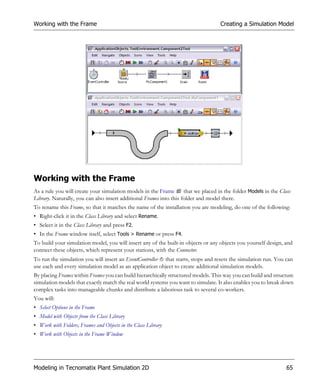
  window and drop it there.
• Enter a meaningful Name for the icon.

• To draw a line or a shape, select a drawing color and one of the drawing tools                                                      , and draw the
  shape in the drawing window.


Animating the Simulation Model and Viewing the Results                                                                                         321
Animating Your Simulation Model                                                         Working with Object Icons


• To move the reference point, click       and then click the position you would like to move the reference point to.
• To change the color
  • of one or several pixels, select a color in the color palette and click the pixel(s) whose color you would like to
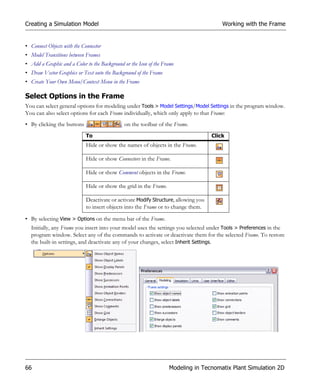
    change with one of the drawing tools.
  • of a contiguous color area, select a color in the color palette and click the area whose color you would like to
    change with .
• To draw with two colors, you can assign a color each to the left mouse button and the right mouse button:
  • Click a color in the color palette with the left mouse button to add this color to the top drawing color field. Or
  • Double-click the color field and define a color of your choice in the dialog Colors.
  • Then, click the respective mouse button to draw with that color.
• To make transparent
  • one or several pixels, click the transparency field and click the pixel(s), which you would like to make trans-
    parent with one of the drawing tools.
  • a contiguous color area, click the transparency field and click the area, which you would like to make transpar-
    ent with .
  Note: The background of the Frame shines through any area you marked as transparent.

• Click     to apply the changes you made.

Defining the Rotation of an Object
To set how Plant Simulation rotates the selected material flow object itself, select Object > Center of Rotation > Rotate
around Reference Point. The reference point of an object is located in the center of the icon by default.
• When you use the default setting Rotate around Reference Point, Plant Simulation rotates and zooms the icon
  around the reference point. You can compare this to pushing a pin through the center of a photograph and then
  turning the photograph around this pin.
• When you deactivate Rotate around Reference Point, the upper left corner of the icon remains at the same loca-
  tion when rotating and zooming the icon.


 Reference point
 located in the
 center
 Reference point
 located in the
 upper left corner


322                                                Animating the Simulation Model and Viewing the Results
Working with Object Icons                                                        Animating Your Simulation Model


In addition to defining the rotation of the material flow object, you can define, if an MU that transfers onto a ma-
terial flow object uses the same orientation, i.e., the same rotation angle, as the icon of the material flow object it is
animated on.
• When you use the default setting, Same as the Object, the front end of the MU points in the same direction as
  the right border of the material flow object.
• When you deactivate Same as the Object, the front end of the MU points in the direction it had, when it trans-
  ferred onto the material flow object.


Making Areas of an Icon Transparent
To make a contiguous area of a graphics file, which you opened, transparent, so that the background color of the
Frame shines through, proceed as follows:
• Open the Icon Editor (Icons > Edit Icons).

• Click or on the toolbar                                                                    to navigate to the icon you
  want to make transparent.
• Click the color picker  and click in the background of the icon. This makes that color the active drawing color,
  which we want to replace.
• Select the transparency color that replaces the active drawing color with in the Color Palette proper, not in the
  transparency color field!
  If the transparency color is not part of the color palette proper, double-click any field in the Color Palette that con-
  tains a color you do not need, and enter 0, 128, 128 into the dialog Colors > Custom and click OK.
• Make sure that Icon > Transparent is active.
• Click Apply Changes       to make the area transparent.
• To use the changed icon as the current icon of the object, make sure that               is selected.
                              Not transparent                 Transparent


Animating the Simulation Model and Viewing the Results                                                              323
Animating Your Simulation Model                                 Set and Link Animation Points and Animation Lines


To make individual pixels of the icon transparent:
• Click the transparency color field            with the left or right mouse button to make the transparency color the
  drawing color.
• Select one of the drawing tools                           , click the respective mouse button and change the color of a
  single pixel or draw a shape.
• Click      to make the area transparent.

Set and Link Animation Points and Animation Lines
During the simulation run the MU moves along the connecting lines, which you established with the Connector, from
material flow object to material flow object and/or material flow object to components you modeled in a Frame. In
your animated simulation model, Plant Simulation places the reference point of the icon of the MU onto the an-
imation point of the icon of the material flow object or the animation line           of the icon of the Frame.
For a material flow object the correlation looks like this:
                          Reference point of the MU


                          Animation point of the object

                                                                                               Frame


For a Frame the correlation looks like this:
                                                                        Reference point of the MU


      Icon of the Frame
                                                                           Animation points on the icon of the Frame


        Objects located
        in the Frame
                                                                                       Reference point of the MU

                                                                                       Animation point of the object


To insert an animation point or an animation line into the icon of the class of a material flow object or of a Frame:
• To open the Icon Editor, right-click the Frame into which you would like to insert an animation structure and select
  Edit Icons.


324                                                       Animating the Simulation Model and Viewing the Results
Set and Link Animation Points and Animation Lines                             Animating Your Simulation Model


• To activate Animation Mode, which allows you can insert animation points and animation lines, click         on the
  toolbar                                                              .
  To insert an animation point or an animation line into the icon of the class of an object, select Tools > Edit Class.
  You will notice that Plant Simulation opens the class object of the selected object. If you want to insert an anima-
  tion point into the icon of the active instance of the icon, do not select Edit Class.
• To insert an animation point into the icon of a point-oriented object, click         . Then, click into the drawing
  area with the left mouse button at the location of your new animation point.
• To insert a straight animation line            into the icon of a length-oriented object, click . Then, click into
  the drawing area with the left mouse button, hold the mouse button down to insert the beginning of the line,
  drag the mouse until the line is as long as you want it to be and release the mouse button. This inserts the end of
  the line.
• To insert a non-straight animation line             into the icon of a length-oriented object, click .Then, click
  once into the drawing area with the left mouse button to set the starting point of the line, click again to set the
  next anchor point. Plant Simulation connects the anchor points to create the line. Continue this until the polygonal
  chain meets your needs.
• To move an animation point or an animation line to a different location, click       .
  These colors represent the different states of an animation point:
  • Blue: Is the standard color for all objects, except for the Frame. For a Frame Plant Simulation shows that the
    animation point is linked to an object located within that Frame.
  • Light blue: Is the same as blue. In addition, it shows that an animation point of a Frame is linked to this anima-
    tion point.
  • Red: The animation point in a Frame is not linked to an object located within that Frame. For this reason Plant
    Simulation does not show an animation for this point.
• When you are done inserting, close the class object, and click Yes to save the changes to the icon of the class.
To link an animation point, which you inserted into the class of an object, with the animation point/line of a
Frame:
• Select the Frame in which you would like to link the animation structure with the right mouse button and select
  Edit Icons.
• To activate Animation Mode, which allows you to link animation points and animation lines, click        .
• To display the name of the model or object next to the animation point/line          in the drawing window,
  select Tools > Show Animation Numbers. This makes assigning animation points easier.
• Click Link/unlink animation point and select the animation point/line in the icon of the Frame. Plant Simulation
  shows the selected animation point or the animation line         in red.
  This opens the window of the Frame you selected above. Click the material flow object to which you want to
  assign the animation point/line. You will notice that the color of the assigned animation point or the animation


Animating the Simulation Model and Viewing the Results                                                           325
Viewing and Visualizing Statistics                           Set and Link Animation Points and Animation Lines


    line         changes to blue. When an MU moves to this animation point/line during the simulation run, Plant
    Simulation shows it on this animation point/line.


•
    To apply the settings, click     .
To delete all animation points/lines of an object, click        or click the animation line with the right mouse button.
Note: You can delete an animation point and insert a new one immediately afterwards without the correlation get-
        ting lost.


Viewing and Visualizing Statistics
By default all material flow objects collect statistics values from the beginning to the end of the simulation runs. If
you don’t want them to do so, deactivate statistics collection by clearing the check box Resource statistics
                on the tab Statistics or Product statistics              on the tab Product Statistics.
The EventController controls, when statistics collection starts and when it will be reset, i.e., started anew.
• Click the tab Settings. Click in the text box Statistics and enter the time at which the EventController resets statistics
  and deletes all statistics values it collected up to that time, compare Statistics Collection Period. Plant Simulation starts
  collecting statistical data for all material flow objects anew from this time on. This way you can discard data col-
  lected during warm-up phases, which might distort the validity of the simulation results.


326                                                   Animating the Simulation Model and Viewing the Results
Viewing Statistics in the Dialogs of the Objects                                     Viewing and Visualizing Statistics


• When you reset your simulation model, by clicking Reset             , Plant Simulation deletes statistics data of all objects
  and resets the statistics values to 0. During a simulation run you can achieve the same effect using the method
  initStat. This way you can restart the collection of statistical information after a warm-up period of a machine, for
  example.
Covering Plant Simulation statistics in detail would go beyond the scope of the Plant Simulation Step-by-Step Help. It is
described under the topic Statistics of the Material Flow Objects in the Plant Simulation Reference.
You can view and visualize the statistics results of your simulation runs in a number of ways.

Viewing Statistics in the Dialogs of the Objects
In its most basic form you can view the statistics, which the objects collected during a simulation run, in their dia-
logs, either on the tab Statistics or by opening the statistics tables of the objects:
• The material flow objects proper show the most important statistical data they collect on the tab Statistics.
  By default, the resource type used most often is pre-selected:
  • Production: for the SingleProc, ParallelProc, the Assembly station, and for the DismantleStation.
  • Transport: for the PlaceBuffer, Buffer, Sorter, Track, Line, Transporter, and for the Container.
  • Storage: for the Store.
  The resource type you select here affects statistics of mobile objects.
  Note: The percentages for Waiting, Working, Blocked, Setting-Up, Failed, Paused and Unplanned should add up
           to 100 percent.


Animating the Simulation Model and Viewing the Results                                                                   327
Viewing and Visualizing Statistics                           Viewing Statistics in the Dialogs of the Objects


  Note: Plant Simulation does not dynamically update the values during a simulation run when the dialog window
        is open. To accomplish this, select Refresh on the View menu of the object or press F5.

 Working               Shows the portion of the statistics collection period during which the object was Working.
 Setting-up            Shows the portion of the statistics collection period during which the object was Setting-
                       Up.
 Waiting               Shows the portion of the statistics collection period during which the object was Waiting.
 Blocked               Shows the portion of the statistics collection period during which the object was Blocked.
 Stopped               Shows the portion of the statistics collection period during which the object was Stopped
                       by a LockoutZone.
 Failed                Shows the portion of the statistics collection period during which the object was Failed.
 Paused                Shows the portion of the statistics collection period during which the object was Paused.
 Unplanned             Shows the portion of the statistics collection period during which the object was Un-
                       planned, i.e., is not scheduled to work.
 Relative occupation   Shows the capacity-based portion of the time during which the object was occupied, not
                       paused and not failed to the time the object was not paused and not failed as a real num-
                       ber.
 Relative empty        Shows the portion of the statistics collection period during which the object was Empty
                       in relation to the time during which the object was available.


328                                             Animating the Simulation Model and Viewing the Results
Viewing Statistics in the Dialogs of the Objects                                 Viewing and Visualizing Statistics


  Contents                 Shows the number of MUs, which are located on the object. The rules described under
                           Entries apply.
  Minimum contents         Shows the minimum number of MUs that was located on the object. The rules described
                           under Entries apply.
  Maximum contents         Shows the maximum number of MUs that was located on the object. The rules described
                           under Entries apply.
  Entries                  Shows the number of MUs that entered the object as an integer. When an MU enters the
                           object, it only counts the MU itself, not its contents: When a Container holding several en-
                           tities enters the object, the number of entries increases by 1, not by the number of entities
                           located on the Container!
  Exits                    Shows the number of MUs that exited the object as an integer. When an MU exits the ob-
                           ject, it only counts the MU itself, not its contents: When a Transporter holding several MUs
                           leaves the object, the number of exits increases by 1, not by the number of MUs the Trans-
                           porter transports!
  To view the statistics, which the object collected, select View > Show Statistics Report. You can query most of
  these values with the Methods that are listed next to the name of the value in the description of the statistics table.
• The mobile objects (MUs) show the most important statistical data they collect on the tab Product Statistics.


You will:
• Check How Many Parts Were Introduced into the Plant
• Check How Many Parts Left the Plant
• Check Statistics of the Individual Stations


Animating the Simulation Model and Viewing the Results                                                              329
Viewing and Visualizing Statistics                            Viewing Statistics in the Dialogs of the Objects


• Check Product Statistics of Parts
• Check Statistics of Exporter and Worker

Check How Many Parts Were Introduced into the Plant
Next to the values described under Viewing Statistics in the Dialogs of the Objects, you can make the Source record
which MUs it actually created at which point in time.


• To write all events for which the Source produced MUs during a simulation run to a table, select Creation table on
  the tab Statistics.
  Note: The Source records these events in addition to the resource statistics it collects in any case.

• To open the creation table, click Open.
  Each row in the table shows an event for which the Source produced an MU:
  • The column Name shows the name of the produced MU class.
  • The column Path shows the path of the MU class, the name of the MU and its number.
  • The column Time of Generation shows the time when the Source produced the individual MU.


330                                              Animating the Simulation Model and Viewing the Results
Viewing Statistics in the Dialogs of the Objects                                Viewing and Visualizing Statistics


Check How Many Parts Left the Plant
Next to the values described under Viewing Statistics in the Dialogs of the Objects, you can make the Drain record
statistics for MUs with the same name, i.e., product statistics, which move through the simulation model.
The numbers for the average exit interval and for the throughput are of special interest for production planning
and production control specialists.


• To collect statistics data depending on the type of MU, select Type dependent statistics. Plant Simulation will show
  this statistical data after the simulation run on the tab:

  Working                 Shows the percentage of the sum of the times during which the MUs were located on a
                          Working object, in relation to the statistics collection periods of all MUs. In general, this
                          is the life time of the MUs.


Animating the Simulation Model and Viewing the Results                                                              331
Viewing and Visualizing Statistics                                Viewing Statistics in the Dialogs of the Objects


  Setting-up               Shows the percentage of the times that the objects were setting-up for the MUs, in re-
                           lation to the statistics collection periods of all MUs. In general, this is the life time of the
                           MUs, compare Setting-Up.
  Waiting                  Shows the percentage of the times during which the objects were waiting for the MUs,
                           in relation to the statistics collection periods of all MUs. In general, this is the life time
                           of the MUs, compare Waiting.
  Stopped                  Shows the percentage of the sum of the times during which the MUs were located on
                           an object that was Stopped, in relation to the statistics collection periods of all MUs. In
                           general, this is the life time of the MUs.
  Failed                   Shows the percentage of the sum of the times that the MUs were located on a Failed
                           object, in relation to the statistics collection periods of all MUs. In general, this is the
                           life time of the MUs.
  Average lifespan         Shows the average life-span of MUs, which were created and destroyed during the sta-
                           tistics collection period. Only those MUs are counted whose product statistics was ac-
                           tive.
  Average exit interval    Shows the average time interval between exits of the MUs, which the Drain removed
                           from the installation. It results from adding up the times of all intervals, and then divid-
                           ing them by the number of intervals. Statistics only starts counting from the time the
                           first MU arrived!
  Total throughput         Shows the number of MUs, which the Drain removed from the installation, starting at
                           the time, at which you activated Type dependent statistics.
  Throughput her hour      Shows the number of MUs, which the Drain removed from the installation in an hour
                           on average, covering all observed times during which MUs arrived.
  Throughput her day       Shows the number of MUs, which the Drain removed from the installation in a day on
                           average, covering all observed times during which MUs arrived.
To view the statistics, which the Drain collected, select View > Show Statistics Report. You can query most of these
values with the Methods that are listed next to the name of the value in the description of the statistics table.

Check Statistics of the Individual Stations
All material flow object show the values described under Viewing Statistics in the Dialogs of the Objects on the tab
Statistics. The Assembly Station and the DismantleStation record additional statistical values.
The Assembly station records the percentage of the time it was:
• Waiting for parts, i.e., for add-on parts in relation of the statistics collection period.
• Waiting for resources. This is the portion of the time the Assembly station was waiting before the main MU entered
  into it, or from the time set-up is finished, until assembly starts in relation of the statistics collection period.


332                                                 Animating the Simulation Model and Viewing the Results
Viewing Statistics in the Dialogs of the Objects                              Viewing and Visualizing Statistics


Click the button to open the table Waiting Times, which shows the sum of the waiting times of the MUs for each
predecessor.


Check Product Statistics of Parts
All parts, represented by the MUs Entity, Container and Transporter, show the percentages of the times the part spent
waiting or working on a resource of type Production, Transport or Storage on the tab Product Statistics.


Animating the Simulation Model and Viewing the Results                                                          333
Viewing and Visualizing Statistics                            Viewing Statistics in the Dialogs of the Objects


To view all product-related statistics data, which the MU collected, select View > Show Statistics Report. You can
query most of these values with the Methods that are listed next to the name of the value in the description of the
statistics table.


As the Container and Transporter can load and transport other parts, they provide resource statistics as well, compare
Viewing Statistics in the Dialogs of the Objects.


334                                               Animating the Simulation Model and Viewing the Results
Viewing Statistics in the Dialogs of the Objects                                 Viewing and Visualizing Statistics


Check Statistics of Exporter and Worker
The Tab Statistics shows the values split up by Services and by Exporter. For each of these blocks, adding up the in-
dividual values yields 100%. You can query most of these values with the Methods that are listed next to the name
of the value in the description of the Statistics Report.


When you select the check box Fail services on the tab Attributes, the Exporter collects the failure times of the Services
and of the Exporter. When you deactivate it, the Exporter only collects the failure times of the Exporter.


The Exporter only collects Failed times that take place during the processing and the set-up time, i.e., times that are
located outside of the Paused time and of the Unplanned time.
Waiting times only accumulate during the times, when the Exporter is available, i.e., when these times are located
outside of the Paused, the Unplanned and the Failed times.

  Services setting-up         Shows the portion of the set-up time for services of the statistics collection period of
                              the Exporter, weighted with the capacity.
  Services processing         Shows the portion of the working time of the services of the statistics collection pe-
                              riod of the Exporter, weighted with the capacity.
  Services repairing          Shows the portion of the statistics collection period, which the services spent for re-
                              pairs, weighted with the capacity.


Animating the Simulation Model and Viewing the Results                                                               335
Viewing and Visualizing Statistics                                                    Viewing the Statistics Report


  Services waiting           Shows the portion of the statistics collection period, which the services spent waiting
                             for an importer plus the time the services spent waiting for an MU at the importer, weight-
                             ed with the capacity.
  Services failed            Shows the portion of the statistics collection period during which the services were
                             failed.
  Exporter operational       Shows the portion of the statistics collection period during which the Exporter was
                             working, weighted with the capacity.
  Exporter paused            Shows the portion of the statistics collection period during which the Exporter was
                             paused.
  Exporter unplanned         Shows the portion of the statistics collection period during which the Exporter was
                             unplanned.
  Exporter failed            Shows the portion of the statistics collection period during which the Exporter was
                             failed.
  Free capacity              Shows the capacity that is available at the moment.
  Mediated capacity          Shows the capacity that is brokered at the moment.
  Free capacity (sum)        Shows the sum of the released capacity that the Exporter placed with any importer.
  Mediated capacity          Shows the sum of the brokered capacity.
  (sum)
  Minimum free capacity      Shows the minimum capacity that is available. When the Exporter did not collect any
                             valid value yet, the tab shows -1.
  Maximum free capacity      Shows the maximum capacity that is available. When the Exporter did not collect any
                             valid value yet, the tab shows -1.
  Minimum mediated ca-       Shows the minimum brokered capacity. When the Exporter did not collect any valid
  pacity                     value yet, the tab shows -1.
  Maximum mediated ca-       Shows the maximum brokered capacity. When the Exporter did not collect any valid
  pacity                     value yet, the tab shows -1.

Viewing the Statistics Report
The most comfortable way of viewing statistics values of one or of several objects is to open the Statistics Report.
Below we demonstrate how to use it.
• Let us assume that we want to show the statistics of several objects in a single report. To do so, we select them
  (Shift+click, or drag a marquee over them) and press F6. Compare this example:


336                                                Animating the Simulation Model and Viewing the Results
Viewing the Statistics Report                            Viewing and Visualizing Statistics


• This opens the report, which looks like this:


Animating the Simulation Model and Viewing the Results                                337
Viewing and Visualizing Statistics                                                  Viewing the Statistics Report


• The report adds the statistics of the objects, which you selected, to the drop-down list in the top left corner of
  the display window. In our example these are the statistics values of the Stationary resources Source (Receiving),
  SingleProc, SingleProc1, SingleProc2, and SingleProc3 as well as the Importer Statistics. To jump to any of the top-
  ics, which interest you, select that topic from the drop-down list:


  • One of the main topic shows the resource statistics of the material flow objects split up by the states these
    objects were in, i.e., the working time, the waiting time, the blocked time, the failed time, the stopped time, the
    paused time, and the unplanned time. Note that these times add up to 100%. The set-up time and the empty
    time, which follow, may be part of the working time, waiting time or of the blocked time. For details compare
    the Statistics Report.


338                                               Animating the Simulation Model and Viewing the Results
Viewing the Statistics Report                                                 Viewing and Visualizing Statistics


    The subtopics further down in the report show details about the working time, the waiting time, the blocked
    time, the failed time, the stopped time, the paused time, the unplanned time, the set-up time and the empty time
    in the order in which they appear here.
    The bar chart on the right hand side shows the respective portions of the times.
                A bar with this color         Means that the object is            Looks like this
                green                         Working

                gray                          Waiting

                yellow                        Blocked

                red                           Failed

                pink                          Stopped

                blue                          Paused

                brown                         Setting-Up

  • This is followed by material flow values of general interest.


  • The subtopics show details of the working time, the waiting time, the blocked time, the failed time, the paused
    time, the unplanned time, the set-up time and the empty time in the order in which they appear in the first table.
    For details compare the Statistics Report.


Animating the Simulation Model and Viewing the Results                                                           339
Viewing and Visualizing Statistics                                                   Viewing the Statistics Report


• To add one or several objects in your model, which collect statistics to an open report, select it/them in the Frame
  and press F6. In our example we added the Drain object called Shipping.


      You will notice that the report added the object Shipping to the list of stationary resources as well as to the
      drop-down list of available topics.


  • To jump to the statistics of this Drain, select Drain Statistics from the drop-down list. For details compare the
    Statistics Report.


340                                                Animating the Simulation Model and Viewing the Results
Viewing the Statistics Report                                                  Viewing and Visualizing Statistics


• You can add any of the objects, which collect statistics, to the report. It then adds these objects to the drop-down
  list:


• To save the report as an HTML file (*.htm or *.html) or as a text file (*.txt) click Save. Enter a name for the file
  and select the folder into which you want to save it.
• To update the report with the current values, click Refresh.
• To print the report, click Print.


Animating the Simulation Model and Viewing the Results                                                           341
Viewing and Visualizing Statistics                      Showing Statistics with Display Panels in Your Model


Showing Statistics with Display Panels in Your Model
To quickly and easily show values of interest during a simulation run in your simulation model, you can define a
Display Panel each for the individual objects in the Frame. The display panel is kind of a dashboard that watches sta-
tistics values or states of the objects and shows them in different ways: As text, as a bar or as an LED.


When you deactivate Icon Animation                   Plant Simulation shows the display panel, but does not update its
values and continues showing the previous values. It does not update the values either, when no simulation is run-
ning. To still show current values, it updates them:
• When the simulation stops, either because you stopped it or because the End time has been reached.
• When you click OK or Apply in the dialog of an object.
• When you select View > Update in the dialog of an object.
• When you press F5 in the Frame window.
• When you call the method redraw of an object.
You can:
• Show Values as Text
• Show Values as Bars
• Show States with LEDs

Show Values as Text
Suppose you want to display the working portion of a station. To do so, you’ll first add the label Working and then
the value proper, i.e., the value that a Method records, to the right of it.
• Click the station for which you want to show the value with the right mouse button and select Edit Display Panel
  or select Icons > Edit Display Panel.


342                                               Animating the Simulation Model and Viewing the Results
Showing Statistics with Display Panels in Your Model                            Viewing and Visualizing Statistics


• To activate and to show the Display Panel in the Frame, select this. To deactivate it, clear the check box Active
• Enter the Width and the Height of the display panel in the Frame. If need be, adjust the X-position and the Y-position.


• Click New to add a new item to the display panel.
  • To add the label, select Static Text as the Type and enter Working: into the text box above it.
  • To make the background color of the display panel shine through the text, select Transparent.
  • Enter the X-position of the label on the display panel and click OK.


Animating the Simulation Model and Viewing the Results                                                             343
Viewing and Visualizing Statistics                     Showing Statistics with Display Panels in Your Model


• Then, define the Border color around the display panel and its Background color to make the display panel stand out
  in the Frame. Click the drop-down arrow in the color box and select a color in the dialog Colors. We selected black
  as the border color and light gray as the background color.
• Click Apply to show the display panel with the item you defined so far in the Frame. As you’ll want to show the
  value to the right of the label, increase the Width of the display panel.


• Next, select the value you want to display next to the label. Click New.

  • In the dialog Display Panel Element click    and select the Value you want to show. As we want to show the
    working portion of our station, we select the statistics method statWorkingPortion.
  • Select the display Type Text and select Display as percentage. Finally, adjust where Plant Simulation shows the
    value on the display panel by moving the X-position to the right of the label Working:.


344                                               Animating the Simulation Model and Viewing the Results
Showing Statistics with Display Panels in Your Model                          Viewing and Visualizing Statistics


     As we want to show several values aligned correctly one below the other, we align them right.


  • Click OK to close the dialog Display Panel Element.
• Click OK again to finish defining the display panel.

Show Values as Bars
Suppose you want to display the number of parts in a buffer as a bar above the icon of the object.


• Click the station for which you want to show the value with the right mouse button and select Edit Display Panel.
• Select the check box Active to show the Display Panel in the Frame.
• To display the bar above the icon, move the X-position and the Y-position to the top left corner of the icon.
• Enter the width and the height of the display panel in the Frame. In this case it corresponds to the width and the
  height of the bar itself.


Animating the Simulation Model and Viewing the Results                                                          345
Viewing and Visualizing Statistics                       Showing Statistics with Display Panels in Your Model


• Click New to add the new item.

  • In the dialog Display Panel Element click    and select the Value you want to show. As we want to show the
    number of parts in the buffer, we select the method numMU.
  • Select the display Type Bar.
  • Select the Color of the bar and enter its Length and its Width.
  • Finally, select the Direction into which the bar deflects starting at the X-position of the item. We selected right.
  • Click OK to add the item.


• Click OK again to finish defining the display panel.


Suppose you want to display the working, waiting, blocking, failed and paused portions of a station on a display panel
below the object.


• Click the station for which you want to show the values with the right mouse button and select Edit Display Panel.
• Select the check box Active to show the display panel in the Frame.
• Enter the position and the width and the height of the display panel in the Frame.


346                                                Animating the Simulation Model and Viewing the Results
Showing Statistics with Display Panels in Your Model                              Viewing and Visualizing Statistics


• Click New to add the new item.

  • In the dialog Display Panel Element click        and select the Value you want to show. We selected the statistics
    method statWorkingPortion.
  • Select the display Type Bar.
  • Select the Color of the bar and enter its Length and its Width.
  • Select the Direction into which the bar deflects starting at the X-position of the item. We selected up.
  • Click OK to add the item.


• Click OK again to finish defining the display panel. It then looks like this.


Animating the Simulation Model and Viewing the Results                                                           347
Viewing and Visualizing Statistics                       Showing Statistics with Display Panels in Your Model


• Repeat the steps described above to add the values statWaitingPortion, statBlockingPortion, etc. to the display panel.
  Select a different color for each value and to shift the X-position of each value to the right so that they do not
  overlap. The result will then look like this.


Show States with LEDs
Suppose you want to add a light-emitting diode to display more states on the icon of the object than the built-in
LEDs show. You can, for example, show an LED if the exit of the station is locked.


• Click the station for which you want to show the LED with the right mouse button and select Edit Display Panel.
• Select the check box Active to show the Display Panel in the Frame. Enter the position and the width and the height
  of the display panel in the Frame.


• Click New to add the new item.


348                                                Animating the Simulation Model and Viewing the Results
Showing Statistics in a Chart                                                  Viewing and Visualizing Statistics


  • In the dialog Display Panel Element click      and select the Value you want to show. We selected the attribute
    ExitLocked.
  • Select the display Type LED.
  • Select the Color of the LED and enter its Width.


Showing Statistics in a Chart
When you want to present the results of your simulation runs to colleagues and management, you will use the Chart.
You can insert the Chart into your simulation model from the folder UserInterface in the Class Library or from
the toolbar User Interface in the Toolbox.


The Chart graphically displays the data sets that Plant Simulation recorded during a simulation run. You can select to
show:
• Data from a table, into which you saved the simulation results, for example.


Animating the Simulation Model and Viewing the Results                                                           349
Viewing and Visualizing Statistics                                                    Showing Statistics in a Chart


• Data from input channels you define that dynamically record the values of attributes of interest of objects that
  your are interested in.
To show statistics values of an object in the Chart, which you inserted into a Frame, you can use drag-and-drop:
           To                                                             Drag a                       To a
           Show the statistics of a material flow object                  material flow object         Chart
           Show the frequency distribution of the number of MUs           PlaceBuffer, Buffer, Store   Chart
           Show the contents of a table                                   TableFile, TimeSequence      Chart
           Show the value of the Variable you inserted into a Frame       Variable                     Chart

• To apply the settings you selected in the dialog and to show the records, click Apply. When you resize the display
  window, Plant Simulation also resizes the shown graph.
• To show the data the Chart collected in the display window, click Show Chart.
• To open the dialog of the Chart, double-click anywhere in the display window.
• To make a Chart of type Histogram or Plotter collect data during the simulation run, select Collect data in the di-
  alog. To deactivate data collection, clear the check box.
• To delete all values that the Chart collected, select Tools > Reset Values.
The Chart lets you select settings in a number of ways. You can:
• Select Settings in the Statistics Wizard
• Select Where the Data Comes From
• Selecting How the Chart Shows the Data
• Add Labels, Format Them and Add a Legend
When you select another Category, the Chart automatically shows the icon of this category in the Frame window.
                                             Chart    Histogram      Plotter


Select Settings in the Statistics Wizard
A Chart, which you insert into a Frame, provides a Statistics Wizard. Right-click the Chart and select Statistics Wizard
on the context menu.


350                                                  Animating the Simulation Model and Viewing the Results
Showing Statistics in a Chart                                                   Viewing and Visualizing Statistics


• Select the class(es) of object(s) for which you would like to show statistical data in the Chart under the group box
  Class. The Chart only adds material flow objects to the display for which you selected the check box Resource
  statistics on the Tab Statistics.
• Select the type(s) of resource(s) for which you would like to show statistics of the selected object(s) in the Chart
  from the drop-down list box Resource type: Production, Transport or Storage. Select the Resource type on the tab
  Statistics of an object collecting statistical data. Use the check boxes in the Statistics Wizard to restrict which ob-
  jects Plant Simulation shows.


• If you would like Plant Simulation to also show statistical data of objects within Frames that you inserted into the
  Frame in which the Chart is located, select the check box Include subframes.
• Select the criterion which Plant Simulation uses when sorting statistical data from the drop-down list Sort criterion:
  Either the Name of the object, or one of the states it is in: Working, Waiting, Blocked, Failed or Paused.
  To sort the stations by their name in alphabetical order from A to Z, select Sort criterion > Name. To sort the
  stations in the order that meets your needs, drag the stations onto the Chart in the order it is to show them. To


Animating the Simulation Model and Viewing the Results                                                             351
Viewing and Visualizing Statistics                                                 Showing Statistics in a Chart


  change the order at a later point in time, edit the table of the Input channels by cutting the respective columns
  of the objects and pasting them in the desired order.
• Finally, click OK to open the display window of the Chart with the settings you selected in the dialog.

Select Where the Data Comes From
Before you start your simulation run, you can tell the Chart what to use as the source of the data it displays and in
which mode it collects data.
• Select the Data source, i.e., whether the Chart takes the data you want to display from a set of input channels or
  from a table.
  • To show values of channels you define in a table file, select Input Channels from the drop-down list.
      To open a table into which you enter the input channels, click Table File. These channels are, as a rule, the
      paths to attributes or methods of objects, whose values you want to display. You can also enter complex expres-
      sions, such as the sum of two attributes, etc.
      Enter any text you want to add as the legend to the Chart into the row index.


352                                               Animating the Simulation Model and Viewing the Results
Showing Statistics in a Chart                                                    Viewing and Visualizing Statistics


                                                                                          Enter into
                                                                                          row index


                                                                Enter into column index


  • To show the contents of a table as a diagram, select Table File. This might, for example, be a table into which
    you saved the results of a simulation run.
    Enter the name and the path of the table file containing the data, or click the button             and select the table
    in the dialog Select Object.
    Enter the Range of the table cells you want to show.
    • To show all cells in all columns and rows, enter {*,*}..{*,*}.
    • To show the first four cells of column one, enter {1,1}..{1,4}.
    • To show all cells in column one, enter {1,1}..{1,*}.
    You can also enter negative numbers:
    • To show the one but last column of the table, enter {-2,*}..{-2,*}.
    • To show the one but last and the last column, enter {-2,*}..{*,*}.


Animating the Simulation Model and Viewing the Results                                                                353
Viewing and Visualizing Statistics                                                    Showing Statistics in a Chart


• Select which mode the Chart uses to update the data it shows.
  • Sample mode updates the Chart periodically and takes the next sample after the time span you enter into the
    text box Interval.
  • Watch mode updates the Chart, whenever the value of an observable Method, for example numMU, numMU-
    Parts, statMaxNumMU, statNumIn, statNumOut, etc. or of a observable attribute changes, for example Pause,
    Speed, Unplanned, etc.
      The column Watchable in the dialog Show Attributes and Methods of the individual objects shows all methods
      and attributes Plant Simulation can observe.
  • Plot mode updates the Chart, whenever a simulation event takes place.

Selecting How the Chart Shows the Data
After you have selected where the Chart takes the data from that it displays, you will select the settings for displaying
this data.
You can select to:
• Show a number of values or several sets of a number of values, see Show Values in a Chart.
• Show the frequency distribution for one or several input channels, see Show Values in a Histogram.
• Show the progression of one or more values over time, see Show Values as the Chart Plots Them.
  Note: When you select another Category, the Chart automatically shows the icon of this category in the Frame
          into which you inserted it.
• Show a number of x-y pairs of values or several sets of x-y pairs of values, see Show Values as an XY Graph.

Show Values in a Chart
To show a number of values or several sets of a number of values as a chart, click the tab Display and select Chart
from the drop-down list Category.


354                                                Animating the Simulation Model and Viewing the Results
Showing Statistics in a Chart                                                 Viewing and Visualizing Statistics


Show Values in a Histogram
To show the frequency distribution for one or several input channels as a histogram, click the tab Display and select
Histogram from the drop-down list Category. A histogram graphically summarizes the distribution of a data set.
To make the Chart collect data during the simulation run, select Collect data in the dialog. To deactivate data col-
lection, clear the check box.


Animating the Simulation Model and Viewing the Results                                                          355
Viewing and Visualizing Statistics                                                 Showing Statistics in a Chart


Show Values as the Chart Plots Them
To show the progression of one or more values over time, click the tab Display and select Plotter from the drop-
down list Category.
To make the Chart collect data during the simulation run, select Collect data in the dialog. To deactivate data col-
lection, clear the check box.


356                                               Animating the Simulation Model and Viewing the Results
Showing Statistics in a Chart                                                 Viewing and Visualizing Statistics


Show Values as an XY Graph
To show a number of x-y pairs of values or several sets of x-y pairs of values, click the tab Display and select XY
Graph from the drop-down list Category.
Note: You can only show values as an XY graph, when you select Data > Data source > Table File.


Animating the Simulation Model and Viewing the Results                                                          357
Viewing and Visualizing Statistics                              Showing Statistics in a Chart


358                                  Animating the Simulation Model and Viewing the Results
Showing Statistics in a Chart                                                 Viewing and Visualizing Statistics


Select the Chart Type
Select the type of Chart for displaying the recorded data. A record consists of the entries of a row or a column,
depending on the setting you selected under Display > Data.


Depending on the Category you selected (Chart, Histogram or Plotter), the Chart provides some or all of the follow-
ing chart types:

 Columns                shows each record as a column. When displaying several records, the Chart places the col-
                        umns next to each other. Use this to compare values across categories.
 Stacked Columns        shows each record as a column. When displaying several records, the Chart places the col-
                        umns of the individual records on top of each other. It stacks positive values upwards, neg-
                        ative values downwards.
 100% Stacked Col-      shows each record as a column, stacked one on top of the other, showing the respective
 umns                   percentage of the entire set of 100%.
 Bars                   shows each record as bars positioned horizontally on top of each other. When displaying
                        several records, the Chart places the bars of the individual records next to each other. Use
                        this to compare values across categories.
 Stacked Bars           shows each record as a set of bars stacked horizontally next to each other. Positive values
                        are stacked to the right, negative values are stacked to the left.


Animating the Simulation Model and Viewing the Results                                                          359
Viewing and Visualizing Statistics                                                    Showing Statistics in a Chart


 100% Stacked Bars     shows each record as a set of bars, one stacked horizontally next to each other, showing
                       its respective percentage of the entire set of 100%.
 Area                  shows each record as areas. When displaying several records, the Chart stacks the areas
                       from the individual records one behind the other. Use this to show the trend of the con-
                       tribution of each value over time or categories.
 Stacked Area          shows each record as areas. When displaying several records, the Chart stacks the areas
                       from the individual records one on top of the other.
 100% Stacked Area     shows each record as a set of areas, one stacked on top of the other, showing the respective
                       percentage of the entire set of 100%. Displays the trend of the percentage each value con-
                       tributes over time or categories.
 Line                  shows each record as a line.
 Line with Markers     shows each record as a line with markers.
 Spline                shows each record as a curve.
 Spline with Markers   shows each record as a curve with markers.
 Markers               shows each record as a set of different markers.
 Points and Best Fit   shows each record as a set of data points, and fits the best straight line to them. The line
 Line                  is calculated from least-squares-approximations of the data set.
 Points and Best Fit   shows each record as a set of data points, and fits the best curved line to them. The curve
 Curve                 is calculated from least-squares-approximations of the data set.
 Pie                   shows each record as a slice of a pie, depicting its percentage of the whole. Enter a negative
                       prefix, so that the Chart offsets this slice from the rest of the pie. Use the scrollbar to scroll
                       from record to record. Use this to show the contribution of each value to a total.
 XY Points             shows the x-y pairs as data points. The first record contains the x-coordinates. The Chart
                       interprets all additional records as the associated y-coordinates. Use this to compare pairs
                       of values.
 Line                  shows the x-y pairs as data points and connects them with a line. The first record contains
                       the x-coordinates. The Chart interprets all additional records as the associated y-coordi-
                       nates.
 Sticks                shows a vertical bar for each x-y pair, starting from the zero line. The first record contains
                       the x-coordinates. The Chart interprets all additional records as the associated y-coordi-
                       nates.
 Area                  connects the points belonging to the x-y pairs and fills the areas thus created. The first
                       record contains the x-coordinates. The Chart interprets all additional records as the asso-
                       ciated y-coordinates.


360                                               Animating the Simulation Model and Viewing the Results
Showing Statistics in a Chart                                                   Viewing and Visualizing Statistics


 3D Columns             shows each record as columns stacked in three-dimensional space. To turn the chart left
                        or right you can enter an angle of Rotation or you can also drag the horizontal slider in the
                        display window. To turn the chart up or down, you can enter the Height or you can drag
                        the vertical slider.
 3D Wire Frame          shows each record as wireframes stacked in three-dimensional space. To turn the chart left
                        or right you can enter an angle of Rotation or you can also drag the horizontal slider in the
                        display window. To turn the chart up or down, you can enter and the Height or you can
                        drag the vertical slider.
 3D Surface             shows each record as solid areas stacked in three-dimensional space. To turn the chart left
                        or right you can enter an angle of Rotation or you can also drag the horizontal slider in the
                        display window. To turn the chart up or down, you can enter the Height or you can drag
                        the vertical slider.

Select Additional Display Options
• Select how the Chart shows the records i.e., the entries of a row or of a column.
  • Graph shows the records as a graph only in the display window.
  • Table shows the records as a table, i.e., as text only in the display window. Select a font and a relative font size

     on the tab Font                                     .
  • Graph and Table shows the records as a graph and as a table in the display window.
• Select how the Chart shows the data. This way you can present different views of the same record.


Animating the Simulation Model and Viewing the Results                                                             361
Viewing and Visualizing Statistics                                                Showing Statistics in a Chart


• If you want to, you can also select a 3D effect for some of the Chart Types:
  • None adds no 3D effect to the Chart Type you selected.
  • Shadow adds a black shadow to the chart type you selected.
  • 3D adds three-dimensional depth to the chart type you selected.
  • Gradient bars adds an effect between a gradient and a 3D look to the chart type you selected.
  • Contoured for the chart types 3D Columns and 3D Surface.
      You can also enter the Rotation angle and the Height of the columns/surface. To turn the chart left or right,
      drag the horizontal slider in the display window. To turn it up or down, drag the vertical slider.


362                                              Animating the Simulation Model and Viewing the Results
Showing Statistics in a Chart                                              Viewing and Visualizing Statistics


  Note: Some chart types do not provide 3D effects.

• To change the background color of the Chart proper in the display window, click the tab Color. Double-click the
  cell labeled Background and select another color. Click Apply to change the color.


Animating the Simulation Model and Viewing the Results                                                      363
Viewing and Visualizing Statistics                                                  Showing Statistics in a Chart


• To change the color around the Chart proper in display window, click the tab Color. Double-click the color field
  next to Desk and select another color. Click Apply to change the color.
• To display the Chart in the Frame, instead of the icon of the object, select Display in frame on the tab Display.
  We advise to increase the size of the icon of the Chart in the Frame: Hold down Shift+Ctrl, grab one of the four
  corners of the icon with the mouse and drag the icon to a convenient size.
• To interrupt the line the Chart draws for values that are not defined, select Gap when null on the tab Display. To
  continue drawing the line, clear the check box.


• To print the Chart, select Tools > Print.
• To copy the contents of the display window to the Clipboard as a bitmap, select Tools > Copy to Clipboard. You
  can then paste it into another application with Ctrl+V or Edit > Paste.
• To show Grid lines on the x-axis in the display window, select X-axis on the tab Axes. Enter the maximum number
  of grid lines on the x-axis. This feature is especially handy, when the Chart displays a large number of points with-
  in a limited space and you want to regulate how many grid lines the display window shows.
  To hide them, clear the check box.


  Compare these screenshots:


364                                               Animating the Simulation Model and Viewing the Results
Showing Statistics in a Chart                                                   Viewing and Visualizing Statistics


  10 grid lines on the x-axis                                20 grid lines on the x-axis


• To show grid lines on the y-axis in the display window, select Y-axis                 . To hide the grid lines, clear
  the check box.
• To set the range the Chart is to display scaled on the y-axis, enter the first value of into the left text box. The
  default setting 0 … 0 means that Plant Simulation scales automatically.
  Enter the last value of the range the Chart is to display scaled on the y-axis into the right text box.
  Note: When you enter neither Title nor Subtitle, the Chart might, under certain circumstances, cut off the upper
        part of the y Range. To prevent this, you can enter a blank space into the text box Subtitle.


  Compare these screenshots:
    Scaling on the y-axis, 10 units                          Scaling on the y-axis, 20 units


Animating the Simulation Model and Viewing the Results                                                             365
Viewing and Visualizing Statistics                                                    Showing Statistics in a Chart


Add Labels, Format Them and Add a Legend
Naturally, you will also want to add a title and a subtitle to your chart, and format them, add text to the x-axis and
to the y-axis and add a legend that tells what the values mean.


• Enter any text that Plant Simulation shows as the title of the Chart in the display window into the text box Title. In
  our example we entered Utilization of Stations.
  Select a font, if you want to bold face or italicize the text and a relative font size on the tab Font.


  Select a color for all text in the display window on the tab Color. Double-click the color field next to Font and
  select another color. Click Apply to change the color.


366                                                Animating the Simulation Model and Viewing the Results
Showing Statistics in a Chart                                                    Viewing and Visualizing Statistics


• Enter any text that Plant Simulation shows as the subtitle of the Chart in the display window into the text box Sub-
  title. In our example we entered Engine Plant Anytown.
• Enter any text that Plant Simulation shows in the display window on the x-axis. In our example we entered Sta-
  tion.
  Select a font, if you want to bold face or italicize the text and a relative font size on the tab Font.
  Note: This font applies to all labels, except for the Title, the Subtitle and data displayed in Table format in the
          display window
• Enter any text that Plant Simulation shows in the display window on the y-axis. In our example we entered Percent
  of 100.
• Select if and on which side of the display window Plant Simulation shows the legend for the values the Chart dis-
  plays.
  As you remember, you enter the text you want to show as the legend into the row index of the table when you
  select Data source > Input Channels > Table File.


• If need be, you can also add additional lines and/or text to the display window. Click Annotations and fill in the
  table that opens.


  • Type: Enter 0 for displaying a vertical line or enter 1 for displaying a horizontal line. Enter 2 or 3 for labeling
    the x-axis or the y-axis. Enter 4 for any text.


Animating the Simulation Model and Viewing the Results                                                            367
Viewing and Visualizing Statistics                                                Showing Statistics in a Report


  • Value: Enter the value where the Chart displays the line in the display window. For a vertical line this is the x-
    value, for a horizontal line this is the Y-value.
  • From: Enter the starting point of the line here. If you do not enter a value, the Chart extends an existing line.
  • To: Enter the end point of the line here. If you do not enter a value in the cells From and To, the Chart draws
    the line from the left to right, or from the top to the bottom of the display window.
  • Color: Enter the number of the color of the line here. This is the number of one of the lines you defined on
    the tab Color.
  • Style: Enter the style of the line here, such as dotted, dashed, etc.

                                       0      is a thin solid line
                                       5      is a medium thin solid line
                                       10     is a medium thick solid line
                                       6      is a thick solid line
                                       11     is an extra thick solid line
                                       1      is a dashed line
                                       2      is a dotted line
                                       3      is a dash-dot line
                                       4      is a dash-dot-dot line

  • Text: Enter any text that describes the line.

Showing Statistics in a Report
When you want to present all of the results of a simulation run, which Plant Simulation outputs to tables and dia-
grams, on a number of HTML pages on screen, you will use the object Report. You can also print, and save, this set
of HTML pages for sharing it with your colleagues or for displaying it on a web site.
You can insert the Report into your simulation model from the folder UserInterface in the Class Library or from
the toolbar User Interface in the Toolbox.


One Report object per simulation model defines the general layout of the HTML pages. Define the data the object
displays in the dialog of the report, and view the data in the display window, which Show Report opens.


368                                                 Animating the Simulation Model and Viewing the Results
Showing Statistics in a Report                           Viewing and Visualizing Statistics


                                                                      Dialog window of
                                                                      the Report

                                                                      Click this to open the
                                                                      display window


                                                                       Display window of
                                                                       the Report


                                             List pane


            Tree pane
                                                             Display pane


                                    Structure pane


You will:
• Enter General Information which the Report Shows
• Define How the Report Shows the Data
• Work with the Display Window


Animating the Simulation Model and Viewing the Results                                         369
Viewing and Visualizing Statistics                                                Showing Statistics in a Report


Enter General Information which the Report Shows
Enter some or all of the following information, which the Report shows, in the display window into the text boxes:


• Enter a name for the simulation run. The display window shows the text you enter along the top border of the
  report next to Simulation. In our example we entered My simulation run.


• Enter the version number of the simulation run within the simulation experiment. This can be any combination
  of letters and numbers. The display window shows the text you enter along the top border of the report. In our
  example we entered New My simulation version.
• Enter the name of the person who is in charge of this simulation experiment. You can append this with the
  phone number, the e-Mail address, the department. etc. The display window shows the text you enter along the
  top border of the report. In our example we entered Frank Jones, Simulation expert, ext. 131,
  frank.jones@abcd.com.
• Enter the name of the folder you would like to save the report to as an HTML file.
• Enter the file name you want to save the report with as an HTML file. This creates a folder with the name you
  enter and places the HTML files and the graphics that the HTML files show into it.
• Select the file type you want to save the report with as an HTML file.
  Note: At present you can only select Web Page, complete. This saves all of the files needed to display this page,
        including graphics, frames, and style sheets. Web Page, complete saves each file in its original format.
• Enter the width of the display window in pixels in which Plant Simulation shows the report.
• Enter the height of the display window in pixels in which Plant Simulation shows the report.
• Enter the interval, in seconds, after which the Report dynamically updates the results of the simulation run in the
  display window. To manually update the display window, click Refresh       in the display pane.


370                                               Animating the Simulation Model and Viewing the Results
Showing Statistics in a Report                                                Viewing and Visualizing Statistics


Define How the Report Shows the Data
When you define which data the Report shows and how it shows it, you will:
• Create a Structure for Displaying Data
• Apply Formatting to the Structure Pane
• Add the Objects Whose Data You Want to Show


Create a Structure for Displaying Data
To add clarity to your report, you will first create a structure that shows the results of the simulation runs.
• To create a new page in the structure below a branch, right-click that branch and select New. Type in another
  name instead of New Page. Repeat this until the structure has the form that meets your needs.
  Instead, you can also right-click the new page and select Rename or enter a different name in the dialog Format.
  In our example we entered Coupled Material Flow.


Animating the Simulation Model and Viewing the Results                                                            371
Viewing and Visualizing Statistics                                                Showing Statistics in a Report


• To enter the title of the page that the display pane shows, select the page, click into the cell below Headline and
  enter the text. In our example we entered States of the Machines.


Apply Formatting to the Structure Pane
If you want to, you can apply formatting that the branches in the structure pane in the display window show.
• Right-click the branch that you would like to apply formatting to and select Format on the context menu.


• Enter the text that the tooltip shows, when you roll the mouse over the name of the branch in the structure pane
  of the display window. In our example we entered No State Times.
• For the topmost node of a branch, such Coupled Material Flow or Uncoupled Material Flow in our example, you
  can enter color for the vertical bars to the left of the branches in the structure pane. You can enter the HTML
  code of a color, for example, DARKBLUE or #00008B, etc. In our example above we entered green.
• To show the branch and its sub-branches, i.e., with all of its subpages, in the structure pane, when you open the
  Report, select Expand.


372                                               Animating the Simulation Model and Viewing the Results
Showing Statistics in a Report                                                Viewing and Visualizing Statistics


• If you want to execute certain actions before Plant Simulation creates the HTML page, enter the name of the Meth-
  od in which you programmed these actions into the text box Execute before.

Add the Objects Whose Data You Want to Show
After you have created the structure, you will add the objects whose data you want to show.
Note: You can only show data, and thus enter a title and add objects for it, on the individual pages that do not
      have a on their left on the tab Structure in the dialog of the Report.
Below we demonstrate how to:
• Show the Contents of a Chart in the Display Pane
• Show the Contents of a Table in the Display Pane
Show the Contents of a Chart in the Display Pane
To show the contents of a Chart in the display pane of the Report:
• To enter the title of the page that the display pane shows, select the page, click into the cell below Headline and
  enter the text. In our example we entered States of the machines.
  Note that headlines are preceded by a bullet in the structure and the display windows              . Enter a hyphen
  (-) in the first cell below the header to show a horizontal rule below the headline in the display window.
• Click the page in the structure and double-click the cell below First column to show the data in column one of
  the display pane of the display window.
• Enter the name of the object you want to show in the display pane. In our example we entered the name of the
  Chart object Chart that we inserted into our simulation model.
  Or drag the object from the Frame or the Class Library to the cell and drop it there.
  • A TableFile.
  • A Chart object.
  • A Comment object you saved as Text Only, i.e., for which you cleared the check box Save the contents in rich-
    text format.
  • A Frame that contains icons of the objects you inserted.
  • An Attribute.
  • An AttributeExplorer object.
  • A Method object that returns a value of type string.
  • One of the basic functions, such as to_str.
• Select how you want to show the data:
      Setting                                        Sample object         Sample table
      As Text, i.e., as plain text.


Animating the Simulation Model and Viewing the Results                                                          373
Viewing and Visualizing Statistics                                                Showing Statistics in a Report


      Setting                                    Sample object             Sample table
      As an Icon of the object.
      Enter the name of an icon of the object.
      Enter the Width and the Height of the
      icon in pixels that the Report shows in
      the display window.
      As an Object, depending on the type of
      object.
      Enter the Width and the Height of the
      object in pixels in the display window.


• To apply the settings you entered, click Apply.
Show the Contents of a Table in the Display Pane
To show the contents of a TableFile in the display pane of the Report:
• To enter the title of the page that the display pane shows, select the page, click into the cell below Headline and
  enter the text. In our example we entered Table of Orders.
• Click the page in the structure and double-click the cell below First column to show the data in column one of
  the display pane of the display window.
  Enter the name of the object you want to show. In our example we entered the name of the TableFile object De-
  liveryList that we inserted into our simulation model. You can also drag the object from the Frame or the
  Class Library to the cell and drop it there.
• Select to show the data as Object.


374                                                 Animating the Simulation Model and Viewing the Results
Showing Statistics in a Report                                        Viewing and Visualizing Statistics


• To apply the settings you entered, click Apply.


  Looking at the screen shot above, you are probably wondering where the sentence The table shows the
  order mix. above the table comes from. For this we opened the Orders table, selected View > Comment and
  entered The table shows the order mix into the comment field.


Animating the Simulation Model and Viewing the Results                                               375
Viewing and Visualizing Statistics                                                  Showing Statistics in a Report


Work with the Display Window
Once you have entered data about the simulation run and defined what you want to show, you can view that data
in the display window. To do this, click            .


• To display the contents of a single branch in the display pane of the display window, click it                    .
• To show the next level of a branch in the structure pane, click the     sign in front of it.
• To open all branches of the structure, click Expand All      .
• To hide the next level of a branch, click the    sign in front of it.
• To close all branches of the structure, click Collapse All       .
• To print the currently displayed page to your default printer, click Print    .
• To save the report as a web page, click Save . Select a folder, a file name and the format of the file in the dialog
  Save As. This creates a folder with the name you enter and places the HTML files and the graphics that the
  HTML files show into it.
  Note: At present you can only select Web Page, complete. This saves all of the files needed to display this page,
        including graphics, frames, and style sheets. Web Page, complete saves each file in its original format.

• To manually update the display pane, click Refresh      .

• To replace the icon                 , which the HTML page displays in the upper right corner of the tree win-
  dow with the logo of your company, right-click the icon of the object Report and modify the icon called Logo in
  the Icon Editor.

• To replace the icon                        , which the HTML page displays in the upper left corner of the dis-
  play window with the logo of your company, right-click the icon of the object Report and modify the icon called
  Header in the Icon Editor.


376                                               Animating the Simulation Model and Viewing the Results
Showing Values During the Simulation Run with the Display                      Viewing and Visualizing Statistics


Showing Values During the Simulation Run with the Display
When you want to show a value of an attribute, of a method, or of a Variable at all times throughout the entire simu-
lation run, we will use the Display . The Display is, for example, ideally suited to dynamically show the fill level of
a Buffer.
You can insert it into your simulation model from the folder UserInterface in the Class Library or from the toolbar
User Interface in the Toolbox.


• When you deactivate the Display, it shows its icon       in the Frame, into which you inserted it.
• When you activate it by selecting            , the Display shows a value in the Frame window, such as              .
You can:
• Select which Data the Display Shows
• Select How the Display Shows the Data

Select which Data the Display Shows
Before you start your simulation run, you have to tell the Display which value it displays and in which mode it col-
lects the data.


Animating the Simulation Model and Viewing the Results                                                           377
Viewing and Visualizing Statistics                  Showing Values During the Simulation Run with the Display


• Click     to enter the path to and the name of the object whose data you want to view. Then, enter the value of
  a global variable (Variable), of an attribute or of a method of an object into the text box after the path. You might,
  for example, enter buffer.numMU, .Models.Frame.parallelProc.statNumOut, store.XDim, etc.
  The Display supports the data types boolean, integer, real, string, object, time, money, length, weight, speed, date and datetime.
  When the path you enter is invalid, the background of the text box changes to red.
• If you want to, you can also enter a brief description (Comment) of the displayed value. You might, for example
  enter a description of the attribute that the Display displays, such as Fill Level Buffer. The Display shows
  this text below the value in the Frame window.
  Note: When you select to display the value as Text, we recommend to enter one or two spaces after the last
          word, so that the value does not appear too close to the comment.
• Select which mode the Display uses to update the displayed data.
  • Sample mode updates the Display periodically and takes the next sample after the time span you enter into the
    text box Interval.
  • Watch mode updates the Display, whenever the value of an observable Method changes, for example numMU,
    numMUParts, statMaxNumMU, statNumIn, statNumOut, etc. or of an observable attribute, for example Pause,
    Speed, Unplanned, etc.
      The column Watchable in the dialog Show Attributes and Methods of the individual objects shows all methods
      and attributes which Plant Simulation can observe.

Select How the Display Shows the Data
Before you start your simulation run, you have to tell the Display how to show the value it collects. In Sample mode
it updates the value periodically, in Watch mode, whenever the displayed value changes.


• Select how you want the Display to show the value: As Text, as a Bar or as a slice of a Pie. The Display can only
  show numerical values as a bar and as a slice of a pie. These are easy to comprehend, but not very well suited if
  accuracy is important.
                                         Text               Bar             Pie


378                                                     Animating the Simulation Model and Viewing the Results
Showing Statistics During the Simulation Run in Excel                            Viewing and Visualizing Statistics


  • When you select Bar or Pie, the Display shows the value in relation to the Minimum and the Maximum value of
    the range you enter. An empty bar/pie indicates values smaller than or equal to the lower bound of the range.
    A full bar/pie represents values greater than or equal to the upper bound of the range. You can also change
    the height and the width of the bar/pie graphic by dragging its outline with the left mouse button while holding
    both the Shift and the Ctrl keys down.
     The Display shows the actual minimal and maximal values as dashed lines in the Frame window, which is not
     as accurate as you might need it to be. To view the current values, click the tab Data and look at the boxes
     Minimum and Maximum.
     To reset the values on the tab to 0, click Reset Values.
  • When you select Text, the Display shows the value as a number or as text in the Frame window. Then, you can
    select a Font size for displaying the value itself and for displaying the Comment you entered. Enter a blank after
    the text you enter as so that the Comment value is not shown attached to the text.


• To make the background of the Display you inserted into a Frame transparent, select Transparent.
  Then, the Display shows the space around the text in the color you selected as the Color for the background of
  the Frame, i.e., the background color of the Frame shines through the hollow parts of the text.
                                      Not transparent        Transparent


• To select a color for the text the Display displays and for the outline of its display graphic, click in the field next
  to Color and select a color in the dialog Colors.

Showing Statistics During the Simulation Run in Excel
You can dynamically show statistics values, which Plant Simulation records in a global variable, at all times through-
out the entire simulation run on an Microsoft Excel data sheet. You can thus use the spreadsheet functions and the
graphic display options that Excel provides to visualize values. Plant Simulation and Excel exchange data via DDE.
You can insert the Variable into your simulation model from the folder InformationFlow in the Class Library or
from the toolbar Information Flow in the Toolbox.


Animating the Simulation Model and Viewing the Results                                                              379
Viewing and Visualizing Statistics                      Showing Statistics During the Simulation Run in Excel


You will:
• Set the Variable Up
• Set Excel Up
• Embed the Excel File into the Model Using the Object FileLink

Set the Variable Up
For visualizing the value, which the global variable records, you will first insert an object of type Variable into the
simulation model. Then, select settings for displaying the value in the Frame and for sending it to Excel:
• Enter a meaningful Name. In our example we entered AverageThroughputTime as we want to record the av-
  erage throughput time.
• Select the Data type of the value to be recorded. As we want to measure the throughput, we use the default setting
  integer.


• Select how to display the value, which the Variable records, in the Frame. We selected to show the Variable trans-
  parent, in blue with a large font size on the background of the Frame                                   .


380                                                 Animating the Simulation Model and Viewing the Results
Showing Statistics During the Simulation Run in Excel                        Viewing and Visualizing Statistics


• As we want to send the value of the Plant Simulation Variable to Excel, we select Support DDE hotlinks.


Set Excel Up
After you have inserted and set up the Variable whose value you want to show in Excel in Plant Simulation, you have
to set up Excel.
• Start Excel.
• Enter explanatory text into the cells of the first column.
• Enter ='eM-Plant'|data!'.<absoute path to the Variable>' into the cell that is to show the value of
  the Variable.
  To show the Average throughput time for model 1 (cell A5) per minute, we entered ='eM-Plant'|da-
  ta!'.Models.Model1.AverageThroughputTime'/60 into the cell B5.


Animating the Simulation Model and Viewing the Results                                                        381
Viewing and Visualizing Statistics                    Showing Statistics During the Simulation Run in Excel


• Then, add additional display options of the values, such as charts, etc. to the cells below. Consult the Microsoft
  Excel Help for details of how to accomplish this. Save the file.


382                                               Animating the Simulation Model and Viewing the Results
Showing Statistics During the Simulation Run in Excel                     Viewing and Visualizing Statistics


Embed the Excel File into the Model Using the Object FileLink
To be able to open the Excel file from within your Plant Simulation model, drag it from the Windows Explorer to
the Frame and drop it there.


Animating the Simulation Model and Viewing the Results                                                     383
Viewing and Visualizing Statistics                    Showing Statistics During the Simulation Run in Excel


To embed the Excel file into the simulation model, click Yes. Then, you can double-click the icon of the Excel file
        to open it.
This connection between the Excel and the Plant Simulation Frame is established with a FileLink object. To open it,
click        with the right mouse button and select Open.


384                                               Animating the Simulation Model and Viewing the Results
Accessing Statistics with Methods and Attributes                                  Viewing and Visualizing Statistics


Accessing Statistics with Methods and Attributes
Naturally you can access most of the statistics values with methods and attributes:
• For the material flow objects the names of the Methods are listed next to the name of the value in the description of
  the Statistics Report.
• For the Drain the names of the Methods are listed next to the name of the value in the description of the Statistics
  Report.
• For the Exporter and the Worker the names of the Methods are listed next to the name of the value in the descrip-
  tion of the Statistics Report.
• In addition, you might want to check the topics Methods for Accessing Statistics of the Material Flow Objects and At-
  tributes for the Statistics of the Material Flow Objects.
• For the MUs the names of the Methods are listed next to the name of the value in the description of the Product
  Statistics of the MUs and of the Resource Statistics of the MUs.
• For the object Transporter the names of the Methods are listed next to the name of the value in the description of
  the Driving Statistics of the Transporter.
• In addition, you might want to check the topics Methods for Accessing the Statistics of the Mobile Objects and Attributes
  of All Mobile Objects.


Animating the Simulation Model and Viewing the Results                                                                385
Toggling States and Executing Actions                                          Toggle States with the Checkbox


Toggling States and Executing Actions
At times you may want to toggle between the states on and off, or between different operating modes, etc. in your
simulation model. Or you may want to execute an action by clicking a button in the model.
You can:
• Toggle States with the Checkbox
• Execute an Action by Clicking a Button

Toggle States with the Checkbox
You can insert the Checkbox into your simulation model from the folder UserInterface in the Class Library or from
the toolbar User Interface in the Toolbox.


To open the dialog of the object Checkbox, double-click the name Checkbox to the right of the icon in the Frame

           .
You can use the check box to:
• Toggle the State by Clicking the Checkbox
• Switch Modes Using a Control

Toggle the State by Clicking the Checkbox
To switch between the on and the off state of the Checkbox, click its icon in the Frame. To show an expression of your
choice next to the checkbox, enter it into the text box Label. We entered Motor in our example.


Then, create two new icons for the checkbox.
• Right-click the checkbox and select Edit Icons on the context menu.
• Select Icon > New and draw a new icon for the state/value true. Name it true3 for example. Make true3 the
  current icon.


386                                               Animating the Simulation Model and Viewing the Results
Toggle States with the Checkbox                                      Toggling States and Executing Actions


• Draw a new icon for the state/value false. Name it false3.


When you now click the checkbox in the Frame, it changes its icon from green        , meaning on, to red      ,
meaning off.

Switch Modes Using a Control
If you want the checkbox to switch modes when a certain action takes place in your simulation model, you have to
program this in a control.
Double-click the name of the checkbox and select the control in which you programmed when the icon of the
checkbox is to change from one state to the other. We wrote the method myStateChangeControl to do that.


Animating the Simulation Model and Viewing the Results                                                     387
Toggling States and Executing Actions                                 Execute an Action by Clicking a Button


Execute an Action by Clicking a Button
You can insert the Button into your simulation model from the folder UserInterface in the Class Library or from
the toolbar User Interface in the Toolbox.


The button executes the action, which you programmed in the control, when you click it. The button shows that
label you type in as text on the button in the Frame.
By default Plant Simulation does not show a tooltip for the button in the Frame when you roll the mouse over it. To
display a your own tooltip, create a user-defined attribute and name it Tooltip.


388                                              Animating the Simulation Model and Viewing the Results
Execute an Action by Clicking a Button                                 Toggling States and Executing Actions


Plant Simulation can show the button in the Frame in a number of ways:

• With the built-in icon and the label you type in               . You might have to adjust the width and the height
  so that the label fits the button without being cut off. You can do this by holding down Ctrl+Shift and dragging
  a corner of the icon. Or you can enter exact values into the text boxes. Or you can combine both methods by
  first dragging to roughly resize the button and then by fine-tuning the values in the text boxes.


• With a user-defined icon              you draw in the icon editor.


  Then, you can show the text you enter as the label on this user-defined icon of the button,          for example.


Animating the Simulation Model and Viewing the Results                                                         389
Toggling States and Executing Actions                                   Execute an Action by Clicking a Button


  To be able to tell that you clicked the button, we recommend to draw two pictures for the button, one for the
  unclicked state          , and one for the clicked state        . In our example above the name of the unclicked
  icon is icon3, the name of the clicked icon consequently has to be icon3_down. Note that the button does not
  stay pressed, but returns to its unclicked state when you release the mouse button.

• With a picture you paste into a new icon in the icon editor,    and       for example.
Then, program the action in the button control that the button executes when it is clicked.


To execute this action, click the button in the Frame.
           Built-in Icon,         Built-in Icon,         User-defined Icon,      User-defined Icon,
           Not Clicked            Clicked                Not Clicked             Clicked


To open the dialog of the button, click it with the right mouse button and select Open on the context menu.


You can also select the button by dragging a marquee around it.


390                                                Animating the Simulation Model and Viewing the Results
BottleneckAnalyzer                                                                   Working with Evaluation Tools


Working with Evaluation Tools
Plant Simulation provides the objects BottleneckAnalyzer and SankeyDiagram for analyzing and displaying the flow of
materials through a plant. You find them on the toolbar Tools in the Toolbox.


BottleneckAnalyzer
The BottleneckAnalyzer visualizes the standard statistics of the material flow objects and sorts the data into a table.
It displays the statistics of the material flow objects that are located in the same Frame as the BottleneckAnalyzer or in
sub-frames. The bottleneck analyzer works statically, i.e., it does not collect data during the simulation run. For this
reason that you can insert it even after the simulation run is finished.
You can Analyze the model, Remove the statistics charts, and Open the ranking table. You can also configure the
BottleneckAnalyzer: you can select the type of Resources and select Display options.
You can insert the BottleneckAnalyzer into your simulation model from the folder Tools in the Class Library or from
the toolbar Tools in the Toolbox.


Configuring the BottleneckAnalyzer Through Other Objects
When an object has the user-defined attribute _BNanalysed, of data type boolean, and when you set this attribute to
false, this object will not be part of the BottleneckAnalyzer’s analysis. You can create this attribute for an object by
dragging the object over the BottleneckAnalyzer and by dropping it there.

Analyze
To visualize the statistics, click the Analyze button. For a Frame, the BottleneckAnalyzer shows the statistics of the
critical resource, which is the material flow object processing the highest number of parts.


Animating the Simulation Model and Viewing the Results                                                               391
Working with Evaluation Tools                                                                      BottleneckAnalyzer


Note: The BottleneckAnalyzer only shows the statistics of a material flow object when the statistics is activated and
      for the type of resource you selected in the dialog Configure.
                                       This color        Designates this state
                                       green             Working
                                       brown             Setting-Up
                                       gray              Waiting
                                       yellow            Blocked
                                       red               Failed
                                       blue              Paused or Unplanned


Remove
To delete the displayed values, click the Remove button.

Open
To select the sorting criteria of the statistical values, which the BottleneckAnalyzer shows and which it then writes to
a table file, click the Open button.
When you click OK, the BottleneckAnalyzer opens a table file that lists all material flow objects, showing the statistical
values for the states you selected.

Resources
Select if the BottleneckAnalyzer displays statistical data for a resource of type Production, Transport and Storage on
the tab Configure.

Display
Select how the BottleneckAnalyzer displays the statistics values from the drop-down list:
As Only Bars, as Plus Scale, or Plus Background.

Navigate Menu
The menu command Open Location opens the Frame window in which the object is located.

Help Menu
The Help menu provides these menu commands:

Contents
The menu command Contents opens the table of contents of the Tecnomatix Plant Simulation help.


392                                                 Animating the Simulation Model and Viewing the Results
SankeyDiagram                                                                    Working with Evaluation Tools


Index
The menu command Index opens the index of the Tecnomatix Plant Simulation help.

Help on BottleneckAnalyzer
The menu command Help on BottleneckAnalyzer opens the help topic pertaining to the BottleneckAnalyzer.


SankeyDiagram
The SankeyDiagram watches and displays instantiated MUs of MU classes.
You can insert the SankeyDiagram into your simulation model from the folder Tools in the Class Library or from the
toolbar Tools in the Toolbox.


You can:
• Select if the SankeyDiagram is Active or not and Display the Sankey flows.
• Select the MUs to be watched by clicking Open.
• Select the Color of the Sankey flows.
• Enter the Maximum width of the flows.
• Enter the number with which to Display the flows on layer/Graphics in layer.
The context menu of the SankeyDiagram also provides commands for some of the above actions.


Animating the Simulation Model and Viewing the Results                                                       393
Working with Evaluation Tools                                                                     SankeyDiagram


Active
To activate the SankeyDiagram, select this. The icon in the Frame looks different for an activated or a deactivated
SankeyDiagram. To deactivate it, clear the check box.

                             SankeyDiagram                  SankeyDiagram


Display
To display the Sankey flows, click Display.
Note: Plant Simulation only displays Sankey flows, when you activate the menu command View > Options > Show
      Connections in the Frames.
       The SankeyDiagram uses the Constructor and the Destructor interaction controls of the mobile objects (MUs).
       You cannot use it in models in which you programmed your own Constructor and the Destructor controls
       for mobile objects.


MUs to be watched
To designate the classes of MUs, which the SankeyDiagram watches, click Open and enter the MU classes, whose
instances Plant Simulation watches, into the table that opens.


394                                               Animating the Simulation Model and Viewing the Results
SankeyDiagram                                                                     Working with Evaluation Tools


You might, for example, enter .MUs.part, .MUs.entity, .MUs.transporter, etc.

Color
Select one of the predefined colors for the Connectors in the Sankey diagram: Red, Cyan, Blue, Magenta, Green, Yellow,
Black or White. Clicking Select opens the dialog Colors in which you can select another color of your liking.


Maximum width of the flows
Enter the maximum width of an item for displaying the flows.

Display the flows on layer/Graphics in layer
Enter a sufficiently great negative number to ensure that the Sankey flows are always displayed in front of all objects
and vector graphics in the Frame that contains your model.

Navigate Menu
The menu command Open Location opens the Frame window in which the object is located.

Help Menu
The Help menu provides these menu commands:

Contents
The menu command Contents opens the table of contents of the Tecnomatix Plant Simulation help.

Index
The menu command Index opens the index of the Tecnomatix Plant Simulation help.

Help on SankeyDiagram
The menu command Help on SankeyDiagram opens the help topic pertaining to the SankeyDiagram.


Animating the Simulation Model and Viewing the Results                                                            395
Working with Evaluation Tools                                          SankeyDiagram


396                             Animating the Simulation Model and Viewing the Results
Importing Data for the Simulation
When you create your simulation model, you will work with data provided by the departments of the installation
you are modeling, such as production lists, data, which machines output, etc. As a rule you will import this data
from a spreadsheet program, such as Microsoft Excel, or from a database, into an Tecnomatix Plant Simulation list or
table. From the data bulk you will have to filter out the data you actually do need to use for your simulation project.
The material flow objects can then access these lists and use the data for the simulation.
Naturally you may also want to export some or all of the data, which the simulation runs created, so that you can
use and manipulate it in other programs.


Importing and Exporting Data
Plant Simulation provides a number of ways to import data from other applications into Plant Simulation. In some
cases you will import data into an Plant Simulation list or a table, process it there and then pass it on to the material
flow objects. In other cases you will directly provide imported data to the material flow objects, for example by
employing the FileInterface.
You can:
• Import a Text File or an Object File into a List
• Import Data from a Microsoft Excel Worksheet
• Import a Services List, a List of Shifts, etc. into an Object
• Import Data in XML Format
• Import Data from a Database
• Import or Export Data in ASCII Format
• Import or Export the Contents of a List


Importing Data for the Simulation                                                                                   397
Importing and Exporting Data                                       Import a Text File or an Object File into a List


Import a Text File or an Object File into a List
The Plant Simulation lists TableFile , CardFile , QueueFile and StackFile ( and ) and TimeSequence can open
text files, Plant Simulation object files and Microsoft Excel files, which contain the data you want to use in your sim-
ulation project.
• Before you open a text file, we advise to select the correct data type that fits the data you are going to import into
  the individual columns of the TableFile. If the text file has a column header, which you want to also use in your
  Plant Simulation list, activate and show the column index in the Plant Simulation list.


• To open a text file or an Plant Simulation object file in a list, select File > .


• Navigate to the folder where you stored the file. Select the type of file you would like to open and click Open.


398                                                                               Importing Data for the Simulation
Import a Text File or an Object File into a List                                   Importing and Exporting Data


   Text file opened in Word, sample                          Opened Plant Simulation object file, sample


  Note that Plant Simulation opened the object file with the formatting, which the original file had. For the text file
  we had to manually select the correct data types.
• To export the contents of an Plant Simulation list or table, select File > Save As Text or File > Save As Object.


Importing Data for the Simulation                                                                                 399
Importing and Exporting Data                                  Import Data from a Microsoft Excel Worksheet


Import Data from a Microsoft Excel Worksheet
When Plant Simulation reads an MS Excel table, it attempts to convert the values in the individual column to the data
types of the columns in your Plant Simulation table. This only works, when you created the columns on the Excel
worksheets so that they only contain a single data type, meaning that, when you, for example, assign the data type
String to a cell of a column, the entire column may only be of data type String. After importing the data into Plant
Simulation, you have to check the data types of the individual columns, you might have to correct the type of some,
and you will have to filter out data you do not need. You can either do this manually in the open Plant Simulation
table, or you can program a Method to manipulate the data while importing it.
If the Excel file has a column label, which you want to also use in your Plant Simulation list, activate and show the
column index in the Plant Simulation list.


• For our example we used the file MyTestData.xls, which looks like this in Excel.


400                                                                          Importing Data for the Simulation
Import Data from a Microsoft Excel Worksheet                                     Importing and Exporting Data


• To open the Excel file in an Plant Simulation table, select File > Open.
  Navigate to the folder where you stored the file. Select the file you would like to open and click Open. Select the
  Excel worksheet you want to import and click OK.


Importing Data for the Simulation                                                                               401
Importing and Exporting Data                       Import a Services List, a List of Shifts, etc. into an Object


• The imported Excel worksheet looks like this in our Plant Simulation table.


  Check the file for correct data types, data you do not need, etc. You can also pre-process or post-process the data
  by programming a Method.
• To export the contents of an Plant Simulation list or table as an Excel file, select File > Save as Excel File.

Import a Services List, a List of Shifts, etc. into an Object
To import a services list, a list of shifts or a worker creation table into one of the lists, which are embedded in an
object:
Note: In most cases importing one of the above lists involves two lists.
       The first list contains any expression of your choice, which serves as a placeholder for the subtables. You
       might, for example, enter different names for the different services to group them by name.
       The second list, i.e., the sublist, contains the names of the actual services and the number to be provided.
• Open the files, which you received in a text editor. Make sure that the text, which appears in the column header,
  is the first line in the file. Separate the columns with tabs. Save the files as text files (.txt).


402                                                                            Importing Data for the Simulation
Import a Services List, a List of Shifts, etc. into an Object                       Importing and Exporting Data


• Click the inheritance button to the right of Services for Setting-up and Processing so that it looks like this . Click
  Services for Setting-up and Processing.


• Right-click in the list and click Import. Navigate to the folder where you saved the text file and click OK.


Importing Data for the Simulation                                                                                  403
Importing and Exporting Data                                                          Import Data in XML Format


  If need be, you can then manipulate the contents of the list with the commands on the Context Menu of Em-
  bedded Lists. You might, for example, add rows or sort the list in ascending or descending order.
• To export the contents of an embedded list as a tab-delimited text file, right-click in the list and select Export.

Import Data in XML Format
You can import data stored in XML format into Plant Simulation and extract data from the XML file. You may, for
example, use the XMLInterface to read data, which you exported from Process Designer, the Siemens program for
planning, analyzing and managing manufacturing processes, or from an XML database.
You can then use the data, which the XMLInterface imported, and which you manipulated with a Method, to run a
simulation in Plant Simulation. You might afterwards use the methods write and writeElement to write the simulation
results back to an XML file and continue working with these simulation results in Process Designer or another pro-
gram.
To get the most out of the XMLInterface, you have to be familiar with XPath (XML Path Language) instructions. You
might, for example, check the web site http://www.w3.org/TR/xpath for more information. In addition, you have
to be familiar with programming in SimTalk.
You can insert the XMLInterface into your simulation model from the folder InformationFlow in the Class Library
or from the toolbar Information Flow in the Toolbox.


404                                                                           Importing Data for the Simulation
Import Data in XML Format                                                           Importing and Exporting Data


You can:
• Select the File Name, the Context and the Import Method
• Read and Write Data Sequentially
• Read and Access Data Randomly
• Access and Traverse Data Randomly

Select the File Name, the Context and the Import Method
When you work with the XMLInterface, you will make extensive use of XPath (XML Path Language) instructions
and of the Plant Simulation methods and attributes of the XMLInterface itself.
Into the dialog of the XMLInterface you:
• Enter the File Name of the XML file, which the XMLInterface opens, when you want to import data. When you
  export data, it specifies the name of the file, which it saves.
• Enter the context of the data you want to import. The context designates the node of the structure of the XML
  document at which the XMLInterface starts reading data. You might, for example, enter the names of certain data,
  or of certain objects that you are interested in, for example Data/Objects. This way you can restrict the data
  to be read, i.e., if you do not need to work with all of the data contained in the XML file, you will enter a context.
  If you do not enter a context, the XMLInterface imports the entire file, which may contain a large amount of data,
  some of which you do not need. This might take some time to import and use up a large amount of your com-
  puter’s RAM.

• Click     to enter the path to and the name of the Method       into the text box in which you programmed how to
  extract and to sequentially process the imported data.


Importing Data for the Simulation                                                                                  405
Importing and Exporting Data                                                     Import Data in XML Format


Read and Write Data Sequentially
You can sequentially read the data line-by-line, write it to an Import Method, and then immediately process that
data line-by-line. To restrict the amount of data to be imported, enter a Context.
This Method demonstrates how to sequentially write an XML file.
   is
   do
          XMLInterface.filename := "D:MSXML 4.0writeSequentially.xml";
          -- opens the XML document for sequential writing
          XMLInterface.openWrite;
          XMLInterface.startElement("catalog");
               XMLInterface.startElement("book");
               -- adds attributes to the item 'book'
               XMLInterface.addAttribute("id", "bk01");
               XMLInterface.addAttribute("xmlns","myBooks");
               XMLInterface.addAttribute("xmlns:aa","specAth");
               -- these are the children of the item 'book'
               XMLInterface.writeElement("aa:author","Gambardella, Matthew");
                     -- adds an attribute to the item 'author'
                     XMLInterface.addAttribute("age","16");
                     XMLInterface.writeElement("title","XML Developer's Guide");
                     XMLInterface.writeElement("genre","Computer");
                     XMLInterface.writeElement("price","44.95");
                     XMLInterface.writeElement("publish_date","2000-10-01");
                     XMLInterface.writeElement("description","An in-depth ...");
                -- terminates the item 'book'
                XMLInterface.endElement;
          -- terminates the element 'catalog'
          XMLInterface.endElement;
          XMLInterface.close;
   end;


406                                                                      Importing Data for the Simulation
Import Data in XML Format                                                     Importing and Exporting Data


Read and Access Data Randomly
You can read the data in its entirety, and then randomly process it as a whole. Here Plant Simulation imports the
entire document first and then processes and analyzes all data in the Method, which you program. Randomly access-
ing data requires that all data you want to use is in RAM. The larger the amount of data, the more RAM the XM-
LInterface uses!
You might, for example:
• Select data from the XML document.
   -- randomly accesses data via XPath instructions
   is
      tbl:table;
   do
      XMLInterface.filename := "D:MSXML 4.0books.xml";
      -- load the XML document for random access into RAM
      XMLInterface.openDocument;
      -- select nodes via XPath instruction
      -- selection starts at the Context node which you entered in the XMLInterface
      -- the second parameter is the selection depth for each node
      -- 0 means that no children will be selected
      -- the result is passed to a table
      tbl := XMLInterface.getNodes("book[title='Midnight Rain']", 1);
      XMLInterface.close;
   end;
• Delete existing data from the XML document.
   -- deletes all nodes specified by XPath instructions
   is
   do
      XMLInterface.filename := "D:MSXML 4.0books.xml";
      -- load the XML document for random access into the RAM
      XMLInterface.openDocument;
      -- delete all book nodes of genre 'Fantasy'
      XMLInterface.deleteNodes("book[genre = 'Fantasy']");
      XMLInterface.filename := "D:MSXML 4.0tmp.xml";
      -- write the document to a file
      XMLInterface.write;
      -- remove the document from RAM
      XMLInterface.close;
   end;
• Insert new data into the XML document.
   -- inserts new data into the XML document
   is
      tbl:table;
   do


Importing Data for the Simulation                                                                           407
Importing and Exporting Data                                Import Data in XML Format


      XMLInterface.filename := "D:MSXML 4.0books.xml";
      -- load the XML document
      XMLInterface.openDocument;
      -- get an empty table for writing the data to
      -- depth=1 means that we want to write nodes with children
      tbl := XMLInterface.getContainer(1);
      -- set the parent node for the new data
      XMLInterface.setContext("/catalog");
   -- designate the node to append to the 'catalog' nodes
      tbl[1,1] := "book";
      -- are the attributes of the 'book' node
      tbl.createNestedList(4,1);
      -- explicit namespace
      tbl[4,1][1,1] := "xmlns:aa";
      tbl[4,1][2,1] := "specAth";
      -- additional attributes
      tbl[4,1][1,2] := "id";
      tbl[4,1][2,2] := "bk113";
      -- child nodes
      tbl.createNestedList(5,1);
      tbl[5,1][1,1] := "aa:author";
      tbl[5,1][2,1] := "specAth";
      tbl[5,1][3,1] := "XYZ";
      tbl[5,1][1,2] := "title";
      tbl[5,1][3,2] := "UNKNOWN";
      tbl[5,1][1,3] := "genre";
      tbl[5,1][3,3] := "also";
      tbl[5,1][1,4] := "price";
      tbl[5,1][3,4] := "12,45";
      tbl[5,1][1,5] := "publish_date";
      tbl[5,1][3,5] := "12.1.02";
      tbl[5,1][1,6] := "description";
      tbl[5,1][3,6] := "xx0011";
      XMLInterface.insertNodes(tbl);
      -- save the changed document
      XMLInterface.filename := "D:MSXML 4.0tmp.xml";
      XMLInterface.write;
      -- close the document
      XMLInterface.close;
   end;
• Update the XML document.
   -- updates the selected nodes of the document
   is
      tbl:table;
   do


408                                                   Importing Data for the Simulation
Import Data in XML Format                                 Importing and Exporting Data


      XMLInterface.filename := "D:MSXML 4.0books.xml";
      XMLInterface.openDocument;
      -- select the nodes to be changed
      tbl := XMLInterface.getNodes("/catalog/book[title='Midnight Rain']", 1);
      -- update the values
      tbl[5,1][3,3] := "TEST";
      -- write the changed values
      XMLInterface.updateNodes(tbl);
      XMLInterface.filename := "D:MSXML 4.0tmp.xml";
      XMLInterface.write;
      XMLInterface.close;
   end;
• Create a new XML document.
   -- creates a new document by calling the method newDocument
   is
      tbl:table;
   do
      XMLInterface.newDocument("catalog");
      tbl := XMLInterface.getContainer(1);
      XMLInterface.setContext("/catalog");
      -- parent node
      tbl[1,1] := "book";
      -- default namespace
      tbl[2,1] := "MyBooks";
      -- attributes
      tbl.createNestedList(4,1);
      -- explicit namespace
      tbl[4,1][1,1] := "xmlns:aa";
      tbl[4,1][2,1] := "specAth";
      -- additional attributes
      tbl[4,1][1,2] := "id";
      tbl[4,1][2,2] := "bk113";
      -- child nodes
      tbl.createNestedList(5,1);
      tbl[5,1][1,1] := "aa:author";
      tbl[5,1][2,1] := "specAth";
      tbl[5,1][3,1] := "XYZ";
      tbl[5,1][1,2] := "title";
      tbl[5,1][3,2] := "UNKNOWN";
      tbl[5,1][1,3] := "genre";
      tbl[5,1][3,3] := "also";
      tbl[5,1][1,4] := "price";
      tbl[5,1][3,4] := "12,45";
      tbl[5,1][1,5] := "publish_date";
      tbl[5,1][3,5] := "12.1.02";


Importing Data for the Simulation                                                 409
Importing and Exporting Data                                                      Import Data from a Database


      tbl[5,1][1,6] := "description";
      tbl[5,1][3,6] := "xx0011";
      XMLInterface.insertNodes(tbl);
      XMLInterface.filename := "D:MSXML 4.0tmp.xml";
      XMLInterface.write;
   end;

Access and Traverse Data Randomly
You can extract data in its entirety from an XML document and then randomly traverse the data. You might, for
example, define the starting point for traversing the structure with the method selectNodes. Then, you could get the
next node with the method getNodeName, check for attributes of this node with the method getNumberAttributes, out-
put the names of the attributes and recursively check all children of the selected node, to detect those that meet the
condition.
   -- selects the starting nodes and calls the method visitChildren
   -- recusively for each node
   is
      numberAttributes,i:integer;
   do
      XMLInterface.filename := "D:PublicXMLbooks.xml";
      -- load the XML document to be randomly accessed into RAM
      XMLInterface.openDocument;
      -- select some nodes using XPath instructions
      XMLInterface.selectNodes("book[genre = 'Computer']");
      -- define the loop for the selected nodes
      while XMLInterface.getNextNode = true loop
           print XMLInterface.getNodeName;
           -- check for attributes of the nodes
           numberAttributes := XMLInterface.getNumberAttributes;
           for i := 0 to numberAttributes-1 loop
               -- print the data of the attributes
               print XMLInterface.getAttributeName(i)+":"
   +XMLInterface.getAttributeValue(i);
           next;
           -- check the children of the current node
           VisitChildren;
      end;
      -- remove the XML document from RAM
      XMLInterface.close;
   end;

Import Data from a Database
You can import data from a database into Plant Simulation and run your simulation in Plant Simulation with this data.
You can then write the data resulting from the simulation runs back into the database.


410                                                                          Importing Data for the Simulation
Import Data from a Database                                                       Importing and Exporting Data


To get the most out of importing data from a database, you have to be familiar with SQL (Structured Query Language)
instructions. You might, for example, check the web site http://sqlzoo.net for more information and consult the
documentation that comes with the database you are using. In addition, you have to be familiar with programming
in SimTalk.
You can:
• Import Data from an ODBC Database
• Import Data from an Oracle Database

Import Data from an ODBC Database
To import data from an ODBC database into your Plant Simulation simulation model, you will use the Plant Simulation
object ODBC . To access several databases at the same time, you can insert several objects of type ODBC into
your simulation model, each of which communicates with another database.
You can also access the same database with several ODBC objects. We advise against doing so, as this may result
in inconsistent data caused by conflicting commands. It might, for example, happen that one Method deletes a data
set, while another Method attempts to access just this data set. Using a single ODBC object ensures that the sequence
of instructions conforms to your intentions.
This holds especially true for real databases for which you have to apply any data manipulations, such as read, write
delete, etc. with the SQL instruction commit, before they take effect.
To import data from an ODBC database into your Plant Simulation simulation model you have to:
• Set the Data Source Up
• Import Data into Your Simulation Model
After the simulation runs are finished, you can also export the simulation results back into the database, compare
Export Data to the Database.

Set the Data Source Up
Before you can import data from an ODBC database into your Plant Simulation model, you have to set up the ODBC
data source on your computer:
• Click Start > Control Panel > Administrative Tools > Data Sources (ODBC).
• Add a new data source in the dialog ODBC Data Source Administrator. Depending on who will use the database
  you can accomplish this on the tab User DSN or on the tab System DSN. As a rule, you will add it on the tab
  System-DSN.
  • Click Add on the tab System DSN.
  • In the dialog Create New Data Source select the ODBC driver for the data source you would like to use. In
    our example we selected the Microsoft Access Driver. Click Finish.
  • Click Select in the dialog ODBC Microsoft Access Setup and select the database in the dialog Select Database.
    Type in the Data Source Name. If you want to, you can also add a Description of the database. As Plant Simu-
    lation addresses the database with this name, mind the Plant Simulation conventions for the Name!


Importing Data for the Simulation                                                                               411
Importing and Exporting Data                                                    Import Data from a Database


  After successfully concluding this action, the dialog ODBC Data Source Administrator shows the System data
  source, which we added.


Import Data into Your Simulation Model
After setting-up the ODBC data source, you have to insert the object ODBC into your Plant Simulation simulation
model. This object establishes the connection with the database and enables you to import data from it. You can
write this data into Plant Simulation tables, change them there and use them in your simulation runs and re-export
the changed data back into the database.
• To add the object ODBC       to the Toolbar Information Flow of your simulation model, select File > Manage Class
  Library > Basic Objects > InformationFlow or click     on the Standard toolbar
                                              .


412                                                                        Importing Data for the Simulation
Import Data from a Database                                                      Importing and Exporting Data


  Click the object on the Toolbar Information Flow and insert it into your simulation model.
  In our example we inserted into our simulation model:
  • An ODBC object, which controls the communication with the database.
  • A Method for reading data from the database.
  • A Method for writing data to the database.
  • An Plant Simulation Table into which we import the data, and from which we export it back to the database.


Importing Data for the Simulation                                                                          413
Importing and Exporting Data                                                   Import Data from a Database


• Double-click the object ODBC and type the name of the database into the text box Database. In our example we
  entered TestDB. Note that this is the same name that we entered into the dialog ODBC Microsoft Access Setup
  above.
  When you use a database with user management, such as SQL-Server, Oracle, etc., you also have to enter a User
  name and a Password. To apply your changes, click Apply.
  To log on to the database, click Login.


  When all your settings worked out, Plant Simulation grays out the box with the name of the database and shows
  Ok in the box Message. When Plant Simulation encountered problems, it shows an error message describing the
  problem.
• Then, insert a Method into your simulation model. Within this Method you program, which data will be imported
  and what happens to this data.
  Reading and writing data only works, when Plant Simulation is connected to the database. For this reason the
  methods login and logout frame the database operation proper.


414                                                                       Importing Data for the Simulation
Import Data from a Database                                                       Importing and Exporting Data


• Then you can read data from the database and write the results of the database query into an Plant Simulation table.
  Instead, you could also write the data into a local variable.
  You’ll always start the query with the command .sql. Then, define the target, in our example this is the Plant
  Simulation table Orders. Next, you’ll enter SQL standard queries within quotes. The syntax you have to use de-
  pends on your database system, consult the documentation that came with your database. The ODBC driver of
  the database determines the range of commands you can enter.
  In our example we’ll read the entire contents of the table Orders2 from our Access database and write it into
  the Plant Simulation table Orders.


  When you want to format the columns of the target table in Plant Simulation according to the formatting in the
  database while reading the data, make sure that Format Table              in the dialog of the object ODBC is
  checked. This only applies, when Plant Simulation provides its own formats, which correspond to the formats in
  the database. Plant Simulation does, for example, not provide a counterpart for the typical date format in Oracle.
  The documentation of your database provides information about filters for changing formats during the query.


Importing Data for the Simulation                                                                                415
Importing and Exporting Data                                                   Import Data from a Database


• You can then use and manipulate this data in Plant Simulation in a number of ways. When working with large
  amounts of data, we recommend to use SQL queries with filters, as these are oftentimes considerably faster than
  searching large Plant Simulation tables.
  In our example the query for DeliveryTime and Amount of all parts of type panel yields this result in our Plant
  Simulation table:


Export Data to the Database
You can also export selected results of your simulation runs back to the ODBC database. For this, you use the
method .sql and a number of SQL instructions.
In our example we add a new row to our Access table Orders2 using the SQL instruction insert into.


416                                                                       Importing Data for the Simulation
Import Data from a Database                                                    Importing and Exporting Data


Note: As SQL does not provide a single statement for adding the contents of a row or of the entire table to the
       database, you have to type the contents of each cell into the Method.
To add data to an existing data set, thus updating the database, we use the SQL instruction update:


Importing Data for the Simulation                                                                          417
Importing and Exporting Data                                                       Import Data from a Database


Import Data from an Oracle Database
In principle you will use the object Oracle10g in pretty much the same was as you do the object ODBC. First, estab-
lish a connection with a database instance, which exists on the Oracle Server. This database instance determines the
name of the database, which you enter into the object Oracle10g. Microsoft Windows does not provide Oracle set-
tings.
If the Oracle Server is not installed on the same computer on which you execute Plant Simulation, you have to install
an Oracle Client on that computer, which establishes the connection to the server. If the Oracle Client is not in-
cluded in your Oracle Installation, contact your Oracle dealer to obtain it.
If you have to handle large amounts of data, the object Oracle10g performs better and provides more commands
than the object ODBC.
After you established the connection to an external Oracle database server within the computer network that your
local computer can access, insert the object Oracle10g into your Plant Simulation simulation model. It connects to the
database and imports data from it. You can write this data into Plant Simulation tables, change them there and use
them in your simulation runs and re-export the changed data back into the database.


To add Oracle10g     to the Toolbar Information Flow of your simulation model, select File > Manage Class Library >
Basic Objects > InformationFlow or click      on the Standard toolbar                                                 .
Click the object on the Toolbar Information Flow and insert it into your simulation model.


418                                                                          Importing Data for the Simulation
Import or Export Data in ASCII Format                                                Importing and Exporting Data


Note: You can also use ODBC together with Oracle! Then, you do not have to install an Oracle Client. Be aware
       that the SQL instructions, which you use, are not necessarily compatible with the ODBC version. This may
       cause problems if, for example, you want to switch between an Oracle database and an Access-database for
       test purposes. In this case, we recommend to use ODBC for all databases.

Import or Export Data in ASCII Format
You can import data for a simulation run from a text file with the FileInterface. You can also export data directly into
a text file with the FileInterface: You can write log files of your simulation runs or record statistics data, etc. The
FileInterface only processes ASCII characters, i.e., letters, numbers and special characters. It provides a number of
methods to move within the file.
You can insert the FileInterface into your simulation model from the folder InformationFlow in the Class Library
or from the toolbar Information Flow in the Toolbox.


Enter the File Name of the text file, which the FileInterface opens, when you want to import data. When you export
data, it specifies the name of the file, which it saves.


The method readLn opens the file and reads a single line from it. It then increases the internal line counter by one
and closes the file again.
The FileInterface transforms the contents of the line it read into a string. You can manipulate these strings with the
Functions for Manipulating Strings, such as copy, omit, strlen and with the Functions for Converting Data Types, such as
str_to_num, str_to_time etc.
Calling the method readLn again and again moves to the respective next line in the text file. The method gotoLine
moves to the line within the text file, which you pass as an integer. You can then import that line with the method


Importing Data for the Simulation                                                                                    419
Working with Lists and Tables                                            Import or Export Data in ASCII Format


readLn. If you would like to access the same file several times in a row, we advise to open the file beforehand, as
that will increase access speed. If you do not need a file any longer, close it.
Note: The FileInterface can keep ten text files open at any one time.
When writing data, for example with the method write, the FileInterface opens the file and sets its internal line counter
to the end of the file by calling the method goBottom. Then, the FileInterface saves the data to the file and closes it.
The FileInterface always adds new data to the end of the file, it does not overwrite any existing data.
If you would like to access the same file several times in a row, we advise to open it beforehand, as it buffers the
data before saving it. The FileInterface saves data before the next reading access of the file or when closing it.


Working with Lists and Tables
Plant Simulation provides several types of lists. They differ in the way they access data they contain. This way you
can insert just the right list object to meet your specific modeling needs. You can use lists to provide the material
flow objects with data with which they work during the simulation run. You can also write data, such as the results
of your simulation runs into lists, export the data and further process them in other applications.
You can insert a TableFile , a CardFile , a StackFile , a QueueFile and a TimeSequence into your simulation
model from the folder InformationFlow in the Class Library or from the toolbar Information Flow in the Toolbox.


• The CardFile has one column. It accesses the cells randomly by their position. You can add new cells at any
  position within the CardFile. When you remove a cell, all cells with a higher number move up one position.
• The StackFile , compare QueueFile and StackFile, has one column. It accesses the cell you added last. The
  contents of the last cell you added is the first to be processed. When you add a cell to the top of the stack, all
  existing cells move one position down. When you remove a cell, the remaining cells each move up one cell.
• The QueueFile , compare QueueFile and StackFile, has one column. It accesses the cell you added first: The
  contents of the first cell you added is the first one to be processed. It adds new cells after the last existing cell.
• The TableFile has several columns. It accesses the cells by their column number and their row number. New
  data you type in overwrites and replaces the existing contents of the cell.
• The TimeSequence has two columns. It accesses all pairs of cells randomly by their column number and their
  row number. It adds new entries in ascending order according to the time. Entries with a higher position move
  up by one position when you remove a previous entry.
The procedures described below are the same for all types of Plant Simulation lists, which you insert into your sim-
ulation model. Before you can select your own settings, you have to deactivate inheritance: Click        on the toolbar


420                                                                            Importing Data for the Simulation
Set the Data Type of a Column                                                        Working with Lists and Tables


                                                             or select Format > Inherit Format, so that it does not
show a check mark to the left                       . You can now change settings.
You can:
• Set the Data Type of a Column
• Set the Dimension of a List
• Set Alignment and Colors of Cells
• Insert, Cut and Delete Rows and Columns
• Work with Data in a List
• Work with Data in the TableFile
• Accessing Data in Lists
• Search Lists with Methods
• Search Manually within Lists
• Create Lists within Lists and Tables
• Sort CardFile, TableFile and TimeSequence
• Make Calculations with a Formula
• Import or Export the Contents of a List
• Open a List as a Dialog Window in the Foreground

Set the Data Type of a Column
For the CardFile , the StackFile , and the QueueFile , which only have one column, you set the data type for
the entire list. For the TableFile you can select the data type for each individual column or for a range of columns.
To set the data type of a list or table:

• Deactivate inheritance: Click          on the toolbar                                                          or se-
  lect Format > Inherit Format, so that it does not show a check mark                       .
• Select Format > Format.
• To show the tabs Dimension and Data Type, click in the column header of a column.


Importing Data for the Simulation                                                                                421
Working with Lists and Tables                                                   Set the Data Type of a Column


• Select one of the data types from the drop-down list.

      Acceleration   applies for the objects Line, Track, TwoLaneTrack, and Transporter; the value depends on
                     the unit you selected for the Acceleration
      Boolean        true or false
      Date           date statement (dd.MM.yyyy). Plant Simulation enters it in the date format of the language
                     of the model when you apply it, yyyy/MM/dd for English
      DateTime       date statement, including the time (dd.MM.yyyy HH:mm:ss)
      Integer        integer value, such as 1, 20, 300, etc.
      Length         floating point number, the value depends on the unit you selected for the Length
      List           list with one column, shares properties of the CardFile
      Money          floating point number, such as 3.1415
      Object         reference to an object or to a simulation model
      Queue          list with one column, shares properties of the QueueFile (QueueFile and StackFile)
      Real           floating point number, such as 3.1415
      Speed          floating point number, the value depends on the unit you selected for the Speed
      Stack          list with one column, shares properties of the StackFile
      String         characters, numbers and special characters
      Table          table with one or more columns, shares properties of the TableFile
      Time           time statement (hh:mm:ss.ss)


422                                                                         Importing Data for the Simulation
Set the Dimension of a List                                                          Working with Lists and Tables


      Weight          floating point number, the value depends on the unit you selected for the Mass
  Note: Double-clicking a cell of data type string or boolean with the value true or false in a list or table toggles the
          value from true to false and vice versa.
• For the data types Integer, Real and String you can also enter a Format string.
• If you want to hide the data type of the cells in the column, select View > Data Type, so that it does not show a
  check mark to the left.


Set the Dimension of a List
To set the dimension, i.e., the borders of a list or a table:

• Deactivate inheritance: Click       on the toolbar                                                                or se-
  lect Format > Inherit Format, so that it does not show a check mark                         .
• Select Format > Format.
• To set the standard width of a single column, click in the column header. This shows the tabs Dimension and
  Data Type. Enter the column width in character widths of a non-proportional font that fit in a cell into the text
  box Column width.
  To simultaneously change the width of several columns, mark the range of columns before you enter the width.
  To do so, click in the first column, hold down the mouse button and drag the mouse to the last column. The box
  Range shows which columns you have selected.


Importing Data for the Simulation                                                                                   423
Working with Lists and Tables                                                      Set the Dimension of a List


• To limit the size of a table, click Select All     in the top left corner of the table area. For all lists you can
  enter the Number of rows.
  For the TableFile you can, in addition, enter the Number of columns. If you do not enter a Number of columns
  and/or a Number of rows, the size of the list is not limited, which might be memory consuming.


424                                                                        Importing Data for the Simulation
Set Alignment and Colors of Cells                                                   Working with Lists and Tables


• To insert a blank column to the left of the selected column, right-click it and select Insert Column. Plant Simulation
  assigns the data type string to this new column. You can change it afterwards as described above.
• To insert a blank row above the selected row, right-click it and select Insert Row.
• To delete the selected column or row, right-click it and select Cut.

Set Alignment and Colors of Cells
To set the alignment, the font size, the font color of cells and the background color of a list or of a table:

• Deactivate inheritance: Click       on the toolbar                                                              or se-
  lect Format > Inherit Format, so that it does not show a check mark                        .
• Select Format > Format.
• Click in the column header and select the columns to which you want to apply the settings. Or
  Click in the row header and select the rows to which you want to apply the settings. The box Range shows which
  columns or rows you have selected.


• Select the Alignment, the Font size, the Font color and the Background color of the selected columns and rows.


Importing Data for the Simulation                                                                                  425
Working with Lists and Tables                                      Insert, Cut and Delete Rows and Columns


Insert, Cut and Delete Rows and Columns
To insert a row of blank cells:
• Right-click into any cell in the row above which you would like to insert a row of blank cells. In our example, we
  clicked a cell in row 1 to insert a new row above row 1.
• Select Insert Row.


426                                                                         Importing Data for the Simulation
Insert, Cut and Delete Rows and Columns                                        Working with Lists and Tables


To insert a column of empty cells:
• Right-click into any cell in a column to the left of which you would like to insert a column. In our example, we
  clicked a cell in column 1 to insert a new column to the left of column 1.
• Select Insert Column.


Importing Data for the Simulation                                                                            427
Working with Lists and Tables                                       Insert, Cut and Delete Rows and Columns


To delete the contents of an entire row or of an entire column of cells but to leave the empty row or column in
the list, right-click it and select Delete.
To clear the contents of the selected cell, double-click, right-click it and select Delete.


To delete an entire row or an entire column of cells from the table, right-click in the row header/column header
and select Cut.


428                                                                           Importing Data for the Simulation
Work with Data in a List                                                             Working with Lists and Tables


Work with Data in a List
You can work with a list or table, which you inserted into a Frame, like this:
• Click the cell into which you would like to enter data and type in your data. Or type in data into the text box
              above the columns and rows.
  When you click in a cell that contains data and start typing, Plant Simulation deletes the current contents of the
  cell and enters the characters you type in.
• To apply the data you entered, press the Enter key or move the cursor into another cell (Shift+arrow keys).
• To restore the previous contents of the cell while the cursor is still located in that cell, press Esc.
• To move the cursor within the edit field, press one of the arrow keys.
• To move the edit field, i.e., the active cell, in any direction within the table, hold down the Shift key and press
  one of the arrow keys.
• To delete the contents of a cell, double-click it, right-click it and select Delete.
• To move or to copy the contents of a cell to another location, you can use drag-and-drop within the list or table:
  • Click the cell once and drag the mouse over a border of the cell until the cursor changes into crosshairs
                           .
  • Press the mouse button, and drag the contents of the cell to move it to another location. The move cursor
    looks like this .
  • Hold down the Ctrl key, press the mouse button, and drag the contents of the cell to copy it to another cell.
     The copy cursor looks like this       .
• To paste data, which you copied to the clipboard with Edit > Copy into other applications, select Edit > Paste.
• To scroll up or down in a column, roll the mouse wheel or use the scrollbars.
• To select an entire column or row, their visible and invisible areas, click the column header or the row header.
• To select several contiguous columns of a TableFile, click in the column header of the first column, hold down
  the mouse button and drag the mouse in the column header until you have selected the range you want.

• To select all columns and rows of the list, click Select All           , i.e., the button in the top left corner of the
  list file, where column and row headers meet. Or press Ctrl+A.
• To show blank cells in a different color in a list, select View > Void.
• To create a sublist in a cell of type Table, List, Stack or Queue, you can either type in its name and path or employ
  drag-and-drop to enter it.
• To open the sublist or an object, which is contained in a cell of type Table, List, Stack, Queue or Object hold down
  Shift and double-click the cell. Instead, you can also right-click the cell and select Open Object or press F2.
• To set the standard column width, select Format > Format > Dimension > Column width and enter a value. Or
  you can change it by dragging the cursor:


Importing Data for the Simulation                                                                                    429
Working with Lists and Tables                                                      Work with Data in the TableFile


  • Place the cursor into the topmost row of the column. The cursor changes into a double-headed arrow                 .
  • Drag the mouse to the left or to the right until the width of the column meets your needs.

Work with Data in the TableFile
You can work with a TableFile, which you inserted into a Frame, like this:
• Cutting or Copying a Range
  To cut or to copy a range within a TableFile, select the range: Click into the cell that is to be the first corner of
  the range, hold the mouse button down, and drag the mouse to the opposite corner of the range. Plant Simulation
  highlights the selected range.
  When you cut a range (Edit > Cut), Plant Simulation just removes the contents of these cells, but leaves the blank
  cells in the table. When you insert the range you cut at a new location, by clicking in the cell that is to be the upper
  left corner of the range and then select Edit > Paste, Plant Simulation overwrites the contents of the cells in that
  range. You can also select entire columns or rows: Click in the gray range outside the column or row where the
  system index is located, i.e., the numbering of the columns and rows. When you select Edit > Cut, Plant Simulation
  removes the entire column or row. It then shifts the remaining columns to the left, and the remaining rows up.
  When you select an entire column or row by clicking in the column or row index, Plant Simulation pastes a column
  you cut, to the right of the current column and pastes a row you cut below the current row.
• Working with Drag-and-Drop
  Note that Accelerator designates the listed key on the keyboard.
   To                          Drag from           To                   Accelerator
   Move the selected text      table window        table window
   Copy the selected text      table window        table window         Ctrl

   Insert selected text        any                 table window         any
   Copy the selected text      table window        any                  Ctrl

   Cut the selected text       table window        any

• Inserting a Range
  You can paste a range, which you cut or copied from a table, into another range. This only works, when the target
  range, which you selected, has the same number of columns and rows or is an integer multiple of the number of
  columns and rows. If the data types of the copied range are not compatible with the data types of the target range,
  Plant Simulation marks it in red.
• Hiding and Showing Columns
  You can hide and then show contiguous columns again:
  • Drag the cursor to the left or right border of the topmost row of the column or the range of columns you
    would like to hide. The cursor changes into a double arrow     .


430                                                                            Importing Data for the Simulation
Accessing Data in Lists                                                            Working with Lists and Tables


  • Click the left mouse button and drag to the left until the columns you want to hide are not visible any more.

     In the example we hid columns 2 through 14                      . You recognize hidden columns by the     symbol
     that appears at the end of column 1.
  To show hidden columns again, drag the cursor over the         symbol. The cursor changes into an arrow pointing

  to the right                  . To expand the columns to their original width, click the left mouse button once.

Accessing Data in Lists
To access a cell in a list or table with a Method, you can either use the system index, i.e., the number, which Plant
Simulation assigns to columns and rows or you can define your own user-defined index, which can be any mean-
ingful expression.
                       System index                        User-defined index


The advantage of a user-defined index over the standard system index is that assigning names to columns and rows
is more meaningful than the numbers, which Plant Simulation assigns by default. The user-defined index Vehi-
cles["Truck",#1] may tell you and your co-modelers more than the system index Vehicles[3,1] when de-
bugging your model. Both expressions access the same cell. As a user-defined index you might, for example, enter:
   Switch["Light","220 Volts"];
   Vehicles["Truck",#1];
   Plant["Chicago",.building1.drill]
In addition, the user-defined index is not as error-prone as the system index: When you add an additional column
or a row to the table, Plant Simulation increases the system index of the succeeding columns or rows by one. This
naturally make any assignment in a Method to the previous system index invalid. The identifier of the user-defined
index, on the other hand, remains the same and is still valid. Be aware that accessing a user-defined index is slightly
slower than accessing the system index.
You can:
• Set the Column Index.
• Set the Row Index.
• Create a User-defined Column Index and a User-defined Row Index.
• Set and Get the Upper Bound of a List.
• Address Columns and Rows with Methods.


Importing Data for the Simulation                                                                                 431
Working with Lists and Tables                                                            Accessing Data in Lists


Set the Column Index
To set the column index:
• Select the menu command Format > Column Index > Active.
• Select the row of the column index located above the first row of cells and select Format > Format.
• Select the data type of the column index from the drop-down list on the tab Data Type. For the data types Integer,
  Real and String you can also enter a Format string to limit the number of digits the user can manually enter into
  these cells.


• To allow for quickly accessing the user-defined column index, select the check box Fast index access.
• To only allow unique entries in user-defined indexes, depending on the data type, select the check box Unique
  index key.

Set the Row Index
To set the row index:
• Select the menu command Format > Row Index > Active.
• Select the column of the row index and select the menu command Format > Format. Select the data type of the
  row index from the drop-down list on the tab Data Type. For the data types Integer, Real and String you can also
  enter a Format string.
• To allow for quickly accessing the user-defined row index, select the check box Fast index access.


432                                                                         Importing Data for the Simulation
Accessing Data in Lists                                                          Working with Lists and Tables


• To only allow unique entries in user-defined indexes, depending on the data type, select the check box Unique
  index key.


• To allow for quickly accessing the user-defined column index, select the check box Fast index access.
• To only allow unique entries in user-defined indexes, depending on the data type, select the check box Unique
  index key.

Create a User-defined Column Index and a User-defined Row Index
To create a user-defined column index and a user-defined row index:

• Deactivate inheritance: Click     on the toolbar                                                            or se-
  lect Format > Inherit Format, so that it does not show a check mark                    .
• To activate and to show the column index, select Format > Column Index > Active. Enter a meaningful term into
  the first row of cells to the right of string.
  This also activates the button   , so that you can show or hide the column index in the table.
  In most cases, you will select the data type String for the user-defined column index. When you select Integer,
  you have to enter a number sign # in front of the term you enter as your user-defined index to distinguish it from
  the system index.


Importing Data for the Simulation                                                                              433
Working with Lists and Tables                                                               Accessing Data in Lists


• To activate and to show the row index, select Format > Row Index > Active. Enter a meaningful expression into
  the first column of cells below string 0.
  This also activates the button       , so that you can show or hide the row index in the table.
  In most cases, you will select the data type String for the user-defined row index. When you select Integer, you
  have to enter a number sign # in front of the expression, which you enter as your user-defined index, to distin-
  guish it from the system index.
Note: When both column and row index are active, the cell [0,0], i.e., the cell at which column and row index in-
        tersect, counts as part of the column index, not as part of the row index.

Set and Get the Upper Bound of a List
To set the upper bound of a list or table:

• Deactivate inheritance: Click        on the toolbar                                                         or se-
  lect Format > Inherit Format, so that it does not show a check mark                       .

• To select the entire list or table, click Select All        or press Ctrl+A.
• Select Format > Format.
• Click the Tab Dimension. Enter the Number of columns and the Number of rows. Plant Simulation automatically
  sets the lower bound to 1. When you use a user-defined index the lower bound is 0.


434                                                                           Importing Data for the Simulation
Accessing Data in Lists                                                            Working with Lists and Tables


For lists with one column, you can also set the upper bound with the attribute MaxDim. For lists with two columns
you can set it with the attributes MaxXDim and MaxYDim. For tables the methods xDim and yDim return the di-
mension of the current occupancy.
The method indexXDim returns the last cell of the column index, which contains an entry. The method indexYDim
returns the last cell of the row index, which contains an entry.
The dialog Go To also shows the number of occupied columns and rows.
To move to a certain cell within a list or table, select View > Go To and type in the location of the cell.


Address Columns and Rows with Methods
Plant Simulation uses these conventions when addressing columns and rows in a TableFile in Methods. You can:
• Set the Format of Columns and Rows
• Get the Format of Columns or Rows


Importing Data for the Simulation                                                                             435
Working with Lists and Tables                                                            Search Lists with Methods


Set the Format of Columns and Rows
• The syntax for setting the format of columns and rows is: setXX(<any>, ..., <any>,<integer>);
• The number of parameters always is greater than or equal to 2.
• The last parameter sets—depending on the action you wish to perform—the column or row:
  • You can use the system index, i.e., the absolute number of the column or row. Or
  • You can use a user-defined column or row index. To set a common format for a contiguous range of columns
    or rows, first define a range. For column functions it only applies to the columns within the specified range.
    Enter an asterisk (*) to designate all rows within the specified range. For row functions it only applies to the
    rows within the specified range.
       Compare this example:
       MyTableFile.setDataType({3,*}..{4,*},6,"column1","real");

   {3,*}..{4,*}            designates the range, all cells in columns 3 and 4 in this case
   6                       designates the system index of a column
   "column1"               designates a column index
   "real"                  designates a value

Get the Format of Columns or Rows
• The syntax for getting the format of columns and rows is: getXX(<any>);
• There is only one parameter.
• The parameter designates the row or column:
  • You can use the system index, i.e., the absolute number of the column or row. Or
  • You can use a user-defined row or a user-defined column index.
       Compare this example:
       MyTableFile.getDataType(1);
       This Method returns the data type of column 1.

Search Lists with Methods
Lists and tables have an internal cursor pointing to a cell of the list. You can query the current position of the cursor
with the attribute Cursor and set it anew by assigning an integer value to it. A search, for example with the method
find, begins at the current cursor position. Before starting the search, make sure that the list cursor is placed at the
cell from which on you want to search.
After a successful search, Plant Simulation places the cursor in the cell where it found the value. If the list contains
the value you searched for more than once, a new call of the method find finds the next value starting at that cell,
and so on.


436                                                                            Importing Data for the Simulation
Search Manually within Lists                                                        Working with Lists and Tables


When you set a range for the find command, Plant Simulation determines the starting position of the cursor by com-
bining the cursor and the range. The search begins at the first entry of the list in the range you entered, starting at
the cursor position. The search ignores any range, which is located before the current cursor position. If the cursor
is located in the middle of the range you entered, Plant Simulation does not search for entries before of the cursor
position! The search goes on until Plant Simulation finds the value or reaches the end of the list. When Plant Simulation
finds the value you searched for, it places the cursor into the cell, which contains the value. A new search begins at
the next cell. If the search does not find the value, the internal cursor remains in the cell it had before the search.
The same principle applies to tables. As a table has rows and columns, it naturally has two cursors: CursorX desig-
nates the column and CursorY designates the row, which identifies the cell.
Note: Set the cursor anew after inserting or deleting rows, to determine its position.


Search Manually within Lists
To search and optionally replace a string with another string, right-click in the list and select Find or press Ctrl+F.


• Enter the expression you would like to find into the text box Find what.
• Select Match entire cell contents to only find the characters in cells, which exactly and completely match the ex-
  pression you entered into the text box Find what.
• Select Match case to only find text that has the same pattern of upper and lower case as the expression you en-
  tered into the text box Find what.
• Select if you want to Search in Rows, i.e., to the right across rows, or down through Columns.
• Select the Search criterion from the drop-down list:


Importing Data for the Simulation                                                                                  437
Working with Lists and Tables                                                 Create Lists within Lists and Tables


  Find: Finds the expression you entered into the text box Find what, compare the method find.
  Find ceil(ing): Finds a value greater than or equal to the expression you entered into the text box Find what, com-
  pare the method findCeil.
  Find floor: Finds a value smaller than or equal to the expression you entered into the text box Find what, compare
  the method findFloor.
• Click Find Next, so that Plant Simulation finds the next instance of the expression, which you enter into the text
  box Find what.
• Click Replace, so that Plant Simulation shows the text box Replace with. Enter the expression into the text box
  Replace with that is to replace the expression you entered into the text box Find what.
• Click Replace to replace the expression.

Create Lists within Lists and Tables
To create a sublist or a subtable in a cell of the CardFile, the StackFile, the QueueFile, or the TableFile:
• Open the list object to which you want to add a sublist/subtable.

• Click      on the toolbar                                                               or select Format > Inherit For-
  mat, so that it does not show a check mark next to it                       .
• Right-click the column header of the column to which you want to add a sublist and select Format.


• Select the data type of the sublist you want to insert: Table, List, Stack or Queue. You will choose the data type
  depending on how you want to access the entries of the sublist.


438                                                                               Importing Data for the Simulation
Create Lists within Lists and Tables                                                Working with Lists and Tables


  If you want all sublists in that column to have the same formatting, select Common format.


• Apply formatting properties on the Tab Table Format. Click OK.


• Enter a name of your choice, which identifies the sublist, into the cells of this column.
• Click OK.
To insert a list object from a Frame or the Class Library into a cell of the list objects CardFile, StackFile, QueueFile,
or TableFile:
• Open the list object to which you want to add a sublist/subtable.

• Click       on the toolbar                                                             or select Format > Inherit For-
  mat, so that it does not show a check mark next to it                       .
• Right-click the column header of the column to which you want to add a sublist and select Format.


Importing Data for the Simulation                                                                                   439
Working with Lists and Tables                                         Sort CardFile, TableFile and TimeSequence


• Select the data type Object.
• Drag the table to a cell of the list and drop it there. This inserts the absolute path of the inserted list.
  Type the name of the list you want to insert into the cell, when this list is located in the same Frame. This way
  Plant Simulation uses the relative path.


To open the sublist or a list object, which is contained in a cell of type Table, List, Stack or Queue, hold down the
Shift key and double-click into the cell. Instead, you can also right-click the cell and select Open Object or press F2.


Sort CardFile, TableFile and TimeSequence
To sort the contents of a CardFile, a TableFile, or a TimeSequence:
• To sort the selected column in ascending (A to Z, or 0 to 9) order, select Edit > Sort Ascending.
• To sort the selected column in descending order (Z to A, or 9 to 0), select Edit > Sort Descending.
You can also only sort the CardFile, the TableFile and the TimeSequence with methods:
• The method sort sorts the lists in ascending (A to Z, or 0 to 9) or in descending order (Z to A, or 9 to 0).
• The method inOrder sorts a value into an existing sequence of values at the position where you want it to be.

Make Calculations with a Formula
A Formula is any expression, which accesses and links other cells within the list or which access any of the attributes
of the objects. With these values, the formula then performs the calculations you defined.
For linking the operands within a formula, you can use the same arithmetic operators and mathematical functions
as you use in methods, compare Operators and Expressions.
1. To activate Formula mode, click     on the toolbar, so that it is selected    .


440                                                                             Importing Data for the Simulation
Make Calculations with a Formula                                                     Working with Lists and Tables


2. To enter a formula into a cell, click in it and type the expression in. Instead, you can also type it into the text box
   above the list. In our example we add the value of cell 2 in column 1 to the value of cell 3 in column 2.


3. To show the result of the calculation of the formula, i.e., its value, in the cell, press Enter.


4. To show the formula itself in the text box, double-click in the cell that contains the formula. Then, you can
   change the formula.


Importing Data for the Simulation                                                                                    441
Working with Lists and Tables                                             Import or Export the Contents of a List


The list shows cells containing a formula in color. Turquoise designates a formula with a correct syntax, red a for-
mula with syntax errors.
Within a formula you can access the value of another cell of the same list with the anonymous identifier @:
   Formula                               Executes
   @[1,1]+@[1,2]                         adds the contents of the cell [1,1] to the contents of the cell [1,2].
   @[1,1]*track.length                   multiplies the contents of cell [1,1] with the length of the object track.
   @[1,@.ydim]+5                         adds 5 to the value of the last cell in the first column.
   @[xSelf+1,ySelf]-7                    subtracts 7 from the value of the neighboring cell to the right
   @.sum({3,*})                          calculates the sum of the third column.
   @.min({1,2}..{1,*})                   determines the smallest value of the first column, starting from cell 2.

Note: The data type of the result of a formula has to have the same data type as the cell or the column in which
       the cell containing the formula is located.
In sublists, you can access the list, into which you inserted the sublist, with the anonymous identifier ?. Note that
for user-defined attributes of lists, the anonymous identifier ? accesses the object for which you defined the user-
defined attribute.
xSelf and ySelf contain the number of the column or the number of the row respectively, which contains the
formula. This way you can easily access neighboring cells.

Import or Export the Contents of a List
You can save an Plant Simulation list in several formats:
• To save the list with all of its Plant Simulation formatting as an Plant Simulation list, select File > Save As Object.
  You can then open the saved list object within a list in other Frames or in other simulation models.
  To import a TableFile, which you saved as an .obj file into another TableFile, select File > Open. To import a list
  with one column into a TableFile, select the same data type for the left column that the list with one column has.


442                                                                             Importing Data for the Simulation
Import or Export the Contents of a List                                           Working with Lists and Tables


• To only save the contents of the list, without any of its formatting, select File > Save As Text. To change the
  settings with which Plant Simulation exports ASCII data, select File > Format. Then, you can select which sign you
  want to use for separating columns, etc., depending on the program into which you want to import the data.


  The sample table shown below, which we exported with the default settings, looks like this, when we open it in
  a word processing program. We chose Microsoft Word to show the tabs, which Plant Simulation exported.


• To save the contents of the Plant Simulation list as an Excel worksheet, select File > Save As Excel File.
  Enter the name of the worksheet, on which Excel opens the data, into the dialog Worksheets.


Importing Data for the Simulation                                                                              443
Working with Lists and Tables                                        Import or Export the Contents of a List


  When Plant Simulation exports data to Excel, it applies these conventions:
           Plant Simulation data type              Excel data type        Excel format
           String                                  String
           Boolean                                 Boolean
           Integer                                 Number
           Real                                    Number
           Object                                  String
           Table                                   String
           List                                    String
           Stack                                   String
           Queue                                   String
           Money                                   Number
           Length                                  Number
           Weight                                  Number
           Speed                                   Number
           Acceleration                            Number
           DateTime                                Number                 dd/mm/yyyy hh:mm:ss.000


444                                                                        Importing Data for the Simulation
Open a List as a Dialog Window in the Foreground                                   Working with Lists and Tables


            Plant Simulation data type               Excel data type          Excel format
            Date                                     Number                   dd/mm/yyyy
            Time                                     Number                   dd:hh:mm:ss.000
  Note: Plant Simulation only exports integers in the range between -536.870.912 and 536.870.911 in the required
          format. Plant Simulation saves values outside of this range as 0.
  When you open the .xls file in Excel, it looks like this. You might still have to adapt settings of the imported file
  in Excel.


  When Plant Simulation reads an Excel table, it attempts to adapt the data types of the individual columns to the
  available Plant Simulation data types. This only works, when you created the columns on the Excel worksheets, so
  that they only contain a single data type, meaning that, when you, for example, assign the data type String to a
  cell of a column, the entire column may only be of data type String.
Row 0 (zero) is an exception to this rule: When the table, which Plant Simulation reads, has a column index, it inter-
prets row 0 as the column index and it will not be part of the data type designation of the columns.

Open a List as a Dialog Window in the Foreground
By default the windows of the objects CardFile, QueueFile, StackFile, and TableFile always open in the background
behind any open dialog windows. This can make working with lists and tables cumbersome at times as it involves
a lot of moving around of dialog windows.


Importing Data for the Simulation                                                                                 445
Working with Lists and Tables                            Open a List as a Dialog Window in the Foreground


To prevent this, you can also open the CardFile, the QueueFile, the StackFile, and the TableFile in the foreground as
a dialog window with the method openDialogBox.


Be aware that the dialog window of a list does not provide all of the functions which the normal list windows offers
on the toolbar and on the menu bar.


446                                                                          Importing Data for the Simulation
Open a List as a Dialog Window in the Foreground                                 Working with Lists and Tables


It offers a reduced set of functions on the context menu.


Another important difference is that the list window applies entries as you type them in, while the list opened as a
dialog window only applies them when you click Apply or OK.
To open our table SteeringTypes as a dialog window in the foreground, we typed in the instructions below.


Importing Data for the Simulation                                                                              447
Working with Lists and Tables   Open a List as a Dialog Window in the Foreground


448                                            Importing Data for the Simulation
Setting Parameters in Your Model
Tecnomatix Plant Simulation provides a number of ways to enter parameters into your simulation model and to exe-
cute simulation runs with these parameters.
You can:
• Set Parameters for Objects in Your Own Dialog
• Set Parameters with the AttributeExplorer


Set Parameters for Objects in Your Own Dialog
When you want to get information from the user of your simulation model, be it you yourself, a colleague in another
department or one of your suppliers, you can create dialog windows, which look like the built-in Plant Simulation
dialog windows and which work in the same way, too.
With the object Dialog     you can:
• Provide the user of your simulation model with a simple user interface for complex simulation models. This way
  you can ask the user to select or to enter information, which Plant Simulation needs to carry out a task.
• Prevent the user from manipulating a Frame in which you modeled a complex machine, etc. To accomplish this,
  enter a Method object as an open control for the Frame and insert a user-defined dialog with simulation settings
  into the Frame. When the user double-clicks the Frame, Plant Simulation will not open the Frame as such, but call
  the Method whose name you entered. The Method in turn executes the open control, i.e., it opens a user-defined
  dialog, where the user can then select the settings for the simulation run.
You can insert the Dialog into your simulation model from the folder UserInterface in the Class Library or from the
toolbar User Interface in the Toolbox.


Each Dialog object manages a single dialog window. If you need more than one user-defined dialog window in your
simulation model, insert as many Dialog objects as you need Dialogs.


Setting Parameters in Your Model                                                                              449
Set Parameters for Objects in Your Own Dialog               Plan the Layout and the Structure of Your Dialog


You will:
• Plan the Layout and the Structure of Your Dialog
• Design a Simple Dialog
• Design a Tabbed Dialog
• Program Actions which the Dialog Items Execute
• Program Actions for Interacting with the Dialog
In which order you go about creating the user-defined dialog is up to you and depends on your personal work hab-
its. You can first design the layout and then do your programming. You have to program the actions, which the
individual dialog items execute, and the actions, which Plant Simulation executes, when the user opens the user-de-
fined dialog, when he clicks Apply, and when he closes it. Or you can start programming and then design the layout.
Or you can mix both techniques to achieve the best result.

Plan the Layout and the Structure of Your Dialog
Before you start designing your dialog, take a few moments to think about its layout. Orient the dialog items in the
direction the user reads, in Western countries this is from left-to-right and from top-to-bottom. Place the primary
dialog item with which the user interacts as close to the upper corner of the dialog as possible. Do the same when
orienting dialog items within groups in your dialog. Place the major command buttons stacked along the right bor-
der of the dialog or lined up across the bottom of the dialog. Place the most important button as the first button
in a set of buttons.
Also, take a few moments to decide about the structure of your dialog. Ask yourself which dialog items you do need,
and if you can show them all in a simple dialog with a flat hierarchy in the dialog or if you need to present the
information on tabs.
The structure you decide upon determines how and in which order you create the dialog items. Let us say, you want
to show the dialog items on tabs. Then, you first have to create the Tab Control, which is the container that accom-
modates the individual tabs. After this you have to create the individual tabs, and finally you can insert the dialog
items onto each one of these tabs.
The same applies to groups of dialog items. First, create the group and then insert and position the items you want
to add to that group. The y-coordinate you enter for items in a group relate to the y-coordinate within that group,
not within the overall dialog.
For both dialog types you can create menus and you can create these types of dialog items.
                           Dialog item               Icon    Looks like this
                           Static Text Box

                           Text Box

                           Button


450                                                                         Setting Parameters in Your Model
Plan the Layout and the Structure of Your Dialog       Set Parameters for Objects in Your Own Dialog


                           Dialog item          Icon   Looks like this
                           Drop-Down List Box


                           Group Box


                           Check Box

                           Radio Button


                           List Box


                           Image


                           List View


                           Tab Control


                           Tab Page


                           Menu/menu command


Depending on your modeling needs, you will:
• Design a Simple Dialog
• Design a Tabbed Dialog


Setting Parameters in Your Model                                                                451
Set Parameters for Objects in Your Own Dialog                                                  Design a Simple Dialog


  For both types you have to program the actions, which the dialog items execute, when the user selects them.


Note: Plant Simulation shows the dialog with the settings you select in Control Panel > Display under Display Prop-
      erties > Appearance > Font size as well as with the Font and the Size you can select, when you click Advanced.
       When you change these settings, the dialog scales text, while the images always retain their size in pixels. For
       this reason it can happen that text overlaps the image. We recommend to test your dialogs with different
       display settings to make sure that everything works as you expect it.

Design a Simple Dialog
When you only need the user to select or to enter a small number of items, you can present them directly in the
dialog in a flat structure. When you want the user to select or to enter several different types of information, you
will Design a Tabbed Dialog.
To start designing your own dialog:
• Insert the Dialog into the Frame in which your are creating your simulation model. You can do this from the
  folder UserInterface in the Class Library or from the toolbar User Interface in the Toolbox.
• Enter a name and a label into the respective text boxes. As opposed to the name, you can enter any term of your
  choice as the Label. This includes special characters and blank spaces.
  • If you enter a label, Plant Simulation shows that label in the title bar of your dialog.
  • If you do not enter text for the label, Plant Simulation shows the Name of the Dialog object in the title bar.


452                                                                            Setting Parameters in Your Model
Design a Simple Dialog                                       Set Parameters for Objects in Your Own Dialog


               Label                                        No label


• To insert a dialog item, right-click in the tab Elements and select the respective dialog item on the context menu.


• To show the dialog you are creating with the dialog items you already created, click Show Dialog.


Setting Parameters in Your Model                                                                                453
Set Parameters for Objects in Your Own Dialog                                             Design a Simple Dialog


• To modify an existing dialog item, right-click it and select Open on the context menu. This opens the dialog of
  the Dialog Item where you can change it.
• To delete a dialog item, right-click it and select Delete on the context menu.
• To change the position of a dialog item in the dialog you are creating, first click Show Dialog and then click Edit
  Dialog. Select the dialog item you want to move         and drag the mouse to a new location. This way you can,
  for example, roughly re-position an existing dialog item and then enter the exact coordinates to place it exactly
  where you want it to be.
  Note: The Dialog applies the changed coordinates immediately. Once you have moved an item, you cannot undo
          the move action. To restore the previous settings, you have to re-enter them into the respective dialog.
• To show the standard buttons                                   in the dialog you are creating, select the check box.
  To hide these buttons, clear the check box.
  If you do not show this button combination, you have to define your own buttons to provide the user with a
  way to apply or to discard settings he chose!
• To open the dialog window you are creating modal, select Open modal. Then the user cannot open any other
  Plant Simulation windows until he has completed interacting with the user-defined dialog and closed it.
  To allow the user to open other dialog windows, in addition to the user-defined dialog you are creating, clear the
  check box.
• To set the position at which the Dialog opens on your computer’s screen, click the tab Position and enter the X-
  position and the Y-position in pixels into the text boxes. The default setting -1 for both X-position and for Y-
  position centers the Dialog on screen. The zero point is located in the left top corner of the screen.


454                                                                          Setting Parameters in Your Model
Design a Simple Dialog                                      Set Parameters for Objects in Your Own Dialog


Add a Menu and Menu Commands
To add a menu to your dialog:
• Right-click in the tab Elements and select New Menu/New Menu Command.
• Enter the Name of the menu. A Method object can call this dialog item using the Name you entered.
• Enter the Caption, which the menu displays. A caption is especially handy if you develop application object li-
  braries in several languages and want the user to be able to switch languages. In addition you can enter special
  characters and blanks. In our example we entered Show.
  Note: For the top menu itself, you do not have to enter a Callback argument.


To add a menu command to the menu you added above:
• Right-click the name of the menu on the tab Elements and select New Menu/Menu Command.
• Enter the Name of the menu command.
• Enter the Caption, which the menu command displays. In our examples we entered Chart and Report.


Setting Parameters in Your Model                                                                              455
Set Parameters for Objects in Your Own Dialog                                              Design a Simple Dialog


• So that the dialog opens the Chart or the Report, when the user selects Show > Chart or Show > Report, you have
  to program it to do so. For this you have to enter the Callback argument, which will be passed to the callback
  method. In our examples we entered CallbackChart and CallbackReport.
• Then, enter the code for actually opening the Chart or the Report into the callback method. As the callback method is
  a user-defined attribute of type method, click the tab User-defined Attributes.


  Double-click callback and click Open in the dialog User-defined Attributes. To be able to enter commands into
  the Method, click the button Inherit Source Code, so that it is not selected    .


  Double-click callback and click Open in the dialog User-defined Attributes.
  To open the object MyChart, we entered:
   when "CallbackChart" then mychart.active := true;
  To open the object MyReport, we entered:
   when "CallbackReport" then myreport.show;


456                                                                           Setting Parameters in Your Model
Design a Simple Dialog                                        Set Parameters for Objects in Your Own Dialog


• To change the order of the menu commands on a menu, select a menu command on the tab Elements, hold down
  the Shift key and press the Up arrow to move this menu command up or press the Down arrow to move this menu
  command down.
• To add a submenu to the selected menu command, right click that menu command and select New Menu/New
  Menu Command again. Repeat the steps described above. A submenu looks like this.


Add a Static Text Box
A static text box shows text that the user can view, but not edit. To add it to your dialog:
• Right-click in the tab Elements and select New Static Text Box.
• Enter the Name of the static text box. A Method object can call this dialog item using the Name you entered.
• Enter the Caption, which the static text box displays. A caption is especially handy if you develop application ob-
  ject libraries in several languages and want the user to be able to switch languages. In addition you can enter spe-
  cial characters and blanks.
• Enter the X-coordinate and the Y-coordinate of the static text box in the Dialog.
  The position corresponds to the average width of characters of your system font, not to pixels. Changing the
  font size under Start > Settings > Control Panel > Display > Settings > Advanced > General > Font Size, affects
  this setting.


Setting Parameters in Your Model                                                                                457
Set Parameters for Objects in Your Own Dialog                                               Design a Simple Dialog


  Note: If you cannot see a dialog item after you inserted it, check the settings for the position first. If you entered
          identical values for different dialog items, the Dialog places them on top of each other, so that you can
          only see the first item(s) you inserted.

• Select if you want to Enable the static text box           or not         .
• To insert the dialog item into your dialog, click OK.


Add a Text Box
A text box is a field into, which the user can enter text or edit text it already contains. To add it to your dialog:
• Right-click in the tab Elements and select New Edit Text Box.
• Enter the Name of the text box. A Method object can call this dialog item using the Name you entered.
• Enter the Callback argument, which will be passed to the callback method.
• Select what kind of data the user can enter from the drop-down list Data type.
             Selection                      The user can enter
             Any Character                  any character, which includes special characters, lower and
                                            upper case letters and numbers.
             Alphanumeric Characters        a blank space, lower and upper case letters, and numbers.
             Letters                        lower and upper case letters.
             Decimal Numbers                0123456789
             Signed Decimal Numbers         decimal numbers with a negative or a positive sign:
                                            -0123456789 or +0123456789, for example.
             Hexadecimal Numbers            ADbf09, for example.
             Octal Numbers                  01234567, but not 18 for example.
             Binary Numbers                 0 or 1
             Floating Point Numbers         12.3E-43, for example.

• Enter the X-coordinate and the Y-coordinate of the text box in the Dialog.


458                                                                             Setting Parameters in Your Model
Design a Simple Dialog                                          Set Parameters for Objects in Your Own Dialog


• Enter the width of the text box in the average width of characters of your system font. The default value of 0 sets
  the width to the values defined by us.
• Select if you want to Enable the text box or not. The user can only enter text, when the text box is enabled.
• To show text that the user enters into the text box with superscripted lower case xes           , instead of as clear
  text       , select Password.
• To insert the dialog item into your dialog, click OK.


Add a Drop-down List
The user can select a single item from the drop-down list. When it is closed, it displays the current value. When the
user clicks the down arrow , it opens and displays more items for changing the value.
To add it to your dialog:
• Right-click in the tab Elements and select New Drop-Down List Box.
• Enter the Name of the drop-down list. A Method object can call this dialog item using the Name you entered.
• Enter the Callback argument, which will be passed to the callback method.
• Enter the X-coordinate and the Y-coordinate of the drop-down list box in the Dialog.
• Enter the Width of the drop-down list in the average width of characters of your system font. The default value
  of 0 sets the width to the values defined by us.
• Click Items and enter the items, which the list box shows, into the dialog Items.
  • To add an item to the list field, enter its name into the text box and click Insert or press the Enter key.
  • Repeat this for all the items you want to add.
  • To delete an item from the list, select it in the list field and click Delete.
  • To move an item up one position in the list, select it in the list field and click Move Up.
  • To change the name of an item in the list, select it in the list field, type another name into the text box, and
    click Rename.
  • To apply the items you entered and to close the dialog, click OK.
  • To discard what you have done so far, click Cancel.


Setting Parameters in Your Model                                                                                  459
Set Parameters for Objects in Your Own Dialog                                             Design a Simple Dialog


• Select if you want to Enable the drop-down list box or not.
• To insert the dialog item into your dialog, click OK.


Add a Group Box Around Dialog Items
A group box graphically groups a set of dialog items or controls by drawing a frame around it. When you want to
group dialog items, first create the group and then insert and position the individual items within that group. Note
that the y-coordinate you enter for items within a group relate to the y-coordinate within that group, not within the
overall dialog.
To add a group box to your dialog:
• Right-click in the tab Elements and select New Group Box.
• Enter the Name of the group box. A Method object can call this dialog item using the Name you entered.
• Enter the Caption, which the group box displays. A caption is especially handy if you develop application object
  libraries in several languages and want the user to be able to switch languages. In addition you can enter special
  characters and blanks.
• Enter the X-coordinate and the Y-coordinate of the group box in the Dialog.
• Enter the Width and the Height of the group box in the average width of characters of your system font. The
  default value of 0 sets the width to the values defined by us.


460                                                                          Setting Parameters in Your Model
Design a Simple Dialog                                        Set Parameters for Objects in Your Own Dialog


• Select if you want to Enable the group box or not.
• To insert the dialog item into your dialog, click OK.


• To change the order of the items within a group, select an item within the group on the tab Elements, hold down
  the Shift key and press the Up arrow to move this item up or press the Down arrow to move this item down.

Add a Set of Radio Buttons
A set of radio buttons allows the user to select a single setting from a fixed set of choices that exclude each other.
To add it to your dialog:
• Right-click in the tab Elements and select New Radio Button.
• Enter the Name of the radio button. A Method object can call this dialog item using the Name you entered.
• Enter the Caption that describes what the radio button does and that the Dialog shows. A caption is especially
  handy if you develop application object libraries in several languages and want the user to be able to switch lan-
  guages. In addition you can enter special characters and blanks.
• Enter the Callback argument, which will be passed to the callback method.
• Enter the X-coordinate and the Y-coordinate of the radio button in the Dialog.
• Enter a group id, i.e., a number, for grouping any number of radio buttons to denote which radio buttons belong
  together. Group ID 1 might stand for one set of radio buttons, while Group ID 2 might stand for another set. The
  user can only select one radio button of a group at a time.
  Note: You have to create all items of a group of radio buttons sequentially because Plant Simulation creates the
          items according to their line and column position.You cannot arrange two sets of radio buttons as shown
          below, where the radio buttons Red and Blue on the left hand side and the radio buttons Round and
          Square on the right hand side form a group each. Windows ignores the Group ID you enter and groups
          the radio buttons line by line according to the Y-coordinate, i.e., it treats Red and Round are one group
          and Blue and Square as the other group.


Setting Parameters in Your Model                                                                                 461
Set Parameters for Objects in Your Own Dialog                                               Design a Simple Dialog


       If you want to model like this, do not place the radio buttons loosely onto the dialog, but group them within
       group boxes.


• Select if you want to Enable the radio button or not.
• To insert the dialog item into your dialog, click OK.
• Repeat these steps to add additional radio buttons.


Add a Check Box
A check box displays a setting or a set of settings that do not exclude each other. The user can select or clear one
or several check boxes at the same time. To add it to your dialog:
• Right-click in the tab Elements and select New Check Box.
• Enter the Name of the check box. A Method object can call this dialog item using the Name you entered.
• Enter the Caption that describes what the check box does. A caption is especially handy if you develop application
  object libraries in several languages and want the user to be able to switch languages. In addition you can enter
  special characters and blanks.
• Enter the Callback argument, which will be passed to the callback method.
• Enter the X-coordinate and the Y-coordinate of the check box in the Dialog.
  The position corresponds to the average width of characters of your system font, not to pixels. Changing the
  font size under Start > Settings > Control Panel > Display > Settings > Advanced > General > Font Size, affects
  this setting.
  Note: If you cannot see a dialog item after you inserted it, check the settings for the position first. If you entered
          identical values for different dialog items, the Dialog places them on top of each other, so that you can
          only see the first item(s) you inserted.


462                                                                           Setting Parameters in Your Model
Design a Tabbed Dialog                                         Set Parameters for Objects in Your Own Dialog


• Select if you want to Enable the check box or not.
• To insert the dialog item into your dialog, click OK.


Design a Tabbed Dialog
When you want the user to select or to enter several different types of information, you will create a tabbed dialog.
When you only need the user to select or to enter a small number of items, you can present them directly in the
dialog in a flat structure, compare Design a Simple Dialog.
To start designing your own dialog:
• Insert the Dialog into the Frame in which your are creating your simulation model. You can do this from the
  folder UserInterface in the Class Library or from the toolbar User Interface in the Toolbox.
• Enter a name and a label into the respective text boxes. As opposed to the name, you can enter any term of your
  choice as the label. This includes special characters and blank spaces.
  • If you enter a label, Plant Simulation shows that label in the title bar of your dialog.
  • If you do not enter text for the label, Plant Simulation shows the Name of the Dialog object in the title bar.
• To insert a dialog item, right-click in the tab Elements and select a dialog item on the context menu.


Setting Parameters in Your Model                                                                                 463
Set Parameters for Objects in Your Own Dialog                                         Design a Tabbed Dialog


• To modify an existing dialog item, right-click it and select Open on the context menu. This opens the dialog of
  the Dialog Item where you can change it.
• To delete a dialog item, right-click it and select Delete on the context menu.
• To show the dialog you are creating, click Show Dialog.


464                                                                         Setting Parameters in Your Model
Design a Tabbed Dialog                                        Set Parameters for Objects in Your Own Dialog


• To change the position of a dialog item in the dialog you are creating, first click Show Dialog and then click Edit
  Dialog. Select the dialog item you want to move         and drag the mouse to a new location. This way you can,
  for example, roughly re-position an existing dialog item and then enter the exact coordinates to place it exactly
  where you want it to be.
  Note: The Dialog applies the changed coordinates immediately. Once you have moved an item, you cannot undo
          the move action. To restore the previous settings, you have to re-enter them into the respective dialog.

• To show the standard buttons                                    in the dialog you are creating, select the check box.
  To hide these buttons, clear the check box.
  If you do not show this button combination, you have to define your own buttons to provide the user with a
  way to apply or to discard settings he chose.
• To open the dialog window you are creating modal, select Open modal. Then the user cannot open any other
  Plant Simulation windows until he has completed interacting with the user-defined dialog and closed it.
  To allow the user to open other dialog windows, in addition to the user-defined dialog you are creating, clear the
  check box.
• To set the position at which the Dialog opens on your computer’s screen, click the tab Position and enter the X-
  position and the Y-position in pixels into the text boxes. The default setting -1 for both X-position and for Y-
  position centers the Dialog on screen. The zero point is located in the left top corner of the screen.

Add a Tab Control
When you are going to create a tabbed dialog, you will first have to create the tab control. The tab control resembles
a notebook that contains any number of pages (tabs). The user can navigate between different tabs and/or sections
of information within the dialog window.
Note: Do not confuse the tab control with the tabs themselves. The tab control is the container that holds the
       individual tabs (pages).
When the user selects another tab, the Dialog calls the Callback method, which in turn executes the actions you pro-
grammed with the first parameter you entered as Callback argument.
To add it to your dialog:
• Right-click in the tab Elements and select New Tab Control.
• Enter the Name of the tab control. A Method object can call this dialog item using the Name you entered.
• Enter the Callback argument, which will be passed to the callback method.
• Enter the X-coordinate and the Y-coordinate of the tab control in the Dialog.
  The position you enter corresponds to the average width of characters of your system font, not to pixels. Chang-
  ing the font size under Start > Settings > Control Panel > Display > Settings > Advanced > General > Font Size,
  affects this setting.
• Enter the width and the height of the tab control in the Dialog. The default value of 0 sets the height and the width
  to the values defined by us.


Setting Parameters in Your Model                                                                                  465
Set Parameters for Objects in Your Own Dialog                                            Design a Tabbed Dialog


• To insert the tab control into your dialog, click OK.


• To add one tab at the time to the tab control, click it with the right mouse button on the tab Elements and select
  on the context menu.
• To change the order of the tabs in the dialog, select a tab    on the tab Elements, hold down the Shift key and
  press the Up arrow to move this tab to the left or press the Down arrow to move this tab to the right. The dialog
  shows the first tab in the structure as the leftmost tab.

Add Tabs to a Tab Control
To add one tab at the time to the tab control:
• Right-click in the tab Elements and select New Tab Control
• Enter the Name of the tab into the dialog Dialog Item Tab Page. A Method object can call this dialog item using
  the Name you entered.
• Enter the Caption of the tab. A caption is especially handy if you develop application object libraries in several
  languages and want the user to be able to switch languages. In addition you can enter special characters and
  blanks. The tab on the tab control shows this caption as the title on the tab itself.
• To insert the dialog item into your dialog, click OK.


• To change the order of the tabs in the dialog, select a tab on the tab Elements, hold down the Shift key and press
  the Up arrow or the Down arrow to move this tab to the left or to the right. The dialog shows the first tab in the
  structure as the leftmost tab.


466                                                                          Setting Parameters in Your Model
Design a Tabbed Dialog                                         Set Parameters for Objects in Your Own Dialog


Add a List Box
A list box displays a list of choices. The user can double-click one of the items in the list to select it. As opposed to
the drop-down list box, the list box has a fixed size and does not collapse.
To add it to your dialog:
• Right-click in the tab Elements and select New List Box.
• Enter the Name of the list box. A Method object can call this dialog item using the Name you entered.
• Enter the Callback argument, which will be passed to the callback method.
• Enter the X-coordinate and the Y-coordinate of the list box in the Dialog.
• Enter the width and the height of the list box in the Dialog. If you do not enter values, the Dialog sets the width
  and height to the values defined by us. When you enter a value for the height, it adds a vertical scrollbar to the
  list, when the list contains more items than the height.


• Click Items and enter the items the list box displays in the dialog Items.
  • To add an item to the list field, enter its name into the text box and click Insert or press the Enter key.


Setting Parameters in Your Model                                                                                    467
Set Parameters for Objects in Your Own Dialog                                             Design a Tabbed Dialog


  • Repeat this for all the items you want to add.
  • To delete an item from the list, select it in the list field and click Delete.
  • To move an item up one position in the list, select it in the list field and click Move Up.
  • To change the name of an item in the list, select it in the list field, type another name into the text box, and
    click Rename.
  • To apply the items you entered and to close the dialog, click OK.
  • To discard what you have done so far, click Cancel.


• Select if you want to Enable the list box or not.
• To insert the dialog item into your dialog, click OK.

Add a List View
A list view displays a set of objects in a table-like format. To add it to your dialog:
• Right-click in the tab Elements and select New List View.
• Enter the Name of the list view. A Method object can call this dialog item using the Name you entered.
• Enter the Callback argument, which will be passed to the callback method.
• Enter the contents of the header row and the contents of the rows in the list view into a Table. When the user
  double-clicks a row to select it, the Dialog calls the Callback method, which in turn executes the actions you pro-
  grammed in the first parameter you specified as Callback argument.
  Note: You can only select rows, but no columns or individual cells.

  • Enter the name of a table or click the button and select a table in the dialog Select Object.
  • Activate the column index in the TableFile and enter the column headings the list view shows into the header
    cells.
  • Enter the items the list view shows into the cells of the columns.


468                                                                             Setting Parameters in Your Model
Design a Tabbed Dialog                                       Set Parameters for Objects in Your Own Dialog


• Enter the X-coordinate and the Y-coordinate of the list view in the Dialog.
• Enter the width and the height of the list view in the Dialog.
• Select if you want to Enable the list view or not.
• To insert the dialog item into your dialog, click OK.


Setting Parameters in Your Model                                                                      469
Set Parameters for Objects in Your Own Dialog                                            Design a Tabbed Dialog


Add a Button
When the user clicks a button, it calls the Callback method with the parameter you entered into the text box Callback
argument. It in turn executes the actions you programmed. To add it to your dialog:
• Right-click in the tab Elements and select New Edit Text Box.
• Enter the Name of the button. A Method object can call this dialog item using the Name you entered.
• Enter the Caption, which the button displays. A caption is especially handy if you develop application object li-
  braries in several languages and want the user to be able to switch languages. In addition you can enter special
  characters and blanks.
• Enter the X-coordinate and the Y-coordinate of the button in the Dialog.
• Enter the width of the button in the Dialog. The default value of 0 automatically sets the width of the button to
  the width of the OK button.
• Select if you want to Enable the button                 or not                .
• To insert the dialog item into your dialog, click OK.


Add an Image
An image is a picture, i.e., an icon you defined for the object Dialog. You can enter a number, or a name, such as
Icon1. To add it to your dialog:
• Right-click in the tab Elements and select New Image.
• Enter the Name of the image. A Method object can call this dialog item using the Name you entered.
• Enter the X-coordinate and the Y-coordinate of the image in the Dialog.
  Note:

• Enter the width and the height of the image in the Dialog.
• Enter an Image ID, i.e., the number of the icon, or an image name. This image is an icon of the Dialog.
• To insert the dialog item into your dialog, click OK.


470                                                                          Setting Parameters in Your Model
Program Actions which the Dialog Items Execute                 Set Parameters for Objects in Your Own Dialog


Note: Plant Simulation shows the dialog with the settings you select under Display Properties > Appearance > Font
      size as well as with the Font and the Size you can select, when you click Advanced. When you change these
       settings, the dialog scales text, while the images always retain their size in pixels. For this reason it can hap-
       pen that text overlaps the image. We recommend to test your dialogs with different display settings to make
       sure that everything works as you expect it.


Program Actions which the Dialog Items Execute
During or after you inserted the dialog items you need, you will have to program the actions, which these dialog
items execute, when the user enters or selects a setting. For this you have to enter the respective source code into
a callback method.
• By default the callback method is a user-defined attribute of type method named self.callback. In most cases you
  will use that.
  To open the default callback method, do one of the following:
  • On the tab Method, click into the text box Callback method and press F2 or by hold down Shift and double-
    click callback.
  • On the tab User-defined Attributes, double-click callback and then click Open in the dialog User-defined At-
    tributes.


Setting Parameters in Your Model                                                                                   471
Set Parameters for Objects in Your Own Dialog               Program Actions which the Dialog Items Execute


• If your modeling needs warrant it, you can also use a Method, which you inserted into a Frame or into a folder in
  the Class Library. This will be the case, when several of your dialogs, which do not inherit items, can use the same
  callback method and, for this reason, have to store the method at a single location.
Enter the Callback argument for each of the dialog items into this method and type in the statements (source code)
you want it execute. This parameter is the same parameter that you entered into the dialogs of the individual dialog
items. Be aware that the parameters are case-sensitive! The methods and the attributes of the Dialog enable you to pro-
gram callback actions with as much complexity as you need.
The callback method executes the callback parameter when the user:
• Closes a drop-down list box.
• Selects and double-clicks an item in a list box.
• Changes the contents of a text box and selects another dialog item afterwards, clicks in another text box, or clicks
  OK, Apply or Cancel.
• Clicks a button.
• Selects or clears a check box.
• Selects a radio button.
• Selects a row in a list view and double-clicks it.
• Selects a tab in a tab control.
• Selects a menu or a menu command.
  Compare this example:


                                      callback argument     executes an attribute or a meth-
                                                            od of the object


472                                                                                 Setting Parameters in Your Model
Program Actions for Interacting with the Dialog              Set Parameters for Objects in Your Own Dialog


  To open the object MyChart, we entered: when "CallbackChart" then mychart.active := true;
  To open the object MyReport, we entered: when "CallbackReport" then myreport.show;

Program Actions for Interacting with the Dialog
After you created your dialog, you will have to program what happens, when the user opens the dialog, when he
applies settings, and when he closes it. Enter these actions as callback parameters into the Callback method.


• The Dialog executes the Open section of the callback method when the user opens the dialog. It initializes the con-
  tents of the dialog window or sets the dialog items to values of your choice.
• The Dialog executes the Apply section of the callback method, when the user clicks OK or Apply in the Dialog. The
  statements you enter may evaluate new or changed values.
  Note: When the user clicks OK, the Dialog executes the callback method twice. The first time it calls the Apply sec-
        tion. The second time it calls the Close section. When the user clicks Apply, the Dialog only executes the
        Apply section of the callback method.

• The Dialog executes the Close section of the callback method, when the user clicks Cancel in the Dialog or when he
  closes it with Close on the title bar.
For our sample dialog we started defining the settings shown below. When the user opens the dialog, Plant Simulation
sets the variant of the car to the number of the user-defined attribute VariantNo. It selects the check box for the


Setting Parameters in Your Model                                                                                473
Set Parameters with the AttributeExplorer                     Program Actions for Interacting with the Dialog


sun roof and it prompts the user to enter vanity text he wants added to his paint job. Naturally, you can preallocate
as many values as you want.


Set Parameters with the AttributeExplorer
Instead of opening the dialog of each and every material flow object in your model and entering values for a single
attribute or for a number of attributes into the text boxes, you can define which attributes of which objects the
AttributeExplorer gets and shows in a list window, when you click Show Explorer.
This way you can manage the attributes defining the settings of the individual stations in your simulation model at
a single location. You can then enter different values for the capacities, the times, etc. Plant Simulation writes these
values back to the dialogs of the objects and uses them in your simulation model. You can also export this settings
table as a tab-delimited text file and import this file into the AttributeExplorer of another simulation model, thus us-
ing identical settings in several of your simulation models.
You can also use the AttributeExplorer to find objects of the type you define, to find attributes, for example the po-
sition of a number of objects, to align them in the Frame, etc.
You can insert the AttributeExplorer into your simulation model from the folder InformationFlow in the Class Li-
brary or from the toolbar Information Flow in the Toolbox.


Depending on what you would like to accomplish, you will:
• Enter the Objects You Want to Parameterize


474                                                                           Setting Parameters in Your Model
Enter the Objects You Want to Parameterize                          Set Parameters with the AttributeExplorer


• Enter the Attributes You Want to View or Change
• Select How to Show the Objects and the Names
• Find Objects and Attributes

Enter the Objects You Want to Parameterize
Before you can enter data, click the toggle button Inheritance so that it looks like this .
• To view or to edit the attributes of an object, drag that object from the Frame window over tab Objects in the
  open dialog of the AttributeExplorer and drop it there. Plant Simulation enters the absolute path to and the name
  of the object into the selected cell of the list.
• To just enter the name of the object, drag that object from the Frame window over the icon of the AttributeEx-
  plorer and drop it there.


• To view or to edit the attributes of all objects of one class, click the tab Query and enter internalclassname
  as the Attribute and the actual internal class name of the object as the Value of the object there.
  Note: For the built-in objects, the method internalClassName returns the unique name that describes the type of
          the object.


• To show what you have defined, click Show Explorer.


Setting Parameters in Your Model                                                                               475
Set Parameters with the AttributeExplorer                    Enter the Attributes You Want to View or Change


Enter the Attributes You Want to View or Change
Before you can enter data, click the toggle button Inheritance so that it looks like this .
To enter the names of the attributes whose values you want to edit or view into the cells in the column Name, click
Attribute Viewer.


In the dialog Attribute Viewer:
• Click       to enter the path to and the name of the Object whose attributes you want to show.
  Select the Object, whose attributes you want to show, in the dialog Select Object.
• Select from the drop-down list if you want to view the Built-in Attributes of this object, or its User-defined At-
  tributes, which you, or a co-worker defined. The AttributeExplorer then displays these attributes in the left hand
  list box.

• Select a single, or several contiguous attributes (Shift+click), and click this button      to add these attributes to
  the attributes to be shown in the right hand pane.
• Click OK to add these attributes to the list, which the AttributeExplorer displays, on the tab Attributes.


476                                                                            Setting Parameters in Your Model
Select How to Show the Objects and the Names                          Set Parameters with the AttributeExplorer


If the predefined name of an attribute is not meaningful enough for your purposes, you can enter a descriptive term
for that attribute that suits your modeling situation into the corresponding cell in the column Alias.


If you want an attribute to be read only, click into the cell Read. Then, you can just view, but not edit that value in
the list that the button Show Explorer opens.
Plant Simulation displays the background of the cells in different colors to show if the attribute is observable or not.

                              blue     the attribute is not observable.
                              white    the attribute is observable.
                              gray     you entered a wrong name for a built-in attribute.

To manipulate the contents of the list, use the commands on the Context Menu of Embedded Lists.

Select How to Show the Objects and the Names
You can only change the settings, when the toggle button Inheritance is deselected .


Select what you want to do with the attributes you added to the AttributeExplorer:
• To allow you to edit the values of the attributes of any one of the stations you entered, select Edit           . Then,
  click Show Explorer, click in any of the cells that are not grayed out, and enter another value. Plant Simulation writes
  the values you changed back to the dialogs of the objects, when you click Apply/OK.


Setting Parameters in Your Model                                                                                     477
Set Parameters with the AttributeExplorer                    Select How to Show the Objects and the Names


• To display the values of the observable attributes of any of the stations you entered, select Watch          . Then,
  click Show Explorer. You will notice that you can only view the values, but not edit them. Plant Simulation displays
  the background of the cells in different colors to show if the attribute is observable or not.

                             blue     the attribute is not observable.
                             white    the attribute is observable.
                             gray     you entered a wrong name for a built-in attribute.


• To just show the values of the attributes of the stations you entered, select Read only          . Then, click Show
  Explorer. You will notice that you can only view the values, but not edit them.


478                                                                          Setting Parameters in Your Model
Select How to Show the Objects and the Names                       Set Parameters with the AttributeExplorer


• Select how you want to show the objects in the Explorer window in the leftmost column:
  • With their entire Path:


  Note: We dragged the Source from the Frame window over tab Data in the open dialog of the AttributeExplorer
         and dropped it there. This entered its absolute path. We dragged the Drain from the Frame window over
         the icon of the AttributeExplorer and dropped it there. This entered its name only.
  • With their Name only:


  • With their Label only:


• Select how you want to show the attributes in the Explorer window:
  • With their Name.


  • With their Alias. Note that you enter the alias on the tab Attributes.


Setting Parameters in Your Model                                                                         479
Set Parameters with the AttributeExplorer                                               Find Objects and Attributes


• If you want to, you can enter an explanation for the objects and values you defined into the text box. To create
  a line break, press Shift+Enter.


  To display the text you entered above the list field in the Explorer window, select Show comment.


Find Objects and Attributes
You can also use the AttributeExplorer to find objects in your simulation model. First, enter the criteria into the cells
of the list on the tab Query. Then, click Show Explorer. The Explorer window shows only the objects, which meet
the search criteria you entered.


480                                                                            Setting Parameters in Your Model
Find Objects and Attributes                                           Set Parameters with the AttributeExplorer


If you also want to change the attributes, enter their names on the tab Attributes. Then, click Show Explorer. Next
to the objects the Explorer window now also shows the attribute, which you can also change, when you selected Edit
on the tab Data.


You can:
• Select the number of opening Parentheses of the query.
• Enter the name of any of the attributes of the object, which the dialog Show Attributes and Methods displays.
• Click in the cell once with the left mouse button and select a Condition from the drop-down list. The value of the
  attribute can be:
  • < (less than)
  • <= (less than or equal to)
  • > (greater than)
  • >= (greater than or equal to)
  • = (equal to), compares attributes of data type real, length, weight, speed, and time for the exact value
  • == (equal to, case-insensitive) compares if strings are equal not considering lower and upper casing, or com-
    pares if the values of attributes are about equal
  • /= (not equal to)
  • Expression, which is a regular expression, compare Show Structure. You might, for example, enter ^Inf, which
    finds any word beginning with Inf.
  • Exists, checks if the object has the designated attribute or not.
  Then enter the value into the corresponding cell in the column Value.


Setting Parameters in Your Model                                                                               481
Set Parameters with the AttributeExplorer                                           Find Objects and Attributes


• Enter the Value of the attribute which the AttributeExplorer is to find.
• Select the number of closing Parentheses of the query.
• Click in the cell once with the left mouse button and select a boolean Operator from the drop-down list. This
  operator connects the boolean values of the active row with the next row. The boolean values result from eval-
  uating the logical expression you defined in a row of the query table.
  • and
  • or
• Enter a Comment.
• Select the Frame in the dialog Select Object where you want to start finding the attributes of the objects.
  To also include any Frames that are located within the Frame you selected, select the check box Include subframes.
  Note: Select to show the objects with their path on the tab Data for this setting.


482                                                                          Setting Parameters in Your Model
Modeling in the 3D Viewer
The Tecnomatix Plant Simulation 3D Viewer is an object-oriented modeling and visualization tool for displaying and
animating an existing Plant Simulation 2D simulation model in three-dimensional space. Naturally, you can also start
creating a model from scratch in the 3D Viewer.
Note: The 3D Viewer is not part of the Plant Simulation Standard License. You can upgrade the Standard License with
       a 3D Viewer License.
The Plant Simulation 3D Viewer is not a program of its own, but fully integrated into Plant Simulation. Once you start
the 3D Viewer, saving the Plant Simulation 2D model also saves the 3D part of the model to the same *.spp file. As
you then cannot tell which Plant Simulation 2D model also contains a 3D part, we recommend to select the check
box Save Preview in the dialog Save As, to save a snapshot of the active 3D viewer window. Plant Simulation also
shows this graphic, when you open the model again, enabling you to see, which model has a corresponding 3D part.
Note: In our description 2D model refers to the Plant Simulation 2D part of your simulation model, 3D model
       refers to the 3D Viewer part.
Note: In the 3D Viewer we differentiate between viewer objects and graphic items:
       Viewer objects are described by attributes and are visualized by graphic items. With the corresponding at-
       tribute mapping a viewer object is the three-dimensional counterpart of the simulation object with the same
       name in your Plant Simulation 2D model. Just like the simulation object Frame each viewer object can contain
       other viewer objects. Their entirety is, in the context of displaying objects, the contents of the viewer object.
       The entirety of the plain graphic items of a viewer object is its graphic. The graphic is only visible within
       the viewer object after you click the button Plain Graphics       on the 3D Modeling toolbar
                                        .


Create a Model in 3D
Tecnomatix Plant Simulation 2D and the 3D Viewer are fully integrated. Both store data pertinent to their part of the
model in the spp model file saved on disk, employing Microsoft’s structured storage technology.
Note: We created our sample model with the built-in menus, menu commands, and toolbars.
       To show or hide additional 3D toolbars, right-click the gray area along the top of a 3D window and select
       the name of the toolbar you want to show or hide on the menu that opens.


Modeling in the 3D Viewer                                                                                         483
Create a Model in 3D


To create a model in the 3D Viewer, you will basically proceed as follows:
• To open a new Plant Simulation 2D model, click         on the Standard toolbar
                                                , or select File > New.

• To start the 3D Viewer, click      on the 3D toolbar         , or select 3D > Start 3D Viewer.
  This shows the 3D Library and a new, empty Frame in the 3D scene window.
• To show the built-in 3D material flow objects and their graphics, you can, for example, right-click the folder Ma-
  terialFlow in the 3D Library and select Open > Active 3D Window or Open > New 3D Window.
  Using this technique, you can also show the contents of the other folders.
  To rotate the scene, hold down the left and the right mouse buttons and drag the mouse. The rotate mouse
  pointer looks like this     .
  To pan the scene, hold down the right mouse button and drag the mouse. The pan mouse pointer looks like this
     .
  To move the camera forwards and backwards, when you select the setting Modes > Perspective Projection, turn
  the mouse wheel.
  To zoom the scene in or out, when you select the setting Modes > Orthogonal Projection, turn the mouse wheel.
  Note: If you have a three-button mouse, click the middle mouse button where the description calls for clicking
          the mouse wheel.
        If manipulating the scene with the mouse does not work, check the Mouse Properties for the Wheel in the
        Mouse Control Panel under Start > Control Panel.
• To open a new 3D scene window, change to the 3D structure in the 3D Library. Then, right-click the correspond-
  ing folder and select Open > Active 3D Window.
• To insert an object into the 3D scene window:
  • Click Grid      , so that it is pressed   , compare Show and Hide the Grid.
      We recommend to show the grid before you insert an object into the scene window. This way you can place
      the object at the exact location, where you want it to be.
      When you insert an object without displaying the grid, you have little control over where the 3D Viewer places
      the object. By default it uses the same coordinates that the source object had, an effect you might not want.


484                                                                                   Modeling in the 3D Viewer
Create a Model in 3D


  • Select the object you want to insert in the Toolbox or in its folder in the 3D Library. Hold the mouse button
    down, drag the object to the location of your choice on the grid and drop it there.
  • Insert a Source, a Line, a SingleProc and a Drain.
• To connect two objects:
  Note: The 3D Viewer only inserts Connectors at the correct position, when the grid is active.

  • Click the Connector     in the Toolbox on the tab MaterialFlow.
  • Click the source object, where the connection will start, once with the left mouse button. Plant Simulation at-
    taches a yellow line symbolizing the Connector to the mouse pointer.


  • Drag the mouse to the destination object at which the connection will end, and click once with the left mouse
    button to establish the connection.
    The 3D Viewer shows the Connector it inserted as a line between the connected Interfaces of the source and des-
    tination objects.
  • To terminate connect mode before you click the destination object, click the right mouse button or press Esc.
  To connect several objects one after the other, without interrupting the connecting process, hold down Ctrl.
  • Attach the outgoing connection to the first object.
  • Drag the mouse to the succeeding object.
  • Click the left mouse button to attach the incoming Connector to the successor.
  • You can also connect the objects in the 2D part of your model, which will simultaneously insert the connec-
    tions into the 3D part, when you opened the 3D Viewer.
  • To update the connections between objects, which you established with the object Connector in Plant Simulation
    2D without the 3D Viewer having been started, select 2D > Update 3D Connectors.
  • To show or hide connections in the scene window, click            on the 3D Standard toolbar
                                                          . By default the 3D Viewer does not show Connectors,
    when you create a model in 2D, and then update it in 3D. To display them, click    on the 3D Standard tool-
    bar.
  Connect the Source, the Line, the SingleProc and the Drain you inserted above.


Modeling in the 3D Viewer                                                                                     485
Create a Model in 3D


• Next, insert an EventController, either from the Toolbox   or from the 3D Library.
• Finally, run the simulation:
  • Control the simulation by clicking the buttons on the 3D Standard toolbar

                                                               or
  • Double-click the icon of the EventController     and click its buttons.

Introducing 3D Objects
The 3D Viewer uses 3D graphics of objects. You can exchange these graphics for each object or you can load a
complete, user-defined library with objects for your specific task before you start modeling. Although the 3D Viewer
provides elementary geometric shapes and basic modeling functions for creating primitive 3D graphics for an ob-
ject, you will create 3D graphics for objects in dedicated programs, such as 3D Studio MAX, Factory CAD, etc.
The 3D Viewer differentiates between a viewer object and a plain graphic object.
• A plain graphic object is just that, namely a graphic.
• A viewer object has a number of attributes that describe its state. The graphic of the viewer object is one of these
  attributes.
  A viewer object is, as rule, connected to its corresponding object in Plant Simulation 2D via its name, provided it
  has a counterpart.
  Note: To show the plain graphics, right-click anywhere in the background in the 3D Library and select Display
        Plain Graphics on the context menu.

The 3D Library shows the complete structure of the 3D Viewer objects. Here you see that they consist of a plain
graphic and of a viewer object that ensures the communication with the 2D model.


486                                                                                    Modeling in the 3D Viewer
Create a Model in 3D


Plant Simulation 2D and the 3D Viewer establish if an object in 2D corresponds to an object in 3D by checking its
name and its path in the model. The online connection between objects exists as long as:
• They are located at the same position in the structure in the 2D Class Library and in the 3D Library. An example
  for the position might look like this: .UserObjects.Stations.
• They have the same name.
• You selected the check box Create in 3D in Plant Simulation 2D.
As soon as you start the 3D Viewer, Plant Simulation 2D establishes an online connection between the 2D part of the
model and the corresponding 3D part in the 3D library. When you insert an object into your 2D model that has a
counterpart in 3D, Plant Simulation 2D also inserts the corresponding 3D object into the 3D part of the model, and
vice versa. The same applies when you delete an object, it will be deleted in the 3D part and in the 2D part. The
online connection is active as long as the    button on the 3D toolbar          is selected.
When you click      to deactivate the online connection and you then rename an object in either part of the model,
Plant Simulation 2D does not consider the objects to be identical any more. You will typically deactivate the online


Modeling in the 3D Viewer                                                                                      487
Modeling in 3D or in 2D?


connection, when you want to insert a graphic object into the 3D part of the model, which you do not want to
appear in the 2D part of the model.
Note that not all items of a 2D model are relevant for the 3D Viewer model, such as the objects in the folders Infor-
mationFlow (Methods, tables,) and UserInterface. The 3D Viewer part of the model, on the other hand, may also contain
items that are irrelevant for the simulation in Plant Simulation 2D, such as room dividers, safety fences, etc. For this
reason the 3D Viewer shows the structure of the 3D objects in a tree of its own in the 3D Library. For most objects
of the 2D model you will also want a graphic representation in the 3D model and vice versa.
You can create a 3D model from an existing 2D model with the menu command 2D > Create Missing Viewer Objects
or you can create a 2D model from an existing 3D model with 2D > Update 3D Model. This only works when the
online connection is active.


Modeling in 3D or in 2D?
Before you start creating a new Plant Simulation model, you may ask yourself, if you should model in Plant Simulation
2D or in the 3D Viewer. A 3D model basically serves for illustrating production sequences. The 3D visualization of
an Plant Simulation 2D model does not create any additional analytical information, such as about blockages or ac-
cumulations caused by geometry collisions. Be aware that you cannot use the 3D model for an exact analysis of
geometry collisions. The same is true for defining robot movements or for animating complex insert operations or
processing operations!
Modeling in the 3D Viewer especially makes sense, when you want to present the 3D model to customers, to the
buyer of a simulation study or to management. In addition 3D show models can impress visitors at trade fairs or at
in-house exhibitions.
Simulation experts can discuss the simulation results, such as the effects of storing or control strategies onto the
material flow, based on the more schematic 2D display in Plant Simulation and draw their conclusions. For employ-
ees, who have no simulation expertise and who are not familiar with the abstract display of data, find it easier to
follow the a 3D visualization. This way a suitable 3D visualization supports the integration of employees from the
operative field into the discussion and evaluation of the simulation results.
The following criteria facilitate creating a 3D model and should be met if possible:
• The essential material flow and/or the 3D animations occur on a single hierarchy level.
• The connecting materials handling equipment can be modeled on a single hierarchy level.
• The activities within a station can be encapsulated hierarchically/object-oriented. You then have to set the visi-
  bility correctly across the hierarchy levels of the modeled station.
• You are provided with suitable graphics for showing the machines and the materials handling equipment in your
  3D model.
  Note: The level of detail of CAD data, which you can use, often is too detailed. Naturally you cannot use these
          detailed graphics for an efficient visualization of entire production facilities. Just reduce the level of detail
          of the geometry in the 3D Viewer or in other programs.


488                                                                                      Modeling in the 3D Viewer
Creating a 3D Model from a 2D Model


• You are provided with enough time for editing the object geometries. You will, for example, have to add anima-
  tion paths to imported graphics on which the parts will be animated or you will have to add graphics for visual-
  izing the states of the material flow objects.
• You are provided with enough time for creating the 3D model. Modeling and designing appealing models in 3D
  requires to work accurately, for example when exactly positioning objects, when adjusting animation paths, etc.,
  and to use 3D geometries, which fit the model and the other graphics used within.
  Be aware that effective presentation models, as a rule, also require graphics, which are not relevant for the sim-
  ulation but are very important for the optical impact on the viewer.


Creating a 3D Model from a 2D Model
You can quickly and easily create a 3D Viewer simulation model from an existing Plant Simulation simulation model
in which you invested a considerable amount of time and effort.
Although this is a largely automated process, you still have to:
• Define three-dimensional shapes (graphics) for the 3D counterparts of the corresponding Plant Simulation ob-
  jects.
• Define the paths on which the 3D Viewer animates the mobile objects (MUs), compare the dialog Path.
• Define which of the objects located inside of a Frame you want to visualize in the 3D Viewer.
• Place the objects in the 3D scene, compare the dialog Tab Transformation.
Note: Plant Simulation 2D and the 3D Viewer establish if an object in 2D corresponds to an object in 3D by check-
       ing its name and its path in the model.
Be aware that a considerable amount of work might await you, when you created the simulation model in a previous
version of Plant Simulation:
• When you modeled the flow of materials and parts across several hierarchy levels, you have to mark each and
  every object, which you want to show in the 3D animation, i.e., for which you selected the check box Create in
  3D!
• When you employed Tracks and Lines without curves, the 3D Viewer creates straight segments for these objects
  with the respective lengths. You will have to replace these objects with curved Tracks and Lines. Make sure to not
  changed the lengths defined in the original objects, otherwise your simulation model might produce other results
  than before!
• When you did not assign any 3D geometries yet to the object classes in the 3D Viewer, the 3D Viewer inserts gray
  cuboids as placeholders for these objects, when you update the model from 2D to 3D. You than have to replace
  these geometries in the 3D class.


Modeling in the 3D Viewer                                                                                      489
Creating a 3D Model from a 2D Model                             Synchronizing the 2D View and the 3D View


Synchronizing the 2D View and the 3D View
To create the three-dimensional view of an existing Plant Simulation simulation model:
• Start Plant Simulation and open the simulation model for which you would like the 3D Viewer to automatically
  create a three-dimensional view.


• Then, you have to tell Plant Simulation for which objects you want it to transmit data to the 3D Viewer:
  • If you just modeled with the built-in objects from the Class Library, you do not have to do anything, as we
    already selected the check box Create in 3D for these objects.
  • If you modeled your own objects, especially in Frames, open the dialog/window of each object, select Tools >
    3D, and select the check box.
  • You can clear the check box for objects, which you do not want to show in the 3D view.


490                                                                                 Modeling in the 3D Viewer
Synchronizing the 2D View and the 3D View                                Creating a 3D Model from a 2D Model


• Start the 3D Viewer: Either click on the 3D toolbar            , or select the menu command 3D > Start 3D Viewer
  in the Plant Simulation main window.
   The 3D Viewer automatically creates the three-dimensional part of the model. You will notice that the struc-
  ture of the 3D view matches the structure of the simulation model in Plant Simulation 2D. As the 3D Viewer just
  visualizes the simulation, it does not show objects, which are irrelevant for the animation, such as the objects
  from the folders InformationFlow and UserInterface, such as Methods, tables, user-defined Dialogs, etc. After updating
  our sample file, the 3D Library shows the Frame TS1, which contains our 3D model.
                         Structure of the 2D model           Structure of the 3D model


• Then select the Window menu and the name of the window starting with 3D to change to the Frame, which con-
  tains the newly created 3D view of our model.


Modeling in the 3D Viewer                                                                                         491
Creating a 3D Model from a 2D Model                                                  Working with the 3D Model


Note: By default the 3D Viewer does not show Connectors when you create a model in 2D and then update it in 3D.

       To display them, click      on the 3D Standard toolbar
                                                                .

Working with the 3D Model
After you have synchronized the Plant Simulation 2D part and the 3D Viewer part of the simulation model, you can
work with the 3D model.
• You can continue modeling in 3D with the online connection open. This way the 3D part and the 2D part of the
  model will always be synchronized.
• You can continue modeling in 3D or in 2D with the online connection closed. Be aware that then you have to
  update the model again to bring both parts up-to-date.
You can run the simulation to visualize the flow of materials that Plant Simulation 2D simulates in the 3D Viewer. To
do so, either click the buttons                on the 3D Standard toolbar
                                                         in the Frame in 3D or in the Frame in 2D
                    .
Within the scene you can navigate:
• Manipulate the Scene with the Mouse in the scene.
• Select if you want to look at the scene from the Right, the Left, the Back, the Front, the Top, or from the Bottom,
  compare Align the View to the Main Directions.


492                                                                                  Modeling in the 3D Viewer
Creating a 3D Library from an Existing 2D Library                          Creating a 3D Model from a 2D Model


• Open and step into the objects, which you inserted into the scene, compare Navigate Through the Hierarchy of the
  Scene.
• Select how you look on the 3D scene, compare Controlling Your View.
You can manipulate the existing objects in the scene and continue modeling in the 3D part:
• Show the grid         , when you want to insert or manipulate objects, compare Working with the Grid.
• Replace the default cuboids that the 3D Viewer inserts as placeholders for the objects, when you did not use a
  3D library, compare Using a Different Graphic for an Object.
• Edit the animation paths to ensure a good-looking animation by:
  • Changing the length of a path, compare Working with Paths.
  • Rotating the edges of a path, thus also turning the mobile object moving on that path, compare Create an An-
    imation Path that Rotates Objects.
• Model with the Built-in Object Classes to expand your model. You will:
  • Insert an Object.
  • Connect Objects.
• Set when and at which hierarchy level in the model an object, and the objects located on that object, are visible,
  compare Setting the Representation of an Object.

Creating a 3D Library from an Existing 2D Library
To create an application object library in the 3D Viewer from an existing Plant Simulation 2D application object li-
brary, execute the steps described below, first Execute these Steps in 2D and then Execute these Steps in 3D.

Execute these Steps in 2D
1. Open the application object library.
2. Decide which objects from the Plant Simulation Library you want to be available in its 3D Viewer counterpart. As
   a rule this will be the material flow objects, objects whose dialogs in Plant Simulation control the simulation, and
   additional visually interesting objects.
  Note: We already selected the check box Create in 3D for all folders in the 3D Viewer.


Modeling in the 3D Viewer                                                                                         493
Creating a 3D Model from a 2D Model                        Creating a 3D Library from an Existing 2D Library


3. When an Plant Simulation 2D object contains instances of other Plant Simulation 2D objects, for which you selected
   the check box Create in 3D, but you are not interested in its contents in the 3D Viewer, we advise to clear the
   check box Create in 3D for those instances. This results in a lean object in the 3D Viewer, containing no unnec-
   essary information.
  Let us illustrate this in an example: Many objects in the application object library Plant Simulation Assembly are
  constructed from instances of the built-in Plant Simulation Assembly objects. To be able to instantiate the built-
  in objects directly in your simulation models you have to select the check box Create in 3D of the built-in objects,
  but not of the instances.

Execute these Steps in 3D
1. Open a new 3D Viewer basic library:
   • Select File > New.

   • Start the 3D Viewer: Either click   on the 3D toolbar           , or select the menu command 3D > Start
     3D Viewer in the Plant Simulation main window.
2. Navigate to the highest level of the hierarchy, by clicking until the 3D Viewer deactivates it. Then, update the
   3D Viewer library recursively with the menu command 2D > Create Missing Viewer Objects > All Objects.
  The 3D Viewer now creates all folders and 2D objects for which you selected the check box Create in 3D, and
  shows them as cuboids, yellow for folders, gray for objects.


494                                                                                   Modeling in the 3D Viewer
Creating a 3D Library from an Existing 2D Library                         Creating a 3D Model from a 2D Model


3. Delete folders in the 3D Viewer that do not have a corresponding folder in Plant Simulation in the object library,
   such as .InformationFlow and .UserInterface. Do not delete the folders .Heap and .Tools.
4. Next we have to edit the graphics of the newly created objects to be able to distinguish them. You can use either
   one of these techniques or you can combine them at will.
   • To use any of the 3D graphics that are part of your program package, select Edit > Exchange Graphics. Note
     that we saved these files in s3d format that we already defined animation paths for most of them, and that they
     are scaled correctly so that they fit in size with the other objects.


   • To open any other 3D graphic, select 3D > Import 3D Geometry and Edit > Create Primitive.
   • If you are still missing suitable graphics for the objects, you can use the icons of the Plant Simulation 2D objects
     and map them to the 3D cuboid.
   • To tell one folder from the other, you can also assign them different colors and/or 3D text. Or you can copy
     the default graphic for folders, the rack, from the object .Tools.Primitives.folder.
5. Note that the objects in the 3D Viewer do not have to contain the same number of objects as their counterpart
   in Plant Simulation 2D. Quite the opposite is true, for performance reasons we advise to make sure that you only
   recreate those Plant Simulation 2D objects in the 3D Viewer that are really required. If you do omit material flow
   objects though, you have to define their animation paths in the respective parent object.
  Let us illustrate this in an example: You modeled an object in Plant Simulation 2D as a Frame, which contains a
  Track on which the MUs move. You now want the Frame in the 3D Viewer to display a graphic showing the three-
  dimensional MUs. In this case you do not have to model the Track as a three-dimensional object in the 3D Viewer.
  It suffices when the Frame in the 3D Viewer has an animation path named Track. This way the 3D Viewer ani-
  mates MUs on the path of the Frame named Track, which Plant Simulation 2D animates on the 2D object Track.


Modeling in the 3D Viewer                                                                                           495
Creating a 3D Model from a 2D Model                          Creating a 3D Library from an Existing 2D Library


6. You can also display states of the simulation in the 3D Viewer, which Plant Simulation shows with different state
   icons or as colored dots in the LED.
  You do not have to take any action for visualizing the default states failed, pause and waiting, as the temporary
  change in color to red, blue and yellow of the graphic of the object should suffice.
  Instead of, or in addition to, you can display each Plant Simulation 2D icon with a 3D state object with the same
  name and with a graphic of your choice, see Display State Objects in the 3D Viewer. Create this graphic as a child
  of the 3D Viewer object that is going to change its state, and designate it as a state object in the dialog Create State
  Object. If you would like a state object to replace, instead of to amend, the graphic of the object in its normal
  state, define its standard graphic in a state object for its normal state, normally this is operational.
7. If necessary, delete CameraMarks that do not apply any more after you deleted folders or objects, and define new
   CameraMarks afterwards.
8. Finally test your new application object library.


496                                                                                      Modeling in the 3D Viewer
Move within the Hierarchy                                                                   Modeling Hierarchically


Modeling Hierarchically
Using hierarchical modeling techniques you can add any level of detail to the areas and machines you insert into
your simulation model. Hierarchical modeling means that you create a machine, a production area, etc. in a Frame
using the built-in object classes or classes you yourself designed. You can then insert this Frame, Machine for exam-
ple, into another Frame in which you modeled a production area, and then insert the production area Frame into the
Frame that contains your entire factory.

Move within the Hierarchy
To freely move within the different levels of the hierarchy, i.e., step into and out of objects at will, you can use the
                        buttons and the lists some provide on the 3D Standard toolbar
                                                          . Note that camera marks also keep track of the hierarchy
levels of your model!
• To change to the parent object of the object displayed in the scene window, click     .
• To change to the next lower level in the hierarchy of objects and to view the children, i.e., the objects contained
  in the object, select the object, and click .
• To change to the previous settings of the camera view point as defined in the Previous list, click         .
  To go back more than one view, click the small down arrow next to the button and then on a view in the list.
• To change to the next setting of the camera view points defined in the Next list, click        .
  To go forward more than one view point, click the down arrow        next to the button and then on a view in the list.
  Note: The 3D Viewer deletes the Next list when you select another hierarchy level without selecting a view point
          of either the previous or next view point list, or when you load a different model or exit the 3D Viewer.

Map Complex 2D Objects to a 3D Graphic
Oftentimes you will want to map a complex Plant Simulation 2D object, i.e., a Frame into which you inserted material
flow objects and programmed SimTalk methods, to a single 3D object. Plant Simulation enables you to do this.
Compare this example, where we modeled a machine in a Frame. Here a Line transports the part to be processed to
the processing station, and another Line transports it from the processing station to the next station.


Modeling in the 3D Viewer                                                                                          497
Modeling Hierarchically                                              Map Complex 2D Objects to a 3D Graphic


To map this object to a simple 3D graphic that correctly animates the parts, you just have to define animation paths
on the graphic of the Frame. These animation paths have to have the same names as the objects you inserted into
the 2D Frame.
To create animation paths:
• Before you built a demonstration model in Plant Simulation 2D, make sure that there is no active online connec-
  tion between Plant Simulation 2D and the 3D Viewer, i.e., that Connect 3D Viewer   is not selected. Then, build
  the model in Plant Simulation 2D, so that it matches the screenshot above. Name the Frame Machine.
  Note: We do not want the connection between the 3D Viewer and Plant Simulation 2D because we do not want
          the 3D Viewer to create these objects. If they would be created, the 3D Viewer would animate the MUs on
          the objects within the Frame Machine and not on the graphic of the Frame itself!
• Clear the check box Create in 3D for all material flow objects you used in the Frame Machine; do not delete it
  for the Interface objects: Select Tools > 3D in the dialog of each object, and clear the check box.
  Note: We selected the check box Create in 3D for all material flow objects. This ensures that the corresponding
          objects share the same data in the 2D part of the model and in the 3D part.
• After you did this for all objects, you inserted into the Frame Machine, reactivate the online connection with the
  3D Viewer again, click Connect 3D Viewer      , so that it is pressed.
• Click the Class Library. Right-click Basis on top of the structure and select New > Folder. Notice that the 3D Li-
  brary also shows this NewFolder.


• Click the object Machine in the Class Library, hold down Shift, and drag it into the NewFolder.


498                                                                                  Modeling in the 3D Viewer
Map Complex 2D Objects to a 3D Graphic                                                    Modeling Hierarchically


  Click 3D Library. Right-click Machine, select Open > Active 3D Window or Open > New 3D Window, and click .
  You will notice that the 3D part only shows the default graphic of the Frame, and that Plant Simulation created the
  two objects of type Interface IF1 and IF2 as children of the graphic, while it did not create any of the other 2D
  objects.
  Note: We need the Interface objects, so that we can connect the object Machine with Connectors to other material
          flow objects.
• Exchange the graphic of the Frame, with the graphic of a machine: You might, for example, use the object Hor-
  izontalDrillingMachine.s3d located in the folder where you installed Plant Simulation. This is by default C:Program
  FilesTecnomatixPlant Simulation3Ds3d-graphics.


• Now create an animation path for each of the two conveyors (compare , i.e., for the Lines named In and Out, and
  for the processing station named Place. Place the animation paths for the lines and for the processing station
  where you want the MUs to be animated. Make sure that the animation paths have the same names as the
  2D objects they will animate.


  The 3D Viewer then shows and animates the MUs located on one of the conveyors or on the processing station,
  on the animation paths that have the same name as the object you inserted into the Frame named Machine in Plant
  Simulation 2D.
  Note: The 3D animation paths of the Conveyors, i.e., of the length-oriented objects, are not directly connected to
          the lengths of the corresponding Lines in Plant Simulation 2D.


Modeling in the 3D Viewer                                                                                        499
Working with the Scene                                                 Manipulate the Scene with the Mouse


Working with the Scene
The 3D Viewer provides a number of ways for working with the active scene, as opposed to working with the ob-
jects you insert into that scene.

Manipulate the Scene with the Mouse
You can manipulate the scene itself and the objects within that scene with the mouse. You can move within the
scene and change your view of the scene.
Instead of using a normal mouse, you can also navigate in the scene with a Space Navigator mouse.
Note: If you have a three-button mouse, click the middle mouse button where the description calls for clicking the
       mouse wheel.
       If manipulating the scene with the mouse does not work, check the Mouse Properties for the Wheel in the
       Mouse Control Panel under Start > Control Panel.
• To you rotate the scene, hold down the left and the right mouse buttons and drag the mouse. The rotate mouse
  pointer looks like this   .
• To pan the scene, hold down the right mouse button and drag the mouse. The pan mouse pointer looks like this
     .
• To move the camera forwards and backwards, when you select the setting Modes > Perspective Projection, turn
  the mouse wheel.
  To zoom the scene, when you select the setting Modes > Orthogonal Projection, turn the mouse wheel.
Compare
Compare

Align the View to the Main Directions
You can select from which predefined direction you look at the scene using View > Orientation: From the Right,
from the Left, from the Back, from the Front, from the Top, or from the Bottom.


• To view the entire scene from top looking down, you can also click     . on the 3D Standard toolbar
                                                         .


500                                                                                Modeling in the 3D Viewer
Align the View to the Main Directions                                                  Working with the Scene


• To view the entire scene from the front, you can also click       .


• To view the entire scene from the left side, you can also click       .


• To fit the entire scene into the scene window and to show all objects in the scene if you moved part of the scene
  out of view, select View > View All or click   .


Modeling in the 3D Viewer                                                                                     501
Working with the Scene                                       Save a View with a Model and Return to a View


Save a View with a Model and Return to a View
To save the current position and orientation of the camera with the model file, click the eye in the folder icon Cam-
era Marks     on the 3D Standard toolbar                                                            .
• Enter a Name for the current camera setting into the dialog Mark Current Camera Settings.


• The 3D Viewer shows the path of the scene in the field Scene path.
• Click Save to set the name. This saves this setting together with the active root object of the scene in the model
  file. Then, you can easily return to this saved view after you changed the scene or reopened the model.
To return to a view you saved later on, or to navigate to the different predefined folders:
• Click the down arrow on the Camera Marks             button.
  Select the camera mark, i.e., the view for which you defined it, on the list.


502                                                                                  Modeling in the 3D Viewer
Navigate Through the Hierarchy of the Scene                                               Working with the Scene


Or
• Select the command Camera Marks.
• To switch to one of the saved scenes, select it in the list, and click Activate.
To rename or delete a camera mark, select it in the list, and click Rename or Delete.


Navigate Through the Hierarchy of the Scene
You can navigate through the hierarchy of the objects you inserted into the scene in a number of ways. You can
step into and step out of a viewer object and move to the next and previous scene you viewed.
To return to the parent object of the object displayed in the scene window, do one of the following:

• Click     on the 3D Standard toolbar                                                          .
  Select View > Scene > Up.
  Double-click anywhere in the background of the scene window with the left mouse button.
  Press Shift+Enter.
  Note: The parent object is the object located one level above the selected object in the hierarchy of objects.

To change to the next lower level in the hierarchy of objects, do one of the following:
• Select the object and click    .
  Select View > Scene > Open.
  Press the Enter key when an object is selected.
  Then, you can view and edit the objects contained within the selected object.
To return to the level in the hierarchy of objects that was active before the current one, do one of the following:
• Click Previous       .
  Select View > Scene > Previous.
  This changes to the previous setting of the camera view point, as defined in the Previous list. To go back more
  than one view, click the down arrow next to the button and then on a view in the list. Compare Save a View with
  a Model and Return to a View.


Modeling in the 3D Viewer                                                                                      503
Working with the Scene                                           Navigate Through the Hierarchy of the Scene


To move to the next level in the hierarchy of objects, do one of the following:
• Click Next      .
  Select View > Scene > Next provided you selected the menu command Previous before.
  This changes to the next setting of the camera view point, as defined in the Next list. To go forward more than
  one view point, click the down arrow next to the button and then on a view in the list.
  Note: The 3D Viewer deletes the Next list when you select another hierarchy level without selecting a view point
          of either the previous or next view point list or when you load a different model or exit the 3D Viewer.

Automatically Saving a View Point
Whenever you change the view, the 3D Viewer saves the active view point, i.e., the setting of the main camera and
a link to the root object of the scene, in the Previous list with the name of the active root object of the scene.
This list stores 12 view points at the most. It adds the most recent view point to the top of the list, and deletes the
oldest view point from the bottom of the list, when the number exceeds 12.
The 3D Viewer saves the view point when you:
• Change the hierarchy level of the scene, i.e., when you click the buttons      or    on the 3D Standard toolbar
                                                            , or when you select View > Scene > Up or View > Scene
  > Open.

• Click the buttons , , , , or             on the 3D Standard toolbar, or when you select View > Orientation >
  Right, View > Orientation > Back, or View > Orientation > Top.
• Select one of the Camera Marks           .

Selecting an Automatically Saved View Point
As soon as the 3D Viewer saved a view to the Previous         list, you can return to a view point saved there. To do
so, do one of the following:

• Click     on the 3D Standard toolbar                                                                to return to the
  most recent setting.
• Click the down arrow on the button           on the 3D Standard toolbar and select any of the view points saved in
  the list to return to this view point.
The 3D Viewer moves all view points that are more recent than the selected view point to the Next           list, from
which you can then select them.
The 3D Viewer deletes the Next      list, as soon as it automatically saves another view point, a view point that you
do not select from the Previous or Next list.
The 3D Viewer also deletes the Previous and Next lists, when you load another model, or when you exit the
3D Viewer.


504                                                                                    Modeling in the 3D Viewer
Set the Background Color of the Scene                                                      Working with the Scene


Set the Background Color of the Scene
To set the Background Color of the scene:
• Select Tools > Background Color.
• To apply a Diffuse color, here the background color, click the down arrow of the drop-down list
  and select a color in the color selector.
  Instead, you can also enter a number between 0 and 255 for each of the RGB components into the text boxes
  Red, Green and Blue.
You can select one of the predefined colors or you can click More Colors and click the Select button to select a color
in the color matrix. Then click OK. Plant Simulation shows this color next to More Colors and uses it as the active
color. Or you can click Custom and select a color in the color matrix. Move the mouse in the color matrix over the
area that is similar to the color you want. You can set the attributes of the color with the scrollbar on the right hand
side. Click OK to make this color the active color in the program.


Move Through the Scene on a Predefined Path
You can move through the scene on one of the predefined animation paths of an object in the folder.
• Click an object with the left mouse button to select it.

• Click on the 3D Camera toolbar                           to open the dialog Fly on Path. If you did not select an
  object before, the dialog refers to the current root object of the scene.
• Select one of the predefined animation paths to move your view point along that path.
You can also define animation paths of your own or edit any existing path in the dialog Path to meet your needs.

Map Coordinates in Plant Simulation 2D and in the 3D Viewer
When you insert objects into your 3D scene, you will notice that Plant Simulation 2D places them at roughly equal
positions in the corresponding Plant Simulation 2D Frame, and vice versa.


Modeling in the 3D Viewer                                                                                          505
Working with the Scene                      Map Coordinates in Plant Simulation 2D and in the 3D Viewer


To accomplish this, Plant Simulation 2D converts the pixel-based coordinates of the 2D Frame into 3D coordinates,
where the unit 1 corresponds to 1 meter. In addition, it flips the y-axis, so that it points up.
                         2D coordinates                    3D coordinates

                                                            Z-axis              Y-axis
                                               X-axis
                                   origin


                               Y-axis                                           X-axis


You can Edit How Plant Simulation 2D Maps 3D Viewer Coordinates

Edit How Plant Simulation 2D Maps 3D Viewer Coordinates
To edit how Plant Simulation 2D maps 3D Viewer coordinates:
• Navigate to the Plant Simulation 2D Frame that contains your model.
• Select Tools > Scaling Factor:
  Enter the scaling factor.


506                                                                                Modeling in the 3D Viewer
Set the Main Directions                                                                    Controlling Your View


Controlling Your View
The 3D Viewer provides several ways of setting how you look at the 3D scene, i.e., of controlling the camera that
represents the eyes of the viewer looking at the scene.

Set the Main Directions
Independent of the active camera setting, you can adjust the view to any main direction of the view or of an object
at any time. When you selected an object, the 3D Viewer zooms out this object and adapts the direction of the cam-
era to the selected main direction of the coordinate system of the object.

Set View Points
You can save any view of the scene, i.e., the position and orientation of the main camera within the scene, at any
time, and return to this view later on.
• The 3D Viewer automatically saves the active camera view, together with the active root object of the scene, be-
  fore you change the view. You can then return to these views using the Previous      and Next       lists on the
  3D Standard toolbar                                                           .
• You can also save the active camera setting, together with the active root object of the scene, with a meaningful
  name as one of the Camera Marks         .
  As opposed to the view points that the 3D Viewer saves automatically, you can save any number of Camera Marks,
  which it saves in the model file. You can then rename and delete them at will.

Attach a Camera to an Object and Detach it
You can attach a camera to any viewer object, so that you can view the scene through the lens of this object, and
detach a camera from it again, when you do not need it any more. When the object moves through scene, for ex-
ample because you started the simulation, the camera will move along with the object you attached it to.
In addition, the 3D Viewer:
• Visualizes the camera you attached, i.e., inserts a viewer object that represents the camera.
• Allows you to change between object view and normal view.
• Allows you to manually transform the camera you attached: By changing the view while in object view, or by
  manipulating the object, while in normal view.

Animate the Camera
You can make the camera move on any animation path of the selected viewer object or of the root object of the
scene. Here, you fly on this path and view the scene from it.
In addition, the 3D Viewer:


Modeling in the 3D Viewer                                                                                     507
Working with the Grid                                                                     Show and Hide the Grid


• Visualizes the animated camera, i.e., inserts a viewer object that represents the camera.
• Allows you to change between animation view and normal view during the animation.
• Allows you to manually transform the animated camera: By changing the view while in animation view, or by
  manipulating the object, while in normal view.
• Allows you to define the speed of the animation and the direction of the animation.
• Allows you to pause, continue and stop the camera animation, independent of other animations and simulations.


Working with the Grid
Before you can insert a viewer object, position, and rotate it in the 3D scene, show the grid.
Note: We recommend to show the grid before you insert an object into the scene window. This way you can place
       the object at the exact location, where you want it to be.
       When you insert an object without showing the grid, you have little control over where the 3D Viewer places
       the object. By default it uses the same coordinates that the source object had in the Frame in 2D, an effect
       you might not want.
The 3D Viewer employs the grid as the surface onto which it inserts objects.
Be aware that showing or hiding the grid affects how objects behave:
• When you show         the grid, manipulating objects always refers to the grid plane.
• When you hide       the grid, manipulating objects refers to your view plane, i.e., the plane perpendicular to the
  direction in which you look at the scene.
To change and define grid settings and to open the dialog Grid Settings, select Tools > Grid > Settings.

Show and Hide the Grid
To show or hide the grid, do one of the following:
• Right-click in the background of the scene and select Display Grid.

• Click    on the 3D Modeling toolbar                                    .
• Press the Insert key on your keyboard.
• Select Tools > Grid > Display.

Set Grid Properties
To set the properties of the grid to fit your modeling needs, click the tab Appearance. Compare the examples below.
• To automatically apply any changed values without having to click Apply each and every time you change a value,
  click Advanced and select Auto-apply.


508                                                                                  Modeling in the 3D Viewer
Edit Grid Lines                                                                                Working with the Grid


• To just display gridlines without a plate underneath it, select Lines, no Plate. This way you can see the object un-
  derneath the grid that the grid plate would otherwise obscure.
  To display the grid lines you defined and a base plate underneath the grid lines, select Lines and Plate.
  To display the base plate without the grid lines, select Plate, no Lines.

• To change the color of the base plate, click the down arrow of the drop-down list Color                  and select
  a different color in the color selector.
• To darken the colors of the plate and of the grid lines, drag the slider to the right. Normally, the grid and the
  plate will appear more unobtrusive as compared to the objects in the scene.


Edit Grid Lines
To edit existing grid lines or to add new grid lines, click the tab Gridlines.
• To add another grid line, click New.
  Enter the distance between two grid lines, which you want to add; we entered 2 meters.
  Select a color for the grid line, we selected Dark Gray.
• To show this grid line in the grid in the scene, select Visible.
• Then, Set the Snap Points. Making objects snap to grid points allows you to precisely place objects with the
  mouse.
• To edit an existing grid line, select it in the list field and edit the settings below Selected entry.


Modeling in the 3D Viewer                                                                                       509
Working with the Grid                                                                                    Edit Grid Lines


• To edit an existing grid line, select it in the list and edit the distance of the gridlines from each other, their color,
  what objects, which you insert, snap to, and if this grid line is visible or not.
  We predefined three grid lines:
  • The red grid lines define the zero points of the axes of the coordinate system, i.e., the origin of the scene. Note
    that you cannot change the distance 0 of these grid lines.
  • For the yellow grid lines we defined a distance of 1 meter.
  • For the white grid lines we defined a distance of 0.5 meters. By default the 3D Viewer does not show these grid
    lines.


510                                                                                       Modeling in the 3D Viewer
Set the Grid Size                                                                                Working with the Grid


Set the Grid Size
To set the size of the grid, click the tab Size:
• Select settings that define the size of the entire grid, i.e., the length of the grid lines:
  The grid lines can take a fixed length, which you enter into the text box.
  Or
  You can make the 3D Viewer fit the size of the grid to the size of the scene (automatic).


  If you need to, you can also scale the grid in the scene. Enter a smaller number, for example 0.5 or 1, to scale
  it down; enter a greater number, for example 2 or 3, to scale it up.


        Default setting 1                   Scaling 1.5                                          Scaling 0.5


Set the Snap Points
Note: Snapping only works when you click Snap to Grid             on the 3D Modeling toolbar
                                           or when you select Tools > Grid > Snap To.


Modeling in the 3D Viewer                                                                                         511
Working with the Grid                                                      Position the Grid on Different Planes


Select the dimension of the grid the object you insert or move snaps to:


• Select the grid line you want to snap the object to.
  Note: When you select Axis, Plane or Space for the red grid line with the unit 0.0, the 3D Viewer deactivates Snap
          to Grid , and places the object onto the center of the grid. You cannot move it from there, as it is the
          only point of the selected grid line to which objects snap.
• To insert the object anywhere in the scene and to move it around without any constraints, select Nothing for all
  grid lines.
  Objects always snap to snapping points whose distance from the origin of the grid is a multiple of the unit of the
  selected grid line.
• To make the object snap to the snapping points on the horizontal axis of the grid, i.e., the red line running from
  left to right, select Axis. This shows 1D in the list field.
• To make the object snap to the snapping points on the grid plane, i.e., the cross-over points of the selected grid
  line, select Plane. This shows 2D in the list field.
• To make the object snap to the snapping points in three-dimensional space, select Space. This shows 3D in the
  list field.
• When you insert an object, Snap to places the object at the snapping point closest to the point where you position
  the mouse and click the left mouse button.
• When you move an object with the mouse, Snap to places the object closest to the snapping point to which you
  dragged the object and where you released the mouse button.

Position the Grid on Different Planes
You can display the grid on the different planes in three-dimensional space. As you remember the 3D Viewer uses
a left-handed coordinate system:
The x-axis runs from left-to-right, the z-axis runs from bottom-to-top, and the y-axis runs from front-to-back.


512                                                                                  Modeling in the 3D Viewer
Position the Grid on Different Planes                                                 Working with the Grid


                                           Z-axis               Y-axis


                                                                X-axis

• To position the grid on the planes defined by the axes, select the respective subcommand under Tools > Grid.

      To position the grid on the plane defined by the x-axis
      and the y-axis, select Tools > Grid > XY Plane.


      To position the grid on the plane defined by the y-axis
      and the z-axis, select Tools > Grid > YZ Plane.


      To position the grid on the plane defined by the x-axis
      and the z-axis, select Tools > Grid > XZ Plane.


Modeling in the 3D Viewer                                                                                 513
Working with the Grid                                                                      Manually Tilt the Grid


       To freely change the orientation of the grid in the scene,
       enter different values for the x-y-z-components of the
       normal vector of the grid. The normal vector defines the
       grid plane by dropping a perpendicular onto it.


  The latter tilts the grid more precisely than Manually Tilt the Grid does.
                                   Grid placed onto        Grid placed onto a
                                   the xy plane            user-defined plane


• To move the grid up or down, edit its Origin in the dialog Grid Settings that the command Tools > Grid > Settings
  opens.

Manually Tilt the Grid
Instead of editing the Normal Direction of the grid, you can also manually accomplish this.
To manually tilt the grid to create an inclined plane on which to insert objects:
• Hold down the Shift and Ctrl keys simultaneously, and click any face of any object in the scene window with the
  left mouse button.
• This aligns the grid in the direction of the face you selected.
  It also designates the point where you clicked the left mouse button as the origin of the grid.
Note: The 3D Viewer renders all shapes of three-dimensional objects as polygons. When you zoom the graphic of
       an object far enough, you will recognize them as colored triangles or rectangles. This also applies to objects
       with rounded corners, which are subdivided into faces. When you select a face on a rounded object, the
       3D Viewer aligns the grid to that face.


514                                                                                  Modeling in the 3D Viewer
Move the Grid in the Scene                                                                       Working with the Grid


We used this technique to position the grid onto the rounded corner of the object Sorter.


Move the Grid in the Scene
To move the origin of the grid, click the tab Orientation and use the spin boxes        and the buttons below Origin.


• To move the position of the Origin of the grid on the x-axis to the right, click the up          arrow of the spin box.
  To move the Origin of the grid on the x-axis to the left, click the down        arrow.
• To move the position of the Origin of the grid on the y-axis to the back, click the up           arrow.
  To move the Origin of the grid on the y-axis to the front, click the down         arrow.
• To move the position of the Origin of the grid on the z-axis up, click the up         arrow.
  To move the Origin of the grid on the z-axis down, click the down           arrow.
• To reset the values for the x-axis, the y-axis and the z-axis to their predefined default values of 0, 0, 0, click Scene
  Origin.


Modeling in the 3D Viewer                                                                                            515
Working with the Grid                                                                 Move the Grid in the Scene


• To set the values for the x-axis, the y-axis and the z-axis to the values of the position of a single object you se-
  lected, click Object Origin.


In addition, you can define settings for rotating objects on the tab Rotation, compare Rotate an Object Manually.


516                                                                                   Modeling in the 3D Viewer
Model with the Built-in Object Classes                                                         Working with Objects


Working with Objects
The 3D Viewer provides a number of ways for working with the objects you insert into the scene.

Model with the Built-in Object Classes
The 3D Viewer provides The Folder MaterialFlow, The Folder MUs, The Folder Resources, The Folder Tools, and The
Folder Models. They contain the major built-in objects the Plant Simulation Class Library provides. Insert these classes
(prototypes) of objects into your 3D Viewer scene to model the corresponding objects.
After you have inserted the objects, the 3D Viewer will use the online connection it established at start-up to place
these objects into the Plant Simulation 2D part of the simulation model.
Note: The 3D Viewer uses the names of objects to establish whether they are identical with the objects in Plant
       Simulation 2D or not. The 3D Viewer and Plant Simulation 2D only exchange data between objects with the
       same name, and for which you selected the check box Create in 3D into the respective objects in Plant Sim-
       ulation 2D!
You are probably wondering how to create a new object in the 3D Viewer. Nothing is easier than that:

• Click      on the 3D Modeling toolbar                                      to activate Insert mode.
• Copy an existing viewer object with Copy on the context menu in a 3D Viewer window or in the 3D Library.
• Paste the object you copied with Ctrl+V or with Paste on the context menu or hold down Ctrl and click the left
  mouse button.
  Note: If you would like the new object to be a class, paste it into any folder. If you paste it into a Frame, it will
            be an instance.
Press Delete on the keyboard to delete the object from the scene.

Insert an Object
You can insert a material flow object and a mobile object into the 3D scene from the:
• 3D Library
  This is the easiest way, as here the 3D Viewer only shows the material flow objects and the mobile objects (MUs)
  you can insert into your 3D model.
• Class Library
  This is a little more complicated, as the Class Library is the repository for all objects you can insert into your Plant
  Simulation 2D model, which contains a number of objects which the 3D model does not use.
• Toolbox
  This is handy, when you hid the Class Library from view, by clicking         on the Standard toolbar
                                                 , to preserve space.


Modeling in the 3D Viewer                                                                                            517
Working with Objects                                             Simultaneously Paste/Insert Multiple Copies


  The Toolbox also contains a number of objects the 3D model does not use.
• You can also paste an object you copied to the clipboard.
To insert an object from the Toolbox:

• Click    on the 3D Modeling toolbar                                    to activate Insert mode. You can also select
  Tools > Grid > Display.
• If you want the object to snap to the closest intersection of two grid lines of where you click the mouse button,
  click   on the 3D Modeling toolbar or select Tools > Grid > Snap To.
• If you want place the object freely, do not click    on the 3D Modeling toolbar.
• Click the object you want to insert with the left mouse button to select it. Then, drag the mouse to the location
  where you want to place it and release and click the mouse button.
• If need be, you can fine-tune the location of the object in the dialog 3D Properties that clicking    on the 3D
  Modeling toolbar, or Edit > 3D Properties > Transformation opens.
• To open the dialog of the Plant Simulation 2D object, double-click the object in the 3D scene or right-click it and
  select Open > 2D Counterpart. Modify settings here.
• To open the 3D object, click      on the 3D Standard toolbar
                                                           or right-click the object and select Open > Active 3D Win-
  dow or Open > New 3D Window.
Note: Inserting an object into the 3D scene also inserts the corresponding object into the corresponding Plant Sim-
       ulation 2D Frame!

Simultaneously Paste/Insert Multiple Copies
At times you may want to paste more than one copy of the object you copied. You might, for example, want to
create a Store with a number of shelves.
To paste multiple copies of an object:
• Insert an object, for example a Store, into the scene.
• Select the Store and copy it by pressing Ctrl+C.
• Select Edit > Multiple Paste.
• Enter the number of storage racks you would like to paste into the combo box Count. We entered 4.
• Enter the offset from the object you originally placed on the axes. Note that our Store is 1.5 meters wide:
  An offset of 1.5 meters on the x-axis pastes 4 copies of the Store next to the original towards the right.
  Click Paste.


518                                                                                  Modeling in the 3D Viewer
Connect Objects                                                                             Working with Objects


  A count of 1 and an offset of 1.5 meters on the z-axis pastes 1 copies of all selected Stores on top of the original
  racks you pasted.
  Click Paste.


You can also use the dialog Multiple Paste to insert more than one objects of the same class:
• Select Edit > Multiple Paste.
• Enter the number of objects you would like to insert into the combo box Count.
• Enter the distance of the objects from each other.
• Select the object class you want to insert in the 3D Library or the Toolbox, drag it into the 3D scene, and drop it
  there. This inserts the number of instances you entered next to each other, provided the dialog is open.

Connect Objects
To connect material flow objects, which you inserted into your model, with the object Connector         :

• Click    on the 3D Modeling toolbar                                    to display the grid. Click   on the 3D Stan-
  dard toolbar                                                           to show connectors in the window of the
  3D scene.
  Note: The 3D Viewer only inserts Connectors at the correct position, when the grid is active.

• Click the Connector      in the Toolbox on the tab MaterialFlow.


Modeling in the 3D Viewer                                                                                        519
Working with Objects                                                Manipulate an Object with Keyboard Keys


• Click the source object, where the connection will start, once with the left mouse button. Plant Simulation attaches
  a white line symbolizing the Connector to the mouse pointer.


• Drag the mouse to the destination object at which the connection will end, and click once with the left mouse
  button to establish the connection.
• To terminate connect mode before you click the destination object, click the right mouse button or press Esc.
To connect several objects one after the other, without interrupting the connecting process, hold down Ctrl.
• Attach the outgoing connection to the first object.
• Drag the mouse to the succeeding object.
• Click the left mouse button to attach the incoming Connector to the successor.
• You can also connect the objects in the 2D part of your model, which will simultaneously insert the connections
  into the 3D part, when you opened the 3D Viewer.
• To update the connections between objects, which you established with the object Connector in Plant Simulation
  2D without the 3D Viewer having been started, select 2D > Create Missing Viewer Objects > Connectors.
To show or hide connections in the scene window, click        on the 3D Standard toolbar
                                                         .
Note: By default the 3D Viewer does not show Connectors, when you create a model in 2D and then update it in 3D.


Manipulate an Object with Keyboard Keys
Instead of using the mouse to manipulate the selected object, you can also hold down the Alt, Ctrl, or Shift keys and
press one of the arrow keys on the keyboard:
To move the selected object on the grid plane, press one of the arrow keys:
• Press the left arrow to move the object to the left. Hold down Shift to move the by a grid unit.
• Press the right arrow to move the object to the right.
• Press the up arrow to move the object upwards on the grid plane.
• Press the down arrow to move the object downwards on the grid plane.
To move the selected object vertically up or down, hold down Alt, and press one of the arrow keys:
• Press the up arrow to move the object upwards in the z direction.


520                                                                                   Modeling in the 3D Viewer
Manipulate an Object with the Mouse                                                        Working with Objects


• Press the down arrow to move the object downwards in the z direction.
To rotate the selected object, hold down Ctrl, and press one of the arrow keys:
• Press the left arrow to rotate the object to the left.
• Press the right arrow to rotate the object to the right.
To rotate the selected object by a minute angle, hold down Ctrl and left Shift, and press one of the arrow keys:
• Press the left arrow to rotate the object to the left.
• Press the right arrow to rotate the object to the right.

Manipulate an Object with the Mouse
To manipulate an object, click it with the left mouse button and drag the mouse.
When you show the grid, manipulating the object relates to the grid plane. When you hide the grid manipulating
relates to the view plane.
• To move the object freely on the grid plane, click the left mouse button, and drag the mouse.
  If you also want to move the corresponding object in the 2D Frame to the position, which corresponds to the
  position of the object in 3D, select Edit > 3D Properties > Connect Data > Connect positions and rotations.
• To move the object vertically up or down, hold down the Alt key and the left mouse button, and drag the
  mouse.
• To rotate the object with the angle which you entered into the dialog 3D Properties > Transformation > Settings
  for the Rotation, hold down Shift+Ctrl and press the left or right arrow keys.


Manipulate an Object Precisely
You can modify the objects in the scene of your simulation model manually with the mouse.
Note: When the object is selected, you can press Esc to undo any modifications. Press Esc repeatedly until you
       return to the object in its unselected state.
For some purposes this will not be precise enough. Then, you can enter exact values into the text boxes in the dialog
3D Properties > Tab Transformation to fine tune the position, the rotation and the scale of the selected object:
• Select the object you would like to edit.


Modeling in the 3D Viewer                                                                                       521
Working with Objects                                                                   Move an Object Precisely


• Click   on the 3D Modeling toolbar                                    , press Ctrl+3 or select Edit > 3D Properties
  > Transformation.
• Edit the values for the position, the rotation and the scale and click Apply to apply your changes.


Note: You can also open the Transform dialog two times for the object, temporarily edit the settings of the object
      in one dialog and then return to the previous settings by clicking Apply in the unchanged Transform dialog.
      This workaround provides a function similar to Undo!
Note: Transformations of an object, such as moving, rotating or scaling it, in one 3D window are not immedi-
       ately updated in all other 3D windows, but only after you deselect the changed object in its 3D window.
       This is because you can undo all transformations, which you applied to the 3D object after selecting it, with
       the Esc key. Only after you deselect the changed object, for example by clicking in the background, the trans-
       formations are applied. This means that the respective attributes are applied and the transformations thus
       become visible in other 3D windows containing the respective object.

Move an Object Precisely
At times manually moving an object with the mouse will not be accurate enough for your purposes.
Note: If you also want to move the corresponding object in the 2D Frame to the position, which corresponds to
      the object in 3D, select the menu command 2D > Connect Data > Connect positions and rotations.
To precisely move an object:
• Click it with the right mouse button to select it, and
  Select Edit > 3D Properties > Transformation.


522                                                                                  Modeling in the 3D Viewer
Manipulate a Group of Plain Graphic Objects                                                   Working with Objects


  Or

  Click     on the 3D Modeling toolbar                                      .
• To move the object to the right on the x-axis, click the up      arrow of the spin box.
  To move the object to the left on the x-axis, click the down      arrow.
• To move the object to the back on the y-axis, click the up       arrow.
  To move the object to the front on the y-axis, click the down       arrow.
• To move the object up on the z-axis, click the up       arrow.
  To move the object down on the z-axis, click the down         arrow.
Note: Transformations of an object, such as moving, rotating or scaling it, in one 3D window are not immedi-
       ately updated in all other 3D windows, but only after you deselect the changed object in its 3D window.
       This is because you can undo all transformations, which you applied to the 3D object after selecting it, with
       the Esc key. Only after you deselect the changed object, for example by clicking in the background, the trans-
       formations are applied. This means that the respective attributes are applied and the transformations thus
       become visible in other 3D windows containing the respective object.

Manipulate a Group of Plain Graphic Objects
To move, rotate or scale several plain graphic objects at the same time while retaining their positions to each other,
you can group them and manipulate the group as a whole.
To group several plain graphic objects:
• Shift+click the objects to select them.

• Click   on the 3D Modeling toolbar                                        , select Edit > Group, or press Ctrl+G. The
  3D Viewer creates a single new plain graphic object.
• Then, move, rotate or zoom the group as you do a single object.
• Naturally you can also move, rotate or zoom the group in the dialog Transform.
Note: When you group or ungroup or delete a group of graphic objects of a class object, this also changes all in-
       herited graphics in the same way.
       When you group or ungroup or delete a group of graphic objects of a derived viewer object, this only chang-
       es the selected object.
       The 3D Viewer also turns off graphic inheritance if it has not been turned off already.
To restore the structure of the 3D part, so that it matches the structure of the 2D part again:
• Select the group.
• Click     on the 3D Modeling toolbar, select Edit > Ungroup, or press Ctrl+U.


Modeling in the 3D Viewer                                                                                         523
Working with Objects                                                                             Rotate an Object


Rotate an Object
The 3D Viewer provides several ways of rotating an object in the scene window.
You can:
• Rotate an Object Manually
• Rotate an Object Precisely
• Accept Rotating the Object

Rotate an Object Manually
When you manually rotate an object around an axis by holding down the Alt key and pressing the left or the right
arrow key on the keyboard, the 3D Viewer uses the settings under Rotation in the dialog 3D Properties > Transfor-
mation > Settings for the Rotation. You can either use the default settings or define the settings that meet your mod-
eling needs.
To manually rotate an object with the settings you define:
• Click     to show the grid.
• Click the object you want to rotate.
• Hold down the Alt key and press the left or the right arrow key on the keyboard.
Naturally, you can also Rotate an Object Precisely.
To define settings for manually rotating an object:
• Select 3D Properties > Transformation > Settings for the Rotation.
• Select if you want the object to snap to an angle and enter the angle into the text box.


• Define the settings how the 3D Viewer rotates the object in the text boxes below Axis.
  Note: This only applies when the Grid is displayed in the scene.

• To rotate the object around an arbitrary axis, defined by the x-component, y-component and z-component of
  this axis:
  Enter a value for the x-component of the rotation axis.
  Enter a value for the y-component of the rotation axis.
  Enter a value for the z-component of the rotation axis.


524                                                                                   Modeling in the 3D Viewer
Rotate an Object                                                                            Working with Objects


• Then, click Apply to apply these settings, so that they are active when you rotate the object.
Note: Transformations of an object, such as moving, rotating or scaling it, in one 3D window are not immedi-
        ately updated in all other 3D windows, but only after you deselect the changed object in its 3D window.
        This is because you can undo all transformations, which you applied to the 3D object after selecting it, with
        the Esc key. Only after you deselect the changed object, for example by clicking in the background, the trans-
        formations are applied. This means that the respective attributes are applied and the transformations thus
        become visible in other 3D windows containing the respective object.

Rotate an Object Precisely
At times manually rotating an object with the mouse will not be accurate enough.
To precisely rotate an object:
• Select it.

• Click        on the 3D Modeling toolbar                                , press Ctrl+3 or select Edit > 3D Properties.
• To rotate the object around an arbitrary axis, defined by its x-component, y-component and z-component:
  Enter a value for the x-component of the rotation axis.
  Enter a value for the y-component of the rotation axis.
  Enter a value for the z-component of the rotation axis.


• Enter an offset off the center of the object for the rotation around the x-axis, the y-axis and the z-axis. Normally
  you will not enter a different value, but accept the predefined settings of 0, 0, 0. This rotates the object around
  its origin.
• Enter the angle of rotation in degrees into the text box.
Note: Transformations of an object, such as moving, rotating or scaling it, in one 3D window are not immedi-
        ately updated in all other 3D windows, but only after you deselect the changed object in its 3D window.
        This is because you can undo all transformations, which you applied to the 3D object after selecting it, with
        the Esc key. Only after you deselect the changed object, for example by clicking in the background, the trans-
        formations are applied. This means that the respective attributes are applied and the transformations thus
        become visible in other 3D windows containing the respective object.


Modeling in the 3D Viewer                                                                                         525
Working with Objects                                                                   Precisely Scale an Object


Accept Rotating the Object
When you rotate a viewer object, the 3D Viewer rotates the graphic of the object itself, and of all other objects lo-
cated on or contained in it. This preserves the orientation of the objects to each other.
When Plant Simulation 2D moves an MU onto the object, the 3D Viewer shows this MU rotated also. At times you
might not want that kind of behavior. You might, for example, only want to rotate the graphic, the animation paths,
etc. but not the MU.
To not rotate the objects that the simulation moves onto the viewer object, select the viewer object and select Edit
> 3D Properties > Transformation Rotation > Accept Rotation.
Then the 3D Viewer resets the attribute Rotation of the viewer object to 0,0,0, i.e., it undoes the rotation of the
viewer object and instead rotates the plain graphic object.


Precisely Scale an Object
At times manually scaling an object with the mouse will not be accurate enough.
To precisely scale an object:
• Click it with the right mouse button to select it, and
  Select Edit > 3D Properties > Transformation.
  Or

  Click     on the 3D Modeling toolbar                                   .


526                                                                                  Modeling in the 3D Viewer
Select the Color of the Object                                                                  Working with Objects


• Select Uniform, so that the 3D Viewer scales the object with the same factor for all three dimensions and does not
  distort it while scaling it. This automatically enters the value you enter into one text box into the remaining two
  text boxes. This way you do not have to manually enter the same value into each text box again and again.
  Click into another text box after entering the value, so that the 3D Viewer enters that value into the remaining
  text boxes.
• Enter a value into the text boxes for the x-axis, the y-axis and the z-axis to scale the object on the respective axis
  with that factor. Entering 0.5, for example, halves the size of the object on the axis for which you entered it,
  entering 2 doubles its size on that axis.
  Note: You can only enter positive values.

• When you clear Uniform, the 3D Viewer scales the object with the factors you enter for the different dimensions.
  When you enter different values, it does distort the object, for example prolongates or compresses it.
• Enter a value into the text boxes for the x-axis, the y-axis and the z-axis to scale the object with that factor on
  the respective axis.
Note: Transformations of an object, such as moving, rotating or scaling it, in one 3D window are not immedi-
       ately updated in all other 3D windows, but only after you deselect the changed object in its 3D window.
       This is because you can undo all transformations, which you applied to the 3D object after selecting it, with
       the Esc key. Only after you deselect the changed object, for example by clicking in the background, the trans-
       formations are applied. This means that the respective attributes are applied and the transformations thus
       become visible in other 3D windows containing the respective object.

Accept Scaling the Object
When you scale a viewer object, the 3D Viewer scales the graphic of the viewer object, and of all other objects lo-
cated on or contained in it. This preserves the relative size and position of the objects to each other.
When Plant Simulation 2D moves an MU onto the object, the 3D Viewer shows this MU scaled also. At times you
might not want that kind of behavior. You might, for example, only want to scale the graphic, animation paths, etc.,
of the object, but not the MU located on it.
To not scale the objects that the simulation moves onto the viewer object, select Edit > 3D Properties > Transfor-
mation Rotation > Accept Scale.
Then the 3D Viewer resets the attribute Scale of the viewer object to 1,1,1, i.e., it undoes the scaling of the viewer
object and instead scales the plain graphic object.


Select the Color of the Object
To set the color of the material flow object:
• Select Edit > 3D Properties > Tab Material and edit the color of the object, i.e., the color of the viewer object of the
  material flow object.


Modeling in the 3D Viewer                                                                                            527
Working with Objects                                                     Using a Different Graphic for an Object


• To apply a Diffuse color, i.e., the base color, click the down arrow of the drop-down list                 and select
  a color in the color selector.
  Instead, you can also enter the values of the RGB components into the text boxes.
• To apply the color you selected to the object, click Apply.
• To delete the color you applied to the object, click Remove.
Note: By default, the 3D Viewer shows the MUs with the color of the material flow objects on which they are lo-
       cated. If you assign different colors to the material flow objects, the parts naturally change their color, when
       they move from object to object.
       To prevent this, you have to assign a material/a color to the graphic object of the material flow object.
       To do so, right-click in the background of the tab 3D Library and select Display Plain Graphics. Then, right-
       click the graphic object, select Edit > 3D Properties > Material and select the Diffuse color in the dialog.

Using a Different Graphic for an Object
In some cases it will suffice to model the machines of your plant with the default graphics we defined for the ma-
terial flow objects and the mobile objects. In other cases you will want to replace these default graphics with pictures
that resemble the actual machines used in your plant.
We saved the graphics that are part of your program package in s3d format, we already defined animation paths and
for most of them, and we scaled them correctly, so they fit in size with the other objects.
To assign a different graphic to an object:

• Select the object, and click     on the 3D Modeling toolbar                                     .
  The 3D Viewer opens the dialog Exchange Graphic. By default it opens to the folder where you installed Plant
  Simulation, by default this is C:Program FilesTecnomatixPlant Simulation. Change to Plant Simulation3Dgraph-
  ics, select one of the folders contained within.
• Select the graphic you want to use.
  Note: Make sure that Preview is selected, so that you can see what the graphic looks like.


528                                                                                    Modeling in the 3D Viewer
Place Objects onto Other Objects Using Animation Paths                                        Working with Objects


Instead, you can also:

• Create a graphic in the 3D Viewer. Show the 3D Primitives toolbar                               and select the shape
  you want to create. Instead, you can also select Edit > Create Primitive.
  You can also create complex shapes by manipulating and transforming primitive geometric shapes and by then
  grouping them to a graphic.
• Use the icons of the Plant Simulation 2D objects and map them to a 3D cuboid.
  Note: You will have to scale the objects you yourself created, define animation paths for them.


Place Objects onto Other Objects Using Animation Paths
When the 3D Viewer places objects, such as MUs, pallets, etc. onto other objects, you naturally want to control
where on that object it places them.
In the dialog Edit Locations you can define how the two-dimensional capacities, which the Plant Simulation 2D ob-
jects use, are mapped to the three-dimensional locations of the corresponding 3D Viewer viewer objects.
The 3D Viewer computes the locations of a viewer object, as soon as you click Apply in the dialog Locations. It then
also shows the locations it computed on screen.
We already defined locations for the viewer objects ParallelProc, Sorter, Store, Transporter and Container. These should
meet your most basic modeling needs. If you change the predefined capacities or graphics though, you may want
to change these settings to correctly display the MUs on the objects.
A location is an animation path that usually contains a single anchor point.
Note: If these paths are not defined, the 3D Viewer uses the Default child animation path.


Modeling in the 3D Viewer                                                                                          529
Working with Objects                                     Place Objects onto Other Objects Using Animation Paths


When you increase the capacity of the ParallelProc, you can:
• Add an additional Path for each new location by, for example, entering #2#0, #2#1, etc. This is practicable, when
  you just add a few locations, but will become cumbersome, when adding a large number. The main advantage is
  that you have full control over where you place the path.
• Define the positions in the dialog Locations. This is handy, when you add a large number of positions. Be aware
  that here you are restricted to a grid.

Define the Capacity of a Material Flow Object in Plant Simulation 2D
You can enter the capacity—the number of parts the objects ParallelProc, Store, Transporter and Container can hold—
into the text boxes X-dimension and Y-dimension on the tab Attributes.


Plant Simulation 2D places the MUs onto the animation points you defined in the icon of the class of the object.
To view and to set animation points in the icon of a built-in object, click Animation mode                on the toolbar of the
Icon Editor                                                                    , compare Set and Link Animation Points
and Animation Lines.

Define Locations on a 3D Viewer Object
Whereas you define the capacity of the objects in Plant Simulation 2D in two dimensions, the 3D Viewer shows the
location of another object on the 3D Viewer viewer object in three dimensions.
                       Capacity in Plant Simulation 2D                       Location in the 3D Viewer


                                                                            Z-axis
                                                X-axis
                                                                                             Y-axis


                                                                                                         X-axis
                        Y-axis

To set the locations of a viewer object:
• Right-click the object to select it.


530                                                                                       Modeling in the 3D Viewer
Place Objects onto Other Objects Using Animation Paths                                      Working with Objects


• Select Edit > Locations.


Select How Coordinates are Mapped
Select how the two-dimensional position of the MU on the material flow object on the x-axis and the y-axis in Plant
Simulation is mapped to a three-dimensional location on the x-axis, the y-axis and the z-axis in the 3D Viewer. This
defines how and in which order on the axes the 3D Viewer stacks the MUs on the object.


Depending on the setting you select, one of the text boxes for the x-axis, the y-axis or the z-axis below No. of loca-
tions will be grayed out, as Plant Simulation does not provide a third dimension yet.


Modeling in the 3D Viewer                                                                                       531
Working with Objects                              Place Objects onto Other Objects Using Animation Paths


Enter the Number of Locations
Note: Depending on the setting you select below Mapping, one of the text boxes for the x-axis, the y-axis or the
      z-axis will be grayed out, as Plant Simulation does not provide a third dimension yet.
Enter the number of locations, i.e., storage places, per axis into the text boxes that are not grayed out. The
3D Viewer evenly distributes these storage places in each dimension over the loading space.


Note: The number of locations may not be identical with the Capacity of the corresponding object you enter under
      Attributes > X-dimension and Y-dimension in Plant Simulation. The number of locations defines the maximum
       capacity of your three-dimensional object. Every time you edit the capacity in Plant Simulation to values less
       than or equal to the corresponding number of locations in the 3D Viewer, the 3D Viewer computes these
       locations on the object. A Store, for example, with its locations set to 3 x 3, places every incoming Entity it
       receives onto one of its nine (3x3) locations, even though you can have set its capacity in Plant Simulation to
       2 x 2, or 3 x 1, or some other number. When the capacity you set in Plant Simulation is larger than the number
       of locations in the 3D Viewer, the 3D Viewer distributes all mobile objects evenly in the loading space or the
       bounding box.


532                                                                                   Modeling in the 3D Viewer
Place Objects onto Other Objects Using Animation Paths                                      Working with Objects


Enter a Position Offset
The Position offset allows you to move the storage places that are evenly distributed over the loading space to adapt
those to carrying items of the 3D graphic. For the Store, for example, the offset of -0.25 meters on the z-axis pre-
vents mobile objects from being placed into “thin air” instead of flush onto the shelf boards.
Note: Changing the size of the loading space also effects the size of the offset you have to enter!
The Position offset is the value the 3D Viewer adds to, or deducts from, the three-dimensional positions of all loca-
tions where it places mobile objects. The settings below apply when the bounding box is active, symbolized by the
pressed button.


• To move all storage places up, enter a positive value into the text box Z. The 3D Viewer adds this value to the
  three-dimensional positions of all locations after it distributed them evenly across the loading space.
• To move all storage places to the back in the scene, enter a positive value into the text box Y.
• To move all storage places to the right in the scene, enter a positive value into the text box X.
• To move all storage places down, enter a negative value into the text box Z.
• To move all storage places to the front in the scene, enter a negative value into the text box Y.
• To move all storage places to the left in the scene, enter a negative value into the text box X.
• To move all storage places in several directions at the same time, enter values into the respective text boxes.
• To check if the number you entered produces the result you want, click Apply.
Note: The 3D Viewer changes the position only after it distributed the MUs over the loading space.

Define the Loading Space
The Loading space defines the size of the 3D volume onto which the 3D Viewer places and distributes the storage
places.
• By default, the loading space is the bounding box of the selected 3D Viewer object, symbolized by the pressed
  button.
  The bounding box is the smallest possible cuboid that encloses the entire 3D object graphic.
• If you do not want to distribute the storage places within the Bounding Box, but within another 3D volume, enter
  an appropriate value into the text boxes, and click Apply. This way, you might, for example, limit the loading space
  of the station.


Modeling in the 3D Viewer                                                                                        533
Working with Objects                                                        Use Identical Lengths and Positions


• Enter the values that define the Lower corner on the x-axis, the y-axis and the z-axis of the three-dimensional
  cuboid within which the 3D Viewer evenly distributes the locations onto which it places mobile objects.
• Enter the values that define the Upper corner on the x-axis, the y-axis and the z-axis of the three-dimensional
  cuboid.

Use Identical Lengths and Positions
In most cases you want the corresponding objects in the 3D Viewer and in Plant Simulation 2D to have the same
lengths to represent your installation as true-to-life as possible. In addition, a smooth animation of an Plant Simula-
tion simulation model in the 3D Viewer requires animation paths that match the length of the corresponding objects
in Plant Simulation.
• To use the same values for the length of all objects, or a single object you selected, in the 3D Viewer and Plant
  Simulation, select 2D > Connect Data > Connect length.
• To make Plant Simulation match the position of an object in the 2D part of the simulation model with the position
  of a single selected object in the 3D part, select 2D > Connect Data > Connect positions and rotations.
  Note: This only transmits the position of the 3D Viewer viewer object to the corresponding object in the Plant
          Simulation 2D Frame!

Update the Model
Normally, you want to ensure that the 3D part of your simulation model and the 2D part use the same data, i.e.,
are in a consistent state. When you work on one part of the model, while the other part is closed, the model will be
in an inconsistent state. Updating the model only works, when both parts are open at the same time.
• When you changed values in the Plant Simulation 2D part of the model, select 2D > Update 3D Model to update
  the 3D part with the 2D data.
  This updates the values of attributes that Plant Simulation and the 3D Viewer share. It also creates 3D objects that
  are present in the 2D part of your simulation model in the 3D part, when they do not exist there yet. Note that
  this only works for objects for which you selected the check box Create in 3D in the dialog of the object in Plant
  Simulation.


534                                                                                   Modeling in the 3D Viewer
Setting the Representation of an Object                                                       Working with Objects


• When you changed values in the 3D part of the model, select 2D > Update 2D Model to update the 2D part with
  the 3D data.
  This transmits—among others—the values of the 3D Viewer viewer attributes Length and Velocity to Plant Simu-
  lation and writes them to the corresponding Plant Simulation attributes.

Setting the Representation of an Object
The representation sets at which hierarchy level in the model a viewer object, and the objects located on that object
(its children), are visible. This prevents your model from appearing cluttered when you present it to somebody else.
It also improves performance, as it reduces render time.
To set the representation of a viewer object:
• Select the viewer object.
• Select Edit > 3D Properties > Tab Visibility > Representation
Then select in the dialog how the 3D Viewer is to represent the viewer object in the scene window. With its:
• Own graphic: Select this if you want the graphic of the viewer object to be visible outward, i.e., on the next higher
  level in the hierarchy of objects.
  With this setting a station is visible in the Frame into which you inserted it.


  Clear this if you want the graphic of the viewer object to be invisible outward.
  Note: By default the 3D Viewer shows the own graphic for all objects, for the Frame and for the folder it also
        shows their visible contents. You can change this setting for each object in the dialog Edit Representation.
• Visible contents: Select this if the graphics of those viewer objects are visible outward, which would also be visible
  inward, i.e., as if you would look inside the selected viewer object. This means that the graphics of all visible ob-
  jects which are located one ore more levels lower in the hierarchy than the selected object are visible.
  With this setting parts on a station are also visible in the Frame into which you inserted the station, provided the
  parts are also visible on the station.


Modeling in the 3D Viewer                                                                                          535
Working with Objects                                                 Setting the Representation of an Object


  Clear the check box if you want the parts on the station to be invisible outward.

Illustrating the Representation of Objects
Our sample model in Plant Simulation 2D looks like shown below. We modeled our station, Station1, in a Frame.
Station1 consists of two Buffers, two Lines, two Interfaces, two Charts and of one SingleProc.


The viewer object Station1 looks like shown below in the 3D Viewer. For the Frame Station1, which represents the
station as a whole, we inserted a box. The individual components of the station, meaning its contents, are repre-
sented by the 3D viewer objects that correspond to their counterparts in 2D.


536                                                                                   Modeling in the 3D Viewer
Setting the Representation of an Object                                                  Working with Objects


• To show the graphic of the station and its contents, we selected both check boxes, own graphic and visible con-
  tents.


• To only show the graphic of the station without its contents, we selected the check box own graphic.


• To only show the contents of the station without the graphic of the station, we selected the check box visible
  contents.


Modeling in the 3D Viewer                                                                                    537
Working with Objects                                                             Creating Your Own 3D Objects


Creating Your Own 3D Objects
To create your own 3D viewer object:
• You can copy any of the predefined standard objects that we provide in The Folder MaterialFlow and The Folder
  MUs that have similar properties as the one you would like to create.
  You can then edit the behavior of this object, so that it fits your needs, i.e., exchange the graphic, update the
  animation paths, etc. Compare Attach a 3D Shape to an Object.
• You can import a three-dimensional graphic from the 3D Viewer graphics library, from your own graphics library
  or from a graphics program that can save files in VRML (WRL) format, into your simulation model.
  You can then transform this graphic into a viewer object, compare Import a 3D Geometry.
  • Click the graphic with the right mouse button and select Make Viewer Object on the context menu.


  • Enter a Name for the object to be created.
  • Select a Class from the list.
  • Check Don’t derive from a class to not derive the object from any of the existing classes and to deactivate the
    drop-down list Class.
  • Check Create corresponding object in 2D to also create a corresponding object in Plant Simulation.
  Note: When you only want to create a 3D object, and not a corresponding 2D object also, you do not have to
         select a class.
• You can create simple three-dimensional graphics in the 3D Viewer, compare Create Primitive. Then, click the
  object with the right mouse button and select Make Viewer Object on the context menu.
  You can also use it as a plain graphic object, for example as the background of your three-dimensional model to
  model your installation as close to its actual look as possible.

Import a 3D Geometry
To create your own 3D objects, you can import geometries into your 3D simulation model:
• You can import a s3d graphics file:
  • You can import a graphic that contains animation structures you, or a colleague, defined:


538                                                                                  Modeling in the 3D Viewer
Creating Your Own 3D Objects                                                                Working with Objects


     Select 3D > Import 3D Geometry. Select                                   , navigate to the folder that contains
     the graphic, select it and click Open.
     These s3d files can either be files that are part of your program package or files you yourself created with the
     command Export 3D Scene.


  • You can replace the graphic of an object with another graphic that contains animation structures:

     Select an object and then select Edit > Exchange. Select                                , navigate to the folder
     that contains the graphic, select it and click Open.
• You can import a VRML (WRL) file.

  Select 3D > Import 3D Geometry. Select                           , navigate to the folder that contains the graphic,
  select it and click Open.

Employing Graphic Inheritance
Employing graphic inheritance allows you to re-use graphics, so that your model file does not get too large. In gen-
eral all graphic information is inherited, except when you duplicate an object in Plant Simulation 2D.
Graphics inheritance works in both directions in 3D: from class to instance and from instance to class! When you
delete the graphic of a derived object, the 3D Viewer also deletes the graphic of the associated class.
The plain graphic object holding the three-dimensional geometry data of the object is not stored in an attribute.
You can select the check box under Edit > 3D Properties > Tab Graphics to activate or deactivate inheritance of
geometry data. Activating Graphic Inheritance restores the graphic to the graphic of the origin of the object, while
deactivating Inheritance retains the graphic you modified in the instance.


Modeling in the 3D Viewer                                                                                        539
Working with Objects                                                              Creating Your Own 3D Objects


Create a 3D Shape
To create a three-dimensional shape, a Cuboid, a Cylinder, a Sphere, a Cone, a Facet, a Box, or a Textured Plate or
Text:

• Show the 3D Primitives toolbar                            .
  Or select Edit > Create Primitive > <Name of the shape>.

• Click the shape you want to create. In our example we create a cuboid       .
• Enter the Width, the Depth, and the Height of the cuboid into the dialog Create Cuboid.


• To create and insert the cuboid at the center of the scene, click Create. The 3D Viewer then shows the graphic of
  the Frame in the 3D scene window and inserts the cuboid we just created underneath it. This is because the
  3D Viewer automatically activates Show Plain Graphics to show the plain graphics in the scene window. If this
  weren’t the case, we would not see the shape we inserted either.
  To show the cuboid, just delete the image of the Frame.


• To move the cuboid to the location of your choice, click it, and drag the mouse.
• To assign a color and a material, select the cuboid and select Edit > 3D Properties > Tab Material or click    on
  the 3D Modeling toolbar                                       .


540                                                                                  Modeling in the 3D Viewer
Creating Your Own 3D Objects                                                               Working with Objects


  Note: Press F5 or select View > Redraw if the 3D Viewer does not immediately show the object.

• To change the size of the shape, select it and select Edit > 3D Properties > Tab Transformation or click   on the
  3D Modeling toolbar                                   . Then change the size under Scale.


Create a Textured Plate
To create a Textured Plate:

• Show the 3D Primitives toolbar                            and click    .
  Or select Edit > Create Primitive > Textured Plate.


Modeling in the 3D Viewer                                                                                     541
Working with Objects                                                                Creating Your Own 3D Objects


  For our example we use the rectangular image with the                             logo to better demonstrate how the
  3D Viewer tiles the image on the plate.
  Our plate has a size of 1 by 1 meters. As we want to keep the aspect ratio of width to height of the original graph-
  ic, we activate the check box keep aspect ratio. The 3D Viewer then automatically calculates how many tiles of
  the image it has to paste onto the dimensions of our plate.


• Clicking Create inserts the graphic of the Frame into the 3D scene window and inserts the textured plate we just
  defined underneath it. This is because the 3D Viewer automatically activates Show Plain Graphics    to show the
  plain graphics in the scene window. If this weren’t the case, we would not see the textured plate we inserted ei-
  ther.
  To show the textured plate, just delete the image of the Frame.


  You’ll notice that the 3D Viewer inserted 1 tile of the image in the x-dimension and 5.9 tiles of the image in the
  y-dimension because we selected keep aspect ratio of the original image.
• When you clear keep aspect ratio and select fit plate size, the 3D Viewer distorts, i.e., stretches the image to fit the
  size of our plate, namely 1 by 1 meters.


542                                                                                      Modeling in the 3D Viewer
Creating Your Own 3D Objects                                                             Working with Objects


• When you select fit image size, and enter 1 tile for the x-dimension and the y-dimension, the 3D Viewer inserts
  the image at its size as one tile.


• When you select fit image size, and enter 2 tiles for the x-dimension and the y-dimension, the 3D Viewer inserts
  two tiles of the image in each dimension.


Modeling in the 3D Viewer                                                                                    543
Working with Objects                                                               Creating Your Own 3D Objects


• To move the textured plate from the center of the scene to the location of your choice, click it with the left mouse
  button and drag the mouse.

Attach a 3D Shape to an Object
The main task of the 3D Viewer is to establish a connection between a three-dimensional shape, for our purposes
a three-dimensional graphic, and parameters transmitted by the simulation in Plant Simulation.
To attach any three-dimensional shape to an object:
• Select a viewer object.
• Click     to open the viewer object. The 3D Viewer shows an empty background.

• Click    on the 3D Modeling toolbar                                      to display plain graphics and select the
  graphic of the object.
  • Cut, copy, paste, group, ungroup, or move the existing graphic.
      Or
  • Import or create a new graphic, using the tools on the 3D Modeling toolbar.
      When you import plain graphic objects you downloaded from the internet or created in a 3D modeling pro-
      gram, you will most likely have to scale these graphics.
      You can accurately scale the entire object, i.e., the viewer object and the plain graphic object, in the dialog
      Edit > 3D Properties > Tab Transformation.
      When you scale the viewer object, this also scales mobile objects that transfer to the object during the simu-
      lation. To prevent this, select Edit > 3D Properties > Tab Transformation > Accept Scale. Then, mobile objects
      that move onto the object are not scaled, while the graphic of the object remains scaled.
  Note: When you scale the plain graphic object, this does not apply.

• Click     on the 3D Modeling toolbar to hide plain graphics.
• To step out of the object and return to the next higher hierarchy level, click     on the 3D Standard toolbar.
• Activate or deactivate Graphic Inheritance by selecting or clearing the check box under Edit > 3D Properties >
  Tab Graphics.
In addition to static shapes, you can also use extrusion objects. Extrusion objects contain graphics that are defined
by a path and a specific profile. This way any change of the length of a simulation object is directly mapped to a
change of the graphic.


544                                                                                   Modeling in the 3D Viewer
Display State Objects in the 3D Viewer                                            Animating the Simulation Model


Animating the Simulation Model
The 3D Viewer animates the simulation you run in Plant Simulation. What the 3D Viewer displays in its part of the
model corresponds to the actual state of the simulation model in Plant Simulation. When running the simulation and
the animation concurrently, there will be a slight delay in time between the event times in the simulation and the
animation.
This is always true when you run Plant Simulation in the default event triggered mode: When a mobile object, for
example a Transporter, moves along a Track, the simulation needs to know that it takes 20 seconds to move from
point A to point B. Knowing this, the simulation is able to proceed immediately. If you would like to watch the
animation, you will have to wait for these 20 seconds to pass. Thus, the animation slows down the simulation. The
3D Viewer transmits a message to Plant Simulation if the simulation is running ahead of the animation. You can also
click Stop in the dialog of the EventController of the Plant Simulation simulation model to receive the exact state the
simulation is in.

Display State Objects in the 3D Viewer
For performance reasons the 3D Viewer does not use state objects for the states failed, paused, waiting, etc. Instead,
the color of the object in the 3D Viewer itself changes to red, blue, yellow, etc. when the object enters into one of
these states, just like the color of the dot in the LED display of the corresponding object in Plant Simulation does.
If you would like to use a state object for a specific state, you have to create one for the respective viewer object.
During the simulation run Plant Simulation 2D displays the state of an object, either as one or more colored dots in
the LED display of the icon or by showing a different icon. In addition to the built-in icons, you can define different
states and draw corresponding icons that suit your modeling needs.
The 3D Viewer proceeds in much the same way. According to the state the object is in, the 3D Viewer shows, i.e.,
makes visible, a viewer object with the corresponding name. Note that these state objects have to be child objects
of the object whose state changes and that they have to be named according to the state.
To create a new state object:
• Select Edit > Create State Object. Type the name of the state object into the dialog.
• Edit its attributes, by assigning a different color, by changing its graphic, etc.
• Create a new icon with the same name in Plant Simulation. Then the 3D Viewer shows the new state object, every
  time the state of the object changes to the new icon in Plant Simulation.

Start the Animation When an MU Moves Onto the Object
You can also use the fact that the attribute Event is set to the value MUEnter, whenever an MU enters the object,
and to the value MULeave, whenever it leaves the object.
If you only want to start animations, when an MU enters the object or when it exits the object, you can name the
corresponding animations MUEnter and MULeave.


Modeling in the 3D Viewer                                                                                         545
Animating the Simulation Model                                            Work with an Imported VRML Graphic


Create User-defined Attributes
You can create user-defined attributes in Plant Simulation and in the 3D Viewer. Note that the attribute has to have
the data type string. You usually establish a connection between an attribute in 2D and an attribute that already exists
in the 3D Viewer.
After you select the check box Connect to 3D attribute on the tab Communication in the dialog User-defined At-
tributes of a user-defined attribute in Plant Simulation for sending messages, Plant Simulation automatically transmits
changes of that attribute to the 3D Viewer.


Work with an Imported VRML Graphic
You can import graphics in VRML (wrl) format into the 3D Viewer:
• Create a graphic in graphics design program, such as 3D Studio MAX, etc., and save it as a VRML (wrl) file. Note
  that we do not support java or java script nodes in the VRML (wrl) files.
• Exchange an existing graphic of an object in the 3D Viewer with the VRML (wrl) model.
  • Open the viewer object, for example navigate to the folder MaterialFlow, select the SingleProc and then click      .
    Make sure that Plain Graphics    are displayed.
  • Select the graphic of the object. When in doubt, check the status bar to see if you have selected the viewer
    object or the plain graphic object. In case the viewer object is selected, click to open the plain graphic of
    the viewer object.
  • Delete the graphic, if you want to exchange the graphic.
• Import the VRML (wrl) file: Select 3D > Import 3D Geometry and select VRML Files as the data type.
  Note: To convert 3D file formats, install the Crossroads software from your program DVD.


546                                                                                    Modeling in the 3D Viewer
Animation Paths                                                                            Working with Paths


Working with Paths
The 3D Viewer uses a set of points in space as paths for animating objects and extruding shapes.
• Animation paths describe the route an animated mobile object takes when it moves on objects or through the
  scene. The cameras, through which you view the scene in a fly-through, also use animation paths.
• Extrusion objects are objects with a shape built from a profile expanded along a path. The length-oriented ob-
  jects Track, Line and FootPath in the standard library do use extrusion paths.
You can create and edit a path in the dialog Edit > Path.

Animation Paths
Animation paths are a set of points in space that describe the route an animated mobile object takes when it moves
on objects or through the scene. The cameras, through which you view the scene in a fly-through, also use anima-
tion paths.
The viewer objects provide these animation paths:
• ChildAnimation
  The ChildAnimation anchor points are the vertices of the polygonal line on which incoming MUs are animated.
  This animation path can be a single straight line or a sequence of straight lines. When an MU transfers onto a
  material flow object, it usually moves on the Default ChildAnimation path. For numbered 2D animation points
  you can define corresponding 3D ChildAnimation paths that use the same name. In addition, 2D capacities (x,y)
  are mapped to 3D locations as ChildAnimation paths named #x#y. For the ParallelProc, we predefined paths from
  the locations #0#0 to #1#1. For the Store, we predefined paths from the locations #0#0 to #2#2.
• ChildSplineAnimation
  The ChildSplineAnimation anchor points are the vertices of a spline curve.
  Editing the ChildSplineAnimation path updates the ChildAnimation path, which approximates the spline curve by
  a polygonal line on which incoming MUs are animated. The value you enter as the Curve precision is the maxi-
  mum distance of the individual anchor points on the computed polygonal line.
• ChildPolycurveAnimation
  Note: As opposed to 2D, you can define polycurve paths for all 3D viewer objects.

  The ChildPolycurveAnimation anchor points are the vertices of a curved object, i.e., a sequence of curved and
  straight lines, on which MUs are animated, when they are transferred onto a material flow object.
  Editing the ChildPolycurveAnimation path updates the ChildAnimation path, which approximates the curved object
  by a polygonal line on which incoming MUs are animated. The value you enter as the Curve precision is the max-
  imum distance of the individual anchor points on the computed polygonal line.
• MyAnimation
  The MyAnimation anchor points are the vertices of the polygonal line on which the selected object itself moves.
  You can, for example, use it to simulate the movement of a robot.


Modeling in the 3D Viewer                                                                                   547
Working with Paths                                                                                    Editing a Path


• MyPolycurveAnimation
  The MyPolycurveAnimation anchor points are the vertices of a curved object, i.e., a sequence of curved and
  straight lines.
  Editing the MyPolycurveAnimation path updates the MyAnimation path, which approximates the curved object by
  a polygonal line on which the selected object itself moves. The value you enter as the Curve precision is the max-
  imum distance of the individual anchor points on the computed polygonal line.
• MySplineAnimation
  The MySplineAnimation anchor points are the vertices of a spline curve.
  Editing the MySplineAnimation path updates the MyAnimation path, which approximates the spline curve by a po-
  lygonal line on which the selected object itself moves. The value you enter as the Curve precision is the maximum
  distance of the individual anchor points on the computed polygonal line.

Editing a Path
To work with paths of an object, do one of the following:

• Select the object, and click     on the 3D Modeling toolbar                                    .
• Select the object and select Edit > Path.
To work with paths of the scene, do one of the following:
• Do not select any object, and click       on the 3D Modeling toolbar.
• Select Edit > Path.
• Right-click anywhere in the scene and select Edit Path.
This opens the dialog Edit Path, described on page 2952.
In the dialog you can:
• Create a Path.
• Edit a Path with the Mouse.
• Edit a Path by Entering Values into the Dialog Anchor Points.
• Create an Animation Path that Rotates Objects.
• Test an Animation Path.
• Rename an animation path.
• Delete an animation path.

Create a Path
When you create a new, initial path, you will follow these basic procedures.
• Open the dialog Edit Path either for an object you inserted into the scene or for the scene object, the Frame, itself.


548                                                                                    Modeling in the 3D Viewer
Editing a Path                                                                                 Working with Paths


• Click the button New.
• Select the type of path (Path type) you would like to create. The different types of objects provide different types
  of paths.
                 Point-oriented objects                     Length-oriented objects


• Enter a unique name for the path, if you are creating an animation path. Most of the time you will use the unique
  Default path for the animation.


Modeling in the 3D Viewer                                                                                        549
Working with Paths                                                                                   Editing a Path


  Note: As you can define only one extrusion path for a viewer object, such as an Lines/Curves or an ExtrusionS-
        pline, you cannot enter a name for it.

  When objects, such as the Store, have several defined locations for receiving incoming mobile objects, you will
  define additional animation paths for each location. In Plant Simulation you can move an MU to the position de-
  fined by the x-coordinate and the y-coordinate of the object. In the 3D Viewer this corresponds to a child anima-
  tion path named #x#y. For the ParallelProc, we predefined paths from the locations #0#0 to #1#1. For the Store,
  we predefined paths from the locations #0#0 to #2#2. If you do not define such child animation paths, the
  3D Viewer uses the Default animation path to place an MU that transfers to the object.
• Select a Rotation mode:
  Relative: Uses the difference of the rotation angle between the selected object and the preceding object. When
  moving from object to object, a relative rotation angle makes the rotated MU continue its way on the path with
  the rotation angle of the preceding object. If you do not want this, select Absolute.
  Note: When the simulation runs too fast, the setting Relative may cause the object to not use the correct orien-
        tation. It does not matter if you set the Real time factor too high or if you deactivated Real time.
  Absolute: Uses the absolute rotation angle in relation to the 0 value, which is the x-axis of the local coordinate
  system. When moving from object to object, an absolute rotation angle makes the MU continue its way on the
  path not rotated on to the next object.
  Note: The setting Absolute prevents the summing-up of rotation errors that may occur with the setting Relative,
          where the 3D Viewer not only takes the rotation angle of the path into consideration, but also the rotation
          angle of the material flow object itself.
• When you create one of the spline or polycurve paths, you can also enter the Curve distance, i.e., the distance in
  meters between two points of the curve.
  Note: Each object provides only one curve distance. Changing it also changes each path that uses the curve dis-
          tance!
  A spline path creates the impression of a path with rounded corners; the curved segments of a polycurve path
  consist of rounded corners also. The smaller the distance between the points of the curve, the better the approx-
  imation will be. Be aware that this creates a greater amount of data, and might thus decrease performance.
• Then, click OK to create the path you just defined. Initially this path consists of a single anchor point located at
  the origin of the selected object.
• Extend and/or edit the new initial path in the dialog Edit Path.
• An animation path, which is visualized with the default path tool as the node graphic, might look like this.


550                                                                                   Modeling in the 3D Viewer
Editing a Path                                                                              Working with Paths


Edit a Path with the Mouse
When you edit a path in the scene window with the mouse, you will follow these basic procedures.
• Open the dialog Edit Path, see Editing a Path.
• Select the type of path (Path type) you would like to edit.


• When you are editing an animation path, select the name of this path (Path name).
• To show the selected path in the scene window, click Visualize. Then, the 3D Viewer shows one or several graph-
  ics for the anchor points (node graphics), connected by a line that symbolizes the path positions, in the scene.
  Note that you can display several paths at once, but that only one path is active at any one time. Select any one
  of the anchor points of the path to activate it.
         Visualized path                                   Hidden path


Modeling in the 3D Viewer                                                                                    551
Working with Paths                                                                                 Editing a Path


  The 3D Viewer also shows the grid whenever you display a path in the scene window. When you hide the grid
      , it also hides all paths displayed at the moment.
• To hide the selected path in the scene window, click Hide.
• To add new anchor points to the end of the path, click Extend and click the left mouse button at the location
  where you would like to insert a new anchor point. Repeat this as often as you need, until the path has the shape
  you want.


• To change the shape of the path, select an anchor point and manipulate it with the mouse and/or use Edit > 3D
  Properties > Transformation.
  When you drag an anchor point in the X/Y-direction, the 3D Viewer also drags attached curved segments (until
  the next straight segment follows) in both directions.
• To rotate an anchor point, click it, hold down the left mouse button, and drag the mouse, and/or use the Edit >
  3D Properties > Transformation.
  Note: When you rotate a anchor point describing an animation path, this also rotates any MU moving along that
          path.
• To delete a part of the path, select an anchor point and press Delete. This removes the selected anchor point
  from the path, thus modifying its shape.

• To hide all paths, click   on the 3D Modeling toolbar                                   . This deletes all anchor
  points and lines representing paths in the scene.

Edit a Curved Path with the Mouse
In addition to editing any of the path types with the mouse, you can edit polycurve paths as follows:
• Enter the Curve distance, i.e., the maximum distance in meters between two points of the curved parts of the
  polygonal line, which approximates the curved object.
  The smaller the distance between these points, the better the approximation will be. The curved segments of a
  polycurve path approximate curves, i.e., they create the impression of a path with rounded corners. Be aware that
  this creates a greater amount of data, and might thus decrease performance.


552                                                                                 Modeling in the 3D Viewer
Editing a Path                                                                                Working with Paths


  Note: Each object provides only one curve distance. Changing it also changes each and every path that uses the
          curve distance!
• When you edit an extrusion path, you can enter the Extrusion distance, i.e., the maximum distance in meters be-
  tween two points of the polygonal line, which approximates the extrusion path. This is the length of the segments
  of the extrusion path.
  Note: Each object provides only one extrusion distance. Changing it also changes each and every path that uses
          the extrusion distance!
• To add new anchor points to the end of the animation path, click Extend.
  • To add a straight segment, click the left mouse button at the location where you would like to insert a new
    anchor point.
  • To add a curved segment, hold down Ctrl, and click the left mouse button at the location where you would
    like to insert a new anchor point.
  • Repeat this as often as you need, until the path has the shape you want.
• To change the shape of a straight segment, select an anchor point and drag the mouse.
  When you drag an anchor point in the X/Y-direction, the 3D Viewer also drags attached curved segments (until
  the next straight segment follows) in both directions.
Note: When you insert a Track, TwoLaneTrack, Line or FootPath with active Curve mode in Plant Simulation 2D, you
      have to select the corresponding 3D object in the 3D Viewer and create an Lines/Curves path for it. Then,
       edit the path as described above.

Edit a Path with an Offset to the Grid
Whenever you extend the path of an extrusion object that is visible in the scene window, or move one of its anchor
points, while the feature Tools > Grid > Snap to is active, the new or changed path tool     also snaps to the grid.
To prevent the path from snapping to the grid, deactivate Grid > Snap to.
At other times you might want Snap to to be active, but modify the positions to which the path tool snaps. This is
especially helpful, when you manipulate anchor points that are positioned on top of the graphic.
To modify the default positions of the Snap to feature:
• Open the dialog Path, select the path you would like to edit, then click Manipulate > Grid distance. Enter the dis-
  tance between the grid plane and the points in space to which the 3D Viewer snaps the anchor points you ma-
  nipulate.


Modeling in the 3D Viewer                                                                                       553
Working with Paths                                                                                 Editing a Path


  The path then uses this value to temporarily switch the offset of the grid, provided you activated the path of the
  extrusion object and visualized it in the scene window.
• Edit the value for the offset under Tools > Grid > Settings > Orientation > Distance > Offset.


• Manually change the position or the orientation of the grid.

Edit a Path by Entering Values into the Dialog Anchor Points
• At times it may not be precise enough to In the dialog Edit Path, select the Path type you would like to edit.
• When you edit an animation path, select the Path name you assigned to that Path type.
• Click the tab Edit Data and then click the button Anchor Points.


554                                                                                 Modeling in the 3D Viewer
Editing a Path                                                                              Working with Paths


  Note: To see how your changes manipulate the anchor point without having to click Apply each and every time
        you change a value, click Advanced and select Auto-apply!
Note: Which tabs the 3D Viewer displays at the right hand side depends on the type of the path you are editing.
      You can, for example, only edit the Rotation, Orientation and Time for animation anchor points.
• To add new anchor points to the end of the selected path, click Add. The list adds the settings of the new anchor
  point you added to its bottom. Once you have added an anchor point, you can manipulate its settings on the tabs
  to the right.
• To insert new anchor points between or before existing anchor points, select the anchor point in front of which
  you would like to insert the new anchor point, and click Insert.
• To delete a anchor point, select it in the list, and click Delete.


Modeling in the 3D Viewer                                                                                     555
Working with Paths                                                                                   Editing a Path


  To delete contiguous anchor points, hold down Shift and click the first anchor point in the range and then the
  last anchor point.
  To delete non-contiguous anchor points, hold down Ctrl and click the anchor points you want to delete one after
  the other.
• Move anchor points on the Tab Position:
  To move a single anchor point you selected, click Replace.
  • To move the selected anchor point on the x-axis to the right, click the up     arrow of the spin box. To move
    it to the left, click the down arrow.
  • To move the selected anchor point on the y-axis to the back, click the up      arrow. To move it to the front,
    click the down arrow.
  • To move the selected anchor point on the z-axis up, click the up      arrow. To move it down, click the down
      arrow.
  To move several anchor points you selected all at once, click Add offset. Then, either enter a value into the text
  boxes or click the arrows of the spin box to move the anchor points.
  Note: When you select several anchor points, the 3D Viewer automatically selects Add offset.

  Note: At present you have to click the radio button Add offset after you made changes to show these in the scene
         window.
• Rotate anchor points on the Tab Rotation.


  To rotate a single anchor point you selected, click Replace, and do one of the following:
  • Enter the rotation angle and click one of the buttons (X-Axis, Y-Axis, Z-Axis) to rotate the anchor point around
    this axis.
  • Enter the rotation angle and then enter a value of your choice into one or more of the text boxes to rotate it
    around the axis you thus define.
  To rotate several anchor points you selected, click Add offset, then proceed as described above.
  Note: At present you have click the radio button Add offset after you made changes to show these in the scene
         window.
• Align the selected anchor point(s) of the animation path to the points you select on the Tab Orientation.


556                                                                                 Modeling in the 3D Viewer
Editing a Path                                                                                 Working with Paths


  The x-axis of the animated mobile object then points in the direction you select, when it moves on the path. You
  can select to make the x-axis of the animated mobile object:
  • Point at next path point of the selected path. This is the default setting.
  • Point at previous path point of the selected path.
  • Point at rotation center, provided a common rotation center exists for all selected anchor points. This is, for
    example, the case when you defined a rotation movement.
  • Point away from rotation center, provided a common rotation center exists for all selected anchor points. This
    is, for example, the case when you defined a rotation movement.
  • Point at specified object. Then, select an object of the active scene from the list Object of interest.
  • Point away from specified object. Then, select an object of the active scene from the list Object of interest.
  • Point to specified position. Then, select the position of the Point of interest in the three-dimensional space.
  • Point away from specified position. Then, select the position of the Point of interest in the three-dimensional
    space.
  • Point to specified direction. Then, enter the Direction in three-dimensional space.
• Define the cycle time on the Tab Time:


Modeling in the 3D Viewer                                                                                        557
Working with Paths                                                                                   Editing a Path


  In general you will enter a time, when you model point-oriented movements, such as rotating the object around
  the selected anchor point or it remaining on the selected point.
  You can:
  • Use an undefined time. Or you can
  • Use a defined Cycle time.
      Enter a value in seconds into the text box, or use the spin box to set the time the 3D Viewer uses for ani-
      mating the object, scaled with the reciprocal value of the speed of the animated object, provided the speed is
      not 0.
      When you only defined a Cycle time for one or several anchor points of an animation path, the 3D Viewer uses
      the cycle time of the last anchor point, for which you defined a cycle time, for all anchor points for which you
      did not define one.

Create an Animation Path that Rotates Objects
To create an animation path, which causes a circular rotation of an object, for example the movement of the arm
of a crane, by setting parameters for the rotation instead of by editing anchor points:
• Select the material flow object or the scene object and select Edit > Path.
• Select the path you would like to edit. The path type depends on the object(s) you would like to rotate:
  • To rotate the selected object itself, select MyAnimation.
  • To rotate the MUs that the selected object processes, select ChildAnimation.
  You cannot define a rotation path for any of the other path types.
• Click the tab Edit Data and then click Rotation. Edit the settings in the dialog Create Rotation Path that opens.


558                                                                                   Modeling in the 3D Viewer
Editing a Path                                                                                 Working with Paths


• Enter the Start position where the rotation starts in the coordinate system of the selected object. You can select
  two predefine positions by clicking one of these buttons:
  • Origin of the selected object, i.e., (0,0,0). This is useful for the MyAnimation paths, where you want the selected
    object to rotate around its center axis. In that case the start, end and center positions have to be identical.
  • Center of Top of the graphic of the selected object. This is useful for the ChildAnimation paths where, for ex-
    ample, you want the incoming MUs to rotate on a table top.
• Enter the values for the Axis around which you want to rotate the object or the MUs.
  • Normally, you will use the Z-Axis (0,0,1) to rotate the object on the XY plane.
  • You also can define the Y-Axis (0,1,0) to rotate the object on the XZ plane or the
  • X-Axis (1,0,0) to rotate the object on the YZ plane.
  Naturally you can also define any other axis to rotate the object diagonally in 3D space.
  To tilt the rotation axis, and thus the way the MU rotates, you would enter a value into at least two text boxes.
  You can change one, two or three settings to tilt the axis the MU rotates around on the surface of the object.
• Enter the Center point of the rotation in the coordinate system of the selected object. If the center is not the
  same as the start position, the rotated object moves on a circular arc and stops at a different position than its
  starting point, except after a 360 degree rotation.
  To rotate an object around its own center, you can click one of the following:
  • Origin, which rotates the selected object itself. This applies to MyAnimation paths.
  • Start position, which rotates MUs that are transferred to the object. This applies to ChildAnimation paths.
• Enter the Angle in degrees where the rotation starts and ends. The values may not be identical, otherwise the
  3D Viewer does not execute any rotation at all. They can be greater than 360 degrees and smaller than -360 de-
  grees to cause more than one total revolution.
  The Start and the End angle define the direction of the rotation, depending on which value is the greater one:
  • An end angle greater than the start angle results in a clockwise rotation.


Modeling in the 3D Viewer                                                                                         559
Working with Paths                                                                                  Editing a Path


  • An end angle smaller than the start angle results in a counterclockwise rotation.
• Enter the number of rotation Steps. Every step the rotation proceeds is defined by End angle minus Start angle
  divided by the number of Steps. The more steps you define, the smoother the rotation will be, but also the more
  RAM-intensive.
• Enter the Duration in seconds you want the entire rotation to last and enter the Realtime scaling factor into the
  dialog 3D Preferences. A small number slows down the animation, a large number speeds it up.
• Click Apply to calculate the animation path. This path is the trace on which the animated object moves. The
  movement on this path is the rotation.
  Note: The result of the calculation overwrites the previous anchor points of the selected MyAnimation or Child-
        Animation path.

• To test the rotation path you defined, click the tab Test in the dialog Path, select an Animated graphic and start
  the test animation.
• If the rotation movement does not meet your expectations, open the dialog Create Rotation Path again, and edit
  the parameters there. Then, click Apply and test the settings again until the rotation meets your needs.
• To change the duration of one or more individual rotation steps, click the tab Edit Data in the dialog Path, and
  click Anchor Points to open the dialog Edit Anchor Points.
  On the tab Time you can edit the Cycle time of every anchor point, which corresponds to the rotation steps.

Test an Animation Path
After defining the animation path, you can test the settings you chose on the tab Test, and modify them, if the re-
sults do not meet your expectations. This way, you do not have to run a simulation to test your settings.
• Select the Animated graphic, i.e., an MU whose graphic the 3D Viewer copies and uses as the test object.
• Enter the Velocity with which the test object moves on the path.
• Select if the test object moves in the forward direction or if it moves Backwards.
  The 3D Viewer automatically enters a negative Velocity, when you select Backwards.
• Click Play to play the animation with the settings you selected.
• Click Pause to pause the test animation.
• Click Stop to stop the test animation.


560                                                                                    Modeling in the 3D Viewer
Attach a Camera to an Object                                                              Modeling a Fly Through


Modeling a Fly Through
To view the scene “through the lens” of an object you can attach a camera to it. This camera then moves along with
the object through the scene during a simulation run. By turning or tilting the camera, you can control the direction
and the angle at which you look at the scene.
The 3D Viewer visualizes the camera with a viewer tool object as the icon of the camera. At present the 3D Viewer
provides three different cameras:
• The main camera through which you view the scene in normal view.
• The object camera, which you attach to a specific object and which moves with this object through the model.
• The animation camera, which moves along an animation path you defined.
Once you have attached a camera or started a camera operation, you can toggle the object camera or the animation
camera and the main camera:

• By clicking    on the 3D Camera toolbar                       .
• By pressing the F4 key.
• By selecting View > Camera > Toggle.

Attach a Camera to an Object
To attach a camera, through the lens of which you look at the scene, to an object:
• Select a single viewer object.

• Click    on the 3D Camera toolbar                        or select View > Camera > Attach.
• Depending on the settings described below, the 3D Viewer attaches the camera at a defined location:
  • If you defined a path of type ChildAnimation for the selected object, and named that path Camera, the
    3D Viewer attaches the camera at the location defined by the first point of the vector array named Camera of
    the attribute AniPathChild. It also uses the corresponding rotation, i.e., the value of the attribute AniRotation-
    Child to set the animation of the attached camera.
     To set or to change the point where the 3D Viewer inserts the camera, edit this camera path of the selected
     object in the dialog Edit Path.
  • If you did not define a ChildAnimation path named Camera, the 3D Viewer uses the first position of the Child-
    Animation path named Default. If this position is not defined either, the 3D Viewer uses the center of the top
    of the bounding box of the selected object as the location where it inserts the camera. Note that the 3D Viewer
    adds an offset of 0,0,0.1 to these makeshift points, so that your eyes will be located above the top plane.
  By default the object camera faces on the positive x-axis using the positive z-axis as Up direction.
As soon as the object, with a camera attached to it, moves, the camera moves along with it automatically.


Modeling in the 3D Viewer                                                                                        561
Modeling a Fly Through                                                       Detach the Camera from an Object


Detach the Camera from an Object
To detach the camera, which you attached to an object, from it:

• Click on the 3D Camera toolbar                            or select View > Camera > Detach. The 3D Viewer then
  returns to normal view.
The 3D Viewer also detaches an object camera:
• When you delete the object the camera is attached to.
• When you change the scene.

Animate the Camera
You can animate the camera on any animation path of the selected viewer object or of the root object of the scene,
thus creating the impression of flying through the scene.
To move the animation camera:
• Select a single viewer object or no object at all to select the root object of the scene.

• Click     on the 3D Camera toolbar                        or select View > Camera > Animate.
• In the dialog Fly on Path of select one of the types of animation paths you defined for the selected viewer object
  or the root object of the scene from the list Path type.


• Select the name of the path for the selected viewer object or the root object of the scene from the list Path name.
• Enter a positive number for the forward Velocity in meters per second, which the 3D Viewer uses for the anima-
  tion.
  Enter a negative number for the Velocity in meters per second to move the camera backwards.
• Select Backwards if you want the camera to move backwards towards the starting point of the animation path.
  Note that the 3D Viewer automatically enters a negative velocity into the text box when you select the check box.
• To start the animation, click Play . The 3D Viewer now shows the scene through the lens of the animation cam-
  era, which moves on the path you designated with a lens offset of (0, 0, 0.1).
• To pause the animation of the camera, independent of the simulation, click Pause            .
• To stop the animation of the camera, independent of the simulation, click Stop         .


562                                                                                    Modeling in the 3D Viewer
Switch Between the Cameras                                                               Modeling a Fly Through


At the end of the animation the viewer sets the main camera to the last point where the animation camera was lo-
cated and deletes the animation camera. To return to the last view of the main camera, click    .
To test the camera animation path you defined, you can click the tab Test in the dialog Edit Path, select an Animated
graphic and start the test animation.


Switch Between the Cameras
Toggling the cameras allows you to view the scene from different angles and from different points of view.
To switch between the object camera or the animation camera and the main camera:

• Click    on the 3D Camera toolbar                        or select View > Camera > Toggle.
  In our sample model we attached a camera to the hanger marked with a bounding box in the screenshot below.
  When you click on the 3D Camera toolbar in normal view, the 3D Viewer shows the three-dimensional tool
  object, which the visual camera represents.


  When you view the scene through the lens of the camera, the three-dimensional tool object disappears behind
  the eye of the viewer.


Modeling in the 3D Viewer                                                                                       563
Recording a Video                                                               Set Up the Scene for Recording


Recording a Video
You can record a video of the crucial parts of your simulation model. This way, you can pass the video on to any-
body or publish it on the intranet or the internet, without the person viewing the video having to install Plant Sim-
ulation on his computer. The recorder creates an AVI file that any multimedia player can play.

The 3D Video toolbar                       provides all tools for recording and playing the video.

Set Up the Scene for Recording
There are a number of items to keep in mind before you start recording the scene:
• Drag the scene window to a size that shows all you want to show to the viewer, but not more, unnecessary in-
  formation.
  The size of the scene determines the size of the video, a large scene uses more processor time and might take a
  long time to animate and creates a larger video files.
• Select the check box Record client area only in the dialog Video Settings to only record the contents of the actual
  scene window, without the title bar, the menu bar and the toolbars. This not only reduces the physical size of the
  play back window but also the size of the recorded file.


564                                                                                  Modeling in the 3D Viewer
Selecting Video Settings                                                                          Recording a Video


• Decide from which position and which angle you want to view and record the scene. Then, rotate and zoom the
  scene accordingly before starting the simulation. Be aware that when you manipulate the scene, the 3D Viewer
  might react sluggishly while recording.

Selecting Video Settings
After you prepared the scene, select settings for recording it. Click   on the 3D Video toolbar                        .
• Depending on what you want to show, you can enter a different number of frames per second as the Playback
  rate.
  When the Playback rate is twice the Recording rate the playback will be half as long.
• Select the check box Record client area only to only record the contents of the actual scene window, without the
  title bar, the menu bar and the toolbars. This not only reduces the physical size of the play back window but also
  the size of the recorded file.
• Enter the location and the name of the recorded AVI file into the text box
                                           . Instead, you can also click Browse, select a location and enter a file name
  into the dialog Save As.
  Note: To prevent the 3D Viewer from overwriting the last AVI it recorded, rename it before recording another
          video.


Modeling in the 3D Viewer                                                                                          565
Recording a Video                                                                            Selecting Video Settings


Selecting a Video Compressor
Selecting the correct codec for your purpose can be a difficult task. As with any kind of compression you have to
find the right trade-off level between file size and quality of the AVI. As a rule, you will select MPEG-4 or DivX.
When selecting a video codec you have to take into consideration: the time it takes to encode the video, how widely
known and available the video codec is, and which compression ratios can be achieved for an acceptable quality
level.
Cinepak is a widely used AVI codec. It still provides really fast playback. Indeo 3.2 provides similar or slightly superior
image quality for same compression, while Indeo decompression is much more CPU-intensive than Cinepak.
Cinepak is the best codec to use to insure ease of playback. Cinepak is based on Vector Quantization and Frame
Differencing to compress the video.
Other technologies, such as the Block Discrete Cosine Transform and Motion Compensation, achieve superior
compression, with smaller files for the same subjective visual quality. Codecs that are better than Cinepak in that
respect are Microsoft H.263, MPEG-4, and Indeo Video 5.x.
In October 2002 we found information on these web sites:
http://www.synthetic-ap.com/qt/codec2.html (Bob Currier)
http://www.jmcgowan.com/avicodecs.html (John McGowan)
http://www.slashcam.de/katalog/Wissen_Codecs.html
Note: Some codecs provide more or less refined configuration settings. Click the Help button in their dialogs and
       consult the Help file for details about the settings you can choose.


Microsoft Video 1
To save your AVI file with 8 bit color or 16 bit color, select this.

Cinepak
Cinepak provides the fastest playback of compressed video files. While Intel Indeo Video 4.5 provides similar or
slightly superior image quality for same compression, Indeo decompression is much more CPU intensive than
Cinepak.
Cinepak is asymmetric, i.e., it takes much longer to compress the video than it does to decompress and display it.
Unlike other codecs, Cinepak handles video containing a lot of motion quite well. In more static video, such as tak-
ing head shots, there is noticeable temporal aliasing, or pixel crawl.

Intel Indeo Video 4.5
Just like Cinepak Intel Indeo 4.5 is an asymmetric codec, but it compresses the AVI faster.


566                                                                                       Modeling in the 3D Viewer
Record the Video                                                                               Recording a Video


Indeo produces a sharper, more color correct, image with low motion video, while Cinepak produces better results
for video with a lot of motion.

DivX
The DivX Codec is based on MPEG-4 and provides just as high compression rates.
Note: In the present version the 3D Viewer and the DivX codecs do not work together very well. We recommend
       to not use it until further notice.

Record the Video
After you set up the scene and selected the video settings, you can record the video by using the features on the 3D
Video toolbar                         .
• If you do not want to record the scene from the beginning of the simulation, start the simulation and let the
  animation proceed to about the time you want to start recording. Then, click to start recording.
• If necessary, reset the simulation model by clicking            .

• To start the simulation, click Start            .
• To start recording the animation, click             on the 3D Video toolbar.
  Note: Be aware that the recorder records the contents of the currently active window. If you click into another
          window during the recording session, or roll the mouse over a button to display a tooltip, these will show
          up in your recorded video. This might ruin your recorded video.
• To cancel recording, click      .
• To pause recording, click       . This deactivates the Pause button        .
  You might pause recording if you do not want to show a certain section of the animation, and start recording
  the next section of interest by clicking again.
• To stop recording the video, click          .
  The 3D Viewer shows a dialog telling you that it saved the AVI file to the location and with the name you entered.
  Click OK to close the dialog and to continue working.

• To stop the simulation, click           on 3D Standard toolbar                                                      .
  Note: If you want to view the video after you recorded it, we recommend to stop the simulation, as it uses a
          considerable amount of your computer’s resources.

Play the Video
After you have recorded the video, you can play it the way you recorded it. Or you can edit it with a digital video
application, such as Adobe Premiere, etc.


Modeling in the 3D Viewer                                                                                      567
Advanced Features                                                                    Adding a Material to an Object


• To play the video, click      .
• At present the 3D Viewer plays the video back in the Windows Media Player, not in the player you select as the de-
  fault player under MS Windows.


Advanced Features
The more detail you add to your simulation model, the more time it takes the 3D Viewer to render and to show the
scene. From a certain point on the 3D Viewer will react sluggishly to your interactions. For this reason we provide
a number of ways for optimizing performance by using the most efficient visualization.


Adding a Material to an Object
You can define the surface qualities, i.e., the material of the object: how well it reflects light, what color it reflects,
and what color it emits.
You can also view these settings in the dialog, which the command Show Attributes on the context menu opens,
under the attributes Color and Material. Note these two attributes interact, i.e., the first value, Material, matches the
value of the attribute Color, compare Select the Color of the Object.

Define a Material
To define properties of the material of an object:

• Select the object and click       on the 3D Modeling toolbar                                      .
  Or
• Select Edit > 3D Properties > Tab Material to edit the material of the object.


568                                                                                       Modeling in the 3D Viewer
Adding a Material to an Object                                                                  Advanced Features


• To select one of the materials, which are part of your program package, click Browse, navigate to the folder in
  which the materials are located, by default C:Program FilesTecnomatixPlant Simulation3Dmaterials…, and
  pick one of the VRML (wrl) files.
  For these materials we already defined all color properties, as well as the Transparency and the Shininess.
  You can use one of these materials to create your own material with different settings. Modify any of the settings,
  and click Apply to check your changes. Then, click Save As and enter a name into the dialog that opens to save
  this new material.
  Instead, you can also enter the values of the RGB components into the text boxes.
• To apply a Diffuse color, click the down arrow and select a color in the color selector.
  The diffuse color is the reflection of light from an uneven surface so that an incident ray is seemingly reflected at
  a number of angles. It is the complement to specular reflection. If a surface is completely nonspecular, the re-
  flected light will be evenly spread over the hemisphere surrounding the surface.
• To apply an Ambient color, click the down arrow and select a color in the color selector.
  The ambient color is the color of the light reflected from the object when it is lit by another ambient object in
  the scene. You can enter a value between 0, for a weak reflection, and 255, for a strong reflection.
• To apply a Specular color, click the down arrow and select a color in the color selector.
  The specular color is the reflected color of the object’s highlights.
• To apply an Emissive color, click the down arrow and select a color in the color selector.
  The emissive color is the color emitted by the object. A lamp shade might have a base color of yellow. When you
  turn the lamp on, though, the emissive color might be white.


Modeling in the 3D Viewer                                                                                         569
Advanced Features                                                      Flattening the Hierarchy of a 3D Graphic


• To apply a Transparency, drag the slider or enter a value between 0.0, for opaque, and 1.0, for completely trans-
  parent, into the text box.
  The transparency sets how opaque or clear the object is. Water, for example, might be more clear than opaque.
• To apply a Shininess, drag the slider or enter a value between 0.0, for a very dull surface, and 1.0, for a highly
  polished surface, into the text box.
  The shininess sets how sharp light is reflected by the object. A billiard ball, for example, has a large shininess,
  making for small and sharp highlights.
• To apply the material you selected to the object, click Apply.
• To delete the material you applied to the object, click Remove.

Flattening the Hierarchy of a 3D Graphic
Flattening the hierarchy of a 3D graphic deletes unnecessary information from the object, allowing for faster ren-
dering and a quicker display of the object.
Note: As you cannot restore discarded data, only flatten the graphic after you are done modeling the object! You
       will not detect any difference in the appearance of the object, as the 3D Viewer only adjusts its structure for
       better performance.
To flatten a 3D graphic:
• Change to the tab 3D Library in the Explorer. Right-click anywhere in the background of the tab and make sure
  that Display Plain Graphics                        is selected.
• Click the object whose graph you would like to flatten in the scene window and select Edit > Flatten Graph.
Watch the effects of flattening the hierarchy of the 3D graphic on the tab 3D Library:
                      Graph before flattening                       Graph after flattening


570                                                                                   Modeling in the 3D Viewer
Index
Symbols                                       3D
#, number sign                                    model, 3D Viewer 483
     user-defined index, column example 433   3D Columns 361
.dwg file, scale 69                           3D geometry, import 538
.obj                                          3D Length to/from 2D Length
     load object into folder 60                   while modeling 534
.s3d                                          3D model, create from 2D model 489
     file with animation path 538             3D Position to 2D Position
.wrl                                              while modeling 534
     file with animation path 539             3D shape
<, less than                                      attach 544
     AttributeExplorer 481                        create 540
     ExperimentManager 314                    3D Surface 361
<=, less than or equal to 481                 3D Wireframe 361
=, equal to
     AttributeExplorer 481                    A
     ExperimentManager 314
                                              A.O.L, application object library 493
==, about equal
                                              Abort, curve mode 239
     ExperimentManager 314
                                              About equal
==, equal to, case insensitive 481                 AttributeExplorer 481
>, greater than
                                                   ExperimentManager 314
     AttributeExplorer 481
                                              Accept Rotation
     ExperimentManager 314                         using 526
>=, greater than or equal to 481
                                              Accept Scale
_BNanalysed 391                                    using 527
_PathGridDistance 554
                                              Access column in table in formula 442
=, unequal to
                                              Access row in table in formula 442
     AttributeExplorer 481
                                              Active
     ExperimentManager 314                         ExperimentManager 312
                                                   objects 93
Numerics                                           SankeyDiagram 394
100% Stacked Areas 360                        Active objects 93
100% Stacked Bars 360                         Align objects in Frame 36
100% Stacked Columns 359                      Alt+double-click
2D                                                 open sensor 164
   model 483                                  Alt, press to deactivate snap to grid 241


                                                                                          Index-1
Analyze, BottleneckAnalyzer 391              use 474
Anchor point height 240                  Auto Hide
AND operator                                 button 11
     AttributeExplorer 482               Autodesk 69
     ExperimentManager 314               Automatically create 3D simulation model 489
Anderson-Darling 298                     AV
Animate                                      DateFit 293
     objects 545
     simulation 545
     simulation model 319
                                         B
Animating Your Simulation Model 319      Background
Animation                                    image of Frame 69
     activate and deactivate 320         Background color 69
Animation camera 561                         set in 2D Frame 69
Animation lines 324                          setting in 3D viewer 505
     defining 324                        Background image, add to frame 69
Animation path                           Backward scheduling 209
     of an object 548                    Bar chart
     of the scene 548                        Chart 359
     working with 547                    Batch-Mean method 315
Animation points 324                     Boolean operation 314
     colors 325                          BottleneckAnalyzer
     defining 324                            how to use 391
     link, unlink 325                    Bounds for distributions 299
     move 325                            Breaks, modeling 204
AniPathChild                             Broker
     example for attaching camera 561        model with 193
Application object library, A.O.L. 493   Button
Application objects                          how to add to Dialog 470
     create with Dialog 449                  resize icon 389
Apply argument
     example 473                         C
Arc length 240                           CAD file as background for frame 69
Areas chart 360                          Calculations, with formula 440
Attach 3D shape 544                      Camera
Attribute table                              animation 561
     Source, using 96                        main 561
Attribute Viewer, button 476                 object 561
AttributeExplorer                            toggle 563
     find objects with 480               Camera marks
     parameterize your model with 474        save, return to 502


Index-2
Camera settings 502                             Collapse All
Capacity                                            Report 376
     define in 3D viewer 530                    Collapse the hierarchy 376
Carry Part Away                                 Collect data
     select strategy 120                            check box 356
Cells                                           Collecting and preparing data 294
     changing width of 429                      Color
     set alignment and color 425                    define for 3D object 527
Center angle 240                                    grid line, Chart, using 368
Center angle, in 2D 240                             of MU in 3D Viewer 527
Change order of tabs in Dialog 466                  Sankey diagram 395
Change size of icon, with Shift+Ctrl 364        Column
ChannelID                                           cut 426
     User-defined Attributes in 3D viewer 546       delete 426
Chart                                               hide in TableFile 430
     Chart type, selecting 354                  Column header
     select settings for showing data 350           enter in dialog 433
     show statistics with 349                   Column index
Check Box                                           enter in dialog 433
     how to add to Dialog 462                       work with 431
ChildAnimation 547                              Column width
ChildPolycurveAnimation 547                         changing 429
ChildSplineAnimation 547                        Columns
Chi-Square 298                                      data displayed in chart in 359
Cinepak 566                                     commit 411
Class                                           Confidence intervals
     create your own 51                             in ExperimentManager 308
     create your own that inherits values 51    Confidence level
     described 40                                   defined for data fit 295
Class Library                                   Configure
     modeling with objects in 2D 67                 BottleneckAnalyzer 392
     update 60                                  Connect 79
Classes 39                                          Frames with the Interface 82
     creating your own 51                           objects with the Connector 79
     described 39                                   two curved objects 245
     working with in class library 42           Connect mode, terminate 519
Close argument                                  Connecting objects
     example 473                                    in 2D 36
Closing parenthesis 314                             in 3D viewer 519
Codec 566                                           in the Frame 36


                                                                                     Index-3
Connections                                              Cross-sliding car
    establishing 519                                         working with library 254
    update 520                                           CSC
    updating in 3D viewer 520                                cross sliding car, model with 254
Connector                                                Current time plus simulation time 84
    connect objects with 79                              Curve
    create non-straight connection 80                        change shape of 245
    create right-angled connection 80                        create with SimTalk commands 245
    work with 79                                             draw without fixed values 244
Control                                                      insert pointing to the left 242
    the simulation 37                                        insert with 90° angle 241
Control view, in 3D Viewer 507                               insert with fixed values 241
Controlling the Simulation with the EventController 84       keyboard shortcuts for inserting 248
Controls                                                     work with 238
    define for different types of stations 157           Curve mode, terminate 239
    for length-oriented objects 159                      Curved objects
    for point-oriented objects 158                           work with in 2D 237
    Unplanned, example 212                                   work with in 3D 237
Convert 3D file formats 546                              Curved segment
Conveyor                                                     insert in 2D 238
    accumulating, non-accumulating 249                       insert in 3D 552
    modeling a simple 249                                Custom attribute, how to define 171
Coordinates                                              Custom Attributes
    map in 2D/3D 505                                         how to define 171
Copy                                                         in 3D Viewer 546
    object in Class Library 52                           Custom column index 431
    pointer 52                                               how to define 433
Copy pointer 52                                          Custom context menu 72
Copy/Paste to Windows Clipboard 429                      Custom menu 72
Create                                                   Custom row index
    3D model 483                                             how to define 433
    3D model from 2D model 489                           Cyclic
    3D shape 540                                             select strategy 120
    a new object in 3D viewer 517                        Cyclic sequence
    first, simple simulation model 34                        select strategy 121
    icon 321
    model in 2D 31
Creating Parts with the Source 94
                                                         D
Crosshairs 36                                            Data Source
                                                             set up for database 411
                                                         Data type
                                                             for column index 432


Index-4
Database                                        described 11
    import data from with ODBC 411         Drag-and-drop
    import data from with Oracle 418            in table 430
DataFit                                         show object in Report 373
    how to use 295                              show statistics in Chart 350
Daylight saving time                            work with 92
    select options 22                      Drain
    use in Europe 23                            remove parts from the model 115
    use in the US 23                       Drop-Down List Box
DDE                                             how to add to Dialog 459
    link to Microsoft Excel, example 381   dwg file 69
Defining Processing Times 141              dxf file 69
Delete key                                 Dynamic parameters 312
    in 3D Viewer 517
Delete Last Point 239
Delete MUs
                                           E
    different ways of 91                   Edit
Delivery list, produce part with 95            lists and tables 429
Delivery Table                             Enter data into cell in lists 429
    using to create parts 95               Enter times 142
Dialog                                     Entrance control
    create user-defined 449                    how to create 155
    design a simple 452                    Equal to
    design and layout considerations 450       AttributeExplorer 481
    design with tabs 463                       case sensitive, AttributeExplorer 481
Dialog windows                                 ExperimentManager 314
    described 14                           Esc
    show or hide all 15                        restore contents of cell 429
Display                                        terminate connect mode 519
    BottleneckAnalyzer 392                     undo modifications 521
    Sankey diagram 394                     Evaluate, data in DataFit 298
    show statistics with 377               EventController
Display flows on layer 395                     controlling simulation with 84
Display options, for the chart 361             run simulation 37
Display Panel                                  select settings 86
    examples of how to use 342             EventDebugger
Distribution                                   working with 87
    select the right one 295               Excel
Distributions with bounds, use 299             export data to 443
DivX 567                                       import data from 400
Docking window                                 show statistics with 379


                                                                                       Index-5
Exchange Graphic                                              using regular expressions 27
     how to 528                                          Find Object
Executing simulation experiments 300                          described 24
Exists, attribute in AttributeExplorer 481               Finding Objects and Text 24
Exit control                                             Fine-tune location of objects in 3D 521
     how to create 155                                   Finish, exit insert curve mode 239
Exit Strategy                                            Fit, data in DataFit 297
     setting the different 118                           Flatten graph
Expand All                                                    how to 570
     Report 376                                          Fly Through 561
Expand the hierarchy 376                                 Folder
Experiment run 305                                            R for root folder 50
ExperimentManager                                             save as library 54
     how to use 301                                      Folder structure 49
Exporter                                                 Folders, work with in class library 52
     model with 193                                      Foreground, open list as dialog window 445
Expression 481                                           Format Table
Extrusion object                                              ODBC example 415
     add new segments to 552                             Formula
                                                              access table in column, xself 442
                                                              access table in row, ySelf 442
F                                                             define processing time in, example 108
Fail                                                          define set-up time in, example 108
     object manually 146                                      how to use 440
     object with failure generator 147                        in table 442
Failures 146                                             Forward scheduling 209
     defining 147                                        Frame
     modeling 146                                             add background color 69
Familiarize yourself with the program 6                       add background graphic 69
Feed machines with portal crane 282                           align objects in 36
FileLink                                                      draw graphic onto background 71
     example 383                                              insert object into 35
Filter                                                        move objects in 36
     data in DataFit 296                                      select options 66
Find                                                          working with 65
     any source code 28                                       working with objects 76
     any text within a table 30                          From, Chart 368
     attribute of an object 28                           Front
     condition of an object 27                                Control, using 160
     name of an object 25
     objects and attributes with AttributeExplorer 480
     objects and text in the class library 24


Index-6
G                                                of Connector 77
General options 18                           Height
Geometry, import 538                             Chart, dialog element 361
Getting the format of columns and rows 436       icon, Report 374
Goodness-of-fit test 297                         object, Report 374
Graph and Table 361                          Hide
Graphic                                          3D Viewer toolbar 483
    exchange of 3D object 528                Hide Class Library, auto hide 11
    object 486                               Hide Console, auto hide 11
    use a different one for 3D object 528    Hide Toolbox, auto hide 11
Graphic inheritance, using 539               Hiding columns 430
Graphic object, illustrated 486              Hierarchical modeling
Greater than                                     described 62
    AttributeExplorer 481                        overview 497
    ExperimentManager 314                    Histogram
Greater than or equal to 481                     show statistics with 355
Grid                                         Holidays, model 207
    add grid lines 509                       HTML Report
    darken colors 509                            create 368
    move 515                                     using with ExperimentManager 309
    position, example 512
    properties 508                           I
    scale 511
                                             Icon 321
    settings 508
                                                 create 321
    show, hide 508
                                                 edit 320
    size, example 511
                                                 Report 374
    tilt in dialog, example 514
                                                 setting transparency 323
    tilt manually 514
                                                 work with 320
    working with in 3D viewer 508
                                             Icon Editor
Grid lines
                                                 work with 320
    add 509
                                             ID
    show in scene 509
                                                 Sensor, example 162
Group
                                             Identical objects, in 2D and in 3D 487
    objects in 3D viewer 523
                                             Image
Group Box
                                                 how to add to Dialog 470
    how to add to Dialog 460
                                             Implement simulation project 4
                                             Import
H                                                VRML file 546
Handle                                       Importer
   for moving connector 80                       model with 193
   for moving toolbar 13                     Index Limits 434


                                                                                      Index-7
Inherit                                                L
     user menu, example 73                             Labels, add to chart 366
Inheritance                                            Least Recent Demand
     active 41                                              select strategy 122
     not active 41                                     Left-pointing curve 242
     show in class library 42                          Legend 366
     use 41                                                 add to chart 366
Input, data into DataFit 296                           Length
Insert                                                      sensor 162
     curved and straight segments, in 2D 238           Length-oriented objects 94
     curved and straight segments, in 3D 552                described 94
     length-oriented object between existing objects   Less than
               245                                          AttributeExplorer 481
     object in 3D 517                                       ExperimentManager 314
     object into Frame 35                              Less than or equal to 481
     several instances/objects at once 519             Level of significance 295
Insert object 67                                       Library, save folder as 54
     different ways of 67                              Line chart 360
     from the class library 67                         Line Style
     from the toolbox 68                                    for Annotations 368
     into the Frame 35                                 Line with Markers 360
Inserting a Range into a Table 430                     Linear sequence
Instance, described 40                                      select strategy 122
Intel Indeo R3.2 566                                   List Box
Interface                                                   how to add to Dialog 467
     model transitions between Frames 81               List Editor 429
     work with 82                                      List View
Internal                                                    how to add to Dialog 468
     cursors 436                                       List, open as dialog in foreground 445
Interval adjustable                                    Lists
     produce parts 97                                       cursors 436
                                                            Index Limits 434
K                                                           search interactively 437
                                                            search manually 437
Kanban system, modeling 225
                                                            search with methods 436
Kolmogorov-Smirnov test
                                                            using 431
   example 298
                                                       Load
                                                            folder into folder 60
                                                            object into another model 54
                                                            object into folder 60
                                                            parts 128


Index-8
Load Object                                  Max. Proc. Time
    when to use 59                               select strategy 123
    with drag-and-drop 60                    Max. Rel. Occu.
Load Object into Folder                          select strategy 123
    how to 60                                Maximum set-up time, strategy 124
Load parts 128                               Menu
Location-oriented material flow objects 93       how to add to Dialog 455
Locations                                    Menu Item
    enter number of 532                          how to add to Dialog 455
    using 529                                Merge Report, when updating libraries 48
LockoutZone                                  Method Action 315
    model 213                                Method Condition 314
Lower Corner, described 534                  Middle mouse button 484
                                             Min. Contents
                                                 select strategy 124
M                                            Min. Num. In
Main camera 561                                  select strategy 124
Manipulate                                   Min. Proc. Time
    objects precisely 521                        select strategy 124
    objects with the mouse 521               Min. Rel. Occu.
    scene with mouse 500                         select strategy 125
Map coordinates 505                          Minimum Set-up Time, strategy 125
Mapping                                      MLCG 152
    locations, select how to 531             Mode
Markers 360                                      sample, Chart 354
Marquee, to select several objects 77            watch, Chart 354
Material 568                                 Model
    add to object 568                            accumulating conveyor 249
    define for 3D object 568                     conveyor 249
Material flow                                    create in 3D viewer 483
    model advanced 155                           hierachically, example 62
    model basic 93                               hierarchically, overview 497
Materials handling equipment                     interfaces between Frames 82
    cross sliding car, example 254               portal crane 262
Matrix(type) distribution                        transitions between Frames 81
    example 139                                  transport system with active elements 248
Max. Contents                                    transport system with passive elements 251
    select strategy 123                          transport systems 236
Max. Num. In                                     with classes and instances 39
    select strategy 123                      Modeling concepts 1
                                             Modeling Failures 146


                                                                                         Index-9
Modeling Options for the Frame 20                      Multiple Paste
Most Recent Demand                                         described 518
    select strategy 125                                Multiplicative Linear Congruential Generator 152
Move                                                   MUs
    object                                                 color in 3D Viewer 527
         with the keyboard 520                         MUs to be watched 394
    object in 3D 521                                   MyAnimation 547
    object in Class Library 52                         MyPolycurveAnimation 548
    object on the gird plane with the mouse 521        MySplineAnimation 548
    object precisely 522
    on predefined path 505                             N
    parts from station to station 116
                                                       Name
    parts using an observer 164
                                                           detect if objects are identical in 2D and in 3D 487
    pointer 52
                                                       Navigate
    through 3D scene 503
                                                           through 3D scene 503
    within hierarchy in 3D Viewer 497
                                                       Navigating
Move folder 52
                                                           in 3D Viewer 500
Move object
                                                           with mouse in 3D scene 500
    in 3D 521
                                                       Nested list
Move objects
                                                           open 429
    by pixels/grid units 76
                                                       New Rule 313
    in Frame 36
                                                       Next
    in tree window 52
                                                           change to next view point 504
Move pointer 52
                                                       Nudge objects by pixels/grid units 76
Move Up
                                                       Number Adjustable
    object in list, example 459
                                                           produce parts with 102
Move.object vertically up or down with the mouse 521
                                                       Number of Locations 532
MS Excel
    export data to 443
    import data from 400                               O
    show statistics 379                                Object
MTBF                                                       animating 545
    ExperimentManager 293                                  copy in Class Library 52
MTTR                                                       define rotation of 322
    ExperimentManager 293                                  identical in 2D and in 3D 487
MU Attribute                                               Inserting 35
    select strategy 125                                    move in Class Library 52
Multiple drag-and-drop                                     Report 374
    create classes 51                                      same in 2D and 3D 487
    toolbar 62                                             select 76
                                                       Object camera 561


Index-10
Object classes 39                                      P
Object windows, described 15                           Pack and Go
Objects                                                     how to proceed 316
    active 93                                          Pan Scene
    identical in 2D and in 3D 487                           with the mouse 500
    passive 93                                         Parameterize your model
    work with in class library 52                           with AttributeExplorer 474
Observer                                                    with Dialog 449
    example in 2D 164                                  Parenthesis 313, 314
ODBC                                                   Passive objects 93
    import data from a database 411                    Paste
Offset                                                      multiple copies 518
    for locations in 3D viewer 533                     Path
Open                                                        animation 547
    nested list 429                                         delete in 3D scene 552
    ranking table 392                                       delete nodes 552
Open a List as a Dialog Window in the Foreground 445        modify shape 552
Open argument                                               offset to the grid 553
    example 473                                        Pause
Opening parenthesis 313                                     control, example 211
Operating plan 106                                          Frame, how to 210
Operations plan 106                                         material flow objects, how to 210
Operator                                               Pausing frames 210
    ExperimentManager 314                              Pausing material flow objects 210
Optimize simulation model, genetic algorithms 315      Percentage
Options                                                     select exit strategy of material flow object 126
    for Frame 20                                       Pie chart 360
    general 18                                         Place object onto each other 529
    setting, described 17                              Plain graphic object
OR operator                                                 illustrated 486
    AttributeExplorer 482                              Plot mode, Chart 354
    ExperimentManager 314                              Plotter
Oracle                                                      Chart, example 356
    import data from database 418                           show statistics with 356
Orientation                                            Point-oriented material flow objects 93
    of scene in 3D viewer 500                          Points and Best Fit Curve 360
Origin                                                 Points and Best Fit Line 360
    show in class library 42                           Polycurve
                                                            edit 552
                                                            work with in 2D 237
                                                            work with in 3D 237


                                                                                                     Index-11
Portal crane                                   R
     feed machines 282                         R, for root folder on icon of folder 50
     load train 274                            Radio Button
     model with 262                                 how to add to Dialog 461
Position                                       Random
     offset 533                                     select exit strategy of material flow object 127
Position offset                                Random Number Seed Values
     example 533                                    enter 153
Predecessor 82                                 Random number stream
     defined 82                                     working with 152
Predefined path 505                            Random numbers, described 151
Preparing data for the simulation 293          Random processes, modeling 150
Previous                                       Range
     view point 504                                 Chart 353
Print                                          Rear
     HTML pages 376                                 control, how to use 160
Print view 376                                 Refresh
Priority                                            Report 376
     ExperimentManager 312                     Refresh the result portfolio 376
     removal order, crane 263                  Regular expression
Probability density function                        AttributeExplorer 481
     how to use 151                            Relative
Probability distributions                           sensor 162
     using 154                                 Relative time 84
Processing time                                Reload parts 128
     define 141                                Remove
     define for stations of ParallelProc 145        BottleneckAnalyzer 392
     define in formula, example 1 108               parts from the model 115
     define in formula, example 2 144          Rename
     depending on type of MU 143                    class 59
Produce parts                                       object, in tree window 52
     different ways to 94                           toolbar in Toolbox 61
     during an interval you define 97          Rename object, in tree window 52
     the number you need 102                   Replace
     using a trigger 104                            class 59
     using delivery table 95                   Replace instance with class
Production sheet 106                                described 41
Pseudo random numbers 152                      Replace or Rename Class
                                                    how to use 59
                                               Representation
                                                    example in 3D 535


Index-12
Resize button 389                                  s3d graphic 528
Resize toolbox buttons 61                          Sample mode
Right mouse button, terminate connect mode in 3D        Chart 354
519                                                Sample models, view 8
rootFolder                                         SankeyDiagram
    set for your simulation model 50                    evaluation tool 393
    use 50                                         Save
Rotate                                                  object 54
    object                                              Report 376
         with the keyboard 521                     Save the result portfolio 376
    object by a minute angle 521                   Scale
    object in 3D 524                                    object in 3D 521
    object with the mouse 521                           object in 3D, accept 527
    objects during animation 558                        object precisely 526
    snap to an angle 524                                uniformly 527
Rotate Scene                                       Scale .dwg file 69
    with the mouse 484, 500                        Scaling factor
Rotation                                                for .dwg file 69
    accept 526                                     schedule
    Chart, text box 361                                 example 209
    define for object in 2D 322                    Schedule, production process 209
Rotation Animation, accomplish 558                 Search
Rotation of an Object 322                               lists interactively 437
Routing plan 106                                        lists manually 437
Row                                                     lists with methods 436
    cut 426                                             object in Frame by typing its name 77
    delete 426                                     Segment, change shape of 245
Row header                                         Select
    enter in dialog 433                                 Object 76
Row index                                          Select All
    enter in dialog 433                                 button for lists 429
Rule-based settings                                Select object
    using 312                                           in Frame by typing its name 77
Run                                                Select rule 312
    the simulation 37                              Sensor
                                                        open dialog of 164
                                                   Sensors
S                                                       modeling 161
s3d                                                Setting a station up 137
      file with animation path 538                 Setting the format of columns and rows 436
      use graphic 528


                                                                                                Index-13
Set-Up                                                     Simulation model
     matrix type distribution 139                               animate 319
     select options 137                                         creating 31
     select time 139                                       Simulation project, implement 4
     station 137                                           Simulation run
Set-up a station according to user-defined attribute 110        view results of 37
Set-up time                                                Simulation study
     define in formula 108                                      execute simple with ExperimentManager 302
Shape 540                                                       how to define 2
     attach in 3D viewer 544                                    implement 4
     create in 3D viewer 540                               Snap to Grid
Shift                                                           deactivate with Alt 241
     enter name, days and time 205                              described 511
Shift System, modeling 204                                 Source
Shift+Ctrl, change size of icon 364                             create parts with 94
ShiftCalendar                                                   produce parts with a sequence table 112
     use to model shift system 204                         Space Navigator 500
Shifts                                                     Spline chart 360
     model non-working times 207                           Spline with Markers 360
     stations controlled by ShiftCalendar 208              Stacked Areas 360
Show                                                       Stacked Bars 359
     3D Viewer toolbar 483                                 Stacked Columns 359
     contents of Frame in class library 53                 Standard transfer behavior
Show Class Library                                              use 116
     with auto hide button 11                              Start
Show Console                                                    experiment run 305
     auto hide 11                                          Start at successor 1
Show Toolbox                                                    select strategy 127
     with auto hide 11                                     State objects, display in 3D Viewer 545
Simple simulation model 34                                 Static data 294
Simulation 1                                               Static parameters 311
     defined 1                                             Static Text Box
     event-oriented 2                                           how to add to Dialog 457
     prepare data for 293                                  Statistics
     run 37                                                     different ways of showing 354
     time-oriented 2                                            plot data 356
     why use 3                                                  show as chart 354
Simulation concepts 1                                           show as histogram 355
Simulation experiment, execute 300                              show as XY Graph 357
                                                                show values with Display 377
                                                                show values with report 368


Index-14
showing in MS Excel 379                  Text
     showing with the Chart 349                     add to background of Frame 71
     view 326                                       Chart 368
Statistics Wizard                                   Report 373
     DataFit 295                              Text box, how to add to Dialog 458
     described 350                            Textured Plate
Step-by-Step Help 8                                 how to create 541
Stochastic data 294                           Three-button mouse 484
Stop button                                   Tilt the grid
     EventController 545                            in dialog 514
Straight segment                                    manually 514
     insert in 2D 238                         Times
     insert in 3D 552                               how to enter 142
Structure your simulation model 49            To
Style 368                                           Chart 368
Subclass                                      Toolbar
     create your own 51                             add to Toolbox 61
     described 40                                   copy objects to another 62
Sublist                                             show/hide in 3D Viewer 483
     create in list 438                       Toolbox
Subtable                                            add objects to 62
     create in table 438                            change order of buttons 62
Successor 83                                        working with 61
     defined 83                               Tooltip
Switch cameras 563                                  showing information about a branch in Report 372
                                                    showing sensor information 131
                                                    stacking order of parts in Frame 78
T                                             Tractor
Tab                                                 example of how to define 285
    how to add to Tab Control in Dialog 466   Train, load with portal crane 274
Tab Control, how to add to Dialog 465         Transfer
TableFile                                           parts from station to station 116
    open as dialog window in foreground 445         parts using an observer 164
Tables                                        TransferStation
    cursors 436                                     example 128
Tabs                                          Transitions 81
    change order in Dialog 466                Transparent
Tangential angle, in 2D 240                         make icon 323
Terminate curve mode 239                      Transport system
                                                    model 236
                                                    model with Track and Transporter 251


                                                                                         Index-15
Trigger                                        User-defined menu
    use to create parts 104                        how to create 72
Tugger trains                                  User-defined objects 538
    model 284                                  Using
Tutorial                                           EventDebugger 87
    work with online 6                             lists 431
Type
    grid lines 367
Types of objects 31
                                               V
                                               Value
                                                   grid lines 368
U                                              Vector graphics
Undo                                               draw onto background of Frame 71
    emulate in 3D viewer 522                   Velocity
Unequal to                                         update value for 535
    AttributeExplorer 481                      Video
    ExperimentManager 314                          play 567
Ungroup                                            record 567
    objects in 3D viewer 523                       recording 564
Uniform scaling                                    set up scene 564
    using 527                                  Video compressor 566
Unload parts 128                               Video settings
Unplanned                                          how to select 565
    control, example 212                       View
Update                                             control in 3D Viewer 507
    connections 520                                return to 502
    model 534                                      save 502
Update Class Library                               scene from different sides 500
    how to use 60                              Viewer object, described 486
    when to use 59                             Viewer windows
update, SQL instruction 417                        described 11
Upper Corner                                       work with 13
    described 534                              Viewing and visualizing statistics 326
User-defined attributes                        Viewing the results of the simulation run 37
    channel ID for transmitting messages 546   VRML files
    how to define 171                              importing, example 546
User-defined context menu                      VRML graphic 528
    how to create 72                           VRML, use graphic 528
User-defined index
    column 431


Index-16
W                                             X
Watch mode                                    xSelf, access column in table in formula 442
     Chart 354                                XY Area 360
Watchable                                     XY Arrows chart 360
     Chart 354                                XY Graph
Width                                              Chart type, using 357
     icon, Report 374                              show statistics with 357
     object, Report 374                       XY Line chart 360
Width of sankey streams 395                   XY Points chart 360
Window types 10
Windows, types of in 2D 10
Work plan 106
                                              Y
Work schedule 106                             ySelf, access row in table in formula 442
Worker
     how to model 173                         Z
     model with 173                           Zoom
Working with                                     object in 3D 521
     lists and tables 429                     Zoom Scene
     tables 430                                  with the mouse 500
Working with objects in the Frame window 76
wrl, file with animation path 539


                                                                                             Index-17
Index-18

Plant Simulation Passo a Passo

  • 1.
    Tecnomatix Plant Simulation 10.1 Step-by-Step Help Copyright © 2011 Siemens Product Lifecycle Management Software Inc. All rights reserved. This documentation is proprietary to Siemens Product Lifecycle Management Software Inc. This document contains proprietary information and is protected by copyright. No part of this document may be reproduced, stored in a retrieval system, translated, transcribed, or transmitted, in any form or by any means, without the prior explicit written consent of Siemens Product Lifecycle Management Software Inc. Information in this document is subject to change without notice. 07 November 2011
  • 2.
    Proprietary and RestrictedRights Notice Siemens and the Siemens logo are registered trademarks of Siemens AG. Tecnomatix and the Tecnomatix logo are registered trademarks of Siemens Product Lifecycle Management Software Inc. All other product names or brand names are trademarks or registered trademarks of their respective owners. All other product names or brand names are trademarks or registered trademarks of their respective owners. 3D Labs is a registered mark or trademark of 3Dlabs, Inc. or its subsidiaries in the US and other countries. Adobe is a registered mark or trademark of Adobe Systems Incorporated or its subsidiaries in the US and other countries. Apache is a registered mark or trademark of The Apache Software Foundation or its subsidiaries in the US and other countries. ATI is a registered mark or trademark of ATI Technologies Inc. or its subsidiaries in the US and other countries. AutoCAD is a registered mark or trademark of Autodesk, Inc. or its subsidiaries in the US and other countries. Beyond Compare copyright © by Scooter Software. HP is a registered mark or trademark of Hewlett-Packard Company or its subsidiaries in the US and other countries. IBM is a registered mark or trademark of International Business Machines Corporation or its subsidiaries in the US and other countries. Intel is a registered mark or trademark of Intel Corporation or its subsidiaries in the US and other countries. Java and iPlanet are registered marks or trademarks of Sun Microsystems, Inc. or its subsidiaries in the US and other countries. Microsoft is a registered mark or trademark of Microsoft Corporation or its subsidiaries in the US and other coun- tries. Microstation is a registered mark or trademark of Bentley Systems, Incorporated or its subsidiaries in the US and other countries. Netscape is a registered mark or trademark of Netscape Communications Corp.or its subsidiaries in the US and other countries. NVIDIA a registered mark or trademark of NVIDIA Corporation or its subsidiaries in the US and other countries. Oracle is a registered mark or trademark of Oracle Corporation or its subsidiaries in the US and other countries. Siemens is a registered mark or trademark of Siemens Corp. or its subsidiaries in the US and other countries. UNIX is a registered mark or trademark of The Open Group or its subsidiaries in the US and other countries. VizStream is a registered mark or trademark of RealityWave Inc. or its subsidiaries in the US and other countries. RAMIS is a trademark of Human Solutions. The software is sub-licensed by Human Solutions GmbH, Kaiserslau- tern, Germany. Body Builder is a trademark of Human Solutions. The software is sub-licensed by Human Solutions GmbH, Kai- serslautern, Germany.
  • 3.
    VarChart, copyright ©NETRONIC Software GmbH 2004. All rights reserved. The software is sub-licensed by NETRONIC Software GmbH, Aachen, Germany. GigaSoft® ProEssentials™ v3.0 copyright © 1994–1999 by Gigasoft, Inc. All rights reserved. Adobe and Acrobat and FrameMaker are trademarks of Adobe Systems Incorporated. Paint Shop Pro copyright © by Jasc., Inc. SnagIt copyright © 1996–2007 TechSmith Corporation. WinMerge copyright © by Dean P. Grimm/Thingamahoochie Software 3D Studio Max® R3 copyright © 1999 Autodesk, Inc. Microsoft® and Windows® are registered trademarks and Gif is a Service Mark property of CompuServe, Inc. Crossroads, copyright © 1995–1998 by Keith Rule. Trend Micro Office Scan is a trademark of Trend Micro, Inc. © 1998–2009 Trend Micro, Inc. All rights reserved. All other trademarks belong to their respective holders.
  • 5.
    Table of Contents Gettingto Know Tecnomatix Plant Simulation . . . . . . . . . . . . . . . . . . . . . . . . . 1 Simulation and Modeling Concepts . . . . . . . . . . . . . . . . . . . . . . . . . . . . . . . . . . . . . . . . . . . . . . . . . . . . . . . 1 What is Simulation? . . . . . . . . . . . . . . . . . . . . . . . . . . . . . . . . . . . . . . . . . . . . . . . . . . . . . . . . . . . . . . 1 Time-Oriented Simulation and Event-Controlled Simulation. . . . . . . . . . . . . . . . . . . . . . . . . . . . . 2 Why Employ Simulation? . . . . . . . . . . . . . . . . . . . . . . . . . . . . . . . . . . . . . . . . . . . . . . . . . . . . . . . . . 3 Implement a Simulation Project . . . . . . . . . . . . . . . . . . . . . . . . . . . . . . . . . . . . . . . . . . . . . . . . . . . . 4 Getting to Know the Program . . . . . . . . . . . . . . . . . . . . . . . . . . . . . . . . . . . . . . . . . . . . . . . . . . . . . . . . . . . 6 Visit Training Classes . . . . . . . . . . . . . . . . . . . . . . . . . . . . . . . . . . . . . . . . . . . . . . . . . . . . . . . . . . . . 6 Work Through the Tutorial. . . . . . . . . . . . . . . . . . . . . . . . . . . . . . . . . . . . . . . . . . . . . . . . . . . . . . . . 6 View the Sample Models. . . . . . . . . . . . . . . . . . . . . . . . . . . . . . . . . . . . . . . . . . . . . . . . . 8 View the Documentation that Comes with the Object Libraries . . . . . . . . . . . . . . . . . . . . . . 8 Consult the Step-by-Step Help . . . . . . . . . . . . . . . . . . . . . . . . . . . . . . . . . . . . . . . . . . . . . . . . . . . . . 8 Working with the Program, Basics . . . . . . . . . . . . . . . . . . . . . . . . . . . . . . . . . . . . . . . . . . . . . . . . . . . . . . . . 9 Working with Window Types . . . . . . . . . . . . . . . . . . . . . . . . . . . . . . . . . . . . . . . . . . . . . . . . . . . . . 10 Docking Windows . . . . . . . . . . . . . . . . . . . . . . . . . . . . . . . . . . . . . . . . . . . . . . . . . . . . . . . . 11 Dialog Windows . . . . . . . . . . . . . . . . . . . . . . . . . . . . . . . . . . . . . . . . . . . . . . . . . . . . . . . . . 14 Object Windows . . . . . . . . . . . . . . . . . . . . . . . . . . . . . . . . . . . . . . . . . . . . . . . . . . . . . . . . . 15 Selecting Settings . . . . . . . . . . . . . . . . . . . . . . . . . . . . . . . . . . . . . . . . . . . . . . . . . . . . . . . . . . . . . . . 17 Select General Options . . . . . . . . . . . . . . . . . . . . . . . . . . . . . . . . . . . . . . . . . . . . . . . . . . . . 18 Select Modeling Options for the Frame . . . . . . . . . . . . . . . . . . . . . . . . . . . . . . . . . . . . . . . 20 Select Options for Units and for Displaying the Time . . . . . . . . . . . . . . . . . . . . . . . . . . . 22 Finding Objects and Text in Your Simulation Model . . . . . . . . . . . . . . . . . . . . . . . . . . . . . . . . . . 24 Find the Name of an Object . . . . . . . . . . . . . . . . . . . . . . . . . . . . . . . . . . . . . . . . . . . . . . . . 25 Find a Condition of an Object . . . . . . . . . . . . . . . . . . . . . . . . . . . . . . . . . . . . . . . . . . . . . . 27 Find Any Text within a Built-in or a User-defined Attribute of an Object . . . . . . . . . . . 28 Find Any Source Code in a Method . . . . . . . . . . . . . . . . . . . . . . . . . . . . . . . . . . . . . . . . . . 28 Find Any Value Within a List or Table . . . . . . . . . . . . . . . . . . . . . . . . . . . . . . . . . . . . . . . 30 I
  • 6.
    Modeling in TecnomatixPlant Simulation 2D . . . . . . . . . . . . . . . . . . . . . . . . . 31 Creating a Simulation Model . . . . . . . . . . . . . . . . . . . . . . . . . . . . . . . . . . . . . . . . . . . . . . . . . . . . . . . . . . . . 31 Creating a Simple Simulation Model. . . . . . . . . . . . . . . . . . . . . . . . . . . . . . . . . . . . . . . . . . . . . . . . 34 Insert Objects into the Frame. . . . . . . . . . . . . . . . . . . . . . . . . . . . . . . . . . . . . . . . . . . . . . . 35 Connect Objects in the Frame . . . . . . . . . . . . . . . . . . . . . . . . . . . . . . . . . . . . . . . . . . . . . . 36 Run the Simulation . . . . . . . . . . . . . . . . . . . . . . . . . . . . . . . . . . . . . . . . . . . . . . . . . . . . . . . 37 View the Results of the Simulation Run. . . . . . . . . . . . . . . . . . . . . . . . . . . . . . . . . . . . . . . 37 Introducing Classes . . . . . . . . . . . . . . . . . . . . . . . . . . . . . . . . . . . . . . . . . . . . . . . . . . . . . . . . . . . . . 39 Classes, Subclasses and Instances . . . . . . . . . . . . . . . . . . . . . . . . . . . . . . . . . . . . . . . . . . . . 40 Replacing and Merging Objects with Drag and Drop . . . . . . . . . . . . . . . . . . . . . . . . . . . . 41 Using Inheritance. . . . . . . . . . . . . . . . . . . . . . . . . . . . . . . . . . . . . . . . . . . . . . . . . . . . . . . . . 41 Show Inheritance Relations in the Class Library . . . . . . . . . . . . . . . . . . . . . . . . . 42 Show the Origin of an Object in the Class Library . . . . . . . . . . . . . . . . . . . . . . . . 42 Working with Classes in the Class Library . . . . . . . . . . . . . . . . . . . . . . . . . . . . . . . . . . . . . . . . . . . 42 Configure the Class Library. . . . . . . . . . . . . . . . . . . . . . . . . . . . . . . . . . . . . . . . . . . . . . . . . 43 Add Basic Objects to the Class Library or Remove Them from It . . . . . . . . . . . 43 Add a Library or a Tool to or Remove it from the Class Library . . . . . . . . . . . . 44 Add a Library, which You Yourself Developed . . . . . . . . . . . . . . . . . . . . . . . . . . 46 Update a Library . . . . . . . . . . . . . . . . . . . . . . . . . . . . . . . . . . . . . . . . . . . . . . . . . . . 47 Create a Folder Structure for Your Simulation Model . . . . . . . . . . . . . . . . . . . . . . . . . . . 49 Set the Root Folder for Your Simulation Model . . . . . . . . . . . . . . . . . . . . . . . . . . . . . . . . 50 Create Your Own Classes . . . . . . . . . . . . . . . . . . . . . . . . . . . . . . . . . . . . . . . . . . . . . . . . . . 51 Work with Folders, Frames and Objects in the Class Library. . . . . . . . . . . . . . . . . . . . . . 52 Show the Contents of a Frame in the Class Library . . . . . . . . . . . . . . . . . . . . . . . . . . . . . 53 Saving a Folder or an Object and Loading it into Another Model . . . . . . . . . . . . . . . . . . 54 Save a Folder as a Library . . . . . . . . . . . . . . . . . . . . . . . . . . . . . . . . . . . . . . . . . . . 54 Save an Object or a Folder as an Object . . . . . . . . . . . . . . . . . . . . . . . . . . . . . . . . 58 Load an Object or a Folder into Your Simulation Model . . . . . . . . . . . . . . . . . . 59 Load an Object or a Folder into Another Folder . . . . . . . . . . . . . . . . . . . . . . . . . 60 Update the Class Library . . . . . . . . . . . . . . . . . . . . . . . . . . . . . . . . . . . . . . . . . . . . . . . . . . . 60 Working with Objects in the Toolbox . . . . . . . . . . . . . . . . . . . . . . . . . . . . . . . . . . . . . . . . . . . . . . 61 Add Objects to the Toolbox or Delete Them from It . . . . . . . . . . . . . . . . . . . . . . . . . . . 62 Copy Objects from Toolbar to Toolbar. . . . . . . . . . . . . . . . . . . . . . . . . . . . . . . . . . . . . . . 62 II
  • 7.
    Modeling Hierarchically. .. . . . . . . . . . . . . . . . . . . . . . . . . . . . . . . . . . . . . . . . . . . . . . . . . . . . . . . . 62 Test a Component You Modeled . . . . . . . . . . . . . . . . . . . . . . . . . . . . . . . . . . . . . . . . . . . . 64 Working with the Frame . . . . . . . . . . . . . . . . . . . . . . . . . . . . . . . . . . . . . . . . . . . . . . . . . . . . . . . . . 65 Select Options in the Frame . . . . . . . . . . . . . . . . . . . . . . . . . . . . . . . . . . . . . . . . . . . . . . . . 66 Model with Objects from the Class Library . . . . . . . . . . . . . . . . . . . . . . . . . . . . . . . . . . . . 67 Insert an Object from the Class Library . . . . . . . . . . . . . . . . . . . . . . . . . . . . . . . . 67 Insert an Object from the Toolbox . . . . . . . . . . . . . . . . . . . . . . . . . . . . . . . . . . . . 68 Add a Graphic and a Color to the Background or the Icon of the Frame . . . . . . . . . . . . 69 Draw Vector Graphics or Text onto the Background of the Frame . . . . . . . . . . . . . . . . 71 Create Your Own Menu/Context Menu in the Frame . . . . . . . . . . . . . . . . . . . . . . . . . . . 72 Work with Objects in the Frame Window . . . . . . . . . . . . . . . . . . . . . . . . . . . . . . . . . . . . . 76 Connect Objects with the Connector. . . . . . . . . . . . . . . . . . . . . . . . . . . . . . . . . . . . . . . . . 79 Model Transitions between Frames . . . . . . . . . . . . . . . . . . . . . . . . . . . . . . . . . . . . . . . . . . 81 Controlling the Simulation with the EventController . . . . . . . . . . . . . . . . . . . . . . . . . . . . . . . . . . 84 Select Settings for the Simulation . . . . . . . . . . . . . . . . . . . . . . . . . . . . . . . . . . . . . . . . . . . . 86 Working with the Event Debugger. . . . . . . . . . . . . . . . . . . . . . . . . . . . . . . . . . . . . . . . . . . 87 Example 1 . . . . . . . . . . . . . . . . . . . . . . . . . . . . . . . . . . . . . . . . . . . . . . . . . . . . . . . . 88 Example 2 . . . . . . . . . . . . . . . . . . . . . . . . . . . . . . . . . . . . . . . . . . . . . . . . . . . . . . . . 89 Example 3 . . . . . . . . . . . . . . . . . . . . . . . . . . . . . . . . . . . . . . . . . . . . . . . . . . . . . . . . 89 Example 4 . . . . . . . . . . . . . . . . . . . . . . . . . . . . . . . . . . . . . . . . . . . . . . . . . . . . . . . . 90 Example 5 . . . . . . . . . . . . . . . . . . . . . . . . . . . . . . . . . . . . . . . . . . . . . . . . . . . . . . . . 90 Delete Parts with the Mouse or When Resetting the Model . . . . . . . . . . . . . . . . . . . . . . . . . . . . . 91 Work with Drag-and-Drop . . . . . . . . . . . . . . . . . . . . . . . . . . . . . . . . . . . . . . . . . . . . . . . . . . . . . . . 92 Modeling the Flow of Materials, Basics . . . . . . . . . . . . . . . . . . . . . . . . . . . . . . . . . . . . . . . . . . . . . . . . . . . 93 Active and Passive Objects . . . . . . . . . . . . . . . . . . . . . . . . . . . . . . . . . . . . . . . . . . . . . . . . . . . . . . . 93 Producing Parts with the Source. . . . . . . . . . . . . . . . . . . . . . . . . . . . . . . . . . . . . . . . . . . . . . . . . . . 94 Select How the Source Proceeds, When it Cannot Produce MUs . . . . . . . . . . . . . . . . . . 94 Produce Parts According to a Delivery Table . . . . . . . . . . . . . . . . . . . . . . . . . . . . . . . . . . 95 Produce Parts During an Interval Which You Define. . . . . . . . . . . . . . . . . . . . . . . . . . . . 97 Produce a Single Part Type Only . . . . . . . . . . . . . . . . . . . . . . . . . . . . . . . . . . . . . . 98 Produce Parts in a Fixed Sequence Over and Over Again . . . . . . . . . . . . . . . . . . 98 Produce Parts in a Fixed Sequence One Time Only . . . . . . . . . . . . . . . . . . . . . 100 Produce Parts According to a Random Frequency Which You Enter into a Table 101 Produce Parts According to a Percentage Which You Enter into a Table . . . . 102 III
  • 8.
    Produce the Numberof Parts You Need. . . . . . . . . . . . . . . . . . . . . . . . . . . . . . . . . . . . . 102 Produce Parts Using a Trigger Object . . . . . . . . . . . . . . . . . . . . . . . . . . . . . . . . . . . . . . . 104 Producing and Processing Parts with a Work Plan . . . . . . . . . . . . . . . . . . . . . . . . . . . . . . . . . . . 106 Create the Processing Stations . . . . . . . . . . . . . . . . . . . . . . . . . . . . . . . . . . . . . . . . . . . . . 107 Define Times in the Class of the Processing Stations . . . . . . . . . . . . . . . . . . . . 108 Define Set-up Behavior in the Class of the Processing Stations . . . . . . . . . . . . 110 Enter the Name of the Exit Control in the Class of the Processing Stations . . 110 Create the Work Plan . . . . . . . . . . . . . . . . . . . . . . . . . . . . . . . . . . . . . . . . . . . . . . . . . . . . 111 Produce the Parts with a Source Using a Sequence Table. . . . . . . . . . . . . . . . . . . . . . . . 112 Program the Exit Control . . . . . . . . . . . . . . . . . . . . . . . . . . . . . . . . . . . . . . . . . . . . . . . . . 114 Removing Parts from the Installation with the Drain . . . . . . . . . . . . . . . . . . . . . . . . . . . . . . . . . 115 Transferring Parts from Station to Station . . . . . . . . . . . . . . . . . . . . . . . . . . . . . . . . . . . . . . . . . . 116 Use the Standard Transfer Behavior. . . . . . . . . . . . . . . . . . . . . . . . . . . . . . . . . . . . . . . . . 116 Select an Exit Strategy . . . . . . . . . . . . . . . . . . . . . . . . . . . . . . . . . . . . . . . . . . . . . . . . . . . . 118 Carry Part Away . . . . . . . . . . . . . . . . . . . . . . . . . . . . . . . . . . . . . . . . . . . . . . . . . . 120 Cyclic . . . . . . . . . . . . . . . . . . . . . . . . . . . . . . . . . . . . . . . . . . . . . . . . . . . . . . . . . . . 120 Cyclic Sequence . . . . . . . . . . . . . . . . . . . . . . . . . . . . . . . . . . . . . . . . . . . . . . . . . . 121 Least Recent Demand . . . . . . . . . . . . . . . . . . . . . . . . . . . . . . . . . . . . . . . . . . . . . 122 Linear Sequence . . . . . . . . . . . . . . . . . . . . . . . . . . . . . . . . . . . . . . . . . . . . . . . . . . 122 Maximum Contents . . . . . . . . . . . . . . . . . . . . . . . . . . . . . . . . . . . . . . . . . . . . . . . 123 Maximum Number In . . . . . . . . . . . . . . . . . . . . . . . . . . . . . . . . . . . . . . . . . . . . . 123 Maximum Processing Time . . . . . . . . . . . . . . . . . . . . . . . . . . . . . . . . . . . . . . . . . 123 Maximum Relative Occupation . . . . . . . . . . . . . . . . . . . . . . . . . . . . . . . . . . . . . . 123 Maximum Set-up Time . . . . . . . . . . . . . . . . . . . . . . . . . . . . . . . . . . . . . . . . . . . . . 124 Minimum Contents . . . . . . . . . . . . . . . . . . . . . . . . . . . . . . . . . . . . . . . . . . . . . . . 124 Minimum Number In . . . . . . . . . . . . . . . . . . . . . . . . . . . . . . . . . . . . . . . . . . . . . . 124 Minimum Processing Time . . . . . . . . . . . . . . . . . . . . . . . . . . . . . . . . . . . . . . . . . 124 Minimum Relative Occupation . . . . . . . . . . . . . . . . . . . . . . . . . . . . . . . . . . . . . . 125 Minimum Set-up Time . . . . . . . . . . . . . . . . . . . . . . . . . . . . . . . . . . . . . . . . . . . . . 125 Most Recent Demand . . . . . . . . . . . . . . . . . . . . . . . . . . . . . . . . . . . . . . . . . . . . . 125 MU Attribute . . . . . . . . . . . . . . . . . . . . . . . . . . . . . . . . . . . . . . . . . . . . . . . . . . . . 125 Percentage . . . . . . . . . . . . . . . . . . . . . . . . . . . . . . . . . . . . . . . . . . . . . . . . . . . . . . . 126 Random . . . . . . . . . . . . . . . . . . . . . . . . . . . . . . . . . . . . . . . . . . . . . . . . . . . . . . . . . 127 Start at Successor 1 . . . . . . . . . . . . . . . . . . . . . . . . . . . . . . . . . . . . . . . . . . . . . . . . 127 IV
  • 9.
    Load, Unload, andReload Parts with the TransferStation . . . . . . . . . . . . . . . . . . . . . . . 128 Load Parts with the Transfer Station . . . . . . . . . . . . . . . . . . . . . . . . . . . . . . . . . . 129 Reload Parts with the Transfer Station . . . . . . . . . . . . . . . . . . . . . . . . . . . . . . . . 132 Unload Parts with the Transfer Station . . . . . . . . . . . . . . . . . . . . . . . . . . . . . . . . 135 Setting a Station Up . . . . . . . . . . . . . . . . . . . . . . . . . . . . . . . . . . . . . . . . . . . . . . . . . . . . . . . . . . . . 137 Select Set-up Options . . . . . . . . . . . . . . . . . . . . . . . . . . . . . . . . . . . . . . . . . . . . . . . . . . . . 137 Set the Station Up Automatically . . . . . . . . . . . . . . . . . . . . . . . . . . . . . . . . . . . . . 138 Only Set the Station Up When it is Empty . . . . . . . . . . . . . . . . . . . . . . . . . . . . . 138 Set the Station Up after it Processed a Certain Number of Parts . . . . . . . . . . . 138 Select the Set-Up Criteria . . . . . . . . . . . . . . . . . . . . . . . . . . . . . . . . . . . . . . . . . . . 139 Select the Set-Up Time . . . . . . . . . . . . . . . . . . . . . . . . . . . . . . . . . . . . . . . . . . . . . . . . . . . 139 Defining Processing Times . . . . . . . . . . . . . . . . . . . . . . . . . . . . . . . . . . . . . . . . . . . . . . . . . . . . . . 141 Enter Times . . . . . . . . . . . . . . . . . . . . . . . . . . . . . . . . . . . . . . . . . . . . . . . . . . . . . . . . . . . . 142 Enter Data of a Probability Distribution . . . . . . . . . . . . . . . . . . . . . . . . . . . . . . . . . . . . . 143 Define Processing Times Depending on the Type of MU . . . . . . . . . . . . . . . . . . . . . . . 143 Define Processing Times in a Formula . . . . . . . . . . . . . . . . . . . . . . . . . . . . . . . . . . . . . . 144 Define Processing Times for a ParallelProc. . . . . . . . . . . . . . . . . . . . . . . . . . . . . . . . . . . 145 Modeling Failures . . . . . . . . . . . . . . . . . . . . . . . . . . . . . . . . . . . . . . . . . . . . . . . . . . . . . . . . . . . . . 146 Define Failures. . . . . . . . . . . . . . . . . . . . . . . . . . . . . . . . . . . . . . . . . . . . . . . . . . . . . . . . . . 147 Modeling Random Processes . . . . . . . . . . . . . . . . . . . . . . . . . . . . . . . . . . . . . . . . . . . . . . . . . . . . . . . . . . 150 Random Numbers and Their Statistical Distribution . . . . . . . . . . . . . . . . . . . . . . . . . . . . . . . . . 151 Using Pseudo Random Numbers . . . . . . . . . . . . . . . . . . . . . . . . . . . . . . . . . . . . . . . . . . . . . . . . . 152 Work with Random Number Streams . . . . . . . . . . . . . . . . . . . . . . . . . . . . . . . . . . . . . . . . . . . . . 152 Enter Random Number Seed Values . . . . . . . . . . . . . . . . . . . . . . . . . . . . . . . . . . . . . . . . 153 Use Probability Distributions . . . . . . . . . . . . . . . . . . . . . . . . . . . . . . . . . . . . . . . . . . . . . . . . . . . . 154 Modeling the Flow of Materials, Advanced . . . . . . . . . . . . . . . . . . . . . . . . . . . . . . . . . . . . . . . . . . . . . . . 155 Create Entrance and Exit Controls. . . . . . . . . . . . . . . . . . . . . . . . . . . . . . . . . . . . . . . . . . . . . . . . 155 Define Controls for Point-Oriented Objects . . . . . . . . . . . . . . . . . . . . . . . . . . . . . . . . . . 158 Define Controls for Length-Oriented Objects . . . . . . . . . . . . . . . . . . . . . . . . . . . . . . . . 159 Create Sensors . . . . . . . . . . . . . . . . . . . . . . . . . . . . . . . . . . . . . . . . . . . . . . . . . . . . . . . . . . . . . . . . 161 Create Observers . . . . . . . . . . . . . . . . . . . . . . . . . . . . . . . . . . . . . . . . . . . . . . . . . . . . . . . . . . . . . . 164 V
  • 10.
    Customize the Behaviorof Objects . . . . . . . . . . . . . . . . . . . . . . . . . . . . . . . . . . . . . . . . . . . . . . . 167 Define Controls . . . . . . . . . . . . . . . . . . . . . . . . . . . . . . . . . . . . . . . . . . . . . . . . . . . . . . . . . 167 Assign a Control Method . . . . . . . . . . . . . . . . . . . . . . . . . . . . . . . . . . . . . . . . . . . 168 Create a Control which is Part of the Object . . . . . . . . . . . . . . . . . . . . . . . . . . . 169 Create a User-defined Attribute . . . . . . . . . . . . . . . . . . . . . . . . . . . . . . . . . . . . . . . . . . . . 171 Modeling Workers and the Jobs They Do . . . . . . . . . . . . . . . . . . . . . . . . . . . . . . . . . . . . . . . . . . . . . . . 173 Model a Worker Who Works at a Machine . . . . . . . . . . . . . . . . . . . . . . . . . . . . . . . . . . . . . . . . . 174 under View > Start Page > See also > Demo VideosModel a Worker Who Repairs a Machine179 Model a Worker Who Carries Parts between Workplaces. . . . . . . . . . . . . . . . . . . . . . . . . . . . . . 182 Model Workers with Importer, Broker and Exporter . . . . . . . . . . . . . . . . . . . . . . . . . . . . . . . . . 193 Model Processing Jobs . . . . . . . . . . . . . . . . . . . . . . . . . . . . . . . . . . . . . . . . . . . . . . . . . . . 193 Model Processing and Set-up Jobs . . . . . . . . . . . . . . . . . . . . . . . . . . . . . . . . . . . . . . . . . . 198 Modeling a Shift System . . . . . . . . . . . . . . . . . . . . . . . . . . . . . . . . . . . . . . . . . . . . . . . . . . . . . . . . . . . . . 204 Defining Shifts with the ShiftCalendar . . . . . . . . . . . . . . . . . . . . . . . . . . . . . . . . . . . . . . . . . . . . . 205 Enter the Names of the Shifts, the Corresponding Times and Days . . . . . . . . . . . . . . . 205 Enter Times During which the Installation Works Part of the Time . . . . . . . . . . . . . . . 207 Enter the Stations which the ShiftCalendar Controls . . . . . . . . . . . . . . . . . . . . . . . . . . . 208 Schedule Date and Time to Start or to Finish the Production Process . . . . . . . . . . . . . 209 Pausing Material Flow Objects and Pausing Frames . . . . . . . . . . . . . . . . . . . . . . . . . . . . . . . . . . 210 Paused Material Flow Objects. . . . . . . . . . . . . . . . . . . . . . . . . . . . . . . . . . . . . . . . . . . . . . 210 Paused Frames . . . . . . . . . . . . . . . . . . . . . . . . . . . . . . . . . . . . . . . . . . . . . . . . . . . . . . . . . . 211 Example of a Pause Control . . . . . . . . . . . . . . . . . . . . . . . . . . . . . . . . . . . . . . . . 211 Example of an Unplanned Control . . . . . . . . . . . . . . . . . . . . . . . . . . . . . . . . . . . 212 Modeling a Lockout Zone. . . . . . . . . . . . . . . . . . . . . . . . . . . . . . . . . . . . . . . . . . . . . . . . . . . . . . . . . . . . 213 Enter the Stations Which the LockoutZone Stops . . . . . . . . . . . . . . . . . . . . . . . . . . . . . . . . . . . 213 Create a Failure Profile for One of the Stations. . . . . . . . . . . . . . . . . . . . . . . . . . . . . . . . . . . . . . 216 Stop the Associated Stations Immediately After a Failure. . . . . . . . . . . . . . . . . . . . . . . . . . . . . . 217 Stop the Associated Stations When the Repair Service Arrives . . . . . . . . . . . . . . . . . . . . . . . . . 220 Use a Stop Processing Control . . . . . . . . . . . . . . . . . . . . . . . . . . . . . . . . . . . . . . . . . . . . . . . . . . . 222 Use a Resume Processing Control . . . . . . . . . . . . . . . . . . . . . . . . . . . . . . . . . . . . . . . . . . . . . . . . 223 Stopped Material Flow Objects and Stopped Frames . . . . . . . . . . . . . . . . . . . . . . . . . . . . . . . . . 224 Modeling a Kanban System. . . . . . . . . . . . . . . . . . . . . . . . . . . . . . . . . . . . . . . . . . . . . . . . . . . . . . . . . . . 225 Create the Sequence of Stations within the Line . . . . . . . . . . . . . . . . . . . . . . . . . . . . . . . . . . . . . 227 VI
  • 11.
    Configure the AssemblyStation . . . . . . . . . . . . . . . . . . . . . . . . . . . . . . . . . . . . . . . . . . . . . . . . . . 228 Configure the Kanban Station which Orders the Parts . . . . . . . . . . . . . . . . . . . . . . . . . . . . . . . . 229 Configure the Kanban Sources which Produce the Parts . . . . . . . . . . . . . . . . . . . . . . . . . . . . . . 231 Configure the Kanban Buffer which Manages Storing and Ordering of Parts . . . . . . . . . . . . . 233 Program a Control which Orders Parts from the Kanban Buffer . . . . . . . . . . . . . . . . . . . . . . . 235 Modeling Transport Systems. . . . . . . . . . . . . . . . . . . . . . . . . . . . . . . . . . . . . . . . . . . . . . . . . . . . . . . . . . . 236 Working with Curved Objects . . . . . . . . . . . . . . . . . . . . . . . . . . . . . . . . . . . . . . . . . . . . . . . . . . . 237 Insert Curved and Straight Segments . . . . . . . . . . . . . . . . . . . . . . . . . . . . . . . . . . . . . . . . 238 Draw Straight and Curved Segments with a 90° Angle (Fixed Values) . . . . . . . . . . . . . 241 Draw Straight and Curved Segments without Fixed Values . . . . . . . . . . . . . . . . . . . . . . 244 Change the Shape of a Segment . . . . . . . . . . . . . . . . . . . . . . . . . . . . . . . . . . . . . . . . . . . . 245 Create a Curved Object with SimTalk Commands . . . . . . . . . . . . . . . . . . . . . . . . . . . . . 245 Import Settings of a Curved Object from Another Simulation Model. . . . . . . . . . . . . . 246 Keyboard Shortcuts for Inserting a Curved Object. . . . . . . . . . . . . . . . . . . . . . . . . . . . . 248 Modeling a Transport System with Active Objects of Type Line. . . . . . . . . . . . . . . . . . . . . . . . 248 Model a Simple Conveyor Between Two Stations. . . . . . . . . . . . . . . . . . . . . . . . . . . . . . 249 Model an Accumulating/a Non-Accumulating Conveyor Between Stations. . . . . . . . . 249 Modeling a Transport System with Passive Objects of Type Track . . . . . . . . . . . . . . . . . . . . . . 251 Model with the Library CrossSlidingCar . . . . . . . . . . . . . . . . . . . . . . . . . . . . . . . . . . . . . 254 Model a Simple Cross-sliding Car . . . . . . . . . . . . . . . . . . . . . . . . . . . . . . . . . . . . 256 Model a Cross-sliding Car that Distributes and Brings Together Parts . . . . . . . 258 Model a Cross-sliding Car with an Application-specific Strategy . . . . . . . . . . . 259 Model a Facility Using a Storage Crane . . . . . . . . . . . . . . . . . . . . . . . . . . . . . . . . . . . . . . 262 Automatically Place Parts into Stock and Remove Parts from Stock . . . . . . . . 262 Automatically Place Parts into Stock, Remove Parts from Stock on Demand . 264 Place Parts into Stock on Demand, Remove Parts from Stock Automatically . 265 Place Parts into Stock on Demand, Remove Parts from Stock on Demand . . 266 Temporarily Store Parts, Put together the Order, Remove the Parts from Stock 268 Define How the Source Creates Parts and Moves Them On . . . . . . . . 268 Shuffle the Sequence of Orders . . . . . . . . . . . . . . . . . . . . . . . . . . . . . . . . 270 Place Parts into Stock . . . . . . . . . . . . . . . . . . . . . . . . . . . . . . . . . . . . . . . . 270 Remove Parts from Stock . . . . . . . . . . . . . . . . . . . . . . . . . . . . . . . . . . . . 274 Load a Train with the Storage Crane . . . . . . . . . . . . . . . . . . . . . . . . . . . . . . . . . . 274 Produce the Parts and Place them into the Storage Area of the Crane . 275 Parameterize the Crane . . . . . . . . . . . . . . . . . . . . . . . . . . . . . . . . . . . . . . 276 VII
  • 12.
    Create the Train. . . . . . . . . . . . . . . . . . . . . . . . . . . . . . . . . . . . . . . . . . . . 277 Load the Train . . . . . . . . . . . . . . . . . . . . . . . . . . . . . . . . . . . . . . . . . . . . . 280 Unload the Train . . . . . . . . . . . . . . . . . . . . . . . . . . . . . . . . . . . . . . . . . . . 282 Feed Machines with an Overhead Crane . . . . . . . . . . . . . . . . . . . . . . . . . . . . . . 282 Model a Tugger Train . . . . . . . . . . . . . . . . . . . . . . . . . . . . . . . . . . . . . . . . . . . . . . . . . . . . 284 Define the Tractor of the Tugger Train . . . . . . . . . . . . . . . . . . . . . . . . . . . . . . . 285 Model the Source Creating the Tugger Trains . . . . . . . . . . . . . . . . . . . . . . . . . . 286 Configuring the Source Object and Creating the Sequence Table . . . . . 287 Programming the Collision Control . . . . . . . . . . . . . . . . . . . . . . . . . . . . 288 Model the Track System on which the Tugger Trains Move . . . . . . . . . . . . . . . 289 Configure the Loading and Unloading Stations . . . . . . . . . . . . . . . . . . . . . . . . . 290 Preparing Data for the Simulation with DataFit . . . . . . . . . . . . . . . . . . . . . . . . . . . . . . . . . . . . . . . . . . 293 Step 1: Define the Task and the Objectives . . . . . . . . . . . . . . . . . . . . . . . . . . . . . . . . . . . . . . . . . 293 Step 2: Collect and Prepare Data . . . . . . . . . . . . . . . . . . . . . . . . . . . . . . . . . . . . . . . . . . . . . . . . . 294 Step 3: Decide which Distribution to Use . . . . . . . . . . . . . . . . . . . . . . . . . . . . . . . . . . . . . . . . . . 295 Distribution-Fitting with DataFit . . . . . . . . . . . . . . . . . . . . . . . . . . . . . . . . . . . . . . . . . . . 295 Input Data in DataFit . . . . . . . . . . . . . . . . . . . . . . . . . . . . . . . . . . . . . . . . . . . . . . . . . . . . 295 Filter Data in DataFit . . . . . . . . . . . . . . . . . . . . . . . . . . . . . . . . . . . . . . . . . . . . . . . . . . . . 296 Fit Data in DataFit . . . . . . . . . . . . . . . . . . . . . . . . . . . . . . . . . . . . . . . . . . . . . . . . . . . . . . 297 Evaluate Data in DataFit. . . . . . . . . . . . . . . . . . . . . . . . . . . . . . . . . . . . . . . . . . . . . . . . . . 298 Use Distributions with Bounds. . . . . . . . . . . . . . . . . . . . . . . . . . . . . . . . . . . . . . . . . . . . . . . . . . . 299 Executing Simulation Experiments. . . . . . . . . . . . . . . . . . . . . . . . . . . . . . . . . . . . . . . . . . . . . . . . . . . . . . 300 Execute Experiments with the ExperimentManager . . . . . . . . . . . . . . . . . . . . . . . . . . . . . . . . . 301 Execute a Simple Simulation Study . . . . . . . . . . . . . . . . . . . . . . . . . . . . . . . . . . . . . . . . . 302 Step 1: Define input values and output values of the experiments . . . . . . . . . . 302 Step 2: Run the experiments with the settings you defined . . . . . . . . . . . . . . . . 305 Step 3: Evaluate the results of the simulation study . . . . . . . . . . . . . . . . . . . . . . 306 View the Results as a Table . . . . . . . . . . . . . . . . . . . . . . . . . . . . . . . . . . . 306 View the Results in a Chart . . . . . . . . . . . . . . . . . . . . . . . . . . . . . . . . . . . 308 View the Results as a Report . . . . . . . . . . . . . . . . . . . . . . . . . . . . . . . . . . 309 Refine the Settings . . . . . . . . . . . . . . . . . . . . . . . . . . . . . . . . . . . . . . . . . . . . . . . . . . . . . . . 311 Set Static Parameters . . . . . . . . . . . . . . . . . . . . . . . . . . . . . . . . . . . . . . . . . . . . . . 311 Modify Settings in the Configuration Method . . . . . . . . . . . . . . . . . . . . 311 Set Dynamic Parameters . . . . . . . . . . . . . . . . . . . . . . . . . . . . . . . . . . . . . . . . . . . 312 Create a Rule of Your Own . . . . . . . . . . . . . . . . . . . . . . . . . . . . . . . . . . . 313 VIII
  • 13.
    Optimize Models withGenetic Algorithms . . . . . . . . . . . . . . . . . . . . . . . . . . . . . . . . . . . . . . 315 Packing a Model and Sending it to Somebody Else. . . . . . . . . . . . . . . . . . . . . . . . . . . . . . . . . . . . . . . . . 316 Animating the Simulation Model and Viewing the Results . . . . . . . . . . . . . . 319 Animating Your Simulation Model. . . . . . . . . . . . . . . . . . . . . . . . . . . . . . . . . . . . . . . . . . . . . . . . . . . . . . 319 Activate and Deactivate the Animation . . . . . . . . . . . . . . . . . . . . . . . . . . . . . . . . . . . . . . . . . . . . 320 Working with Object Icons. . . . . . . . . . . . . . . . . . . . . . . . . . . . . . . . . . . . . . . . . . . . . . . . . . . . . . 320 Editing an Icon . . . . . . . . . . . . . . . . . . . . . . . . . . . . . . . . . . . . . . . . . . . . . . . . . . . . . . . . . 320 Creating an Icon . . . . . . . . . . . . . . . . . . . . . . . . . . . . . . . . . . . . . . . . . . . . . . . . . . . . . . . . 321 Defining the Rotation of an Object . . . . . . . . . . . . . . . . . . . . . . . . . . . . . . . . . . . . . . . . . 322 Making Areas of an Icon Transparent . . . . . . . . . . . . . . . . . . . . . . . . . . . . . . . . . . . . . . . 323 Set and Link Animation Points and Animation Lines . . . . . . . . . . . . . . . . . . . . . . . . . . . . . . . . . 324 Viewing and Visualizing Statistics . . . . . . . . . . . . . . . . . . . . . . . . . . . . . . . . . . . . . . . . . . . . . . . . . . . . . . . 326 Viewing Statistics in the Dialogs of the Objects . . . . . . . . . . . . . . . . . . . . . . . . . . . . . . . . . . . . . 327 Check How Many Parts Were Introduced into the Plant . . . . . . . . . . . . . . . . . . . . . . . . 330 Check How Many Parts Left the Plant. . . . . . . . . . . . . . . . . . . . . . . . . . . . . . . . . . . . . . . 331 Check Statistics of the Individual Stations . . . . . . . . . . . . . . . . . . . . . . . . . . . . . . . . . . . . 332 Check Product Statistics of Parts . . . . . . . . . . . . . . . . . . . . . . . . . . . . . . . . . . . . . . . . . . . 333 Check Statistics of Exporter and Worker. . . . . . . . . . . . . . . . . . . . . . . . . . . . . . . . . . . . . 335 Viewing the Statistics Report . . . . . . . . . . . . . . . . . . . . . . . . . . . . . . . . . . . . . . . . . . . . . . . . . . . . 336 Showing Statistics with Display Panels in Your Model . . . . . . . . . . . . . . . . . . . . . . . . . . . . . . . . 342 Show Values as Text . . . . . . . . . . . . . . . . . . . . . . . . . . . . . . . . . . . . . . . . . . . . . . . . . . . . . 342 Show Values as Bars . . . . . . . . . . . . . . . . . . . . . . . . . . . . . . . . . . . . . . . . . . . . . . . . . . . . . 345 Show States with LEDs. . . . . . . . . . . . . . . . . . . . . . . . . . . . . . . . . . . . . . . . . . . . . . . . . . . 348 Showing Statistics in a Chart . . . . . . . . . . . . . . . . . . . . . . . . . . . . . . . . . . . . . . . . . . . . . . . . . . . . . 349 Select Settings in the Statistics Wizard . . . . . . . . . . . . . . . . . . . . . . . . . . . . . . . . . . . . . . . 350 Select Where the Data Comes From . . . . . . . . . . . . . . . . . . . . . . . . . . . . . . . . . . . . . . . . 352 Selecting How the Chart Shows the Data . . . . . . . . . . . . . . . . . . . . . . . . . . . . . . . . . . . . 354 Show Values in a Chart . . . . . . . . . . . . . . . . . . . . . . . . . . . . . . . . . . . . . . . . . . . . 354 Show Values in a Histogram . . . . . . . . . . . . . . . . . . . . . . . . . . . . . . . . . . . . . . . . 355 Show Values as the Chart Plots Them . . . . . . . . . . . . . . . . . . . . . . . . . . . . . . . . 356 Show Values as an XY Graph . . . . . . . . . . . . . . . . . . . . . . . . . . . . . . . . . . . . . . . 357 Select the Chart Type . . . . . . . . . . . . . . . . . . . . . . . . . . . . . . . . . . . . . . . . . . . . . . 359 Select Additional Display Options . . . . . . . . . . . . . . . . . . . . . . . . . . . . . . . . . . . . 361 Add Labels, Format Them and Add a Legend. . . . . . . . . . . . . . . . . . . . . . . . . . . . . . . . . 366 IX
  • 14.
    Showing Statistics ina Report. . . . . . . . . . . . . . . . . . . . . . . . . . . . . . . . . . . . . . . . . . . . . . . . . . . . 368 Enter General Information which the Report Shows . . . . . . . . . . . . . . . . . . . . . . . . . . . 370 Define How the Report Shows the Data . . . . . . . . . . . . . . . . . . . . . . . . . . . . . . . . . . . . . 371 Create a Structure for Displaying Data . . . . . . . . . . . . . . . . . . . . . . . . . . . . . . . . 371 Apply Formatting to the Structure Pane . . . . . . . . . . . . . . . . . . . . . . . . . . . . . . . 372 Add the Objects Whose Data You Want to Show . . . . . . . . . . . . . . . . . . . . . . . 373 Show the Contents of a Chart in the Display Pane . . . . . . . . . . . . . . . . 373 Show the Contents of a Table in the Display Pane . . . . . . . . . . . . . . . . 374 Work with the Display Window . . . . . . . . . . . . . . . . . . . . . . . . . . . . . . . . . . . . . . . . . . . . 376 Showing Values During the Simulation Run with the Display . . . . . . . . . . . . . . . . . . . . . . . . . . 377 Select which Data the Display Shows. . . . . . . . . . . . . . . . . . . . . . . . . . . . . . . . . . . . . . . . 377 Select How the Display Shows the Data . . . . . . . . . . . . . . . . . . . . . . . . . . . . . . . . . . . . . 378 Showing Statistics During the Simulation Run in Excel . . . . . . . . . . . . . . . . . . . . . . . . . . . . . . . 379 Set the Variable Up . . . . . . . . . . . . . . . . . . . . . . . . . . . . . . . . . . . . . . . . . . . . . . . . . . . . . . 380 Set Excel Up . . . . . . . . . . . . . . . . . . . . . . . . . . . . . . . . . . . . . . . . . . . . . . . . . . . . . . . . . . . 381 Embed the Excel File into the Model Using the Object FileLink . . . . . . . . . . . . . . . . . 383 Accessing Statistics with Methods and Attributes . . . . . . . . . . . . . . . . . . . . . . . . . . . . . . . . . . . . 385 Toggling States and Executing Actions . . . . . . . . . . . . . . . . . . . . . . . . . . . . . . . . . . . . . . . . . . . . . . . . . 386 Toggle States with the Checkbox . . . . . . . . . . . . . . . . . . . . . . . . . . . . . . . . . . . . . . . . . . . . . . . . . 386 Toggle the State by Clicking the Checkbox . . . . . . . . . . . . . . . . . . . . . . . . . . . . . . . . . . . 386 Switch Modes Using a Control . . . . . . . . . . . . . . . . . . . . . . . . . . . . . . . . . . . . . . . . . . . . . 387 Execute an Action by Clicking a Button . . . . . . . . . . . . . . . . . . . . . . . . . . . . . . . . . . . . . . . . . . . 388 Working with Evaluation Tools . . . . . . . . . . . . . . . . . . . . . . . . . . . . . . . . . . . . . . . . . . . . . . . . . . . . . . . 391 BottleneckAnalyzer . . . . . . . . . . . . . . . . . . . . . . . . . . . . . . . . . . . . . . . . . . . . . . . . . . . . . . . . . . . . 391 Configuring the BottleneckAnalyzer Through Other Objects . . . . . . . . . . . . . . . . . . . . 391 Analyze . . . . . . . . . . . . . . . . . . . . . . . . . . . . . . . . . . . . . . . . . . . . . . . . . . . . . . . . . . . . . . . . 391 Remove . . . . . . . . . . . . . . . . . . . . . . . . . . . . . . . . . . . . . . . . . . . . . . . . . . . . . . . . . . . . . . . 392 Open. . . . . . . . . . . . . . . . . . . . . . . . . . . . . . . . . . . . . . . . . . . . . . . . . . . . . . . . . . . . . . . . . . 392 Resources . . . . . . . . . . . . . . . . . . . . . . . . . . . . . . . . . . . . . . . . . . . . . . . . . . . . . . . . . . . . . . 392 Display . . . . . . . . . . . . . . . . . . . . . . . . . . . . . . . . . . . . . . . . . . . . . . . . . . . . . . . . . . . . . . . . 392 Navigate Menu. . . . . . . . . . . . . . . . . . . . . . . . . . . . . . . . . . . . . . . . . . . . . . . . . . . . . . . . . . 392 Help Menu . . . . . . . . . . . . . . . . . . . . . . . . . . . . . . . . . . . . . . . . . . . . . . . . . . . . . . . . . . . . . 392 Contents . . . . . . . . . . . . . . . . . . . . . . . . . . . . . . . . . . . . . . . . . . . . . . . . . . . . . . . . 392 Index . . . . . . . . . . . . . . . . . . . . . . . . . . . . . . . . . . . . . . . . . . . . . . . . . . . . . . . . . . . 393 Help on BottleneckAnalyzer . . . . . . . . . . . . . . . . . . . . . . . . . . . . . . . . . . . . . . . . 393 X
  • 15.
    SankeyDiagram . .. . . . . . . . . . . . . . . . . . . . . . . . . . . . . . . . . . . . . . . . . . . . . . . . . . . . . . . . . . . . . 393 Active . . . . . . . . . . . . . . . . . . . . . . . . . . . . . . . . . . . . . . . . . . . . . . . . . . . . . . . . . . . . . . . . 394 Display . . . . . . . . . . . . . . . . . . . . . . . . . . . . . . . . . . . . . . . . . . . . . . . . . . . . . . . . . . . . . . . 394 MUs to be watched . . . . . . . . . . . . . . . . . . . . . . . . . . . . . . . . . . . . . . . . . . . . . . . . . . . . . . 394 Color. . . . . . . . . . . . . . . . . . . . . . . . . . . . . . . . . . . . . . . . . . . . . . . . . . . . . . . . . . . . . . . . . . 395 Maximum width of the flows . . . . . . . . . . . . . . . . . . . . . . . . . . . . . . . . . . . . . . . . . . . . . . 395 Display the flows on layer/Graphics in layer . . . . . . . . . . . . . . . . . . . . . . . . . . . . . . . . . . 395 Navigate Menu. . . . . . . . . . . . . . . . . . . . . . . . . . . . . . . . . . . . . . . . . . . . . . . . . . . . . . . . . . 395 Help Menu . . . . . . . . . . . . . . . . . . . . . . . . . . . . . . . . . . . . . . . . . . . . . . . . . . . . . . . . . . . . . 395 Contents . . . . . . . . . . . . . . . . . . . . . . . . . . . . . . . . . . . . . . . . . . . . . . . . . . . . . . . . 395 Index . . . . . . . . . . . . . . . . . . . . . . . . . . . . . . . . . . . . . . . . . . . . . . . . . . . . . . . . . . . 395 Help on SankeyDiagram . . . . . . . . . . . . . . . . . . . . . . . . . . . . . . . . . . . . . . . . . . . 395 Importing Data for the Simulation . . . . . . . . . . . . . . . . . . . . . . . . . . . . . . . . . 397 Importing and Exporting Data . . . . . . . . . . . . . . . . . . . . . . . . . . . . . . . . . . . . . . . . . . . . . . . . . . . . . . . . . 397 Import a Text File or an Object File into a List. . . . . . . . . . . . . . . . . . . . . . . . . . . . . . . . . . . . . . 398 Import Data from a Microsoft Excel Worksheet . . . . . . . . . . . . . . . . . . . . . . . . . . . . . . . . . . . . 400 Import a Services List, a List of Shifts, etc. into an Object . . . . . . . . . . . . . . . . . . . . . . . . . . . . . 402 Import Data in XML Format . . . . . . . . . . . . . . . . . . . . . . . . . . . . . . . . . . . . . . . . . . . . . . . . . . . . 404 Select the File Name, the Context and the Import Method . . . . . . . . . . . . . . . . . . . . . . 405 Read and Write Data Sequentially. . . . . . . . . . . . . . . . . . . . . . . . . . . . . . . . . . . . . . . . . . . 406 Read and Access Data Randomly . . . . . . . . . . . . . . . . . . . . . . . . . . . . . . . . . . . . . . . . . . . 407 Access and Traverse Data Randomly . . . . . . . . . . . . . . . . . . . . . . . . . . . . . . . . . . . . . . . . 410 Import Data from a Database. . . . . . . . . . . . . . . . . . . . . . . . . . . . . . . . . . . . . . . . . . . . . . . . . . . . 410 Import Data from an ODBC Database . . . . . . . . . . . . . . . . . . . . . . . . . . . . . . . . . . . . . . 411 Set the Data Source Up . . . . . . . . . . . . . . . . . . . . . . . . . . . . . . . . . . . . . . . . . . . . 411 Import Data into Your Simulation Model . . . . . . . . . . . . . . . . . . . . . . . . . . . . . 412 Export Data to the Database . . . . . . . . . . . . . . . . . . . . . . . . . . . . . . . . . . . . . . . . 416 Import Data from an Oracle Database . . . . . . . . . . . . . . . . . . . . . . . . . . . . . . . . . . . . . . 418 Import or Export Data in ASCII Format . . . . . . . . . . . . . . . . . . . . . . . . . . . . . . . . . . . . . . . . . . 419 Working with Lists and Tables . . . . . . . . . . . . . . . . . . . . . . . . . . . . . . . . . . . . . . . . . . . . . . . . . . . . . . . . . 420 Set the Data Type of a Column . . . . . . . . . . . . . . . . . . . . . . . . . . . . . . . . . . . . . . . . . . . . . . . . . . 421 Set the Dimension of a List. . . . . . . . . . . . . . . . . . . . . . . . . . . . . . . . . . . . . . . . . . . . . . . . . . . . . . 423 Set Alignment and Colors of Cells . . . . . . . . . . . . . . . . . . . . . . . . . . . . . . . . . . . . . . . . . . . . . . . . 425 Insert, Cut and Delete Rows and Columns . . . . . . . . . . . . . . . . . . . . . . . . . . . . . . . . . . . . . . . . . 426 XI
  • 16.
    Work with Datain a List . . . . . . . . . . . . . . . . . . . . . . . . . . . . . . . . . . . . . . . . . . . . . . . . . . . . . . . . 429 Work with Data in the TableFile . . . . . . . . . . . . . . . . . . . . . . . . . . . . . . . . . . . . . . . . . . . . . . . . . 430 Accessing Data in Lists . . . . . . . . . . . . . . . . . . . . . . . . . . . . . . . . . . . . . . . . . . . . . . . . . . . . . . . . . 431 Set the Column Index . . . . . . . . . . . . . . . . . . . . . . . . . . . . . . . . . . . . . . . . . . . . . . . . . . . . 432 Set the Row Index . . . . . . . . . . . . . . . . . . . . . . . . . . . . . . . . . . . . . . . . . . . . . . . . . . . . . . . 432 Create a User-defined Column Index and a User-defined Row Index . . . . . . . . . . . . . . 433 Set and Get the Upper Bound of a List . . . . . . . . . . . . . . . . . . . . . . . . . . . . . . . . . . . . . . 434 Address Columns and Rows with Methods . . . . . . . . . . . . . . . . . . . . . . . . . . . . . . . . . . . 435 Set the Format of Columns and Rows . . . . . . . . . . . . . . . . . . . . . . . . . . . . . . . . 436 Get the Format of Columns or Rows . . . . . . . . . . . . . . . . . . . . . . . . . . . . . . . . . 436 Search Lists with Methods . . . . . . . . . . . . . . . . . . . . . . . . . . . . . . . . . . . . . . . . . . . . . . . . . . . . . . 436 Search Manually within Lists. . . . . . . . . . . . . . . . . . . . . . . . . . . . . . . . . . . . . . . . . . . . . . . . . . . . . 437 Create Lists within Lists and Tables . . . . . . . . . . . . . . . . . . . . . . . . . . . . . . . . . . . . . . . . . . . . . . . 438 Sort CardFile, TableFile and TimeSequence . . . . . . . . . . . . . . . . . . . . . . . . . . . . . . . . . . . . . . . . 440 Make Calculations with a Formula . . . . . . . . . . . . . . . . . . . . . . . . . . . . . . . . . . . . . . . . . . . . . . . . 440 Import or Export the Contents of a List . . . . . . . . . . . . . . . . . . . . . . . . . . . . . . . . . . . . . . . . . . . 442 Open a List as a Dialog Window in the Foreground . . . . . . . . . . . . . . . . . . . . . . . . . . . . . . . . . . 445 Setting Parameters in Your Model . . . . . . . . . . . . . . . . . . . . . . . . . . . . . . . . 449 Set Parameters for Objects in Your Own Dialog. . . . . . . . . . . . . . . . . . . . . . . . . . . . . . . . . . . . . . . . . . . 449 Plan the Layout and the Structure of Your Dialog . . . . . . . . . . . . . . . . . . . . . . . . . . . . . . . . . . . 450 Design a Simple Dialog . . . . . . . . . . . . . . . . . . . . . . . . . . . . . . . . . . . . . . . . . . . . . . . . . . . . . . . . . 452 Add a Menu and Menu Commands . . . . . . . . . . . . . . . . . . . . . . . . . . . . . . . . . . . . . . . . . 455 Add a Static Text Box . . . . . . . . . . . . . . . . . . . . . . . . . . . . . . . . . . . . . . . . . . . . . . . . . . . . 457 Add a Text Box . . . . . . . . . . . . . . . . . . . . . . . . . . . . . . . . . . . . . . . . . . . . . . . . . . . . . . . . . 458 Add a Drop-down List . . . . . . . . . . . . . . . . . . . . . . . . . . . . . . . . . . . . . . . . . . . . . . . . . . . 459 Add a Group Box Around Dialog Items . . . . . . . . . . . . . . . . . . . . . . . . . . . . . . . . . . . . . 460 Add a Set of Radio Buttons . . . . . . . . . . . . . . . . . . . . . . . . . . . . . . . . . . . . . . . . . . . . . . . 461 Add a Check Box. . . . . . . . . . . . . . . . . . . . . . . . . . . . . . . . . . . . . . . . . . . . . . . . . . . . . . . . 462 Design a Tabbed Dialog . . . . . . . . . . . . . . . . . . . . . . . . . . . . . . . . . . . . . . . . . . . . . . . . . . . . . . . . 463 Add a Tab Control. . . . . . . . . . . . . . . . . . . . . . . . . . . . . . . . . . . . . . . . . . . . . . . . . . . . . . . 465 Add Tabs to a Tab Control . . . . . . . . . . . . . . . . . . . . . . . . . . . . . . . . . . . . . . . . . . . . . . . . 466 Add a List Box . . . . . . . . . . . . . . . . . . . . . . . . . . . . . . . . . . . . . . . . . . . . . . . . . . . . . . . . . . 467 Add a List View . . . . . . . . . . . . . . . . . . . . . . . . . . . . . . . . . . . . . . . . . . . . . . . . . . . . . . . . . 468 XII
  • 17.
    Add a Button. . . . . . . . . . . . . . . . . . . . . . . . . . . . . . . . . . . . . . . . . . . . . . . . . . . . . . . . . . . 470 Add an Image. . . . . . . . . . . . . . . . . . . . . . . . . . . . . . . . . . . . . . . . . . . . . . . . . . . . . . . . . . . 470 Program Actions which the Dialog Items Execute . . . . . . . . . . . . . . . . . . . . . . . . . . . . . . . . . . . 471 Program Actions for Interacting with the Dialog . . . . . . . . . . . . . . . . . . . . . . . . . . . . . . . . . . . . 473 Set Parameters with the AttributeExplorer . . . . . . . . . . . . . . . . . . . . . . . . . . . . . . . . . . . . . . . . . . . . . . . 474 Enter the Objects You Want to Parameterize . . . . . . . . . . . . . . . . . . . . . . . . . . . . . . . . . . . . . . . 475 Enter the Attributes You Want to View or Change . . . . . . . . . . . . . . . . . . . . . . . . . . . . . . . . . . 476 Select How to Show the Objects and the Names . . . . . . . . . . . . . . . . . . . . . . . . . . . . . . . . . . . . 477 Find Objects and Attributes . . . . . . . . . . . . . . . . . . . . . . . . . . . . . . . . . . . . . . . . . . . . . . . . . . . . . 480 Modeling in the 3D Viewer . . . . . . . . . . . . . . . . . . . . . . . . . . . . . . . . . . . . . . . 483 Create a Model in 3D. . . . . . . . . . . . . . . . . . . . . . . . . . . . . . . . . . . . . . . . . . . . . . . . . . . . . . . . . . . . . . . . . 483 Introducing 3D Objects . . . . . . . . . . . . . . . . . . . . . . . . . . . . . . . . . . . . . . . . . . . . . . . 486 Modeling in 3D or in 2D? . . . . . . . . . . . . . . . . . . . . . . . . . . . . . . . . . . . . . . . . . . . . . . . . . . . . . . . . . . . . . 488 Creating a 3D Model from a 2D Model . . . . . . . . . . . . . . . . . . . . . . . . . . . . . . . . . . . . . . . . . . . . . . . . . . 489 Synchronizing the 2D View and the 3D View . . . . . . . . . . . . . . . . . . . . . . . . . . . . . . . . . . . . . . . 490 Working with the 3D Model . . . . . . . . . . . . . . . . . . . . . . . . . . . . . . . . . . . . . . . . . . . . . . . . . . . . . 492 Creating a 3D Library from an Existing 2D Library . . . . . . . . . . . . . . . . . . . . . . . . . . . . . . . . . . 493 Execute these Steps in 2D . . . . . . . . . . . . . . . . . . . . . . . . . . . . . . . . . . . . . . . . 493 Execute these Steps in 3D. . . . . . . . . . . . . . . . . . . . . . . . . . . . . . . . . . . . . . . . . . . . . . . . . 494 Modeling Hierarchically. . . . . . . . . . . . . . . . . . . . . . . . . . . . . . . . . . . . . . . . . . . . . . . . . . . . . . . . . . . . . . . 497 Move within the Hierarchy . . . . . . . . . . . . . . . . . . . . . . . . . . . . . . . . . . . . . . . . . . . . . . . . . . . . . . 497 Map Complex 2D Objects to a 3D Graphic . . . . . . . . . . . . . . . . . . . . . . . . . . . . . . . . . . . . . . . . 497 Working with the Scene. . . . . . . . . . . . . . . . . . . . . . . . . . . . . . . . . . . . . . . . . . . . . . . . . . . . . . . . . . . . . . . 500 Manipulate the Scene with the Mouse . . . . . . . . . . . . . . . . . . . . . . . . . . . . . . . . . . . . . . . . . . . . . 500 Align the View to the Main Directions. . . . . . . . . . . . . . . . . . . . . . . . . . . . . . . . . . . . . . . . . . . . . 500 Save a View with a Model and Return to a View . . . . . . . . . . . . . . . . . . . . . . . . . . . . . . . . . . . . . 502 Navigate Through the Hierarchy of the Scene. . . . . . . . . . . . . . . . . . . . . . . . . . . . . . . . . . . . . . . 503 Automatically Saving a View Point. . . . . . . . . . . . . . . . . . . . . . . . . . . . . . . . . . . . . . . . . . 504 Selecting an Automatically Saved View Point . . . . . . . . . . . . . . . . . . . . . . . . . . . . . . . . . 504 Set the Background Color of the Scene . . . . . . . . . . . . . . . . . . . . . . . . . . . . . . . . . . . . . . . . . . . . 505 Move Through the Scene on a Predefined Path . . . . . . . . . . . . . . . . . . . . . . . . . . . . . . . . . . . . . 505 XIII
  • 18.
    Map Coordinates inPlant Simulation 2D and in the 3D Viewer . . . . . . . . . . . . . . . . . . . . . . . . 505 Edit How Plant Simulation 2D Maps 3D Viewer Coordinates. . . . . . . . . . . . . . . . . . . . 506 Controlling Your View . . . . . . . . . . . . . . . . . . . . . . . . . . . . . . . . . . . . . . . . . . . . . . . . . . . . . . . . . . . . . . . 507 Set the Main Directions. . . . . . . . . . . . . . . . . . . . . . . . . . . . . . . . . . . . . . . . . . . . . . . . . . . . . . . . . 507 Set View Points . . . . . . . . . . . . . . . . . . . . . . . . . . . . . . . . . . . . . . . . . . . . . . . . . . . . . . . . . . . . . . . 507 Attach a Camera to an Object and Detach it . . . . . . . . . . . . . . . . . . . . . . . . . . . . . . . . . . . . . . . . 507 Animate the Camera . . . . . . . . . . . . . . . . . . . . . . . . . . . . . . . . . . . . . . . . . . . . . . . . . . . . . . . . . . . 507 Working with the Grid . . . . . . . . . . . . . . . . . . . . . . . . . . . . . . . . . . . . . . . . . . . . . . . . . . . . . . . . . . . . . . . 508 Show and Hide the Grid . . . . . . . . . . . . . . . . . . . . . . . . . . . . . . . . . . . . . . . . . . . . . . . . . . . . . . . . 508 Set Grid Properties . . . . . . . . . . . . . . . . . . . . . . . . . . . . . . . . . . . . . . . . . . . . . . . . . . . . . . . . . . . . 508 Edit Grid Lines . . . . . . . . . . . . . . . . . . . . . . . . . . . . . . . . . . . . . . . . . . . . . . . . . . . . . . . . . . . . . . . 509 Set the Grid Size . . . . . . . . . . . . . . . . . . . . . . . . . . . . . . . . . . . . . . . . . . . . . . . . . . . . . . . . . . . . . . 511 Set the Snap Points . . . . . . . . . . . . . . . . . . . . . . . . . . . . . . . . . . . . . . . . . . . . . . . . . . . . . . . . . . . . 511 Position the Grid on Different Planes . . . . . . . . . . . . . . . . . . . . . . . . . . . . . . . . . . . . . . . . . . . . . 512 Manually Tilt the Grid . . . . . . . . . . . . . . . . . . . . . . . . . . . . . . . . . . . . . . . . . . . . . . . . . . . . . . . . . . 514 Move the Grid in the Scene . . . . . . . . . . . . . . . . . . . . . . . . . . . . . . . . . . . . . . . . . . . . . . . . . . . . . 515 Working with Objects . . . . . . . . . . . . . . . . . . . . . . . . . . . . . . . . . . . . . . . . . . . . . . . . . . . . . . . . . . . . . . . 517 Model with the Built-in Object Classes . . . . . . . . . . . . . . . . . . . . . . . . . . . . . . . . . . . . . . . . . . . . 517 Insert an Object . . . . . . . . . . . . . . . . . . . . . . . . . . . . . . . . . . . . . . . . . . . . . . . . . . . . . . . . . . . . . . . 517 Simultaneously Paste/Insert Multiple Copies . . . . . . . . . . . . . . . . . . . . . . . . . . . . . . . . . . . . . . . 518 Connect Objects . . . . . . . . . . . . . . . . . . . . . . . . . . . . . . . . . . . . . . . . . . . . . . . . . . . . . . . . . . . . . . 519 Manipulate an Object with Keyboard Keys . . . . . . . . . . . . . . . . . . . . . . . . . . . . . . . . . . . . . . . . . 520 Manipulate an Object with the Mouse . . . . . . . . . . . . . . . . . . . . . . . . . . . . . . . . . . . . . . . . . . . . . 521 Manipulate an Object Precisely . . . . . . . . . . . . . . . . . . . . . . . . . . . . . . . . . . . . . . . . . . . . . . . . . . . 521 Move an Object Precisely . . . . . . . . . . . . . . . . . . . . . . . . . . . . . . . . . . . . . . . . . . . . . . . . . . . . . . . 522 Manipulate a Group of Plain Graphic Objects . . . . . . . . . . . . . . . . . . . . . . . . . . . . . . . . . . . . . . 523 Rotate an Object . . . . . . . . . . . . . . . . . . . . . . . . . . . . . . . . . . . . . . . . . . . . . . . . . . . . . . . . . . . . . . 524 Rotate an Object Manually . . . . . . . . . . . . . . . . . . . . . . . . . . . . . . . . . . . . . . . . . . . . . . . . 524 Rotate an Object Precisely . . . . . . . . . . . . . . . . . . . . . . . . . . . . . . . . . . . . . . . . . . . . . . . . 525 Accept Rotating the Object . . . . . . . . . . . . . . . . . . . . . . . . . . . . . . . . . . . . . . . . . 526 Precisely Scale an Object . . . . . . . . . . . . . . . . . . . . . . . . . . . . . . . . . . . . . . . . . . . . . . . . . . . . . . . . 526 Accept Scaling the Object . . . . . . . . . . . . . . . . . . . . . . . . . . . . . . . . . . . . . . . . . . 527 XIV
  • 19.
    Select the Colorof the Object. . . . . . . . . . . . . . . . . . . . . . . . . . . . . . . . . . . . . . . . . . . . . . . . . . . . 527 Using a Different Graphic for an Object . . . . . . . . . . . . . . . . . . . . . . . . . . . . . . . . . . . . . . . . . . . 528 Place Objects onto Other Objects Using Animation Paths . . . . . . . . . . . . . . . . . . . . . . . . . . . . 529 Define the Capacity of a Material Flow Object in Plant Simulation 2D. . . . . . . . . . . . . 530 Define Locations on a 3D Viewer Object . . . . . . . . . . . . . . . . . . . . . . . . . . . . . . . . . . . . 530 Select How Coordinates are Mapped . . . . . . . . . . . . . . . . . . . . . . . . . . . . . . . . . 531 Enter the Number of Locations . . . . . . . . . . . . . . . . . . . . . . . . . . . . . . . . . . . . . 532 Enter a Position Offset . . . . . . . . . . . . . . . . . . . . . . . . . . . . . . . . . . . . . . . . . . . . 533 Define the Loading Space . . . . . . . . . . . . . . . . . . . . . . . . . . . . . . . . . . . . . . . . . . 533 Use Identical Lengths and Positions. . . . . . . . . . . . . . . . . . . . . . . . . . . . . . . . . . . . . . . . . . . . . . . 534 Update the Model . . . . . . . . . . . . . . . . . . . . . . . . . . . . . . . . . . . . . . . . . . . . . . . . . . . . . . . . . . . . . 534 Setting the Representation of an Object. . . . . . . . . . . . . . . . . . . . . . . . . . . . . . . . . . . . . . . . . . . . 535 Illustrating the Representation of Objects . . . . . . . . . . . . . . . . . . . . . . . . . . . . . . . . . . . . 536 Creating Your Own 3D Objects . . . . . . . . . . . . . . . . . . . . . . . . . . . . . . . . . . . . . . . . . . . . . . . . . . 538 Import a 3D Geometry . . . . . . . . . . . . . . . . . . . . . . . . . . . . . . . . . . . . . . . . . . . . . . . . . . . 538 Employing Graphic Inheritance . . . . . . . . . . . . . . . . . . . . . . . . . . . . . . . . . . . . . . . . . . . . 539 Create a 3D Shape . . . . . . . . . . . . . . . . . . . . . . . . . . . . . . . . . . . . . . . . . . . . . . . . . . . . . . . 540 Create a Textured Plate . . . . . . . . . . . . . . . . . . . . . . . . . . . . . . . . . . . . . . . . . . . . . . . . . . . 541 Attach a 3D Shape to an Object . . . . . . . . . . . . . . . . . . . . . . . . . . . . . . . . . . . . . . . . . . . . 544 Animating the Simulation Model . . . . . . . . . . . . . . . . . . . . . . . . . . . . . . . . . . . . . . . . . . . . . . . . . . . . . . . 545 Display State Objects in the 3D Viewer . . . . . . . . . . . . . . . . . . . . . . . . . . . . . . . . . . . . . . . . . . . . 545 Start the Animation When an MU Moves Onto the Object . . . . . . . . . . . . . . . . . . . . . . . . . . . . 545 Create User-defined Attributes . . . . . . . . . . . . . . . . . . . . . . . . . . . . . . . . . . . . . . . . . . . . . 546 Work with an Imported VRML Graphic . . . . . . . . . . . . . . . . . . . . . . . . . . . . . . . . . . . . . . . . . . . 546 Working with Paths . . . . . . . . . . . . . . . . . . . . . . . . . . . . . . . . . . . . . . . . . . . . . . . . . . . . . . . . . . . . . . . . . . 547 Animation Paths . . . . . . . . . . . . . . . . . . . . . . . . . . . . . . . . . . . . . . . . . . . . . . . . . . . . . . . . . . . . . . 547 Editing a Path . . . . . . . . . . . . . . . . . . . . . . . . . . . . . . . . . . . . . . . . . . . . . . . . . . . . . . . . . . . . . . . . 548 Create a Path . . . . . . . . . . . . . . . . . . . . . . . . . . . . . . . . . . . . . . . . . . . . . . . . . . . . . . . . . . . 548 Edit a Path with the Mouse. . . . . . . . . . . . . . . . . . . . . . . . . . . . . . . . . . . . . . . . . . . . . . . . 551 Edit a Curved Path with the Mouse . . . . . . . . . . . . . . . . . . . . . . . . . . . . . . . . . . 552 Edit a Path with an Offset to the Grid . . . . . . . . . . . . . . . . . . . . . . . . . . . . . . . . 553 Edit a Path by Entering Values into the Dialog Anchor Points . . . . . . . . . . . . . . . . . . . 554 Create an Animation Path that Rotates Objects . . . . . . . . . . . . . . . . . . . . . . . . . . . . . . . 558 Test an Animation Path. . . . . . . . . . . . . . . . . . . . . . . . . . . . . . . . . . . . . . . . . . . . . . . . . . . 560 XV
  • 20.
    Modeling a FlyThrough . . . . . . . . . . . . . . . . . . . . . . . . . . . . . . . . . . . . . . . . . . . . . . . . . . . . . . . . . . . . . 561 Attach a Camera to an Object. . . . . . . . . . . . . . . . . . . . . . . . . . . . . . . . . . . . . . . . . . . . . . . . . . . . 561 Detach the Camera from an Object . . . . . . . . . . . . . . . . . . . . . . . . . . . . . . . . . . . . . . . . . . . . . . . 562 Animate the Camera . . . . . . . . . . . . . . . . . . . . . . . . . . . . . . . . . . . . . . . . . . . . . . . . . . . . . . . . . . . 562 Switch Between the Cameras . . . . . . . . . . . . . . . . . . . . . . . . . . . . . . . . . . . . . . . . . . . . . . . . . . . . 563 Recording a Video . . . . . . . . . . . . . . . . . . . . . . . . . . . . . . . . . . . . . . . . . . . . . . . . . . . . . . . . . . . . . . . . . . . 564 Set Up the Scene for Recording . . . . . . . . . . . . . . . . . . . . . . . . . . . . . . . . . . . . . . . . . . . . . . . . . . 564 Selecting Video Settings . . . . . . . . . . . . . . . . . . . . . . . . . . . . . . . . . . . . . . . . . . . . . . . . . . . . . . . . 565 Selecting a Video Compressor . . . . . . . . . . . . . . . . . . . . . . . . . . . . . . . . . . . . . . . . . . . . . 566 Microsoft Video 1 . . . . . . . . . . . . . . . . . . . . . . . . . . . . . . . . . . . . . . . . . . . . . . . . . 566 Cinepak . . . . . . . . . . . . . . . . . . . . . . . . . . . . . . . . . . . . . . . . . . . . . . . . . . . . . . . . . 566 Intel Indeo Video 4.5 . . . . . . . . . . . . . . . . . . . . . . . . . . . . . . . . . . . . . . . . . . . . . . 566 DivX . . . . . . . . . . . . . . . . . . . . . . . . . . . . . . . . . . . . . . . . . . . . . . . . . . . . . . . . . . . 567 Record the Video . . . . . . . . . . . . . . . . . . . . . . . . . . . . . . . . . . . . . . . . . . . . . . . . . . . . . . . . . . . . . . 567 Play the Video . . . . . . . . . . . . . . . . . . . . . . . . . . . . . . . . . . . . . . . . . . . . . . . . . . . . . . . . . . . . . . . . 567 Advanced Features. . . . . . . . . . . . . . . . . . . . . . . . . . . . . . . . . . . . . . . . . . . . . . . . . . . . . . . . . . . . . . . . . . . 568 Adding a Material to an Object. . . . . . . . . . . . . . . . . . . . . . . . . . . . . . . . . . . . . . . . . . . . . . . . . . . 568 Define a Material . . . . . . . . . . . . . . . . . . . . . . . . . . . . . . . . . . . . . . . . . . . . . . . . . . . . . . . . 568 Flattening the Hierarchy of a 3D Graphic . . . . . . . . . . . . . . . . . . . . . . . . . . . . . . . . . . . . . . . . . . 570 XVI
  • 21.
    Getting to KnowTecnomatix Plant Simulation Getting to know Tecnomatix Plant Simulation introduces you to the basic concepts that simulation is based on and to the basics of working with Plant Simulation. Simulation and Modeling Concepts Simulation concepts and modeling concepts introduce you to the theoretical background of simulation as such and show you what to keep in mind before you start modeling. In general, operations research processes are intended to allow you to make the right decisions, qualitatively as well as quantitatively. They formulate optimization models, containing all relevant factors, such as destination function, conditions and destination description. These processes require large amounts of processing power the more de- tailed the model is. Besides, the results and acceptance of operations research processes often are not satisfactory. In addition to linear optimization models nowadays simulation is increasingly used for making the right decisions. It offers good solutions for complex problems but does not automatically create the actual optimum. This is justi- fied by the comparatively low amount of mathematical expenditure to obtain that result. As processes to be analyzed become more complicated and complex and as more factors have to included, the more important simulation becomes with its analysis of real processes. These processes cannot be covered by mathemat- ical solution processes or optimization processes or they may be realized only by using a large amount of resources. The aim of simulation is to arrive at objective decisions by dynamic analysis, to enable managers to safely plan and, in the end, to reduce cost. Thus, if real systems and plants are too expensive for conducting experiments and the time to conduct trials is too limited and too expensive, modeling, simulation and animation are excellent tools for analyzing and optimizing time dynamic processes. What is Simulation? VDI (Verein Deutscher Ingenieure, Association of German Engineers) Directive 3633 defines simulation as the emulation of a system, including its dynamic processes, in a model one can experiment with. It aims at achieving results that can be transferred to a real world installation. In addition, simulation defines the preparation, execution and evaluation of carefully directed experiments within a simulation model. Getting to Know Tecnomatix Plant Simulation 1
  • 22.
    Simulation and ModelingConcepts Time-Oriented Simulation and Event-Controlled Simulation As a rule, you will execute a simulation study like this: • You first check out the real-world installation you want to model and collect the data you need for creating your simulation model. • You then abstract this real-world installation and create your simulation model according to the aims of the sim- ulation studies. • After this, you run experiments, i.e., execute simulation runs, within the simulation model. This will produce a number of results, such as how often machines fail, how often they are blocked, which set-up times accrue for the individual types of station, which utilization the machines have, etc. • The next step will be to interpret the data the simulation runs produce. • Finally, management will use the results as a base for its decisions about optimizing the real installation. Developing your simulation model is a cyclical and evolutionary process. You will start out with a first draft of your model and then refine and modify it to make use of the intermediary results the simulation runs provide. Eventually, after several cycles, you will arrive at your final model. As a simulation expert, you must never loose sight of these questions: • What do you want to accomplish with the simulation study? • What are you examining? • Which conclusions do you draw from the results of the simulation study? • How do you transfer the results of the simulation study to the real-world installation? Time-Oriented Simulation and Event-Controlled Simulation Plant Simulation is a discrete, event-controlled simulation program, i.e., it only inspects those points in time, at which events take place within the simulation model. In reality, on the other hand, time elapses continually. When watching a part move along a conveyor system, you will detect no leaps in time. The curve for the distance covered, and the time it takes to cover it, is continuous, it is a straight line. A discrete, event-controlled simulation program on the other hand only takes points in time (events) into consid- eration that are of importance to the further course of the simulation. Such events may, for example, be a part en- tering a station or leaving it or of it moving on to another machine. Any movements in between are of little interest to the simulation as such. It is only important that the entrance and the exit (Out) events are displayed correctly. When a part enters a material flow object, Plant Simulation calculates the time until it exits that object and enters an exit event into the list of scheduled events of the EventController for this point in time. Thus, the simulation time that the EventController displays, leaps from event to event. This happens as soon as an event is processed. 2 Getting to Know Tecnomatix Plant Simulation
  • 23.
    Why Employ Simulation? Simulation and Modeling Concepts Events Leap Exit event Event-oriented movement, in leaps ent ve m Leap e mo Material flow object -tim eal ou s, r tinu Con Time Entrance event Why Employ Simulation? As a rule, you will employ simulation when you have to: • Plan a new facility. Here simulation helps you to: • Detect and eliminate problems that otherwise would require cost- and time-consuming correction measures during production ramp-up. • Determine and optimize the times, such as processing time, failure time, recovery time, etc., and the through- put of the plant. • Determine the size of buffers and the number of machines your intended throughput requires. When a single machine costs hundreds of thousands of dollars, it certainly helps to know if you need one or more machines of one type. • Determine the limits of performance of the machines and of the plant as a whole. • Investigate how failures affect the throughput and the utilization of the machines. • Determine how many workers and staff members are required for the intended throughput. • Gain knowledge about the behavior of the facility. • Determine suitable control strategies of the machines and of the way the machines interact. • Evaluate different alternatives by running a number of simulation experiments. • Minimize the investment cost for production lines without jeopardizing required output • Optimize an existing facility. Here simulation helps you to: • Optimize the performance of existing production systems by implementing measures that have been verified in a simulation environment prior to implementation • Optimize the control strategies you devised. Getting to Know Tecnomatix Plant Simulation 3
  • 24.
    Simulation and ModelingConcepts Implement a Simulation Project • Optimize the sequence of orders that have to be fulfilled to make as few tool changes necessary as possible. • Test the daily proceedings to make sure that everything works smoothly. • Put the plan you formulated into practise. Here simulation helps you to: • Develop a template for creating the control strategies. • Test different scenarios during the warm-up phase of the facility. • Train the operators of the machines in the different states, which machines and the facility can be in. In general, you will reap these benefits from employing simulation: • Enhance the productivity of existing production facilities. • Reduce investment in planning new production facilities. • Cut inventory and throughput time. • Optimize system dimensions, including buffer sizes. • Reduce investment risks by early proof of concept. • Maximize use of manufacturing resources. • Improve line design and schedule. Implement a Simulation Project As you remember, developing your simulation model is a cyclical and evolutionary process. You will start out with a first draft of your model and then refine and modify it to make use of the intermediary results the simulation runs provide. Eventually, after several cycles, you will arrive at your final model. Before you start implementing your simulation project, you will, more or less, proceed like this. You will: • Describe the project. Determine the goals, so that the purpose of the simulation project becomes clear. Why are you examining a prob- lem? Which questions do you want answered? Put the definition of the project in writing and consult it repeatedly during the course of the project, as the purpose of the simulation study determines the efforts to be made. • Plan the project. Create a concept of your model, with its initial values, its model items, variables, logic of proceeding and a pre- liminary description of the simulation experiments. Which parameters do you have to change, which data do you have to collect and how do you interpret this data? Make a list of all functional units that the installation you are modeling will contain. Think about which functional units have identical or similar functionality. Combine them and derive a list of application objects you and your colleagues have to create. Consider re-using existing objects. Specify and plan the remaining objects on paper. Define and describe the interfaces for material and information flow. Outline reset and init methods. 4 Getting to Know Tecnomatix Plant Simulation
  • 25.
    Implement a SimulationProject Simulation and Modeling Concepts • Find out about the data you need and how to acquire it. Ensure early on that the data you need to run the simulation experiments is going to be available. Frequently a lot of time and effort is involved to acquire the data. Make sure that you have the name of a person who respon- sible for acquiring the data from your client, which may, for example, be another department of your company. • Build the simulation model. Build a first version of the simulation model in its simplest, most basic form. Build the application objects you need and test them one by one. After you are sure that all objects work the way they are supposed to do, put together the overall model. Document the model in a clearly arranged manner, as six months or a year from the time you modeled you might not remember how you accomplished a certain task or why you solved a specific problem the way you did. • Verify the simulation model and check its validity. After you are finished building the simulation model, you have to verify it, i.e., check if the components you mod- eled perform the tasks you programmed them to do. Test each and every object you created. Check for the cor- rect functioning and for concurrence with the specifications. Test the objects in combination with other objects and then in the overall model. Make sure that all parameters are set to the correct values. Once you have verified the model, check it for its validity: Make sure the functionality of the model is as expected and conforms to the functionality of the planned or real installation and see if the results are plausible and credible. Make an estimate of the most important results and compare them with the results of the simulation. Introduce your model to a production or planning expert and discuss the results, the proceedings and your modeling approach with him. • Execute simulation experiments and collect the results. Execute simulation experiments according to your final trial plans to arrive at the desired data. Plan a number of simulation runs and prepare for the variation of parameters and models to get reliable results. • Analyze the results of the experiments. Analyze and interpret the results of the simulation experiments. Conduct a sensitivity analysis of the most im- portant parameters, data and results. • Author the final documentation of the entire simulation project. Once you are finished with the simulation project, update the notes you made while modeling to create the final documentation of the entire simulation project. This will help you, when you have to update or extend your sim- ulation model or any of its components. Executing simulation experiments is a cyclical and evolutionary process. You will modify and improve your initial simulation model a number of times as you incorporate new insights from previous simulation runs. Thus you will arrive at your final simulation model after several cycles after con- tinuously changing your initial draft of your simulation model. Getting to Know Tecnomatix Plant Simulation 5
  • 26.
    Getting to Knowthe Program Visit Training Classes Getting to Know the Program You can familiarize yourself with Plant Simulation in a number of ways. You can: • Visit Training Classes • Work Through the Tutorial • View the Sample Models • View the Documentation that Comes with the Object Libraries • Consult the Step-by-Step Help Visit Training Classes Siemens offers a complete training program for Plant Simulation. Consult the information about the classes on the Start page under Training Classes. Work Through the Tutorial To get acquainted with Plant Simulation you also can move along at your own pace by working through the lessons of the Tutorial. It shows how to build a simulation model for a testing line for TVs and VCRs. To open the tutorial: • Start Plant Simulation. • Click Tutorial on the Start Page. 6 Getting to Know Tecnomatix Plant Simulation
  • 27.
    Work Through theTutorial Getting to Know the Program • Click Start Tutorial on the page Tutorial. • To open the associated simulation models, click Section 2 or Section 3 and click the link. Getting to Know Tecnomatix Plant Simulation 7
  • 28.
    Getting to Knowthe Program Consult the Step-by-Step Help View the Sample Models To get acquainted with Plant Simulation and the 3D Viewer, you also can view the sample models on the Tecnomatix Plant Simulation DVD. These models demonstrate how to approach a number of problems and will give you ideas how to solve your modeling tasks. View the Documentation that Comes with the Object Libraries To get acquainted with Plant Simulation, you also can view the pdf documents describing the application object li- braries on the Tecnomatix Plant Simulation DVD. You might find that one of these libraries might already cover the intentions of your modeling task. Note: You have to purchase a separate license for some of the application object libraries. Consult the Step-by-Step Help To get acquainted with Plant Simulation, you also can consult the Tecnomatix Plant Simulation step-by-step help and the online help that are part of the program. The former will cover most of your modeling tasks and provide you with information on how to solve them. Start Plant Simulation, go to the Help menu and select Contents. Double- click the book and select the topic you need information about. If you prefer to read the documentation as a book in consecutive order, consult the printed materials that are part of your program package. You can also locate the pdf file of the manuals on the DVD and view it online or print it in its entirety or only sections of it. 8 Getting to Know Tecnomatix Plant Simulation
  • 29.
    Consult the Step-by-StepHelp Working with the Program, Basics For printing, enter this page number Do not enter this page number Note: When you print a topic of the pdf file, do not enter the page number on the bottom of the page you are viewing, but the page number the Adobe Reader shows on the toolbar Page Navigation. Working with the Program, Basics Basics of working with Plant Simulation provides information about: • Working with Window Types • Finding Objects and Text in Your Simulation Model • Selecting Settings Getting to Know Tecnomatix Plant Simulation 9
  • 30.
    Working with theProgram, Basics Working with Window Types Working with Window Types Plant Simulation is a multiple-document interface application. It shows its windows in the common parent window. Docking Windows Dialog Windows Main program window Object Windows The program window has a magenta border in the online version of the picture above. Note: The different window types open in a certain order within the program window. At times it may happen that the window you want to work with opens in the background, instead of the foreground, where you 10 Getting to Know Tecnomatix Plant Simulation
  • 31.
    Working with WindowTypes Working with the Program, Basics would expect it to be. If this is the case, move the windows in the foreground aside to access the window into which you want to enter data. Instead of closing and reopening the Class Library, the 3D Library, the Favorites, the Toolbox, and the Console, you can hide them: Click to auto hide the window. When you then click in another window, Plant Simulation hides the window until you move the mouse over the name of the window again. To deactivate auto hide, click . For further information compare The Plant Simulation Program Window in the Reference section of the Online Help. Docking Windows Plant Simulation docking windows are the Class Library, the 3D Library, the Favorites, the Toolbox, the Console, the Menu Bar, the Standard Toolbar, the Simulation Toolbar, the 3D Toolbar, and the Debugger Toolbar. Docking windows have a red border in the online version of the picture below Working with Window Types. Docking win- dows always open in the foreground, on top of any other windows, i.e., they will also be placed on top of any open dialog windows. • To undock a docking window, click the Window Position button in the title bar of the window and select Float- ing. Getting to Know Tecnomatix Plant Simulation 11
  • 32.
    Working with theProgram, Basics Working with Window Types • To redock a floating window again, right-click the title bar of the window and select Docking. Or Click the title bar of the docking window and hold down the mouse button. Plant Simulation shows a docking guide in the middle of the window pointing to the top, the bottom, the right, and the left edge of the program window. Drag the mouse onto the respective docking arrow where you want to dock the window. Plant Simulation highlights that area, i.e., the destination, in blue. Release the mouse button when the docking position is correct. Plant Simulation then docks the window to the respective docking (child) window. Plant Simulation also shows individual docking guides at the four sides of the parent window, i.e., of the Tecnomatix Plant Simulation program window. 12 Getting to Know Tecnomatix Plant Simulation
  • 33.
    Working with WindowTypes Working with the Program, Basics Drag the mouse onto the respective docking arrow where you want to dock the window. Plant Simulation high- lights that area, i.e., the destination, in blue. Release the mouse button when the docking position is correct. Plant Simulation then docks the window to the respective edge of the parent window, i.e., the Tecnomatix Plant Simu- lation program window. • To dock a toolbar to any of the sides of the program window, drag the move handle on a toolbar, or drag the title bar on a floating window to another location. When you drag the window to the edge of the program win- dow or to a location beside another docked window, it docks there. Note: When you move a docked window, this might affect the location and size of other windows in the same row within the program window. Getting to Know Tecnomatix Plant Simulation 13
  • 34.
    Working with theProgram, Basics Working with Window Types • To prevent a floating window from docking when you drag it, hold down Ctrl, and move the window to a position of your choice. • To make a docked window a floating window, double-click the move handle or hold down Ctrl, and drag the window. • To dock a floating window again, double-click its title bar or drag the window to one of the sides of the program window or to a location beside another docked window, it docks there. • To close a floating window, click Close on the title bar. • To show or hide a docking window, right-click the Menu Bar in the program window and select the name of the toolbar you want to show or hide. A displayed toolbar shows a check mark to its left. Or Select Tools > Customize, click Toolbars and select the check box with the name of the toolbar. • To show or hide the Class Library, click on the Standard toolbar . • To show or hide the 3D Library, click on the Standard toolbar • To show or hide the Favorites window, click on the Standard toolbar • To show or hide the Toolbox, click on the Standard toolbar. • To show or hide the Console, click on the Standard toolbar. • To customize the menu bar, the toolbars or keyboard shortcuts, click the menu bar or the toolbar with the right mouse button and select the menu command Customize on the context menu. Compare the video UndockingDocking in Help > Videos Dialog Windows Plant Simulation dialog windows are the dialog windows of the Plant Simulation material flow objects, the mobile objects, the resource objects, the information flow objects, and the user interface objects. Dialog windows have a green border in the online version of the picture below Working with Window Types. A dialog window always opens in the front as it expects that you select or enter something. You cannot minimize or maximize it. You can drag a dialog window outside of the program window and move it around on the entire screen. 14 Getting to Know Tecnomatix Plant Simulation
  • 35.
    Working with WindowTypes Working with the Program, Basics To hide or show all open dialog windows at once, click on the Standard toolbar. Object Windows Plant Simulation object windows are the object windows of the Frame , the Method , the Method Debugger, the Queue- File and StackFile , the CardFile , the TableFile , the Icon Editor, and the Plant Simulation 3D Viewer. Object windows always open in the background. Object windows have a blue border in the online version of the pic- ture below Working with Window Types. To bring an open object window to the foreground, click the icon of the window in the window tab bar. Getting to Know Tecnomatix Plant Simulation 15
  • 36.
    Working with theProgram, Basics Working with Window Types To bring an open object window to the foreground or to arrange the windows, you can also click the Window Menu and select the name of the window. Note: You can also open the CardFile, the QueueFile, the StackFile, and the TableFile in the foreground as a dialog window with the method openDialogBox. You can close all object windows with the function closeAllWindows. You can minimize and maximize an Object window and move it around within the program window. When you maximize an object window, Plant Simulation adds the button combination Minimize, Maximize, Close that is otherwise located in the title bar of the window, to the Menu Bar. 16 Getting to Know Tecnomatix Plant Simulation
  • 37.
    Selecting Settings Working with the Program, Basics You can also add links to the following object windows to the Favorites: • Frame windows • Method windows • CardFile windows • windows of QueueFile and StackFile • TableFile windows • windows of user-defined attributes of type method, table, list, stack, and queue. You can then quickly open the respective window by double-clicking its name in the favorites list. Selecting Settings Before you start working with Plant Simulation, you might want to change some of the default settings that affect your simulation model. • To select settings, which apply to the active model, select Tools > Model Settings. Plant Simulation saves these set- tings in the mode file. • To select settings, which apply to new models, select Tools > Preferences. On the tabs General, Modeling, User Interface and Editor you can select general settings, which are independent of the simulation model. On the tabs Simulation and Units you can select model-specific settings, which apply to new models. Getting to Know Tecnomatix Plant Simulation 17
  • 38.
    Working with theProgram, Basics Selecting Settings You will: • Select General Options • Select Modeling Options for the Frame • Select Options for Units and for Displaying the Time Select General Options Select the language Plant Simulation uses when it creates a new simulation model. This language determines the names of folders and objects, such as MaterialFlow or Materialfluss, SingleProc or Einzelstation, etc. Note: The language of the operating system of your computer determines the language of the Plant Simulation user interface. The language determines: • The name of the items of the drop-down lists, such as the names of the distributions (Uniform or Gleich). • The return value of the attributes that correspond to the entries of the drop-down lists, such as SingleProc.proc- Time.Type. • The contents of the window Show Attributes and Methods. • The names which the feature Auto Complete within the method editor suggests. Select if you want to use the English 12 hour, the English 24 hour, or the German date and time format on the tab General. 18 Getting to Know Tecnomatix Plant Simulation
  • 39.
    Selecting Settings Working with the Program, Basics Date and time format Looks like this yyyy/mm/dd 12 hour yyyy/mm/dd 24 hour dd.mm.yyyy 24 hour Select which kind of comment Plant Simulation adds to your model file, each time you save it: • Without comment adds no comment to the model (.spp) file. • With comment opens a comment window, each time when you save the model. Enter your comment here. • When you select Without comment or With comment Plant Simulation adds a row to the dialog Model Saving History each time you save the model. When the model crashes, Plant Simulation adds a description of the problem to the model history window instead of a comment. This helps our software engineers detect what caused the crash. • None does not save the history of how you saved your model. To view the comment you entered: Select File > Show Model History in the program window. Getting to Know Tecnomatix Plant Simulation 19
  • 40.
    Working with theProgram, Basics Selecting Settings Select Modeling Options for the Frame Select which items the Frame shows on the tab Modeling. Which features you want to show or hide largely depends on your modeling situation. The more items you choose to show in the Frame the more cluttered its display gets. We recommend to experiment with the different settings. Note: You can override these settings for each individual Frame under View > Options. 20 Getting to Know Tecnomatix Plant Simulation
  • 41.
    Selecting Settings Working with the Program, Basics If it annoys you that Plant Simulation opens a dialog prompting you to confirm, when you delete objects, clear the check box Confirm. Getting to Know Tecnomatix Plant Simulation 21
  • 42.
    Working with theProgram, Basics Selecting Settings If the icons of your objects are small, you can enter a smaller Size for the Toolbox buttons. The smaller the icons, the more icons the Toolbox can display without having to scroll. Compare the settings 32 pixels and 24 pixels. Note: The icons of the Toolbox buttons of the built-in objects by default have a size of 32 by 32 pixels and look the best at this size. Smaller icons might loose sharpness or not perfectly fit the allotted space. If you want to use another spacing for the grid in the Frame, enter a larger or a smaller number for the Frame grid. Select Options for Units and for Displaying the Time As daylight saving time is widely used internationally, you will also use it in your simulation model. Note: To select units and time settings, which only apply to the active model, select Tools > Model Settings > Units. To select units and time settings, which apply to all new models, select Tools > Preferences > Units. • Select the check box Daylight saving time. 22 Getting to Know Tecnomatix Plant Simulation
  • 43.
    Selecting Settings Working with the Program, Basics • If the facility you are modeling is located in the European Union, you do not have to change the default settings. Here summer time starts at 02:00 o’clock in the morning Greenwich Mean Time (GMT) on the last Sunday in March. It ends at 03:00 o’clock in the morning on the last Sunday in October. In the EU, all time zones change at the same moment. • If the facility you are modeling is located in the United States of America, you have to change the settings. For most of the US daylight saving time starts at 02:00 o’clock in the morning on the second Sunday of March. It ends at 02:00 o’clock in the morning on the first Sunday of November. If your specific modeling needs require it, you can also change the display of the Time scale. You can enter a number between 0 and 86400. You can enter an integer greater than 1 into the text boxes next to Transfer if. You might, for example, divide a minute into 100 units, instead of in 60 seconds, or you might want to read 1:50 as 1.5 hours instead of 1 minute and 50 seconds. Note: You can only change the display of the time scale, not the time scale itself. A time statement consists of four numbers, separated by colons, normally in the format days:hours:minutes:sec- onds. Plant Simulation stores the value itself in seconds and converts it at output time for the display. Plant Simulation converts times according to the values you enter into the text boxes Time scale and Transfer if. The following examples illustrate what to enter to achieve different displays of the time: • If you want to use the standard time format, 24 hours to the day, 60 minutes to the hour, 60 seconds to the minute, use the default setting Time Scale 1/1.0 Transfer if 24:60:60. • If you want to simulate a longer period of time and want to display the time in the format years:months:days:hours, enter Time Scale 1/3600 Transfer if 12:30:24, as an hour has 3600 seconds, a year has 12 months, a month has 30 days, and a day has 24 hours. • If you want to divide a minute into 100 subunits instead of 60 seconds, enter Time Scale 1/0.6 Transfer if 24:60:100. Getting to Know Tecnomatix Plant Simulation 23
  • 44.
    Working with theProgram, Basics Finding Objects and Text in Your Simulation Model Finding Objects and Text in Your Simulation Model To find the name of an object, a condition, an expression contained in an attribute, part of the source code of a Method, or an expression contained in a table in your simulation model: 1. Click the right mouse button anywhere in the Class Library and select Find Object on the context menu. 2. Select what you want to find from the left drop-down list. You can select to: Find the Name of an Object Find a Condition of an Object Find Any Text within a Built-in or a User-defined Attribute of an Object Find Any Source Code in a Method Find Any Value Within a List or Table 24 Getting to Know Tecnomatix Plant Simulation
  • 45.
    Finding Objects andText in Your Simulation Model Working with the Program, Basics Find the Name of an Object To find the name of an object you inserted into your simulation model: 1. Select Name from the left drop-down list. 2. Type in the name of the object you want to find into the right drop-down list. We entered singleproc. 3. When you do not select the check box Match whole word only, Plant Simulation finds all words that contain the word you entered. In our example it finds all word containing the word SingleProc, such as SingleProc, SingleProc1, SingleProc11, mySingleProc, etc. 4. Type in the name of the folder or the Frame into the text box Look in, where Plant Simulation is going to start searching for the expression you entered into the text box. Instead, you can also click and select a folder or a Frame in the dialog Select Object. To search on the highest level of the structure, accept the default setting that Plant Simulation enters, namely the period (.). 5. Select Include subframes to also search all Frames located in the Frame in which the item you are searching for is located. 6. Click Find, to start searching. 7. Double-click the name of the object in the results field, to open its dialog. You can then change any settings. 8. When you select Match whole word only, Plant Simulation only finds entire words that exactly match the word you entered. In our example it only finds the word singleproc. Getting to Know Tecnomatix Plant Simulation 25
  • 46.
    Working with theProgram, Basics Finding Objects and Text in Your Simulation Model 9. When you select Match whole word only, and also select Match case, Plant Simulation only finds words that exactly match the word you entered, including upper and lower casing. In our example it only finds the word singleProc. 10.When you select Regular expression, Plant Simulation also finds the regular expression you select. Click and select any of the items displayed in the window Regular Expression. Plant Simulation enters the special characters designating that expression into the right drop-down list. Select To enter and to find Any single character . Beginning of line ^ End of Line $ Beginning of word < End of word > Group () Zero or one matches ? Zero or more matches * 26 Getting to Know Tecnomatix Plant Simulation
  • 47.
    Finding Objects andText in Your Simulation Model Working with the Program, Basics Select To enter and to find One or more matches + Any one character in the set [] Any one character not in the set [^] Or | Searching with regular expressions allows you to use wild cards in the string you are searching for. • To find all strings that contain a sequence of the character a, followed by any character, and the character b, enter a.b into the text box. • To find all objects whose name starts with an upper case S, enter ^[S]. • To find all objects whose name does not end with an e, enter [^e]$. • To find all objects whose name contains an upper case L, followed by any character, followed by proc, enter L.*proc into the text box. 11.Click Find. Find a Condition of an Object To find a condition of an object you inserted into your simulation model: 1. Select Condition from the left drop-down list. 2. Enter any SimTalk expression whose attributes or methods are identical to the expression you enter in the drop- down combo box. You might, for example, enter the name of an attribute or a method and the expression you are looking for, such as Proctime = 100, or OpenCtrl = void, etc. 3. Repeat steps 4 to 7 described under Find the Name of an Object. 4. Click Find. Getting to Know Tecnomatix Plant Simulation 27
  • 48.
    Working with theProgram, Basics Finding Objects and Text in Your Simulation Model Find Any Text within a Built-in or a User-defined Attribute of an Object To find any text or any value contained in a built-in or a user-defined attribute of an object which you inserted into your simulation model: 1. Select Attribute from the left drop-down list. 2. Enter any text or value contained within a built-in or a user-defined attribute of an object in the search scope. 3. Repeat steps 4 to 7 described under Find the Name of an Object. 4. Click Find. Find Any Source Code in a Method To find any text, which you entered as source code into any Method object which you inserted into your simulation model or in any user-defined attribute of type Method: 1. Select Source Code from the left drop-down list. 2. Repeat steps 4 to 10 described under Find the Name of an Object. 28 Getting to Know Tecnomatix Plant Simulation
  • 49.
    Finding Objects andText in Your Simulation Model Working with the Program, Basics 3. When you select Ignore inherited name or text Plant Simulation then only finds the original source code you en- tered into a Method object, and not the source code in derived or duplicated objects. 4. To replace the found source code with other source code, right-click one or several Methods in the results list and select the command Replace With. Then, enter the replacing source code into the dialog which opens. 5. Click Find. Getting to Know Tecnomatix Plant Simulation 29
  • 50.
    Working with theProgram, Basics Finding Objects and Text in Your Simulation Model Find Any Value Within a List or Table To find any text or value contained in a list or table which you inserted into your simulation model: 1. Select Table from the left drop-down list. 2. Enter any text or any value contained within a list or table in the search scope. 3. Repeat steps 4 to 7 described under Find the Name of an Object. 4. Click Find. 30 Getting to Know Tecnomatix Plant Simulation
  • 51.
    Modeling in TecnomatixPlant Simulation 2D Modeling in Plant Simulation 2D introduces you to the most important tasks you will face when you create your simulation model in Plant Simulation 2D. If you start a new simulation project from scratch, and at one point in time or another, you might also have to create a corresponding 3D model at the same time or in the future, you have to keep a number of criteria in mind to facilitate this. Creating a Simulation Model You will create your simulation model by inserting instances of the built-in objects and of objects you yourself or a colleague designed, the so-called user-defined or application objects, from the Class Library into the object Frame in the folder Models. By modeling application objects you can develop libraries that meet the modeling requirements of your company. The most important built-in objects are: the Frame, the active and the passive material flow ob- jects, the mobile objects (MUs), the Method object, lists and tables, and the EventController. • The Frame is the object in which you create your simulation model. You will rename this Frame and then insert the objects that represent the stations in your installation, into it. • To run the simulation you will insert an EventController that starts, stops and resets the simulation run. You can re-use each and every simulation model you created as an application object in other simulation models. By inserting Frames into Frames you create a randomly nested hierarchy of models. This way you can build and structure simulation models that exactly match the installation you are simulating, and break down complex tasks into manageable chunks. • You can derive or duplicate each object and re-use it as often as required, which introduces an important time- saving key feature of Plant Simulation: inheritance: A derived object, i.e., a child object, retains a controllable link to the template object, i.e., the parent object. In many cases the immense advantage of inheritance regarding pro- ductivity and the low number of errors only becomes clear at a later point in time, when you actively work with your simulation models. Naturally you can also turn inheritance for individual features off, by clicking the inher- itance button, so that it looks like this . Modeling in Tecnomatix Plant Simulation 2D 31
  • 52.
    Creating a SimulationModel • The active material flow objects transport and/or actively process mobile objects (MUs), i.e., parts, within the simulation models. The passive material flow objects do not actively process parts. They store parts and represent tracks on which the processed parts are moved. • The mobile objects (MUs) represent the parts that are created in, stored in, transported in, processed in and removed from your simulation model. • The resource objects are intended for modeling how and when Workers move from the WorkerPool to the Work- places at the stations. • Employing objects of type method you can program the actions that you need to take place when the conditions you program become true. For this we integrated a powerful programming language into Plant Simulation. The Methods are either activated as controls by the material flow objects or by other Method objects. The Method also provides a Debugger to locate errors and allow you to correct faulty code. • Lists and tables ensure the random exchange of information between all objects. The powerful processing of information in Plant Simulation is the result of a variety of functions, data types and operators. 32 Modeling in Tecnomatix Plant Simulation 2D
  • 53.
    Creating a SimulationModel • The objects Chart and HTML Report allow you to graphically display the statistical values that the material flow objects collect during the simulation runs. • With the object Dialog you can create a dialog window similar to the built-in dialog windows that Plant Simulation provides. This way you can provide a simple user interface for complex simulation models other users work with. You can also prevent another user from manipulating a Frame. To accomplish this, insert a Method object as an open control into the Frame. Double-clicking the Frame will then not open it any longer, but call the control method in which you might, for example, program it to open a dialog, where the user can then select the settings. • With the objects BottleneckAnalyzer and SankeyDiagram you can analyze and evaluate the results the simulation runs provided. Use the ExperimentManager to define how Plant Simulation executes the simulation experiments. • Naturally you can also exchange data with other programs and processes using the interfaces we provide. For integration purposes with other software it is important that data can be exchanged not only at the beginning and the end of the simulation run but also during the simulation run. Modeling in Tecnomatix Plant Simulation 2D 33
  • 54.
    Creating a SimulationModel Creating a Simple Simulation Model Creating a Simple Simulation Model Creating a simple simulation model demonstrates how easy it is to quickly create a simple simulation model. We will build a simple production line with a Source object, several SingleProcs and a Drain. The Source produces the parts that the stations, symbolized by the SingleProcs, are going to process. The Drain re- moves the parts, symbolized by the Entities, from the production line after the SingleProcs have processed them. The Source can represent the receiving department, while the Drain can represent the shipping department. We also insert a Chart that visualizes the results of our simulation run in different ways. You will: • Insert Objects into the Frame • Connect Objects in the Frame 34 Modeling in Tecnomatix Plant Simulation 2D
  • 55.
    Creating a SimpleSimulation Model Creating a Simulation Model • Run the Simulation • View the Results of the Simulation Run Compare the video SimpleModel under View > Start Page > See also > Demo Videos Insert Objects into the Frame Proceed as follows to insert the objects, which symbolize the machines and stations in your installation, into the Frame that symbolizes the installation or plant you are modeling: • Start Plant Simulation and open a new model: Click Create New Model on the Start Page, select File > New or click on the Standard toolbar . This opens the Class Library with the built-in objects Plant Simulation provides, the Toolbox and an empty Frame— in the folder Models—for creating your simulation model. • To insert an object into the Frame, do one of the following: • Click the icon of the object you would like to insert in the toolbox, move the mouse pointer, which then turns into crosshairs (+), to the location in the Frame into which you would like to insert it and click the left mouse button once. • Use drag-and-drop to insert objects from the class library into the Frame. • Insert the objects, so that your model matches the screenshot. • Click the folder or the tab Material Flow and insert a Source , three SingleProcs , and a Drain . • Click the folder or the tab User Interface and insert a Chart . Modeling in Tecnomatix Plant Simulation 2D 35
  • 56.
    Creating a SimulationModel Creating a Simple Simulation Model • To move an object in the Frame, do one of the following: • Click the object once with the left mouse button, hold the button down, move the icon to the desired location, and release the mouse button. • To move the selected object one pixel at a time in the direction of the key, press one of the arrow keys. • To move the selected object one grid unit at a time, hold down the Shift key, and press one of the arrow keys. • To align all objects to grid points in the Frame window, select all objects by dragging a marquee over them and select Icons > Align to Grid. • To delete an object, press the Delete key on the keyboard or right-click it and select Delete. Connect Objects in the Frame Once you have inserted the objects, you have to connect them, so that Plant Simulation can move the parts from object to object through the installation. • Click the Connector in the Toolbox to activate connect mode. The mouse pointer turns into crosshairs (+), when it is located over an object to which you can attach a Connector. • Click on the Source and then on the SingleProc to the right of it. This establishes the connection between the two objects, symbolized by a line. The arrow in the middle shows the direction of the connection. • Repeat this for the other objects. Note: To connect several objects one after the other without having to return to the Toolbox each time you es- tablished a connection, hold down Ctrl, while you establish the connection. Your model should now match the screenshot. 36 Modeling in Tecnomatix Plant Simulation 2D
  • 57.
    Creating a SimpleSimulation Model Creating a Simulation Model Run the Simulation To run the simulation, click or on the toolbar of the Frame, to insert an EventController into the model. • Double-click the EventController to open its dialog window. • Click the Start button to start the simulation, click Stop to stop it. • Click Step to process one simulation event at a time and to proceed through your model step by step. • Drag the slider to set the speed of the simulation. The slower the simulation is running the better you will be able to watch how the parts move through the model. Now change different components of the model and check the impact of these changes. You might: • Manually pause SingleProc1 for a while, re-start the simulation, remove the pause and continue the simulation. • Change the processing time of SingleProc1 or SingleProc2. • Select a different Exit strategy for the SingleProc to see how it distributes the parts to the succeeding machines. • Change the type of MU the Source produces: Double-click the Source and click MU. Select the Container in the di- alog Select Object. View the Results of the Simulation Run Once the simulation run is finished, you will be eager to check its results. You can view the statistics of each indi- vidual object in its dialog window and you can visualize the statistics of as many objects as you like in a chart. • To view the values resulting from the simulation runs for the individual stations, click the tab Statistics in the dialog of the respective object. There, the object shows the most important data. Modeling in Tecnomatix Plant Simulation 2D 37
  • 58.
    Creating a SimulationModel Creating a Simple Simulation Model • To view the statistics, which the object collected, in the statistics report, select the object and press F6. This opens a report showing the most important statistics value in meaningful overview. • To present the results of our simulation run to management, we will use the object Chart . Drag the objects whose data you would like to show over the icon of the Chart and drop them there or right-click the Chart and select Statistics Wizard. Then, select the objects there. Right-click the Chart and select Show. If you want to, you can play around with the settings to show the values in different ways. 38 Modeling in Tecnomatix Plant Simulation 2D
  • 59.
    Introducing Classes Creating a Simulation Model Introducing Classes Imagine that, for example, you have to find the optimum type of store for a production plant. First, you have to come up with different types or stores that might work for the specific installation, such as fully automated high bay warehouse, manually operated shelving system, etc. To be able to compare the different types of stores, you are going to build several simulation models, execute simulation runs and suggest the type of store with the best cost/gain relation. Your simulation models are going to be variants of a single basic model, i.e., you are going to use the same produc- tion installation and are going to modify the store. When creating the model variants you are going to build the basic model first. In conventional systems you would then copy this basic model until you arrive at the number of variants you need. In Plant Simulation, on the other hand, you will inherit this basic model, which we call the parent model, and arrive at child models. The main dif- ference between a copied and an inherited model is that a child model recognizes which parent it is derived from while a copied model knows nothing about its origin. Now you are going to insert the different types of stores into the model variants you created. If you now find a modeling error while modeling the basic model or if a specification changed, a conventional system requires chang- ing all copies, which is time-consuming and error prone. In Plant Simulation, on the other hand, you make the change once in the parent model. It then immediately propa- gates all of your changes to all of its children, provided you did not change the setting in the child model. This saves a considerable amount of time and the hassle of manually updating a number of sub-models. Modeling in Tecnomatix Plant Simulation 2D 39
  • 60.
    Creating a SimulationModel Introducing Classes Classes, Subclasses and Instances When creating your simulation model, keep in mind that: • A class is the template for an instance, which you insert into a Frame. All objects in the Class Library, those we built-in as well as those you yourself define, are class objects. You can add more detail to these classes and thus create new classes that inherit properties from the master classes. By changing a property in the class object, you change that property for all objects you derived from this class. This is much less error-prone than having to change the same property for each and every individual object over and over again. • A class passes all of its properties on to an instance you derive from it. • A class passes those of its properties on to a subclass you derive from it, for which you do not deactivate inher- itance. Remember that a button that looks like this means that inheritance is active. Note: Inheritance only works from class to subclass/instance, not the other way around! • A subclass is an object in the Class Library, which inherits some, but not all, of its properties from another class. By deactivating inheritance for certain dialog items, you can define properties that only apply to this subclass. An example of subclasses could be several lines that only differ in their length. To create a subclass from a class, right-click the class in the Class Library and select Derive. When you open the dialog of the derived object, you will notice that inheritance is active for all dialog items, denoted by button that looks like this . Instead, you can hold down Ctrl and Shift, and click the object you wish to derive an instance from with the left mouse button. Then, hold down the mouse button, drag the object to the location of your choice, for example into another folder in the Class Library, and release both keys and the mouse button. • To create a copy from a class, right-click the class in the Class Library and select Duplicate. When you open the dialog of the duplicated object, you will notice that inheritance is deactivated for all dialog items, denoted by but- ton that looks like this . Instead, you can hold down Ctrl, and click the object you wish to duplicate with the left mouse button. Then, hold down the mouse button, drag the copy to the location of your choice in the Class Library, and release Ctrl and the mouse button. • An instance is an object, which you insert into your simulation model from the Class Library or the Toolbox by dragging a class object to a Frame and dropping it there. The objects use class relations and origin relations to inherit their properties from other objects: • The object inherits all of its basic properties from its class object. This includes settings it has by default, build- in Methods, basic functionalities, etc. The class is the object in the Class Library you instantiated the selected object from. • The object inherits its settings from the originating object, provided you did not change them locally within the object. The origin of the selected object is the object you derived it from. Making full use of the potentials of inheritance saves a considerable amount of time and effort during modeling. 40 Modeling in Tecnomatix Plant Simulation 2D
  • 61.
    Introducing Classes Creating a Simulation Model Replacing and Merging Objects with Drag and Drop While creating your simulation model you can: • Replace an instance with a class by holding down Alt while dragging the class object on the instance and drop- ping it there. This way you can, for example, replace a SingleProc with an Assembly station. Plant Simulation preserves all connected Connectors, but deletes all MUs on the object. Plant Simulation also lets you copy the attribute values of the previous instance into the new instance. When you select to not do this, the new instance is in the same state as an instance you inserted from the Class Library, i.e., all built-in attributes are inherited and all user-defined attributes and sensors, which you defined in the previous instance, will be discarded. • Merge objects by holding the Alt key and the left mouse button down. Then click the replacing object, drag it over the object to be replaced, and drop it there. Using Inheritance Inheritance allows one class or object to incorporate data or behavior of another. Inheritance has a number of applications: • Specialization of existing classes or objects. In specialization, the new class or object has data or behavior as- pects, which are not part of the inherited class. • Extension to provide additional data or behavior features. In contrast to the case of specialization, with exten- sion the new data or behaviors could have been provided in the inherited class because they are generally appli- cable to all instances of the class. • Code re-use to allow a new class to re-use code, in our case any of the settings you selected, which already exists in another class. The toggle button to the right of a dialog item activates or deactivates inheritance for that item in the di- alogs of the Plant Simulation objects. • A button that looks like this means that inheritance is active. Then the object inherits, i.e., uses, the value from the origin object from which you derived it. When you modify the value of the origin object, Plant Simulation also modifies the value of the derived object. Let us illustrate this with an example. We derive the SingleProc in the Class Library and insert it from the Class Li- brary into the Frame Model1. Then, we derive Model2 from Model1. The origin of the SingleProc in Model2 is the Sin- gleProc in Model1. When we now change the value of an attribute that inherits its value in the SingleProc in Model1, the SingleProc in Model2 also applies this value. • A that looks like this button means that inheritance is not active. The values you enter only apply to the current object. Note: The object might display the current value only after you click Apply. Modeling in Tecnomatix Plant Simulation 2D 41
  • 62.
    Creating a SimulationModel Working with Classes in the Class Library Show Inheritance Relations in the Class Library The objects can use class and origin relations to inherit some, or all of their properties from other objects. To get an overview over which object inherits from which other object, right-click the object you are interested in in the Class Library and select Show Inheritance. The dialog Inheritance shows the paths of all objects that are derived from the selected object and thus inherit some or all of its properties from it. Show the Origin of an Object in the Class Library The objects can use class and origin relations to inherit some, or all of their properties from other objects. To select the object in the Class Library that the selected object was instantiated from, right-click the object you are interested in in the Class Library and select Show Origin. You can repeat this to move up in the hierarchy until Plant Simulation does not select another object. Then you have reached the object the selected object was derived from originally, i.e., its origin. Working with Classes in the Class Library The Class Library shows the built-in objects in a hierarchical structure in folders and subfolders. By default the Class Library contains a folder with MaterialFlow objects, with Resource objects, with InformationFlow objects, with MUs, with UserInterface objects, for Models and for Tools. When you start modeling, you will derive child objects from the built- in class objects or from class objects you, or a co-worker, built from scratch. 42 Modeling in Tecnomatix Plant Simulation 2D
  • 63.
    Working with Classesin the Class Library Creating a Simulation Model Plant Simulation initially opens the frame Frame for creating your simulation model, and any other Frames you add later on, in the Models folder. The folders in the tree window share a number of properties with the other objects. Among others you can apply a number of control methods, for example the rename control, etc. When you add an add-in program, the Class Library also shows its objects—either loose or in a folder of its own— on the topmost level of the structure below Basis. Note that Basis designates the Class Library itself, compare the anonymous identifier basis. Configure the Class Library You can configure the Class Library to best meet your needs. You can do this for new simulation models which you create and for any of your existing models. This results in a lean Class Library and an uncluttered Toolbox, preserving precious screen space. You can: • Add Basic Objects to the Class Library or Remove Them from It. Naturally you can also add or delete objects at a later point in time. • Add a Library or a Tool to or Remove it from the Class Library. • Add a Library, which You Yourself Developed. • Update a Library. When you select the command File > New for the first time, Plant Simulation opens the dialog Manage Class Library by default. Add Basic Objects to the Class Library or Remove Them from It To add the built-in objects, which are part of your program package, to the Class Library and to the Toolbox: • Select the objects, which you need for creating the current and future simulation models. Deselect the objects, which you do not need. Modeling in Tecnomatix Plant Simulation 2D 43
  • 64.
    Creating a SimulationModel Working with Classes in the Class Library • Click Apply to add the selected objects to the Class Library and to the Toolbox or to remove them from it. • If you want Plant Simulation to always show this dialog, when you open a new model, select the check box Always show this dialog when you open a new model. Then you can configure each simulation model to your liking. If you want to use the same settings for all new simulation models, clear the check box. • If you want Plant Simulation to apply the settings you selected in the dialog to all new models, which you create hereafter, click Apply to New Models. Add a Library or a Tool to or Remove it from the Class Library To add any of the built-in tools or libraries, which are part of your program package, to the Class Library and to the Toolbox: • Select one or several tools and libraries, which you need for creating the current and future simulation models. Deselect the tools or libraries, which you do not need. 44 Modeling in Tecnomatix Plant Simulation 2D
  • 65.
    Working with Classesin the Class Library Creating a Simulation Model • Click Apply to add the selected objects to the Class Library and to the Toolbox or to remove them from it. • As we want to update the class in the class library with the loaded class, we select that radio button in the dialog Replace or Rename Class. Modeling in Tecnomatix Plant Simulation 2D 45
  • 66.
    Creating a SimulationModel Working with Classes in the Class Library Plant Simulation adds the folder AGVS within the folder Application Objects to the Class Library and the Toolbar AGVS to the Toolbox. Add a Library, which You Yourself Developed To add one of the libraries, which you yourself developed to the Class Library and to the Toolbox: • First you have to tell Plant Simulation where to look for the library, which you are going to add. This location may be a folder on a local computer or on a network drive. Select Tools > Preferences. Click to the right of Libraries directories and select the path. You can also type in several directories separated by a semicolon. The library manager checks this folder/these folders for the most up-to-date version of a library and lets you download it to your hard drive from there. This allows you to add company-specific and project-specific libraries to your simulation model. Click OK. • The dialog Manage Class Library shows the library, My Library in our example, on the tab Libraries under Ad- ditional Libraries. 46 Modeling in Tecnomatix Plant Simulation 2D
  • 67.
    Working with Classesin the Class Library Creating a Simulation Model • Click OK to add My Library to the Class Library and to the Toolbox. Update a Library You can also update an outdated library on your computer with a newer version with the library manager. Let’s say you have to update a model, which you haven’t worked with for a while and which contains a library. If the library manager finds a newer version of the used library in the directory, which you entered under Tools > Preferences > Libraries directories, the Caption Bar shows this message: • Click Manage Libraries. The dialog shows libraries in red for which a newer version is available. • Click in the cell below version to show the version number of the newest version and select it if you want to update the Class Library. Click OK. Modeling in Tecnomatix Plant Simulation 2D 47
  • 68.
    Creating a SimulationModel Working with Classes in the Class Library Plant Simulation shows a Merge Report with detailed information about added and deleted objects, about the in- stances of the objects which were affected by the changes and which classes were deleted. • Click OK, when you’re done configuring the Class Library. 48 Modeling in Tecnomatix Plant Simulation 2D
  • 69.
    Working with Classesin the Class Library Creating a Simulation Model Create a Folder Structure for Your Simulation Model Before you start modeling, we recommend to think about the structure in the Class Library of your simulation mod- el, as a clear structure will facilitate locating the objects. To get an idea about structuring, you might want to take a look at the application object libraries that were installed, when you set up Plant Simulation. By default these are located in C:Program FilesTecnomatixPlant SimulationLi- braries. When you start modeling, we recommend to create new folders for the objects you use in your model, rather than store the objects within the built-in folders. Otherwise the risk of changing the built-in objects inadvertently might have confusing and unpredictable effects. This also facilitates saving your application object libraries as an object file, which you can then load into any existing simulation model. To create a new folder: • Right-click Basis in the Class Library if you want to insert the new folder on the same level as the built-in folders. • Right-click any folder in the Class Library if you want to insert the new folder into that folder. • Select New > Folder. • Rename the folder: Click NewFolder once and type in a meaningful name. In our application object libraries we use ApplicationObjects. We also recommend to create a subfolder for the basic, built-in objects that your simulation model uses, within the folder ApplicationObjects. In our application object libraries we named this subfolder BasicObjects. This facili- tates that your application object libraries are independent of the language of the model that the user selects and of Modeling in Tecnomatix Plant Simulation 2D 49
  • 70.
    Creating a SimulationModel Working with Classes in the Class Library the naming conventions of the built-in objects you use in your model. In addition, this simplifies loading the appli- cation object library into other models, as this mechanism makes merging objects superfluous. Set the Root Folder for Your Simulation Model To prevent Plant Simulation from wasting RAM, you might, for example, not want to insert a Method that has a large number of instances into a large number of Frames. Instead, you can directly call this Method in which you pro- grammed an action that many object use, from the Class Library. In this case, you can use the anonymous identifier rootFolder to avoid long paths. When you use rootFolder in a Method, the rootfolder is a folder in the Class Library for which you have set the attribute RootFolder to true. Then, Plant Simulation searches for that folder, starting with the class of the Method, upwards in the hierarchy of objects. In your application object library, you will, as a rule, set the top folder that contains all your application objects as the rootfolder. This allows you to access any of the application objects you created, to access any of the dialogs you, or your colleagues designed, and so on. To set the root folder: • Use the attribute RootFolder. You might, for example, enter into a Method: .ApplicationObjects.Transport.RootFolder := true; Or • Right-click the folder you would like to use as the root folder in the Class Library. Select Show Attributes and Meth- ods, and click in the window. Press r on the keyboard and scroll down to RootFolder. Double-click it. Plant Sim- ulation adds an upper-case R to the icon of the folder . This example from our application object library Transport illustrates one of the usages of the root folder. We designated the folder Transport as the RootFolder. We inserted all objects that a large number of other objects use into the Frame Internal > Tools. An example is the method openBB that opens a context menu for the objects and that provides the command Open. This allows us to access openBB from this one central location by entering rootfolder.Internal.Tools.openBB under View > User-defined Context Menu > Configure of the Frames for which we want to provide a context menu. 50 Modeling in Tecnomatix Plant Simulation 2D
  • 71.
    Working with Classesin the Class Library Creating a Simulation Model You can also use the anonymous identifier rootFolder within Methods in which you programmed controls. Here Plant Simulation looks for the folder for which you set the attribute RootFolder, starting with the class of the Frame into which you inserted the object in which you programmed the control. Create Your Own Classes To create your own customized classes, you can either derive one of the built-in classes in the Class Library and modify its features, or you can built a class of your own from scratch, for example in a Frame in the Class Library. To create a class that shares all of its features with the parent class: • Do not change anything in the class object you want to derive an instance from. Then, right-click that object in its folder in the Class Library and select Derive. This adds the derived class to the bottom of that folder, below the icon for the toolbar and adds a number to its name, for example SingleProc1. Then, rename the new class. Or • Select multiple objects in the Frame and drag-and-drop them onto the respective folder in the structure in the Class Library to create classes of these objects. Or • Hold down Ctrl and Shift, and click the object with the left mouse button. While holding the mouse button down, drag the object into another folder in the Class Library, and release both keys and the mouse button. Be aware that the class object keeps its previous name, when you proceed like this. Then, you can rename the new class. To create a subclass that shares some, but not all, of its features with the parent class: • Deactivate inheritance in the class object for the features you want to modify in each of the instances separately. Remember that a button that looks like this denotes that. The features with active inheritance will be passed on unchanged to the instances of the class object. • Right-click the class in its folder in the Class Library that has the features you would like to use and select Derive. This adds the derived class to the bottom of the folder, below the icon for the toolbar and adds a number to its name, for example SingleProc1. Then, rename the new class. Or • Hold down Ctrl and Shift, and click the object with the left mouse button. While holding the mouse button down, drag the object into another folder in the Class Library, and release both keys and the mouse button. Be aware that here the class object keeps its previous name. Then, you can rename the new class. To create a class of its own, which originally shares the settings of the original class, but does not keep an inher- itance relation with it: Modeling in Tecnomatix Plant Simulation 2D 51
  • 72.
    Creating a SimulationModel Working with Classes in the Class Library • Right-click the class in its folder in the Class Library that has the features you would like to use and select Dupli- cate. This copies the selected object or model and creates a new class from it, severing all inheritance relations. Changes you make to the original class object are not passed on to the copy you create. Or • Hold down Ctrl, and click the object you wish to duplicate with the left mouse button. While holding the mouse button down, drag the copy to another folder in the Class Library, and release Ctrl and the mouse button. Compare the video CreatingAClass under View > Start Page > See also > Demo Videos Work with Folders, Frames and Objects in the Class Library To move a folder in the tree window: • Select the folder you want to move in the tree window by clicking it with the left mouse button. • Drag it to the folder above which you want to place it in the structure and drop it there. To move a folder, a Frame or an object into another folder in the tree window: • Click the folder, Frame or object you want to move into another folder with the left mouse button to select it. • Hold down the Shift key, drag the object to the destination folder and drop it there. The move pointer looks like this . To copy a folder, a Frame or an object into another folder in the tree window: • Click the folder, Frame or object you want to copy into another folder with the left mouse button to select it. • Hold down the Ctrl key, drag the object to the destination folder and drop it there. The copy pointer looks like this . To merge folders, hold down Alt and drag the replacing folder in the Class Library onto the folder to be replaced and drop it there. Plant Simulation then forms the superset of both folders and merges those classes, which are present in both folders. To merge objects, hold down Alt and drag the replacing object in the Class Library onto the object to be replaced and drop it there. To arrange the order in which Plant Simulation shows objects within a folder in the tree window, for example sort them by function or by name: • Click the object with the left mouse button to select it. • Hold the mouse button down, drag the object to the location of your choice in the folder and drop it there. To add icons of objects to the toolbar in the tree window: • Click the object with the left mouse button to select it. • Drag the object to the object <name of the toolbar> located at the bottom of the respective folder and drop it there. To rename an object, do one of the following: • Double-click it, and enter another name into the text box Name. 52 Modeling in Tecnomatix Plant Simulation 2D
  • 73.
    Working with Classesin the Class Library Creating a Simulation Model • Press F2 and enter another name. • Select Rename on the context menu and enter another name. • To rename an open object, press F4 and enter another name into the dialog Rename. Show the Contents of a Frame in the Class Library Plant Simulation does not show objects you insert into any Frame in the Models folder, as it only shows classes of objects in the Class Library, not instances of those classes. To view the hierarchical structure of objects within a Frame, right-click the Frame in the Class Library and select Show Structure on the context menu. Modeling in Tecnomatix Plant Simulation 2D 53
  • 74.
    Creating a SimulationModel Working with Classes in the Class Library Saving a Folder or an Object and Loading it into Another Model You can load an application object, which may be a single object or an entire simulation model you created in a Frame, into other simulation models or share it with your co-workers. As compared to an object file a library is a collection of objects for which you enter a version, which you main- tain over time and which you share with your colleagues. The version number enables you to either update your simulation models with a newer version of the library or to stay with the present dated version. You can: • Save a Folder as a Library • Save an Object or a Folder as an Object • Load an Object or a Folder into Your Simulation Model • Load an Object or a Folder into Another Folder Save a Folder as a Library To save a folder as a Plant Simulation library (.lib), right-click it in the Class Library and select Make Library. 54 Modeling in Tecnomatix Plant Simulation 2D
  • 75.
    Working with Classesin the Class Library Creating a Simulation Model This opens the dialog Library Information. • Type in the name of the library. You can type in any combination of letters, numbers, spaces, and special char- acters. Modeling in Tecnomatix Plant Simulation 2D 55
  • 76.
    Creating a SimulationModel Working with Classes in the Class Library • Type in the version of the library. You can enter any number of number and letters separated by periods. • Type in a meaningful description of the library. The dialog Manage Class Library then shows this description. • Click OK. Plant Simulation saves the folder and all objects it contains as a library. The icon of a library in the Class Library looks like this . You can then load this application object library into other simulation models and share it with your co-workers. To do so, click on the Standard toolbar in the program window or select File > Manage Class Library. You can edit the information you typed in when you created the library by clicking the library with the right mouse button in the Class Library and by selecting Edit Library Information. In addition, you can type in one or more alternative paths for your library. As a rule, you will not enter an alternative path. 56 Modeling in Tecnomatix Plant Simulation 2D
  • 77.
    Working with Classesin the Class Library Creating a Simulation Model Plant Simulation identifies a library by its absolute path to the library folder in the Class Library. When you type in an alternative path, this absolute path will also be assigned to this library. This may be helpful for two reasons: 1. When you rename the library folder in a new version of your library or when you move the library into another folder, the absolute path of the library changes. Plant Simulation will from then on treat the library as another library. If you do not want this, you can type in the previous path to the library as an alternative path. This way you can update a model, for which the library is still located under the previous path, with the new library. For this model, the library remains at its previous location in the Class Library. 2. You can use alternative paths to assign several names in different languages to the library folder. We, for example, also assigned the German path .Tools.EngpassAnalyse language to the library .Tools.BottleneckAnalyzer. For this reason Plant Simulation considers both folders as the same library and can thus update both folders with the same library file. Note: When you type in the name of a language between $ signs in front of the alternative path, for example $German$ or $Japanese$, Plant Simulation will automatically use this path, when you load this library into a model with this language, i.e., when the model did not already contain this library. The alternative path for the BottleneckAnalyzer is $German$.Tools.EngpassAnalyse for example. Note: You can type in any number of alternative paths. Separate alternative paths with a line break. When renaming a library in the Class Library, pay heed to the messages that Plant Simulation displays! Click No in the dialog to retain the library properties of the folder. Clicking Yes will make the folder a normal folder again without any of the properties that designate a library. Modeling in Tecnomatix Plant Simulation 2D 57
  • 78.
    Creating a SimulationModel Working with Classes in the Class Library If you want the renamed library to be treated as a different library from now on, click Yes. Renaming the library folder does not changed the name of the library as such, it will still have the same name as before. Save an Object or a Folder as an Object To save an application object as an Plant Simulation object file (.obj), right-click it in the Class Library and select Save Object As. Enter a name into the dialog Save As and specify a location. Plant Simulation saves the object, and all objects, which that object uses, together with their folders and paths. To save a folder, which may contain an entire application object library, as an Plant Simulation object file (.obj), right- click it and select Save Folder As. Enter a name into the dialog Save As and specify a location. Plant Simulation saves the folder and all objects it con- tains. 58 Modeling in Tecnomatix Plant Simulation 2D
  • 79.
    Working with Classesin the Class Library Creating a Simulation Model Load an Object or a Folder into Your Simulation Model To load an object or a Frame/folder into your open or into another simulation model, right-click any folder and select Load Object. Plant Simulation loads the object with all of its existing paths and the folders, sub-folder and classes the object inherit values from into the Class Library at the Basis level. To preserve the existing objects in your simulation model, and to discard duplicate objects that are contained in the model you load, you will use Load Object, and then select to Replace the loaded class with the one in the class library. To port a lower version of a simulation model or of an application object library to a higher version with modified and improved classes, you will use Update Class Library. • Right-click any folder in the Class Library and select Load Object on the context menu. • Select the object in the dialog Open. • If an object or a Frame with the same name as the object to be loaded already exists in your simulation model, Plant Simulation opens the dialog Replace or Rename Class. • To Replace the loaded class with the one in the class library, select the radio button. Then, Plant Simulation does not load the new object, but replaces it with the existing object and merges all inheritance hierarchies into one. • To replace all duplicate objects, click Replace All. • To Rename and keep the duplicate class, select this. • Enter a new name for the duplicate object into the text box. Note: When the object to be replaced is a Frame, select Tools > Replacement Mode in the Frame. Then, select if you want to Merge the contents of the new Frame with the existing one or if you want to Exchange the existing Frame with the new Frame. Repeat this until all duplicate objects are renamed or replaced. If you are unsure if both classes are identical, we recommend that you enter a new name and compare the classes. You can still replace the objects at a later point in time: • Hold down the Alt key, click the replacing object and drag it over the object to be replaced while holding the left mouse button down. Modeling in Tecnomatix Plant Simulation 2D 59
  • 80.
    Creating a SimulationModel Working with Classes in the Class Library • When replacing and merging is possible, a dialog opens where you can confirm that you want to replace the object or not replace it. Instead of using Load Object, you can also drag an .obj file from the Windows Explorer to the Class Library, and drop it there. Load an Object or a Folder into Another Folder To load an object or a Frame that you saved as an object file (.obj), into the folder in the Class Library, which you select, right-click the folder and select Load Object into Folder. Plant Simulation loads the object, with its complete structure of objects, which this object uses and which are used by it, into this new folder. Note: As a rule, you will create a new folder before you load the object or the folder. You will use Load Object into Folder, when you do not want to replace any of the existing objects and their hierar- chical structure in your simulation model with the object/objects you are going to load. The tools in the Tools folder in the Class Library, such as the BottleneckAnalyzer, use this technique and provide their own parameterized BasicObjects that are independent of the object classes in the built-in folders. Update the Class Library To update an application object library, you and your coworkers are working on, with the most up-to-date classes you developed or to port a lower version of a simulation model or of an application object library to a higher version with modified and improved classes: • Save the object as an object file (.obj): Right-click it and select Save Object As. • Right-click any folder in the Class Library and select Save/Load > Update Class Library. This loads the object into the Class Library at the Basis level. When loading the object file, Plant Simulation supposes that the classes in the file it is loading are the most recent ones, and replaces any existing classes with the same name in your model file. Note that this replaces the old class with the new class, but attaches any instances of the old class to the new class, and thus preserves the settings you made in these instances. This applies for classes that are located in the hierarchy directly below the newly saved class. For classes that were saved through an inheritance relation, and that are located outside of this hierarchy below a class, Plant Simulation opens a dialog, where you have to select to replace any duplicate classes or to rename them. 60 Modeling in Tecnomatix Plant Simulation 2D
  • 81.
    Working with Objectsin the Toolbox Creating a Simulation Model Working with Objects in the Toolbox The Toolbox is a container for the different Plant Simulation toolbars that hold the objects of the Class Library. By default, the Toolbox shows the built-in objects on the toolbars Material Flow, Resources, Information Flow, User In- terface, and Tools. You find the toolbars for the objects at the very bottom of their folders next to the icon . When you add an add-in program with the menu command File > Manage Class Library, Plant Simulation also adds a tab/toolbar with the objects of this add-in. • To add your own toolbars to the Toolbox, right-click the folder you want to add the toolbar to and select New > Toolbar. Plant Simulation adds toolbars you define, toolbars with the objects of add-in products (File > Manage Class Li- brary), and toolbars of application object libraries to the right of or below the tabs of the built-in objects in the Toolbox. • To add an object to a toolbar you defined, drag the object from a folder of the tree view in the Class Library to the window/toolbar you defined into the Toolbox and drop it there. Note: After you inserted an object from the Toolbox into a Frame, Plant Simulation automatically switches back to the tool Select on the toolbars of the Toolbox. • To change the name Plant Simulation shows on the toolbar, go to the folder that contains the objects in the tree view, select the icon at the very bottom of the folder, press the F2 key and enter a term of your choice into the text box Label. If you do not enter a label, Plant Simulation shows Toolbar, i.e., the name of the toolbar in the Toolbox. • To change the size of the icons of the objects in the Toolbox, select Tools > Preferences > Modeling > Toolbox buttons in the program window. Note: The icons of the Toolbox buttons of the built-in objects by default have a size of 32 by 32 pixels and look the best at this size. Smaller icons might loose sharpness. • To open the class of the object, right-click it and select Show Class. You will: • Add Objects to the Toolbox or Delete Them from It • Copy Objects from Toolbar to Toolbar • Insert an Object from the Toolbox Modeling in Tecnomatix Plant Simulation 2D 61
  • 82.
    Creating a SimulationModel Modeling Hierarchically Add Objects to the Toolbox or Delete Them from It You can add a single or multiple objects to and remove them from the Toolbox and change the order of the icons: • To add an object to a toolbar, drag it from its folder in the Class Library to the toolbar of your choice and drop it there. Note: When you derive an object from another object in the Class Library, modify the icon of the new object, and add it to the toolbar, you might have to resize the window before Plant Simulation displays the new icon. • To add multiple objects to a toolbar, select them and drag them from their folder in the Class Library to the tool- bar of your choice and drop them there. • To remove a button/object from the toolbar, right-click it and select Delete from Toolbar. • To change the order in which the icons of the objects are displayed on the toolbar, click the button you would like to move and drag it to a different location on the toolbar. Copy Objects from Toolbar to Toolbar To adapt simulation models that you created in previous versions of Plant Simulation, you can use this technique to copy objects from one toolbar of the Toolbox to another. This is especially handy for Toolboxes that contain a large number of objects: • First, select the toolbar containing the object you would like to add to another tab. • Right-click the folder whose tab you would like to add the object to in the tree window and select Show Structure. This opens the window Structure. Expand the folder here. • Hold down the Ctrl key and click the object you would like to copy on its toolbar in the Toolbox. This selects the object in the tree window. • Drag the object from the tree window to the icon of the toolbar in the dialog Structure. Modeling Hierarchically Modeling hierarchically is the concept of inserting components, which you modeled in a Frame, into other Frames. This way you can model, and test, the individual components of your simulation model detached from the Frame which holds your complete simulation model. 62 Modeling in Tecnomatix Plant Simulation 2D
  • 83.
    Modeling Hierarchically Creating a Simulation Model You can combine any number of components in the Frame in which you build your overall model. In our example we modeled a component in the Frame MyComponent1 and inserted it into Frame MyPlantAnytown, which holds our complete simulation model. • To move up in the hierarchy of Frames, closing the active Frame, and opening the Frame one level up in the struc- ture, click . In our example, clicking Up One Level closes MyComponent1 and selects it in MyPlantAnytown. • To open the window of the Frame from which the current Frame was derived, click . In our example, clicking Open Origin opens the Frame MyComponent1 in the folder ApplicationObjects > Components in the Class Library. You can thus model the components, such as large machines or entire departments, to match their counterpart in your real-life facility as closely as possible. You can also insert these components several times. You can use these components in exactly the same way as you use any of the other user-defined or built-in objects. You can create icons for them and insert them into your model just as you would any of the material flow objects. In addition it allows you to clearly structure your simulation model. Modeling in Tecnomatix Plant Simulation 2D 63
  • 84.
    Creating a SimulationModel Modeling Hierarchically Another advantage of modeling hierarchically is the fact that you can distribute developing the simulation model among several colleagues, even among several sites. You can then integrate the components into the complete mod- el at any point in time. Test a Component You Modeled Modeling hierachically allows you to test the components detached from your complete simulation model, thus en- suring that they work as intended, before integrating them. For this you can create a testing environment with the desired level of detail. Insert the component into the test Frame, insert a Source and a Drain, connect all objects and run the simulation. 64 Modeling in Tecnomatix Plant Simulation 2D
  • 85.
    Working with theFrame Creating a Simulation Model Working with the Frame As a rule you will create your simulation models in the Frame that we placed in the folder Models in the Class Library. Naturally, you can also insert additional Frames into this folder and model there. To rename this Frame, so that it matches the name of the installation you are modeling, do one of the following: • Right-click it in the Class Library and select Rename. • Select it in the Class Library and press F2. • In the Frame window itself, select Tools > Rename or press F4. To build your simulation model, you will insert any of the built-in objects or any objects you yourself design, and connect these objects, which represent your stations, with the Connector. To run the simulation you will insert an EventController that starts, stops and resets the simulation run. You can use each and every simulation model as an application object to create additional simulation models. By placing Frames within Frames you can build hierarchically structured models. This way you can build and structure simulation models that exactly match the real world systems you want to simulate. It also enables you to break down complex tasks into manageable chunks and distribute a laborious task to several co-workers. You will: • Select Options in the Frame • Model with Objects from the Class Library • Work with Folders, Frames and Objects in the Class Library • Work with Objects in the Frame Window Modeling in Tecnomatix Plant Simulation 2D 65
  • 86.
    Creating a SimulationModel Working with the Frame • Connect Objects with the Connector • Model Transitions between Frames • Add a Graphic and a Color to the Background or the Icon of the Frame • Draw Vector Graphics or Text onto the Background of the Frame • Create Your Own Menu/Context Menu in the Frame Select Options in the Frame You can select general options for modeling under Tools > Model Settings/Model Settings in the program window. You can also select options for each Frame individually, which only apply to that Frame: • By clicking the buttons on the toolbar of the Frame. To Click Hide or show the names of objects in the Frame. Hide or show Connectors in the Frame. Hide or show Comment objects in the Frame. Hide or show the grid in the Frame. Deactivate or activate Modify Structure, allowing you to insert objects into the Frame or to change them. • By selecting View > Options on the menu bar of the Frame. Initially, any Frame you insert into your model uses the settings you selected under Tools > Preferences in the program window. Select any of the commands to activate or deactivate them for the selected Frame. To restore the built-in settings, and deactivate any of your changes, select Inherit Settings. 66 Modeling in Tecnomatix Plant Simulation 2D
  • 87.
    Working with theFrame Creating a Simulation Model Option On Off Show Object Names Show Object Labels Show Predecessors Show Successors Show Comments Show Connections Model with Objects from the Class Library To create a simulation model, you will insert instances of the class objects from the Class Library folders into your model. This, as a rule, will be the Frame that is located in the folder Models in the Class Library. You can modify and expand the structure of the Class Library to meet the requirements of your simulation project. You might, for example, add additional folders to save your simulation models, the test runs and the different com- ponents of your model to. Note: You can rename any object in the Class Library. Be aware though that your simulation model may not run correctly any more when you rename an object that you entered as entrance or exit control into another object or MUs Plant Simulation entered in a Source object under Attributes > MU Selection > MU. In these cases the path statements will be wrong after renaming objects. You can: • Insert an Object from the Class Library • Insert an Object from the Toolbox Insert an Object from the Class Library In the structure, navigate to the folder and then to the object you would like to insert. Note that the objects are grouped according to their functions and to the frequency you use them. To insert an instance of the class object into the Frame: • Click the object of your choice with the left mouse button to select it. The insert cursor looks like this . Modeling in Tecnomatix Plant Simulation 2D 67
  • 88.
    Creating a SimulationModel Working with the Frame • While holding the mouse button down, drag the object to the target position in the Frame window and drop it. Insert an Object from the Toolbox You can insert objects from the Toolbox that contains the objects grouped on tabs/toolbars. You might, for exam- ple, insert one of the built-in material flow objects from the toolbar Material Flow. • Click the toolbar, i.e., the tab, which contains the object you would like to insert. • Move the mouse to the icon of the object. • Click the object with the left mouse button to select it. • Move the mouse to the target position in the Frame window and click the mouse button once. Or • Drag the mouse to the target position in the Frame window and click the mouse button once. The insert cursor looks like this . • To insert several instances of the same object class, hold down the Shift or the Ctrl key while you click the mouse button in the Frame window. This way you do not have to return to the Toolbox each time after inserting an object. • To go to the class of an object, press the Ctrl key and click the object in the Toolbox. Note that Plant Simulation highlights the class object in the tree window in the Class Library. Double-click that object in the tree window to 68 Modeling in Tecnomatix Plant Simulation 2D
  • 89.
    Working with theFrame Creating a Simulation Model edit class properties or hold down the Ctrl+Alt keys and click the object in the Toolbox. Note that this does not work, when the object is already selected. Add a Graphic and a Color to the Background or the Icon of the Frame To add a graphic to the background of a Frame, do one of the following: • Drag a .gif, .bmp, .ppm, .ppm raw, .dxf or a .dwg file from the Windows Explorer, the Internet Browser, the icon library etc. over the background of the Frame and drop it there. This new graphic will then replace the icon named background of the Frame. If you have not assigned a background icon, Plant Simulation automatically creates a background icon. Note that Plant Simulation does not automatically scale the size of the background icon to the size of the Frame! You can also add a background picture with the method setBackgroundImage. • Drag a layout drawing you created in Autodesk over the background of the Frame and drop it there. You can use this layout drawing as the actual background of the Frame and insert the Plant Simulation objects on top of it. This is feasible when your simulation model is not too complex. Note: If you are modeling a complex installation, this might not be practicable, as it might lead to a very clut- tered layout. Then, you might want the layout drawing to be one of the icons of the Frame, and have the MUs move through the installation on the animation lines you define in the class of that Frame. Be aware that these .dxf or .dwg files are vector based, whereas Plant Simulation uses pixel based graphics. This means that you have to think about how to transfer one size to the other. Proceed as follows to scale an AutoCAD drawing so that it fits onto the background of your Frame. • Measure the dimensions of your AutoCAD drawing with the AutoCAD measurement tools and convert these dimensions to meters! Then compare the x-dimension with the y-dimension and establish the maximum value, let’s say 90 meters. • Divide this value by the Frame size you want to use. The maximum Frame size is 6000 x 6000 pixels. In our example we divide 90 by 6000 which results in the value 0.015. This is the required scaling factor for our Frame. Modeling in Tecnomatix Plant Simulation 2D 69
  • 90.
    Creating a SimulationModel Working with the Frame • Select Tools > Scaling factor in the Frame and enter the scaling factor 0.015. • When you drag the .dwg drawing onto the background of the Frame and drop it there, a dialog opens asking for the scaling factor of the drawing. Enter the factor to convert the drawing units to meters. If the drawing units are millimeters for example, you will enter 0.001. To make the background graphic transparent, so that the background color of the Frame shines through: • Open the Icon Editor (View > Edit Frame Icons). • Click Next Icon on the toolbar to navigate to the icon called background. • Click the color picker and click in the background of the icon. This makes that color the active drawing color, which we want to replace. • Select Edit > Replace Color. • Select the transparency color in the Color Palette that replaces the active drawing color. If the transparency color is not part of the color palette, double-click any field in the Color Palette that contains a color you do not need, and enter 0, 128, 128 into the dialog Colors > Custom and click OK. • Select Icon > Transparent. • Click Apply Changes to make the dxf file transparent. • Open the Icon Editor (View > Edit Frame Icons), select File > Open and then select the type of file and the actual file you would like to open. • Draw an icon for the Frame and name it background. Plant Simulation uses this graphic as the new background graphic. To set a color of your choice for the background of the Frame: 70 Modeling in Tecnomatix Plant Simulation 2D
  • 91.
    Working with theFrame Creating a Simulation Model • Select View > Background > Select Color. If you do not like the white frame around the icons of objects you in- serted into the Frame, select the icon with the number 0 in the Icon Editor and select Icon > Transparent. Draw Vector Graphics or Text onto the Background of the Frame To draw vector graphics onto the background or in the foreground of the Frame, you can use the features of the Vector Graphics Toolbar of the Frame. As opposed to the pixel-based graphics Plant Simulation uses by default, you can scale vector graphics or text without loss of quality. • Click on the toolbar of the Frame to activate vector graphics mode and to show the Vector Graphics toolbar in the Frame. The shape of the cursor changes to . Note: As long as vector graphics mode is active, you cannot manipulate any objects in the Frame. To deactivate it, and to return to normal mode, click the button, so that it looks like this . • Select the shape you would like to draw: To Click Draw a line. Draw the outline of an ellipse. Draw a filled ellipse. Draw the outline of a rectangle. Draw a filled rectangle. Enter text that appears in the Frame. To force a line break when entering text, enter n and continue typing. • Drag the mouse into the Frame window, click the left mouse button once and drag the mouse until the shape has the form you need. • To change the properties of the shape/text you drew, double-click it and edit its settings in the dialog Graphic Settings. • To change the form of the shape or to move it, select it, click one of the handles and drag the mouse. The move mouse pointer looks like this . The change shape mouse pointer looks like this . • To move a vector graphics object one pixel at a time, press the respective arrow key. To move a vector graphics object one grid unit at a time, hold down Shift press the respective arrow key. • To enlarge a vector graphics object by one pixel, hold down Ctrl and press the respective arrow key. Modeling in Tecnomatix Plant Simulation 2D 71
  • 92.
    Creating a SimulationModel Working with the Frame • To enlarge a vector graphics object by one grid unit, hold down Ctrl and Shift and press the respective arrow key. • To place an object onto a different layer, click and enter the number of the layer into the text box Layer. The layers serve two purposes: They allow you to define the drawing order of the item you placed onto a layer. • When you enter a negative number, -1 for example, Plant Simulation draws the shape you created onto the fore- ground of the Frame. • When you enter a positive number Plant Simulation draws the shape onto the background of the Frame. They allow you to delete all objects on a certain layer: Click and enter the number of the layer you would like to delete into the text box Layer. • To delete all objects on all layers, click . • To group any number of objects, hold down Shift and click each object with the left mouse button, or drag a marquee over them, and click . • To ungroup a group, select it, and click . • To delete the selected shape, press Delete or click . • To delete all objects on a certain layer, click . Enter the number of the layer you would like to delete into the text box Layer. To draw vector objects, you can also use the methods drawEllipse, drawLine, drawRectangle and drawText. To de- lete the vector objects you can use the methods eraseLayer and eraseAllLayers. Create Your Own Menu/Context Menu in the Frame To create a user-defined menu or a user-defined context menu with your own, frequently used, menu commands: • Select View > User-defined Menu > Configure or select View > User-defined Context Menu > Configure. 72 Modeling in Tecnomatix Plant Simulation 2D
  • 93.
    Working with theFrame Creating a Simulation Model Note: To create a user-defined menu in a Frame, which you inserted into another Frame, deactivate the menu command Inherit, so that it does not show a check mark to the left. • Enter the Title of the User-defined Menu with which Plant Simulation shows the menu next to the built-in menu bar of the Frame. • To show the User-defined Menu below the built-in menu bar of the Frame, for which you defined it, select Active. • Enter the name of the menu command that Plant Simulation shows on the User-defined Menu in the Frame. Enter an & (ampersand) in front of a letter to make this letter the access key. You can select this menu command by hold- ing down the Alt key and by pressing that letter. The built-in Plant Simulation access keys take precedence over any access keys you define! You can also enter a formula as a menu command. A formula is designated by a leading question mark. When you enter ?Method1 for example, the method Method1 will be called. The return value of this method has to be of data type string. This way you can toggle between different texts, for example between Activate and Deactivate and you can translate the menu commands into different languages. If the methods return an empty string (""), Plant Simulation hides the respective menu command. Note: You can use any formulas, even for example a method call with parameters, such as ?Method1(42) or a table access, such as ?TableFile[1,3]. Modeling in Tecnomatix Plant Simulation 2D 73
  • 94.
    Creating a SimulationModel Working with the Frame • Enter the Methods, which the menu commands execute into the text boxes below executed method. If the method expects a parameter, Plant Simulation automatically passes it. To this parameter, which has to be of data type list, the selected objects, which are located within the same Frame as the Frame whose menu or context menu is opened, are passed. When Methods are called from the user-defined menu, the anonymous identifier ? (question mark) points to the Frame in which you selected the menu command. This way you can access objects within the respective Frame. Note: The commands on the user-defined context menu only apply to the selected object(s) within the Frame for which you defined the context menu. User-defined menu of a Frame User-defined context menu of a Frame 74 Modeling in Tecnomatix Plant Simulation 2D
  • 95.
    Working with theFrame Creating a Simulation Model • To create the user-defined menu or the user-defined context menu, click OK. • To open a user-defined dialog from the user-defined menu: • Enter the name of the menu command, which opens the user-defined dialog, into the text box below menu command. • Click to enter the path to and the name of the Method , which tells Plant Simulation to open the dialog, into the text box below executed method. • Create a Method with the name you entered above and enter <name_of_your_user_defined_dialog>.open. Modeling in Tecnomatix Plant Simulation 2D 75
  • 96.
    Creating a SimulationModel Working with the Frame Work with Objects in the Frame Window Use these techniques to manipulate the objects, Plant Simulation objects as well as vector graphics you drew and in- serted into the Frame. • To open the object or the Frame window, double-click the object or a Frame in the model Frame, PlantAnytown in our sample model. • To insert an object in the Frame, select the object in the Class Library or the Toolbox, drag it over the Frame window and drop it there. • To show or hide the grid in the Frame window, click . Showing the grid makes it easier to insert an object at exactly the position you need it to be at. • To select an object, click it with the left mouse button. You can then move it in the Frame by dragging the mouse. • To nudge the selected object one pixel at a time in a direction, press the respective arrow keys on the keyboard. To move the selected object one grid unit at a time, press Shift+the respective arrow key. • To deselect a selected object, click another object or click anywhere in the Frame. 76 Modeling in Tecnomatix Plant Simulation 2D
  • 97.
    Working with theFrame Creating a Simulation Model • To select more than one object in a Frame at a time, hold down Shift, and click the objects you wish to mark or drag a marquee over the objects: Hold the left mouse button down, and drag the mouse over the objects, making sure the marquee encloses all of them, and then release the mouse button. You can also combine both methods. To select all objects in the Frame window, you can use the method selectContents. • To search for any object in the Frame window, click in the Frame window and start typing its name. Plant Simulation then finds and selects the object. • To connect objects, use the Connector. The Connector displays handles after you select it. Click a handle to change its shape, i.e., to make the Connector longer or shorter or to move the anchor point up or down. • To show or hide connections between objects you established with the Connector, click . • To show objects that are not connected to another object, click . • To zoom the contents of the Frame in, click . • To zoom the selected icons in the Frame to the greatest possible zoom factor, drag a marquee over the icons with the right mouse button and release the mouse button. To return to the original size of the icon, select View > Original Size. • To zoom the contents of the Frame out, click . • To show or hide the names of the objects you inserted into the Frame, click . • To prevent another user from modifying the structure of the model, click . • To edit the icons of the Frame, and to add animation structures to it, click . • To model transitions between Frames use the Interface. When you connect Frames, which have several Interfaces, with objects, Plant Simulation opens the dialog Select Interface. Select the Interface the Connector attaches to and click OK. • To change the size of the icon of an object you inserted in a Frame, hold down Ctrl and Shift. Then, click anywhere on the border of the icon and drag the mouse until the size of the icon meets your needs. To return to the original size of the icon, select Icon > Original Size. Note: This does not work for a rotated icon. • To open the Frame you double-click and to close the Frame it is contained in, press the Shift key and double-click a Frame located within a Frame. • To move down in the hierarchy of Frames, closing the active Frame, and opening the next Frame one level down in the structure, select Down one Level on the context menu. • To move up in the hierarchy of Frames, closing the active Frame, and opening the next Frame one level up in the structure, click on the toolbar. • To open the window of the Frame from which the current Frame was derived, click Open Origin . • To close the active Frame and open its location, click Open Location in a Frame. Modeling in Tecnomatix Plant Simulation 2D 77
  • 98.
    Creating a SimulationModel Working with the Frame • To assign the different states a Frame can be in, you can use the attributes StateBlocked, StateEntryShut, StateResour- ceMissing, StateSetup, StateWorking, Stopped, and Unplanned. The Frame then shows the state it is in in the LED area along the top of the icon. LED Means that the Frame is Looks like this red Failed pink Stopped blue Paused light blue Unplanned green Working yellow Blocked brown Setting-Up cyan recovering or has a closed entrance orange Waiting for a resource (Exporter) • To manipulate any of the vector graphics, which you inserted into the Frame, click on the toolbar , double-click the shape and edit the Graphic Settings. • To show the stacking order of the mobile objects in the Frame in a tooltip, drag the mouse over the part. • To open help for the selected object, press F1. Note: The menus Objects and Icons are active only after you select an object in the Frame window. After you start 3D Viewer, the 2D Frame window shows the x-axis and the y-axis in red. The point where these two red lines intersect is the point, which will be mapped to the zero point, i.e., the Origin of the grid, in 3D. You can set the origin of the grid in 2D with the method AxesOrigin. 78 Modeling in Tecnomatix Plant Simulation 2D
  • 99.
    Working with theFrame Creating a Simulation Model Connect Objects with the Connector The objects you insert into your simulation model represent stations in a production process. Each material flow object in your model has entrance points which receive parts, and exit points from where the parts move on to the succeeding objects in the sequence of stations. In real installations the relation between the different stations is obvious by the way in which the machines are ar- ranged on the shop floor. Plant Simulation, on the other hand, handles this somewhat differently. To clarify to which other object parts are to be moved when leaving an object, you have to establish connections between these objects. • To connect the stations that represent the flow of materials: Click the Connector in the Toolbox to activate connect mode. The mouse pointer turns into crosshairs (+). When you connect objects in the Frame, Plant Simulation attaches the connecting line to the front end of the cursor , allowing you to actually see the connection before setting it. To connect object A and object B, first click object A and then object B. Note: Plant Simulation only shows the connection, when you select View > Options > Show Connections. • To connect several objects one after the other without having to return to the Toolbox each time you estab- lished a connection, hold down Ctrl, while you establish the connection. • To automatically connect the objects while you insert them, place the objects right next to each other, when you insert them. You will then have to manually move the objects to their final position. Note: This only works, when Tools > Preferences > Modeling > Connect automatically is active. In addition the position of the exit of the one and the entrance of the other object are to be no more than 3 pixels apart. Modeling in Tecnomatix Plant Simulation 2D 79
  • 100.
    Creating a SimulationModel Working with the Frame • To tell Plant Simulation where and how to place the Connector in the Frame, hold down Shift, Ctrl, or Alt while you establish the connection: • Connector, no key: Plant Simulation aligns the connection to the grid, i.e., to the grid points next to the location where you click the mouse button. • Connector+Ctrl: Plant Simulation stays in connect mode, so you can connect several objects one after the other without having to return to the Toolbox each time you established a connection. • Connector+Shift: Plant Simulation inserts the connection at a right angle, regardless of where you click. • Connector+Alt: Plant Simulation sets anchor points of the connection at the location where you click. Note that this is similar to the freehand drawing feature. • To create a non-straight connection, set one or more anchor points: First, click object A, proceed to point 1 and click once, then proceed to point 2, click once, and finally move to object B and click the mouse button once to establish the connection. • To create a right-angled connection, hold down Shift and click the left mouse button to set the anchor point. • To move an anchor point, click on it, hold the mouse button down, and drag the handle to the desired location. Plant Simulation also moves the Connector. • To check if all connections between the objects really have been established, select View > Unconnected Objects. Plant Simulation selects all objects with unconnected entrance and exit points. • To make the connecting line thicker, enter a higher number into the text box Weight. To make the connecting line thinner, enter a lower number into the text box Weight. • To select another color than the default black, in the dialog Colors, click the field next to Color. You can select one of the predefined colors or you can click More Colors and click the Select button to select a color in the color matrix. Then click OK. Plant Simulation shows this color next to More Colors and uses it as the active color. Or you can click Custom and select a color in the color matrix. Move the mouse in the color matrix over the area that is similar to the color you want. You can set the attributes of the color with the scrollbar on the right hand side. Click OK to make this color the active color in the program. • To show the source and the target of the Connector in the Frame as a Tooltip, drag the mouse over the Connector. • To exchange the successor of a Connector, select the end point of the Connector and drag it to another object. To exchange the predecessor of a Connector, select the starting point of the Connector and drag it to another ob- ject • To place an object, which you insert from the Class Library into a Frame, in between two already connected objects, drag that object onto that spot of the Connector and drop it there. In this process Plant Simulation exchang- es the successor of the original Connector. 80 Modeling in Tecnomatix Plant Simulation 2D
  • 101.
    Working with theFrame Creating a Simulation Model • To automatically connect predecessor and successor when deleting an object located between other con- nected objects, hold down the Ctrl key while you delete the object with the context menu command Delete. When you work with the Delete key, select the object you want to delete, and press Delete. When the dialog opens, hold down Ctrl and click Yes. Note: This does not work when an object has more than one predecessor and successor. If the object has a successor, Plant Simulation exchanges the successor of all preceding Connectors. If the object has a prede- cessor, Plant Simulation exchanges the predecessor of all succeeding Connectors. • To reorder the sequence of the succeeding objects, i.e., the sequence of the Connectors, click the object with the right mouse button and select Reorder Successors. Model Transitions between Frames One of the main advantages of Plant Simulation is that you can model hierarchically, i.e., you can model components of your overall installation in a Frame, make sure that these components work by themselves and then insert them into your overall simulation model. Modeling in Tecnomatix Plant Simulation 2D 81
  • 102.
    Creating a SimulationModel Working with the Frame In this case, you will have to connect the component (Frame) to the material flow objects or Frames that precede and succeed it in the sequence of stations with the object Interface . The transitions are the places where MUs move from one Frame to another or from a material flow object to a Frame and vice versa. Plant Simulation shows if the Interface you inserted into a Frame is connected to another object with a Connector or not connected . You can insert the Interface into your simulation model from the folder MaterialFlow in the Class Library or from the toolbar Material Flow in the Toolbox. To model transitions, click the folder or the toolbar Material Flow and insert as many objects of type Interface anywhere in the Frame. • Select the side of the icon of the Frame at which the Interface is to be located: on the Top, on the Right hand side, on the Bottom, or on the Left hand side of the Frame. • Enter the maximum number of external connections the Interface may have. Depending on the type, any number of Interfaces may have more than one predecessor or successor. The predecessor is the object that is connected to the selected object with a Connector and that is located in front of it in the sequence of stations in the simulation model. 82 Modeling in Tecnomatix Plant Simulation 2D
  • 103.
    Working with theFrame Creating a Simulation Model The successor is the object that is connected to the selected object with a Connector and that is located after it in the sequence of stations in the simulation model. • Enter the position of the Interface on the side of the Frame it is inserted into in percent into the text box Position in %. You can enter a value between 0 and 100 percent. Plant Simulation uses the value you enter, when you acti- vate Tools > Preferences > Modeling > Connect automatically. Connecting objects automatically only works when the exit of FrameA and the entrance of FrameB are not more three pixels apart. • An Interface object you insert into a Frame and connect with a Connector shows its Type in the dialog: either Entrance or Exit. Modeling in Tecnomatix Plant Simulation 2D 83
  • 104.
    Creating a SimulationModel Controlling the Simulation with the EventController Controlling the Simulation with the EventController The EventController coordinates and synchronizes the different events taking place during a simulation run. When a part enters a processing station, for example a SingleProc, Plant Simulation computes the time it takes to process it and enters that event and that time into the List of Scheduled Events of the EventController. You can insert the EventController into your simulation model from the folder MaterialFlow in the Class Library, from the tab Material Flow in the Toolbox. Instead, you can also click or on the toolbar of the Frame . • Plant Simulation shows the current simulation time of the simulation run in the box next to Time. Click Time to change the display of the time between the: • Relative time: Plant Simulation resets the relative time to zero, when it starts the simulation run. This is the default. • Current time plus simulation time: Plant Simulation adds the simulation time to the time and date at which it started the simulation run. Let us assume today is March 13, 12 o’clock noon and the simulation is to run for two days: • For the setting relative time Plant Simulation shows 2:00:00:0000, i.e., two days. • For the setting current time plus simulation time Plant Simulation shows 15.03.2003 12:00:00.00, i.e., March 15, 12 o’clock noon, after the simulation run is finished. • To initialize your simulation model, click Init. Plant Simulation executes all Methods named Init. Methods being exe- cuted when you click Init will be processed first. Plant Simulation initializes the simulation model before it executes the next scheduled event. Note: Plant Simulation automatically executes init methods when you start the simulation for the first time or when you stopped the simulation and clicked Reset and you did not click Init before you started the simulation. • To reset your simulation model, do one of the following: • Click Reset. 84 Modeling in Tecnomatix Plant Simulation 2D
  • 105.
    Controlling the Simulationwith the EventController Creating a Simulation Model • Click in the Frame. Plant Simulation calls all methods named Reset in your simulation model. It deletes all unprocessed events, resets the simulation time to 0, resets the statistics, and clears any pause and any failure of paused or failed machines. When you click Reset while the simulation is running, Plant Simulation will first finish processing the active event and then reset the simulation model. • To start the simulation, do one of the following: • Click Start. • Click in the Frame. • Double-click the icon of the EventController while holding the Shift key down. If this is the first simulation run or you clicked Reset before, Plant Simulation executes all methods named Init lo- cated in your simulation model. Note: To start the simulation without animating objects and MUs, click in the Frame. • To stop the simulation after the active simulation event has been processed, do one of the following: • Click Stop. • Click in the Frame. • Double-click the icon of the EventController while holding the Shift key down. • To process one simulation event at a time and to proceed through your model step by step, click Step . • To open the Dialog Window of the Event Debugger, click List. The List of Scheduled Events shows all currently scheduled events in ascending order, allowing you to find out, which events are scheduled at what point in time. • The column Breakpoint shows an S, for a breakpoint you inserted, by double-clicking a cell in the row. • The column Type shows the type of event, for example Out, Pause, PauseEnd, etc. • The column Time shows the point in time the event is going to be executed. • The column Receiver shows the receiving object, i.e., the object that receives the breakpoint. • The column Sender shows the sending object, i.e., the object that sends the breakpoint. • To increase the speed of the simulation, drag the slider to the left or press the left arrow key. To decrease the speed of the simulation, drag it to the right or press the right arrow key. Decreasing the speed enables you to better follow the movements of MUs, as Plant Simulation shows their icons for a longer time on the same station. You will: • Select Settings for the Simulation • Working with the Event Debugger Modeling in Tecnomatix Plant Simulation 2D 85
  • 106.
    Creating a SimulationModel Controlling the Simulation with the EventController Select Settings for the Simulation When your modeling needs require it, you can select settings for controlling the simulation run on the tab Settings of the EventController. • Plant Simulation shows the current simulation time of the simulation run in the box next to Time. Click Time to change the display of the time between the: • Relative time: Plant Simulation resets the relative time to zero, when it starts the simulation run. This is the default. • Current time plus simulation time: Plant Simulation adds the simulation time to the time and date at which it started the simulation run. Let us assume today is March 13, 12 o’clock noon and the simulation is to run for two days: • For the setting relative time Plant Simulation shows 2:00:00:0000, i.e., two days. • For the setting current time plus simulation time Plant Simulation shows 15.03.2003 12:00:00.00, i.e., March 15, 12 o’clock noon, after the simulation run is finished. • Enter the Date and the time the absolute time during the simulation is based on. • Enter the time when the simulation run will be finished. Enter a relative time, i.e., the period of time the simu- lation runs. Plant Simulation compares this period with the simulation time and stops the simulation run when both are identical. Let us assume it is March 13, 12 o'clock noon and the simulation is to run for two days. Enter 2:00:00:00 into the text box End. If you do not want to write this out in full, you can also just type 2::: and click Apply to have Plant Simulation translate this to the full format 2:00:00:00.0000. • Enter the time the EventController resets the statistics. Plant Simulation starts collecting statistical data for all mate- rial flow objects anew from this time on. • To subtract the simulation time from the active absolute time during the simulation run, select Backwards. The absolute time, which the EventController shows then appears to be running backwards. The simulation itself still uses positive times. 86 Modeling in Tecnomatix Plant Simulation 2D
  • 107.
    Controlling the Simulationwith the EventController Creating a Simulation Model • To delete all MUs from all Frames, when you reset the simulation model by clicking the Reset button or by calling the method reset, select Delete MUs on reset. • To step over animation events and to stop at the next event relevant to the simulation, select Step over animation events and click Step on the tab Controls. • To pause the simulation until the time span between two events has elapsed in real time, select Real time. Note: Normally Plant Simulation does not take the time span in between events into account, as it is a discrete event simulation system. Enter the scaling factor for real time mode. The scaling factor sets the time that elapses between two events in real time. The duration of an event in real time is the simulation time divided by the scaling factor you entered. The result- ing duration is an integer. Working with the Event Debugger The EventDebugger is a tool that lets you accurately control the execution of simulation events, when you click Step . As opposed to clicking Stop on the tab Controls of the EventController you can, for example, enter a condi- tion when the Event Debugger is to Stop the simulation. Then, you can follow the execution of the events in the Event Debugger. The following examples demonstrate a number of typical usages for the Event Debugger. To open the Event Debugger, to define breakpoints and to step through the scheduled events: • Open the EventController. • Click the List button on the tab Controls. The event list contains the types of scheduled events, which the objects in your simulation model entered and which the EventController has to process. It is sorted ascending by time, tells the type of event, the scheduled processing time, and lists recipient and sender of the event. Modeling in Tecnomatix Plant Simulation 2D 87
  • 108.
    Creating a SimulationModel Controlling the Simulation with the EventController Double-click a cell in the row where you would like to insert a single breakpoint. Then, the Event Debugger stops the simulation run immediately before the EventController processes that event. Double-click the row again to de- lete the breakpoint. • Select the check box Breakpoints active. • Click Breakpoints to open the list of the breakpoints you defined. • Click Insert in the dialog Breakpoint to add an additional breakpoint. • You can also use an event from the list in the EventController to define breakpoints. Select the event in the list and click Stop at Selected Event. This adds this event to the list of defined event breakpoints. You can also edit the selected event. • To process a single event and stop the simulation again, click Step . • To proceed with the simulation until the EventController reaches the next breakpoint, click Start. Example 1 In this example we watch all exit (Out) events for the Entity with the ID 1, meaning that we track the course the Entity takes through the installation. 88 Modeling in Tecnomatix Plant Simulation 2D
  • 109.
    Controlling the Simulationwith the EventController Creating a Simulation Model If you would like to create a breakpoint for each Entity, delete the ID of the MU. Example 2 In this example all MUs leaving SingleProc1 define a breakpoint. This time we do not enter a Receiver, as we want the EventController to insert a breakpoint for each leaving part. The Sender is SingleProc1. Example 3 In this example only MUs of a certain class located on SingleProc1 insert a breakpoint during a certain time span. Plant Simulation inserts a breakpoint when a part of the class .MUs.Entity located on SingleProc1 creates an Out event between 1 hour and 3 hours. At times you only want to insert breakpoints when certain conditions are met. Enter these conditions into the text box next to Condition. A condition may be a certain value or certain states of the simulation model or properties, i.e., attributes, of mobile parts. You can also enter methods, returning a boolean value as a result, which will then be evaluated. Modeling in Tecnomatix Plant Simulation 2D 89
  • 110.
    Creating a SimulationModel Controlling the Simulation with the EventController Example 4 In this example we use a property of the part as a condition for a breakpoint. Plant Simulation inserts a breakpoint, when a part of the class .MUs.Entity, which is less than 100 meters long, caus- es an Out event on SingleProc1. Note that the unit depends on the settings you selected under Tools > Model Set- tings/Preferences > Units > Length. If you would like Plant Simulation to create a trace file that tracks all events, enter a name into the text box Trace File in the dialog Event Debugger and select the check box Trace active. If you would to only create a trace file for a certain event, enter a file name into the text box Trace File in the dialog Breakpoint. Example 5 In this example we track the course the Entity with the ID 9 takes through a simulation model and write the stations to a trace file. With the settings shown in the dialog above, Plant Simulation inserts a breakpoint for each Out event of the Entity with the ID 3 and writes this event to the file c:Exercisestrace3.txt. Note that this only works when you selected the check box Trace active in the dialog Event Debugger. When you clear the check box Breakpoints active, Plant Simulation writes the trace file without stopping your simulation using a breakpoint. 90 Modeling in Tecnomatix Plant Simulation 2D
  • 111.
    Delete Parts withthe Mouse or When Resetting the Model Creating a Simulation Model In the examples above we only used Out events. You can, of course, also use any of the available types of events, compare the List of Scheduled Events. Delete Parts with the Mouse or When Resetting the Model To delete one, several or all MUs, do one of the following: • Select a single MU you would like to delete and press Delete. • To delete all MUs in all Frames, click on the toolbar of the Frame into which you inserted the EventController. • To delete all MUs in the active Frame, click on the toolbar of that Frame. • To delete all mobile objects (MUs), when you reset the simulation model by clicking the Reset button or by call- ing the method reset, you can enter deleteMovables into a Method, which you name Reset and which you insert into your simulation model. • To delete all mobile objects when you reset your simulation model, select the check box Delete MUs on reset in the EventController. Modeling in Tecnomatix Plant Simulation 2D 91
  • 112.
    Creating a SimulationModel Work with Drag-and-Drop Work with Drag-and-Drop Drag-and-drop has a number of applications in Plant Simulation. You can use it to: • Insert an object from the Class Library into the Frame that contains your simulation model. • Insert an object, such as a Broker, a ShiftCalendar, a control method, a table, etc. into the text boxes the dialogs of the objects provide. When you use drag-and-drop, Plant Simulation enters the absolute path to the object. Note: If you would like to use an object reference instead of the absolute path, type an asterisk in front of the path. For the example above you would type *.Models.MyPlantAnytown.MyBroker. Note: If you do not want to use the absolute path, but the relative path, click and select the object you would like to use in the dialog Select Object. • Duplicate i.e., to copy the selected object or model and create a new class: Hold down the Ctrl key, drag the object to another location in the Class Library, and release Ctrl. 92 Modeling in Tecnomatix Plant Simulation 2D
  • 113.
    Active and PassiveObjects Modeling the Flow of Materials, Basics Modeling the Flow of Materials, Basics Below we introduce you to the basics of modeling the flow of materials in your simulation model. You will learn: • How to create or introduce parts into your model with the object Source . • How to select and enter for how long a station processes the parts that move onto it. • How to set a station up to process another type of part. • How to transfer the parts from processing station to processing station . • How to model failures and failure times of the processing stations. • How to remove the processed parts from your model with the object Drain . Active and Passive Objects Mobile and stationary material flow objects are the basic items you use when you create a simulation model. • The mobile material flow objects Entity, Container and Transporter represent the physical or logical parts moving through the model, i.e., your installation. These mobile objects (MUs) require active and passive material flow objects to process and transport them. • The Source creates mobile objects at the beginning of the flow of materials through your installation. The Drain removes the MUs from the installation after the material flow objects have processed them. • The active material flow objects Source, Drain, SingleProc, ParallelProc, Assembly, DismantleStation, Line, Sorter, Pla- ceBuffer, and Buffer receive MUs, and process them for a certain time. They then attempt to actively transfer the MUs to the next object along material flow connections, symbolized by the Connector, employing the push- block principle. They represent work stations in a factory, such as a lathe or a drilling station, etc. They only differ in the number of MUs they can process at the same time, a single one or several, and in the way they process them, in series or in parallel. Basically, the Line resembles a conveyor system transporting MUs at a given speed over a given distance. • The passive material flow objects Store and Track do not automatically transfer MUs. An MU remains in the Store until it is removed, for example by employing a Method. You will only use the Track in a meaningful way in conjunction with the Transporter, which moves along the Track with the speed you set. Model diverging strategies and converging strategies with the FlowControl. We also distinguish between active and passive MUs: • Active MUs are objects that can move by themselves, such as the Transporter and the Worker. • Passive MUs, such as the Entity and the Container, are objects that are transported from material flow object to material flow object, which process them. In addition, we differentiate between: • Point-oriented material flow objects on which the MUs are located on a fixed processing station. For the Source, the Drain, the SingleProc, the ParallelProc, the Assembly station, the DismantleStation, the Sorter, the PlaceBuffer Modeling in Tecnomatix Plant Simulation 2D 93
  • 114.
    Modeling the Flowof Materials, Basics Producing Parts with the Source and the Buffer their own real length and their dimension as well as the length and the dimension of the MUs, which transfer onto them, are irrelevant. • Length-oriented material flow objects whose own real length and dimension as well as the length and the di- mension of the MUs, which transfer onto them, are used during the simulation. Length-oriented objects are the Line, the Track and the FootPath, the Container and the Transporter. As opposed to the regular length-oriented objects, the AngularConverter consists of two straight segments, not of a sequence of straight and curved segments. The Turntable consists of a single straight segment. Producing Parts with the Source To create the MUs, which the material flow objects in your simulation model handle, we use the object Source . It might, for example, represent the receiving department of your installation that introduces parts produced at an- other location into the plant. Or it can be a machine, which produces the parts that the other stations process. To remove these parts from the factory to model, for example, the shipping department, we use the object Drain . You can insert the Source into your simulation model from the folder MaterialFlow in the Class Library or from the toolbar Material Flow in the Toolbox. You can select to: • Produce Parts According to a Delivery Table • Produce Parts During an Interval Which You Define Compare the sample models: Select View > Start Page > See also > Examples/Infos, scroll to Concise Modeling Ex- amples and click on Examples Collection. Then, select the Category, the Topic, and the Example in the dialog Exam- ples Collection and click Open Model. Select How the Source Proceeds, When it Cannot Produce MUs Select how the Source proceeds when it cannot create the MUs at the times (Time of creation) you entered because it cannot move the parts to its successor. This is the case when it fails, when it is paused or when it is blocked. • Select Operating mode Blocking , so that the Source remembers the time when it was supposed to produce the next MU but could not. It then produces the following MU at the next possible point in time, i.e., when the MU, which blocked it, has moved on. • Clear Blocking, so that the Source creates another MU exclusively at the time of creation you entered. Note: When the Source is temporarily not operational because it is Failed, Paused, or Blocked, the times of cre- ation may shift, when you select Blocking. Then, the settings for the times of creation cannot be realized. 94 Modeling in Tecnomatix Plant Simulation 2D
  • 115.
    Producing Parts withthe Source Modeling the Flow of Materials, Basics Produce Parts According to a Delivery Table For the installation you are modeling you will, most likely, use a delivery table that contains the parts that a machine produces, parts provided by other departments within the same plant or parts delivered from other plants. Most of the time the delivery table you receive from another department will be an Microsoft Excel file containing, among others, the name of the part, its amount, its arrival time, etc. You will then open this Excel (*.xls) file in an Plant Simulation table and save it there. Next to information about the name and number of the produced entities, the Delivery Table may also contain values of their attributes. The Delivery Table has five columns. Note: Instead of the data type time for the Delivery Time you can also use the data types date, datetime, or real. When you use date or datetime, the start time of the simulation has to be before the time you enter. Each row of the Delivery Table defines a single order for producing MUs: • Enter the time at which the Source produces the MUs into the column Delivery Time. • Enter the class of the MU into the column MU. You can also use drag-and-drop of the MU class to accomplish this. • Enter the number of MUs to be produced into the column Number. Note: When you enter 0 as Number into a row, Plant Simulation does take the specified interval for the next cre- ating cycle into account. This means that it does not skip this row, but does not produce a part during this cycle. • Enter a name for the MUs to be produced into the column Name. Modeling in Tecnomatix Plant Simulation 2D 95
  • 116.
    Modeling the Flowof Materials, Basics Producing Parts with the Source Note: You have to enter the Delivery Time and the MU. When you do not enter a Number, Plant Simulation pro- duces a single MU. When you do not enter a Name, the MUs, which the Source produces, use the name of their class. • In addition you can, but you do not have to enter the name of a subtable into the column Attributes. Enter the attributes whose value the Source sets and the user-defined attributes that it creates, when it produces the MUs, into that subtable. To open the subtable, do one of the following: • Click into the cell and press F2. • Right-click into the cell and select Open Object. Enter the name of a built-in attribute into the cells below column 1 of the attribute table. Enter the value you want to assign to this attribute into one of the cells to the right with the respective data type. Enter the name of a user-defined attribute into the cells below column 1 of the table. When an attribute with that name does not exist yet, Plant Simulation creates it. Enter the value you want to assign to this attribute into the cell to the right, which has the corresponding data type. Note: Plant Simulation assigns the data type of the column containing the attribute’s value to the data type of the attribute itself. Plant Simulation assigns the value you enter into the cell to the generated attribute. To produce MUs according to the time, the type, and the number of parts you entered into a Delivery Table: • Select Time of creation > Delivery Table. 96 Modeling in Tecnomatix Plant Simulation 2D
  • 117.
    Producing Parts withthe Source Modeling the Flow of Materials, Basics • Click and select the delivery table you would like to use in the dialog Select Object. Or Drag your delivery table over the text box Table and drop it there. • Click OK. Produce Parts During an Interval Which You Define To produce MUs during the interval you define: • Select Time of creation > Interval Adjustable. • In our example, we chose to have the Source create one Constant type of MU, namely an Entity, every two minutes. • Click OK. The Source: • Produces the first MU at the time you enter for Start. • Produces the next MU after the time you enter for Interval has elapsed. • Stops producing MUs at the point in time you enter for Stop. Enter 0 into the text box Stop if you do not want to apply a time limit. When you select Time of creation > Interval Adjustable or Time of creation > Number Adjustable you can also select how the Source produces which types of MUs. • Produce a Single Part Type Only • Produce Parts in a Fixed Sequence Over and Over Again • Produce Parts in a Fixed Sequence One Time Only Modeling in Tecnomatix Plant Simulation 2D 97
  • 118.
    Modeling the Flowof Materials, Basics Producing Parts with the Source • Produce Parts According to a Random Frequency Which You Enter into a Table Produce a Single Part Type Only To make the Source produce one type of MU only: • Select MU selection > Constant. • Click . In the dialog Select Object navigate to the folder where the MUs are located. Select the name of an MU class and click OK. Produce Parts in a Fixed Sequence Over and Over Again To make the Source produce MUs in a fixed sequence over and over again: • Select MU selection > Sequence cyclical. • Insert a table into a Frame or into a folder in the Class Library. • To designate the MU class to be produced, do one of the following: • Click . In the dialog Select Object navigate to the folder where the table file is located into which you want to enter the MUs. Select the name of the Table and click OK. • Drag the table over the text box Table and drop it there. • Enter the name of and the path to the table into the text box next to Table. 98 Modeling in Tecnomatix Plant Simulation 2D
  • 119.
    Producing Parts withthe Source Modeling the Flow of Materials, Basics • Enter the names of the MU classes to be produced into the cells below MU of the table. • Enter the number of MUs to be produced into the cells below Number. • You can, but you do not have to enter a Name and Attributes into columns 3 and 4 of the table. Note: When you do not enter a Name, the MUs that the Source produces use the name of their class. • To make the Source produce the number of MUs you specified in a row of the sequence table all at once in a single batch before moving the entire batch on, select Generate as batch. Once the Source has processed the entire se- quence, it starts processing the information in the table again starting at the beginning of the sequence. To make the Source produce the MUs as a sequence of individual MUs, clear the check box. When the Source pro- duces the MUs as a batch, it attempts to produce the entire set of entities at the given start time and to move them on to the next object. Modeling in Tecnomatix Plant Simulation 2D 99
  • 120.
    Modeling the Flowof Materials, Basics Producing Parts with the Source Produce Parts in a Fixed Sequence One Time Only To make the Source produce MUs in a fixed sequence one time only: • Select MU selection > Sequence. Note: The setting Sequence is not available, when you set Time of Generation to Number Adjustable. • Insert a table into a Frame or into a folder in the Class Library. • To designate the type of MU to be produced, do one of the following: • Click . In the dialog Select Object navigate to the folder where the table file is located into which you enter the MUs. Select the name of the Table and click OK. • Drag the table over the text box Table and drop it there. • Enter the name of and the path to the table into the text box next to Table. • Enter the names of the MU classes to be produced into the cells below MU into the table. • Enter the number of MUs to be produced into the cells below Number. • You can, but you do not have to enter a Name and Attributes into columns 3 and 4 of the table. Note: When you do not enter a Name, the MUs that the Source produces use the name of their class. • To make the Source produce the number of MUs you specified in a row of the sequence table all at once in a single batch before moving the entire batch on, select Generate as batch. To make the Source produce the MUs as a sequence of individual MUs, clear the check box. When the Source pro- duces the MUs as a batch, it attempts to produce the entire set of entities at the given start time and to move them on to the next object. 100 Modeling in Tecnomatix Plant Simulation 2D
  • 121.
    Producing Parts withthe Source Modeling the Flow of Materials, Basics Produce Parts According to a Random Frequency Which You Enter into a Table To make the Source produce MUs with a frequency, which you enter into a table: • Select MU selection > Random. • Insert a table into a Frame or into a folder in the Class Library. • To designate the type of MU to be produced, do one of the following: • Click . In the dialog Select Object navigate to the folder where the table file is located into which you enter the MUs. Select the name of the Table and click OK. • Drag the table over the text box Table and drop it there. • Enter the name of and the path to the table into the text box next to Table. • Enter the names of the MU classes to be produced into the cells below MU into the table. • Enter the frequency number for each class of MU to be produced into the cells below Frequency. When the Source produces the MUs, Plant Simulation selects and processes a random generation order according to the frequency you entered here. • Enter the number of MUs to be produced into the column Number. • You can, but you do not have to enter a Name or an Attributes table. Note: When you do not enter a Name, the MUs that the Source produces use the name of their class. • Enter the stream of the random number distribution into the text box Stream. When you use a distribution that requires a Stream as the Interval, enter another stream than the one used for the distribution. Modeling in Tecnomatix Plant Simulation 2D 101
  • 122.
    Modeling the Flowof Materials, Basics Producing Parts with the Source Produce Parts According to a Percentage Which You Enter into a Table To make the Source produce MUs with a frequency, which you enter into a table: • Select MU selection > Percentage. • Insert a table into a Frame or into a folder in the Class Library. • To designate the type of MU to be produced, do one of the following: • Click . In the dialog Select Object navigate to the folder where the table file is located into which you enter the MUs. Select the name of the Table and click OK. • Drag the table over the text box Table and drop it there. • Enter the name of and the path to the table into the text box next to Table. • Enter the names of the MU classes to be produced into the cells below MU into the table. • Enter the percentage portion for each class of MU to be produced into the cells below Portion. • Enter the number of parts to be produced into the cells below Number. • You can, but you do not have to enter a Name or an Attributes table. Note: When you do not enter a Name, the MUs that the Source produces use the name of their class. Produce the Number of Parts You Need To produce a certain number of MUs during the interval you define: • Select Time of creation > Number Adjustable. • Enter the Amount, i.e., the number of MUs to be created. 102 Modeling in Tecnomatix Plant Simulation 2D
  • 123.
    Producing Parts withthe Source Modeling the Flow of Materials, Basics Note: When you enter a very large Amount of MUs, the list of MUs to be created, including the time of genera- tion, is very long also, which might result in a large consumption of memory. The Source creates the amount of MUs at the different times, which the random number generator generated at the beginning of the simulation. • Select the Creation times, which determine the points in time at which the Source creates the MUs. Select a distribution from the drop-down list Creation times and enter the values that the distribution requires into the text box. Note: As opposed to Interval Adjustable, here the Creation times are a range, within which the Source creates MUs, and not a repeating interval. Note: When you select the Constant distribution, the Source creates the number of MUs all at one point in time, as here the Creation times are a point in time, not a range! Note: For this setting you cannot select Sequence from the drop-down list MU selection. • Click OK. When you select Time of creation > Interval Adjustable or Time of creation > Number Adjustable you can also select how the Source produces which types of MUs. Modeling in Tecnomatix Plant Simulation 2D 103
  • 124.
    Modeling the Flowof Materials, Basics Producing Parts with the Source Produce Parts Using a Trigger Object You might, for example, use a Source that is controlled by a Trigger: • If you want to set a time of creation, such as with a delivery table, and • If you would like to periodically repeat using the values in this list, for example when you select Sequence Cyclical from the drop-down list MU selection. Proceed as follows: • Select Time of creation > Trigger in the dialog of the Source. Before you can enter the Trigger, click the toggle button Inheritance, so that it looks like this . • Click Trigger, drag the Trigger that controls the Source from the Frame over the list that opens and drop it there. • In the dialog of the Trigger enter the Active interval, i.e., the interval during which the Trigger will be active. Enter the Period length, i.e., the duration of the Trigger’s cycle. 104 Modeling in Tecnomatix Plant Simulation 2D
  • 125.
    Producing Parts withthe Source Modeling the Flow of Materials, Basics • Click the tab Values and select the Trigger type > Input. • Click the button Values and enter into the TimeSequence object that opens: The Point in Time at which the Source creates MUs into the cells on the left hand side. The current sequence of Values into the cells on the right hand side. An order is a string with this format: <amount>,<mu_Type>,<distributionType>,<stream>[,<distribution parameters>]. Note: The string defining this sequence of values may not contain any blank spaces. You have to enter the amount of MUs to be produced, the type to be produced, and at least a constant value. When you enter just Const, the Source produces the MUs at the point in time, which you entered into the cell to the left. When you would like it to produce the MUs with an offset to the time you entered there, enter the num- ber of seconds after which it produces them after Const. When you enter a distribution, its values set the time offset to the time you entered into the corresponding left cell. Note that the offset you enter has to be a positive number! Modeling in Tecnomatix Plant Simulation 2D 105
  • 126.
    Modeling the Flowof Materials, Basics Producing and Processing Parts with a Work Plan • Click the tab Actions and click Objects. The Trigger shows the Source in the table. Producing and Processing Parts with a Work Plan A work plan or operations plan determines how a product is produced. It lists the various production steps in the sequence in which they are executed. Note that in Plant Simulation we neither specify the cost center, to which each of the individual production steps is charged, nor the allowed time for each step. This you can do in Process Designer. For simplicity’s sake each operation can only be executed by a single station in our example. Our work plan thus is described by a sequence of stations. The Source holds position 0 in the work plan, the station Milling position 1, the stations Drilling_A or Drilling_B position 2 and the station Packing position 3. 106 Modeling in Tecnomatix Plant Simulation 2D
  • 127.
    Producing and ProcessingParts with a Work Plan Modeling the Flow of Materials, Basics To facilitate quick and easy modeling: • We create the work plan in a TableFile and insert it into the Frame, in which we create our simulation model. We enter the set-up times of the stations and the processing times of the different parts into subtables of the work plan. • We produce two different types of parts in a Source using a sequence table. The parts need two user-defined attributes. One sets the name of the part. The other sets the position of the part in the work plan. • We program a Method , i.e., an exit control, which enables the processing station to find the next station in the sequence of operations after each processing step and moves the part onto this station. We place this Method, which all stations access, into the Frame. Create the Processing Stations To be able to assign the operations and the stations in the work plan later on, we start out with creating the stations which execute the operations. • To create the class of the processing station, right-click the object SingleProc in the folder Materialflow and select Derive on the context menu. • To move the derived SingleProc to the folder in which we are going to create the model, hold down Shift and drag it to that folder. • Insert it from there into the model three times. Rename the stations so that they match the names of the opera- tions. In our example we named them Milling, Drilling_A, Drilling_B and Packing. Modeling in Tecnomatix Plant Simulation 2D 107
  • 128.
    Modeling the Flowof Materials, Basics Producing and Processing Parts with a Work Plan As the processing stations share a number of features, we set these in their class, MyStation in our example. The class object passes these properties on to its instances. We • Define Times in the Class of the Processing Stations • Define Set-up Behavior in the Class of the Processing Stations • Enter the Name of the Exit Control in the Class of the Processing Stations Define Times in the Class of the Processing Stations We define the Processing time and the Set-up time in a Formula. • We want the stations to get the processing time of all parts from the work plan MyWorkPlan. This table object is located in the Frame in which we build the model, i.e., the root Frame. The station then opens the subtable Operations for the respective part and gets the times in the column Processing time of the respective station with- in this subtable. 108 Modeling in Tecnomatix Plant Simulation 2D
  • 129.
    Producing and ProcessingParts with a Work Plan Modeling the Flow of Materials, Basics For the processing time we use a formula, which we programmed in the Method processingTimeInFormula. • We want the stations to get the set-up time of all parts from the work plan MyWorkPlan. This table object is located in the Frame in which we build the model, i.e., the root frame. The station then opens the subtable Opera- tions for the respective part and gets the times in the column Set-up time of the respective station within this subtable. Self identifies the station contained in the row in the subtable. The above statements translate into this formula, which we directly enter into the text box: root.MyWorkPlan["Operations",@.EntityType]["Setup time",Self] Modeling in Tecnomatix Plant Simulation 2D 109
  • 130.
    Modeling the Flowof Materials, Basics Producing and Processing Parts with a Work Plan Define Set-up Behavior in the Class of the Processing Stations To automatically set the stations up depending on the name of a user-defined attribute of the MU: • Select the check box Automatic. • Select User-defined Attribute from the drop-down list Set-up depends on. Enter the name of the user-defined attribute which we defined in the Sequence table with which the Source produces parts, compare Produce the Parts with a Source Using a Sequence Table. We typed in EntityType. Enter the Name of the Exit Control in the Class of the Processing Stations As the station has to find the next station in the sequence of operations after each processing step and move the part on to this station, we enter the name of an exit control. Program the Exit Control shows how to accomplish this. 110 Modeling in Tecnomatix Plant Simulation 2D
  • 131.
    Producing and ProcessingParts with a Work Plan Modeling the Flow of Materials, Basics Create the Work Plan To create the work plan: • Insert a TableFile into the Frame. For clarity’s sake, let’s activate the column index and the row index. • Assign the data type Table to the column which contains the subtable into which we enter information about the operations. Format this column so that all subtables have the same format, compare Create Lists within Lists and Tables. Activate the column index and the row index in the subtables. Assign the data type Object to the column of the column index. Assign the data type Time to the next two columns. • After we assigned the correct format to the subtables, we can then enter the contents: • Once we enter an identifier, Plant Simulation creates the subtable in this cell. We typed in Operations for MyPart A and Operations for MyPart B. • To open the subtable for the respective work plan, double-click the respective cell below Operations. • Enter the names of the operations/stations, their set-up times and the processing times of the parts. Operations MyPart A Operations MyPart B Modeling in Tecnomatix Plant Simulation 2D 111
  • 132.
    Modeling the Flowof Materials, Basics Producing and Processing Parts with a Work Plan Produce the Parts with a Source Using a Sequence Table To produce the parts in the sequence, which we specify in a sequence table: • Insert a Source into the Frame. Select MU selection > Sequence cyclical. • Insert a TableFile into the Frame. Drag this table over the text box Table. Plant Simulation automatically assigns the columns in the table the correct data types and the correct column headers. • Open the table and enter the type of part you want to produce, how many of them, their name and the name of the subtable containing the attributes of the part. In our example the Source is to produce 1 part of the MU class Entity each with the name MyPartA and My- PartB. 112 Modeling in Tecnomatix Plant Simulation 2D
  • 133.
    Producing and ProcessingParts with a Work Plan Modeling the Flow of Materials, Basics • To create a subtable for the user-defined attributes of the parts, enter an identifier into the cells below Attributes. To open this subtable, double-click the cell. Here we enter the names and the values of two user-defined at- tributes: One sets the name of the part, the EntityType is either MyPartA or MyPartB. The other sets the po- sition of the part in the work plan (PositionInWorkPlan). In our case the sequence of operations always starts at position 0, which is the Source. The counter, which we programmed in the exit control, then steps through the stations: Milling is position 1, Drilling_A or Drilling_B are position 2 and Packing is position 3. User-defined Attributes for MyPart A User-defined Attributes for MyPart B During the simulation run Plant Simulation enters these user-defined attributes into the created Entities. The Entity with the number 100343, for example, is of type MyPart B and is located on station 3, Packing, according to the position, which we defined in the work plan as operation. Modeling in Tecnomatix Plant Simulation 2D 113
  • 134.
    Modeling the Flowof Materials, Basics Producing and Processing Parts with a Work Plan • Finally, enter the name of the exit control, which finds the processing station and moves the part onto it. Program the Exit Control finding the next station in the sequence of operations after each processing step and for moving the part on to this station, we program If just the stations were going to use this control, we could have programmed it in a user-de- fined attribute of type method of the class of the station. 114 Modeling in Tecnomatix Plant Simulation 2D
  • 135.
    Removing Parts fromthe Installation with the Drain Modeling the Flow of Materials, Basics Removing Parts from the Installation with the Drain To remove the parts and workpieces from the plant after they have been processed, for example to model the ship- ping department, we use the object Drain . The Drain has a single processing station. It removes the MU from the installation after setting-up for it and after processing it. The built-in properties of the Drain are the same as those of the SingleProc . The Drain destroys the MU after it processed it, instead of moving it on to a succeeding object in the flow of materials and it collects statistics about the MU. You can insert the Drain into your simulation model from the folder MaterialFlow in the Class Library or from the toolbar Material Flow in the Toolbox. Remember that we create these parts with the object Source . Modeling in Tecnomatix Plant Simulation 2D 115
  • 136.
    Modeling the Flowof Materials, Basics Transferring Parts from Station to Station Transferring Parts from Station to Station When transferring parts from station to station in your simulation model, you can: • Use the Standard Transfer Behavior, which employs the push-block principle. Or you can • Select an Exit Strategy, which distributes the parts to the succeeding stations according to the criteria you set. Or you can • Load, Unload, and Reload Parts with the TransferStation. Or you can • Move the part, when an attribute of the processing station changes by employing an observer. Compare the sample models: Select View > Start Page > See also > Examples/Infos, scroll to Concise Modeling Ex- amples and click on Examples Collection. Then, select the Category, the Topic, and the Example in the dialog Exam- ples Collection and click Open Model. Use the Standard Transfer Behavior By default Plant Simulation uses the push-block principle when mobile parts from station to station, either along the connections you established with the Connector or by programming a Method . An object that has processed the part, which is ready to be transferred, actively attempts to move that part on to its successor (push). If the successor cannot receive the part at the moment, the block principle will be activated, guar- anteeing that the object ready to move the part is re-activated as soon the successor is ready to receive the part. The push-block principle ensures that parts are transferred using the built-in functionality of the objects and that the stream of events is not interrupted by failures or pauses. The standard transfer strategy is cyclic, non-blocking, meaning that the current object moves the MU to the first non-blocked succeeding object in the flow of materials. Once the object reaches the end of the list of successors, 116 Modeling in Tecnomatix Plant Simulation 2D
  • 137.
    Transferring Parts fromStation to Station Modeling the Flow of Materials, Basics it continues the search at the beginning of the list and terminates the search when it reaches the successor from the previous search. Suppose Station1 is the first station in the sequence of stations in your simulation model, Station2 is the second sta- tion, MU1 is the first mobile object that entered the flow of materials, MU2 is the second mobile object. Suppose MU1 is located on Station2, and MU2 is located on Station1 and wants to move to Station2. Once MU2 is completely processed by Station1, MU2 notifies Station2 that it intends to move to it. • When Station2 can receive MU2, it notifies MU2, and MU2 moves from Station1 to Station2. • When Station2 cannot receive MU2 because it is busy, its entrance is locked, etc., MU2 enters itself into the for- ward blocking list of Station2 and of all other stations it intends to move to. • When MU1 exits Station2, Station2 schedules an Out event for all entries, i.e., MUs, in the forward blocking list, including MU2. Afterwards Station2 deletes all entries from its forward blocking list. • Provided Station2 can receive MU2, MU2 deletes all references to itself from all blocking lists of all stations it entered itself into, and then moves to Station2. The material flow objects SingleProc , ParallelProc , Assembly , DismantleStation , Line , Sorter , PlaceBuffer and Buffer handle the MUs that transfer onto them: 1. For these times, which you define: • The processing time. This is the time, which the MU remains on the object to be processed. It is the interval between setting-up for the present type of MU and the point in time when the material flow object moves it on to its successor. • The set-up time. This is the time it takes to set-up the object for processing a different type of MU. An iden- tical name denotes that MUs are of the same type. Modeling in Tecnomatix Plant Simulation 2D 117
  • 138.
    Modeling the Flowof Materials, Basics Transferring Parts from Station to Station • The recovery time. This is the time during which the first gate at the entrance of a material flow object is closed after an MU entered the station. The recovery time is useful to model material handling equipment, such as a robot that requires a certain time to insert into or remove work pieces from processing stations. When you enter 0 the gate is always open, a value greater than 0 closes the gate for the specified interval as soon as the front of the MU has entered the object. • The cycle time. This is the time during which the second gate at the entrance of a material flow object opens and closes cyclically, regardless of MUs entering the object. The cycle time is useful to model chain conveyors with a fixed chain interval that only transport material when a free hook is available. Note: You do not have to define all of the times listed above for the object. 2. For failures you define and activate. The material flow objects then transfer the MUs to the next object along the material flow connections using the exit strategy you select. Select an Exit Strategy If you do not want to transfer the MUs using the standard transfer behavior, click the Tab Exit Strategy and select another Strategy. As a rule you will use an exit strategy, which distributes the flow of materials, when the sequence of operations does not uniquely designate the next object that processes the MU. Your objective will be to make a choice that is close to optimal in some respect, say cost or time, but not in others. 118 Modeling in Tecnomatix Plant Simulation 2D
  • 139.
    Transferring Parts fromStation to Station Modeling the Flow of Materials, Basics • To make the Worker carry the MU to the target object, select Carry Part Away. • To move the parts cyclically to the next successor in line, select Cyclic. • To cyclically move the part to the successor according to the sequence of successors, which you entered into the list, select Cyclic Sequence. • To move the parts to the successor that has been Waiting the longest for an MU, select Least Recent Demand. • To move the parts to the successor in a linear fashion, according to the sequence of successors, which you en- tered into the list, select Linear Sequence. • To move the parts to the successor that contains the greatest number of MUs, select Maximum Contents. • To move the parts to the successor that received the most MUs, select Maximum Number In. • To move the parts to the successor with the longest processing time, select Maximum Processing Time. • To move the parts to the successor with the highest relative occupancy, select Maximum Relative Occupation • To move the parts to the successor with the longest set-up time, select Maximum Set-up Time. • To move the parts to the successor that contains the smallest number of MUs, select Minimum Contents. • To move the parts to the successor that received the smallest number of MUs, select Minimum Number In. • To move the parts to the successor with the shortest processing time, select Minimum Processing Time. • To move the parts to the successor with the lowest relative occupancy, select Minimum Relative Occupation • To move the parts to the successor with the shortest set-up time, select Minimum Set-up Time. • To move the parts to the successor that has been Waiting the least amount of time for an MU, select Most Recent Demand. • To move the MUs on to the successor according to an attribute of the MU, select MU Attribute. • To move the parts to the successor according to an attribute of the part, select Percentage. • To move the parts to the successors according to a percentage distribution, select Percentage. Modeling in Tecnomatix Plant Simulation 2D 119
  • 140.
    Modeling the Flowof Materials, Basics Transferring Parts from Station to Station • To move the parts to the successors in a random fashion, select Random. • To always move the part to successor with the number 1, select Start at Successor 1. Note: Click Apply, to apply your new settings, and to display additional dialog items, which the selected exit strategy requires. Carry Part Away To make the Worker pick up and carry parts, which are ready to leave the station, to the destination object, select Carry part away from the drop-down list. If you would like to define a Loading time and/or an Unloading time, you can enter them in the Workplace attached to the station. Note: Click Apply to display the dialog items of this strategy. Select the Broker, enter the required Services into the services list, and enter the Priority with which the importer pro- vides these services. To prevent the Worker from waiting too long for additional parts to arrive, enter the Maximum dwell time. After it has passed, he moves to the target station, the MU target, and puts the part down. The Worker evaluates the MU targets and moves to the closest one first. At the target station, he places all parts destined for this station. If he carries additional parts, he evaluates the next target and moves on to the closest one. To send a Worker to a specific station, you can use the methods goTo and goToPool. To change the services for an available Worker, you can use the methods setServices and getServices. Cyclic To move the part cyclically to the next successor in line, select Cyclic from the drop-down list. 120 Modeling in Tecnomatix Plant Simulation 2D
  • 141.
    Transferring Parts fromStation to Station Modeling the Flow of Materials, Basics • When you select Blocking , the object moves the MU onto the object, which in sequence of successors immediately follows on the object onto which an MU was last transferred. • When you clear Blocking , the object moves the MU to the next object in the sequence of successors, which can receive a part. Once the object reaches the end of the sequence of successors, it continues the search at the beginning of the se- quence and terminates the search when it reaches the successor from the previous search. Cyclic Sequence To cyclically move the part to the material flow object’s successor according to the sequence of successors, which you entered into the list repeatedly, select Cyclic sequence from the drop-down list. Note: Click Apply, to apply your settings, and to display the button Open List. Click Open List and enter the number of the succeeding object into the corresponding cell of the list. When you enter 2 into the cell in row 1, the object first moves the MU to the successor with the number 2. The successor to which the object moves the MU is the next one in line that can receive it in the sequence, which you entered into the list. When the object arrives at the last entry in the list (last object in the sequence), it returns to the first entry and processes the list again. The same successor object may be contained several times, one after the other, in the list. Then the object attempts to move the part to this same successor as often as it is contained in the list. Modeling in Tecnomatix Plant Simulation 2D 121
  • 142.
    Modeling the Flowof Materials, Basics Transferring Parts from Station to Station • When you select Blocking , the object only moves the MU, when the designated successor is ready to re- ceive it. • When you clear Blocking , the object attempts to move the part to the corresponding successor, beginning with the active entry of the list. When the object arrives at the last entry in the list, i.e., the last object in the sequence, it returns to the first entry and processes the list again. Least Recent Demand To move the part to the successor that has been Waiting the longest for an MU, select Least recent demand from the drop-down list. • When you select Blocking , the object moves the MU to the next successor. • When you clear Blocking , the object moves the MU the next successor, which can receive the MU. Linear Sequence To move the part to the material flow object’s successor in a linear fashion, one time only, according to the sequence of successors, which you entered into the list, select Linear sequence from the drop-down list. Note: Click Apply, to apply your settings, and to display the button Open List. Click Open List and enter the number of the succeeding object into the corresponding cell of the list. When you enter 3 into the cell in row 1, the object first moves the MU to the successor with the number 3. 122 Modeling in Tecnomatix Plant Simulation 2D
  • 143.
    Transferring Parts fromStation to Station Modeling the Flow of Materials, Basics The successor to which the object moves the MU is the first one in line that can receive it in the sequence, which you entered into the list. • When you select Blocking , the object only moves the MU to the first successor in the list of successors. • When you clear Blocking , the object moves the MU to the first available successor in the list of successors. Maximum Contents To move the part to the successor that contains the highest number of MUs, select Max. contents from the drop- down list. Note: This only works correctly, when resource statistics of the successor or of the predecessor is active . • When you select Blocking , the object moves the MU to the next successor. • When you clear Blocking , the object moves the MU the next successor, which can receive the MU. Maximum Number In To move the part to the successor that received the most MUs, select Max. num. in from the drop-down list. Note: This only works correctly, when resource statistics of the successor or of the predecessor is active . • When you select Blocking , the object moves the MU to the next successor. • When you clear Blocking , the object moves the MU the next successor, which can receive the MU. Maximum Processing Time To move the part to the successor with the longest processing time, select Max. proc. time from the drop-down list. Note: This only works correctly, when resource statistics of the successor or of the predecessor is active . • When you select Blocking , the object moves the MU to the next successor. • When you clear Blocking , the object moves the MU the next successor, which can receive the MU. Maximum Relative Occupation To move the part to the successor with the highest relative occupancy, select Max. rel. occu. from the drop-down list. Note: This only works correctly, when resource statistics of the successor or of the predecessor is active . Modeling in Tecnomatix Plant Simulation 2D 123
  • 144.
    Modeling the Flowof Materials, Basics Transferring Parts from Station to Station • When you select Blocking , the object moves the MU to the next successor. • When you clear Blocking , the object moves the MU the next successor, which can receive the MU. Maximum Set-up Time To move the parts to the successor with the longest set-up time, select Maximum set-up time from the drop-down list. Note: This only works correctly, when resource statistics of the successor or of the predecessor is active . • When you select Blocking , the object moves the MU to the next successor. • When you clear Blocking , the object moves the MU the next successor, which can receive the MU. Minimum Contents To move the part to the successor that contains the least number of MUs, select Min. contents from the drop-down list. Note: This only works correctly, when resource statistics of the successor or of the predecessor is active . • When you select Blocking , the object moves the MU to the next successor. • When you clear Blocking , the object moves the MU the next successor, which can receive the MU. Minimum Number In To move the part to the successor that received the least number of MUs, select Min. num. in from the drop-down list. Note: This only works correctly, when resource statistics of the successor or of the predecessor is active . • When you select Blocking , the object moves the MU to the next successor. • When you clear Blocking , the object moves the MU the next successor, which can receive the MU. Minimum Processing Time To move the part to the successor with the shortest processing time, select Min. proc. time from the drop-down list. Note: This only works correctly, when resource statistics of the successor or of the predecessor is active . 124 Modeling in Tecnomatix Plant Simulation 2D
  • 145.
    Transferring Parts fromStation to Station Modeling the Flow of Materials, Basics • When you select Blocking , the object moves the MU to the next successor. • When you clear Blocking , the object moves the MU the next successor, which can receive the MU. Minimum Relative Occupation To move the part to the successor with the lowest relative occupancy, select Min. rel. occu. from the list. Note: This only works correctly, when resource statistics of the successor or of the predecessor is active . • When you select Blocking , the object moves the MU to the next successor. • When you clear Blocking , the object moves the MU the next successor, which can receive the MU. Minimum Set-up Time To move the parts to the successor with the shortest set-up time, select Min. set-up time from the drop-down list. • When you select Blocking , the object moves the MU to the next successor. • When you clear Blocking , the object moves the MU the next successor, which can receive the MU. Most Recent Demand To move the part to the successor Waiting the least time for an MU, select Most recent demand from the drop-down list. • When you select Blocking , the object moves the MU to the next successor. • When you clear Blocking , the object moves the MU the next successor, which can receive the MU. MU Attribute To move the parts on to a successor according to the values of attributes of the part, select Most recent demand from the drop-down list. Note: Click Apply to display the dialog items of this strategy. Click Open List to open a table, into which you can enter the names of the user-defined or the built-in attributes, their values, and the numbers of the successor. The object searches the table from top to bottom until it finds an attribute with the value you entered. It then moves the MU on to that successor. Note: Create the user-defined attributes for the parts on the Tab User-defined Attributes. • Default Successor Enter the number of the default successor. This is the successor to which the object moves the MUs, when none of the MUs has an attribute with the Value you entered into the TableFile. • Attribute Type Select the data type of the attribute from this drop-down list, compare Data Types. Modeling in Tecnomatix Plant Simulation 2D 125
  • 146.
    Modeling the Flowof Materials, Basics Transferring Parts from Station to Station Percentage To move the part to the successors according to a percentage distribution, select Percentage from the drop-down list. Note: Click Apply, to apply your settings, and to display the button Open List. Click Open List and enter the percentages in the list that opens. The n-th row in the table defines the n-th successor’s portion: When you enter 20 in row 1, for example, the object moves 20% of the MUs it received to the successor with the number 1, etc. The object always moves the MU to the successor with the greatest difference between the rated value and the cur- rent value. • When you select Blocking , it moves the MU to the successor with the highest deviation from the nom- inal percentage. • When you clear Blocking , it moves the MU to the successor, which can receive the MU with the highest deviation from the nominal percentage. Note: The actual percentages reached may differ from the nominal ones due to a low number of total transfers and to the Blocking-state of successors. Any previous transfers of MUs affect the Percentage strategy, as they alter the deviation from the nominal transfer frequencies. Plant Simulation sums up the values you entered into the list of nominal percentages to obtain the value that matches 100%. The distribution pattern only depends on the relative size of the values, not on their magnitude. This way you can, for example, either enter [1;2] or [0.3333…; 0.6666…], the result will be the same. 126 Modeling in Tecnomatix Plant Simulation 2D
  • 147.
    Transferring Parts fromStation to Station Modeling the Flow of Materials, Basics If the distribution pattern is periodic, then it is so right from the beginning. This means that the distribution pattern at the start of a simulation run does not differ from the distribution pattern at a later point in time. These examples demonstrate, how nicely the values are balanced: • If you assign the values 1 and 2 to the exits 1 and 2 respectively, Plant Simulation generates this sequence of exits: 212 212 212 212 212 • If you assign 2 and 3 to the exits 1 and 2, Plant Simulation generates this sequence of exits: 21212 21212 21212 • If you assign the values 1, 2, 4 and 8 to the exits 1, 2, 3, and 4, Plant Simulation generates this sequence of exits: 434243414342434 434243414342434 Random To move the part to the successors in a random fashion, select Random from the drop-down list. Enter the random number stream that controls this exit strategy into the text box Stream. • When you select Blocking , the object determines the successor using the random-number generator. • When you clear Blocking , the object determines the successor using the random-number generator un- til it either calculates a successor, which can receive the MU or the object has iterated through all successors. A previous call to the random number generator does affect the Random strategy. The order in which the successors are iterated through is not predictable. Start at Successor 1 To always move the part to the material flow object’s successor with the number 1, select Start at successor 1 from the drop-down list. Modeling in Tecnomatix Plant Simulation 2D 127
  • 148.
    Modeling the Flowof Materials, Basics Transferring Parts from Station to Station • When you select Blocking , the object moves the MU to the first successor in the list of successors. • When you clear Blocking , the object moves the MU to the first successor in the sequence of successors, which can receive the MU. Note that a previous search for a successor does not affect the strategy Start at successor 1. Load, Unload, and Reload Parts with the TransferStation To define your own way of transferring parts from station to station, you can use the TransferStation. You can insert the TransferStation into your simulation model from the folder Tools in the Class Library or from the toolbar Tools in the Toolbox. In our example below we load a block of four parts onto a pallet, which is transported to another section within the plant on a conveyor line. At the location in the plant, which is marked by a sensor, we unload parts in blocks of two from the pallets and reload them onto a transport vehicle. Finally, we unload parts in blocks of one from the transport vehicle onto a processing station and then remove them from the plant. 128 Modeling in Tecnomatix Plant Simulation 2D
  • 149.
    Transferring Parts fromStation to Station Modeling the Flow of Materials, Basics This way, we will demonstrate how to: • Load Parts with the Transfer Station • Reload Parts with the Transfer Station • Unload Parts with the Transfer Station Load Parts with the Transfer Station One of your most basic tasks when creating a simulation model will be to load parts onto a means of transport, a Container or a Transporter and to unload them from a means of transport. When loading parts, the TransferStation gets these parts from the parts station and loads them onto a means of trans- port, which has to be located at the target station. The loading process starts as soon as part and means of transport are ready. To model a loading process, proceed like this: • Insert the conveyor Line , which transports the parts. Modeling in Tecnomatix Plant Simulation 2D 129
  • 150.
    Modeling the Flowof Materials, Basics Transferring Parts from Station to Station • Insert a Source , which creates the parts. In our sample model we named it SourceParts. • Insert a ParallelProc , which processes the parts before they are loaded onto pallets. • Insert a Source , which creates the pallets onto which the TransferStation loads the parts. In our sample model we named it SourcePallets. 130 Modeling in Tecnomatix Plant Simulation 2D
  • 151.
    Transferring Parts fromStation to Station Modeling the Flow of Materials, Basics • Insert a TransferStation , which loads the processed parts onto the Container , i.e., the means of transport, which moves on the conveyor. In our sample model we named it LoadingStation. Then, we tell this station what we want it to do. • We want to load parts, so we select Load as the Station type. • Then, we have to tell it where the parts to be loaded come from. For this we click the button and select the parallel station ParallelProc in the dialog Select Object. • Next, we have to tell it where the means of transport, our Container, is located. For this we click the button and select the Line in the dialog Select Object. • Finally, we have to designate the exact spot on the line, where the LoadingStation loads the parts onto the pallets. For this we type 56.5 meters as the position of the sensor into the text box on the tab Attributes. The Loading- Station automatically inserts this sensor into the object Line. To show a tooltip with information about the sensor, drag the mouse over the red line designating it on the object. Note: To successfully transfer the MU onto the target station, you have to make sure that the target station pro- vides enough space to accommodate the incoming MU. Modeling in Tecnomatix Plant Simulation 2D 131
  • 152.
    Modeling the Flowof Materials, Basics Transferring Parts from Station to Station To set how we want the parts to be loaded, we click the tab Advanced Attributes. • We want to load all blocks of parts in blocks of 4. Reload Parts with the Transfer Station When reloading parts, the TransferStation takes these parts from a means of transport (Container or Transporter), which is located at the parts station, and places them onto a Container or a Transporter , which is located at the target station. The parts station is the station, which provides the parts to be transported. The target station is the station onto which the parts will be placed. The reloading process starts as soon as both means of transport are ready. To model a reloading process, proceed like this: • Insert a Source , which creates the Transporters. In our sample model we named it SourceTransporters. 132 Modeling in Tecnomatix Plant Simulation 2D
  • 153.
    Transferring Parts fromStation to Station Modeling the Flow of Materials, Basics • Insert the Track , on which the Transporter transports the reloaded parts. • Insert a TransferStation , which reloads the transported parts from the Container onto the Transporter . In our sample model we named it ReloadingStation. Then, we tell this station what we want it to do. • We want to reload parts, so we select Reload as the Station type. • Then, we have to tell it where the parts to be reloaded come from. For this we drag the Line from the Frame over the text box in the dialog of the ReloadingStation and drop it there. • Next, we have to tell it where the means of transport, our Transporter, is located. For this we drag the Track from the Frame over the text box in the dialog of the ReloadingStation and drop it there. • Finally, we have to designate the exact spot on the Line, where the ReloadingStation removes the parts from the pallets. For this we enter 40.5 meters as the position of the sensor, which the ReloadingStation automatically enters into the object Line. Modeling in Tecnomatix Plant Simulation 2D 133
  • 154.
    Modeling the Flowof Materials, Basics Transferring Parts from Station to Station • As we want to reload the parts from the pallet onto a Transporter, we have to designate the exact spot on the Track, where the ReloadingStation loads the parts onto the Transporter. For this we enter 16 meters as the position of the sensor, which the ReloadingStation automatically enters into the object Track. Note: To successfully transfer the MU onto the target station, you have to make sure that the target station pro- vides enough space to accommodate the incoming MU. • To set how we want the parts to be reloaded, we click the tab Advanced Attributes. We want to load parts in blocks of 2. 134 Modeling in Tecnomatix Plant Simulation 2D
  • 155.
    Transferring Parts fromStation to Station Modeling the Flow of Materials, Basics Unload Parts with the Transfer Station When unloading parts, the TransferStation unloads these parts from a Container or a Transporter , which is lo- cated at the parts station, and places them onto the target station. The unloading process starts as soon as a means of transport is ready at the parts station. To model an unloading process, proceed like this: • Insert a SingleProc , onto which the UnloadingStation unloads the parts from the Transporters. • Insert a Drain , which removes the parts from the plant. • Insert a TransferStation , which unloads the parts from the Transporter and places them onto the processing station SingleProc. In our sample model we named it UnloadingStation. Now we tell this station what we want it to do. • We want to unload parts, so we select Unload as the Station type. • Then, we have to tell it where the parts to be unloaded come from. For this we drag the Track from the Frame over the text box in the dialog of the UnloadingStation and drop it there. • Next, we have to tell it where the means of transport, our Transporter, is located. For this we drag the SingleProc from the Frame over the text box in the dialog of the UnloadingStation and drop it there. • To designate the exact spot on the Track , where the UnloadingStation unloads the parts from the Transporters onto the processing station SingleProc, we to enter 47 meters as the sensor position. The UnloadingStation automatically enters this sensor into the object Track. Modeling in Tecnomatix Plant Simulation 2D 135
  • 156.
    Modeling the Flowof Materials, Basics Transferring Parts from Station to Station • To set how we want the parts to be unloaded, we click the tab Advanced Attributes. We want to unload all blocks of parts in blocks of 1. • Insert a Method, enter deleteMovables as the source code, and name the Method reset. • Insert an EventController into the Frame, and run the simulation. You can then change a number of settings, such as the dimensions of the Transporters and the Containers, the block size, the number of blocks, etc. and watch how these changes affect the simulation model. 136 Modeling in Tecnomatix Plant Simulation 2D
  • 157.
    Setting a StationUp Modeling the Flow of Materials, Basics Setting a Station Up You can define how to set up the objects SingleProc , ParallelProc , Assembly , DismantleStation and Drain to process another type of MU. You can: • Select Set-up Options on the tab Set-Up. • Select the Set-Up Time on the tab Times. Compare the sample models: Select View > Start Page > See also > Examples/Infos, scroll to Concise Modeling Ex- amples and click on Examples Collection. Then, select the Category, the Topic, and the Example in the dialog Exam- ples Collection and click Open Model. Select Set-up Options When you set up a station you will first select the set-up options. Next to Set-up for Plant Simulation shows which type of MU the object is presently set up for or is going to be set up for. If the object has not been set up yet at all, it shows a hyphen -. To tell one type of MU from the other, Plant Simulation either uses the name of the MU or a user-defined attribute of the MU. Modeling in Tecnomatix Plant Simulation 2D 137
  • 158.
    Modeling the Flowof Materials, Basics Setting a Station Up First, you will select if you want to: • Set the Station Up Automatically • Only Set the Station Up When it is Empty • Set the Station Up after it Processed a Certain Number of Parts • After you have done this, you will Select the Set-Up Criteria. Set the Station Up Automatically To automatically set the object up, select Automatic. Then, the material flow object triggers the set-up process as soon as an MU of the corresponding MU type intends to move onto it. To define the set-up process in a Method, clear the check box. Only Set the Station Up When it is Empty To only start setting-up the object for the next type of MU when it is Empty, select Only when empty. MUs of the type for which the object is setting-up can only enter the object, after the set-up process is finished. To allow MUs to enter the object although it has not been set-up for their type yet, clear the check box. Their set-up time begins, when all set-up processes you specified are finished. MUs located on the object will be processed with the settings for the MU type the object was set-up before. Set the Station Up after it Processed a Certain Number of Parts To set the material flow object up, after a certain number of parts have been processed, select the check box After. Then, enter the number of parts into the text box after which you want the object to be set up. The object also sets up and starts counting anew, starting from 1, when the part type changes before the number you enter is reached. For this reason it may happen that the object does not reach the number of parts of a certain type for which it is to set up. Note: The ParallelProc does not provide the setting After n parts. You can emulate the setting Always, which previous versions of Plant Simulation provided, by selecting the check box and by entering 1 into the text box. Entering 0 into the text box deactivates setting-up after a number of parts has been processed. The object always sets up for the part type, which is going to enter next. For this reason the set-up process does not start immediately after the n-th part has been processed or when this part exits the object. setting-up starts as soon as the (n+1)-th part enters the station. Note: Number of parts designates the number of parts, which enter the station. These parts do not necessarily have to be processed. The object also counts parts, which are removed from the station before they have been processed, for example during the set-up process or while the station is Waiting for a service to be ex- ecuted. 138 Modeling in Tecnomatix Plant Simulation 2D
  • 159.
    Setting a StationUp Modeling the Flow of Materials, Basics Select the Set-Up Criteria After you decided how the station sets-up, you can select when the object has to be set up: • When the name of the MU (MU Name), which wants to move onto the station, changes. • When the value of a user-defined attribute of the MU changes. • Select User-defined Attribute from the drop-down list. • Enter the name of the user-defined attribute of the MU into the text box. This user-defined attribute has to be of type string. The material flow object sets up, when an MU, whose user-defined attribute has a different value, moves onto the station. In our example we created a user-defined attribute named Color for the MU types. Let us assume that the station is set up for red. When an MU with the user-defined attribute Value blue moves onto the station, it sets up for blue. Select the Set-Up Time The set-up time is the time it takes to set up the object for processing a different type of MU. An identical name denotes that MUs are of the same type. In this case the material flow object will not have to set up for a different MU type. It only needs to set up, when the MUs are of another type, denoted by a name that differs from the pre- vious type. For the set-up time, you can select a distribution from the drop-down list on the tab Times, depending on the type of MU, or the location on a station, or you can enter a constant time. When you selected a distribution, you will then enter the values, which that distribution requires, into the text box. Plant Simulation shows these values along the top border of the tab. In addition to any of the other distributions, you can select the Matrix(Type) distribution. Modeling in Tecnomatix Plant Simulation 2D 139
  • 160.
    Modeling the Flowof Materials, Basics Setting a Station Up When setting-up, the time may not only depend on the target type, for which you want to set-up, but also on the source type. In this case you can define the times in a table. Activate the user-defined row index and the user-de- fined column index of the table. The row index designates the source type. The column index designates the target type. In our example above setting-up from no type, indicated by the hyphen, to the target type Entity takes exactly one minute. setting-up from the type Entity to the type Transporter takes two minutes and seven seconds. When you select the Formula distribution, you can enter a numeric expression or the name of a Method. You can use the anonymous identifier @ to access the MU for which the set-up time applies. Note: You can also determine the set-up time in a user-defined attribute of type method, which you created for the MU! 140 Modeling in Tecnomatix Plant Simulation 2D
  • 161.
    Defining Processing Times Modeling the Flow of Materials, Basics Defining Processing Times The processing time is the time, which the MU remains on the material flow object to be processed. It is the interval between set-up and the time the material flow object moves it on to its successor. On the tab Times you can: • Select a distribution from the drop-down list . • Enter a constant time (Const). In our example we entered one minute . • Select to process the MU depending on its type (List(Type)). • Select to process the MU depending on the station on which it is located on a ParallelProc (List(Place)). After you selected a distribution, you will then enter the values, which that distribution requires, into the text box. Plant Simulation shows these values along the top border of the tab. For the Recovery time in the example above, you have to enter values for the Stream, Beta, Lower Bound and Upper Bound. When you select Formula, you can enter a numeric expression or a the name of a Method. You can use the anony- mous identifier @ to access the MU for which the processing time applies. This Method may also be a user-defined attribute of type method of the MU. The successor is the object that is connected to the selected object with a Connector and that succeeds it in the se- quence of stations in the simulation model. Modeling in Tecnomatix Plant Simulation 2D 141
  • 162.
    Modeling the Flowof Materials, Basics Defining Processing Times Compare the sample models: Select View > Start Page > See also > Examples/Infos, scroll to Concise Modeling Ex- amples and click on Examples Collection. Then, select the Category, the Topic, and the Example in the dialog Exam- ples Collection and click Open Model. Enter Times Plant Simulation inputs and outputs data referring to times in the format 1:00:00:00, standing for, left to right, days:hours:minutes:seconds.split seconds. 12:34 for example, means 12 minutes and 34 seconds. If you do not want to write one day out in full, just type 1::: and click Apply . Plant Simulation then trans- lates this to the full format 1:00:00:00. 1 minute 1 hour 1 day You can also enter numbers without the colon. Plant Simulation will then interpret the number as seconds and con- verts it into the above format. 111 (seconds), for example, is 1 minute and 51 seconds. You can change time-related settings under Tools > Model Settings/Preferences > Units > Time scale. 142 Modeling in Tecnomatix Plant Simulation 2D
  • 163.
    Defining Processing Times Modeling the Flow of Materials, Basics Enter Data of a Probability Distribution Select the distribution you want to use for the processing time from the drop-down list. Then, Plant Simulation shows the parameters, which this distribution requires, on the tab when you click into the text box. Enter the corresponding values into the text box. Note that the lower bound and the upper bound are optional, you can, but do not have to enter them. Define Processing Times Depending on the Type of MU To set the processing time of a station depending on the type of MU, you can use the List(Type) distribution. • Select the List(Type) distribution as the Processing time. • Enter the name of the TableFile object into the text box. Enter the names of all MUs to be processed into column 1 of the table and the corresponding times in seconds into column 2. Plant Simulation then uses this time as the processing time for the corresponding MU type. Modeling in Tecnomatix Plant Simulation 2D 143
  • 164.
    Modeling the Flowof Materials, Basics Defining Processing Times During the simulation run Plant Simulation reads the processing time from that table. Define Processing Times in a Formula You can also define the processing time of a station in a formula. • Enter the name of a Method into the text box and program the formula in that Method. • Enter the formula as a basic arithmetic operation directly into the text box. • Enter the formula directly into the text box and access the MU for which the processing time applies with the anonymous identifier @. To set the processing time of a station in a formula using a Method: • Select Formula as the Processing time. • Enter the name of a Method object into the text box. Enter the formula into the Method. This Method has to return a value of type time. 144 Modeling in Tecnomatix Plant Simulation 2D
  • 165.
    Defining Processing Times Modeling the Flow of Materials, Basics In our example, the formula, which we entered into the method cyclesMethod, sets how long the station processes the MUs in accordance to their color. To set the processing time of a station in a formula with an arithmetic operator: • Select Formula as the Processing time. • Enter the expression into the text box. In our example we entered x+2. x is the name of an object of type Variable, of data type time. This variable adds two minutes to the processing time. To set the processing time of a station by accessing the MU: • Enter @.timeRed into the text box. • Create a user-defined attribute for the MU and name it timeRed. Define Processing Times for a ParallelProc To set the processing time of a ParallelProc with several processing stations, which have different but constant processing times, you can use the List(Place) distribution. • Select the List(Place) distribution as the Processing time. • Enter the name of the TableFile object into the text box. In this table, the entry [1,2] corresponds to the process- ing station located at position [1,2], for example. When an MU arrives at a processing station of a ParallelProc during a simulation run, Plant Simulation takes the appropriate time for that station from the table. Modeling in Tecnomatix Plant Simulation 2D 145
  • 166.
    Modeling the Flowof Materials, Basics Modeling Failures Modeling Failures To closely model real situations, where machines fail at times, you can define one or several failure profiles. Failures do affect the technical availability of the individual stations. You can: • Manually fail the object by selecting Failed in the dialog of the material flow object. When you fail the object like this, you will also have to manually remove the failure by clearing the check box again. • Define failures with the failure generator on the Tab Failures. The state of the station then changes from operational to failed. • By default a Failed object shows a red dot in the LED display area along the top border of the icon. Note: The LED can simultaneously display several states that are active at the same time, while the state icon can only display the state it represents. • To use an icon for each of the different states, create a new icon in the Icon Editor, and name it failed. Select Object > State Icons/LEDs > Use State Icons in the Icon Editor, to make the object show state icons, instead of the LED. Default LED Sample state icons When you manually fail a station, it remains failed while any of the failure profiles you defined is active. It will change to not failed once the last failure (DisruptionEnd) of the last failure profile is over or you clear the check box . As soon as the failure starts, the object changes to inactive for the duration of the failure. During this time it will not receive any parts. If a part is located on the object, its processing is interrupted for the duration of the failure and continues once the failure is cleared. Plant Simulation adds the duration of the failure to the processing time or to the dwelling time. If an MU could not enter the object because of a failure, Plant Simulation reactivates the MU with the un-blocking mechanism as soon as the failure ends. 146 Modeling in Tecnomatix Plant Simulation 2D
  • 167.
    Modeling Failures Modeling the Flow of Materials, Basics Compare the sample models: Select View > Start Page > See also > Examples/Infos, scroll to Concise Modeling Ex- amples and click on Examples Collection. Then, select the Category, the Topic, and the Example in the dialog Exam- ples Collection and click Open Model. Define Failures Note: When you change failure settings, we recommend to first clear the check box Active and to then click Apply. Then change your settings, apply them, and select the check box Active again. This ensures that the next failure event (DisruptionBegin/DisruptionEnd)will be calculated with a complete valid set of parameters. Note: The failure of the object is only active, when you activate Active the check box on the tab Failures and the check box Active of the corresponding failure profile! To define failure profiles for a station, proceed as follows: 1. To run your simulation model with failures in general, make sure that the check box Active on the tab is selected. 2. Click New and select and enter the parameters of the failure profile you are defining into the dialog that opens. 3. Enter a Name for the failure profile. 4. Select if this failure profile is Failed or not during the simulation run. Modeling in Tecnomatix Plant Simulation 2D 147
  • 168.
    Modeling the Flowof Materials, Basics Modeling Failures 5. Select a distribution for the time at which the first failure takes place from the drop-down list Start. Enter the values, which that distribution requires, into the text box. Plant Simulation shows these values above the list of distributions which you can select. The Lognormal distribution, the Erlang distribution and the Negative exponential distribution are especially suited for modeling failures. 6. Select a distribution for the time at which the last failure will take place from the drop-down list Stop. Enter the values, which that distribution requires. Plant Simulation shows these values above the list of distributions which you can select. 148 Modeling in Tecnomatix Plant Simulation 2D
  • 169.
    Modeling Failures Modeling the Flow of Materials, Basics When you do not enter a Start time and a Stop time, the first failure occurs after the Interval you entered is over. Any value you enter as the Start time overwrites this behavior. 7. Enter the Availability in percent and MTTR. If you would like to enter the Interval and the Duration of a failure instead, clear the check box Availability. Note that Availability and MTTR is just another kind for displaying the Interval and the Duration When you enter values for Availability and MTTR and click Apply, Plant Simulation com- putes the values for the Interval and the Duration and enters them into the respective text boxes. It also selects the Negexp distribution for the Interval and the Erlang-distribution for the Duration. Plant Simulation shows them in the dialog, when you clear the check box Availability. An availability of 100% has an MTTR of 0, as the machine is available and does not have to be repaired. 8. If you want to select a distribution for the Interval and the Duration, clear the check box Availability. Then select a distribution for the time between the end of the last failure and the beginning of the next one, i.e., the failure Interval, from the drop-down list. Enter the values, which that distribution requires, into the text box. Plant Sim- ulation shows these values above the list of distributions which you can select. Select a distribution for the Duration of the failure. Enter the values, which that distribution requires, into the text box. Plant Simulation shows these values above the list of distributions which you can select. Modeling in Tecnomatix Plant Simulation 2D 149
  • 170.
    Modeling Random Processes Modeling Failures 9. Select the time to which the failures relate from the drop-down list: • Simulation Time Consumes the time you entered for the failure interval, regardless of the state the object is in. An example could be the electrical system of the installation, which may fail at any point in time. The simulation time is the time between the beginning of the simulation run (Reset, Start) and its end (Stop). • Processing Time Consumes the time you entered for the failure interval while the object is processing. An example could be a saw blade, which can only break, when the machine actually saws materials. The processing time is the time during which an MU is located on a material flow object and is being processed. • Operating Time Consumes the time you entered for the failure interval only when the object is operational. An example could be the coolant pump of the engine, which may fail any time during which the machine is on; the machine does not actually have to process parts. The operating time will be interrupted by pauses and failures. Material Flow Objects Transporter, Exporter, Worker 10.Click OK to add this failure profile to the list of failure profiles. If you want to edit a failure profile, double-click it in the list or click Edit. 11.Repeat this procedure for any additional failure profiles you want to define. Modeling Random Processes Many computer programs use random number generators to create a stream of random numbers that generally are located in the interval between 0 and 1. Starting from given start values, the so called seed values, a large number of stochastically independent random numbers has to be available. Compare these examples of the application of random numbers in computer programs: • Gaming programs use random numbers to allow for a greater diversity of the operating sequence of the game. • Database programs use random numbers to enter a large number of data sets and thus test the functionality of the database. • Simulation programs, such as Plant Simulation, use random numbers to represent, among others, the interval be- tween failures of machines. 150 Modeling in Tecnomatix Plant Simulation 2D
  • 171.
    Random Numbers andTheir Statistical Distribution Modeling Random Processes Random Numbers and Their Statistical Distribution We know that there are deterministic processes and random processes. For a deterministic process, we can predict the result of the process, for example by knowing a law of nature. If we do not know all factors that characterize a process, its result is random. When we simulate a production processes, the occurrence of pauses is a deterministic process. Failures of machines or the rejects that are produces, on the other hand, are random processes. A random process results in a random number. The replication of the process results in the realization of the random number. Throwing the dice is a random process, the resulting number of points is the associated random number. There are random numbers that can have individual, disjoined values. These may be a limited or an unlimited num- ber of different values, such as the number of rejects over a long period of time or the number of orders on a day. A limited number may result from throwing the dice, an unlimited number can be a countable numbered amount. These types of random numbers are called discrete. To simplify matters, we suppose that these values can be 0, 1, 2, etc. For describing the random number we specify the probability for the individual numbers to be the result of throwing the dice. Adding up all probabilities has to result in 1, as one of the numbers will always be thrown. A random number that can take all values within a limited or an unlimited interval of numbers is continuous. Ex- amples of continuous random numbers are the mean time between failures (MTBF) and the mean time to repair (MTTR) of a machine. For describing a continuous random number, we cannot specify the probability for an indi- vidual number to occur. We rather have to specify the probability with which this random number is located be- tween two given values, i.e., we specify an interval. The probability density function best describes the distribution of a random number. The density function of a continuous random number only has values greater than 0 or equal to 0. It can be continuously drawn without in- terruption. The area underneath the function between two values a and b is the probability that the random number is located between these values a and b. Simply put the value of the density function at the location x describes how often a value will occur that approximates x. The entire area below the curve of the density function has the value 1, as with each realization of the random number a certain value occurs. The picture above shows the density function of the gamma distribution with the parameters Alpha = 3 and Beta = 5,5. The most random numbers occur in the vicinity of the apex of the density function (random number x = 11). This value is called the modal value. When you build the mean of many realizations of this distribution, you will notice that the mean value is substantially greater than the mode/modal value. The mean value will be around Modeling in Tecnomatix Plant Simulation 2D 151
  • 172.
    Modeling Random Processes Using Pseudo Random Numbers 16.5. This gamma distribution will create random numbers between 24 and 26 with a probability of 0.04. This prob- ability equals the gray area below the curve in the picture above. Using Pseudo Random Numbers On first sight it seems to be impossible to simulate random processes with a computer, as a computer calculates the numbers according to fixed stipulated calculation rules. A computer cannot create a truly random sequence of numbers. A computer-generated sequence of numbers can only approximately have the properties of random num- bers. This is why they are called pseudo random numbers. The sequence of numbers that a computer creates is called random number stream. The computer calculates the following number starting from a random number. The algorithm for creating random numbers starts out with the so-called seed values and can generate any number of values from them. By using different seed values you can model several random processes that are independent of each other. For creating a random number it oftentimes suffices to create a uniformly distributed random number located in the interval between 0 and 1 (0,1). A random number is uniformly distributed, when the probability for an interval only depends on its length, and not from it position on the line of numbers. Using a uniformly distributed random number the computer can, for example, algorithmically create a normally distributed random number with a given mean value and standard deviation. A uniformly distributed pseudo random number has to meet a number of requirements: • The arrangement of the random numbers shows no typical characteristics, i.e., the algebraic signs of consecutive random numbers do not display any typical patterns. • The algorithm for creating random numbers has to become periodic, as the computer only has a finite number of states. For this reason the period length has to be as large as possible. • Starting from the given seed values a large number of stochastically independent random numbers has to be avail- able for the simulation. • The random processes of a simulation have to be reproducible to be able to use certain statistic methods, such as the variance reduction. Work with Random Number Streams In Plant Simulation, two random number generators create random integer numbers, using the Multiplicative Linear Congruential Generator (MLCG). These random numbers are then merged into a fraction located in the interval between 0 and 1. Each of the two random number generators is initialized with a certain start value, the so called seed value. You can describe them in the Random Number Seed Values table, compare Enter Random Number Seed Values. Each random number stream in Plant Simulation is defined by a pair of integer values, which you enter into the two cells of one row. 152 Modeling in Tecnomatix Plant Simulation 2D
  • 173.
    Work with RandomNumber Streams Modeling Random Processes Enter Random Number Seed Values Select Tools > Random Number Seed Values in the program window: Then: • Add additional streams to the table. Or • Edit any one of the existing streams, by entering different numbers. Each random number stream in the Random Number Seed Values table is defined by a pair of integer values, which you enter into the cells below Seed 1 and Seed 2. The two numbers you enter here stand for the seed values of two random number generators, which create integer values. Plant Simulation uses these two random numbers to calculate a real random number between 0 and 1. Random number streams Enter seed value 1 Enter seed value 2 You can tell Plant Simulation to start creating the random number anew from the seed values, when you start the simulation the next time: • Select the EventController of your simulation model, press F8, double-click seedReset and enter true. Or • Enter root.eventController.seedReset := true into a Method. When the random number stream 1 has the seed values 0 and 1, the first call of the function (Distribution Functions) z_uniform(1,0,1) results in the value 0.391085897014842 and the second call in the value 0.503495287916464. The interval bounds of 0 and 1 will never be rolled. Note: Make sure that each random process is assigned a random number stream. The initial values, i.e., the seed values, should have different values, so that the associated events do not al- ways occur the same point in time. You will, for example, not want all machines to fail at the same time, etc. To find out how random number affect your simulation model, execute several simulation runs with differ- ent seed value tables. Modeling in Tecnomatix Plant Simulation 2D 153
  • 174.
    Modeling Random Processes Use Probability Distributions Use Probability Distributions As a rule, only very few observed data about random process, such as the interval between two failures of a machine, will be available to you. To enable you to reproduce these random processes in your simulation model, Plant Simulation provides a number of probability distributions, compare Probability Distributions, Empirical Distributions, and User-defined Distributions in the Plant Simulation Reference. The topic Step 3: Decide which Distribution to Use assists you in picking the right distribution for your purpose. Once you select the distribution from the list, Plant Simulation shows the parameters, which this distribution re- quires, on the tab. The first parameter of data type integer is, for all distributions, the random number stream. The parameter stream designates the random number stream and relates to a row in the table Random Number Seed Values. Calculate the corresponding values in the observed data, which you received from your customer, and enter them into the text box. Note that the lower bound and the upper bound are optional, meaning that you can, but do not have to enter them. 154 Modeling in Tecnomatix Plant Simulation 2D
  • 175.
    Create Entrance andExit Controls Modeling the Flow of Materials, Advanced Modeling the Flow of Materials, Advanced In this chapter we introduce you to some of the more advanced features of modeling the flow of materials in your simulation model. You will learn: • How to program entrance controls and exit controls that override the built-in, default transfer behavior of the material flow objects. • How to define sensors. • How to define observers. • How to customize the behavior of the objects with controls and user-defined attributes. Create Entrance and Exit Controls You can modify the built-in transfer behavior of the material flow objects by programming an Entrance control and an Exit control. The object calls the Method, whose name you entered, as soon as an MU intends to enter or exit the respective object. Be aware that these controls override the standard transfer behavior, meaning that you yourself have to make sure that the MU moves to the correct station! You can use control methods in a number of ways. You might, for example, count the number of incoming MUs and then, after a specified number has been reached, move the following MUs to a different successor. You will program the controls in a Method. This can either be: • A Method object, which can be located in a folder in the Class Library or in a Frame. When you want a number of objects, which are located in the same Frame, to call the same Method, you typically use a Method object, which you insert into that Frame. • A user-defined attribute of type method, which only the object to which you added it, can use. When you want all instances of a class to provide the same control, you typically create that control as a user-defined at- tribute in the class. To tell Plant Simulation which Method to use, do one of the following. The process is the same for entrance and exit and backward entrance and backward exit controls: • To select a Method in a Frame: Click the button and select a Method in the dialog Select Object. By default Plant Simulation enters the relative path into the text box. To activate the entrance control of point-oriented objects before the actions you program in the control take place, select Before actions. Actions encompass changing the processing time or the setup time, requesting ser- vices through the importer, or changing the assembly table of the Assembly station. Modeling in Tecnomatix Plant Simulation 2D 155
  • 176.
    Modeling the Flowof Materials, Advanced Create Entrance and Exit Controls Select the Method in a Frame, drag it to the text box and drop it there. Here Plant Simulation enters the absolute path into the text box. To open the dialog of the object, whose name you entered into the text box, either press F2 or right-click the text box and select Open Object. • To create a control method, which belongs to this object: Right-click into the text box and select Create Control on the context menu: • Enter a meaningful name into the text box and select Create Control. Plant Simulation then inserts self.Name_you_entered_for_the_control, such as self.ExitControlEnginePlant. • Select Create Control. Plant Simulation then inserts self.OnBuilt_in_name_of_the_control, such as self.OnEntrance. 156 Modeling in Tecnomatix Plant Simulation 2D
  • 177.
    Create Entrance andExit Controls Modeling the Flow of Materials, Advanced Enter the source code of this control into the Method that opens. Be aware that a control you create with Create Control is a user-defined attribute of the respective object, not a Method object, which you can open in the Frame. • To delete this control, delete the user-defined attribute; deleting the name from the text box just deletes the name, but preserves the user-defined attribute. Note: The exit control can have an optional parameter of data type object. When the Method has this parameter, then the successor object, which pulls the MU because the MU was contained in the blocking list of the object, will be assigned to this parameter. The MU will be pulled, for example, when the successor becomes avail- able again or when its entrance is opened. You can: • Define Controls for Point-Oriented Objects • Define Controls for Length-Oriented Objects Modeling in Tecnomatix Plant Simulation 2D 157
  • 178.
    Modeling the Flowof Materials, Advanced Create Entrance and Exit Controls Define Controls for Point-Oriented Objects Point-oriented objects are the material flow objects that provide one or more processing stations, but do not have a length and do not take the length of the MU into account. The SingleProc , the ParallelProc , the Assembly , the DismantleStation , the Buffer , the PlaceBuffer , the Store , the Sorter , the Source and the Drain are point-oriented. Plant Simulation activates the Entrance control you entered, once the MU has entered the object in its entirety, for the point-oriented objects, such as the SingleProc . For this setting, the default, the check box is cleared. To activate the entrance control of point-oriented objects before the actions you program in the control take place, select Before actions. Actions encompass changing the processing time or the setup time, requesting services through the importer, or changing the assembly table of the Assembly station. Plant Simulation activates the Exit control, when an MU exits the object. The check boxes Front and Rear set, when the MU triggers the Method. • Select Front to activate the control as soon as the MU is ready to exit the object. The exit control then has to move the part to another object, as the built-in behavior of the material flow object, i.e., moving the MU on to the successors along the Connectors, has been overridden by the exit control. Note: The same MU can call the Front-activated exit control more than once, if that MU could not exit the ob- ject and entered itself into the Blocking List of the target object. As soon as the target object is ready to receive the MU, the MU is assigned a new Out event, which triggers the Front-activated exit control again. 158 Modeling in Tecnomatix Plant Simulation 2D
  • 179.
    Create Entrance andExit Controls Modeling the Flow of Materials, Advanced Select Rear to activate the control as soon as the rear of the MU has completely exited the object. This control does not override the built-in behavior of how MUs move to the successor of the current object. Note: The program calls the rear-activated exit control once only. It does not override the default exit strategy. Note: Compare the Out, OutEnd and Reference events in the List of Scheduled Events. • You can also select both check boxes, Front and Rear, for the entrance and the exit control. The MU then exe- cutes the control as soon as the front or the rear of the MU enters or exits the object. Compare the video ExitControl under View > Start Page > See also > Demo Videos Define Controls for Length-Oriented Objects The length-oriented objects Track , TwoLaneTrack , Line and Turntable take their own length and the length of the MUs, which move on them, into account during the simulation runs. In addition to the forward Entrance control and the forward Exit control, they provide a Backward entrance control and a Backward exit control. Plant Simulation activates these controls, when the Transporter backs up on them. Note: The Transporter backs up on the Track, it does not turn around. This means that it moves in reverse with its front end still pointing in the direction of the flow of materials instead of its front end pointing in the op- posite direction! Note: The Front of the part always moves towards the end of the length-oriented object into the direction with which you inserted it along the direction of motion of the material flow. When you insert a length-oriented object, for example a Line, from left to right, the Front of the part is located on the right-hand side and moves towards the right. When you insert a length-oriented object from right to left, the Front of the part is located on the left-hand side and moves towards the left. Modeling in Tecnomatix Plant Simulation 2D 159
  • 180.
    Modeling the Flowof Materials, Advanced Create Entrance and Exit Controls This also applies to parts which move backwards when you select the check box Backwards of the Line or the Transporter! The Front of the part keeps on pointing towards the end of the length-oriented object into the direction with which you inserted it along the direction of motion of the material flow. Plant Simulation activates the entrance control you entered: • When the Front or the Rear of the MU has entered the Track , the TwoLaneTrack , or the Line . Remember that an MU, for which you entered a length, does not move onto these objects all at once, but con- tinually. Depending on the length and the speed of the MU, there will a delay between the time the front and the time the rear of the MU enters the object. • Select Front to activate the control as soon as the front of the MU has entered, i.e., is located on the object. This means that changing the processing time in the entrance control does not affect the MU that already en- tered the object. To set the processing time depending on the MU that arrives, define the processing time in a formula. • Select Rear to activate the control as soon as the rear of the MU has entered the object. Plant Simulation activates the backward entrance controls: When the Front or the Rear of the Transporter has moved onto the length-oriented objects Track, TwoLaneTrack, or Line at their entrance while it backs up. Remember that a Transporter, for which you entered a length, does not move onto these objects all at once while backing up, but continually. Depending on the length and the speed of the Transporter, there will a delay between the time the back and the time its front is located on the object: • Select Rear to activate the control as soon as the rear of the Transporter has moved onto the object while moving in reverse. • Select Front to activate the control as soon as the front of the Transporter has moved onto the object while moving in reverse. Plant Simulation activates the backward exit controls: When the Front or the Rear of the Transporter has moved onto the length-oriented objects Track, TwoLaneTrack, or Line at their exit while it backs up. The check boxes Front and Rear set, when the Transporter triggers the Methods. • Select Rear to activate the control as soon as the back of the Transporter has moved onto the object at its exit while backing up. Note: The program calls the rear-activated exit control once only. It does not override the default exit strategy. • Select Front to activate the control as soon as the front of the Transporter has moved onto the object at its exit while backing up. The exit control then has to move the part to another object, as the built-in behavior of the material flow object, i.e., moving the MU on to the successors along the Connectors, has been overridden by the exit control. 160 Modeling in Tecnomatix Plant Simulation 2D
  • 181.
    Create Sensors Modeling the Flow of Materials, Advanced Note: The same MU can call the Front-activated exit control more than once, if that MU could not exit the ob- ject and entered itself into the Blocking List of the target object. As soon as the target object is ready to receive the MU, the MU is assigned a new Out event, which triggers the Front-activated exit control again. Create Sensors The material flow objects have built-in sensors, i.e., the entrance controls and the exit controls that the arriving or the leaving MUs trigger. A triggered sensor calls the Method object, whose name you entered as an entrance or as an exit control. These user-defined controls will then replace the built-in properties of the object. For the length-oriented objects Track , TwoLaneTrack , Turntable , and Line and for the Transporter you yourself can, in addition to the entrance controls and to the exit controls, define sensor controls anywhere on the object. The Track and the Line activate the Methods you assigned to the sensor, when an MU passes the sensor, which in your installation might be a light barrier, or some similar device. In the Method assigned to the control you can program the action you want Plant Simulation to execute. You might, for example define the conditions that apply when the parts are transferred onto the next material flow object, or you might change the target velocity, and the icon, of a transporter, when its front reaches the sensor. To create sensors in the dialog of the Track, the TwoLaneTrack, the Turntable, the Line or the Transporter: • Click on the position at which you would like to insert the sensor with the right mouse button and select Create Sensor on the context menu. Enter the data defining to the sensor into the dialog that opens. • Or click the tab Controls. Note: The Transporter shows the button Sensors on the tab Load Bay, when you select Track or Line. Click Apply to activate the button. • Click and select the name of the control method in which you programmed the action you would like the Trans- porter to execute. In our example, we want it to turn around, when its front passes the sensor. Modeling in Tecnomatix Plant Simulation 2D 161
  • 182.
    Modeling the Flowof Materials, Advanced Create Sensors • To add additional sensors, click Sensors. • To create a new sensor and open the dialog Sensor, click New. • ID is the number that Plant Simulation automatically assigns to the sensor, when it creates it. You can use this unique identifier to access that sensor from within Methods. • Select the type of position, Relative or Length, from the drop-down list and enter the position of the sensor. • For Relative you can enter a value between 0 and 1, and Plant Simulation shows 0..1 to the right of the text box. • For Length you can enter a value between 0 and the length of the object. Plant Simulation uses the length unit you selected under Tools > Model Settings/Preferences > Units > Length. When you enter an invalid value, Plant Simulation changes the color of the text box to red. • When you define a sensor for a Track, you can select when a Transporter passing over it triggers the sensor: Always, independent of the destination of the Transporter. Or Only when the Transporter has the same destina- tion, which you entered into the sensor. 162 Modeling in Tecnomatix Plant Simulation 2D
  • 183.
    Create Sensors Modeling the Flow of Materials, Advanced The Transporter’s automatic routing feature also includes this destination object. When you assign a Destination to the Transporter while automatic routing is active, it drives to the sensor. There it activates the sensor Control and a destination control which you defined for the Transporter. The same destination object can be defined in several sensors. It may also be directly reached via different Tracks. Even when a direct route leads to the des- tination object, the Transporter drives to the nearest sensor, when this sensor can be reached on a shorter route than the destination object itself. • Enter the name of the object to which the Transporter drives into the text box Destination. • Click and select the name of the Method , which the sensor calls, in the dialog Select Object. To open the dialog of the object, whose name you entered into the text box, click in the text box, and press the F2 key. As soon as the sensor calls this Method, it passes the Sensor ID as parameter. When the Method expects an integer parameter, the sensor passes the Sensor ID to the Method; if you do not enter an integer parameter, the Method will be called without a parameter. Or you can right-click in the text box. Then, select Create Control on the context menu to create a control method, which is a user-defined attribute of type method of this object: • Enter a meaningful name into the text box and select Create Control. Plant Simulation then inserts self.Name_you_entered_for_the_control, such as self.MySensorControl. • Select Create Control. Plant Simulation then inserts self.OnBuilt_in_name_of_the_control, such as self.OnSelect. • To delete this control, delete the user-defined attribute; deleting the name from the text box just deletes the name, but preserves the user-defined attribute. Enter the source code of this control into the Method that opens. • Select Front, so that the front of the MU calls the Method. You can also select Front and Rear. Then both the front and the rear of the MU activate the Method. • Select Rear, so that the rear of the MU calls the Method. You can also select Front and Rear. Then both the front and the rear of the MU activate the Method. • Click OK to apply your settings and to close the dialog. Modeling in Tecnomatix Plant Simulation 2D 163
  • 184.
    Modeling the Flowof Materials, Advanced Create Observers • When you click the Close button, Plant Simulation updates and shows the number of sensors on the button in the dialog. • To edit the sensor, which you selected in the list, click Edit. Or double-click the row that defines the sensor in the list. • To delete the sensor, which you selected in the list, click Delete. • To open the sensor that Plant Simulation inserts as a red line into the icon of the object, Alt+double-click the red line and change the settings in the dialog that opens. Or click the sensor with the right mouse button and select Open Sensor on the context menu. • To show a tooltip with information about the sensor, drag the mouse over the red line designating it on the object. You will make extensive use of sensors when Modeling Transport Systems. We used them in our sample applications for loading and unloading a cross-sliding car and a tugger train. Compare the sample models: Select View > Start Page > See also > Examples/Infos, scroll to Concise Modeling Ex- amples and click on Examples Collection. Then, select the Category, the Topic, and the Example in the dialog Exam- ples Collection and click Open Model. Create Observers When you create your simulation model, it will often become necessary to trigger certain actions, when the observ- able values of attributes or methods of objects change. To accomplish this, you can create observers for most of the built-in objects. 164 Modeling in Tecnomatix Plant Simulation 2D
  • 185.
    Create Observers Modeling the Flow of Materials, Advanced This observer observes the value of an attribute or of a method and then executes one or several methods when the value changes. This method can either be a Method object, which you insert into a Frame, or a user-defined attribute of type Method. Note: This only works, if the attribute or the method of the object is observable. Note: As a rule observer methods are called after all other controls. If you want to react to state changes before other controls, you have to use the stopuntil instruction or the waituntil instruction instead of an observer. You can use observers for a wide range of applications. In our example, we show how to move the contents of Station1 to Station2, when the value of the Method of Station1 changes. • Open the dialog of Station1. Select Tools > Select Observers. • To create the observer, click Add in the dialog Observers. Modeling in Tecnomatix Plant Simulation 2D 165
  • 186.
    Modeling the Flowof Materials, Advanced Create Observers • To select the attribute or method whose value you want to watch, click next to Attribute in the dialog Select Observed Value and Method to be Executed. Then, select the attribute in the dialog Select Object. We selected occupied. • To select the Method that will be executed, when the value of the attribute or method changes, click next to Meth- od. Then, select the Method in the dialog Select Object. We selected the Method object occupiedObserver in which we programmed our transfer behavior. • The dialog Observers then shows that our observer consists of the observed method numMU and of the method occupiedObserver. The asterisk shows that we created the observer in Station1, meaning that it is not inherited from its origin. 166 Modeling in Tecnomatix Plant Simulation 2D
  • 187.
    Customize the Behaviorof Objects Modeling the Flow of Materials, Advanced • The source code of our method occupiedObserver looks like this: • First, we declare the two parameters, which are passed to the Method: • The name of the attribute or the method, whose observable value changed. This allows you to use a single Method as the method to be called for several attributes. • The previous value of the attribute or the method. This way you can still access the previous value after the executed method changed it to the new value. • Then, we tell Plant Simulation to check if Station1 is occupied, i.e., if it contains a part. If that is the case, we want it to move the part to Station2. Within the called Method, we can use the anonymous identifiers ? and @ to address the object, whose Method changed, Station1 in our case. Customize the Behavior of Objects You can customize the behavior of most of the Plant Simulation objects to meet your modeling needs. • You can program and assign control methods to an object. The object then reacts to certain user actions, such as inserting and deleting objects, etc. • You can define user-defined attributes for an object, which it does not provide by default. Define Controls To assign a control method that makes the object take an action you want it to execute you can: • Program the actions you want one or several objects to take in a Method object and insert it into a Frame in your simulation model or in a folder in the Class Library. This way you program actions that several objects can use. Modeling in Tecnomatix Plant Simulation 2D 167
  • 188.
    Modeling the Flowof Materials, Advanced Customize the Behavior of Objects • Create a control that only applies to the selected object. Then you will program the actions in a user-defined at- tribute of type method of this object. The control thus becomes part of the object and carries it with it, when you insert the object into other Frames. Assign a Control Method When you want a number of objects that are located in the same Frame to call the same method, you typically use a Method object, which you insert into that Frame. To assign a control, which you programmed in a Method object: • Program the control in a Method object. • Click the object to which you want to assign the control in the Frame. • Select Tools > Select Controls. • In the dialog Controls select the Method to be activated, when the user or when Plant Simulation performs a certain action: • Click next to the name of the control. In the dialog Select Object navigate to the folder or Frame, in which the Method object is located, select it and click OK. 168 Modeling in Tecnomatix Plant Simulation 2D
  • 189.
    Customize the Behaviorof Objects Modeling the Flow of Materials, Advanced Create a Control which is Part of the Object When you want all instances of a class to provide the same control, you typically create that control as a user-defined attribute in the class. To create a control as a user-defined attribute of type method of the object: • Enter a meaningful name into the text box, right-click in the text box and select Create Control. Plant Simulation then inserts self.Name_you_entered_for_the_control, such as self.mySelectControl. • Right-click in the text box and select Create Control on the context menu. Plant Simulation then inserts self.OnBuilt_in_name_of_the_control, such as self.OnSelect. Modeling in Tecnomatix Plant Simulation 2D 169
  • 190.
    Modeling the Flowof Materials, Advanced Customize the Behavior of Objects Enter the source code of this control into the Method that opens. This control is a user-defined attribute of type method. To open and modify it, do one of the following: • Click in the text box and press F2. • Shift and double-click in the text box. • Select the tab User-defined Attributes and double-click the name of the Method in the list pane. 170 Modeling in Tecnomatix Plant Simulation 2D
  • 191.
    Customize the Behaviorof Objects Modeling the Flow of Materials, Advanced Create a User-defined Attribute In addition to the built-in attributes, which are part of the Plant Simulation objects, you can add user-defined at- tributes to meet your modeling needs to most objects. Naturally, these attributes do not affect the built-in properties of the object. A user-defined attribute provides most of the functions that a global variable in any of the programming languages makes available. As a rule you will use a user-defined attribute for internal purposes, for example to attach the type of article, the order number, etc. to an MU. You might, for example: • Create the user-defined attribute with the name Quality for a part. • Change its value with a Method to reflect a changed state, good or bad for example. • Depending to its quality move the part either on to the next station or to a reworking station where it will be fixed to meet the quality criteria. To create a user-defined attribute for the selected object: • Click the Tab User-defined Attributes, and click New. • Enter a meaningful name for your user-defined attribute into the text box. The name has to be unique, i.e., no other built-in or user-defined attribute or method may have the same name! • Select a Data type (compare Data Types). • Enter a value into the text box that is compatible with this data type you selected. Modeling in Tecnomatix Plant Simulation 2D 171
  • 192.
    Modeling the Flowof Materials, Advanced Customize the Behavior of Objects • Click OK to add the user-defined attribute you just created. Plant Simulation sorts the attribute at the correct loca- tion in the alphabet into the list. 172 Modeling in Tecnomatix Plant Simulation 2D
  • 193.
    Customize the Behaviorof Objects Modeling Workers and the Jobs They Do Modeling Workers and the Jobs They Do When you simulate your installation, you also have to model workers who work at the machines (Tab Importer) or who repair the machines themselves (Tab Failure Importer). While the Worker works at the machine or while he repairs the machine, he stays on a Workplace at the associated machine. While the worker is Waiting for a job, he stays in the WorkerPool , which might be the lounge or the staff room of your installation. When the worker has to perform one or several jobs at a machine, the foreman (Broker ) tells him to do so. The worker then walks on a FootPath from the worker pool to the workplace of the respective machine and does his job. You can also use the Broker and the Exporter to model workers and the tools they need to do their jobs. As a rule, you will use the Worker, if the time it takes him to get to a machine is of importance to you. In addition, the Worker will be animated on the FootPath and the Workplace while he walks to the station and works there. You will use importer, Broker and Exporter if producing a part requires shared resources and if the LEDs on these objects suf- fice for your animation needs. You can insert the required objects into your simulation model from the folder Resources in the Class Library or from the toolbar Resources in the Toolbox. In our examples we show how to: • Model a Worker Who Works at a Machine • under View > Start Page > See also > Demo VideosModel a Worker Who Repairs a Machine • Model a Worker Who Carries Parts between Workplaces • Model Workers with Importer, Broker and Exporter Modeling in Tecnomatix Plant Simulation 2D 173
  • 194.
    Modeling Workers andthe Jobs They Do Model a Worker Who Works at a Machine Compare the sample models: Select View > Start Page > See also > Examples/Infos, scroll to Concise Modeling Ex- amples and click on Examples Collection. Then, select the Category, the Topic, and the Example in the dialog Exam- ples Collection and click Open Model. Also compare the videos SimpleWorker and WorkerCarry which you can open under View > Start Page > See also > Demo Videos. Model a Worker Who Works at a Machine To simulate a Worker who works at a machine, you will typically proceed as follows: • Configure the WorkerPool. This is the place where Plant Simulation creates the Workers and where they stay, when they do not work and are Waiting for a job order. • Insert the object WorkerPool into your model. Deactivate inheritance of the Creation Table: Click the toggle button, so that it looks like this . Open the table. 174 Modeling in Tecnomatix Plant Simulation 2D
  • 195.
    Model a WorkerWho Works at a Machine Modeling Workers and the Jobs They Do Add the path of the worker class .Models.Worker.myWorker to the Creation Table. • Insert the object Broker into your model. He manages all of the Workers in your model. Click the Browse button and add the Broker to the WorkerPool in the dialog Select Object. Modeling in Tecnomatix Plant Simulation 2D 175
  • 196.
    Modeling Workers andthe Jobs They Do Model a Worker Who Works at a Machine • Insert a workplace into our model and attach it to the machine at which the Worker performs his job. Click the WorkPlace on the toolbar and place it next to the machine. • Drag the machine, in our example the SingleProc MyMachine, onto the dialog of the WorkPlace and drop it. This adds the machine to the text box Station the dialog of the WorkPlace. • Deactivate inheritance: Click the toggle button, so that it looks like this . Open the table Supported Services. Type in the service StandardService. The name of the service is not case-sensitive, just like the names of attributes and methods of the objects are not case-sensitive. 176 Modeling in Tecnomatix Plant Simulation 2D
  • 197.
    Model a WorkerWho Works at a Machine Modeling Workers and the Jobs They Do To save memory and improve access speed, all places which are using such an case-insensitive string are point- ing to the same string in main memory. The visible and unexpected result is that the first occurrence of the string defines how the string is written in terms of upper- and lower-casing. • Then, we have to tell the machine that it asks for the Worker to do a job: Select the check box Active on the tab Importer in the dialog of the machine. Click the Browse button and add the path of the Broker to the tab Importer in the dialog Select Object. • Next, we will insert the FootPath on which the Worker walks from the WorkerPool to the WorkPlace. Finally, we have to connect the WorkerPool and the FootPath with a Connector. • Open the EventController and reduce the simulation speed. Then, start the simulation. The Worker walks on the FootPath from the WorkerPool to the WorkPlace, works on a single part, and then returns to the WorkerPool. This is because he performs 1 StandardService. Modeling in Tecnomatix Plant Simulation 2D 177
  • 198.
    Modeling Workers andthe Jobs They Do Model a Worker Who Works at a Machine You can also click the tab Statistics and view the most important data, which the object collected. 178 Modeling in Tecnomatix Plant Simulation 2D
  • 199.
    under View >Start Page > See also > Demo VideosModel a Worker Who Repairs a Machine Model- under View > Start Page > See also > Demo VideosModel a Worker Who Repairs a Machine To simulate a Worker who repairs a machine, we continue modeling in the simulation model we created above. • Insert a Footpath from the WorkerPool to the machine on which the repair worker gets to it. Connect Footpath and WorkerPool. • Insert a Workplace on which the Worker stays, when he repairs the machine. Deactivate inheritance: Click the toggle button, so that it looks like this . Open the table Supported Services. Type in the service repair. The name of the service is not case-sensitive, just like the names of attributes and methods of the objects are not case-sensitive. To save memory and improve access speed, all places which are using such an case-insensitive string are pointing to the same string in main memory. The visible and unexpected result is that the first occurrence of the string defines how the string is written in terms of upper- and lower-casing. Modeling in Tecnomatix Plant Simulation 2D 179
  • 200.
    Modeling Workers andthe Jobs They Do under View > Start Page > See also > Demo VideosModel • Add a second worker to the Creation Table of the WorkerPool: Right-click in the table and select Append Row on the context menu. Drag the worker from the Class Library to the cell Worker. Enter repair into the cell below Additional Services. • Then, configure the machine, so that it creates failures and requests a worker for fixing this failure. • Select the check box Active on the tab Failures in the dialog of the machine. Type 9: into the text box Interval; this is the mean time between failures. Type 1: into the text box Duration; this is the mean time to repair. 180 Modeling in Tecnomatix Plant Simulation 2D
  • 201.
    under View >Start Page > See also > Demo VideosModel a Worker Who Repairs a Machine Model- • Select the check box Active on the tab Failure Importer. Click the button and add the path of the Broker to the tab Failure Importer in the dialog Select Object. Modeling in Tecnomatix Plant Simulation 2D 181
  • 202.
    Modeling Workers andthe Jobs They Do Model a Worker Who Carries Parts between Workplaces Deactivate inheritance: Click the toggle button, so that it looks like this . and open the table Services for Re- pairing. Replace the StandardService with the service repair. The name of the service is not case-sensitive, just like the names of attributes and methods of the objects are not case-sensitive. To save memory and improve access speed, all places which are using such an case-insensitive string are point- ing to the same string in main memory. The visible and unexpected result is that the first occurrence of the string defines how the string is written in terms of upper- and lower-casing. • Open the EventController and reduce the simulation speed. Then, start the simulation. You will see how the worker on the workplace at the top of the machine works on the part and how the worker on the bottom workplace repairs the machine, when it fails. You can also click the tab Statistics and view the most important data, which the object collected. Model a Worker Who Carries Parts between Workplaces To simulate a Worker who carries parts from workplace to workplace, you will typically proceed as follows: • Attach a Workplace to the work station at which the Worker picks up the part. 182 Modeling in Tecnomatix Plant Simulation 2D
  • 203.
    Model a WorkerWho Carries Parts between Workplaces Modeling Workers and the Jobs They Do • Attach a Workplace to the target station at which he puts down the part. To automatically enter the Station, drag the Workplace close to one of the sides of the material flow object, which you want to use as the Station. • Connect the Workplaces with a Footpath. The Worker walks on this footpath from one workplace to the next. • Connect the WorkerPool and the Workplace at the work station at which the Worker picks up the part with a Foot- path. • Select the exit strategy Carry part away on the tab Exit Strategy in the dialog of the station, which is ready to send the part on. The part then requests a Worker. The parts wait at the station until the Worker arrives and picks them up. Note: Click Apply to show the settings for this strategy. Modeling in Tecnomatix Plant Simulation 2D 183
  • 204.
    Modeling Workers andthe Jobs They Do Model a Worker Who Carries Parts between Workplaces Select the Broker who manages the Workers. We selected MyBroker. Enter the names of the Services which the Broker manages and which the transport-importer provides into the ser- vices table. We accepted the default setting, namely the StandardService. The name of the service is not case-sensitive, just like the names of attributes and methods of the objects are not case-sensitive. 184 Modeling in Tecnomatix Plant Simulation 2D
  • 205.
    Model a WorkerWho Carries Parts between Workplaces Modeling Workers and the Jobs They Do To save memory and improve access speed, all places which are using such an case-insensitive string are pointing to the same string in main memory. The visible and unexpected result is that the first occurrence of the string defines how the string is written in terms of upper- and lower-casing. Select the MU target, i.e., the target station, at which the Worker places the parts. We selected Station2. To prevent the Worker from waiting too long for additional parts to arrive, you have to enter the Maximum dwell time. After it has passed, he walks to the target station, the MU target. In our example we do not need to do this. • Select the Worker, who carries the parts from station to station in the WorkerPool. We selected the worker my- Worker. Modeling in Tecnomatix Plant Simulation 2D 185
  • 206.
    Modeling Workers andthe Jobs They Do Model a Worker Who Carries Parts between Workplaces • Select the Broker, who manages the Workers, in the WorkerPool. We selected MyBroker. • Start the simulation run and watch the worker pick up the part at first workplace, walk on the footpath to the target workplace, put it down there, walk back to the first workplace, pick up the next part, and so on. 186 Modeling in Tecnomatix Plant Simulation 2D
  • 207.
    Model a WorkerWho Carries Parts between Workplaces Modeling Workers and the Jobs They Do You can also model a Worker, who carries several parts. To do so, you just have to change these settings in the above sample model: • Type the number of parts, which the Worker can carry into the text box Capacity. We typed in 2. • To make the Worker wait for the second part, type the Maximum dwell time into die station, which wants to trans- fer the part. The dwell time has to be longer than the processing time. Modeling in Tecnomatix Plant Simulation 2D 187
  • 208.
    Modeling Workers andthe Jobs They Do Model a Worker Who Carries Parts between Workplaces • To show both parts in the simulation model, you have to add a second animation point to the icon of the Worker myWorker: • Click on the Worker myWorker on the tab Class Library with the right mouse button. Select Edit Icon. 188 Modeling in Tecnomatix Plant Simulation 2D
  • 209.
    Model a WorkerWho Carries Parts between Workplaces Modeling Workers and the Jobs They Do • Click on the button Animation Mode in the icon editor. • Click on the button Add/delete animation point. Insert a second animation point. Modeling in Tecnomatix Plant Simulation 2D 189
  • 210.
    Modeling Workers andthe Jobs They Do Model a Worker Who Carries Parts between Workplaces • Start the simulation and watch the worker pick up the two parts at first workplace, walk on the footpath to the target workplace, put them down there, walk back to the first workplace, pick up the next two parts, and so on. The Worker shows the percentages of the carrying operations and of the en-route-times of the statistics collection time on the Tab Statistics next to Services > transporting and Services > en-route to job. 190 Modeling in Tecnomatix Plant Simulation 2D
  • 211.
    Model a WorkerWho Carries Parts between Workplaces Modeling Workers and the Jobs They Do To show additional information in the statistics report, select the Worker and press the F6 key. Modeling in Tecnomatix Plant Simulation 2D 191
  • 212.
    Modeling Workers andthe Jobs They Do Model a Worker Who Carries Parts between Workplaces Compare the video WorkerCarry under View > Start Page > See also > Demo Videos 192 Modeling in Tecnomatix Plant Simulation 2D
  • 213.
    Model Workers withImporter, Broker and Exporter Modeling Workers and the Jobs They Do Model Workers with Importer, Broker and Exporter Instead of using the Worker, you can also employ the Broker– Importer–Exporter mechanism to simulate the jobs, which a single person or a group of people do. Employing this mechanism encompasses these basic steps: • Telling the station which services are required for doing a job. You accomplish this by typing in the names of the services into the services list on the tabs Importer or Failure Importer. • Telling the station which Broker assigns these services to it. You accomplish this by specifying the name of this Broker in the text box Broker on the tabs Importer or Failure Importer. • Telling an Exporter which services it is to supply for the stations in your simulation model. You accomplish this by typing in the names of the services into the services list on the tab Attributes. • Telling the Exporter which Broker manages the services it provides. You accomplish this by specifying the name of this Broker in the text box Broker on the tab Attributes. As a rule, you will use importer, Broker and Exporter to model workers, and the tools they need to do their jobs, if producing a part requires shared resources and if the LEDs on these objects suffice for your animation needs. We show how to: • Model Processing Jobs • Model Processing and Set-up Jobs Model Processing Jobs In our example we will demonstrate how to model jobs, which process parts. The Exporter provides the services, while the Broker assigns the Exporter to the station, which we here model with the object SingleProc . The stations Station1 and Station3 both require the Exporter named ExporterJob1, which provides the service Job1. The station Station2 requires the service Job2, which the ExporterJob2 provides. To model this, we proceed like this: • Insert a Source, three SingleProcs, and a Drain. Connect them. Then, insert two Exporters, a Broker, and an EventCon- troller. Finally, insert a Method, name it Reset and enter deleteMovables; as source code. Modeling in Tecnomatix Plant Simulation 2D 193
  • 214.
    Modeling Workers andthe Jobs They Do Model Workers with Importer, Broker and Exporter • Open Station1 and click the tab Importer. • Select the check box Active. • Make sure that the check box Common resources is selected. Deactivate inheritance for the resources: Click the toggle button to the right of Services for Setting-Up and Processing, so that it looks like this . Click Services for Setting-Up and Processing and enter Job1 into the column Service of the service list. The name of the service is not case-sensitive, just like the names of attributes and methods of the objects are not case-sensitive. To save memory and improve access speed, all places which are using such an case-insensitive string are point- ing to the same string in main memory. The visible and unexpected result is that the first occurrence of the string defines how the string is written in terms of upper- and lower-casing. 194 Modeling in Tecnomatix Plant Simulation 2D
  • 215.
    Model Workers withImporter, Broker and Exporter Modeling Workers and the Jobs They Do Click and select the Broker, which procures the services, MyBroker in our example. • Open Station2 and click the tab Importer. • Select the check box Active. • Make sure that the check box Common resources is selected. Deactivate inheritance for the resources: Click the toggle button to the right of Services for Setting-Up and Processing, so that it looks like this . Click Services for Setting-Up and Processing and enter Job2 into the column Service of the service list. Click and select the Broker, which procures the services, MyBroker in our example. Modeling in Tecnomatix Plant Simulation 2D 195
  • 216.
    Modeling Workers andthe Jobs They Do Model Workers with Importer, Broker and Exporter • Open Station3 and click the tab Importer. • Select the check box Active. • Make sure that the check box Common resources is selected. Deactivate inheritance for the resources: Click the toggle button to the right of Services for Setting-Up and Processing, so that it looks like this . Click Services for Setting-Up and Processing and enter Job1 into the column Service of the service list. Click and select the Broker, which procures the services, MyBroker in our example. • Next, we have tell the Exporters, which services they have to provide and which Broker procures the services. Open ExporterJob1. • Deactivate inheritance for the services: Click the toggle button to the right of Services, so that it looks like this . Click Services and enter Job1 into the column Services of the service list. The name of the service is not case-sensitive, just like the names of attributes and methods of the objects are not case-sensitive. To save memory and improve access speed, all places which are using such an case-insensitive string are point- ing to the same string in main memory. The visible and unexpected result is that the first occurrence of the string defines how the string is written in terms of upper- and lower-casing. • Click and select the Broker, which procures the services, MyBroker in our example. 196 Modeling in Tecnomatix Plant Simulation 2D
  • 217.
    Model Workers withImporter, Broker and Exporter Modeling Workers and the Jobs They Do Repeat this for ExporterJob2. Enter Job2 into the column Services of the service list. Plant Simulation automatically enters the Exporters and the services into the Broker, which we specified. To view them, open MyBroker and select View > Exporters and View > Offered Services. Modeling in Tecnomatix Plant Simulation 2D 197
  • 218.
    Modeling Workers andthe Jobs They Do Model Workers with Importer, Broker and Exporter • Finally, open the EventController and click Start. As the Exporter can only work at one station at a time, and because the stations Station1 and Station3 share the ExporterJob1, short standstills occur. Station1 has to wait until Station3 releases ExporterJob1, and thus is blocked. Station3 in turn has to wait until Station1 releases ExporterJob1, and thus is Waiting. You can also click the tab Statistics and view the most important data, which the object collected. Model Processing and Set-up Jobs In our example we will demonstrate how to model jobs, which process parts and which set the station up to process these different types of parts. The Exporter provides the services, while the Broker assigns the Exporter to the station, which we here model with the object SingleProc. All stations need the service Setup, which Exporter3 provides, for setting the station up for a new part type. Station1 and Station3 both require the Exporter named Exporter1, which provides the services Job1 and Job1. The station Station2 requires the service Job2, which Exporter2 provides. To model this, we proceed like this: • Insert a Source, three SingleProcs, and a Drain. Connect them. Then, insert three Exporters, a Broker, a table, which contains the products, and an EventController. Finally, insert a Method, name it Reset and enter deleteMov- ables; as source code. 198 Modeling in Tecnomatix Plant Simulation 2D
  • 219.
    Model Workers withImporter, Broker and Exporter Modeling Workers and the Jobs They Do • First we have to tell the Source which type of part and how many of them we want it to create. Open the Source and select MU selection > Sequence Cyclical. Click next to Table and select the name of the table, which contains the products. This is the table, which we inserted above. Double-click the table, Products in our example, and enter the name of the MU class into the column MU. Enter the amount of parts to be created into the column Number, and the name of the part into the column Name. Modeling in Tecnomatix Plant Simulation 2D 199
  • 220.
    Modeling Workers andthe Jobs They Do Model Workers with Importer, Broker and Exporter • Open Station1 and click the tab Importer. • Select the check box Active. • Clear the check box Common resources. Deactivate inheritance for the resources: Click the toggle button to the right of Services for Setting-Up or of Services for Processing, so that it looks like this . Click Services for Setting-Up and enter Setup into the column Service. The name of the service is not case-sensitive, just like the names of attributes and methods of the objects are not case-sensitive. To save memory and improve access speed, all places which are using such an case-insensitive string are point- ing to the same string in main memory. The visible and unexpected result is that the first occurrence of the string defines how the string is written in terms of upper- and lower-casing. Click Services for Processing and enter Job1 into the column Service. Click and select the Broker, which procures the services, MyBroker in our example. 200 Modeling in Tecnomatix Plant Simulation 2D
  • 221.
    Model Workers withImporter, Broker and Exporter Modeling Workers and the Jobs They Do • Open Station2 and click the tab Importer. • Select the check box Active. • Clear the check box Common resources. Deactivate inheritance for the resources: Click the toggle button to the right of Services for Setting-Up or of Services for Processing, so that it looks like this . Click Services for Setting-Up and enter Setup into the column Service. Click Services for Processing and enter Job2 into the column Service. Click and select the Broker, which procures the services. • Open Station3 and click the tab Importer. • Select the check box Active. • Clear the check box Common resources. Deactivate inheritance for the resources: Click the toggle buttons to the right of Setting-Up and Processing, so that they look like this . Click Setting-Up and enter Setup into the column Service. Click Processing and enter Job3 into the column Service. Modeling in Tecnomatix Plant Simulation 2D 201
  • 222.
    Modeling Workers andthe Jobs They Do Model Workers with Importer, Broker and Exporter Click and select the Broker, which procures the services. • Next, we have tell the Exporters, which services they have to provide and which Broker procures the services. Open Exporter1. • Deactivate inheritance for the services: Click the toggle button to the right of Services, so that it looks like this . Click Services and enter Job1 and Job3 into the column Services of the service list. • Click and select the Broker, which procures the services, MyBroker in our example. The name of the service is not case-sensitive, just like the names of attributes and methods of the objects are not case-sensitive. To save memory and improve access speed, all places which are using such an case-insensitive string are point- ing to the same string in main memory. The visible and unexpected result is that the first occurrence of the string defines how the string is written in terms of upper- and lower-casing. Repeat this for Exporter2. Enter Job2 into the column Services of the service list. 202 Modeling in Tecnomatix Plant Simulation 2D
  • 223.
    Model Workers withImporter, Broker and Exporter Modeling Workers and the Jobs They Do Repeat this for Exporter3. Enter Setup into the column Services of the service list. • Finally, open the EventController and click Start. As the Exporter can only work at one station at a time, and because the stations Station1 and Station3 share Exporter1, short standstills occur. Station1 has to wait until Station3 releases ExporterJob1, and thus is blocked. Station3 in turn has to wait until Station1 releases Exporter1, and thus is Waiting. All stations receive the service Setup from Exporter3, which does not cause a problem as it is needed once only for each station. You can also click the tab Statistics and view the most important data, which the object collected. Modeling in Tecnomatix Plant Simulation 2D 203
  • 224.
    Modeling a ShiftSystem Model Workers with Importer, Broker and Exporter Modeling a Shift System When creating your simulation model, you will, more than likely, also have to integrate the shift system that applies to your installation. You can quickly and easily define these shifts with the object ShiftCalendar . The ShiftCalendar can control the working hours as well as the paused times, the planned times and the unplanned times of these material flow objects: Frame , SingleProc , ParallelProc , Assembly , DismantleStation , Buffer , PlaceBuffer , Store , Sorter , Line , AngularConverter , Turntable , Track , TwoLaneTrack , Source , Drain , WorkerPool and Exporter . Naturally, you can also control Frames in which you modeled components of your overall installation, with the Shift- Calendar. Here you employ Methods as unplanned time and paused time controls of that Frame to propagate the shift settings to the objects, which you inserted into this Frame. You can use the method schedule to make the ShiftCalendar set the date and time to start or to finish the production process. Starting and Ending a Shift When a ShiftCalendar starts a shift, it sets the attribute Unplanned of the material flow objects and of any of the Frames it controls to false, i.e., it deactivates unplanned times. If need be, you can program an Unplanned control control that executes other actions, which your modeling situation requires. The statistics of the material flow objects then starts to collect the unplanned time. This is the time when a resource is not planned to work. When you define shifts that are active from 6 o’clock in the morning until 10 o’clock at night, for example, the planned time lasts from 6 o’clock to 22 o’clock. The unplanned time lasts from 22 o’clock to 6 o’clock the fol- lowing morning. When a ShiftCalendar finishes a shift, it sets the attribute Unplanned of the material flow object and Frames it controls to true, i.e., it activates unplanned times. Then, the objects stop processing the current part and release all services. Starting and Ending a Break When a ShiftCalendar starts a break, it sets the attribute Pause of the material flow objects and of the Frames it controls to true, i.e., it activates pauses. For the material objects activating a pause also affects statistics. For Frames Plant Simulation only changes the state of the attribute. If need be, you can program a Pause control for your Frames that executes the actions your modeling situation requires. When a ShiftCalendar ends a break, it sets the attribute Pause of the material flow object and Frames it controls to false, i.e., it deactivates pauses. For the Frames you can react to the end of a pause in a pause control that executes the actions your modeling situation requires. Compare the sample models: Select View > Start Page > See also > Examples/Infos, scroll to Concise Modeling Ex- amples and click on Examples Collection. Then, select the Category, the Topic, and the Example in the dialog Exam- ples Collection and click Open Model. 204 Modeling in Tecnomatix Plant Simulation 2D
  • 225.
    Defining Shifts withthe ShiftCalendar Modeling a Shift System Defining Shifts with the ShiftCalendar You can insert the ShiftCalendar into your simulation model from the folder Resources in the Class Library or from the toolbar Resources in the Toolbox. You can define the settings for the entire shift system in the ShiftCalendar. You can: • Enter the Names of the Shifts, the Corresponding Times and Days • Enter Times During which the Installation Works Part of the Time • Enter the Stations which the ShiftCalendar Controls • Schedule Date and Time to Start or to Finish the Production Process Once you have entered all the settings for the shifts, you have to select the check box Active, so that Plant Simulation uses the shifts in your simulation model. Enter the Names of the Shifts, the Corresponding Times and Days Before you can enter data pertaining to the shift times, click the toggle button Inheritance, so that it looks like this . Enter the data pertaining to one shift into the cells of one row. • Enter the names of the different shifts into the cells below Shift. You might, for example, enter Morning shift, Day shift, Evening shift, Graveyard shift, etc. Modeling in Tecnomatix Plant Simulation 2D 205
  • 226.
    Modeling a ShiftSystem Defining Shifts with the ShiftCalendar The ShiftCalendar displays this icon for the day shift, and this icon for the night shift. It displays this icon when it is waiting and this icon when it is paused. • Enter the times at which the shifts start in the cells below From. Enter a time between 0:00 o’clock and 24:00 o’clock. Note that you can only enter hours and minutes, not hours, minutes and seconds. • To create a shift located within one day, enter a greater number for the time it ends than for the time it starts. You might, for example, define a Morning shift that starts at 6:00 o’clock in the morning and ends at 14:00 o’clock on the same day. • To create a shift that spans two days, enter a smaller number for the time it ends than for the time it starts. You might, for example, define a Graveyard shift that starts at 22:00 o’clock at night on one day, and ends at 6:00 o’clock in the morning on the next day. • Enter the times at which the shifts end into the cells below To. Enter a time between 0:00 o’clock and 24:00 o’clock. Note that you can only enter hours and minutes, not hours, minutes and seconds. • To select the individual days on which the shift in the row is active, click in the cells below the days of the week. You might, for example: • Define a Morning shift that works from Monday up to and including Saturday. • Define an Evening shift that works from Monday up to and including Friday. • Enter the times of the breaks for each shift in the cells below Pauses. Enter the hour and the minute when the break starts, a hyphen and the hour and minute the break ends. When you define several breaks during one work day, separate them with a semicolon. To define a coffee break from 9 o’clock to a quarter past 9 o’clock, and a lunch break from 12 o’clock to a quarter till 1 o’clock, enter 9:00-9:15;12:00-12:45. To make the ShiftCalendar check if the values you entered for the breaks are plausible or not and if you used the correct format to enter the break times, click Apply. You can also import the settings for the individual shifts, which you saved as a tab-delimited text file or which you received from factory management. Enter data, so that it matches the screenshot below. Or you can export a shift, which you defined, and then import it into another simulation model. To do so, right-click in the list field and select Export or Import on the context menu. 206 Modeling in Tecnomatix Plant Simulation 2D
  • 227.
    Defining Shifts withthe ShiftCalendar Modeling a Shift System Enter Times During which the Installation Works Part of the Time Before you can enter data pertaining to public holidays, retooling periods and times the installation only works part of the time, click the toggle button Inheritance, so that it looks like this . • To enter the date when your installation starts not working into the cells below Date From: • Double-click into the cell and click the down arrow . • Select a date in the calendar. Click the right or left buttons to move to another month. To designate an entire day as a day-off, only enter a start date and no end date (Date To), and no Reduce Time To. • To enter the date when your installation stops not working into the cells below Date To: • Double-click into the cell and click the down arrow . • Select a date in the calendar. Click the right or left buttons to move to another month. • To designate a single day on which your installation only works part of the time, enter its date in the cell in the column Date From. Enter the hour and the minute when the reduced working time starts, a hyphen and the hour and minute the reduced time ends in the cells below Reduce Time To. If your installation only works half a day on Christmas eve, for example the shifts from midnight to noon, you would enter 0:00 - 12:00 into the cell Reduce Time To. Note: The ShiftCalendar combines the reduced time and the definition of the shifts for a day. If, for example, the start time of a day with a reduced working time falls on a break, then this work day starts with a break. • Enter why your installation does not work into the cells below Comment. You can also import a calender, which you saved as a tab-delimited text file or which you received from factory management. Enter data, so that it matches the screenshot below. Or you can export a calender you defined and then import it into another simulation model. To do so, right-click in the list field and select Export or Import on the context menu. Modeling in Tecnomatix Plant Simulation 2D 207
  • 228.
    Modeling a ShiftSystem Defining Shifts with the ShiftCalendar Enter the Stations which the ShiftCalendar Controls Enter the name of any of the built-in material flow objects, or enter the name of a Frame you used to model a ma- chine, whose working hours you would like to control with the ShiftCalendar into the cells of the list. This automatically enters the ShiftCalendar: • Into the dialog Select Shift Calendar that the command Tools > Select Shift Calendar in the Frame opens. • Into the text box Shift calendar on the tab Controls of the material flow object. 208 Modeling in Tecnomatix Plant Simulation 2D
  • 229.
    Defining Shifts withthe ShiftCalendar Modeling a Shift System Schedule Date and Time to Start or to Finish the Production Process You can use the method schedule to set the date and the time to start or to finish the production process. We distin- guish between: • Forward scheduling, beginning from the start date forward into the future, and • Backward scheduling, which calculates the start date going backwards in time from the demand date. Normally you start with the demand date, and calculate the start date through backward scheduling. If this start date is located in the past though, you have to recalculate the dates beginning with the present time and forward-schedule the end date. Present time Demand date Forward scheduling Simulation time Backward scheduling Start date End date In our example below we programmed the method schedule to compute the end date of two jobs taking into account the shifts we defined in the ShiftCalendar. The first job starts on January 4, 2003 at midnight and takes 10 hours to finish. The second job starts on December 12, 2003 and takes 19 hours. We want to know on what days and at which times the parts will be all processed, considering the morning and day shifts we defined in the ShiftCalendar. Modeling in Tecnomatix Plant Simulation 2D 209
  • 230.
    Modeling a ShiftSystem Pausing Material Flow Objects and Pausing Frames We also programmed the Method to print the results of its computations to the Console: The first job was done on January 6, 2003 at 9 o’clock in the morning. The second job will get done on December 22, 2003 at 8 o’clock in the evening. Pausing Material Flow Objects and Pausing Frames The ShiftCalendar interacts with the material flow objects and the Frames it controls by changing their Paused/Planned/Unplanned state. One of these objects is: • Paused when it is not processing parts due to a pause. It resumes processing once you terminate the pause, either by selecting Planned from the drop-down list or by setting its attribute Pause to false. Note: When a station fails, and a pause occurs during the failure, the failure time of the station will still be con- sumed, although the station is paused. Statistics counts the times during which these two states overlap as paused time. Resetting your model removes both failures and pauses of the object. • Unplanned when it is not scheduled to work during the shifts which you defined in the ShiftCalendar. • Planned when it is scheduled to work during the shifts which you defined in the ShiftCalendar. The sched- uled/planned time is the processing time minus the times of the breaks. We distinguish between: • Paused Material Flow Objects and • Paused Frames Paused Material Flow Objects The ShiftCalendar interacts with the material flow objects by changing their Paused state according to the shifts you defined. During a simulation run the dialog of these objects also reflects this by selecting the present state in the drop-down list. When it is paused, the material flow object does not receive any mobile parts. MUs can exit the object, when you program a Method to make them do so. Plant Simulation stops set-up and processing until the end of the pause or of the unplanned time. 210 Modeling in Tecnomatix Plant Simulation 2D
  • 231.
    Pausing Material FlowObjects and Pausing Frames Modeling a Shift System The unplanned state is identical to the paused state. The only difference is how Plant Simulation counts the internal statistics of the objects. When you define shifts that are active from 6 o’clock in the morning until 10 o’clock at night, for example, the planned time lasts from 6 o’clock to 22 o’clock. The unplanned time lasts from 22 o’clock to 6 o’clock the following morning. When it is planned/scheduled to work, the object receives and processes MUs and moves them on to the succeed- ing object in the material flow. Paused Frames As opposed to the material flow objects, which you can also pause manually, you can only change the paused and the unplanned states of the Frame with its attributes Pause and Unplanned. In addition, you can program a pause and/or an unplanned time control, both of which activate a Method on chang- ing the value of the attribute. Example of a Pause Control You can change the paused state of the Frame by assigning the value true or false to the attribute Pause. Use the anonymous identifier ? to access the object from within a control. Plant Simulation executes the pause control, whenever the Paused state of the Frame changes. When you get the paused state within the Method, it shows the state after the change. Modeling in Tecnomatix Plant Simulation 2D 211
  • 232.
    Modeling a ShiftSystem Pausing Material Flow Objects and Pausing Frames Example of an Unplanned Control Plant Simulation executes the unplanned control, whenever the Unplanned state of the Frame changes, i.e., whether the Frame is not scheduled to work during the time you entered or whether it is scheduled to work. You can change the unplanned state by assigning the value true or false to the attribute Unplanned. Use the anon- ymous identifier ? to access the object from within a control. 212 Modeling in Tecnomatix Plant Simulation 2D
  • 233.
    Enter the StationsWhich the LockoutZone Stops Modeling a Lockout Zone Modeling a Lockout Zone The LockoutZone combines a group of material flow objects. If one of these stations fails, all other stations that are part of the lockout zone stop processing their parts. You have to define failure profiles for at least one of the stations assigned to the LockoutZone. As soon as one of the stations fails, the LockoutZone stops all processing operations of all assigned stations. You can select if it stops the processing operations immediately or when the required service arrives. The stations only start processing parts again after all failures were removed. They then only use up the respective remaining processing time. You can assign any of the build-in Material Flow Objects or a station you modeled in a Frame to the LockoutZone. You can insert the LockoutZone into your simulation model from the folder Resources in the Class Library or from the toolbar Resources in the Toolbox. You can: • Enter the Stations Which the LockoutZone Stops • Create a Failure Profile for One of the Stations • Stop the Associated Stations Immediately After a Failure • Stop the Associated Stations When the Repair Service Arrives • Use a Stop Processing Control • Use a Resume Processing Control Enter the Stations Which the LockoutZone Stops In our sample model the processing stations Station2, Station3, and Station4 are part of the lockout zone. If Station3 fails, the lockout zone stops the processing operations of Station2 and Station4. The percentages of the stopped time of Station2 and Station4 have to match the percentage of the Failed time of Station3. The total availability of the stations within the lockout zone corresponds to the availability of Station3. Modeling in Tecnomatix Plant Simulation 2D 213
  • 234.
    Modeling a LockoutZone Enter the Stations Which the LockoutZone Stops To add a station as a resource to the lockout zone: • Drag the icon of that object, in our case Station2, over the icon of the LockoutZone and drop it there. • Repeat this with Station3 and Station4. To clarify which objects are part of the lockout zone, you can draw a filled rectangle over the stations onto the background of the Frame: • First, activate vector graphics mode by clicking the button on the toolbar of the Frame. • Then, click the filled rectangle button on the Vector Graphics toolbar. • Drag a rectangle over the lockout zone and the stations that are part of it. 214 Modeling in Tecnomatix Plant Simulation 2D
  • 235.
    Enter the StationsWhich the LockoutZone Stops Modeling a Lockout Zone • Double-click the black rectangle and select a color. We selected light blue and added a gradient from bottom to top. • The result looks like this: Modeling in Tecnomatix Plant Simulation 2D 215
  • 236.
    Modeling a LockoutZone Create a Failure Profile for One of the Stations Create a Failure Profile for One of the Stations To make the LockoutZone stop the processing operations of the stations it controls, we have to create a failure profile for one of the stations. To make one of the stations, in our example Station3, fail, proceed as follows: • Click the tab Failures and click New. • Enter an availability and a mean time to repair. We entered an availability of 85% and a mean time to repair of 15 minutes. • Click OK to close the dialog. 216 Modeling in Tecnomatix Plant Simulation 2D
  • 237.
    Stop the AssociatedStations Immediately After a Failure Modeling a Lockout Zone Stop the Associated Stations Immediately After a Failure To make the LockoutZone stop the processing operations of the stations it controls immediately, select the stop mode > stop immediately. The LockoutZone then immediately stops the processing operations of Station2 and Station4 as soon as Station3 fails. Note that only the stations that are part of the LockoutZone are stopped, but none of the other stations in the model! Then, check the statistics values of the stations, which you assigned to the LockoutZone: • Open the dialogs of Station2, Station3, and Station4 and change to the tab Statistics. • You’ll notice that the stopped percentages of Station2 and Station4 match the failed percentage of Station3. This means that the overall availability of Station2, Station3, and Station4 corresponds to the availability of the failed station, namely Station3. Modeling in Tecnomatix Plant Simulation 2D 217
  • 238.
    Modeling a LockoutZone Stop the Associated Stations Immediately After a Failure 218 Modeling in Tecnomatix Plant Simulation 2D
  • 239.
    Stop the AssociatedStations Immediately After a Failure Modeling a Lockout Zone The statistics report shows additional statistics data about the stopped and failed times. To open it, select the stations in the Frame and press the F6 key. Modeling in Tecnomatix Plant Simulation 2D 219
  • 240.
    Modeling a LockoutZone Stop the Associated Stations When the Repair Service Arrives Stop the Associated Stations When the Repair Service Arrives To make the LockoutZone stop the processing operations of the stations it controls once the service technician, who repairs the failed stations, arrives, select the stop mode > stop when service arrives. In our example the LockoutZone stops the processing operations of the assigned stations, namely Station2, Station3, and Station4, when the repair service, which the failed Station3 requested, is assigned. Proceed as follows to create our simple sample model: • Insert the stations you want to simulate and drag these stations over the icon of the LockoutZone to assign them. In our case these are Station2, Station3, and Station4. • As a service technician is to repair the failed machines, add a workplace to them and connect the workplace with the workerpool with a footpath. • As we want Station3 to fail, define a failure profile for it. 220 Modeling in Tecnomatix Plant Simulation 2D
  • 241.
    Stop the AssociatedStations When the Repair Service Arrives Modeling a Lockout Zone • To make a service technician repair Station3 once it fails, insert a Broker into the model and assign it on the tab Failure Importer. Then activate the failure importer. There is no need to change any other settings. • Then, run the simulation by clicking on the toolbar in the Frame. Once Station3 fails, the worker walks from the workerpool to the failed station on the footpath. Once our service technician has reached the workplace attached to the failed station Station2, the LockoutZone stops the associated stations, namely Station2 and Station4. Modeling in Tecnomatix Plant Simulation 2D 221
  • 242.
    Modeling a LockoutZone Use a Stop Processing Control Use a Stop Processing Control If you want to use your own logic when one of the stations assigned to the LockoutZone fails, you have to program a stop control. Be aware that this user-defined control overrides the default behavior of the LockoutZone, so you have to stop the associated stations by assigning true to their attribute Stopped. Within the control method the anonymous identifier @ designates the triggering station, while the anonymous identifier ? designates the LockoutZone. 222 Modeling in Tecnomatix Plant Simulation 2D
  • 243.
    Use a ResumeProcessing Control Modeling a Lockout Zone Use a Resume Processing Control If you want to use your own logic when all failures of all assigned stations were repaired and the stations can thus continue processing parts, you have to program a resume control. Be aware that this user-defined control overrides the default behavior of the LockoutZone, so you have make the associated stations resume processing by assigning false to their attribute Stopped. Modeling in Tecnomatix Plant Simulation 2D 223
  • 244.
    Modeling a LockoutZone Stopped Material Flow Objects and Stopped Frames Stopped Material Flow Objects and Stopped Frames The LockoutZone stops the assigned material flow objects by setting their attribute Stopped to true. The LockoutZone stops an assigned Frame by setting its attribute Stopped to true. 224 Modeling in Tecnomatix Plant Simulation 2D
  • 245.
    Stopped Material FlowObjects and Stopped Frames Modeling a Kanban System Modeling a Kanban System You can use the Object Libraries to model production facilities using pull strategies. The customer order at the end of the production plant determines which parts have to be produced. To add the Kanban objects to your simulation model, click File > Manage Class Library > Libraries > Standard > Free > Kanban or click on the Standard toolbar . This then adds the toolbar Kanban to the Toolbox. In our very basic simulation model a KanbanSingleProc at the end of a production line orders the parts, which the Assembly station, located directly before the KanbanSingleProc in the sequence of stations in the plant, requires to assemble cars. Two sublines feed wheels for two differing car models via a KanbanBuffer and two KanbanSources into the plant. Modeling in Tecnomatix Plant Simulation 2D 225
  • 246.
    Modeling a KanbanSystem Stopped Material Flow Objects and Stopped Frames In addition to the stations we inserted above, we need: • A control, which orders the wheels to be attached to the car, when it is ready to be moved to the Assembly station. We enter this control as an exit control into the SingleProc Processing on the bottom line. • A bill of materials, i.e., a TableFile, which tells how many and which type of wheel the two car models need. • An EventController to control the simulation. In our example we will: • Create the Sequence of Stations within the Line • Configure the Assembly Station • Configure the Kanban Station which Orders the Parts • Configure the Kanban Sources which Produce the Parts • Configure the Kanban Buffer which Manages Storing and Ordering of Parts • Program a Control which Orders Parts from the Kanban Buffer 226 Modeling in Tecnomatix Plant Simulation 2D
  • 247.
    Create the Sequenceof Stations within the Line Modeling a Kanban System Create the Sequence of Stations within the Line We’ll start modeling our Kanban system by establishing the sequence of stations within the plant. • Insert a KanbanSource and a KanbanBuffer, which feed the wheels for our cars to the Assembly station. • Insert another KanbanSource, which produces the cars to which the wheels from the other line are attached. Insert a processing station, a SingleProc in our case, to the right of the KanbanSource. • Insert an Assembly Station to the right of the two feeding lines. It attaches the wheels to the cars. • Insert a KanbanSingleProc and a Drain . This KanbanSingleProc is the crucial station of the entire system as it orders the parts to be produced and assembled. • Connect all objects with Connectors. Make sure that you connect the bottom line to the Assembly station before connecting the top line. The model should then look like this: Modeling in Tecnomatix Plant Simulation 2D 227
  • 248.
    Modeling a KanbanSystem Configure the Assembly Station Note: To view the order in which you connect the stations, select View > Options > Show Predecessors. After inserting the required objects into our simulation model, we have to configure them. Configure the Assembly Station We want the Assembly Station station to put four wheels, which it receives from the line at the top of the model, onto the cars, which the bottom line delivers. We choose these settings on the tab Attributes. • Select Predecessors from the drop-down list Assembly table with. Then, click Open and enter the number of the predecessor into column 1 and the number of wheels into column 2. We want to assemble 4 wheels which pre- decessor 2 delivers. 228 Modeling in Tecnomatix Plant Simulation 2D
  • 249.
    Configure the KanbanStation which Orders the Parts Modeling a Kanban System • As the main part, the car, comes from predecessor 1, we do not have to change the default setting 1 for Main MU from predecessor. • To put the wheels onto the car, select Attach MUs as the Assembly mode. • To send the car on to the next station, select Main MU as the Exiting MU. Configure the Kanban Station which Orders the Parts To configure the KanbanSingleProc, which is the crucial station of the entire system as it orders the parts to be pro- duced and assembled, when they are needed, double-click its icon . • Click Insert New Part on the tab Part Information. Enter the types of parts you want to order and the supplier. We entered MyCarA and the KanbanSource Cars as the station producing it. Modeling in Tecnomatix Plant Simulation 2D 229
  • 250.
    Modeling a KanbanSystem Configure the Kanban Station which Orders the Parts • Repeat this for the second car model, MyCarB. Note: To delete an entry from this table, select Tools > Open Kanban Information Table and delete the respective row from that TableFile. Instead, you can also double-click the entry on the tab, delete the EntityType and then close the dialog. 230 Modeling in Tecnomatix Plant Simulation 2D
  • 251.
    Configure the KanbanSources which Produce the Parts Modeling a Kanban System • As we want to define a sequence of orders, we have to select the check box Sequence on the tab Advanced. We also want the sequence of orders to be repeated, we have to make sure that the check box Cyclical is selected. Then, click Open and enter the sequence into the table. We entered MyCarA, MyCarB and MyCarA again. Configure the Kanban Sources which Produce the Parts To configure the KanbanSources Wheels and Cars, which produce the parts, when the KanbanSingleProc and the Kan- banBuffer order them, double-click their icon . • Click Insert New Part on the tab Part Information of the KanbanSource named Wheels. Enter the type of parts you want to order and which MU class you want to use. We entered MyWheelA and the MU type Entity. Modeling in Tecnomatix Plant Simulation 2D 231
  • 252.
    Modeling a KanbanSystem Configure the Kanban Sources which Produce the Parts • Repeat this for the second type of wheel, MyWheelB. • Click Insert New Part on the tab Part Information of the KanbanSource named Cars. Enter the types of parts you want to order and which MU class you want to use. We entered MyCarA and the MU type Transporter. 232 Modeling in Tecnomatix Plant Simulation 2D
  • 253.
    Configure the KanbanBuffer which Manages Storing and Ordering of Parts Modeling a Kanban Sys- • Repeat this for the second car model, MyCarB. Configure the Kanban Buffer which Manages Storing and Ordering of Parts To configure the KanbanBuffer, which temporarily stores parts, and orders replenishment when the stock dwindles, double-click its icon . Modeling in Tecnomatix Plant Simulation 2D 233
  • 254.
    Modeling a KanbanSystem Configure the Kanban Buffer which Manages Storing and Ordering of • Click Insert New Part on the tab Part Information of the KanbanBuffer. Enter the type of part you want to order, the amount of parts you want to keep in stock and the station which produces the parts. For MyWheelA we en- tered the information shown in the screenshot below. • Repeat this procedure for MyWheelB. 234 Modeling in Tecnomatix Plant Simulation 2D
  • 255.
    Program a Controlwhich Orders Parts from the Kanban Buffer Modeling a Kanban System Program a Control which Orders Parts from the Kanban Buffer In addition to the stations we inserted above, we need: • A control, which orders the wheels to be attached to the cars, when they are ready to be moved to the Assembly station. We enter this control as an exit control into the SingleProc Processing on the bottom line. • A bill of materials, i.e., a TableFile, which tells how many and which type of wheel the different car models need. To accomplish this, insert a Method and a TableFile into the simulation model. To make the KanbanBuffer order the type of wheels, MyWheelA or MyWheelB, for the car models, MyCarA or MyCarB, we entered this source code into the method MyExitControl. They instruct the buffer to get the correct type of wheels according to the mapping you are going to enter into the TableFile BOM (bill of materials) in the next step. It then moves the part on to the successor. In the table, activate the column index and the row index. Then, enter the Method as the exit control into the SingleProc Processing. Finally, insert an EventController and start the simulation. Modeling in Tecnomatix Plant Simulation 2D 235
  • 256.
    Modeling Transport Systems Program a Control which Orders Parts from the Kanban Buffer Modeling Transport Systems You will use transport systems in a variety of ways in your simulation models. You might have to model a simple conveyor that transports parts between two stations, as well as complex electric overhead monorail systems or fork- lifts that transport parts from one location to another, as well as cranes and automatic guided vehicle systems. For this task you can use the Line , the Track and the TwoLaneTrack , which you find in the folder Mate- rialFlow in the Class Library. • The Line is an active material flow object that has a propulsion system of its own. It transports passive parts that do not have a propulsion system of their own. • The Track and the TwoLaneTrack are passive material flow objects without a propulsion system of their own. They mainly serve as the route on which the active material flow object Transporter moves, forward or in reverse. When modeling your transport system keep these characteristics of Line, Track and TwoLaneTrack in mind: • All three are length-oriented objects, i.e., Plant Simulation uses their own Length, and the MU length of the MUs, which you enter into their dialog windows to determine how many MUs they can hold. The point-oriented ma- terial flow objects on the other hand, such as the SingleProc, the ParallelProc, etc. do not use a length. • You can Define Controls for Length-Oriented Objects and define sensors for them, compare Create Sensors. • Parts transfer from a point-oriented object to a length-oriented object in their entirety, i.e., they are located on Line and Track in their full length as soon as their tip has moved onto these objects. • Parts transfer from one length-oriented object to another length-oriented object with the speed (Speed) you enter into the dialog of the length-oriented object. This is of importance, when you employ entrance controls. • To model simple transport systems, you will use the active object Line. • To model cross-transfer systems, AGV systems, cranes, etc. you will use the passive object Track. 236 Modeling in Tecnomatix Plant Simulation 2D
  • 257.
    Working with CurvedObjects Modeling Transport Systems Working with Curved Objects By inserting Track , TwoLaneTrack , Line , and FootPath as a sequence of curved segments and/or straight segments, you can realistically model the conveyor systems and tracks of your installation. The mobile objects Entity , Container , Transporter and Worker move to their destination on them, either to the Workplace attached to or directly to the designated material flow object. Plant Simulation uses the length of the polygonal and curved objects during the simulation. The Scaling Factor you select in the Frame controls how Plant Simulation computes the length. Plant Simulation automatically animates and aligns mobile objects along the polygon or the curve. The illustration shows the most important items of the curve you can define in 2D: Pen color Color Curve width Midline style Pen weight • To turn the MU in the direction of motion of the flow of materials, when it turns a curve, select Rotate movables. Modeling in Tecnomatix Plant Simulation 2D 237
  • 258.
    Modeling Transport Systems Working with Curved Objects • To use the length of the curve in the layout within the Frame as the actual length of the Track, the Line or the FootPath, select Transfer length . When the dialog is open, Plant Simulation enters this value into the text box Length. To create a class from a Line, Turntable, Track, TwoLaneTrack or FootPath, model this class in the Frame, and then drag this object from the Frame to the Class Library. You can then insert this class into the active and into any other sim- ulation model. You can: • Insert Curved and Straight Segments • Draw Straight and Curved Segments with a 90° Angle (Fixed Values) • Draw Straight and Curved Segments without Fixed Values • Change the Shape of a Segment • Create a Curved Object with SimTalk Commands • Import Settings of a Curved Object from Another Simulation Model Insert Curved and Straight Segments To insert a Track, a TwoLaneTrack, a Line, or a FootPath with a sequence of curved and straight segments into the Frame that contains your simulation model: • Zoom the Frame to a size that it can accommodate the object you want to insert. Note that the scaling factor you set also applies to curved objects. • Make sure that Curve mode in the class of the object, either in the Class Library or in the Toolbox, is active . In Curve mode Plant Simulation animates the MUs using the number you entered into the text box An- imate on every xth pixel. • Click the Track, the TwoLaneTrack, the Line or the FootPath in the Toolbox, and drag the mouse to the Frame win- dow and click the point where the object is to start. This opens the dialog Edit Parameters of Curve. Note: When you drag a length-oriented object from the Class Library to the Frame, Plant Simulation inserts it as a straight segment . You can then append points to it or insert points between existing anchor points. To draw a straight segment, click a second time at the position at which you want the end of the segment to be. To draw a curved segment, hold down Ctrl, drag the mouse down to draw the curve downward, and click the left mouse button once to set the curve. 238 Modeling in Tecnomatix Plant Simulation 2D
  • 259.
    Working with CurvedObjects Modeling Transport Systems To draw the next straight segment of the line, release Ctrl, drag the mouse to the end point of the line and click the left mouse button once. Click the right mouse button once or click Finish to exit Insert mode and to insert the curve you drew. This also closes the dialog Edit Parameters of Curve. Press Esc or click Abort to terminate curve mode without inserting the curve. Click Delete Last Point to delete the most recently inserted anchor point. When the grid is active , Plant Simulation places the points that make up the line onto grid points, provided this is possible. For this fixed vales take precedence. When you enter a radius of 2.5 meters, for example, the end point of the arc will not be placed onto a grid point. This results in a non-tangential transition between the end of the arc and the end of the next straight segment, which will be placed onto a grid point again. Modeling in Tecnomatix Plant Simulation 2D 239
  • 260.
    Modeling Transport Systems Working with Curved Objects To insert the curved Line, TwoLaneTrack, Track or FootPath with fixed values, enter them into the text boxes in the dialog and select the check box fixed of the respective item to tell Plant Simulation that you want to use these fixed values. • For a line segment, you can enter the Line length in world coordinates and the Tangential angle as compared to the previous segment. For both segments you can enter an anchor point height. It determines the height , i.e., the distance from the floor, of the next anchor point. It is especially useful when you model material handling equipment. • For a curved segment, you can enter the Arc length and its Radius, its Tangential angle, and its Center angle in degrees as compared to the previous segment. The tangential angle designates the change of the tangential direction. Enter a positive number for a clock- wise angle. Enter a negative number for a counterclockwise angle. As a rule, the tangential angle is relative to the previous direction of a curved segment. For the first segment the tangential angle is the angle to the pos- itive x-direction. The center angle is the angle that is formed by the radius between the start point A and the end point B of the arc segment. A positive number denotes a clockwise angle. A negative number a counterclockwise angle. 240 Modeling in Tecnomatix Plant Simulation 2D
  • 261.
    Working with CurvedObjects Modeling Transport Systems Angle A B Arc segment between A and B Note: When you define a center angle of 360°, Plant Simulation automatically connects the end point the curve with its starting point. Hold down Alt to deactivate the snap to grid feature: • When you insert an object or a vector graphics object into the Frame. • When you move an object or a vector graphics object in the Frame with drag-and-drop. • When you insert an anchor point of a Connector or of a curved object into the Frame. • When you move an anchor point of a Connector or of a curved object with drag-and-drop. Inserting a length-oriented curved object in the 3D Viewer works along the same lines. When you insert a length- oriented curved object, which is an extrusion object in 3D, the 3D Viewer shows the extrusion path of this object. The path of the polycurve initially just consists of the starting point: • Either the insertion point, i.e., the position on the grid on which you click or • The end point of the picked object, which is its exit projected onto the XY layer. Just like in Plant Simulation 2D: • The 3D Viewer shows a movable line, which connects a path tool at the starting point with another path tool attached to the cursor. • You insert straight path segments by clicking the left mouse button. You insert curved path segments by holding down the Shift key and by clicking the left mouse button. • You terminate curve mode by clicking the right mouse button. In 3D, you can also do this by pressing the Esc key. • The 3D Viewer will not insert a length-oriented/extrusion object, if the curved object does not consist of at least two segments/points after you finished or terminated inserting the curved object. Draw Straight and Curved Segments with a 90° Angle (Fixed Values) To draw a Line/Track/TwoLaneTrack/Footpath with a straight segment, and a 90° curve followed by another straight segment: • Click the icon of the Line in the Toolbox. Modeling in Tecnomatix Plant Simulation 2D 241
  • 262.
    Modeling Transport Systems Working with Curved Objects • Drag the mouse to the Frame window to the point where you would like to start the straight segment of the line. • Click the left mouse button once to set the starting point of the line. • Plant Simulation opens the dialog Edit Parameters of Curve. Here, we defined default settings for inserting a curve with a 90° angle, i.e., a fixed tangential angle of 0°, a fixed center angle of 90° and a fixed radius of 2 meters. You can either apply these values or you can enter a different radius to make the curve wider. To do so, drag the mouse to the dialog and enter another value into the text box. Note: Plant Simulation saves the last set of settings in the dialog, so that you can re-use them the next time you insert a curved object. To draw the curve, drag the mouse back to the Frame window, hold down Ctrl, drag the mouse down to draw the curve downward, and click the left mouse button once to set the curve. To draw a curve pointing to the left: Drag the mouse back to the Frame window and hold down Ctrl. Make sure that fixed is selected for the tangential angle of arc segments and type in 180. Then drag the mouse down to draw the curve downward, and click the left mouse button once to set the curve. 242 Modeling in Tecnomatix Plant Simulation 2D
  • 263.
    Working with CurvedObjects Modeling Transport Systems • To draw the next straight segment of the line, release Ctrl, drag the mouse to the end point of the line and click the left mouse button once. • Click the right mouse button once to exit Insert mode. This also closes the dialog Edit Parameters of Curve. When the grid is active , Plant Simulation places the points that make up the line onto grid points, provided this is possible. For this fixed vales take precedence. When you enter a radius of 2.5 meters, for example, the end point of the arc will not be placed onto a grid point. This results in a non-tangential transition between the end of the arc and the end of the next straight segment, which will be placed onto a grid point again. To get a tangential transition, you can: • Deactivate Snap to Grid by holding down Alt, when you click the left mouse button to set the end point of the second straight segment. • Enter a tangential angle of 0° and fix it for this straight segment. Then, deactivate it for subsequent straight seg- ments again. Modeling in Tecnomatix Plant Simulation 2D 243
  • 264.
    Modeling Transport Systems Working with Curved Objects To draw a curved segment without using fixed vales, you will have to click the left mouse button three times. To activate curve mode, you have to hold down Ctrl, when you click the mouse button the first time! • The first mouse click sets the tangential angle. • The second mouse click sets the radius. • The third mouse click sets the arc length or the center angle respectively. Draw Straight and Curved Segments without Fixed Values To draw a straight segment of Track, TwoLaneTrack, Line or FootPath without using fixed values: • To set the starting point of the segment, click the left mouse button once. You will notice that Plant Simulation attaches the icon of the Connector to the front end of the cursor in the Frame window. The text boxes now show the actual values of the line segment. • Drag the mouse in a direction of your choice and as far as you want the segment to be long. Click the left mouse button again to set the first anchor point. Now, Plant Simulation draws the segment with the settings you selected. • Continue this until the object has the length and the shape you want. • To set the end point of the segment, and to exit Insert mode, click the right mouse button. To draw a curved segment of Track, TwoLaneTrack, Line or FootPath without using fixed values: • To set the starting point of the curved segment, hold down Ctrl and click the left mouse button once. You will notice that the text boxes now show the actual values of the curve segment. • To set the tangential angle, drag the mouse in a direction of your choice. • To set the radius of the curved segment continue dragging the mouse until the curve has the radius you want it to be and click the left mouse button. • To set the arc length, continue dragging the mouse until the curve is as long as you want it to be and click the left mouse button. • To set the end point of the segment, click the right mouse button. 244 Modeling in Tecnomatix Plant Simulation 2D
  • 265.
    Working with CurvedObjects Modeling Transport Systems • To delete the last anchor point from the curve, drag the mouse pointer from the Frame window to the dialog Edit Parameters of Curve and click Delete Last Point. Naturally you can combine both techniques to insert curved and straight segments in any sequence you like. Change the Shape of a Segment You can modify the shape of a segment in a number of ways: • To change the shape of the straight segment, click an anchor point with the left mouse button, and drag it up and down or left and right until the shape meets your needs. Depending on how far you moved the anchor point, Plant Simulation lengthens the segment and compresses or expands it. • To delete an anchor point from the curve, right-click it and select Delete Point on the context menu. • To insert an anchor point between two existing anchor points, right-click at the location between those points and select Insert Point on the context menu. • To append anchor points to the end of the curve, right-click anywhere on the curve and select Append Points on the context menu. Add additional anchor point with the dialog Edit Parameters of Curve. • To change the direction of motion on a curved object, i.e., to make the last point of the object the first point, right-click the object and select Reverse Points. • To flip the selected object on the y-axis, right-click it and select Mirror Vertical. • To flip the selected object on the x-axis, right-click it and select Mirror Horizontal. • To move the entire curved Track, TwoLaneTrack, Line or FootPath, click it once with the left mouse button and drag the mouse up or down or left or right. You can also use the arrow keys to move the object one pixel at a time or hold down Shift and press an arrow key to move the object one grid unit at a time. • To delete the entire curved Track, TwoLaneTrack, Line or FootPath, click it once with the left mouse button and press Delete. • To extend an existing curved Track, TwoLaneTrack, Line or FootPath, without adding a new anchor point, grab the handle with the left mouse button and drag the mouse to the new location. • To link two or more existing curved Tracks, TwoLaneTracks, Lines or FootPaths, insert a Connector between them. • To insert and connect another straight length-oriented object with an existing curved Track, TwoLaneTrack, Line or FootPath, click with the left mouse button on the end of the first object, move the mouse to the beginning of the second object and click the mouse button. Create a Curved Object with SimTalk Commands Naturally, you can also create a curved object using the SimTalk commands createObject and SegmentsTable: is obj,obj2 : object; do obj := .Materialflow.Line.createObject(.Models.Frame,100,100); obj.SegmentsTable := InputTable; Modeling in Tecnomatix Plant Simulation 2D 245
  • 266.
    Modeling Transport Systems Working with Curved Objects obj2 := .Materialflow.Line.createObject(.Models.Frame,40,40); obj2.SegmentsTable := InputTable1; end; In the example above, InputTable is a table that contains the information about the segments to be created for the first Line, InputTable1 is a table that contains the information about the segments to be created for the second Line. Import Settings of a Curved Object from Another Simulation Model To transfer the settings of a curved object from one simulation model to another, we first have to write the seg- ments table into a Variable with a Method. Then, we export this Variable, so that we can import it into the other model. Deactivate inheriting the format of the table ! To export the segments table: • Program a Method to export the coordinates of the curved object into a table using the attribute SegmentsTable. Executing the method, exportMySegments in our example, writes this data into the Variable, MySegmentsTable in our example. 246 Modeling in Tecnomatix Plant Simulation 2D
  • 267.
    Working with CurvedObjects Modeling Transport Systems Clicking Open opens the segments table. To import the segments table into another simulation model: • Insert a Line of any shape into the other model. Insert the Variable, which we exported above into the model, Frame1 in our example. Then, insert a Method into Frame1. • Program the Method to overwrite the settings of the Line, which we inserted, with the exported settings. Modeling in Tecnomatix Plant Simulation 2D 247
  • 268.
    Modeling Transport Systems Modeling a Transport System with Active Objects of Type Line Keyboard Shortcuts for Inserting a Curved Object When Curve mode is active these keyboard shortcuts apply, even before you click a mouse button for the first time. To Press/click Set the starting point of a straight segment. left mouse button Set the starting point of a curved segment. Ctrl+left mouse button Deactivate the Snap To Grid feature. Alt+left mouse button Draw a straight segment horizontally or vertically and to deactivate Snap To Grid. Shift+left mouse button Terminate Insert mode. right mouse button Terminate Insert mode and insert a new curved object of the same class without hav- Ctrl+right mouse button, ing to select it in the Toolbox again. then left mouse button Draw the last straight segment horizontally or vertically and to deactivate Snap To Shift+right mouse button Grid. The right mouse button just refers to the last anchor point. Open the dialog Sensors Alt+double-click the red Sensor line on Line/Track Modeling a Transport System with Active Objects of Type Line When you model transport systems with active objects, such as stationary belt conveyors, roller conveyors, etc., you will employ the Line. Below we outline in two simple examples how you can use the Line. 248 Modeling in Tecnomatix Plant Simulation 2D
  • 269.
    Modeling a TransportSystem with Active Objects of Type Line Modeling Transport Systems Model a Simple Conveyor Between Two Stations In its most basic way, a transport system consists of a conveyor that moves parts between two processing stations. In our example we inserted a Line between two SingleProcs, SP1 and SP2. The MUs are transferred from the point- oriented station SP1 onto the length-oriented Line, which then transports them to the point-oriented station SP2. The Line moves the MUs from the station SP1 with the Final speed we enter to the station SP2. Plant Simulation calculates the transport Time using the final speed and the Length of the Line. Note that speed, length and transport time depend on each other. When you change speed or length, Plant Simulation recalculates the transport time anew. Changing the transport time also changes the speed. Model an Accumulating/a Non-Accumulating Conveyor Between Stations You can also use the Line to model an accumulating or a non-accumulating transport system between stations. • To make the MUs accumulate on the Line, select the check box Accumulating. This allows the MUs to move front to end to each other, when the exit of the conveyor is blocked. • To make the MUs retain their distance to each other, i.e., make all succeeding MUs stop moving when the pre- ceding MU cannot exit, clear the check box to deactivate Accumulating. Modeling in Tecnomatix Plant Simulation 2D 249
  • 270.
    Modeling Transport Systems Modeling a Transport System with Active Objects of Type Line As we want to apply the default behavior of the Line, we do not change its Capacity of -1, which stands for an infinite number of MUs. This way its capacity is defined by its own length and by the length of the parts (MU), which it transports. In our sample we entered an Availability of 85% and an MTTR of 360 seconds for the two SingleProcs, SP1 and SP2. You can use an accumulating Line to decouple stations. Then, the Line behaves like a roller conveyor that allows the MUs to move up to those in front of them, when the exit of the conveyor is blocked. Line accumulating Line non-accumulating When you do not decouple the stations, the Line behaves like a belt conveyor, meaning that the belt stops when an MU blocks the exit of the Line and restarts as soon as the MU at the exit has moved on to the successor. 250 Modeling in Tecnomatix Plant Simulation 2D
  • 271.
    Modeling a TransportSystem with Passive Objects of Type Track Modeling Transport Systems Modeling a Transport System with Passive Objects of Type Track When you model transport systems with passive objects, you will employ the Track and the Transporter. As the Track is a passive object, you cannot just connect it with two stations, but have to make sure that a Transporter is available, plus you have to load and unload this Transporter. To prevent the MUs from automatically transferring from the preceding station, in our example SP1, onto the Track, do not connect them with a Connector. To create and insert a Transporter you can do one of the following: • Use the Source: Select Attributes > Time of creation > Number Adjustable and enter an Amount of 1. To tell it to create transporters, select MU > .MUs.Transporter. Modeling in Tecnomatix Plant Simulation 2D 251
  • 272.
    Modeling Transport Systems Modeling a Transport System with Passive Objects of Type Track • Use the SimTalk method create and enter this command into the init method of your simulation model: .MUs.Transporter.create(Track); This inserts a Transporter at the end of the Track. If you want to insert a Transporter anywhere else on the Track, enter a position into the Method. This example creates the Transporter 5.5 meters into the length of the Track: As the Transporter is to move parts from station to station, SP1 and SP2 in our example, you have to load those parts onto the Transporter at the station SP1 and unload them at the station SP2. For this you will program a control in a Method and enter its name into the respective text box on the tab Controls. 252 Modeling in Tecnomatix Plant Simulation 2D
  • 273.
    Modeling a TransportSystem with Passive Objects of Type Track Modeling Transport Systems Without entering a control, the Transporter just moves to the end of the Track and stops there. To make the Trans- porter move back to the beginning of the Track, once it unloaded the parts, select the check box Front and enter these statements into the exit control, FrontOutCtrl in our example: if @.empty then @.backwards := true; end; Once the Transporter backed up to the beginning of the Track, Plant Simulation activates the rear backward exit con- trol, when you select Rear and enter the name of the Method into the text box Backward exit. This control has to accomplish these tasks: • Wait until an MU is ready to exit the station, SP1 in our example. • Load the MUs onto the Transporter. • Move the Transporter to the end of the Track. In our example we entered this source code. Modeling in Tecnomatix Plant Simulation 2D 253
  • 274.
    Modeling Transport Systems Modeling a Transport System with Passive Objects of Type Track Line 3 tells Plant Simulation to wait until an MU is located on the station SP1 and is processed all the way. Line 4 loads the MU onto the Transporter. Note that we use the anonymous identifier @ to address the Transporter. Line 5 tells the Transporter to move forward again to the end of the Track. When the Transporter reaches the end of the Track you have to accomplish these tasks: • Wait until the station, SP2 in our example, is Empty. • Unload the Transporter. • Move the Transporter back to the beginning of the Track. As the Transporter initially moves to the end of the Track and then activates the following exit control while being unloaded, we query if it is loaded or empty. In our example we entered this source code. Model with the Library CrossSlidingCar The cross-sliding car facilitates quick, easy and cost-effective cross transport if other materials handling equipment obstructs the way. It is mainly used for moving the conveyed parts from one conveyor onto another one. We modeled the CrossSlidingCar based on the Track as an application object to be able to fully use the curve property of the Track. The Transporter, which transports the parts, is part of the Cross Sliding Car (CSC). It makes extensive use of the loading space of type Line. It is an active length-oriented loading space similar to a conveyor being part of the loading space, which transports the loaded parts forwards or backwards. We use sensors on the cross-sliding car to determine the position onto which the parts are placed on the loading space of the cross-sliding car. When building your simulation model, we recommend to proceed as follows: • First, insert the materials handling equipment into your model, such as the Source producing the parts, the feeding conveyors, the cross-sliding car, the conveyors for conveying the parts, and the Drain removing the parts from the fac- tory. • Drag the feeding belt onto the cross-sliding car and drop it there. It then creates the sensors on the cross-sliding car. To view the positions, click Track Attributes > Branch Lines. 254 Modeling in Tecnomatix Plant Simulation 2D
  • 275.
    Modeling a TransportSystem with Passive Objects of Type Track Modeling Transport Systems • Then, you have to make the Source produces parts that have the user-defined attribute Destination. This at- tribute of data type string contains the target object to which the part is to be transported, in our example the Line AA. Modeling in Tecnomatix Plant Simulation 2D 255
  • 276.
    Modeling Transport Systems Modeling a Transport System with Passive Objects of Type Track These sample applications show some possible fields of application of the cross-sliding car. You can: • Model a Simple Cross-sliding Car • Model a Cross-sliding Car that Distributes and Brings Together Parts • Model a Cross-sliding Car with an Application-specific Strategy Model a Simple Cross-sliding Car This sample model shows how the parts, which the Source produces according to the PartsList, are placed onto the center of the CrossSlidingCar and are then distributed to Line2, Line3, and Line4. Line1 and Line3 are located at the same position on the track of the cross-sliding car. In this case the CSC just stops and slides the part to the other side. The time the part needs to move onto the cross-sliding car and off of it depends on the width of the cross-sliding car and the conveying speed. 256 Modeling in Tecnomatix Plant Simulation 2D
  • 277.
    Modeling a TransportSystem with Passive Objects of Type Track Modeling Transport Systems To create the model, proceed as follows: • Insert the lines Line1, Line2, Line3, and Line4 into your simulation model. • Insert the cross-sliding car, starting below Line4 and ending beyond Line2. • Drag all lines onto the cross-sliding car and drop them there. • If you would like to fine-tune the positions of the sensors on the Lines, change to the tab Track Attributes and click Branch Lines. Then edit the sensor positions. When doing so, make sure that the Track of the cross-sliding car is long enough to accommodate the new sensor positions. • Finally, enter an exit control that selects the next transport order. In our sample model we named the control partHere. Modeling in Tecnomatix Plant Simulation 2D 257
  • 278.
    Modeling Transport Systems Modeling a Transport System with Passive Objects of Type Track Model a Cross-sliding Car that Distributes and Brings Together Parts This sample model shows how the CrossSlidingCar distributes parts and brings parts products from several feeding conveyors. The cross-sliding car CSC receives driving orders from the two feeding conveyors Line and Line1. It then distributes the parts onto the three Lines AA, BB, and CC. The method setNewTarget sets the destination for the products at the sensor positions. 258 Modeling in Tecnomatix Plant Simulation 2D
  • 279.
    Modeling a TransportSystem with Passive Objects of Type Track Modeling Transport Systems The source code of the Method setNewTarget looks like this: Model a Cross-sliding Car with an Application-specific Strategy This sample model uses a similar layout as the model shown in Model a Cross-sliding Car that Distributes and Brings To- gether Parts. The main difference is that the CrossSlidingCar CSC1 is controlled by an application-specific strategy. This strategy, which we programmed in the method myStrategy, ensures that the cross-sliding car CSC1 first unloads the arriving parts from the Line AA, then from the Line BB and finally from the Line CC. To do so, we use the internal order list of the cross-sliding car, which is shown below. It contains the order date and time, the source, i.e., the Line at which the cross-sliding car picks up the part, the desti- nation, i.e., the Line at which it is to deliver the part, the priority of the order, which we do not use yet, and the part to be transported. Modeling in Tecnomatix Plant Simulation 2D 259
  • 280.
    Modeling Transport Systems Modeling a Transport System with Passive Objects of Type Track The method myStrategy sorts this table ascending according to column 2 (source) and returns the row with the num- ber 1. Therefore the first order in the table will be executed. Creating a 3D model from our 2D model allows us to visualize the flow of parts even better. To do so: • Click Start 3D Viewer on the toolbar 3D. 260 Modeling in Tecnomatix Plant Simulation 2D
  • 281.
    Modeling a TransportSystem with Passive Objects of Type Track Modeling Transport Systems • Click the tab 3D Library, open the folder Models, and click our model CSC_Demo_3 with the right mouse button. Select Open > New 3D Window. • This opens the model in a new 3D window. Modeling in Tecnomatix Plant Simulation 2D 261
  • 282.
    Modeling Transport Systems Modeling a Transport System with Passive Objects of Type Track Model a Facility Using a Storage Crane When your simulation model requires a portal crane or an overhead crane, you can use the application object Stor- ageCrane . With it you can model four basic scenarios: • Automatically Place Parts into Stock and Remove Parts from Stock • Automatically Place Parts into Stock, Remove Parts from Stock on Demand • Place Parts into Stock on Demand, Remove Parts from Stock Automatically • Place Parts into Stock on Demand, Remove Parts from Stock on Demand In addition you can: • Temporarily Store Parts, Put together the Order, Remove the Parts from Stock • Load a Train with the Storage Crane • Feed Machines with an Overhead Crane Compare the sample models: Select View > Start Page > See also > Examples/Infos, scroll to Concise Modeling Ex- amples and click on Examples Collection. Then, select the Category, the Topic, and the Example in the dialog Exam- ples Collection and click Open Model. Automatically Place Parts into Stock and Remove Parts from Stock Note: Your Plant Simulation license determines how you can use the StorageCrane. To model a portal crane, which automatically places parts into stock and which automatically removes parts from stock, proceed like this: • Insert the StorageCrane into your simulation model. Connect it with its predecessor and with its successor. • Double-click the StorageCrane to open its dialog window. Define its properties, such as its size, the number of storage places, etc. 262 Modeling in Tecnomatix Plant Simulation 2D
  • 283.
    Modeling a TransportSystem with Passive Objects of Type Track Modeling Transport Systems • Select the check box Remove after this time on the tab Removal. Then, enter the time after which the part is to be removed from stock. Note that this check box activates automatic stocking! When you select it, the removal orders have the highest priority (100). • Make sure that the check box Define your own method for searching an available location is not selected. When it is cleared, the internal mechanism of the crane automatically searches for an available storage location starting at the largest coordinate on the y-axis and the x-axis on the bottom level of the storage area and places the part onto it. It then proceeds to fill the free storage location toward the smaller coordinates on the y-axis. Then it goes to the second but largest coordinate on the x-axis and the y-axis and fills the free storage places, and so on. When the bottom level of the storage area is full, it starts filling the second level, i.e., the z-dimension (Stack height), starting at the largest coordinate on the y-axis and the x-axis, and so on. • Insert an EventController into the Frame, start the simulation and watch the crane place parts into stock and remove them from stock without you having to interfere. • Click the tab Statistics and check how many parts the portal crane placed into storage and how many it removed from storage. Modeling in Tecnomatix Plant Simulation 2D 263
  • 284.
    Modeling Transport Systems Modeling a Transport System with Passive Objects of Type Track Automatically Place Parts into Stock, Remove Parts from Stock on Demand To model a portal crane, which automatically places parts into stock and which removes parts from stock on de- mand, proceed like this: • Insert the StorageCrane into your simulation model. Connect it with its predecessor. • Double-click the StorageCrane to open its dialog window. Define its properties, such as its size, the number of storage places, etc. • The successor has to ask the crane to remove parts from stock. For this you will employ the method getPart. In our example the crane removes 4 parts of type Entity with the priority 20 from the store. 264 Modeling in Tecnomatix Plant Simulation 2D
  • 285.
    Modeling a TransportSystem with Passive Objects of Type Track Modeling Transport Systems • Insert an EventController into the Frame, start the simulation and watch the crane place parts into stock and remove them from stock. • Click the tab Statistics and check how many parts the crane placed into storage and how many it removed from storage. Place Parts into Stock on Demand, Remove Parts from Stock Automatically To model a portal crane, which places parts into stock on demand and which automatically removes parts from stock, proceed like this: • Insert the StorageCrane into your simulation model. Connect it with its successor. • Double-click the StorageCrane to open its dialog window. Define its properties, such as its size, the number of storage places, etc. • The predecessor has to ask the crane to place the parts into stock. For this you will employ the method storePart. The instruction below moves the part (@) onto the entry place of the crane. The entry place of the crane then enters an order to move the part into its order list. It fulfills the order with the priority you enter, in our example priority 1. Modeling in Tecnomatix Plant Simulation 2D 265
  • 286.
    Modeling Transport Systems Modeling a Transport System with Passive Objects of Type Track • Select the check box Remove after this time on the tab Removal. Then, enter the time after which the part is to be removed from stock. Note that this check box activates automatic stocking! When you select it, the removal orders have the highest priority (100). • Insert an EventController into the Frame, start the simulation and watch the crane place parts into stock and remove them from stock. • Click the tab Statistics and check how many parts the crane placed into storage and how many it removed from storage. Place Parts into Stock on Demand, Remove Parts from Stock on Demand To model a portal crane, which places parts into stock on demand and which removes parts from stock on demand, proceed like this: • Insert the StorageCrane into your simulation model. • Double-click the StorageCrane to open its dialog window. Define its properties, such as its size, the number of storage places, etc. • The predecessor has to ask the crane to place the parts into stock. For this you will employ the method storePart. The instruction below moves the part (@) onto the entry place of the crane. The entry place of the crane then enters an order to move the part into its order list. It fulfills the order with the priority you enter, in our example priority 1. 266 Modeling in Tecnomatix Plant Simulation 2D
  • 287.
    Modeling a TransportSystem with Passive Objects of Type Track Modeling Transport Systems • The successor has to ask the crane to remove parts from stock. For this you will employ the method getPart. In our example the crane retrieves 4 parts of type Entity from the store. The crane enters this order with the priority 20 into its order list. • Insert an EventController into the Frame, start the simulation and watch the crane place parts into stock and remove them from stock. Modeling in Tecnomatix Plant Simulation 2D 267
  • 288.
    Modeling Transport Systems Modeling a Transport System with Passive Objects of Type Track • Click the tab Statistics and check how many parts the portal crane placed into storage and how many it removed from storage. Temporarily Store Parts, Put together the Order, Remove the Parts from Stock Suppose you have to combine parts within a production facility to corresponding orders. To facilitate this, each part has an attribute called OrderNo, which designates the order number. The parts, which are to be combined into an order, arrive in an unordered sequence. They have to be placed into intermediate storage until all parts of the order are in stock. Then, the parts of the complete order can be retrieved from stock. Each order contains a different number of parts. The attribute OrderQuantity, which each part has, tells how many parts belong to an order. To solve this task, we will: • Define How the Source Creates Parts and Moves Them On • Shuffle the Sequence of Orders • Place Parts into Stock • Remove Parts from Stock Define How the Source Creates Parts and Moves Them On First, we enter an exit control into the Source. 268 Modeling in Tecnomatix Plant Simulation 2D
  • 289.
    Modeling a TransportSystem with Passive Objects of Type Track Modeling Transport Systems The method ExitCtrl checks if the value of the Variable, which shows the number of parts which were created for an order, is the same as the number of parts which was actually ordered. When this is the case, Plant Simulation in- creases the order number by 1. It also determines the order size, between 1 and 10 parts, using a uniform distribu- tion. The bounds of the distribution, 1 and 11, are never reached. The mathematical function floor calculates the next-lower value. The Method then creates the attributes OrderNo and OrderQuantity, which contain the number of the order and the size of the order. Finally, the Method sets the name of the part to the order number. Modeling in Tecnomatix Plant Simulation 2D 269
  • 290.
    Modeling Transport Systems Modeling a Transport System with Passive Objects of Type Track Shuffle the Sequence of Orders The second station in the sequence of stations, the ParallelProc, shuffles the sequence of orders. First, we define a capacity of 100 parts by entering 10 for the x-dimension and 10 for the y-dimension. Then, we select the Normal distribution for the processing time. We enter a mean value of 10 minutes, and a sigma of 5 minutes. This way the processing time will be calculated anew for each incoming part and the parts will thus be shuffled. Place Parts into Stock From the Shuffle station the parts move on to the crane. It places them into intermediate storage until all parts of an order are in stock. The crane then removes the completed order from stock. As we ourselves want to determine how the crane places parts into stock, we select the check box Define your own method for searching an available location. We then enter the name of the Method , in which we want to program our storage strategy: myStrategy. Finally, we type in our source code with the statements. 270 Modeling in Tecnomatix Plant Simulation 2D
  • 291.
    Modeling a TransportSystem with Passive Objects of Type Track Modeling Transport Systems To format this Method, so that is has the correct format for our purpose, we can either click OK or Apply. The for loops, together with the built-in method placeIsFree, first search for a free storage place for stocking the parts. Modeling in Tecnomatix Plant Simulation 2D 271
  • 292.
    Modeling Transport Systems Modeling a Transport System with Passive Objects of Type Track As soon as a free place is available, the method transferToStock, which we programmed, places the part into stock. 272 Modeling in Tecnomatix Plant Simulation 2D
  • 293.
    Modeling a TransportSystem with Passive Objects of Type Track Modeling Transport Systems The Method first checks the InventoryList if a part with this order number already exists in the store. When this is not the case, the crane enters the order number and the order quantity into the InventoryList. As you remember, we de- fined order number and order quantity as user-defined attributes for the part. The crane then increases the number of parts in the store by 1. When the number of stored parts is the same as the number of ordered parts, the crane removes the parts of this order from stock. As this Method call may only be activated after the part has been trans- ferred to stock for good, we employ the method newCallChain. Modeling in Tecnomatix Plant Simulation 2D 273
  • 294.
    Modeling Transport Systems Modeling a Transport System with Passive Objects of Type Track Remove Parts from Stock Once the number of parts in store is the same as the number of ordered parts, the crane removes these parts from stock with the method releaseFromStock, which we programmed. This Method retrieves all parts of a certain type, identified by its name, employing the built-in method getPart. As we chose the name of the part to be identical with the order number, we can directly retrieve the order number and the order quantity. After this, the crane deletes the order number from the InventoryList. Load a Train with the Storage Crane This example demonstrates how to load a train with a storage crane. For this we create parts in a Source and place them in the store of the crane. As soon as a train arrives at the loading station, the crane loads the parts onto it. The loaded train then leaves the storage area of the crane, and will be unloaded at another station along the tracks. Note that the loading station has to be located within the storage area of the StorageCrane. To accomplish this, we have to solve these tasks: • Produce the Parts and Place them into the Storage Area of the Crane • Parameterize the Crane • Create the Train • Load the Train • Unload the Train 274 Modeling in Tecnomatix Plant Simulation 2D
  • 295.
    Modeling a TransportSystem with Passive Objects of Type Track Modeling Transport Systems Produce the Parts and Place them into the Storage Area of the Crane The parts, in our example Containers, will be created in an object of type Source. The succeeding station SingleProc delays the parts employing a normally distributed processing time. From the SingleProc the parts are directly moved to the entry station of the storage crane, which then automatically places them into stock. Modeling in Tecnomatix Plant Simulation 2D 275
  • 296.
    Modeling Transport Systems Modeling a Transport System with Passive Objects of Type Track Parameterize the Crane Our StorageCrane has a length of 20 meters and a width of 10 meters. The portal positions are located at 0 meters and 8 meters, meaning that the gantry juts out 2 meter over its columns. This is where the train is going to move. We distribute 20 times 10 storage places across the store. Each storage place is 1 meter by 1 meter. 276 Modeling in Tecnomatix Plant Simulation 2D
  • 297.
    Modeling a TransportSystem with Passive Objects of Type Track Modeling Transport Systems We mark rows 9 and 10 as barred area on which the tracks of the train run. Other than that, we do not change any of the default settings of the crane. Create the Train For our model we create two new object classes, Engine and Boxcar, in the Class Library by duplicating the Transporter: In a Frame of its own we combine the Source, the sequence table, the collision control hitch and a short piece of track. Modeling in Tecnomatix Plant Simulation 2D 277
  • 298.
    Modeling Transport Systems Modeling a Transport System with Passive Objects of Type Track • We configure the Source so that it creates a train every ten minutes according to the settings, which we enter into the sequence table. • In the sequence table we instruct the Source to produce one engine and seven boxcars per train. 278 Modeling in Tecnomatix Plant Simulation 2D
  • 299.
    Modeling a TransportSystem with Passive Objects of Type Track Modeling Transport Systems • For the engine we set the attribute isTractor to true and the speed (in column 12) to 1 m/s. • For the boxcars we set isTractor to false and the speed (in column 12) to 1.1 m/s. This way we cause a collision event, which hitches the boxcars to each other and to the engine. • We then program the control for the collision event in the method hitch. Modeling in Tecnomatix Plant Simulation 2D 279
  • 300.
    Modeling Transport Systems Modeling a Transport System with Passive Objects of Type Track Load the Train We model the track of the train with the object Track. For this we have to make sure that a piece of track runs underneath the crane so that the crane can load the parts onto the train. We thus define a sensor on the far right side of the crane area. The exact position depends on the way we model our track. As sensor control we enter the method load in which we program how the train is to be loaded. The method load is to be executed only, when the engine of the train triggered the sensor. Thus we first have to check if the respective car of the train is the engine, i.e., if the attribute isTractor is true. If so, the train stops and we retrieve the contents table of the crane. For safety purposes we wait until the store contains 10 containers at least. The first boxcar is hitched directly to the rear of the engine (engine.rearMU). The loading position refers to the X- Position of the crane at which the first boxcar is located. Then we create the loading orders for the crane. For this we always take the last entry in its contents list. We utilize the method getPartFromPositionToObject to instruct the crane to load the part from the specified position in the con- tents list with the priority 20 to the X-Position loadPos, and the Y-Position 10 onto the boxcar. As the boxcar can only hold a single container, we also enter the loading position (1,1). The priority 20 ensures that the loading orders have a higher priority than the storage orders. Then we proceed to the next boxcar and adjust its loading position accordingly. This we repeat until we have given the loading orders for all boxcars. Note that until now we only have issued the orders, but that the boxcars have not necessarily been loaded yet! To ensure this, we pass over all boxcars again and wait until all boxcars are loaded. Only then can the engine start and pull the train away. Our complete source code of the method load looks like this: 280 Modeling in Tecnomatix Plant Simulation 2D
  • 301.
    Modeling a TransportSystem with Passive Objects of Type Track Modeling Transport Systems Modeling in Tecnomatix Plant Simulation 2D 281
  • 302.
    Modeling Transport Systems Modeling a Transport System with Passive Objects of Type Track Unload the Train At another location along the track we define another sensor and assign it the method unload as its control. This Method is only to be executed, when the engine triggers the sensor. First we stop the train. The first boxcar is located directly behind the engine. Starting from this boxcar we pass over the entire train. When the boxcar is loaded, we wait until the SingleProc named SP is Empty and then move the Container onto this station. When all boxcars are unloaded, the engine can start pulling the train away again. The complete source code of the method unload looks like this: Feed Machines with an Overhead Crane In this example we demonstrate how to transport heavy parts that are to be processed from one machine to another machine on the shop floor with an overhead crane. For this we instantiate the object StorageCrane. The only setting of the StorageCrane which we change is to deactivate the automatic removal of parts (Removal > Remove after this time). 282 Modeling in Tecnomatix Plant Simulation 2D
  • 303.
    Modeling a TransportSystem with Passive Objects of Type Track Modeling Transport Systems Next we place several instances of the SingleProc within the storage area of the crane. In order to be able see them, we set the icon of the StorageCrane to transparent by selecting View > Change Icon. Then, we connect two SingleProcs each. Thus we created a processing machine and a removal station. For this removal station we enter an exit control and the short processing time it takes the part to be moved from the machine to the removal station. Within the exit control we first assign the current part. Then we instruct the StorageCrane to transport the part with the priority 2 from the position at the coordinates (13,6) to the position (10,3) and to there place it onto SingleProc1. As the SingleProc only has a single processing station, we do not have to specify the station on the SingleProc and enter -1 twice. Modeling in Tecnomatix Plant Simulation 2D 283
  • 304.
    Modeling Transport Systems Modeling a Transport System with Passive Objects of Type Track Model a Tugger Train To model Tugger Trains, consisting of a tractor and a number of trailers, you will use a number of extended features of the Transporter. In our sample model a tugger train is loaded with parts, which will be unloaded at a station on the main line and on the side line each. Note: At present tugger trains do not support Acceleration. The model demonstrates how to: • Define the Tractor of the Tugger Train. • Model the Source Creating the Tugger Trains. • Model the Track System on which the Tugger Trains Move. • Configure the Loading and Unloading Stations. 284 Modeling in Tecnomatix Plant Simulation 2D
  • 305.
    Modeling a TransportSystem with Passive Objects of Type Track Modeling Transport Systems Define the Tractor of the Tugger Train To set the tractor of the tugger train: • Duplicate the object Transporter in the Class Library. Rename it Tractor. • Double-click the object Tractor. To designate it as the tractor of the tugger train, which pulls the trailer(s), select the check box Is Tractor. This Transporter then shows the icon tractor instead of the icon Operational. To prevent the tractor from loading parts, enter 0 as the X-dimension and the Y-dimension. For the loading space types Track and Line, enter 0 as the Capacity. Modeling in Tecnomatix Plant Simulation 2D 285
  • 306.
    Modeling Transport Systems Modeling a Transport System with Passive Objects of Type Track Model the Source Creating the Tugger Trains We modeled the source, which creates the tugger trains, in the Frame which we named SourceTuggerTrains. We did this to prevent our overall model from becoming too clogged with objects. The Frame contains of these objects: • A Source object, which creates tractors and trailers according to the settings, which we enter into a sequence table. • A Track object, which should be long enough to accommodate the tugger train with its entire length after the Source object has created it. This ensures that the tugger train is able to move onto the succeeding object as a whole. The tugger train in our example consists of a tractor and four trailers, each of which is 1.5 meters long. So we entered a length of 8 meters for the Track. 286 Modeling in Tecnomatix Plant Simulation 2D
  • 307.
    Modeling a TransportSystem with Passive Objects of Type Track Modeling Transport Systems • A Method object, in which we program how the trailers are hitched up to the tractor, when they collide with the transporter driving in front of them. • An Interface object, which provides the connection to the other objects within the simulation model. Configuring the Source Object and Creating the Sequence Table To configure the Source object, which creates the tractors and the trailers, which make up the tugger train, double-click its icon. To produce the objects as a sequence according to the settings, which we enter into the sequence table: • Select MU selection > Sequence. • Click and select the TableFile MySequenceTable, which we inserted above. To create a tractor object using the MU class Tractor and four trailer objects using the MU class Transporter, we entered the values shown in the screenshot below. Modeling in Tecnomatix Plant Simulation 2D 287
  • 308.
    Modeling Transport Systems Modeling a Transport System with Passive Objects of Type Track • The characters, which we enter into the column Attributes, only serve as a placeholder for the subtables contained in these cells. Within the subtables we set the attributes of the tractor and of the trailers. To designate the tractor, we entered the attribute IsTractor and set it to true. To set its speed, we entered the attribute Speed and entered 1.0 m/s. Note: We already defined the attributes of the tractor in the class Tractor. We just entered them again to make sure that the settings in the tractor are the correct ones, in case the settings of the class get changed. To designate the trailers, we set the attribute IsTractor to false. As we want the trailers of drive faster than the tractor and to collide with the object in front of them, we entered 1.1 m/s as their Speed. To designate the col- lision control (CollisionCtrl), we entered the name of the Method, which we inserted above, hitchMethod in our case. The collision control hitches the trailers to each other and the front trailer to the tractor. Programming the Collision Control To program the collision control hitchMethod, which we inserted above, double-click the Method object. We want this control to hitch the colliding Transporter to the one in front of it. To do so, we have to establish the Transporter mov- ing in front of the active Transporter. Finally, we are going to hitch the rear Transporter to the one moving in front of it to create the tugger train. 288 Modeling in Tecnomatix Plant Simulation 2D
  • 309.
    Modeling a TransportSystem with Passive Objects of Type Track Modeling Transport Systems These statements above translate into this source code in our Method: is Rear, Front : object; TractorSpeed : real; do Rear := @; Front := @.frontMU; if Front.IsTractor then TractorSpeed := Front.Speed; Rear.hitchFront(Front); else Rear.hitchFront(Front); end; end; Model the Track System on which the Tugger Trains Move To demonstrate how the tugger trains move as a single unit on a track system, let’s model a main line, from which a side line splits, which then leads back into the main line. For this we use four Track objects and connect them with Connectors. To move the side line over the main line, hold down the Shift and/or Ctrl keys and press the arrow keys. After we have finished creating the track system, we have to insert: • The station producing the tugger trains, which we modeled in the Frame SourceTuggerTrains. We connect this Frame with the object Track. • A Source which produces the parts with the default settings and a station, which loads them onto the trailers of the tugger train. Modeling in Tecnomatix Plant Simulation 2D 289
  • 310.
    Modeling Transport Systems Modeling a Transport System with Passive Objects of Type Track • An unloading station on the main line and the side line each, plus a Drain each, which removes the parts from the lines. For the two Drains, which we named ShippingMain and ShippingSide, we use the default settings. • An EventController for running the simulation. Our finished model looks like this. Configure the Loading and Unloading Stations Configure the loading station on the tab Attributes. Select the object which provides the parts (parts from) and the object on which the tugger train moves (target is on). In our case this is the SourceParts and the Track. 290 Modeling in Tecnomatix Plant Simulation 2D
  • 311.
    Modeling a TransportSystem with Passive Objects of Type Track Modeling Transport Systems Enter the position of the sensor, which triggers loading the tugger trains with parts. We entered 7 (meters). The Trans- ferStation then enters these settings into the dialog Sensor of the Track. Next, configure the stations UnloadingMain and UnloadingSide as shown in the screenshots below. Modeling in Tecnomatix Plant Simulation 2D 291
  • 312.
    Modeling Transport Systems Modeling a Transport System with Passive Objects of Type Track When you are finished, insert an EventController, run the simulation and watch how the tugger trains are loaded with parts, move on the main line, are unloaded, are loaded again and are unloaded on the side line on their second trip. 292 Modeling in Tecnomatix Plant Simulation 2D
  • 313.
    Step 1: Definethe Task and the Objectives Preparing Data for the Simulation with DataFit Preparing Data for the Simulation with DataFit One of the purposes of your simulation study will be to optimize the availability of resources, such as machines, laborers, vehicles, etc. for an existing or a planned production facility. This means that you have to reduce the num- ber of failures and down-times of machines. When a machine fails, it has to be repaired, which leads to delays in the production and costs money. Oftentimes the Mean Time Between Failures (MTBF) and the Mean Time To Repair (MTTR) are stochastically distrib- uted. Because of the qualitative properties of a system with failures, we know the type of distribution for the MTBF and for the MTTR. What we do not know are the parameters of the distribution. Production planning specialists do observe the availability of resources, the MTTR and the MTBF. The availability 100  MTBF - is the MTBF divided by the MTBF plus the MTTR times 100%, i.e., AV = -------------------------------------- . So when we know MTBF + MTTR two of the three values—AV (availability), MTTR and MTBF—we can calculate the third one. The DataFit Wizard calculates the parameters of the distributions for the MTTR and MTBF to arrive at the availability you want to achieve. Step 1: Define the Task and the Objectives You will start out with defining the task and the objective of the simulation study, being careful to not predefine any one solution you might expect or wish to be true. Some of the questions you want answers for are: • What throughput and what output can we expect? • What is the optimal number of resources (machines, workers, tools)? • Where in the installation are buffers necessary? What is the optimal buffer size? • What is the optimal number of work piece carriers? • Which control strategies are best suited for the task? • How do some or all of the above factors interact and produce different results? Then, you will have to decide the scope of the simulation. • Do you only need to simulate the production facility? • Or do you also have to simulate other areas, such as receiving the parts delivered by the suppliers, warehousing, shipping, etc.? Modeling in Tecnomatix Plant Simulation 2D 293
  • 314.
    Preparing Data forthe Simulation with DataFit Step 2: Collect and Prepare Data Step 2: Collect and Prepare Data Collecting and preparing the data to use in the simulation study is one of your most important tasks. This takes up about 35% of the project time! Creating the model takes up 25%, validating and correcting 15%, run- ning experiments 10%, analyzing and evaluating 15% of the project time. You will use: Static data, such as: • Data extracted from the production program, which you collected by watching the machines in the installation or which you received from the experts on the shop floor. • Data extracted from the structure of the installation. • Data from a shift model. Stochastic data, such as: • The failure behavior. • The processing and set-up times. • The amount of rejects. For simulating the material flow of interlinked production and assembly facilities you need: 1. Data covering the entire production system (model data): • The production program, such as the produced products, the lot sizes, etc. • The layout of the installation, its structure, controls, and the points where parts are introduced into or dis- charged from the system. • Reworking, such as reworking times, the station that produces rejects, and the frequency of rejects. 2. Data covering the staff working in the installation (object data): • The number of workers, and their qualifications. • The shifts worked. • The distances covered and the required times. 3. Data covering machines, transport systems and work stations (object data): • Failures, including MTBF, MTTR, reference time, distribution, and variance. • Cycle times, capacities and cycle variance. • Set-up times. • Supply with materials. 294 Modeling in Tecnomatix Plant Simulation 2D
  • 315.
    Step 3: Decidewhich Distribution to Use Preparing Data for the Simulation with DataFit Step 3: Decide which Distribution to Use Once you have collected the data you need for the simulation study, you have to decide: • Which distributions to select for the Processing time, the Set-up time, the Recovery time, the Cycle time, and the Failure times for the Plant Simulation objects. • Which parameters to enter for the selected distribution. For this, we provide Statistics Wizards. You can: • Employ Distribution-Fitting with DataFit. • Use Distributions with Bounds. Distribution-Fitting with DataFit Use the object DataFit for distributions without bounds. • Enter a sample of observations of a random number and a Level of significance. • Then, the Wizard finds the parameters of the selected distribution. The Wizard estimates the parameters of the selected distribution(s) and then performs a goodness-of-fit test with the filtered data on the tab Fit. Note: The Level of significance is the probability with which a distribution with estimated parameters will be rejected by the goodness-of-fit test, although it is suitable for the sample. Compare the sample models: Select View > Start Page > See also > Examples/Infos, scroll to Concise Modeling Ex- amples and click on Examples Collection. Then, select the Category, the Topic, and the Example in the dialog Exam- ples Collection and click Open Model. Input Data in DataFit Note: DataFit only computes the distribution parameters for a sample with more than 10 values. You can only proceed to the next tab, after you have selected the required settings and entered the data for them on the active tab. DataFit then activates buttons and/or text boxes on the next tab. Most buttons are toggle buttons that activate and deactivate a feature. Modeling in Tecnomatix Plant Simulation 2D 295
  • 316.
    Preparing Data forthe Simulation with DataFit Step 3: Decide which Distribution to Use Import data to be fitted on the tab Input: • Import the data you received—sample data observed on the shop floor, or the results of a previous simulation run—into a column of an Plant Simulation table file. Then, drag this table over the object DataFit in the Frame that contains your simulation model and drop it there. • Select a column that contains the data you want to use in the dialog that opens and click Load. Or • Click Read to import data from the file whose name you enter into the text box Data file. • When you import data from other programs, for example from Excel, you have to select the same Decimal sep- arator in Plant Simulation as you used in the other application. You might also paste the sample data into the table via the Windows-Clipboard. For this you have to click Open to open the input table. • Select which type of data you want to investigate: • Discrete numbers, i.e., any integer number greater than or equal to 0, this is 0, 1, 2, 3, etc. • Continuous numbers, which include negative numbers, and floating point numbers, for example -10, 1.4, 5, ... When you have entered all required data or selected the required settings, you can proceed to the tab Filter. Filter Data in DataFit Filter the data on the tab Filter. 296 Modeling in Tecnomatix Plant Simulation 2D
  • 317.
    Step 3: Decidewhich Distribution to Use Preparing Data for the Simulation with DataFit Filtering serves three purposes: 1. It cuts off data that is atypical. 2. It eliminates outliers, i.e., if removes these values from the sample. 3. It transforms data to a certain range, i.e., it translates or zooms data. To filter data: • You can, but do not have to enter a value for the Lower bound and a value for the Upper bound. • Click Start to start filtering the data. • This activates the buttons Show descriptive statistics and Open filtered data. • Clicking Show opens a table with descriptive statistics of the characteristics of the sample data. • Clicking Open filtered data opens a table with the sorted data to be used for data fitting, i.e., after eliminating unwanted values. When you have entered the required data or selected the required settings, you can proceed to the tab Fit. Fit Data in DataFit DataFit estimates the parameters of the selected distribution(s) and then performs a goodness-of-fit test with the filtered data on the tab FIT. Modeling in Tecnomatix Plant Simulation 2D 297
  • 318.
    Preparing Data forthe Simulation with DataFit Step 3: Decide which Distribution to Use • Click Select and select one, several or all distributions in the dialog that opens. • Enter a Level of significance for the values. You can enter a number between 0 and 1. In most cases you will enter a number between 0 and 0.2. • Click Fit to estimate the parameters for the selected distribution or distributions using the sample. • If you are investigating a large sample, you will have to use the Chi-Square Test as the Goodness-of-Fit Test. For this you have to enter the Number of classes. The Goodness-of-Fit Test describes how good the distribution with its parameters fits the given sample. • Click Show to display a histogram of the sample in a chart. When you have entered the required data or selected the required settings, you can proceed to the tab Evaluation. Evaluate Data in DataFit Perform an analysis of the filtered data on the tab Evaluation. Select how DataFit sorts the fitting tests: • The Chi-Square test suits all purposes. It splits up the sampled data into classes. The sample has to have more than 40 values. • The Kolmogorov-Smirnov and the Anderson-Darling test are only suited for continuous distributions with 10 to 200 values. Open the results table that shows which parameters of which distribution to enter in Plant Simulation. • The columns Result Chi, Result KS, Result AD tell, if the distributions are applicable to the sampled values or not. This is the case, when the corresponding value statistic is smaller than the corresponding value. Naturally, the evaluation takes the Level of significance into account. • The columns labeled Parameter 1, Parameter 2, and Parameter 3 show the exact numbers and the names of the rounded parameters as you enter them into the dialogs of the Plant Simulation objects. • To show a HTML Report of the parameters and the goodness-of-fit test, click Show. • To reduce the size of the model, which might have been bloated by the HTML Report, click Delete. 298 Modeling in Tecnomatix Plant Simulation 2D
  • 319.
    Use Distributions withBounds Preparing Data for the Simulation with DataFit • When none of the selected distributions adequately represent the properties of the sample, you can use an em- pirical distribution to model the data of the sample in Plant Simulation. Click Open to open the Frequency table. Use Distributions with Bounds The distributions you use in your simulation have realizations that may be arbitrarily large or small, respectively. For this reason, you will use distributions with upper and lower bounds, to cut off values you do not want to consider. Be aware that using a distribution with bounds will change the mean value and the standard deviation. When you use the normal distribution for modeling a random time, the lower bound automatically will be 0. When you enter the parameters µ = 2.0, and  = 1 for the normal distribution, a real mean value of the distribution with the lower bound 0 and the upper bound 3 will be 1.77. Use the object TruncDistribution for distributions with bounds. • Select a distribution and both bounds. • Type in a reasonable precision level for the calculations. One hundredth of the expected mean value of the distribution with bound suffices for most applications. • Change to the tab Statistics Values. Enter the parameters of the distribution for which you want to investigate the effects of the bounds. Then, click Start to calculate the real mean value and the real standard deviation of the distribution with bounds. After the calculation is done, you can click Show to view the density function and the bounds. The density visu- alizes how the bounds cause the mean value to shift. The solid vertical line designates the real mean value of the distribution with bounds. The dotted line designates the mean value of the distribution without bounds. Modeling in Tecnomatix Plant Simulation 2D 299
  • 320.
    Executing Simulation Experiments Use Distributions with Bounds In addition, the TruncDistribution shows the probability of a hit, with which a random number of the distribution without bounds falls in between the bounds, which you entered. Plant Simulation throws the dice until a random number falls in between the bounds of the distribution with bounds. When its probability is too small, it may happen that the maximum number of samples, which you en- tered under Tools > Preferences > Simulation does not suffice and Plant Simulation interrupts the simulation. • On the tab Parameterization you determine the parameters of the distribution, so that the distribution with bounds arrives as the mean value, which you set. To a certain degree you execute the reverse conversion to the calculation task on the tab Statistics Values. Click Start to start calculating. Note that not each mean value between the bounds is viable. • On the tab Normal you calculate the distribution parameter Sigma  of the normal distribution with given quar- tering parameter Mu µ and probability of a hit. In addition, the TruncDistribution calculates the real mean value and the real standard deviation of the normal dis- tribution with bounds. Executing Simulation Experiments After creating your model, you have to validate it, i.e., you have to make sure that the model displays the intended properties and shows the intended behavior. In a simulation study you will consider how certain model parameters as input values influence result values as output values. You might, for example, execute a number of simulation experiments with the ExperimentManager to: 1. Arrive at statistically safe results. When you re-created an existing installation, you will compare the data you collected on the shop floor with the results of the simulation run. When your model contains random components, you will have to investigate how reliable the data resulting from the simulation runs is. This is especially important for data you use for drawing conclusions about the installation you modeled. Make sure to assign different seed values to the different random components of the random num- ber streams. To consider how the random components statistically influence the results the ExperimentManager will change the seeds of the corresponding random number streams for each set of input values. This way you arrive at a set of observations for the output values under consideration. For this reason the ExperimentManager generates a statistical evaluation for each set of input values you enter. More detailed, for each output value and for fixed input values you will receive a confidence interval and a min- max interval with a desired level of confidence. A confidence interval, which results from the observations, is an interval of numbers that contains the true mean value of the random number with the confidence level which you entered. The mean value of a random compo- nent of the simulation model is unknown, and it cannot be measured exactly, as the simulation runs only provide a finite number of realizations of the corresponding random output values. 300 Modeling in Tecnomatix Plant Simulation 2D
  • 321.
    Execute Experiments withthe ExperimentManager Executing Simulation Experiments To statistically hedge the resulting data for random data, you not only average out the results of the different simulation experiments, but you also have to decide if the data allows to draw conclusions about the simulated system, despite of fluctuations of the resulting data. Be aware that one cannot draw conclusions with absolute safety. One can only make statements about a system with random components with a confidence level (level of significance) you define. Compare the chapter about confidence intervals in the documentation that comes with the library DataFit. 2. Optimize the results of the simulation experiment. To determine the parameters that will lead to the desired simulation results, or to optimize the results of the sim- ulation experiment, you can also use Genetic Algorithms. Execute Experiments with the ExperimentManager You find the ExperimentManager in the Tools folder in the Class Library or on the toolbar Tools in the Toolbox. Your Plant Simulation license determines how you can use the ExperimentManager. • With a runtime license you can execute experiments with a simulation model. You can modify parameters in tables. You cannot change the structure of the ExperimentManager model. • With an application license, you can also change the structure of the model. • With a professional license, you can, in addition, define the experiments in a Method. • The standard license does not support the ExperimentManager at all. • The runtime license and the student license cannot control distributed simulations. You can use computers with the following license types as simulation machines: Note: A simulation study contains several experiments. Each experiment executes several simulation runs, each of which leads to an observation. Modeling in Tecnomatix Plant Simulation 2D 301
  • 322.
    Executing Simulation Experiments Execute Experiments with the ExperimentManager Execute a Simple Simulation Study You can execute a simple simulation study in three quick-and-easy steps: • Step 1: Define input values and output values of the experiments. • Step 2: Run the experiments with the settings you defined. • Step 3: Evaluate the results of the simulation study. You can also Refine the Settings and Set Static Parameters and Set Static Parameters. Step 1: Define input values and output values of the experiments In a simulation study you’ll examine how a set of input values, which are the model parameters, affects output val- ues. The output values can be observed after a single simulation run. Each simulation study needs at least one out- put value. To open the table into which you enter the output values, click the button Define Output Values on the tab Defini- tion. An output value can be a method or an attribute of an object in your model. You can enter a description for the output values which the ExperimentManager shows in all evaluations. This makes the results of the simulation study easier to understand. When you drag an object onto the ExperimentManager, it offers all numerical attributes and methods which can be used as output values. 302 Modeling in Tecnomatix Plant Simulation 2D
  • 323.
    Execute Experiments withthe ExperimentManager Executing Simulation Experiments If the results of a simulation run are provided in a Plant Simulation table, you can use the entire table as output value of the study. To designate a table as the results table drag it onto the ExperimentManager. To open the table into which you enter the input values, click the button Define Input Variables on the tab Definition. An input value can be an attribute of an object or an entry in a table. Before executing an experiment, the Experi- mentManager sets the input values in the simulation model. These input values are not changed in the simulations runs of an experiment. Hold down the Shift key and drag an object onto the ExperimentManager and drop it there. This shows all attributes of the object in a dialog. To select one or more attributes, hold down Ctrl and click the attributes your are interested in. This opens the table file of all input values. Then, add other values. You can also enter a description of the input value which the ExperimentManager uses in all evaluations. The ExperimentManager checks the entries by closing this table file. Modeling in Tecnomatix Plant Simulation 2D 303
  • 324.
    Executing Simulation Experiments Execute Experiments with the ExperimentManager Input values can also be parameters of probability distributions, which you have to type into the table. To set the input values for the experiments, as shown in the figure below, click the button Define Experiments on the tab Definition. After you have finished creating your simulation model, you can start running experiments with it. Note that a sim- ulation run always has to end. Many models might continue running after the processes, which interest you, have been simulated, for example to simulate failures, etc. When you use the method stop of the EventController in your simulation model, you have to call the method endsim of the ExperimentManager at the appropriate place. Instead you can also set the duration of the simulation, by either entering an End time in the EventController or setting it with the attribute End. 304 Modeling in Tecnomatix Plant Simulation 2D
  • 325.
    Execute Experiments withthe ExperimentManager Executing Simulation Experiments Step 2: Run the experiments with the settings you defined To run the experiments with the settings you defined, proceed as follows: 1. Click Reset to reset the ExperimentManager. 2. Click Start to start the experiment run. Depending on the size of your simulation model, running the experiments can take a while. Plant Simulation shows the currently running simulation in the dialog. At the end of the experiment run the ExperimentManager opens a report. Modeling in Tecnomatix Plant Simulation 2D 305
  • 326.
    Executing Simulation Experiments Execute Experiments with the ExperimentManager When you defined several experiments with many simulation runs that take a long time to be executed, you can run them overnight. Step 3: Evaluate the results of the simulation study After the ExperimentManager has executed the simulation experiments, you will want to examine the results. You can: • View the Results as a Table. • View the Results in a Chart. • View the Results as a Report. View the Results as a Table To display the results of the simulation experiments in the result tables: 1. Click Results to show an overview for all simulation experiments. The table Results shows all input values and all mean values of the output values. To show a results table in a subtable, select the respective entry in a cell in the table and press the F2 key. 306 Modeling in Tecnomatix Plant Simulation 2D
  • 327.
    Execute Experiments withthe ExperimentManager Executing Simulation Experiments Note: You can execute an experiment run without any input values. But each simulation study requires at least one output value. 2. Click Detailed Results to show the values for all output values. The observations of each experiment represent a sample for each output value. The ExperimentManager calculates these values for it. The: • Mean value • Standard deviation • Minimum • Maximum • Left bound of the confidence interval • Right bound of the confidence interval The confidence intervals belong to the Confidence interval which you entered under Tools > Advanced Settings > Settings. If you defined a table as output value, the table DetailedResults provides subtables with the following statistical values of the numerical entries of this table: • Mean value • Standard deviation • Minimum Modeling in Tecnomatix Plant Simulation 2D 307
  • 328.
    Executing Simulation Experiments Execute Experiments with the ExperimentManager • Maximum The column Observations provides the results of all simulation runs for all output values. View the Results in a Chart The ExperimentManager can generate a chart of the selected output values. You can select to show min-max intervals or confidence intervals for the output values. Under Tools > Advanced Settings > Settings you can select if the ExperimentManager shows the 25%, the 50%, and the 75% quartiles for the min-max intervals. This type of display is called a box plot. It shows the distribution of the observations of an output value of an ex- periment. 308 Modeling in Tecnomatix Plant Simulation 2D
  • 329.
    Execute Experiments withthe ExperimentManager Executing Simulation Experiments View the Results as a Report To show the results of the simulation experiment as a Report, click Report. Modeling in Tecnomatix Plant Simulation 2D 309
  • 330.
    Executing Simulation Experiments Execute Experiments with the ExperimentManager You can select what the report shows under Tools > Advanced Settings > Report. You can select to automatically show the report at the end of the simulation study and to save the report. You can also select if the ExperimentMan- ager saves the data of the table Results to an Excel file. This way you can publish the results of a study in a compact format. If you want to save the report or the Excel file to a folder, click Folder and select the target folder. To add a Chart which you inserted into your model to the Report, drag the Chart over the icon of the ExperimentMan- ager and drop it there. 310 Modeling in Tecnomatix Plant Simulation 2D
  • 331.
    Execute Experiments withthe ExperimentManager Executing Simulation Experiments Refine the Settings The topic Execute a Simple Simulation Study describes the most basic way of running experiments with the Experiment- Manager. Here you learn how to refine the settings when you Set Static Parameters and when you Set Dynamic Parameters. Set Static Parameters Static parameters are specific values for each experiment for each parameter. If you want to, you can also Modify Settings in the Configuration Method. Modify Settings in the Configuration Method Under Tools > Advanced Settings > Settings you can configure the settings of your simulation model with a SimTalk method. Select the check box Use configuration method and click Method to open the Method object userMethod and program additional settings for each experiment. You can use all commands which SimTalk provides. Note that the code you enter into this Method modifies the settings for the experiment. Modeling in Tecnomatix Plant Simulation 2D 311
  • 332.
    Executing Simulation Experiments Execute Experiments with the ExperimentManager Set Dynamic Parameters Under Tools > Advanced Settings > Rules you can define dynamic parameters. For this type of parameterization the results of previous experiments produce the values for the input values of the current experiment. A rule is a logic expression that consists of a condition and an action. As soon as the condition of a rule is met, the associated action of the rule is taken. First enter the number of experiments you want the ExperimentManager to execute. The ExperimentManager checks if the conditions you entered as the table condition and as the method condition on the tab do apply. It then takes the action(s) which you entered into the table action and programmed in the method action. 1. To use dynamically changing parameters, select the check box use rules. 2. Select one of the built-in rules from the drop-down list Select rule, or Create a Rule of Your Own. 3. Select the check box Rule is active, to activate the rule you selected. This rule will then be executed before the simulation experiment. 4. If you want to, you can enter the number of the experiment(s) for which the rule applies. 5. Enter a Priority. The greater the number you enter, the higher the priority will be: A rule with the priority 10 is executed before a rule with the priority 1. To use the rule which you selected for the first experiment, select the check box Use for first simulation run. When you do not select it, the ExperimentManager only uses the rule from the second experiment onward. 312 Modeling in Tecnomatix Plant Simulation 2D
  • 333.
    Execute Experiments withthe ExperimentManager Executing Simulation Experiments Create a Rule of Your Own To create a rule of your own: 1. Click the button Create, and enter a name for the rule into the dialog that opens. The Plant Simulation conventions for the Name of an object do apply. 2. Click Table Condition. Enter your values into the table that opens. • Click into the cell and select the level of the Opening Parenthesis. Plant Simulation evaluates expressions in pa- renthesis from the inside to the outside, i.e., it evaluates the contents of the innermost expression in paren- thesis first and then proceeds towards the outside one by one. Modeling in Tecnomatix Plant Simulation 2D 313
  • 334.
    Executing Simulation Experiments Execute Experiments with the ExperimentManager • Enter the name of the Object whose attribute value you want to compare to another object. • Enter the name of an Attribute of this object. • Click into the cell and select an Operator that compares the attribute values: < (less than), > (greater than), = (equal to), == (about equal), or /= (unequal to). • Enter the Value that the operator compares. • Enter the name of the Object whose attribute value is compared to the object you entered above. • Enter the name of an Attribute of this object. • Click into the cell and select the level of the Closing Parenthesis. • Click into the cell Boolean Operation and select an operator, AND or OR that connects the boolean values that result from evaluating the logical expression you defined in a row of the query table. 3. If you want to, you can also test a condition in a Method. For this, click Method Condition and enter your source code into the Method that opens. 4. Click Table Action. Enter your values into the table that opens: • Enter the name of the object whose attribute value you want to manipulate. • Enter the name of an attribute of this object. • Click into the cell and select an operator that manipulates the attribute value. • Enter the value the operator adds, subtracts or equates to the value of the attribute you entered above. 314 Modeling in Tecnomatix Plant Simulation 2D
  • 335.
    Optimize Models withGenetic Algorithms Executing Simulation Experiments 5. If you want to, you can also program a Method that executes an action. To do so, click Method Action and enter your source code into the Method that opens. Optimize Models with Genetic Algorithms When your optimization task has a large number of different solution variants, we recommend to use Genetic Algo- rithms. The GAWizard integrates genetic algorithms into an existing simulation model. You can use it for optimiza- tions in which the evaluation is based on a simulation run as well as for optimizations in which the evaluation is based on calculations in Methods. Note: Your Plant Simulation license determines how you can use the GAWizard. Genetic algorithms are stochastic optimization procedures that in most cases only produce an approximate solution. For the most common practical applications these approximate solutions do suffice. Genetic algorithms manage sev- eral solution proposals during the optimization. According to evolution in biology these solution proposals are called individuals. The individuals managed in a single optimization step are combined into a generation. The quality of a solution proposal is evaluated through a numerical value, the so-called fitness value. Solutions generated by Genetic Algorithms are passed to the simulation model, which in turn will be configured ac- cordingly. When you do not use the Batch-Mean method, Plant Simulation starts the simulation run with the settings typical for this solution. At the end of the simulation run the simulation model is going to pass the resulting fitness value back to the object GAWizard. The Batch-Mean method starts a single simulation run for the entire optimization run. After a warm-up period, it uses time sectors for evaluating the solution. At the beginning of a time sector the method configures the model for a solution. At the end of the time sector the fitness value will be determined. Modeling in Tecnomatix Plant Simulation 2D 315
  • 336.
    Packing a Modeland Sending it to Somebody Else Optimize Models with Genetic Algorithms When your evaluation takes place via a model containing random components, such as failures of machines, then you have to execute several simulation runs for each newly created individual. The fitness value is called observa- tion. The genetic algorithm uses the mean value of all observations of the fitness values of an individual. Enter the number of observations per individual on the tab Define of the GAWizard. For a deterministic simulation, you will use a single observation per individual. When the genetic algorithm creates individuals defining the same parameterization, the GAWizard recognizes this and uses the fitness values of the already evaluated individuals. The optimization run thus does not waste additional time for multiple evaluations of an individual. Packing a Model and Sending it to Somebody Else To pack and send a Plant Simulation model to somebody, who does not have Plant Simulation on his computer, you can use Pack and Go. Pack and Go takes all files needed for starting the selected simulation model with a Plant Simulation Viewer license, packs the files and saves them as a self-extracting executable. You can send this packed model to a customer for example, who can open the model by simply double-clicking it. Note: Pack and Go only works on Windows XP, Service Pack 2 and on higher operating systems. • To start Pack and Go, select File > Pack and Go in the program window. • If you would like to save your model, before sending it, click Yes in the dialog that opens. • Navigate to the folder into which you want to save the model file. Enter a name and click Save. • Click OK after Pack and Go successfully created the package. Then, distribute the file, for example by sending it as an e-mail or by putting it in your intranet, etc. 316 Modeling in Tecnomatix Plant Simulation 2D
  • 337.
    Optimize Models withGenetic Algorithms Packing a Model and Sending it to Somebody Else • The recipient can double-click the file you sent and run the simulation to view what you wanted to show. Be aware that the Plant Simulation Viewer license only provides a restricted set of features, which are described under View > Start Page > See also > Examples/Infos > Product Information. Modeling in Tecnomatix Plant Simulation 2D 317
  • 338.
    Packing a Modeland Sending it to Somebody Else Optimize Models with Genetic Algorithms 318 Modeling in Tecnomatix Plant Simulation 2D
  • 339.
    Animating the SimulationModel and Viewing the Results Animating the simulation model and viewing the results provides information about these topics: • Animating Your Simulation Model • Viewing and Visualizing Statistics • Toggling States and Executing Actions • Working with Evaluation Tools Animating Your Simulation Model One of your tasks when creating your simulation model will be to visually show the flow of materials through the installation you are modeling. For this you can either animate the built-in icons of the material flow objects and the mobile objects (MUs) or you can create a model in the 3D Viewer. • By default Tecnomatix Plant Simulation shows the state of the material flow objects, and of the Frame itself, during your simulation runs as one or more colored dots in the LED display along the top border of the icons of the objects you inserted into the Frame. • You can also create an icon each for the different states the objects may take to display the state of operation of an object, such as failed, paused, etc. during a simulation run. To use state icons instead of the LEDs, right-click the material flow object and select Edit Icons. In the Icon Editor, select Object > State Icons/LEDs > Use State Icons, so that the latter shows a check mark in front of it . Default LED Sample state icons For this, you can modify any of the built-in icons or design new one icons in the Icon Editor. Here you can also create and modify the animation structures, i.e., the animation points and animation lines, to define the route and the paths which the mobile objects (MUs) take. Animating the Simulation Model and Viewing the Results 319
  • 340.
    Animating Your SimulationModel Activate and Deactivate the Animation Activate and Deactivate the Animation Note: As the animation slows down the simulation, only turn it on, when you actually want to show the simulation model to somebody. For your overnight batch runs we recommend to turn it off. We differentiate between: • Icon Animation , i.e., the animation of the icons of the material flow objects themselves. When it is active, the objects show the state they are in. This way you can easily detect which object obstructs the flow of materials. • MU Animation , i.e., the animation of mobile objects in your simulation model. During the simulation run the animation shows the state of the objects and the positions and movements of the MUs. • When you activate MU Animation, you immediately detect the flow of the mobile objects and can detect blocked stations, where the MUs pile up. • When you deactivate MU Animation while an object intends to change its state, Plant Simulation delays its display on screen until you activate the animation again or until the object is selected. To deactivate: • Icon Animation, click View > Icon Animation in the program window. The button then looks like this . • MU Animation, click View > MU Animation in the program window. The button then looks like this . To run the simulation with the setting you selected, click Start in the EventController. Note: Clicking in the Frame window activates MU Animation and Icon Animation. To start the simulation without animating objects and MUs, click . Working with Object Icons Note: The icons of an object are a property of its class, i.e., an object in the Class Library and all of its instances share the same set of icons. Modifying the icons of an instance will change the icons of all objects of this class! Plant Simulation uses the icon of an object to display it in the Class Library, in the Toolbox, and in the Frame. The icons can also serve to display the state of operation of the object, such as failed, paused, unplanned, etc. You can modify the built-in icons, including any of the animation paths, or design new ones in the Icon Editor. At times you have to edit one of the existing icons of an object or you will want to add different icons to it. Editing an Icon To edit the icons of an object, do one of the following: • Right-click the object in the Frame and select Edit Icons or press Ctrl+I. • Select the object in the Frame and select Icons > Edit Icons or press Ctrl+I. • Right-click the object in the Class Library and select Edit Icons. 320 Animating the Simulation Model and Viewing the Results
  • 341.
    Working with ObjectIcons Animating Your Simulation Model • To edit the icons of a Frame, you can also click on the toolbar of the Frame . • Click to apply the changes you made. Click this to enter animation Click this to apply your structures changes Click this to edit and create icons Original size of the icon RGB values of the selected pixel Reference point Color palette Transparent area Transparency color Drawing color left mouse button Drawing color right mouse button Creating an Icon To create a new icon and to then open an existing drawing you would like to use, do one of the following: • Select Icon > New. If the drawing you open is larger than the default icon size of 41 by 41 pixels, enter another width and/or height. • Select File > Open, navigate to the folder that contains the drawing you would like to use as an icon, select the file and click Open. • Drag a graphics file (.gif, .bmp, .ppm, .ppm raw, .dxf or .dwg) from the Windows Explorer, etc. over the drawing window and drop it there. • Enter a meaningful Name for the icon. • To draw a line or a shape, select a drawing color and one of the drawing tools , and draw the shape in the drawing window. Animating the Simulation Model and Viewing the Results 321
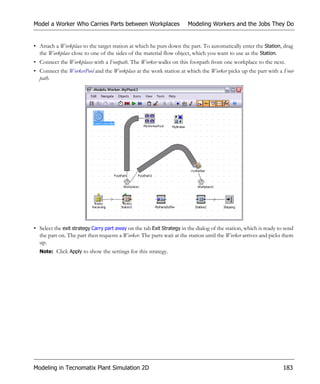
  • 342.
    Animating Your SimulationModel Working with Object Icons • To move the reference point, click and then click the position you would like to move the reference point to. • To change the color • of one or several pixels, select a color in the color palette and click the pixel(s) whose color you would like to change with one of the drawing tools. • of a contiguous color area, select a color in the color palette and click the area whose color you would like to change with . • To draw with two colors, you can assign a color each to the left mouse button and the right mouse button: • Click a color in the color palette with the left mouse button to add this color to the top drawing color field. Or • Double-click the color field and define a color of your choice in the dialog Colors. • Then, click the respective mouse button to draw with that color. • To make transparent • one or several pixels, click the transparency field and click the pixel(s), which you would like to make trans- parent with one of the drawing tools. • a contiguous color area, click the transparency field and click the area, which you would like to make transpar- ent with . Note: The background of the Frame shines through any area you marked as transparent. • Click to apply the changes you made. Defining the Rotation of an Object To set how Plant Simulation rotates the selected material flow object itself, select Object > Center of Rotation > Rotate around Reference Point. The reference point of an object is located in the center of the icon by default. • When you use the default setting Rotate around Reference Point, Plant Simulation rotates and zooms the icon around the reference point. You can compare this to pushing a pin through the center of a photograph and then turning the photograph around this pin. • When you deactivate Rotate around Reference Point, the upper left corner of the icon remains at the same loca- tion when rotating and zooming the icon. Reference point located in the center Reference point located in the upper left corner 322 Animating the Simulation Model and Viewing the Results
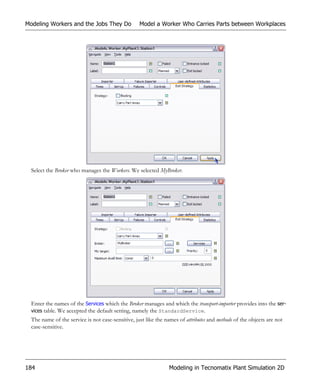
  • 343.
    Working with ObjectIcons Animating Your Simulation Model In addition to defining the rotation of the material flow object, you can define, if an MU that transfers onto a ma- terial flow object uses the same orientation, i.e., the same rotation angle, as the icon of the material flow object it is animated on. • When you use the default setting, Same as the Object, the front end of the MU points in the same direction as the right border of the material flow object. • When you deactivate Same as the Object, the front end of the MU points in the direction it had, when it trans- ferred onto the material flow object. Making Areas of an Icon Transparent To make a contiguous area of a graphics file, which you opened, transparent, so that the background color of the Frame shines through, proceed as follows: • Open the Icon Editor (Icons > Edit Icons). • Click or on the toolbar to navigate to the icon you want to make transparent. • Click the color picker and click in the background of the icon. This makes that color the active drawing color, which we want to replace. • Select the transparency color that replaces the active drawing color with in the Color Palette proper, not in the transparency color field! If the transparency color is not part of the color palette proper, double-click any field in the Color Palette that con- tains a color you do not need, and enter 0, 128, 128 into the dialog Colors > Custom and click OK. • Make sure that Icon > Transparent is active. • Click Apply Changes to make the area transparent. • To use the changed icon as the current icon of the object, make sure that is selected. Not transparent Transparent Animating the Simulation Model and Viewing the Results 323
  • 344.
    Animating Your SimulationModel Set and Link Animation Points and Animation Lines To make individual pixels of the icon transparent: • Click the transparency color field with the left or right mouse button to make the transparency color the drawing color. • Select one of the drawing tools , click the respective mouse button and change the color of a single pixel or draw a shape. • Click to make the area transparent. Set and Link Animation Points and Animation Lines During the simulation run the MU moves along the connecting lines, which you established with the Connector, from material flow object to material flow object and/or material flow object to components you modeled in a Frame. In your animated simulation model, Plant Simulation places the reference point of the icon of the MU onto the an- imation point of the icon of the material flow object or the animation line of the icon of the Frame. For a material flow object the correlation looks like this: Reference point of the MU Animation point of the object Frame For a Frame the correlation looks like this: Reference point of the MU Icon of the Frame Animation points on the icon of the Frame Objects located in the Frame Reference point of the MU Animation point of the object To insert an animation point or an animation line into the icon of the class of a material flow object or of a Frame: • To open the Icon Editor, right-click the Frame into which you would like to insert an animation structure and select Edit Icons. 324 Animating the Simulation Model and Viewing the Results
  • 345.
    Set and LinkAnimation Points and Animation Lines Animating Your Simulation Model • To activate Animation Mode, which allows you can insert animation points and animation lines, click on the toolbar . To insert an animation point or an animation line into the icon of the class of an object, select Tools > Edit Class. You will notice that Plant Simulation opens the class object of the selected object. If you want to insert an anima- tion point into the icon of the active instance of the icon, do not select Edit Class. • To insert an animation point into the icon of a point-oriented object, click . Then, click into the drawing area with the left mouse button at the location of your new animation point. • To insert a straight animation line into the icon of a length-oriented object, click . Then, click into the drawing area with the left mouse button, hold the mouse button down to insert the beginning of the line, drag the mouse until the line is as long as you want it to be and release the mouse button. This inserts the end of the line. • To insert a non-straight animation line into the icon of a length-oriented object, click .Then, click once into the drawing area with the left mouse button to set the starting point of the line, click again to set the next anchor point. Plant Simulation connects the anchor points to create the line. Continue this until the polygonal chain meets your needs. • To move an animation point or an animation line to a different location, click . These colors represent the different states of an animation point: • Blue: Is the standard color for all objects, except for the Frame. For a Frame Plant Simulation shows that the animation point is linked to an object located within that Frame. • Light blue: Is the same as blue. In addition, it shows that an animation point of a Frame is linked to this anima- tion point. • Red: The animation point in a Frame is not linked to an object located within that Frame. For this reason Plant Simulation does not show an animation for this point. • When you are done inserting, close the class object, and click Yes to save the changes to the icon of the class. To link an animation point, which you inserted into the class of an object, with the animation point/line of a Frame: • Select the Frame in which you would like to link the animation structure with the right mouse button and select Edit Icons. • To activate Animation Mode, which allows you to link animation points and animation lines, click . • To display the name of the model or object next to the animation point/line in the drawing window, select Tools > Show Animation Numbers. This makes assigning animation points easier. • Click Link/unlink animation point and select the animation point/line in the icon of the Frame. Plant Simulation shows the selected animation point or the animation line in red. This opens the window of the Frame you selected above. Click the material flow object to which you want to assign the animation point/line. You will notice that the color of the assigned animation point or the animation Animating the Simulation Model and Viewing the Results 325
  • 346.
    Viewing and VisualizingStatistics Set and Link Animation Points and Animation Lines line changes to blue. When an MU moves to this animation point/line during the simulation run, Plant Simulation shows it on this animation point/line. • To apply the settings, click . To delete all animation points/lines of an object, click or click the animation line with the right mouse button. Note: You can delete an animation point and insert a new one immediately afterwards without the correlation get- ting lost. Viewing and Visualizing Statistics By default all material flow objects collect statistics values from the beginning to the end of the simulation runs. If you don’t want them to do so, deactivate statistics collection by clearing the check box Resource statistics on the tab Statistics or Product statistics on the tab Product Statistics. The EventController controls, when statistics collection starts and when it will be reset, i.e., started anew. • Click the tab Settings. Click in the text box Statistics and enter the time at which the EventController resets statistics and deletes all statistics values it collected up to that time, compare Statistics Collection Period. Plant Simulation starts collecting statistical data for all material flow objects anew from this time on. This way you can discard data col- lected during warm-up phases, which might distort the validity of the simulation results. 326 Animating the Simulation Model and Viewing the Results
  • 347.
    Viewing Statistics inthe Dialogs of the Objects Viewing and Visualizing Statistics • When you reset your simulation model, by clicking Reset , Plant Simulation deletes statistics data of all objects and resets the statistics values to 0. During a simulation run you can achieve the same effect using the method initStat. This way you can restart the collection of statistical information after a warm-up period of a machine, for example. Covering Plant Simulation statistics in detail would go beyond the scope of the Plant Simulation Step-by-Step Help. It is described under the topic Statistics of the Material Flow Objects in the Plant Simulation Reference. You can view and visualize the statistics results of your simulation runs in a number of ways. Viewing Statistics in the Dialogs of the Objects In its most basic form you can view the statistics, which the objects collected during a simulation run, in their dia- logs, either on the tab Statistics or by opening the statistics tables of the objects: • The material flow objects proper show the most important statistical data they collect on the tab Statistics. By default, the resource type used most often is pre-selected: • Production: for the SingleProc, ParallelProc, the Assembly station, and for the DismantleStation. • Transport: for the PlaceBuffer, Buffer, Sorter, Track, Line, Transporter, and for the Container. • Storage: for the Store. The resource type you select here affects statistics of mobile objects. Note: The percentages for Waiting, Working, Blocked, Setting-Up, Failed, Paused and Unplanned should add up to 100 percent. Animating the Simulation Model and Viewing the Results 327
  • 348.
    Viewing and VisualizingStatistics Viewing Statistics in the Dialogs of the Objects Note: Plant Simulation does not dynamically update the values during a simulation run when the dialog window is open. To accomplish this, select Refresh on the View menu of the object or press F5. Working Shows the portion of the statistics collection period during which the object was Working. Setting-up Shows the portion of the statistics collection period during which the object was Setting- Up. Waiting Shows the portion of the statistics collection period during which the object was Waiting. Blocked Shows the portion of the statistics collection period during which the object was Blocked. Stopped Shows the portion of the statistics collection period during which the object was Stopped by a LockoutZone. Failed Shows the portion of the statistics collection period during which the object was Failed. Paused Shows the portion of the statistics collection period during which the object was Paused. Unplanned Shows the portion of the statistics collection period during which the object was Un- planned, i.e., is not scheduled to work. Relative occupation Shows the capacity-based portion of the time during which the object was occupied, not paused and not failed to the time the object was not paused and not failed as a real num- ber. Relative empty Shows the portion of the statistics collection period during which the object was Empty in relation to the time during which the object was available. 328 Animating the Simulation Model and Viewing the Results
  • 349.
    Viewing Statistics inthe Dialogs of the Objects Viewing and Visualizing Statistics Contents Shows the number of MUs, which are located on the object. The rules described under Entries apply. Minimum contents Shows the minimum number of MUs that was located on the object. The rules described under Entries apply. Maximum contents Shows the maximum number of MUs that was located on the object. The rules described under Entries apply. Entries Shows the number of MUs that entered the object as an integer. When an MU enters the object, it only counts the MU itself, not its contents: When a Container holding several en- tities enters the object, the number of entries increases by 1, not by the number of entities located on the Container! Exits Shows the number of MUs that exited the object as an integer. When an MU exits the ob- ject, it only counts the MU itself, not its contents: When a Transporter holding several MUs leaves the object, the number of exits increases by 1, not by the number of MUs the Trans- porter transports! To view the statistics, which the object collected, select View > Show Statistics Report. You can query most of these values with the Methods that are listed next to the name of the value in the description of the statistics table. • The mobile objects (MUs) show the most important statistical data they collect on the tab Product Statistics. You will: • Check How Many Parts Were Introduced into the Plant • Check How Many Parts Left the Plant • Check Statistics of the Individual Stations Animating the Simulation Model and Viewing the Results 329
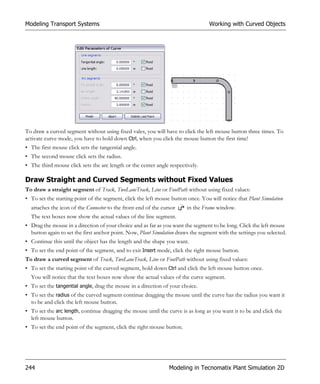
  • 350.
    Viewing and VisualizingStatistics Viewing Statistics in the Dialogs of the Objects • Check Product Statistics of Parts • Check Statistics of Exporter and Worker Check How Many Parts Were Introduced into the Plant Next to the values described under Viewing Statistics in the Dialogs of the Objects, you can make the Source record which MUs it actually created at which point in time. • To write all events for which the Source produced MUs during a simulation run to a table, select Creation table on the tab Statistics. Note: The Source records these events in addition to the resource statistics it collects in any case. • To open the creation table, click Open. Each row in the table shows an event for which the Source produced an MU: • The column Name shows the name of the produced MU class. • The column Path shows the path of the MU class, the name of the MU and its number. • The column Time of Generation shows the time when the Source produced the individual MU. 330 Animating the Simulation Model and Viewing the Results
  • 351.
    Viewing Statistics inthe Dialogs of the Objects Viewing and Visualizing Statistics Check How Many Parts Left the Plant Next to the values described under Viewing Statistics in the Dialogs of the Objects, you can make the Drain record statistics for MUs with the same name, i.e., product statistics, which move through the simulation model. The numbers for the average exit interval and for the throughput are of special interest for production planning and production control specialists. • To collect statistics data depending on the type of MU, select Type dependent statistics. Plant Simulation will show this statistical data after the simulation run on the tab: Working Shows the percentage of the sum of the times during which the MUs were located on a Working object, in relation to the statistics collection periods of all MUs. In general, this is the life time of the MUs. Animating the Simulation Model and Viewing the Results 331
  • 352.
    Viewing and VisualizingStatistics Viewing Statistics in the Dialogs of the Objects Setting-up Shows the percentage of the times that the objects were setting-up for the MUs, in re- lation to the statistics collection periods of all MUs. In general, this is the life time of the MUs, compare Setting-Up. Waiting Shows the percentage of the times during which the objects were waiting for the MUs, in relation to the statistics collection periods of all MUs. In general, this is the life time of the MUs, compare Waiting. Stopped Shows the percentage of the sum of the times during which the MUs were located on an object that was Stopped, in relation to the statistics collection periods of all MUs. In general, this is the life time of the MUs. Failed Shows the percentage of the sum of the times that the MUs were located on a Failed object, in relation to the statistics collection periods of all MUs. In general, this is the life time of the MUs. Average lifespan Shows the average life-span of MUs, which were created and destroyed during the sta- tistics collection period. Only those MUs are counted whose product statistics was ac- tive. Average exit interval Shows the average time interval between exits of the MUs, which the Drain removed from the installation. It results from adding up the times of all intervals, and then divid- ing them by the number of intervals. Statistics only starts counting from the time the first MU arrived! Total throughput Shows the number of MUs, which the Drain removed from the installation, starting at the time, at which you activated Type dependent statistics. Throughput her hour Shows the number of MUs, which the Drain removed from the installation in an hour on average, covering all observed times during which MUs arrived. Throughput her day Shows the number of MUs, which the Drain removed from the installation in a day on average, covering all observed times during which MUs arrived. To view the statistics, which the Drain collected, select View > Show Statistics Report. You can query most of these values with the Methods that are listed next to the name of the value in the description of the statistics table. Check Statistics of the Individual Stations All material flow object show the values described under Viewing Statistics in the Dialogs of the Objects on the tab Statistics. The Assembly Station and the DismantleStation record additional statistical values. The Assembly station records the percentage of the time it was: • Waiting for parts, i.e., for add-on parts in relation of the statistics collection period. • Waiting for resources. This is the portion of the time the Assembly station was waiting before the main MU entered into it, or from the time set-up is finished, until assembly starts in relation of the statistics collection period. 332 Animating the Simulation Model and Viewing the Results
  • 353.
    Viewing Statistics inthe Dialogs of the Objects Viewing and Visualizing Statistics Click the button to open the table Waiting Times, which shows the sum of the waiting times of the MUs for each predecessor. Check Product Statistics of Parts All parts, represented by the MUs Entity, Container and Transporter, show the percentages of the times the part spent waiting or working on a resource of type Production, Transport or Storage on the tab Product Statistics. Animating the Simulation Model and Viewing the Results 333
  • 354.
    Viewing and VisualizingStatistics Viewing Statistics in the Dialogs of the Objects To view all product-related statistics data, which the MU collected, select View > Show Statistics Report. You can query most of these values with the Methods that are listed next to the name of the value in the description of the statistics table. As the Container and Transporter can load and transport other parts, they provide resource statistics as well, compare Viewing Statistics in the Dialogs of the Objects. 334 Animating the Simulation Model and Viewing the Results
  • 355.
    Viewing Statistics inthe Dialogs of the Objects Viewing and Visualizing Statistics Check Statistics of Exporter and Worker The Tab Statistics shows the values split up by Services and by Exporter. For each of these blocks, adding up the in- dividual values yields 100%. You can query most of these values with the Methods that are listed next to the name of the value in the description of the Statistics Report. When you select the check box Fail services on the tab Attributes, the Exporter collects the failure times of the Services and of the Exporter. When you deactivate it, the Exporter only collects the failure times of the Exporter. The Exporter only collects Failed times that take place during the processing and the set-up time, i.e., times that are located outside of the Paused time and of the Unplanned time. Waiting times only accumulate during the times, when the Exporter is available, i.e., when these times are located outside of the Paused, the Unplanned and the Failed times. Services setting-up Shows the portion of the set-up time for services of the statistics collection period of the Exporter, weighted with the capacity. Services processing Shows the portion of the working time of the services of the statistics collection pe- riod of the Exporter, weighted with the capacity. Services repairing Shows the portion of the statistics collection period, which the services spent for re- pairs, weighted with the capacity. Animating the Simulation Model and Viewing the Results 335
  • 356.
    Viewing and VisualizingStatistics Viewing the Statistics Report Services waiting Shows the portion of the statistics collection period, which the services spent waiting for an importer plus the time the services spent waiting for an MU at the importer, weight- ed with the capacity. Services failed Shows the portion of the statistics collection period during which the services were failed. Exporter operational Shows the portion of the statistics collection period during which the Exporter was working, weighted with the capacity. Exporter paused Shows the portion of the statistics collection period during which the Exporter was paused. Exporter unplanned Shows the portion of the statistics collection period during which the Exporter was unplanned. Exporter failed Shows the portion of the statistics collection period during which the Exporter was failed. Free capacity Shows the capacity that is available at the moment. Mediated capacity Shows the capacity that is brokered at the moment. Free capacity (sum) Shows the sum of the released capacity that the Exporter placed with any importer. Mediated capacity Shows the sum of the brokered capacity. (sum) Minimum free capacity Shows the minimum capacity that is available. When the Exporter did not collect any valid value yet, the tab shows -1. Maximum free capacity Shows the maximum capacity that is available. When the Exporter did not collect any valid value yet, the tab shows -1. Minimum mediated ca- Shows the minimum brokered capacity. When the Exporter did not collect any valid pacity value yet, the tab shows -1. Maximum mediated ca- Shows the maximum brokered capacity. When the Exporter did not collect any valid pacity value yet, the tab shows -1. Viewing the Statistics Report The most comfortable way of viewing statistics values of one or of several objects is to open the Statistics Report. Below we demonstrate how to use it. • Let us assume that we want to show the statistics of several objects in a single report. To do so, we select them (Shift+click, or drag a marquee over them) and press F6. Compare this example: 336 Animating the Simulation Model and Viewing the Results
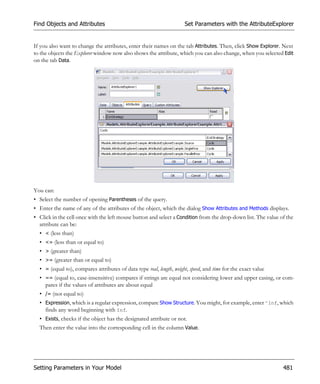
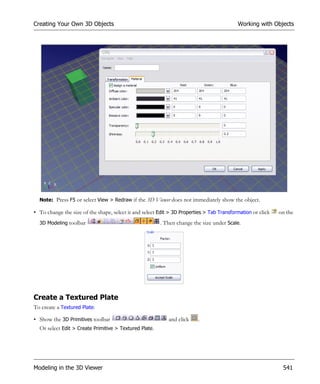
  • 357.
    Viewing the StatisticsReport Viewing and Visualizing Statistics • This opens the report, which looks like this: Animating the Simulation Model and Viewing the Results 337
  • 358.
    Viewing and VisualizingStatistics Viewing the Statistics Report • The report adds the statistics of the objects, which you selected, to the drop-down list in the top left corner of the display window. In our example these are the statistics values of the Stationary resources Source (Receiving), SingleProc, SingleProc1, SingleProc2, and SingleProc3 as well as the Importer Statistics. To jump to any of the top- ics, which interest you, select that topic from the drop-down list: • One of the main topic shows the resource statistics of the material flow objects split up by the states these objects were in, i.e., the working time, the waiting time, the blocked time, the failed time, the stopped time, the paused time, and the unplanned time. Note that these times add up to 100%. The set-up time and the empty time, which follow, may be part of the working time, waiting time or of the blocked time. For details compare the Statistics Report. 338 Animating the Simulation Model and Viewing the Results
  • 359.
    Viewing the StatisticsReport Viewing and Visualizing Statistics The subtopics further down in the report show details about the working time, the waiting time, the blocked time, the failed time, the stopped time, the paused time, the unplanned time, the set-up time and the empty time in the order in which they appear here. The bar chart on the right hand side shows the respective portions of the times. A bar with this color Means that the object is Looks like this green Working gray Waiting yellow Blocked red Failed pink Stopped blue Paused brown Setting-Up • This is followed by material flow values of general interest. • The subtopics show details of the working time, the waiting time, the blocked time, the failed time, the paused time, the unplanned time, the set-up time and the empty time in the order in which they appear in the first table. For details compare the Statistics Report. Animating the Simulation Model and Viewing the Results 339
  • 360.
    Viewing and VisualizingStatistics Viewing the Statistics Report • To add one or several objects in your model, which collect statistics to an open report, select it/them in the Frame and press F6. In our example we added the Drain object called Shipping. You will notice that the report added the object Shipping to the list of stationary resources as well as to the drop-down list of available topics. • To jump to the statistics of this Drain, select Drain Statistics from the drop-down list. For details compare the Statistics Report. 340 Animating the Simulation Model and Viewing the Results
  • 361.
    Viewing the StatisticsReport Viewing and Visualizing Statistics • You can add any of the objects, which collect statistics, to the report. It then adds these objects to the drop-down list: • To save the report as an HTML file (*.htm or *.html) or as a text file (*.txt) click Save. Enter a name for the file and select the folder into which you want to save it. • To update the report with the current values, click Refresh. • To print the report, click Print. Animating the Simulation Model and Viewing the Results 341
  • 362.
    Viewing and VisualizingStatistics Showing Statistics with Display Panels in Your Model Showing Statistics with Display Panels in Your Model To quickly and easily show values of interest during a simulation run in your simulation model, you can define a Display Panel each for the individual objects in the Frame. The display panel is kind of a dashboard that watches sta- tistics values or states of the objects and shows them in different ways: As text, as a bar or as an LED. When you deactivate Icon Animation Plant Simulation shows the display panel, but does not update its values and continues showing the previous values. It does not update the values either, when no simulation is run- ning. To still show current values, it updates them: • When the simulation stops, either because you stopped it or because the End time has been reached. • When you click OK or Apply in the dialog of an object. • When you select View > Update in the dialog of an object. • When you press F5 in the Frame window. • When you call the method redraw of an object. You can: • Show Values as Text • Show Values as Bars • Show States with LEDs Show Values as Text Suppose you want to display the working portion of a station. To do so, you’ll first add the label Working and then the value proper, i.e., the value that a Method records, to the right of it. • Click the station for which you want to show the value with the right mouse button and select Edit Display Panel or select Icons > Edit Display Panel. 342 Animating the Simulation Model and Viewing the Results
  • 363.
    Showing Statistics withDisplay Panels in Your Model Viewing and Visualizing Statistics • To activate and to show the Display Panel in the Frame, select this. To deactivate it, clear the check box Active • Enter the Width and the Height of the display panel in the Frame. If need be, adjust the X-position and the Y-position. • Click New to add a new item to the display panel. • To add the label, select Static Text as the Type and enter Working: into the text box above it. • To make the background color of the display panel shine through the text, select Transparent. • Enter the X-position of the label on the display panel and click OK. Animating the Simulation Model and Viewing the Results 343
  • 364.
    Viewing and VisualizingStatistics Showing Statistics with Display Panels in Your Model • Then, define the Border color around the display panel and its Background color to make the display panel stand out in the Frame. Click the drop-down arrow in the color box and select a color in the dialog Colors. We selected black as the border color and light gray as the background color. • Click Apply to show the display panel with the item you defined so far in the Frame. As you’ll want to show the value to the right of the label, increase the Width of the display panel. • Next, select the value you want to display next to the label. Click New. • In the dialog Display Panel Element click and select the Value you want to show. As we want to show the working portion of our station, we select the statistics method statWorkingPortion. • Select the display Type Text and select Display as percentage. Finally, adjust where Plant Simulation shows the value on the display panel by moving the X-position to the right of the label Working:. 344 Animating the Simulation Model and Viewing the Results
  • 365.
    Showing Statistics withDisplay Panels in Your Model Viewing and Visualizing Statistics As we want to show several values aligned correctly one below the other, we align them right. • Click OK to close the dialog Display Panel Element. • Click OK again to finish defining the display panel. Show Values as Bars Suppose you want to display the number of parts in a buffer as a bar above the icon of the object. • Click the station for which you want to show the value with the right mouse button and select Edit Display Panel. • Select the check box Active to show the Display Panel in the Frame. • To display the bar above the icon, move the X-position and the Y-position to the top left corner of the icon. • Enter the width and the height of the display panel in the Frame. In this case it corresponds to the width and the height of the bar itself. Animating the Simulation Model and Viewing the Results 345
  • 366.
    Viewing and VisualizingStatistics Showing Statistics with Display Panels in Your Model • Click New to add the new item. • In the dialog Display Panel Element click and select the Value you want to show. As we want to show the number of parts in the buffer, we select the method numMU. • Select the display Type Bar. • Select the Color of the bar and enter its Length and its Width. • Finally, select the Direction into which the bar deflects starting at the X-position of the item. We selected right. • Click OK to add the item. • Click OK again to finish defining the display panel. Suppose you want to display the working, waiting, blocking, failed and paused portions of a station on a display panel below the object. • Click the station for which you want to show the values with the right mouse button and select Edit Display Panel. • Select the check box Active to show the display panel in the Frame. • Enter the position and the width and the height of the display panel in the Frame. 346 Animating the Simulation Model and Viewing the Results
  • 367.
    Showing Statistics withDisplay Panels in Your Model Viewing and Visualizing Statistics • Click New to add the new item. • In the dialog Display Panel Element click and select the Value you want to show. We selected the statistics method statWorkingPortion. • Select the display Type Bar. • Select the Color of the bar and enter its Length and its Width. • Select the Direction into which the bar deflects starting at the X-position of the item. We selected up. • Click OK to add the item. • Click OK again to finish defining the display panel. It then looks like this. Animating the Simulation Model and Viewing the Results 347
  • 368.
    Viewing and VisualizingStatistics Showing Statistics with Display Panels in Your Model • Repeat the steps described above to add the values statWaitingPortion, statBlockingPortion, etc. to the display panel. Select a different color for each value and to shift the X-position of each value to the right so that they do not overlap. The result will then look like this. Show States with LEDs Suppose you want to add a light-emitting diode to display more states on the icon of the object than the built-in LEDs show. You can, for example, show an LED if the exit of the station is locked. • Click the station for which you want to show the LED with the right mouse button and select Edit Display Panel. • Select the check box Active to show the Display Panel in the Frame. Enter the position and the width and the height of the display panel in the Frame. • Click New to add the new item. 348 Animating the Simulation Model and Viewing the Results
  • 369.
    Showing Statistics ina Chart Viewing and Visualizing Statistics • In the dialog Display Panel Element click and select the Value you want to show. We selected the attribute ExitLocked. • Select the display Type LED. • Select the Color of the LED and enter its Width. Showing Statistics in a Chart When you want to present the results of your simulation runs to colleagues and management, you will use the Chart. You can insert the Chart into your simulation model from the folder UserInterface in the Class Library or from the toolbar User Interface in the Toolbox. The Chart graphically displays the data sets that Plant Simulation recorded during a simulation run. You can select to show: • Data from a table, into which you saved the simulation results, for example. Animating the Simulation Model and Viewing the Results 349
  • 370.
    Viewing and VisualizingStatistics Showing Statistics in a Chart • Data from input channels you define that dynamically record the values of attributes of interest of objects that your are interested in. To show statistics values of an object in the Chart, which you inserted into a Frame, you can use drag-and-drop: To Drag a To a Show the statistics of a material flow object material flow object Chart Show the frequency distribution of the number of MUs PlaceBuffer, Buffer, Store Chart Show the contents of a table TableFile, TimeSequence Chart Show the value of the Variable you inserted into a Frame Variable Chart • To apply the settings you selected in the dialog and to show the records, click Apply. When you resize the display window, Plant Simulation also resizes the shown graph. • To show the data the Chart collected in the display window, click Show Chart. • To open the dialog of the Chart, double-click anywhere in the display window. • To make a Chart of type Histogram or Plotter collect data during the simulation run, select Collect data in the di- alog. To deactivate data collection, clear the check box. • To delete all values that the Chart collected, select Tools > Reset Values. The Chart lets you select settings in a number of ways. You can: • Select Settings in the Statistics Wizard • Select Where the Data Comes From • Selecting How the Chart Shows the Data • Add Labels, Format Them and Add a Legend When you select another Category, the Chart automatically shows the icon of this category in the Frame window. Chart Histogram Plotter Select Settings in the Statistics Wizard A Chart, which you insert into a Frame, provides a Statistics Wizard. Right-click the Chart and select Statistics Wizard on the context menu. 350 Animating the Simulation Model and Viewing the Results
  • 371.
    Showing Statistics ina Chart Viewing and Visualizing Statistics • Select the class(es) of object(s) for which you would like to show statistical data in the Chart under the group box Class. The Chart only adds material flow objects to the display for which you selected the check box Resource statistics on the Tab Statistics. • Select the type(s) of resource(s) for which you would like to show statistics of the selected object(s) in the Chart from the drop-down list box Resource type: Production, Transport or Storage. Select the Resource type on the tab Statistics of an object collecting statistical data. Use the check boxes in the Statistics Wizard to restrict which ob- jects Plant Simulation shows. • If you would like Plant Simulation to also show statistical data of objects within Frames that you inserted into the Frame in which the Chart is located, select the check box Include subframes. • Select the criterion which Plant Simulation uses when sorting statistical data from the drop-down list Sort criterion: Either the Name of the object, or one of the states it is in: Working, Waiting, Blocked, Failed or Paused. To sort the stations by their name in alphabetical order from A to Z, select Sort criterion > Name. To sort the stations in the order that meets your needs, drag the stations onto the Chart in the order it is to show them. To Animating the Simulation Model and Viewing the Results 351
  • 372.
    Viewing and VisualizingStatistics Showing Statistics in a Chart change the order at a later point in time, edit the table of the Input channels by cutting the respective columns of the objects and pasting them in the desired order. • Finally, click OK to open the display window of the Chart with the settings you selected in the dialog. Select Where the Data Comes From Before you start your simulation run, you can tell the Chart what to use as the source of the data it displays and in which mode it collects data. • Select the Data source, i.e., whether the Chart takes the data you want to display from a set of input channels or from a table. • To show values of channels you define in a table file, select Input Channels from the drop-down list. To open a table into which you enter the input channels, click Table File. These channels are, as a rule, the paths to attributes or methods of objects, whose values you want to display. You can also enter complex expres- sions, such as the sum of two attributes, etc. Enter any text you want to add as the legend to the Chart into the row index. 352 Animating the Simulation Model and Viewing the Results
  • 373.
    Showing Statistics ina Chart Viewing and Visualizing Statistics Enter into row index Enter into column index • To show the contents of a table as a diagram, select Table File. This might, for example, be a table into which you saved the results of a simulation run. Enter the name and the path of the table file containing the data, or click the button and select the table in the dialog Select Object. Enter the Range of the table cells you want to show. • To show all cells in all columns and rows, enter {*,*}..{*,*}. • To show the first four cells of column one, enter {1,1}..{1,4}. • To show all cells in column one, enter {1,1}..{1,*}. You can also enter negative numbers: • To show the one but last column of the table, enter {-2,*}..{-2,*}. • To show the one but last and the last column, enter {-2,*}..{*,*}. Animating the Simulation Model and Viewing the Results 353
  • 374.
    Viewing and VisualizingStatistics Showing Statistics in a Chart • Select which mode the Chart uses to update the data it shows. • Sample mode updates the Chart periodically and takes the next sample after the time span you enter into the text box Interval. • Watch mode updates the Chart, whenever the value of an observable Method, for example numMU, numMU- Parts, statMaxNumMU, statNumIn, statNumOut, etc. or of a observable attribute changes, for example Pause, Speed, Unplanned, etc. The column Watchable in the dialog Show Attributes and Methods of the individual objects shows all methods and attributes Plant Simulation can observe. • Plot mode updates the Chart, whenever a simulation event takes place. Selecting How the Chart Shows the Data After you have selected where the Chart takes the data from that it displays, you will select the settings for displaying this data. You can select to: • Show a number of values or several sets of a number of values, see Show Values in a Chart. • Show the frequency distribution for one or several input channels, see Show Values in a Histogram. • Show the progression of one or more values over time, see Show Values as the Chart Plots Them. Note: When you select another Category, the Chart automatically shows the icon of this category in the Frame into which you inserted it. • Show a number of x-y pairs of values or several sets of x-y pairs of values, see Show Values as an XY Graph. Show Values in a Chart To show a number of values or several sets of a number of values as a chart, click the tab Display and select Chart from the drop-down list Category. 354 Animating the Simulation Model and Viewing the Results
  • 375.
    Showing Statistics ina Chart Viewing and Visualizing Statistics Show Values in a Histogram To show the frequency distribution for one or several input channels as a histogram, click the tab Display and select Histogram from the drop-down list Category. A histogram graphically summarizes the distribution of a data set. To make the Chart collect data during the simulation run, select Collect data in the dialog. To deactivate data col- lection, clear the check box. Animating the Simulation Model and Viewing the Results 355
  • 376.
    Viewing and VisualizingStatistics Showing Statistics in a Chart Show Values as the Chart Plots Them To show the progression of one or more values over time, click the tab Display and select Plotter from the drop- down list Category. To make the Chart collect data during the simulation run, select Collect data in the dialog. To deactivate data col- lection, clear the check box. 356 Animating the Simulation Model and Viewing the Results
  • 377.
    Showing Statistics ina Chart Viewing and Visualizing Statistics Show Values as an XY Graph To show a number of x-y pairs of values or several sets of x-y pairs of values, click the tab Display and select XY Graph from the drop-down list Category. Note: You can only show values as an XY graph, when you select Data > Data source > Table File. Animating the Simulation Model and Viewing the Results 357
  • 378.
    Viewing and VisualizingStatistics Showing Statistics in a Chart 358 Animating the Simulation Model and Viewing the Results
  • 379.
    Showing Statistics ina Chart Viewing and Visualizing Statistics Select the Chart Type Select the type of Chart for displaying the recorded data. A record consists of the entries of a row or a column, depending on the setting you selected under Display > Data. Depending on the Category you selected (Chart, Histogram or Plotter), the Chart provides some or all of the follow- ing chart types: Columns shows each record as a column. When displaying several records, the Chart places the col- umns next to each other. Use this to compare values across categories. Stacked Columns shows each record as a column. When displaying several records, the Chart places the col- umns of the individual records on top of each other. It stacks positive values upwards, neg- ative values downwards. 100% Stacked Col- shows each record as a column, stacked one on top of the other, showing the respective umns percentage of the entire set of 100%. Bars shows each record as bars positioned horizontally on top of each other. When displaying several records, the Chart places the bars of the individual records next to each other. Use this to compare values across categories. Stacked Bars shows each record as a set of bars stacked horizontally next to each other. Positive values are stacked to the right, negative values are stacked to the left. Animating the Simulation Model and Viewing the Results 359
  • 380.
    Viewing and VisualizingStatistics Showing Statistics in a Chart 100% Stacked Bars shows each record as a set of bars, one stacked horizontally next to each other, showing its respective percentage of the entire set of 100%. Area shows each record as areas. When displaying several records, the Chart stacks the areas from the individual records one behind the other. Use this to show the trend of the con- tribution of each value over time or categories. Stacked Area shows each record as areas. When displaying several records, the Chart stacks the areas from the individual records one on top of the other. 100% Stacked Area shows each record as a set of areas, one stacked on top of the other, showing the respective percentage of the entire set of 100%. Displays the trend of the percentage each value con- tributes over time or categories. Line shows each record as a line. Line with Markers shows each record as a line with markers. Spline shows each record as a curve. Spline with Markers shows each record as a curve with markers. Markers shows each record as a set of different markers. Points and Best Fit shows each record as a set of data points, and fits the best straight line to them. The line Line is calculated from least-squares-approximations of the data set. Points and Best Fit shows each record as a set of data points, and fits the best curved line to them. The curve Curve is calculated from least-squares-approximations of the data set. Pie shows each record as a slice of a pie, depicting its percentage of the whole. Enter a negative prefix, so that the Chart offsets this slice from the rest of the pie. Use the scrollbar to scroll from record to record. Use this to show the contribution of each value to a total. XY Points shows the x-y pairs as data points. The first record contains the x-coordinates. The Chart interprets all additional records as the associated y-coordinates. Use this to compare pairs of values. Line shows the x-y pairs as data points and connects them with a line. The first record contains the x-coordinates. The Chart interprets all additional records as the associated y-coordi- nates. Sticks shows a vertical bar for each x-y pair, starting from the zero line. The first record contains the x-coordinates. The Chart interprets all additional records as the associated y-coordi- nates. Area connects the points belonging to the x-y pairs and fills the areas thus created. The first record contains the x-coordinates. The Chart interprets all additional records as the asso- ciated y-coordinates. 360 Animating the Simulation Model and Viewing the Results
  • 381.
    Showing Statistics ina Chart Viewing and Visualizing Statistics 3D Columns shows each record as columns stacked in three-dimensional space. To turn the chart left or right you can enter an angle of Rotation or you can also drag the horizontal slider in the display window. To turn the chart up or down, you can enter the Height or you can drag the vertical slider. 3D Wire Frame shows each record as wireframes stacked in three-dimensional space. To turn the chart left or right you can enter an angle of Rotation or you can also drag the horizontal slider in the display window. To turn the chart up or down, you can enter and the Height or you can drag the vertical slider. 3D Surface shows each record as solid areas stacked in three-dimensional space. To turn the chart left or right you can enter an angle of Rotation or you can also drag the horizontal slider in the display window. To turn the chart up or down, you can enter the Height or you can drag the vertical slider. Select Additional Display Options • Select how the Chart shows the records i.e., the entries of a row or of a column. • Graph shows the records as a graph only in the display window. • Table shows the records as a table, i.e., as text only in the display window. Select a font and a relative font size on the tab Font . • Graph and Table shows the records as a graph and as a table in the display window. • Select how the Chart shows the data. This way you can present different views of the same record. Animating the Simulation Model and Viewing the Results 361
  • 382.
    Viewing and VisualizingStatistics Showing Statistics in a Chart • If you want to, you can also select a 3D effect for some of the Chart Types: • None adds no 3D effect to the Chart Type you selected. • Shadow adds a black shadow to the chart type you selected. • 3D adds three-dimensional depth to the chart type you selected. • Gradient bars adds an effect between a gradient and a 3D look to the chart type you selected. • Contoured for the chart types 3D Columns and 3D Surface. You can also enter the Rotation angle and the Height of the columns/surface. To turn the chart left or right, drag the horizontal slider in the display window. To turn it up or down, drag the vertical slider. 362 Animating the Simulation Model and Viewing the Results
  • 383.
    Showing Statistics ina Chart Viewing and Visualizing Statistics Note: Some chart types do not provide 3D effects. • To change the background color of the Chart proper in the display window, click the tab Color. Double-click the cell labeled Background and select another color. Click Apply to change the color. Animating the Simulation Model and Viewing the Results 363
  • 384.
    Viewing and VisualizingStatistics Showing Statistics in a Chart • To change the color around the Chart proper in display window, click the tab Color. Double-click the color field next to Desk and select another color. Click Apply to change the color. • To display the Chart in the Frame, instead of the icon of the object, select Display in frame on the tab Display. We advise to increase the size of the icon of the Chart in the Frame: Hold down Shift+Ctrl, grab one of the four corners of the icon with the mouse and drag the icon to a convenient size. • To interrupt the line the Chart draws for values that are not defined, select Gap when null on the tab Display. To continue drawing the line, clear the check box. • To print the Chart, select Tools > Print. • To copy the contents of the display window to the Clipboard as a bitmap, select Tools > Copy to Clipboard. You can then paste it into another application with Ctrl+V or Edit > Paste. • To show Grid lines on the x-axis in the display window, select X-axis on the tab Axes. Enter the maximum number of grid lines on the x-axis. This feature is especially handy, when the Chart displays a large number of points with- in a limited space and you want to regulate how many grid lines the display window shows. To hide them, clear the check box. Compare these screenshots: 364 Animating the Simulation Model and Viewing the Results
  • 385.
    Showing Statistics ina Chart Viewing and Visualizing Statistics 10 grid lines on the x-axis 20 grid lines on the x-axis • To show grid lines on the y-axis in the display window, select Y-axis . To hide the grid lines, clear the check box. • To set the range the Chart is to display scaled on the y-axis, enter the first value of into the left text box. The default setting 0 … 0 means that Plant Simulation scales automatically. Enter the last value of the range the Chart is to display scaled on the y-axis into the right text box. Note: When you enter neither Title nor Subtitle, the Chart might, under certain circumstances, cut off the upper part of the y Range. To prevent this, you can enter a blank space into the text box Subtitle. Compare these screenshots: Scaling on the y-axis, 10 units Scaling on the y-axis, 20 units Animating the Simulation Model and Viewing the Results 365
  • 386.
    Viewing and VisualizingStatistics Showing Statistics in a Chart Add Labels, Format Them and Add a Legend Naturally, you will also want to add a title and a subtitle to your chart, and format them, add text to the x-axis and to the y-axis and add a legend that tells what the values mean. • Enter any text that Plant Simulation shows as the title of the Chart in the display window into the text box Title. In our example we entered Utilization of Stations. Select a font, if you want to bold face or italicize the text and a relative font size on the tab Font. Select a color for all text in the display window on the tab Color. Double-click the color field next to Font and select another color. Click Apply to change the color. 366 Animating the Simulation Model and Viewing the Results
  • 387.
    Showing Statistics ina Chart Viewing and Visualizing Statistics • Enter any text that Plant Simulation shows as the subtitle of the Chart in the display window into the text box Sub- title. In our example we entered Engine Plant Anytown. • Enter any text that Plant Simulation shows in the display window on the x-axis. In our example we entered Sta- tion. Select a font, if you want to bold face or italicize the text and a relative font size on the tab Font. Note: This font applies to all labels, except for the Title, the Subtitle and data displayed in Table format in the display window • Enter any text that Plant Simulation shows in the display window on the y-axis. In our example we entered Percent of 100. • Select if and on which side of the display window Plant Simulation shows the legend for the values the Chart dis- plays. As you remember, you enter the text you want to show as the legend into the row index of the table when you select Data source > Input Channels > Table File. • If need be, you can also add additional lines and/or text to the display window. Click Annotations and fill in the table that opens. • Type: Enter 0 for displaying a vertical line or enter 1 for displaying a horizontal line. Enter 2 or 3 for labeling the x-axis or the y-axis. Enter 4 for any text. Animating the Simulation Model and Viewing the Results 367
  • 388.
    Viewing and VisualizingStatistics Showing Statistics in a Report • Value: Enter the value where the Chart displays the line in the display window. For a vertical line this is the x- value, for a horizontal line this is the Y-value. • From: Enter the starting point of the line here. If you do not enter a value, the Chart extends an existing line. • To: Enter the end point of the line here. If you do not enter a value in the cells From and To, the Chart draws the line from the left to right, or from the top to the bottom of the display window. • Color: Enter the number of the color of the line here. This is the number of one of the lines you defined on the tab Color. • Style: Enter the style of the line here, such as dotted, dashed, etc. 0 is a thin solid line 5 is a medium thin solid line 10 is a medium thick solid line 6 is a thick solid line 11 is an extra thick solid line 1 is a dashed line 2 is a dotted line 3 is a dash-dot line 4 is a dash-dot-dot line • Text: Enter any text that describes the line. Showing Statistics in a Report When you want to present all of the results of a simulation run, which Plant Simulation outputs to tables and dia- grams, on a number of HTML pages on screen, you will use the object Report. You can also print, and save, this set of HTML pages for sharing it with your colleagues or for displaying it on a web site. You can insert the Report into your simulation model from the folder UserInterface in the Class Library or from the toolbar User Interface in the Toolbox. One Report object per simulation model defines the general layout of the HTML pages. Define the data the object displays in the dialog of the report, and view the data in the display window, which Show Report opens. 368 Animating the Simulation Model and Viewing the Results
  • 389.
    Showing Statistics ina Report Viewing and Visualizing Statistics Dialog window of the Report Click this to open the display window Display window of the Report List pane Tree pane Display pane Structure pane You will: • Enter General Information which the Report Shows • Define How the Report Shows the Data • Work with the Display Window Animating the Simulation Model and Viewing the Results 369
  • 390.
    Viewing and VisualizingStatistics Showing Statistics in a Report Enter General Information which the Report Shows Enter some or all of the following information, which the Report shows, in the display window into the text boxes: • Enter a name for the simulation run. The display window shows the text you enter along the top border of the report next to Simulation. In our example we entered My simulation run. • Enter the version number of the simulation run within the simulation experiment. This can be any combination of letters and numbers. The display window shows the text you enter along the top border of the report. In our example we entered New My simulation version. • Enter the name of the person who is in charge of this simulation experiment. You can append this with the phone number, the e-Mail address, the department. etc. The display window shows the text you enter along the top border of the report. In our example we entered Frank Jones, Simulation expert, ext. 131, frank.jones@abcd.com. • Enter the name of the folder you would like to save the report to as an HTML file. • Enter the file name you want to save the report with as an HTML file. This creates a folder with the name you enter and places the HTML files and the graphics that the HTML files show into it. • Select the file type you want to save the report with as an HTML file. Note: At present you can only select Web Page, complete. This saves all of the files needed to display this page, including graphics, frames, and style sheets. Web Page, complete saves each file in its original format. • Enter the width of the display window in pixels in which Plant Simulation shows the report. • Enter the height of the display window in pixels in which Plant Simulation shows the report. • Enter the interval, in seconds, after which the Report dynamically updates the results of the simulation run in the display window. To manually update the display window, click Refresh in the display pane. 370 Animating the Simulation Model and Viewing the Results
  • 391.
    Showing Statistics ina Report Viewing and Visualizing Statistics Define How the Report Shows the Data When you define which data the Report shows and how it shows it, you will: • Create a Structure for Displaying Data • Apply Formatting to the Structure Pane • Add the Objects Whose Data You Want to Show Create a Structure for Displaying Data To add clarity to your report, you will first create a structure that shows the results of the simulation runs. • To create a new page in the structure below a branch, right-click that branch and select New. Type in another name instead of New Page. Repeat this until the structure has the form that meets your needs. Instead, you can also right-click the new page and select Rename or enter a different name in the dialog Format. In our example we entered Coupled Material Flow. Animating the Simulation Model and Viewing the Results 371
  • 392.
    Viewing and VisualizingStatistics Showing Statistics in a Report • To enter the title of the page that the display pane shows, select the page, click into the cell below Headline and enter the text. In our example we entered States of the Machines. Apply Formatting to the Structure Pane If you want to, you can apply formatting that the branches in the structure pane in the display window show. • Right-click the branch that you would like to apply formatting to and select Format on the context menu. • Enter the text that the tooltip shows, when you roll the mouse over the name of the branch in the structure pane of the display window. In our example we entered No State Times. • For the topmost node of a branch, such Coupled Material Flow or Uncoupled Material Flow in our example, you can enter color for the vertical bars to the left of the branches in the structure pane. You can enter the HTML code of a color, for example, DARKBLUE or #00008B, etc. In our example above we entered green. • To show the branch and its sub-branches, i.e., with all of its subpages, in the structure pane, when you open the Report, select Expand. 372 Animating the Simulation Model and Viewing the Results
  • 393.
    Showing Statistics ina Report Viewing and Visualizing Statistics • If you want to execute certain actions before Plant Simulation creates the HTML page, enter the name of the Meth- od in which you programmed these actions into the text box Execute before. Add the Objects Whose Data You Want to Show After you have created the structure, you will add the objects whose data you want to show. Note: You can only show data, and thus enter a title and add objects for it, on the individual pages that do not have a on their left on the tab Structure in the dialog of the Report. Below we demonstrate how to: • Show the Contents of a Chart in the Display Pane • Show the Contents of a Table in the Display Pane Show the Contents of a Chart in the Display Pane To show the contents of a Chart in the display pane of the Report: • To enter the title of the page that the display pane shows, select the page, click into the cell below Headline and enter the text. In our example we entered States of the machines. Note that headlines are preceded by a bullet in the structure and the display windows . Enter a hyphen (-) in the first cell below the header to show a horizontal rule below the headline in the display window. • Click the page in the structure and double-click the cell below First column to show the data in column one of the display pane of the display window. • Enter the name of the object you want to show in the display pane. In our example we entered the name of the Chart object Chart that we inserted into our simulation model. Or drag the object from the Frame or the Class Library to the cell and drop it there. • A TableFile. • A Chart object. • A Comment object you saved as Text Only, i.e., for which you cleared the check box Save the contents in rich- text format. • A Frame that contains icons of the objects you inserted. • An Attribute. • An AttributeExplorer object. • A Method object that returns a value of type string. • One of the basic functions, such as to_str. • Select how you want to show the data: Setting Sample object Sample table As Text, i.e., as plain text. Animating the Simulation Model and Viewing the Results 373
  • 394.
    Viewing and VisualizingStatistics Showing Statistics in a Report Setting Sample object Sample table As an Icon of the object. Enter the name of an icon of the object. Enter the Width and the Height of the icon in pixels that the Report shows in the display window. As an Object, depending on the type of object. Enter the Width and the Height of the object in pixels in the display window. • To apply the settings you entered, click Apply. Show the Contents of a Table in the Display Pane To show the contents of a TableFile in the display pane of the Report: • To enter the title of the page that the display pane shows, select the page, click into the cell below Headline and enter the text. In our example we entered Table of Orders. • Click the page in the structure and double-click the cell below First column to show the data in column one of the display pane of the display window. Enter the name of the object you want to show. In our example we entered the name of the TableFile object De- liveryList that we inserted into our simulation model. You can also drag the object from the Frame or the Class Library to the cell and drop it there. • Select to show the data as Object. 374 Animating the Simulation Model and Viewing the Results
  • 395.
    Showing Statistics ina Report Viewing and Visualizing Statistics • To apply the settings you entered, click Apply. Looking at the screen shot above, you are probably wondering where the sentence The table shows the order mix. above the table comes from. For this we opened the Orders table, selected View > Comment and entered The table shows the order mix into the comment field. Animating the Simulation Model and Viewing the Results 375
  • 396.
    Viewing and VisualizingStatistics Showing Statistics in a Report Work with the Display Window Once you have entered data about the simulation run and defined what you want to show, you can view that data in the display window. To do this, click . • To display the contents of a single branch in the display pane of the display window, click it . • To show the next level of a branch in the structure pane, click the sign in front of it. • To open all branches of the structure, click Expand All . • To hide the next level of a branch, click the sign in front of it. • To close all branches of the structure, click Collapse All . • To print the currently displayed page to your default printer, click Print . • To save the report as a web page, click Save . Select a folder, a file name and the format of the file in the dialog Save As. This creates a folder with the name you enter and places the HTML files and the graphics that the HTML files show into it. Note: At present you can only select Web Page, complete. This saves all of the files needed to display this page, including graphics, frames, and style sheets. Web Page, complete saves each file in its original format. • To manually update the display pane, click Refresh . • To replace the icon , which the HTML page displays in the upper right corner of the tree win- dow with the logo of your company, right-click the icon of the object Report and modify the icon called Logo in the Icon Editor. • To replace the icon , which the HTML page displays in the upper left corner of the dis- play window with the logo of your company, right-click the icon of the object Report and modify the icon called Header in the Icon Editor. 376 Animating the Simulation Model and Viewing the Results
  • 397.
    Showing Values Duringthe Simulation Run with the Display Viewing and Visualizing Statistics Showing Values During the Simulation Run with the Display When you want to show a value of an attribute, of a method, or of a Variable at all times throughout the entire simu- lation run, we will use the Display . The Display is, for example, ideally suited to dynamically show the fill level of a Buffer. You can insert it into your simulation model from the folder UserInterface in the Class Library or from the toolbar User Interface in the Toolbox. • When you deactivate the Display, it shows its icon in the Frame, into which you inserted it. • When you activate it by selecting , the Display shows a value in the Frame window, such as . You can: • Select which Data the Display Shows • Select How the Display Shows the Data Select which Data the Display Shows Before you start your simulation run, you have to tell the Display which value it displays and in which mode it col- lects the data. Animating the Simulation Model and Viewing the Results 377
  • 398.
    Viewing and VisualizingStatistics Showing Values During the Simulation Run with the Display • Click to enter the path to and the name of the object whose data you want to view. Then, enter the value of a global variable (Variable), of an attribute or of a method of an object into the text box after the path. You might, for example, enter buffer.numMU, .Models.Frame.parallelProc.statNumOut, store.XDim, etc. The Display supports the data types boolean, integer, real, string, object, time, money, length, weight, speed, date and datetime. When the path you enter is invalid, the background of the text box changes to red. • If you want to, you can also enter a brief description (Comment) of the displayed value. You might, for example enter a description of the attribute that the Display displays, such as Fill Level Buffer. The Display shows this text below the value in the Frame window. Note: When you select to display the value as Text, we recommend to enter one or two spaces after the last word, so that the value does not appear too close to the comment. • Select which mode the Display uses to update the displayed data. • Sample mode updates the Display periodically and takes the next sample after the time span you enter into the text box Interval. • Watch mode updates the Display, whenever the value of an observable Method changes, for example numMU, numMUParts, statMaxNumMU, statNumIn, statNumOut, etc. or of an observable attribute, for example Pause, Speed, Unplanned, etc. The column Watchable in the dialog Show Attributes and Methods of the individual objects shows all methods and attributes which Plant Simulation can observe. Select How the Display Shows the Data Before you start your simulation run, you have to tell the Display how to show the value it collects. In Sample mode it updates the value periodically, in Watch mode, whenever the displayed value changes. • Select how you want the Display to show the value: As Text, as a Bar or as a slice of a Pie. The Display can only show numerical values as a bar and as a slice of a pie. These are easy to comprehend, but not very well suited if accuracy is important. Text Bar Pie 378 Animating the Simulation Model and Viewing the Results
  • 399.
    Showing Statistics Duringthe Simulation Run in Excel Viewing and Visualizing Statistics • When you select Bar or Pie, the Display shows the value in relation to the Minimum and the Maximum value of the range you enter. An empty bar/pie indicates values smaller than or equal to the lower bound of the range. A full bar/pie represents values greater than or equal to the upper bound of the range. You can also change the height and the width of the bar/pie graphic by dragging its outline with the left mouse button while holding both the Shift and the Ctrl keys down. The Display shows the actual minimal and maximal values as dashed lines in the Frame window, which is not as accurate as you might need it to be. To view the current values, click the tab Data and look at the boxes Minimum and Maximum. To reset the values on the tab to 0, click Reset Values. • When you select Text, the Display shows the value as a number or as text in the Frame window. Then, you can select a Font size for displaying the value itself and for displaying the Comment you entered. Enter a blank after the text you enter as so that the Comment value is not shown attached to the text. • To make the background of the Display you inserted into a Frame transparent, select Transparent. Then, the Display shows the space around the text in the color you selected as the Color for the background of the Frame, i.e., the background color of the Frame shines through the hollow parts of the text. Not transparent Transparent • To select a color for the text the Display displays and for the outline of its display graphic, click in the field next to Color and select a color in the dialog Colors. Showing Statistics During the Simulation Run in Excel You can dynamically show statistics values, which Plant Simulation records in a global variable, at all times through- out the entire simulation run on an Microsoft Excel data sheet. You can thus use the spreadsheet functions and the graphic display options that Excel provides to visualize values. Plant Simulation and Excel exchange data via DDE. You can insert the Variable into your simulation model from the folder InformationFlow in the Class Library or from the toolbar Information Flow in the Toolbox. Animating the Simulation Model and Viewing the Results 379
  • 400.
    Viewing and VisualizingStatistics Showing Statistics During the Simulation Run in Excel You will: • Set the Variable Up • Set Excel Up • Embed the Excel File into the Model Using the Object FileLink Set the Variable Up For visualizing the value, which the global variable records, you will first insert an object of type Variable into the simulation model. Then, select settings for displaying the value in the Frame and for sending it to Excel: • Enter a meaningful Name. In our example we entered AverageThroughputTime as we want to record the av- erage throughput time. • Select the Data type of the value to be recorded. As we want to measure the throughput, we use the default setting integer. • Select how to display the value, which the Variable records, in the Frame. We selected to show the Variable trans- parent, in blue with a large font size on the background of the Frame . 380 Animating the Simulation Model and Viewing the Results
  • 401.
    Showing Statistics Duringthe Simulation Run in Excel Viewing and Visualizing Statistics • As we want to send the value of the Plant Simulation Variable to Excel, we select Support DDE hotlinks. Set Excel Up After you have inserted and set up the Variable whose value you want to show in Excel in Plant Simulation, you have to set up Excel. • Start Excel. • Enter explanatory text into the cells of the first column. • Enter ='eM-Plant'|data!'.<absoute path to the Variable>' into the cell that is to show the value of the Variable. To show the Average throughput time for model 1 (cell A5) per minute, we entered ='eM-Plant'|da- ta!'.Models.Model1.AverageThroughputTime'/60 into the cell B5. Animating the Simulation Model and Viewing the Results 381
  • 402.
    Viewing and VisualizingStatistics Showing Statistics During the Simulation Run in Excel • Then, add additional display options of the values, such as charts, etc. to the cells below. Consult the Microsoft Excel Help for details of how to accomplish this. Save the file. 382 Animating the Simulation Model and Viewing the Results
  • 403.
    Showing Statistics Duringthe Simulation Run in Excel Viewing and Visualizing Statistics Embed the Excel File into the Model Using the Object FileLink To be able to open the Excel file from within your Plant Simulation model, drag it from the Windows Explorer to the Frame and drop it there. Animating the Simulation Model and Viewing the Results 383
  • 404.
    Viewing and VisualizingStatistics Showing Statistics During the Simulation Run in Excel To embed the Excel file into the simulation model, click Yes. Then, you can double-click the icon of the Excel file to open it. This connection between the Excel and the Plant Simulation Frame is established with a FileLink object. To open it, click with the right mouse button and select Open. 384 Animating the Simulation Model and Viewing the Results
  • 405.
    Accessing Statistics withMethods and Attributes Viewing and Visualizing Statistics Accessing Statistics with Methods and Attributes Naturally you can access most of the statistics values with methods and attributes: • For the material flow objects the names of the Methods are listed next to the name of the value in the description of the Statistics Report. • For the Drain the names of the Methods are listed next to the name of the value in the description of the Statistics Report. • For the Exporter and the Worker the names of the Methods are listed next to the name of the value in the descrip- tion of the Statistics Report. • In addition, you might want to check the topics Methods for Accessing Statistics of the Material Flow Objects and At- tributes for the Statistics of the Material Flow Objects. • For the MUs the names of the Methods are listed next to the name of the value in the description of the Product Statistics of the MUs and of the Resource Statistics of the MUs. • For the object Transporter the names of the Methods are listed next to the name of the value in the description of the Driving Statistics of the Transporter. • In addition, you might want to check the topics Methods for Accessing the Statistics of the Mobile Objects and Attributes of All Mobile Objects. Animating the Simulation Model and Viewing the Results 385
  • 406.
    Toggling States andExecuting Actions Toggle States with the Checkbox Toggling States and Executing Actions At times you may want to toggle between the states on and off, or between different operating modes, etc. in your simulation model. Or you may want to execute an action by clicking a button in the model. You can: • Toggle States with the Checkbox • Execute an Action by Clicking a Button Toggle States with the Checkbox You can insert the Checkbox into your simulation model from the folder UserInterface in the Class Library or from the toolbar User Interface in the Toolbox. To open the dialog of the object Checkbox, double-click the name Checkbox to the right of the icon in the Frame . You can use the check box to: • Toggle the State by Clicking the Checkbox • Switch Modes Using a Control Toggle the State by Clicking the Checkbox To switch between the on and the off state of the Checkbox, click its icon in the Frame. To show an expression of your choice next to the checkbox, enter it into the text box Label. We entered Motor in our example. Then, create two new icons for the checkbox. • Right-click the checkbox and select Edit Icons on the context menu. • Select Icon > New and draw a new icon for the state/value true. Name it true3 for example. Make true3 the current icon. 386 Animating the Simulation Model and Viewing the Results
  • 407.
    Toggle States withthe Checkbox Toggling States and Executing Actions • Draw a new icon for the state/value false. Name it false3. When you now click the checkbox in the Frame, it changes its icon from green , meaning on, to red , meaning off. Switch Modes Using a Control If you want the checkbox to switch modes when a certain action takes place in your simulation model, you have to program this in a control. Double-click the name of the checkbox and select the control in which you programmed when the icon of the checkbox is to change from one state to the other. We wrote the method myStateChangeControl to do that. Animating the Simulation Model and Viewing the Results 387
  • 408.
    Toggling States andExecuting Actions Execute an Action by Clicking a Button Execute an Action by Clicking a Button You can insert the Button into your simulation model from the folder UserInterface in the Class Library or from the toolbar User Interface in the Toolbox. The button executes the action, which you programmed in the control, when you click it. The button shows that label you type in as text on the button in the Frame. By default Plant Simulation does not show a tooltip for the button in the Frame when you roll the mouse over it. To display a your own tooltip, create a user-defined attribute and name it Tooltip. 388 Animating the Simulation Model and Viewing the Results
  • 409.
    Execute an Actionby Clicking a Button Toggling States and Executing Actions Plant Simulation can show the button in the Frame in a number of ways: • With the built-in icon and the label you type in . You might have to adjust the width and the height so that the label fits the button without being cut off. You can do this by holding down Ctrl+Shift and dragging a corner of the icon. Or you can enter exact values into the text boxes. Or you can combine both methods by first dragging to roughly resize the button and then by fine-tuning the values in the text boxes. • With a user-defined icon you draw in the icon editor. Then, you can show the text you enter as the label on this user-defined icon of the button, for example. Animating the Simulation Model and Viewing the Results 389
  • 410.
    Toggling States andExecuting Actions Execute an Action by Clicking a Button To be able to tell that you clicked the button, we recommend to draw two pictures for the button, one for the unclicked state , and one for the clicked state . In our example above the name of the unclicked icon is icon3, the name of the clicked icon consequently has to be icon3_down. Note that the button does not stay pressed, but returns to its unclicked state when you release the mouse button. • With a picture you paste into a new icon in the icon editor, and for example. Then, program the action in the button control that the button executes when it is clicked. To execute this action, click the button in the Frame. Built-in Icon, Built-in Icon, User-defined Icon, User-defined Icon, Not Clicked Clicked Not Clicked Clicked To open the dialog of the button, click it with the right mouse button and select Open on the context menu. You can also select the button by dragging a marquee around it. 390 Animating the Simulation Model and Viewing the Results
  • 411.
    BottleneckAnalyzer Working with Evaluation Tools Working with Evaluation Tools Plant Simulation provides the objects BottleneckAnalyzer and SankeyDiagram for analyzing and displaying the flow of materials through a plant. You find them on the toolbar Tools in the Toolbox. BottleneckAnalyzer The BottleneckAnalyzer visualizes the standard statistics of the material flow objects and sorts the data into a table. It displays the statistics of the material flow objects that are located in the same Frame as the BottleneckAnalyzer or in sub-frames. The bottleneck analyzer works statically, i.e., it does not collect data during the simulation run. For this reason that you can insert it even after the simulation run is finished. You can Analyze the model, Remove the statistics charts, and Open the ranking table. You can also configure the BottleneckAnalyzer: you can select the type of Resources and select Display options. You can insert the BottleneckAnalyzer into your simulation model from the folder Tools in the Class Library or from the toolbar Tools in the Toolbox. Configuring the BottleneckAnalyzer Through Other Objects When an object has the user-defined attribute _BNanalysed, of data type boolean, and when you set this attribute to false, this object will not be part of the BottleneckAnalyzer’s analysis. You can create this attribute for an object by dragging the object over the BottleneckAnalyzer and by dropping it there. Analyze To visualize the statistics, click the Analyze button. For a Frame, the BottleneckAnalyzer shows the statistics of the critical resource, which is the material flow object processing the highest number of parts. Animating the Simulation Model and Viewing the Results 391
  • 412.
    Working with EvaluationTools BottleneckAnalyzer Note: The BottleneckAnalyzer only shows the statistics of a material flow object when the statistics is activated and for the type of resource you selected in the dialog Configure. This color Designates this state green Working brown Setting-Up gray Waiting yellow Blocked red Failed blue Paused or Unplanned Remove To delete the displayed values, click the Remove button. Open To select the sorting criteria of the statistical values, which the BottleneckAnalyzer shows and which it then writes to a table file, click the Open button. When you click OK, the BottleneckAnalyzer opens a table file that lists all material flow objects, showing the statistical values for the states you selected. Resources Select if the BottleneckAnalyzer displays statistical data for a resource of type Production, Transport and Storage on the tab Configure. Display Select how the BottleneckAnalyzer displays the statistics values from the drop-down list: As Only Bars, as Plus Scale, or Plus Background. Navigate Menu The menu command Open Location opens the Frame window in which the object is located. Help Menu The Help menu provides these menu commands: Contents The menu command Contents opens the table of contents of the Tecnomatix Plant Simulation help. 392 Animating the Simulation Model and Viewing the Results
  • 413.
    SankeyDiagram Working with Evaluation Tools Index The menu command Index opens the index of the Tecnomatix Plant Simulation help. Help on BottleneckAnalyzer The menu command Help on BottleneckAnalyzer opens the help topic pertaining to the BottleneckAnalyzer. SankeyDiagram The SankeyDiagram watches and displays instantiated MUs of MU classes. You can insert the SankeyDiagram into your simulation model from the folder Tools in the Class Library or from the toolbar Tools in the Toolbox. You can: • Select if the SankeyDiagram is Active or not and Display the Sankey flows. • Select the MUs to be watched by clicking Open. • Select the Color of the Sankey flows. • Enter the Maximum width of the flows. • Enter the number with which to Display the flows on layer/Graphics in layer. The context menu of the SankeyDiagram also provides commands for some of the above actions. Animating the Simulation Model and Viewing the Results 393
  • 414.
    Working with EvaluationTools SankeyDiagram Active To activate the SankeyDiagram, select this. The icon in the Frame looks different for an activated or a deactivated SankeyDiagram. To deactivate it, clear the check box. SankeyDiagram SankeyDiagram Display To display the Sankey flows, click Display. Note: Plant Simulation only displays Sankey flows, when you activate the menu command View > Options > Show Connections in the Frames. The SankeyDiagram uses the Constructor and the Destructor interaction controls of the mobile objects (MUs). You cannot use it in models in which you programmed your own Constructor and the Destructor controls for mobile objects. MUs to be watched To designate the classes of MUs, which the SankeyDiagram watches, click Open and enter the MU classes, whose instances Plant Simulation watches, into the table that opens. 394 Animating the Simulation Model and Viewing the Results
  • 415.
    SankeyDiagram Working with Evaluation Tools You might, for example, enter .MUs.part, .MUs.entity, .MUs.transporter, etc. Color Select one of the predefined colors for the Connectors in the Sankey diagram: Red, Cyan, Blue, Magenta, Green, Yellow, Black or White. Clicking Select opens the dialog Colors in which you can select another color of your liking. Maximum width of the flows Enter the maximum width of an item for displaying the flows. Display the flows on layer/Graphics in layer Enter a sufficiently great negative number to ensure that the Sankey flows are always displayed in front of all objects and vector graphics in the Frame that contains your model. Navigate Menu The menu command Open Location opens the Frame window in which the object is located. Help Menu The Help menu provides these menu commands: Contents The menu command Contents opens the table of contents of the Tecnomatix Plant Simulation help. Index The menu command Index opens the index of the Tecnomatix Plant Simulation help. Help on SankeyDiagram The menu command Help on SankeyDiagram opens the help topic pertaining to the SankeyDiagram. Animating the Simulation Model and Viewing the Results 395
  • 416.
    Working with EvaluationTools SankeyDiagram 396 Animating the Simulation Model and Viewing the Results
  • 417.
    Importing Data forthe Simulation When you create your simulation model, you will work with data provided by the departments of the installation you are modeling, such as production lists, data, which machines output, etc. As a rule you will import this data from a spreadsheet program, such as Microsoft Excel, or from a database, into an Tecnomatix Plant Simulation list or table. From the data bulk you will have to filter out the data you actually do need to use for your simulation project. The material flow objects can then access these lists and use the data for the simulation. Naturally you may also want to export some or all of the data, which the simulation runs created, so that you can use and manipulate it in other programs. Importing and Exporting Data Plant Simulation provides a number of ways to import data from other applications into Plant Simulation. In some cases you will import data into an Plant Simulation list or a table, process it there and then pass it on to the material flow objects. In other cases you will directly provide imported data to the material flow objects, for example by employing the FileInterface. You can: • Import a Text File or an Object File into a List • Import Data from a Microsoft Excel Worksheet • Import a Services List, a List of Shifts, etc. into an Object • Import Data in XML Format • Import Data from a Database • Import or Export Data in ASCII Format • Import or Export the Contents of a List Importing Data for the Simulation 397
  • 418.
    Importing and ExportingData Import a Text File or an Object File into a List Import a Text File or an Object File into a List The Plant Simulation lists TableFile , CardFile , QueueFile and StackFile ( and ) and TimeSequence can open text files, Plant Simulation object files and Microsoft Excel files, which contain the data you want to use in your sim- ulation project. • Before you open a text file, we advise to select the correct data type that fits the data you are going to import into the individual columns of the TableFile. If the text file has a column header, which you want to also use in your Plant Simulation list, activate and show the column index in the Plant Simulation list. • To open a text file or an Plant Simulation object file in a list, select File > . • Navigate to the folder where you stored the file. Select the type of file you would like to open and click Open. 398 Importing Data for the Simulation
  • 419.
    Import a TextFile or an Object File into a List Importing and Exporting Data Text file opened in Word, sample Opened Plant Simulation object file, sample Note that Plant Simulation opened the object file with the formatting, which the original file had. For the text file we had to manually select the correct data types. • To export the contents of an Plant Simulation list or table, select File > Save As Text or File > Save As Object. Importing Data for the Simulation 399
  • 420.
    Importing and ExportingData Import Data from a Microsoft Excel Worksheet Import Data from a Microsoft Excel Worksheet When Plant Simulation reads an MS Excel table, it attempts to convert the values in the individual column to the data types of the columns in your Plant Simulation table. This only works, when you created the columns on the Excel worksheets so that they only contain a single data type, meaning that, when you, for example, assign the data type String to a cell of a column, the entire column may only be of data type String. After importing the data into Plant Simulation, you have to check the data types of the individual columns, you might have to correct the type of some, and you will have to filter out data you do not need. You can either do this manually in the open Plant Simulation table, or you can program a Method to manipulate the data while importing it. If the Excel file has a column label, which you want to also use in your Plant Simulation list, activate and show the column index in the Plant Simulation list. • For our example we used the file MyTestData.xls, which looks like this in Excel. 400 Importing Data for the Simulation
  • 421.
    Import Data froma Microsoft Excel Worksheet Importing and Exporting Data • To open the Excel file in an Plant Simulation table, select File > Open. Navigate to the folder where you stored the file. Select the file you would like to open and click Open. Select the Excel worksheet you want to import and click OK. Importing Data for the Simulation 401
  • 422.
    Importing and ExportingData Import a Services List, a List of Shifts, etc. into an Object • The imported Excel worksheet looks like this in our Plant Simulation table. Check the file for correct data types, data you do not need, etc. You can also pre-process or post-process the data by programming a Method. • To export the contents of an Plant Simulation list or table as an Excel file, select File > Save as Excel File. Import a Services List, a List of Shifts, etc. into an Object To import a services list, a list of shifts or a worker creation table into one of the lists, which are embedded in an object: Note: In most cases importing one of the above lists involves two lists. The first list contains any expression of your choice, which serves as a placeholder for the subtables. You might, for example, enter different names for the different services to group them by name. The second list, i.e., the sublist, contains the names of the actual services and the number to be provided. • Open the files, which you received in a text editor. Make sure that the text, which appears in the column header, is the first line in the file. Separate the columns with tabs. Save the files as text files (.txt). 402 Importing Data for the Simulation
  • 423.
    Import a ServicesList, a List of Shifts, etc. into an Object Importing and Exporting Data • Click the inheritance button to the right of Services for Setting-up and Processing so that it looks like this . Click Services for Setting-up and Processing. • Right-click in the list and click Import. Navigate to the folder where you saved the text file and click OK. Importing Data for the Simulation 403
  • 424.
    Importing and ExportingData Import Data in XML Format If need be, you can then manipulate the contents of the list with the commands on the Context Menu of Em- bedded Lists. You might, for example, add rows or sort the list in ascending or descending order. • To export the contents of an embedded list as a tab-delimited text file, right-click in the list and select Export. Import Data in XML Format You can import data stored in XML format into Plant Simulation and extract data from the XML file. You may, for example, use the XMLInterface to read data, which you exported from Process Designer, the Siemens program for planning, analyzing and managing manufacturing processes, or from an XML database. You can then use the data, which the XMLInterface imported, and which you manipulated with a Method, to run a simulation in Plant Simulation. You might afterwards use the methods write and writeElement to write the simulation results back to an XML file and continue working with these simulation results in Process Designer or another pro- gram. To get the most out of the XMLInterface, you have to be familiar with XPath (XML Path Language) instructions. You might, for example, check the web site http://www.w3.org/TR/xpath for more information. In addition, you have to be familiar with programming in SimTalk. You can insert the XMLInterface into your simulation model from the folder InformationFlow in the Class Library or from the toolbar Information Flow in the Toolbox. 404 Importing Data for the Simulation
  • 425.
    Import Data inXML Format Importing and Exporting Data You can: • Select the File Name, the Context and the Import Method • Read and Write Data Sequentially • Read and Access Data Randomly • Access and Traverse Data Randomly Select the File Name, the Context and the Import Method When you work with the XMLInterface, you will make extensive use of XPath (XML Path Language) instructions and of the Plant Simulation methods and attributes of the XMLInterface itself. Into the dialog of the XMLInterface you: • Enter the File Name of the XML file, which the XMLInterface opens, when you want to import data. When you export data, it specifies the name of the file, which it saves. • Enter the context of the data you want to import. The context designates the node of the structure of the XML document at which the XMLInterface starts reading data. You might, for example, enter the names of certain data, or of certain objects that you are interested in, for example Data/Objects. This way you can restrict the data to be read, i.e., if you do not need to work with all of the data contained in the XML file, you will enter a context. If you do not enter a context, the XMLInterface imports the entire file, which may contain a large amount of data, some of which you do not need. This might take some time to import and use up a large amount of your com- puter’s RAM. • Click to enter the path to and the name of the Method into the text box in which you programmed how to extract and to sequentially process the imported data. Importing Data for the Simulation 405
  • 426.
    Importing and ExportingData Import Data in XML Format Read and Write Data Sequentially You can sequentially read the data line-by-line, write it to an Import Method, and then immediately process that data line-by-line. To restrict the amount of data to be imported, enter a Context. This Method demonstrates how to sequentially write an XML file. is do XMLInterface.filename := "D:MSXML 4.0writeSequentially.xml"; -- opens the XML document for sequential writing XMLInterface.openWrite; XMLInterface.startElement("catalog"); XMLInterface.startElement("book"); -- adds attributes to the item 'book' XMLInterface.addAttribute("id", "bk01"); XMLInterface.addAttribute("xmlns","myBooks"); XMLInterface.addAttribute("xmlns:aa","specAth"); -- these are the children of the item 'book' XMLInterface.writeElement("aa:author","Gambardella, Matthew"); -- adds an attribute to the item 'author' XMLInterface.addAttribute("age","16"); XMLInterface.writeElement("title","XML Developer's Guide"); XMLInterface.writeElement("genre","Computer"); XMLInterface.writeElement("price","44.95"); XMLInterface.writeElement("publish_date","2000-10-01"); XMLInterface.writeElement("description","An in-depth ..."); -- terminates the item 'book' XMLInterface.endElement; -- terminates the element 'catalog' XMLInterface.endElement; XMLInterface.close; end; 406 Importing Data for the Simulation
  • 427.
    Import Data inXML Format Importing and Exporting Data Read and Access Data Randomly You can read the data in its entirety, and then randomly process it as a whole. Here Plant Simulation imports the entire document first and then processes and analyzes all data in the Method, which you program. Randomly access- ing data requires that all data you want to use is in RAM. The larger the amount of data, the more RAM the XM- LInterface uses! You might, for example: • Select data from the XML document. -- randomly accesses data via XPath instructions is tbl:table; do XMLInterface.filename := "D:MSXML 4.0books.xml"; -- load the XML document for random access into RAM XMLInterface.openDocument; -- select nodes via XPath instruction -- selection starts at the Context node which you entered in the XMLInterface -- the second parameter is the selection depth for each node -- 0 means that no children will be selected -- the result is passed to a table tbl := XMLInterface.getNodes("book[title='Midnight Rain']", 1); XMLInterface.close; end; • Delete existing data from the XML document. -- deletes all nodes specified by XPath instructions is do XMLInterface.filename := "D:MSXML 4.0books.xml"; -- load the XML document for random access into the RAM XMLInterface.openDocument; -- delete all book nodes of genre 'Fantasy' XMLInterface.deleteNodes("book[genre = 'Fantasy']"); XMLInterface.filename := "D:MSXML 4.0tmp.xml"; -- write the document to a file XMLInterface.write; -- remove the document from RAM XMLInterface.close; end; • Insert new data into the XML document. -- inserts new data into the XML document is tbl:table; do Importing Data for the Simulation 407
  • 428.
    Importing and ExportingData Import Data in XML Format XMLInterface.filename := "D:MSXML 4.0books.xml"; -- load the XML document XMLInterface.openDocument; -- get an empty table for writing the data to -- depth=1 means that we want to write nodes with children tbl := XMLInterface.getContainer(1); -- set the parent node for the new data XMLInterface.setContext("/catalog"); -- designate the node to append to the 'catalog' nodes tbl[1,1] := "book"; -- are the attributes of the 'book' node tbl.createNestedList(4,1); -- explicit namespace tbl[4,1][1,1] := "xmlns:aa"; tbl[4,1][2,1] := "specAth"; -- additional attributes tbl[4,1][1,2] := "id"; tbl[4,1][2,2] := "bk113"; -- child nodes tbl.createNestedList(5,1); tbl[5,1][1,1] := "aa:author"; tbl[5,1][2,1] := "specAth"; tbl[5,1][3,1] := "XYZ"; tbl[5,1][1,2] := "title"; tbl[5,1][3,2] := "UNKNOWN"; tbl[5,1][1,3] := "genre"; tbl[5,1][3,3] := "also"; tbl[5,1][1,4] := "price"; tbl[5,1][3,4] := "12,45"; tbl[5,1][1,5] := "publish_date"; tbl[5,1][3,5] := "12.1.02"; tbl[5,1][1,6] := "description"; tbl[5,1][3,6] := "xx0011"; XMLInterface.insertNodes(tbl); -- save the changed document XMLInterface.filename := "D:MSXML 4.0tmp.xml"; XMLInterface.write; -- close the document XMLInterface.close; end; • Update the XML document. -- updates the selected nodes of the document is tbl:table; do 408 Importing Data for the Simulation
  • 429.
    Import Data inXML Format Importing and Exporting Data XMLInterface.filename := "D:MSXML 4.0books.xml"; XMLInterface.openDocument; -- select the nodes to be changed tbl := XMLInterface.getNodes("/catalog/book[title='Midnight Rain']", 1); -- update the values tbl[5,1][3,3] := "TEST"; -- write the changed values XMLInterface.updateNodes(tbl); XMLInterface.filename := "D:MSXML 4.0tmp.xml"; XMLInterface.write; XMLInterface.close; end; • Create a new XML document. -- creates a new document by calling the method newDocument is tbl:table; do XMLInterface.newDocument("catalog"); tbl := XMLInterface.getContainer(1); XMLInterface.setContext("/catalog"); -- parent node tbl[1,1] := "book"; -- default namespace tbl[2,1] := "MyBooks"; -- attributes tbl.createNestedList(4,1); -- explicit namespace tbl[4,1][1,1] := "xmlns:aa"; tbl[4,1][2,1] := "specAth"; -- additional attributes tbl[4,1][1,2] := "id"; tbl[4,1][2,2] := "bk113"; -- child nodes tbl.createNestedList(5,1); tbl[5,1][1,1] := "aa:author"; tbl[5,1][2,1] := "specAth"; tbl[5,1][3,1] := "XYZ"; tbl[5,1][1,2] := "title"; tbl[5,1][3,2] := "UNKNOWN"; tbl[5,1][1,3] := "genre"; tbl[5,1][3,3] := "also"; tbl[5,1][1,4] := "price"; tbl[5,1][3,4] := "12,45"; tbl[5,1][1,5] := "publish_date"; tbl[5,1][3,5] := "12.1.02"; Importing Data for the Simulation 409
  • 430.
    Importing and ExportingData Import Data from a Database tbl[5,1][1,6] := "description"; tbl[5,1][3,6] := "xx0011"; XMLInterface.insertNodes(tbl); XMLInterface.filename := "D:MSXML 4.0tmp.xml"; XMLInterface.write; end; Access and Traverse Data Randomly You can extract data in its entirety from an XML document and then randomly traverse the data. You might, for example, define the starting point for traversing the structure with the method selectNodes. Then, you could get the next node with the method getNodeName, check for attributes of this node with the method getNumberAttributes, out- put the names of the attributes and recursively check all children of the selected node, to detect those that meet the condition. -- selects the starting nodes and calls the method visitChildren -- recusively for each node is numberAttributes,i:integer; do XMLInterface.filename := "D:PublicXMLbooks.xml"; -- load the XML document to be randomly accessed into RAM XMLInterface.openDocument; -- select some nodes using XPath instructions XMLInterface.selectNodes("book[genre = 'Computer']"); -- define the loop for the selected nodes while XMLInterface.getNextNode = true loop print XMLInterface.getNodeName; -- check for attributes of the nodes numberAttributes := XMLInterface.getNumberAttributes; for i := 0 to numberAttributes-1 loop -- print the data of the attributes print XMLInterface.getAttributeName(i)+":" +XMLInterface.getAttributeValue(i); next; -- check the children of the current node VisitChildren; end; -- remove the XML document from RAM XMLInterface.close; end; Import Data from a Database You can import data from a database into Plant Simulation and run your simulation in Plant Simulation with this data. You can then write the data resulting from the simulation runs back into the database. 410 Importing Data for the Simulation
  • 431.
    Import Data froma Database Importing and Exporting Data To get the most out of importing data from a database, you have to be familiar with SQL (Structured Query Language) instructions. You might, for example, check the web site http://sqlzoo.net for more information and consult the documentation that comes with the database you are using. In addition, you have to be familiar with programming in SimTalk. You can: • Import Data from an ODBC Database • Import Data from an Oracle Database Import Data from an ODBC Database To import data from an ODBC database into your Plant Simulation simulation model, you will use the Plant Simulation object ODBC . To access several databases at the same time, you can insert several objects of type ODBC into your simulation model, each of which communicates with another database. You can also access the same database with several ODBC objects. We advise against doing so, as this may result in inconsistent data caused by conflicting commands. It might, for example, happen that one Method deletes a data set, while another Method attempts to access just this data set. Using a single ODBC object ensures that the sequence of instructions conforms to your intentions. This holds especially true for real databases for which you have to apply any data manipulations, such as read, write delete, etc. with the SQL instruction commit, before they take effect. To import data from an ODBC database into your Plant Simulation simulation model you have to: • Set the Data Source Up • Import Data into Your Simulation Model After the simulation runs are finished, you can also export the simulation results back into the database, compare Export Data to the Database. Set the Data Source Up Before you can import data from an ODBC database into your Plant Simulation model, you have to set up the ODBC data source on your computer: • Click Start > Control Panel > Administrative Tools > Data Sources (ODBC). • Add a new data source in the dialog ODBC Data Source Administrator. Depending on who will use the database you can accomplish this on the tab User DSN or on the tab System DSN. As a rule, you will add it on the tab System-DSN. • Click Add on the tab System DSN. • In the dialog Create New Data Source select the ODBC driver for the data source you would like to use. In our example we selected the Microsoft Access Driver. Click Finish. • Click Select in the dialog ODBC Microsoft Access Setup and select the database in the dialog Select Database. Type in the Data Source Name. If you want to, you can also add a Description of the database. As Plant Simu- lation addresses the database with this name, mind the Plant Simulation conventions for the Name! Importing Data for the Simulation 411
  • 432.
    Importing and ExportingData Import Data from a Database After successfully concluding this action, the dialog ODBC Data Source Administrator shows the System data source, which we added. Import Data into Your Simulation Model After setting-up the ODBC data source, you have to insert the object ODBC into your Plant Simulation simulation model. This object establishes the connection with the database and enables you to import data from it. You can write this data into Plant Simulation tables, change them there and use them in your simulation runs and re-export the changed data back into the database. • To add the object ODBC to the Toolbar Information Flow of your simulation model, select File > Manage Class Library > Basic Objects > InformationFlow or click on the Standard toolbar . 412 Importing Data for the Simulation
  • 433.
    Import Data froma Database Importing and Exporting Data Click the object on the Toolbar Information Flow and insert it into your simulation model. In our example we inserted into our simulation model: • An ODBC object, which controls the communication with the database. • A Method for reading data from the database. • A Method for writing data to the database. • An Plant Simulation Table into which we import the data, and from which we export it back to the database. Importing Data for the Simulation 413
  • 434.
    Importing and ExportingData Import Data from a Database • Double-click the object ODBC and type the name of the database into the text box Database. In our example we entered TestDB. Note that this is the same name that we entered into the dialog ODBC Microsoft Access Setup above. When you use a database with user management, such as SQL-Server, Oracle, etc., you also have to enter a User name and a Password. To apply your changes, click Apply. To log on to the database, click Login. When all your settings worked out, Plant Simulation grays out the box with the name of the database and shows Ok in the box Message. When Plant Simulation encountered problems, it shows an error message describing the problem. • Then, insert a Method into your simulation model. Within this Method you program, which data will be imported and what happens to this data. Reading and writing data only works, when Plant Simulation is connected to the database. For this reason the methods login and logout frame the database operation proper. 414 Importing Data for the Simulation
  • 435.
    Import Data froma Database Importing and Exporting Data • Then you can read data from the database and write the results of the database query into an Plant Simulation table. Instead, you could also write the data into a local variable. You’ll always start the query with the command .sql. Then, define the target, in our example this is the Plant Simulation table Orders. Next, you’ll enter SQL standard queries within quotes. The syntax you have to use de- pends on your database system, consult the documentation that came with your database. The ODBC driver of the database determines the range of commands you can enter. In our example we’ll read the entire contents of the table Orders2 from our Access database and write it into the Plant Simulation table Orders. When you want to format the columns of the target table in Plant Simulation according to the formatting in the database while reading the data, make sure that Format Table in the dialog of the object ODBC is checked. This only applies, when Plant Simulation provides its own formats, which correspond to the formats in the database. Plant Simulation does, for example, not provide a counterpart for the typical date format in Oracle. The documentation of your database provides information about filters for changing formats during the query. Importing Data for the Simulation 415
  • 436.
    Importing and ExportingData Import Data from a Database • You can then use and manipulate this data in Plant Simulation in a number of ways. When working with large amounts of data, we recommend to use SQL queries with filters, as these are oftentimes considerably faster than searching large Plant Simulation tables. In our example the query for DeliveryTime and Amount of all parts of type panel yields this result in our Plant Simulation table: Export Data to the Database You can also export selected results of your simulation runs back to the ODBC database. For this, you use the method .sql and a number of SQL instructions. In our example we add a new row to our Access table Orders2 using the SQL instruction insert into. 416 Importing Data for the Simulation
  • 437.
    Import Data froma Database Importing and Exporting Data Note: As SQL does not provide a single statement for adding the contents of a row or of the entire table to the database, you have to type the contents of each cell into the Method. To add data to an existing data set, thus updating the database, we use the SQL instruction update: Importing Data for the Simulation 417
  • 438.
    Importing and ExportingData Import Data from a Database Import Data from an Oracle Database In principle you will use the object Oracle10g in pretty much the same was as you do the object ODBC. First, estab- lish a connection with a database instance, which exists on the Oracle Server. This database instance determines the name of the database, which you enter into the object Oracle10g. Microsoft Windows does not provide Oracle set- tings. If the Oracle Server is not installed on the same computer on which you execute Plant Simulation, you have to install an Oracle Client on that computer, which establishes the connection to the server. If the Oracle Client is not in- cluded in your Oracle Installation, contact your Oracle dealer to obtain it. If you have to handle large amounts of data, the object Oracle10g performs better and provides more commands than the object ODBC. After you established the connection to an external Oracle database server within the computer network that your local computer can access, insert the object Oracle10g into your Plant Simulation simulation model. It connects to the database and imports data from it. You can write this data into Plant Simulation tables, change them there and use them in your simulation runs and re-export the changed data back into the database. To add Oracle10g to the Toolbar Information Flow of your simulation model, select File > Manage Class Library > Basic Objects > InformationFlow or click on the Standard toolbar . Click the object on the Toolbar Information Flow and insert it into your simulation model. 418 Importing Data for the Simulation
  • 439.
    Import or ExportData in ASCII Format Importing and Exporting Data Note: You can also use ODBC together with Oracle! Then, you do not have to install an Oracle Client. Be aware that the SQL instructions, which you use, are not necessarily compatible with the ODBC version. This may cause problems if, for example, you want to switch between an Oracle database and an Access-database for test purposes. In this case, we recommend to use ODBC for all databases. Import or Export Data in ASCII Format You can import data for a simulation run from a text file with the FileInterface. You can also export data directly into a text file with the FileInterface: You can write log files of your simulation runs or record statistics data, etc. The FileInterface only processes ASCII characters, i.e., letters, numbers and special characters. It provides a number of methods to move within the file. You can insert the FileInterface into your simulation model from the folder InformationFlow in the Class Library or from the toolbar Information Flow in the Toolbox. Enter the File Name of the text file, which the FileInterface opens, when you want to import data. When you export data, it specifies the name of the file, which it saves. The method readLn opens the file and reads a single line from it. It then increases the internal line counter by one and closes the file again. The FileInterface transforms the contents of the line it read into a string. You can manipulate these strings with the Functions for Manipulating Strings, such as copy, omit, strlen and with the Functions for Converting Data Types, such as str_to_num, str_to_time etc. Calling the method readLn again and again moves to the respective next line in the text file. The method gotoLine moves to the line within the text file, which you pass as an integer. You can then import that line with the method Importing Data for the Simulation 419
  • 440.
    Working with Listsand Tables Import or Export Data in ASCII Format readLn. If you would like to access the same file several times in a row, we advise to open the file beforehand, as that will increase access speed. If you do not need a file any longer, close it. Note: The FileInterface can keep ten text files open at any one time. When writing data, for example with the method write, the FileInterface opens the file and sets its internal line counter to the end of the file by calling the method goBottom. Then, the FileInterface saves the data to the file and closes it. The FileInterface always adds new data to the end of the file, it does not overwrite any existing data. If you would like to access the same file several times in a row, we advise to open it beforehand, as it buffers the data before saving it. The FileInterface saves data before the next reading access of the file or when closing it. Working with Lists and Tables Plant Simulation provides several types of lists. They differ in the way they access data they contain. This way you can insert just the right list object to meet your specific modeling needs. You can use lists to provide the material flow objects with data with which they work during the simulation run. You can also write data, such as the results of your simulation runs into lists, export the data and further process them in other applications. You can insert a TableFile , a CardFile , a StackFile , a QueueFile and a TimeSequence into your simulation model from the folder InformationFlow in the Class Library or from the toolbar Information Flow in the Toolbox. • The CardFile has one column. It accesses the cells randomly by their position. You can add new cells at any position within the CardFile. When you remove a cell, all cells with a higher number move up one position. • The StackFile , compare QueueFile and StackFile, has one column. It accesses the cell you added last. The contents of the last cell you added is the first to be processed. When you add a cell to the top of the stack, all existing cells move one position down. When you remove a cell, the remaining cells each move up one cell. • The QueueFile , compare QueueFile and StackFile, has one column. It accesses the cell you added first: The contents of the first cell you added is the first one to be processed. It adds new cells after the last existing cell. • The TableFile has several columns. It accesses the cells by their column number and their row number. New data you type in overwrites and replaces the existing contents of the cell. • The TimeSequence has two columns. It accesses all pairs of cells randomly by their column number and their row number. It adds new entries in ascending order according to the time. Entries with a higher position move up by one position when you remove a previous entry. The procedures described below are the same for all types of Plant Simulation lists, which you insert into your sim- ulation model. Before you can select your own settings, you have to deactivate inheritance: Click on the toolbar 420 Importing Data for the Simulation
  • 441.
    Set the DataType of a Column Working with Lists and Tables or select Format > Inherit Format, so that it does not show a check mark to the left . You can now change settings. You can: • Set the Data Type of a Column • Set the Dimension of a List • Set Alignment and Colors of Cells • Insert, Cut and Delete Rows and Columns • Work with Data in a List • Work with Data in the TableFile • Accessing Data in Lists • Search Lists with Methods • Search Manually within Lists • Create Lists within Lists and Tables • Sort CardFile, TableFile and TimeSequence • Make Calculations with a Formula • Import or Export the Contents of a List • Open a List as a Dialog Window in the Foreground Set the Data Type of a Column For the CardFile , the StackFile , and the QueueFile , which only have one column, you set the data type for the entire list. For the TableFile you can select the data type for each individual column or for a range of columns. To set the data type of a list or table: • Deactivate inheritance: Click on the toolbar or se- lect Format > Inherit Format, so that it does not show a check mark . • Select Format > Format. • To show the tabs Dimension and Data Type, click in the column header of a column. Importing Data for the Simulation 421
  • 442.
    Working with Listsand Tables Set the Data Type of a Column • Select one of the data types from the drop-down list. Acceleration applies for the objects Line, Track, TwoLaneTrack, and Transporter; the value depends on the unit you selected for the Acceleration Boolean true or false Date date statement (dd.MM.yyyy). Plant Simulation enters it in the date format of the language of the model when you apply it, yyyy/MM/dd for English DateTime date statement, including the time (dd.MM.yyyy HH:mm:ss) Integer integer value, such as 1, 20, 300, etc. Length floating point number, the value depends on the unit you selected for the Length List list with one column, shares properties of the CardFile Money floating point number, such as 3.1415 Object reference to an object or to a simulation model Queue list with one column, shares properties of the QueueFile (QueueFile and StackFile) Real floating point number, such as 3.1415 Speed floating point number, the value depends on the unit you selected for the Speed Stack list with one column, shares properties of the StackFile String characters, numbers and special characters Table table with one or more columns, shares properties of the TableFile Time time statement (hh:mm:ss.ss) 422 Importing Data for the Simulation
  • 443.
    Set the Dimensionof a List Working with Lists and Tables Weight floating point number, the value depends on the unit you selected for the Mass Note: Double-clicking a cell of data type string or boolean with the value true or false in a list or table toggles the value from true to false and vice versa. • For the data types Integer, Real and String you can also enter a Format string. • If you want to hide the data type of the cells in the column, select View > Data Type, so that it does not show a check mark to the left. Set the Dimension of a List To set the dimension, i.e., the borders of a list or a table: • Deactivate inheritance: Click on the toolbar or se- lect Format > Inherit Format, so that it does not show a check mark . • Select Format > Format. • To set the standard width of a single column, click in the column header. This shows the tabs Dimension and Data Type. Enter the column width in character widths of a non-proportional font that fit in a cell into the text box Column width. To simultaneously change the width of several columns, mark the range of columns before you enter the width. To do so, click in the first column, hold down the mouse button and drag the mouse to the last column. The box Range shows which columns you have selected. Importing Data for the Simulation 423
  • 444.
    Working with Listsand Tables Set the Dimension of a List • To limit the size of a table, click Select All in the top left corner of the table area. For all lists you can enter the Number of rows. For the TableFile you can, in addition, enter the Number of columns. If you do not enter a Number of columns and/or a Number of rows, the size of the list is not limited, which might be memory consuming. 424 Importing Data for the Simulation
  • 445.
    Set Alignment andColors of Cells Working with Lists and Tables • To insert a blank column to the left of the selected column, right-click it and select Insert Column. Plant Simulation assigns the data type string to this new column. You can change it afterwards as described above. • To insert a blank row above the selected row, right-click it and select Insert Row. • To delete the selected column or row, right-click it and select Cut. Set Alignment and Colors of Cells To set the alignment, the font size, the font color of cells and the background color of a list or of a table: • Deactivate inheritance: Click on the toolbar or se- lect Format > Inherit Format, so that it does not show a check mark . • Select Format > Format. • Click in the column header and select the columns to which you want to apply the settings. Or Click in the row header and select the rows to which you want to apply the settings. The box Range shows which columns or rows you have selected. • Select the Alignment, the Font size, the Font color and the Background color of the selected columns and rows. Importing Data for the Simulation 425
  • 446.
    Working with Listsand Tables Insert, Cut and Delete Rows and Columns Insert, Cut and Delete Rows and Columns To insert a row of blank cells: • Right-click into any cell in the row above which you would like to insert a row of blank cells. In our example, we clicked a cell in row 1 to insert a new row above row 1. • Select Insert Row. 426 Importing Data for the Simulation
  • 447.
    Insert, Cut andDelete Rows and Columns Working with Lists and Tables To insert a column of empty cells: • Right-click into any cell in a column to the left of which you would like to insert a column. In our example, we clicked a cell in column 1 to insert a new column to the left of column 1. • Select Insert Column. Importing Data for the Simulation 427
  • 448.
    Working with Listsand Tables Insert, Cut and Delete Rows and Columns To delete the contents of an entire row or of an entire column of cells but to leave the empty row or column in the list, right-click it and select Delete. To clear the contents of the selected cell, double-click, right-click it and select Delete. To delete an entire row or an entire column of cells from the table, right-click in the row header/column header and select Cut. 428 Importing Data for the Simulation
  • 449.
    Work with Datain a List Working with Lists and Tables Work with Data in a List You can work with a list or table, which you inserted into a Frame, like this: • Click the cell into which you would like to enter data and type in your data. Or type in data into the text box above the columns and rows. When you click in a cell that contains data and start typing, Plant Simulation deletes the current contents of the cell and enters the characters you type in. • To apply the data you entered, press the Enter key or move the cursor into another cell (Shift+arrow keys). • To restore the previous contents of the cell while the cursor is still located in that cell, press Esc. • To move the cursor within the edit field, press one of the arrow keys. • To move the edit field, i.e., the active cell, in any direction within the table, hold down the Shift key and press one of the arrow keys. • To delete the contents of a cell, double-click it, right-click it and select Delete. • To move or to copy the contents of a cell to another location, you can use drag-and-drop within the list or table: • Click the cell once and drag the mouse over a border of the cell until the cursor changes into crosshairs . • Press the mouse button, and drag the contents of the cell to move it to another location. The move cursor looks like this . • Hold down the Ctrl key, press the mouse button, and drag the contents of the cell to copy it to another cell. The copy cursor looks like this . • To paste data, which you copied to the clipboard with Edit > Copy into other applications, select Edit > Paste. • To scroll up or down in a column, roll the mouse wheel or use the scrollbars. • To select an entire column or row, their visible and invisible areas, click the column header or the row header. • To select several contiguous columns of a TableFile, click in the column header of the first column, hold down the mouse button and drag the mouse in the column header until you have selected the range you want. • To select all columns and rows of the list, click Select All , i.e., the button in the top left corner of the list file, where column and row headers meet. Or press Ctrl+A. • To show blank cells in a different color in a list, select View > Void. • To create a sublist in a cell of type Table, List, Stack or Queue, you can either type in its name and path or employ drag-and-drop to enter it. • To open the sublist or an object, which is contained in a cell of type Table, List, Stack, Queue or Object hold down Shift and double-click the cell. Instead, you can also right-click the cell and select Open Object or press F2. • To set the standard column width, select Format > Format > Dimension > Column width and enter a value. Or you can change it by dragging the cursor: Importing Data for the Simulation 429
  • 450.
    Working with Listsand Tables Work with Data in the TableFile • Place the cursor into the topmost row of the column. The cursor changes into a double-headed arrow . • Drag the mouse to the left or to the right until the width of the column meets your needs. Work with Data in the TableFile You can work with a TableFile, which you inserted into a Frame, like this: • Cutting or Copying a Range To cut or to copy a range within a TableFile, select the range: Click into the cell that is to be the first corner of the range, hold the mouse button down, and drag the mouse to the opposite corner of the range. Plant Simulation highlights the selected range. When you cut a range (Edit > Cut), Plant Simulation just removes the contents of these cells, but leaves the blank cells in the table. When you insert the range you cut at a new location, by clicking in the cell that is to be the upper left corner of the range and then select Edit > Paste, Plant Simulation overwrites the contents of the cells in that range. You can also select entire columns or rows: Click in the gray range outside the column or row where the system index is located, i.e., the numbering of the columns and rows. When you select Edit > Cut, Plant Simulation removes the entire column or row. It then shifts the remaining columns to the left, and the remaining rows up. When you select an entire column or row by clicking in the column or row index, Plant Simulation pastes a column you cut, to the right of the current column and pastes a row you cut below the current row. • Working with Drag-and-Drop Note that Accelerator designates the listed key on the keyboard. To Drag from To Accelerator Move the selected text table window table window Copy the selected text table window table window Ctrl Insert selected text any table window any Copy the selected text table window any Ctrl Cut the selected text table window any • Inserting a Range You can paste a range, which you cut or copied from a table, into another range. This only works, when the target range, which you selected, has the same number of columns and rows or is an integer multiple of the number of columns and rows. If the data types of the copied range are not compatible with the data types of the target range, Plant Simulation marks it in red. • Hiding and Showing Columns You can hide and then show contiguous columns again: • Drag the cursor to the left or right border of the topmost row of the column or the range of columns you would like to hide. The cursor changes into a double arrow . 430 Importing Data for the Simulation
  • 451.
    Accessing Data inLists Working with Lists and Tables • Click the left mouse button and drag to the left until the columns you want to hide are not visible any more. In the example we hid columns 2 through 14 . You recognize hidden columns by the symbol that appears at the end of column 1. To show hidden columns again, drag the cursor over the symbol. The cursor changes into an arrow pointing to the right . To expand the columns to their original width, click the left mouse button once. Accessing Data in Lists To access a cell in a list or table with a Method, you can either use the system index, i.e., the number, which Plant Simulation assigns to columns and rows or you can define your own user-defined index, which can be any mean- ingful expression. System index User-defined index The advantage of a user-defined index over the standard system index is that assigning names to columns and rows is more meaningful than the numbers, which Plant Simulation assigns by default. The user-defined index Vehi- cles["Truck",#1] may tell you and your co-modelers more than the system index Vehicles[3,1] when de- bugging your model. Both expressions access the same cell. As a user-defined index you might, for example, enter: Switch["Light","220 Volts"]; Vehicles["Truck",#1]; Plant["Chicago",.building1.drill] In addition, the user-defined index is not as error-prone as the system index: When you add an additional column or a row to the table, Plant Simulation increases the system index of the succeeding columns or rows by one. This naturally make any assignment in a Method to the previous system index invalid. The identifier of the user-defined index, on the other hand, remains the same and is still valid. Be aware that accessing a user-defined index is slightly slower than accessing the system index. You can: • Set the Column Index. • Set the Row Index. • Create a User-defined Column Index and a User-defined Row Index. • Set and Get the Upper Bound of a List. • Address Columns and Rows with Methods. Importing Data for the Simulation 431
  • 452.
    Working with Listsand Tables Accessing Data in Lists Set the Column Index To set the column index: • Select the menu command Format > Column Index > Active. • Select the row of the column index located above the first row of cells and select Format > Format. • Select the data type of the column index from the drop-down list on the tab Data Type. For the data types Integer, Real and String you can also enter a Format string to limit the number of digits the user can manually enter into these cells. • To allow for quickly accessing the user-defined column index, select the check box Fast index access. • To only allow unique entries in user-defined indexes, depending on the data type, select the check box Unique index key. Set the Row Index To set the row index: • Select the menu command Format > Row Index > Active. • Select the column of the row index and select the menu command Format > Format. Select the data type of the row index from the drop-down list on the tab Data Type. For the data types Integer, Real and String you can also enter a Format string. • To allow for quickly accessing the user-defined row index, select the check box Fast index access. 432 Importing Data for the Simulation
  • 453.
    Accessing Data inLists Working with Lists and Tables • To only allow unique entries in user-defined indexes, depending on the data type, select the check box Unique index key. • To allow for quickly accessing the user-defined column index, select the check box Fast index access. • To only allow unique entries in user-defined indexes, depending on the data type, select the check box Unique index key. Create a User-defined Column Index and a User-defined Row Index To create a user-defined column index and a user-defined row index: • Deactivate inheritance: Click on the toolbar or se- lect Format > Inherit Format, so that it does not show a check mark . • To activate and to show the column index, select Format > Column Index > Active. Enter a meaningful term into the first row of cells to the right of string. This also activates the button , so that you can show or hide the column index in the table. In most cases, you will select the data type String for the user-defined column index. When you select Integer, you have to enter a number sign # in front of the term you enter as your user-defined index to distinguish it from the system index. Importing Data for the Simulation 433
  • 454.
    Working with Listsand Tables Accessing Data in Lists • To activate and to show the row index, select Format > Row Index > Active. Enter a meaningful expression into the first column of cells below string 0. This also activates the button , so that you can show or hide the row index in the table. In most cases, you will select the data type String for the user-defined row index. When you select Integer, you have to enter a number sign # in front of the expression, which you enter as your user-defined index, to distin- guish it from the system index. Note: When both column and row index are active, the cell [0,0], i.e., the cell at which column and row index in- tersect, counts as part of the column index, not as part of the row index. Set and Get the Upper Bound of a List To set the upper bound of a list or table: • Deactivate inheritance: Click on the toolbar or se- lect Format > Inherit Format, so that it does not show a check mark . • To select the entire list or table, click Select All or press Ctrl+A. • Select Format > Format. • Click the Tab Dimension. Enter the Number of columns and the Number of rows. Plant Simulation automatically sets the lower bound to 1. When you use a user-defined index the lower bound is 0. 434 Importing Data for the Simulation
  • 455.
    Accessing Data inLists Working with Lists and Tables For lists with one column, you can also set the upper bound with the attribute MaxDim. For lists with two columns you can set it with the attributes MaxXDim and MaxYDim. For tables the methods xDim and yDim return the di- mension of the current occupancy. The method indexXDim returns the last cell of the column index, which contains an entry. The method indexYDim returns the last cell of the row index, which contains an entry. The dialog Go To also shows the number of occupied columns and rows. To move to a certain cell within a list or table, select View > Go To and type in the location of the cell. Address Columns and Rows with Methods Plant Simulation uses these conventions when addressing columns and rows in a TableFile in Methods. You can: • Set the Format of Columns and Rows • Get the Format of Columns or Rows Importing Data for the Simulation 435
  • 456.
    Working with Listsand Tables Search Lists with Methods Set the Format of Columns and Rows • The syntax for setting the format of columns and rows is: setXX(<any>, ..., <any>,<integer>); • The number of parameters always is greater than or equal to 2. • The last parameter sets—depending on the action you wish to perform—the column or row: • You can use the system index, i.e., the absolute number of the column or row. Or • You can use a user-defined column or row index. To set a common format for a contiguous range of columns or rows, first define a range. For column functions it only applies to the columns within the specified range. Enter an asterisk (*) to designate all rows within the specified range. For row functions it only applies to the rows within the specified range. Compare this example: MyTableFile.setDataType({3,*}..{4,*},6,"column1","real"); {3,*}..{4,*} designates the range, all cells in columns 3 and 4 in this case 6 designates the system index of a column "column1" designates a column index "real" designates a value Get the Format of Columns or Rows • The syntax for getting the format of columns and rows is: getXX(<any>); • There is only one parameter. • The parameter designates the row or column: • You can use the system index, i.e., the absolute number of the column or row. Or • You can use a user-defined row or a user-defined column index. Compare this example: MyTableFile.getDataType(1); This Method returns the data type of column 1. Search Lists with Methods Lists and tables have an internal cursor pointing to a cell of the list. You can query the current position of the cursor with the attribute Cursor and set it anew by assigning an integer value to it. A search, for example with the method find, begins at the current cursor position. Before starting the search, make sure that the list cursor is placed at the cell from which on you want to search. After a successful search, Plant Simulation places the cursor in the cell where it found the value. If the list contains the value you searched for more than once, a new call of the method find finds the next value starting at that cell, and so on. 436 Importing Data for the Simulation
  • 457.
    Search Manually withinLists Working with Lists and Tables When you set a range for the find command, Plant Simulation determines the starting position of the cursor by com- bining the cursor and the range. The search begins at the first entry of the list in the range you entered, starting at the cursor position. The search ignores any range, which is located before the current cursor position. If the cursor is located in the middle of the range you entered, Plant Simulation does not search for entries before of the cursor position! The search goes on until Plant Simulation finds the value or reaches the end of the list. When Plant Simulation finds the value you searched for, it places the cursor into the cell, which contains the value. A new search begins at the next cell. If the search does not find the value, the internal cursor remains in the cell it had before the search. The same principle applies to tables. As a table has rows and columns, it naturally has two cursors: CursorX desig- nates the column and CursorY designates the row, which identifies the cell. Note: Set the cursor anew after inserting or deleting rows, to determine its position. Search Manually within Lists To search and optionally replace a string with another string, right-click in the list and select Find or press Ctrl+F. • Enter the expression you would like to find into the text box Find what. • Select Match entire cell contents to only find the characters in cells, which exactly and completely match the ex- pression you entered into the text box Find what. • Select Match case to only find text that has the same pattern of upper and lower case as the expression you en- tered into the text box Find what. • Select if you want to Search in Rows, i.e., to the right across rows, or down through Columns. • Select the Search criterion from the drop-down list: Importing Data for the Simulation 437
  • 458.
    Working with Listsand Tables Create Lists within Lists and Tables Find: Finds the expression you entered into the text box Find what, compare the method find. Find ceil(ing): Finds a value greater than or equal to the expression you entered into the text box Find what, com- pare the method findCeil. Find floor: Finds a value smaller than or equal to the expression you entered into the text box Find what, compare the method findFloor. • Click Find Next, so that Plant Simulation finds the next instance of the expression, which you enter into the text box Find what. • Click Replace, so that Plant Simulation shows the text box Replace with. Enter the expression into the text box Replace with that is to replace the expression you entered into the text box Find what. • Click Replace to replace the expression. Create Lists within Lists and Tables To create a sublist or a subtable in a cell of the CardFile, the StackFile, the QueueFile, or the TableFile: • Open the list object to which you want to add a sublist/subtable. • Click on the toolbar or select Format > Inherit For- mat, so that it does not show a check mark next to it . • Right-click the column header of the column to which you want to add a sublist and select Format. • Select the data type of the sublist you want to insert: Table, List, Stack or Queue. You will choose the data type depending on how you want to access the entries of the sublist. 438 Importing Data for the Simulation
  • 459.
    Create Lists withinLists and Tables Working with Lists and Tables If you want all sublists in that column to have the same formatting, select Common format. • Apply formatting properties on the Tab Table Format. Click OK. • Enter a name of your choice, which identifies the sublist, into the cells of this column. • Click OK. To insert a list object from a Frame or the Class Library into a cell of the list objects CardFile, StackFile, QueueFile, or TableFile: • Open the list object to which you want to add a sublist/subtable. • Click on the toolbar or select Format > Inherit For- mat, so that it does not show a check mark next to it . • Right-click the column header of the column to which you want to add a sublist and select Format. Importing Data for the Simulation 439
  • 460.
    Working with Listsand Tables Sort CardFile, TableFile and TimeSequence • Select the data type Object. • Drag the table to a cell of the list and drop it there. This inserts the absolute path of the inserted list. Type the name of the list you want to insert into the cell, when this list is located in the same Frame. This way Plant Simulation uses the relative path. To open the sublist or a list object, which is contained in a cell of type Table, List, Stack or Queue, hold down the Shift key and double-click into the cell. Instead, you can also right-click the cell and select Open Object or press F2. Sort CardFile, TableFile and TimeSequence To sort the contents of a CardFile, a TableFile, or a TimeSequence: • To sort the selected column in ascending (A to Z, or 0 to 9) order, select Edit > Sort Ascending. • To sort the selected column in descending order (Z to A, or 9 to 0), select Edit > Sort Descending. You can also only sort the CardFile, the TableFile and the TimeSequence with methods: • The method sort sorts the lists in ascending (A to Z, or 0 to 9) or in descending order (Z to A, or 9 to 0). • The method inOrder sorts a value into an existing sequence of values at the position where you want it to be. Make Calculations with a Formula A Formula is any expression, which accesses and links other cells within the list or which access any of the attributes of the objects. With these values, the formula then performs the calculations you defined. For linking the operands within a formula, you can use the same arithmetic operators and mathematical functions as you use in methods, compare Operators and Expressions. 1. To activate Formula mode, click on the toolbar, so that it is selected . 440 Importing Data for the Simulation
  • 461.
    Make Calculations witha Formula Working with Lists and Tables 2. To enter a formula into a cell, click in it and type the expression in. Instead, you can also type it into the text box above the list. In our example we add the value of cell 2 in column 1 to the value of cell 3 in column 2. 3. To show the result of the calculation of the formula, i.e., its value, in the cell, press Enter. 4. To show the formula itself in the text box, double-click in the cell that contains the formula. Then, you can change the formula. Importing Data for the Simulation 441
  • 462.
    Working with Listsand Tables Import or Export the Contents of a List The list shows cells containing a formula in color. Turquoise designates a formula with a correct syntax, red a for- mula with syntax errors. Within a formula you can access the value of another cell of the same list with the anonymous identifier @: Formula Executes @[1,1]+@[1,2] adds the contents of the cell [1,1] to the contents of the cell [1,2]. @[1,1]*track.length multiplies the contents of cell [1,1] with the length of the object track. @[1,@.ydim]+5 adds 5 to the value of the last cell in the first column. @[xSelf+1,ySelf]-7 subtracts 7 from the value of the neighboring cell to the right @.sum({3,*}) calculates the sum of the third column. @.min({1,2}..{1,*}) determines the smallest value of the first column, starting from cell 2. Note: The data type of the result of a formula has to have the same data type as the cell or the column in which the cell containing the formula is located. In sublists, you can access the list, into which you inserted the sublist, with the anonymous identifier ?. Note that for user-defined attributes of lists, the anonymous identifier ? accesses the object for which you defined the user- defined attribute. xSelf and ySelf contain the number of the column or the number of the row respectively, which contains the formula. This way you can easily access neighboring cells. Import or Export the Contents of a List You can save an Plant Simulation list in several formats: • To save the list with all of its Plant Simulation formatting as an Plant Simulation list, select File > Save As Object. You can then open the saved list object within a list in other Frames or in other simulation models. To import a TableFile, which you saved as an .obj file into another TableFile, select File > Open. To import a list with one column into a TableFile, select the same data type for the left column that the list with one column has. 442 Importing Data for the Simulation
  • 463.
    Import or Exportthe Contents of a List Working with Lists and Tables • To only save the contents of the list, without any of its formatting, select File > Save As Text. To change the settings with which Plant Simulation exports ASCII data, select File > Format. Then, you can select which sign you want to use for separating columns, etc., depending on the program into which you want to import the data. The sample table shown below, which we exported with the default settings, looks like this, when we open it in a word processing program. We chose Microsoft Word to show the tabs, which Plant Simulation exported. • To save the contents of the Plant Simulation list as an Excel worksheet, select File > Save As Excel File. Enter the name of the worksheet, on which Excel opens the data, into the dialog Worksheets. Importing Data for the Simulation 443
  • 464.
    Working with Listsand Tables Import or Export the Contents of a List When Plant Simulation exports data to Excel, it applies these conventions: Plant Simulation data type Excel data type Excel format String String Boolean Boolean Integer Number Real Number Object String Table String List String Stack String Queue String Money Number Length Number Weight Number Speed Number Acceleration Number DateTime Number dd/mm/yyyy hh:mm:ss.000 444 Importing Data for the Simulation
  • 465.
    Open a Listas a Dialog Window in the Foreground Working with Lists and Tables Plant Simulation data type Excel data type Excel format Date Number dd/mm/yyyy Time Number dd:hh:mm:ss.000 Note: Plant Simulation only exports integers in the range between -536.870.912 and 536.870.911 in the required format. Plant Simulation saves values outside of this range as 0. When you open the .xls file in Excel, it looks like this. You might still have to adapt settings of the imported file in Excel. When Plant Simulation reads an Excel table, it attempts to adapt the data types of the individual columns to the available Plant Simulation data types. This only works, when you created the columns on the Excel worksheets, so that they only contain a single data type, meaning that, when you, for example, assign the data type String to a cell of a column, the entire column may only be of data type String. Row 0 (zero) is an exception to this rule: When the table, which Plant Simulation reads, has a column index, it inter- prets row 0 as the column index and it will not be part of the data type designation of the columns. Open a List as a Dialog Window in the Foreground By default the windows of the objects CardFile, QueueFile, StackFile, and TableFile always open in the background behind any open dialog windows. This can make working with lists and tables cumbersome at times as it involves a lot of moving around of dialog windows. Importing Data for the Simulation 445
  • 466.
    Working with Listsand Tables Open a List as a Dialog Window in the Foreground To prevent this, you can also open the CardFile, the QueueFile, the StackFile, and the TableFile in the foreground as a dialog window with the method openDialogBox. Be aware that the dialog window of a list does not provide all of the functions which the normal list windows offers on the toolbar and on the menu bar. 446 Importing Data for the Simulation
  • 467.
    Open a Listas a Dialog Window in the Foreground Working with Lists and Tables It offers a reduced set of functions on the context menu. Another important difference is that the list window applies entries as you type them in, while the list opened as a dialog window only applies them when you click Apply or OK. To open our table SteeringTypes as a dialog window in the foreground, we typed in the instructions below. Importing Data for the Simulation 447
  • 468.
    Working with Listsand Tables Open a List as a Dialog Window in the Foreground 448 Importing Data for the Simulation
  • 469.
    Setting Parameters inYour Model Tecnomatix Plant Simulation provides a number of ways to enter parameters into your simulation model and to exe- cute simulation runs with these parameters. You can: • Set Parameters for Objects in Your Own Dialog • Set Parameters with the AttributeExplorer Set Parameters for Objects in Your Own Dialog When you want to get information from the user of your simulation model, be it you yourself, a colleague in another department or one of your suppliers, you can create dialog windows, which look like the built-in Plant Simulation dialog windows and which work in the same way, too. With the object Dialog you can: • Provide the user of your simulation model with a simple user interface for complex simulation models. This way you can ask the user to select or to enter information, which Plant Simulation needs to carry out a task. • Prevent the user from manipulating a Frame in which you modeled a complex machine, etc. To accomplish this, enter a Method object as an open control for the Frame and insert a user-defined dialog with simulation settings into the Frame. When the user double-clicks the Frame, Plant Simulation will not open the Frame as such, but call the Method whose name you entered. The Method in turn executes the open control, i.e., it opens a user-defined dialog, where the user can then select the settings for the simulation run. You can insert the Dialog into your simulation model from the folder UserInterface in the Class Library or from the toolbar User Interface in the Toolbox. Each Dialog object manages a single dialog window. If you need more than one user-defined dialog window in your simulation model, insert as many Dialog objects as you need Dialogs. Setting Parameters in Your Model 449
  • 470.
    Set Parameters forObjects in Your Own Dialog Plan the Layout and the Structure of Your Dialog You will: • Plan the Layout and the Structure of Your Dialog • Design a Simple Dialog • Design a Tabbed Dialog • Program Actions which the Dialog Items Execute • Program Actions for Interacting with the Dialog In which order you go about creating the user-defined dialog is up to you and depends on your personal work hab- its. You can first design the layout and then do your programming. You have to program the actions, which the individual dialog items execute, and the actions, which Plant Simulation executes, when the user opens the user-de- fined dialog, when he clicks Apply, and when he closes it. Or you can start programming and then design the layout. Or you can mix both techniques to achieve the best result. Plan the Layout and the Structure of Your Dialog Before you start designing your dialog, take a few moments to think about its layout. Orient the dialog items in the direction the user reads, in Western countries this is from left-to-right and from top-to-bottom. Place the primary dialog item with which the user interacts as close to the upper corner of the dialog as possible. Do the same when orienting dialog items within groups in your dialog. Place the major command buttons stacked along the right bor- der of the dialog or lined up across the bottom of the dialog. Place the most important button as the first button in a set of buttons. Also, take a few moments to decide about the structure of your dialog. Ask yourself which dialog items you do need, and if you can show them all in a simple dialog with a flat hierarchy in the dialog or if you need to present the information on tabs. The structure you decide upon determines how and in which order you create the dialog items. Let us say, you want to show the dialog items on tabs. Then, you first have to create the Tab Control, which is the container that accom- modates the individual tabs. After this you have to create the individual tabs, and finally you can insert the dialog items onto each one of these tabs. The same applies to groups of dialog items. First, create the group and then insert and position the items you want to add to that group. The y-coordinate you enter for items in a group relate to the y-coordinate within that group, not within the overall dialog. For both dialog types you can create menus and you can create these types of dialog items. Dialog item Icon Looks like this Static Text Box Text Box Button 450 Setting Parameters in Your Model
  • 471.
    Plan the Layoutand the Structure of Your Dialog Set Parameters for Objects in Your Own Dialog Dialog item Icon Looks like this Drop-Down List Box Group Box Check Box Radio Button List Box Image List View Tab Control Tab Page Menu/menu command Depending on your modeling needs, you will: • Design a Simple Dialog • Design a Tabbed Dialog Setting Parameters in Your Model 451
  • 472.
    Set Parameters forObjects in Your Own Dialog Design a Simple Dialog For both types you have to program the actions, which the dialog items execute, when the user selects them. Note: Plant Simulation shows the dialog with the settings you select in Control Panel > Display under Display Prop- erties > Appearance > Font size as well as with the Font and the Size you can select, when you click Advanced. When you change these settings, the dialog scales text, while the images always retain their size in pixels. For this reason it can happen that text overlaps the image. We recommend to test your dialogs with different display settings to make sure that everything works as you expect it. Design a Simple Dialog When you only need the user to select or to enter a small number of items, you can present them directly in the dialog in a flat structure. When you want the user to select or to enter several different types of information, you will Design a Tabbed Dialog. To start designing your own dialog: • Insert the Dialog into the Frame in which your are creating your simulation model. You can do this from the folder UserInterface in the Class Library or from the toolbar User Interface in the Toolbox. • Enter a name and a label into the respective text boxes. As opposed to the name, you can enter any term of your choice as the Label. This includes special characters and blank spaces. • If you enter a label, Plant Simulation shows that label in the title bar of your dialog. • If you do not enter text for the label, Plant Simulation shows the Name of the Dialog object in the title bar. 452 Setting Parameters in Your Model
  • 473.
    Design a SimpleDialog Set Parameters for Objects in Your Own Dialog Label No label • To insert a dialog item, right-click in the tab Elements and select the respective dialog item on the context menu. • To show the dialog you are creating with the dialog items you already created, click Show Dialog. Setting Parameters in Your Model 453
  • 474.
    Set Parameters forObjects in Your Own Dialog Design a Simple Dialog • To modify an existing dialog item, right-click it and select Open on the context menu. This opens the dialog of the Dialog Item where you can change it. • To delete a dialog item, right-click it and select Delete on the context menu. • To change the position of a dialog item in the dialog you are creating, first click Show Dialog and then click Edit Dialog. Select the dialog item you want to move and drag the mouse to a new location. This way you can, for example, roughly re-position an existing dialog item and then enter the exact coordinates to place it exactly where you want it to be. Note: The Dialog applies the changed coordinates immediately. Once you have moved an item, you cannot undo the move action. To restore the previous settings, you have to re-enter them into the respective dialog. • To show the standard buttons in the dialog you are creating, select the check box. To hide these buttons, clear the check box. If you do not show this button combination, you have to define your own buttons to provide the user with a way to apply or to discard settings he chose! • To open the dialog window you are creating modal, select Open modal. Then the user cannot open any other Plant Simulation windows until he has completed interacting with the user-defined dialog and closed it. To allow the user to open other dialog windows, in addition to the user-defined dialog you are creating, clear the check box. • To set the position at which the Dialog opens on your computer’s screen, click the tab Position and enter the X- position and the Y-position in pixels into the text boxes. The default setting -1 for both X-position and for Y- position centers the Dialog on screen. The zero point is located in the left top corner of the screen. 454 Setting Parameters in Your Model
  • 475.
    Design a SimpleDialog Set Parameters for Objects in Your Own Dialog Add a Menu and Menu Commands To add a menu to your dialog: • Right-click in the tab Elements and select New Menu/New Menu Command. • Enter the Name of the menu. A Method object can call this dialog item using the Name you entered. • Enter the Caption, which the menu displays. A caption is especially handy if you develop application object li- braries in several languages and want the user to be able to switch languages. In addition you can enter special characters and blanks. In our example we entered Show. Note: For the top menu itself, you do not have to enter a Callback argument. To add a menu command to the menu you added above: • Right-click the name of the menu on the tab Elements and select New Menu/Menu Command. • Enter the Name of the menu command. • Enter the Caption, which the menu command displays. In our examples we entered Chart and Report. Setting Parameters in Your Model 455
  • 476.
    Set Parameters forObjects in Your Own Dialog Design a Simple Dialog • So that the dialog opens the Chart or the Report, when the user selects Show > Chart or Show > Report, you have to program it to do so. For this you have to enter the Callback argument, which will be passed to the callback method. In our examples we entered CallbackChart and CallbackReport. • Then, enter the code for actually opening the Chart or the Report into the callback method. As the callback method is a user-defined attribute of type method, click the tab User-defined Attributes. Double-click callback and click Open in the dialog User-defined Attributes. To be able to enter commands into the Method, click the button Inherit Source Code, so that it is not selected . Double-click callback and click Open in the dialog User-defined Attributes. To open the object MyChart, we entered: when "CallbackChart" then mychart.active := true; To open the object MyReport, we entered: when "CallbackReport" then myreport.show; 456 Setting Parameters in Your Model
  • 477.
    Design a SimpleDialog Set Parameters for Objects in Your Own Dialog • To change the order of the menu commands on a menu, select a menu command on the tab Elements, hold down the Shift key and press the Up arrow to move this menu command up or press the Down arrow to move this menu command down. • To add a submenu to the selected menu command, right click that menu command and select New Menu/New Menu Command again. Repeat the steps described above. A submenu looks like this. Add a Static Text Box A static text box shows text that the user can view, but not edit. To add it to your dialog: • Right-click in the tab Elements and select New Static Text Box. • Enter the Name of the static text box. A Method object can call this dialog item using the Name you entered. • Enter the Caption, which the static text box displays. A caption is especially handy if you develop application ob- ject libraries in several languages and want the user to be able to switch languages. In addition you can enter spe- cial characters and blanks. • Enter the X-coordinate and the Y-coordinate of the static text box in the Dialog. The position corresponds to the average width of characters of your system font, not to pixels. Changing the font size under Start > Settings > Control Panel > Display > Settings > Advanced > General > Font Size, affects this setting. Setting Parameters in Your Model 457
  • 478.
    Set Parameters forObjects in Your Own Dialog Design a Simple Dialog Note: If you cannot see a dialog item after you inserted it, check the settings for the position first. If you entered identical values for different dialog items, the Dialog places them on top of each other, so that you can only see the first item(s) you inserted. • Select if you want to Enable the static text box or not . • To insert the dialog item into your dialog, click OK. Add a Text Box A text box is a field into, which the user can enter text or edit text it already contains. To add it to your dialog: • Right-click in the tab Elements and select New Edit Text Box. • Enter the Name of the text box. A Method object can call this dialog item using the Name you entered. • Enter the Callback argument, which will be passed to the callback method. • Select what kind of data the user can enter from the drop-down list Data type. Selection The user can enter Any Character any character, which includes special characters, lower and upper case letters and numbers. Alphanumeric Characters a blank space, lower and upper case letters, and numbers. Letters lower and upper case letters. Decimal Numbers 0123456789 Signed Decimal Numbers decimal numbers with a negative or a positive sign: -0123456789 or +0123456789, for example. Hexadecimal Numbers ADbf09, for example. Octal Numbers 01234567, but not 18 for example. Binary Numbers 0 or 1 Floating Point Numbers 12.3E-43, for example. • Enter the X-coordinate and the Y-coordinate of the text box in the Dialog. 458 Setting Parameters in Your Model
  • 479.
    Design a SimpleDialog Set Parameters for Objects in Your Own Dialog • Enter the width of the text box in the average width of characters of your system font. The default value of 0 sets the width to the values defined by us. • Select if you want to Enable the text box or not. The user can only enter text, when the text box is enabled. • To show text that the user enters into the text box with superscripted lower case xes , instead of as clear text , select Password. • To insert the dialog item into your dialog, click OK. Add a Drop-down List The user can select a single item from the drop-down list. When it is closed, it displays the current value. When the user clicks the down arrow , it opens and displays more items for changing the value. To add it to your dialog: • Right-click in the tab Elements and select New Drop-Down List Box. • Enter the Name of the drop-down list. A Method object can call this dialog item using the Name you entered. • Enter the Callback argument, which will be passed to the callback method. • Enter the X-coordinate and the Y-coordinate of the drop-down list box in the Dialog. • Enter the Width of the drop-down list in the average width of characters of your system font. The default value of 0 sets the width to the values defined by us. • Click Items and enter the items, which the list box shows, into the dialog Items. • To add an item to the list field, enter its name into the text box and click Insert or press the Enter key. • Repeat this for all the items you want to add. • To delete an item from the list, select it in the list field and click Delete. • To move an item up one position in the list, select it in the list field and click Move Up. • To change the name of an item in the list, select it in the list field, type another name into the text box, and click Rename. • To apply the items you entered and to close the dialog, click OK. • To discard what you have done so far, click Cancel. Setting Parameters in Your Model 459
  • 480.
    Set Parameters forObjects in Your Own Dialog Design a Simple Dialog • Select if you want to Enable the drop-down list box or not. • To insert the dialog item into your dialog, click OK. Add a Group Box Around Dialog Items A group box graphically groups a set of dialog items or controls by drawing a frame around it. When you want to group dialog items, first create the group and then insert and position the individual items within that group. Note that the y-coordinate you enter for items within a group relate to the y-coordinate within that group, not within the overall dialog. To add a group box to your dialog: • Right-click in the tab Elements and select New Group Box. • Enter the Name of the group box. A Method object can call this dialog item using the Name you entered. • Enter the Caption, which the group box displays. A caption is especially handy if you develop application object libraries in several languages and want the user to be able to switch languages. In addition you can enter special characters and blanks. • Enter the X-coordinate and the Y-coordinate of the group box in the Dialog. • Enter the Width and the Height of the group box in the average width of characters of your system font. The default value of 0 sets the width to the values defined by us. 460 Setting Parameters in Your Model
  • 481.
    Design a SimpleDialog Set Parameters for Objects in Your Own Dialog • Select if you want to Enable the group box or not. • To insert the dialog item into your dialog, click OK. • To change the order of the items within a group, select an item within the group on the tab Elements, hold down the Shift key and press the Up arrow to move this item up or press the Down arrow to move this item down. Add a Set of Radio Buttons A set of radio buttons allows the user to select a single setting from a fixed set of choices that exclude each other. To add it to your dialog: • Right-click in the tab Elements and select New Radio Button. • Enter the Name of the radio button. A Method object can call this dialog item using the Name you entered. • Enter the Caption that describes what the radio button does and that the Dialog shows. A caption is especially handy if you develop application object libraries in several languages and want the user to be able to switch lan- guages. In addition you can enter special characters and blanks. • Enter the Callback argument, which will be passed to the callback method. • Enter the X-coordinate and the Y-coordinate of the radio button in the Dialog. • Enter a group id, i.e., a number, for grouping any number of radio buttons to denote which radio buttons belong together. Group ID 1 might stand for one set of radio buttons, while Group ID 2 might stand for another set. The user can only select one radio button of a group at a time. Note: You have to create all items of a group of radio buttons sequentially because Plant Simulation creates the items according to their line and column position.You cannot arrange two sets of radio buttons as shown below, where the radio buttons Red and Blue on the left hand side and the radio buttons Round and Square on the right hand side form a group each. Windows ignores the Group ID you enter and groups the radio buttons line by line according to the Y-coordinate, i.e., it treats Red and Round are one group and Blue and Square as the other group. Setting Parameters in Your Model 461
  • 482.
    Set Parameters forObjects in Your Own Dialog Design a Simple Dialog If you want to model like this, do not place the radio buttons loosely onto the dialog, but group them within group boxes. • Select if you want to Enable the radio button or not. • To insert the dialog item into your dialog, click OK. • Repeat these steps to add additional radio buttons. Add a Check Box A check box displays a setting or a set of settings that do not exclude each other. The user can select or clear one or several check boxes at the same time. To add it to your dialog: • Right-click in the tab Elements and select New Check Box. • Enter the Name of the check box. A Method object can call this dialog item using the Name you entered. • Enter the Caption that describes what the check box does. A caption is especially handy if you develop application object libraries in several languages and want the user to be able to switch languages. In addition you can enter special characters and blanks. • Enter the Callback argument, which will be passed to the callback method. • Enter the X-coordinate and the Y-coordinate of the check box in the Dialog. The position corresponds to the average width of characters of your system font, not to pixels. Changing the font size under Start > Settings > Control Panel > Display > Settings > Advanced > General > Font Size, affects this setting. Note: If you cannot see a dialog item after you inserted it, check the settings for the position first. If you entered identical values for different dialog items, the Dialog places them on top of each other, so that you can only see the first item(s) you inserted. 462 Setting Parameters in Your Model
  • 483.
    Design a TabbedDialog Set Parameters for Objects in Your Own Dialog • Select if you want to Enable the check box or not. • To insert the dialog item into your dialog, click OK. Design a Tabbed Dialog When you want the user to select or to enter several different types of information, you will create a tabbed dialog. When you only need the user to select or to enter a small number of items, you can present them directly in the dialog in a flat structure, compare Design a Simple Dialog. To start designing your own dialog: • Insert the Dialog into the Frame in which your are creating your simulation model. You can do this from the folder UserInterface in the Class Library or from the toolbar User Interface in the Toolbox. • Enter a name and a label into the respective text boxes. As opposed to the name, you can enter any term of your choice as the label. This includes special characters and blank spaces. • If you enter a label, Plant Simulation shows that label in the title bar of your dialog. • If you do not enter text for the label, Plant Simulation shows the Name of the Dialog object in the title bar. • To insert a dialog item, right-click in the tab Elements and select a dialog item on the context menu. Setting Parameters in Your Model 463
  • 484.
    Set Parameters forObjects in Your Own Dialog Design a Tabbed Dialog • To modify an existing dialog item, right-click it and select Open on the context menu. This opens the dialog of the Dialog Item where you can change it. • To delete a dialog item, right-click it and select Delete on the context menu. • To show the dialog you are creating, click Show Dialog. 464 Setting Parameters in Your Model
  • 485.
    Design a TabbedDialog Set Parameters for Objects in Your Own Dialog • To change the position of a dialog item in the dialog you are creating, first click Show Dialog and then click Edit Dialog. Select the dialog item you want to move and drag the mouse to a new location. This way you can, for example, roughly re-position an existing dialog item and then enter the exact coordinates to place it exactly where you want it to be. Note: The Dialog applies the changed coordinates immediately. Once you have moved an item, you cannot undo the move action. To restore the previous settings, you have to re-enter them into the respective dialog. • To show the standard buttons in the dialog you are creating, select the check box. To hide these buttons, clear the check box. If you do not show this button combination, you have to define your own buttons to provide the user with a way to apply or to discard settings he chose. • To open the dialog window you are creating modal, select Open modal. Then the user cannot open any other Plant Simulation windows until he has completed interacting with the user-defined dialog and closed it. To allow the user to open other dialog windows, in addition to the user-defined dialog you are creating, clear the check box. • To set the position at which the Dialog opens on your computer’s screen, click the tab Position and enter the X- position and the Y-position in pixels into the text boxes. The default setting -1 for both X-position and for Y- position centers the Dialog on screen. The zero point is located in the left top corner of the screen. Add a Tab Control When you are going to create a tabbed dialog, you will first have to create the tab control. The tab control resembles a notebook that contains any number of pages (tabs). The user can navigate between different tabs and/or sections of information within the dialog window. Note: Do not confuse the tab control with the tabs themselves. The tab control is the container that holds the individual tabs (pages). When the user selects another tab, the Dialog calls the Callback method, which in turn executes the actions you pro- grammed with the first parameter you entered as Callback argument. To add it to your dialog: • Right-click in the tab Elements and select New Tab Control. • Enter the Name of the tab control. A Method object can call this dialog item using the Name you entered. • Enter the Callback argument, which will be passed to the callback method. • Enter the X-coordinate and the Y-coordinate of the tab control in the Dialog. The position you enter corresponds to the average width of characters of your system font, not to pixels. Chang- ing the font size under Start > Settings > Control Panel > Display > Settings > Advanced > General > Font Size, affects this setting. • Enter the width and the height of the tab control in the Dialog. The default value of 0 sets the height and the width to the values defined by us. Setting Parameters in Your Model 465
  • 486.
    Set Parameters forObjects in Your Own Dialog Design a Tabbed Dialog • To insert the tab control into your dialog, click OK. • To add one tab at the time to the tab control, click it with the right mouse button on the tab Elements and select on the context menu. • To change the order of the tabs in the dialog, select a tab on the tab Elements, hold down the Shift key and press the Up arrow to move this tab to the left or press the Down arrow to move this tab to the right. The dialog shows the first tab in the structure as the leftmost tab. Add Tabs to a Tab Control To add one tab at the time to the tab control: • Right-click in the tab Elements and select New Tab Control • Enter the Name of the tab into the dialog Dialog Item Tab Page. A Method object can call this dialog item using the Name you entered. • Enter the Caption of the tab. A caption is especially handy if you develop application object libraries in several languages and want the user to be able to switch languages. In addition you can enter special characters and blanks. The tab on the tab control shows this caption as the title on the tab itself. • To insert the dialog item into your dialog, click OK. • To change the order of the tabs in the dialog, select a tab on the tab Elements, hold down the Shift key and press the Up arrow or the Down arrow to move this tab to the left or to the right. The dialog shows the first tab in the structure as the leftmost tab. 466 Setting Parameters in Your Model
  • 487.
    Design a TabbedDialog Set Parameters for Objects in Your Own Dialog Add a List Box A list box displays a list of choices. The user can double-click one of the items in the list to select it. As opposed to the drop-down list box, the list box has a fixed size and does not collapse. To add it to your dialog: • Right-click in the tab Elements and select New List Box. • Enter the Name of the list box. A Method object can call this dialog item using the Name you entered. • Enter the Callback argument, which will be passed to the callback method. • Enter the X-coordinate and the Y-coordinate of the list box in the Dialog. • Enter the width and the height of the list box in the Dialog. If you do not enter values, the Dialog sets the width and height to the values defined by us. When you enter a value for the height, it adds a vertical scrollbar to the list, when the list contains more items than the height. • Click Items and enter the items the list box displays in the dialog Items. • To add an item to the list field, enter its name into the text box and click Insert or press the Enter key. Setting Parameters in Your Model 467
  • 488.
    Set Parameters forObjects in Your Own Dialog Design a Tabbed Dialog • Repeat this for all the items you want to add. • To delete an item from the list, select it in the list field and click Delete. • To move an item up one position in the list, select it in the list field and click Move Up. • To change the name of an item in the list, select it in the list field, type another name into the text box, and click Rename. • To apply the items you entered and to close the dialog, click OK. • To discard what you have done so far, click Cancel. • Select if you want to Enable the list box or not. • To insert the dialog item into your dialog, click OK. Add a List View A list view displays a set of objects in a table-like format. To add it to your dialog: • Right-click in the tab Elements and select New List View. • Enter the Name of the list view. A Method object can call this dialog item using the Name you entered. • Enter the Callback argument, which will be passed to the callback method. • Enter the contents of the header row and the contents of the rows in the list view into a Table. When the user double-clicks a row to select it, the Dialog calls the Callback method, which in turn executes the actions you pro- grammed in the first parameter you specified as Callback argument. Note: You can only select rows, but no columns or individual cells. • Enter the name of a table or click the button and select a table in the dialog Select Object. • Activate the column index in the TableFile and enter the column headings the list view shows into the header cells. • Enter the items the list view shows into the cells of the columns. 468 Setting Parameters in Your Model
  • 489.
    Design a TabbedDialog Set Parameters for Objects in Your Own Dialog • Enter the X-coordinate and the Y-coordinate of the list view in the Dialog. • Enter the width and the height of the list view in the Dialog. • Select if you want to Enable the list view or not. • To insert the dialog item into your dialog, click OK. Setting Parameters in Your Model 469
  • 490.
    Set Parameters forObjects in Your Own Dialog Design a Tabbed Dialog Add a Button When the user clicks a button, it calls the Callback method with the parameter you entered into the text box Callback argument. It in turn executes the actions you programmed. To add it to your dialog: • Right-click in the tab Elements and select New Edit Text Box. • Enter the Name of the button. A Method object can call this dialog item using the Name you entered. • Enter the Caption, which the button displays. A caption is especially handy if you develop application object li- braries in several languages and want the user to be able to switch languages. In addition you can enter special characters and blanks. • Enter the X-coordinate and the Y-coordinate of the button in the Dialog. • Enter the width of the button in the Dialog. The default value of 0 automatically sets the width of the button to the width of the OK button. • Select if you want to Enable the button or not . • To insert the dialog item into your dialog, click OK. Add an Image An image is a picture, i.e., an icon you defined for the object Dialog. You can enter a number, or a name, such as Icon1. To add it to your dialog: • Right-click in the tab Elements and select New Image. • Enter the Name of the image. A Method object can call this dialog item using the Name you entered. • Enter the X-coordinate and the Y-coordinate of the image in the Dialog. Note: • Enter the width and the height of the image in the Dialog. • Enter an Image ID, i.e., the number of the icon, or an image name. This image is an icon of the Dialog. • To insert the dialog item into your dialog, click OK. 470 Setting Parameters in Your Model
  • 491.
    Program Actions whichthe Dialog Items Execute Set Parameters for Objects in Your Own Dialog Note: Plant Simulation shows the dialog with the settings you select under Display Properties > Appearance > Font size as well as with the Font and the Size you can select, when you click Advanced. When you change these settings, the dialog scales text, while the images always retain their size in pixels. For this reason it can hap- pen that text overlaps the image. We recommend to test your dialogs with different display settings to make sure that everything works as you expect it. Program Actions which the Dialog Items Execute During or after you inserted the dialog items you need, you will have to program the actions, which these dialog items execute, when the user enters or selects a setting. For this you have to enter the respective source code into a callback method. • By default the callback method is a user-defined attribute of type method named self.callback. In most cases you will use that. To open the default callback method, do one of the following: • On the tab Method, click into the text box Callback method and press F2 or by hold down Shift and double- click callback. • On the tab User-defined Attributes, double-click callback and then click Open in the dialog User-defined At- tributes. Setting Parameters in Your Model 471
  • 492.
    Set Parameters forObjects in Your Own Dialog Program Actions which the Dialog Items Execute • If your modeling needs warrant it, you can also use a Method, which you inserted into a Frame or into a folder in the Class Library. This will be the case, when several of your dialogs, which do not inherit items, can use the same callback method and, for this reason, have to store the method at a single location. Enter the Callback argument for each of the dialog items into this method and type in the statements (source code) you want it execute. This parameter is the same parameter that you entered into the dialogs of the individual dialog items. Be aware that the parameters are case-sensitive! The methods and the attributes of the Dialog enable you to pro- gram callback actions with as much complexity as you need. The callback method executes the callback parameter when the user: • Closes a drop-down list box. • Selects and double-clicks an item in a list box. • Changes the contents of a text box and selects another dialog item afterwards, clicks in another text box, or clicks OK, Apply or Cancel. • Clicks a button. • Selects or clears a check box. • Selects a radio button. • Selects a row in a list view and double-clicks it. • Selects a tab in a tab control. • Selects a menu or a menu command. Compare this example: callback argument executes an attribute or a meth- od of the object 472 Setting Parameters in Your Model
  • 493.
    Program Actions forInteracting with the Dialog Set Parameters for Objects in Your Own Dialog To open the object MyChart, we entered: when "CallbackChart" then mychart.active := true; To open the object MyReport, we entered: when "CallbackReport" then myreport.show; Program Actions for Interacting with the Dialog After you created your dialog, you will have to program what happens, when the user opens the dialog, when he applies settings, and when he closes it. Enter these actions as callback parameters into the Callback method. • The Dialog executes the Open section of the callback method when the user opens the dialog. It initializes the con- tents of the dialog window or sets the dialog items to values of your choice. • The Dialog executes the Apply section of the callback method, when the user clicks OK or Apply in the Dialog. The statements you enter may evaluate new or changed values. Note: When the user clicks OK, the Dialog executes the callback method twice. The first time it calls the Apply sec- tion. The second time it calls the Close section. When the user clicks Apply, the Dialog only executes the Apply section of the callback method. • The Dialog executes the Close section of the callback method, when the user clicks Cancel in the Dialog or when he closes it with Close on the title bar. For our sample dialog we started defining the settings shown below. When the user opens the dialog, Plant Simulation sets the variant of the car to the number of the user-defined attribute VariantNo. It selects the check box for the Setting Parameters in Your Model 473
  • 494.
    Set Parameters withthe AttributeExplorer Program Actions for Interacting with the Dialog sun roof and it prompts the user to enter vanity text he wants added to his paint job. Naturally, you can preallocate as many values as you want. Set Parameters with the AttributeExplorer Instead of opening the dialog of each and every material flow object in your model and entering values for a single attribute or for a number of attributes into the text boxes, you can define which attributes of which objects the AttributeExplorer gets and shows in a list window, when you click Show Explorer. This way you can manage the attributes defining the settings of the individual stations in your simulation model at a single location. You can then enter different values for the capacities, the times, etc. Plant Simulation writes these values back to the dialogs of the objects and uses them in your simulation model. You can also export this settings table as a tab-delimited text file and import this file into the AttributeExplorer of another simulation model, thus us- ing identical settings in several of your simulation models. You can also use the AttributeExplorer to find objects of the type you define, to find attributes, for example the po- sition of a number of objects, to align them in the Frame, etc. You can insert the AttributeExplorer into your simulation model from the folder InformationFlow in the Class Li- brary or from the toolbar Information Flow in the Toolbox. Depending on what you would like to accomplish, you will: • Enter the Objects You Want to Parameterize 474 Setting Parameters in Your Model
  • 495.
    Enter the ObjectsYou Want to Parameterize Set Parameters with the AttributeExplorer • Enter the Attributes You Want to View or Change • Select How to Show the Objects and the Names • Find Objects and Attributes Enter the Objects You Want to Parameterize Before you can enter data, click the toggle button Inheritance so that it looks like this . • To view or to edit the attributes of an object, drag that object from the Frame window over tab Objects in the open dialog of the AttributeExplorer and drop it there. Plant Simulation enters the absolute path to and the name of the object into the selected cell of the list. • To just enter the name of the object, drag that object from the Frame window over the icon of the AttributeEx- plorer and drop it there. • To view or to edit the attributes of all objects of one class, click the tab Query and enter internalclassname as the Attribute and the actual internal class name of the object as the Value of the object there. Note: For the built-in objects, the method internalClassName returns the unique name that describes the type of the object. • To show what you have defined, click Show Explorer. Setting Parameters in Your Model 475
  • 496.
    Set Parameters withthe AttributeExplorer Enter the Attributes You Want to View or Change Enter the Attributes You Want to View or Change Before you can enter data, click the toggle button Inheritance so that it looks like this . To enter the names of the attributes whose values you want to edit or view into the cells in the column Name, click Attribute Viewer. In the dialog Attribute Viewer: • Click to enter the path to and the name of the Object whose attributes you want to show. Select the Object, whose attributes you want to show, in the dialog Select Object. • Select from the drop-down list if you want to view the Built-in Attributes of this object, or its User-defined At- tributes, which you, or a co-worker defined. The AttributeExplorer then displays these attributes in the left hand list box. • Select a single, or several contiguous attributes (Shift+click), and click this button to add these attributes to the attributes to be shown in the right hand pane. • Click OK to add these attributes to the list, which the AttributeExplorer displays, on the tab Attributes. 476 Setting Parameters in Your Model
  • 497.
    Select How toShow the Objects and the Names Set Parameters with the AttributeExplorer If the predefined name of an attribute is not meaningful enough for your purposes, you can enter a descriptive term for that attribute that suits your modeling situation into the corresponding cell in the column Alias. If you want an attribute to be read only, click into the cell Read. Then, you can just view, but not edit that value in the list that the button Show Explorer opens. Plant Simulation displays the background of the cells in different colors to show if the attribute is observable or not. blue the attribute is not observable. white the attribute is observable. gray you entered a wrong name for a built-in attribute. To manipulate the contents of the list, use the commands on the Context Menu of Embedded Lists. Select How to Show the Objects and the Names You can only change the settings, when the toggle button Inheritance is deselected . Select what you want to do with the attributes you added to the AttributeExplorer: • To allow you to edit the values of the attributes of any one of the stations you entered, select Edit . Then, click Show Explorer, click in any of the cells that are not grayed out, and enter another value. Plant Simulation writes the values you changed back to the dialogs of the objects, when you click Apply/OK. Setting Parameters in Your Model 477
  • 498.
    Set Parameters withthe AttributeExplorer Select How to Show the Objects and the Names • To display the values of the observable attributes of any of the stations you entered, select Watch . Then, click Show Explorer. You will notice that you can only view the values, but not edit them. Plant Simulation displays the background of the cells in different colors to show if the attribute is observable or not. blue the attribute is not observable. white the attribute is observable. gray you entered a wrong name for a built-in attribute. • To just show the values of the attributes of the stations you entered, select Read only . Then, click Show Explorer. You will notice that you can only view the values, but not edit them. 478 Setting Parameters in Your Model
  • 499.
    Select How toShow the Objects and the Names Set Parameters with the AttributeExplorer • Select how you want to show the objects in the Explorer window in the leftmost column: • With their entire Path: Note: We dragged the Source from the Frame window over tab Data in the open dialog of the AttributeExplorer and dropped it there. This entered its absolute path. We dragged the Drain from the Frame window over the icon of the AttributeExplorer and dropped it there. This entered its name only. • With their Name only: • With their Label only: • Select how you want to show the attributes in the Explorer window: • With their Name. • With their Alias. Note that you enter the alias on the tab Attributes. Setting Parameters in Your Model 479
  • 500.
    Set Parameters withthe AttributeExplorer Find Objects and Attributes • If you want to, you can enter an explanation for the objects and values you defined into the text box. To create a line break, press Shift+Enter. To display the text you entered above the list field in the Explorer window, select Show comment. Find Objects and Attributes You can also use the AttributeExplorer to find objects in your simulation model. First, enter the criteria into the cells of the list on the tab Query. Then, click Show Explorer. The Explorer window shows only the objects, which meet the search criteria you entered. 480 Setting Parameters in Your Model
  • 501.
    Find Objects andAttributes Set Parameters with the AttributeExplorer If you also want to change the attributes, enter their names on the tab Attributes. Then, click Show Explorer. Next to the objects the Explorer window now also shows the attribute, which you can also change, when you selected Edit on the tab Data. You can: • Select the number of opening Parentheses of the query. • Enter the name of any of the attributes of the object, which the dialog Show Attributes and Methods displays. • Click in the cell once with the left mouse button and select a Condition from the drop-down list. The value of the attribute can be: • < (less than) • <= (less than or equal to) • > (greater than) • >= (greater than or equal to) • = (equal to), compares attributes of data type real, length, weight, speed, and time for the exact value • == (equal to, case-insensitive) compares if strings are equal not considering lower and upper casing, or com- pares if the values of attributes are about equal • /= (not equal to) • Expression, which is a regular expression, compare Show Structure. You might, for example, enter ^Inf, which finds any word beginning with Inf. • Exists, checks if the object has the designated attribute or not. Then enter the value into the corresponding cell in the column Value. Setting Parameters in Your Model 481
  • 502.
    Set Parameters withthe AttributeExplorer Find Objects and Attributes • Enter the Value of the attribute which the AttributeExplorer is to find. • Select the number of closing Parentheses of the query. • Click in the cell once with the left mouse button and select a boolean Operator from the drop-down list. This operator connects the boolean values of the active row with the next row. The boolean values result from eval- uating the logical expression you defined in a row of the query table. • and • or • Enter a Comment. • Select the Frame in the dialog Select Object where you want to start finding the attributes of the objects. To also include any Frames that are located within the Frame you selected, select the check box Include subframes. Note: Select to show the objects with their path on the tab Data for this setting. 482 Setting Parameters in Your Model
  • 503.
    Modeling in the3D Viewer The Tecnomatix Plant Simulation 3D Viewer is an object-oriented modeling and visualization tool for displaying and animating an existing Plant Simulation 2D simulation model in three-dimensional space. Naturally, you can also start creating a model from scratch in the 3D Viewer. Note: The 3D Viewer is not part of the Plant Simulation Standard License. You can upgrade the Standard License with a 3D Viewer License. The Plant Simulation 3D Viewer is not a program of its own, but fully integrated into Plant Simulation. Once you start the 3D Viewer, saving the Plant Simulation 2D model also saves the 3D part of the model to the same *.spp file. As you then cannot tell which Plant Simulation 2D model also contains a 3D part, we recommend to select the check box Save Preview in the dialog Save As, to save a snapshot of the active 3D viewer window. Plant Simulation also shows this graphic, when you open the model again, enabling you to see, which model has a corresponding 3D part. Note: In our description 2D model refers to the Plant Simulation 2D part of your simulation model, 3D model refers to the 3D Viewer part. Note: In the 3D Viewer we differentiate between viewer objects and graphic items: Viewer objects are described by attributes and are visualized by graphic items. With the corresponding at- tribute mapping a viewer object is the three-dimensional counterpart of the simulation object with the same name in your Plant Simulation 2D model. Just like the simulation object Frame each viewer object can contain other viewer objects. Their entirety is, in the context of displaying objects, the contents of the viewer object. The entirety of the plain graphic items of a viewer object is its graphic. The graphic is only visible within the viewer object after you click the button Plain Graphics on the 3D Modeling toolbar . Create a Model in 3D Tecnomatix Plant Simulation 2D and the 3D Viewer are fully integrated. Both store data pertinent to their part of the model in the spp model file saved on disk, employing Microsoft’s structured storage technology. Note: We created our sample model with the built-in menus, menu commands, and toolbars. To show or hide additional 3D toolbars, right-click the gray area along the top of a 3D window and select the name of the toolbar you want to show or hide on the menu that opens. Modeling in the 3D Viewer 483
  • 504.
    Create a Modelin 3D To create a model in the 3D Viewer, you will basically proceed as follows: • To open a new Plant Simulation 2D model, click on the Standard toolbar , or select File > New. • To start the 3D Viewer, click on the 3D toolbar , or select 3D > Start 3D Viewer. This shows the 3D Library and a new, empty Frame in the 3D scene window. • To show the built-in 3D material flow objects and their graphics, you can, for example, right-click the folder Ma- terialFlow in the 3D Library and select Open > Active 3D Window or Open > New 3D Window. Using this technique, you can also show the contents of the other folders. To rotate the scene, hold down the left and the right mouse buttons and drag the mouse. The rotate mouse pointer looks like this . To pan the scene, hold down the right mouse button and drag the mouse. The pan mouse pointer looks like this . To move the camera forwards and backwards, when you select the setting Modes > Perspective Projection, turn the mouse wheel. To zoom the scene in or out, when you select the setting Modes > Orthogonal Projection, turn the mouse wheel. Note: If you have a three-button mouse, click the middle mouse button where the description calls for clicking the mouse wheel. If manipulating the scene with the mouse does not work, check the Mouse Properties for the Wheel in the Mouse Control Panel under Start > Control Panel. • To open a new 3D scene window, change to the 3D structure in the 3D Library. Then, right-click the correspond- ing folder and select Open > Active 3D Window. • To insert an object into the 3D scene window: • Click Grid , so that it is pressed , compare Show and Hide the Grid. We recommend to show the grid before you insert an object into the scene window. This way you can place the object at the exact location, where you want it to be. When you insert an object without displaying the grid, you have little control over where the 3D Viewer places the object. By default it uses the same coordinates that the source object had, an effect you might not want. 484 Modeling in the 3D Viewer
  • 505.
    Create a Modelin 3D • Select the object you want to insert in the Toolbox or in its folder in the 3D Library. Hold the mouse button down, drag the object to the location of your choice on the grid and drop it there. • Insert a Source, a Line, a SingleProc and a Drain. • To connect two objects: Note: The 3D Viewer only inserts Connectors at the correct position, when the grid is active. • Click the Connector in the Toolbox on the tab MaterialFlow. • Click the source object, where the connection will start, once with the left mouse button. Plant Simulation at- taches a yellow line symbolizing the Connector to the mouse pointer. • Drag the mouse to the destination object at which the connection will end, and click once with the left mouse button to establish the connection. The 3D Viewer shows the Connector it inserted as a line between the connected Interfaces of the source and des- tination objects. • To terminate connect mode before you click the destination object, click the right mouse button or press Esc. To connect several objects one after the other, without interrupting the connecting process, hold down Ctrl. • Attach the outgoing connection to the first object. • Drag the mouse to the succeeding object. • Click the left mouse button to attach the incoming Connector to the successor. • You can also connect the objects in the 2D part of your model, which will simultaneously insert the connec- tions into the 3D part, when you opened the 3D Viewer. • To update the connections between objects, which you established with the object Connector in Plant Simulation 2D without the 3D Viewer having been started, select 2D > Update 3D Connectors. • To show or hide connections in the scene window, click on the 3D Standard toolbar . By default the 3D Viewer does not show Connectors, when you create a model in 2D, and then update it in 3D. To display them, click on the 3D Standard tool- bar. Connect the Source, the Line, the SingleProc and the Drain you inserted above. Modeling in the 3D Viewer 485
  • 506.
    Create a Modelin 3D • Next, insert an EventController, either from the Toolbox or from the 3D Library. • Finally, run the simulation: • Control the simulation by clicking the buttons on the 3D Standard toolbar or • Double-click the icon of the EventController and click its buttons. Introducing 3D Objects The 3D Viewer uses 3D graphics of objects. You can exchange these graphics for each object or you can load a complete, user-defined library with objects for your specific task before you start modeling. Although the 3D Viewer provides elementary geometric shapes and basic modeling functions for creating primitive 3D graphics for an ob- ject, you will create 3D graphics for objects in dedicated programs, such as 3D Studio MAX, Factory CAD, etc. The 3D Viewer differentiates between a viewer object and a plain graphic object. • A plain graphic object is just that, namely a graphic. • A viewer object has a number of attributes that describe its state. The graphic of the viewer object is one of these attributes. A viewer object is, as rule, connected to its corresponding object in Plant Simulation 2D via its name, provided it has a counterpart. Note: To show the plain graphics, right-click anywhere in the background in the 3D Library and select Display Plain Graphics on the context menu. The 3D Library shows the complete structure of the 3D Viewer objects. Here you see that they consist of a plain graphic and of a viewer object that ensures the communication with the 2D model. 486 Modeling in the 3D Viewer
  • 507.
    Create a Modelin 3D Plant Simulation 2D and the 3D Viewer establish if an object in 2D corresponds to an object in 3D by checking its name and its path in the model. The online connection between objects exists as long as: • They are located at the same position in the structure in the 2D Class Library and in the 3D Library. An example for the position might look like this: .UserObjects.Stations. • They have the same name. • You selected the check box Create in 3D in Plant Simulation 2D. As soon as you start the 3D Viewer, Plant Simulation 2D establishes an online connection between the 2D part of the model and the corresponding 3D part in the 3D library. When you insert an object into your 2D model that has a counterpart in 3D, Plant Simulation 2D also inserts the corresponding 3D object into the 3D part of the model, and vice versa. The same applies when you delete an object, it will be deleted in the 3D part and in the 2D part. The online connection is active as long as the button on the 3D toolbar is selected. When you click to deactivate the online connection and you then rename an object in either part of the model, Plant Simulation 2D does not consider the objects to be identical any more. You will typically deactivate the online Modeling in the 3D Viewer 487
  • 508.
    Modeling in 3Dor in 2D? connection, when you want to insert a graphic object into the 3D part of the model, which you do not want to appear in the 2D part of the model. Note that not all items of a 2D model are relevant for the 3D Viewer model, such as the objects in the folders Infor- mationFlow (Methods, tables,) and UserInterface. The 3D Viewer part of the model, on the other hand, may also contain items that are irrelevant for the simulation in Plant Simulation 2D, such as room dividers, safety fences, etc. For this reason the 3D Viewer shows the structure of the 3D objects in a tree of its own in the 3D Library. For most objects of the 2D model you will also want a graphic representation in the 3D model and vice versa. You can create a 3D model from an existing 2D model with the menu command 2D > Create Missing Viewer Objects or you can create a 2D model from an existing 3D model with 2D > Update 3D Model. This only works when the online connection is active. Modeling in 3D or in 2D? Before you start creating a new Plant Simulation model, you may ask yourself, if you should model in Plant Simulation 2D or in the 3D Viewer. A 3D model basically serves for illustrating production sequences. The 3D visualization of an Plant Simulation 2D model does not create any additional analytical information, such as about blockages or ac- cumulations caused by geometry collisions. Be aware that you cannot use the 3D model for an exact analysis of geometry collisions. The same is true for defining robot movements or for animating complex insert operations or processing operations! Modeling in the 3D Viewer especially makes sense, when you want to present the 3D model to customers, to the buyer of a simulation study or to management. In addition 3D show models can impress visitors at trade fairs or at in-house exhibitions. Simulation experts can discuss the simulation results, such as the effects of storing or control strategies onto the material flow, based on the more schematic 2D display in Plant Simulation and draw their conclusions. For employ- ees, who have no simulation expertise and who are not familiar with the abstract display of data, find it easier to follow the a 3D visualization. This way a suitable 3D visualization supports the integration of employees from the operative field into the discussion and evaluation of the simulation results. The following criteria facilitate creating a 3D model and should be met if possible: • The essential material flow and/or the 3D animations occur on a single hierarchy level. • The connecting materials handling equipment can be modeled on a single hierarchy level. • The activities within a station can be encapsulated hierarchically/object-oriented. You then have to set the visi- bility correctly across the hierarchy levels of the modeled station. • You are provided with suitable graphics for showing the machines and the materials handling equipment in your 3D model. Note: The level of detail of CAD data, which you can use, often is too detailed. Naturally you cannot use these detailed graphics for an efficient visualization of entire production facilities. Just reduce the level of detail of the geometry in the 3D Viewer or in other programs. 488 Modeling in the 3D Viewer
  • 509.
    Creating a 3DModel from a 2D Model • You are provided with enough time for editing the object geometries. You will, for example, have to add anima- tion paths to imported graphics on which the parts will be animated or you will have to add graphics for visual- izing the states of the material flow objects. • You are provided with enough time for creating the 3D model. Modeling and designing appealing models in 3D requires to work accurately, for example when exactly positioning objects, when adjusting animation paths, etc., and to use 3D geometries, which fit the model and the other graphics used within. Be aware that effective presentation models, as a rule, also require graphics, which are not relevant for the sim- ulation but are very important for the optical impact on the viewer. Creating a 3D Model from a 2D Model You can quickly and easily create a 3D Viewer simulation model from an existing Plant Simulation simulation model in which you invested a considerable amount of time and effort. Although this is a largely automated process, you still have to: • Define three-dimensional shapes (graphics) for the 3D counterparts of the corresponding Plant Simulation ob- jects. • Define the paths on which the 3D Viewer animates the mobile objects (MUs), compare the dialog Path. • Define which of the objects located inside of a Frame you want to visualize in the 3D Viewer. • Place the objects in the 3D scene, compare the dialog Tab Transformation. Note: Plant Simulation 2D and the 3D Viewer establish if an object in 2D corresponds to an object in 3D by check- ing its name and its path in the model. Be aware that a considerable amount of work might await you, when you created the simulation model in a previous version of Plant Simulation: • When you modeled the flow of materials and parts across several hierarchy levels, you have to mark each and every object, which you want to show in the 3D animation, i.e., for which you selected the check box Create in 3D! • When you employed Tracks and Lines without curves, the 3D Viewer creates straight segments for these objects with the respective lengths. You will have to replace these objects with curved Tracks and Lines. Make sure to not changed the lengths defined in the original objects, otherwise your simulation model might produce other results than before! • When you did not assign any 3D geometries yet to the object classes in the 3D Viewer, the 3D Viewer inserts gray cuboids as placeholders for these objects, when you update the model from 2D to 3D. You than have to replace these geometries in the 3D class. Modeling in the 3D Viewer 489
  • 510.
    Creating a 3DModel from a 2D Model Synchronizing the 2D View and the 3D View Synchronizing the 2D View and the 3D View To create the three-dimensional view of an existing Plant Simulation simulation model: • Start Plant Simulation and open the simulation model for which you would like the 3D Viewer to automatically create a three-dimensional view. • Then, you have to tell Plant Simulation for which objects you want it to transmit data to the 3D Viewer: • If you just modeled with the built-in objects from the Class Library, you do not have to do anything, as we already selected the check box Create in 3D for these objects. • If you modeled your own objects, especially in Frames, open the dialog/window of each object, select Tools > 3D, and select the check box. • You can clear the check box for objects, which you do not want to show in the 3D view. 490 Modeling in the 3D Viewer
  • 511.
    Synchronizing the 2DView and the 3D View Creating a 3D Model from a 2D Model • Start the 3D Viewer: Either click on the 3D toolbar , or select the menu command 3D > Start 3D Viewer in the Plant Simulation main window. The 3D Viewer automatically creates the three-dimensional part of the model. You will notice that the struc- ture of the 3D view matches the structure of the simulation model in Plant Simulation 2D. As the 3D Viewer just visualizes the simulation, it does not show objects, which are irrelevant for the animation, such as the objects from the folders InformationFlow and UserInterface, such as Methods, tables, user-defined Dialogs, etc. After updating our sample file, the 3D Library shows the Frame TS1, which contains our 3D model. Structure of the 2D model Structure of the 3D model • Then select the Window menu and the name of the window starting with 3D to change to the Frame, which con- tains the newly created 3D view of our model. Modeling in the 3D Viewer 491
  • 512.
    Creating a 3DModel from a 2D Model Working with the 3D Model Note: By default the 3D Viewer does not show Connectors when you create a model in 2D and then update it in 3D. To display them, click on the 3D Standard toolbar . Working with the 3D Model After you have synchronized the Plant Simulation 2D part and the 3D Viewer part of the simulation model, you can work with the 3D model. • You can continue modeling in 3D with the online connection open. This way the 3D part and the 2D part of the model will always be synchronized. • You can continue modeling in 3D or in 2D with the online connection closed. Be aware that then you have to update the model again to bring both parts up-to-date. You can run the simulation to visualize the flow of materials that Plant Simulation 2D simulates in the 3D Viewer. To do so, either click the buttons on the 3D Standard toolbar in the Frame in 3D or in the Frame in 2D . Within the scene you can navigate: • Manipulate the Scene with the Mouse in the scene. • Select if you want to look at the scene from the Right, the Left, the Back, the Front, the Top, or from the Bottom, compare Align the View to the Main Directions. 492 Modeling in the 3D Viewer
  • 513.
    Creating a 3DLibrary from an Existing 2D Library Creating a 3D Model from a 2D Model • Open and step into the objects, which you inserted into the scene, compare Navigate Through the Hierarchy of the Scene. • Select how you look on the 3D scene, compare Controlling Your View. You can manipulate the existing objects in the scene and continue modeling in the 3D part: • Show the grid , when you want to insert or manipulate objects, compare Working with the Grid. • Replace the default cuboids that the 3D Viewer inserts as placeholders for the objects, when you did not use a 3D library, compare Using a Different Graphic for an Object. • Edit the animation paths to ensure a good-looking animation by: • Changing the length of a path, compare Working with Paths. • Rotating the edges of a path, thus also turning the mobile object moving on that path, compare Create an An- imation Path that Rotates Objects. • Model with the Built-in Object Classes to expand your model. You will: • Insert an Object. • Connect Objects. • Set when and at which hierarchy level in the model an object, and the objects located on that object, are visible, compare Setting the Representation of an Object. Creating a 3D Library from an Existing 2D Library To create an application object library in the 3D Viewer from an existing Plant Simulation 2D application object li- brary, execute the steps described below, first Execute these Steps in 2D and then Execute these Steps in 3D. Execute these Steps in 2D 1. Open the application object library. 2. Decide which objects from the Plant Simulation Library you want to be available in its 3D Viewer counterpart. As a rule this will be the material flow objects, objects whose dialogs in Plant Simulation control the simulation, and additional visually interesting objects. Note: We already selected the check box Create in 3D for all folders in the 3D Viewer. Modeling in the 3D Viewer 493
  • 514.
    Creating a 3DModel from a 2D Model Creating a 3D Library from an Existing 2D Library 3. When an Plant Simulation 2D object contains instances of other Plant Simulation 2D objects, for which you selected the check box Create in 3D, but you are not interested in its contents in the 3D Viewer, we advise to clear the check box Create in 3D for those instances. This results in a lean object in the 3D Viewer, containing no unnec- essary information. Let us illustrate this in an example: Many objects in the application object library Plant Simulation Assembly are constructed from instances of the built-in Plant Simulation Assembly objects. To be able to instantiate the built- in objects directly in your simulation models you have to select the check box Create in 3D of the built-in objects, but not of the instances. Execute these Steps in 3D 1. Open a new 3D Viewer basic library: • Select File > New. • Start the 3D Viewer: Either click on the 3D toolbar , or select the menu command 3D > Start 3D Viewer in the Plant Simulation main window. 2. Navigate to the highest level of the hierarchy, by clicking until the 3D Viewer deactivates it. Then, update the 3D Viewer library recursively with the menu command 2D > Create Missing Viewer Objects > All Objects. The 3D Viewer now creates all folders and 2D objects for which you selected the check box Create in 3D, and shows them as cuboids, yellow for folders, gray for objects. 494 Modeling in the 3D Viewer
  • 515.
    Creating a 3DLibrary from an Existing 2D Library Creating a 3D Model from a 2D Model 3. Delete folders in the 3D Viewer that do not have a corresponding folder in Plant Simulation in the object library, such as .InformationFlow and .UserInterface. Do not delete the folders .Heap and .Tools. 4. Next we have to edit the graphics of the newly created objects to be able to distinguish them. You can use either one of these techniques or you can combine them at will. • To use any of the 3D graphics that are part of your program package, select Edit > Exchange Graphics. Note that we saved these files in s3d format that we already defined animation paths for most of them, and that they are scaled correctly so that they fit in size with the other objects. • To open any other 3D graphic, select 3D > Import 3D Geometry and Edit > Create Primitive. • If you are still missing suitable graphics for the objects, you can use the icons of the Plant Simulation 2D objects and map them to the 3D cuboid. • To tell one folder from the other, you can also assign them different colors and/or 3D text. Or you can copy the default graphic for folders, the rack, from the object .Tools.Primitives.folder. 5. Note that the objects in the 3D Viewer do not have to contain the same number of objects as their counterpart in Plant Simulation 2D. Quite the opposite is true, for performance reasons we advise to make sure that you only recreate those Plant Simulation 2D objects in the 3D Viewer that are really required. If you do omit material flow objects though, you have to define their animation paths in the respective parent object. Let us illustrate this in an example: You modeled an object in Plant Simulation 2D as a Frame, which contains a Track on which the MUs move. You now want the Frame in the 3D Viewer to display a graphic showing the three- dimensional MUs. In this case you do not have to model the Track as a three-dimensional object in the 3D Viewer. It suffices when the Frame in the 3D Viewer has an animation path named Track. This way the 3D Viewer ani- mates MUs on the path of the Frame named Track, which Plant Simulation 2D animates on the 2D object Track. Modeling in the 3D Viewer 495
  • 516.
    Creating a 3DModel from a 2D Model Creating a 3D Library from an Existing 2D Library 6. You can also display states of the simulation in the 3D Viewer, which Plant Simulation shows with different state icons or as colored dots in the LED. You do not have to take any action for visualizing the default states failed, pause and waiting, as the temporary change in color to red, blue and yellow of the graphic of the object should suffice. Instead of, or in addition to, you can display each Plant Simulation 2D icon with a 3D state object with the same name and with a graphic of your choice, see Display State Objects in the 3D Viewer. Create this graphic as a child of the 3D Viewer object that is going to change its state, and designate it as a state object in the dialog Create State Object. If you would like a state object to replace, instead of to amend, the graphic of the object in its normal state, define its standard graphic in a state object for its normal state, normally this is operational. 7. If necessary, delete CameraMarks that do not apply any more after you deleted folders or objects, and define new CameraMarks afterwards. 8. Finally test your new application object library. 496 Modeling in the 3D Viewer
  • 517.
    Move within theHierarchy Modeling Hierarchically Modeling Hierarchically Using hierarchical modeling techniques you can add any level of detail to the areas and machines you insert into your simulation model. Hierarchical modeling means that you create a machine, a production area, etc. in a Frame using the built-in object classes or classes you yourself designed. You can then insert this Frame, Machine for exam- ple, into another Frame in which you modeled a production area, and then insert the production area Frame into the Frame that contains your entire factory. Move within the Hierarchy To freely move within the different levels of the hierarchy, i.e., step into and out of objects at will, you can use the buttons and the lists some provide on the 3D Standard toolbar . Note that camera marks also keep track of the hierarchy levels of your model! • To change to the parent object of the object displayed in the scene window, click . • To change to the next lower level in the hierarchy of objects and to view the children, i.e., the objects contained in the object, select the object, and click . • To change to the previous settings of the camera view point as defined in the Previous list, click . To go back more than one view, click the small down arrow next to the button and then on a view in the list. • To change to the next setting of the camera view points defined in the Next list, click . To go forward more than one view point, click the down arrow next to the button and then on a view in the list. Note: The 3D Viewer deletes the Next list when you select another hierarchy level without selecting a view point of either the previous or next view point list, or when you load a different model or exit the 3D Viewer. Map Complex 2D Objects to a 3D Graphic Oftentimes you will want to map a complex Plant Simulation 2D object, i.e., a Frame into which you inserted material flow objects and programmed SimTalk methods, to a single 3D object. Plant Simulation enables you to do this. Compare this example, where we modeled a machine in a Frame. Here a Line transports the part to be processed to the processing station, and another Line transports it from the processing station to the next station. Modeling in the 3D Viewer 497
  • 518.
    Modeling Hierarchically Map Complex 2D Objects to a 3D Graphic To map this object to a simple 3D graphic that correctly animates the parts, you just have to define animation paths on the graphic of the Frame. These animation paths have to have the same names as the objects you inserted into the 2D Frame. To create animation paths: • Before you built a demonstration model in Plant Simulation 2D, make sure that there is no active online connec- tion between Plant Simulation 2D and the 3D Viewer, i.e., that Connect 3D Viewer is not selected. Then, build the model in Plant Simulation 2D, so that it matches the screenshot above. Name the Frame Machine. Note: We do not want the connection between the 3D Viewer and Plant Simulation 2D because we do not want the 3D Viewer to create these objects. If they would be created, the 3D Viewer would animate the MUs on the objects within the Frame Machine and not on the graphic of the Frame itself! • Clear the check box Create in 3D for all material flow objects you used in the Frame Machine; do not delete it for the Interface objects: Select Tools > 3D in the dialog of each object, and clear the check box. Note: We selected the check box Create in 3D for all material flow objects. This ensures that the corresponding objects share the same data in the 2D part of the model and in the 3D part. • After you did this for all objects, you inserted into the Frame Machine, reactivate the online connection with the 3D Viewer again, click Connect 3D Viewer , so that it is pressed. • Click the Class Library. Right-click Basis on top of the structure and select New > Folder. Notice that the 3D Li- brary also shows this NewFolder. • Click the object Machine in the Class Library, hold down Shift, and drag it into the NewFolder. 498 Modeling in the 3D Viewer
  • 519.
    Map Complex 2DObjects to a 3D Graphic Modeling Hierarchically Click 3D Library. Right-click Machine, select Open > Active 3D Window or Open > New 3D Window, and click . You will notice that the 3D part only shows the default graphic of the Frame, and that Plant Simulation created the two objects of type Interface IF1 and IF2 as children of the graphic, while it did not create any of the other 2D objects. Note: We need the Interface objects, so that we can connect the object Machine with Connectors to other material flow objects. • Exchange the graphic of the Frame, with the graphic of a machine: You might, for example, use the object Hor- izontalDrillingMachine.s3d located in the folder where you installed Plant Simulation. This is by default C:Program FilesTecnomatixPlant Simulation3Ds3d-graphics. • Now create an animation path for each of the two conveyors (compare , i.e., for the Lines named In and Out, and for the processing station named Place. Place the animation paths for the lines and for the processing station where you want the MUs to be animated. Make sure that the animation paths have the same names as the 2D objects they will animate. The 3D Viewer then shows and animates the MUs located on one of the conveyors or on the processing station, on the animation paths that have the same name as the object you inserted into the Frame named Machine in Plant Simulation 2D. Note: The 3D animation paths of the Conveyors, i.e., of the length-oriented objects, are not directly connected to the lengths of the corresponding Lines in Plant Simulation 2D. Modeling in the 3D Viewer 499
  • 520.
    Working with theScene Manipulate the Scene with the Mouse Working with the Scene The 3D Viewer provides a number of ways for working with the active scene, as opposed to working with the ob- jects you insert into that scene. Manipulate the Scene with the Mouse You can manipulate the scene itself and the objects within that scene with the mouse. You can move within the scene and change your view of the scene. Instead of using a normal mouse, you can also navigate in the scene with a Space Navigator mouse. Note: If you have a three-button mouse, click the middle mouse button where the description calls for clicking the mouse wheel. If manipulating the scene with the mouse does not work, check the Mouse Properties for the Wheel in the Mouse Control Panel under Start > Control Panel. • To you rotate the scene, hold down the left and the right mouse buttons and drag the mouse. The rotate mouse pointer looks like this . • To pan the scene, hold down the right mouse button and drag the mouse. The pan mouse pointer looks like this . • To move the camera forwards and backwards, when you select the setting Modes > Perspective Projection, turn the mouse wheel. To zoom the scene, when you select the setting Modes > Orthogonal Projection, turn the mouse wheel. Compare Compare Align the View to the Main Directions You can select from which predefined direction you look at the scene using View > Orientation: From the Right, from the Left, from the Back, from the Front, from the Top, or from the Bottom. • To view the entire scene from top looking down, you can also click . on the 3D Standard toolbar . 500 Modeling in the 3D Viewer
  • 521.
    Align the Viewto the Main Directions Working with the Scene • To view the entire scene from the front, you can also click . • To view the entire scene from the left side, you can also click . • To fit the entire scene into the scene window and to show all objects in the scene if you moved part of the scene out of view, select View > View All or click . Modeling in the 3D Viewer 501
  • 522.
    Working with theScene Save a View with a Model and Return to a View Save a View with a Model and Return to a View To save the current position and orientation of the camera with the model file, click the eye in the folder icon Cam- era Marks on the 3D Standard toolbar . • Enter a Name for the current camera setting into the dialog Mark Current Camera Settings. • The 3D Viewer shows the path of the scene in the field Scene path. • Click Save to set the name. This saves this setting together with the active root object of the scene in the model file. Then, you can easily return to this saved view after you changed the scene or reopened the model. To return to a view you saved later on, or to navigate to the different predefined folders: • Click the down arrow on the Camera Marks button. Select the camera mark, i.e., the view for which you defined it, on the list. 502 Modeling in the 3D Viewer
  • 523.
    Navigate Through theHierarchy of the Scene Working with the Scene Or • Select the command Camera Marks. • To switch to one of the saved scenes, select it in the list, and click Activate. To rename or delete a camera mark, select it in the list, and click Rename or Delete. Navigate Through the Hierarchy of the Scene You can navigate through the hierarchy of the objects you inserted into the scene in a number of ways. You can step into and step out of a viewer object and move to the next and previous scene you viewed. To return to the parent object of the object displayed in the scene window, do one of the following: • Click on the 3D Standard toolbar . Select View > Scene > Up. Double-click anywhere in the background of the scene window with the left mouse button. Press Shift+Enter. Note: The parent object is the object located one level above the selected object in the hierarchy of objects. To change to the next lower level in the hierarchy of objects, do one of the following: • Select the object and click . Select View > Scene > Open. Press the Enter key when an object is selected. Then, you can view and edit the objects contained within the selected object. To return to the level in the hierarchy of objects that was active before the current one, do one of the following: • Click Previous . Select View > Scene > Previous. This changes to the previous setting of the camera view point, as defined in the Previous list. To go back more than one view, click the down arrow next to the button and then on a view in the list. Compare Save a View with a Model and Return to a View. Modeling in the 3D Viewer 503
  • 524.
    Working with theScene Navigate Through the Hierarchy of the Scene To move to the next level in the hierarchy of objects, do one of the following: • Click Next . Select View > Scene > Next provided you selected the menu command Previous before. This changes to the next setting of the camera view point, as defined in the Next list. To go forward more than one view point, click the down arrow next to the button and then on a view in the list. Note: The 3D Viewer deletes the Next list when you select another hierarchy level without selecting a view point of either the previous or next view point list or when you load a different model or exit the 3D Viewer. Automatically Saving a View Point Whenever you change the view, the 3D Viewer saves the active view point, i.e., the setting of the main camera and a link to the root object of the scene, in the Previous list with the name of the active root object of the scene. This list stores 12 view points at the most. It adds the most recent view point to the top of the list, and deletes the oldest view point from the bottom of the list, when the number exceeds 12. The 3D Viewer saves the view point when you: • Change the hierarchy level of the scene, i.e., when you click the buttons or on the 3D Standard toolbar , or when you select View > Scene > Up or View > Scene > Open. • Click the buttons , , , , or on the 3D Standard toolbar, or when you select View > Orientation > Right, View > Orientation > Back, or View > Orientation > Top. • Select one of the Camera Marks . Selecting an Automatically Saved View Point As soon as the 3D Viewer saved a view to the Previous list, you can return to a view point saved there. To do so, do one of the following: • Click on the 3D Standard toolbar to return to the most recent setting. • Click the down arrow on the button on the 3D Standard toolbar and select any of the view points saved in the list to return to this view point. The 3D Viewer moves all view points that are more recent than the selected view point to the Next list, from which you can then select them. The 3D Viewer deletes the Next list, as soon as it automatically saves another view point, a view point that you do not select from the Previous or Next list. The 3D Viewer also deletes the Previous and Next lists, when you load another model, or when you exit the 3D Viewer. 504 Modeling in the 3D Viewer
  • 525.
    Set the BackgroundColor of the Scene Working with the Scene Set the Background Color of the Scene To set the Background Color of the scene: • Select Tools > Background Color. • To apply a Diffuse color, here the background color, click the down arrow of the drop-down list and select a color in the color selector. Instead, you can also enter a number between 0 and 255 for each of the RGB components into the text boxes Red, Green and Blue. You can select one of the predefined colors or you can click More Colors and click the Select button to select a color in the color matrix. Then click OK. Plant Simulation shows this color next to More Colors and uses it as the active color. Or you can click Custom and select a color in the color matrix. Move the mouse in the color matrix over the area that is similar to the color you want. You can set the attributes of the color with the scrollbar on the right hand side. Click OK to make this color the active color in the program. Move Through the Scene on a Predefined Path You can move through the scene on one of the predefined animation paths of an object in the folder. • Click an object with the left mouse button to select it. • Click on the 3D Camera toolbar to open the dialog Fly on Path. If you did not select an object before, the dialog refers to the current root object of the scene. • Select one of the predefined animation paths to move your view point along that path. You can also define animation paths of your own or edit any existing path in the dialog Path to meet your needs. Map Coordinates in Plant Simulation 2D and in the 3D Viewer When you insert objects into your 3D scene, you will notice that Plant Simulation 2D places them at roughly equal positions in the corresponding Plant Simulation 2D Frame, and vice versa. Modeling in the 3D Viewer 505
  • 526.
    Working with theScene Map Coordinates in Plant Simulation 2D and in the 3D Viewer To accomplish this, Plant Simulation 2D converts the pixel-based coordinates of the 2D Frame into 3D coordinates, where the unit 1 corresponds to 1 meter. In addition, it flips the y-axis, so that it points up. 2D coordinates 3D coordinates Z-axis Y-axis X-axis origin Y-axis X-axis You can Edit How Plant Simulation 2D Maps 3D Viewer Coordinates Edit How Plant Simulation 2D Maps 3D Viewer Coordinates To edit how Plant Simulation 2D maps 3D Viewer coordinates: • Navigate to the Plant Simulation 2D Frame that contains your model. • Select Tools > Scaling Factor: Enter the scaling factor. 506 Modeling in the 3D Viewer
  • 527.
    Set the MainDirections Controlling Your View Controlling Your View The 3D Viewer provides several ways of setting how you look at the 3D scene, i.e., of controlling the camera that represents the eyes of the viewer looking at the scene. Set the Main Directions Independent of the active camera setting, you can adjust the view to any main direction of the view or of an object at any time. When you selected an object, the 3D Viewer zooms out this object and adapts the direction of the cam- era to the selected main direction of the coordinate system of the object. Set View Points You can save any view of the scene, i.e., the position and orientation of the main camera within the scene, at any time, and return to this view later on. • The 3D Viewer automatically saves the active camera view, together with the active root object of the scene, be- fore you change the view. You can then return to these views using the Previous and Next lists on the 3D Standard toolbar . • You can also save the active camera setting, together with the active root object of the scene, with a meaningful name as one of the Camera Marks . As opposed to the view points that the 3D Viewer saves automatically, you can save any number of Camera Marks, which it saves in the model file. You can then rename and delete them at will. Attach a Camera to an Object and Detach it You can attach a camera to any viewer object, so that you can view the scene through the lens of this object, and detach a camera from it again, when you do not need it any more. When the object moves through scene, for ex- ample because you started the simulation, the camera will move along with the object you attached it to. In addition, the 3D Viewer: • Visualizes the camera you attached, i.e., inserts a viewer object that represents the camera. • Allows you to change between object view and normal view. • Allows you to manually transform the camera you attached: By changing the view while in object view, or by manipulating the object, while in normal view. Animate the Camera You can make the camera move on any animation path of the selected viewer object or of the root object of the scene. Here, you fly on this path and view the scene from it. In addition, the 3D Viewer: Modeling in the 3D Viewer 507
  • 528.
    Working with theGrid Show and Hide the Grid • Visualizes the animated camera, i.e., inserts a viewer object that represents the camera. • Allows you to change between animation view and normal view during the animation. • Allows you to manually transform the animated camera: By changing the view while in animation view, or by manipulating the object, while in normal view. • Allows you to define the speed of the animation and the direction of the animation. • Allows you to pause, continue and stop the camera animation, independent of other animations and simulations. Working with the Grid Before you can insert a viewer object, position, and rotate it in the 3D scene, show the grid. Note: We recommend to show the grid before you insert an object into the scene window. This way you can place the object at the exact location, where you want it to be. When you insert an object without showing the grid, you have little control over where the 3D Viewer places the object. By default it uses the same coordinates that the source object had in the Frame in 2D, an effect you might not want. The 3D Viewer employs the grid as the surface onto which it inserts objects. Be aware that showing or hiding the grid affects how objects behave: • When you show the grid, manipulating objects always refers to the grid plane. • When you hide the grid, manipulating objects refers to your view plane, i.e., the plane perpendicular to the direction in which you look at the scene. To change and define grid settings and to open the dialog Grid Settings, select Tools > Grid > Settings. Show and Hide the Grid To show or hide the grid, do one of the following: • Right-click in the background of the scene and select Display Grid. • Click on the 3D Modeling toolbar . • Press the Insert key on your keyboard. • Select Tools > Grid > Display. Set Grid Properties To set the properties of the grid to fit your modeling needs, click the tab Appearance. Compare the examples below. • To automatically apply any changed values without having to click Apply each and every time you change a value, click Advanced and select Auto-apply. 508 Modeling in the 3D Viewer
  • 529.
    Edit Grid Lines Working with the Grid • To just display gridlines without a plate underneath it, select Lines, no Plate. This way you can see the object un- derneath the grid that the grid plate would otherwise obscure. To display the grid lines you defined and a base plate underneath the grid lines, select Lines and Plate. To display the base plate without the grid lines, select Plate, no Lines. • To change the color of the base plate, click the down arrow of the drop-down list Color and select a different color in the color selector. • To darken the colors of the plate and of the grid lines, drag the slider to the right. Normally, the grid and the plate will appear more unobtrusive as compared to the objects in the scene. Edit Grid Lines To edit existing grid lines or to add new grid lines, click the tab Gridlines. • To add another grid line, click New. Enter the distance between two grid lines, which you want to add; we entered 2 meters. Select a color for the grid line, we selected Dark Gray. • To show this grid line in the grid in the scene, select Visible. • Then, Set the Snap Points. Making objects snap to grid points allows you to precisely place objects with the mouse. • To edit an existing grid line, select it in the list field and edit the settings below Selected entry. Modeling in the 3D Viewer 509
  • 530.
    Working with theGrid Edit Grid Lines • To edit an existing grid line, select it in the list and edit the distance of the gridlines from each other, their color, what objects, which you insert, snap to, and if this grid line is visible or not. We predefined three grid lines: • The red grid lines define the zero points of the axes of the coordinate system, i.e., the origin of the scene. Note that you cannot change the distance 0 of these grid lines. • For the yellow grid lines we defined a distance of 1 meter. • For the white grid lines we defined a distance of 0.5 meters. By default the 3D Viewer does not show these grid lines. 510 Modeling in the 3D Viewer
  • 531.
    Set the GridSize Working with the Grid Set the Grid Size To set the size of the grid, click the tab Size: • Select settings that define the size of the entire grid, i.e., the length of the grid lines: The grid lines can take a fixed length, which you enter into the text box. Or You can make the 3D Viewer fit the size of the grid to the size of the scene (automatic). If you need to, you can also scale the grid in the scene. Enter a smaller number, for example 0.5 or 1, to scale it down; enter a greater number, for example 2 or 3, to scale it up. Default setting 1 Scaling 1.5 Scaling 0.5 Set the Snap Points Note: Snapping only works when you click Snap to Grid on the 3D Modeling toolbar or when you select Tools > Grid > Snap To. Modeling in the 3D Viewer 511
  • 532.
    Working with theGrid Position the Grid on Different Planes Select the dimension of the grid the object you insert or move snaps to: • Select the grid line you want to snap the object to. Note: When you select Axis, Plane or Space for the red grid line with the unit 0.0, the 3D Viewer deactivates Snap to Grid , and places the object onto the center of the grid. You cannot move it from there, as it is the only point of the selected grid line to which objects snap. • To insert the object anywhere in the scene and to move it around without any constraints, select Nothing for all grid lines. Objects always snap to snapping points whose distance from the origin of the grid is a multiple of the unit of the selected grid line. • To make the object snap to the snapping points on the horizontal axis of the grid, i.e., the red line running from left to right, select Axis. This shows 1D in the list field. • To make the object snap to the snapping points on the grid plane, i.e., the cross-over points of the selected grid line, select Plane. This shows 2D in the list field. • To make the object snap to the snapping points in three-dimensional space, select Space. This shows 3D in the list field. • When you insert an object, Snap to places the object at the snapping point closest to the point where you position the mouse and click the left mouse button. • When you move an object with the mouse, Snap to places the object closest to the snapping point to which you dragged the object and where you released the mouse button. Position the Grid on Different Planes You can display the grid on the different planes in three-dimensional space. As you remember the 3D Viewer uses a left-handed coordinate system: The x-axis runs from left-to-right, the z-axis runs from bottom-to-top, and the y-axis runs from front-to-back. 512 Modeling in the 3D Viewer
  • 533.
    Position the Gridon Different Planes Working with the Grid Z-axis Y-axis X-axis • To position the grid on the planes defined by the axes, select the respective subcommand under Tools > Grid. To position the grid on the plane defined by the x-axis and the y-axis, select Tools > Grid > XY Plane. To position the grid on the plane defined by the y-axis and the z-axis, select Tools > Grid > YZ Plane. To position the grid on the plane defined by the x-axis and the z-axis, select Tools > Grid > XZ Plane. Modeling in the 3D Viewer 513
  • 534.
    Working with theGrid Manually Tilt the Grid To freely change the orientation of the grid in the scene, enter different values for the x-y-z-components of the normal vector of the grid. The normal vector defines the grid plane by dropping a perpendicular onto it. The latter tilts the grid more precisely than Manually Tilt the Grid does. Grid placed onto Grid placed onto a the xy plane user-defined plane • To move the grid up or down, edit its Origin in the dialog Grid Settings that the command Tools > Grid > Settings opens. Manually Tilt the Grid Instead of editing the Normal Direction of the grid, you can also manually accomplish this. To manually tilt the grid to create an inclined plane on which to insert objects: • Hold down the Shift and Ctrl keys simultaneously, and click any face of any object in the scene window with the left mouse button. • This aligns the grid in the direction of the face you selected. It also designates the point where you clicked the left mouse button as the origin of the grid. Note: The 3D Viewer renders all shapes of three-dimensional objects as polygons. When you zoom the graphic of an object far enough, you will recognize them as colored triangles or rectangles. This also applies to objects with rounded corners, which are subdivided into faces. When you select a face on a rounded object, the 3D Viewer aligns the grid to that face. 514 Modeling in the 3D Viewer
  • 535.
    Move the Gridin the Scene Working with the Grid We used this technique to position the grid onto the rounded corner of the object Sorter. Move the Grid in the Scene To move the origin of the grid, click the tab Orientation and use the spin boxes and the buttons below Origin. • To move the position of the Origin of the grid on the x-axis to the right, click the up arrow of the spin box. To move the Origin of the grid on the x-axis to the left, click the down arrow. • To move the position of the Origin of the grid on the y-axis to the back, click the up arrow. To move the Origin of the grid on the y-axis to the front, click the down arrow. • To move the position of the Origin of the grid on the z-axis up, click the up arrow. To move the Origin of the grid on the z-axis down, click the down arrow. • To reset the values for the x-axis, the y-axis and the z-axis to their predefined default values of 0, 0, 0, click Scene Origin. Modeling in the 3D Viewer 515
  • 536.
    Working with theGrid Move the Grid in the Scene • To set the values for the x-axis, the y-axis and the z-axis to the values of the position of a single object you se- lected, click Object Origin. In addition, you can define settings for rotating objects on the tab Rotation, compare Rotate an Object Manually. 516 Modeling in the 3D Viewer
  • 537.
    Model with theBuilt-in Object Classes Working with Objects Working with Objects The 3D Viewer provides a number of ways for working with the objects you insert into the scene. Model with the Built-in Object Classes The 3D Viewer provides The Folder MaterialFlow, The Folder MUs, The Folder Resources, The Folder Tools, and The Folder Models. They contain the major built-in objects the Plant Simulation Class Library provides. Insert these classes (prototypes) of objects into your 3D Viewer scene to model the corresponding objects. After you have inserted the objects, the 3D Viewer will use the online connection it established at start-up to place these objects into the Plant Simulation 2D part of the simulation model. Note: The 3D Viewer uses the names of objects to establish whether they are identical with the objects in Plant Simulation 2D or not. The 3D Viewer and Plant Simulation 2D only exchange data between objects with the same name, and for which you selected the check box Create in 3D into the respective objects in Plant Sim- ulation 2D! You are probably wondering how to create a new object in the 3D Viewer. Nothing is easier than that: • Click on the 3D Modeling toolbar to activate Insert mode. • Copy an existing viewer object with Copy on the context menu in a 3D Viewer window or in the 3D Library. • Paste the object you copied with Ctrl+V or with Paste on the context menu or hold down Ctrl and click the left mouse button. Note: If you would like the new object to be a class, paste it into any folder. If you paste it into a Frame, it will be an instance. Press Delete on the keyboard to delete the object from the scene. Insert an Object You can insert a material flow object and a mobile object into the 3D scene from the: • 3D Library This is the easiest way, as here the 3D Viewer only shows the material flow objects and the mobile objects (MUs) you can insert into your 3D model. • Class Library This is a little more complicated, as the Class Library is the repository for all objects you can insert into your Plant Simulation 2D model, which contains a number of objects which the 3D model does not use. • Toolbox This is handy, when you hid the Class Library from view, by clicking on the Standard toolbar , to preserve space. Modeling in the 3D Viewer 517
  • 538.
    Working with Objects Simultaneously Paste/Insert Multiple Copies The Toolbox also contains a number of objects the 3D model does not use. • You can also paste an object you copied to the clipboard. To insert an object from the Toolbox: • Click on the 3D Modeling toolbar to activate Insert mode. You can also select Tools > Grid > Display. • If you want the object to snap to the closest intersection of two grid lines of where you click the mouse button, click on the 3D Modeling toolbar or select Tools > Grid > Snap To. • If you want place the object freely, do not click on the 3D Modeling toolbar. • Click the object you want to insert with the left mouse button to select it. Then, drag the mouse to the location where you want to place it and release and click the mouse button. • If need be, you can fine-tune the location of the object in the dialog 3D Properties that clicking on the 3D Modeling toolbar, or Edit > 3D Properties > Transformation opens. • To open the dialog of the Plant Simulation 2D object, double-click the object in the 3D scene or right-click it and select Open > 2D Counterpart. Modify settings here. • To open the 3D object, click on the 3D Standard toolbar or right-click the object and select Open > Active 3D Win- dow or Open > New 3D Window. Note: Inserting an object into the 3D scene also inserts the corresponding object into the corresponding Plant Sim- ulation 2D Frame! Simultaneously Paste/Insert Multiple Copies At times you may want to paste more than one copy of the object you copied. You might, for example, want to create a Store with a number of shelves. To paste multiple copies of an object: • Insert an object, for example a Store, into the scene. • Select the Store and copy it by pressing Ctrl+C. • Select Edit > Multiple Paste. • Enter the number of storage racks you would like to paste into the combo box Count. We entered 4. • Enter the offset from the object you originally placed on the axes. Note that our Store is 1.5 meters wide: An offset of 1.5 meters on the x-axis pastes 4 copies of the Store next to the original towards the right. Click Paste. 518 Modeling in the 3D Viewer
  • 539.
    Connect Objects Working with Objects A count of 1 and an offset of 1.5 meters on the z-axis pastes 1 copies of all selected Stores on top of the original racks you pasted. Click Paste. You can also use the dialog Multiple Paste to insert more than one objects of the same class: • Select Edit > Multiple Paste. • Enter the number of objects you would like to insert into the combo box Count. • Enter the distance of the objects from each other. • Select the object class you want to insert in the 3D Library or the Toolbox, drag it into the 3D scene, and drop it there. This inserts the number of instances you entered next to each other, provided the dialog is open. Connect Objects To connect material flow objects, which you inserted into your model, with the object Connector : • Click on the 3D Modeling toolbar to display the grid. Click on the 3D Stan- dard toolbar to show connectors in the window of the 3D scene. Note: The 3D Viewer only inserts Connectors at the correct position, when the grid is active. • Click the Connector in the Toolbox on the tab MaterialFlow. Modeling in the 3D Viewer 519
  • 540.
    Working with Objects Manipulate an Object with Keyboard Keys • Click the source object, where the connection will start, once with the left mouse button. Plant Simulation attaches a white line symbolizing the Connector to the mouse pointer. • Drag the mouse to the destination object at which the connection will end, and click once with the left mouse button to establish the connection. • To terminate connect mode before you click the destination object, click the right mouse button or press Esc. To connect several objects one after the other, without interrupting the connecting process, hold down Ctrl. • Attach the outgoing connection to the first object. • Drag the mouse to the succeeding object. • Click the left mouse button to attach the incoming Connector to the successor. • You can also connect the objects in the 2D part of your model, which will simultaneously insert the connections into the 3D part, when you opened the 3D Viewer. • To update the connections between objects, which you established with the object Connector in Plant Simulation 2D without the 3D Viewer having been started, select 2D > Create Missing Viewer Objects > Connectors. To show or hide connections in the scene window, click on the 3D Standard toolbar . Note: By default the 3D Viewer does not show Connectors, when you create a model in 2D and then update it in 3D. Manipulate an Object with Keyboard Keys Instead of using the mouse to manipulate the selected object, you can also hold down the Alt, Ctrl, or Shift keys and press one of the arrow keys on the keyboard: To move the selected object on the grid plane, press one of the arrow keys: • Press the left arrow to move the object to the left. Hold down Shift to move the by a grid unit. • Press the right arrow to move the object to the right. • Press the up arrow to move the object upwards on the grid plane. • Press the down arrow to move the object downwards on the grid plane. To move the selected object vertically up or down, hold down Alt, and press one of the arrow keys: • Press the up arrow to move the object upwards in the z direction. 520 Modeling in the 3D Viewer
  • 541.
    Manipulate an Objectwith the Mouse Working with Objects • Press the down arrow to move the object downwards in the z direction. To rotate the selected object, hold down Ctrl, and press one of the arrow keys: • Press the left arrow to rotate the object to the left. • Press the right arrow to rotate the object to the right. To rotate the selected object by a minute angle, hold down Ctrl and left Shift, and press one of the arrow keys: • Press the left arrow to rotate the object to the left. • Press the right arrow to rotate the object to the right. Manipulate an Object with the Mouse To manipulate an object, click it with the left mouse button and drag the mouse. When you show the grid, manipulating the object relates to the grid plane. When you hide the grid manipulating relates to the view plane. • To move the object freely on the grid plane, click the left mouse button, and drag the mouse. If you also want to move the corresponding object in the 2D Frame to the position, which corresponds to the position of the object in 3D, select Edit > 3D Properties > Connect Data > Connect positions and rotations. • To move the object vertically up or down, hold down the Alt key and the left mouse button, and drag the mouse. • To rotate the object with the angle which you entered into the dialog 3D Properties > Transformation > Settings for the Rotation, hold down Shift+Ctrl and press the left or right arrow keys. Manipulate an Object Precisely You can modify the objects in the scene of your simulation model manually with the mouse. Note: When the object is selected, you can press Esc to undo any modifications. Press Esc repeatedly until you return to the object in its unselected state. For some purposes this will not be precise enough. Then, you can enter exact values into the text boxes in the dialog 3D Properties > Tab Transformation to fine tune the position, the rotation and the scale of the selected object: • Select the object you would like to edit. Modeling in the 3D Viewer 521
  • 542.
    Working with Objects Move an Object Precisely • Click on the 3D Modeling toolbar , press Ctrl+3 or select Edit > 3D Properties > Transformation. • Edit the values for the position, the rotation and the scale and click Apply to apply your changes. Note: You can also open the Transform dialog two times for the object, temporarily edit the settings of the object in one dialog and then return to the previous settings by clicking Apply in the unchanged Transform dialog. This workaround provides a function similar to Undo! Note: Transformations of an object, such as moving, rotating or scaling it, in one 3D window are not immedi- ately updated in all other 3D windows, but only after you deselect the changed object in its 3D window. This is because you can undo all transformations, which you applied to the 3D object after selecting it, with the Esc key. Only after you deselect the changed object, for example by clicking in the background, the trans- formations are applied. This means that the respective attributes are applied and the transformations thus become visible in other 3D windows containing the respective object. Move an Object Precisely At times manually moving an object with the mouse will not be accurate enough for your purposes. Note: If you also want to move the corresponding object in the 2D Frame to the position, which corresponds to the object in 3D, select the menu command 2D > Connect Data > Connect positions and rotations. To precisely move an object: • Click it with the right mouse button to select it, and Select Edit > 3D Properties > Transformation. 522 Modeling in the 3D Viewer
  • 543.
    Manipulate a Groupof Plain Graphic Objects Working with Objects Or Click on the 3D Modeling toolbar . • To move the object to the right on the x-axis, click the up arrow of the spin box. To move the object to the left on the x-axis, click the down arrow. • To move the object to the back on the y-axis, click the up arrow. To move the object to the front on the y-axis, click the down arrow. • To move the object up on the z-axis, click the up arrow. To move the object down on the z-axis, click the down arrow. Note: Transformations of an object, such as moving, rotating or scaling it, in one 3D window are not immedi- ately updated in all other 3D windows, but only after you deselect the changed object in its 3D window. This is because you can undo all transformations, which you applied to the 3D object after selecting it, with the Esc key. Only after you deselect the changed object, for example by clicking in the background, the trans- formations are applied. This means that the respective attributes are applied and the transformations thus become visible in other 3D windows containing the respective object. Manipulate a Group of Plain Graphic Objects To move, rotate or scale several plain graphic objects at the same time while retaining their positions to each other, you can group them and manipulate the group as a whole. To group several plain graphic objects: • Shift+click the objects to select them. • Click on the 3D Modeling toolbar , select Edit > Group, or press Ctrl+G. The 3D Viewer creates a single new plain graphic object. • Then, move, rotate or zoom the group as you do a single object. • Naturally you can also move, rotate or zoom the group in the dialog Transform. Note: When you group or ungroup or delete a group of graphic objects of a class object, this also changes all in- herited graphics in the same way. When you group or ungroup or delete a group of graphic objects of a derived viewer object, this only chang- es the selected object. The 3D Viewer also turns off graphic inheritance if it has not been turned off already. To restore the structure of the 3D part, so that it matches the structure of the 2D part again: • Select the group. • Click on the 3D Modeling toolbar, select Edit > Ungroup, or press Ctrl+U. Modeling in the 3D Viewer 523
  • 544.
    Working with Objects Rotate an Object Rotate an Object The 3D Viewer provides several ways of rotating an object in the scene window. You can: • Rotate an Object Manually • Rotate an Object Precisely • Accept Rotating the Object Rotate an Object Manually When you manually rotate an object around an axis by holding down the Alt key and pressing the left or the right arrow key on the keyboard, the 3D Viewer uses the settings under Rotation in the dialog 3D Properties > Transfor- mation > Settings for the Rotation. You can either use the default settings or define the settings that meet your mod- eling needs. To manually rotate an object with the settings you define: • Click to show the grid. • Click the object you want to rotate. • Hold down the Alt key and press the left or the right arrow key on the keyboard. Naturally, you can also Rotate an Object Precisely. To define settings for manually rotating an object: • Select 3D Properties > Transformation > Settings for the Rotation. • Select if you want the object to snap to an angle and enter the angle into the text box. • Define the settings how the 3D Viewer rotates the object in the text boxes below Axis. Note: This only applies when the Grid is displayed in the scene. • To rotate the object around an arbitrary axis, defined by the x-component, y-component and z-component of this axis: Enter a value for the x-component of the rotation axis. Enter a value for the y-component of the rotation axis. Enter a value for the z-component of the rotation axis. 524 Modeling in the 3D Viewer
  • 545.
    Rotate an Object Working with Objects • Then, click Apply to apply these settings, so that they are active when you rotate the object. Note: Transformations of an object, such as moving, rotating or scaling it, in one 3D window are not immedi- ately updated in all other 3D windows, but only after you deselect the changed object in its 3D window. This is because you can undo all transformations, which you applied to the 3D object after selecting it, with the Esc key. Only after you deselect the changed object, for example by clicking in the background, the trans- formations are applied. This means that the respective attributes are applied and the transformations thus become visible in other 3D windows containing the respective object. Rotate an Object Precisely At times manually rotating an object with the mouse will not be accurate enough. To precisely rotate an object: • Select it. • Click on the 3D Modeling toolbar , press Ctrl+3 or select Edit > 3D Properties. • To rotate the object around an arbitrary axis, defined by its x-component, y-component and z-component: Enter a value for the x-component of the rotation axis. Enter a value for the y-component of the rotation axis. Enter a value for the z-component of the rotation axis. • Enter an offset off the center of the object for the rotation around the x-axis, the y-axis and the z-axis. Normally you will not enter a different value, but accept the predefined settings of 0, 0, 0. This rotates the object around its origin. • Enter the angle of rotation in degrees into the text box. Note: Transformations of an object, such as moving, rotating or scaling it, in one 3D window are not immedi- ately updated in all other 3D windows, but only after you deselect the changed object in its 3D window. This is because you can undo all transformations, which you applied to the 3D object after selecting it, with the Esc key. Only after you deselect the changed object, for example by clicking in the background, the trans- formations are applied. This means that the respective attributes are applied and the transformations thus become visible in other 3D windows containing the respective object. Modeling in the 3D Viewer 525
  • 546.
    Working with Objects Precisely Scale an Object Accept Rotating the Object When you rotate a viewer object, the 3D Viewer rotates the graphic of the object itself, and of all other objects lo- cated on or contained in it. This preserves the orientation of the objects to each other. When Plant Simulation 2D moves an MU onto the object, the 3D Viewer shows this MU rotated also. At times you might not want that kind of behavior. You might, for example, only want to rotate the graphic, the animation paths, etc. but not the MU. To not rotate the objects that the simulation moves onto the viewer object, select the viewer object and select Edit > 3D Properties > Transformation Rotation > Accept Rotation. Then the 3D Viewer resets the attribute Rotation of the viewer object to 0,0,0, i.e., it undoes the rotation of the viewer object and instead rotates the plain graphic object. Precisely Scale an Object At times manually scaling an object with the mouse will not be accurate enough. To precisely scale an object: • Click it with the right mouse button to select it, and Select Edit > 3D Properties > Transformation. Or Click on the 3D Modeling toolbar . 526 Modeling in the 3D Viewer
  • 547.
    Select the Colorof the Object Working with Objects • Select Uniform, so that the 3D Viewer scales the object with the same factor for all three dimensions and does not distort it while scaling it. This automatically enters the value you enter into one text box into the remaining two text boxes. This way you do not have to manually enter the same value into each text box again and again. Click into another text box after entering the value, so that the 3D Viewer enters that value into the remaining text boxes. • Enter a value into the text boxes for the x-axis, the y-axis and the z-axis to scale the object on the respective axis with that factor. Entering 0.5, for example, halves the size of the object on the axis for which you entered it, entering 2 doubles its size on that axis. Note: You can only enter positive values. • When you clear Uniform, the 3D Viewer scales the object with the factors you enter for the different dimensions. When you enter different values, it does distort the object, for example prolongates or compresses it. • Enter a value into the text boxes for the x-axis, the y-axis and the z-axis to scale the object with that factor on the respective axis. Note: Transformations of an object, such as moving, rotating or scaling it, in one 3D window are not immedi- ately updated in all other 3D windows, but only after you deselect the changed object in its 3D window. This is because you can undo all transformations, which you applied to the 3D object after selecting it, with the Esc key. Only after you deselect the changed object, for example by clicking in the background, the trans- formations are applied. This means that the respective attributes are applied and the transformations thus become visible in other 3D windows containing the respective object. Accept Scaling the Object When you scale a viewer object, the 3D Viewer scales the graphic of the viewer object, and of all other objects lo- cated on or contained in it. This preserves the relative size and position of the objects to each other. When Plant Simulation 2D moves an MU onto the object, the 3D Viewer shows this MU scaled also. At times you might not want that kind of behavior. You might, for example, only want to scale the graphic, animation paths, etc., of the object, but not the MU located on it. To not scale the objects that the simulation moves onto the viewer object, select Edit > 3D Properties > Transfor- mation Rotation > Accept Scale. Then the 3D Viewer resets the attribute Scale of the viewer object to 1,1,1, i.e., it undoes the scaling of the viewer object and instead scales the plain graphic object. Select the Color of the Object To set the color of the material flow object: • Select Edit > 3D Properties > Tab Material and edit the color of the object, i.e., the color of the viewer object of the material flow object. Modeling in the 3D Viewer 527
  • 548.
    Working with Objects Using a Different Graphic for an Object • To apply a Diffuse color, i.e., the base color, click the down arrow of the drop-down list and select a color in the color selector. Instead, you can also enter the values of the RGB components into the text boxes. • To apply the color you selected to the object, click Apply. • To delete the color you applied to the object, click Remove. Note: By default, the 3D Viewer shows the MUs with the color of the material flow objects on which they are lo- cated. If you assign different colors to the material flow objects, the parts naturally change their color, when they move from object to object. To prevent this, you have to assign a material/a color to the graphic object of the material flow object. To do so, right-click in the background of the tab 3D Library and select Display Plain Graphics. Then, right- click the graphic object, select Edit > 3D Properties > Material and select the Diffuse color in the dialog. Using a Different Graphic for an Object In some cases it will suffice to model the machines of your plant with the default graphics we defined for the ma- terial flow objects and the mobile objects. In other cases you will want to replace these default graphics with pictures that resemble the actual machines used in your plant. We saved the graphics that are part of your program package in s3d format, we already defined animation paths and for most of them, and we scaled them correctly, so they fit in size with the other objects. To assign a different graphic to an object: • Select the object, and click on the 3D Modeling toolbar . The 3D Viewer opens the dialog Exchange Graphic. By default it opens to the folder where you installed Plant Simulation, by default this is C:Program FilesTecnomatixPlant Simulation. Change to Plant Simulation3Dgraph- ics, select one of the folders contained within. • Select the graphic you want to use. Note: Make sure that Preview is selected, so that you can see what the graphic looks like. 528 Modeling in the 3D Viewer
  • 549.
    Place Objects ontoOther Objects Using Animation Paths Working with Objects Instead, you can also: • Create a graphic in the 3D Viewer. Show the 3D Primitives toolbar and select the shape you want to create. Instead, you can also select Edit > Create Primitive. You can also create complex shapes by manipulating and transforming primitive geometric shapes and by then grouping them to a graphic. • Use the icons of the Plant Simulation 2D objects and map them to a 3D cuboid. Note: You will have to scale the objects you yourself created, define animation paths for them. Place Objects onto Other Objects Using Animation Paths When the 3D Viewer places objects, such as MUs, pallets, etc. onto other objects, you naturally want to control where on that object it places them. In the dialog Edit Locations you can define how the two-dimensional capacities, which the Plant Simulation 2D ob- jects use, are mapped to the three-dimensional locations of the corresponding 3D Viewer viewer objects. The 3D Viewer computes the locations of a viewer object, as soon as you click Apply in the dialog Locations. It then also shows the locations it computed on screen. We already defined locations for the viewer objects ParallelProc, Sorter, Store, Transporter and Container. These should meet your most basic modeling needs. If you change the predefined capacities or graphics though, you may want to change these settings to correctly display the MUs on the objects. A location is an animation path that usually contains a single anchor point. Note: If these paths are not defined, the 3D Viewer uses the Default child animation path. Modeling in the 3D Viewer 529
  • 550.
    Working with Objects Place Objects onto Other Objects Using Animation Paths When you increase the capacity of the ParallelProc, you can: • Add an additional Path for each new location by, for example, entering #2#0, #2#1, etc. This is practicable, when you just add a few locations, but will become cumbersome, when adding a large number. The main advantage is that you have full control over where you place the path. • Define the positions in the dialog Locations. This is handy, when you add a large number of positions. Be aware that here you are restricted to a grid. Define the Capacity of a Material Flow Object in Plant Simulation 2D You can enter the capacity—the number of parts the objects ParallelProc, Store, Transporter and Container can hold— into the text boxes X-dimension and Y-dimension on the tab Attributes. Plant Simulation 2D places the MUs onto the animation points you defined in the icon of the class of the object. To view and to set animation points in the icon of a built-in object, click Animation mode on the toolbar of the Icon Editor , compare Set and Link Animation Points and Animation Lines. Define Locations on a 3D Viewer Object Whereas you define the capacity of the objects in Plant Simulation 2D in two dimensions, the 3D Viewer shows the location of another object on the 3D Viewer viewer object in three dimensions. Capacity in Plant Simulation 2D Location in the 3D Viewer Z-axis X-axis Y-axis X-axis Y-axis To set the locations of a viewer object: • Right-click the object to select it. 530 Modeling in the 3D Viewer
  • 551.
    Place Objects ontoOther Objects Using Animation Paths Working with Objects • Select Edit > Locations. Select How Coordinates are Mapped Select how the two-dimensional position of the MU on the material flow object on the x-axis and the y-axis in Plant Simulation is mapped to a three-dimensional location on the x-axis, the y-axis and the z-axis in the 3D Viewer. This defines how and in which order on the axes the 3D Viewer stacks the MUs on the object. Depending on the setting you select, one of the text boxes for the x-axis, the y-axis or the z-axis below No. of loca- tions will be grayed out, as Plant Simulation does not provide a third dimension yet. Modeling in the 3D Viewer 531
  • 552.
    Working with Objects Place Objects onto Other Objects Using Animation Paths Enter the Number of Locations Note: Depending on the setting you select below Mapping, one of the text boxes for the x-axis, the y-axis or the z-axis will be grayed out, as Plant Simulation does not provide a third dimension yet. Enter the number of locations, i.e., storage places, per axis into the text boxes that are not grayed out. The 3D Viewer evenly distributes these storage places in each dimension over the loading space. Note: The number of locations may not be identical with the Capacity of the corresponding object you enter under Attributes > X-dimension and Y-dimension in Plant Simulation. The number of locations defines the maximum capacity of your three-dimensional object. Every time you edit the capacity in Plant Simulation to values less than or equal to the corresponding number of locations in the 3D Viewer, the 3D Viewer computes these locations on the object. A Store, for example, with its locations set to 3 x 3, places every incoming Entity it receives onto one of its nine (3x3) locations, even though you can have set its capacity in Plant Simulation to 2 x 2, or 3 x 1, or some other number. When the capacity you set in Plant Simulation is larger than the number of locations in the 3D Viewer, the 3D Viewer distributes all mobile objects evenly in the loading space or the bounding box. 532 Modeling in the 3D Viewer
  • 553.
    Place Objects ontoOther Objects Using Animation Paths Working with Objects Enter a Position Offset The Position offset allows you to move the storage places that are evenly distributed over the loading space to adapt those to carrying items of the 3D graphic. For the Store, for example, the offset of -0.25 meters on the z-axis pre- vents mobile objects from being placed into “thin air” instead of flush onto the shelf boards. Note: Changing the size of the loading space also effects the size of the offset you have to enter! The Position offset is the value the 3D Viewer adds to, or deducts from, the three-dimensional positions of all loca- tions where it places mobile objects. The settings below apply when the bounding box is active, symbolized by the pressed button. • To move all storage places up, enter a positive value into the text box Z. The 3D Viewer adds this value to the three-dimensional positions of all locations after it distributed them evenly across the loading space. • To move all storage places to the back in the scene, enter a positive value into the text box Y. • To move all storage places to the right in the scene, enter a positive value into the text box X. • To move all storage places down, enter a negative value into the text box Z. • To move all storage places to the front in the scene, enter a negative value into the text box Y. • To move all storage places to the left in the scene, enter a negative value into the text box X. • To move all storage places in several directions at the same time, enter values into the respective text boxes. • To check if the number you entered produces the result you want, click Apply. Note: The 3D Viewer changes the position only after it distributed the MUs over the loading space. Define the Loading Space The Loading space defines the size of the 3D volume onto which the 3D Viewer places and distributes the storage places. • By default, the loading space is the bounding box of the selected 3D Viewer object, symbolized by the pressed button. The bounding box is the smallest possible cuboid that encloses the entire 3D object graphic. • If you do not want to distribute the storage places within the Bounding Box, but within another 3D volume, enter an appropriate value into the text boxes, and click Apply. This way, you might, for example, limit the loading space of the station. Modeling in the 3D Viewer 533
  • 554.
    Working with Objects Use Identical Lengths and Positions • Enter the values that define the Lower corner on the x-axis, the y-axis and the z-axis of the three-dimensional cuboid within which the 3D Viewer evenly distributes the locations onto which it places mobile objects. • Enter the values that define the Upper corner on the x-axis, the y-axis and the z-axis of the three-dimensional cuboid. Use Identical Lengths and Positions In most cases you want the corresponding objects in the 3D Viewer and in Plant Simulation 2D to have the same lengths to represent your installation as true-to-life as possible. In addition, a smooth animation of an Plant Simula- tion simulation model in the 3D Viewer requires animation paths that match the length of the corresponding objects in Plant Simulation. • To use the same values for the length of all objects, or a single object you selected, in the 3D Viewer and Plant Simulation, select 2D > Connect Data > Connect length. • To make Plant Simulation match the position of an object in the 2D part of the simulation model with the position of a single selected object in the 3D part, select 2D > Connect Data > Connect positions and rotations. Note: This only transmits the position of the 3D Viewer viewer object to the corresponding object in the Plant Simulation 2D Frame! Update the Model Normally, you want to ensure that the 3D part of your simulation model and the 2D part use the same data, i.e., are in a consistent state. When you work on one part of the model, while the other part is closed, the model will be in an inconsistent state. Updating the model only works, when both parts are open at the same time. • When you changed values in the Plant Simulation 2D part of the model, select 2D > Update 3D Model to update the 3D part with the 2D data. This updates the values of attributes that Plant Simulation and the 3D Viewer share. It also creates 3D objects that are present in the 2D part of your simulation model in the 3D part, when they do not exist there yet. Note that this only works for objects for which you selected the check box Create in 3D in the dialog of the object in Plant Simulation. 534 Modeling in the 3D Viewer
  • 555.
    Setting the Representationof an Object Working with Objects • When you changed values in the 3D part of the model, select 2D > Update 2D Model to update the 2D part with the 3D data. This transmits—among others—the values of the 3D Viewer viewer attributes Length and Velocity to Plant Simu- lation and writes them to the corresponding Plant Simulation attributes. Setting the Representation of an Object The representation sets at which hierarchy level in the model a viewer object, and the objects located on that object (its children), are visible. This prevents your model from appearing cluttered when you present it to somebody else. It also improves performance, as it reduces render time. To set the representation of a viewer object: • Select the viewer object. • Select Edit > 3D Properties > Tab Visibility > Representation Then select in the dialog how the 3D Viewer is to represent the viewer object in the scene window. With its: • Own graphic: Select this if you want the graphic of the viewer object to be visible outward, i.e., on the next higher level in the hierarchy of objects. With this setting a station is visible in the Frame into which you inserted it. Clear this if you want the graphic of the viewer object to be invisible outward. Note: By default the 3D Viewer shows the own graphic for all objects, for the Frame and for the folder it also shows their visible contents. You can change this setting for each object in the dialog Edit Representation. • Visible contents: Select this if the graphics of those viewer objects are visible outward, which would also be visible inward, i.e., as if you would look inside the selected viewer object. This means that the graphics of all visible ob- jects which are located one ore more levels lower in the hierarchy than the selected object are visible. With this setting parts on a station are also visible in the Frame into which you inserted the station, provided the parts are also visible on the station. Modeling in the 3D Viewer 535
  • 556.
    Working with Objects Setting the Representation of an Object Clear the check box if you want the parts on the station to be invisible outward. Illustrating the Representation of Objects Our sample model in Plant Simulation 2D looks like shown below. We modeled our station, Station1, in a Frame. Station1 consists of two Buffers, two Lines, two Interfaces, two Charts and of one SingleProc. The viewer object Station1 looks like shown below in the 3D Viewer. For the Frame Station1, which represents the station as a whole, we inserted a box. The individual components of the station, meaning its contents, are repre- sented by the 3D viewer objects that correspond to their counterparts in 2D. 536 Modeling in the 3D Viewer
  • 557.
    Setting the Representationof an Object Working with Objects • To show the graphic of the station and its contents, we selected both check boxes, own graphic and visible con- tents. • To only show the graphic of the station without its contents, we selected the check box own graphic. • To only show the contents of the station without the graphic of the station, we selected the check box visible contents. Modeling in the 3D Viewer 537
  • 558.
    Working with Objects Creating Your Own 3D Objects Creating Your Own 3D Objects To create your own 3D viewer object: • You can copy any of the predefined standard objects that we provide in The Folder MaterialFlow and The Folder MUs that have similar properties as the one you would like to create. You can then edit the behavior of this object, so that it fits your needs, i.e., exchange the graphic, update the animation paths, etc. Compare Attach a 3D Shape to an Object. • You can import a three-dimensional graphic from the 3D Viewer graphics library, from your own graphics library or from a graphics program that can save files in VRML (WRL) format, into your simulation model. You can then transform this graphic into a viewer object, compare Import a 3D Geometry. • Click the graphic with the right mouse button and select Make Viewer Object on the context menu. • Enter a Name for the object to be created. • Select a Class from the list. • Check Don’t derive from a class to not derive the object from any of the existing classes and to deactivate the drop-down list Class. • Check Create corresponding object in 2D to also create a corresponding object in Plant Simulation. Note: When you only want to create a 3D object, and not a corresponding 2D object also, you do not have to select a class. • You can create simple three-dimensional graphics in the 3D Viewer, compare Create Primitive. Then, click the object with the right mouse button and select Make Viewer Object on the context menu. You can also use it as a plain graphic object, for example as the background of your three-dimensional model to model your installation as close to its actual look as possible. Import a 3D Geometry To create your own 3D objects, you can import geometries into your 3D simulation model: • You can import a s3d graphics file: • You can import a graphic that contains animation structures you, or a colleague, defined: 538 Modeling in the 3D Viewer
  • 559.
    Creating Your Own3D Objects Working with Objects Select 3D > Import 3D Geometry. Select , navigate to the folder that contains the graphic, select it and click Open. These s3d files can either be files that are part of your program package or files you yourself created with the command Export 3D Scene. • You can replace the graphic of an object with another graphic that contains animation structures: Select an object and then select Edit > Exchange. Select , navigate to the folder that contains the graphic, select it and click Open. • You can import a VRML (WRL) file. Select 3D > Import 3D Geometry. Select , navigate to the folder that contains the graphic, select it and click Open. Employing Graphic Inheritance Employing graphic inheritance allows you to re-use graphics, so that your model file does not get too large. In gen- eral all graphic information is inherited, except when you duplicate an object in Plant Simulation 2D. Graphics inheritance works in both directions in 3D: from class to instance and from instance to class! When you delete the graphic of a derived object, the 3D Viewer also deletes the graphic of the associated class. The plain graphic object holding the three-dimensional geometry data of the object is not stored in an attribute. You can select the check box under Edit > 3D Properties > Tab Graphics to activate or deactivate inheritance of geometry data. Activating Graphic Inheritance restores the graphic to the graphic of the origin of the object, while deactivating Inheritance retains the graphic you modified in the instance. Modeling in the 3D Viewer 539
  • 560.
    Working with Objects Creating Your Own 3D Objects Create a 3D Shape To create a three-dimensional shape, a Cuboid, a Cylinder, a Sphere, a Cone, a Facet, a Box, or a Textured Plate or Text: • Show the 3D Primitives toolbar . Or select Edit > Create Primitive > <Name of the shape>. • Click the shape you want to create. In our example we create a cuboid . • Enter the Width, the Depth, and the Height of the cuboid into the dialog Create Cuboid. • To create and insert the cuboid at the center of the scene, click Create. The 3D Viewer then shows the graphic of the Frame in the 3D scene window and inserts the cuboid we just created underneath it. This is because the 3D Viewer automatically activates Show Plain Graphics to show the plain graphics in the scene window. If this weren’t the case, we would not see the shape we inserted either. To show the cuboid, just delete the image of the Frame. • To move the cuboid to the location of your choice, click it, and drag the mouse. • To assign a color and a material, select the cuboid and select Edit > 3D Properties > Tab Material or click on the 3D Modeling toolbar . 540 Modeling in the 3D Viewer
  • 561.
    Creating Your Own3D Objects Working with Objects Note: Press F5 or select View > Redraw if the 3D Viewer does not immediately show the object. • To change the size of the shape, select it and select Edit > 3D Properties > Tab Transformation or click on the 3D Modeling toolbar . Then change the size under Scale. Create a Textured Plate To create a Textured Plate: • Show the 3D Primitives toolbar and click . Or select Edit > Create Primitive > Textured Plate. Modeling in the 3D Viewer 541
  • 562.
    Working with Objects Creating Your Own 3D Objects For our example we use the rectangular image with the logo to better demonstrate how the 3D Viewer tiles the image on the plate. Our plate has a size of 1 by 1 meters. As we want to keep the aspect ratio of width to height of the original graph- ic, we activate the check box keep aspect ratio. The 3D Viewer then automatically calculates how many tiles of the image it has to paste onto the dimensions of our plate. • Clicking Create inserts the graphic of the Frame into the 3D scene window and inserts the textured plate we just defined underneath it. This is because the 3D Viewer automatically activates Show Plain Graphics to show the plain graphics in the scene window. If this weren’t the case, we would not see the textured plate we inserted ei- ther. To show the textured plate, just delete the image of the Frame. You’ll notice that the 3D Viewer inserted 1 tile of the image in the x-dimension and 5.9 tiles of the image in the y-dimension because we selected keep aspect ratio of the original image. • When you clear keep aspect ratio and select fit plate size, the 3D Viewer distorts, i.e., stretches the image to fit the size of our plate, namely 1 by 1 meters. 542 Modeling in the 3D Viewer
  • 563.
    Creating Your Own3D Objects Working with Objects • When you select fit image size, and enter 1 tile for the x-dimension and the y-dimension, the 3D Viewer inserts the image at its size as one tile. • When you select fit image size, and enter 2 tiles for the x-dimension and the y-dimension, the 3D Viewer inserts two tiles of the image in each dimension. Modeling in the 3D Viewer 543
  • 564.
    Working with Objects Creating Your Own 3D Objects • To move the textured plate from the center of the scene to the location of your choice, click it with the left mouse button and drag the mouse. Attach a 3D Shape to an Object The main task of the 3D Viewer is to establish a connection between a three-dimensional shape, for our purposes a three-dimensional graphic, and parameters transmitted by the simulation in Plant Simulation. To attach any three-dimensional shape to an object: • Select a viewer object. • Click to open the viewer object. The 3D Viewer shows an empty background. • Click on the 3D Modeling toolbar to display plain graphics and select the graphic of the object. • Cut, copy, paste, group, ungroup, or move the existing graphic. Or • Import or create a new graphic, using the tools on the 3D Modeling toolbar. When you import plain graphic objects you downloaded from the internet or created in a 3D modeling pro- gram, you will most likely have to scale these graphics. You can accurately scale the entire object, i.e., the viewer object and the plain graphic object, in the dialog Edit > 3D Properties > Tab Transformation. When you scale the viewer object, this also scales mobile objects that transfer to the object during the simu- lation. To prevent this, select Edit > 3D Properties > Tab Transformation > Accept Scale. Then, mobile objects that move onto the object are not scaled, while the graphic of the object remains scaled. Note: When you scale the plain graphic object, this does not apply. • Click on the 3D Modeling toolbar to hide plain graphics. • To step out of the object and return to the next higher hierarchy level, click on the 3D Standard toolbar. • Activate or deactivate Graphic Inheritance by selecting or clearing the check box under Edit > 3D Properties > Tab Graphics. In addition to static shapes, you can also use extrusion objects. Extrusion objects contain graphics that are defined by a path and a specific profile. This way any change of the length of a simulation object is directly mapped to a change of the graphic. 544 Modeling in the 3D Viewer
  • 565.
    Display State Objectsin the 3D Viewer Animating the Simulation Model Animating the Simulation Model The 3D Viewer animates the simulation you run in Plant Simulation. What the 3D Viewer displays in its part of the model corresponds to the actual state of the simulation model in Plant Simulation. When running the simulation and the animation concurrently, there will be a slight delay in time between the event times in the simulation and the animation. This is always true when you run Plant Simulation in the default event triggered mode: When a mobile object, for example a Transporter, moves along a Track, the simulation needs to know that it takes 20 seconds to move from point A to point B. Knowing this, the simulation is able to proceed immediately. If you would like to watch the animation, you will have to wait for these 20 seconds to pass. Thus, the animation slows down the simulation. The 3D Viewer transmits a message to Plant Simulation if the simulation is running ahead of the animation. You can also click Stop in the dialog of the EventController of the Plant Simulation simulation model to receive the exact state the simulation is in. Display State Objects in the 3D Viewer For performance reasons the 3D Viewer does not use state objects for the states failed, paused, waiting, etc. Instead, the color of the object in the 3D Viewer itself changes to red, blue, yellow, etc. when the object enters into one of these states, just like the color of the dot in the LED display of the corresponding object in Plant Simulation does. If you would like to use a state object for a specific state, you have to create one for the respective viewer object. During the simulation run Plant Simulation 2D displays the state of an object, either as one or more colored dots in the LED display of the icon or by showing a different icon. In addition to the built-in icons, you can define different states and draw corresponding icons that suit your modeling needs. The 3D Viewer proceeds in much the same way. According to the state the object is in, the 3D Viewer shows, i.e., makes visible, a viewer object with the corresponding name. Note that these state objects have to be child objects of the object whose state changes and that they have to be named according to the state. To create a new state object: • Select Edit > Create State Object. Type the name of the state object into the dialog. • Edit its attributes, by assigning a different color, by changing its graphic, etc. • Create a new icon with the same name in Plant Simulation. Then the 3D Viewer shows the new state object, every time the state of the object changes to the new icon in Plant Simulation. Start the Animation When an MU Moves Onto the Object You can also use the fact that the attribute Event is set to the value MUEnter, whenever an MU enters the object, and to the value MULeave, whenever it leaves the object. If you only want to start animations, when an MU enters the object or when it exits the object, you can name the corresponding animations MUEnter and MULeave. Modeling in the 3D Viewer 545
  • 566.
    Animating the SimulationModel Work with an Imported VRML Graphic Create User-defined Attributes You can create user-defined attributes in Plant Simulation and in the 3D Viewer. Note that the attribute has to have the data type string. You usually establish a connection between an attribute in 2D and an attribute that already exists in the 3D Viewer. After you select the check box Connect to 3D attribute on the tab Communication in the dialog User-defined At- tributes of a user-defined attribute in Plant Simulation for sending messages, Plant Simulation automatically transmits changes of that attribute to the 3D Viewer. Work with an Imported VRML Graphic You can import graphics in VRML (wrl) format into the 3D Viewer: • Create a graphic in graphics design program, such as 3D Studio MAX, etc., and save it as a VRML (wrl) file. Note that we do not support java or java script nodes in the VRML (wrl) files. • Exchange an existing graphic of an object in the 3D Viewer with the VRML (wrl) model. • Open the viewer object, for example navigate to the folder MaterialFlow, select the SingleProc and then click . Make sure that Plain Graphics are displayed. • Select the graphic of the object. When in doubt, check the status bar to see if you have selected the viewer object or the plain graphic object. In case the viewer object is selected, click to open the plain graphic of the viewer object. • Delete the graphic, if you want to exchange the graphic. • Import the VRML (wrl) file: Select 3D > Import 3D Geometry and select VRML Files as the data type. Note: To convert 3D file formats, install the Crossroads software from your program DVD. 546 Modeling in the 3D Viewer
  • 567.
    Animation Paths Working with Paths Working with Paths The 3D Viewer uses a set of points in space as paths for animating objects and extruding shapes. • Animation paths describe the route an animated mobile object takes when it moves on objects or through the scene. The cameras, through which you view the scene in a fly-through, also use animation paths. • Extrusion objects are objects with a shape built from a profile expanded along a path. The length-oriented ob- jects Track, Line and FootPath in the standard library do use extrusion paths. You can create and edit a path in the dialog Edit > Path. Animation Paths Animation paths are a set of points in space that describe the route an animated mobile object takes when it moves on objects or through the scene. The cameras, through which you view the scene in a fly-through, also use anima- tion paths. The viewer objects provide these animation paths: • ChildAnimation The ChildAnimation anchor points are the vertices of the polygonal line on which incoming MUs are animated. This animation path can be a single straight line or a sequence of straight lines. When an MU transfers onto a material flow object, it usually moves on the Default ChildAnimation path. For numbered 2D animation points you can define corresponding 3D ChildAnimation paths that use the same name. In addition, 2D capacities (x,y) are mapped to 3D locations as ChildAnimation paths named #x#y. For the ParallelProc, we predefined paths from the locations #0#0 to #1#1. For the Store, we predefined paths from the locations #0#0 to #2#2. • ChildSplineAnimation The ChildSplineAnimation anchor points are the vertices of a spline curve. Editing the ChildSplineAnimation path updates the ChildAnimation path, which approximates the spline curve by a polygonal line on which incoming MUs are animated. The value you enter as the Curve precision is the maxi- mum distance of the individual anchor points on the computed polygonal line. • ChildPolycurveAnimation Note: As opposed to 2D, you can define polycurve paths for all 3D viewer objects. The ChildPolycurveAnimation anchor points are the vertices of a curved object, i.e., a sequence of curved and straight lines, on which MUs are animated, when they are transferred onto a material flow object. Editing the ChildPolycurveAnimation path updates the ChildAnimation path, which approximates the curved object by a polygonal line on which incoming MUs are animated. The value you enter as the Curve precision is the max- imum distance of the individual anchor points on the computed polygonal line. • MyAnimation The MyAnimation anchor points are the vertices of the polygonal line on which the selected object itself moves. You can, for example, use it to simulate the movement of a robot. Modeling in the 3D Viewer 547
  • 568.
    Working with Paths Editing a Path • MyPolycurveAnimation The MyPolycurveAnimation anchor points are the vertices of a curved object, i.e., a sequence of curved and straight lines. Editing the MyPolycurveAnimation path updates the MyAnimation path, which approximates the curved object by a polygonal line on which the selected object itself moves. The value you enter as the Curve precision is the max- imum distance of the individual anchor points on the computed polygonal line. • MySplineAnimation The MySplineAnimation anchor points are the vertices of a spline curve. Editing the MySplineAnimation path updates the MyAnimation path, which approximates the spline curve by a po- lygonal line on which the selected object itself moves. The value you enter as the Curve precision is the maximum distance of the individual anchor points on the computed polygonal line. Editing a Path To work with paths of an object, do one of the following: • Select the object, and click on the 3D Modeling toolbar . • Select the object and select Edit > Path. To work with paths of the scene, do one of the following: • Do not select any object, and click on the 3D Modeling toolbar. • Select Edit > Path. • Right-click anywhere in the scene and select Edit Path. This opens the dialog Edit Path, described on page 2952. In the dialog you can: • Create a Path. • Edit a Path with the Mouse. • Edit a Path by Entering Values into the Dialog Anchor Points. • Create an Animation Path that Rotates Objects. • Test an Animation Path. • Rename an animation path. • Delete an animation path. Create a Path When you create a new, initial path, you will follow these basic procedures. • Open the dialog Edit Path either for an object you inserted into the scene or for the scene object, the Frame, itself. 548 Modeling in the 3D Viewer
  • 569.
    Editing a Path Working with Paths • Click the button New. • Select the type of path (Path type) you would like to create. The different types of objects provide different types of paths. Point-oriented objects Length-oriented objects • Enter a unique name for the path, if you are creating an animation path. Most of the time you will use the unique Default path for the animation. Modeling in the 3D Viewer 549
  • 570.
    Working with Paths Editing a Path Note: As you can define only one extrusion path for a viewer object, such as an Lines/Curves or an ExtrusionS- pline, you cannot enter a name for it. When objects, such as the Store, have several defined locations for receiving incoming mobile objects, you will define additional animation paths for each location. In Plant Simulation you can move an MU to the position de- fined by the x-coordinate and the y-coordinate of the object. In the 3D Viewer this corresponds to a child anima- tion path named #x#y. For the ParallelProc, we predefined paths from the locations #0#0 to #1#1. For the Store, we predefined paths from the locations #0#0 to #2#2. If you do not define such child animation paths, the 3D Viewer uses the Default animation path to place an MU that transfers to the object. • Select a Rotation mode: Relative: Uses the difference of the rotation angle between the selected object and the preceding object. When moving from object to object, a relative rotation angle makes the rotated MU continue its way on the path with the rotation angle of the preceding object. If you do not want this, select Absolute. Note: When the simulation runs too fast, the setting Relative may cause the object to not use the correct orien- tation. It does not matter if you set the Real time factor too high or if you deactivated Real time. Absolute: Uses the absolute rotation angle in relation to the 0 value, which is the x-axis of the local coordinate system. When moving from object to object, an absolute rotation angle makes the MU continue its way on the path not rotated on to the next object. Note: The setting Absolute prevents the summing-up of rotation errors that may occur with the setting Relative, where the 3D Viewer not only takes the rotation angle of the path into consideration, but also the rotation angle of the material flow object itself. • When you create one of the spline or polycurve paths, you can also enter the Curve distance, i.e., the distance in meters between two points of the curve. Note: Each object provides only one curve distance. Changing it also changes each path that uses the curve dis- tance! A spline path creates the impression of a path with rounded corners; the curved segments of a polycurve path consist of rounded corners also. The smaller the distance between the points of the curve, the better the approx- imation will be. Be aware that this creates a greater amount of data, and might thus decrease performance. • Then, click OK to create the path you just defined. Initially this path consists of a single anchor point located at the origin of the selected object. • Extend and/or edit the new initial path in the dialog Edit Path. • An animation path, which is visualized with the default path tool as the node graphic, might look like this. 550 Modeling in the 3D Viewer
  • 571.
    Editing a Path Working with Paths Edit a Path with the Mouse When you edit a path in the scene window with the mouse, you will follow these basic procedures. • Open the dialog Edit Path, see Editing a Path. • Select the type of path (Path type) you would like to edit. • When you are editing an animation path, select the name of this path (Path name). • To show the selected path in the scene window, click Visualize. Then, the 3D Viewer shows one or several graph- ics for the anchor points (node graphics), connected by a line that symbolizes the path positions, in the scene. Note that you can display several paths at once, but that only one path is active at any one time. Select any one of the anchor points of the path to activate it. Visualized path Hidden path Modeling in the 3D Viewer 551
  • 572.
    Working with Paths Editing a Path The 3D Viewer also shows the grid whenever you display a path in the scene window. When you hide the grid , it also hides all paths displayed at the moment. • To hide the selected path in the scene window, click Hide. • To add new anchor points to the end of the path, click Extend and click the left mouse button at the location where you would like to insert a new anchor point. Repeat this as often as you need, until the path has the shape you want. • To change the shape of the path, select an anchor point and manipulate it with the mouse and/or use Edit > 3D Properties > Transformation. When you drag an anchor point in the X/Y-direction, the 3D Viewer also drags attached curved segments (until the next straight segment follows) in both directions. • To rotate an anchor point, click it, hold down the left mouse button, and drag the mouse, and/or use the Edit > 3D Properties > Transformation. Note: When you rotate a anchor point describing an animation path, this also rotates any MU moving along that path. • To delete a part of the path, select an anchor point and press Delete. This removes the selected anchor point from the path, thus modifying its shape. • To hide all paths, click on the 3D Modeling toolbar . This deletes all anchor points and lines representing paths in the scene. Edit a Curved Path with the Mouse In addition to editing any of the path types with the mouse, you can edit polycurve paths as follows: • Enter the Curve distance, i.e., the maximum distance in meters between two points of the curved parts of the polygonal line, which approximates the curved object. The smaller the distance between these points, the better the approximation will be. The curved segments of a polycurve path approximate curves, i.e., they create the impression of a path with rounded corners. Be aware that this creates a greater amount of data, and might thus decrease performance. 552 Modeling in the 3D Viewer
  • 573.
    Editing a Path Working with Paths Note: Each object provides only one curve distance. Changing it also changes each and every path that uses the curve distance! • When you edit an extrusion path, you can enter the Extrusion distance, i.e., the maximum distance in meters be- tween two points of the polygonal line, which approximates the extrusion path. This is the length of the segments of the extrusion path. Note: Each object provides only one extrusion distance. Changing it also changes each and every path that uses the extrusion distance! • To add new anchor points to the end of the animation path, click Extend. • To add a straight segment, click the left mouse button at the location where you would like to insert a new anchor point. • To add a curved segment, hold down Ctrl, and click the left mouse button at the location where you would like to insert a new anchor point. • Repeat this as often as you need, until the path has the shape you want. • To change the shape of a straight segment, select an anchor point and drag the mouse. When you drag an anchor point in the X/Y-direction, the 3D Viewer also drags attached curved segments (until the next straight segment follows) in both directions. Note: When you insert a Track, TwoLaneTrack, Line or FootPath with active Curve mode in Plant Simulation 2D, you have to select the corresponding 3D object in the 3D Viewer and create an Lines/Curves path for it. Then, edit the path as described above. Edit a Path with an Offset to the Grid Whenever you extend the path of an extrusion object that is visible in the scene window, or move one of its anchor points, while the feature Tools > Grid > Snap to is active, the new or changed path tool also snaps to the grid. To prevent the path from snapping to the grid, deactivate Grid > Snap to. At other times you might want Snap to to be active, but modify the positions to which the path tool snaps. This is especially helpful, when you manipulate anchor points that are positioned on top of the graphic. To modify the default positions of the Snap to feature: • Open the dialog Path, select the path you would like to edit, then click Manipulate > Grid distance. Enter the dis- tance between the grid plane and the points in space to which the 3D Viewer snaps the anchor points you ma- nipulate. Modeling in the 3D Viewer 553
  • 574.
    Working with Paths Editing a Path The path then uses this value to temporarily switch the offset of the grid, provided you activated the path of the extrusion object and visualized it in the scene window. • Edit the value for the offset under Tools > Grid > Settings > Orientation > Distance > Offset. • Manually change the position or the orientation of the grid. Edit a Path by Entering Values into the Dialog Anchor Points • At times it may not be precise enough to In the dialog Edit Path, select the Path type you would like to edit. • When you edit an animation path, select the Path name you assigned to that Path type. • Click the tab Edit Data and then click the button Anchor Points. 554 Modeling in the 3D Viewer
  • 575.
    Editing a Path Working with Paths Note: To see how your changes manipulate the anchor point without having to click Apply each and every time you change a value, click Advanced and select Auto-apply! Note: Which tabs the 3D Viewer displays at the right hand side depends on the type of the path you are editing. You can, for example, only edit the Rotation, Orientation and Time for animation anchor points. • To add new anchor points to the end of the selected path, click Add. The list adds the settings of the new anchor point you added to its bottom. Once you have added an anchor point, you can manipulate its settings on the tabs to the right. • To insert new anchor points between or before existing anchor points, select the anchor point in front of which you would like to insert the new anchor point, and click Insert. • To delete a anchor point, select it in the list, and click Delete. Modeling in the 3D Viewer 555
  • 576.
    Working with Paths Editing a Path To delete contiguous anchor points, hold down Shift and click the first anchor point in the range and then the last anchor point. To delete non-contiguous anchor points, hold down Ctrl and click the anchor points you want to delete one after the other. • Move anchor points on the Tab Position: To move a single anchor point you selected, click Replace. • To move the selected anchor point on the x-axis to the right, click the up arrow of the spin box. To move it to the left, click the down arrow. • To move the selected anchor point on the y-axis to the back, click the up arrow. To move it to the front, click the down arrow. • To move the selected anchor point on the z-axis up, click the up arrow. To move it down, click the down arrow. To move several anchor points you selected all at once, click Add offset. Then, either enter a value into the text boxes or click the arrows of the spin box to move the anchor points. Note: When you select several anchor points, the 3D Viewer automatically selects Add offset. Note: At present you have to click the radio button Add offset after you made changes to show these in the scene window. • Rotate anchor points on the Tab Rotation. To rotate a single anchor point you selected, click Replace, and do one of the following: • Enter the rotation angle and click one of the buttons (X-Axis, Y-Axis, Z-Axis) to rotate the anchor point around this axis. • Enter the rotation angle and then enter a value of your choice into one or more of the text boxes to rotate it around the axis you thus define. To rotate several anchor points you selected, click Add offset, then proceed as described above. Note: At present you have click the radio button Add offset after you made changes to show these in the scene window. • Align the selected anchor point(s) of the animation path to the points you select on the Tab Orientation. 556 Modeling in the 3D Viewer
  • 577.
    Editing a Path Working with Paths The x-axis of the animated mobile object then points in the direction you select, when it moves on the path. You can select to make the x-axis of the animated mobile object: • Point at next path point of the selected path. This is the default setting. • Point at previous path point of the selected path. • Point at rotation center, provided a common rotation center exists for all selected anchor points. This is, for example, the case when you defined a rotation movement. • Point away from rotation center, provided a common rotation center exists for all selected anchor points. This is, for example, the case when you defined a rotation movement. • Point at specified object. Then, select an object of the active scene from the list Object of interest. • Point away from specified object. Then, select an object of the active scene from the list Object of interest. • Point to specified position. Then, select the position of the Point of interest in the three-dimensional space. • Point away from specified position. Then, select the position of the Point of interest in the three-dimensional space. • Point to specified direction. Then, enter the Direction in three-dimensional space. • Define the cycle time on the Tab Time: Modeling in the 3D Viewer 557
  • 578.
    Working with Paths Editing a Path In general you will enter a time, when you model point-oriented movements, such as rotating the object around the selected anchor point or it remaining on the selected point. You can: • Use an undefined time. Or you can • Use a defined Cycle time. Enter a value in seconds into the text box, or use the spin box to set the time the 3D Viewer uses for ani- mating the object, scaled with the reciprocal value of the speed of the animated object, provided the speed is not 0. When you only defined a Cycle time for one or several anchor points of an animation path, the 3D Viewer uses the cycle time of the last anchor point, for which you defined a cycle time, for all anchor points for which you did not define one. Create an Animation Path that Rotates Objects To create an animation path, which causes a circular rotation of an object, for example the movement of the arm of a crane, by setting parameters for the rotation instead of by editing anchor points: • Select the material flow object or the scene object and select Edit > Path. • Select the path you would like to edit. The path type depends on the object(s) you would like to rotate: • To rotate the selected object itself, select MyAnimation. • To rotate the MUs that the selected object processes, select ChildAnimation. You cannot define a rotation path for any of the other path types. • Click the tab Edit Data and then click Rotation. Edit the settings in the dialog Create Rotation Path that opens. 558 Modeling in the 3D Viewer
  • 579.
    Editing a Path Working with Paths • Enter the Start position where the rotation starts in the coordinate system of the selected object. You can select two predefine positions by clicking one of these buttons: • Origin of the selected object, i.e., (0,0,0). This is useful for the MyAnimation paths, where you want the selected object to rotate around its center axis. In that case the start, end and center positions have to be identical. • Center of Top of the graphic of the selected object. This is useful for the ChildAnimation paths where, for ex- ample, you want the incoming MUs to rotate on a table top. • Enter the values for the Axis around which you want to rotate the object or the MUs. • Normally, you will use the Z-Axis (0,0,1) to rotate the object on the XY plane. • You also can define the Y-Axis (0,1,0) to rotate the object on the XZ plane or the • X-Axis (1,0,0) to rotate the object on the YZ plane. Naturally you can also define any other axis to rotate the object diagonally in 3D space. To tilt the rotation axis, and thus the way the MU rotates, you would enter a value into at least two text boxes. You can change one, two or three settings to tilt the axis the MU rotates around on the surface of the object. • Enter the Center point of the rotation in the coordinate system of the selected object. If the center is not the same as the start position, the rotated object moves on a circular arc and stops at a different position than its starting point, except after a 360 degree rotation. To rotate an object around its own center, you can click one of the following: • Origin, which rotates the selected object itself. This applies to MyAnimation paths. • Start position, which rotates MUs that are transferred to the object. This applies to ChildAnimation paths. • Enter the Angle in degrees where the rotation starts and ends. The values may not be identical, otherwise the 3D Viewer does not execute any rotation at all. They can be greater than 360 degrees and smaller than -360 de- grees to cause more than one total revolution. The Start and the End angle define the direction of the rotation, depending on which value is the greater one: • An end angle greater than the start angle results in a clockwise rotation. Modeling in the 3D Viewer 559
  • 580.
    Working with Paths Editing a Path • An end angle smaller than the start angle results in a counterclockwise rotation. • Enter the number of rotation Steps. Every step the rotation proceeds is defined by End angle minus Start angle divided by the number of Steps. The more steps you define, the smoother the rotation will be, but also the more RAM-intensive. • Enter the Duration in seconds you want the entire rotation to last and enter the Realtime scaling factor into the dialog 3D Preferences. A small number slows down the animation, a large number speeds it up. • Click Apply to calculate the animation path. This path is the trace on which the animated object moves. The movement on this path is the rotation. Note: The result of the calculation overwrites the previous anchor points of the selected MyAnimation or Child- Animation path. • To test the rotation path you defined, click the tab Test in the dialog Path, select an Animated graphic and start the test animation. • If the rotation movement does not meet your expectations, open the dialog Create Rotation Path again, and edit the parameters there. Then, click Apply and test the settings again until the rotation meets your needs. • To change the duration of one or more individual rotation steps, click the tab Edit Data in the dialog Path, and click Anchor Points to open the dialog Edit Anchor Points. On the tab Time you can edit the Cycle time of every anchor point, which corresponds to the rotation steps. Test an Animation Path After defining the animation path, you can test the settings you chose on the tab Test, and modify them, if the re- sults do not meet your expectations. This way, you do not have to run a simulation to test your settings. • Select the Animated graphic, i.e., an MU whose graphic the 3D Viewer copies and uses as the test object. • Enter the Velocity with which the test object moves on the path. • Select if the test object moves in the forward direction or if it moves Backwards. The 3D Viewer automatically enters a negative Velocity, when you select Backwards. • Click Play to play the animation with the settings you selected. • Click Pause to pause the test animation. • Click Stop to stop the test animation. 560 Modeling in the 3D Viewer
  • 581.
    Attach a Camerato an Object Modeling a Fly Through Modeling a Fly Through To view the scene “through the lens” of an object you can attach a camera to it. This camera then moves along with the object through the scene during a simulation run. By turning or tilting the camera, you can control the direction and the angle at which you look at the scene. The 3D Viewer visualizes the camera with a viewer tool object as the icon of the camera. At present the 3D Viewer provides three different cameras: • The main camera through which you view the scene in normal view. • The object camera, which you attach to a specific object and which moves with this object through the model. • The animation camera, which moves along an animation path you defined. Once you have attached a camera or started a camera operation, you can toggle the object camera or the animation camera and the main camera: • By clicking on the 3D Camera toolbar . • By pressing the F4 key. • By selecting View > Camera > Toggle. Attach a Camera to an Object To attach a camera, through the lens of which you look at the scene, to an object: • Select a single viewer object. • Click on the 3D Camera toolbar or select View > Camera > Attach. • Depending on the settings described below, the 3D Viewer attaches the camera at a defined location: • If you defined a path of type ChildAnimation for the selected object, and named that path Camera, the 3D Viewer attaches the camera at the location defined by the first point of the vector array named Camera of the attribute AniPathChild. It also uses the corresponding rotation, i.e., the value of the attribute AniRotation- Child to set the animation of the attached camera. To set or to change the point where the 3D Viewer inserts the camera, edit this camera path of the selected object in the dialog Edit Path. • If you did not define a ChildAnimation path named Camera, the 3D Viewer uses the first position of the Child- Animation path named Default. If this position is not defined either, the 3D Viewer uses the center of the top of the bounding box of the selected object as the location where it inserts the camera. Note that the 3D Viewer adds an offset of 0,0,0.1 to these makeshift points, so that your eyes will be located above the top plane. By default the object camera faces on the positive x-axis using the positive z-axis as Up direction. As soon as the object, with a camera attached to it, moves, the camera moves along with it automatically. Modeling in the 3D Viewer 561
  • 582.
    Modeling a FlyThrough Detach the Camera from an Object Detach the Camera from an Object To detach the camera, which you attached to an object, from it: • Click on the 3D Camera toolbar or select View > Camera > Detach. The 3D Viewer then returns to normal view. The 3D Viewer also detaches an object camera: • When you delete the object the camera is attached to. • When you change the scene. Animate the Camera You can animate the camera on any animation path of the selected viewer object or of the root object of the scene, thus creating the impression of flying through the scene. To move the animation camera: • Select a single viewer object or no object at all to select the root object of the scene. • Click on the 3D Camera toolbar or select View > Camera > Animate. • In the dialog Fly on Path of select one of the types of animation paths you defined for the selected viewer object or the root object of the scene from the list Path type. • Select the name of the path for the selected viewer object or the root object of the scene from the list Path name. • Enter a positive number for the forward Velocity in meters per second, which the 3D Viewer uses for the anima- tion. Enter a negative number for the Velocity in meters per second to move the camera backwards. • Select Backwards if you want the camera to move backwards towards the starting point of the animation path. Note that the 3D Viewer automatically enters a negative velocity into the text box when you select the check box. • To start the animation, click Play . The 3D Viewer now shows the scene through the lens of the animation cam- era, which moves on the path you designated with a lens offset of (0, 0, 0.1). • To pause the animation of the camera, independent of the simulation, click Pause . • To stop the animation of the camera, independent of the simulation, click Stop . 562 Modeling in the 3D Viewer
  • 583.
    Switch Between theCameras Modeling a Fly Through At the end of the animation the viewer sets the main camera to the last point where the animation camera was lo- cated and deletes the animation camera. To return to the last view of the main camera, click . To test the camera animation path you defined, you can click the tab Test in the dialog Edit Path, select an Animated graphic and start the test animation. Switch Between the Cameras Toggling the cameras allows you to view the scene from different angles and from different points of view. To switch between the object camera or the animation camera and the main camera: • Click on the 3D Camera toolbar or select View > Camera > Toggle. In our sample model we attached a camera to the hanger marked with a bounding box in the screenshot below. When you click on the 3D Camera toolbar in normal view, the 3D Viewer shows the three-dimensional tool object, which the visual camera represents. When you view the scene through the lens of the camera, the three-dimensional tool object disappears behind the eye of the viewer. Modeling in the 3D Viewer 563
  • 584.
    Recording a Video Set Up the Scene for Recording Recording a Video You can record a video of the crucial parts of your simulation model. This way, you can pass the video on to any- body or publish it on the intranet or the internet, without the person viewing the video having to install Plant Sim- ulation on his computer. The recorder creates an AVI file that any multimedia player can play. The 3D Video toolbar provides all tools for recording and playing the video. Set Up the Scene for Recording There are a number of items to keep in mind before you start recording the scene: • Drag the scene window to a size that shows all you want to show to the viewer, but not more, unnecessary in- formation. The size of the scene determines the size of the video, a large scene uses more processor time and might take a long time to animate and creates a larger video files. • Select the check box Record client area only in the dialog Video Settings to only record the contents of the actual scene window, without the title bar, the menu bar and the toolbars. This not only reduces the physical size of the play back window but also the size of the recorded file. 564 Modeling in the 3D Viewer
  • 585.
    Selecting Video Settings Recording a Video • Decide from which position and which angle you want to view and record the scene. Then, rotate and zoom the scene accordingly before starting the simulation. Be aware that when you manipulate the scene, the 3D Viewer might react sluggishly while recording. Selecting Video Settings After you prepared the scene, select settings for recording it. Click on the 3D Video toolbar . • Depending on what you want to show, you can enter a different number of frames per second as the Playback rate. When the Playback rate is twice the Recording rate the playback will be half as long. • Select the check box Record client area only to only record the contents of the actual scene window, without the title bar, the menu bar and the toolbars. This not only reduces the physical size of the play back window but also the size of the recorded file. • Enter the location and the name of the recorded AVI file into the text box . Instead, you can also click Browse, select a location and enter a file name into the dialog Save As. Note: To prevent the 3D Viewer from overwriting the last AVI it recorded, rename it before recording another video. Modeling in the 3D Viewer 565
  • 586.
    Recording a Video Selecting Video Settings Selecting a Video Compressor Selecting the correct codec for your purpose can be a difficult task. As with any kind of compression you have to find the right trade-off level between file size and quality of the AVI. As a rule, you will select MPEG-4 or DivX. When selecting a video codec you have to take into consideration: the time it takes to encode the video, how widely known and available the video codec is, and which compression ratios can be achieved for an acceptable quality level. Cinepak is a widely used AVI codec. It still provides really fast playback. Indeo 3.2 provides similar or slightly superior image quality for same compression, while Indeo decompression is much more CPU-intensive than Cinepak. Cinepak is the best codec to use to insure ease of playback. Cinepak is based on Vector Quantization and Frame Differencing to compress the video. Other technologies, such as the Block Discrete Cosine Transform and Motion Compensation, achieve superior compression, with smaller files for the same subjective visual quality. Codecs that are better than Cinepak in that respect are Microsoft H.263, MPEG-4, and Indeo Video 5.x. In October 2002 we found information on these web sites: http://www.synthetic-ap.com/qt/codec2.html (Bob Currier) http://www.jmcgowan.com/avicodecs.html (John McGowan) http://www.slashcam.de/katalog/Wissen_Codecs.html Note: Some codecs provide more or less refined configuration settings. Click the Help button in their dialogs and consult the Help file for details about the settings you can choose. Microsoft Video 1 To save your AVI file with 8 bit color or 16 bit color, select this. Cinepak Cinepak provides the fastest playback of compressed video files. While Intel Indeo Video 4.5 provides similar or slightly superior image quality for same compression, Indeo decompression is much more CPU intensive than Cinepak. Cinepak is asymmetric, i.e., it takes much longer to compress the video than it does to decompress and display it. Unlike other codecs, Cinepak handles video containing a lot of motion quite well. In more static video, such as tak- ing head shots, there is noticeable temporal aliasing, or pixel crawl. Intel Indeo Video 4.5 Just like Cinepak Intel Indeo 4.5 is an asymmetric codec, but it compresses the AVI faster. 566 Modeling in the 3D Viewer
  • 587.
    Record the Video Recording a Video Indeo produces a sharper, more color correct, image with low motion video, while Cinepak produces better results for video with a lot of motion. DivX The DivX Codec is based on MPEG-4 and provides just as high compression rates. Note: In the present version the 3D Viewer and the DivX codecs do not work together very well. We recommend to not use it until further notice. Record the Video After you set up the scene and selected the video settings, you can record the video by using the features on the 3D Video toolbar . • If you do not want to record the scene from the beginning of the simulation, start the simulation and let the animation proceed to about the time you want to start recording. Then, click to start recording. • If necessary, reset the simulation model by clicking . • To start the simulation, click Start . • To start recording the animation, click on the 3D Video toolbar. Note: Be aware that the recorder records the contents of the currently active window. If you click into another window during the recording session, or roll the mouse over a button to display a tooltip, these will show up in your recorded video. This might ruin your recorded video. • To cancel recording, click . • To pause recording, click . This deactivates the Pause button . You might pause recording if you do not want to show a certain section of the animation, and start recording the next section of interest by clicking again. • To stop recording the video, click . The 3D Viewer shows a dialog telling you that it saved the AVI file to the location and with the name you entered. Click OK to close the dialog and to continue working. • To stop the simulation, click on 3D Standard toolbar . Note: If you want to view the video after you recorded it, we recommend to stop the simulation, as it uses a considerable amount of your computer’s resources. Play the Video After you have recorded the video, you can play it the way you recorded it. Or you can edit it with a digital video application, such as Adobe Premiere, etc. Modeling in the 3D Viewer 567
  • 588.
    Advanced Features Adding a Material to an Object • To play the video, click . • At present the 3D Viewer plays the video back in the Windows Media Player, not in the player you select as the de- fault player under MS Windows. Advanced Features The more detail you add to your simulation model, the more time it takes the 3D Viewer to render and to show the scene. From a certain point on the 3D Viewer will react sluggishly to your interactions. For this reason we provide a number of ways for optimizing performance by using the most efficient visualization. Adding a Material to an Object You can define the surface qualities, i.e., the material of the object: how well it reflects light, what color it reflects, and what color it emits. You can also view these settings in the dialog, which the command Show Attributes on the context menu opens, under the attributes Color and Material. Note these two attributes interact, i.e., the first value, Material, matches the value of the attribute Color, compare Select the Color of the Object. Define a Material To define properties of the material of an object: • Select the object and click on the 3D Modeling toolbar . Or • Select Edit > 3D Properties > Tab Material to edit the material of the object. 568 Modeling in the 3D Viewer
  • 589.
    Adding a Materialto an Object Advanced Features • To select one of the materials, which are part of your program package, click Browse, navigate to the folder in which the materials are located, by default C:Program FilesTecnomatixPlant Simulation3Dmaterials…, and pick one of the VRML (wrl) files. For these materials we already defined all color properties, as well as the Transparency and the Shininess. You can use one of these materials to create your own material with different settings. Modify any of the settings, and click Apply to check your changes. Then, click Save As and enter a name into the dialog that opens to save this new material. Instead, you can also enter the values of the RGB components into the text boxes. • To apply a Diffuse color, click the down arrow and select a color in the color selector. The diffuse color is the reflection of light from an uneven surface so that an incident ray is seemingly reflected at a number of angles. It is the complement to specular reflection. If a surface is completely nonspecular, the re- flected light will be evenly spread over the hemisphere surrounding the surface. • To apply an Ambient color, click the down arrow and select a color in the color selector. The ambient color is the color of the light reflected from the object when it is lit by another ambient object in the scene. You can enter a value between 0, for a weak reflection, and 255, for a strong reflection. • To apply a Specular color, click the down arrow and select a color in the color selector. The specular color is the reflected color of the object’s highlights. • To apply an Emissive color, click the down arrow and select a color in the color selector. The emissive color is the color emitted by the object. A lamp shade might have a base color of yellow. When you turn the lamp on, though, the emissive color might be white. Modeling in the 3D Viewer 569
  • 590.
    Advanced Features Flattening the Hierarchy of a 3D Graphic • To apply a Transparency, drag the slider or enter a value between 0.0, for opaque, and 1.0, for completely trans- parent, into the text box. The transparency sets how opaque or clear the object is. Water, for example, might be more clear than opaque. • To apply a Shininess, drag the slider or enter a value between 0.0, for a very dull surface, and 1.0, for a highly polished surface, into the text box. The shininess sets how sharp light is reflected by the object. A billiard ball, for example, has a large shininess, making for small and sharp highlights. • To apply the material you selected to the object, click Apply. • To delete the material you applied to the object, click Remove. Flattening the Hierarchy of a 3D Graphic Flattening the hierarchy of a 3D graphic deletes unnecessary information from the object, allowing for faster ren- dering and a quicker display of the object. Note: As you cannot restore discarded data, only flatten the graphic after you are done modeling the object! You will not detect any difference in the appearance of the object, as the 3D Viewer only adjusts its structure for better performance. To flatten a 3D graphic: • Change to the tab 3D Library in the Explorer. Right-click anywhere in the background of the tab and make sure that Display Plain Graphics is selected. • Click the object whose graph you would like to flatten in the scene window and select Edit > Flatten Graph. Watch the effects of flattening the hierarchy of the 3D graphic on the tab 3D Library: Graph before flattening Graph after flattening 570 Modeling in the 3D Viewer
  • 591.
    Index Symbols 3D #, number sign model, 3D Viewer 483 user-defined index, column example 433 3D Columns 361 .dwg file, scale 69 3D geometry, import 538 .obj 3D Length to/from 2D Length load object into folder 60 while modeling 534 .s3d 3D model, create from 2D model 489 file with animation path 538 3D Position to 2D Position .wrl while modeling 534 file with animation path 539 3D shape <, less than attach 544 AttributeExplorer 481 create 540 ExperimentManager 314 3D Surface 361 <=, less than or equal to 481 3D Wireframe 361 =, equal to AttributeExplorer 481 A ExperimentManager 314 A.O.L, application object library 493 ==, about equal Abort, curve mode 239 ExperimentManager 314 About equal ==, equal to, case insensitive 481 AttributeExplorer 481 >, greater than ExperimentManager 314 AttributeExplorer 481 Accept Rotation ExperimentManager 314 using 526 >=, greater than or equal to 481 Accept Scale _BNanalysed 391 using 527 _PathGridDistance 554 Access column in table in formula 442 =, unequal to Access row in table in formula 442 AttributeExplorer 481 Active ExperimentManager 314 ExperimentManager 312 objects 93 Numerics SankeyDiagram 394 100% Stacked Areas 360 Active objects 93 100% Stacked Bars 360 Align objects in Frame 36 100% Stacked Columns 359 Alt+double-click 2D open sensor 164 model 483 Alt, press to deactivate snap to grid 241 Index-1
  • 592.
    Analyze, BottleneckAnalyzer 391 use 474 Anchor point height 240 Auto Hide AND operator button 11 AttributeExplorer 482 Autodesk 69 ExperimentManager 314 Automatically create 3D simulation model 489 Anderson-Darling 298 AV Animate DateFit 293 objects 545 simulation 545 simulation model 319 B Animating Your Simulation Model 319 Background Animation image of Frame 69 activate and deactivate 320 Background color 69 Animation camera 561 set in 2D Frame 69 Animation lines 324 setting in 3D viewer 505 defining 324 Background image, add to frame 69 Animation path Backward scheduling 209 of an object 548 Bar chart of the scene 548 Chart 359 working with 547 Batch-Mean method 315 Animation points 324 Boolean operation 314 colors 325 BottleneckAnalyzer defining 324 how to use 391 link, unlink 325 Bounds for distributions 299 move 325 Breaks, modeling 204 AniPathChild Broker example for attaching camera 561 model with 193 Application object library, A.O.L. 493 Button Application objects how to add to Dialog 470 create with Dialog 449 resize icon 389 Apply argument example 473 C Arc length 240 CAD file as background for frame 69 Areas chart 360 Calculations, with formula 440 Attach 3D shape 544 Camera Attribute table animation 561 Source, using 96 main 561 Attribute Viewer, button 476 object 561 AttributeExplorer toggle 563 find objects with 480 Camera marks parameterize your model with 474 save, return to 502 Index-2
  • 593.
    Camera settings 502 Collapse All Capacity Report 376 define in 3D viewer 530 Collapse the hierarchy 376 Carry Part Away Collect data select strategy 120 check box 356 Cells Collecting and preparing data 294 changing width of 429 Color set alignment and color 425 define for 3D object 527 Center angle 240 grid line, Chart, using 368 Center angle, in 2D 240 of MU in 3D Viewer 527 Change order of tabs in Dialog 466 Sankey diagram 395 Change size of icon, with Shift+Ctrl 364 Column ChannelID cut 426 User-defined Attributes in 3D viewer 546 delete 426 Chart hide in TableFile 430 Chart type, selecting 354 Column header select settings for showing data 350 enter in dialog 433 show statistics with 349 Column index Check Box enter in dialog 433 how to add to Dialog 462 work with 431 ChildAnimation 547 Column width ChildPolycurveAnimation 547 changing 429 ChildSplineAnimation 547 Columns Chi-Square 298 data displayed in chart in 359 Cinepak 566 commit 411 Class Confidence intervals create your own 51 in ExperimentManager 308 create your own that inherits values 51 Confidence level described 40 defined for data fit 295 Class Library Configure modeling with objects in 2D 67 BottleneckAnalyzer 392 update 60 Connect 79 Classes 39 Frames with the Interface 82 creating your own 51 objects with the Connector 79 described 39 two curved objects 245 working with in class library 42 Connect mode, terminate 519 Close argument Connecting objects example 473 in 2D 36 Closing parenthesis 314 in 3D viewer 519 Codec 566 in the Frame 36 Index-3
  • 594.
    Connections Cross-sliding car establishing 519 working with library 254 update 520 CSC updating in 3D viewer 520 cross sliding car, model with 254 Connector Current time plus simulation time 84 connect objects with 79 Curve create non-straight connection 80 change shape of 245 create right-angled connection 80 create with SimTalk commands 245 work with 79 draw without fixed values 244 Control insert pointing to the left 242 the simulation 37 insert with 90° angle 241 Control view, in 3D Viewer 507 insert with fixed values 241 Controlling the Simulation with the EventController 84 keyboard shortcuts for inserting 248 Controls work with 238 define for different types of stations 157 Curve mode, terminate 239 for length-oriented objects 159 Curved objects for point-oriented objects 158 work with in 2D 237 Unplanned, example 212 work with in 3D 237 Convert 3D file formats 546 Curved segment Conveyor insert in 2D 238 accumulating, non-accumulating 249 insert in 3D 552 modeling a simple 249 Custom attribute, how to define 171 Coordinates Custom Attributes map in 2D/3D 505 how to define 171 Copy in 3D Viewer 546 object in Class Library 52 Custom column index 431 pointer 52 how to define 433 Copy pointer 52 Custom context menu 72 Copy/Paste to Windows Clipboard 429 Custom menu 72 Create Custom row index 3D model 483 how to define 433 3D model from 2D model 489 Cyclic 3D shape 540 select strategy 120 a new object in 3D viewer 517 Cyclic sequence first, simple simulation model 34 select strategy 121 icon 321 model in 2D 31 Creating Parts with the Source 94 D Crosshairs 36 Data Source set up for database 411 Data type for column index 432 Index-4
  • 595.
    Database described 11 import data from with ODBC 411 Drag-and-drop import data from with Oracle 418 in table 430 DataFit show object in Report 373 how to use 295 show statistics in Chart 350 Daylight saving time work with 92 select options 22 Drain use in Europe 23 remove parts from the model 115 use in the US 23 Drop-Down List Box DDE how to add to Dialog 459 link to Microsoft Excel, example 381 dwg file 69 Defining Processing Times 141 dxf file 69 Delete key Dynamic parameters 312 in 3D Viewer 517 Delete Last Point 239 Delete MUs E different ways of 91 Edit Delivery list, produce part with 95 lists and tables 429 Delivery Table Enter data into cell in lists 429 using to create parts 95 Enter times 142 Dialog Entrance control create user-defined 449 how to create 155 design a simple 452 Equal to design and layout considerations 450 AttributeExplorer 481 design with tabs 463 case sensitive, AttributeExplorer 481 Dialog windows ExperimentManager 314 described 14 Esc show or hide all 15 restore contents of cell 429 Display terminate connect mode 519 BottleneckAnalyzer 392 undo modifications 521 Sankey diagram 394 Evaluate, data in DataFit 298 show statistics with 377 EventController Display flows on layer 395 controlling simulation with 84 Display options, for the chart 361 run simulation 37 Display Panel select settings 86 examples of how to use 342 EventDebugger Distribution working with 87 select the right one 295 Excel Distributions with bounds, use 299 export data to 443 DivX 567 import data from 400 Docking window show statistics with 379 Index-5
  • 596.
    Exchange Graphic using regular expressions 27 how to 528 Find Object Executing simulation experiments 300 described 24 Exists, attribute in AttributeExplorer 481 Finding Objects and Text 24 Exit control Fine-tune location of objects in 3D 521 how to create 155 Finish, exit insert curve mode 239 Exit Strategy Fit, data in DataFit 297 setting the different 118 Flatten graph Expand All how to 570 Report 376 Fly Through 561 Expand the hierarchy 376 Folder Experiment run 305 R for root folder 50 ExperimentManager save as library 54 how to use 301 Folder structure 49 Exporter Folders, work with in class library 52 model with 193 Foreground, open list as dialog window 445 Expression 481 Format Table Extrusion object ODBC example 415 add new segments to 552 Formula access table in column, xself 442 access table in row, ySelf 442 F define processing time in, example 108 Fail define set-up time in, example 108 object manually 146 how to use 440 object with failure generator 147 in table 442 Failures 146 Forward scheduling 209 defining 147 Frame modeling 146 add background color 69 Familiarize yourself with the program 6 add background graphic 69 Feed machines with portal crane 282 align objects in 36 FileLink draw graphic onto background 71 example 383 insert object into 35 Filter move objects in 36 data in DataFit 296 select options 66 Find working with 65 any source code 28 working with objects 76 any text within a table 30 From, Chart 368 attribute of an object 28 Front condition of an object 27 Control, using 160 name of an object 25 objects and attributes with AttributeExplorer 480 objects and text in the class library 24 Index-6
  • 597.
    G of Connector 77 General options 18 Height Geometry, import 538 Chart, dialog element 361 Getting the format of columns and rows 436 icon, Report 374 Goodness-of-fit test 297 object, Report 374 Graph and Table 361 Hide Graphic 3D Viewer toolbar 483 exchange of 3D object 528 Hide Class Library, auto hide 11 object 486 Hide Console, auto hide 11 use a different one for 3D object 528 Hide Toolbox, auto hide 11 Graphic inheritance, using 539 Hiding columns 430 Graphic object, illustrated 486 Hierarchical modeling Greater than described 62 AttributeExplorer 481 overview 497 ExperimentManager 314 Histogram Greater than or equal to 481 show statistics with 355 Grid Holidays, model 207 add grid lines 509 HTML Report darken colors 509 create 368 move 515 using with ExperimentManager 309 position, example 512 properties 508 I scale 511 Icon 321 settings 508 create 321 show, hide 508 edit 320 size, example 511 Report 374 tilt in dialog, example 514 setting transparency 323 tilt manually 514 work with 320 working with in 3D viewer 508 Icon Editor Grid lines work with 320 add 509 ID show in scene 509 Sensor, example 162 Group Identical objects, in 2D and in 3D 487 objects in 3D viewer 523 Image Group Box how to add to Dialog 470 how to add to Dialog 460 Implement simulation project 4 Import H VRML file 546 Handle Importer for moving connector 80 model with 193 for moving toolbar 13 Index Limits 434 Index-7
  • 598.
    Inherit L user menu, example 73 Labels, add to chart 366 Inheritance Least Recent Demand active 41 select strategy 122 not active 41 Left-pointing curve 242 show in class library 42 Legend 366 use 41 add to chart 366 Input, data into DataFit 296 Length Insert sensor 162 curved and straight segments, in 2D 238 Length-oriented objects 94 curved and straight segments, in 3D 552 described 94 length-oriented object between existing objects Less than 245 AttributeExplorer 481 object in 3D 517 ExperimentManager 314 object into Frame 35 Less than or equal to 481 several instances/objects at once 519 Level of significance 295 Insert object 67 Library, save folder as 54 different ways of 67 Line chart 360 from the class library 67 Line Style from the toolbox 68 for Annotations 368 into the Frame 35 Line with Markers 360 Inserting a Range into a Table 430 Linear sequence Instance, described 40 select strategy 122 Intel Indeo R3.2 566 List Box Interface how to add to Dialog 467 model transitions between Frames 81 List Editor 429 work with 82 List View Internal how to add to Dialog 468 cursors 436 List, open as dialog in foreground 445 Interval adjustable Lists produce parts 97 cursors 436 Index Limits 434 K search interactively 437 search manually 437 Kanban system, modeling 225 search with methods 436 Kolmogorov-Smirnov test using 431 example 298 Load folder into folder 60 object into another model 54 object into folder 60 parts 128 Index-8
  • 599.
    Load Object Max. Proc. Time when to use 59 select strategy 123 with drag-and-drop 60 Max. Rel. Occu. Load Object into Folder select strategy 123 how to 60 Maximum set-up time, strategy 124 Load parts 128 Menu Location-oriented material flow objects 93 how to add to Dialog 455 Locations Menu Item enter number of 532 how to add to Dialog 455 using 529 Merge Report, when updating libraries 48 LockoutZone Method Action 315 model 213 Method Condition 314 Lower Corner, described 534 Middle mouse button 484 Min. Contents select strategy 124 M Min. Num. In Main camera 561 select strategy 124 Manipulate Min. Proc. Time objects precisely 521 select strategy 124 objects with the mouse 521 Min. Rel. Occu. scene with mouse 500 select strategy 125 Map coordinates 505 Minimum Set-up Time, strategy 125 Mapping MLCG 152 locations, select how to 531 Mode Markers 360 sample, Chart 354 Marquee, to select several objects 77 watch, Chart 354 Material 568 Model add to object 568 accumulating conveyor 249 define for 3D object 568 conveyor 249 Material flow create in 3D viewer 483 model advanced 155 hierachically, example 62 model basic 93 hierarchically, overview 497 Materials handling equipment interfaces between Frames 82 cross sliding car, example 254 portal crane 262 Matrix(type) distribution transitions between Frames 81 example 139 transport system with active elements 248 Max. Contents transport system with passive elements 251 select strategy 123 transport systems 236 Max. Num. In with classes and instances 39 select strategy 123 Modeling concepts 1 Modeling Failures 146 Index-9
  • 600.
    Modeling Options forthe Frame 20 Multiple Paste Most Recent Demand described 518 select strategy 125 Multiplicative Linear Congruential Generator 152 Move MUs object color in 3D Viewer 527 with the keyboard 520 MUs to be watched 394 object in 3D 521 MyAnimation 547 object in Class Library 52 MyPolycurveAnimation 548 object on the gird plane with the mouse 521 MySplineAnimation 548 object precisely 522 on predefined path 505 N parts from station to station 116 Name parts using an observer 164 detect if objects are identical in 2D and in 3D 487 pointer 52 Navigate through 3D scene 503 through 3D scene 503 within hierarchy in 3D Viewer 497 Navigating Move folder 52 in 3D Viewer 500 Move object with mouse in 3D scene 500 in 3D 521 Nested list Move objects open 429 by pixels/grid units 76 New Rule 313 in Frame 36 Next in tree window 52 change to next view point 504 Move pointer 52 Nudge objects by pixels/grid units 76 Move Up Number Adjustable object in list, example 459 produce parts with 102 Move.object vertically up or down with the mouse 521 Number of Locations 532 MS Excel export data to 443 import data from 400 O show statistics 379 Object MTBF animating 545 ExperimentManager 293 copy in Class Library 52 MTTR define rotation of 322 ExperimentManager 293 identical in 2D and in 3D 487 MU Attribute Inserting 35 select strategy 125 move in Class Library 52 Multiple drag-and-drop Report 374 create classes 51 same in 2D and 3D 487 toolbar 62 select 76 Object camera 561 Index-10
  • 601.
    Object classes 39 P Object windows, described 15 Pack and Go Objects how to proceed 316 active 93 Pan Scene identical in 2D and in 3D 487 with the mouse 500 passive 93 Parameterize your model work with in class library 52 with AttributeExplorer 474 Observer with Dialog 449 example in 2D 164 Parenthesis 313, 314 ODBC Passive objects 93 import data from a database 411 Paste Offset multiple copies 518 for locations in 3D viewer 533 Path Open animation 547 nested list 429 delete in 3D scene 552 ranking table 392 delete nodes 552 Open a List as a Dialog Window in the Foreground 445 modify shape 552 Open argument offset to the grid 553 example 473 Pause Opening parenthesis 313 control, example 211 Operating plan 106 Frame, how to 210 Operations plan 106 material flow objects, how to 210 Operator Pausing frames 210 ExperimentManager 314 Pausing material flow objects 210 Optimize simulation model, genetic algorithms 315 Percentage Options select exit strategy of material flow object 126 for Frame 20 Pie chart 360 general 18 Place object onto each other 529 setting, described 17 Plain graphic object OR operator illustrated 486 AttributeExplorer 482 Plot mode, Chart 354 ExperimentManager 314 Plotter Oracle Chart, example 356 import data from database 418 show statistics with 356 Orientation Point-oriented material flow objects 93 of scene in 3D viewer 500 Points and Best Fit Curve 360 Origin Points and Best Fit Line 360 show in class library 42 Polycurve edit 552 work with in 2D 237 work with in 3D 237 Index-11
  • 602.
    Portal crane R feed machines 282 R, for root folder on icon of folder 50 load train 274 Radio Button model with 262 how to add to Dialog 461 Position Random offset 533 select exit strategy of material flow object 127 Position offset Random Number Seed Values example 533 enter 153 Predecessor 82 Random number stream defined 82 working with 152 Predefined path 505 Random numbers, described 151 Preparing data for the simulation 293 Random processes, modeling 150 Previous Range view point 504 Chart 353 Print Rear HTML pages 376 control, how to use 160 Print view 376 Refresh Priority Report 376 ExperimentManager 312 Refresh the result portfolio 376 removal order, crane 263 Regular expression Probability density function AttributeExplorer 481 how to use 151 Relative Probability distributions sensor 162 using 154 Relative time 84 Processing time Reload parts 128 define 141 Remove define for stations of ParallelProc 145 BottleneckAnalyzer 392 define in formula, example 1 108 parts from the model 115 define in formula, example 2 144 Rename depending on type of MU 143 class 59 Produce parts object, in tree window 52 different ways to 94 toolbar in Toolbox 61 during an interval you define 97 Rename object, in tree window 52 the number you need 102 Replace using a trigger 104 class 59 using delivery table 95 Replace instance with class Production sheet 106 described 41 Pseudo random numbers 152 Replace or Rename Class how to use 59 Representation example in 3D 535 Index-12
  • 603.
    Resize button 389 s3d graphic 528 Resize toolbox buttons 61 Sample mode Right mouse button, terminate connect mode in 3D Chart 354 519 Sample models, view 8 rootFolder SankeyDiagram set for your simulation model 50 evaluation tool 393 use 50 Save Rotate object 54 object Report 376 with the keyboard 521 Save the result portfolio 376 object by a minute angle 521 Scale object in 3D 524 object in 3D 521 object with the mouse 521 object in 3D, accept 527 objects during animation 558 object precisely 526 snap to an angle 524 uniformly 527 Rotate Scene Scale .dwg file 69 with the mouse 484, 500 Scaling factor Rotation for .dwg file 69 accept 526 schedule Chart, text box 361 example 209 define for object in 2D 322 Schedule, production process 209 Rotation Animation, accomplish 558 Search Rotation of an Object 322 lists interactively 437 Routing plan 106 lists manually 437 Row lists with methods 436 cut 426 object in Frame by typing its name 77 delete 426 Segment, change shape of 245 Row header Select enter in dialog 433 Object 76 Row index Select All enter in dialog 433 button for lists 429 Rule-based settings Select object using 312 in Frame by typing its name 77 Run Select rule 312 the simulation 37 Sensor open dialog of 164 Sensors S modeling 161 s3d Setting a station up 137 file with animation path 538 Setting the format of columns and rows 436 use graphic 528 Index-13
  • 604.
    Set-Up Simulation model matrix type distribution 139 animate 319 select options 137 creating 31 select time 139 Simulation project, implement 4 station 137 Simulation run Set-up a station according to user-defined attribute 110 view results of 37 Set-up time Simulation study define in formula 108 execute simple with ExperimentManager 302 Shape 540 how to define 2 attach in 3D viewer 544 implement 4 create in 3D viewer 540 Snap to Grid Shift deactivate with Alt 241 enter name, days and time 205 described 511 Shift System, modeling 204 Source Shift+Ctrl, change size of icon 364 create parts with 94 ShiftCalendar produce parts with a sequence table 112 use to model shift system 204 Space Navigator 500 Shifts Spline chart 360 model non-working times 207 Spline with Markers 360 stations controlled by ShiftCalendar 208 Stacked Areas 360 Show Stacked Bars 359 3D Viewer toolbar 483 Stacked Columns 359 contents of Frame in class library 53 Standard transfer behavior Show Class Library use 116 with auto hide button 11 Start Show Console experiment run 305 auto hide 11 Start at successor 1 Show Toolbox select strategy 127 with auto hide 11 State objects, display in 3D Viewer 545 Simple simulation model 34 Static data 294 Simulation 1 Static parameters 311 defined 1 Static Text Box event-oriented 2 how to add to Dialog 457 prepare data for 293 Statistics run 37 different ways of showing 354 time-oriented 2 plot data 356 why use 3 show as chart 354 Simulation concepts 1 show as histogram 355 Simulation experiment, execute 300 show as XY Graph 357 show values with Display 377 show values with report 368 Index-14
  • 605.
    showing in MSExcel 379 Text showing with the Chart 349 add to background of Frame 71 view 326 Chart 368 Statistics Wizard Report 373 DataFit 295 Text box, how to add to Dialog 458 described 350 Textured Plate Step-by-Step Help 8 how to create 541 Stochastic data 294 Three-button mouse 484 Stop button Tilt the grid EventController 545 in dialog 514 Straight segment manually 514 insert in 2D 238 Times insert in 3D 552 how to enter 142 Structure your simulation model 49 To Style 368 Chart 368 Subclass Toolbar create your own 51 add to Toolbox 61 described 40 copy objects to another 62 Sublist show/hide in 3D Viewer 483 create in list 438 Toolbox Subtable add objects to 62 create in table 438 change order of buttons 62 Successor 83 working with 61 defined 83 Tooltip Switch cameras 563 showing information about a branch in Report 372 showing sensor information 131 stacking order of parts in Frame 78 T Tractor Tab example of how to define 285 how to add to Tab Control in Dialog 466 Train, load with portal crane 274 Tab Control, how to add to Dialog 465 Transfer TableFile parts from station to station 116 open as dialog window in foreground 445 parts using an observer 164 Tables TransferStation cursors 436 example 128 Tabs Transitions 81 change order in Dialog 466 Transparent Tangential angle, in 2D 240 make icon 323 Terminate curve mode 239 Transport system model 236 model with Track and Transporter 251 Index-15
  • 606.
    Trigger User-defined menu use to create parts 104 how to create 72 Tugger trains User-defined objects 538 model 284 Using Tutorial EventDebugger 87 work with online 6 lists 431 Type grid lines 367 Types of objects 31 V Value grid lines 368 U Vector graphics Undo draw onto background of Frame 71 emulate in 3D viewer 522 Velocity Unequal to update value for 535 AttributeExplorer 481 Video ExperimentManager 314 play 567 Ungroup record 567 objects in 3D viewer 523 recording 564 Uniform scaling set up scene 564 using 527 Video compressor 566 Unload parts 128 Video settings Unplanned how to select 565 control, example 212 View Update control in 3D Viewer 507 connections 520 return to 502 model 534 save 502 Update Class Library scene from different sides 500 how to use 60 Viewer object, described 486 when to use 59 Viewer windows update, SQL instruction 417 described 11 Upper Corner work with 13 described 534 Viewing and visualizing statistics 326 User-defined attributes Viewing the results of the simulation run 37 channel ID for transmitting messages 546 VRML files how to define 171 importing, example 546 User-defined context menu VRML graphic 528 how to create 72 VRML, use graphic 528 User-defined index column 431 Index-16
  • 607.
    W X Watch mode xSelf, access column in table in formula 442 Chart 354 XY Area 360 Watchable XY Arrows chart 360 Chart 354 XY Graph Width Chart type, using 357 icon, Report 374 show statistics with 357 object, Report 374 XY Line chart 360 Width of sankey streams 395 XY Points chart 360 Window types 10 Windows, types of in 2D 10 Work plan 106 Y Work schedule 106 ySelf, access row in table in formula 442 Worker how to model 173 Z model with 173 Zoom Working with object in 3D 521 lists and tables 429 Zoom Scene tables 430 with the mouse 500 Working with objects in the Frame window 76 wrl, file with animation path 539 Index-17
  • 608.