Pinterest
Step by step Guide for First Time Users
VA’s Guide


By May Anne Reyes
What is Pinterest?
 Pinterest is a social photo sharing website where
  users organize and share their image collections they
  find on the web via virtual pinboard.
 Content is organized in “boards” which serve as
  Categories. Each content is called a “Pin.” People can
  like your pins or they can repin it on their boards.
  They can also share it in Twitter or Facebook.
 Pinterest’s mission is to “connect everyone in the
  world through the ‘things’ they find interesting.
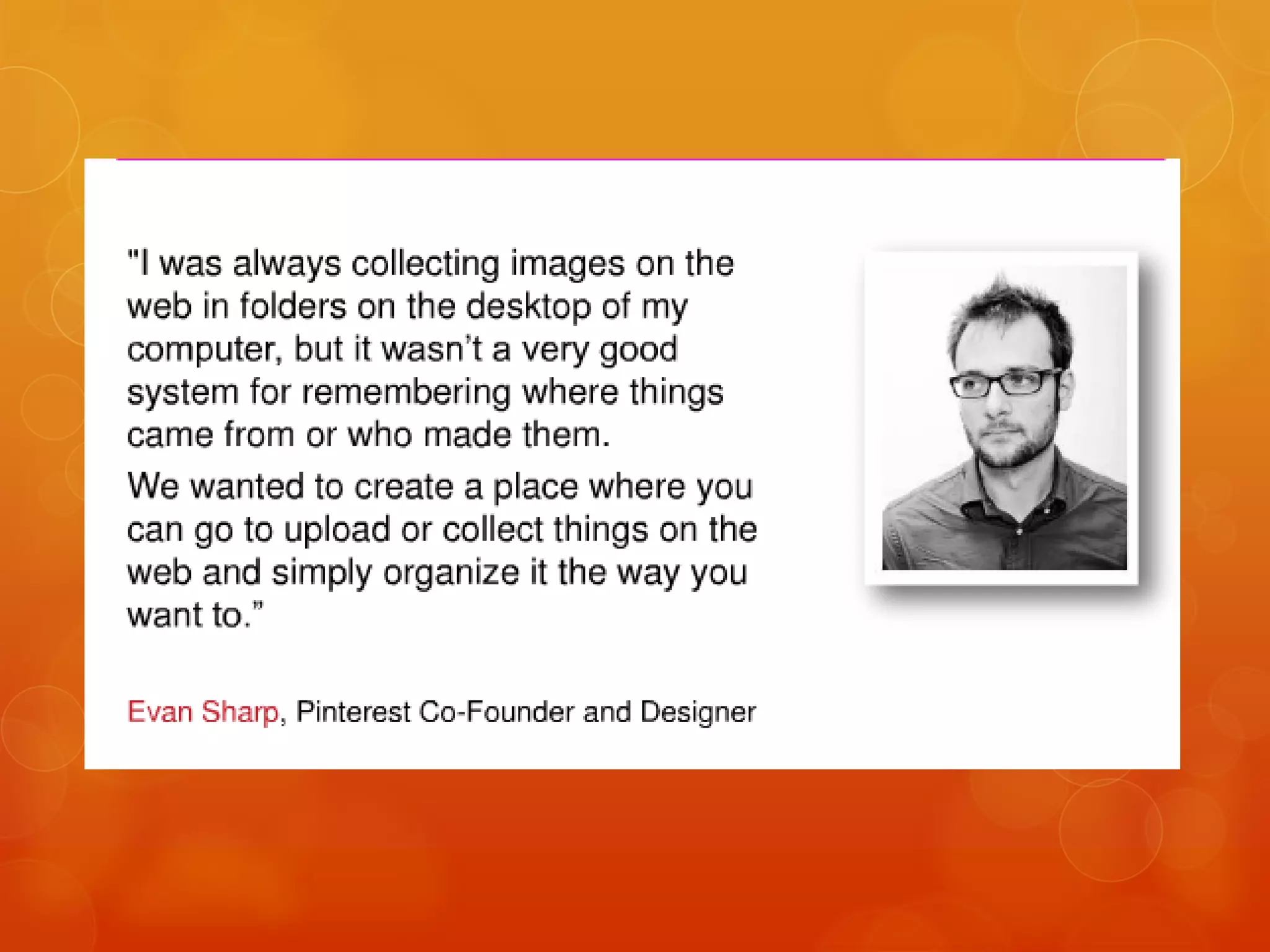
How did the Idea of
Pinterest come
about?
What can you do
with Pinterest?
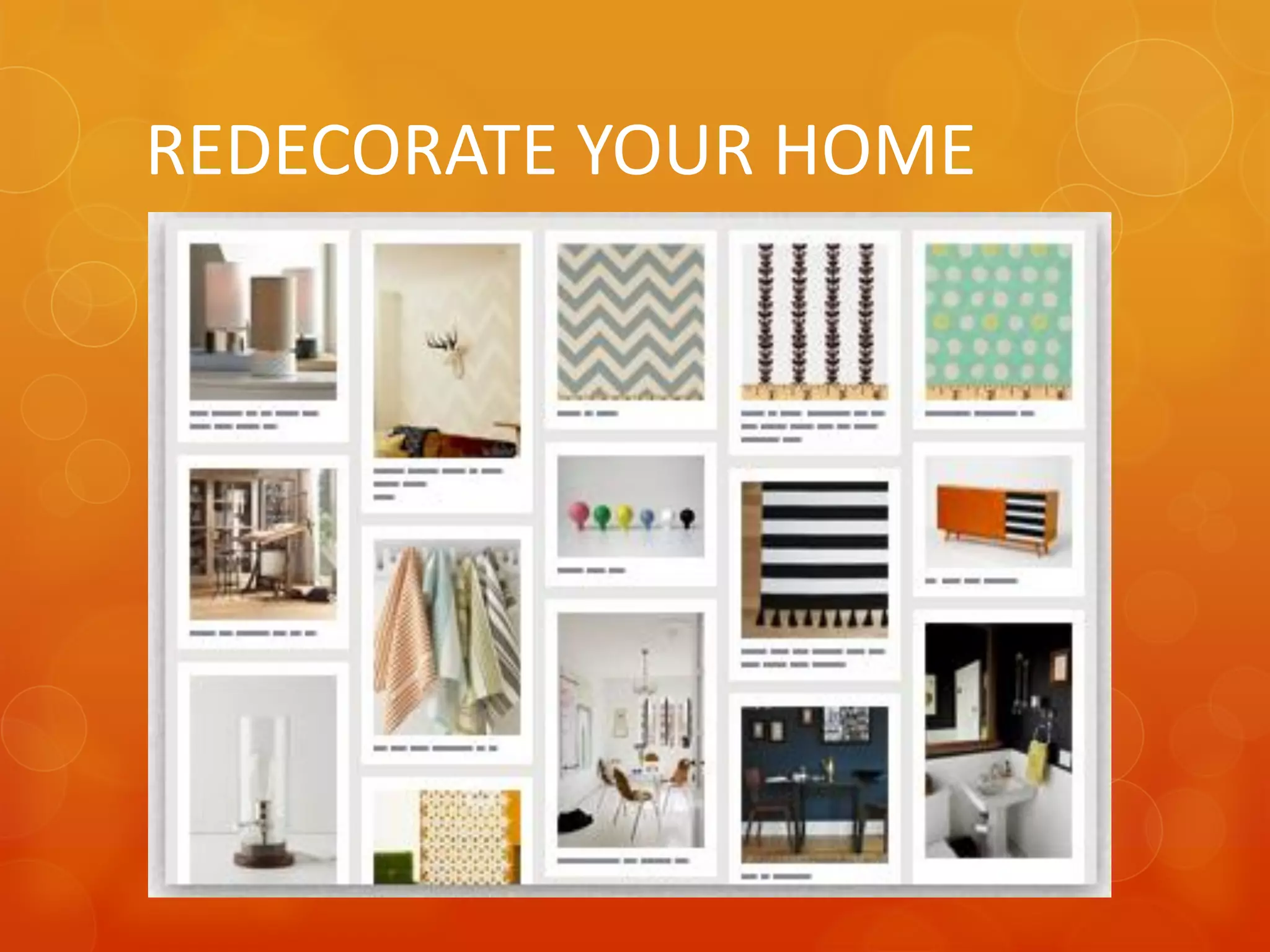
REDECORATE YOUR HOME
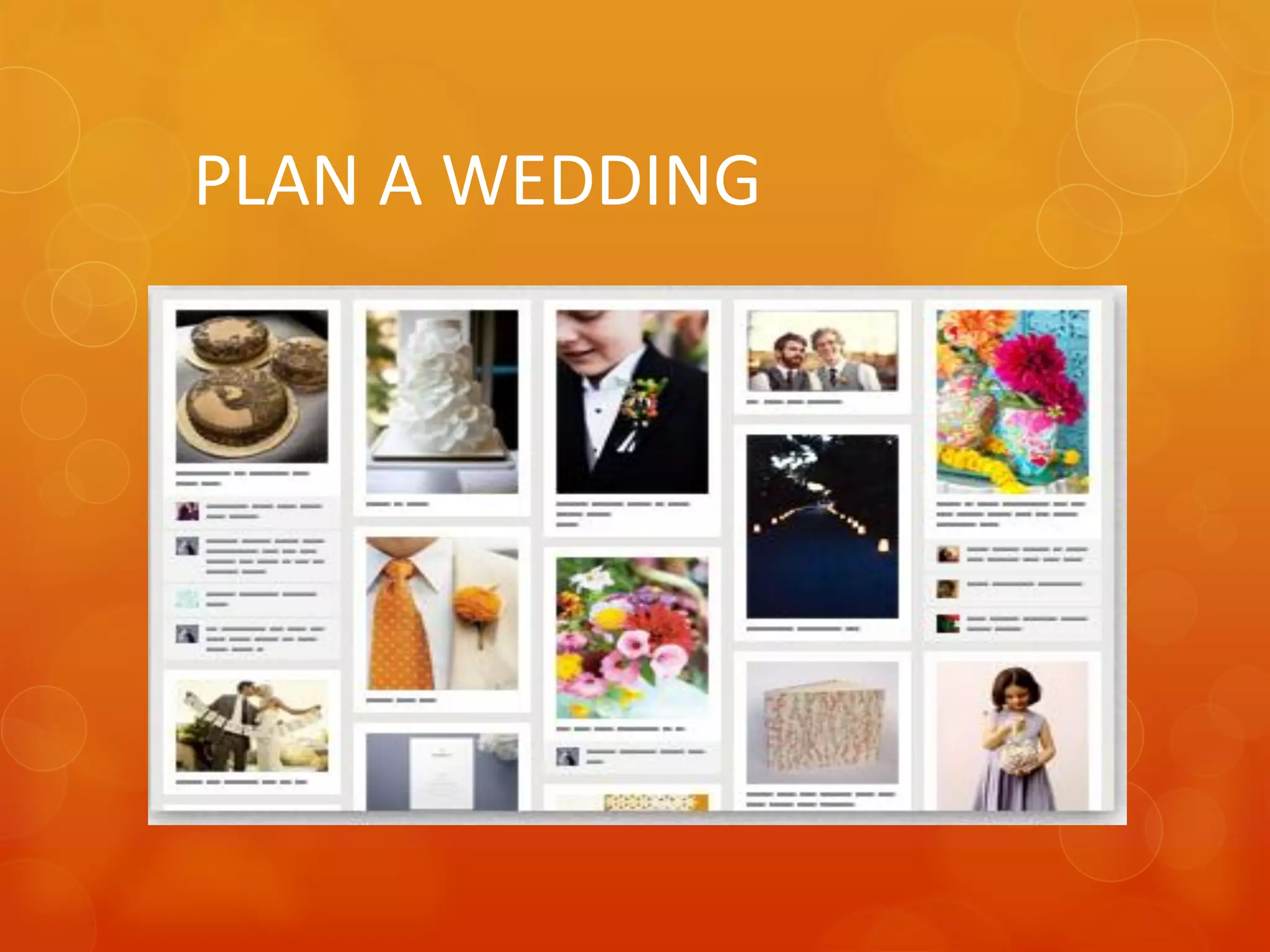
PLAN A WEDDING
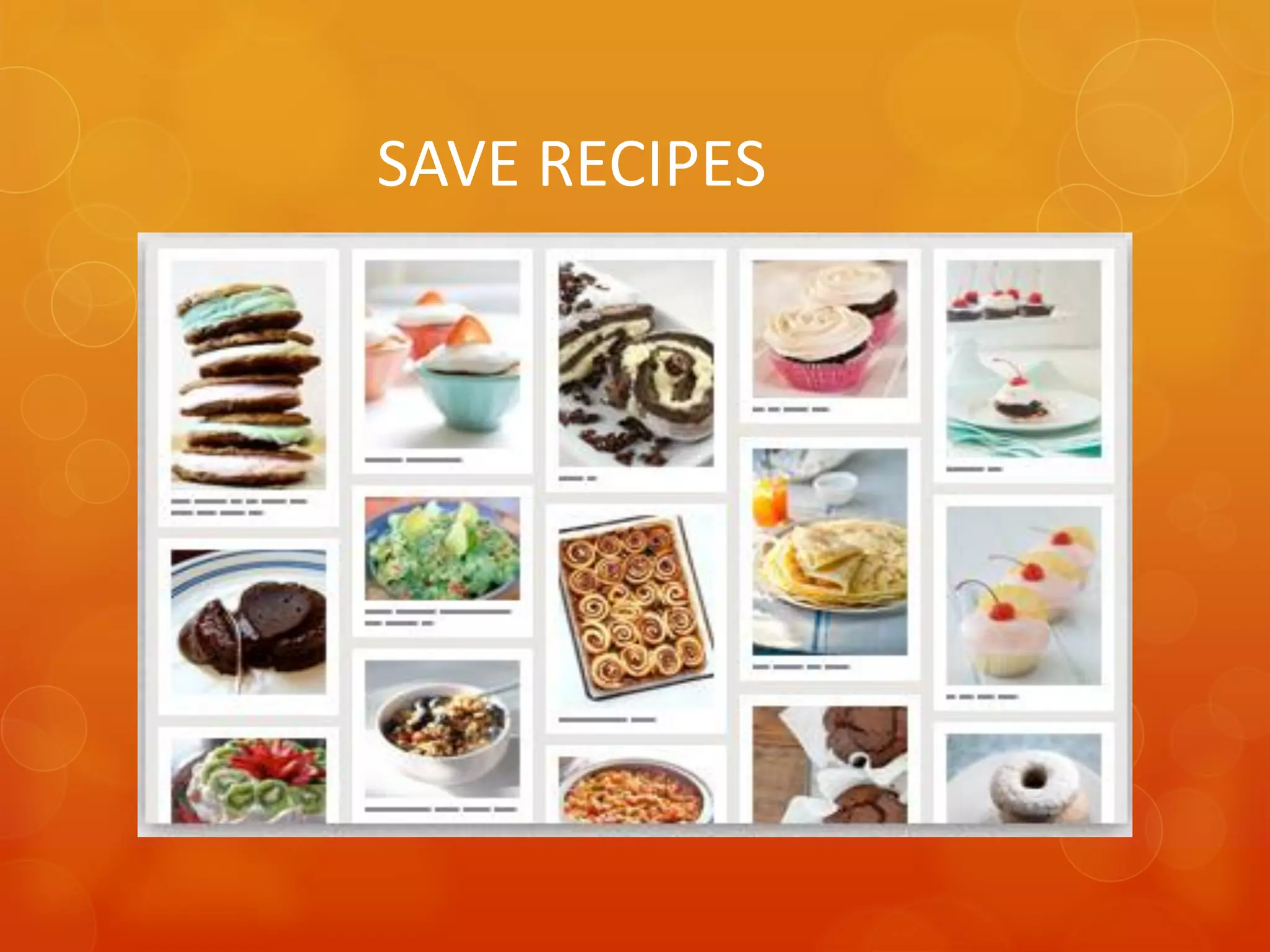
SAVE RECIPES
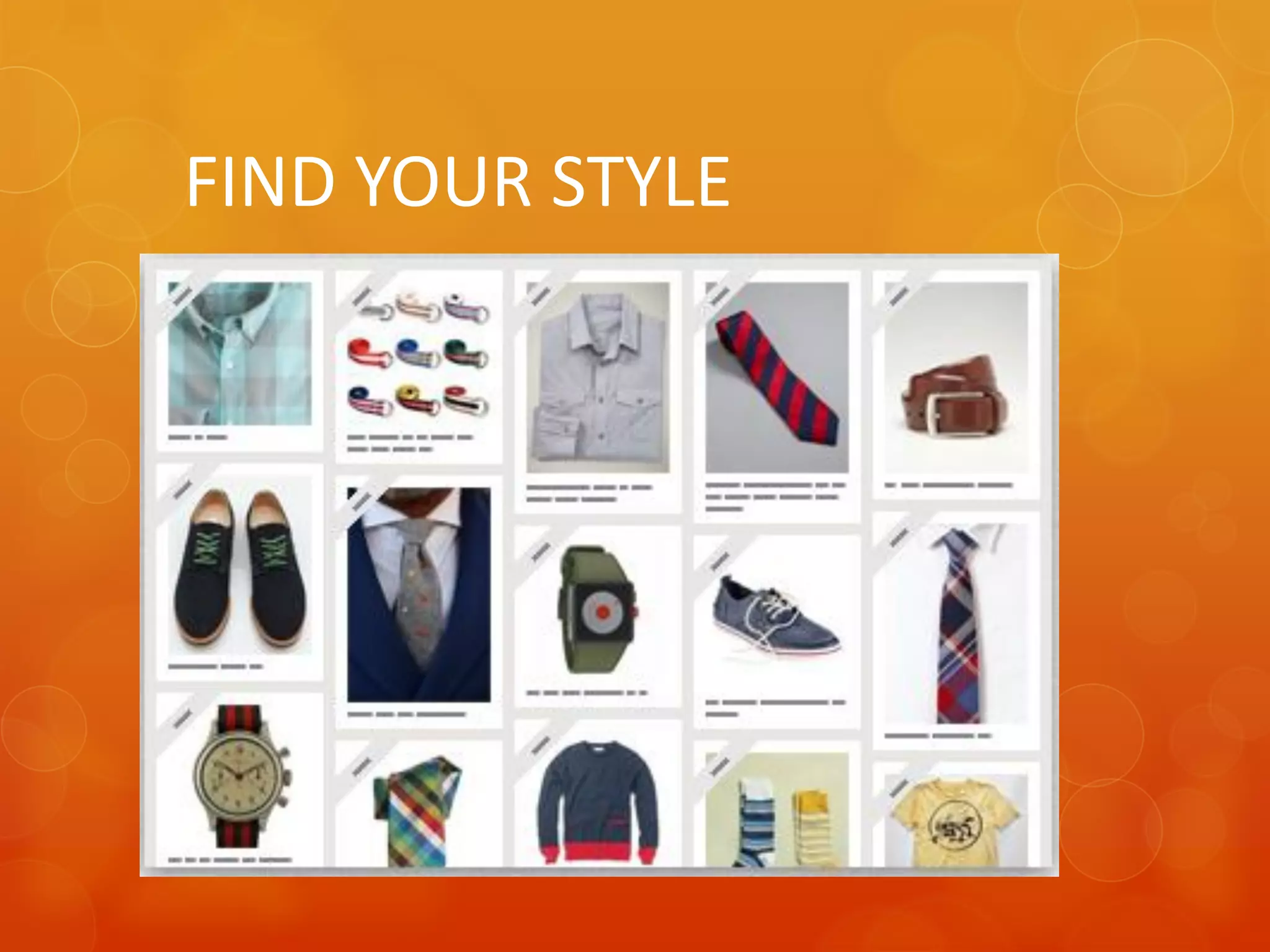
FIND YOUR STYLE
So Why Do We
 Have To Know
Pinterest as Vas?
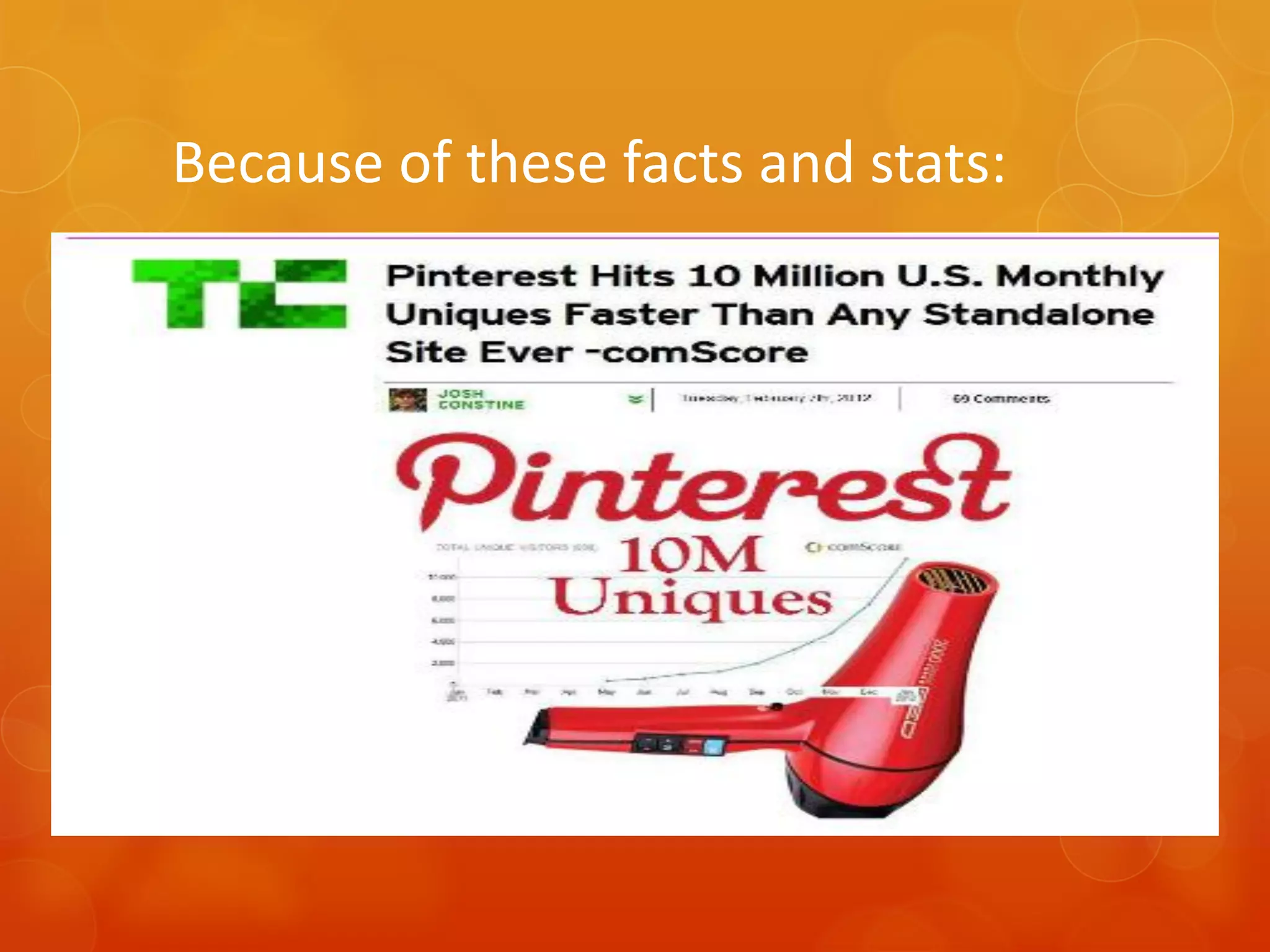
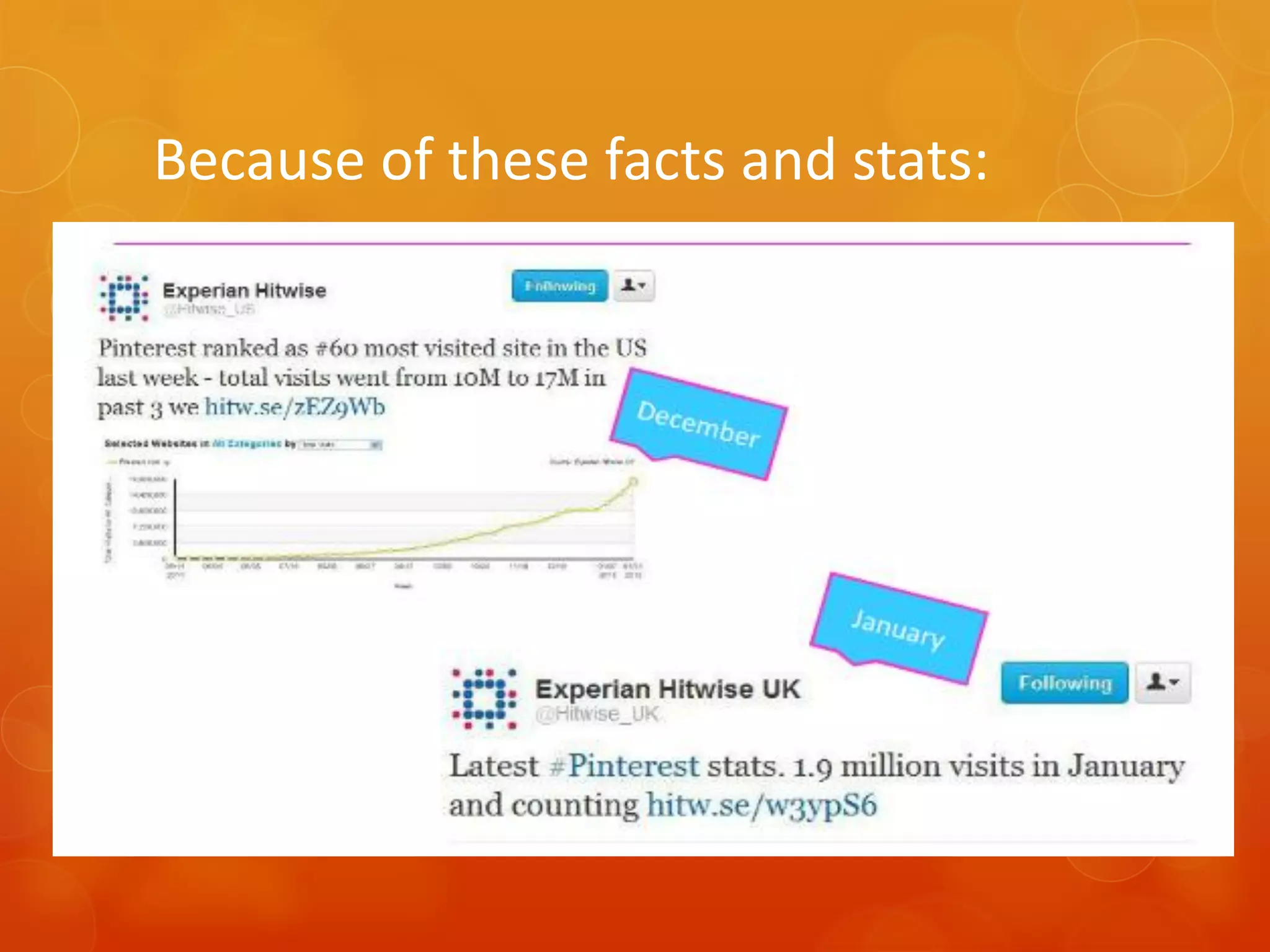
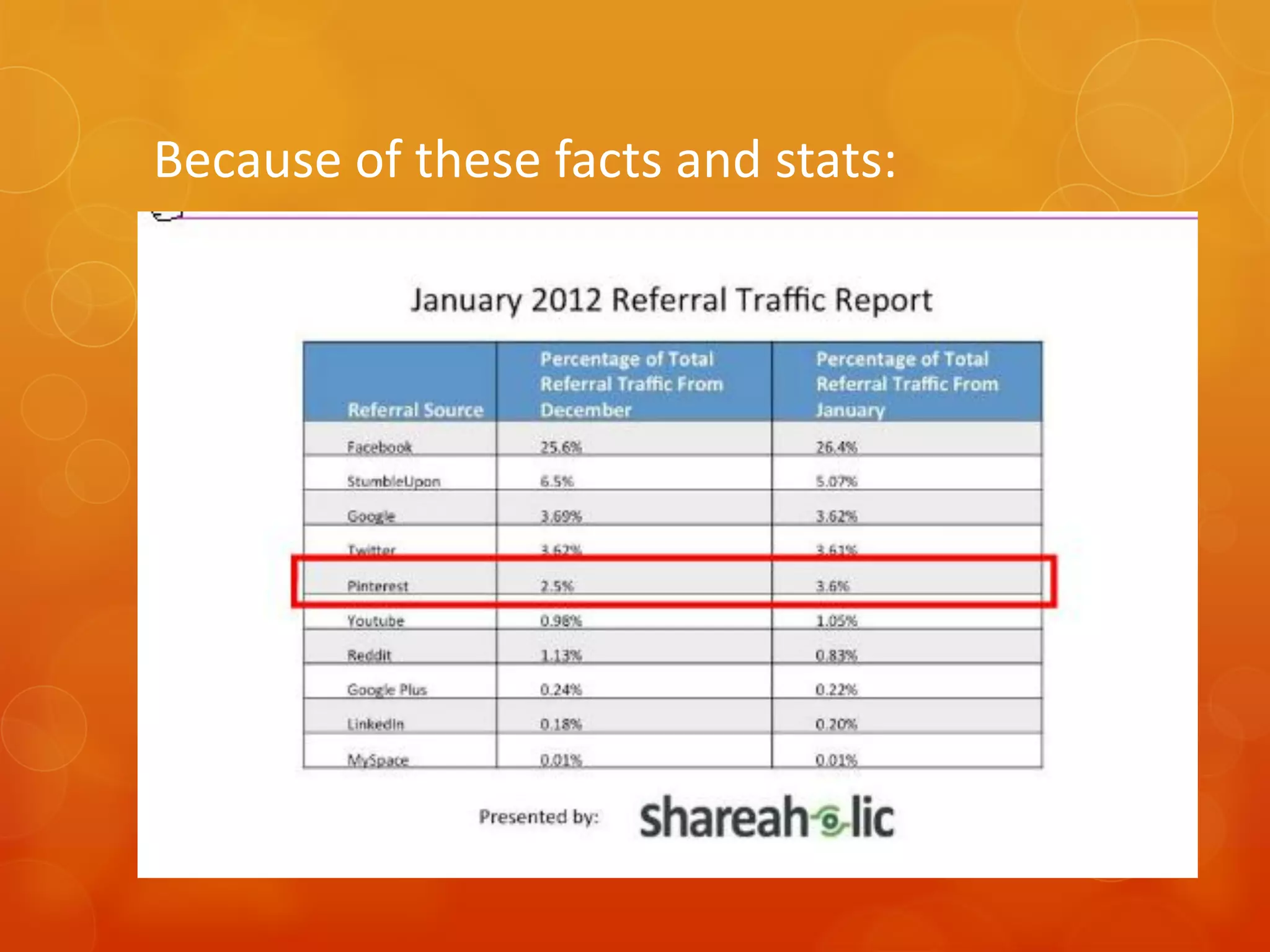
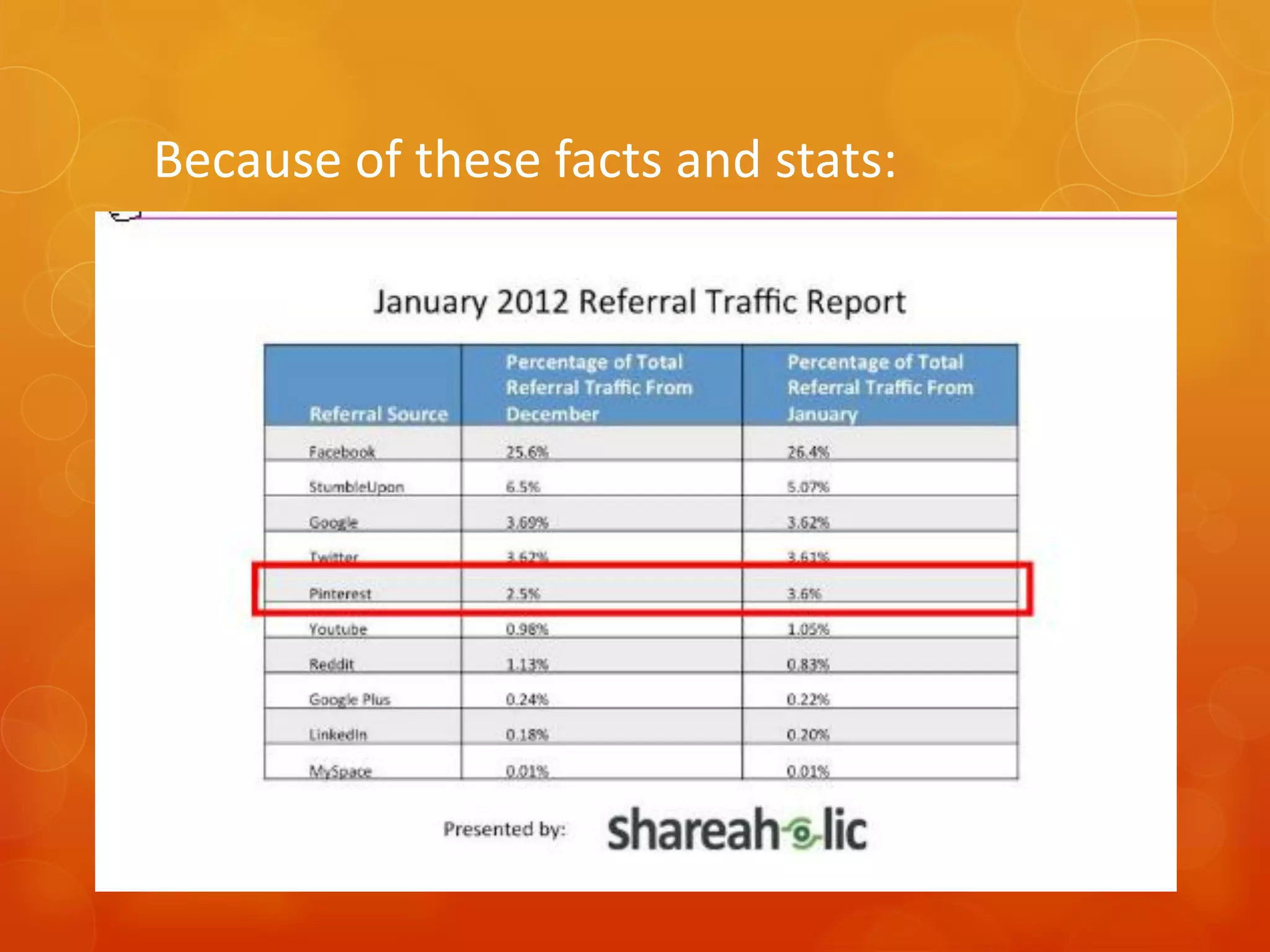
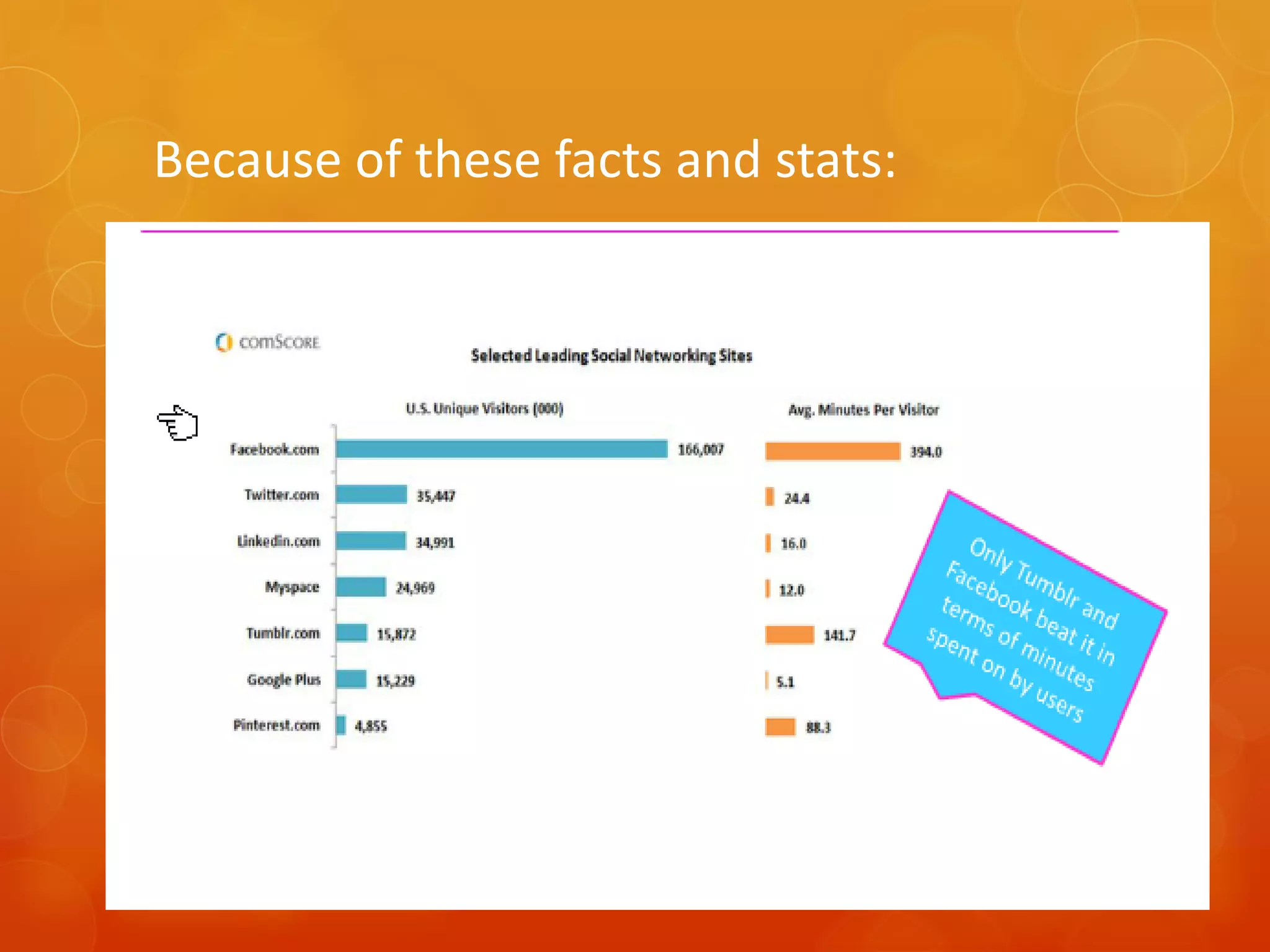
Because of these facts and stats:
How Do I Get Started
with Pinterest?
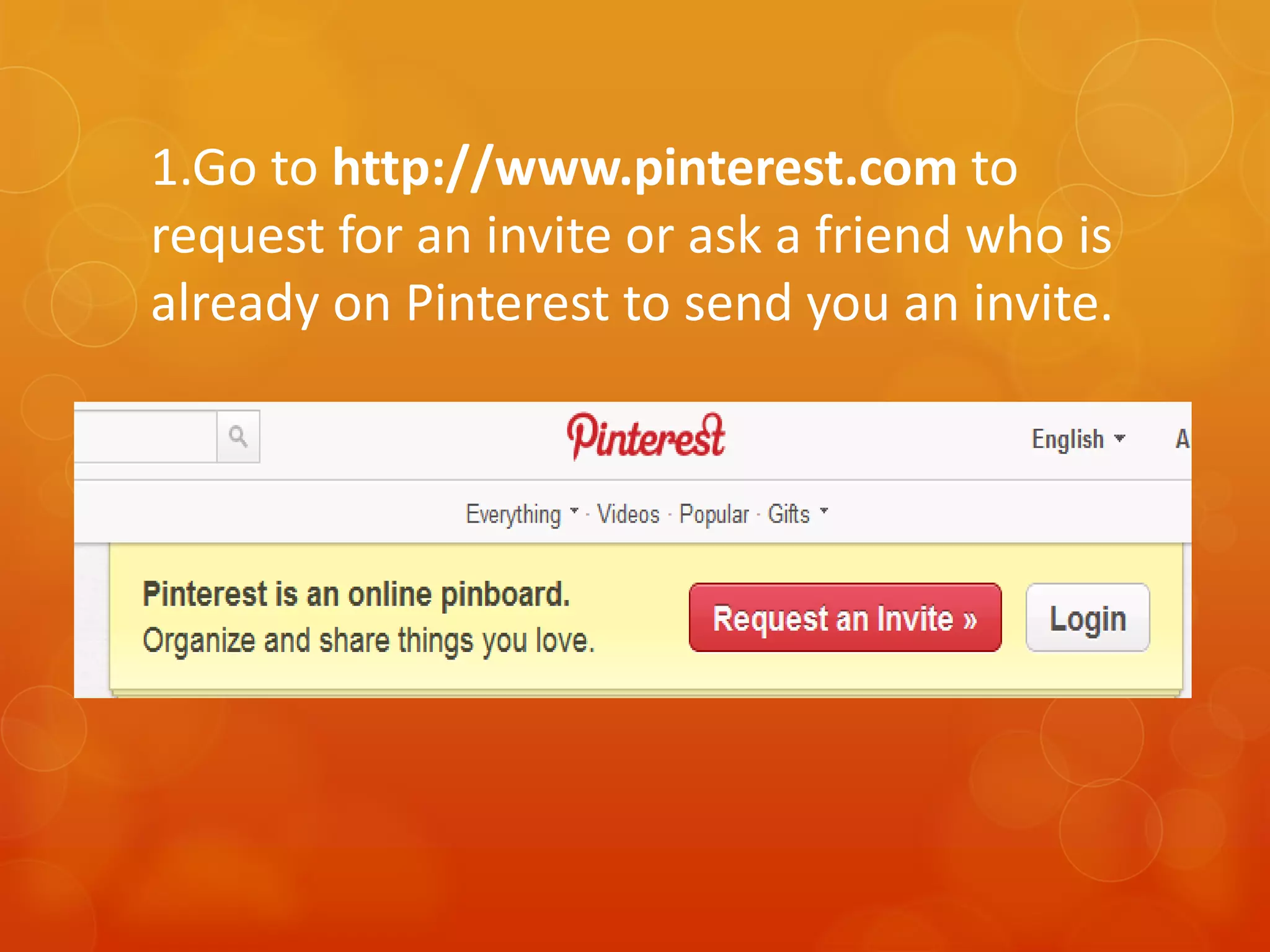
1.Go to http://www.pinterest.com to
request for an invite or ask a friend who is
already on Pinterest to send you an invite.
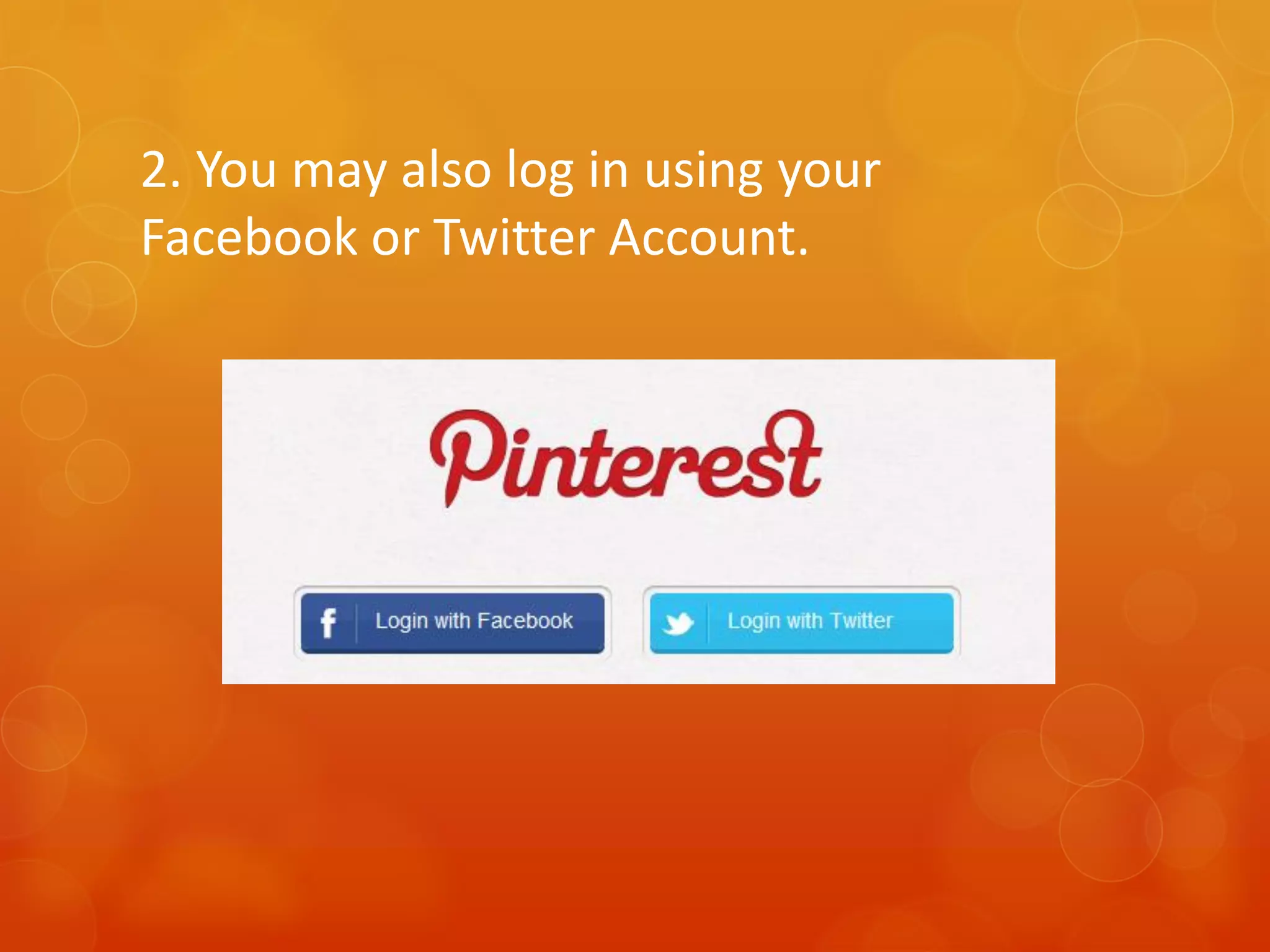
2. You may also log in using your
Facebook or Twitter Account.
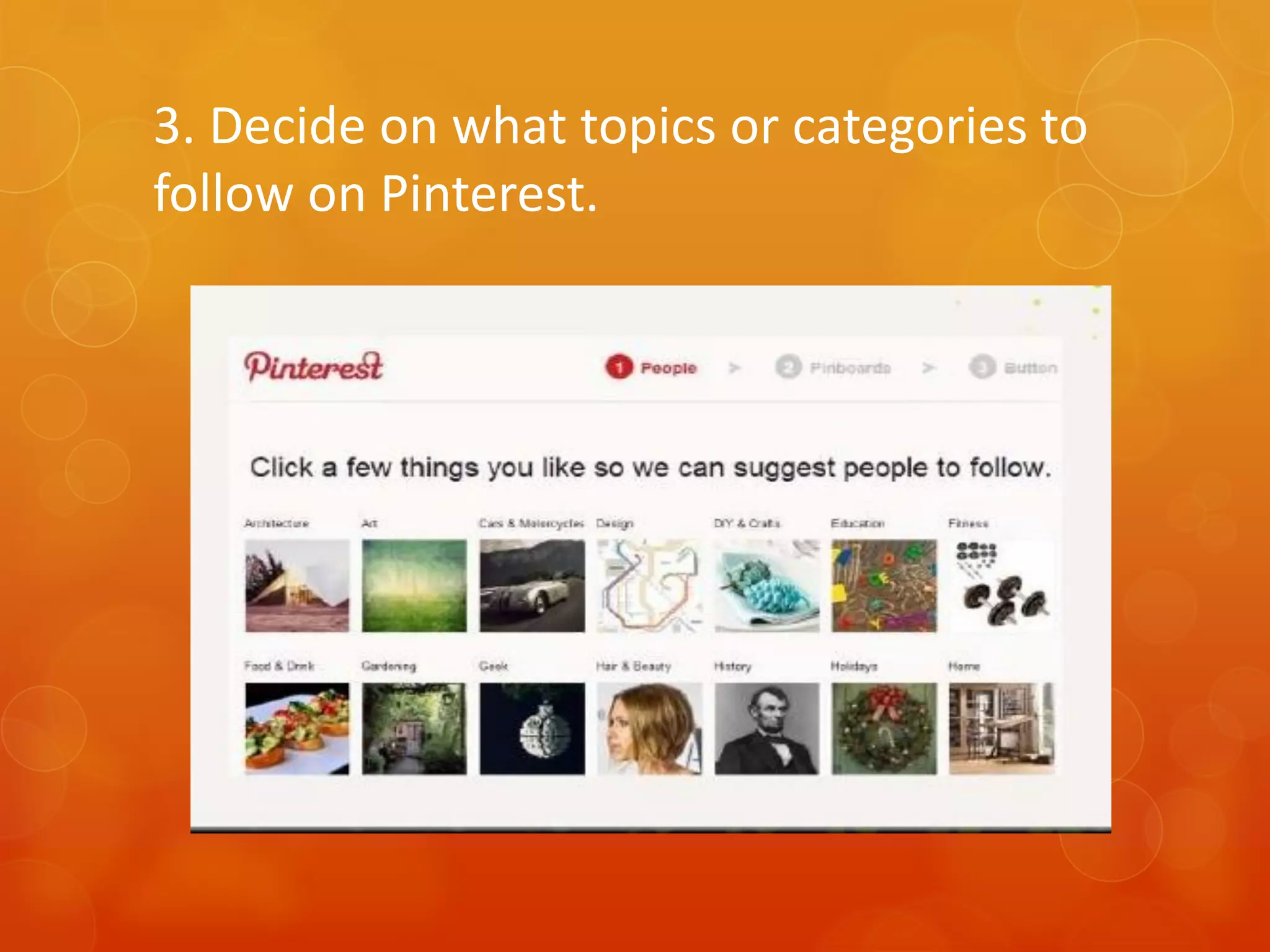
3. Decide on what topics or categories to
follow on Pinterest.
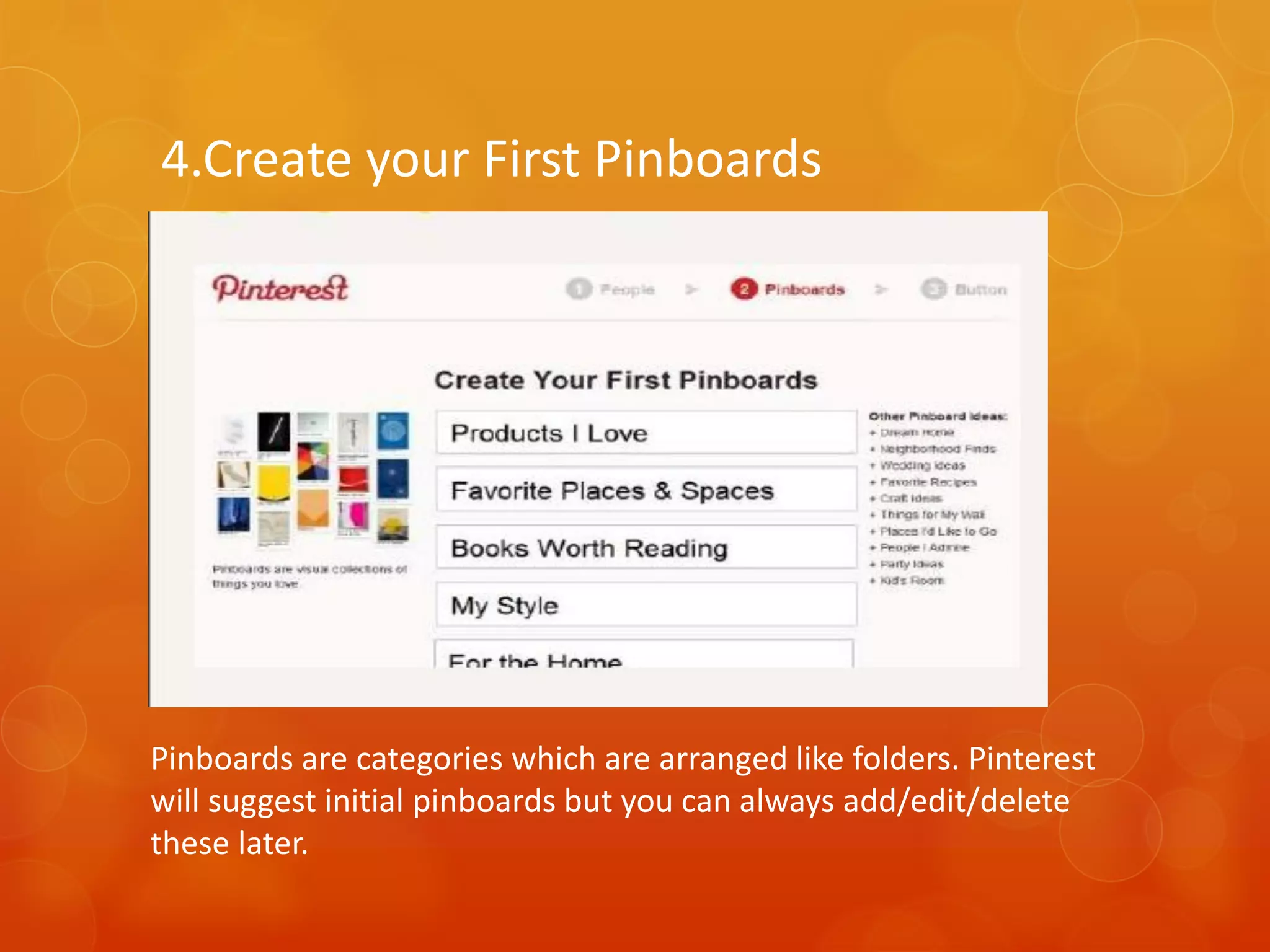
4.Create your First Pinboards


Pinboards are categories which are arranged like folders. Pinterest
will suggest initial pinboards but you can always add/edit/delete
these later.
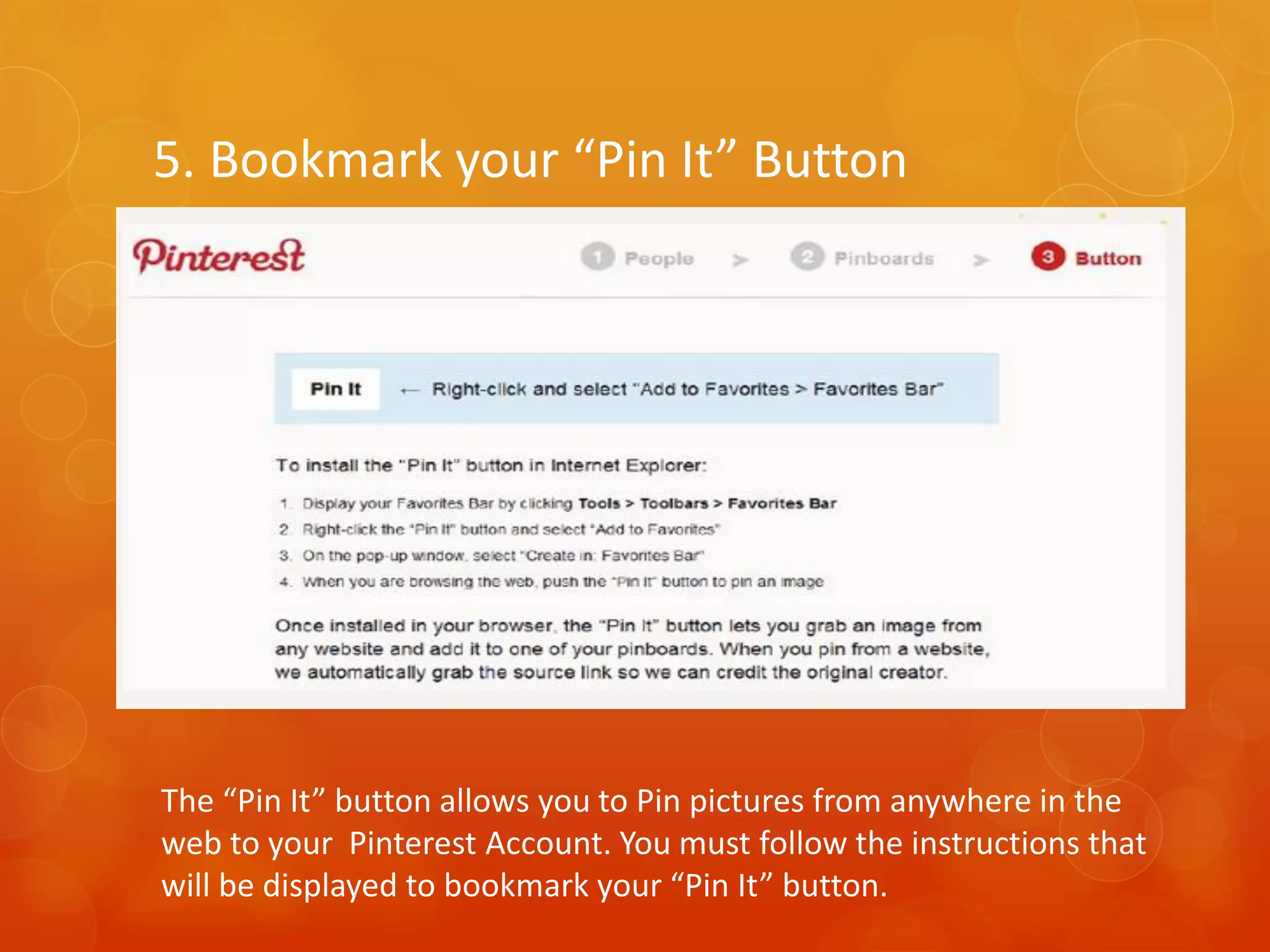
5. Bookmark your “Pin It” Button


The “Pin It” button allows you to Pin pictures from anywhere in the
web to your Pinterest Account. You must follow the instructions that
will be displayed to bookmark your “Pin It” button.
How to Pin?
You can pin in two ways :

getting images from the Pinterest
 website
getting images from anywhere in the
 web.
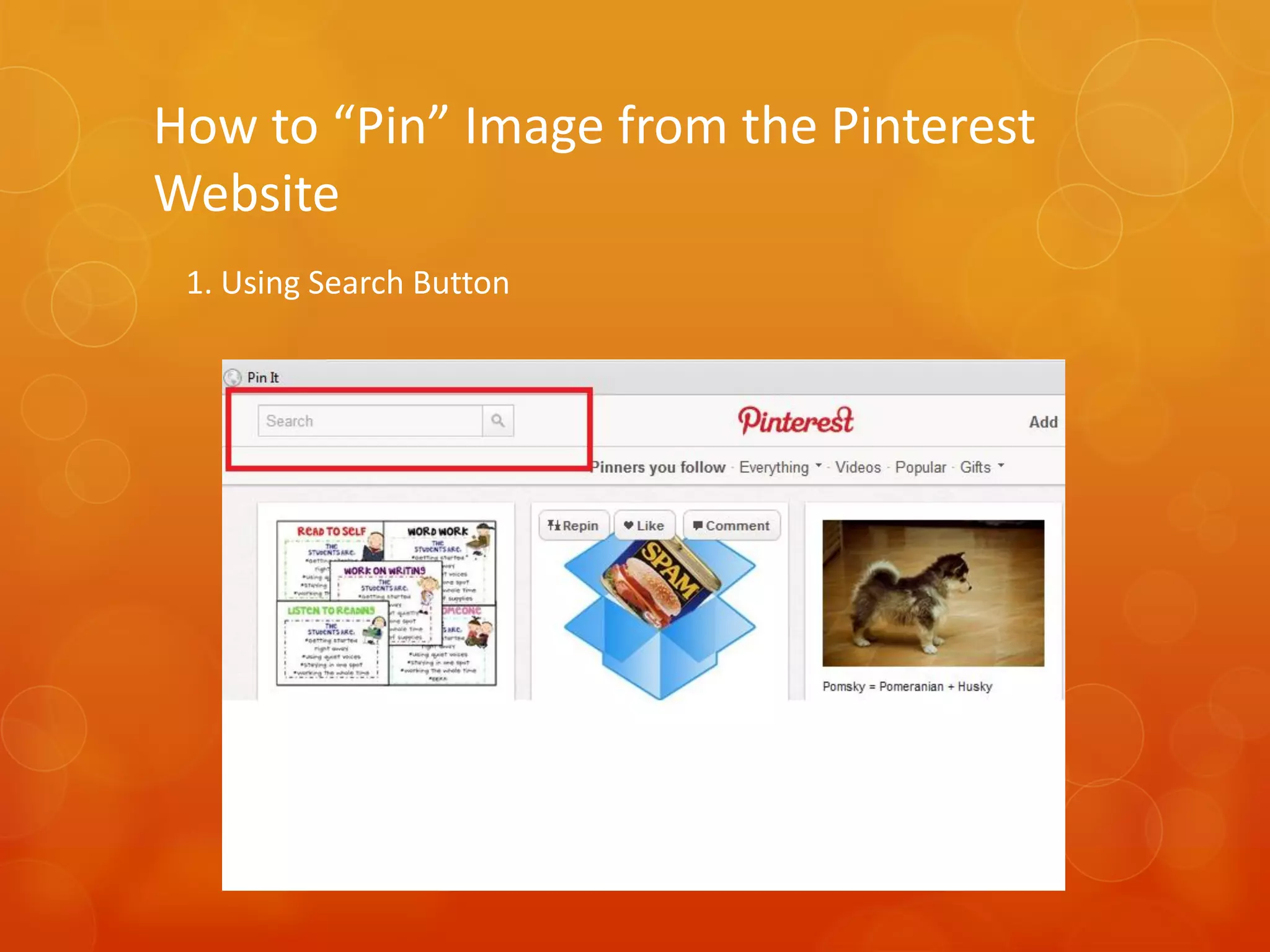
How to “Pin” Image from the Pinterest
Website
 1. Using Search Button
How to “Pin” Image from the Pinterest
Website
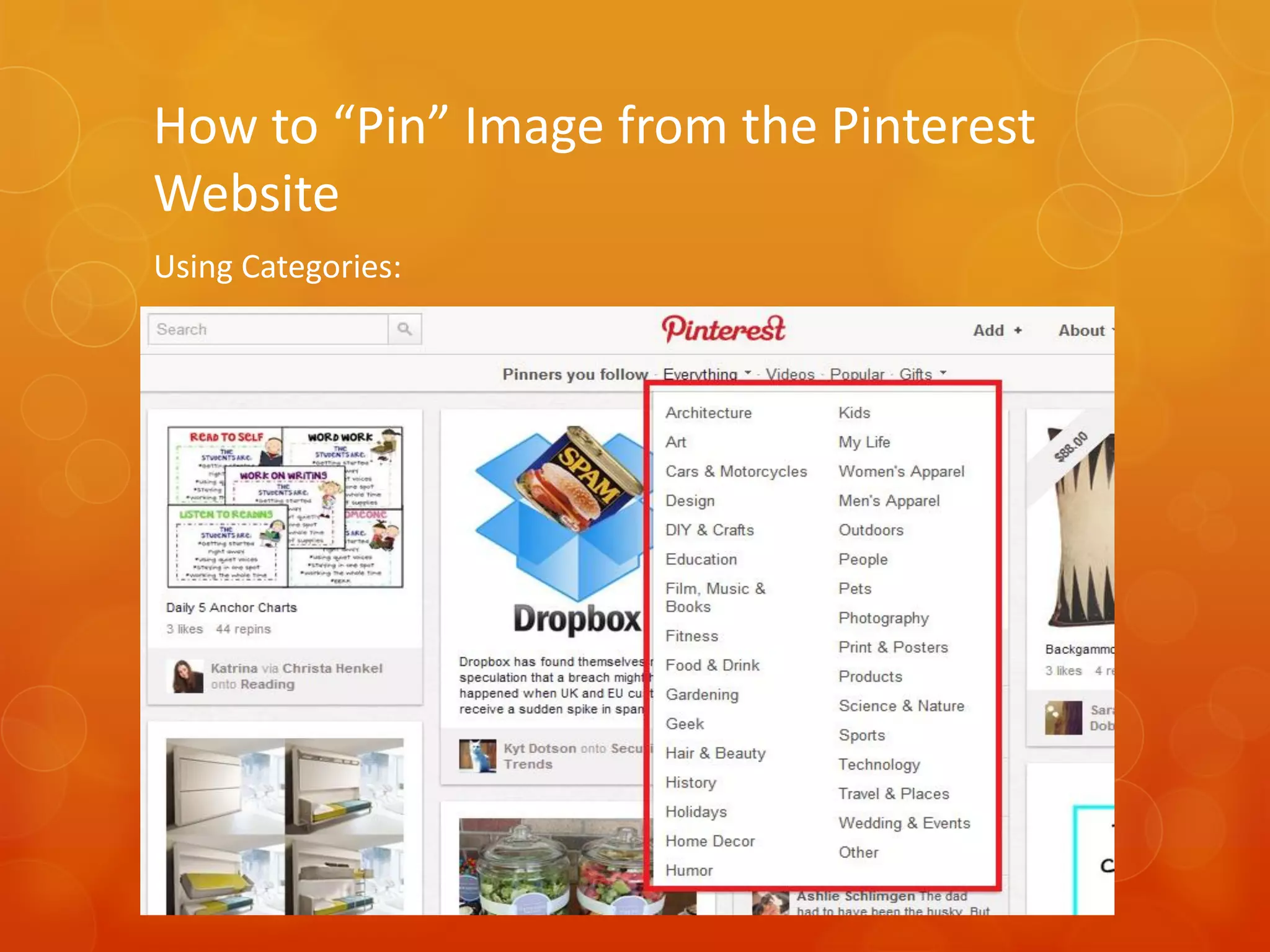
Using Categories:
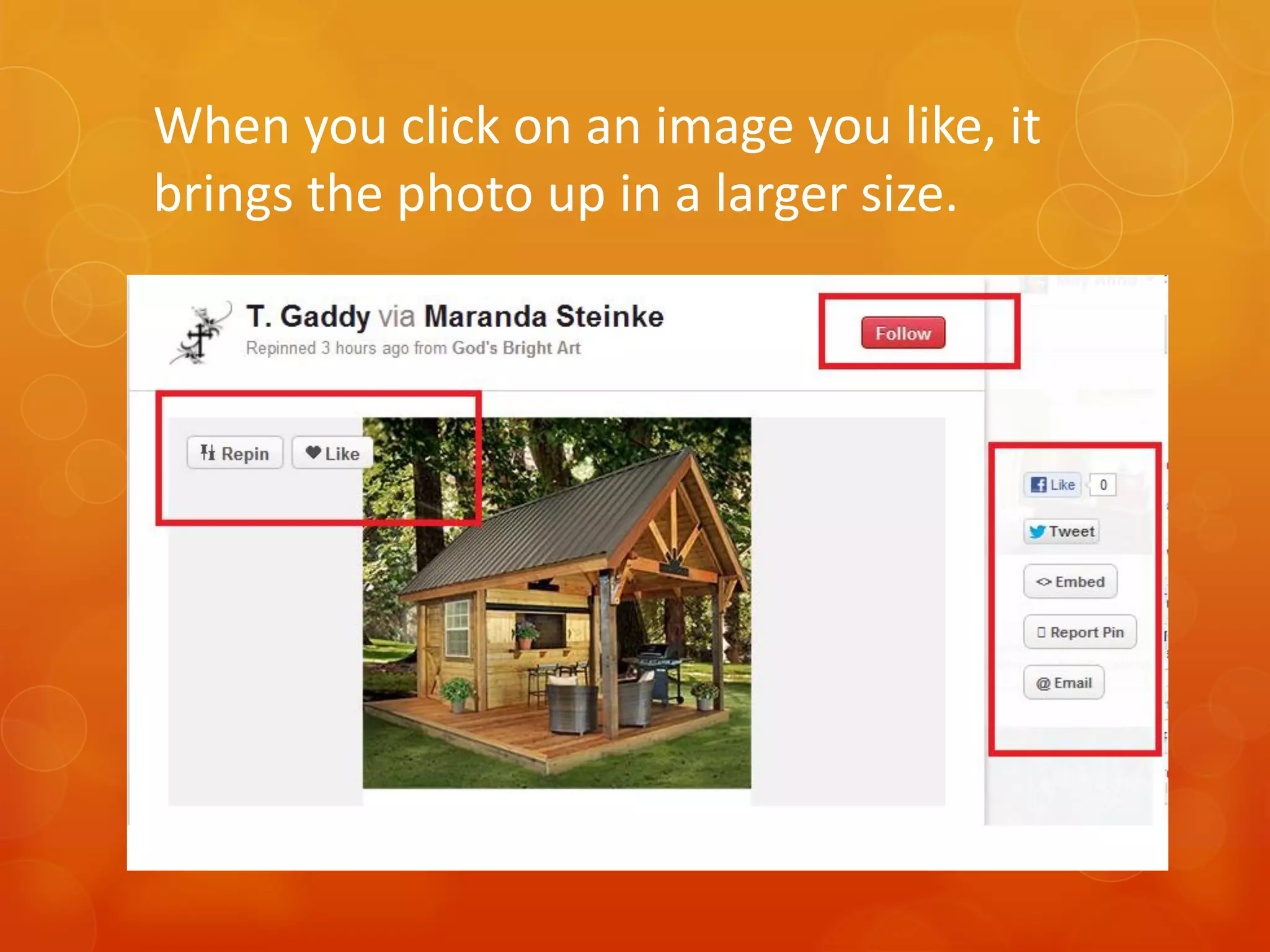
When you click on an image you like, it
brings the photo up in a larger size.
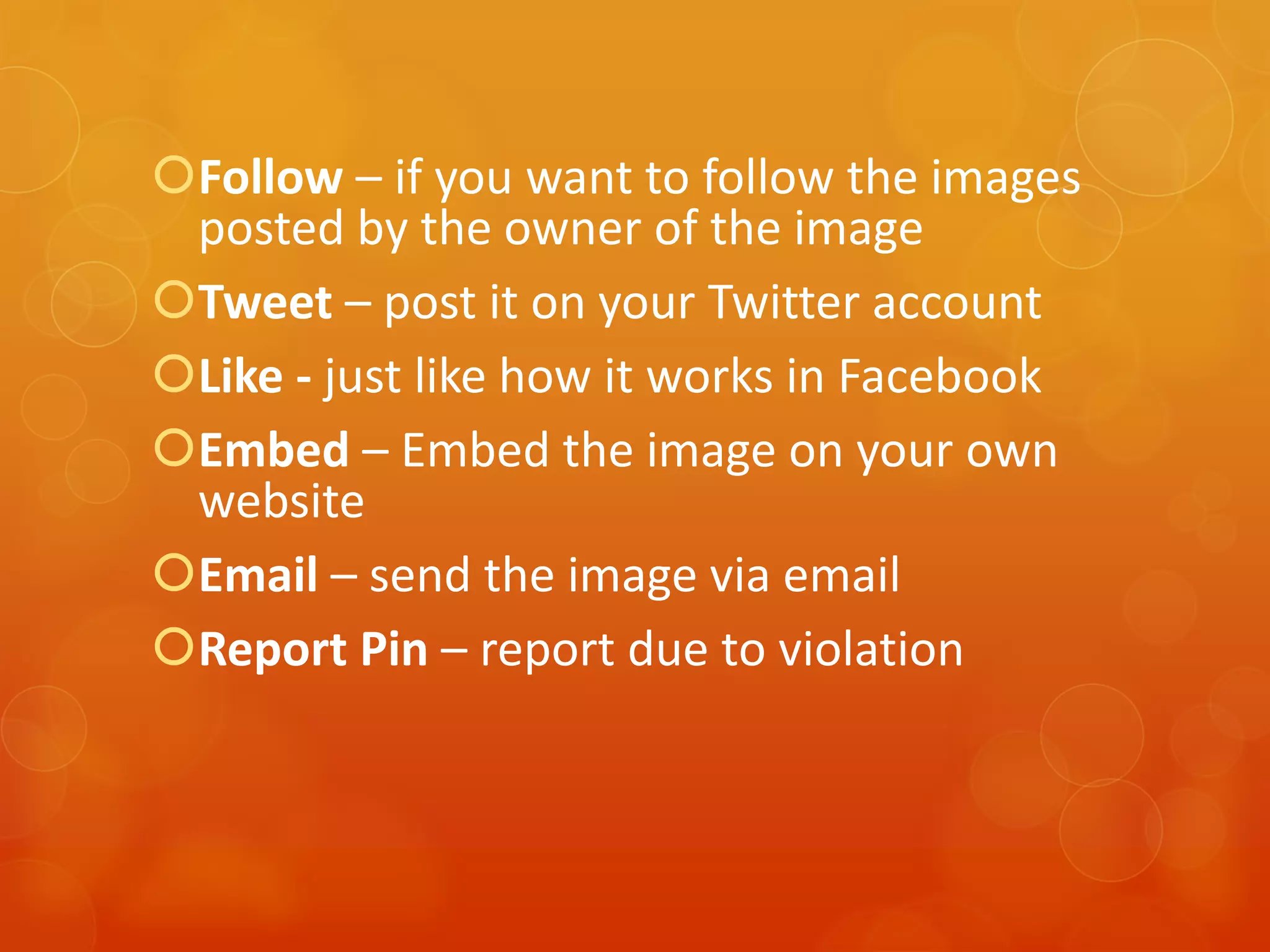
Follow – if you want to follow the images
 posted by the owner of the image
Tweet – post it on your Twitter account
Like - just like how it works in Facebook
Embed – Embed the image on your own
 website
Email – send the image via email
Report Pin – report due to violation
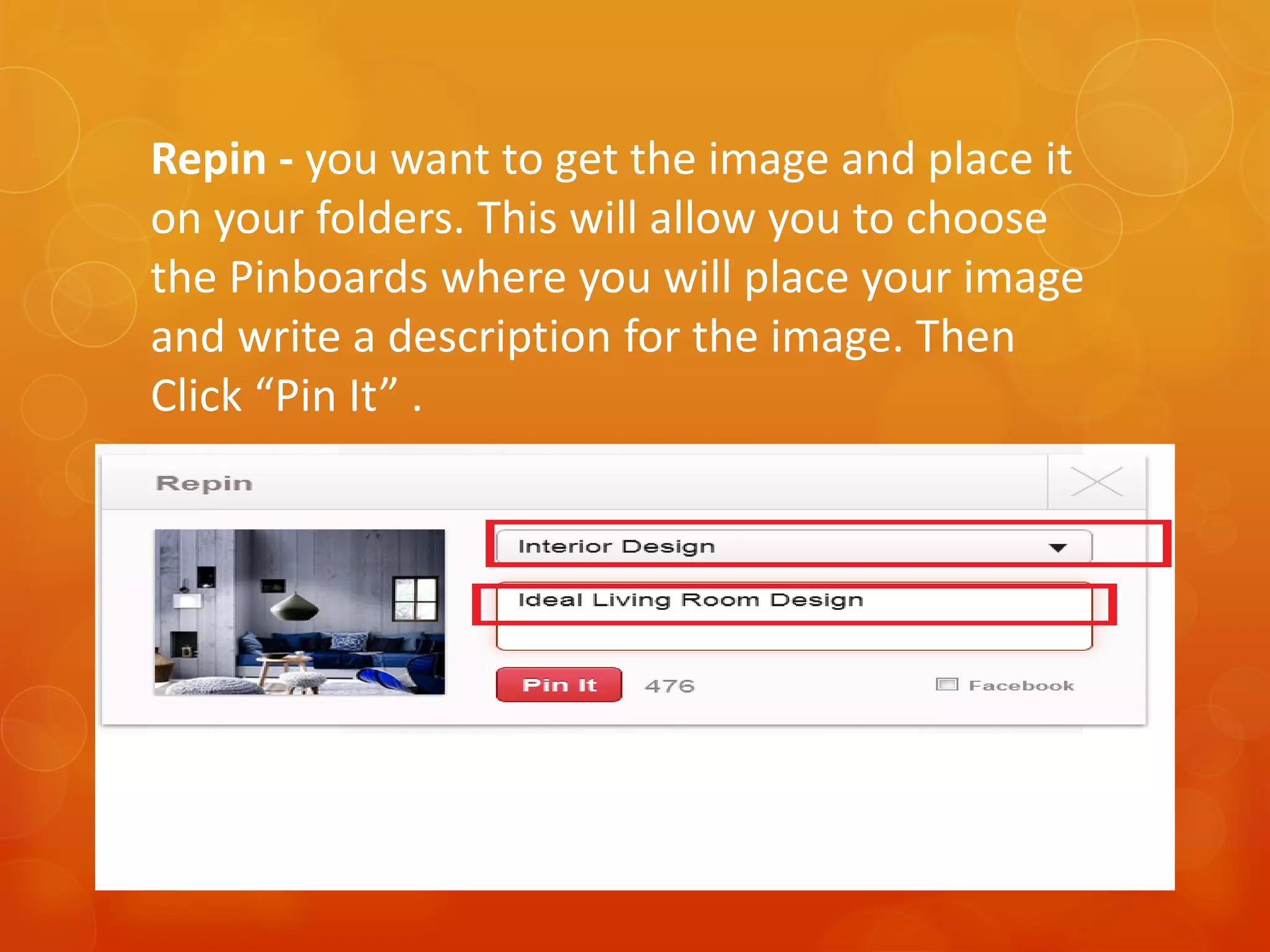
Repin - you want to get the image and place it
on your folders. This will allow you to choose
the Pinboards where you will place your image
and write a description for the image. Then
Click “Pin It” .
How to “Pin” Image from anywhere in the
Web
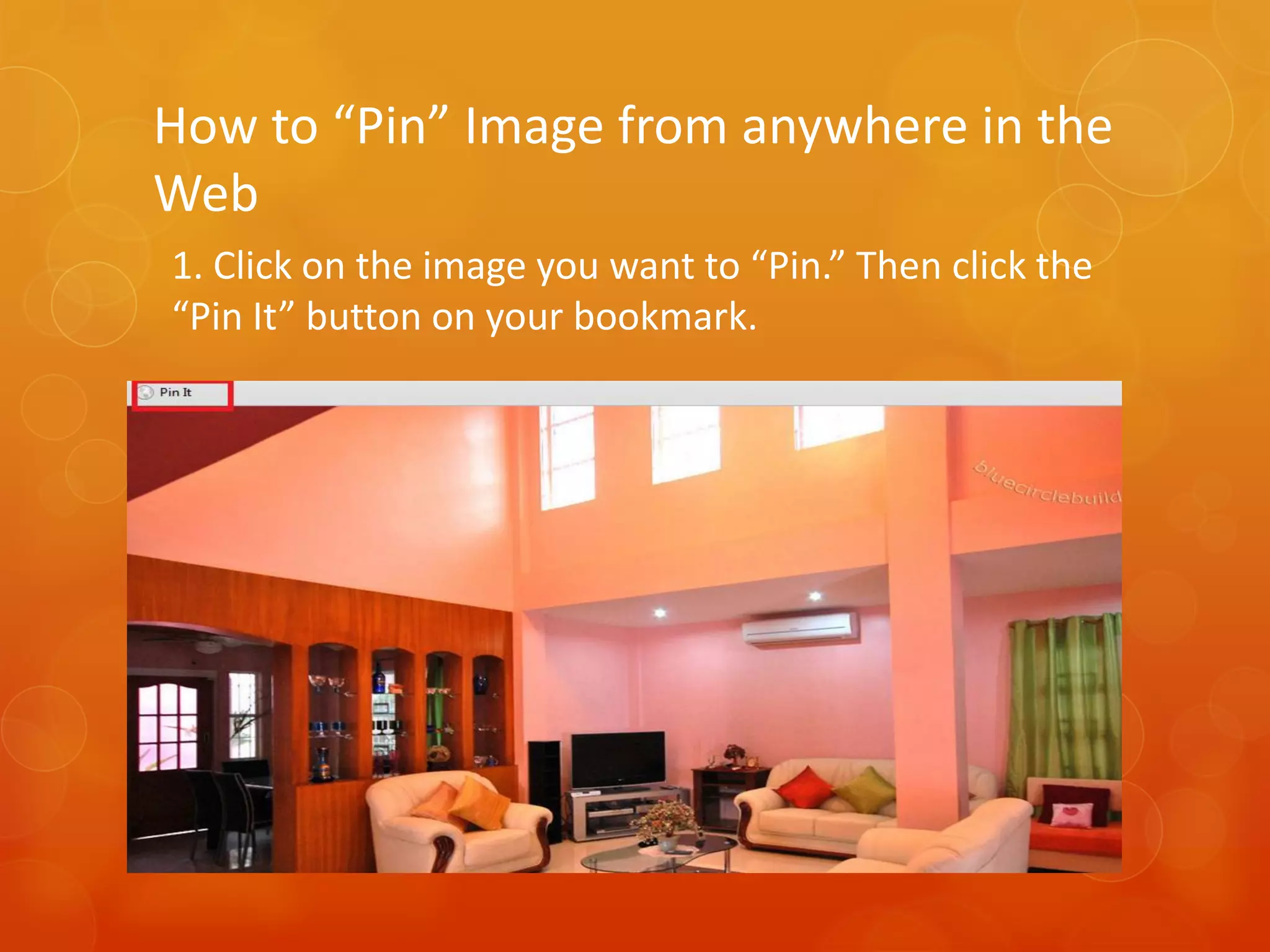
1. Click on the image you want to “Pin.” Then click the
“Pin It” button on your bookmark.
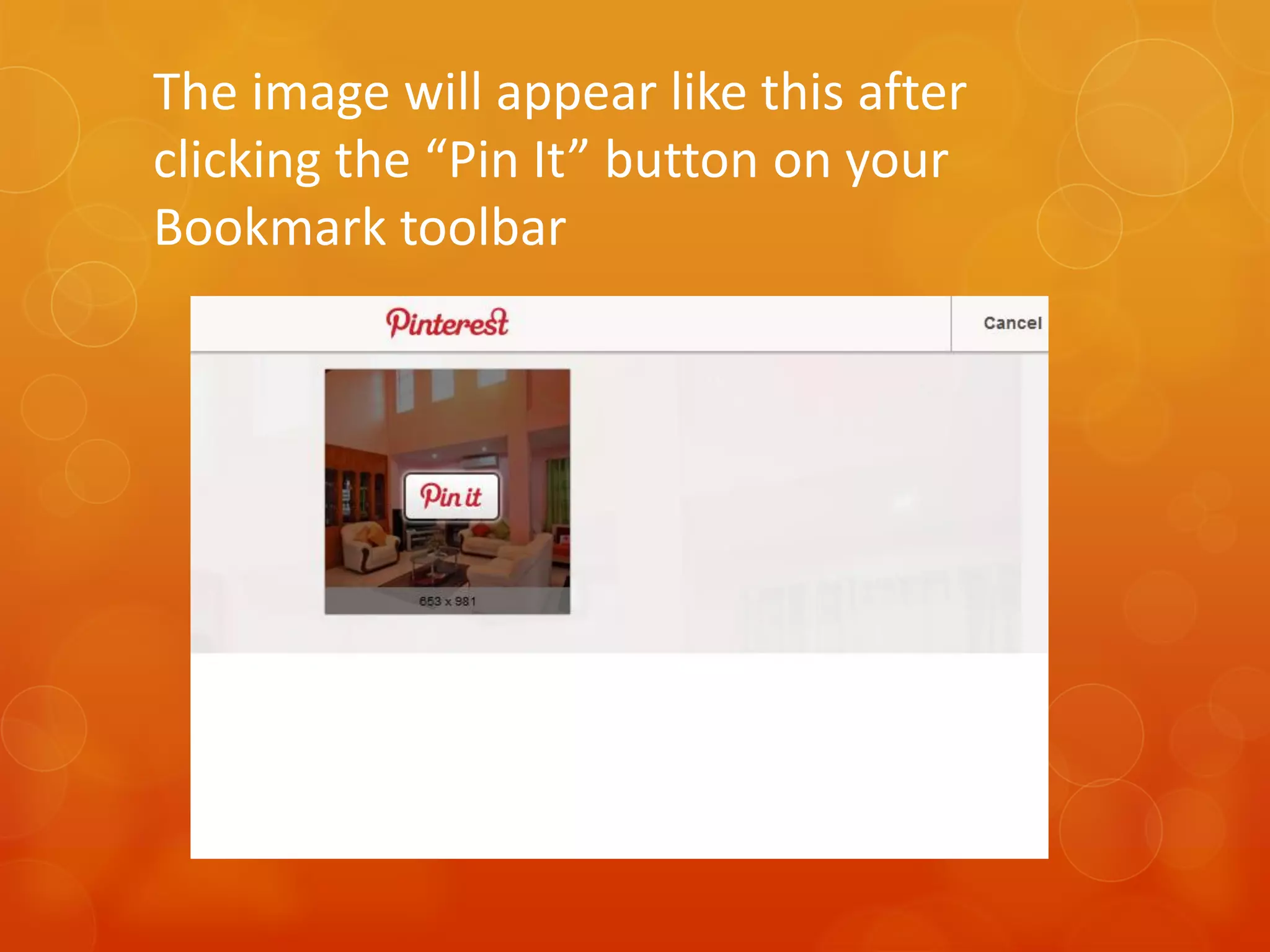
The image will appear like this after
clicking the “Pin It” button on your
Bookmark toolbar
Just click the “Pin it” to Pin the image.
This will allow you to choose the
Pinboards where you will place your
image and write a description for the
image.

Then Click “Pin It” .

Click “Cancel” to cancel the “Pinning.”
Happy Pinning!

THANK YOU!

Pinterest getting started

  • 1.
    Pinterest Step by stepGuide for First Time Users VA’s Guide By May Anne Reyes
  • 2.
  • 3.
     Pinterest isa social photo sharing website where users organize and share their image collections they find on the web via virtual pinboard.  Content is organized in “boards” which serve as Categories. Each content is called a “Pin.” People can like your pins or they can repin it on their boards. They can also share it in Twitter or Facebook.  Pinterest’s mission is to “connect everyone in the world through the ‘things’ they find interesting.
  • 4.
    How did theIdea of Pinterest come about?
  • 6.
    What can youdo with Pinterest?
  • 7.
  • 8.
  • 9.
  • 10.
  • 11.
    So Why DoWe Have To Know Pinterest as Vas?
  • 12.
    Because of thesefacts and stats:
  • 13.
    Because of thesefacts and stats:
  • 14.
    Because of thesefacts and stats:
  • 15.
    Because of thesefacts and stats:
  • 16.
    Because of thesefacts and stats:
  • 17.
    How Do IGet Started with Pinterest?
  • 18.
    1.Go to http://www.pinterest.comto request for an invite or ask a friend who is already on Pinterest to send you an invite.
  • 19.
    2. You mayalso log in using your Facebook or Twitter Account.
  • 20.
    3. Decide onwhat topics or categories to follow on Pinterest.
  • 21.
    4.Create your FirstPinboards Pinboards are categories which are arranged like folders. Pinterest will suggest initial pinboards but you can always add/edit/delete these later.
  • 22.
    5. Bookmark your“Pin It” Button The “Pin It” button allows you to Pin pictures from anywhere in the web to your Pinterest Account. You must follow the instructions that will be displayed to bookmark your “Pin It” button.
  • 23.
  • 24.
    You can pinin two ways : getting images from the Pinterest website getting images from anywhere in the web.
  • 25.
    How to “Pin”Image from the Pinterest Website 1. Using Search Button
  • 26.
    How to “Pin”Image from the Pinterest Website Using Categories:
  • 27.
    When you clickon an image you like, it brings the photo up in a larger size.
  • 28.
    Follow – ifyou want to follow the images posted by the owner of the image Tweet – post it on your Twitter account Like - just like how it works in Facebook Embed – Embed the image on your own website Email – send the image via email Report Pin – report due to violation
  • 29.
    Repin - youwant to get the image and place it on your folders. This will allow you to choose the Pinboards where you will place your image and write a description for the image. Then Click “Pin It” .
  • 30.
    How to “Pin”Image from anywhere in the Web 1. Click on the image you want to “Pin.” Then click the “Pin It” button on your bookmark.
  • 31.
    The image willappear like this after clicking the “Pin It” button on your Bookmark toolbar
  • 32.
    Just click the“Pin it” to Pin the image. This will allow you to choose the Pinboards where you will place your image and write a description for the image. Then Click “Pin It” . Click “Cancel” to cancel the “Pinning.”
  • 33.