How To Use

                May Anne Reyes
http://www.theincrediblemayanne.wordpress.com
                August 26, 2012
What is
Dropbox allows users to
create a special folder on
 each of their computers
Dropbox then synchronizes
so that it appears to be the
same folder (with the same
contents) regardless of the
  computer it is viewed on
With
Online and mobile
back up is instant
Files placed in the folder
   are also accessible
through a web site and
      mobile phone
      applications.
Let’s Start Using
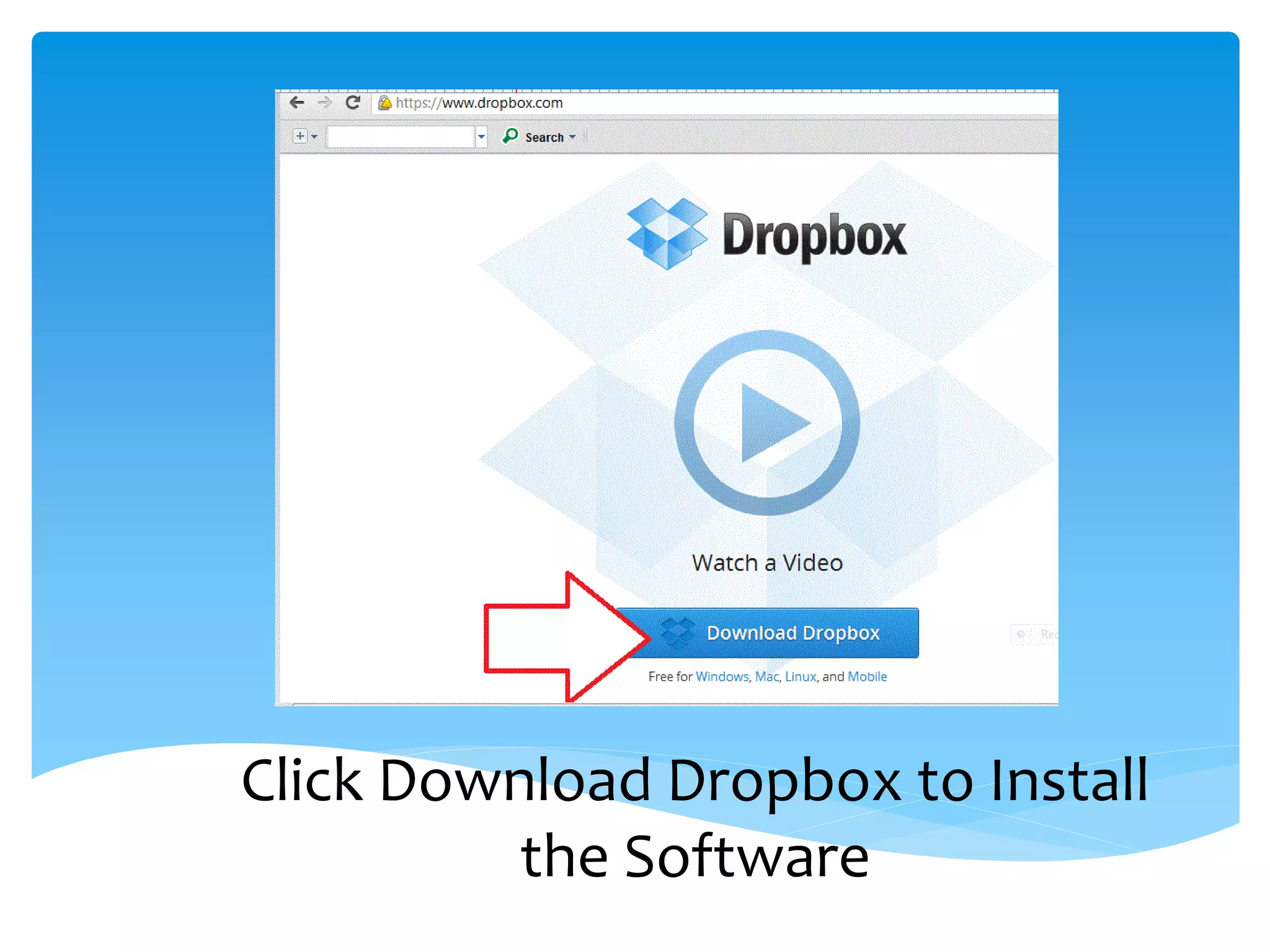
Go to
www.dropbox.com
Click the Play Icon to watch the
 Dropbox Video Presentation
Click Download Dropbox to Install
          the Software
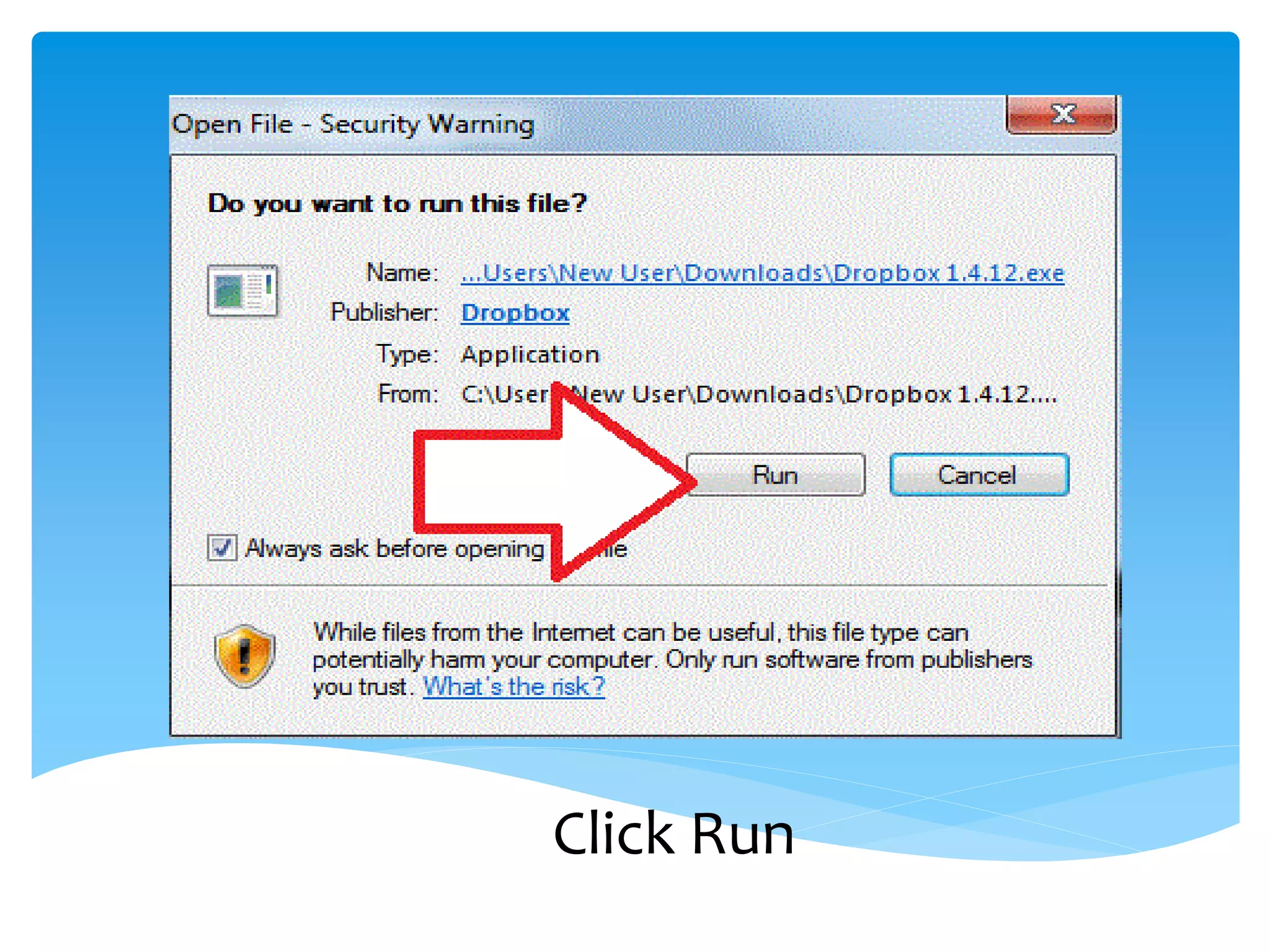
Follow the installation instructions
Click Run
Click Install
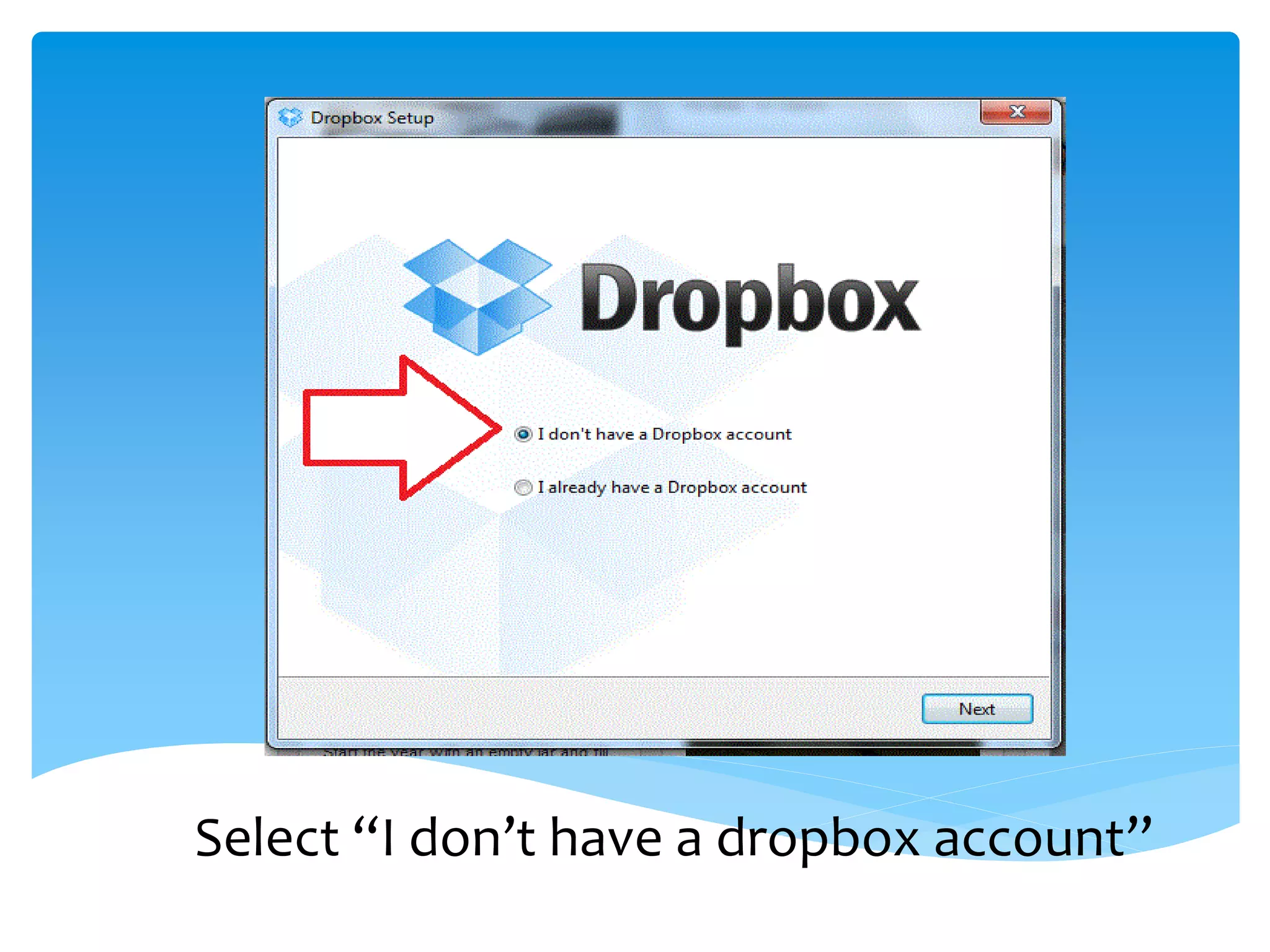
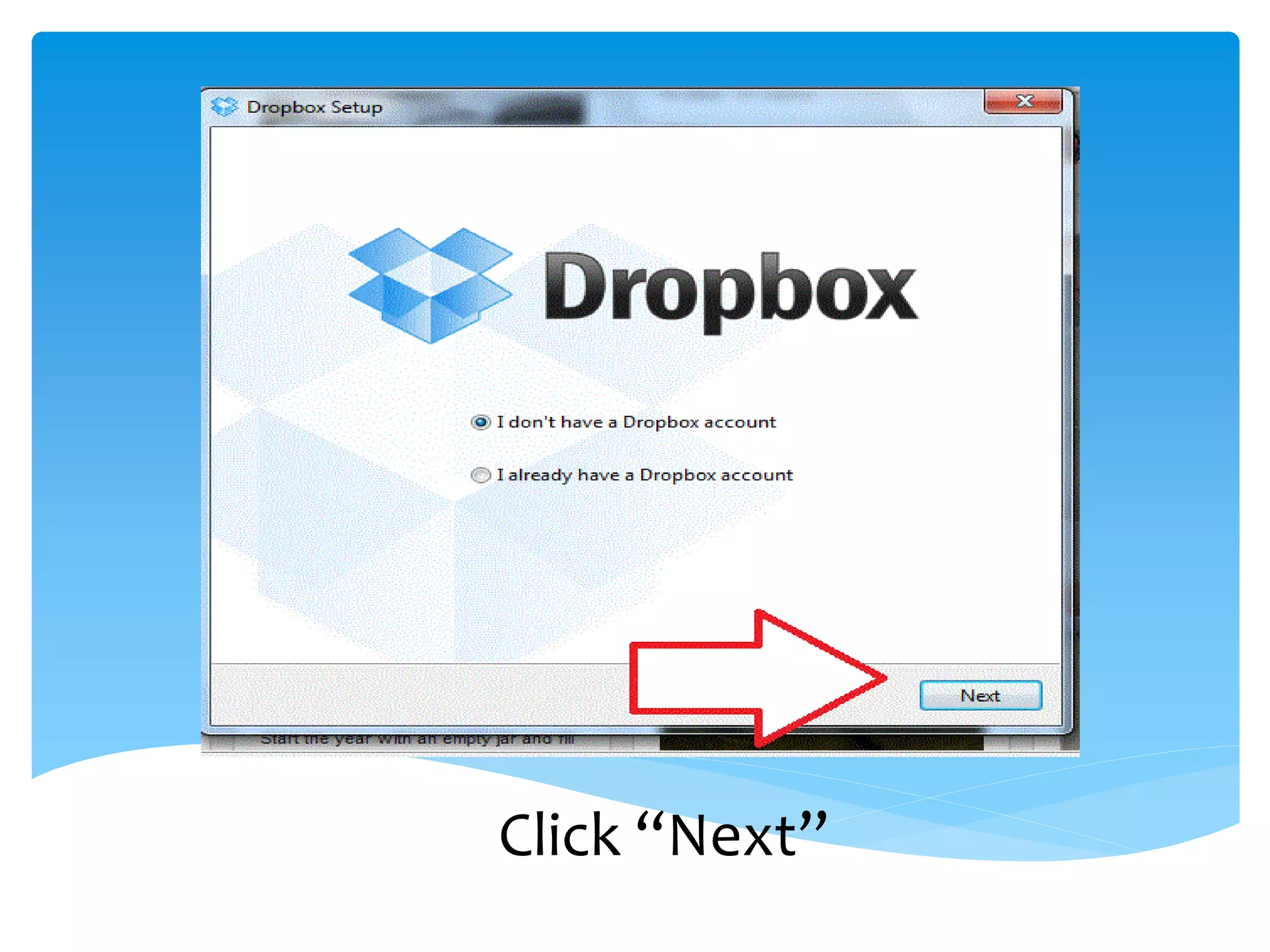
Select “I don’t have a dropbox account”
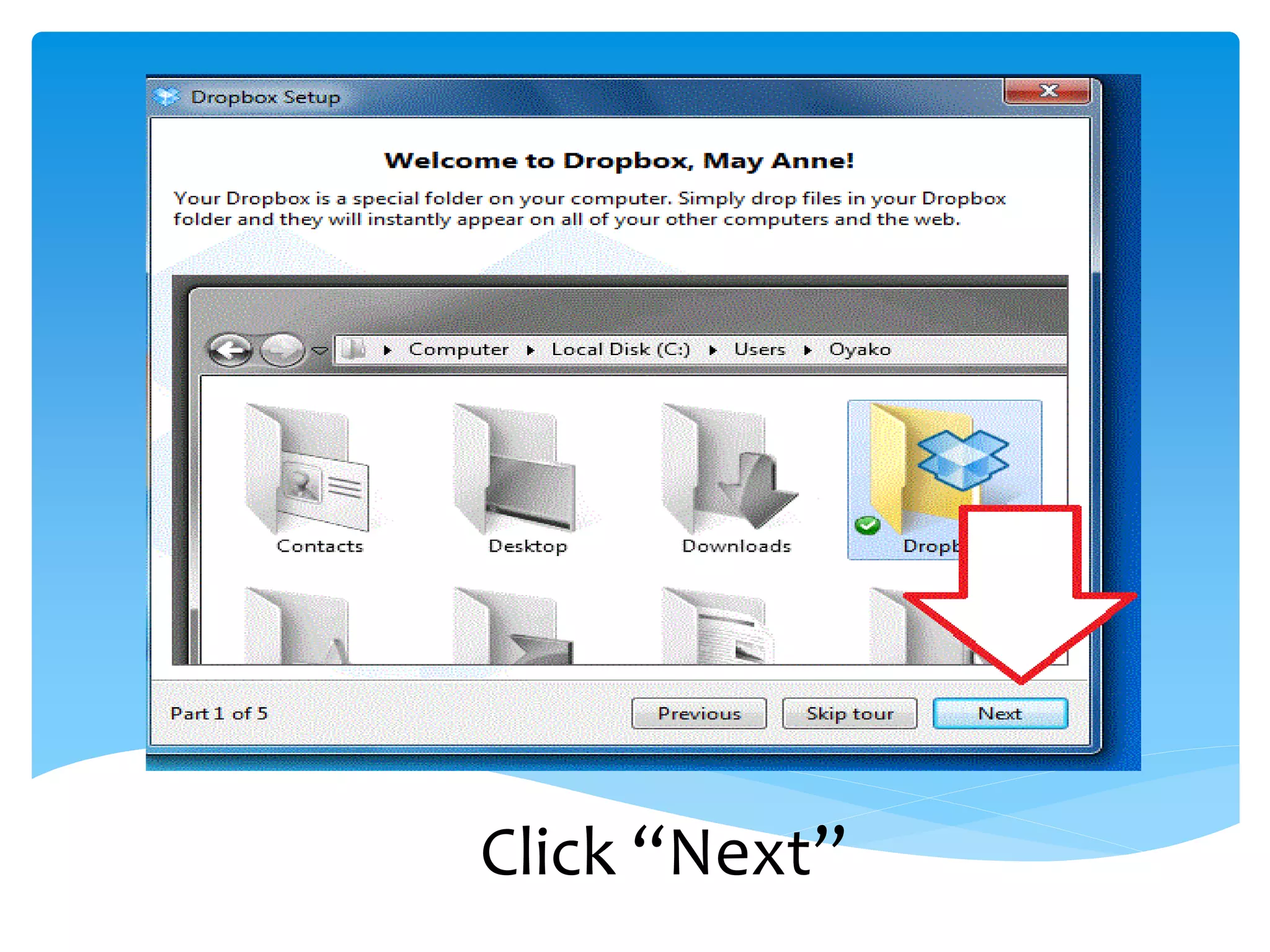
Click “Next”
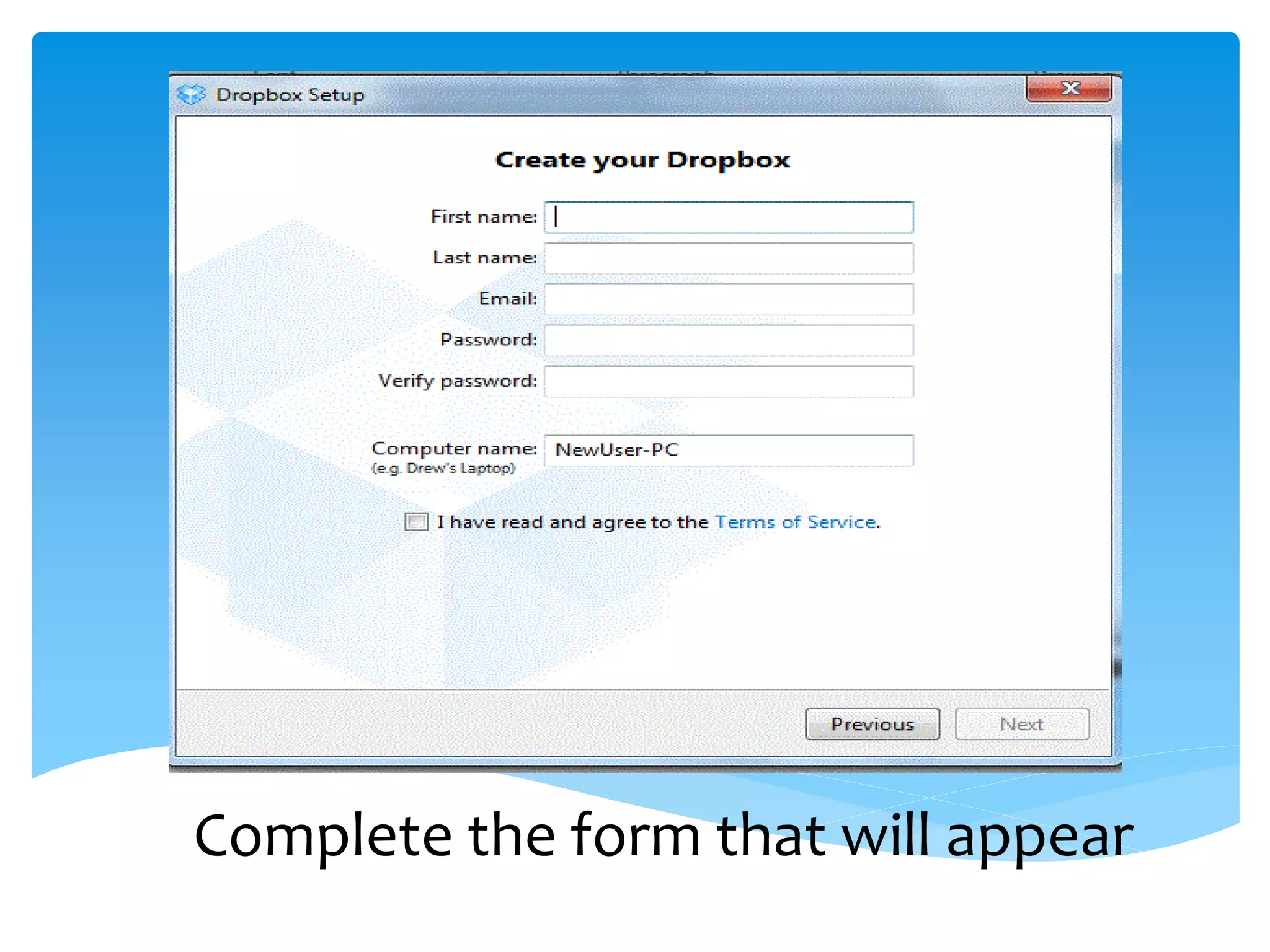
Complete the form that will appear
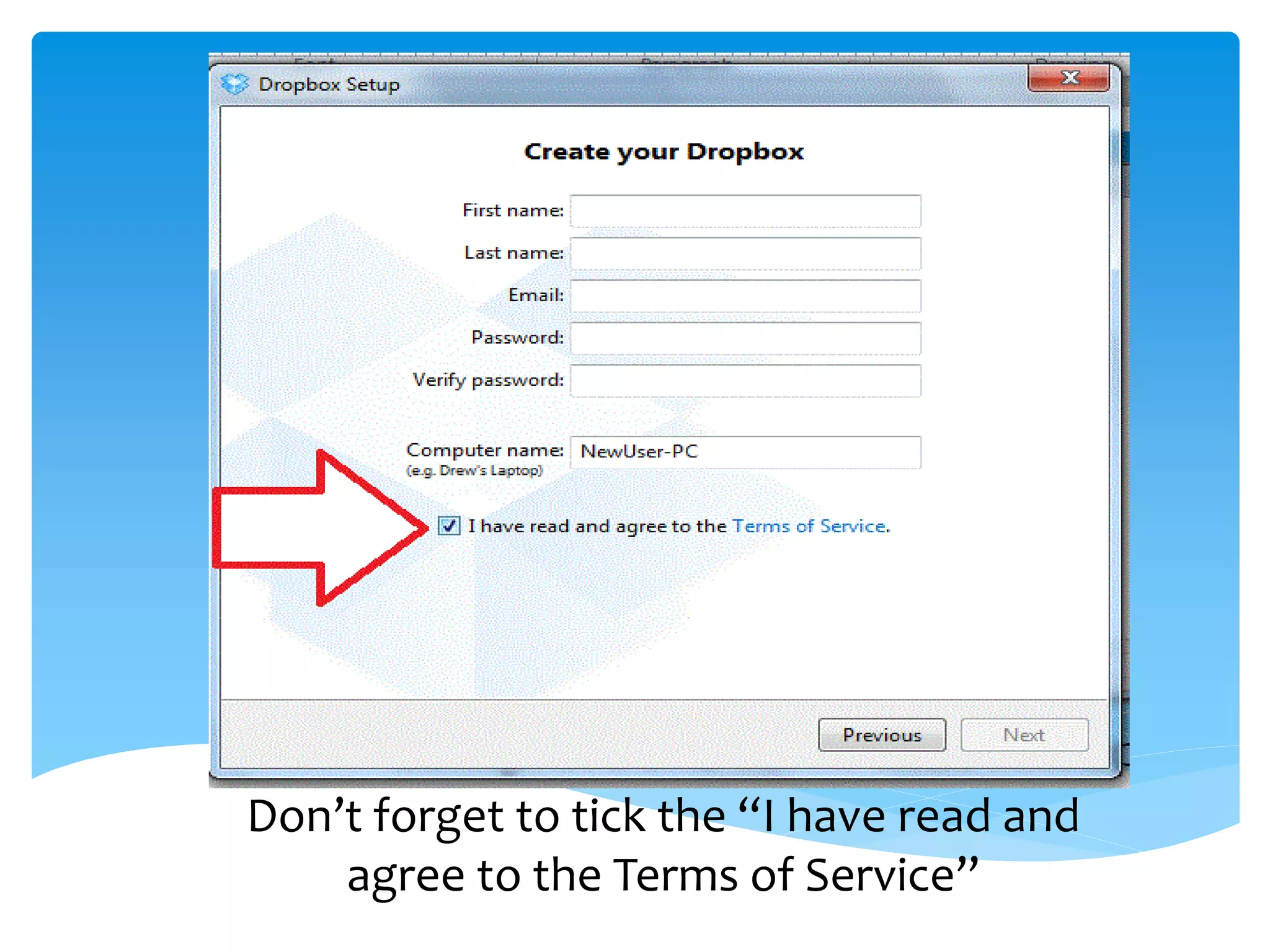
Don’t forget to tick the “I have read and
    agree to the Terms of Service”
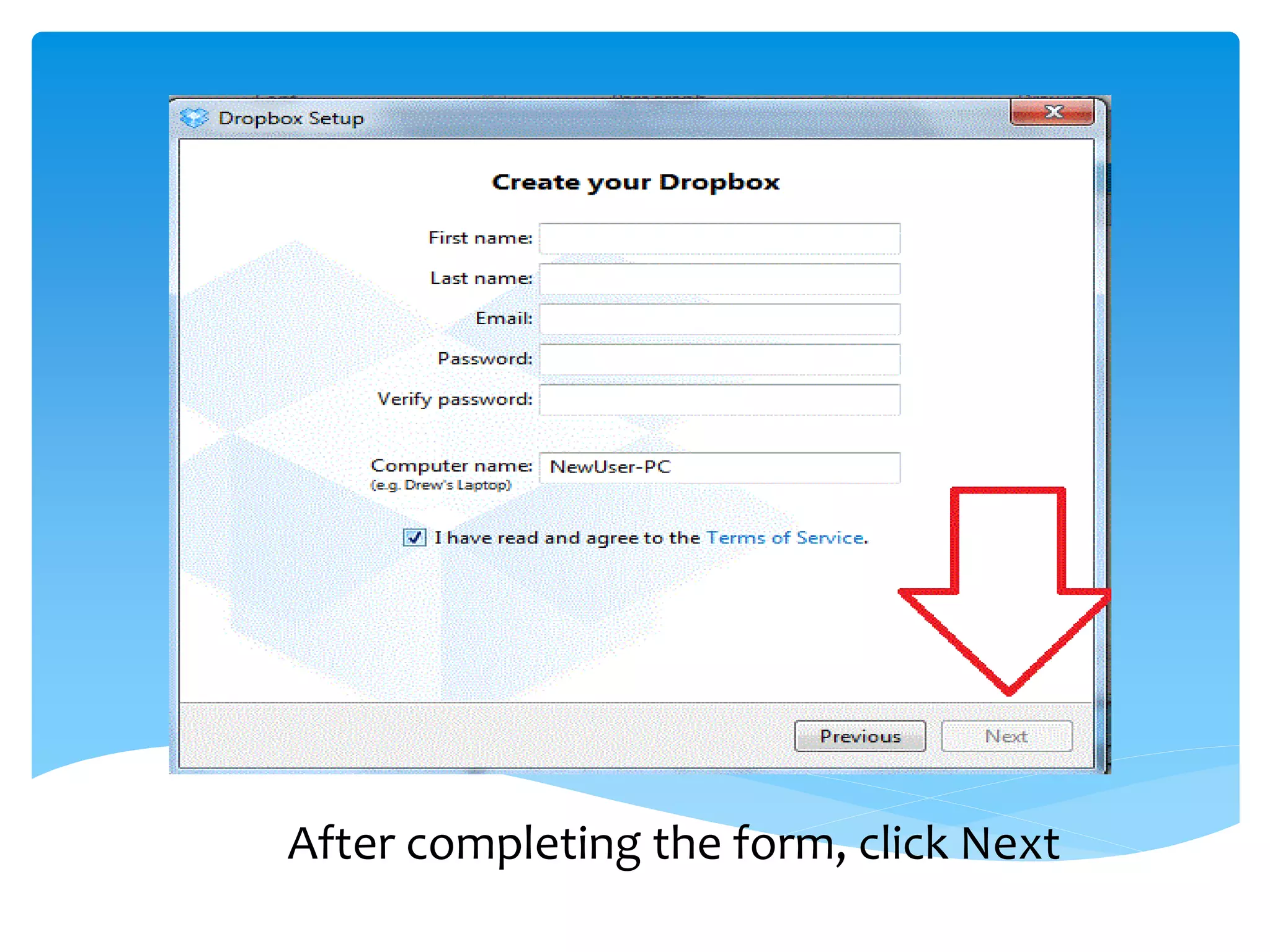
After completing the form, click Next
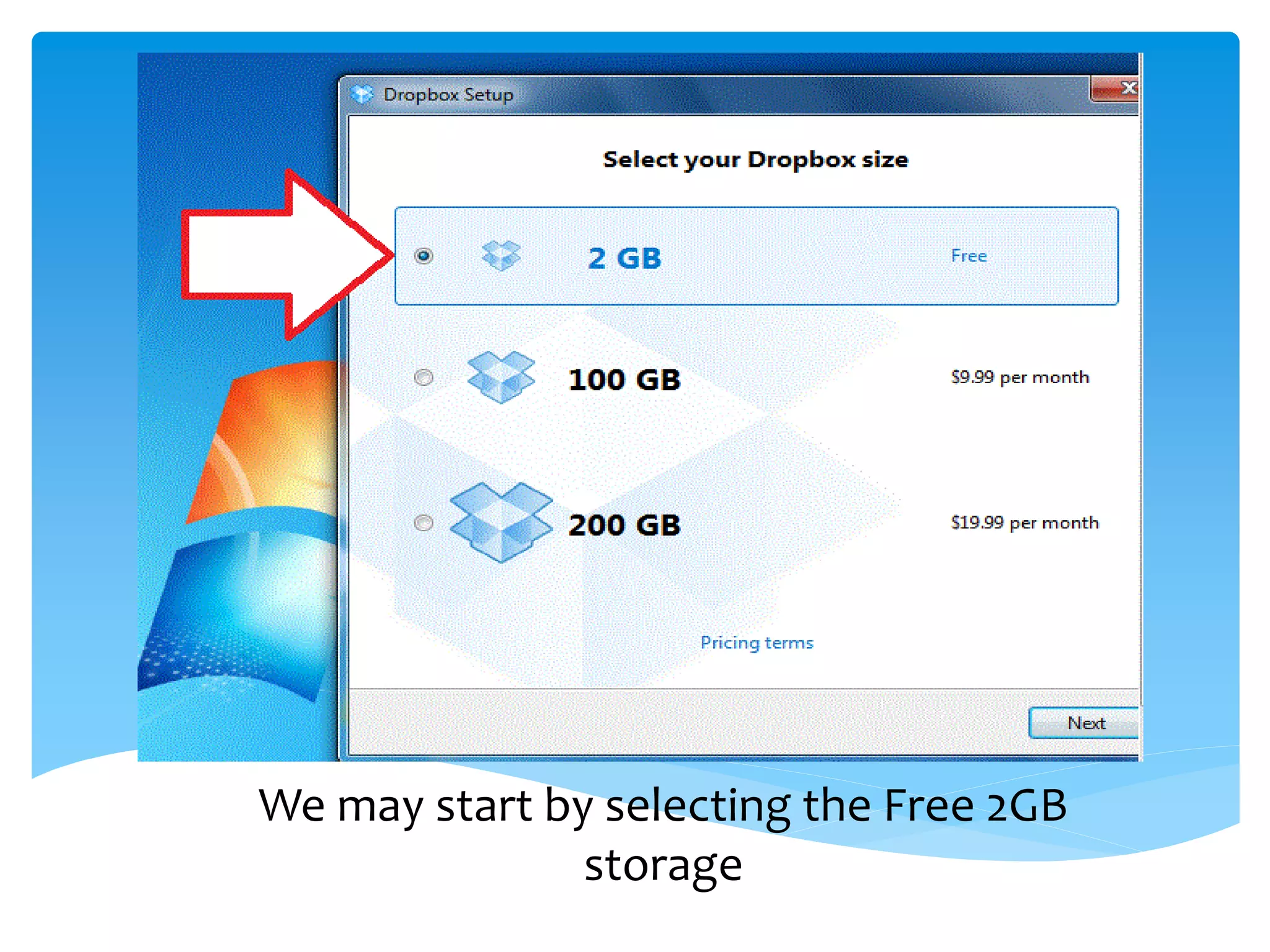
We may start by selecting the Free 2GB
               storage
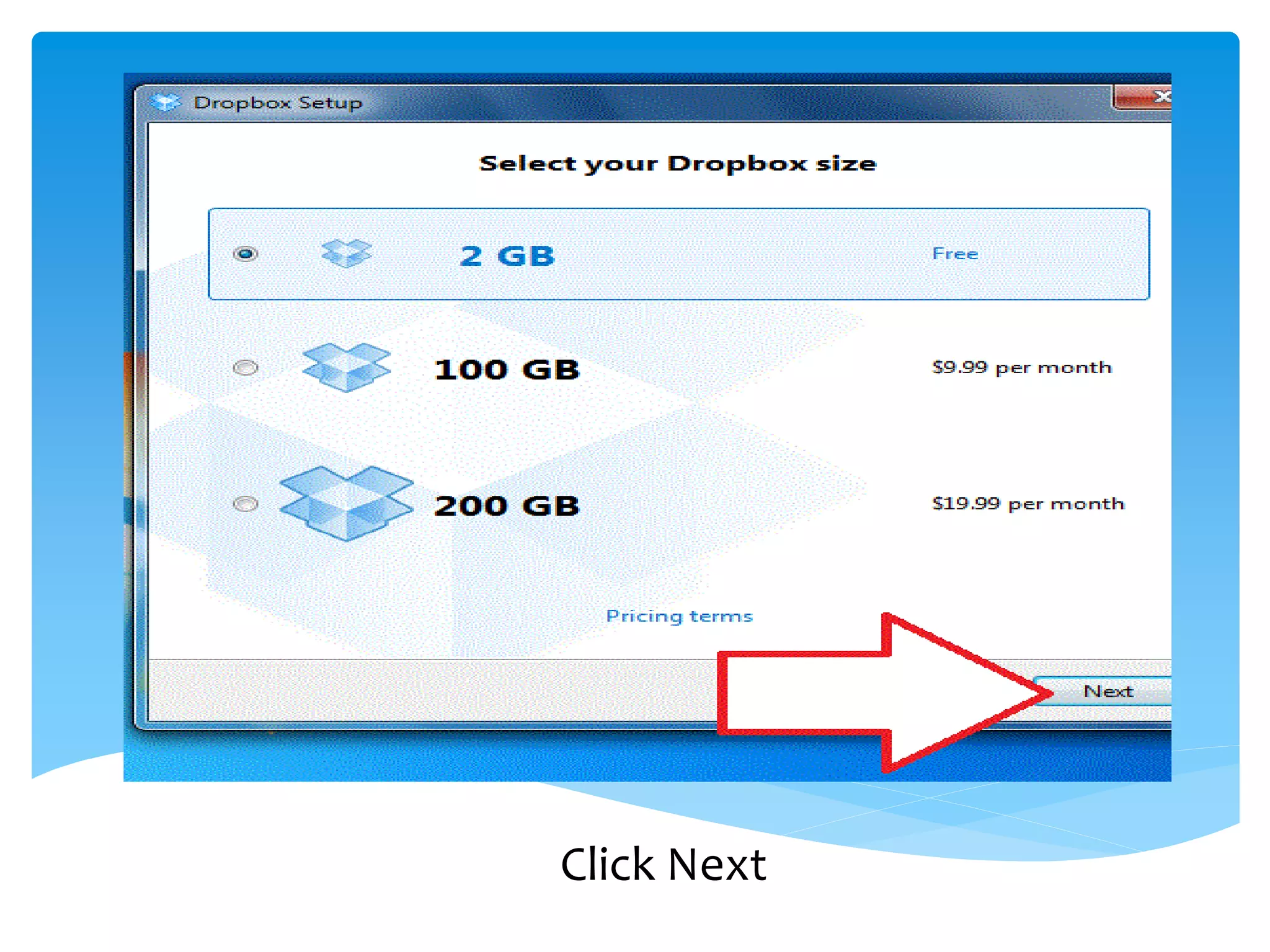
Click Next
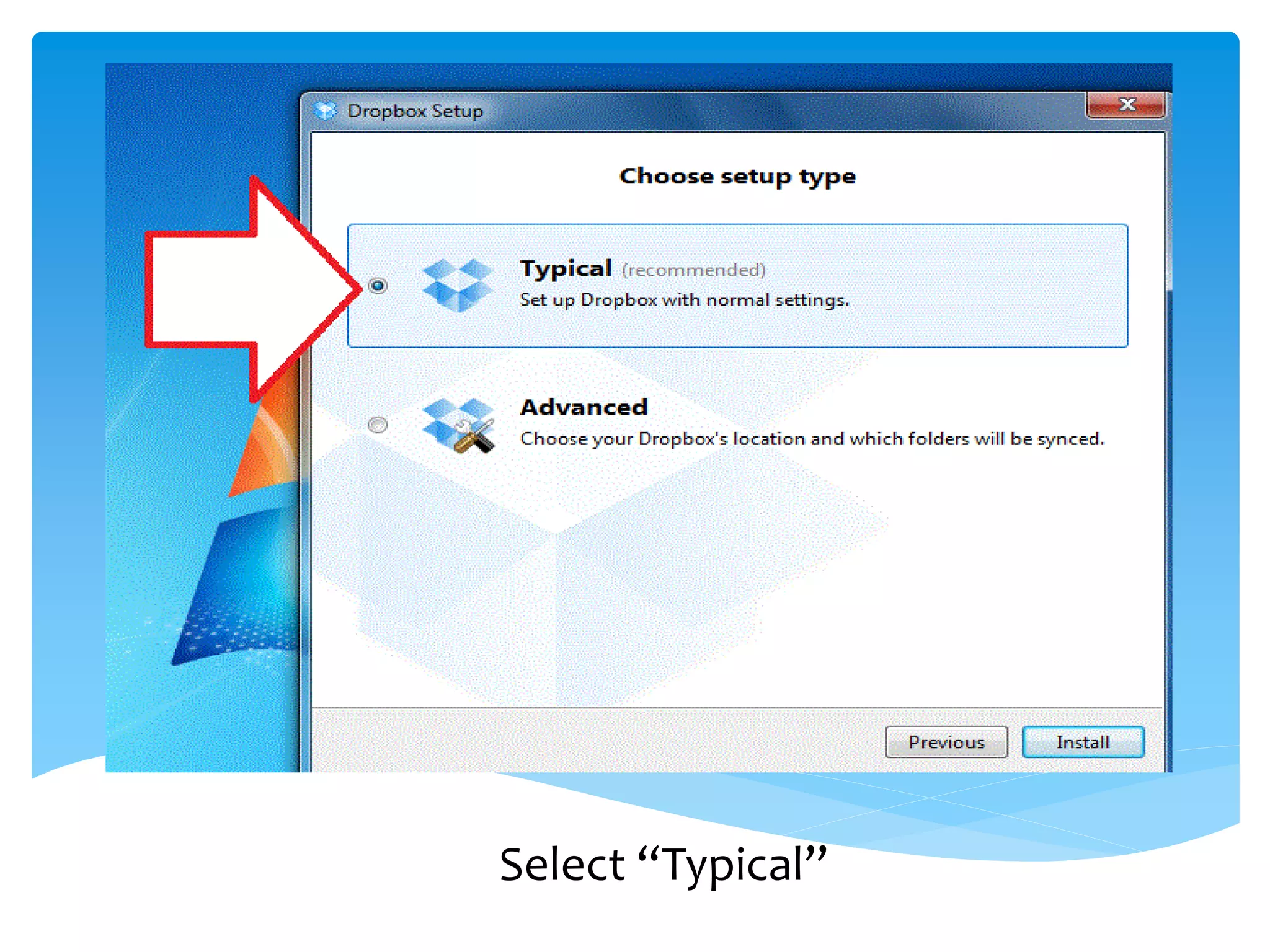
Select “Typical”
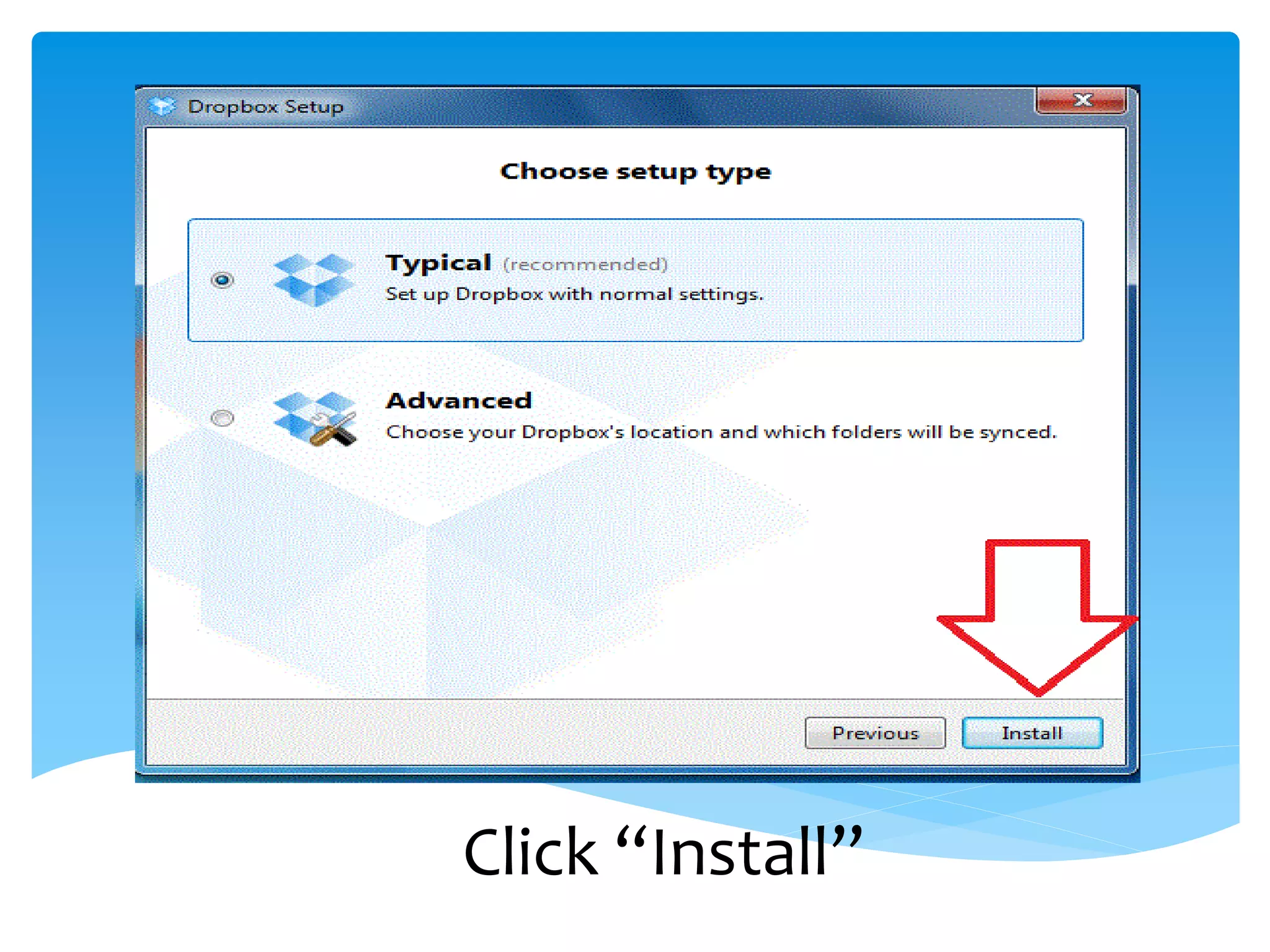
Click “Install”
Click “Next”
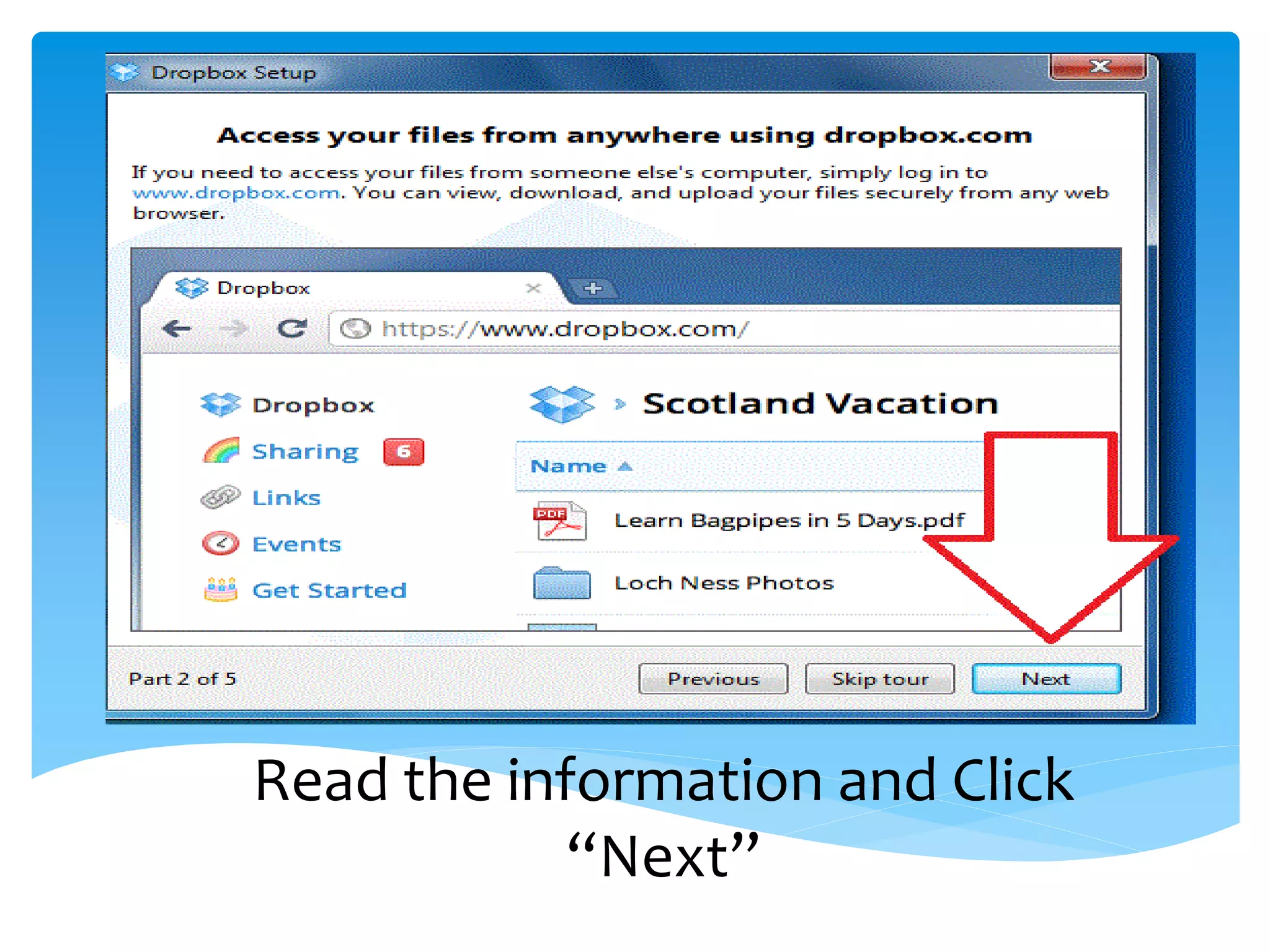
Read the information and Click
            “Next”
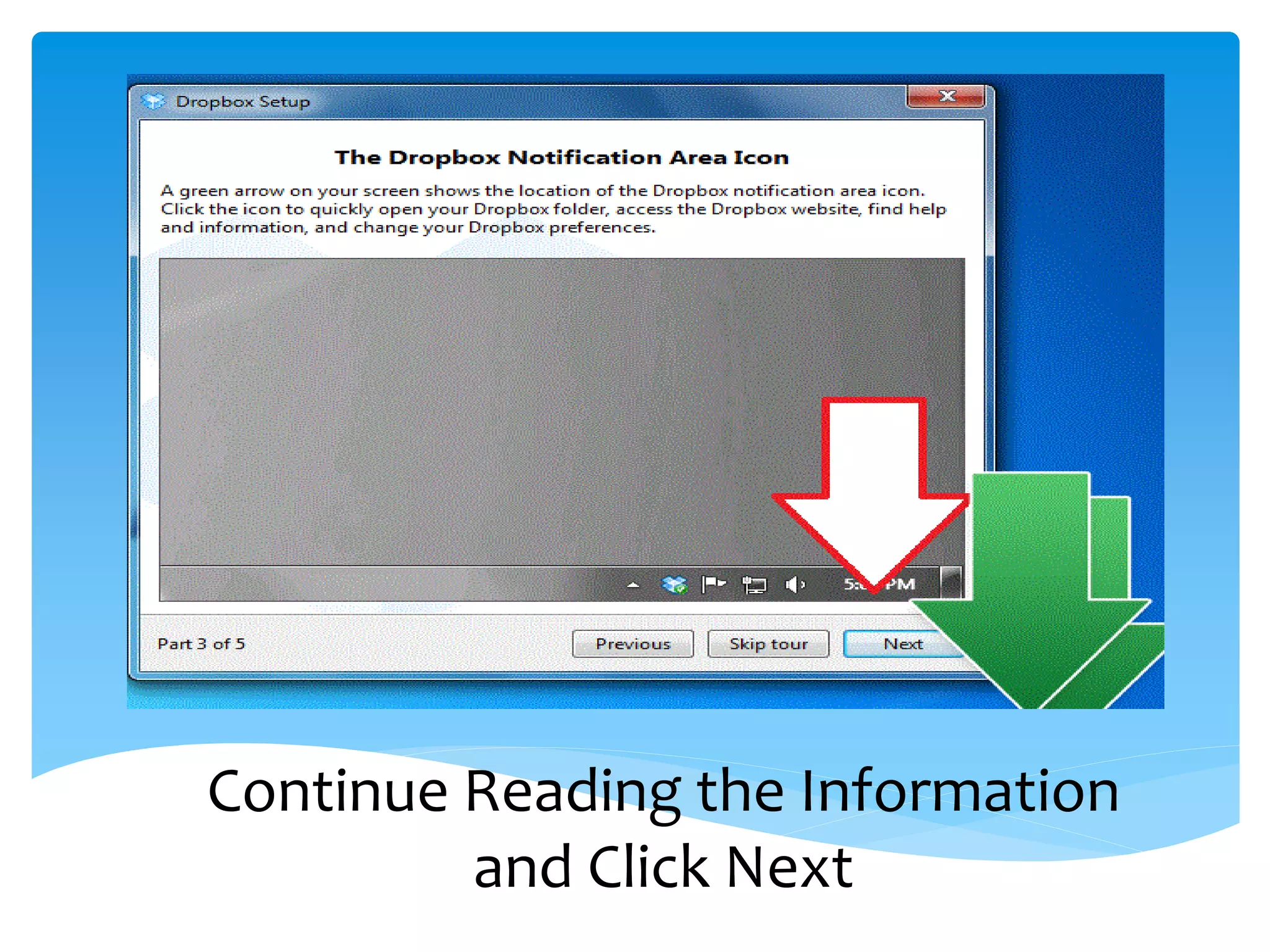
Continue Reading the Information
         and Click Next
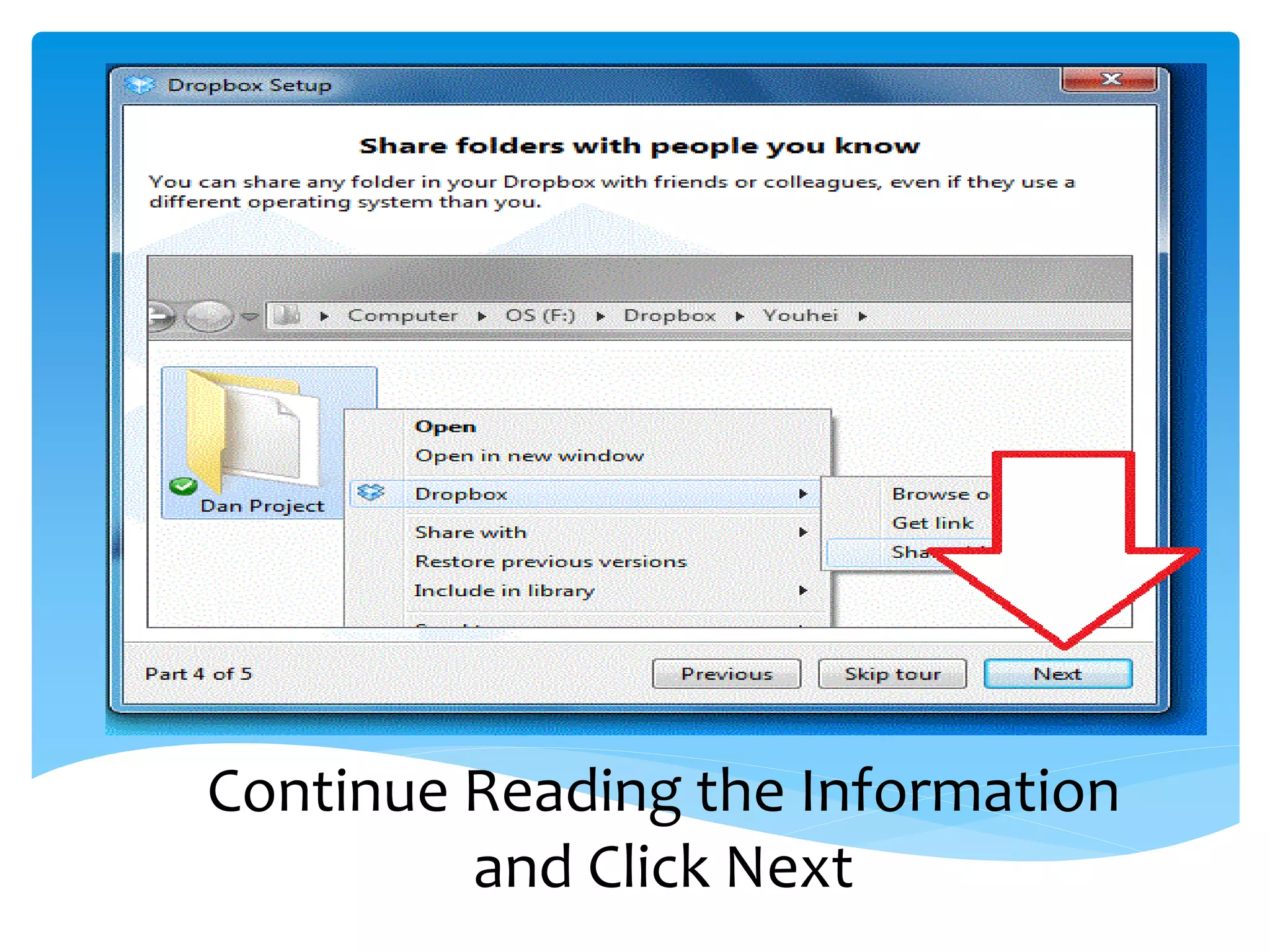
Continue Reading the Information
         and Click Next
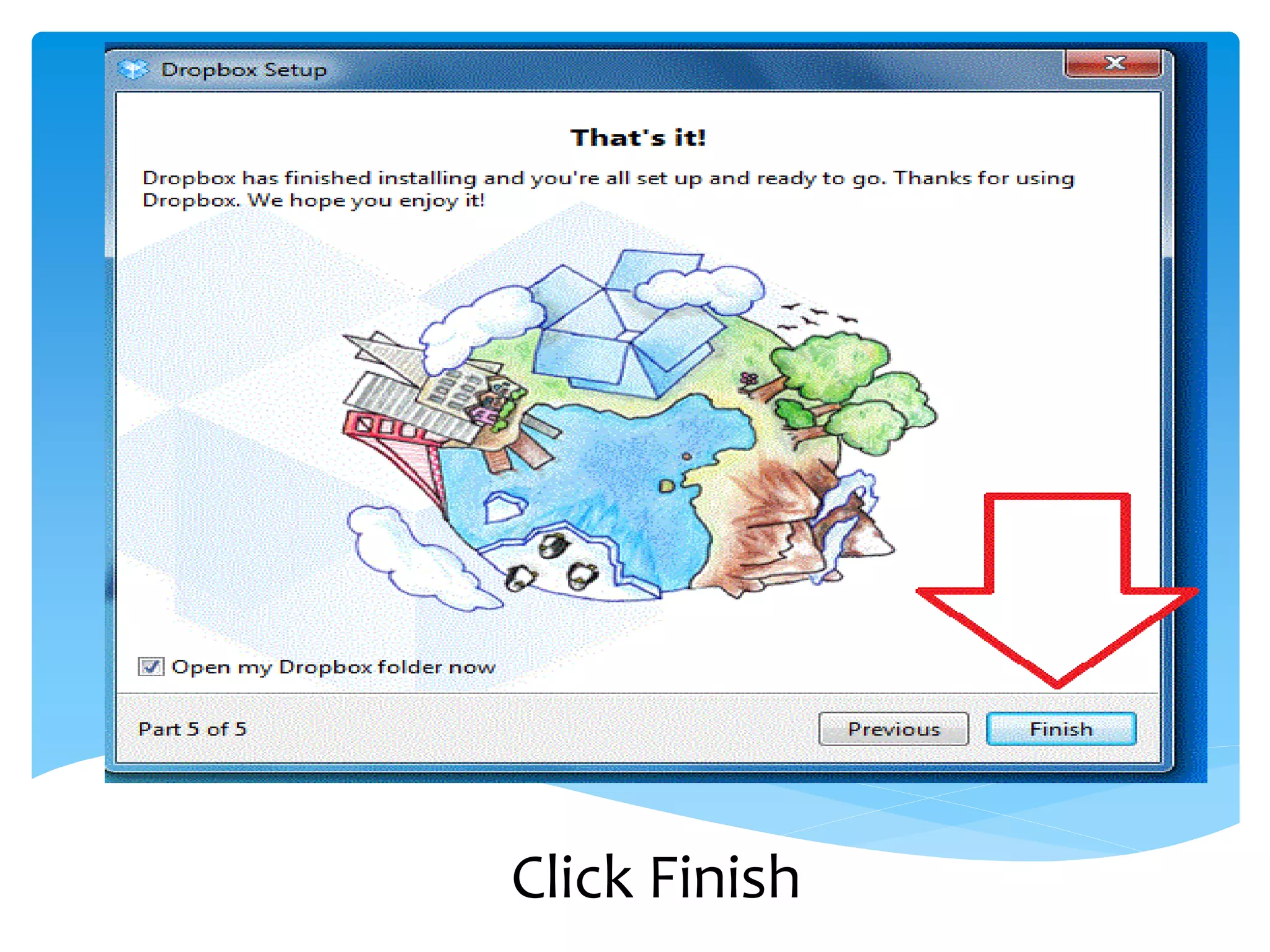
Click Finish
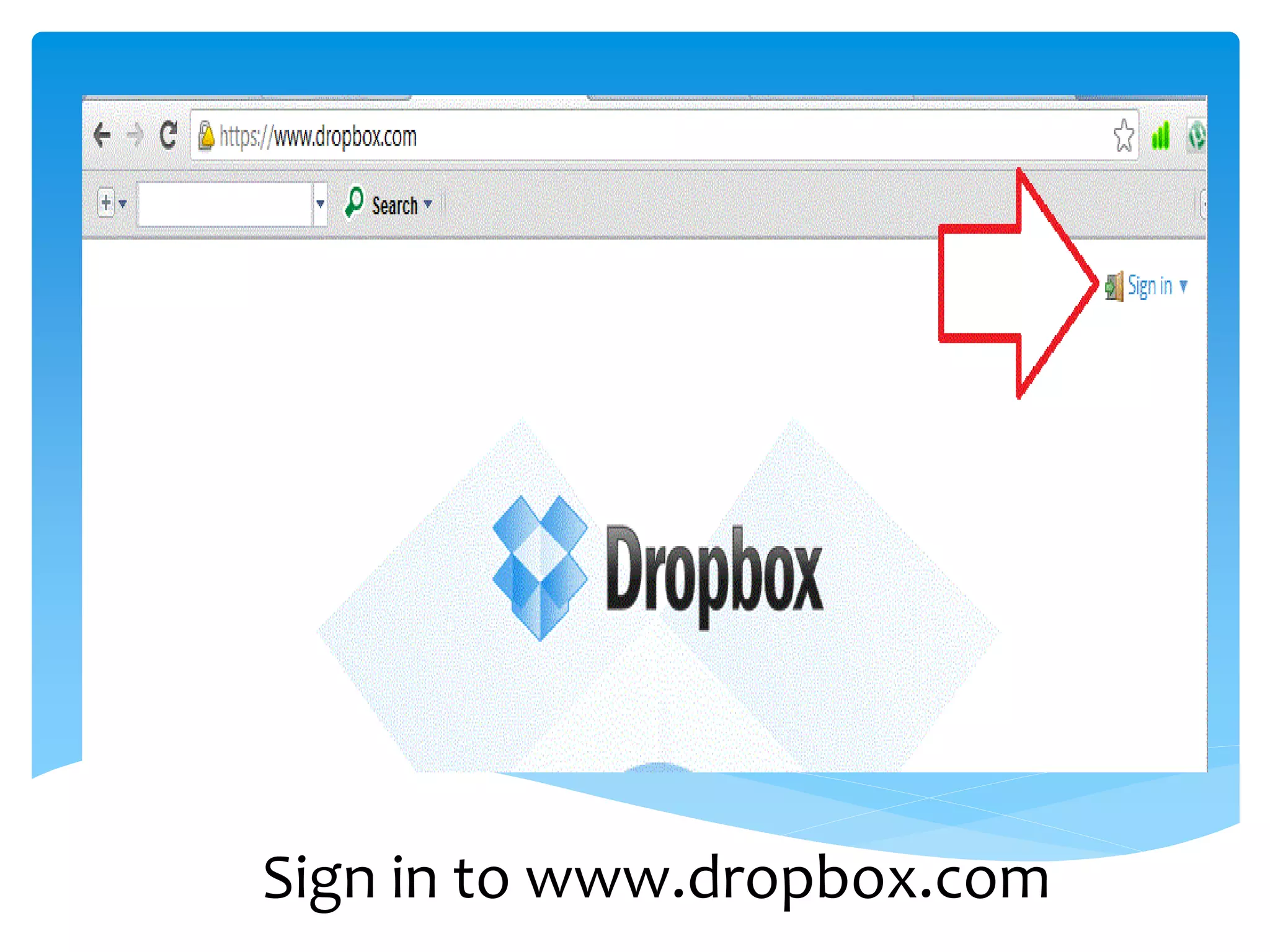
Sign in to www.dropbox.com
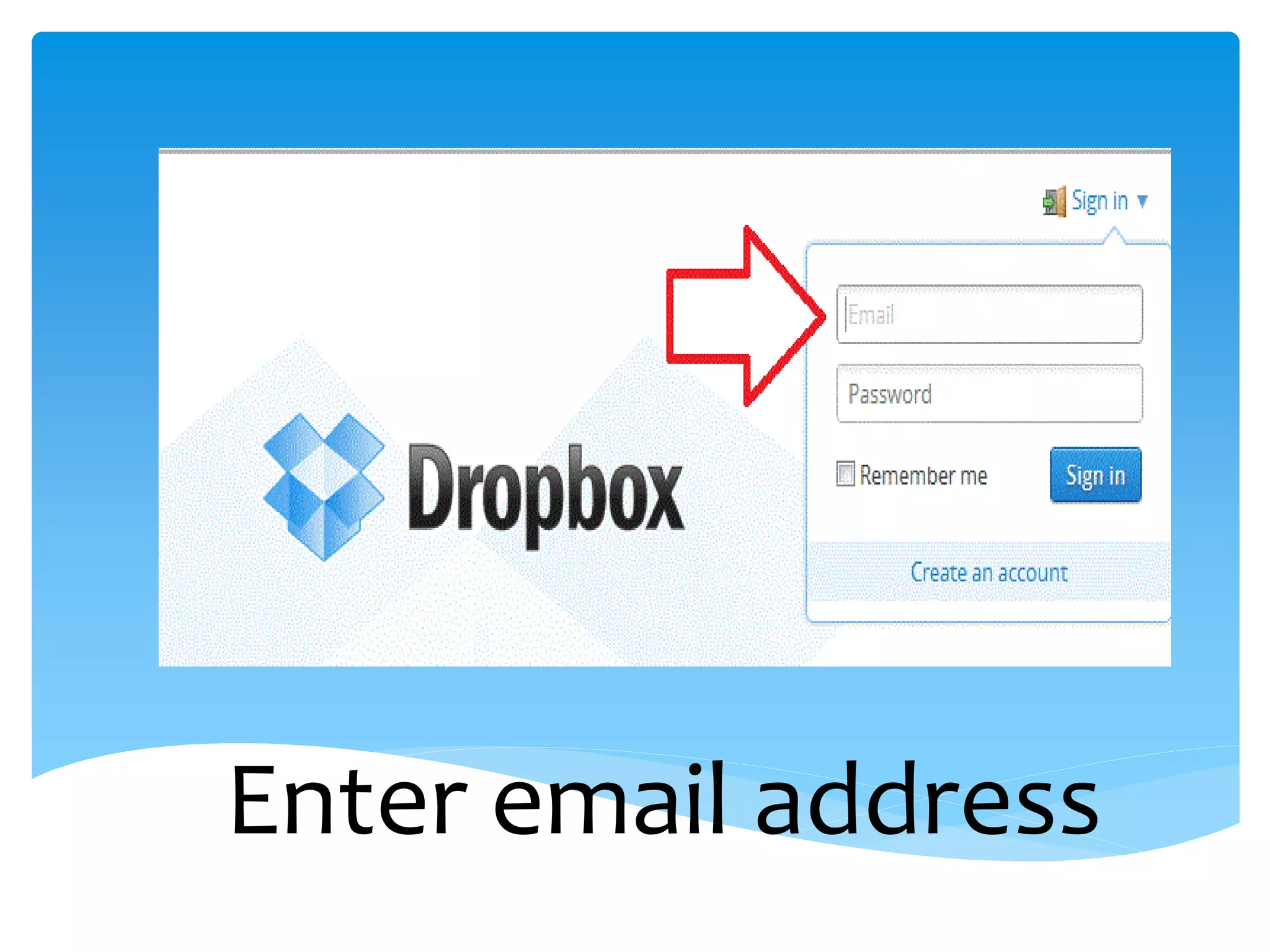
Enter email address
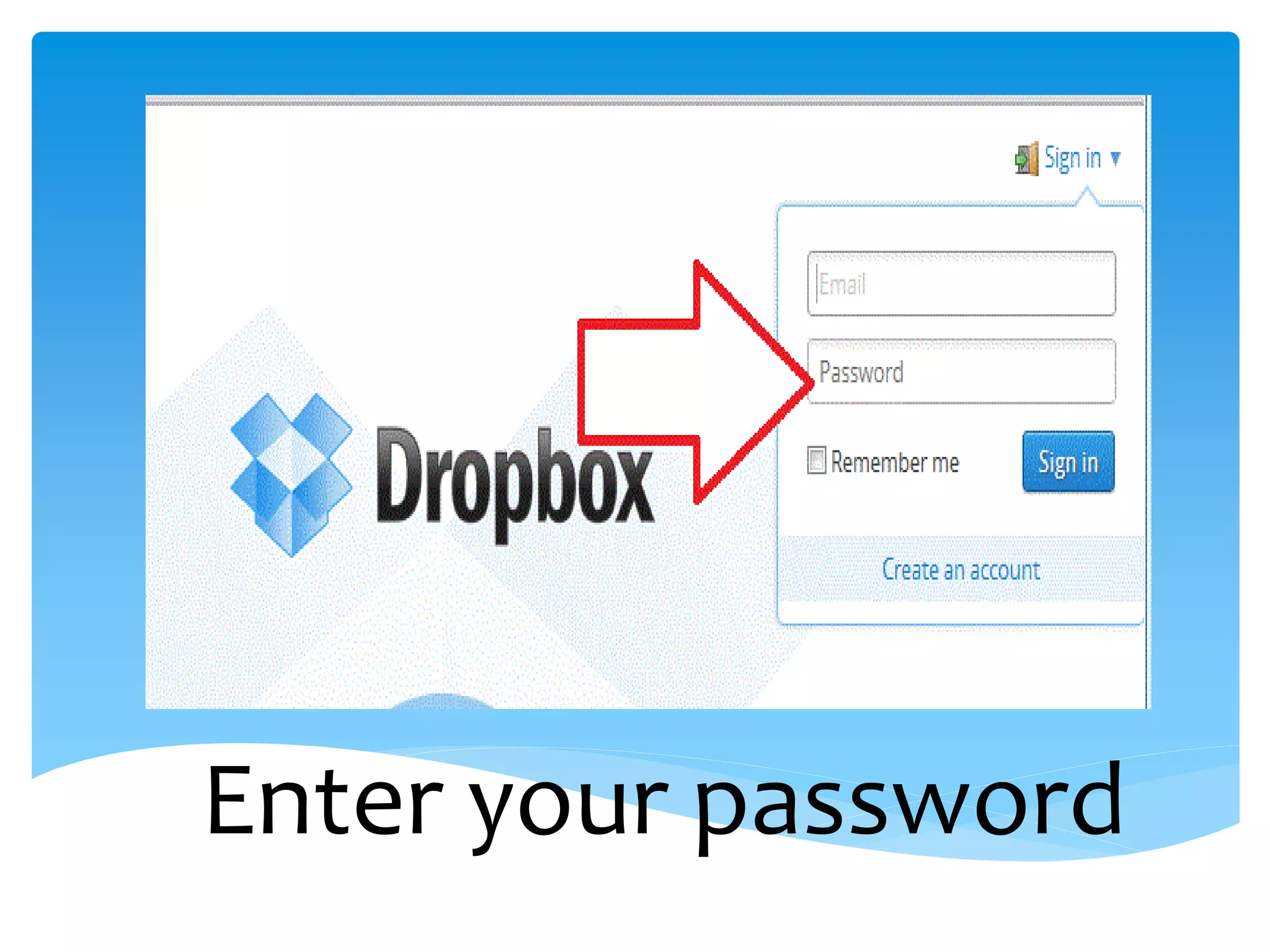
Enter your password
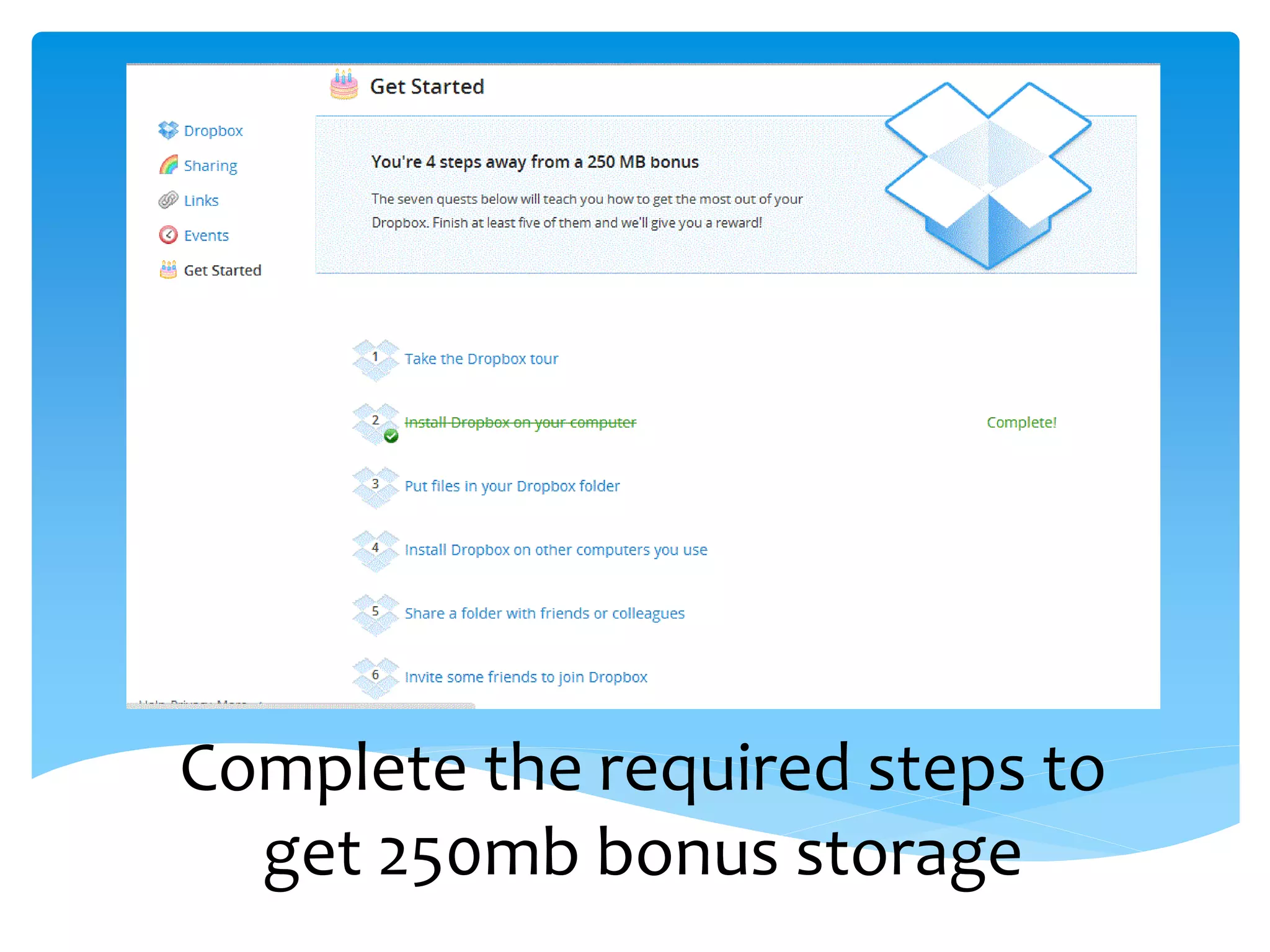
Complete the required steps to
  get 250mb bonus storage
Let’s Start Adding
       Files
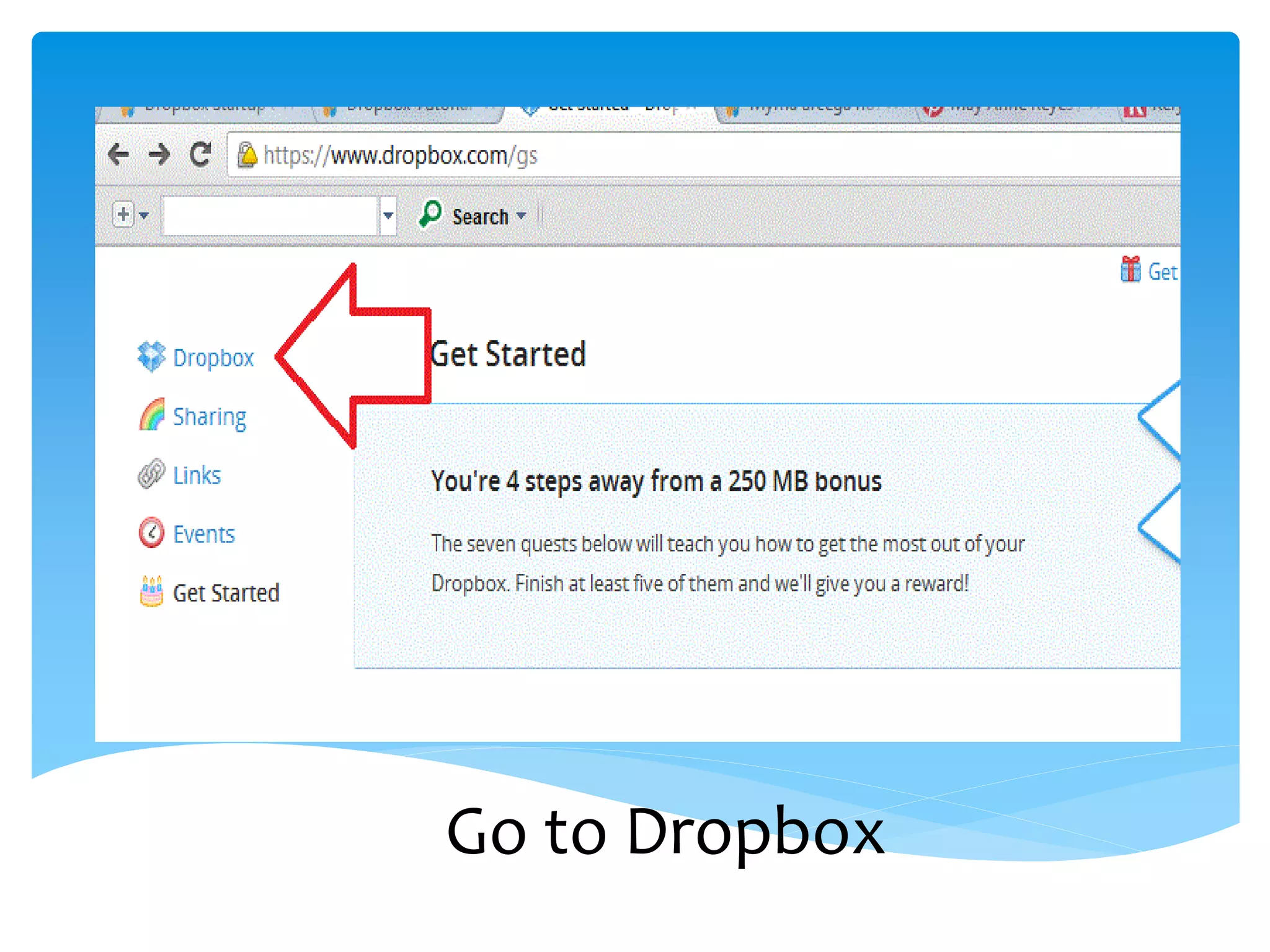
Go to Dropbox
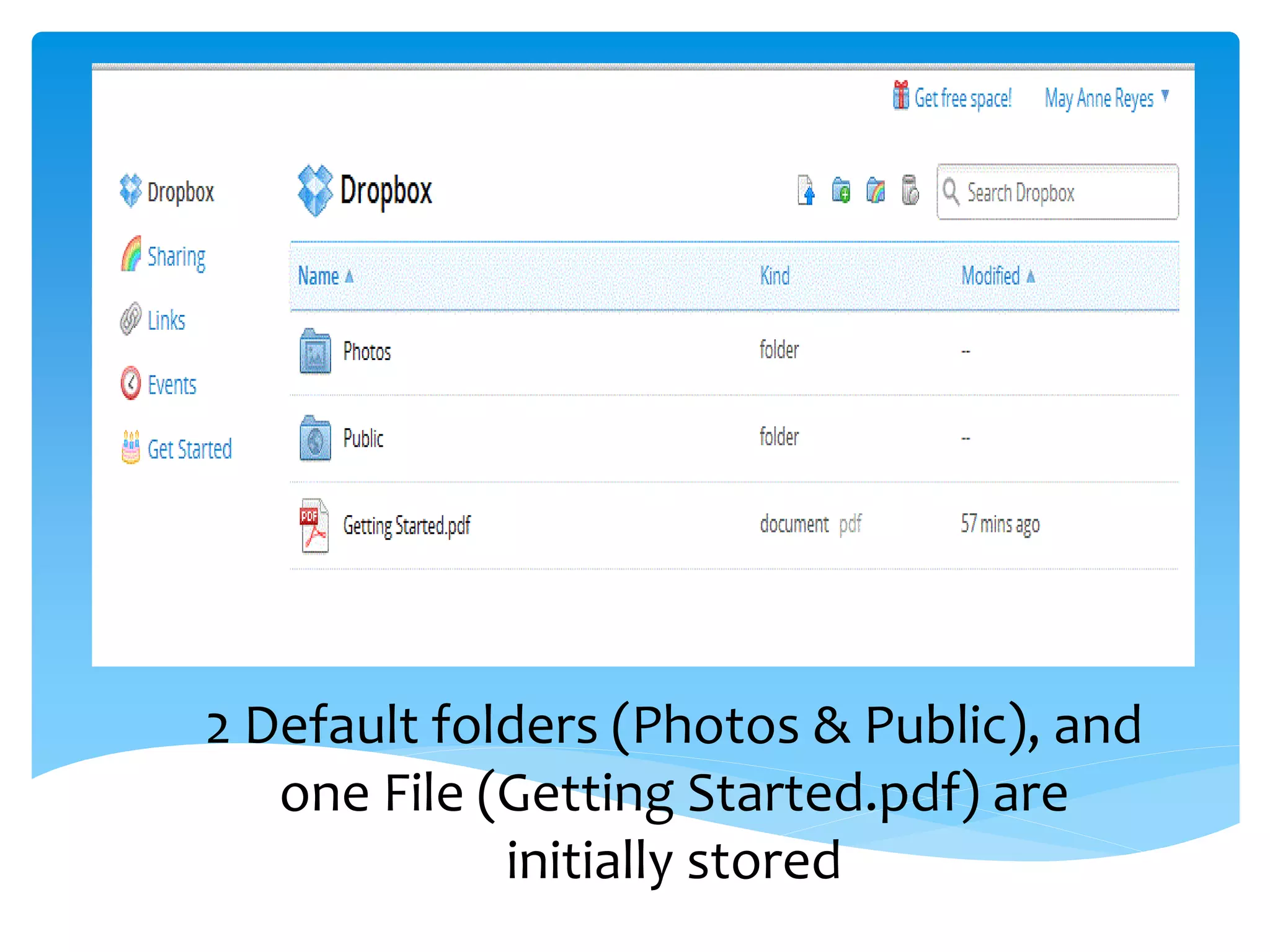
2 Default folders (Photos & Public), and
   one File (Getting Started.pdf) are
             initially stored
How to Create
  Folders
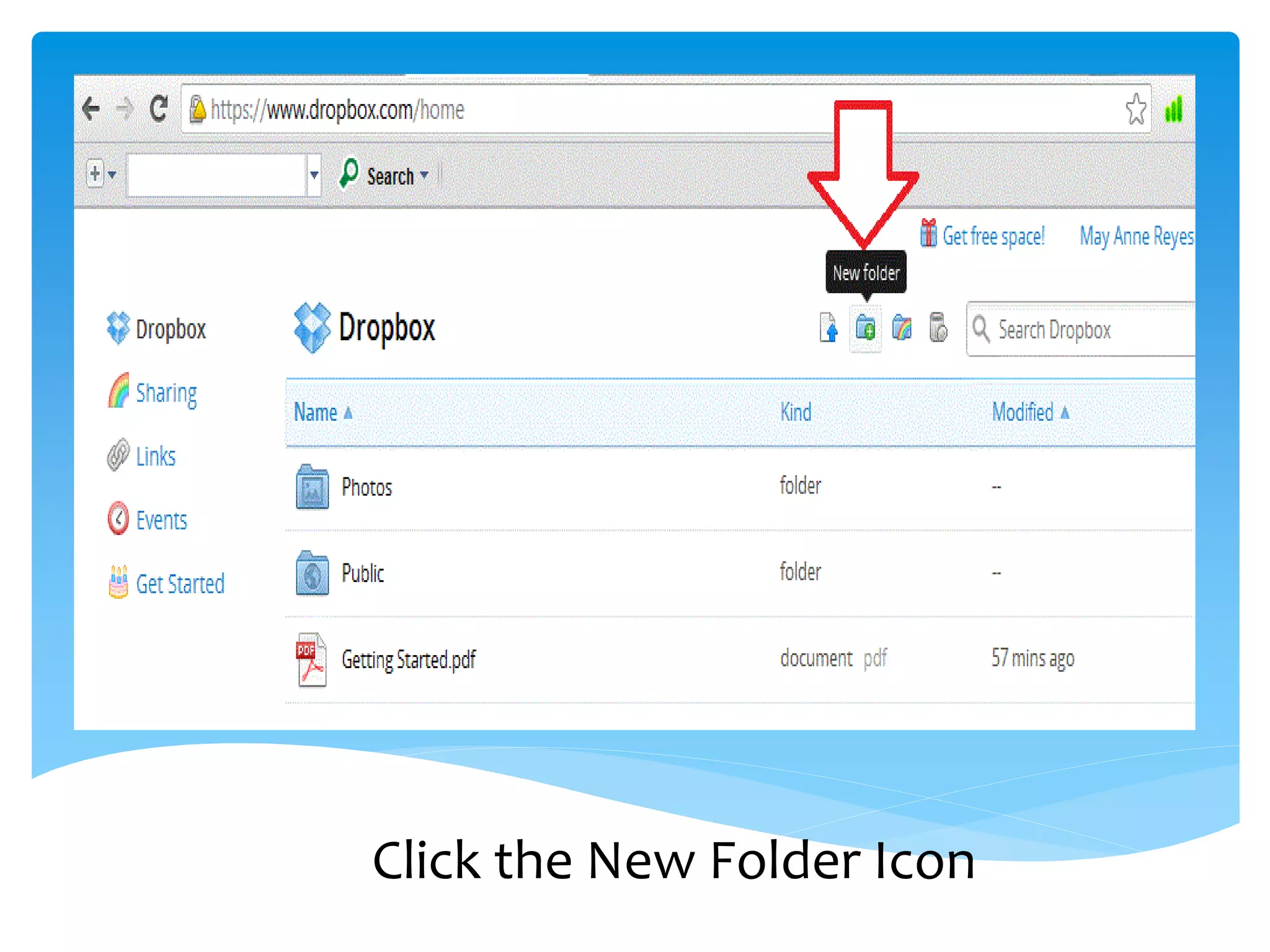
Click the New Folder Icon
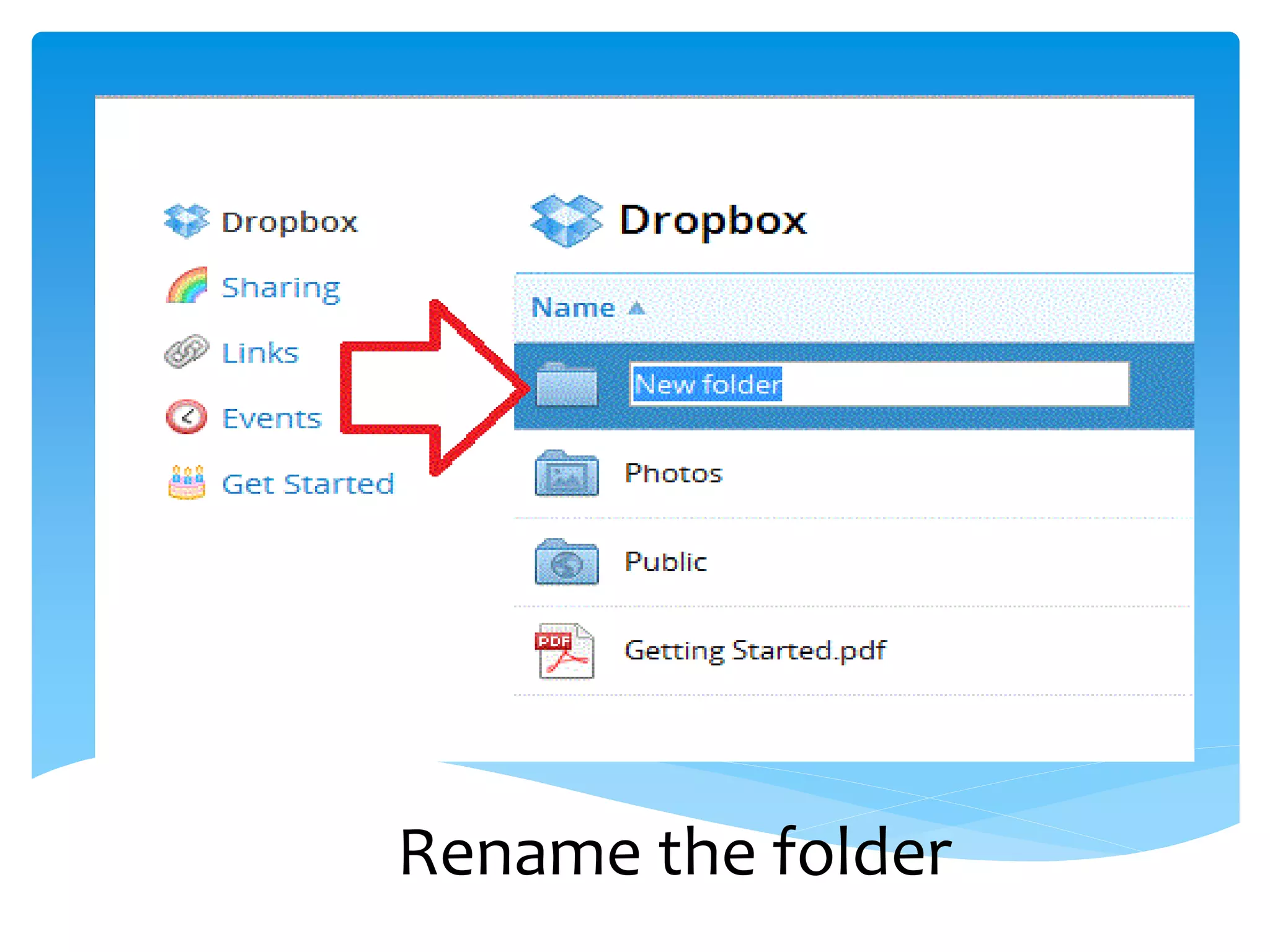
Rename the folder
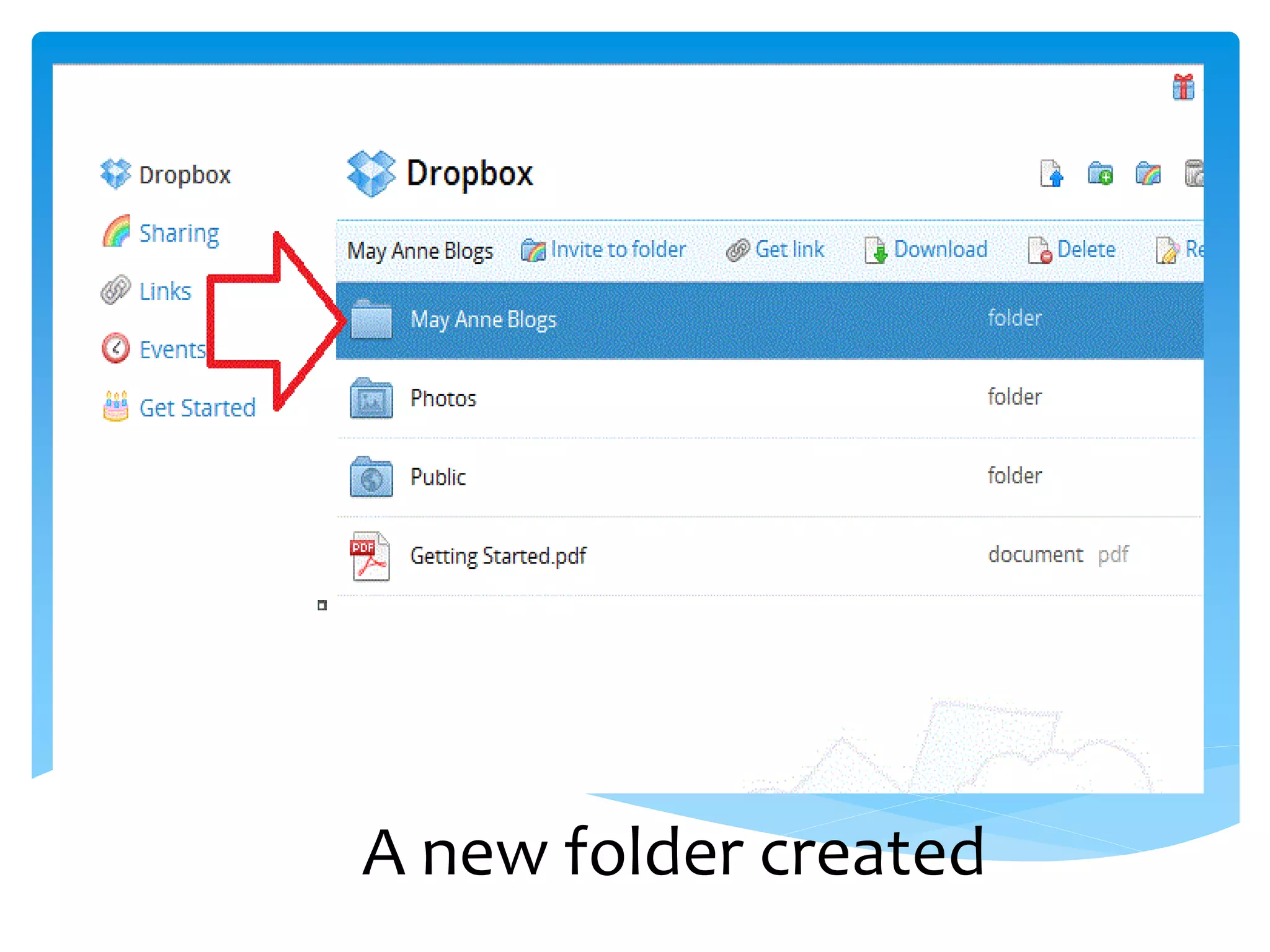
A new folder created
How to Upload
    Files
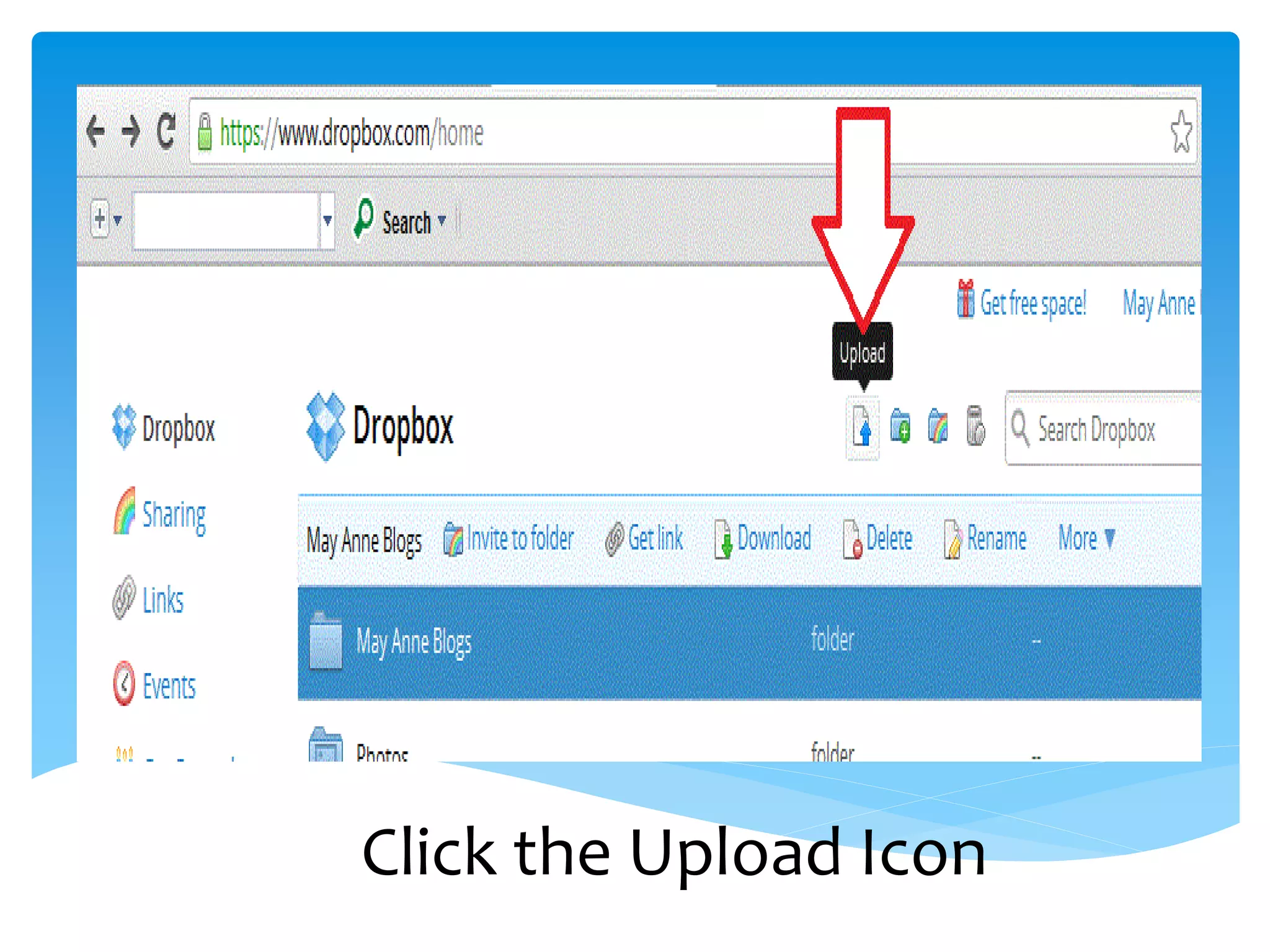
Click the Upload Icon
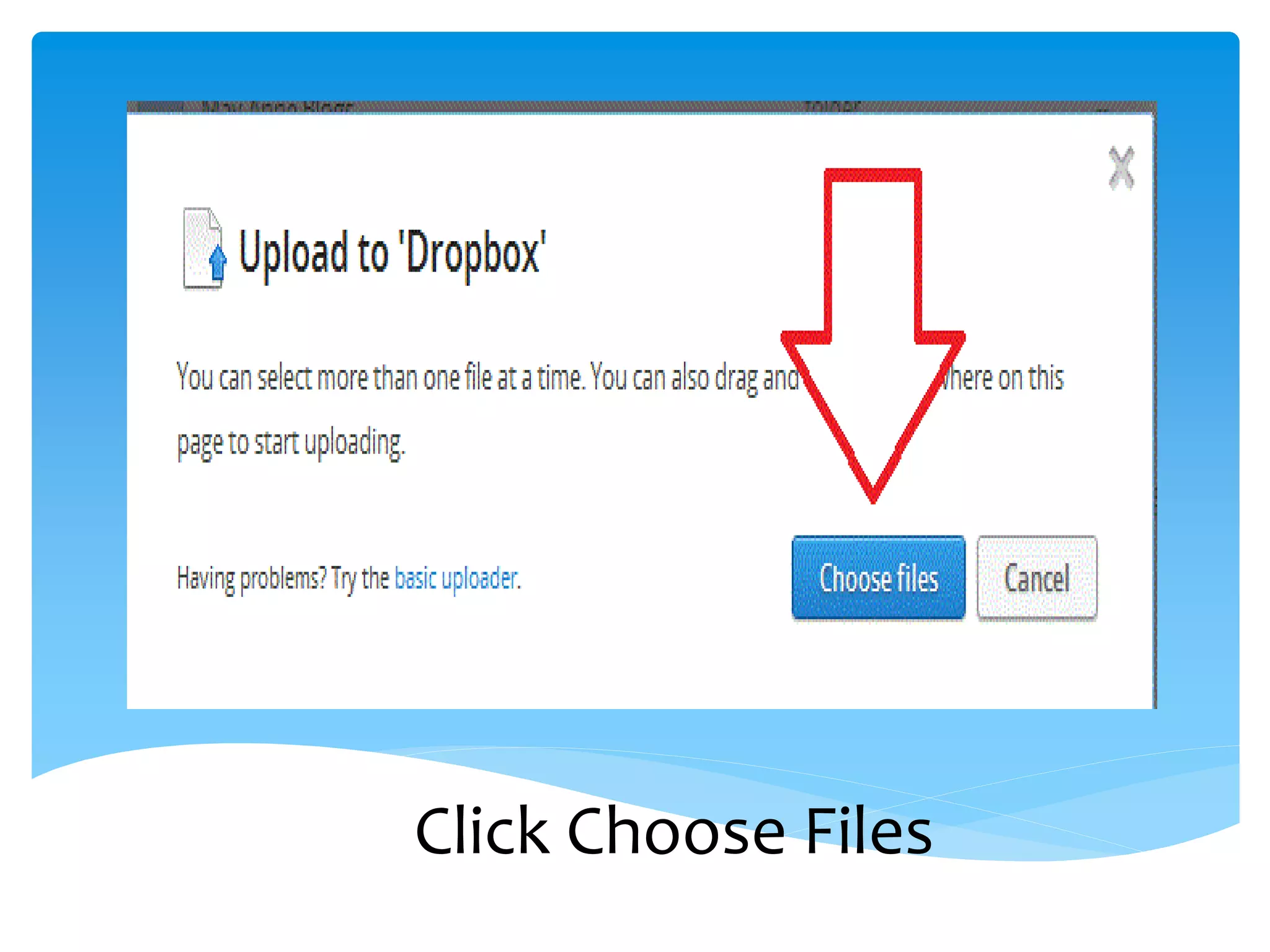
Click Choose Files
Select which file
you want to upload
    from your
    computer
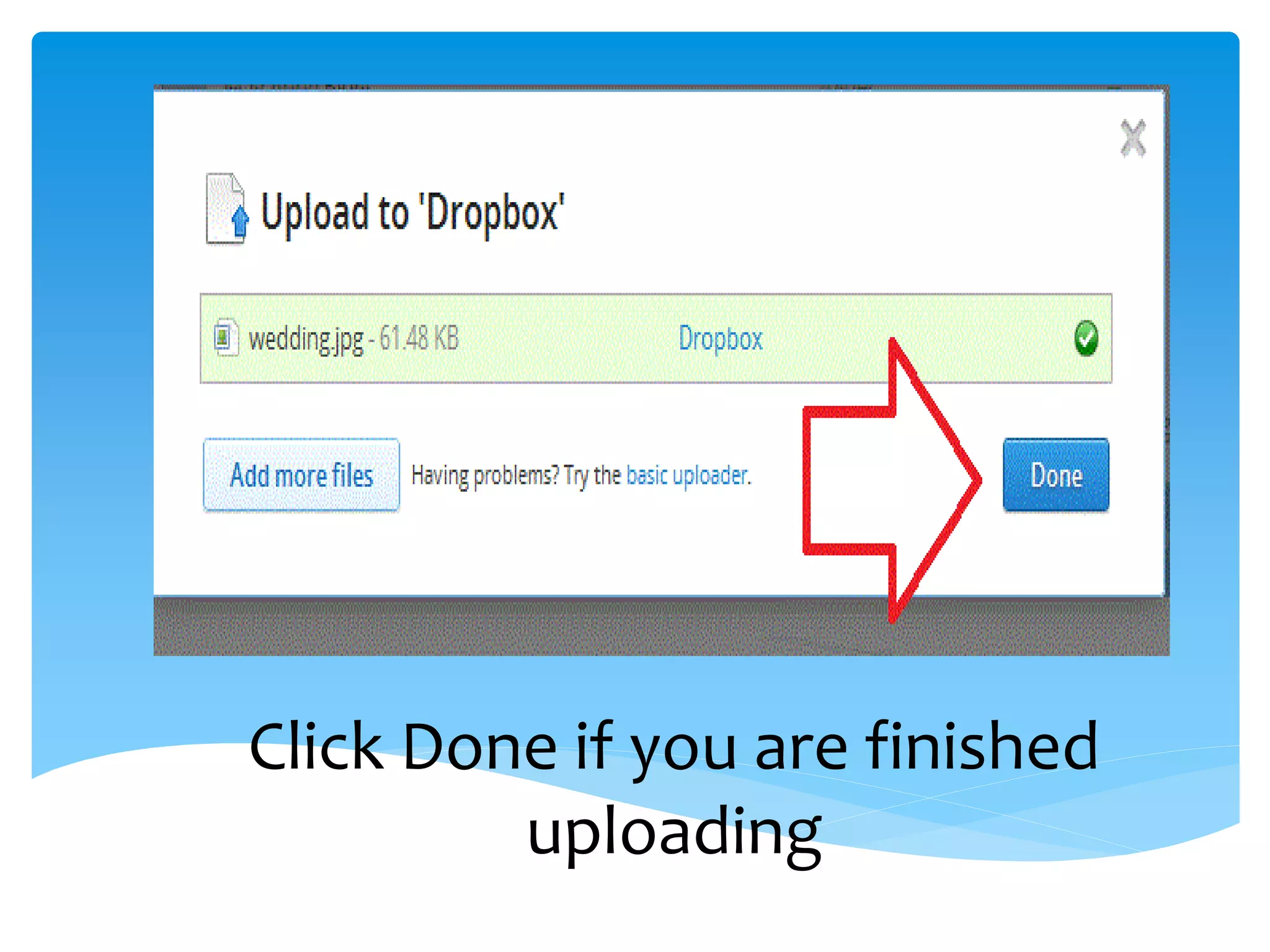
Click Done if you are finished
         uploading
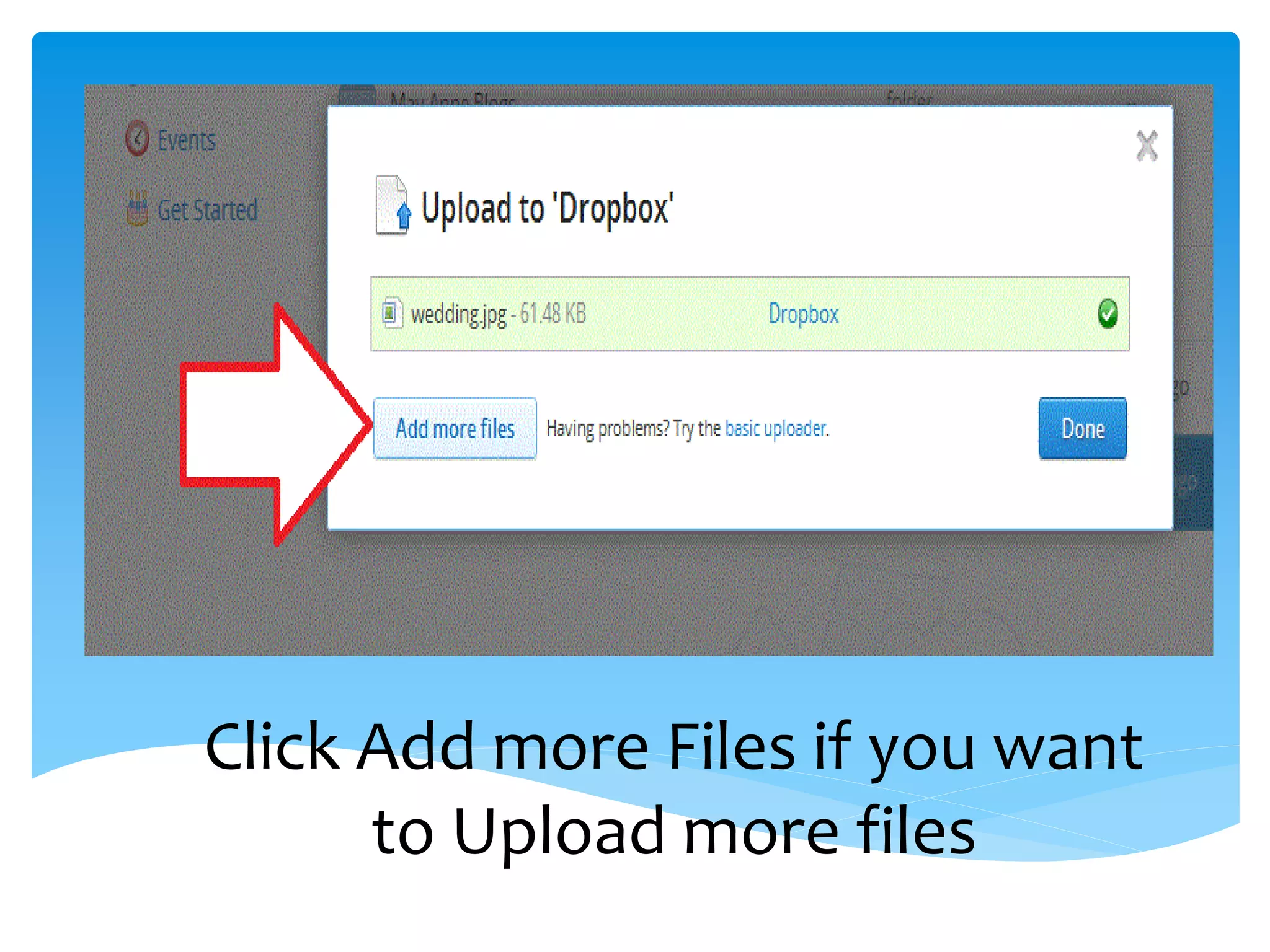
Click Add more Files if you want
      to Upload more files
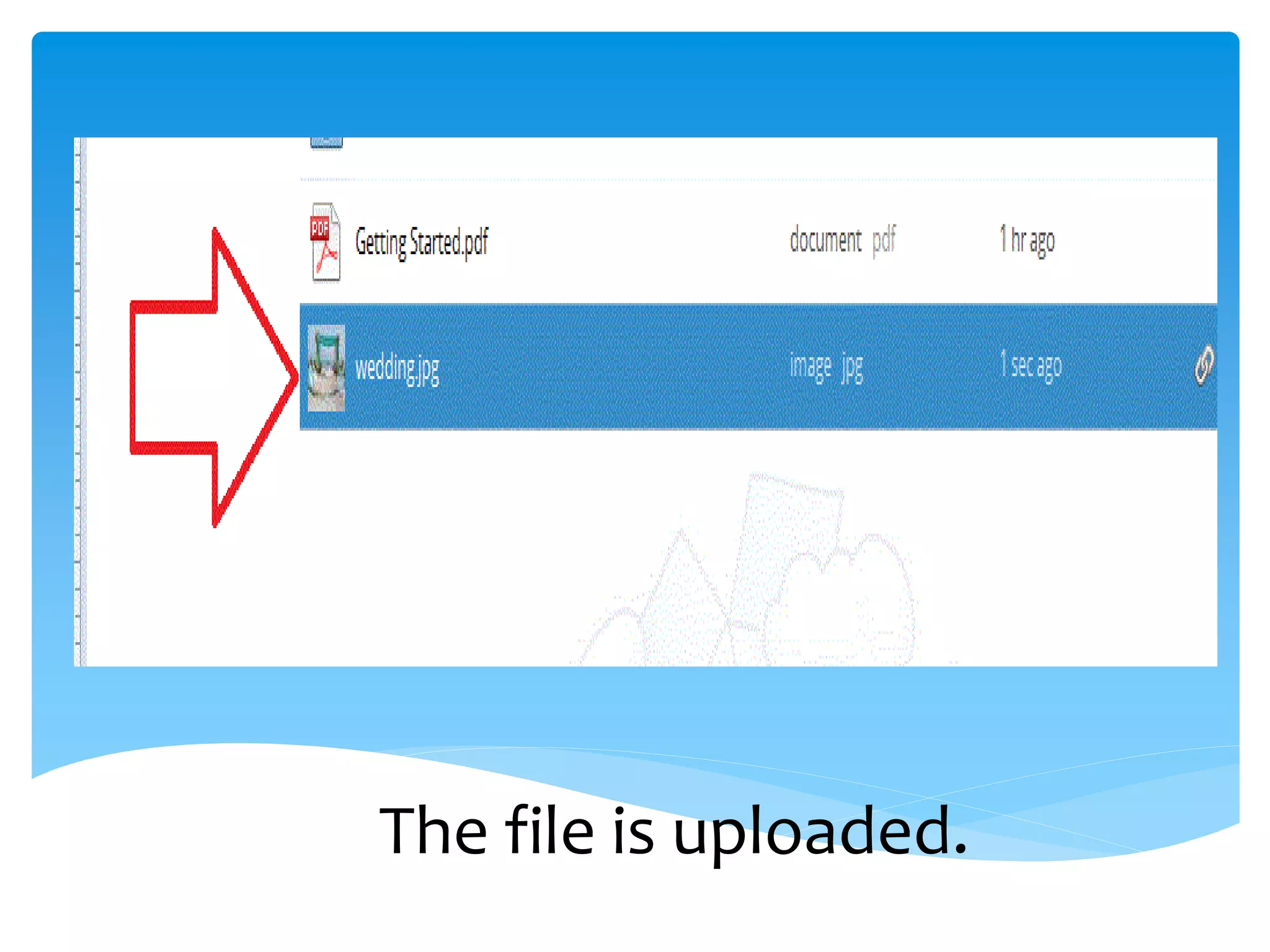
The file is uploaded.
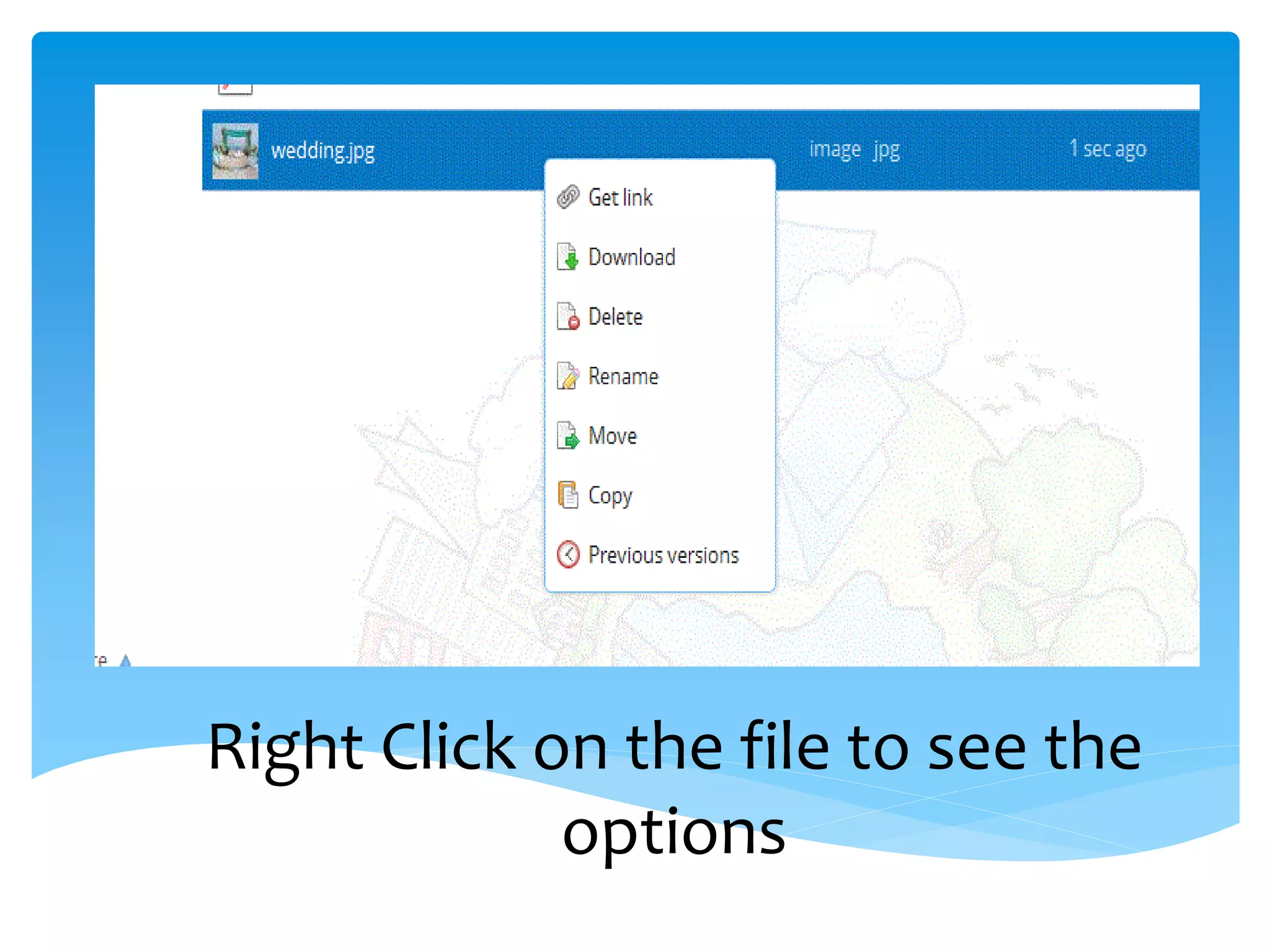
Right Click on the file to see the
             options
How to Share a
   Folder
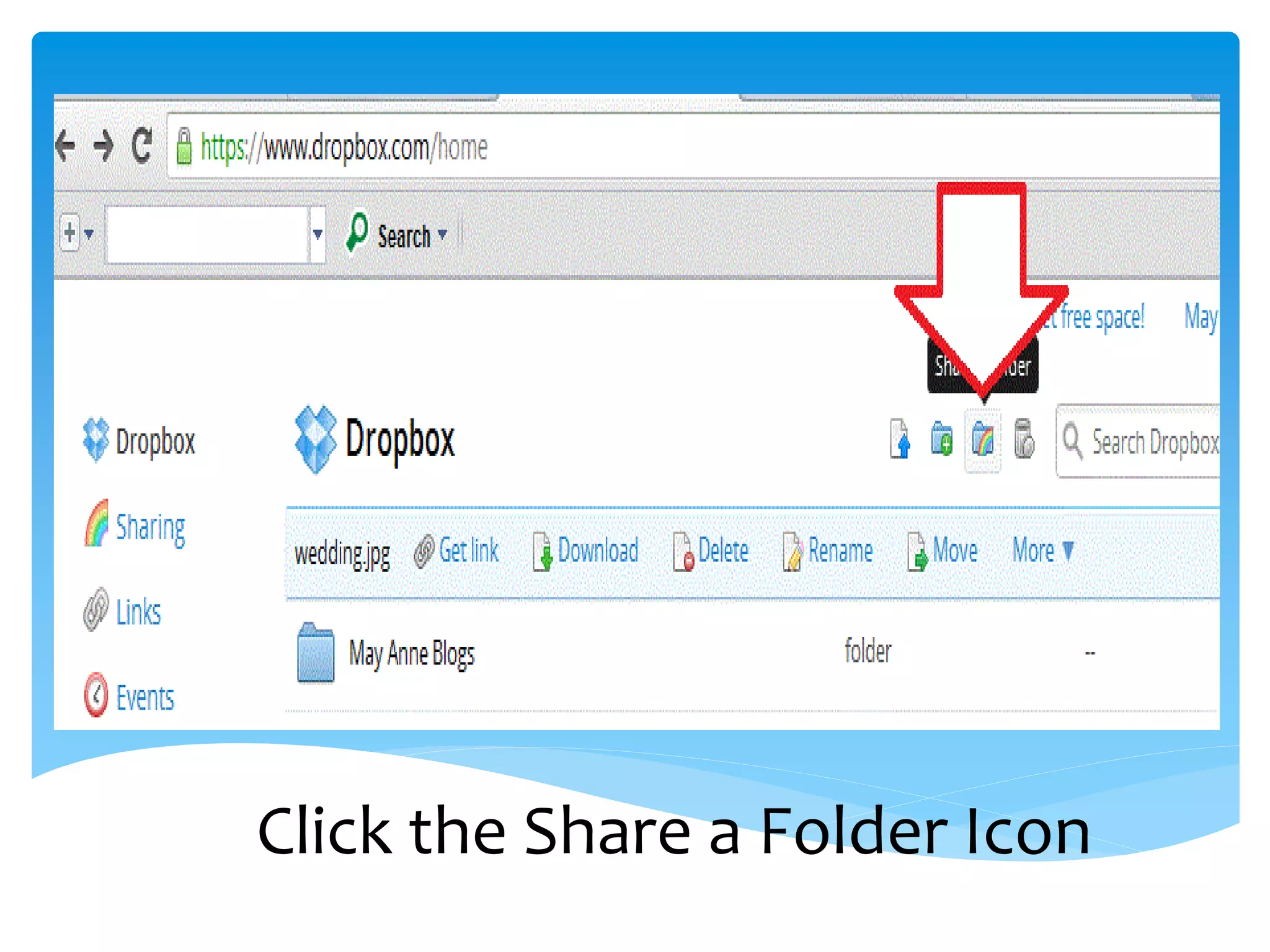
Click the Share a Folder Icon
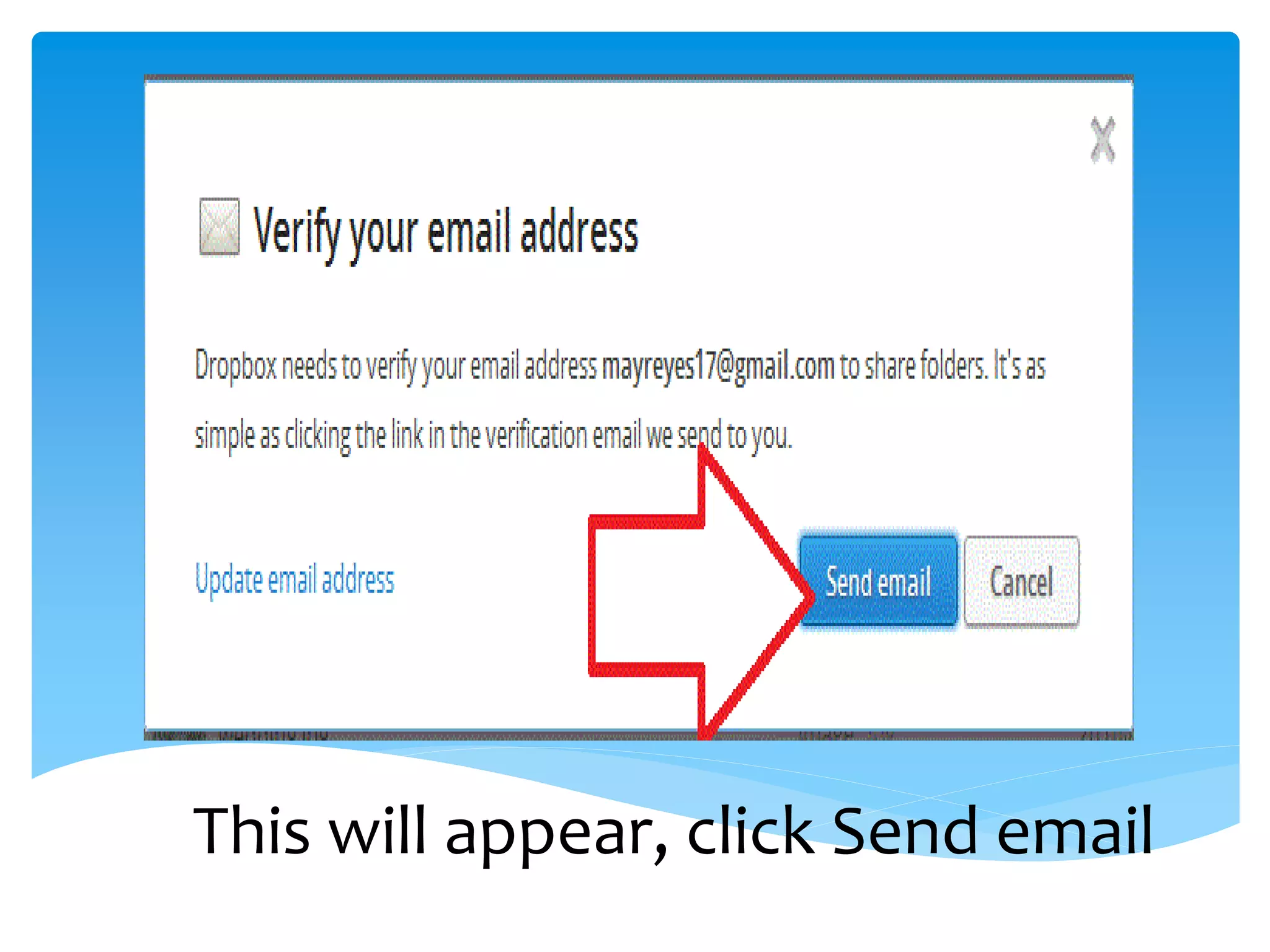
This will appear, click Send email
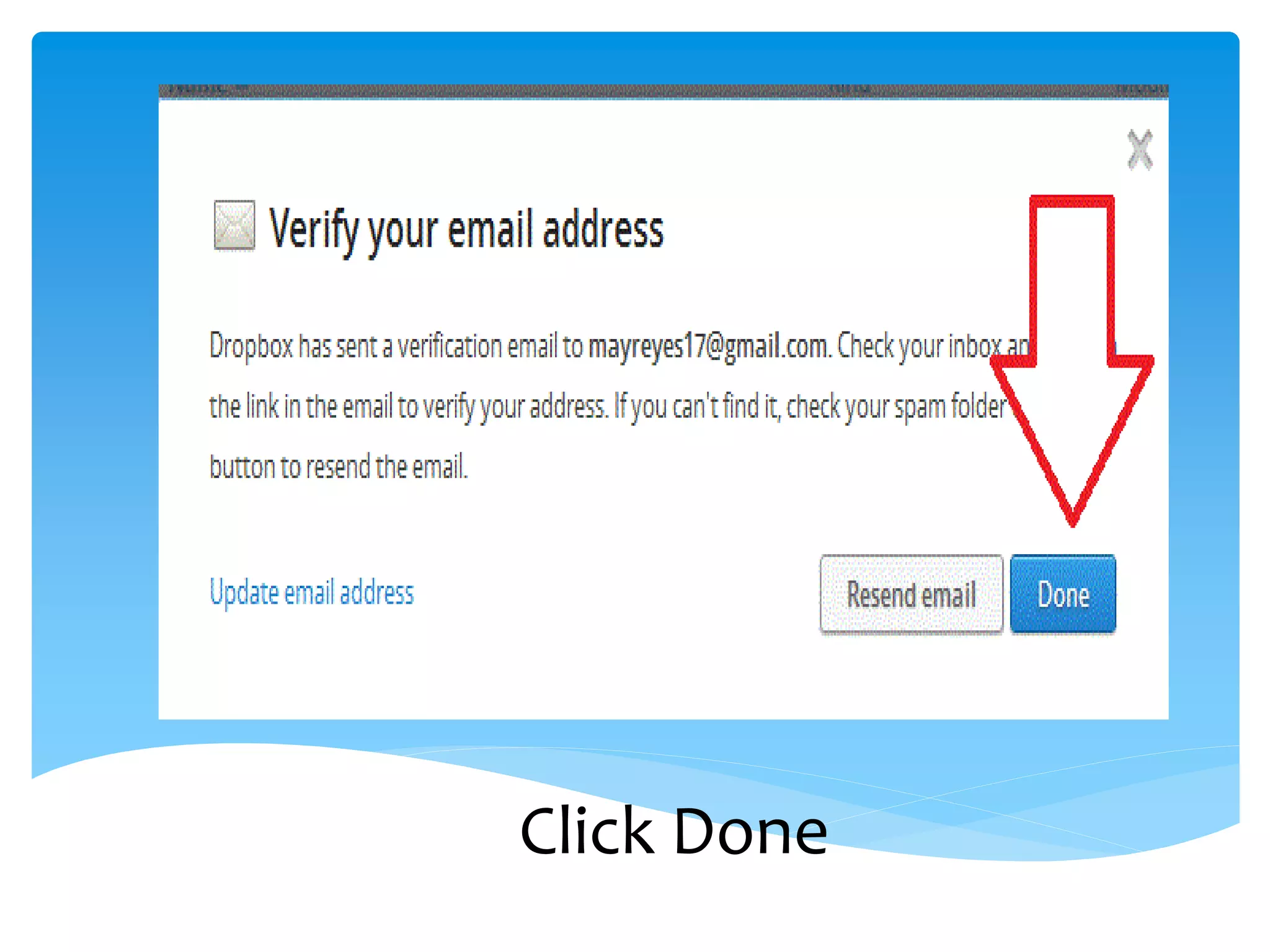
Click Done
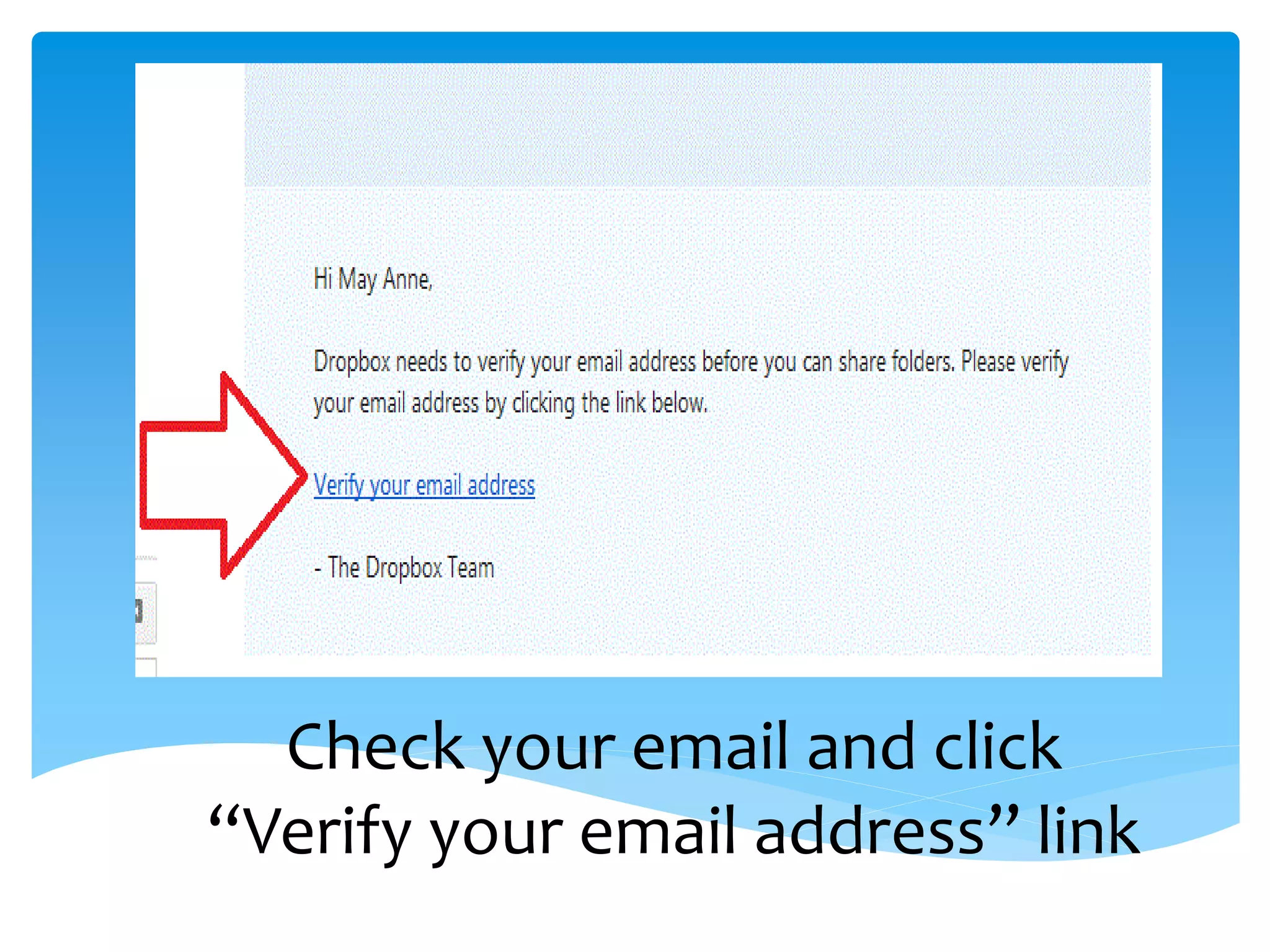
Check your email and click
“Verify your email address” link
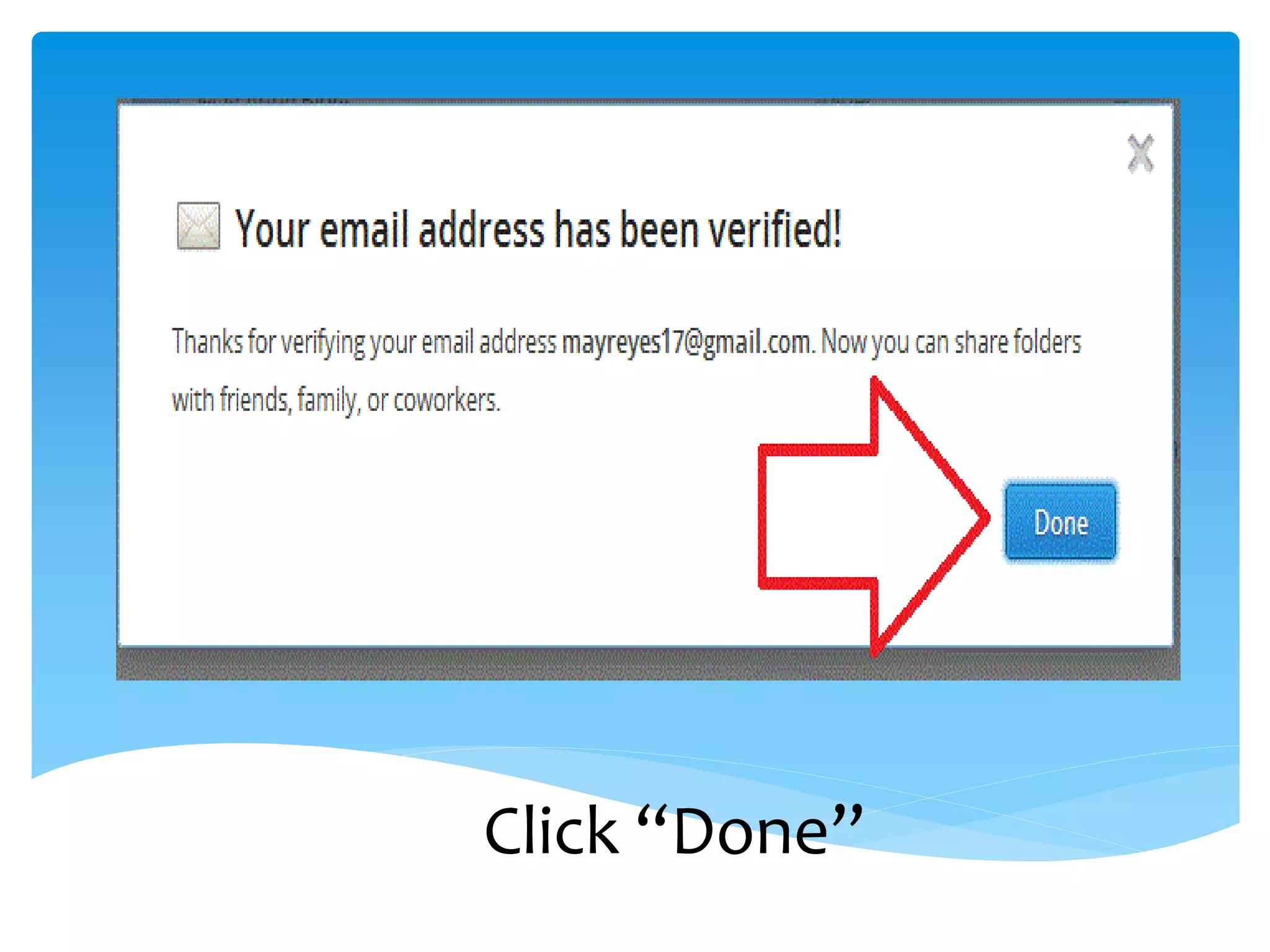
Click “Done”
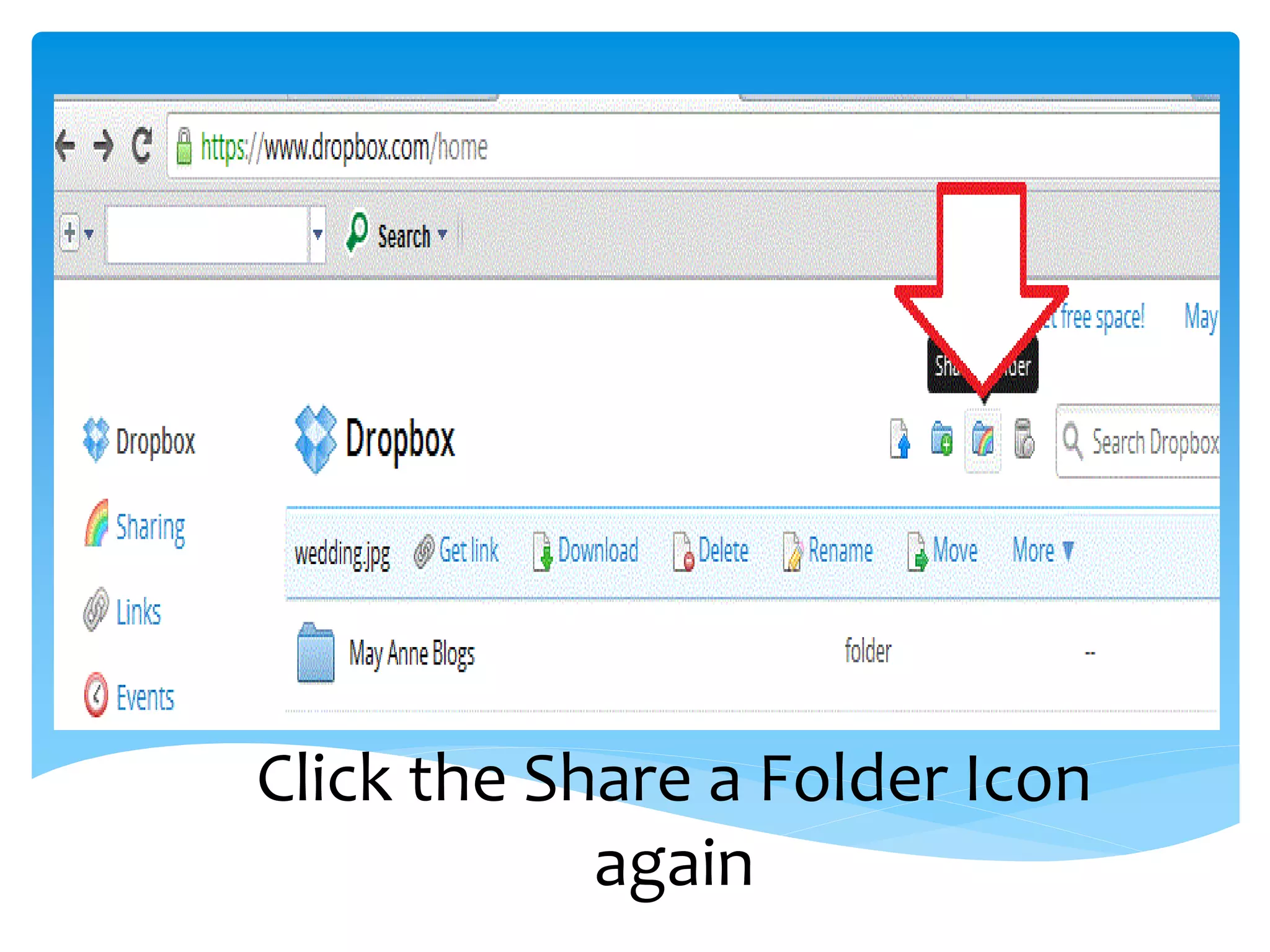
Click the Share a Folder Icon
            again
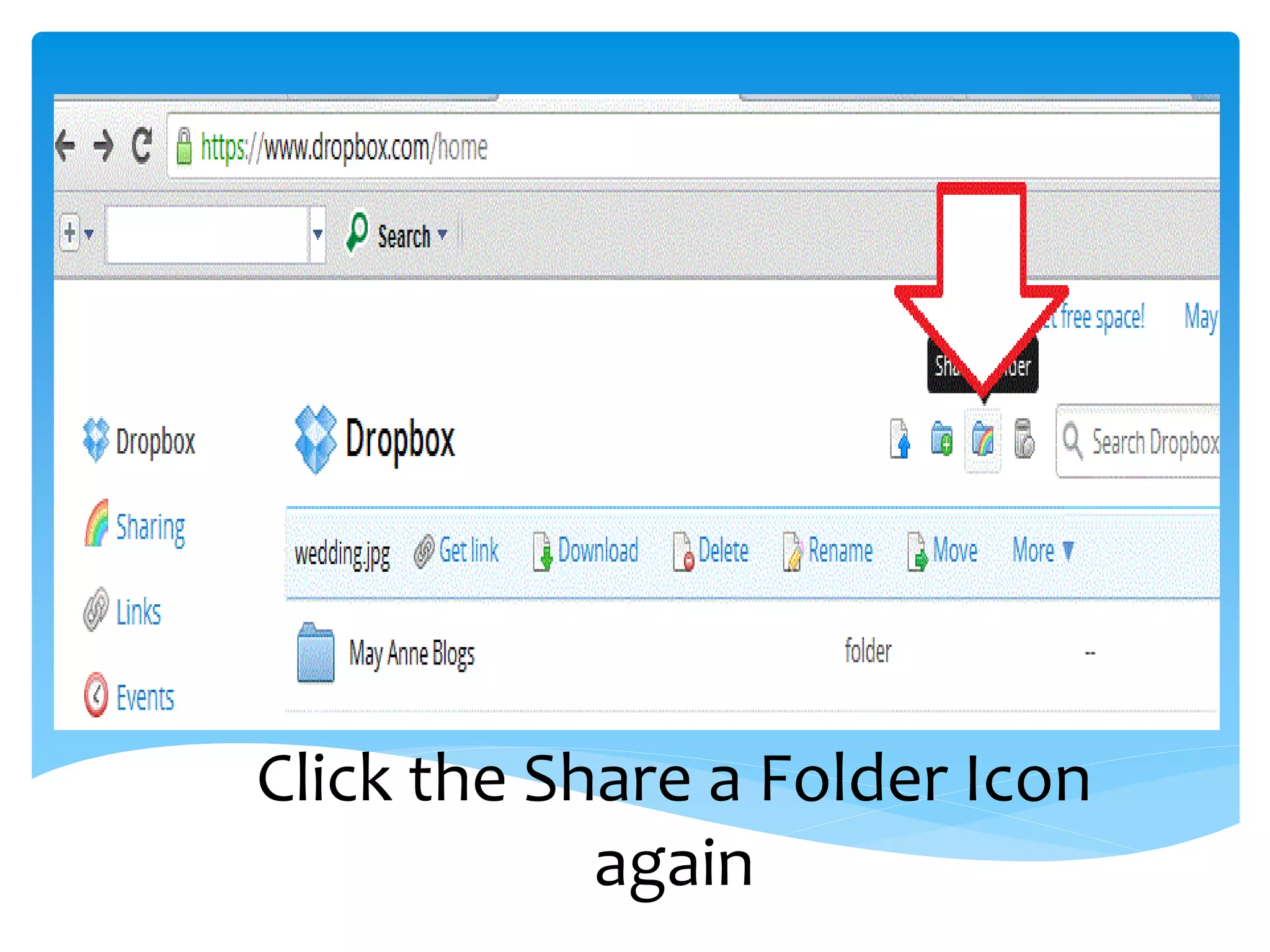
Click the Share a Folder Icon
            again
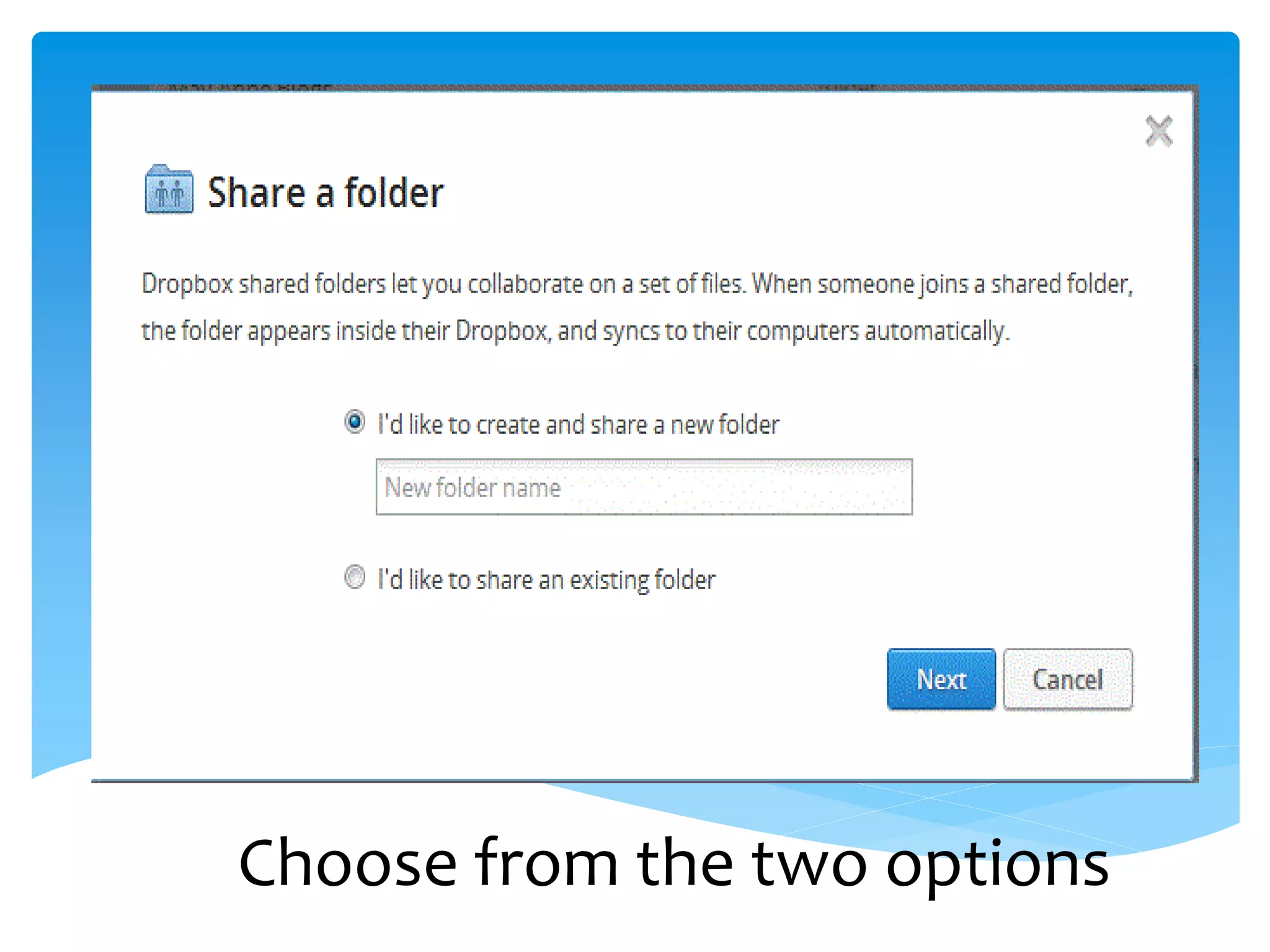
Choose from the two options
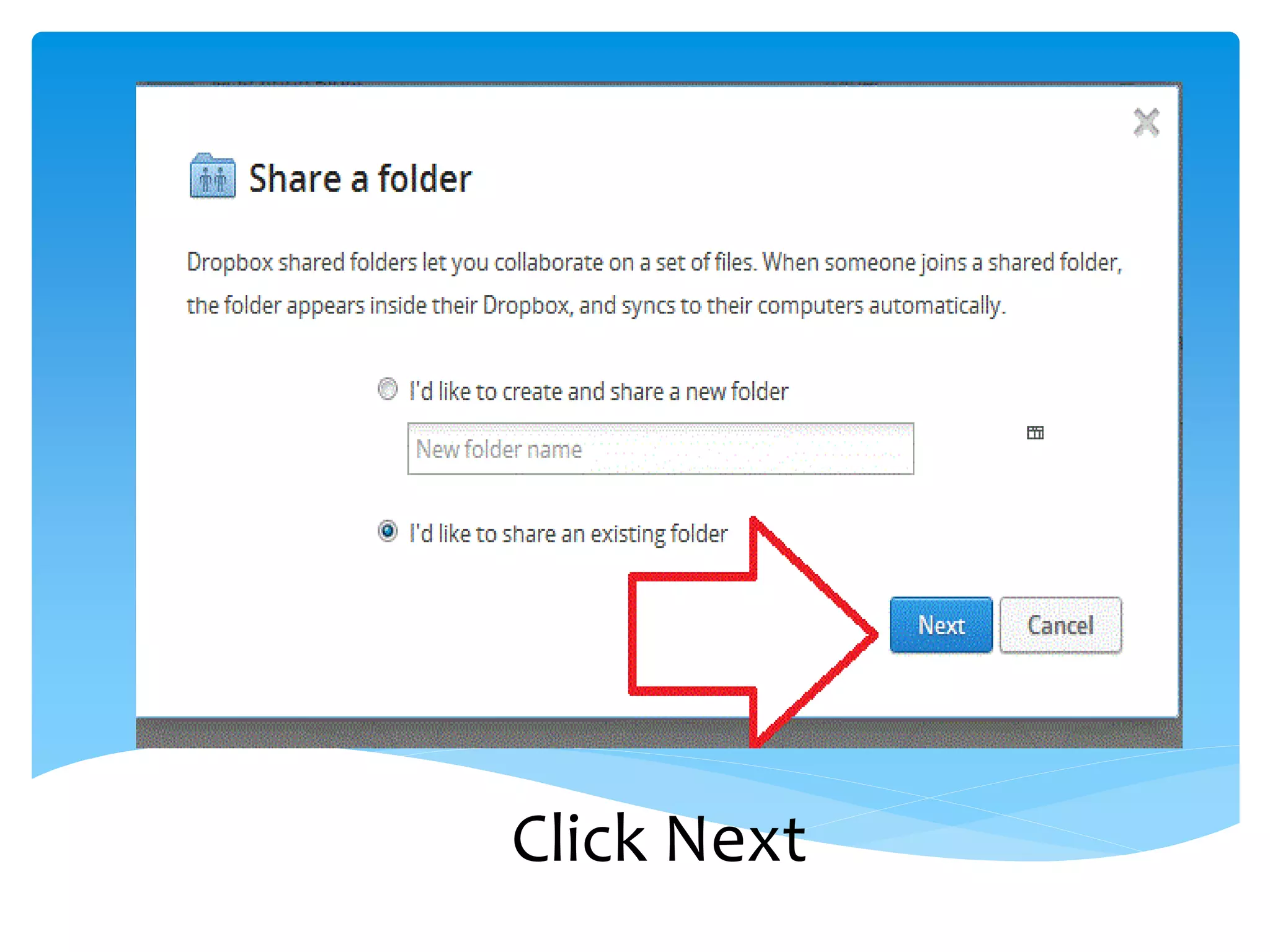
Click Next
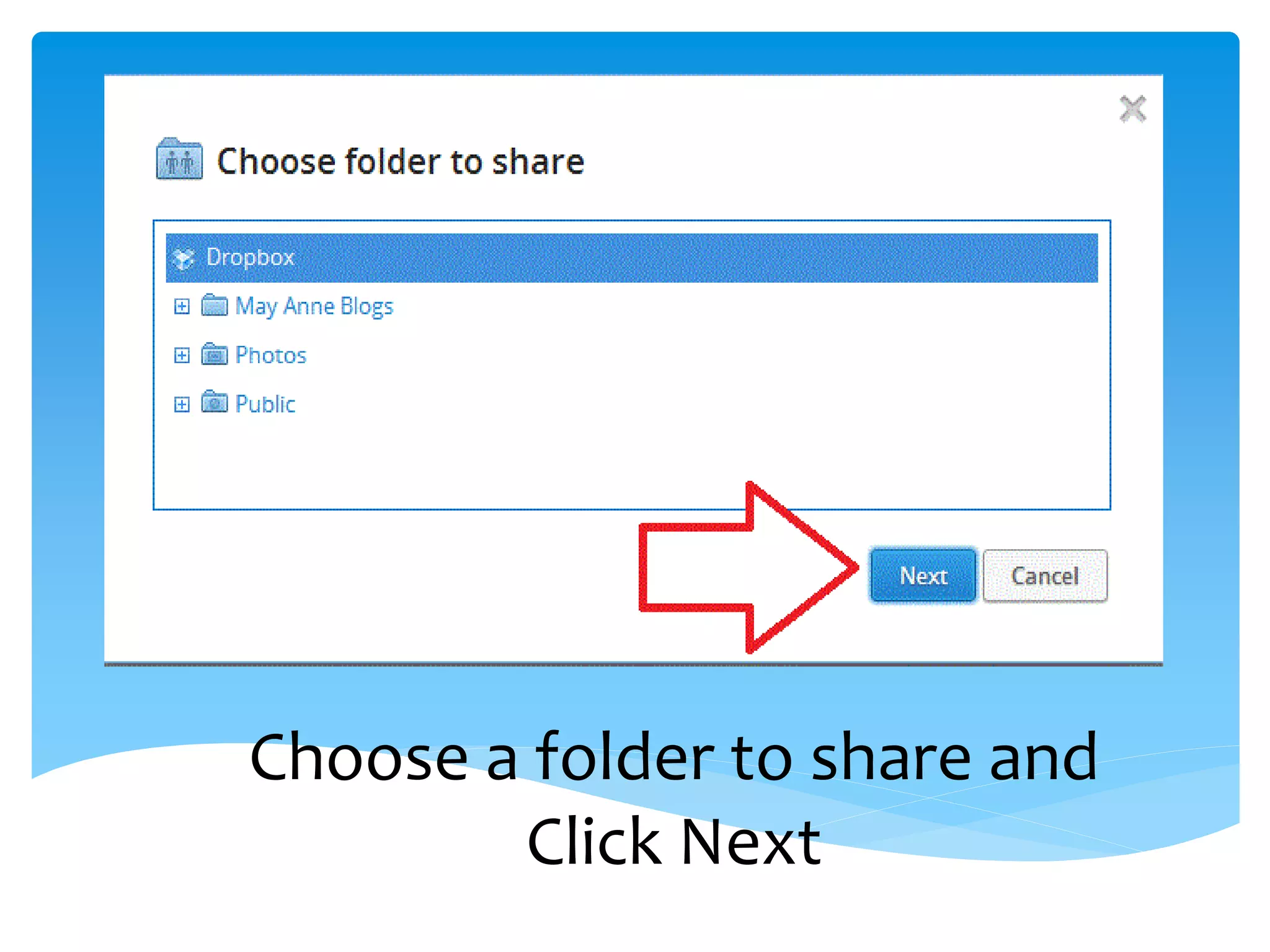
Choose a folder to share and
        Click Next
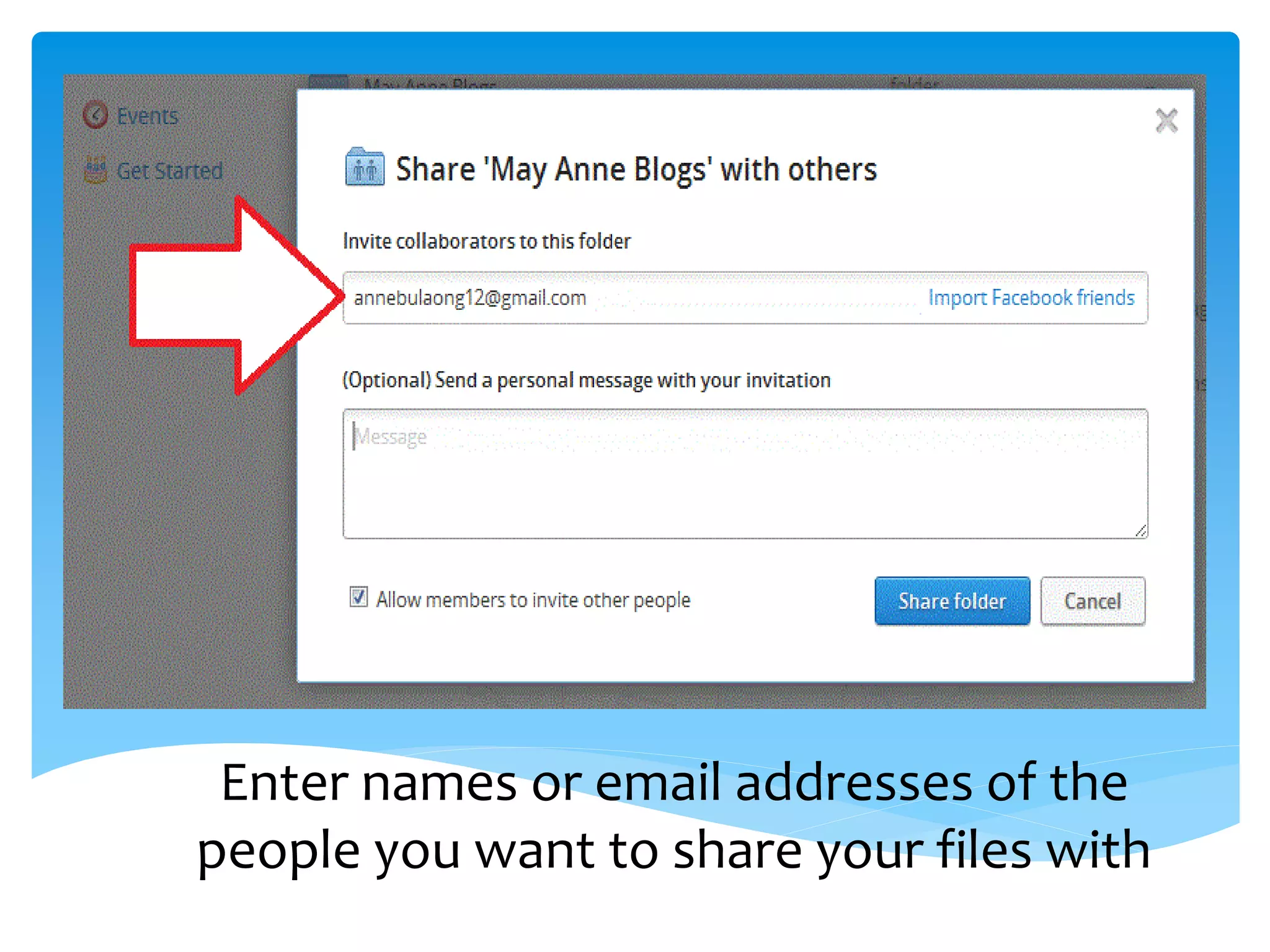
Enter names or email addresses of the
people you want to share your files with
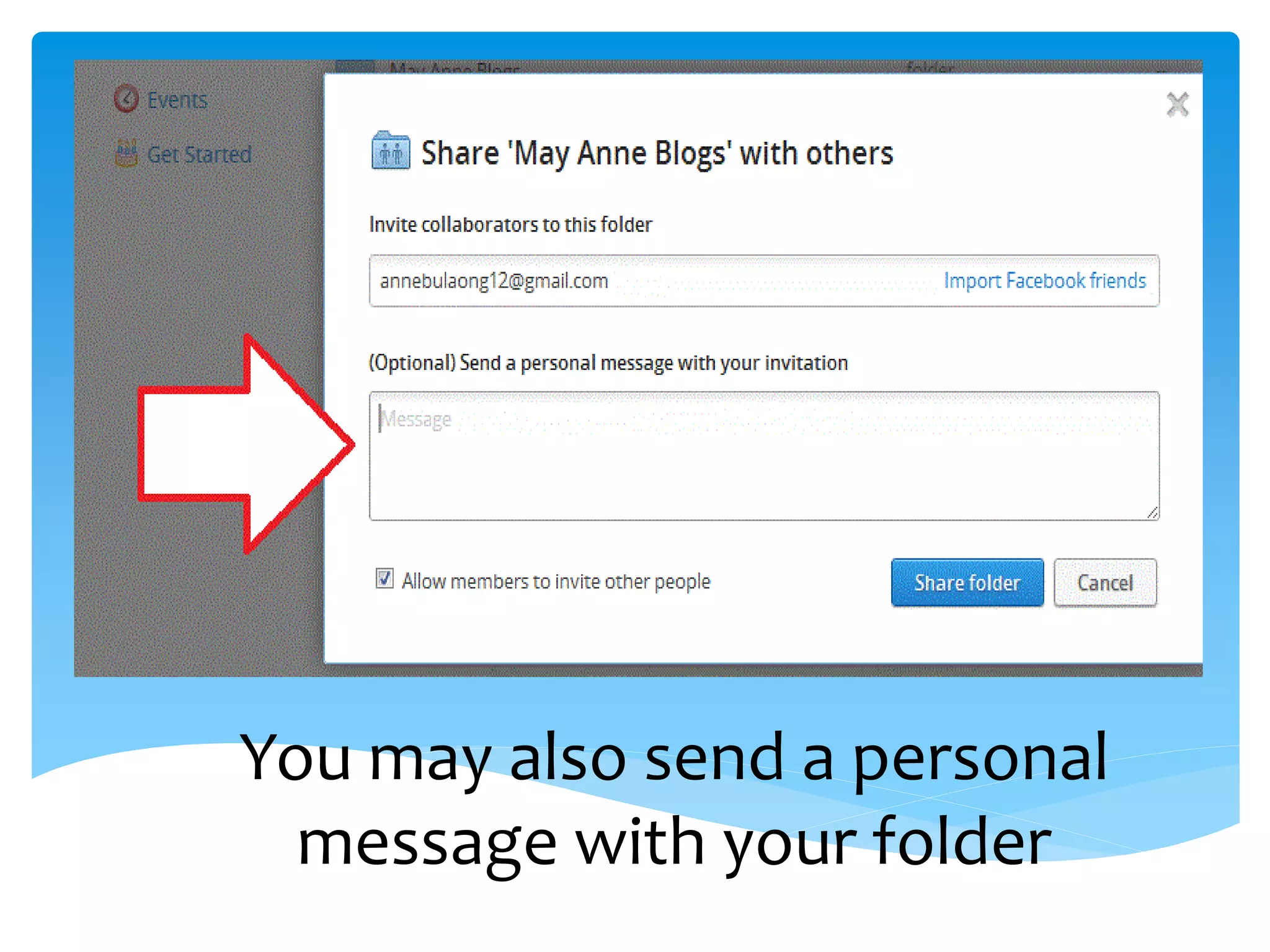
You may also send a personal
  message with your folder
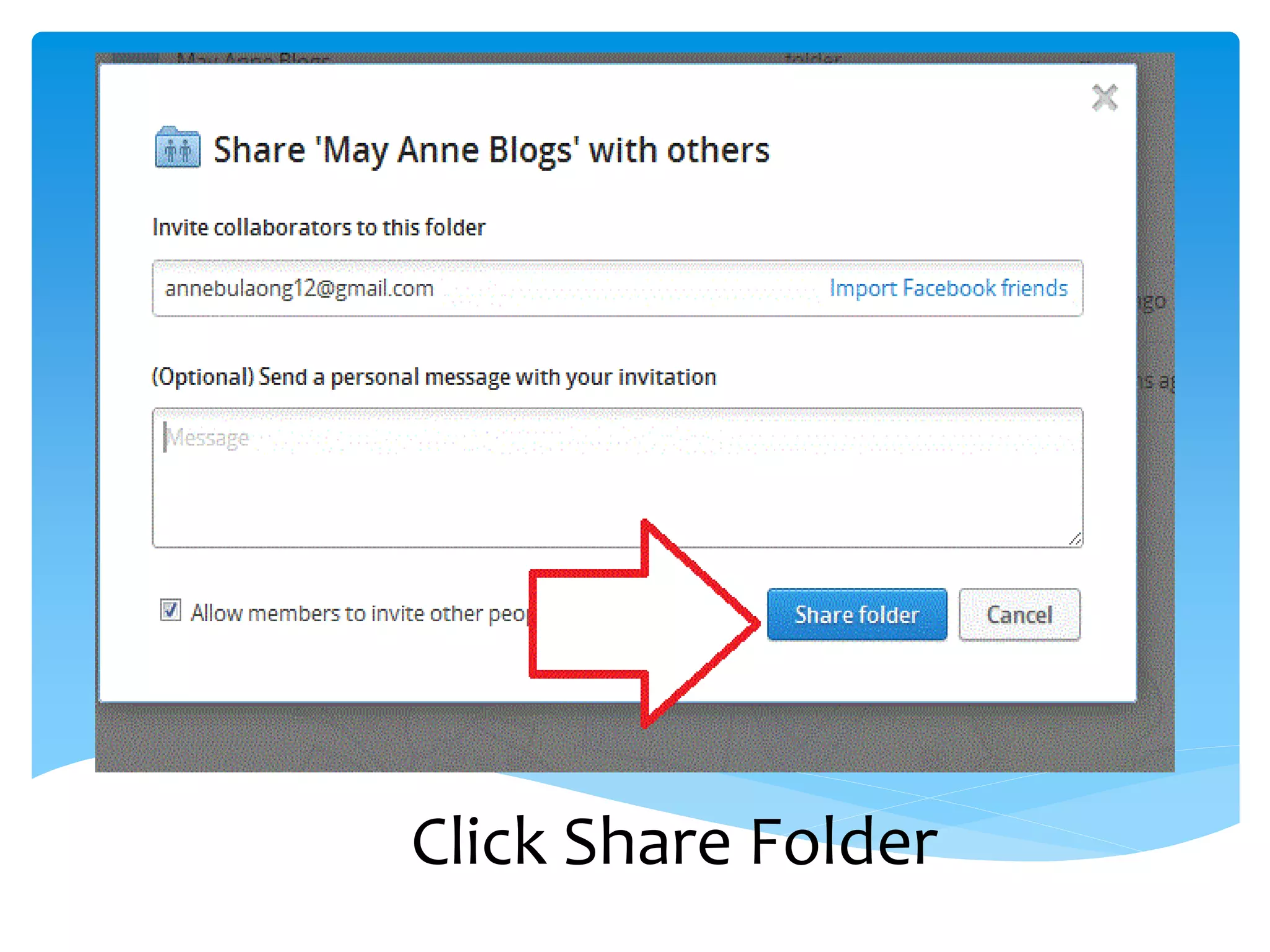
Click Share Folder
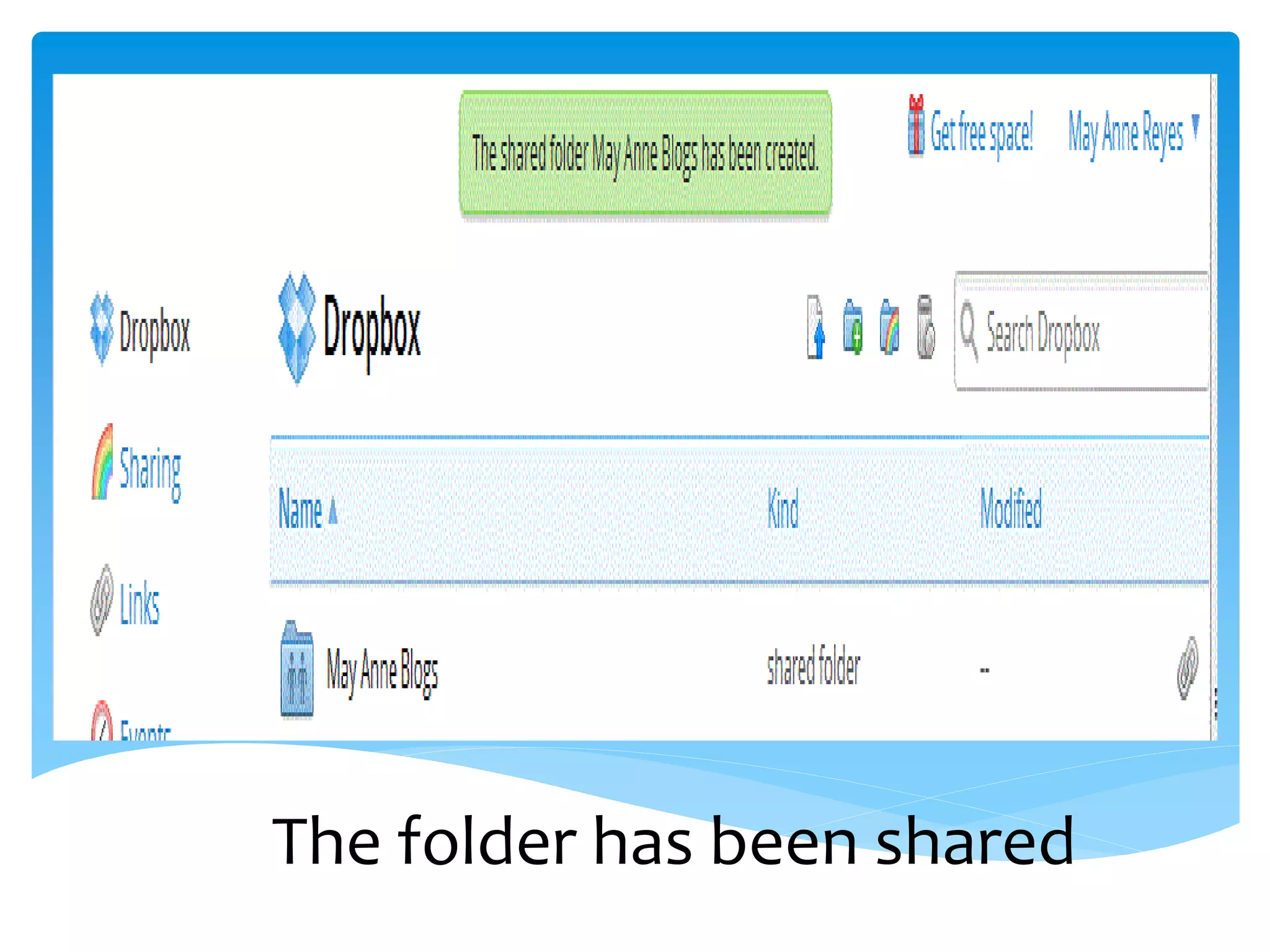
The folder has been shared
Questions?
Put your comments in my blog

www.theincrediblemayanne.wordpress.com
Thank you so
   much!

How to use dropbox