PINTEREST
The Newest form of Social Bookmarking
WHAT IS PINTEREST?
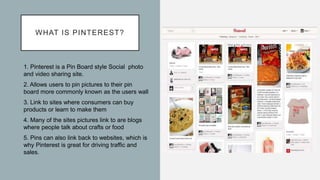
1. Pinterest is a Pin Board style Social photo
and video sharing site.
2. Allows users to pin pictures to their pin
board more commonly known as the users wall
3. Link to sites where consumers can buy
products or learn to make them
4. Many of the sites pictures link to are blogs
where people talk about crafts or food
5. Pins can also link back to websites, which is
why Pinterest is great for driving traffic and
sales.
DIFFERENT
OPTIONS
ON
PINTEREST
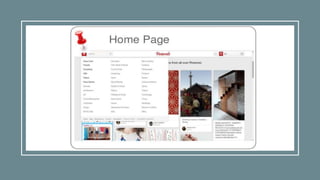
• Home: This is where you'll find all the most recent pins saved by the
users you currently follow as well as new suggestions based off the
things you've already saved.
• Create Pin: An image posted to Pinterest
• Pins: Displays all the things you recently pinned.
• Boards: Displays all the pinboards you created.
• Topics: These are suggested topics you can follow based on your
interests.
• Following: If you just want to see what the users you follow are
pinning, go to this tab.
• Explore: To find new ideas on things to pin and users to follow, use
the Explore tab to browse through things you might not discover just
by sticking to your home feed
• Messages: This is marked by the little speech bubble icon. Send and
receive private messages with users you follow and follow you back.
• Notifications: This is marked by the bell icon. Interactions and
suggestions will pop up here.
• Settings: This is marked by the three dots. Select it to change your
settings or upgrade your account.
BUILD YOUR
FOLLOWING
FEED
• There are many topics to
search on Pinterest
• You can search for things
according to your personal
interest
• Scroll over everything and
the drop down menu will
appear
• You can search specific
topics in the search bar at the
top of the page
CREATE A PIN
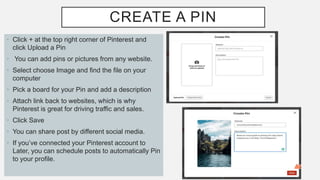
• Click + at the top right corner of Pinterest and
click Upload a Pin
• You can add pins or pictures from any website.
• Select choose Image and find the file on your
computer
• Pick a board for your Pin and add a description
• Attach link back to websites, which is why
Pinterest is great for driving traffic and sales.
• Click Save
• You can share post by different social media.
• If you’ve connected your Pinterest account to
Later, you can schedule posts to automatically Pin
to your profile.
BOARDS
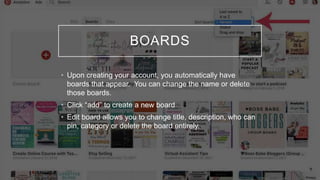
• Upon creating your account, you automatically have
boards that appear. You can change the name or delete
those boards.
• Click “add” to create a new board
• Edit board allows you to change title, description, who can
pin, category or delete the board entirely.
WHY DO PEOPLE USE IT?
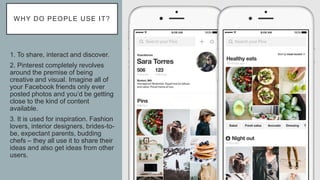
1. To share, interact and discover.
2. Pinterest completely revolves
around the premise of being
creative and visual. Imagine all of
your Facebook friends only ever
posted photos and you’d be getting
close to the kind of content
available.
3. It is used for inspiration. Fashion
lovers, interior designers, brides-to-
be, expectant parents, budding
chefs – they all use it to share their
ideas and also get ideas from other
users.
INTERACT WITH OTHER USERS
 Pinterest’s intuitive user platform makes it extremely
easy for anyone to share and interact with other
people. You can interact in the following ways on
Pinterest:
Save: Use this to save the pin to one of your own
boards.
Send: Send a pin to other users on Pinterest or share it
on social media.
Comment: If you have something to say about the pinned
item, feel free to leave a comment.​
Add a photo or note: If you tried the pin (such as a
recipe, a craft, etc.) then you can upload your own photo
and add a comment about what you did or didn't like.
 Pinterest provides great crowd sourcing opportunities.
You can ask people to pin pictures of themselves with
your product and then repin them onto a themed Board
PINTEREST ANALYTICS
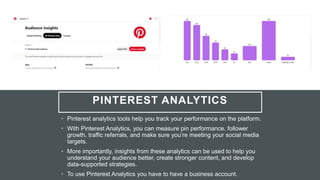
• Pinterest analytics tools help you track your performance on the platform.
• With Pinterest Analytics, you can measure pin performance, follower
growth, traffic referrals, and make sure you’re meeting your social media
targets.
• More importantly, insights from these analytics can be used to help you
understand your audience better, create stronger content, and develop
data-supported strategies.
• To use Pinterest Analytics you have to have a business account.
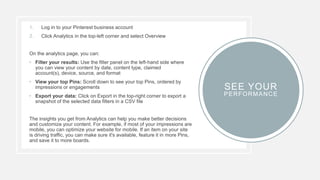
1. Log in to your Pinterest business account
2. Click Analytics in the top-left corner and select Overview
On the analytics page, you can:
• Filter your results: Use the filter panel on the left-hand side where
you can view your content by date, content type, claimed
account(s), device, source, and format
• View your top Pins: Scroll down to see your top Pins, ordered by
impressions or engagements
• Export your data: Click on Export in the top-right corner to export a
snapshot of the selected data filters in a CSV file
The insights you get from Analytics can help you make better decisions
and customize your content. For example, if most of your impressions are
mobile, you can optimize your website for mobile. If an item on your site
is driving traffic, you can make sure it's available, feature it in more Pins,
and save it to more boards.
SEE YOUR
PERFORMANCE
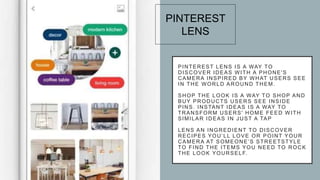
PINTEREST LENS IS A WAY TO
DISCOVER IDEAS WITH A PHONE'S
CAMERA INSPIRED BY WHAT USERS SEE
IN THE WORLD AROUND THEM.
SHOP THE LOOK IS A WAY TO SHOP AND
BUY PRODUCTS USERS SEE INSIDE
PINS. INSTANT IDEAS IS A WAY TO
TRANSFORM USERS' HOME FEED WITH
SIMILAR IDEAS IN JUST A TAP
LENS AN INGREDIENT TO DISCOVER
RECIPES YOU’LL LOVE OR POINT YOUR
CAMERA AT SOMEONE’S STREETSTYLE
TO FIND THE ITEMS YOU NEED TO ROCK
THE LOOK YOURSELF.
PINTEREST
LENS
HOW TO USE LENS?
• Open the Pinterest app on your mobile device and tap
• Tap in the search bar
• Pinch to zoom or tap on a specific object to focus your camera
• Tap the button to snap a picture or select a photo from your camera roll
• Explore and discover ideas
• Make sure you hold your camera steady for a clearer picture. If your photo
is too dark, turn on the flash by tapping the lightning bolt in the upper-right
corner of the camera screen.
• If you don't want that, fortunately there's a quick way to turn off this
personalization feature. Log in to your Pinterest account via your computer's
Web browser. Click on your name in the top right-hand corner and choose
Settings. Look for Personalization and toggle the switch to No.
THANK YOU
ENJOY YOUR PINNING
EXPERIENCE!
Follow for more
https://www.digitalplatter.in/

INTRODUCTION TO PINTEREST

  • 1.
    PINTEREST The Newest formof Social Bookmarking
  • 2.
    WHAT IS PINTEREST? 1.Pinterest is a Pin Board style Social photo and video sharing site. 2. Allows users to pin pictures to their pin board more commonly known as the users wall 3. Link to sites where consumers can buy products or learn to make them 4. Many of the sites pictures link to are blogs where people talk about crafts or food 5. Pins can also link back to websites, which is why Pinterest is great for driving traffic and sales.
  • 4.
    DIFFERENT OPTIONS ON PINTEREST • Home: Thisis where you'll find all the most recent pins saved by the users you currently follow as well as new suggestions based off the things you've already saved. • Create Pin: An image posted to Pinterest • Pins: Displays all the things you recently pinned. • Boards: Displays all the pinboards you created. • Topics: These are suggested topics you can follow based on your interests. • Following: If you just want to see what the users you follow are pinning, go to this tab. • Explore: To find new ideas on things to pin and users to follow, use the Explore tab to browse through things you might not discover just by sticking to your home feed • Messages: This is marked by the little speech bubble icon. Send and receive private messages with users you follow and follow you back. • Notifications: This is marked by the bell icon. Interactions and suggestions will pop up here. • Settings: This is marked by the three dots. Select it to change your settings or upgrade your account.
  • 5.
    BUILD YOUR FOLLOWING FEED • Thereare many topics to search on Pinterest • You can search for things according to your personal interest • Scroll over everything and the drop down menu will appear • You can search specific topics in the search bar at the top of the page
  • 6.
    CREATE A PIN •Click + at the top right corner of Pinterest and click Upload a Pin • You can add pins or pictures from any website. • Select choose Image and find the file on your computer • Pick a board for your Pin and add a description • Attach link back to websites, which is why Pinterest is great for driving traffic and sales. • Click Save • You can share post by different social media. • If you’ve connected your Pinterest account to Later, you can schedule posts to automatically Pin to your profile.
  • 7.
    BOARDS • Upon creatingyour account, you automatically have boards that appear. You can change the name or delete those boards. • Click “add” to create a new board • Edit board allows you to change title, description, who can pin, category or delete the board entirely.
  • 8.
    WHY DO PEOPLEUSE IT? 1. To share, interact and discover. 2. Pinterest completely revolves around the premise of being creative and visual. Imagine all of your Facebook friends only ever posted photos and you’d be getting close to the kind of content available. 3. It is used for inspiration. Fashion lovers, interior designers, brides-to- be, expectant parents, budding chefs – they all use it to share their ideas and also get ideas from other users.
  • 9.
    INTERACT WITH OTHERUSERS  Pinterest’s intuitive user platform makes it extremely easy for anyone to share and interact with other people. You can interact in the following ways on Pinterest: Save: Use this to save the pin to one of your own boards. Send: Send a pin to other users on Pinterest or share it on social media. Comment: If you have something to say about the pinned item, feel free to leave a comment.​ Add a photo or note: If you tried the pin (such as a recipe, a craft, etc.) then you can upload your own photo and add a comment about what you did or didn't like.  Pinterest provides great crowd sourcing opportunities. You can ask people to pin pictures of themselves with your product and then repin them onto a themed Board
  • 10.
    PINTEREST ANALYTICS • Pinterestanalytics tools help you track your performance on the platform. • With Pinterest Analytics, you can measure pin performance, follower growth, traffic referrals, and make sure you’re meeting your social media targets. • More importantly, insights from these analytics can be used to help you understand your audience better, create stronger content, and develop data-supported strategies. • To use Pinterest Analytics you have to have a business account.
  • 11.
    1. Log into your Pinterest business account 2. Click Analytics in the top-left corner and select Overview On the analytics page, you can: • Filter your results: Use the filter panel on the left-hand side where you can view your content by date, content type, claimed account(s), device, source, and format • View your top Pins: Scroll down to see your top Pins, ordered by impressions or engagements • Export your data: Click on Export in the top-right corner to export a snapshot of the selected data filters in a CSV file The insights you get from Analytics can help you make better decisions and customize your content. For example, if most of your impressions are mobile, you can optimize your website for mobile. If an item on your site is driving traffic, you can make sure it's available, feature it in more Pins, and save it to more boards. SEE YOUR PERFORMANCE
  • 12.
    PINTEREST LENS ISA WAY TO DISCOVER IDEAS WITH A PHONE'S CAMERA INSPIRED BY WHAT USERS SEE IN THE WORLD AROUND THEM. SHOP THE LOOK IS A WAY TO SHOP AND BUY PRODUCTS USERS SEE INSIDE PINS. INSTANT IDEAS IS A WAY TO TRANSFORM USERS' HOME FEED WITH SIMILAR IDEAS IN JUST A TAP LENS AN INGREDIENT TO DISCOVER RECIPES YOU’LL LOVE OR POINT YOUR CAMERA AT SOMEONE’S STREETSTYLE TO FIND THE ITEMS YOU NEED TO ROCK THE LOOK YOURSELF. PINTEREST LENS
  • 13.
    HOW TO USELENS? • Open the Pinterest app on your mobile device and tap • Tap in the search bar • Pinch to zoom or tap on a specific object to focus your camera • Tap the button to snap a picture or select a photo from your camera roll • Explore and discover ideas • Make sure you hold your camera steady for a clearer picture. If your photo is too dark, turn on the flash by tapping the lightning bolt in the upper-right corner of the camera screen. • If you don't want that, fortunately there's a quick way to turn off this personalization feature. Log in to your Pinterest account via your computer's Web browser. Click on your name in the top right-hand corner and choose Settings. Look for Personalization and toggle the switch to No.
  • 14.
    THANK YOU ENJOY YOURPINNING EXPERIENCE! Follow for more https://www.digitalplatter.in/