

WordPress Course
Overview, Hosting and Structure
PRESENTED BY
NADINE WILDMANN, MEEPLE COMMUNICATIONS
FEBRUARY, 2015
Content Management
 User-friendly content management
– Formatting
– Media
– Drafts and Reviewing
– Page Preview
– Category and Tag labeling
 Visual Editor and HTML Text views
 Permalinks - WordPress makes it easy to control
the URL links that Google sees
 Multiple authors and permission settings
2
What is WordPress?
 Web publishing platform
 Easy to learn and use Content Management
System (CMS)
 Open source, community support
 Powerful blogging tool
 A way for non-programmers to create professional
websites and blogs
3
4The World of WordPress
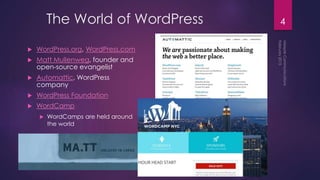
 WordPress.org, WordPress.com
 Matt Mullenweg, founder and
open-source evangelist
 Automattic, WordPress
company
 WordPress Foundation
 WordCamp
 WordCamps are held around
the world
5WordPress.com vs. WordPress.org
WordPress.com
 Easier to use
 Built-in functions
 No plugins
 Limited customization
 Paid upgrades available, such as
your own domain name
 Internal commercial themes
 Exportable to self-hosted WP
 Free hosting and maintenance
WordPress.org
 Expanded functionality
through 30,000+ plugins
 External resources such as free
and commercial frameworks,
themes and plugins
 More control, more responsibility
 You need to pay a web host
 Best for businesses
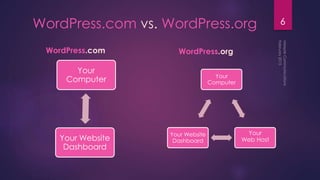
6WordPress.com vs. WordPress.org
WordPress.com WordPress.org
Your
Computer
Your
Web Host
Your Website
Dashboard
Your
Computer
Your Website
Dashboard
Web Hosting
7
Website Elements
wordpress.org = Self-hosted
 A domain name is your URL, such as www.yourdomain.com.
You pay a registrar or a web host annually to own the domain
 Hosting account – you pay a web host such as A Small Orange
and assign your domain to your hosting account
 Use a platform such as WordPress for building your website,
installed into your domain through your web host
If your domain name is not registered through your web host, then you need to
point the domain name from the registrar to the web host. This is different than
transferring domain registration from one registrar to another.
8
Self-hosted Logins
Domain registration
Web hosting account
Control Panel – cpanel
WordPress backend – the Dashboard
 http://yourdomain.com/wp-admin
Wordpress.com for JetPack plugin
9
WordPress.com Login
One single login –
WordPress.com
Or http://yourdomain.com/wp-admin
10
Installing Self-hosted WordPress
11
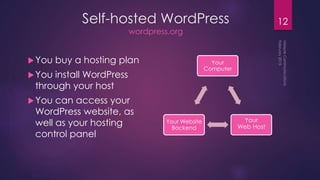
Self-hosted WordPress
wordpress.org
You buy a hosting plan
You install WordPress
through your host
You can access your
WordPress website, as
well as your hosting
control panel
12
Your
Computer
Your
Web Host
Your Website
Backend
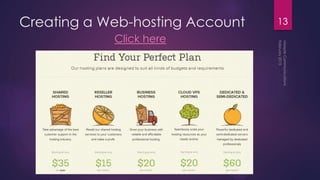
Creating a Web-hosting Account
Click here
13
Web Hosting Account
 Register domains
 Manage domains
 Create sub-domains
 Set up email accounts
 Install WordPress
 File Manager
 FTP
Your web host offers technical support by phone, live chat, and email.
14
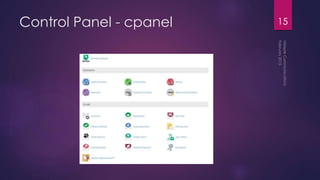
Control Panel - cpanel 15
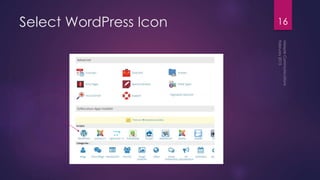
Select WordPress Icon 16
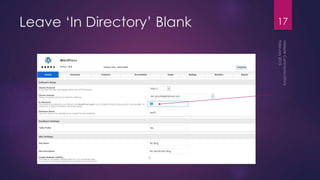
Leave ‘In Directory’ Blank 17
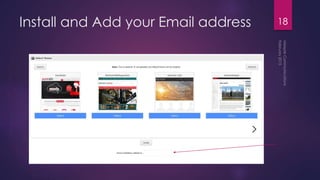
Install and Add your Email address 18
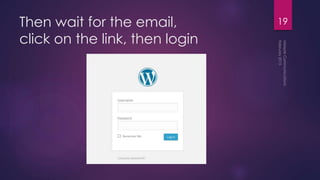
Then wait for the email,
click on the link, then login
19
Installing Free Hosted WordPress
20
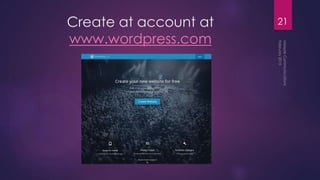
Create at account at
www.wordpress.com
21
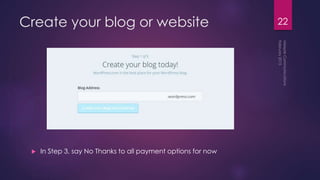
Create your blog or website
 In Step 3, say No Thanks to all payment options for now
22
23
Websites and Blogs
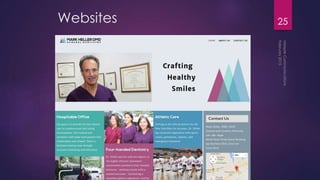
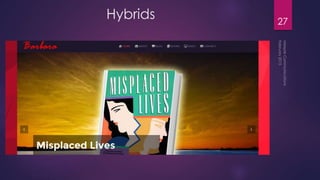
24Types of WordPress Websites
 Blogs
– Content is sorted by Category
– Created as Posts
 Websites
– WordPress can create traditional websites
with static pages
 Hybrids
– Blog is integrated into a website
– Mixed page types in menu
25Websites
26Blogs
27
Hybrids
28
Inside WordPress
29WordPress Elements
 Core / Loop
 Content – Text, Images, Media
 Theme – Design, Functionality
 Plugins – Added functionality
 Widgets
 Menu
 Dashboard Settings
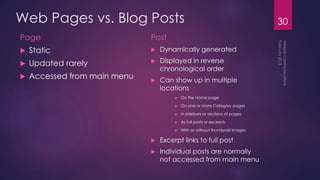
Web Pages vs. Blog Posts
Page
 Static
 Updated rarely
 Accessed from main menu
Post
 Dynamically generated
 Displayed in reverse
chronological order
 Can show up in multiple
locations
 On the Home page
 On one or more Category pages
 In sidebars or sections of pages
 As full posts or excerpts
 With or without thumbnail images
 Excerpt links to full post
 Individual posts are normally
not accessed from main menu
30
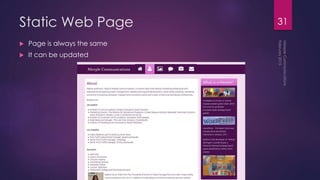
Static Web Page
 Page is always the same
 It can be updated
31
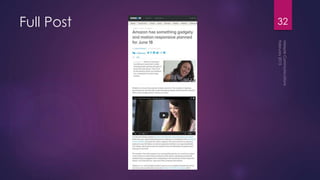
Full Post 32
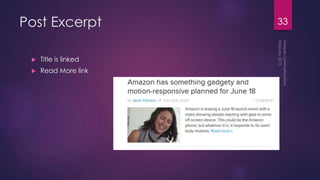
Post Excerpt
 Title is linked
 Read More link
33
How do Posts know where to show up?
 WordPress default is the Home Page
 You can change the Home Page to a static page
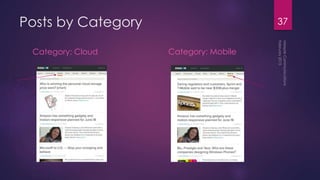
 A Post will go to all pages of the Categories to
which it is assigned
 These are called Category or Archive pages
 Posts can show up in Widgets such as Recent
Posts
 There is always a Post Page linked from the post
34
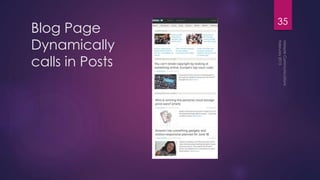
Blog Page
Dynamically
calls in Posts
35
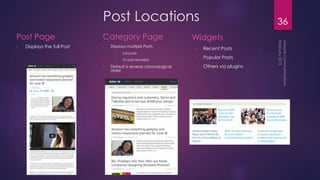
Post Locations
Post Page
• Displays the full Post
Category Page
• Displays multiple Posts
• Full posts
• Or post excerpts
• Default is reverse chronological
order
Widgets
• Recent Posts
• Popular Posts
• Others via plugins
36
Posts by Category
Category: Cloud Category: Mobile
37
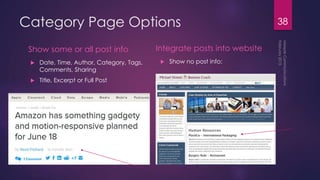
Category Page Options
Show some or all post info
 Date, Time, Author, Category, Tags,
Comments, Sharing
 Title, Excerpt or Full Post
Integrate posts into website
 Show no post info:
38

Overview and hosting

  • 1.
    WordPress Course Overview, Hostingand Structure PRESENTED BY NADINE WILDMANN, MEEPLE COMMUNICATIONS FEBRUARY, 2015
  • 2.
    Content Management  User-friendlycontent management – Formatting – Media – Drafts and Reviewing – Page Preview – Category and Tag labeling  Visual Editor and HTML Text views  Permalinks - WordPress makes it easy to control the URL links that Google sees  Multiple authors and permission settings 2
  • 3.
    What is WordPress? Web publishing platform  Easy to learn and use Content Management System (CMS)  Open source, community support  Powerful blogging tool  A way for non-programmers to create professional websites and blogs 3
  • 4.
    4The World ofWordPress  WordPress.org, WordPress.com  Matt Mullenweg, founder and open-source evangelist  Automattic, WordPress company  WordPress Foundation  WordCamp  WordCamps are held around the world
  • 5.
    5WordPress.com vs. WordPress.org WordPress.com Easier to use  Built-in functions  No plugins  Limited customization  Paid upgrades available, such as your own domain name  Internal commercial themes  Exportable to self-hosted WP  Free hosting and maintenance WordPress.org  Expanded functionality through 30,000+ plugins  External resources such as free and commercial frameworks, themes and plugins  More control, more responsibility  You need to pay a web host  Best for businesses
  • 6.
    6WordPress.com vs. WordPress.org WordPress.comWordPress.org Your Computer Your Web Host Your Website Dashboard Your Computer Your Website Dashboard
  • 7.
  • 8.
    Website Elements wordpress.org =Self-hosted  A domain name is your URL, such as www.yourdomain.com. You pay a registrar or a web host annually to own the domain  Hosting account – you pay a web host such as A Small Orange and assign your domain to your hosting account  Use a platform such as WordPress for building your website, installed into your domain through your web host If your domain name is not registered through your web host, then you need to point the domain name from the registrar to the web host. This is different than transferring domain registration from one registrar to another. 8
  • 9.
    Self-hosted Logins Domain registration Webhosting account Control Panel – cpanel WordPress backend – the Dashboard  http://yourdomain.com/wp-admin Wordpress.com for JetPack plugin 9
  • 10.
    WordPress.com Login One singlelogin – WordPress.com Or http://yourdomain.com/wp-admin 10
  • 11.
  • 12.
    Self-hosted WordPress wordpress.org You buya hosting plan You install WordPress through your host You can access your WordPress website, as well as your hosting control panel 12 Your Computer Your Web Host Your Website Backend
  • 13.
    Creating a Web-hostingAccount Click here 13
  • 14.
    Web Hosting Account Register domains  Manage domains  Create sub-domains  Set up email accounts  Install WordPress  File Manager  FTP Your web host offers technical support by phone, live chat, and email. 14
  • 15.
    Control Panel -cpanel 15
  • 16.
  • 17.
  • 18.
    Install and Addyour Email address 18
  • 19.
    Then wait forthe email, click on the link, then login 19
  • 20.
  • 21.
    Create at accountat www.wordpress.com 21
  • 22.
    Create your blogor website  In Step 3, say No Thanks to all payment options for now 22
  • 23.
  • 24.
    24Types of WordPressWebsites  Blogs – Content is sorted by Category – Created as Posts  Websites – WordPress can create traditional websites with static pages  Hybrids – Blog is integrated into a website – Mixed page types in menu
  • 25.
  • 26.
  • 27.
  • 28.
  • 29.
    29WordPress Elements  Core/ Loop  Content – Text, Images, Media  Theme – Design, Functionality  Plugins – Added functionality  Widgets  Menu  Dashboard Settings
  • 30.
    Web Pages vs.Blog Posts Page  Static  Updated rarely  Accessed from main menu Post  Dynamically generated  Displayed in reverse chronological order  Can show up in multiple locations  On the Home page  On one or more Category pages  In sidebars or sections of pages  As full posts or excerpts  With or without thumbnail images  Excerpt links to full post  Individual posts are normally not accessed from main menu 30
  • 31.
    Static Web Page Page is always the same  It can be updated 31
  • 32.
  • 33.
    Post Excerpt  Titleis linked  Read More link 33
  • 34.
    How do Postsknow where to show up?  WordPress default is the Home Page  You can change the Home Page to a static page  A Post will go to all pages of the Categories to which it is assigned  These are called Category or Archive pages  Posts can show up in Widgets such as Recent Posts  There is always a Post Page linked from the post 34
  • 35.
  • 36.
    Post Locations Post Page •Displays the full Post Category Page • Displays multiple Posts • Full posts • Or post excerpts • Default is reverse chronological order Widgets • Recent Posts • Popular Posts • Others via plugins 36
  • 37.
    Posts by Category Category:Cloud Category: Mobile 37
  • 38.
    Category Page Options Showsome or all post info  Date, Time, Author, Category, Tags, Comments, Sharing  Title, Excerpt or Full Post Integrate posts into website  Show no post info: 38