






















Today’s agenda
1 WordPress Overview
2 Wordpress Installation
3 Database Schema
4 Wordpress Dashboard
5 Posts
6 Media
7 Developing E-Commerce
website
8 Host Transfer
Today’s agenda
OVERVIEW
WordPress is an open source Content Management
System (CMS), which allows the users to build
dynamic websites and blogs. Wordpress is the most
popular blogging system on the web and allows
updating, customizing and managing the website from
its back-end CMS and components.
The Content Management System (CMS) is a
software which stores all the data such as text,
photos, music, documents, etc. and is made available
on your website. It helps in editing, publishing and
modifying the content of the website.
History
WordPress was initially released on 27th May, 2003 by
Matt Mullenweg and Mike Little. WordPress was
announced as open source in October 2009.
As with other systems written in PHP, it is self-contained
in the sense that installation, configuration, operation,
and administration tasks are all contained in PHP
modules. WordPress’s popularity has been driven in part
by its simplicity, with the phrase “five minute
installation” making appearances in nearly every
description or book about WordPress. Beyond getting to
a first post, WordPress was designed to be extended.
Features
User Management
Media Management
Theme System
Extend with Plugins
Search Engine Optimization
Multilingual
Importers
Advantages
It is an open source platform and available for free.
Media files can be uploaded easily and quickly
CSS files can be modified according to the design as per
users need.
There are many plugins and templates available for free.
Users can customize the various plugins as per their
need.
It is very easy to edit the content as it uses WYSIWYG
editor (What You See Is What You Get).
Disadvantages
Using several plugins can make the website heavy to load
and run.
PHP knowledge is required to make modifications or
changes in the WordPress website.
Updating WordPress version leads to loss of data, so it a
backup copy of the website is required.
Modifying and formatting the graphic images and tables is
difficult.
INSTALLATION
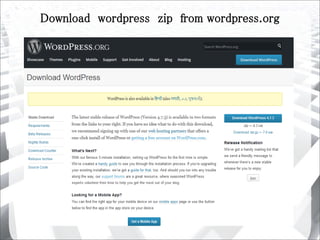
Download wordpress zip from wordpress.org
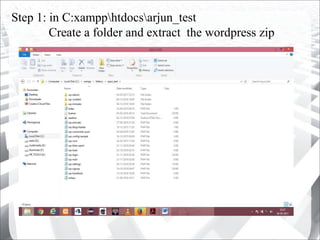
Step 1: in C:xampphtdocsarjun_test
Create a folder and extract the wordpress zip
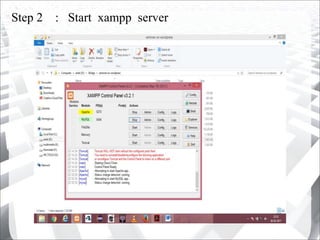
Step 2 : Start xampp server
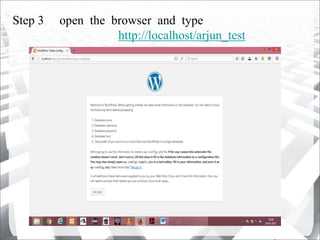
Step 3 open the browser and type
http://localhost/arjun_test
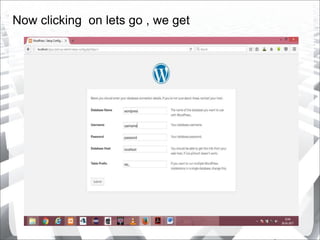
Now clicking on lets go , we get
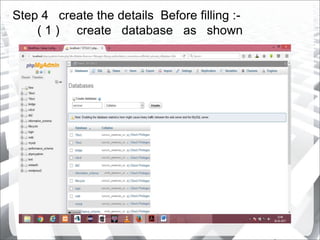
Step 4 create the details Before filling :-
( 1 ) create database as shown
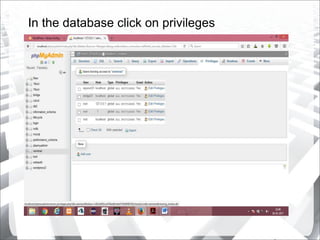
In the database click on privileges
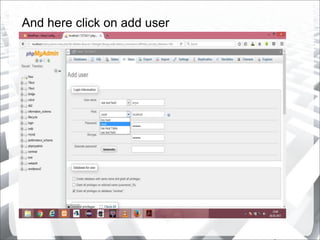
And here click on add user
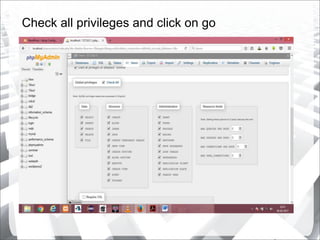
Check all privileges and click on go
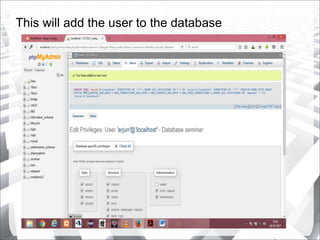
This will add the user to the database
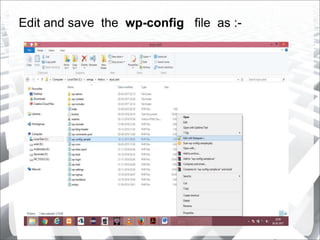
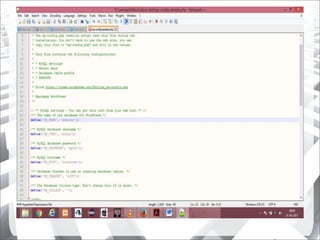
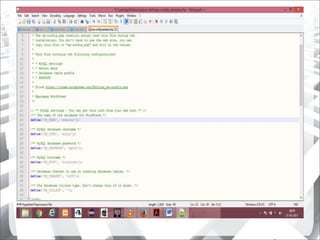
Edit and save the wp-config file as :-
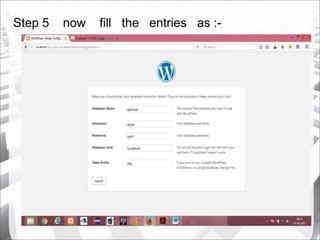
Step 5 now fill the entries as :-
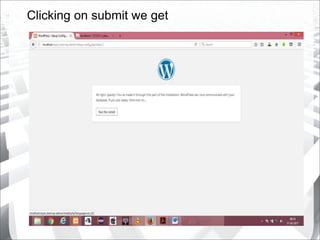
Clicking on submit we get
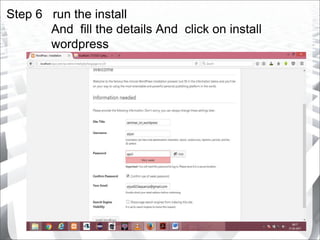
Step 6 run the install
And fill the details And click on install
wordpress
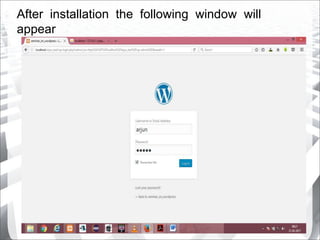
After installation the following window will
appear
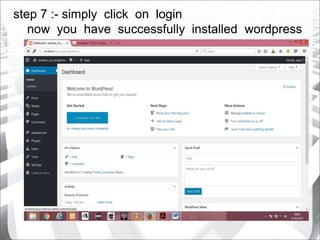
step 7 :- simply click on login
now you have successfully installed wordpress
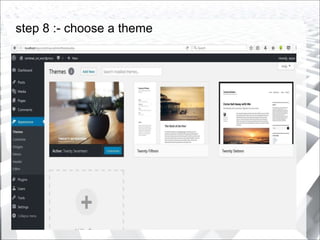
step 8 :- choose a theme
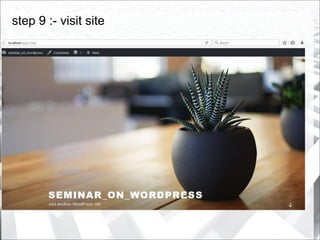
step 9 :- visit site
Database Schema
Introduction
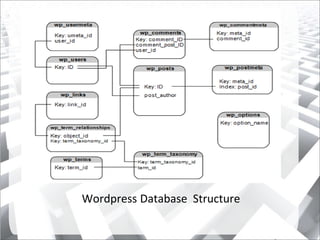
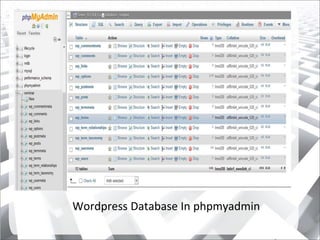
The default installation of WordPress contains 12
database tables. WordPress prides itself on being very
lightweight and the database is the starting point for
this.
The database structure is designed to be very
minimal yet allow for endless flexibility when
developing and designing for WordPress. To start
understanding the database schema it helps to view a
database diagram.
Wordpress Database Structure
Wordpress Database In phpmyadmin
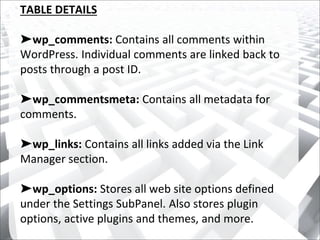
TABLE DETAILS
➤wp_comments: Contains all comments within
WordPress. Individual comments are linked back to
posts through a post ID.
➤wp_commentsmeta: Contains all metadata for
comments.
➤wp_links: Contains all links added via the Link
Manager section.
➤wp_options: Stores all web site options defined
under the Settings SubPanel. Also stores plugin
options, active plugins and themes, and more.
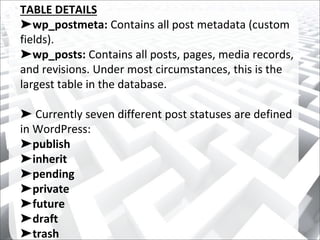
TABLE DETAILS
➤wp_postmeta: Contains all post metadata (custom
fields).
➤wp_posts: Contains all posts, pages, media records,
and revisions. Under most circumstances, this is the
largest table in the database.
➤ Currently seven different post statuses are defined
in WordPress:
➤publish
➤inherit
➤pending
➤private
➤future
➤draft
➤trash
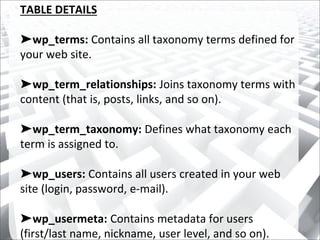
TABLE DETAILS
➤wp_terms: Contains all taxonomy terms defined for
your web site.
➤wp_term_relationships: Joins taxonomy terms with
content (that is, posts, links, and so on).
➤wp_term_taxonomy: Defines what taxonomy each
term is assigned to.
➤wp_users: Contains all users created in your web
site (login, password, e-mail).
➤wp_usermeta: Contains metadata for users
(first/last name, nickname, user level, and so on).
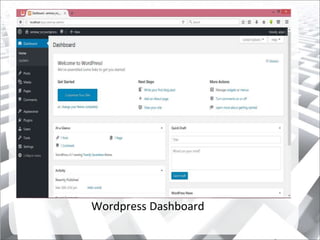
Wordpress Dashboa
Wordpress Dashboard
DASHBOARD
Dashboard Menu
The WordPress Dashboard provides navigation menu
that contains some menu options such as posts,
media library, pages, comments, appearance options,
plugins, users, tools and settings on the left side.
Welcome
It includes the Customize Your Site button which
allows customizing your WordPress theme. The center
column provides some of the useful links such as
creating a blog post, creating a page and view the
front end of your website.
DASHBOARD
Quick Draft
The Quick Draft is a mini post editor which allows
writing, saving and publishing a post from admin
dashboard. It includes the title for the draft, some
notes about the draft and save it as a Draft.
WordPress News
The WordPress News widget displays the latest news
such as latest software version, updates, alerts, news
regarding the software etc. from the official
WordPress blog.
DASHBOARD
Activity
The Activity widget includes latest comments on your
blog, recent posts and recently published posts.
At a Glance
This section gives an overview of your blog's posts,
number of published posts and pages, and number of
comments. When you click on these links, you will be
taken to the respective screen. It displays the current
version of running WordPress along with the currently
running theme on the site.
POSTS
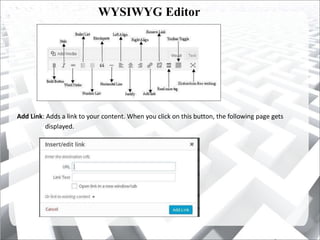
WYSIWYG Editor
Add Link: Adds a link to your content. When you click on this button, the following page gets
displayed.
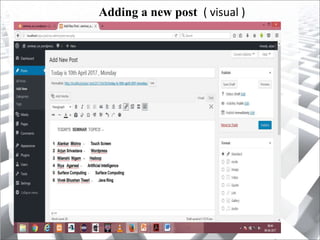
Adding a new post ( visual )
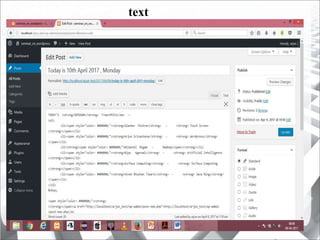
text
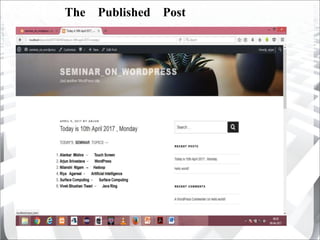
The Published Post
MEDIA
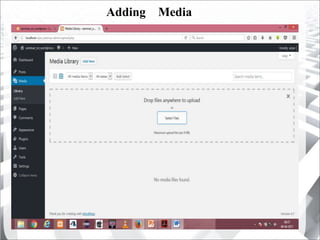
Adding Media
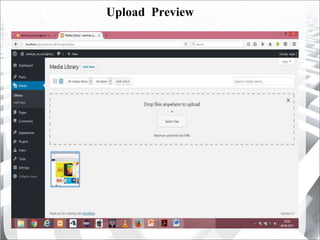
Upload Preview
Click on attachment to get its details
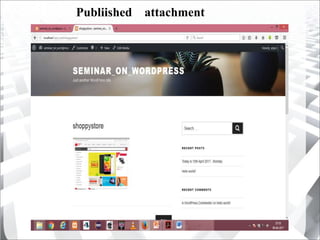
Publiished attachment
PAGES
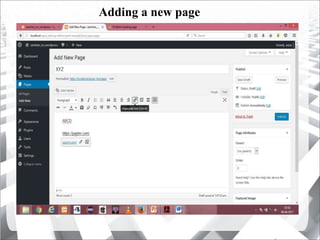
Adding a new page
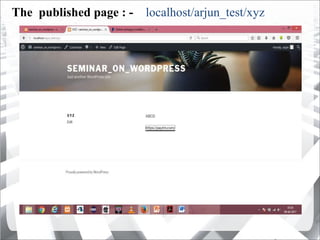
The published page : - localhost/arjun_test/xyz
Developing
E-commerce website
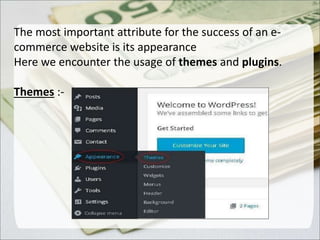
The most important attribute for the success of an e-
commerce website is its appearance
Here we encounter the usage of themes and plugins.
Themes :-
.
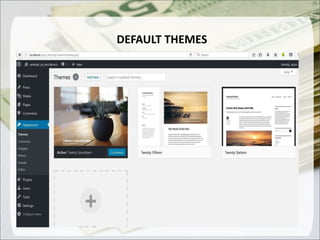
DEFAULT THEMES
.
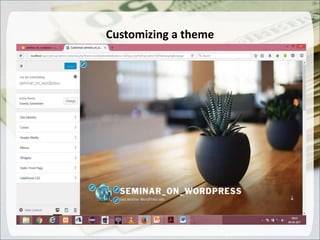
Customizing a theme
.
Some well known E-commerce themes are :-
Sydney
.
Some well known E-commerce themes are :-
Zerif Lite
.
Some well known E-commerce themes are :-
Shoppy Store
.
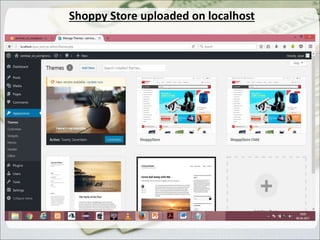
Shoppy Store uploaded on localhost
.
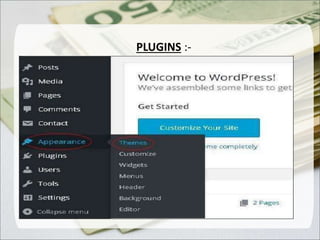
PLUGINS :-
.
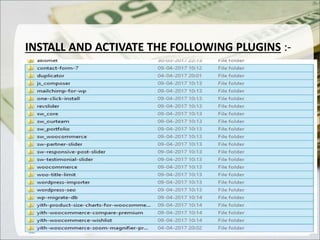
INSTALL AND ACTIVATE THE FOLLOWING PLUGINS :-
.
WooCommerce – The Best eCommerce Platform for
Wordpress
WooCommerce is an open source e-commerce plugin for
WordPress. It is designed for small to large-sized online
merchants using WordPress. Launched on September 27,
2011, the plugin quickly became popular for its simplicity
to install and customize and free base product..
WooCommerce – The Best eCommerce Platform for
Wordpress
.
WooCommerce – The Best eCommerce Platform for
Wordpress
.
WooCommerce – The Best eCommerce Platform for
Wordpress
.
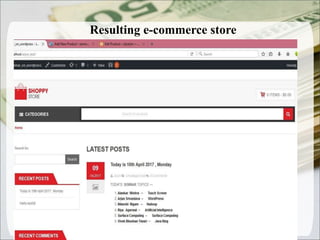
Resulting e-commerce store
.
Sample e-commerce store
.
HOST
TRANSFER
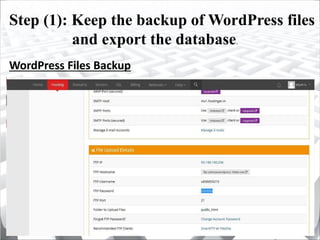
Step (1): Keep the backup of WordPress files
and export the database.
WordPress Files Backup
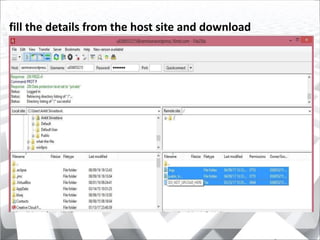
fill the details from the host site and download
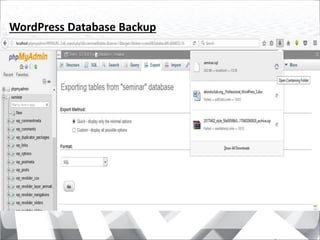
WordPress Database Backup
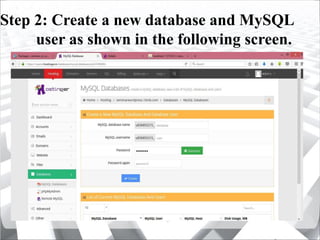
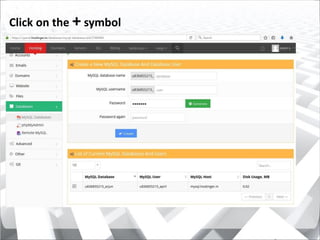
Step 2: Create a new database and MySQL
user as shown in the following screen.
Click on the + symbol
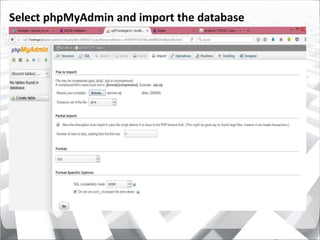
Select phpMyAdmin and import the database
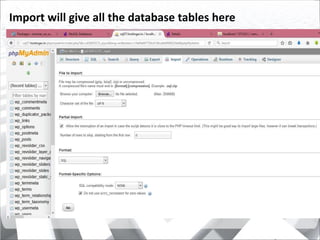
Import will give all the database tables here
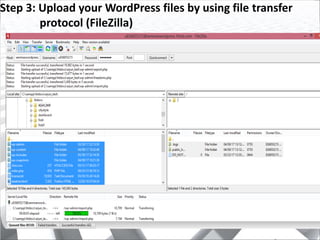
Step 3: Upload your WordPress files by using file transfer
protocol (FileZilla)
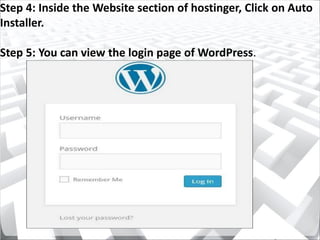
Step 4: Inside the Website section of hostinger, Click on Auto
Installer.
Step 5: You can view the login page of WordPress.
Some Websites
Developed On Worpress
http://demo.mediatrenz.com/citystyle
http://www.brazilianvirginhumanhair.com
http://demo3.mediatrenz.com/Thepariscloset
REFERENCES
1. WordPress: The Missing Manual by Matthew MacDonald
2. WordPress All-in-One for Dummies by Lisa Sabin-Wilson
3. Professional WordPress Design and Development by Brad
Williams, David Damstra and Hal Stern
4. Smashing WordPress: Beyond the Blog by Thord Daniel
Hedengren
5. WordPress Websites Step-by-Step by Caiman Jones
6. How to Build a Website with WordPress…Fast by Kent
Mauresmo
3
1450810025
Questions

Wordpress

  • 2.
    Today’s agenda 1 WordPressOverview 2 Wordpress Installation 3 Database Schema 4 Wordpress Dashboard
  • 3.
    5 Posts 6 Media 7Developing E-Commerce website 8 Host Transfer Today’s agenda
  • 4.
  • 5.
    WordPress is anopen source Content Management System (CMS), which allows the users to build dynamic websites and blogs. Wordpress is the most popular blogging system on the web and allows updating, customizing and managing the website from its back-end CMS and components. The Content Management System (CMS) is a software which stores all the data such as text, photos, music, documents, etc. and is made available on your website. It helps in editing, publishing and modifying the content of the website.
  • 6.
    History WordPress was initiallyreleased on 27th May, 2003 by Matt Mullenweg and Mike Little. WordPress was announced as open source in October 2009. As with other systems written in PHP, it is self-contained in the sense that installation, configuration, operation, and administration tasks are all contained in PHP modules. WordPress’s popularity has been driven in part by its simplicity, with the phrase “five minute installation” making appearances in nearly every description or book about WordPress. Beyond getting to a first post, WordPress was designed to be extended.
  • 7.
    Features User Management Media Management ThemeSystem Extend with Plugins Search Engine Optimization Multilingual Importers
  • 8.
    Advantages It is anopen source platform and available for free. Media files can be uploaded easily and quickly CSS files can be modified according to the design as per users need. There are many plugins and templates available for free. Users can customize the various plugins as per their need. It is very easy to edit the content as it uses WYSIWYG editor (What You See Is What You Get).
  • 9.
    Disadvantages Using several pluginscan make the website heavy to load and run. PHP knowledge is required to make modifications or changes in the WordPress website. Updating WordPress version leads to loss of data, so it a backup copy of the website is required. Modifying and formatting the graphic images and tables is difficult.
  • 10.
  • 11.
    Download wordpress zipfrom wordpress.org
  • 12.
    Step 1: inC:xampphtdocsarjun_test Create a folder and extract the wordpress zip
  • 13.
    Step 2 :Start xampp server
  • 14.
    Step 3 openthe browser and type http://localhost/arjun_test
  • 15.
    Now clicking onlets go , we get
  • 16.
    Step 4 createthe details Before filling :- ( 1 ) create database as shown
  • 17.
    In the databaseclick on privileges
  • 18.
    And here clickon add user
  • 19.
    Check all privilegesand click on go
  • 20.
    This will addthe user to the database
  • 21.
    Edit and savethe wp-config file as :-
  • 24.
    Step 5 nowfill the entries as :-
  • 25.
  • 26.
    Step 6 runthe install And fill the details And click on install wordpress
  • 27.
    After installation thefollowing window will appear
  • 28.
    step 7 :-simply click on login now you have successfully installed wordpress
  • 29.
    step 8 :-choose a theme
  • 30.
    step 9 :-visit site
  • 31.
  • 32.
    Introduction The default installationof WordPress contains 12 database tables. WordPress prides itself on being very lightweight and the database is the starting point for this. The database structure is designed to be very minimal yet allow for endless flexibility when developing and designing for WordPress. To start understanding the database schema it helps to view a database diagram.
  • 33.
  • 34.
  • 35.
    TABLE DETAILS ➤wp_comments: Containsall comments within WordPress. Individual comments are linked back to posts through a post ID. ➤wp_commentsmeta: Contains all metadata for comments. ➤wp_links: Contains all links added via the Link Manager section. ➤wp_options: Stores all web site options defined under the Settings SubPanel. Also stores plugin options, active plugins and themes, and more.
  • 36.
    TABLE DETAILS ➤wp_postmeta: Containsall post metadata (custom fields). ➤wp_posts: Contains all posts, pages, media records, and revisions. Under most circumstances, this is the largest table in the database. ➤ Currently seven different post statuses are defined in WordPress: ➤publish ➤inherit ➤pending ➤private ➤future ➤draft ➤trash
  • 37.
    TABLE DETAILS ➤wp_terms: Containsall taxonomy terms defined for your web site. ➤wp_term_relationships: Joins taxonomy terms with content (that is, posts, links, and so on). ➤wp_term_taxonomy: Defines what taxonomy each term is assigned to. ➤wp_users: Contains all users created in your web site (login, password, e-mail). ➤wp_usermeta: Contains metadata for users (first/last name, nickname, user level, and so on).
  • 38.
  • 39.
  • 40.
    DASHBOARD Dashboard Menu The WordPressDashboard provides navigation menu that contains some menu options such as posts, media library, pages, comments, appearance options, plugins, users, tools and settings on the left side. Welcome It includes the Customize Your Site button which allows customizing your WordPress theme. The center column provides some of the useful links such as creating a blog post, creating a page and view the front end of your website.
  • 41.
    DASHBOARD Quick Draft The QuickDraft is a mini post editor which allows writing, saving and publishing a post from admin dashboard. It includes the title for the draft, some notes about the draft and save it as a Draft. WordPress News The WordPress News widget displays the latest news such as latest software version, updates, alerts, news regarding the software etc. from the official WordPress blog.
  • 42.
    DASHBOARD Activity The Activity widgetincludes latest comments on your blog, recent posts and recently published posts. At a Glance This section gives an overview of your blog's posts, number of published posts and pages, and number of comments. When you click on these links, you will be taken to the respective screen. It displays the current version of running WordPress along with the currently running theme on the site.
  • 43.
  • 44.
    WYSIWYG Editor Add Link:Adds a link to your content. When you click on this button, the following page gets displayed.
  • 45.
    Adding a newpost ( visual )
  • 46.
  • 47.
  • 48.
  • 49.
  • 50.
  • 51.
    Click on attachmentto get its details
  • 52.
  • 53.
  • 54.
  • 55.
    The published page: - localhost/arjun_test/xyz
  • 56.
  • 57.
    The most importantattribute for the success of an e- commerce website is its appearance Here we encounter the usage of themes and plugins. Themes :- .
  • 58.
  • 59.
  • 60.
    Some well knownE-commerce themes are :- Sydney .
  • 61.
    Some well knownE-commerce themes are :- Zerif Lite .
  • 62.
    Some well knownE-commerce themes are :- Shoppy Store .
  • 63.
    Shoppy Store uploadedon localhost .
  • 64.
  • 65.
    INSTALL AND ACTIVATETHE FOLLOWING PLUGINS :- .
  • 66.
    WooCommerce – TheBest eCommerce Platform for Wordpress WooCommerce is an open source e-commerce plugin for WordPress. It is designed for small to large-sized online merchants using WordPress. Launched on September 27, 2011, the plugin quickly became popular for its simplicity to install and customize and free base product..
  • 67.
    WooCommerce – TheBest eCommerce Platform for Wordpress .
  • 68.
    WooCommerce – TheBest eCommerce Platform for Wordpress .
  • 69.
    WooCommerce – TheBest eCommerce Platform for Wordpress .
  • 70.
  • 71.
  • 72.
  • 73.
    Step (1): Keepthe backup of WordPress files and export the database. WordPress Files Backup
  • 74.
    fill the detailsfrom the host site and download
  • 75.
  • 76.
    Step 2: Createa new database and MySQL user as shown in the following screen.
  • 77.
    Click on the+ symbol
  • 78.
    Select phpMyAdmin andimport the database
  • 79.
    Import will giveall the database tables here
  • 80.
    Step 3: Uploadyour WordPress files by using file transfer protocol (FileZilla)
  • 81.
    Step 4: Insidethe Website section of hostinger, Click on Auto Installer. Step 5: You can view the login page of WordPress.
  • 82.
    Some Websites Developed OnWorpress http://demo.mediatrenz.com/citystyle http://www.brazilianvirginhumanhair.com http://demo3.mediatrenz.com/Thepariscloset
  • 83.
    REFERENCES 1. WordPress: TheMissing Manual by Matthew MacDonald 2. WordPress All-in-One for Dummies by Lisa Sabin-Wilson 3. Professional WordPress Design and Development by Brad Williams, David Damstra and Hal Stern 4. Smashing WordPress: Beyond the Blog by Thord Daniel Hedengren 5. WordPress Websites Step-by-Step by Caiman Jones 6. How to Build a Website with WordPress…Fast by Kent Mauresmo
  • 84.
  • 85.