Order to Cash Cycle
       Prepared by

 Sivakumar Ganesan
        Senior Financials Consultant
     Global Technology Services LLC
21. Sales Order Booking, Releasing, Ship Confirm

Since we have the Inventory on Hand now, we can execute the Sales Order.

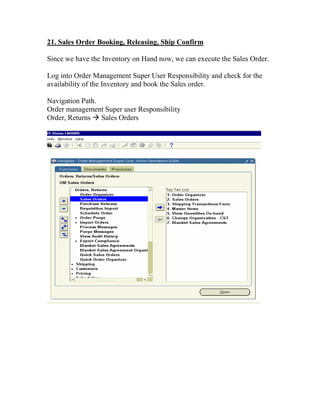
Log into Order Management Super User Responsibility and check for the
availability of the Inventory and book the Sales order.

Navigation Path.
Order management Super user Responsibility
Order, Returns Sales Orders
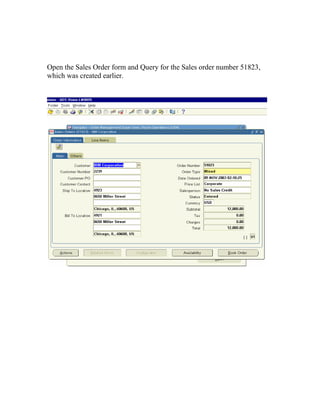
Open the Sales Order form and Query for the Sales order number 51823,
which was created earlier.
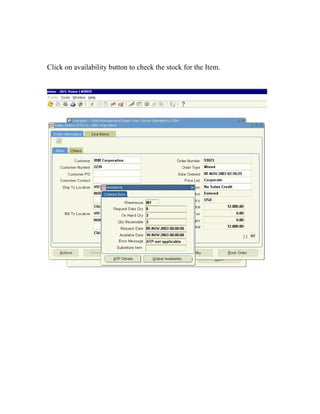
Click on availability button to check the stock for the Item.
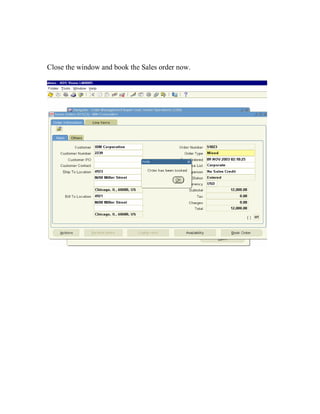
Close the window and book the Sales order now.
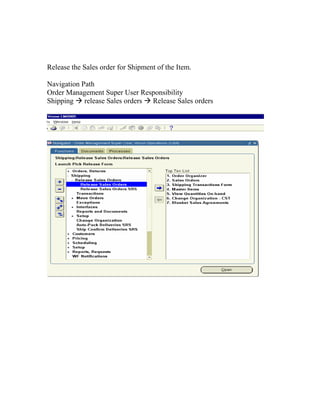
Release the Sales order for Shipment of the Item.

Navigation Path
Order Management Super User Responsibility
Shipping release Sales orders Release Sales orders
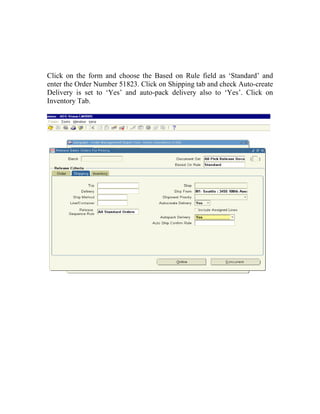
Click on the form and choose the Based on Rule field as ‘Standard’ and
enter the Order Number 51823. Click on Shipping tab and check Auto-create
Delivery is set to ‘Yes’ and auto-pack delivery also to ‘Yes’. Click on
Inventory Tab.
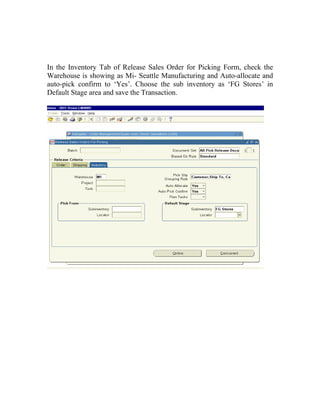
In the Inventory Tab of Release Sales Order for Picking Form, check the
Warehouse is showing as Mi- Seattle Manufacturing and Auto-allocate and
auto-pick confirm to ‘Yes’. Choose the sub inventory as ‘FG Stores’ in
Default Stage area and save the Transaction.
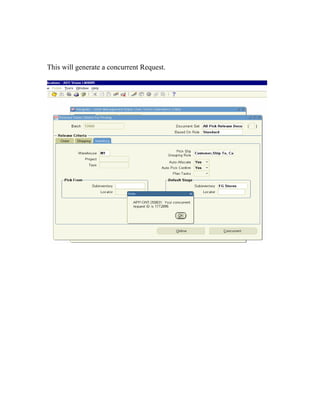
This will generate a concurrent Request.
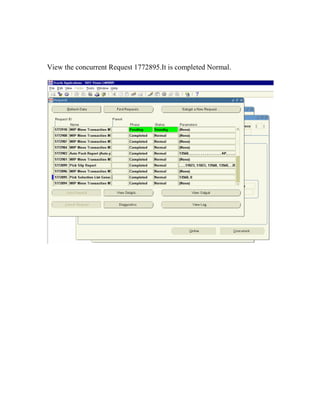
View the concurrent Request 1772895.It is completed Normal.
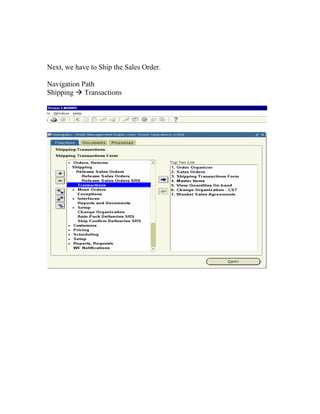
Next, we have to Ship the Sales Order.

Navigation Path
Shipping Transactions
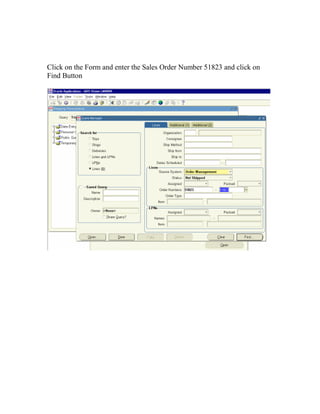
Click on the Form and enter the Sales Order Number 51823 and click on
Find Button
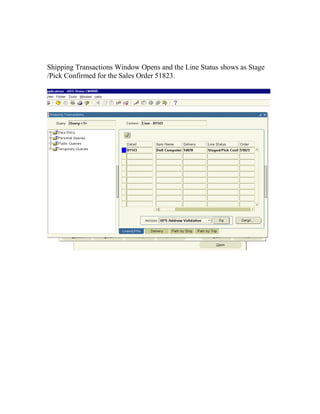
Shipping Transactions Window Opens and the Line Status shows as Stage
/Pick Confirmed for the Sales Order 51823.
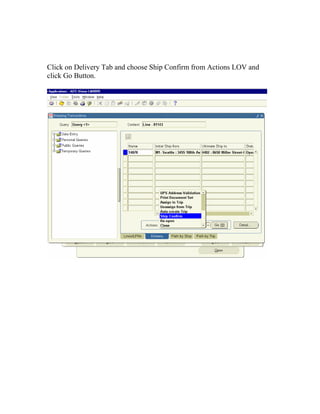
Click on Delivery Tab and choose Ship Confirm from Actions LOV and
click Go Button.
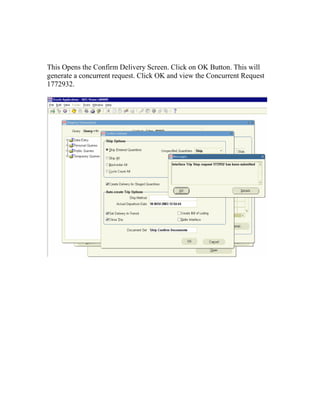
This Opens the Confirm Delivery Screen. Click on OK Button. This will
generate a concurrent request. Click OK and view the Concurrent Request
1772932.
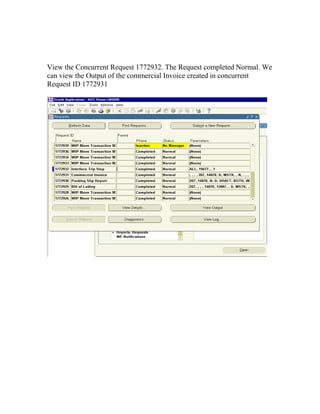
View the Concurrent Request 1772932. The Request completed Normal. We
can view the Output of the commercial Invoice created in concurrent
Request ID 1772931
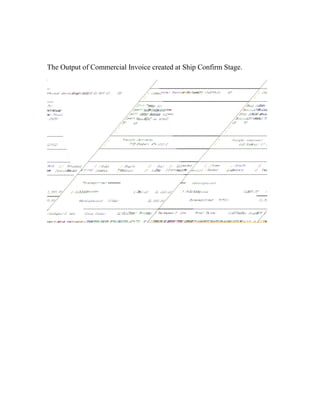
The Output of Commercial Invoice created at Ship Confirm Stage.
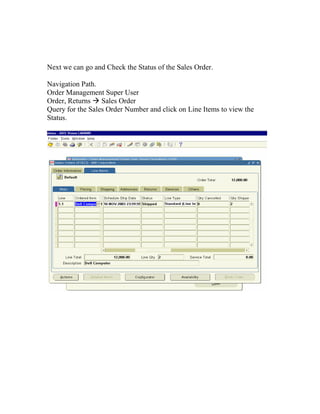
Next we can go and Check the Status of the Sales Order.

Navigation Path.
Order Management Super User
Order, Returns Sales Order
Query for the Sales Order Number and click on Line Items to view the
Status.
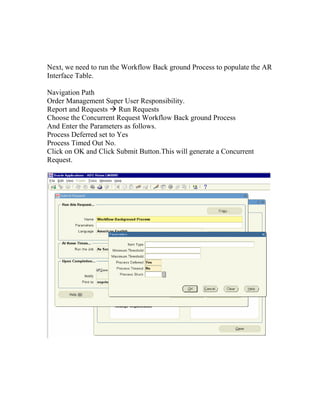
Next, we need to run the Workflow Back ground Process to populate the AR
Interface Table.

Navigation Path
Order Management Super User Responsibility.
Report and Requests Run Requests
Choose the Concurrent Request Workflow Back ground Process
And Enter the Parameters as follows.
Process Deferred set to Yes
Process Timed Out No.
Click on OK and Click Submit Button.This will generate a Concurrent
Request.
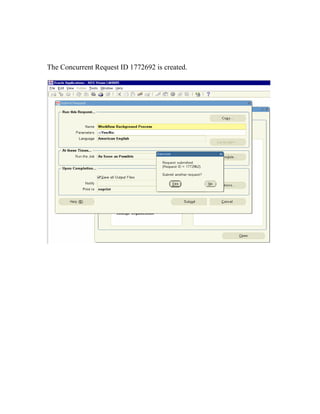
The Concurrent Request ID 1772692 is created.
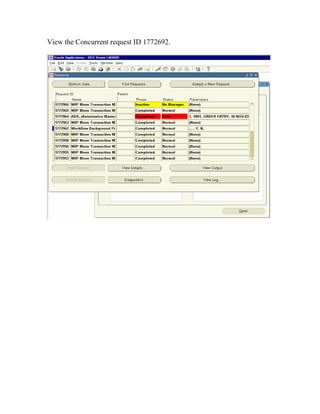
View the Concurrent request ID 1772692.
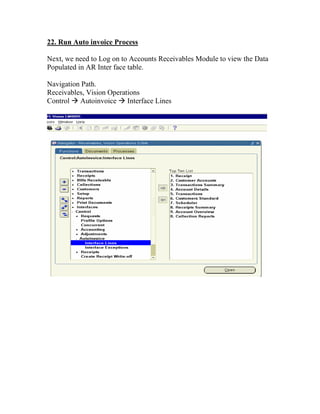
22. Run Auto invoice Process

Next, we need to Log on to Accounts Receivables Module to view the Data
Populated in AR Inter face table.

Navigation Path.
Receivables, Vision Operations
Control Autoinvoice Interface Lines
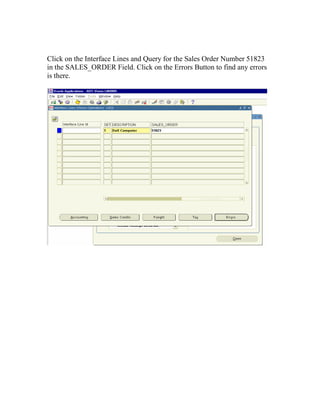
Click on the Interface Lines and Query for the Sales Order Number 51823
in the SALES_ORDER Field. Click on the Errors Button to find any errors
is there.
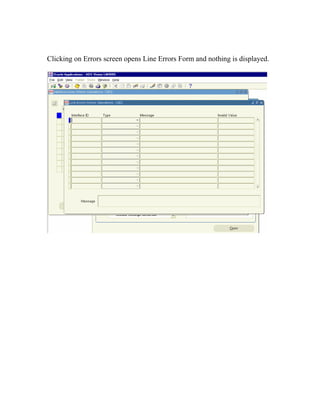
Clicking on Errors screen opens Line Errors Form and nothing is displayed.
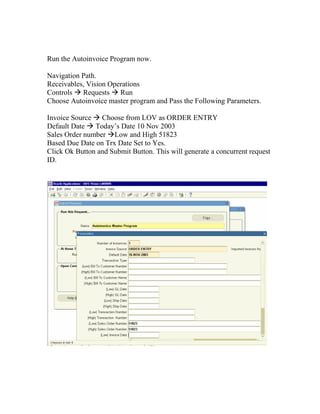
Run the Autoinvoice Program now.

Navigation Path.
Receivables, Vision Operations
Controls Requests Run
Choose Autoinvoice master program and Pass the Following Parameters.

Invoice Source Choose from LOV as ORDER ENTRY
Default Date Today’s Date 10 Nov 2003
Sales Order number Low and High 51823
Based Due Date on Trx Date Set to Yes.
Click Ok Button and Submit Button. This will generate a concurrent request
ID.
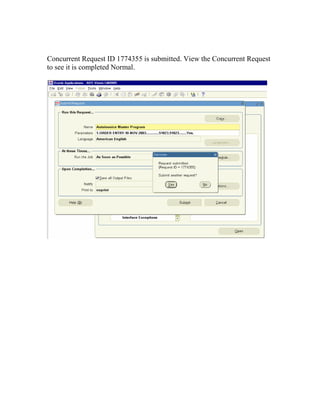
Concurrent Request ID 1774355 is submitted. View the Concurrent Request
to see it is completed Normal.
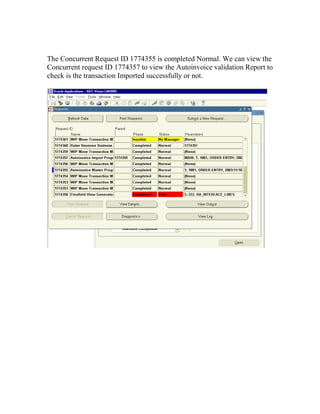
The Concurrent Request ID 1774355 is completed Normal. We can view the
Concurrent request ID 1774357 to view the Autoinvoice validation Report to
check is the transaction Imported successfully or not.
The Auto-invoice Validation Report completed successfully.
23. View Sales Invoice, Create Receipt, and Remittance and view
Account Balances

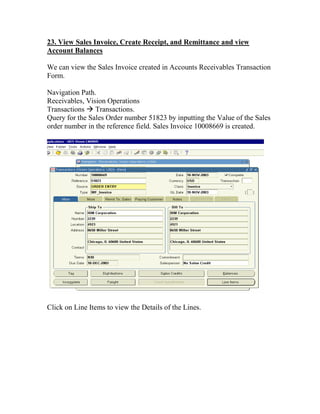
We can view the Sales Invoice created in Accounts Receivables Transaction
Form.

Navigation Path.
Receivables, Vision Operations
Transactions Transactions.
Query for the Sales Order number 51823 by inputting the Value of the Sales
order number in the reference field. Sales Invoice 10008669 is created.


Click on Line Items to view the Details of the Lines.
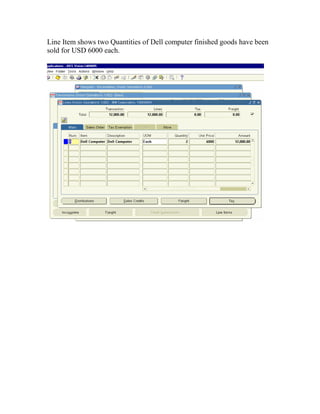
Line Item shows two Quantities of Dell computer finished goods have been
sold for USD 6000 each.
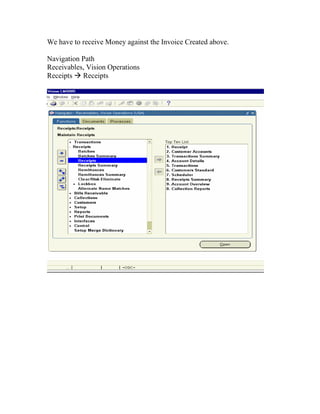
We have to receive Money against the Invoice Created above.

Navigation Path
Receivables, Vision Operations
Receipts Receipts
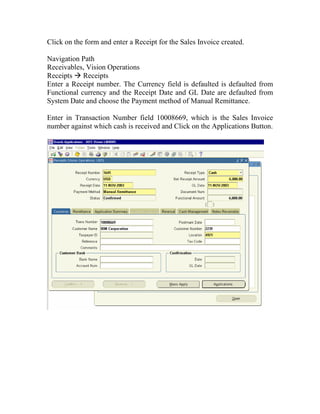
Click on the form and enter a Receipt for the Sales Invoice created.

Navigation Path
Receivables, Vision Operations
Receipts Receipts
Enter a Receipt number. The Currency field is defaulted is defaulted from
Functional currency and the Receipt Date and GL Date are defaulted from
System Date and choose the Payment method of Manual Remittance.

Enter in Transaction Number field 10008669, which is the Sales Invoice
number against which cash is received and Click on the Applications Button.
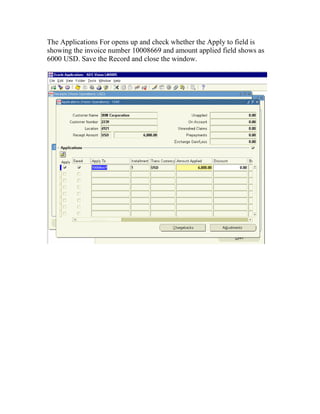
The Applications For opens up and check whether the Apply to field is
showing the invoice number 10008669 and amount applied field shows as
6000 USD. Save the Record and close the window.
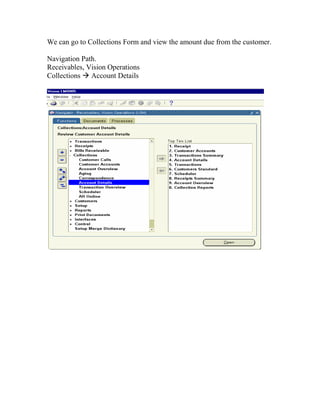
We can go to Collections Form and view the amount due from the customer.

Navigation Path.
Receivables, Vision Operations
Collections Account Details
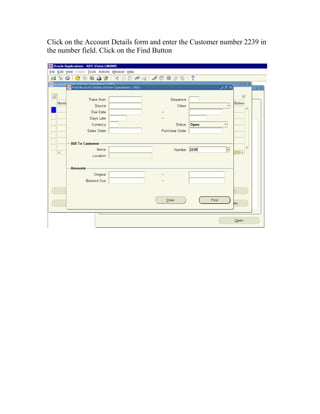
Click on the Account Details form and enter the Customer number 2239 in
the number field. Click on the Find Button
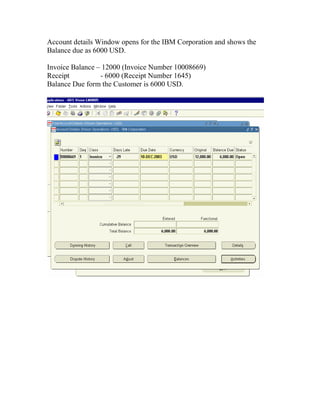
Account details Window opens for the IBM Corporation and shows the
Balance due as 6000 USD.

Invoice Balance – 12000 (Invoice Number 10008669)
Receipt          - 6000 (Receipt Number 1645)
Balance Due form the Customer is 6000 USD.
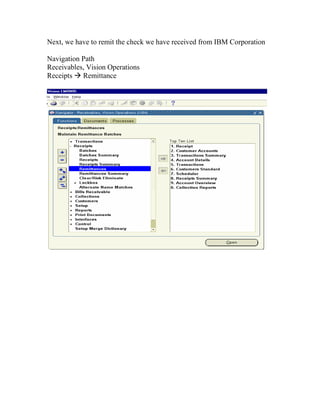
Next, we have to remit the check we have received from IBM Corporation

Navigation Path
Receivables, Vision Operations
Receipts Remittance
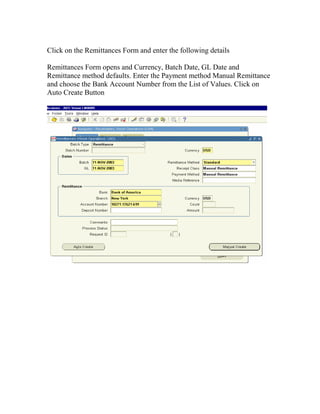
Click on the Remittances Form and enter the following details

Remittances Form opens and Currency, Batch Date, GL Date and
Remittance method defaults. Enter the Payment method Manual Remittance
and choose the Bank Account Number from the List of Values. Click on
Auto Create Button
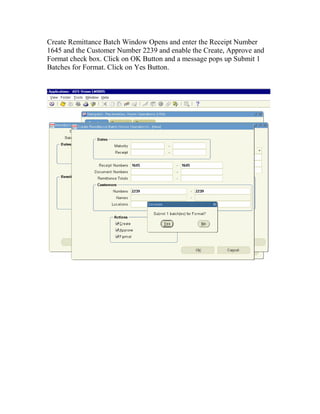
Create Remittance Batch Window Opens and enter the Receipt Number
1645 and the Customer Number 2239 and enable the Create, Approve and
Format check box. Click on OK Button and a message pops up Submit 1
Batches for Format. Click on Yes Button.
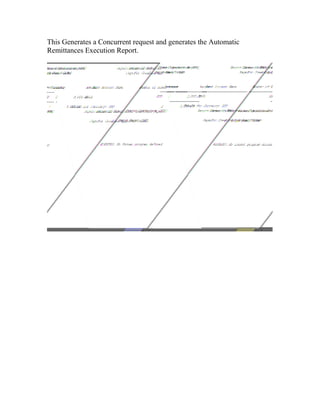
This Generates a Concurrent request and generates the Automatic
Remittances Execution Report.
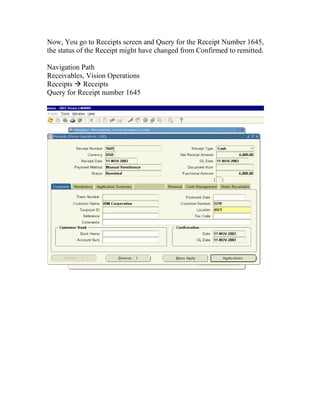
Now, You go to Receipts screen and Query for the Receipt Number 1645,
the status of the Receipt might have changed from Confirmed to remitted.

Navigation Path
Receivables, Vision Operations
Receipts Receipts
Query for Receipt number 1645
24. Receipt Reconciliation

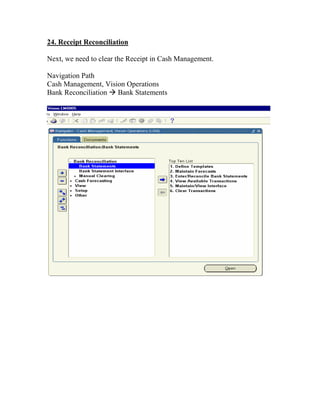
Next, we need to clear the Receipt in Cash Management.

Navigation Path
Cash Management, Vision Operations
Bank Reconciliation Bank Statements
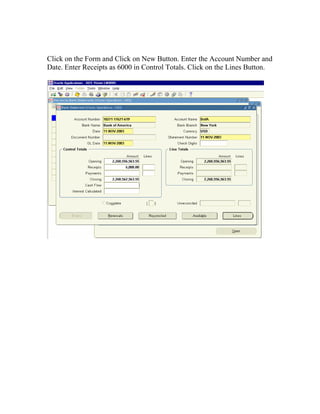
Click on the Form and Click on New Button. Enter the Account Number and
Date. Enter Receipts as 6000 in Control Totals. Click on the Lines Button.
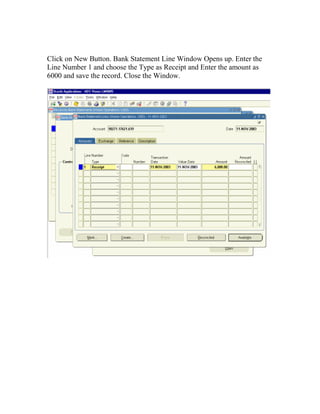
Click on New Button. Bank Statement Line Window Opens up. Enter the
Line Number 1 and choose the Type as Receipt and Enter the amount as
6000 and save the record. Close the Window.
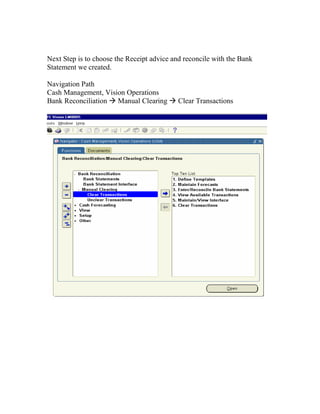
Next Step is to choose the Receipt advice and reconcile with the Bank
Statement we created.

Navigation Path
Cash Management, Vision Operations
Bank Reconciliation Manual Clearing         Clear Transactions
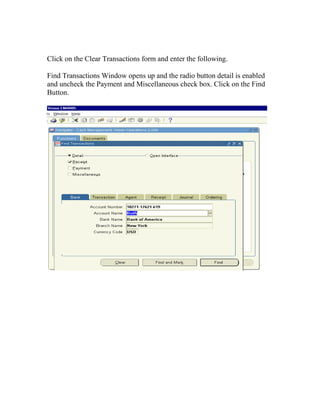
Click on the Clear Transactions form and enter the following.

Find Transactions Window opens up and the radio button detail is enabled
and uncheck the Payment and Miscellaneous check box. Click on the Find
Button.
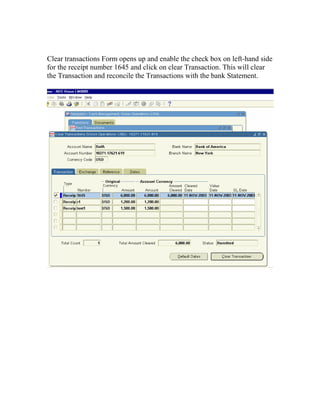
Clear transactions Form opens up and enable the check box on left-hand side
for the receipt number 1645 and click on clear Transaction. This will clear
the Transaction and reconcile the Transactions with the bank Statement.
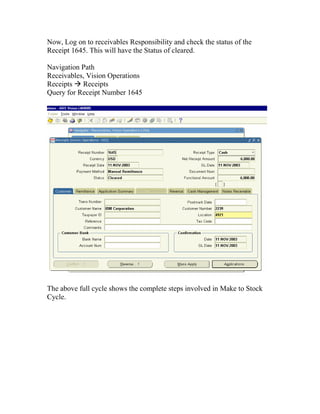
Now, Log on to receivables Responsibility and check the status of the
Receipt 1645. This will have the Status of cleared.

Navigation Path
Receivables, Vision Operations
Receipts Receipts
Query for Receipt Number 1645


The above full cycle shows the complete steps involved in Make to Stock
Cycle.

Order to cash_cycle_iii

  • 1.
    Order to CashCycle Prepared by Sivakumar Ganesan Senior Financials Consultant Global Technology Services LLC
  • 2.
    21. Sales OrderBooking, Releasing, Ship Confirm Since we have the Inventory on Hand now, we can execute the Sales Order. Log into Order Management Super User Responsibility and check for the availability of the Inventory and book the Sales order. Navigation Path. Order management Super user Responsibility Order, Returns Sales Orders
  • 3.
    Open the SalesOrder form and Query for the Sales order number 51823, which was created earlier.
  • 4.
    Click on availabilitybutton to check the stock for the Item.
  • 5.
    Close the windowand book the Sales order now.
  • 6.
    Release the Salesorder for Shipment of the Item. Navigation Path Order Management Super User Responsibility Shipping release Sales orders Release Sales orders
  • 7.
    Click on theform and choose the Based on Rule field as ‘Standard’ and enter the Order Number 51823. Click on Shipping tab and check Auto-create Delivery is set to ‘Yes’ and auto-pack delivery also to ‘Yes’. Click on Inventory Tab.
  • 8.
    In the InventoryTab of Release Sales Order for Picking Form, check the Warehouse is showing as Mi- Seattle Manufacturing and Auto-allocate and auto-pick confirm to ‘Yes’. Choose the sub inventory as ‘FG Stores’ in Default Stage area and save the Transaction.
  • 9.
    This will generatea concurrent Request.
  • 10.
    View the concurrentRequest 1772895.It is completed Normal.
  • 11.
    Next, we haveto Ship the Sales Order. Navigation Path Shipping Transactions
  • 12.
    Click on theForm and enter the Sales Order Number 51823 and click on Find Button
  • 13.
    Shipping Transactions WindowOpens and the Line Status shows as Stage /Pick Confirmed for the Sales Order 51823.
  • 14.
    Click on DeliveryTab and choose Ship Confirm from Actions LOV and click Go Button.
  • 15.
    This Opens theConfirm Delivery Screen. Click on OK Button. This will generate a concurrent request. Click OK and view the Concurrent Request 1772932.
  • 16.
    View the ConcurrentRequest 1772932. The Request completed Normal. We can view the Output of the commercial Invoice created in concurrent Request ID 1772931
  • 17.
    The Output ofCommercial Invoice created at Ship Confirm Stage.
  • 18.
    Next we cango and Check the Status of the Sales Order. Navigation Path. Order Management Super User Order, Returns Sales Order Query for the Sales Order Number and click on Line Items to view the Status.
  • 19.
    Next, we needto run the Workflow Back ground Process to populate the AR Interface Table. Navigation Path Order Management Super User Responsibility. Report and Requests Run Requests Choose the Concurrent Request Workflow Back ground Process And Enter the Parameters as follows. Process Deferred set to Yes Process Timed Out No. Click on OK and Click Submit Button.This will generate a Concurrent Request.
  • 20.
    The Concurrent RequestID 1772692 is created.
  • 21.
    View the Concurrentrequest ID 1772692.
  • 22.
    22. Run Autoinvoice Process Next, we need to Log on to Accounts Receivables Module to view the Data Populated in AR Inter face table. Navigation Path. Receivables, Vision Operations Control Autoinvoice Interface Lines
  • 23.
    Click on theInterface Lines and Query for the Sales Order Number 51823 in the SALES_ORDER Field. Click on the Errors Button to find any errors is there.
  • 24.
    Clicking on Errorsscreen opens Line Errors Form and nothing is displayed.
  • 25.
    Run the AutoinvoiceProgram now. Navigation Path. Receivables, Vision Operations Controls Requests Run Choose Autoinvoice master program and Pass the Following Parameters. Invoice Source Choose from LOV as ORDER ENTRY Default Date Today’s Date 10 Nov 2003 Sales Order number Low and High 51823 Based Due Date on Trx Date Set to Yes. Click Ok Button and Submit Button. This will generate a concurrent request ID.
  • 26.
    Concurrent Request ID1774355 is submitted. View the Concurrent Request to see it is completed Normal.
  • 27.
    The Concurrent RequestID 1774355 is completed Normal. We can view the Concurrent request ID 1774357 to view the Autoinvoice validation Report to check is the transaction Imported successfully or not.
  • 28.
    The Auto-invoice ValidationReport completed successfully.
  • 29.
    23. View SalesInvoice, Create Receipt, and Remittance and view Account Balances We can view the Sales Invoice created in Accounts Receivables Transaction Form. Navigation Path. Receivables, Vision Operations Transactions Transactions. Query for the Sales Order number 51823 by inputting the Value of the Sales order number in the reference field. Sales Invoice 10008669 is created. Click on Line Items to view the Details of the Lines.
  • 30.
    Line Item showstwo Quantities of Dell computer finished goods have been sold for USD 6000 each.
  • 31.
    We have toreceive Money against the Invoice Created above. Navigation Path Receivables, Vision Operations Receipts Receipts
  • 32.
    Click on theform and enter a Receipt for the Sales Invoice created. Navigation Path Receivables, Vision Operations Receipts Receipts Enter a Receipt number. The Currency field is defaulted is defaulted from Functional currency and the Receipt Date and GL Date are defaulted from System Date and choose the Payment method of Manual Remittance. Enter in Transaction Number field 10008669, which is the Sales Invoice number against which cash is received and Click on the Applications Button.
  • 33.
    The Applications Foropens up and check whether the Apply to field is showing the invoice number 10008669 and amount applied field shows as 6000 USD. Save the Record and close the window.
  • 34.
    We can goto Collections Form and view the amount due from the customer. Navigation Path. Receivables, Vision Operations Collections Account Details
  • 35.
    Click on theAccount Details form and enter the Customer number 2239 in the number field. Click on the Find Button
  • 36.
    Account details Windowopens for the IBM Corporation and shows the Balance due as 6000 USD. Invoice Balance – 12000 (Invoice Number 10008669) Receipt - 6000 (Receipt Number 1645) Balance Due form the Customer is 6000 USD.
  • 37.
    Next, we haveto remit the check we have received from IBM Corporation Navigation Path Receivables, Vision Operations Receipts Remittance
  • 38.
    Click on theRemittances Form and enter the following details Remittances Form opens and Currency, Batch Date, GL Date and Remittance method defaults. Enter the Payment method Manual Remittance and choose the Bank Account Number from the List of Values. Click on Auto Create Button
  • 39.
    Create Remittance BatchWindow Opens and enter the Receipt Number 1645 and the Customer Number 2239 and enable the Create, Approve and Format check box. Click on OK Button and a message pops up Submit 1 Batches for Format. Click on Yes Button.
  • 40.
    This Generates aConcurrent request and generates the Automatic Remittances Execution Report.
  • 41.
    Now, You goto Receipts screen and Query for the Receipt Number 1645, the status of the Receipt might have changed from Confirmed to remitted. Navigation Path Receivables, Vision Operations Receipts Receipts Query for Receipt number 1645
  • 42.
    24. Receipt Reconciliation Next,we need to clear the Receipt in Cash Management. Navigation Path Cash Management, Vision Operations Bank Reconciliation Bank Statements
  • 43.
    Click on theForm and Click on New Button. Enter the Account Number and Date. Enter Receipts as 6000 in Control Totals. Click on the Lines Button.
  • 44.
    Click on NewButton. Bank Statement Line Window Opens up. Enter the Line Number 1 and choose the Type as Receipt and Enter the amount as 6000 and save the record. Close the Window.
  • 45.
    Next Step isto choose the Receipt advice and reconcile with the Bank Statement we created. Navigation Path Cash Management, Vision Operations Bank Reconciliation Manual Clearing Clear Transactions
  • 46.
    Click on theClear Transactions form and enter the following. Find Transactions Window opens up and the radio button detail is enabled and uncheck the Payment and Miscellaneous check box. Click on the Find Button.
  • 47.
    Clear transactions Formopens up and enable the check box on left-hand side for the receipt number 1645 and click on clear Transaction. This will clear the Transaction and reconcile the Transactions with the bank Statement.
  • 48.
    Now, Log onto receivables Responsibility and check the status of the Receipt 1645. This will have the Status of cleared. Navigation Path Receivables, Vision Operations Receipts Receipts Query for Receipt Number 1645 The above full cycle shows the complete steps involved in Make to Stock Cycle.