Oh,
The Places You’ll
Go
With
CONGRATULATIONS
THING 1—Liz Sundet
Liz Sundet– User Experience Manager with Protiviti
MBA, PMP, CBAP, CSM
Musician:
Biker— “Throttles Not Pedals”
Email: lsundet@earthlink.net
Connect with me on LinkedIn
http://www.linkedin.com/in/lizsundet/
Blog: itsocialbutterfly.wordpress.com
Follow on Twitter: @percusn
Thing 2 - Tamara
Bredemus• SharePoint since 2008
• Solution Architect, Trainer, Blogger
• Business Perspective
• Code Free
• Find Me
• @TamaraBred
• HeyTamara.com
• Tamara.Bredemus@live.com
Agenda
•Tips
•Tricks
•Gotchas
•Ah Ha!
All The Things
We Screwed Up
And
Wanted To Go
Back and Fix
Or
http://tinyurl.com/OhThePlacesSP
One Word Naming
• Site
• Sub-site
• Library
• List
• Column
• View
• Document
ONEWOR
D
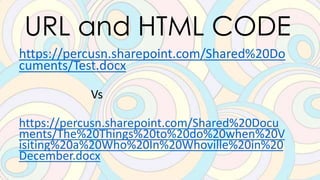
URL and HTML CODE
https://percusn.sharepoint.com/Shared%20Do
cuments/Test.docx
Vs
https://percusn.sharepoint.com/Shared%20Docu
ments/The%20Things%20to%20do%20when%20V
isiting%20a%20Who%20In%20Whoville%20in%20
December.docx
Site Columns
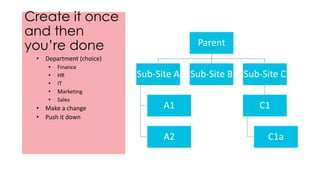
Create it once
and then
you’re done Parent
Sub-Site A
A1
A2
Sub-Site B Sub-Site C
C1
C1a
• Department (choice)
• Finance
• HR
• IT
• Marketing
• Sales
• Make a change
• Push it down
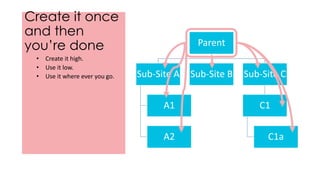
Create it once
and then
you’re done Parent
Sub-Site A
A1
A2
Sub-Site B Sub-Site C
C1
C1a
• Create it high.
• Use it low.
• Use it where ever you go.
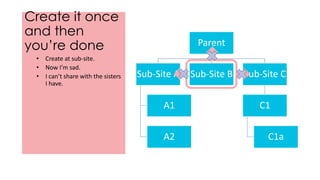
Create it once
and then
you’re done Parent
Sub-Site A
A1
A2
Sub-Site B Sub-Site C
C1
C1a
• Create at sub-site.
• Now I’m sad.
• I can’t share with the sisters
I have.
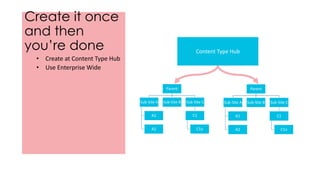
Create it once
and then
you’re done
Parent
Sub-Site A
A1
A2
Sub-Site B Sub-Site C
C1
C1a
• Create at Content Type Hub
• Use Enterprise Wide
Parent
Sub-Site A
A1
A2
Sub-Site B Sub-Site C
C1
C1a
Content Type Hub
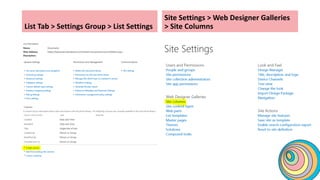
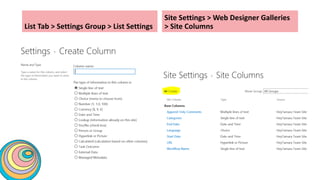
List Tab > Settings Group > List Settings
Site Settings > Web Designer Galleries
> Site Columns
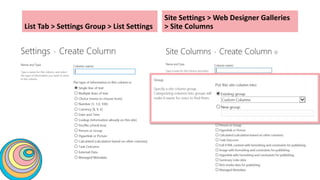
List Tab > Settings Group > List Settings
Site Settings > Web Designer Galleries
> Site Columns
List Tab > Settings Group > List Settings
Site Settings > Web Designer Galleries
> Site Columns
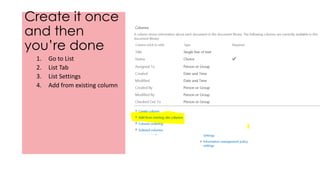
Create it once
and then
you’re done
1. Go to List
2. List Tab
3. List Settings
4. Add from existing column
Content Types
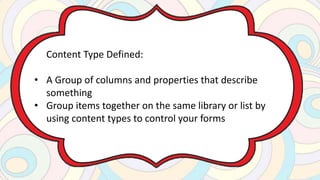
Content Type Defined:
• A Group of columns and properties that describe
something
• Group items together on the same library or list by
using content types to control your forms
FIRST CHOOSE THE
LIBRARY OR LIST AND
GO TO SETTINGS
THEN CLICK THE
ADVANCED SETTING
FROM THE GENERAL
SETTINGS AREA
CHOOSE YES TO ALLOW MANAGEMENT OF CONTENT TYPES
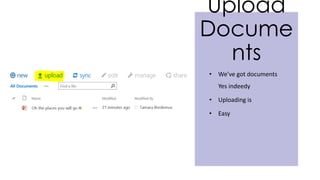
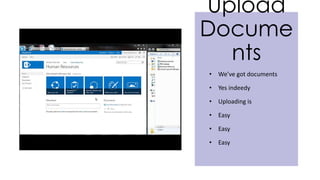
Upload Documents
Upload
Docume
nts
• We’ve got documents
Yes indeedy
• Uploading is
• Easy
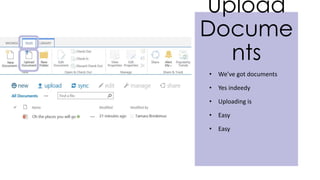
Upload
Docume
nts
• We’ve got documents
• Yes indeedy
• Uploading is
• Easy
• Easy
Upload
Docume
nts
• We’ve got documents
• Yes indeedy
• Uploading is
• Easy
• Easy
• Easy
Upload
Docume
nts
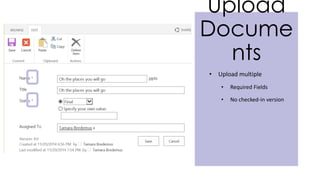
• Upload multiple
• Required Fields
• No checked-in version
Upload
Docume
nts
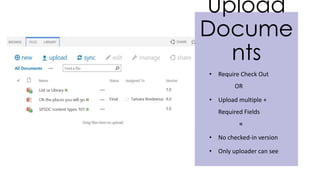
• Require Check Out
OR
• Upload multiple +
Required Fields
=
• No checked-in version
• Only uploader can see
Upload
Docume
nts
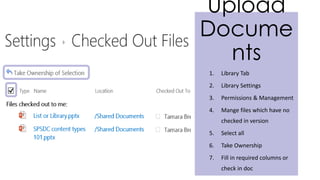
1. Library Tab
2. Library Settings
3. Permissions & Management
4. Mange files which have no
checked in version
5. Select all
6. Take Ownership
7. Fill in required columns or
check in doc
Versioning
Versionin
g
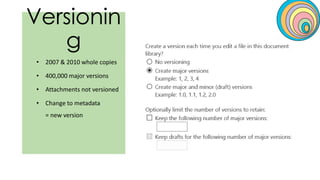
• 2007 & 2010 whole copies
• 400,000 major versions
• Attachments not versioned
• Change to metadata
= new version
Versionin
g
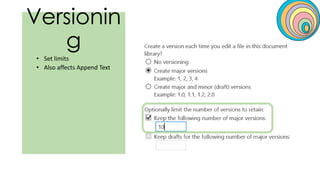
• Set limits
• Also affects Append Text
Versionin
g
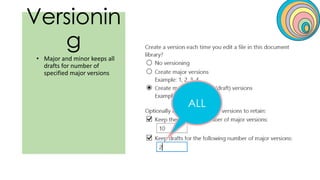
• Major and minor keeps all
drafts for number of
specified major versions
ALL
Versionin
g
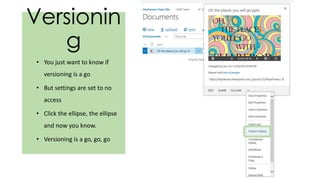
• You just want to know if
versioning is a go
• But settings are set to no
access
• Click the ellipse, the ellipse
and now you know.
• Versioning is a go, go, go
Versionin
g
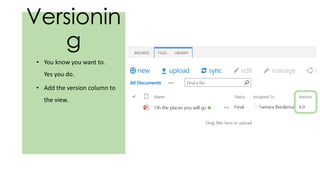
• You know you want to.
Yes you do.
• Add the version column to
the view.
Where
Oh Where
Is the
Print Button?
Sync Files
SYNC FILES
• OUTLOOK
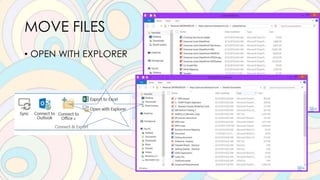
MOVE FILES
• OPEN WITH EXPLORER
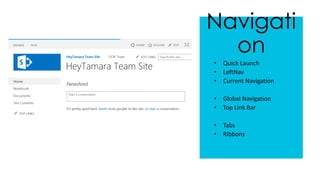
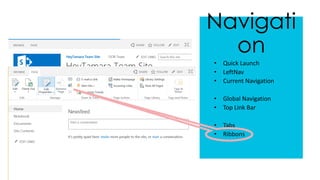
Navigation
Navigati
on
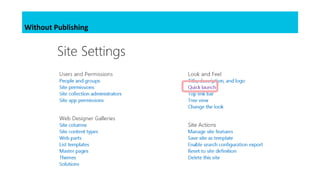
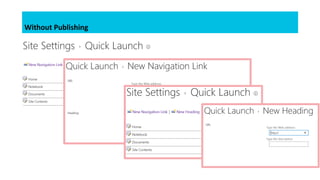
• Quick Launch
• LeftNav
• Current Navigation
• Global Navigation
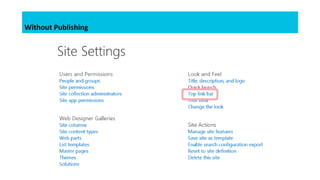
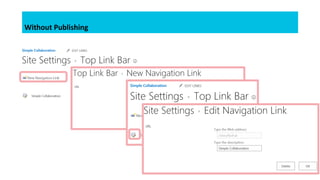
• Top Link Bar
• Tabs
• Ribbons
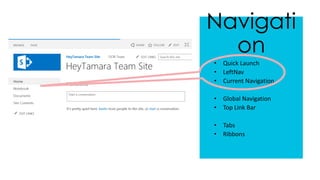
Navigati
on
• Quick Launch
• LeftNav
• Current Navigation
• Global Navigation
• Top Link Bar
• Tabs
• Ribbons
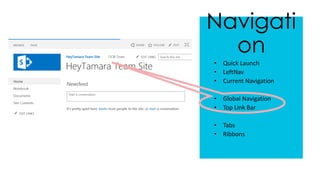
Navigati
on
• Quick Launch
• LeftNav
• Current Navigation
• Global Navigation
• Top Link Bar
• Tabs
• Ribbons
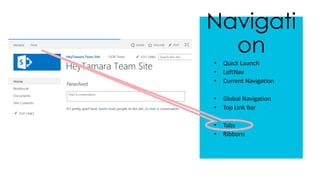
Navigati
on
• Quick Launch
• LeftNav
• Current Navigation
• Global Navigation
• Top Link Bar
• Tabs
• Ribbons
Navigati
on
• Quick Launch
• LeftNav
• Current Navigation
• Global Navigation
• Top Link Bar
• Tabs
• Ribbons
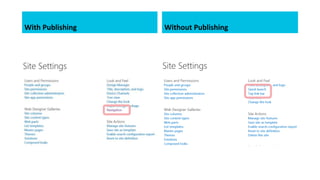
With Publishing Without Publishing
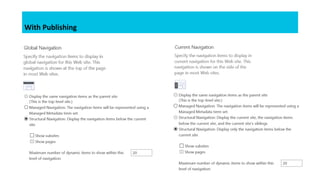
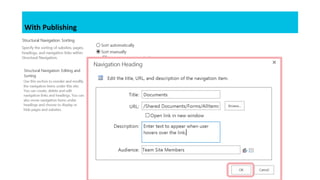
With Publishing
With Publishing
Without Publishing
Without Publishing
Without Publishing
Without Publishing
Promoted Links
Audience
Targeting
vs
Permissions
Audience Targeting Permissions
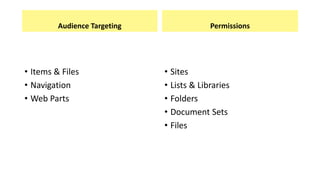
• Items & Files
• Navigation
• Web Parts
• Sites
• Lists & Libraries
• Folders
• Document Sets
• Files
Audience Targeting Permissions
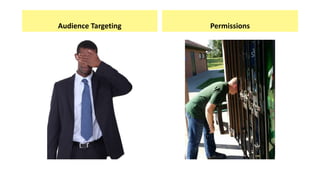
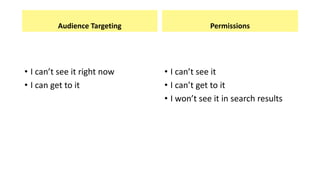
• I can’t see it right now
• I can get to it
• I can’t see it
• I can’t get to it
• I won’t see it in search results
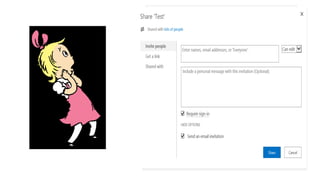
Sharing
YOU ARE ABOUT TO CHANGE
SECURITY! YES, INDEED!
OMG!
Invitation to Join
Where: Add to group
Who: Your Site Admin
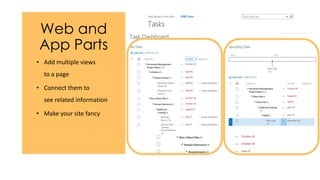
Web Parts
Some are called App Parts
Web and
App Parts
• Add multiple views
to a page
• Connect them to
see related information
• Make your site fancy
AND WILL YOU SUCCEED?
YES! YOU WILL INDEED!
98 AND 3/4 PERCENT
GUARANTEED
Oh, The Places You Will Go
With SharePoint
Liz Sundet
lsundet@earthlink.net
@percusn
http://www.linkedin.com/in/lizsundet/
itsocialbutterfly.wordpress.com
Tamara Bredemus
Tamara.Bredemus@live.com
@TamaraBred
HeyTamara.com
Pictures used in this presentation were found under the following locations and labeled as
free for use.
• http://www.clipartpanda.com/categories/dr-seuss-clip-art-fish
Words and text used from Dr. Seuss’ “Oh, the Places You Will Go” copyright 1991 by
Randomhouse

Oh the places you will go mpls

Editor's Notes

  • #3 Congratulations! Today is your day. You’re off to great places! You’re off and away! You have brains in your head. You have feet in your shoes. You can steer yourself any direction you choose. You’re on your own. And you know what you know. And YOU are the guy who’ll decide where to go. You’ll look up and down streets. Look ‘em over with care. About some you will say, “I don’t choose to go there.” With your head full of brains and your shoes full of feet, you’re too smart to go down any no-so-good street. And you may not find any you’ll want to go down. In that case, of course, head straight out of town. It’s opener there in the wide open air. Out there things can happen and frequently do to people as brainy and footsy as you. And when things start to happen, don’t worry. Don’t stew. Just go right along. You’ll start happening too OH! The Places you will go! -Dr. Seuss
  • #6 Ladies and Gentlemen get ready! This session is the hottest tips, ticks, gotchas and ah ha’s in SharePoint. These ideas are not necessarily new and some have been around for quite some time, but these are the things people screw up that only leads to the Slump and according to Seuss, Un-slumping yourself is not easily done. Thing two refers to this session as “All those things you did because you didn’t know any better and probably screwed up so you’ll want to go back and fix.” We will move fast to get in as many tips and tricks as possible and have some fun along the way.
  • #7 One of the most frequently misused and misunderstood items in SharePoint is the use of one word for naming items.
  • #8 One word should be used for Sites, Subsites, Libraries, Lists, Columns, Views and Documents. Pretty much anything you create can and should be done with just one word. Stay away from special characters as well. SharePoint 2003-2010 was poor with the use of special characters in the naming conventions, to the point, where if your document name included special characters like a hyphen, it wouldn’t load the information. While 2013 is better, the reason why still exists.
  • #9 The difference comes in the URL code and HTLM code. Where the URL adds %20 to every space, the HTLM adds 5 characters to the code in the background. And, Microsoft themselves break this best practice by automatically creating a Shared Documents library on every team site that uses the standard template and that library has the spaces. So, what I typically do #1 not use the “out of the box” document library called Shared Documents but create my own, using only one word. Then anything under that I try to use one word. Now, you may not really care how the URL looks or what it looks like to some developer in the back room writing code but here’s another thing to consider. You have 256 characters until the links break, this will affect the way you share documents and direct people to areas or documents on your site. And if you think 256 characters is a whole bunch, you will run out. Trust me! It’s one of the first things I check for when troubleshooting as a Site Admin and I like the code to be much cleaner.
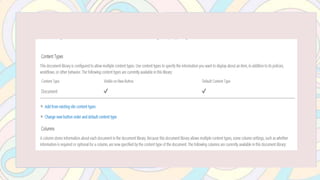
  • #19 Working with Content types can be quite advanced, however it’s best if you know what they are and where to turn them on.
  • #20 What is a content type. The easiest way is for me to describe a real life scenario. One of my users has a very long list of items and they are all related, but related in different ways. To show only those properties related to a particular item, use content types. An example of this would be like going into the produce section of your grocery store and listing everything you see. You may have content types related to fruits, vegetables and nuts and each of those types have different properties to fill out, but overall, still in the list of produce.
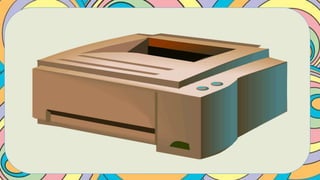
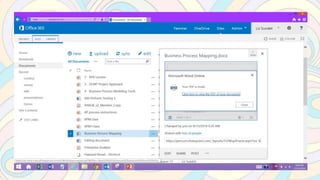
  • #36 I NEED TO PRINT…That’s what I hear all the time Yes indeed in this day and age we are still in a printing frenzy, even though we can open, edit, collaborate and share all on line, we STILL need to print. I wish the printer to become a dinosaur like the fax machine, but people still need to print. And yet, there is no easy button to print….or is there??
  • #37 Yes indeed, in 2013 you can print…and it’s a lot quicker than opening the document or downloading the document. Look for the ellipsis or the … When the window opens, look for the office web apps preview. There’s a very small icon near the right hand corner. When you select “Print to PDF”
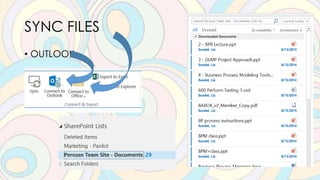
  • #38 Think of this, a group of construction workers on site and limited access to the internet, but still need to be able to retrieve documents from a SharePoint library. This is a perfect example of when I would use Sync files.
  • #39 We can use Outlook to Sync files and be able to retrieve them. While the situation doesn’t allow for direct connection to your documents, it will “resync” them the next time you are online. You can also do the same with “connect to office” and have it appear in your file locations from your computer. Again, you will have to authenticate and allow permissions for it to communicate, but this is a quick and easy way to retrieve certain documents while off line.
  • #40 The next thing I get asked a lot is when people want to move documents from one library to another. It’s usually quite a few document, not just one, so the way I typically propose is they use Open with Explorer. This feature is available only on Internet Explorer and has been in every version of SharePoint. It allows you to open locations of libraries at the same time to be able to copy and paste files from one to the other. It makes it a lot easier than downloading and uploading to different areas for the general user.
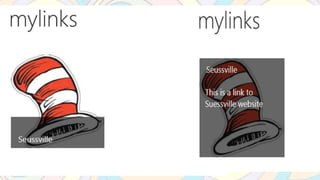
  • #54 One of the best features of 2013 version of SharePoint is promoted links. This allows you to create tiles with pictures to show in SharePoint and allows you to connect to any URL, not just the ones that are part of that site or subsite.
  • #55 Promoted links is an app that is Standard in versions of SharePoint 2013 and O365 and works as a special list. First you name the app (just like you would name a list or library, try naming with one word here as well). Open your list to add in the information on where you want it to link to, how you want it to open such as in another tab or in the tab you already have open and add pictures. Typically I save my pictures in a global site assets library so I can reuse them from site to site. Also you will need the URL you are connecting to, if it on the web or on your SharePoint site. When you go from Promoted Links list view to Tiles View, you can see your work. If you hover over the picture, you can see your description you entered as well. And, my last piece of advice on this, Seussville is a real website and lots of fun to go to
  • #60 Sharing seems like the easiest thing to do in SharePoint, but what is lurking in the background is SCARY!
  • #61 After clicking the ellipsis, you will find a SHARE button. This allows you to Share the information from person to person by generating an email to those people you wish to share the document with the URL to that document. HOWEVER…
  • #62 Doing a SHARE actually changes the user profile to allow access to that item, essentially breaking inheritance permissions. However, this is not showing in the regular security area. Instead, you have to change the user profile to show as everyone or user=0 in the URL to see who has access to that particular area. It will still show like it’s using the permissions from the parent, but SharePoint is really lying to you so you need to make sure you are careful or you could have Thing 1 and Thing 2 running around rampant in your SharePoint site breaking things.
  • #63 Instead of creating a whole lot of separate permissions to all the different documents, have your Site Admin set permissions for a user by Inviting them to a group on SharePoint that has permissions to that library or list.