Administrator’s Manual
                              Updated: February 20, 2011


Copyright© 2008-2011 ScrumDesk.com                         www.scrumdesk.com
PREREQUISITES                                                  3


INSTALLATION BASICS                                            3


DATABASE SERVER                                                3
USER AUTHENTICATION                                            3
ADMINISTRATOR                                                  4


STEP 1: CREATE A NEW SCRUMDESK DATABASE                        5


WINDOWS AUTHENTICATION                                         6


STEP 2: ADMINISTRATOR LOGIN                                    9


DATABASE SELECTION                                             9


STEP 3: COMPANY LICENSE KEY                                   10


STEP 4: LICENSE MANAGEMENT                                    10


LICENSING BASICS                                              10
USER LICENSES MANAGEMENT                                      11


STEP 5: USER MANAGEMENT                                       12


LDAP INTEGRATION                                              13
SCRUMDESK CONTACTS                                            14


 Copyright© 2008-2011 ScrumDesk.com       www.scrumdesk.com
3


Prerequisites
      Microsoft Windows XP, Vista or Windows 7
      Microsoft .NET 3.5 SP 1 framework, available for download here
      Microsoft SQL Server 2008 R2 Express edition or better, available for download here
      Microsoft SQL Server 2005 is supported as well, but SQL 2008 is preferred due to future
       compatibility.


Installation basics
Database server
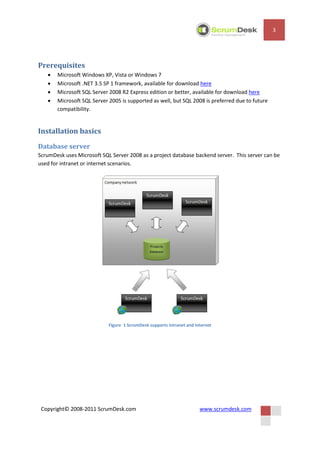
ScrumDesk uses Microsoft SQL Server 2008 as a project database backend server. This server can be
used for intranet or internet scenarios.


                            Figure 1 ScrumDesk supports intranet and internet


 Copyright© 2008-2011 ScrumDesk.com                                    www.scrumdesk.com
4


User Authentication
SQL Server is requires users authentication. ScrumDesk supports both Windows and SQL Server
authentication.

How to choose authentication type:

      Windows authentication – a good choice for intranet installation where all ScrumDesk
       clients are in one domain. This authentication simplifies client deployment because of
       integrated user authentication.
      SQL Server authentication – a good choice for internet scenarios when one or more clients
       are connected to company’s SQL server by internet.

Administrator
At least one user “administrator” is created in each new ScrumDesk database. This account can be
used for user and license management.

       Administrator account does not have password by default.
       Password can be easy changed by clicking on Change hyperlink in the Login dialog.

When administrator is logged to ScrumDesk, administration view appears. See more in Step 3: and
Step 4: License Management.


 Copyright© 2008-2011 ScrumDesk.com                                    www.scrumdesk.com
5


Step 1: New ScrumDesk database
A.   Unzip installation tool

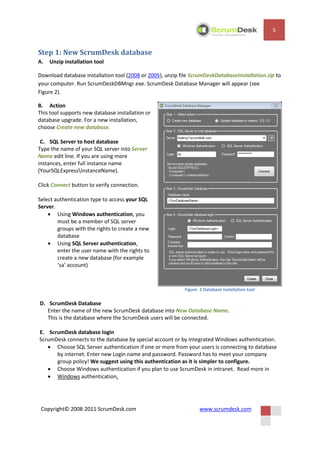
Download database installation tool (2008 or 2005), unzip file ScrumDeskDatabaseInstallation.zip to
your computer. Run ScrumDeskDBMngr.exe. ScrumDesk Database Manager will appear (see
Figure 2).

B. Action
This tool supports new database installation or
database upgrade. For a new installation,
choose Create new database.

 C. SQL Server to host database
Type the name of your SQL server into Server
Name edit line. If you are using more
instances, enter full instance name
(YourSQLExpressInstanceName).

Click Connect button to verify connection.

Select authentication type to access your SQL
Server.
     Using Windows authentication, you
        must be a member of SQL server
        groups with the rights to create a new
        database
     Using SQL Server authentication,
        enter the user name with the rights to
        create a new database (for example
        ‘sa’ account)


                                                           Figure 2 Database installation tool

D. ScrumDesk Database
   Enter the name of the new ScrumDesk database into New Database Name.
   This is the database where the ScrumDesk users will be connected.

E. ScrumDesk database login
ScrumDesk connects to the database by special account or by integrated Windows authentication.
    Choose SQL Server authentication if one or more from your users is connecting to database
      by internet. Enter new Login name and password. Password has to meet your company
      group policy! We suggest using this authentication as it is simpler to configure.
    Choose Windows authentication if you plan to use ScrumDesk in intranet. Read more in
    Windows authentication.


 Copyright© 2008-2011 ScrumDesk.com                               www.scrumdesk.com
6


F. Company license key

You received company key upon your On-Site registration by en email. Copy it into this edit line to
lock the database for your company. This step is required.

Windows authentication
If you plan use Windows authentication, further steps are required.

       If you selected SQL Server Authentication option, go to Step 2: Administrator Login.

ScrumDesk creates a database role ScrumDeskUsers. You have to assign logins to this role for all the
users or group of users which requires database access.

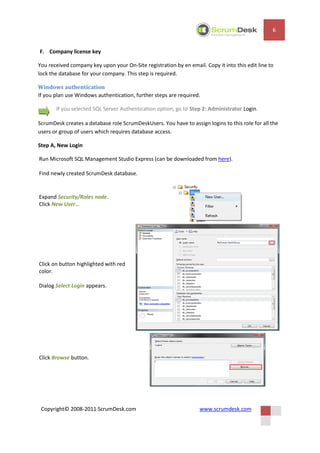
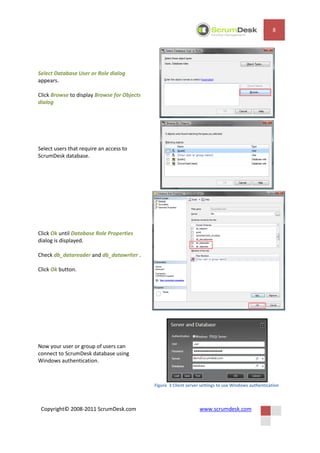
Step A, New Login

Run Microsoft SQL Management Studio Express (can be downloaded from here).

Find newly created ScrumDesk database.


Expand Security/Roles node.
Click New User…


Click on button highlighted with red
color.

Dialog Select Login appears.


Click Browse button.


 Copyright© 2008-2011 ScrumDesk.com                                www.scrumdesk.com
7


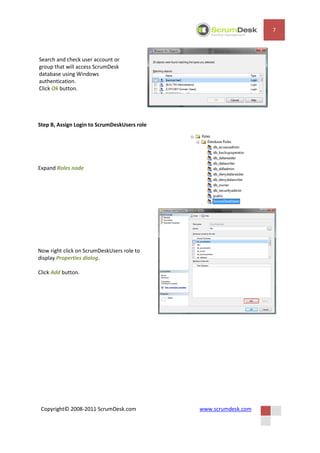
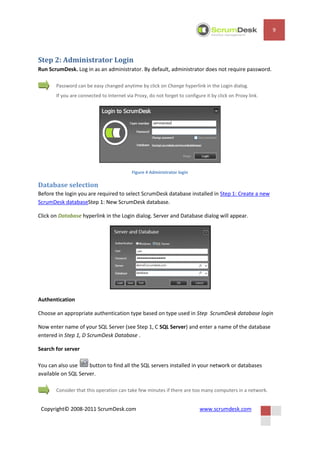
Search and check user account or
group that will access ScrumDesk
database using Windows
authentication.
Click Ok button.


Step B, Assign Login to ScrumDeskUsers role


Expand Roles node


Now right click on ScrumDeskUsers role to
display Properties dialog.

Click Add button.


 Copyright© 2008-2011 ScrumDesk.com           www.scrumdesk.com
8


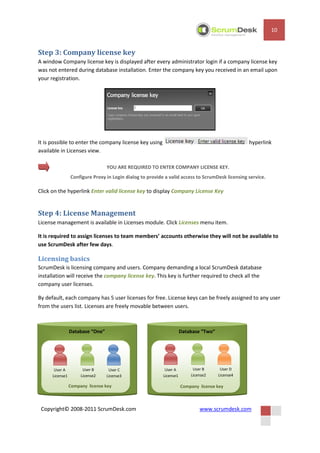
Select Database User or Role dialog
appears.

Click Browse to display Browse for Objects
dialog


Select users that require an access to
ScrumDesk database.


Click Ok until Database Role Properties
dialog is displayed.

Check db_datareader and db_datawriter .

Click Ok button.


Now your user or group of users can
connect to ScrumDesk database using
Windows authentication.


                                             Figure 3 Client server settings to use Windows authentication


 Copyright© 2008-2011 ScrumDesk.com                                www.scrumdesk.com
9


Step 2: Administrator Login
Run ScrumDesk. Log in as an administrator. By default, administrator does not require password.

       Password can be easy changed anytime by click on Change hyperlink in the Login dialog.
       If you are connected to Internet via Proxy, do not forget to configure it by click on Proxy link.


                                           Figure 4 Administrator login

Database selection
Before the login you are required to select ScrumDesk database installed in Step 1: Create a new
ScrumDesk databaseStep 1: New ScrumDesk database.

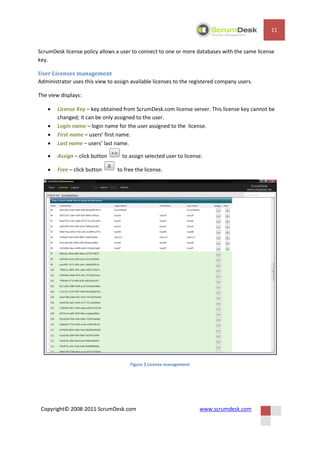
Click on Database hyperlink in the Login dialog. Server and Database dialog will appear.


Authentication

Choose an appropriate authentication type based on type used in Step ScrumDesk database login

Now enter name of your SQL Server (see Step 1, C SQL Server) and enter a name of the database
entered in Step 1, D ScrumDesk Database .

Search for server

You can also use     button to find all the SQL servers installed in your network or databases
available on SQL Server.

       Consider that this operation can take few minutes if there are too many computers in a network.


 Copyright© 2008-2011 ScrumDesk.com                                        www.scrumdesk.com
10


Step 3: Company license key
A window Company license key is displayed after every administrator login if a company license key
was not entered during database installation. Enter the company key you received in an email upon
your registration.


It is possible to enter the company license key using                                             hyperlink
available in Licenses view.

                                  YOU ARE REQUIRED TO ENTER COMPANY LICENSE KEY.
                 Configure Proxy in Login dialog to provide a valid access to ScrumDesk licensing service.

Click on the hyperlink Enter valid license key to display Company License Key


Step 4: License Management
License management is available in Licenses module. Click Licenses menu item.

It is required to assign licenses to team members’ accounts otherwise they will not be available to
use ScrumDesk after few days.

Licensing basics
ScrumDesk is licensing company and users. Company demanding a local ScrumDesk database
installation will receive the company license key. This key is further required to check all the
company user licenses.

By default, each company has 5 user licenses for free. License keys can be freely assigned to any user
from the users list. Licenses are freely movable between users.


                 Database “One”                                       Database “Two”


       User A          User B      User C                   User A         User B       User D
      License1        License2    License3                 License1       License2     License4

                 Company license key                                  Company license key


 Copyright© 2008-2011 ScrumDesk.com                                           www.scrumdesk.com
11


ScrumDesk license policy allows a user to connect to one or more databases with the same license
key.

User Licenses management
Administrator uses this view to assign available licenses to the registered company users.

The view displays:

       License Key – key obtained from ScrumDesk.com license server. This license key cannot be
        changed; it can be only assigned to the user.
       Login name – login name for the user assigned to the license.
       First name – users’ first name.
       Last name – users’ last name.

       Assign – click button      to assign selected user to license.

       Free – click button      to free the license.


                                      Figure 5 License management


 Copyright© 2008-2011 ScrumDesk.com                                 www.scrumdesk.com
12


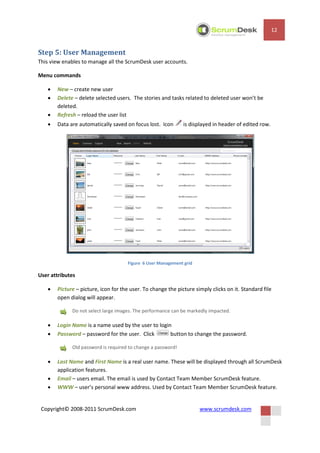
Step 5: User Management
This view enables to manage all the ScrumDesk user accounts.

Menu commands

      New – create new user
      Delete – delete selected users. The stories and tasks related to deleted user won’t be
       deleted.
      Refresh – reload the user list
      Data are automatically saved on focus lost. Icon       is displayed in header of edited row.


                                     Figure 6 User Management grid

User attributes

      Picture – picture, icon for the user. To change the picture simply clicks on it. Standard file
       open dialog will appear.

             Do not select large images. The performance can be markedly impacted.

      Login Name is a name used by the user to login
      Password – password for the user. Click       button to change the password.

             Old password is required to change a password!

      Last Name and First Name is a real user name. These will be displayed through all ScrumDesk
       application features.
      Email – users email. The email is used by Contact Team Member ScrumDesk feature.
      WWW – user’s personal www address. Used by Contact Team Member ScrumDesk feature.


 Copyright© 2008-2011 ScrumDesk.com                                  www.scrumdesk.com
13


      Phone number – an account to IP phone application (Skype, NetMeeting, Microsoft
       Communicator account). Used by Contact Team Member ScrumDesk feature.
      Instant messenger and IM Type – user’s instant messenger account.

LDAP integration
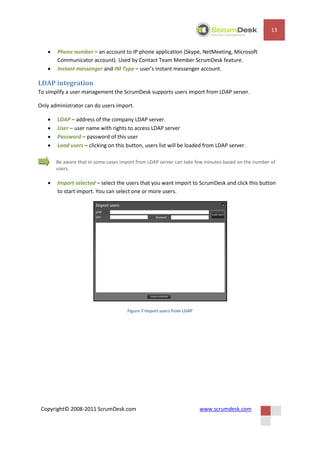
To simplify a user management the ScrumDesk supports users import from LDAP server.

Only administrator can do users import.

      LDAP – address of the company LDAP server.
      User – user name with rights to access LDAP server
      Password – password of this user
      Load users – clicking on this button, users list will be loaded from LDAP server.

       Be aware that in some cases import from LDAP server can take few minutes based on the number of
       users.

      Import selected – select the users that you want import to ScrumDesk and click this button
       to start import. You can select one or more users.


                                     Figure 7 Import users from LDAP


 Copyright© 2008-2011 ScrumDesk.com                                    www.scrumdesk.com
14


                                            ScrumDesk contacts


                                          Sales: sales@scrumdesk.com

                                     Support: support@scrumdesk.com


Copyright© 2008-2011 ScrumDesk.com   www.scrumdesk.com

Administrators manual

  • 1.
    Administrator’s Manual Updated: February 20, 2011 Copyright© 2008-2011 ScrumDesk.com www.scrumdesk.com
  • 2.
    PREREQUISITES 3 INSTALLATION BASICS 3 DATABASE SERVER 3 USER AUTHENTICATION 3 ADMINISTRATOR 4 STEP 1: CREATE A NEW SCRUMDESK DATABASE 5 WINDOWS AUTHENTICATION 6 STEP 2: ADMINISTRATOR LOGIN 9 DATABASE SELECTION 9 STEP 3: COMPANY LICENSE KEY 10 STEP 4: LICENSE MANAGEMENT 10 LICENSING BASICS 10 USER LICENSES MANAGEMENT 11 STEP 5: USER MANAGEMENT 12 LDAP INTEGRATION 13 SCRUMDESK CONTACTS 14 Copyright© 2008-2011 ScrumDesk.com www.scrumdesk.com
  • 3.
    3 Prerequisites  Microsoft Windows XP, Vista or Windows 7  Microsoft .NET 3.5 SP 1 framework, available for download here  Microsoft SQL Server 2008 R2 Express edition or better, available for download here  Microsoft SQL Server 2005 is supported as well, but SQL 2008 is preferred due to future compatibility. Installation basics Database server ScrumDesk uses Microsoft SQL Server 2008 as a project database backend server. This server can be used for intranet or internet scenarios. Figure 1 ScrumDesk supports intranet and internet Copyright© 2008-2011 ScrumDesk.com www.scrumdesk.com
  • 4.
    4 User Authentication SQL Serveris requires users authentication. ScrumDesk supports both Windows and SQL Server authentication. How to choose authentication type:  Windows authentication – a good choice for intranet installation where all ScrumDesk clients are in one domain. This authentication simplifies client deployment because of integrated user authentication.  SQL Server authentication – a good choice for internet scenarios when one or more clients are connected to company’s SQL server by internet. Administrator At least one user “administrator” is created in each new ScrumDesk database. This account can be used for user and license management. Administrator account does not have password by default. Password can be easy changed by clicking on Change hyperlink in the Login dialog. When administrator is logged to ScrumDesk, administration view appears. See more in Step 3: and Step 4: License Management. Copyright© 2008-2011 ScrumDesk.com www.scrumdesk.com
  • 5.
    5 Step 1: NewScrumDesk database A. Unzip installation tool Download database installation tool (2008 or 2005), unzip file ScrumDeskDatabaseInstallation.zip to your computer. Run ScrumDeskDBMngr.exe. ScrumDesk Database Manager will appear (see Figure 2). B. Action This tool supports new database installation or database upgrade. For a new installation, choose Create new database. C. SQL Server to host database Type the name of your SQL server into Server Name edit line. If you are using more instances, enter full instance name (YourSQLExpressInstanceName). Click Connect button to verify connection. Select authentication type to access your SQL Server.  Using Windows authentication, you must be a member of SQL server groups with the rights to create a new database  Using SQL Server authentication, enter the user name with the rights to create a new database (for example ‘sa’ account) Figure 2 Database installation tool D. ScrumDesk Database Enter the name of the new ScrumDesk database into New Database Name. This is the database where the ScrumDesk users will be connected. E. ScrumDesk database login ScrumDesk connects to the database by special account or by integrated Windows authentication.  Choose SQL Server authentication if one or more from your users is connecting to database by internet. Enter new Login name and password. Password has to meet your company group policy! We suggest using this authentication as it is simpler to configure.  Choose Windows authentication if you plan to use ScrumDesk in intranet. Read more in  Windows authentication. Copyright© 2008-2011 ScrumDesk.com www.scrumdesk.com
  • 6.
    6 F. Company licensekey You received company key upon your On-Site registration by en email. Copy it into this edit line to lock the database for your company. This step is required. Windows authentication If you plan use Windows authentication, further steps are required. If you selected SQL Server Authentication option, go to Step 2: Administrator Login. ScrumDesk creates a database role ScrumDeskUsers. You have to assign logins to this role for all the users or group of users which requires database access. Step A, New Login Run Microsoft SQL Management Studio Express (can be downloaded from here). Find newly created ScrumDesk database. Expand Security/Roles node. Click New User… Click on button highlighted with red color. Dialog Select Login appears. Click Browse button. Copyright© 2008-2011 ScrumDesk.com www.scrumdesk.com
  • 7.
    7 Search and checkuser account or group that will access ScrumDesk database using Windows authentication. Click Ok button. Step B, Assign Login to ScrumDeskUsers role Expand Roles node Now right click on ScrumDeskUsers role to display Properties dialog. Click Add button. Copyright© 2008-2011 ScrumDesk.com www.scrumdesk.com
  • 8.
    8 Select Database Useror Role dialog appears. Click Browse to display Browse for Objects dialog Select users that require an access to ScrumDesk database. Click Ok until Database Role Properties dialog is displayed. Check db_datareader and db_datawriter . Click Ok button. Now your user or group of users can connect to ScrumDesk database using Windows authentication. Figure 3 Client server settings to use Windows authentication Copyright© 2008-2011 ScrumDesk.com www.scrumdesk.com
  • 9.
    9 Step 2: AdministratorLogin Run ScrumDesk. Log in as an administrator. By default, administrator does not require password. Password can be easy changed anytime by click on Change hyperlink in the Login dialog. If you are connected to Internet via Proxy, do not forget to configure it by click on Proxy link. Figure 4 Administrator login Database selection Before the login you are required to select ScrumDesk database installed in Step 1: Create a new ScrumDesk databaseStep 1: New ScrumDesk database. Click on Database hyperlink in the Login dialog. Server and Database dialog will appear. Authentication Choose an appropriate authentication type based on type used in Step ScrumDesk database login Now enter name of your SQL Server (see Step 1, C SQL Server) and enter a name of the database entered in Step 1, D ScrumDesk Database . Search for server You can also use button to find all the SQL servers installed in your network or databases available on SQL Server. Consider that this operation can take few minutes if there are too many computers in a network. Copyright© 2008-2011 ScrumDesk.com www.scrumdesk.com
  • 10.
    10 Step 3: Companylicense key A window Company license key is displayed after every administrator login if a company license key was not entered during database installation. Enter the company key you received in an email upon your registration. It is possible to enter the company license key using hyperlink available in Licenses view. YOU ARE REQUIRED TO ENTER COMPANY LICENSE KEY. Configure Proxy in Login dialog to provide a valid access to ScrumDesk licensing service. Click on the hyperlink Enter valid license key to display Company License Key Step 4: License Management License management is available in Licenses module. Click Licenses menu item. It is required to assign licenses to team members’ accounts otherwise they will not be available to use ScrumDesk after few days. Licensing basics ScrumDesk is licensing company and users. Company demanding a local ScrumDesk database installation will receive the company license key. This key is further required to check all the company user licenses. By default, each company has 5 user licenses for free. License keys can be freely assigned to any user from the users list. Licenses are freely movable between users. Database “One” Database “Two” User A User B User C User A User B User D License1 License2 License3 License1 License2 License4 Company license key Company license key Copyright© 2008-2011 ScrumDesk.com www.scrumdesk.com
  • 11.
    11 ScrumDesk license policyallows a user to connect to one or more databases with the same license key. User Licenses management Administrator uses this view to assign available licenses to the registered company users. The view displays:  License Key – key obtained from ScrumDesk.com license server. This license key cannot be changed; it can be only assigned to the user.  Login name – login name for the user assigned to the license.  First name – users’ first name.  Last name – users’ last name.  Assign – click button to assign selected user to license.  Free – click button to free the license. Figure 5 License management Copyright© 2008-2011 ScrumDesk.com www.scrumdesk.com
  • 12.
    12 Step 5: UserManagement This view enables to manage all the ScrumDesk user accounts. Menu commands  New – create new user  Delete – delete selected users. The stories and tasks related to deleted user won’t be deleted.  Refresh – reload the user list  Data are automatically saved on focus lost. Icon is displayed in header of edited row. Figure 6 User Management grid User attributes  Picture – picture, icon for the user. To change the picture simply clicks on it. Standard file open dialog will appear. Do not select large images. The performance can be markedly impacted.  Login Name is a name used by the user to login  Password – password for the user. Click button to change the password. Old password is required to change a password!  Last Name and First Name is a real user name. These will be displayed through all ScrumDesk application features.  Email – users email. The email is used by Contact Team Member ScrumDesk feature.  WWW – user’s personal www address. Used by Contact Team Member ScrumDesk feature. Copyright© 2008-2011 ScrumDesk.com www.scrumdesk.com
  • 13.
    13  Phone number – an account to IP phone application (Skype, NetMeeting, Microsoft Communicator account). Used by Contact Team Member ScrumDesk feature.  Instant messenger and IM Type – user’s instant messenger account. LDAP integration To simplify a user management the ScrumDesk supports users import from LDAP server. Only administrator can do users import.  LDAP – address of the company LDAP server.  User – user name with rights to access LDAP server  Password – password of this user  Load users – clicking on this button, users list will be loaded from LDAP server. Be aware that in some cases import from LDAP server can take few minutes based on the number of users.  Import selected – select the users that you want import to ScrumDesk and click this button to start import. You can select one or more users. Figure 7 Import users from LDAP Copyright© 2008-2011 ScrumDesk.com www.scrumdesk.com
  • 14.
    14 ScrumDesk contacts Sales: sales@scrumdesk.com Support: support@scrumdesk.com Copyright© 2008-2011 ScrumDesk.com www.scrumdesk.com