Methodology 
 Passive Approach 
 Does not increase the traffic on the network 
 Measures traffic in real time 
 Lowest implementation costs 
 Non-proprietary 
 Independent from hardware vendor 
 No escape 
 Non-obtrusive.
Passive Monitoring Key Points 
 Highly secure compared to SNMP and RMON 
 Provides the highest detail of monitoring 
 In practice, all network problems can be discovered 
and solved using passive packet sniffer technology. 
 Stealth nature cannot be detected by other tools.
To whom is it useful? 
 useful to… 
 Network Administrators 
 Application Developers 
 Network Auditors 
 Students. 
 Everyday “Joe” who would like to know 
what is happening in his network
Unique Features… 
 Display in real time: 
 General traffic information 
 Total network traffic and bandwidth utilization 
 Graph for utilization and distribution 
 Detailed breakdown of packets, 
raw and decoded with optional filtering 
 Decode major protocols and sub-protocols 
 Highly secure compared to SNMP and RMON
Common Usage 
 Abnormal or Suspicious Activities Monitoring 
 Intrusion Monitoring 
 Bandwidth Monitoring 
 Critical Node Monitoring 
 Application Monitoring 
 Data Forensic (Packet Analysis) 
 Real time / offline Analysis. 
 Network Anomaly Detection. 
 Top Usage.
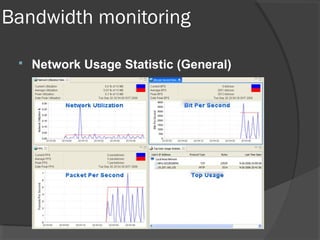
Bandwidth monitoring 
 Network Usage Statistic (General)
Critical node monitoring 
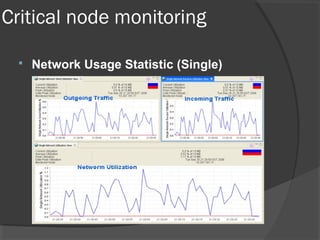
 Network Usage Statistic (Single)
Critical node monitoring 
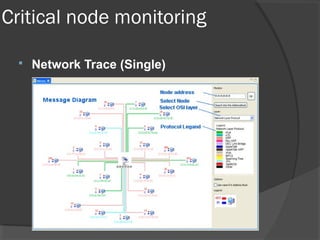
 Network Trace (Single)
Critical node monitoring 
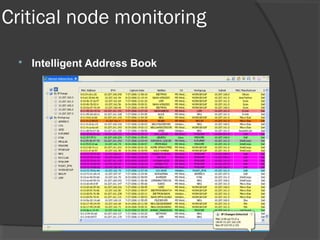
 Intelligent Address Book
Protocol Monitoring 
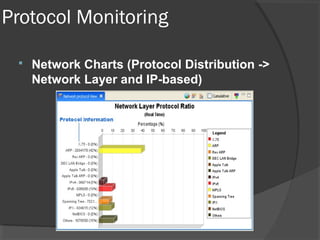
 Network Charts (Protocol Distribution -> 
Network Layer and IP-based)
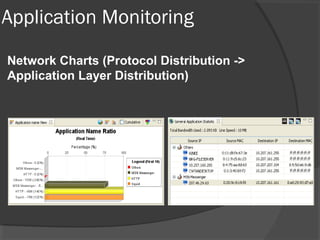
Application Monitoring 
Network Charts (Protocol Distribution -> 
Application Layer Distribution)
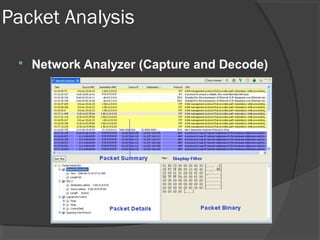
Packet Analysis 
 Network Analyzer (Capture and Decode)
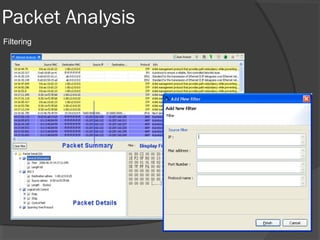
Packet Analysis 
Filtering
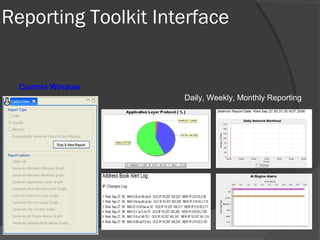
Reporting Toolkit Interface 
Daily, Weekly, Monthly Reporting 
Control Window
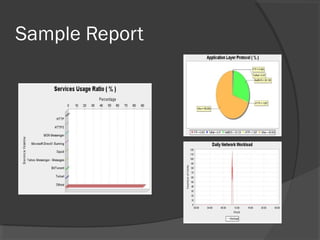
Sample Report
Network analysis fundamentals 
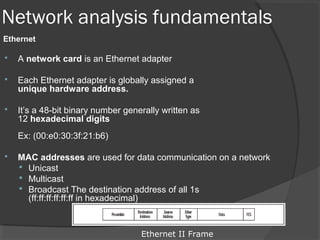
Ethernet 
 A network card is an Ethernet adapter 
 Each Ethernet adapter is globally assigned a 
unique hardware address. 
 It’s a 48-bit binary number generally written as 
12 hexadecimal digits 
Ex: (00:e0:30:3f:21:b6) 
 MAC addresses are used for data communication on a network 
 Unicast 
 Multicast 
 Broadcast The destination address of all 1s 
(ff:ff:ff:ff:ff:ff in hexadecimal) 
Ethernet II Frame
Network analysis fundamentals 
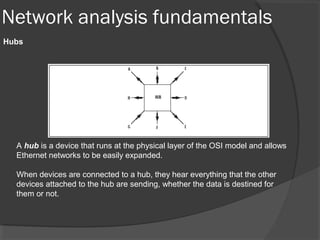
Hubs 
A hub is a device that runs at the physical layer of the OSI model and allows 
Ethernet networks to be easily expanded. 
When devices are connected to a hub, they hear everything that the other 
devices attached to the hub are sending, whether the data is destined for 
them or not.
Network analysis fundamentals 
Switches and Bridging 
 Bridges and switches are both intelligent 
devices that divide a network into collision 
domains to improve performance. 
 A collision domain is defined as a single 
CSMA/CD network in which there will be a 
collision if two stations attached to the system 
transmit at the same time.
Deployment 
 A Technician’s Tool Kit for Troubleshooting: 
 a laptop with j-Portable 
 Some straight-through and cross-over cables 
 a mini-hub 
 For Constant Monitoring 
 A dedicated monitoring machine installed with j-enterprise 
 Dedicated hub / mirrored switch for monitoring 
The point to plug in the monitoring machine 
depends on what we want to monitor.
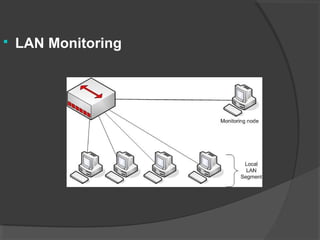
 LAN Monitoring
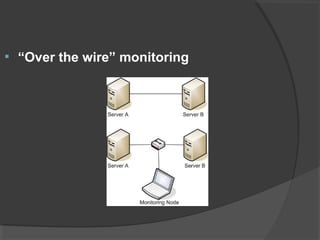
 “Over the wire” monitoring
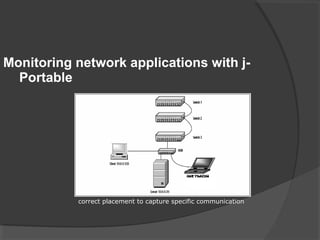
Monitoring network applications with j- 
Portable 
correct placement to capture specific communication
 Further steps to be taken will be based 
on these questions: 
 What do we want to monitor? 
 Where do we want to monitor? 
 What do we want to look for?
Things to monitor 
 To monitor network applications/software 
 To monitor performance of the network 
 To analyze network data & issues 
 To detect security breaches
Common Cases 
Scenario: You are developing a client server application. You need to 
troubleshoot it. Did the packets actually get transmitted by the client to the 
server? 
Scenario: You have installed a web based application server. 
Is the traffic to/from it as it should be? 
Use Capture Decode to see actual traffic, 
use Netrace to see actual connections
Common Cases… 
2. How we can monitor network performance ? 
Scenario:You have a network gateway and would like to 
monitor and know the percentage of utilization of your 
Internet access traffic. 
Use Network Statistics to view actual usage statistics, 
use Graph to view distributions by protocols. 
For history, use Reporting Tool. 
Bandwidth utilization, use Node Monitor
Common Cases… 
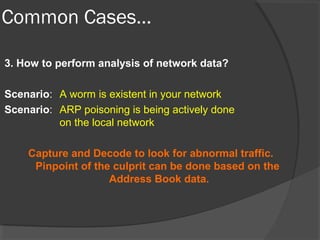
3. How to perform analysis of network data? 
Scenario: A worm is existent in your network 
Scenario: ARP poisoning is being actively done 
on the local network 
Capture and Decode to look for abnormal traffic. 
Pinpoint of the culprit can be done based on the 
Address Book data.
Common Cases… 
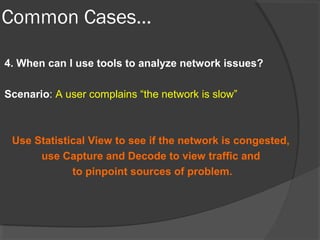
4. When can I use tools to analyze network issues? 
Scenario: A user complains “the network is slow” 
Use Statistical View to see if the network is congested, 
use Capture and Decode to view traffic and 
to pinpoint sources of problem.
Common Cases… 
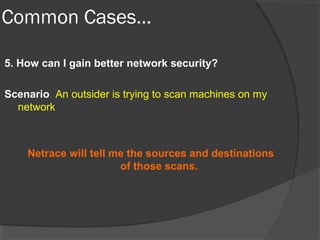
5. How can I gain better network security? 
Scenario: An outsider is trying to scan machines on my 
network. 
Netrace will tell me the sources and destinations 
of those scans.
Common Cases… 
6. How can I optimize my network with j-Portable? 
Scenario: Your newly installed network printer is running 
AppleTalk and IPX but no one else is using it. 
Scenario: One of your routers is running unneeded 
IGMP or BGP protocols 
j-Portable: 
Use Capture & Decode and view network traffic, 
Filter for single address. Look for unneeded traffic. 
Make the needed adjustments on those devices.
Problem Detection ….. 
1. ARP storm detection 
 Monitor each host for certain time. 
 Each host should send a reasonable amount of 
ARP packet to resolve its IP address. 
 The host is sending an ARP storm, if it 
continuously send ARP requests to certain IPs 
or even to a range of IPs. ( broadcast normally)
Problem Detection ….. 
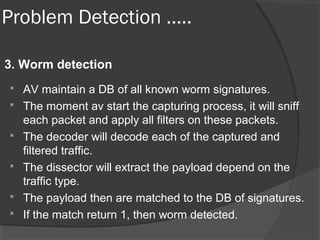
3. Worm detection 
 AV maintain a DB of all known worm signatures. 
 The moment av start the capturing process, it will sniff 
each packet and apply all filters on these packets. 
 The decoder will decode each of the captured and 
filtered traffic. 
 The dissector will extract the payload depend on the 
traffic type. 
 The payload then are matched to the DB of signatures. 
 If the match return 1, then worm detected.
Network monotoring

Network monotoring

  • 2.
    Methodology  PassiveApproach  Does not increase the traffic on the network  Measures traffic in real time  Lowest implementation costs  Non-proprietary  Independent from hardware vendor  No escape  Non-obtrusive.
  • 3.
    Passive Monitoring KeyPoints  Highly secure compared to SNMP and RMON  Provides the highest detail of monitoring  In practice, all network problems can be discovered and solved using passive packet sniffer technology.  Stealth nature cannot be detected by other tools.
  • 4.
    To whom isit useful?  useful to…  Network Administrators  Application Developers  Network Auditors  Students.  Everyday “Joe” who would like to know what is happening in his network
  • 5.
    Unique Features… Display in real time:  General traffic information  Total network traffic and bandwidth utilization  Graph for utilization and distribution  Detailed breakdown of packets, raw and decoded with optional filtering  Decode major protocols and sub-protocols  Highly secure compared to SNMP and RMON
  • 6.
    Common Usage Abnormal or Suspicious Activities Monitoring  Intrusion Monitoring  Bandwidth Monitoring  Critical Node Monitoring  Application Monitoring  Data Forensic (Packet Analysis)  Real time / offline Analysis.  Network Anomaly Detection.  Top Usage.
  • 7.
    Bandwidth monitoring Network Usage Statistic (General)
  • 8.
    Critical node monitoring  Network Usage Statistic (Single)
  • 9.
    Critical node monitoring  Network Trace (Single)
  • 10.
    Critical node monitoring  Intelligent Address Book
  • 11.
    Protocol Monitoring Network Charts (Protocol Distribution -> Network Layer and IP-based)
  • 12.
    Application Monitoring NetworkCharts (Protocol Distribution -> Application Layer Distribution)
  • 13.
    Packet Analysis Network Analyzer (Capture and Decode)
  • 14.
  • 15.
    Reporting Toolkit Interface Daily, Weekly, Monthly Reporting Control Window
  • 16.
  • 17.
    Network analysis fundamentals Ethernet  A network card is an Ethernet adapter  Each Ethernet adapter is globally assigned a unique hardware address.  It’s a 48-bit binary number generally written as 12 hexadecimal digits Ex: (00:e0:30:3f:21:b6)  MAC addresses are used for data communication on a network  Unicast  Multicast  Broadcast The destination address of all 1s (ff:ff:ff:ff:ff:ff in hexadecimal) Ethernet II Frame
  • 18.
    Network analysis fundamentals Hubs A hub is a device that runs at the physical layer of the OSI model and allows Ethernet networks to be easily expanded. When devices are connected to a hub, they hear everything that the other devices attached to the hub are sending, whether the data is destined for them or not.
  • 19.
    Network analysis fundamentals Switches and Bridging  Bridges and switches are both intelligent devices that divide a network into collision domains to improve performance.  A collision domain is defined as a single CSMA/CD network in which there will be a collision if two stations attached to the system transmit at the same time.
  • 20.
    Deployment  ATechnician’s Tool Kit for Troubleshooting:  a laptop with j-Portable  Some straight-through and cross-over cables  a mini-hub  For Constant Monitoring  A dedicated monitoring machine installed with j-enterprise  Dedicated hub / mirrored switch for monitoring The point to plug in the monitoring machine depends on what we want to monitor.
  • 21.
  • 22.
     “Over thewire” monitoring
  • 23.
    Monitoring network applicationswith j- Portable correct placement to capture specific communication
  • 24.
     Further stepsto be taken will be based on these questions:  What do we want to monitor?  Where do we want to monitor?  What do we want to look for?
  • 25.
    Things to monitor  To monitor network applications/software  To monitor performance of the network  To analyze network data & issues  To detect security breaches
  • 26.
    Common Cases Scenario:You are developing a client server application. You need to troubleshoot it. Did the packets actually get transmitted by the client to the server? Scenario: You have installed a web based application server. Is the traffic to/from it as it should be? Use Capture Decode to see actual traffic, use Netrace to see actual connections
  • 27.
    Common Cases… 2.How we can monitor network performance ? Scenario:You have a network gateway and would like to monitor and know the percentage of utilization of your Internet access traffic. Use Network Statistics to view actual usage statistics, use Graph to view distributions by protocols. For history, use Reporting Tool. Bandwidth utilization, use Node Monitor
  • 28.
    Common Cases… 3.How to perform analysis of network data? Scenario: A worm is existent in your network Scenario: ARP poisoning is being actively done on the local network Capture and Decode to look for abnormal traffic. Pinpoint of the culprit can be done based on the Address Book data.
  • 29.
    Common Cases… 4.When can I use tools to analyze network issues? Scenario: A user complains “the network is slow” Use Statistical View to see if the network is congested, use Capture and Decode to view traffic and to pinpoint sources of problem.
  • 30.
    Common Cases… 5.How can I gain better network security? Scenario: An outsider is trying to scan machines on my network. Netrace will tell me the sources and destinations of those scans.
  • 31.
    Common Cases… 6.How can I optimize my network with j-Portable? Scenario: Your newly installed network printer is running AppleTalk and IPX but no one else is using it. Scenario: One of your routers is running unneeded IGMP or BGP protocols j-Portable: Use Capture & Decode and view network traffic, Filter for single address. Look for unneeded traffic. Make the needed adjustments on those devices.
  • 32.
    Problem Detection ….. 1. ARP storm detection  Monitor each host for certain time.  Each host should send a reasonable amount of ARP packet to resolve its IP address.  The host is sending an ARP storm, if it continuously send ARP requests to certain IPs or even to a range of IPs. ( broadcast normally)
  • 33.
    Problem Detection ….. 3. Worm detection  AV maintain a DB of all known worm signatures.  The moment av start the capturing process, it will sniff each packet and apply all filters on these packets.  The decoder will decode each of the captured and filtered traffic.  The dissector will extract the payload depend on the traffic type.  The payload then are matched to the DB of signatures.  If the match return 1, then worm detected.

Editor's Notes

  • #15 A typical network analyzer displays the decoded data in three panes: ■ Summary Displays a one-line summary of the highest-layer protocol contained in the frame, as well as the time of the capture and the source and destination addresses. ■ Detail Provides details on all the layers inside the frame. ■ Hex Displays the raw captured data in hexadecimal format. Network analyzers further provide the ability to create display filters so that a network professional can quickly find what he or she is looking for.
  • #18 Ethernet is the most widely deployed LAN technology in use today. Ethernet maps to the first and second layers of the OSI model. Each Ethernet adapter is globally assigned a unique hardware address. This address is known by many names: a MAC address, a burned-in address (BIA), a physical address, or simply the Ethernet address. This address is a 48-bit binary number generally written as 12 hexadecimal digits (six groups of two digits, the groups separated by dashes or colons). The address is set at the time of the NIC’s manufacture. Three types of MAC addresses are used for data communications on a network: ■ Unicast A unicast address represents a unique network adapter on a network. ■ Multicast A multicast address represents a group of network adapters on a network. A single frame sent to a multicast address is received by all the NICs in that particular multicast group and is ignored by the hosts that do not belong to that multicast group. ■ Broadcast The destination address of all 1s (ff:ff:ff:ff:ff:ff in hexadecimal) is reserved for broadcasts. Broadcast frames are received by all NICs on an Ethernet segment.
  • #19 Ethernet was originally designed as a bus topology. Cabling would go from one machine to the next and then to the next, and so on.This made Ethernet prone to cable failure, causing the entire network to fail if a single wiring connection was broken at any point. Ethernet’s star topology was invented using hubs. Cabling in this model goes from each station to a central hub.This configuration eliminates single points of failure on the cabling, but it makes the hub itself a central point of failure. However, hubs are less likely than cables to fail. Ethernet hubs can also act as repeaters, thereby extending the distance of your Ethernet network. What Is a Hub? A hub is a device that runs at the physical layer of the OSI model and allows Ethernet networks to be easily expanded. A hub allows for multiple Ethernet cable segments of any media type to be connected to create a larger network that operates as a single Ethernet LAN. Since hubs operate at the physical layer, they have no concept of source and destination addresses. A hub takes all bits received on one port and rebroadcasts them to all other ports. When devices are connected to a hub, they hear everything that the other devices attached to the hub are sending, whether the data is destined for them or not Hubs are also sometimes called multiport repeaters.A group of connected hubs is called a collision domain; all hosts on that shared Ethernet LAN use CSMA/CD to compete for transmission.
  • #20 To improve performance, LANs are usually broken down and separated by bridges or switches. Bridges and switches are both intelligent devices that divide a network into collision domains.
  • #21 Building a Tool Kit A network analyst should create a tool kit with all the parts necessary to troubleshoot problems. This tool kit should include: A laptop/pc with inetmon, Some straight-through and cross-over cables, a mini-hub. It is also a good idea to carry some standard networking tools such as an RJ-45 crimper, a punch-down tool, some screwdrivers, and a toner/probe.
  • #22 To monitor a collision domain, just plug in the monitoring monitor to the hub to be monitored. This will allow all traffic on the hub to be seen. Very often, a network analyst will show up at the wiring closet to monitor and capture traffic from a machine that is attached to a switch, only to find that there aren’t any available ports to plug the system into! Even worse, the switch might be unmanaged, with no way to mirror a port. This is where the mini hub comes in handy. You can “hub out” using your mini-hub and cables. Simply attach a mini-hub using a cross-over cable into the switch port where the machine you want to analyze was plugged in.
  • #23 To monitor traffic between point A and point B, simply do a “tap” or “hub out” The hub is placed between the cables connecting the 2 points. This will allow traffic between the two pints to be seen.
  • #25 What do we want to monitor? a whole LAN segment, specific connections, specific machines, specific protocols. When do we want to monitor? Indefinitely, until a problem is solved…, Where do we want to monitor? main access points on your network, your gateway, your Master WINS Server, various points all over your network
  • #27 Test application being developed to see if the correct traffic is created. Troubleshoot applications / testing Monitor your application server for the traffics involved
  • #30 Arp poisoning Worm Overuse of resources P2p Video conferencing/ streaming media from internet Slow network can m