Finding eBooks:
 Using NetLibrary


     An Online Tutorial
        brought to you by
      Pilgrim Library
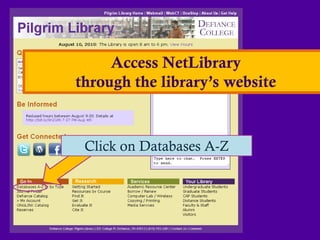
Access NetLibrary
through the library’s website


 Click on Databases A-Z
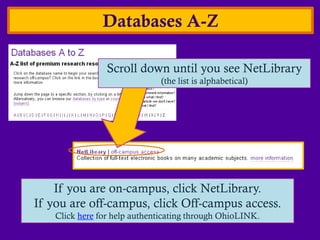
Databases A-Z

                 Scroll down until you see NetLibrary
                              (the list is alphabetical)


    If you are on-campus, click NetLibrary.
If you are off-campus, click Off-campus access.
    Click here for help authenticating through OhioLINK.
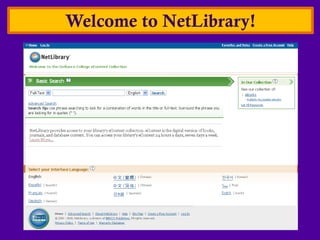
Welcome to NetLibrary!
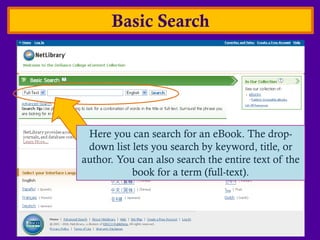
Basic Search


 Here you can search for an eBook. The drop-
 down list lets you search by keyword, title, or
author. You can also search the entire text of the
           book for a term (full-text).
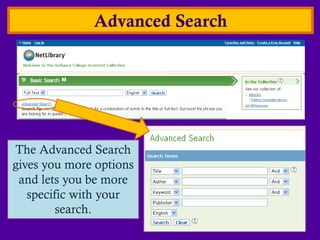
Advanced Search


The Advanced Search
gives you more options
 and lets you be more
   specific with your
         search.
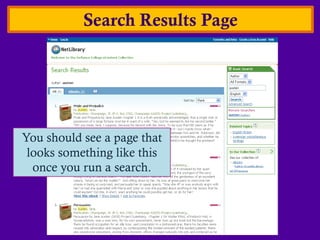
Search Results Page


You should see a page that
 looks something like this
  once you run a search.
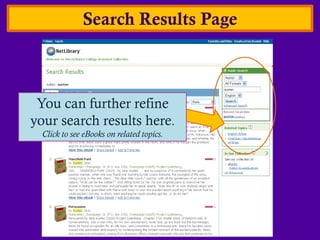
Search Results Page


 You can further refine
your search results here.
  Click to see eBooks on related topics.
Search Results Page


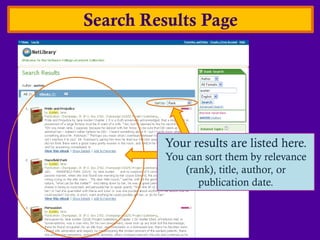
          Your results are listed here.
          You can sort them by relevance
              (rank), title, author, or
                 publication date.
Search Results Page


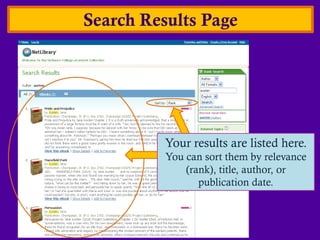
          Your results are listed here.
          You can sort them by relevance
              (rank), title, author, or
                 publication date.
Show Details

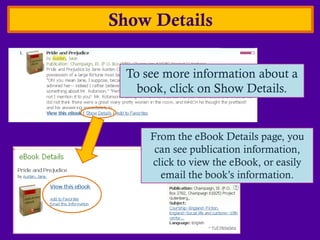
  To see more information about a
    book, click on Show Details.


      From the eBook Details page, you
       can see publication information,
      click to view the eBook, or easily
        email the book’s information.
Viewing the eBook


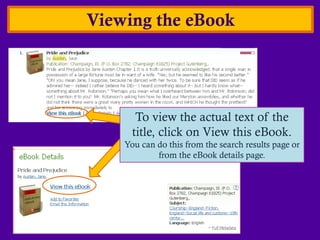
       To view the actual text of the
      title, click on View this eBook.
    You can do this from the search results page or
            from the eBook details page.
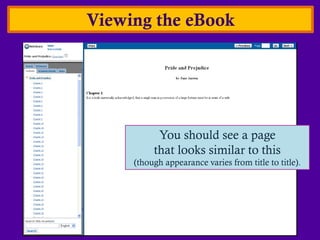
Viewing the eBook


           You should see a page
          that looks similar to this
     (though appearance varies from title to title).
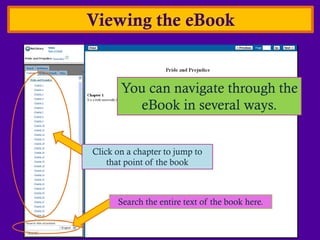
Viewing the eBook


       You can navigate through the
         eBook in several ways.


Click on a chapter to jump to
    that point of the book


      Search the entire text of the book here.
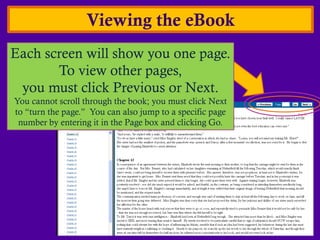
Viewing the eBook
Each screen will show you one page.
       To view other pages,
 you must click Previous or Next.
You cannot scroll through the book; you must click Next
to “turn the page.” You can also jump to a specific page
 number by entering it in the Page box and clicking Go.
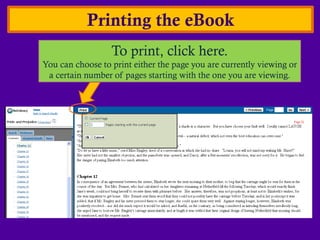
Printing the eBook
                  To print, click here.
You can choose to print either the page you are currently viewing or
 a certain number of pages starting with the one you are viewing.
Notes about NetLibrary


 NetLibrary allows a limited number of users
       to view an eBook at one time.
This means that you may be denied access to an eBook if too
many other users are currently viewing it. If this happens,
you will see a notice that says the eBook is currently in use.
You can choose to have a hold placed on the title, which will
reserve a block of time just for you to view the eBook. You
can also choose to be notified by email whenever the eBook
becomes available again.
Notes about NetLibrary


     If you remain inactive in NetLibrary, your
         session will automatically time out.
After 15 minutes of inactivity, you will be logged out of your NetLibrary
session. You will be automatically redirected to the main search page and
you will lose your place in an eBook and your previous search information.
To avoid this, remain active in NetLibrary by clicking through pages. If you
are logged out due to inactivity, be sure to log back in through Pilgrim
Library’s website (with authentication if you’re off-campus).
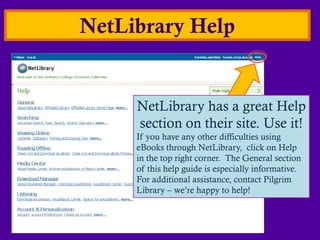
NetLibrary Help


     NetLibrary has a great Help
     section on their site. Use it!
     If you have any other difficulties using
     eBooks through NetLibrary, click on Help
     in the top right corner. The General section
     of this help guide is especially informative.
     For additional assistance, contact Pilgrim
     Library – we’re happy to help!
Remember!
If you are accessing off-campus, you must
authenticate through OhioLINK.
You must access NetLibrary through the library’s or OhioLINK’s website.
For help with this process, visit our Off-Campus Access LibGuide.
Congratulations!
You successfully finished the library tutorial
       Finding eBooks: NetLibrary


    If you have any questions about this tutorial,
     please get in touch with Pilgrim Library or
           email adearmond@defiance.edu.
Click below to check out Pilgrim Library on:


                                                                                                                                                                                              http://www.google.com/imgres?imgurl=http://scrapetv.com/News/News%2520Pages/Technology/images/youtube-logo-2.jpg&imgrefurl=http://scrapetv.com/News/News%2520Pages/main%2520pages/Technology-page-2-Scrape-TV-The-World-on-your-
side.html&usg=__iFbpPsY6BLjRmwM7tUJNIR19kOk=&h=345&w=487&sz=21&hl=en&start=0&sig2=GZgOzPgZ1jSdBbfHnnMvmA&tbnid=dI7uwE0TkZ9HwM:&tbnh=139&tbnw=229&ei=q_lGTPnhPInFnAf89rmFBA&prev=/images%3Fq%3Dyoutube%2Blogo%26hl%3Den%26biw%3D1280%26bih%3D860%26gbv%3D2%26tbs%3Disch:10,100&itbs=1&iact=hc&vpx=149&vpy=267&dur=883&hovh=189&hovw=267&tx=184&ty=67&page=1&ndsp=24&ved=1t:429,r:6,s:0&biw=1280&bih=860;
                                                                                                           http://www.google.com/imgres?imgurl=http://www3.babson.edu/Students/Graduate/Organizations/life_sciences/images/logo_facebook_1.jpg&imgrefurl=http://www3.babson.edu/Students/Graduate/Organizations/life_sciences/&usg=__hyF70ge_X96dB54VRikm59yuWg4=&h=385&w=1024&sz=25&hl=en&start=0&sig2=PD0GBAZdS78Cei3HxNx-
                                                                                                         7A&tbnid=LTkRB8ED8k4OcM:&tbnh=99&tbnw=258&ei=ePtGTOP5O9LtnQfiion2CQ&prev=/images%3Fq%3Dfacebook%2Blogo%26hl%3Den%26gbv%3D2%26biw%3D1280%26bih%3D860%26tbs%3Disch:1&itbs=1&iact=hc&vpx=382&vpy=124&dur=5460&hovh=137&hovw=366&tx=266&ty=75&page=1&ndsp=24&ved=1t:429,r:1,s:0&biw=1280&bih=860

E books netlibrary

  • 1.
    Finding eBooks: UsingNetLibrary An Online Tutorial brought to you by Pilgrim Library
  • 2.
    Access NetLibrary through thelibrary’s website Click on Databases A-Z
  • 3.
    Databases A-Z Scroll down until you see NetLibrary (the list is alphabetical) If you are on-campus, click NetLibrary. If you are off-campus, click Off-campus access. Click here for help authenticating through OhioLINK.
  • 4.
  • 5.
    Basic Search Hereyou can search for an eBook. The drop- down list lets you search by keyword, title, or author. You can also search the entire text of the book for a term (full-text).
  • 6.
    Advanced Search The AdvancedSearch gives you more options and lets you be more specific with your search.
  • 7.
    Search Results Page Youshould see a page that looks something like this once you run a search.
  • 8.
    Search Results Page You can further refine your search results here. Click to see eBooks on related topics.
  • 9.
    Search Results Page Your results are listed here. You can sort them by relevance (rank), title, author, or publication date.
  • 10.
    Search Results Page Your results are listed here. You can sort them by relevance (rank), title, author, or publication date.
  • 11.
    Show Details To see more information about a book, click on Show Details. From the eBook Details page, you can see publication information, click to view the eBook, or easily email the book’s information.
  • 12.
    Viewing the eBook To view the actual text of the title, click on View this eBook. You can do this from the search results page or from the eBook details page.
  • 13.
    Viewing the eBook You should see a page that looks similar to this (though appearance varies from title to title).
  • 14.
    Viewing the eBook You can navigate through the eBook in several ways. Click on a chapter to jump to that point of the book Search the entire text of the book here.
  • 15.
    Viewing the eBook Eachscreen will show you one page. To view other pages, you must click Previous or Next. You cannot scroll through the book; you must click Next to “turn the page.” You can also jump to a specific page number by entering it in the Page box and clicking Go.
  • 16.
    Printing the eBook To print, click here. You can choose to print either the page you are currently viewing or a certain number of pages starting with the one you are viewing.
  • 17.
    Notes about NetLibrary NetLibrary allows a limited number of users to view an eBook at one time. This means that you may be denied access to an eBook if too many other users are currently viewing it. If this happens, you will see a notice that says the eBook is currently in use. You can choose to have a hold placed on the title, which will reserve a block of time just for you to view the eBook. You can also choose to be notified by email whenever the eBook becomes available again.
  • 18.
    Notes about NetLibrary If you remain inactive in NetLibrary, your session will automatically time out. After 15 minutes of inactivity, you will be logged out of your NetLibrary session. You will be automatically redirected to the main search page and you will lose your place in an eBook and your previous search information. To avoid this, remain active in NetLibrary by clicking through pages. If you are logged out due to inactivity, be sure to log back in through Pilgrim Library’s website (with authentication if you’re off-campus).
  • 19.
    NetLibrary Help NetLibrary has a great Help section on their site. Use it! If you have any other difficulties using eBooks through NetLibrary, click on Help in the top right corner. The General section of this help guide is especially informative. For additional assistance, contact Pilgrim Library – we’re happy to help!
  • 20.
    Remember! If you areaccessing off-campus, you must authenticate through OhioLINK. You must access NetLibrary through the library’s or OhioLINK’s website. For help with this process, visit our Off-Campus Access LibGuide.
  • 21.
    Congratulations! You successfully finishedthe library tutorial Finding eBooks: NetLibrary If you have any questions about this tutorial, please get in touch with Pilgrim Library or email adearmond@defiance.edu.
  • 22.
    Click below tocheck out Pilgrim Library on: http://www.google.com/imgres?imgurl=http://scrapetv.com/News/News%2520Pages/Technology/images/youtube-logo-2.jpg&imgrefurl=http://scrapetv.com/News/News%2520Pages/main%2520pages/Technology-page-2-Scrape-TV-The-World-on-your- side.html&usg=__iFbpPsY6BLjRmwM7tUJNIR19kOk=&h=345&w=487&sz=21&hl=en&start=0&sig2=GZgOzPgZ1jSdBbfHnnMvmA&tbnid=dI7uwE0TkZ9HwM:&tbnh=139&tbnw=229&ei=q_lGTPnhPInFnAf89rmFBA&prev=/images%3Fq%3Dyoutube%2Blogo%26hl%3Den%26biw%3D1280%26bih%3D860%26gbv%3D2%26tbs%3Disch:10,100&itbs=1&iact=hc&vpx=149&vpy=267&dur=883&hovh=189&hovw=267&tx=184&ty=67&page=1&ndsp=24&ved=1t:429,r:6,s:0&biw=1280&bih=860; http://www.google.com/imgres?imgurl=http://www3.babson.edu/Students/Graduate/Organizations/life_sciences/images/logo_facebook_1.jpg&imgrefurl=http://www3.babson.edu/Students/Graduate/Organizations/life_sciences/&usg=__hyF70ge_X96dB54VRikm59yuWg4=&h=385&w=1024&sz=25&hl=en&start=0&sig2=PD0GBAZdS78Cei3HxNx- 7A&tbnid=LTkRB8ED8k4OcM:&tbnh=99&tbnw=258&ei=ePtGTOP5O9LtnQfiion2CQ&prev=/images%3Fq%3Dfacebook%2Blogo%26hl%3Den%26gbv%3D2%26biw%3D1280%26bih%3D860%26tbs%3Disch:1&itbs=1&iact=hc&vpx=382&vpy=124&dur=5460&hovh=137&hovw=366&tx=266&ty=75&page=1&ndsp=24&ved=1t:429,r:1,s:0&biw=1280&bih=860