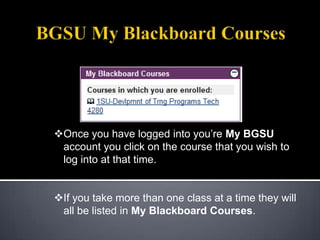
BGSU My Blackboard CoursesOnce you have logged into you’re My BGSU account you click on the course that you wish to log into at that time.
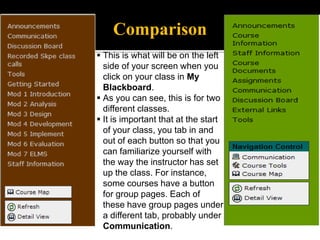
If you take more than one class at a time they will all be listed in My Blackboard Courses.ComparisonThis is what will be on the left side of your screen when you click on your class in My Blackboard.
As you can see, this is for two different classes.
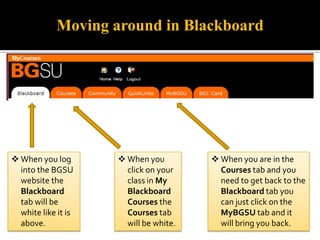
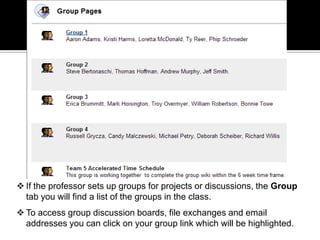
It is important that at the start of your class, you tab in and out of each button so that you can familiarize yourself with the way the instructor has set up the class. For instance, some courses have a button for group pages. Each of these have group pages under a different tab, probably under Communication.Moving around in BlackboardWhen you log into the BGSU website the Blackboard tab will be white like it is above.
When you are in the Courses tab and you need to get back to the Blackboard tab you can just click on the MyBGSU tab and it will bring you back.
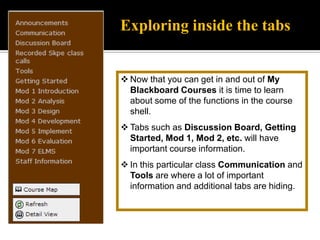
When you click on your class in My Blackboard Courses the Courses tab will be white.Exploring inside the tabsNow that you can get in and out of My Blackboard Courses it is time to learn about some of the functions in the course shell.
Tabs such as Discussion Board, Getting Started, Mod 1, Mod 2, etc. will have important course information.
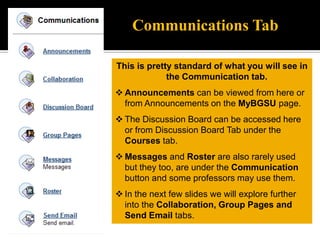
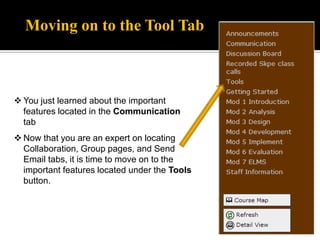
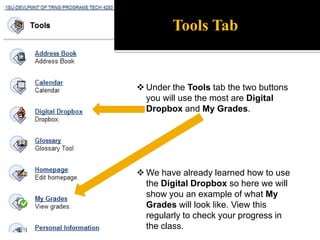
In this particular class Communication and Tools are where a lot of important information and additional tabs are hiding.Communications TabThis is pretty standard of what you will see in the Communication tab.Announcements can be viewed from here or from Announcements on the MyBGSU page.
The Discussion Board can be accessed here or from Discussion Board Tab under the  Courses tab.
Messages and Roster are also rarely used but they too, are under the Communication button and some professors may use them.
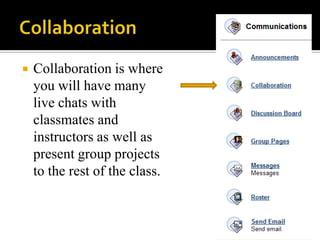
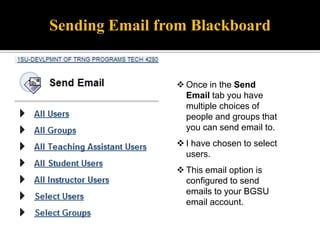
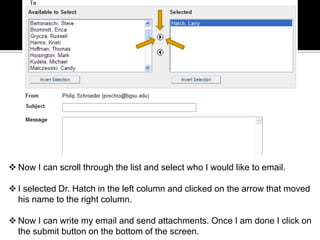
In the next few slides we will explore further into the Collaboration, Group Pages and Send Email tabs.CollaborationCollaboration is where you will have many live chats with classmates and instructors as well as present group projects to the rest of the class.
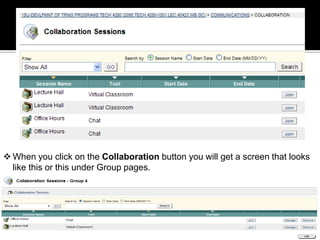
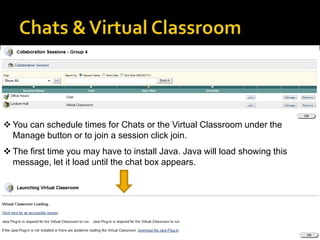
When you click on the Collaboration button you will get a screen that looks like this or this under Group pages.Chats & Virtual ClassroomYou can schedule times for Chats or the Virtual Classroom under the Manage button or to join a session click join.
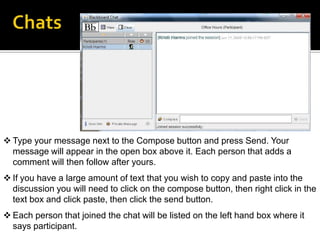
The first time you may have to install Java. Java will load showing this message, let it load until the chat box appears. ChatsType your message next to the Compose button and press Send. Your message will appear in the open box above it. Each person that adds a comment will then follow after yours.
If you have a large amount of text that you wish to copy and paste into the discussion you will need to click on the compose button, then right click in the text box and click paste, then click the send button.
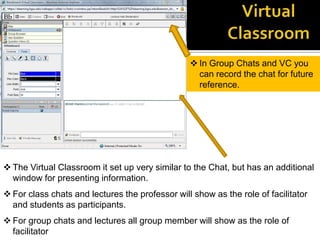
Each person that joined the chat will be listed on the left hand box where it says participant.Virtual ClassroomIn Group Chats and VC you can record the chat for future reference.
The Virtual Classroom it set up very similar to the Chat, but has an additional window for presenting information.

How To Use My Blackboard Courses

  • 1.
    BGSU My BlackboardCoursesOnce you have logged into you’re My BGSU account you click on the course that you wish to log into at that time.
  • 2.
    If you takemore than one class at a time they will all be listed in My Blackboard Courses.ComparisonThis is what will be on the left side of your screen when you click on your class in My Blackboard.
  • 3.
    As you cansee, this is for two different classes.
  • 4.
    It is importantthat at the start of your class, you tab in and out of each button so that you can familiarize yourself with the way the instructor has set up the class. For instance, some courses have a button for group pages. Each of these have group pages under a different tab, probably under Communication.Moving around in BlackboardWhen you log into the BGSU website the Blackboard tab will be white like it is above.
  • 5.
    When you arein the Courses tab and you need to get back to the Blackboard tab you can just click on the MyBGSU tab and it will bring you back.
  • 6.
    When you clickon your class in My Blackboard Courses the Courses tab will be white.Exploring inside the tabsNow that you can get in and out of My Blackboard Courses it is time to learn about some of the functions in the course shell.
  • 7.
    Tabs such asDiscussion Board, Getting Started, Mod 1, Mod 2, etc. will have important course information.
  • 8.
    In this particularclass Communication and Tools are where a lot of important information and additional tabs are hiding.Communications TabThis is pretty standard of what you will see in the Communication tab.Announcements can be viewed from here or from Announcements on the MyBGSU page.
  • 9.
    The Discussion Boardcan be accessed here or from Discussion Board Tab under the Courses tab.
  • 10.
    Messages and Rosterare also rarely used but they too, are under the Communication button and some professors may use them.
  • 11.
    In the nextfew slides we will explore further into the Collaboration, Group Pages and Send Email tabs.CollaborationCollaboration is where you will have many live chats with classmates and instructors as well as present group projects to the rest of the class.
  • 12.
    When you clickon the Collaboration button you will get a screen that looks like this or this under Group pages.Chats & Virtual ClassroomYou can schedule times for Chats or the Virtual Classroom under the Manage button or to join a session click join.
  • 13.
    The first timeyou may have to install Java. Java will load showing this message, let it load until the chat box appears. ChatsType your message next to the Compose button and press Send. Your message will appear in the open box above it. Each person that adds a comment will then follow after yours.
  • 14.
    If you havea large amount of text that you wish to copy and paste into the discussion you will need to click on the compose button, then right click in the text box and click paste, then click the send button.
  • 15.
    Each person thatjoined the chat will be listed on the left hand box where it says participant.Virtual ClassroomIn Group Chats and VC you can record the chat for future reference.
  • 16.
    The Virtual Classroomit set up very similar to the Chat, but has an additional window for presenting information.