By Kaleigh Thompson &
       Bridget Garrison
1.    Objective: 3
2.    Discovering Blackboard: 4
3.    How Will You Use Blackboard?: 5
4.    How to Log In: 6
5.    Viewing Blackboard: 7
6.    Important Messages and Links: 8-11
7.    Submitting an Assignment: 12-16
8.    Checking Your Grade Submission: 17
9.    How to Contact Professors and Peers: 18
10.   Discussion Boards and Blogs: 19
11.   Discussion Board: 20-22
12.   Blog Posts: 23 & 24
13.   Troubleshooting: 25
14.   Sources: 26
#’s correspond to the slide number

                                                2
 Thisinstruction set will demonstrate the
 information needed to successfully navigate
 and use the social media tool Blackboard.


                                               3
The goal of Blackboard is to help students and
teachers enhance their education experience by
“providing them with tomorrow’s education
today.” (Blackboard Inc.)


                                                 4
 Blackboard  will help you as a student to stay in
 touch with your teacher, interact with your
 fellow peers and achieve a level of education
 that is expected of today’s graduates.

 You will use Blackboard in a variety of
 different ways as you will see demonstrated
 throughout this presentation.


                                                      5
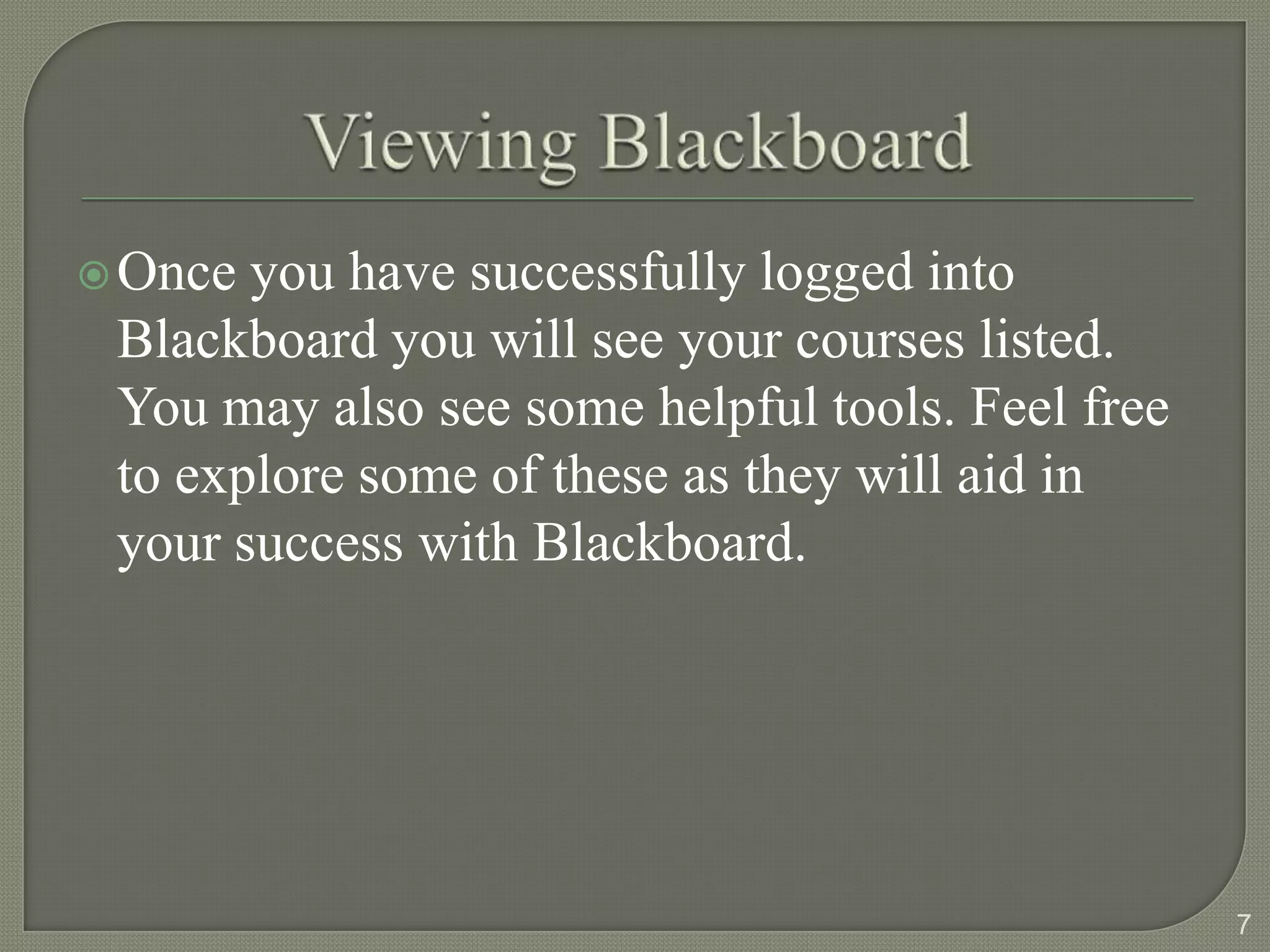
 Go  to https://www.uaa.alaska.edu/classes/
 You will see a place to enter your UAA
  username and password.
 Enter your information in the boxes provided.
  Note: If you do not know your username or
  password select the option that suits your needs
  in the links listed below the login box. These
  will help you obtain the required information to
  successfully log in.
                                                     6
 Once you have successfully logged into
 Blackboard you will see your courses listed.
 You may also see some helpful tools. Feel free
 to explore some of these as they will aid in
 your success with Blackboard.


                                                  7
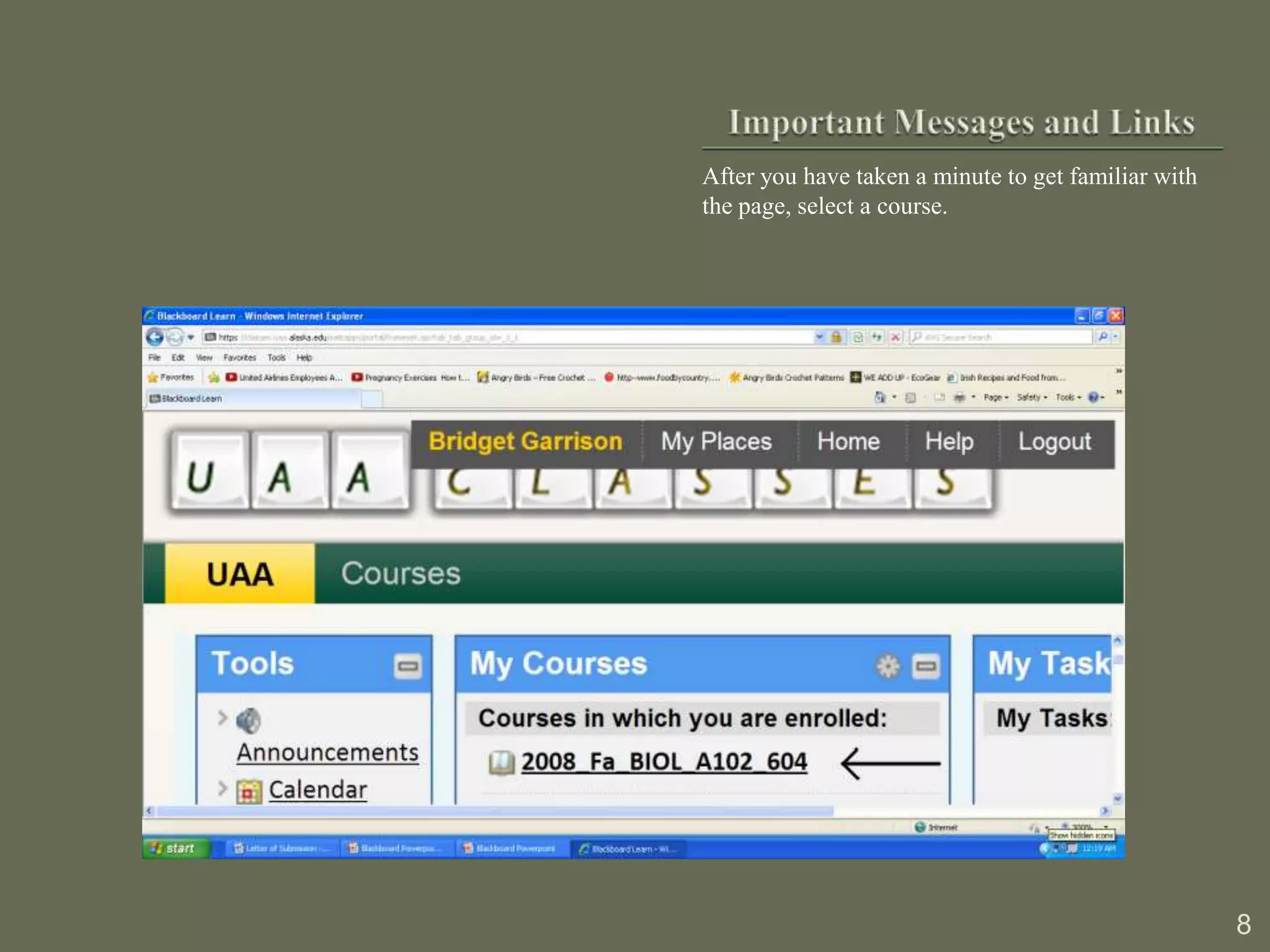
After you have taken a minute to get familiar with
the page, select a course.


                                                     8
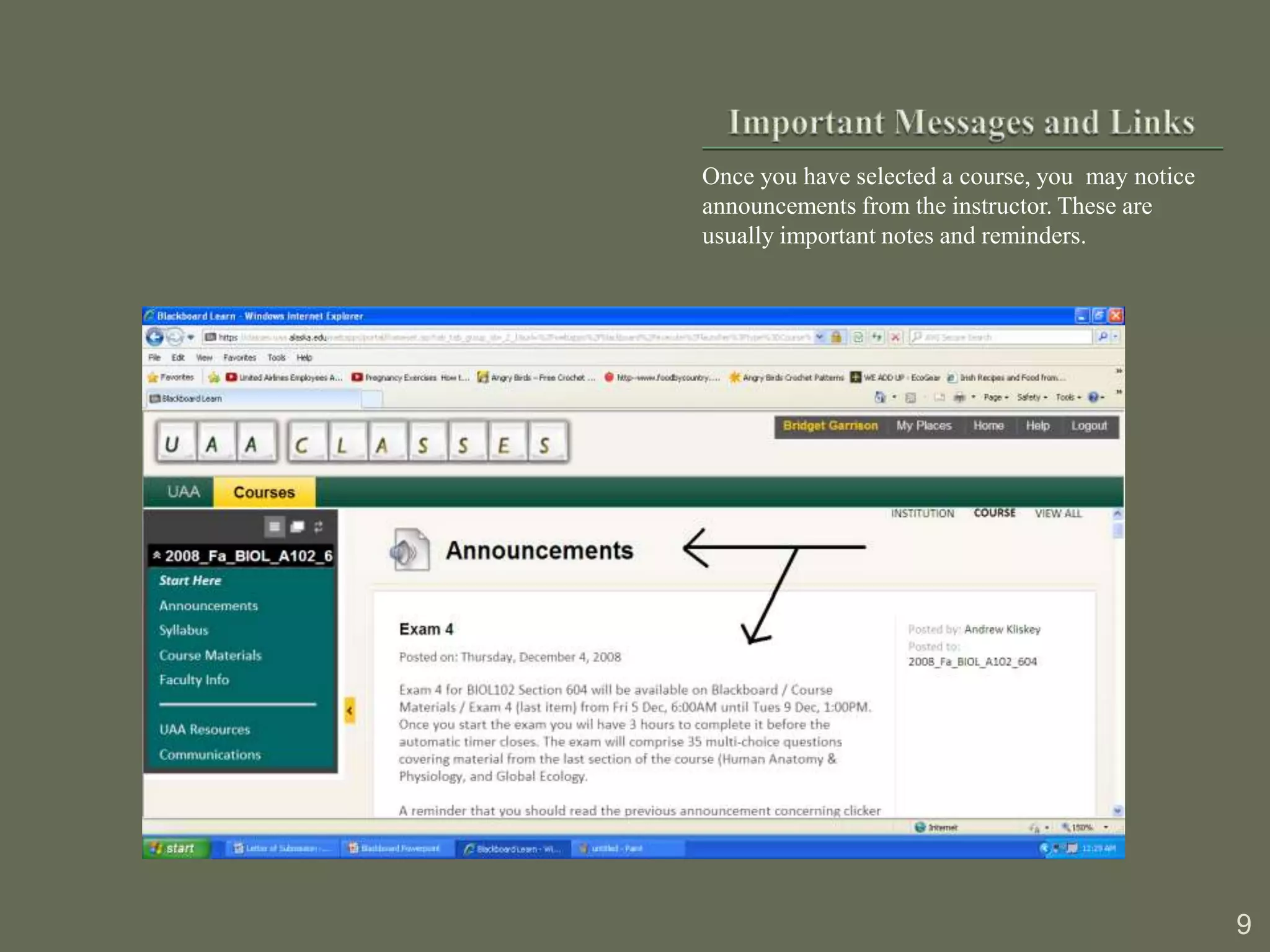
Once you have selected a course, you may notice
announcements from the instructor. These are
usually important notes and reminders.


                                                  9
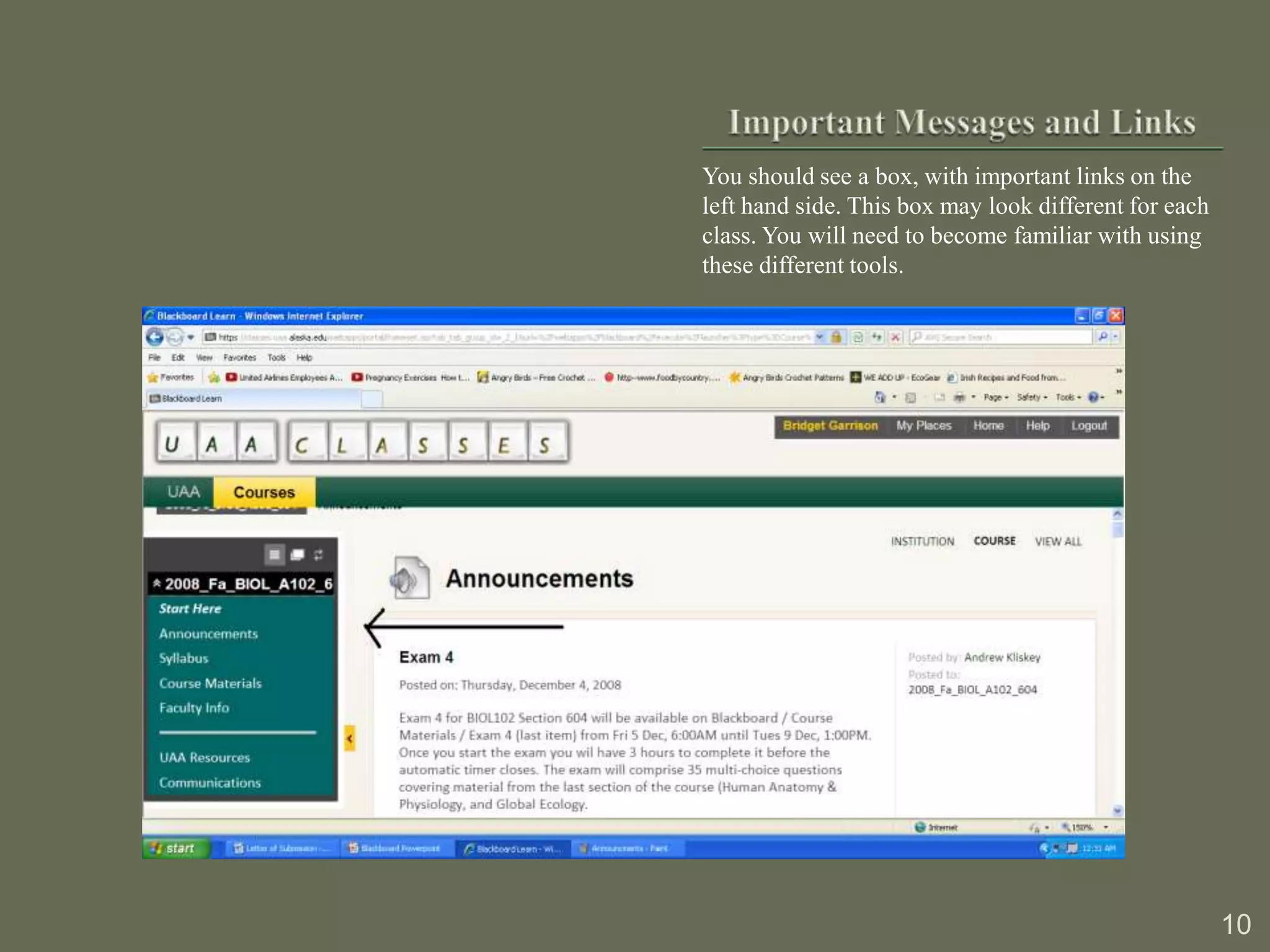
You should see a box, with important links on the
left hand side. This box may look different for each
class. You will need to become familiar with using
these different tools.


                                                       10
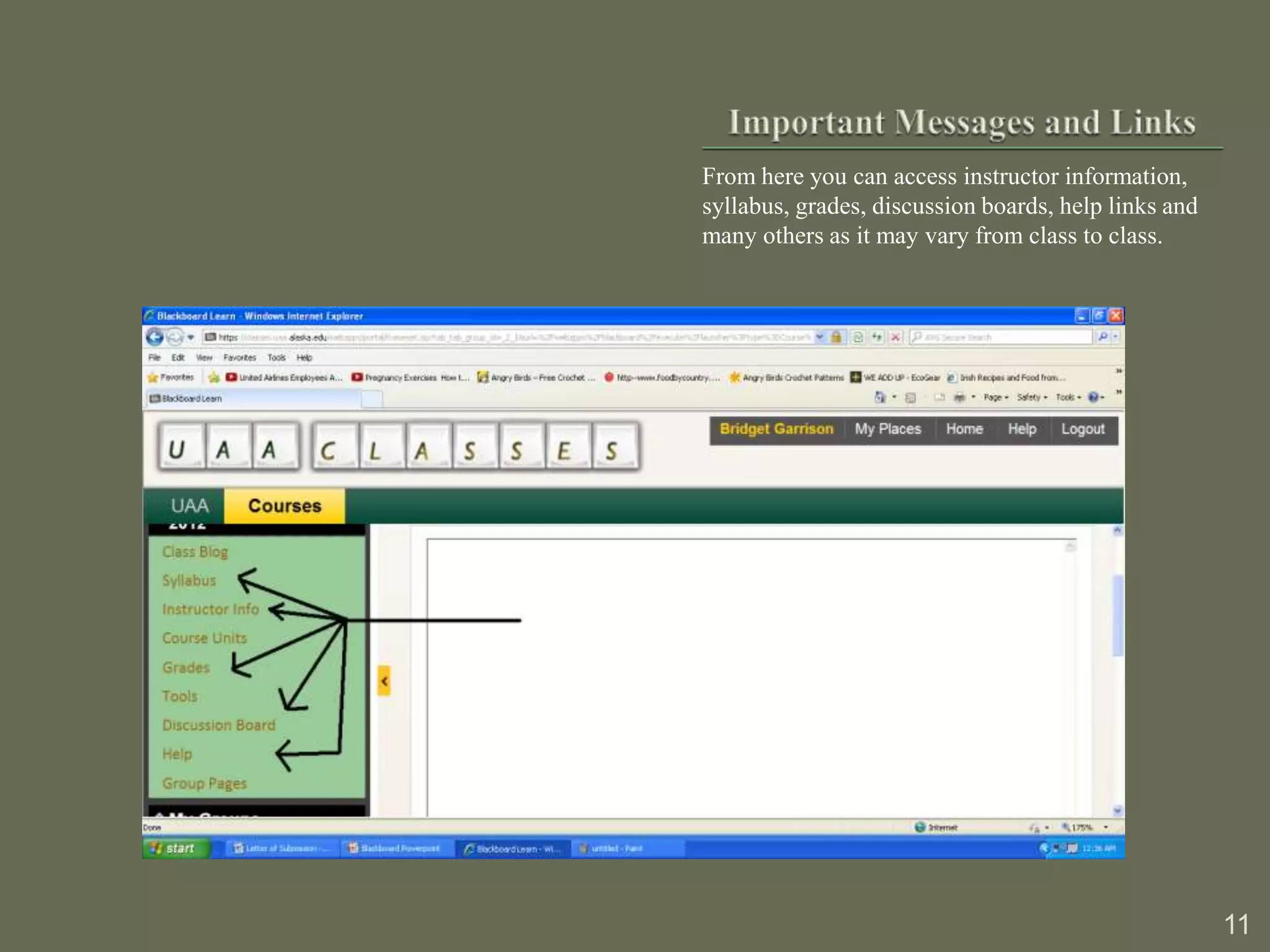
From here you can access instructor information,
syllabus, grades, discussion boards, help links and
many others as it may vary from class to class.


                                                      11
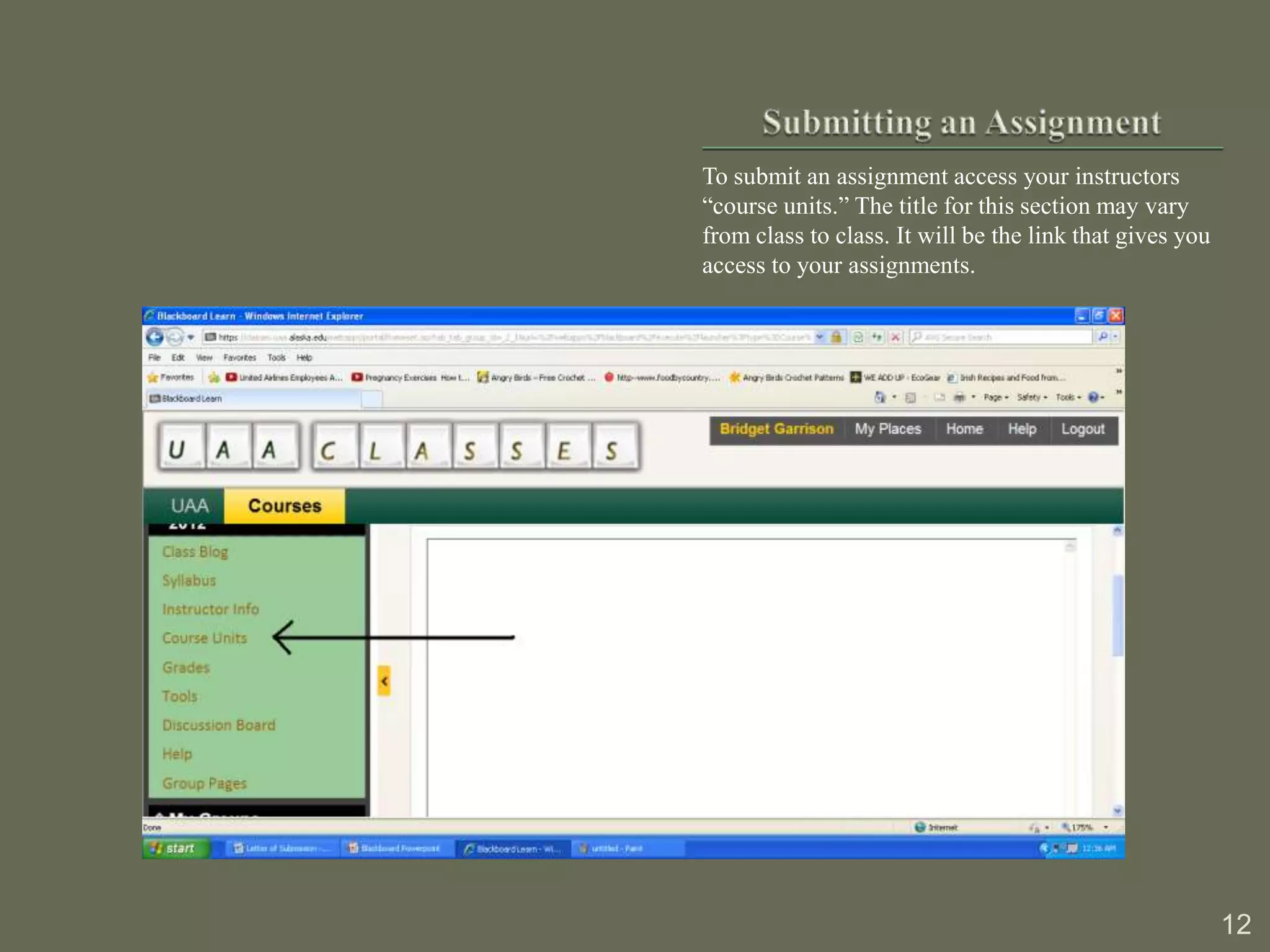
To submit an assignment access your instructors
“course units.” The title for this section may vary
from class to class. It will be the link that gives you
access to your assignments.


                                                          12
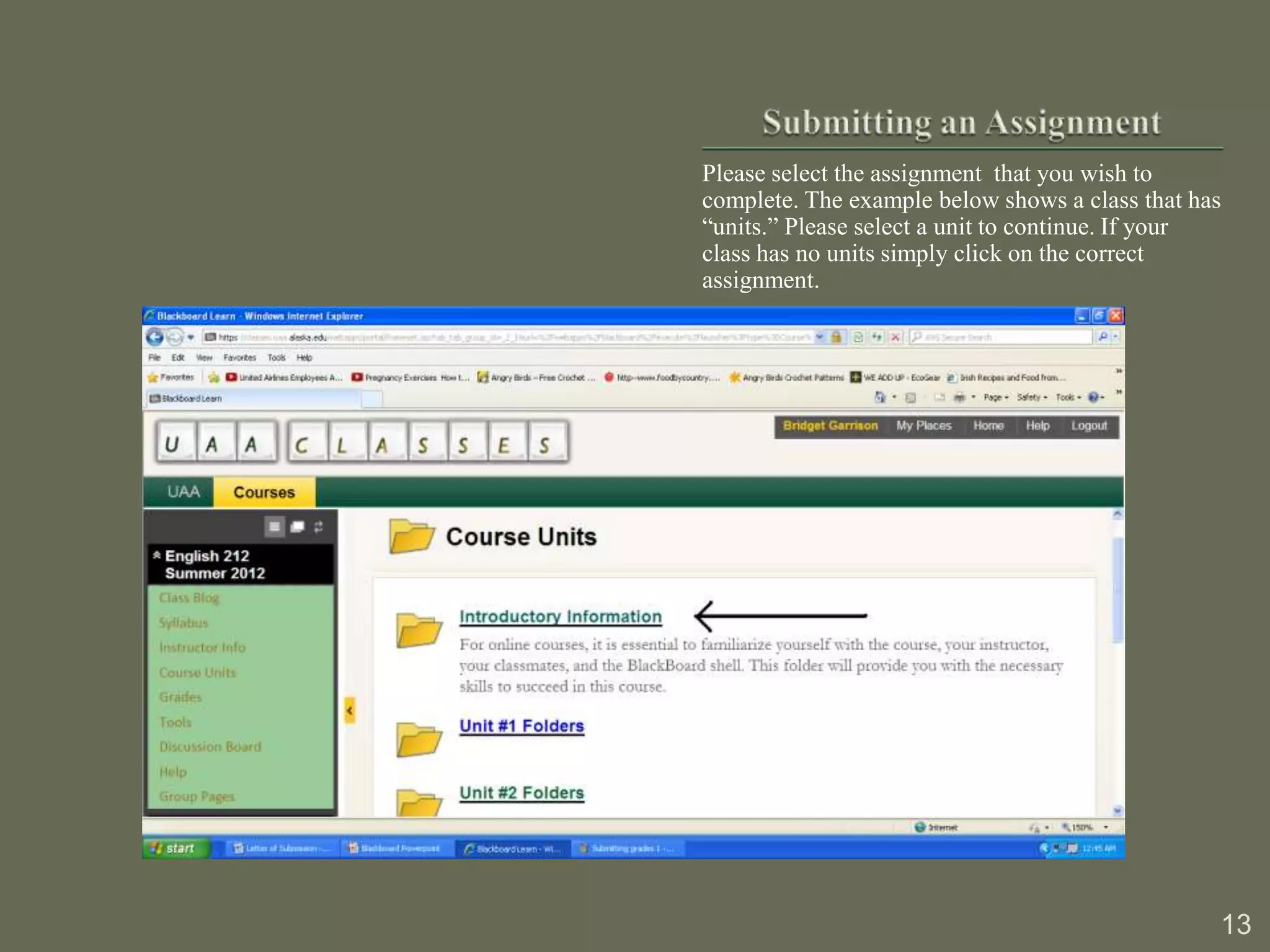
Please select the assignment that you wish to
complete. The example below shows a class that has
“units.” Please select a unit to continue. If your
class has no units simply click on the correct
assignment.


                                                 13
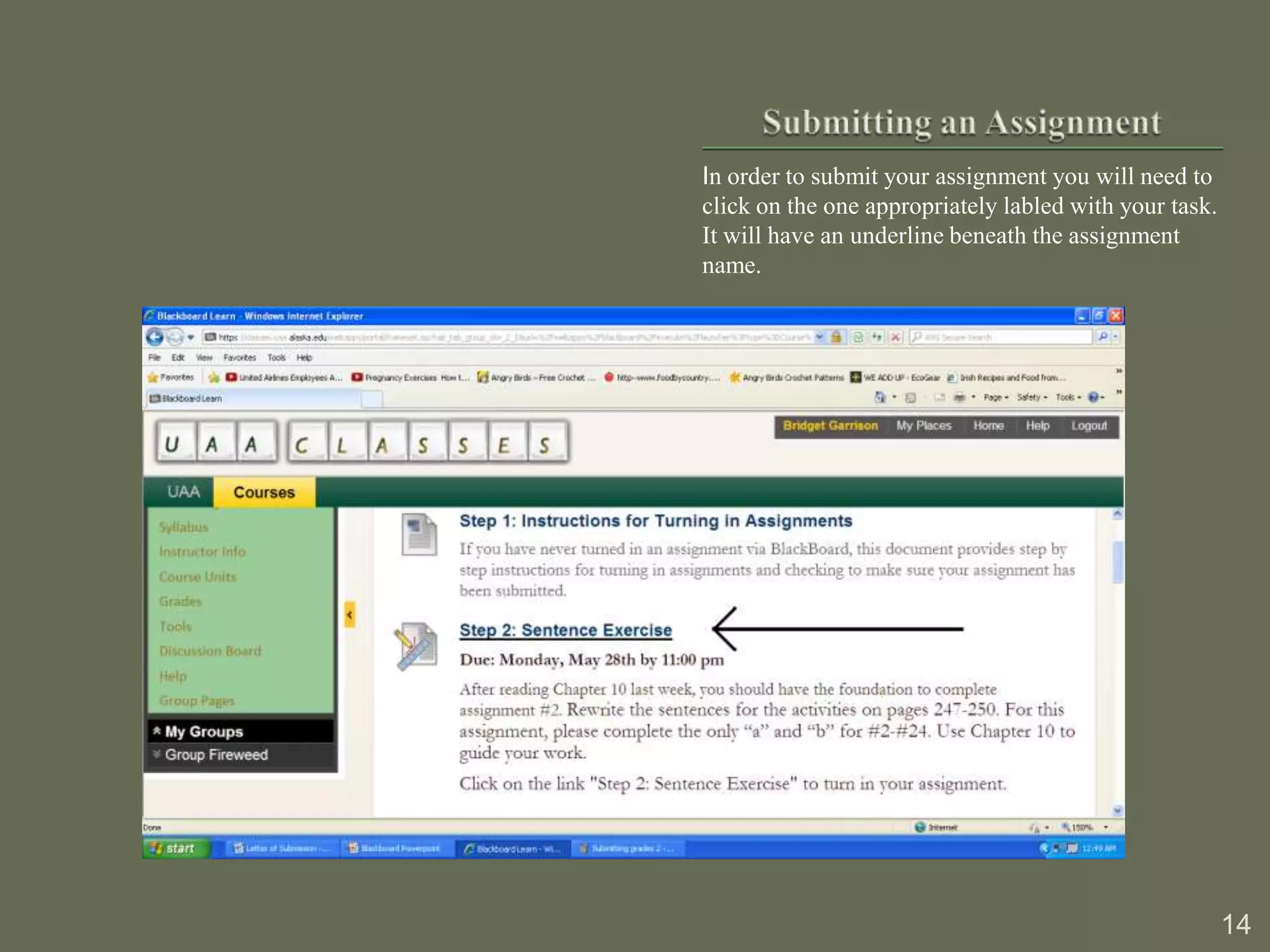
In order to submit your assignment you will need to
click on the one appropriately labled with your task.
It will have an underline beneath the assignment
name.


                                                        14
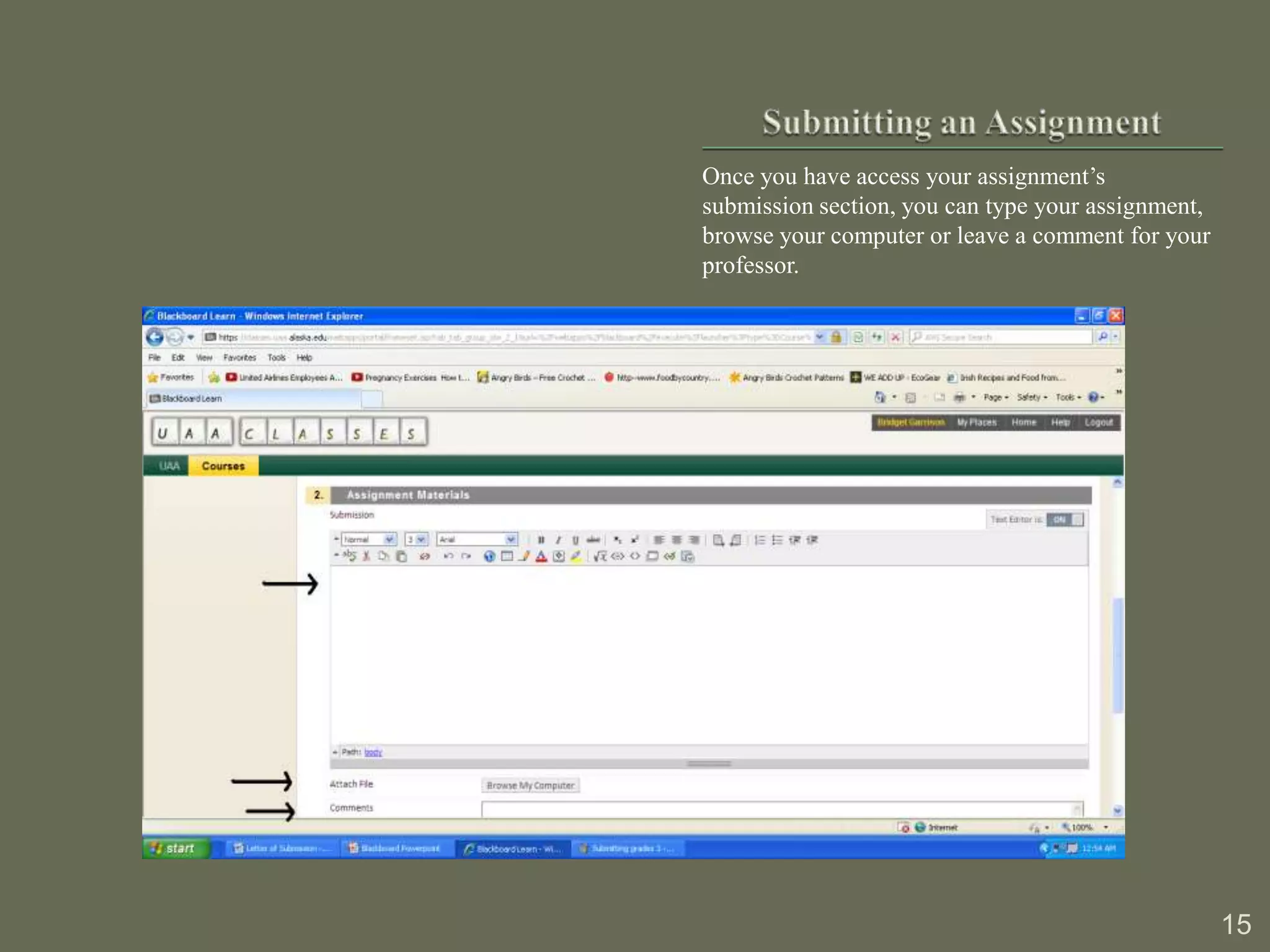
Once you have access your assignment’s
submission section, you can type your assignment,
browse your computer or leave a comment for your
professor.


                                                    15
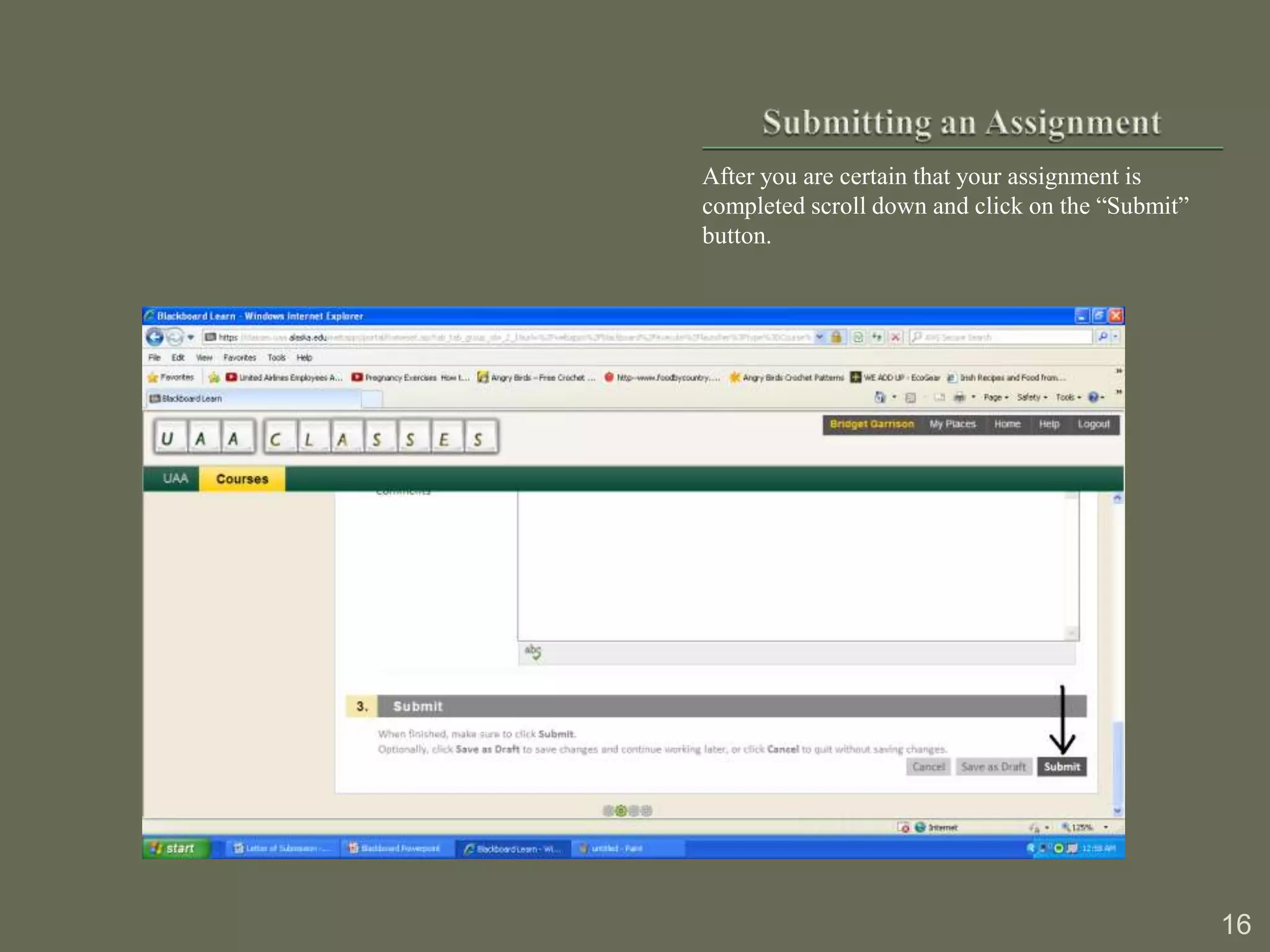
After you are certain that your assignment is
completed scroll down and click on the “Submit”
button.


                                                  16
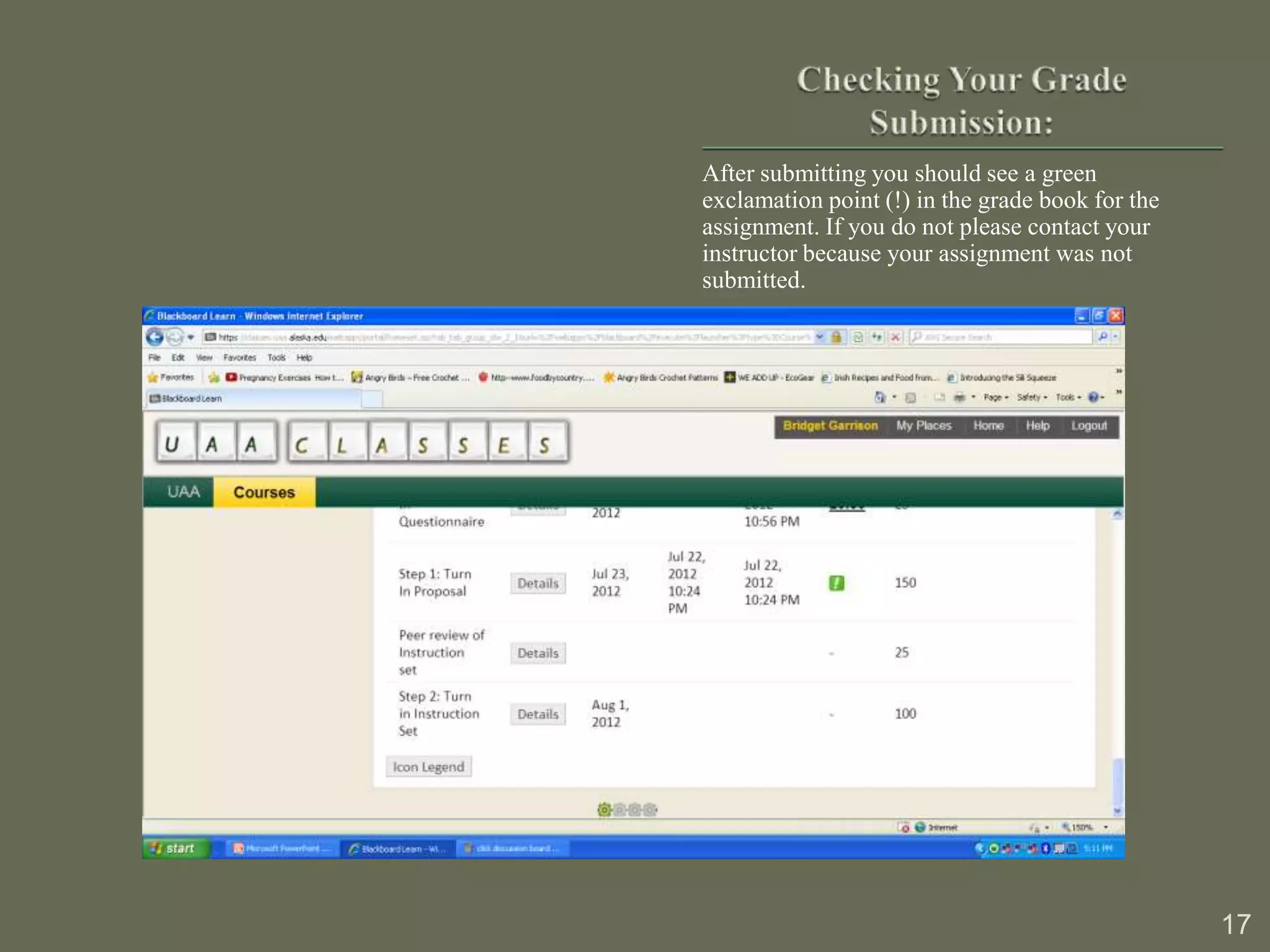
After submitting you should see a green
exclamation point (!) in the grade book for the
assignment. If you do not please contact your
instructor because your assignment was not
submitted.


                                                  17
1.   Select the link labeled “tools” in the box on the left
     side.
2.   Select send email.
3.   Here you have the option of choosing who to send
     your email to. Sending an email through this method
     will send your message directly to the recipients UA
     email account.
     - Selecting “all instructors” will send the email to the professor(s)
       teaching the course.
     - Selecting “all students” will send the email to every student
       enrolled in the course.
     - If you wish to send an email to only a few people click on select
       users or select groups and from there you can decide on your
       appropriate audience.

                                                                             18
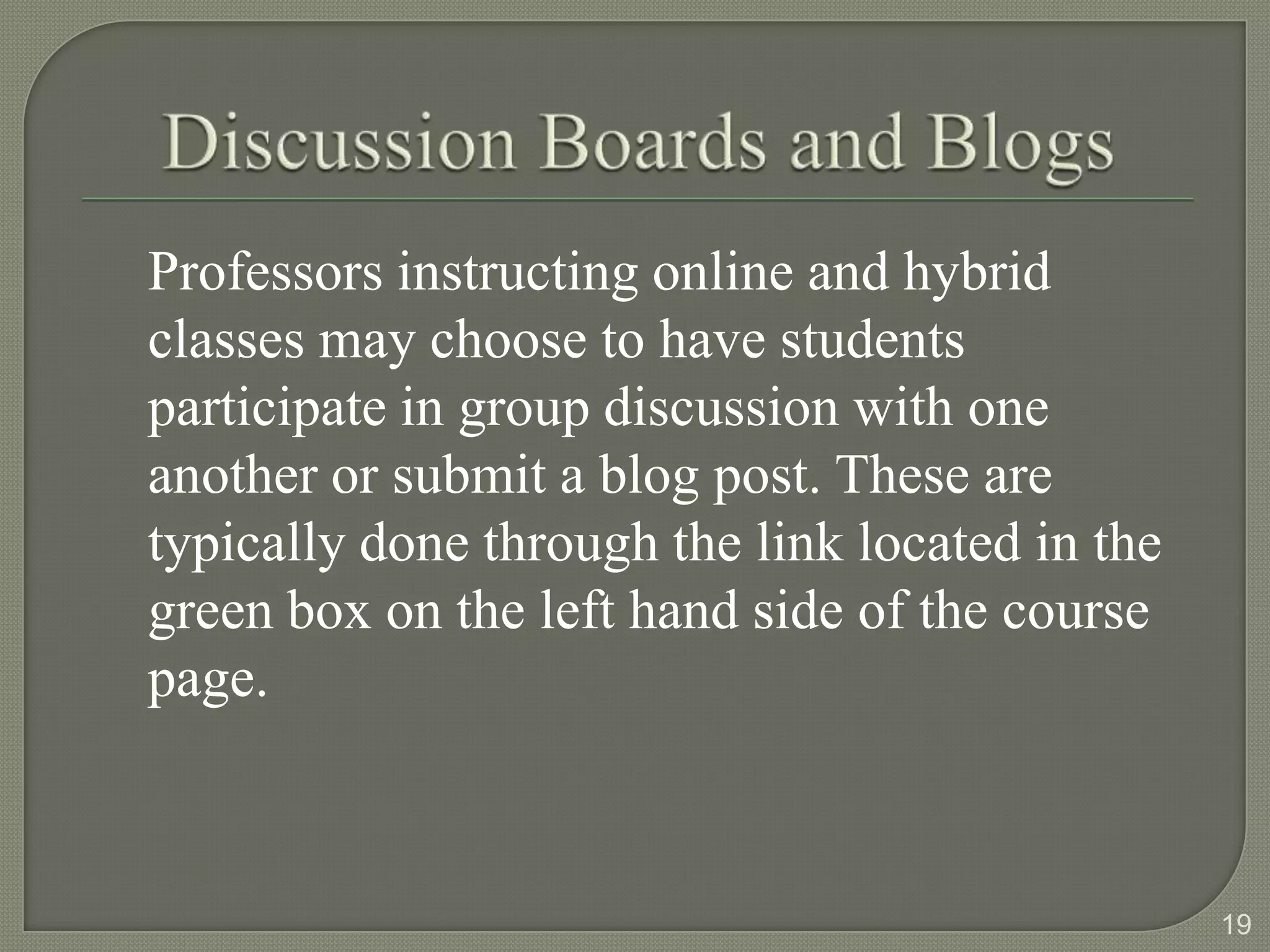
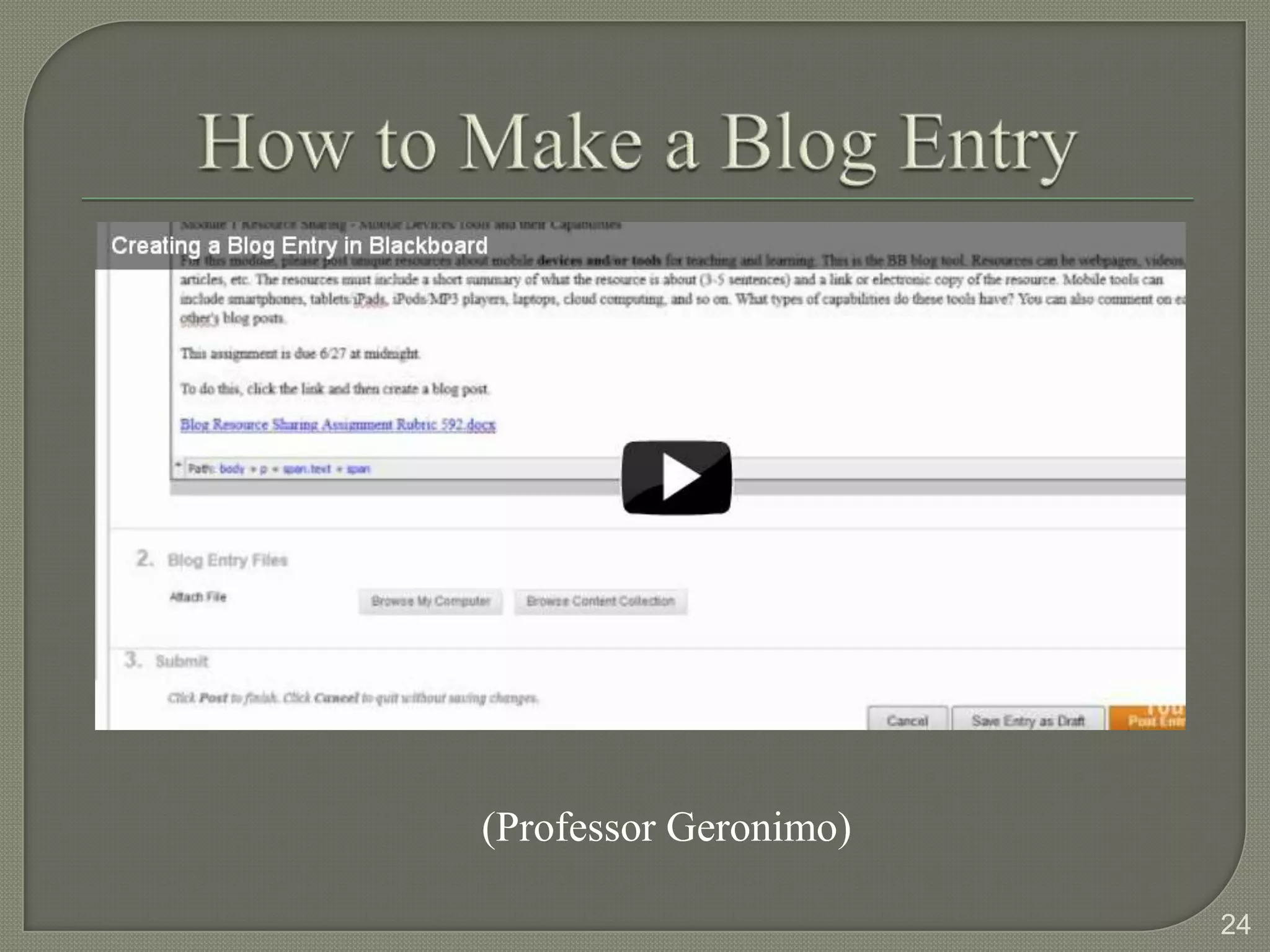
Professors instructing online and hybrid
classes may choose to have students
participate in group discussion with one
another or submit a blog post. These are
typically done through the link located in the
green box on the left hand side of the course
page.


                                                 19
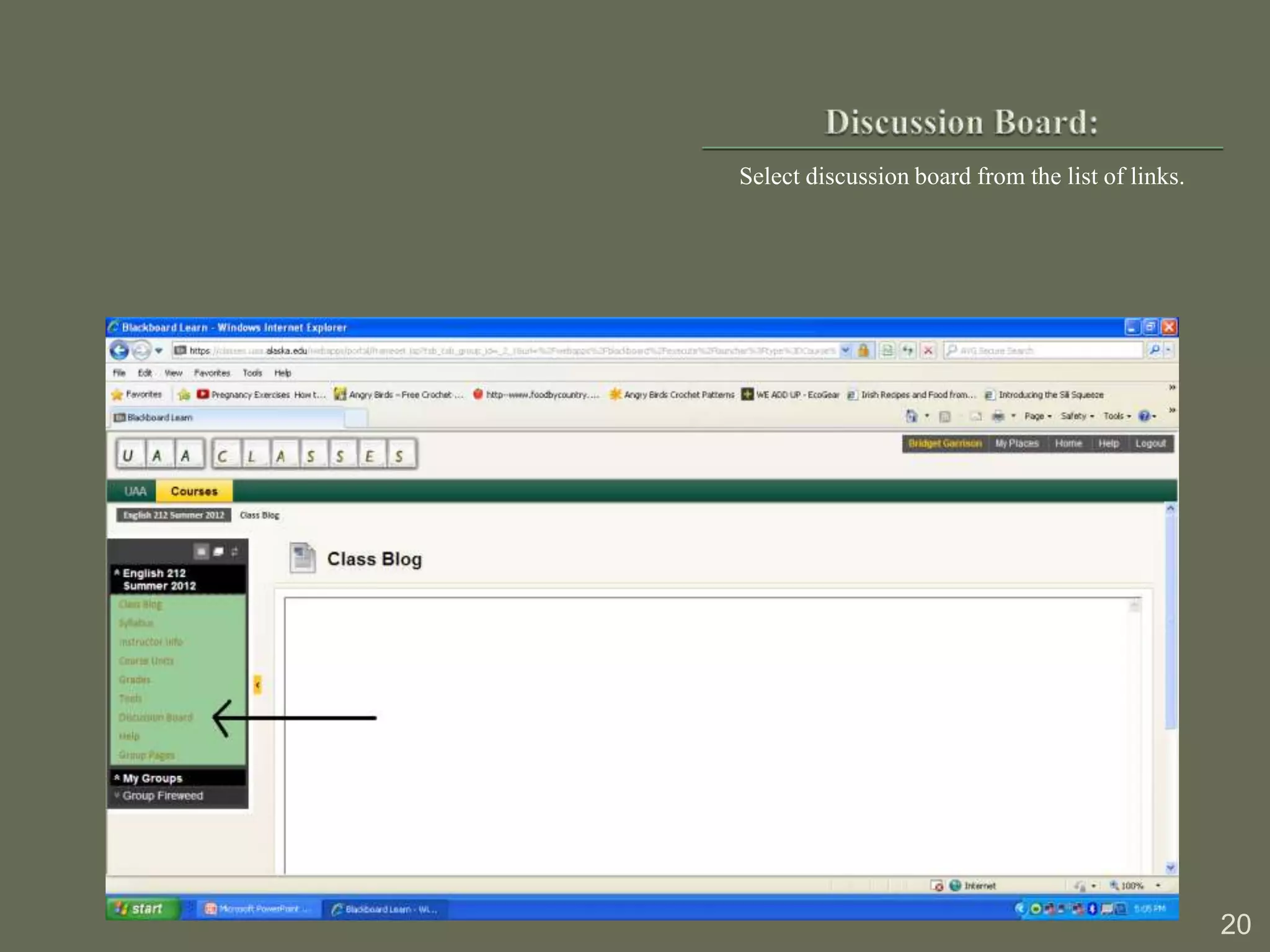
Select discussion board from the list of links.


                                                  20
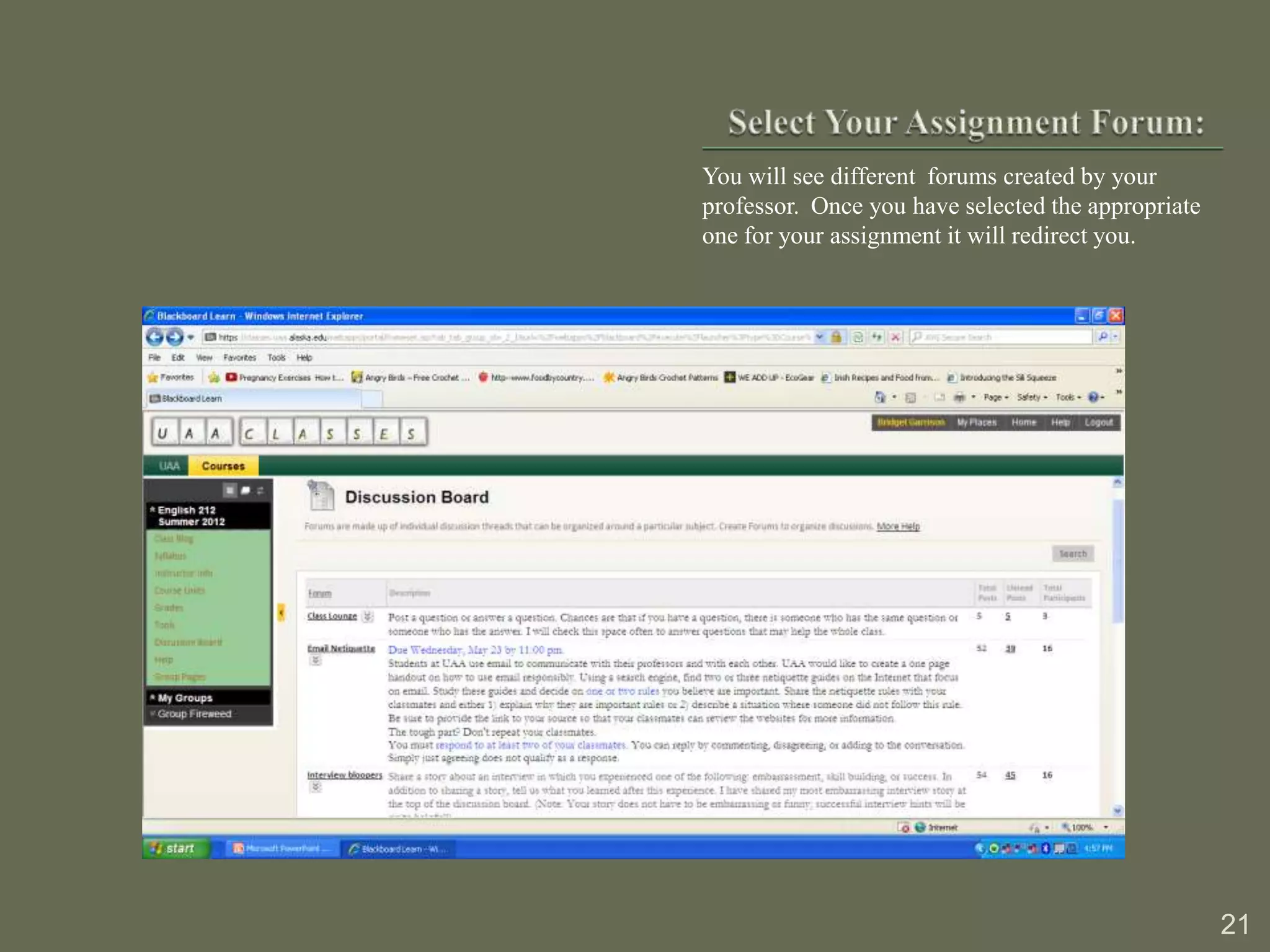
You will see different forums created by your
professor. Once you have selected the appropriate
one for your assignment it will redirect you.


                                                    21
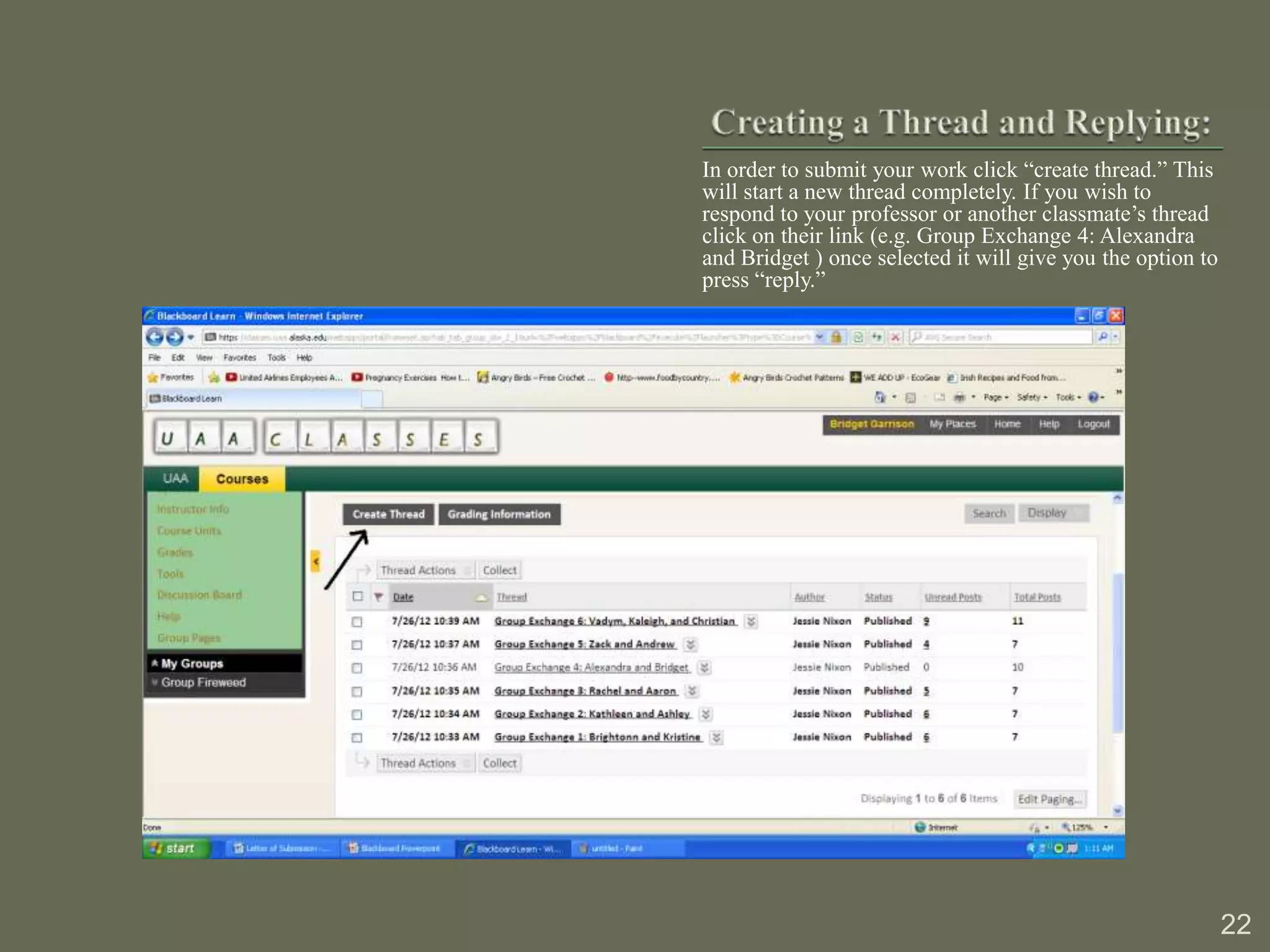
In order to submit your work click “create thread.” This
will start a new thread completely. If you wish to
respond to your professor or another classmate’s thread
click on their link (e.g. Group Exchange 4: Alexandra
and Bridget ) once selected it will give you the option to
press “reply.”


                                                             22
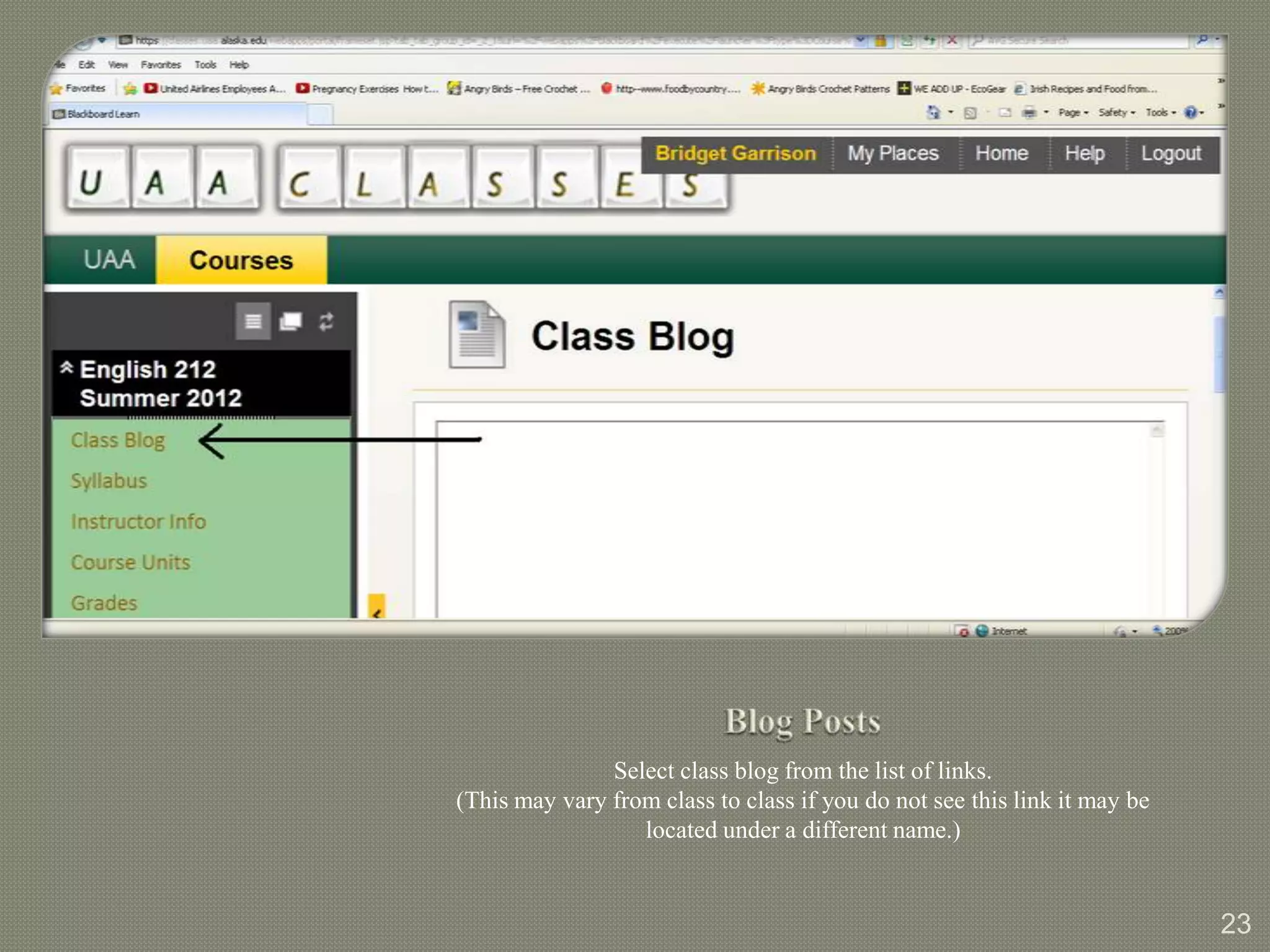
Select class blog from the list of links.
(This may vary from class to class if you do not see this link it may be
                  located under a different name.)


                                                                           23
(Professor Geronimo)

                       24
1.   If you are having any difficulties at all click on the
     help link located both at the top of the page and in the
     box on the left hand side. This will re-route you to the
     Information Technology Service page and here you
     will be equipped with all the information to solve your
     problem.
2.   You may also access other important links we have
     discussed in the above fashion.
3.   If you are still experiencing difficulties and wish to
     speak to an Information Technology Specialist call:
     (907) 786-4646.

                                                                25
   Professor Geronimo, , prod. Creating a Blog Entry
    in Blackboard. 2012. Web. 31 Jul 2012.
        <http://www.youtube.com/watch?v=Z9J
        b5Qqo1T0 >.
   Blackboard Inc, "About Blackboard."
        Blackboard. N.p., 07/31/2012. Web. 31 Jul
    2012.    <http://www.blackboard.com/About-
        Bb/Overview.aspx >.
   All screen shots were obtained through the
    University of Alaska’s Blackboard account. Visit the
    website at www.uaa.alaska.edu/classes/

                                                           26

Blackboard Powerpoint

  • 1.
    By Kaleigh Thompson& Bridget Garrison
  • 2.
    1. Objective: 3 2. Discovering Blackboard: 4 3. How Will You Use Blackboard?: 5 4. How to Log In: 6 5. Viewing Blackboard: 7 6. Important Messages and Links: 8-11 7. Submitting an Assignment: 12-16 8. Checking Your Grade Submission: 17 9. How to Contact Professors and Peers: 18 10. Discussion Boards and Blogs: 19 11. Discussion Board: 20-22 12. Blog Posts: 23 & 24 13. Troubleshooting: 25 14. Sources: 26 #’s correspond to the slide number 2
  • 3.
     Thisinstruction setwill demonstrate the information needed to successfully navigate and use the social media tool Blackboard. 3
  • 4.
    The goal ofBlackboard is to help students and teachers enhance their education experience by “providing them with tomorrow’s education today.” (Blackboard Inc.) 4
  • 5.
     Blackboard will help you as a student to stay in touch with your teacher, interact with your fellow peers and achieve a level of education that is expected of today’s graduates.  You will use Blackboard in a variety of different ways as you will see demonstrated throughout this presentation. 5
  • 6.
     Go to https://www.uaa.alaska.edu/classes/  You will see a place to enter your UAA username and password.  Enter your information in the boxes provided. Note: If you do not know your username or password select the option that suits your needs in the links listed below the login box. These will help you obtain the required information to successfully log in. 6
  • 7.
     Once youhave successfully logged into Blackboard you will see your courses listed. You may also see some helpful tools. Feel free to explore some of these as they will aid in your success with Blackboard. 7
  • 8.
    After you havetaken a minute to get familiar with the page, select a course. 8
  • 9.
    Once you haveselected a course, you may notice announcements from the instructor. These are usually important notes and reminders. 9
  • 10.
    You should seea box, with important links on the left hand side. This box may look different for each class. You will need to become familiar with using these different tools. 10
  • 11.
    From here youcan access instructor information, syllabus, grades, discussion boards, help links and many others as it may vary from class to class. 11
  • 12.
    To submit anassignment access your instructors “course units.” The title for this section may vary from class to class. It will be the link that gives you access to your assignments. 12
  • 13.
    Please select theassignment that you wish to complete. The example below shows a class that has “units.” Please select a unit to continue. If your class has no units simply click on the correct assignment. 13
  • 14.
    In order tosubmit your assignment you will need to click on the one appropriately labled with your task. It will have an underline beneath the assignment name. 14
  • 15.
    Once you haveaccess your assignment’s submission section, you can type your assignment, browse your computer or leave a comment for your professor. 15
  • 16.
    After you arecertain that your assignment is completed scroll down and click on the “Submit” button. 16
  • 17.
    After submitting youshould see a green exclamation point (!) in the grade book for the assignment. If you do not please contact your instructor because your assignment was not submitted. 17
  • 18.
    1. Select the link labeled “tools” in the box on the left side. 2. Select send email. 3. Here you have the option of choosing who to send your email to. Sending an email through this method will send your message directly to the recipients UA email account. - Selecting “all instructors” will send the email to the professor(s) teaching the course. - Selecting “all students” will send the email to every student enrolled in the course. - If you wish to send an email to only a few people click on select users or select groups and from there you can decide on your appropriate audience. 18
  • 19.
    Professors instructing onlineand hybrid classes may choose to have students participate in group discussion with one another or submit a blog post. These are typically done through the link located in the green box on the left hand side of the course page. 19
  • 20.
    Select discussion boardfrom the list of links. 20
  • 21.
    You will seedifferent forums created by your professor. Once you have selected the appropriate one for your assignment it will redirect you. 21
  • 22.
    In order tosubmit your work click “create thread.” This will start a new thread completely. If you wish to respond to your professor or another classmate’s thread click on their link (e.g. Group Exchange 4: Alexandra and Bridget ) once selected it will give you the option to press “reply.” 22
  • 23.
    Select class blogfrom the list of links. (This may vary from class to class if you do not see this link it may be located under a different name.) 23
  • 24.
  • 25.
    1. If you are having any difficulties at all click on the help link located both at the top of the page and in the box on the left hand side. This will re-route you to the Information Technology Service page and here you will be equipped with all the information to solve your problem. 2. You may also access other important links we have discussed in the above fashion. 3. If you are still experiencing difficulties and wish to speak to an Information Technology Specialist call: (907) 786-4646. 25
  • 26.
    Professor Geronimo, , prod. Creating a Blog Entry in Blackboard. 2012. Web. 31 Jul 2012. <http://www.youtube.com/watch?v=Z9J b5Qqo1T0 >.  Blackboard Inc, "About Blackboard." Blackboard. N.p., 07/31/2012. Web. 31 Jul 2012. <http://www.blackboard.com/About- Bb/Overview.aspx >.  All screen shots were obtained through the University of Alaska’s Blackboard account. Visit the website at www.uaa.alaska.edu/classes/ 26

Editor's Notes

  • #5 http://www.blackboard.com/About-Bb/Overview.aspx
  • #25 http://www.youtube.com/watch?v=Z9Jb5Qqo1T0