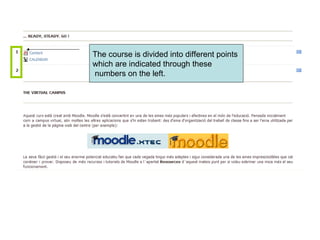
The course is divided into different points  which are indicated through these numbers on the left.
You can visualize all the content of the course  at the same time. But if you want to visualize  only one number just click this button on the right
If you decide to visualize only one point,  you can jump to the other points  using the ¨ jump to ¨ icon at the end of each point
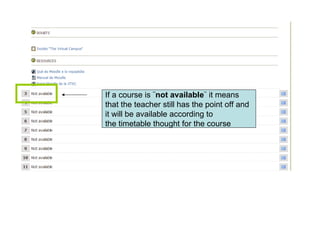
If a course is ¨ not available ¨ it means  that the teacher still has the point off and  it will be available according to  the timetable thought for the course
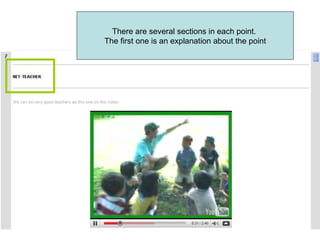
There are several sections in each point.  The first one is an explanation about the point
On the section instructions you will be given instructions about what you have to do.  This is the part where you will do the activity  If you have any doubt use the forum Here you will find resources related  with each point
Explanation of some icons: Word document Hand over an assignment: word file, powerpoint presentation... Foro Internet file
As I told you you will use this icon  to hand over an assignment
 
 
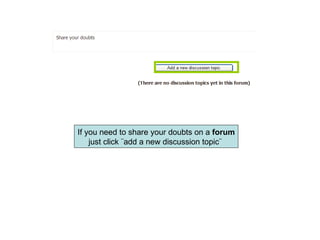
If you need to share your doubts on a  forum just click ¨add a new discussion topic¨
This icon indicates that this activity is a wiki.  A wiki allows you to share the same document with all the group.  It allows you to work on the same document but  it also means that you have to be careful  not to destroy the other´s information
To write your information on a wiki  click edit and then save
 
Some of the instructions are given through a  flash presentation; do not panic, it is easy to use. It will appear on a screen like this: click
and then ¨start¨. A screen like this will appear.  All you have to do now is click play

Instructions

  • 1.
    The course isdivided into different points which are indicated through these numbers on the left.
  • 2.
    You can visualizeall the content of the course at the same time. But if you want to visualize only one number just click this button on the right
  • 3.
    If you decideto visualize only one point, you can jump to the other points using the ¨ jump to ¨ icon at the end of each point
  • 4.
    If a courseis ¨ not available ¨ it means that the teacher still has the point off and it will be available according to the timetable thought for the course
  • 5.
    There are severalsections in each point. The first one is an explanation about the point
  • 6.
    On the sectioninstructions you will be given instructions about what you have to do. This is the part where you will do the activity If you have any doubt use the forum Here you will find resources related with each point
  • 7.
    Explanation of someicons: Word document Hand over an assignment: word file, powerpoint presentation... Foro Internet file
  • 8.
    As I toldyou you will use this icon to hand over an assignment
  • 9.
  • 10.
  • 11.
    If you needto share your doubts on a forum just click ¨add a new discussion topic¨
  • 12.
    This icon indicatesthat this activity is a wiki. A wiki allows you to share the same document with all the group. It allows you to work on the same document but it also means that you have to be careful not to destroy the other´s information
  • 13.
    To write yourinformation on a wiki click edit and then save
  • 14.
  • 15.
    Some of theinstructions are given through a flash presentation; do not panic, it is easy to use. It will appear on a screen like this: click
  • 16.
    and then ¨start¨.A screen like this will appear. All you have to do now is click play