Facebook
Setting up your Account
Recap
Facebook origins, background and facts
What Facebook can do and what you can do
with it
What would you like to do with Facebook?
Any thoughts, concerns,
questions or ideas after last
week?
Remember!
Blog -
www.is40480computerclasses.wordpress.com
Facebook page -
www.facebook.com/is40480computers
Let’s get started…
Step 1
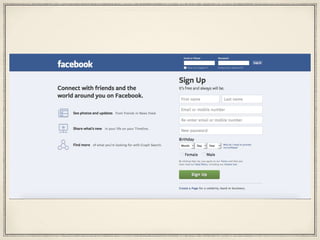
Go to the Facebook homepage
Type www.facebook.com into the address bar
Press Enter
Step 2
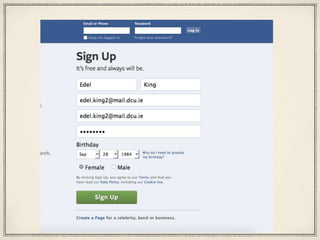
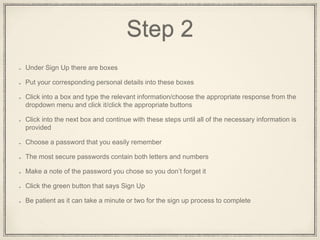
Under the words Sign Up, on the right hand side, there are boxes
Put your corresponding personal details into these boxes
Click into a box and type in the relevant information/choose the appropriate response from
the dropdown menu and click it/click the appropriate buttons
Click into the next box and continue with these steps until all of the necessary information is
provided
Choose a password that you will easily remember
The most secure passwords contain both letters and numbers
Make a note of the password you chose so you don’t forget it
Click the green button that says Sign Up
It can take a minute or two for sign up to complete
Remember your email addresses from the previous sessions?
This should be the email address that you enter into the relevant box
You will need to open a new tab and log into your email to access
confirmation emails sent by Facebook
Step 3
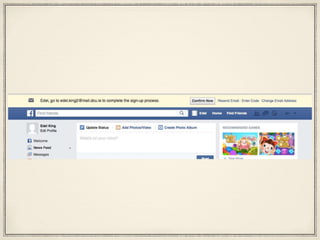
The page that appears will have a message at
the top that asks you to check your email to
confirm sign up
Sign in to your email
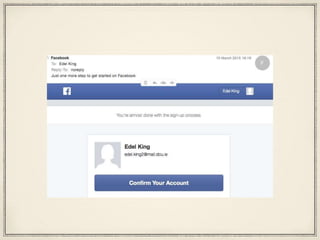
There should be an email there from
Facebook asking that you click a link to
complete sign up
Step 4
Click on the words Confirm Your Account to
complete the Sign Up process
This will open a new tab with your account on
it - work from this tab now
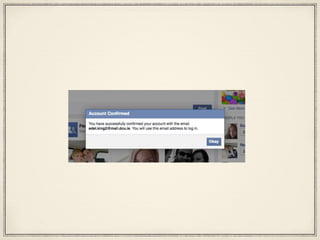
Your account is now created and ready for
you to start personalising and using
Note
Ignore the background to the message, my
page might look different to yours but the
message will be the same regardless
Note
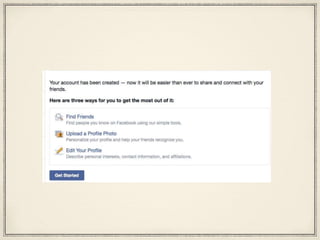
You will receive a follow up email from
Facebook welcoming you. You don’t have to
do anything with this message
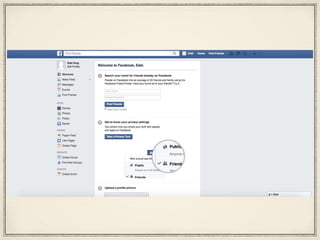
Step 5
Familiarise yourself with the Interface of the
page, clicking on things if you want to
discover what they do
You can’t break it or do anything wrong at this
stage but do ask if you need any assistance
Step 6
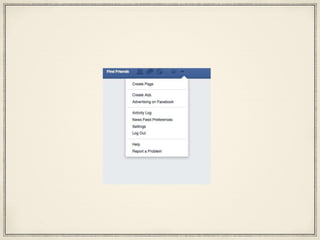
Practise logging In and Out of your Account
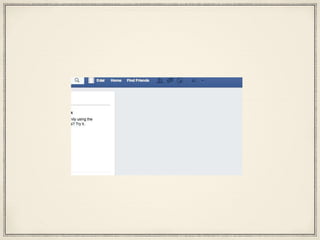
On the Homepage top right there should be a downward
facing arrow
Click it
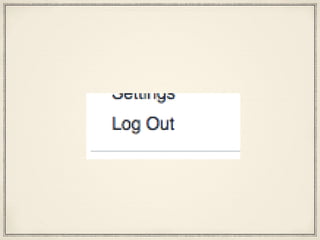
Choose Log Out from the drop down menu that appears
Click it
You should now be Logged Out and once again see the
Homepage
Step 7
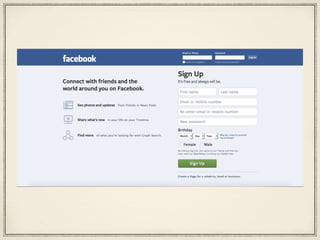
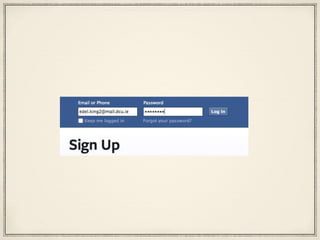
To log back in enter your Log In details in the
boxes on the top right of the facebook.com
Homepage
Type the email address that you provided when
signing up into the box on the left
Type the password that you provided when
signing up into the box on the right
Click the Log In Button
For next week
Log in and out a few times until it becomes
second nature
Have a look at your homepage - we will go
into the layout of it in more detail next week
Remember!
www.is40480computerclasses.wordpress.com
Blog post this week will have a short video
taking you through the process again
Any questions?
Contact me
edel.king@ucdconnect.ie
Next week - getting to
know your Interface
See you next week!!

Week 2: Setting up your Account

  • 1.
  • 2.
    Recap Facebook origins, backgroundand facts What Facebook can do and what you can do with it What would you like to do with Facebook?
  • 3.
    Any thoughts, concerns, questionsor ideas after last week?
  • 4.
  • 5.
  • 6.
    Step 1 Go tothe Facebook homepage Type www.facebook.com into the address bar Press Enter
  • 9.
    Step 2 Under thewords Sign Up, on the right hand side, there are boxes Put your corresponding personal details into these boxes Click into a box and type in the relevant information/choose the appropriate response from the dropdown menu and click it/click the appropriate buttons Click into the next box and continue with these steps until all of the necessary information is provided Choose a password that you will easily remember The most secure passwords contain both letters and numbers Make a note of the password you chose so you don’t forget it Click the green button that says Sign Up It can take a minute or two for sign up to complete
  • 10.
    Remember your emailaddresses from the previous sessions? This should be the email address that you enter into the relevant box You will need to open a new tab and log into your email to access confirmation emails sent by Facebook
  • 12.
    Step 3 The pagethat appears will have a message at the top that asks you to check your email to confirm sign up Sign in to your email There should be an email there from Facebook asking that you click a link to complete sign up
  • 14.
    Step 4 Click onthe words Confirm Your Account to complete the Sign Up process This will open a new tab with your account on it - work from this tab now Your account is now created and ready for you to start personalising and using
  • 16.
    Note Ignore the backgroundto the message, my page might look different to yours but the message will be the same regardless
  • 17.
    Note You will receivea follow up email from Facebook welcoming you. You don’t have to do anything with this message
  • 19.
    Step 5 Familiarise yourselfwith the Interface of the page, clicking on things if you want to discover what they do You can’t break it or do anything wrong at this stage but do ask if you need any assistance
  • 21.
    Step 6 Practise loggingIn and Out of your Account On the Homepage top right there should be a downward facing arrow Click it Choose Log Out from the drop down menu that appears Click it You should now be Logged Out and once again see the Homepage
  • 25.
    Step 7 To logback in enter your Log In details in the boxes on the top right of the facebook.com Homepage Type the email address that you provided when signing up into the box on the left Type the password that you provided when signing up into the box on the right Click the Log In Button
  • 28.
    For next week Login and out a few times until it becomes second nature Have a look at your homepage - we will go into the layout of it in more detail next week
  • 29.
    Remember! www.is40480computerclasses.wordpress.com Blog post thisweek will have a short video taking you through the process again
  • 30.
  • 31.
  • 32.
    Next week -getting to know your Interface
  • 33.