New TwinSpaceoverview 
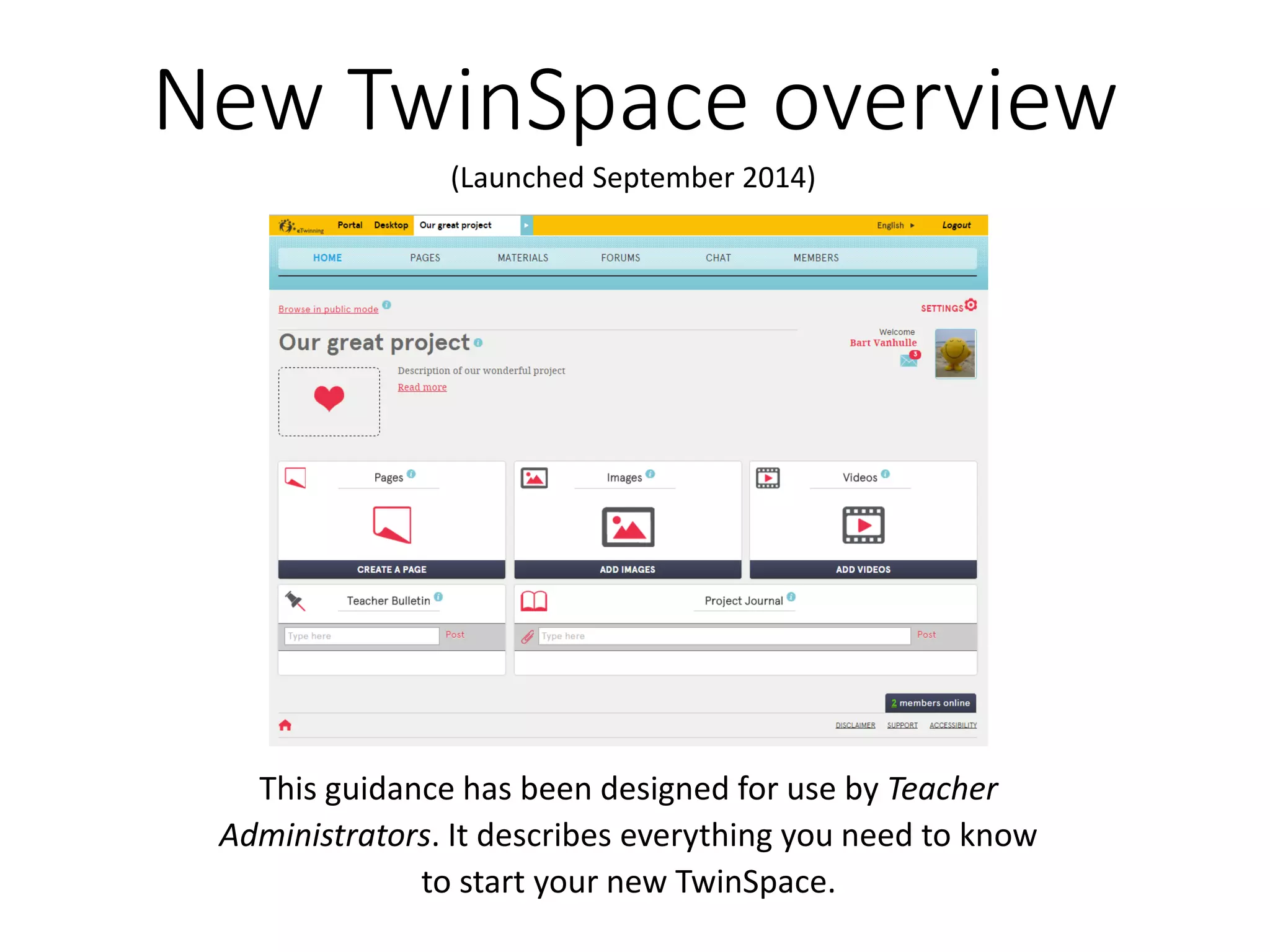
This guidance has been designed for use by Teacher Administrators. It describes everything you need to know to start your new TwinSpace. 
(Launched September 2014)
Sign in 
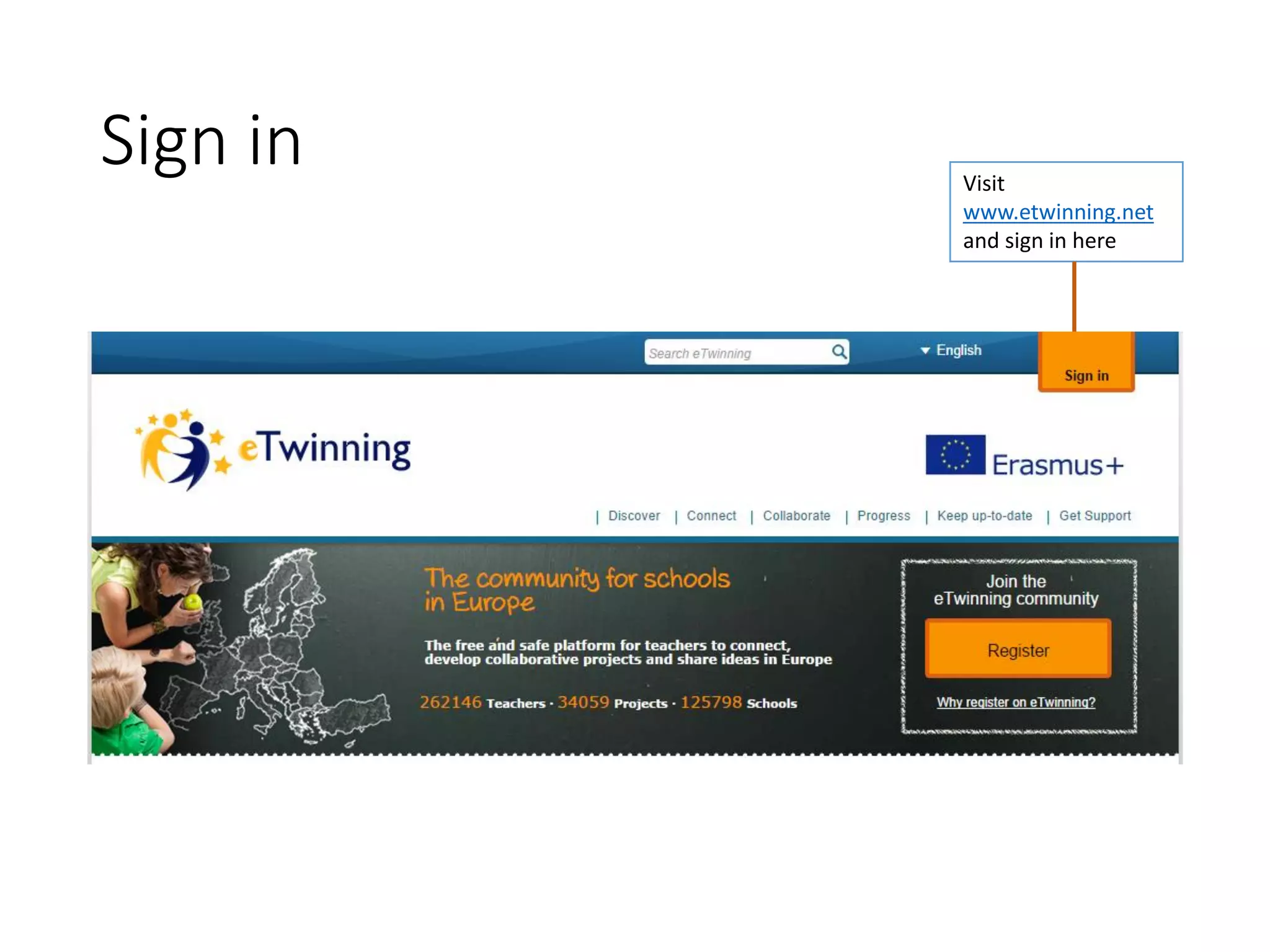
Visit www.etwinning.netand sign in here
Access your TwinSpace 
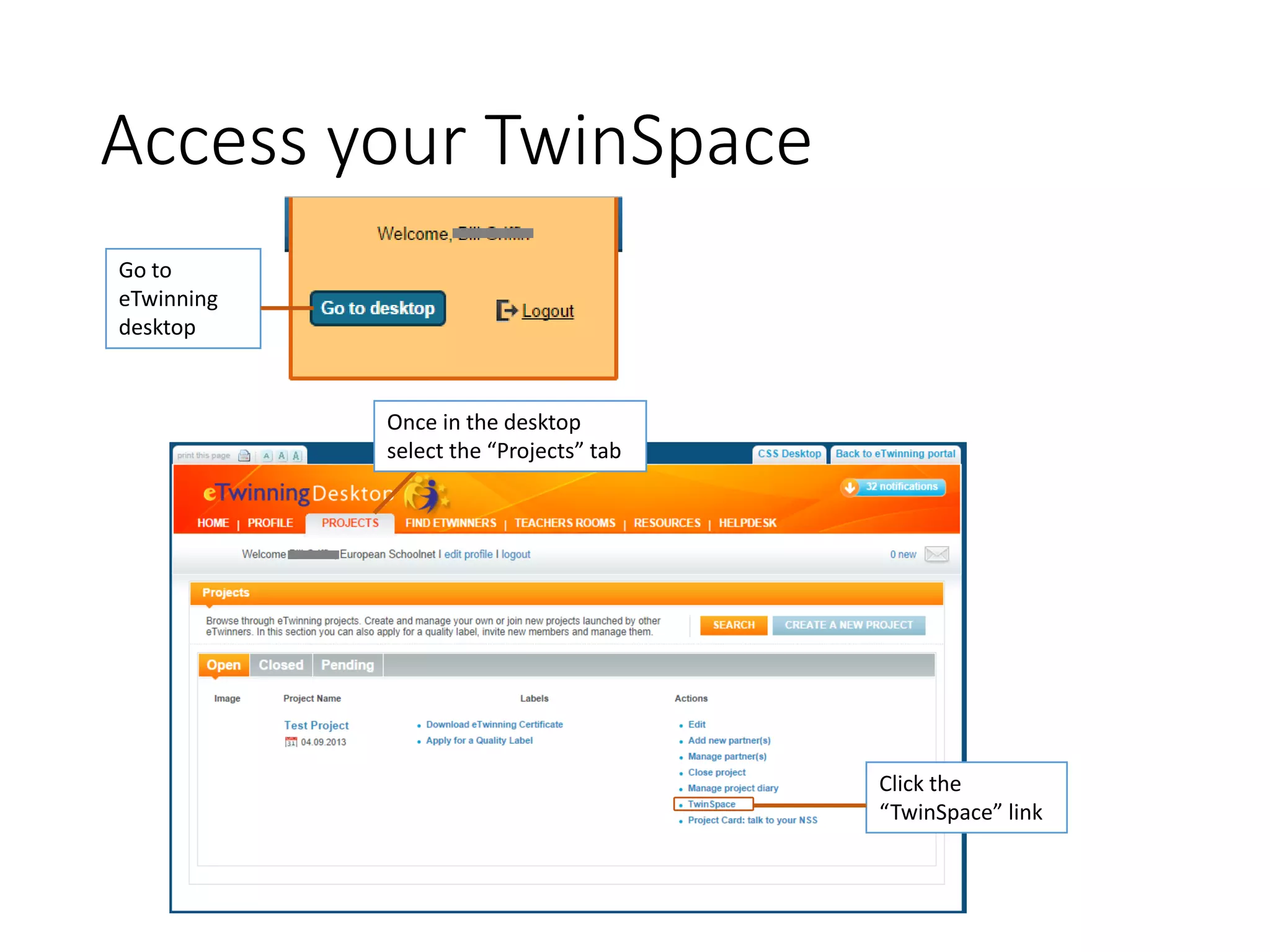
Go to eTwinning desktop 
Click the “TwinSpace” link 
Once in the desktop select the “Projects” tab
The home page overview 
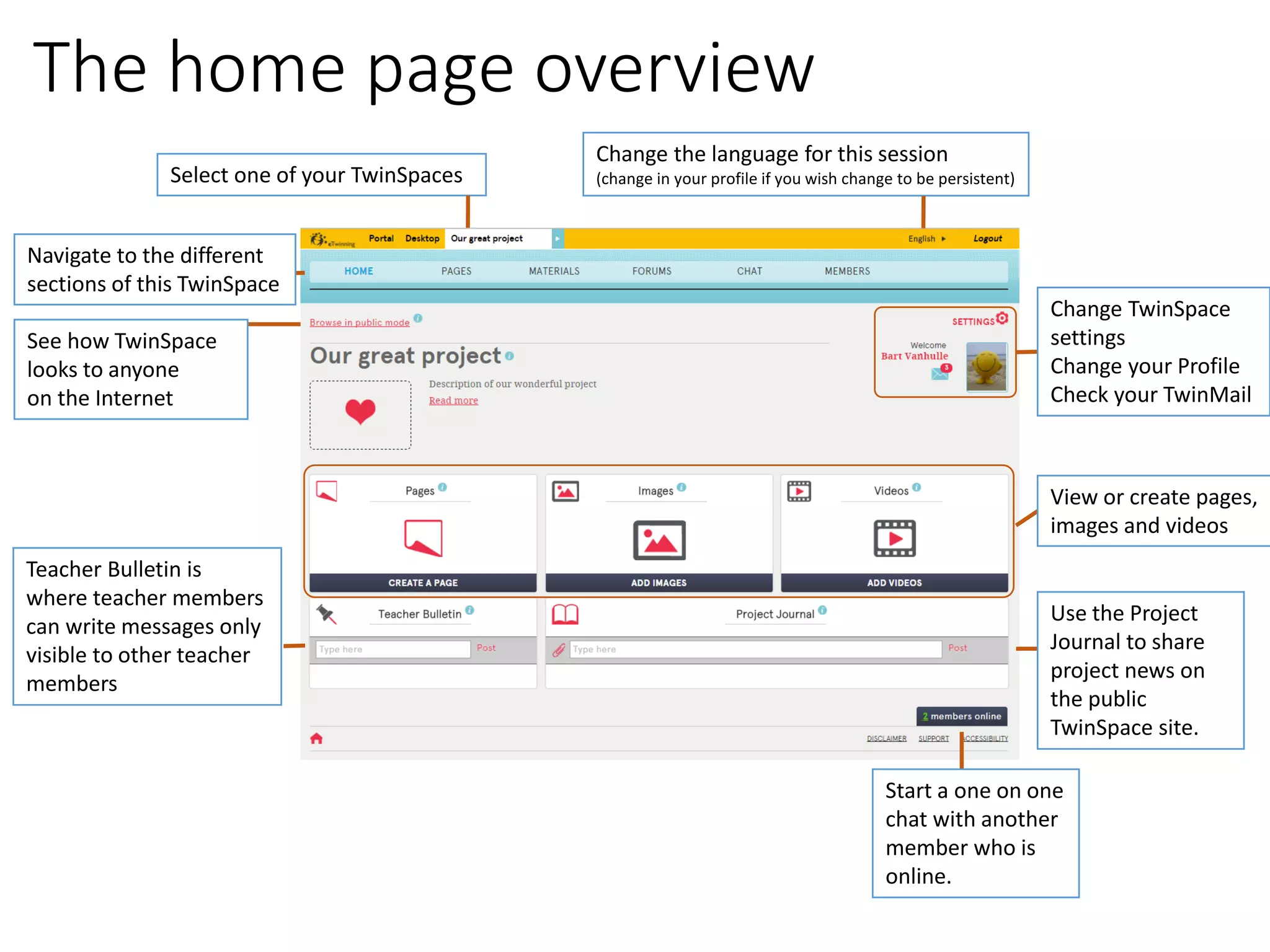
Select one of your TwinSpaces 
Change the language for this session (change in your profile if you wish change to be persistent) 
See how TwinSpace 
looks to anyone 
on the Internet 
Change TwinSpacesettings 
Change your Profile 
Check your TwinMail 
Teacher Bulletin is where teacher members can write messages only visible to other teacher members 
Use the Project Journal to share project news on the public TwinSpacesite. 
Navigate to the different 
sections of this TwinSpace 
View or create pages, 
images and videos 
Start a one on one chat with another member who is online.
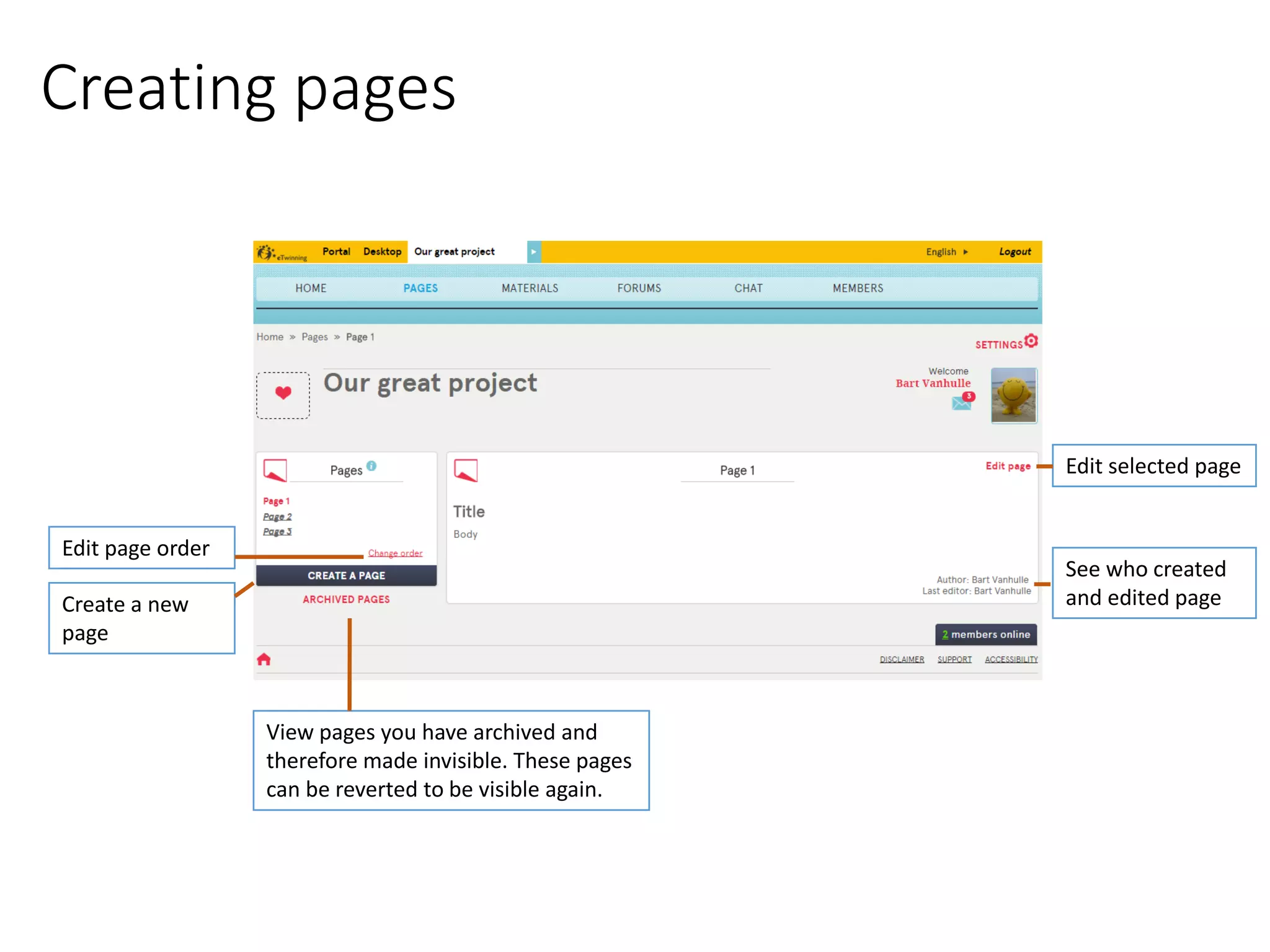
Creating pages 
Create a new page 
View pages you have archived and therefore made invisible. These pages can be reverted to be visible again. 
Edit selected page 
Edit page order 
See who created 
and edited page
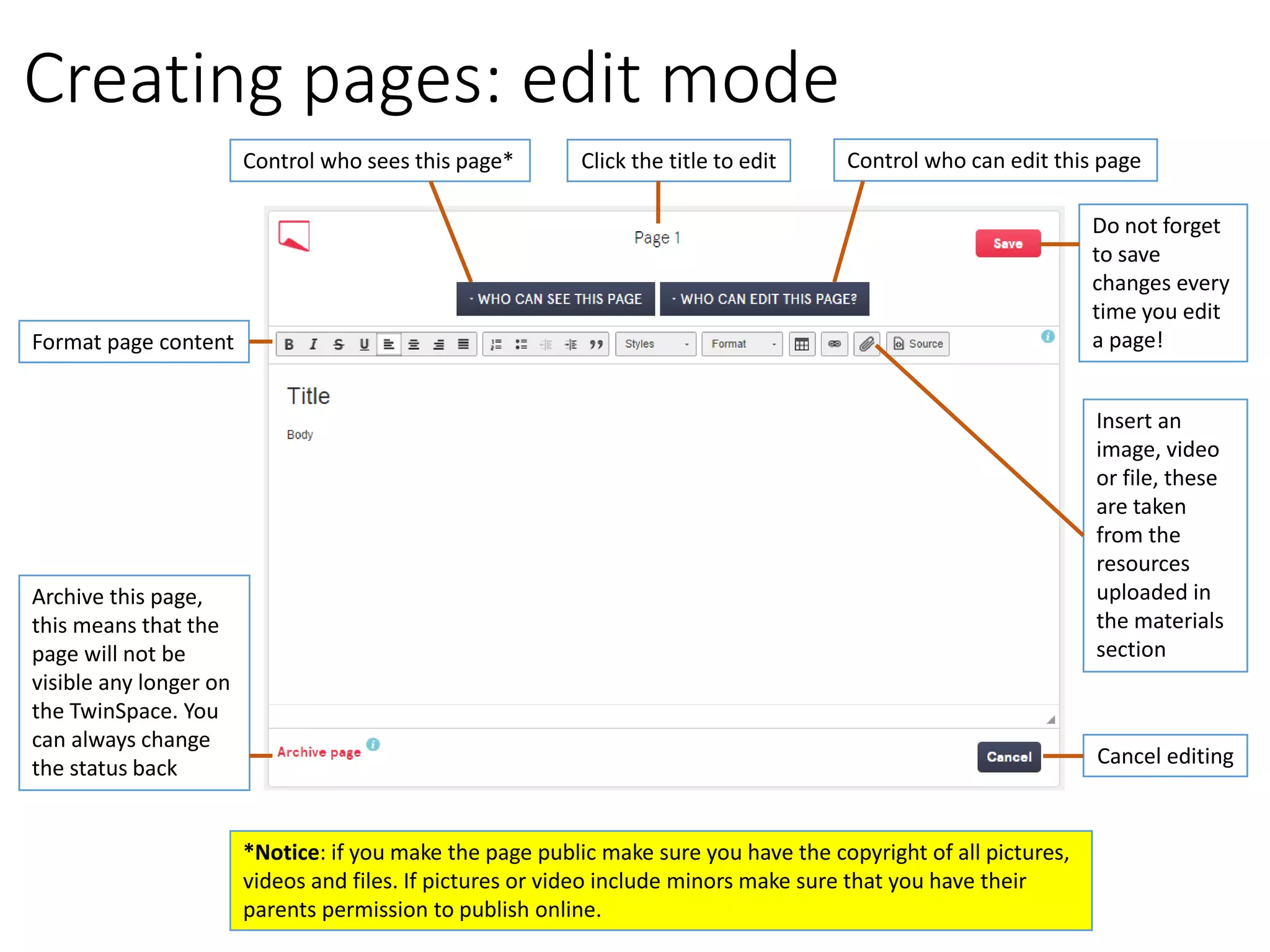
Creating pages: edit mode 
Control who sees this page* 
Control who can edit this page 
Format page content 
Insert an image, video or file, these are taken from the resources uploaded in the materials section 
Archive this page, this means that the page will not be visible any longer on the TwinSpace. You can always change the status back 
Cancel editing 
Do not forget to save changes every time you edit a page! 
Click the title to edit 
*Notice: if you make the page public make sure you have the copyright of all pictures, videos and files. If pictures or video include minors make sure that you have their parents permission to publish online.
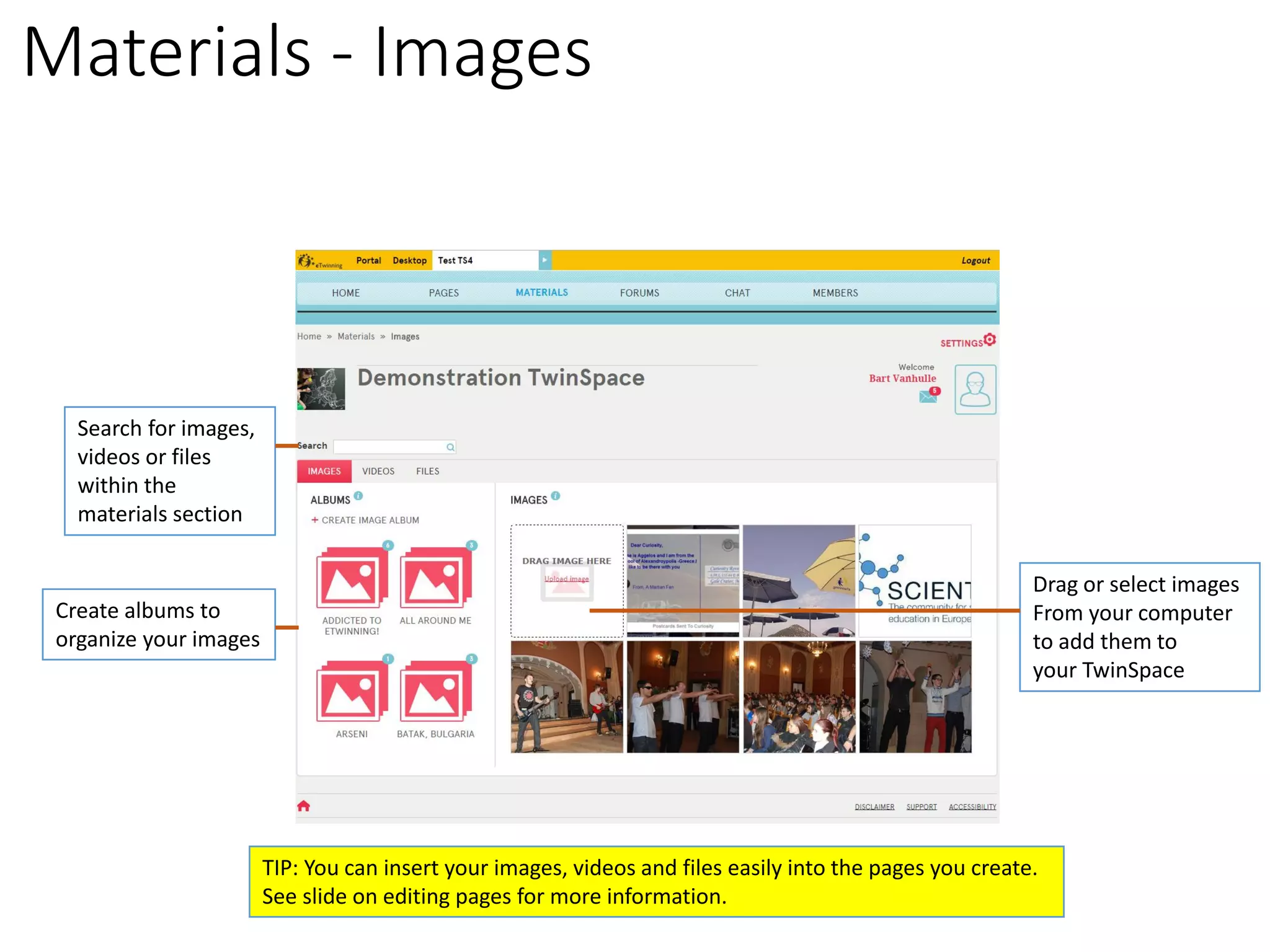
Materials -Images 
Create albums to 
organize your images 
Drag or select images 
From your computer 
to add them to 
your TwinSpace 
Search for images, 
videos or files within the materials section 
TIP: You can insert your images, videos and files easily into the pages you create. 
See slide on editing pages for more information.
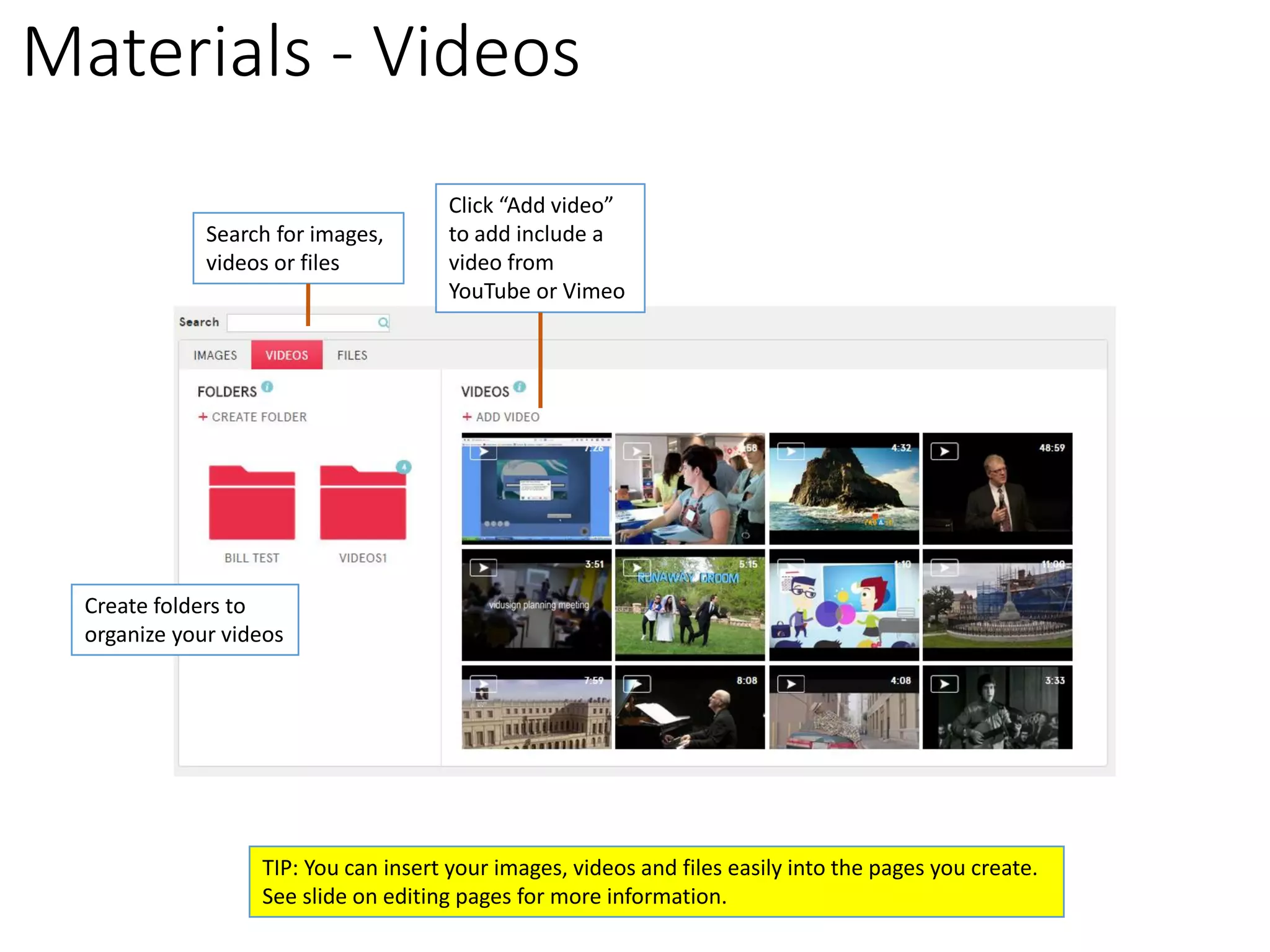
Materials -Videos 
Create folders to 
organize your videos 
Click “Add video” to add include a video from YouTube or Vimeo 
Search for images, 
videos or files 
TIP: You can insert your images, videos and files easily into the pages you create. 
See slide on editing pages for more information.
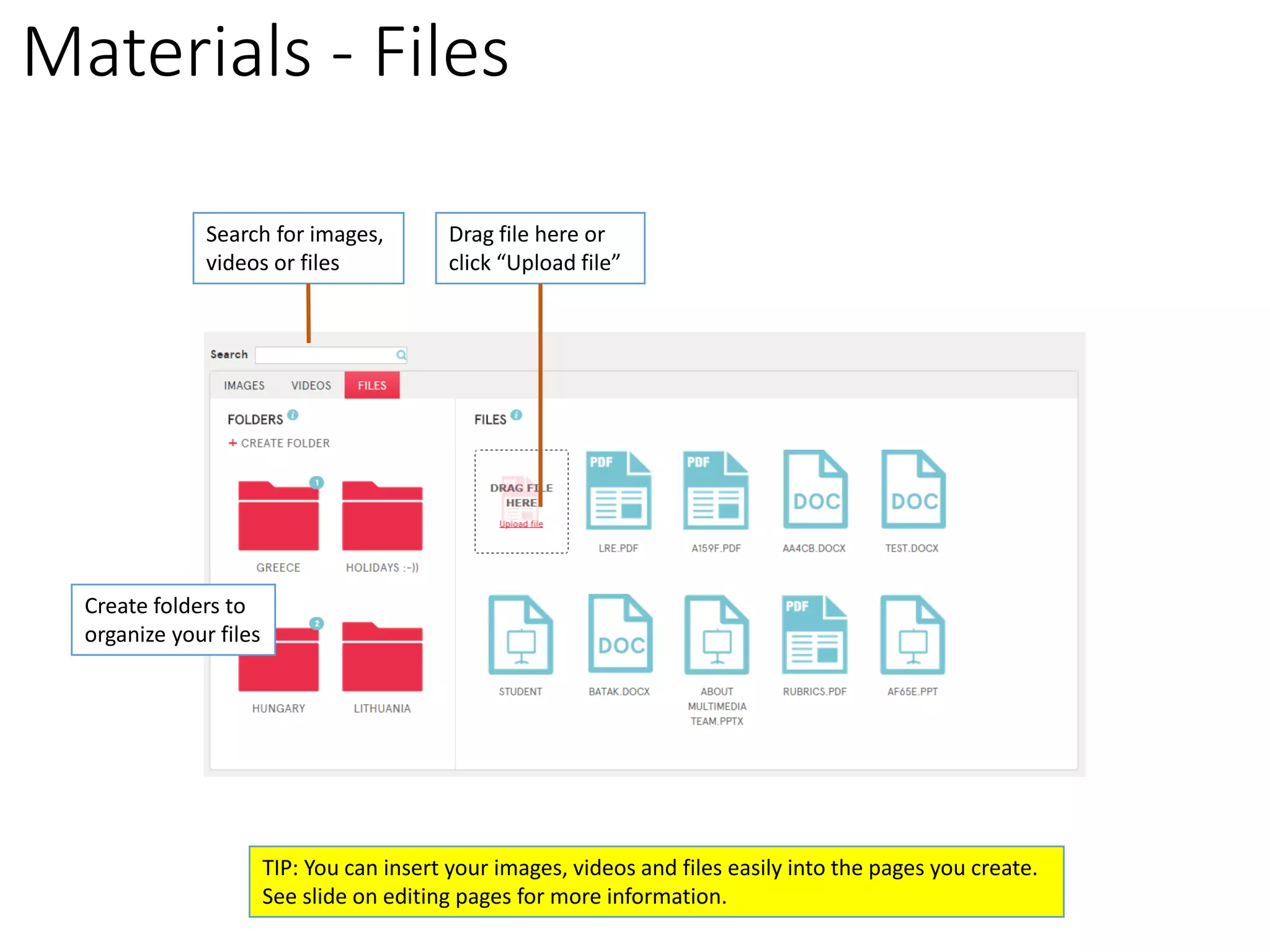
Materials -Files 
Create folders to 
organize your files 
Drag file here or click “Upload file” 
Search for images, 
videos or files 
TIP: You can insert your images, videos and files easily into the pages you create. 
See slide on editing pages for more information.
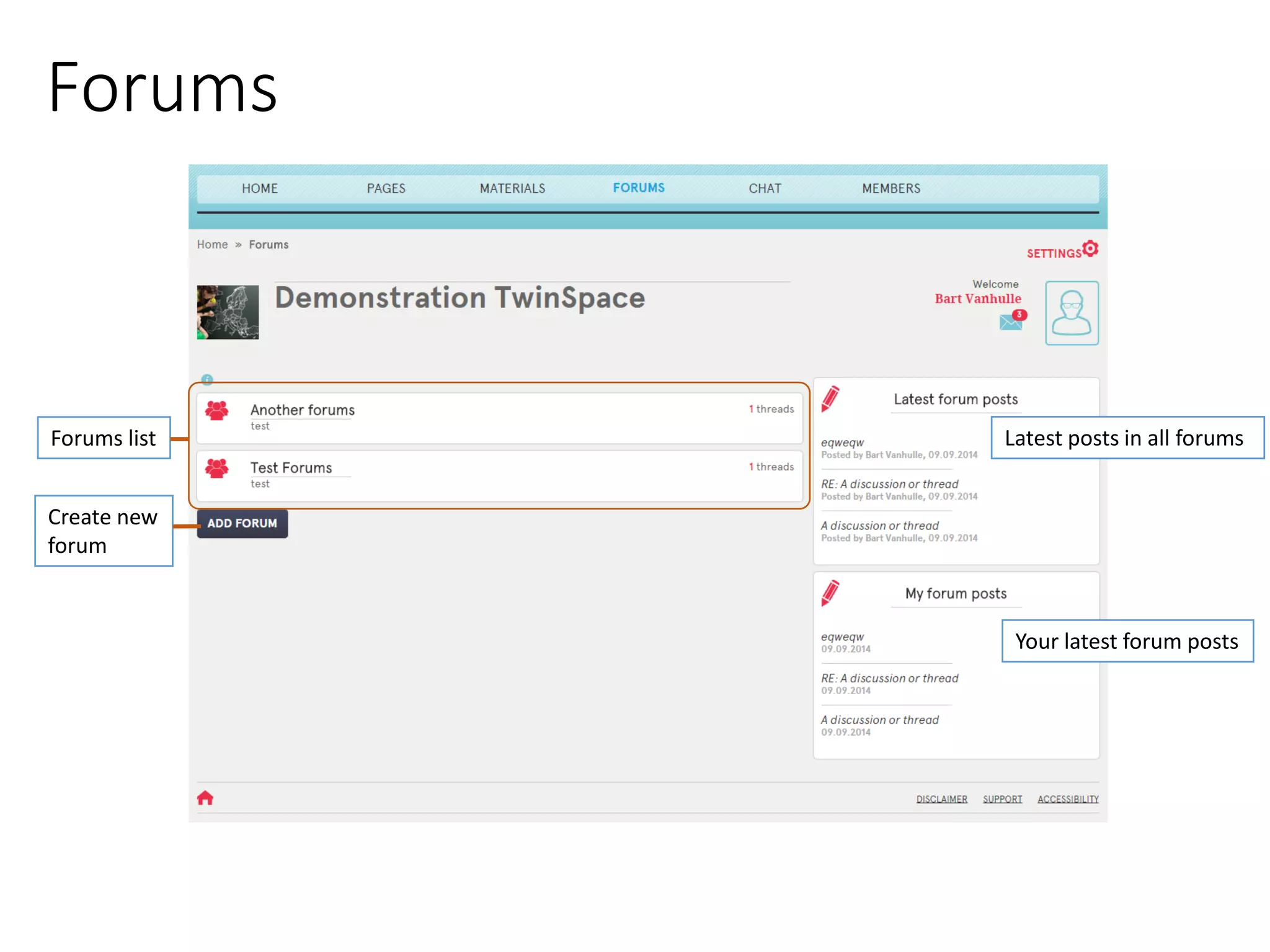
Forums 
Forums list 
Create new forum 
Latest posts in all forums 
Your latest forum posts
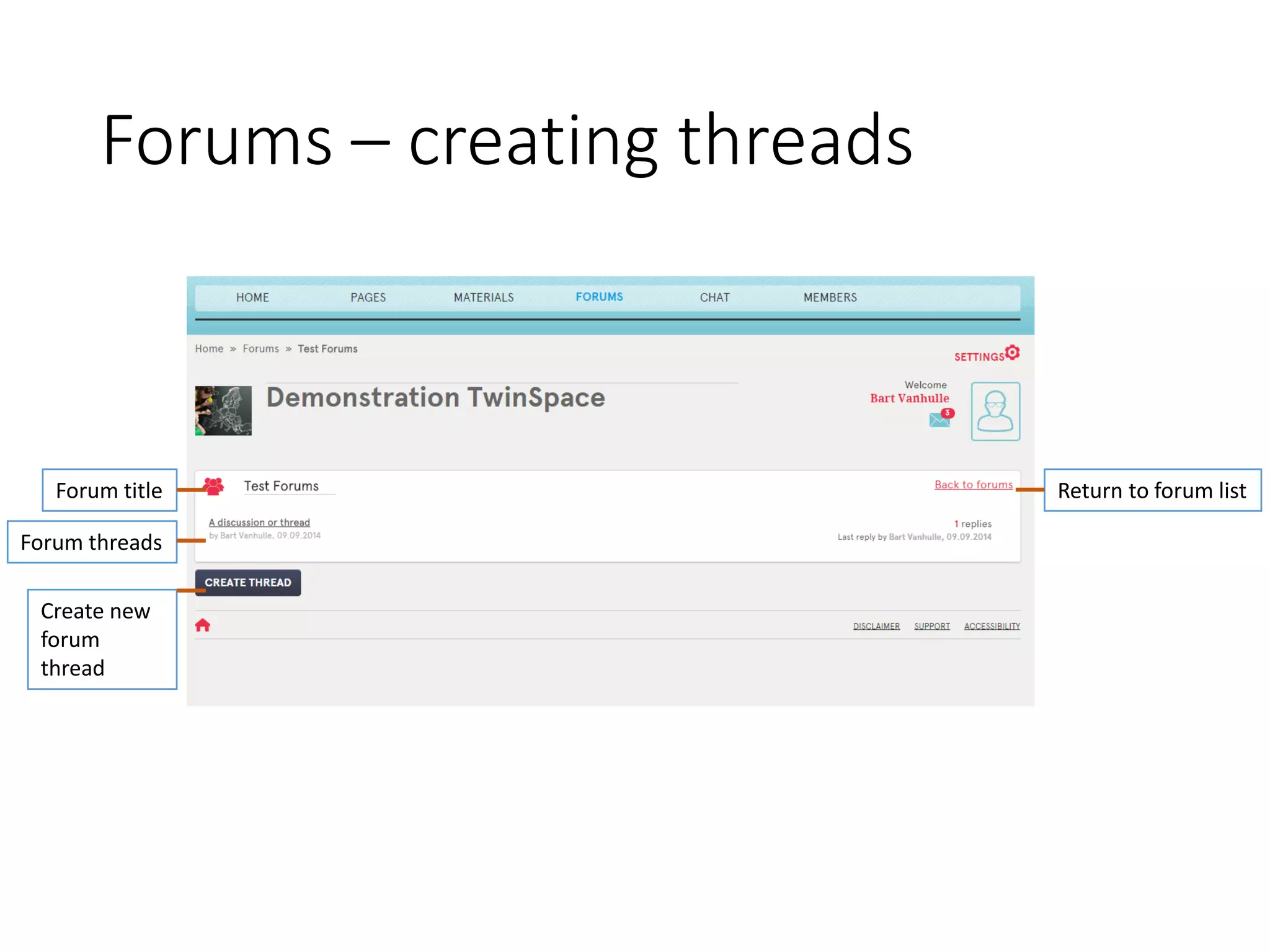
Forums –creating threads 
Forum title 
Forum threads 
Create new forum thread 
Return to forum list
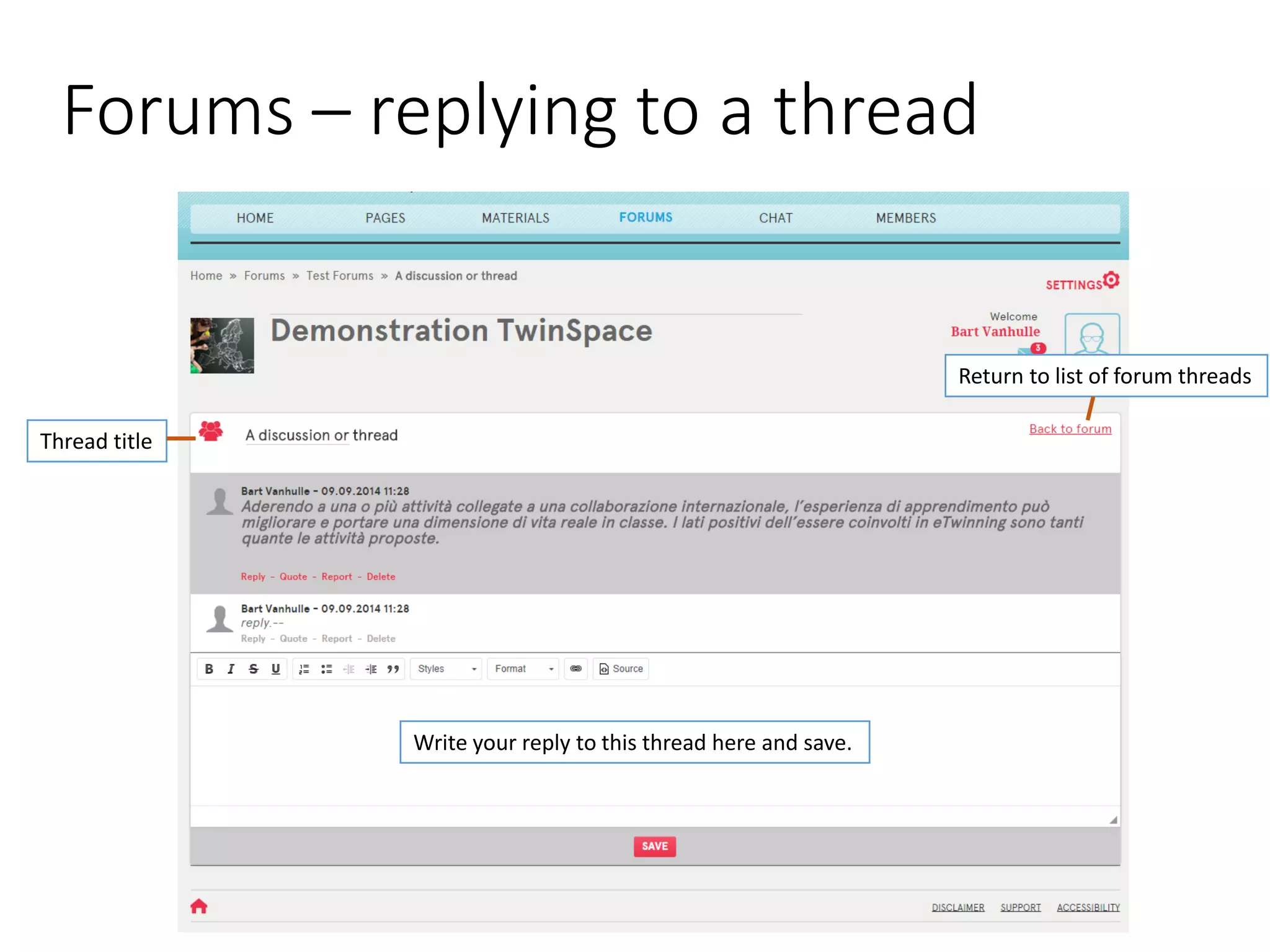
Forums –replying to a thread 
Thread title 
Write your reply to this thread here and save. 
Return to list of forum threads
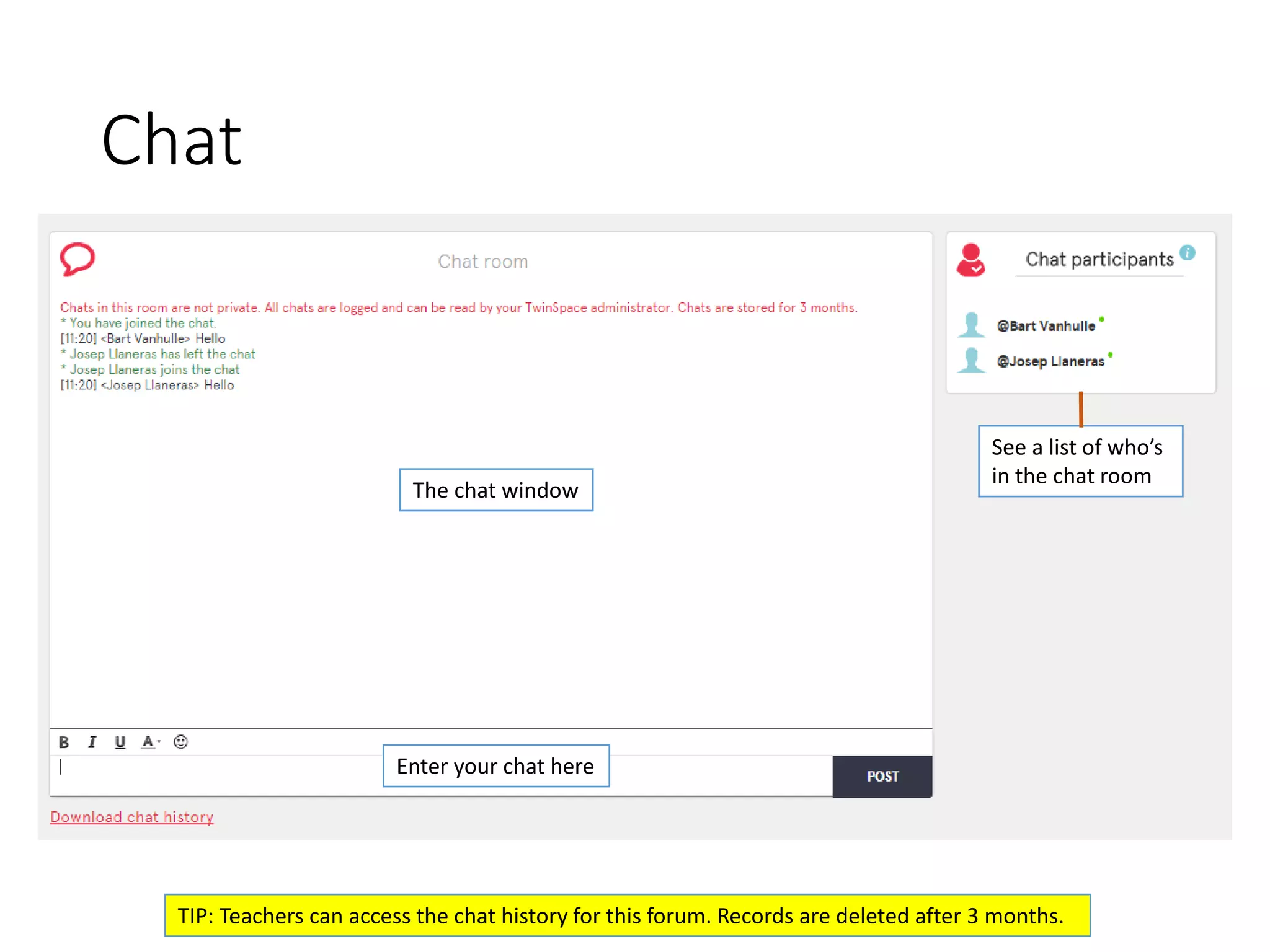
Chat 
The chat window 
Enter your chat here 
TIP: Teachers can access the chat history for this forum. Records are deleted after 3 months. 
See a list of who’s 
in the chat room
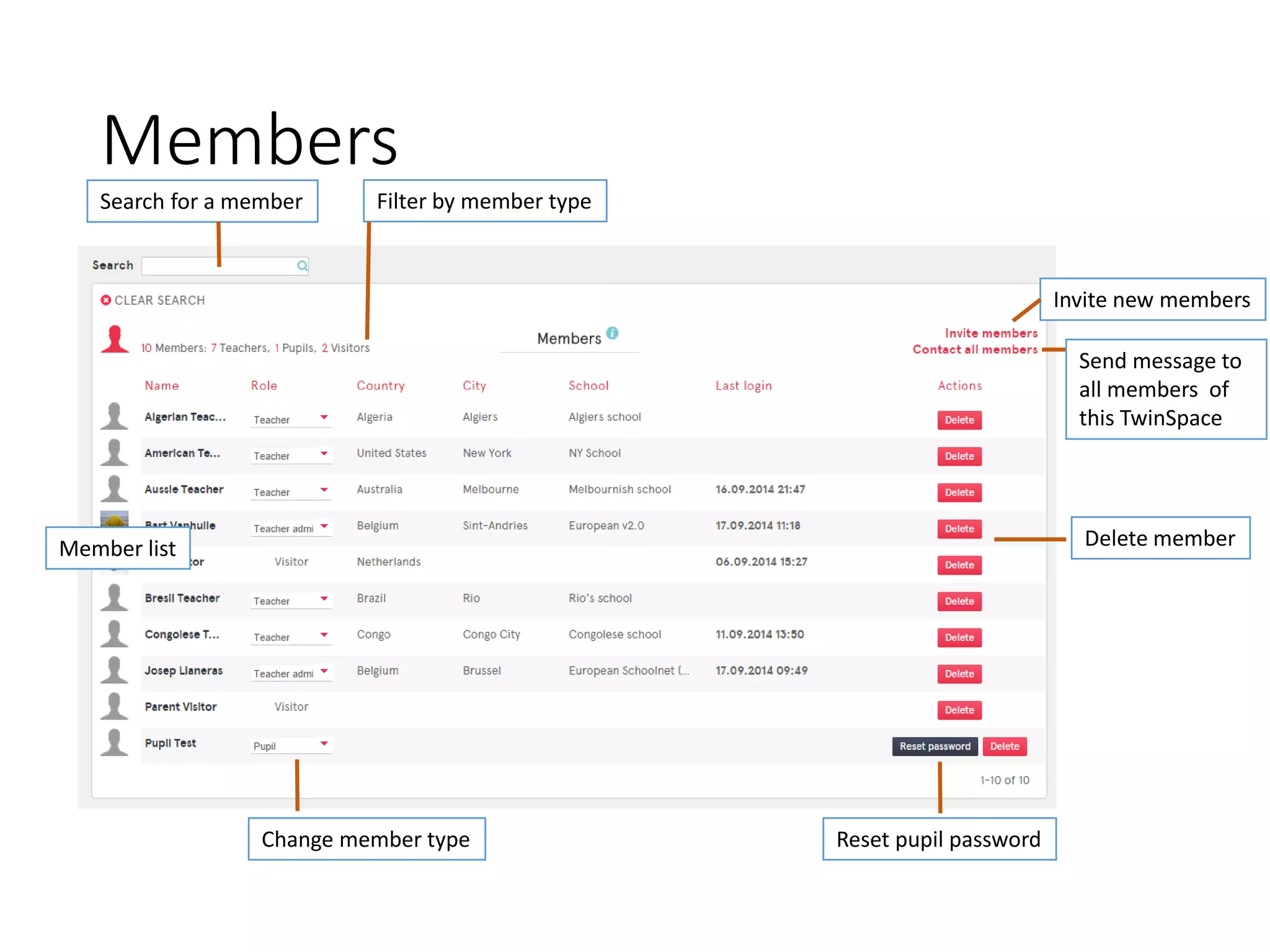
Members 
Search for a member 
Filter by member type 
Member list 
Change member type 
Delete member 
Reset pupil password 
Invite new members 
Send message to all members of this TwinSpace
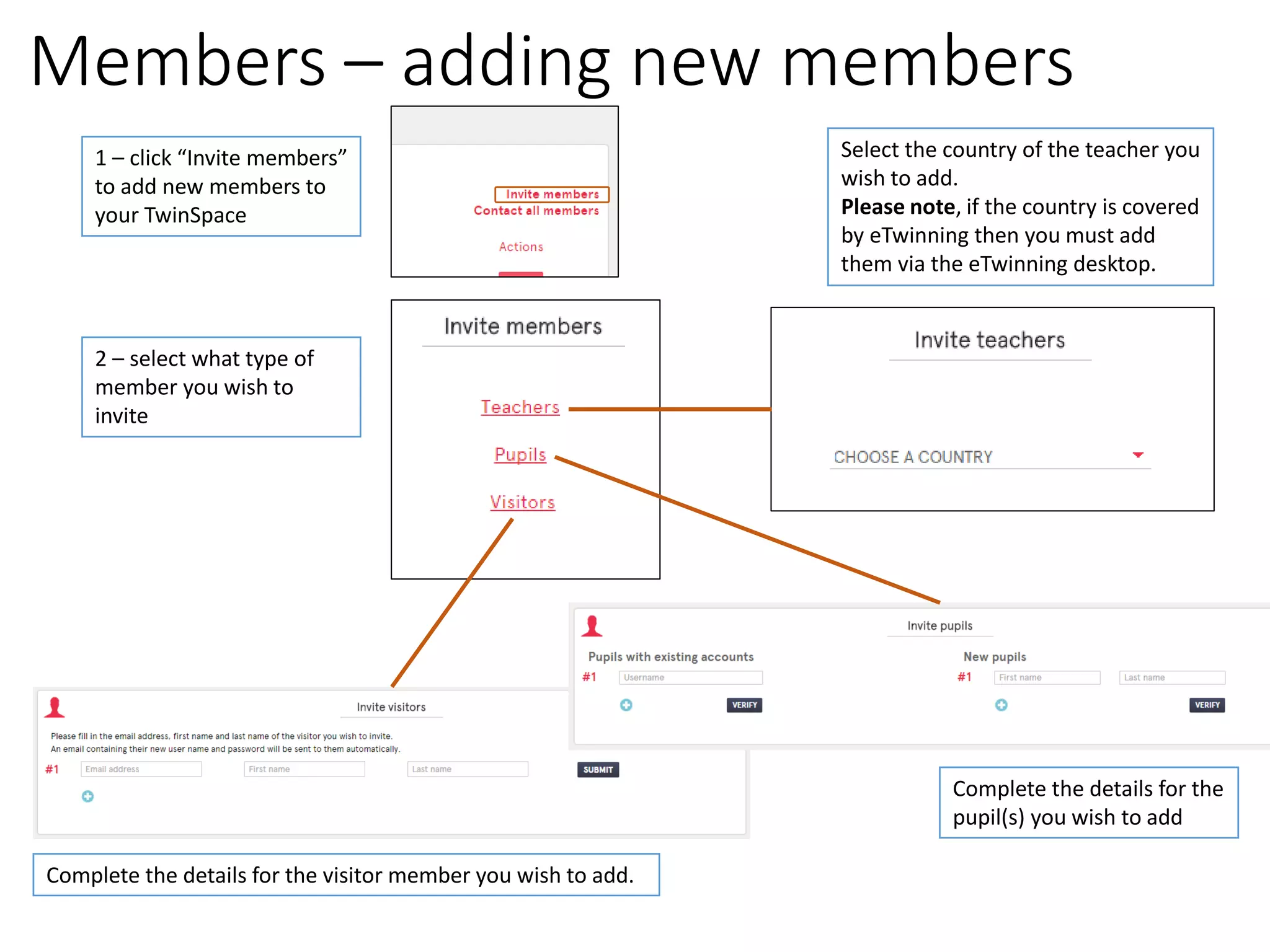
Members –adding new members 
1 –click “Invite members” to add new members to your TwinSpace 
2 –select what type of member you wish to invite 
Complete the details for the visitor member you wish to add. 
Complete the details for the pupil(s) you wish to add 
Select the country of the teacher you wish to add. Please note, if the country is covered by eTwinning then you must add them via the eTwinning desktop.
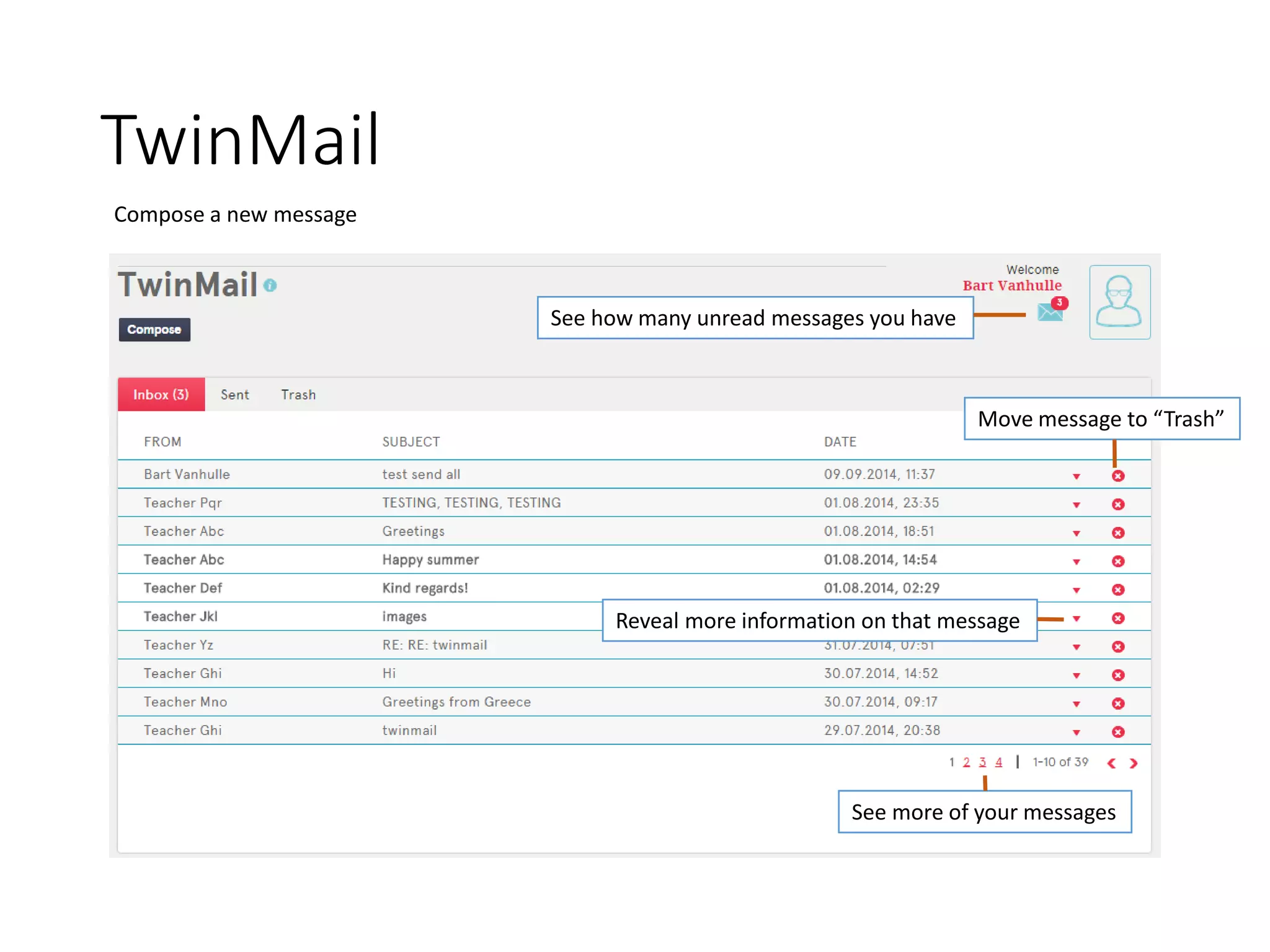
TwinMail 
Compose a new message 
See how many unread messages you have 
Reveal more information on that message 
Move message to “Trash” 
See more of your messages
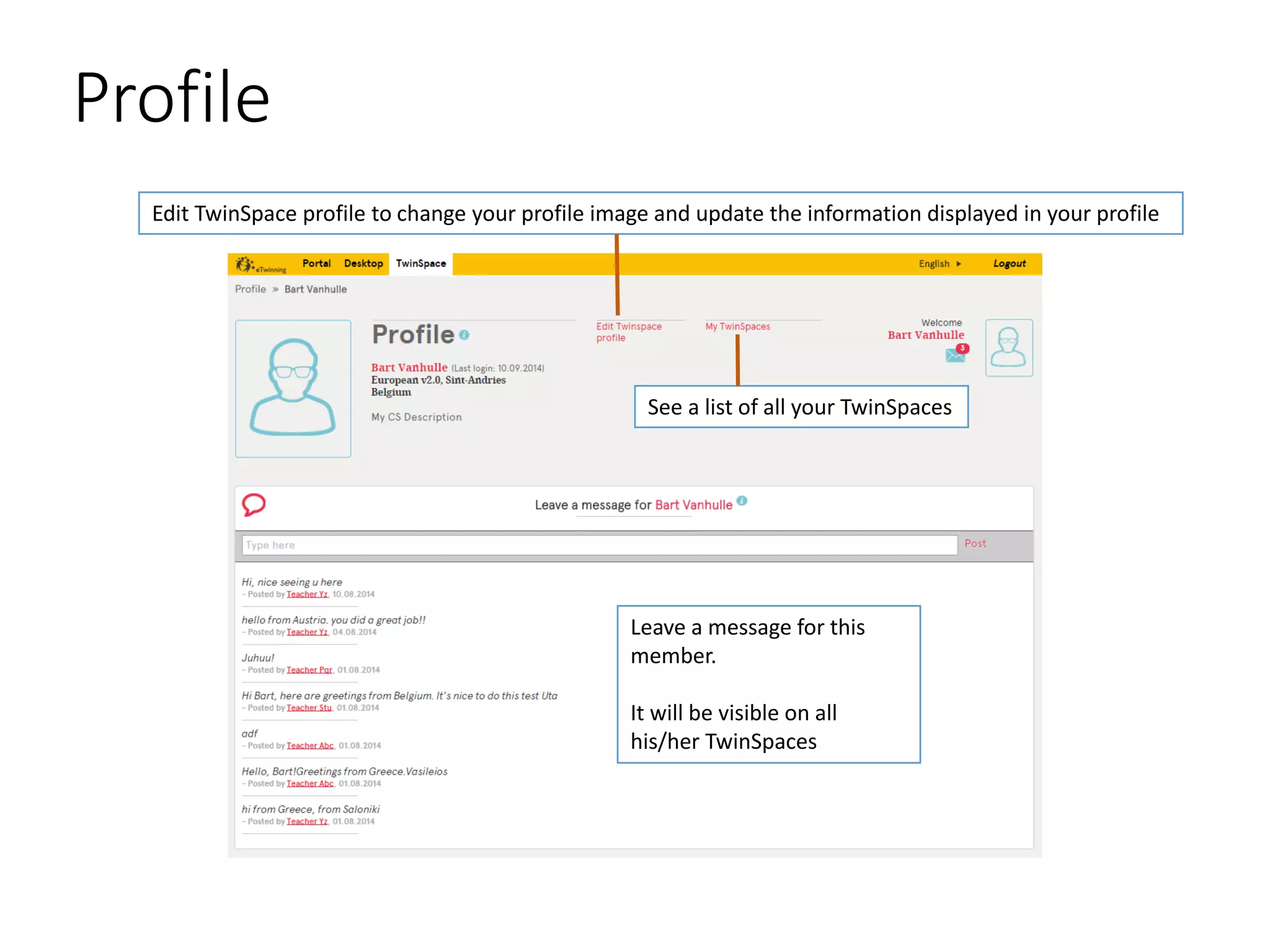
Profile 
Edit TwinSpaceprofile to change your profile image and update the information displayed in your profile 
See a list of all your TwinSpaces 
Leave a message for this member. It will be visible on all his/her TwinSpaces
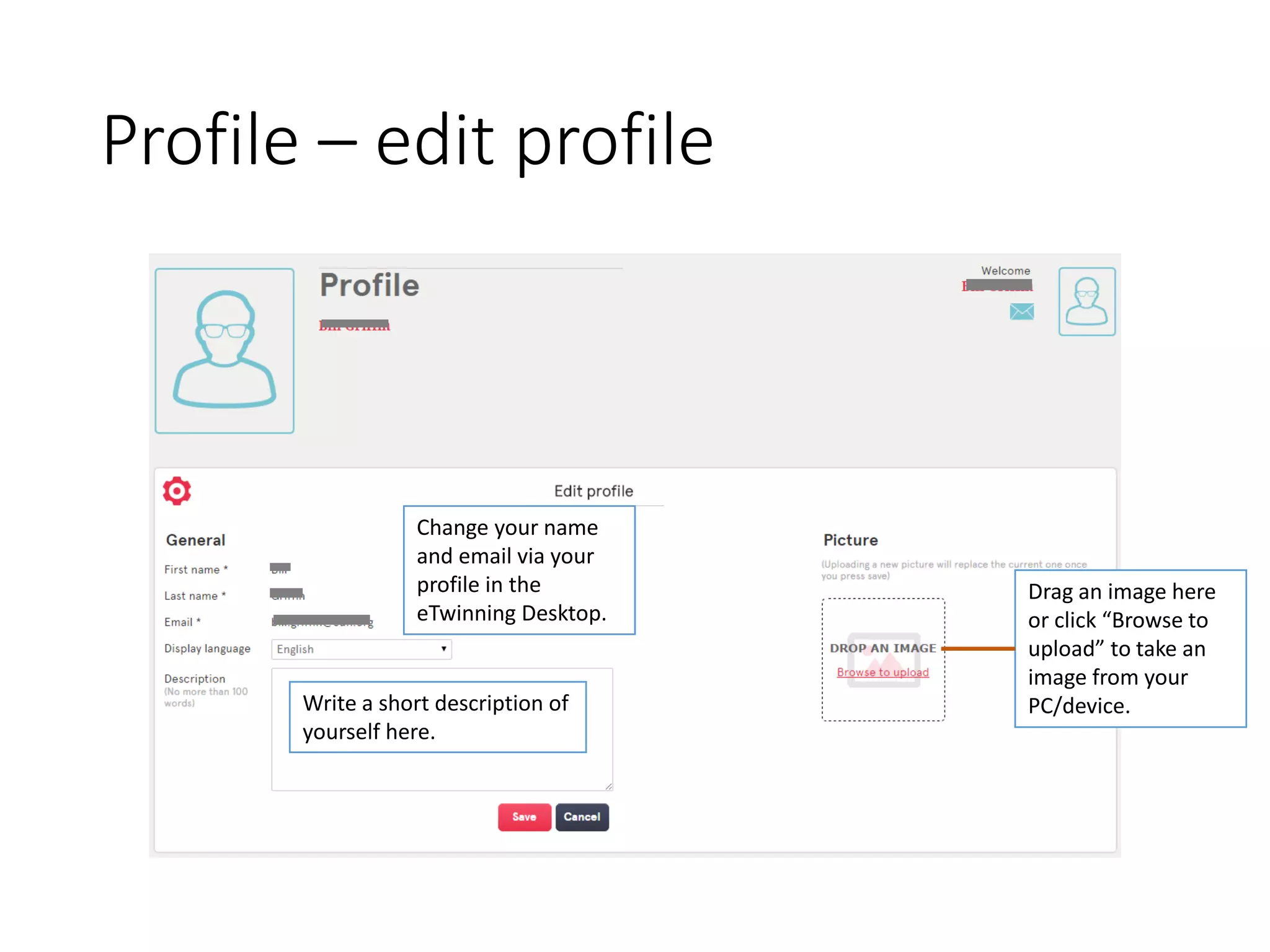
Profile –edit profile 
Change your name and email via your profile in the eTwinning Desktop. 
Drag an image here or click “Browse to upload” to take an image from your PC/device. 
Write a short description of yourself here.
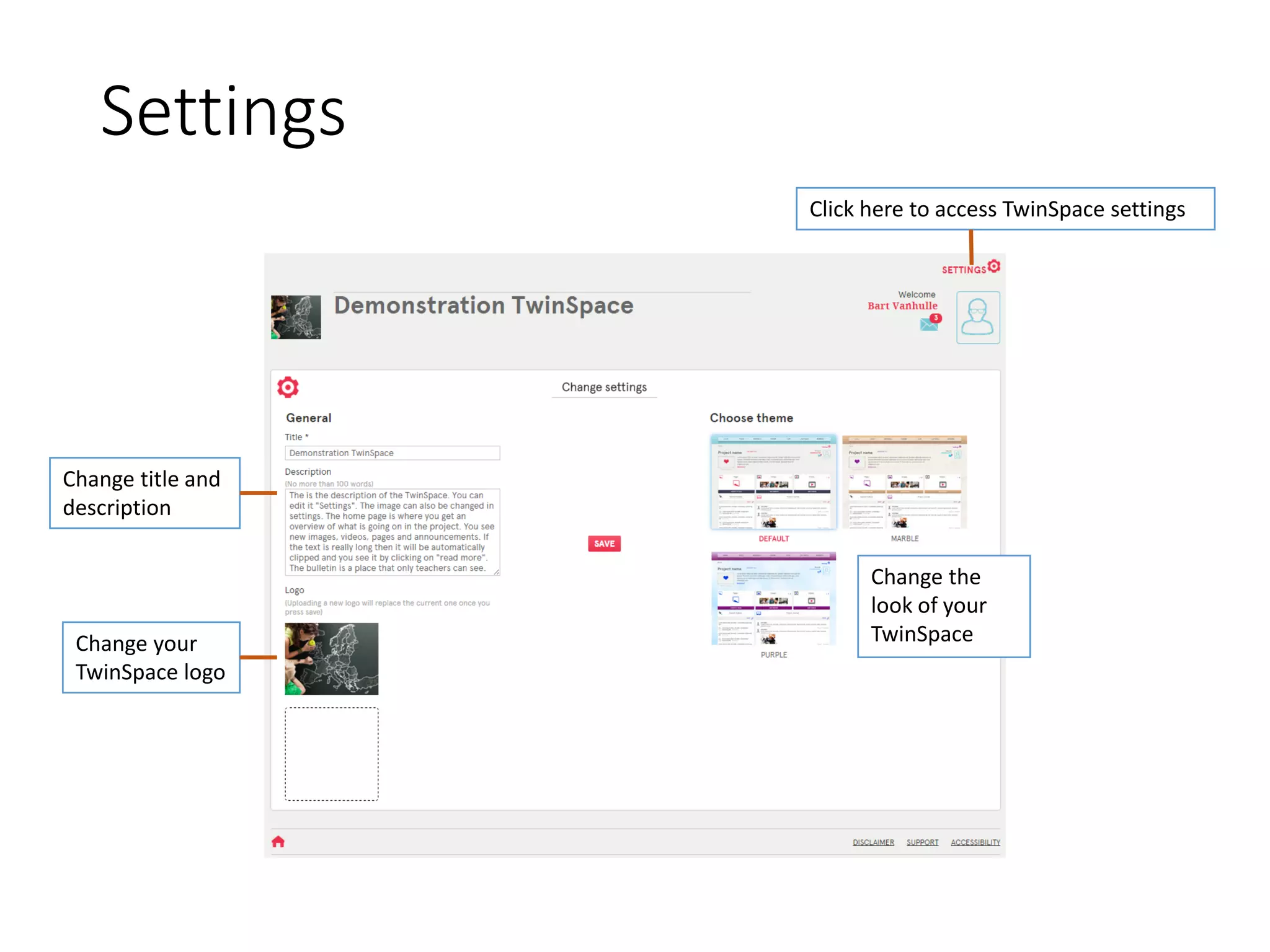
Settings 
Click here to access TwinSpacesettings 
Change the look of your TwinSpace 
Change title and description 
Change your 
TwinSpacelogo

Welcome to the new twin space

  • 1.
    New TwinSpaceoverview Thisguidance has been designed for use by Teacher Administrators. It describes everything you need to know to start your new TwinSpace. (Launched September 2014)
  • 2.
    Sign in Visitwww.etwinning.netand sign in here
  • 3.
    Access your TwinSpace Go to eTwinning desktop Click the “TwinSpace” link Once in the desktop select the “Projects” tab
  • 4.
    The home pageoverview Select one of your TwinSpaces Change the language for this session (change in your profile if you wish change to be persistent) See how TwinSpace looks to anyone on the Internet Change TwinSpacesettings Change your Profile Check your TwinMail Teacher Bulletin is where teacher members can write messages only visible to other teacher members Use the Project Journal to share project news on the public TwinSpacesite. Navigate to the different sections of this TwinSpace View or create pages, images and videos Start a one on one chat with another member who is online.
  • 5.
    Creating pages Createa new page View pages you have archived and therefore made invisible. These pages can be reverted to be visible again. Edit selected page Edit page order See who created and edited page
  • 6.
    Creating pages: editmode Control who sees this page* Control who can edit this page Format page content Insert an image, video or file, these are taken from the resources uploaded in the materials section Archive this page, this means that the page will not be visible any longer on the TwinSpace. You can always change the status back Cancel editing Do not forget to save changes every time you edit a page! Click the title to edit *Notice: if you make the page public make sure you have the copyright of all pictures, videos and files. If pictures or video include minors make sure that you have their parents permission to publish online.
  • 7.
    Materials -Images Createalbums to organize your images Drag or select images From your computer to add them to your TwinSpace Search for images, videos or files within the materials section TIP: You can insert your images, videos and files easily into the pages you create. See slide on editing pages for more information.
  • 8.
    Materials -Videos Createfolders to organize your videos Click “Add video” to add include a video from YouTube or Vimeo Search for images, videos or files TIP: You can insert your images, videos and files easily into the pages you create. See slide on editing pages for more information.
  • 9.
    Materials -Files Createfolders to organize your files Drag file here or click “Upload file” Search for images, videos or files TIP: You can insert your images, videos and files easily into the pages you create. See slide on editing pages for more information.
  • 10.
    Forums Forums list Create new forum Latest posts in all forums Your latest forum posts
  • 11.
    Forums –creating threads Forum title Forum threads Create new forum thread Return to forum list
  • 12.
    Forums –replying toa thread Thread title Write your reply to this thread here and save. Return to list of forum threads
  • 13.
    Chat The chatwindow Enter your chat here TIP: Teachers can access the chat history for this forum. Records are deleted after 3 months. See a list of who’s in the chat room
  • 14.
    Members Search fora member Filter by member type Member list Change member type Delete member Reset pupil password Invite new members Send message to all members of this TwinSpace
  • 15.
    Members –adding newmembers 1 –click “Invite members” to add new members to your TwinSpace 2 –select what type of member you wish to invite Complete the details for the visitor member you wish to add. Complete the details for the pupil(s) you wish to add Select the country of the teacher you wish to add. Please note, if the country is covered by eTwinning then you must add them via the eTwinning desktop.
  • 16.
    TwinMail Compose anew message See how many unread messages you have Reveal more information on that message Move message to “Trash” See more of your messages
  • 17.
    Profile Edit TwinSpaceprofileto change your profile image and update the information displayed in your profile See a list of all your TwinSpaces Leave a message for this member. It will be visible on all his/her TwinSpaces
  • 18.
    Profile –edit profile Change your name and email via your profile in the eTwinning Desktop. Drag an image here or click “Browse to upload” to take an image from your PC/device. Write a short description of yourself here.
  • 19.
    Settings Click hereto access TwinSpacesettings Change the look of your TwinSpace Change title and description Change your TwinSpacelogo