Module 3: Configuring
Post-Installation
System Settings
Overview
Configuring the Windows Aero Experience
Configuring Accessibility Features
Configuring Parental Controls
Lesson 1: Configuring the Windows
Aero Experience
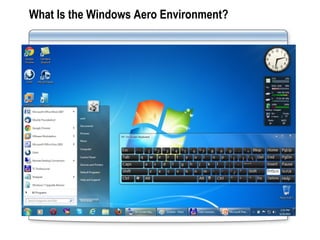
What Is the Windows Aero Environment?
Requirements for the Windows Aero Environment
Demonstration: Configuring the Windows Aero
Environment
What Is the Windows Aero Environment?
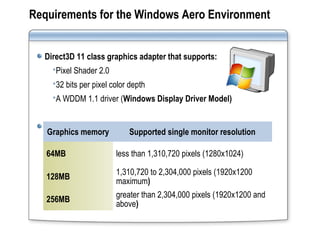
Requirements for the Windows Aero Environment
Direct3D 11 class graphics adapter that supports:
Pixel Shader 2.0
32 bits per pixel color depth
A WDDM 1.1 driver (Windows Display Driver Model)
Adequate graphics memory:
Graphics memory Supported single monitor resolution
64MB less than 1,310,720 pixels (1280x1024)
128MB
1,310,720 to 2,304,000 pixels (1920x1200
maximum)
256MB
greater than 2,304,000 pixels (1920x1200 and
above)
Requirements for the Windows Aero Environment
One of the limitations of WDDM driver model version 1.0 is that it does
not support multiple drivers in a multi-adapter, multi-monitor setup. If
a multi-monitor system has more than one graphics adapter powering
the monitors, both the adaptors must use the same WDDM driver. If
more than one driver is used, Windows will disable one of
them.WDDM 1.1 does not have this limitation
Demonstration: Configuring the Windows
Aero Environment
Your instructor will demonstrate how to:
Use Flip (alt + tab) and Flip3D ( window
+ tab)
Use Live Taskbar Thumbnails
Use Themes and Appearance
Configure Windows Aero Colors
Configure Transparency
Lesson 2: Configuring Accessibility Features
What Is Accessibility?
Accessibility Features of Windows 7
Demonstration: Configuring the Accessibility Features of
Windows 7
Ease of Access Center includesEase of Access Center includes
Quick Access to
• Magnifier
• Narrator
• On-Screen Keyboard
• High Contrast Setup
Quick Access to
• Magnifier
• Narrator
• On-Screen Keyboard
• High Contrast Setup
What Is Accessibility?
Recommended SettingsRecommended Settings
Explore All Settings by CategoryExplore All Settings by Category
Accessibility Features of Windows 7
Optimize for blindnessOptimize for blindness
Optimize visual displayOptimize visual display
Set up alternate input devicesSet up alternate input devices
Adjust settings for reading or typingAdjust settings for reading or typing
Adjust settings for the mouseAdjust settings for the mouse
Adjust settings for the keyboardAdjust settings for the keyboard
Set up alternatives for soundSet up alternatives for sound
Demonstration: Configuring the Accessibility
Features of Windows 7
Your instructor will demonstrate how to:
Use Accessibility Features To
Optimize the Experience for
Each User
Lesson 3: Configuring Parental Controls
What Are Parental Controls?
Options for Configuring Parental Controls
Parental Controls enables you to control how users
with standard user accounts can:
Parental Controls enables you to control how users
with standard user accounts can:
Use the Internet with Web restrictions
Stay connected with time limits
Access games
Access specific programs
Use the Internet with Web restrictions
Stay connected with time limits
Access games
Access specific programs
What Are Parental Controls?
Options for Configuring Parental Controls
Enable Parental ControlsEnable Parental Controls
Enable Activity ReportingEnable Activity Reporting
View activity reportsView activity reports
Allow and block any programsAllow and block any programs
Control allowed Web sitesControl allowed Web sites
Control time limitsControl time limits
Control games by rating, content, or titleControl games by rating, content, or title
Lab: Configuring Postinstallation Options
Exercise 1: Configuring Aero
Exercise 2: Configuring Accessibility
Features

Module 3 configuring post-installation system settings

  • 1.
  • 2.
    Overview Configuring the WindowsAero Experience Configuring Accessibility Features Configuring Parental Controls
  • 3.
    Lesson 1: Configuringthe Windows Aero Experience What Is the Windows Aero Environment? Requirements for the Windows Aero Environment Demonstration: Configuring the Windows Aero Environment
  • 4.
    What Is theWindows Aero Environment?
  • 5.
    Requirements for theWindows Aero Environment Direct3D 11 class graphics adapter that supports: Pixel Shader 2.0 32 bits per pixel color depth A WDDM 1.1 driver (Windows Display Driver Model) Adequate graphics memory: Graphics memory Supported single monitor resolution 64MB less than 1,310,720 pixels (1280x1024) 128MB 1,310,720 to 2,304,000 pixels (1920x1200 maximum) 256MB greater than 2,304,000 pixels (1920x1200 and above)
  • 6.
    Requirements for theWindows Aero Environment One of the limitations of WDDM driver model version 1.0 is that it does not support multiple drivers in a multi-adapter, multi-monitor setup. If a multi-monitor system has more than one graphics adapter powering the monitors, both the adaptors must use the same WDDM driver. If more than one driver is used, Windows will disable one of them.WDDM 1.1 does not have this limitation
  • 7.
    Demonstration: Configuring theWindows Aero Environment Your instructor will demonstrate how to: Use Flip (alt + tab) and Flip3D ( window + tab) Use Live Taskbar Thumbnails Use Themes and Appearance Configure Windows Aero Colors Configure Transparency
  • 8.
    Lesson 2: ConfiguringAccessibility Features What Is Accessibility? Accessibility Features of Windows 7 Demonstration: Configuring the Accessibility Features of Windows 7
  • 9.
    Ease of AccessCenter includesEase of Access Center includes Quick Access to • Magnifier • Narrator • On-Screen Keyboard • High Contrast Setup Quick Access to • Magnifier • Narrator • On-Screen Keyboard • High Contrast Setup What Is Accessibility? Recommended SettingsRecommended Settings Explore All Settings by CategoryExplore All Settings by Category
  • 10.
    Accessibility Features ofWindows 7 Optimize for blindnessOptimize for blindness Optimize visual displayOptimize visual display Set up alternate input devicesSet up alternate input devices Adjust settings for reading or typingAdjust settings for reading or typing Adjust settings for the mouseAdjust settings for the mouse Adjust settings for the keyboardAdjust settings for the keyboard Set up alternatives for soundSet up alternatives for sound
  • 11.
    Demonstration: Configuring theAccessibility Features of Windows 7 Your instructor will demonstrate how to: Use Accessibility Features To Optimize the Experience for Each User
  • 12.
    Lesson 3: ConfiguringParental Controls What Are Parental Controls? Options for Configuring Parental Controls
  • 13.
    Parental Controls enablesyou to control how users with standard user accounts can: Parental Controls enables you to control how users with standard user accounts can: Use the Internet with Web restrictions Stay connected with time limits Access games Access specific programs Use the Internet with Web restrictions Stay connected with time limits Access games Access specific programs What Are Parental Controls?
  • 14.
    Options for ConfiguringParental Controls Enable Parental ControlsEnable Parental Controls Enable Activity ReportingEnable Activity Reporting View activity reportsView activity reports Allow and block any programsAllow and block any programs Control allowed Web sitesControl allowed Web sites Control time limitsControl time limits Control games by rating, content, or titleControl games by rating, content, or title
  • 15.
    Lab: Configuring PostinstallationOptions Exercise 1: Configuring Aero Exercise 2: Configuring Accessibility Features