Modeling Refrigeration Systems with Simscape Fluids
E.S. McGarrity
1-Apr-22
Introduction
In this tutorial we will create a closed-loop refrigeration system with the goal of keeping a thermal mass
within a certain temperature range for a prescribed heat load. An example of such a system is a battery
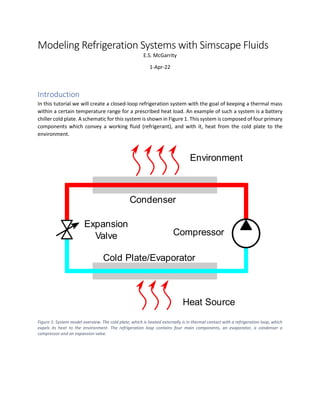
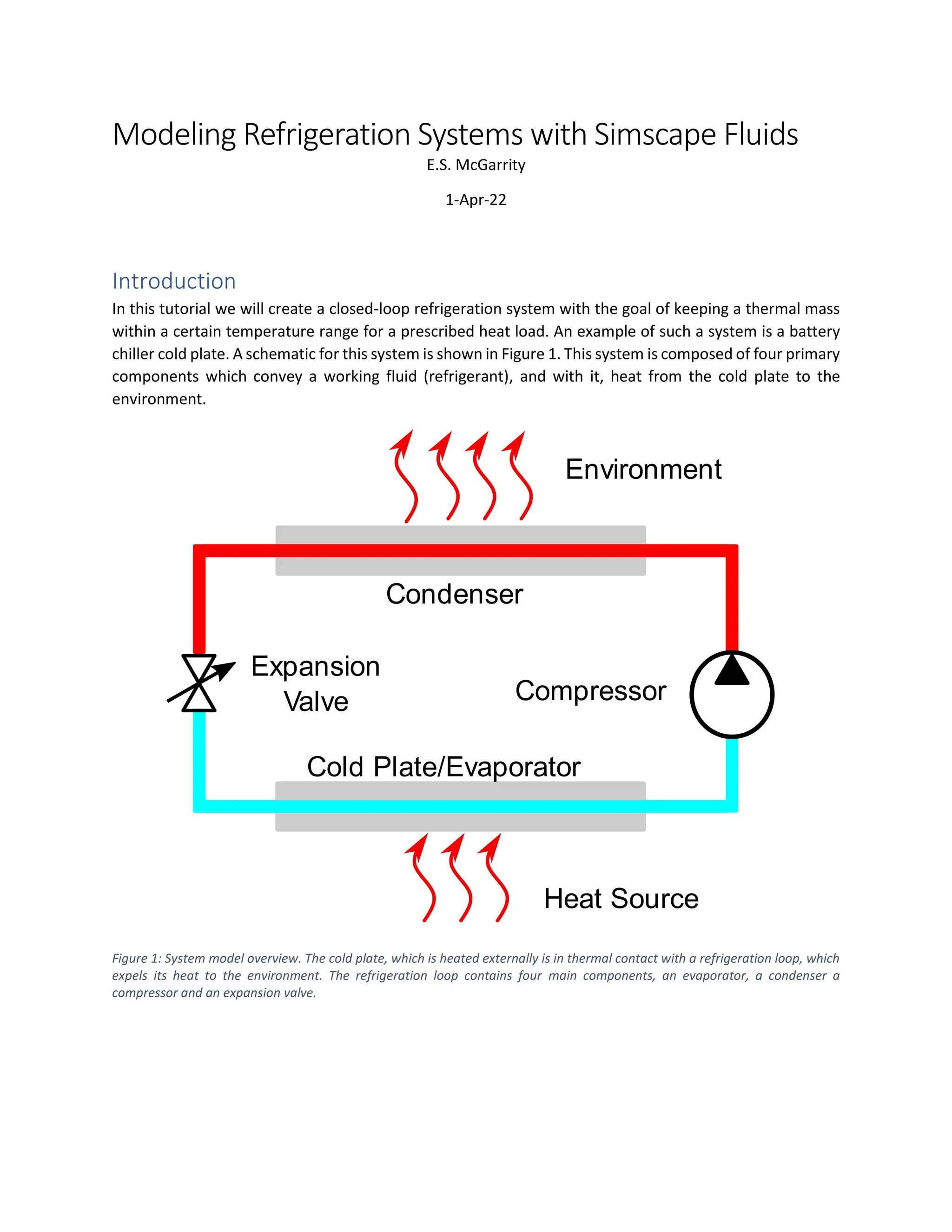
chiller cold plate. A schematic for this system is shown in Figure 1. This system is composed of four primary
components which convey a working fluid (refrigerant), and with it, heat from the cold plate to the
environment.
Figure 1: System model overview. The cold plate, which is heated externally is in thermal contact with a refrigeration loop, which
expels its heat to the environment. The refrigeration loop contains four main components, an evaporator, a condenser a
compressor and an expansion valve.
System Components Overview
The cold plate for this example is tied to a heat source, which we will model as a boundary condition. In
a larger scale model, the heat would likely come from another fluid like ethylene glycol or oil circulating
through the heat generating devices. In our model, the cold plate will be represented by a 10 kg thermal
mass made from aluminum.
The evaporator is a device which conveys heat to a refrigerant at low temperature, pressure, and quality
to vaporize it. The refrigerant typically enters the evaporator in a vapor-liquid equilibrium state and leaves
it as a super-heated vapor. Often the evaporator consists of two isolated working fluid channels in thermal
contact via a highly conductive wall. Here, however, we will represent the other “side” of the evaporator
as the cold plate connected to a 1 kW heat load.
The compressor heats the cold, evaporated fluid, pressurizes and transports it to the condenser side
where the fluid can give up its heat to the environment. The refrigerant enters and leaves the compressor
as super-heated vapor. The compressor we will model will be capable of running at different speeds and
will have a flow rate that depends on the operating speed and the pressure ratio between the condenser
and evaporator. Our compressor will be regulated by a PI controller which responds to the cold plate
temperature.
The condenser is a device that allows the high-pressure refrigerant to phase change to liquid by
exchanging heat to another cooler stream. The refrigerant enters the condenser as a super-heated vapor
and exits as a sub-cooled liquid. Like an evaporator, this device consists of two working fluid channels
separated by a thin conductive wall. In this case, the fluid will exchange heat with a moist air stream,
which has a constant entrance temperature, humidity, and flow rate.
The expansion valve regulates the mass flow and pressure difference between the condenser and
evaporator. Expansion valves can either be of the Thermal Expansion type (TXV) or Electronic Expansion
type (EEV) The refrigerant enters the valve as a sub-cooled liquid and exits in a vapor-liquid equilibrium
state. The expansion valve opening is typically controlled to maintain a slightly super-heated vapor at the
evaporator exit. Our valve (EEV type) will accomplish this by measuring the evaporator exit state and use
the value to adjust a PI controller which sets the valve’s cross-sectional area.
Simulation Goal
Our specific objective is to build a refrigeration system which can maintain a 10 kg aluminum cold plate
at 5 o
C. This cold plate will be attached to a heat source with a nominal value of 1 kW. The system needs
to be able to operate between environmental temperatures of 15 o
C and 40 o
C.
The Working Fluid
The first step in the process of modeling a refrigeration system is to choose the working fluid. This choice
depends on many factors, including the expected operating range, cost, and environmental
considerations. In this example, we will use R-1234yf for the refrigerant, which is commonly used in
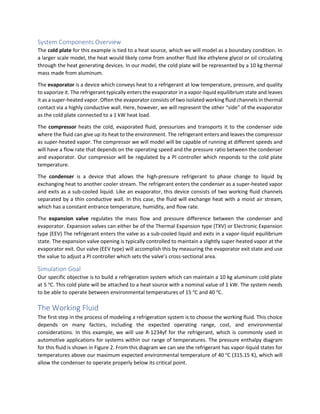
automotive applications for systems within our range of temperatures. The pressure enthalpy diagram
for this fluid is shown in Figure 2. From this diagram we can see the refrigerant has vapor-liquid states for
temperatures above our maximum expected environmental temperature of 40 o
C (315.15 K), which will
allow the condenser to operate properly below its critical point.
Figure 2: Pressure-enthalpy diagram for the R-1234yf working fluid.
To simulate a fluid network, it is necessary to provide Simscape with the properties for the fluid to be
used. For a refrigerant these properties include the temperature/pressure phase coexistence curve, the
specific energy, specific enthalpy, specific volume, viscosity, etc. These properties must be provided in the
liquid, vapor, and vapor-liquid coexistence regions as they determine the flow and heat transfer of the
fluid according to the local thermodynamic state. For two-phase systems in Simscape we use a mean-field
model for all thermodynamic computations with pressure and specific internal energy as the state
variables. All other properties are computed by interpolation on the tables provided.
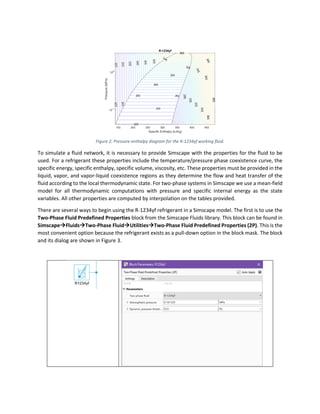
There are several ways to begin using the R-1234yf refrigerant in a Simscape model. The first is to use the
Two-Phase Fluid Predefined Properties block from the Simscape Fluids library. This block can be found in
Simscape→Fluids→Two-Phase Fluid→Utilities→Two-Phase Fluid Predefined Properties (2P). This is the
most convenient option because the refrigerant exists as a pull-down option in the block mask. The block
and its dialog are shown in Figure 3.
Figure 3: Two-Phase Fluid Predefined Properties block (left) and dialog (right). Here we select R-1234yf to automatically define
the fluid property tables.
Alternately, if we have access to REFPROP (1) or CoolProp (2) software, we can use the
twoPhaseFluidTables() function to retrieve the properties as a struct in MATLAB and push this into
the Two-Phase Fluid Properties block. This block can be found in Simscape→Foundation Library→Two-
Phase Fluid→Utilities→Two-Phase Fluid Properties (2P). To get started, place this block into an empty
Simscape model, and name it R1234yf. Save your Simulink model as FluidProps.slx. Next, retrieve
the properties from the fluid database with the command1
:
R1234yf_Props = ...
twoPhaseFluidTables([140,450],[0,1.3],25,25,60,'R1234yf',...
'C:Program Files (x86)REFPROP10');
This will create a variable in the MATLAB workspace with the required properties. Finally, push the
properties into the fluid properties block with a second execution of the command:
twoPhaseFluidTables('FluidProps/R1234yf', R1234yf_Props);
The resulting Parameters tab in the Two-Phase Fluid Properties block will appear as shown in Figure 4.
Figure 4: Fluid properties dialog for the R-1234yf working fluid.
1
The final argument to the twoPhaseFluidTables() command is the path to your REFPROP or CoolProp
installation. This will vary from computer to computer.
If you don't have REFPROP or CoolProp installed it's possible to create your own fluid property tables if
you have another source. See the documentation for details (docsearch('Manually Generate
Fluid Property Tables')).
Modeling the Cold Plate and Evaporator
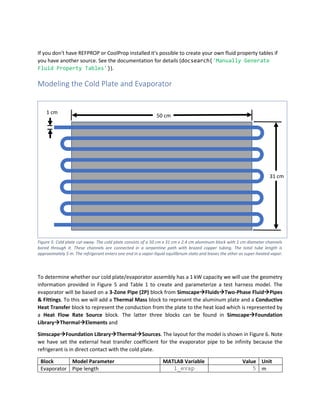
Figure 5: Cold plate cut-away. The cold plate consists of a 50 cm x 31 cm x 2.4 cm aluminum block with 1 cm diameter channels
bored through it. These channels are connected in a serpentine path with brazed copper tubing. The total tube length is
approximately 5 m. The refrigerant enters one end in a vapor-liquid equilibrium state and leaves the other as super-heated vapor.
To determine whether our cold plate/evaporator assembly has a 1 kW capacity we will use the geometry
information provided in Figure 5 and Table 1 to create and parameterize a test harness model. The
evaporator will be based on a 3-Zone Pipe (2P) block from Simscape→Fluids→Two-Phase Fluid→Pipes
& Fittings. To this we will add a Thermal Mass block to represent the aluminum plate and a Conductive
Heat Transfer block to represent the conduction from the plate to the heat load which is represented by
a Heat Flow Rate Source block. The latter three blocks can be found in Simscape→Foundation
Library→Thermal→Elements and
Simscape→Foundation Library→Thermal→Sources. The layout for the model is shown in Figure 6. Note
we have set the external heat transfer coefficient for the evaporator pipe to be infinity because the
refrigerant is in direct contact with the cold plate.
Block Model Parameter MATLAB Variable Value Unit
Evaporator Pipe length l_evap 5 m
50 cm
31 cm
1 cm
Block Model Parameter MATLAB Variable Value Unit
Evaporator Hydraulic diameter d_evap 1 cm
Evaporator Cross-sectional area a_evap pi*d_evap^2/4 cm^2
Evaporator External environment heat transfer
coefficient
- inf -
Evaporator Wall thickness t_wall 1 mm
Evaporator Wall thermal conductivity k_plate 237 W/m/k
Evaporator Wall specific heat cp_plate 910 J/kg/K
Evaporator Wall density rho_plate 2.7 g/cm^3
Cold Plate Mass m_plate 10 kg
Cold Plate Specific heat cp_plate 910 J/kg/K
Wall Area a_plate 3488.8 cm^2
Wall Thermal conductivity k_plate 237 W/m/K
Heat Load Heat flow rate heat_load 1 kW
Table 1: Cold plate and evaporator parameters. Parameter values not listed in this, and the subsequent parameter tables should
be left at their default settings. Note cp_plate is the specific heat for the material used in the evaporator wall and cold plate, and
thus, it is listed twice.
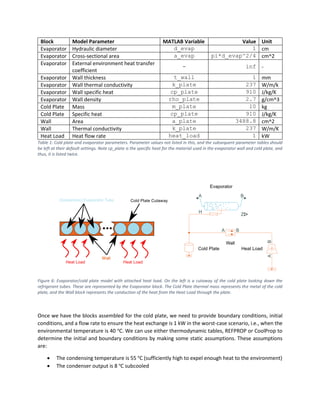
Figure 6: Evaporator/cold plate model with attached heat load. On the left is a cutaway of the cold plate looking down the
refrigerant tubes. These are represented by the Evaporator block. The Cold Plate thermal mass represents the metal of the cold
plate, and the Wall block represents the conduction of the heat from the Heat Load through the plate.
Once we have the blocks assembled for the cold plate, we need to provide boundary conditions, initial
conditions, and a flow rate to ensure the heat exchange is 1 kW in the worst-case scenario, i.e., when the
environmental temperature is 40 o
C. We can use either thermodynamic tables, REFPROP or CoolProp to
determine the initial and boundary conditions by making some static assumptions. These assumptions
are:
• The condensing temperature is 55 o
C (sufficiently high to expel enough heat to the environment)
• The condenser output is 8 o
C subcooled
• The evaporating temperature is -10 o
C (Sufficiently low to transfer heat from the plate at 5 o
C)
• The evaporator outlet temperature has 5 o
C superheat
Referring to the properties database, we can find that the evaporator pressure should be 221.78 kPa and
the inlet specific enthalpy should be 265.17 kJ/kg. The former can be found from the
temperature/pressure relationship directly. The latter comes from first finding pressure at the condensing
temperature (𝑇𝑐𝑜𝑛𝑑 = 328.15), then computing the specific enthalpy for the refrigerant at 8 o
C sub-cool
(𝑇𝑠𝑐 = 320.15 K, 𝑝𝑐𝑜𝑛𝑑 = 1464.7 kPa). In addition, we should determine the specific enthalpy for the
evaporator outlet with a 5 o
C super-heat (𝑇𝑠ℎ = 268.15, 𝑝𝑒𝑣𝑎𝑝 = 221.78 kPa). It is 361.16 kJ/kg for our
R1234yf refrigerant.
Once we have the initial and boundary conditions, we must determine the approximate mass flow we
expect in the system at steady state. We can compute this with the standard formula for heat transfer in
an evaporating fluid
𝑄 = 𝑚
̇ 𝑟𝑒𝑓(ℎ𝑜𝑢𝑡 − ℎ𝑖𝑛) 1
Substituting our values for the desired heat transfer, 𝑄 (1 kW), and the inlet and outlet specific enthalpies,
ℎ𝑖𝑛 and ℎ𝑜𝑢𝑡, respectively, we arrive at a mass flow of 𝑚𝑟𝑒𝑓
̇ ≈ 0.0104 kg/s. With this information, we are
ready to build the test harness model for our evaporative cold plate model. The initial conditions are
summarized in Table 2.
Block(s) Model Parameter/Variable MATLAB Variable Value Unit
Inlet, Outlet,
Evaporator
Reservoir pressure p0_evap
221.78 kPa
Inlet, Outlet,
Evaporator
Reservoir specific enthalpy h0_evap
265.17 kJ/kg
All 2P Cross-sectional area a_evap pi*d_evap^2/4 cm^2
Mass Flow Mass flow rate mdot_evap 0.0104 kg/s
Mass Flow Power added - none -
Solver Configuration Start from steady state - true(checked) -
Table 2: Initial and boundary conditions for the evaporator/cold plate test harness model.
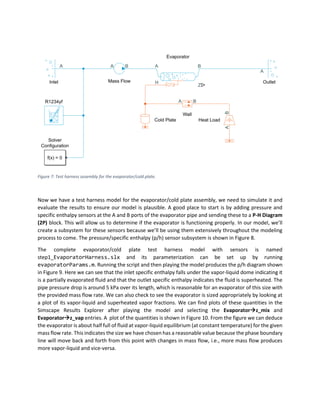
The complete evaporator/cold plate assembly with test harness is shown in Figure 7. Here the mass flow
is pulled from the inlet boundary and pushed through the evaporator pipe to the outlet. Heat is exchanged
with the cold plate via the H port in the pipe. The important flow boundary conditions are the pressure at
the outlet and the specific enthalpy at the inlet. These values determine the steady-state solution of the
system since we are controlling the mass flow directly. Note also, we represent the first 1 mm of the cold
plate with the pipe parameters for the wall. This allows for a small gradient between the pipe wall
temperature at its interior and its exterior. It is also important to note we have set the Solver Configuration
block to solve for steady state since we’re trying to compute the static condition. This speeds up the
simulation and would be helpful if we were performing resizing with parameter estimation.
Figure 7: Test harness assembly for the evaporator/cold plate.
Now we have a test harness model for the evaporator/cold plate assembly, we need to simulate it and
evaluate the results to ensure our model is plausible. A good place to start is by adding pressure and
specific enthalpy sensors at the A and B ports of the evaporator pipe and sending these to a P-H Diagram
(2P) block. This will allow us to determine if the evaporator is functioning properly. In our model, we’ll
create a subsystem for these sensors because we’ll be using them extensively throughout the modeling
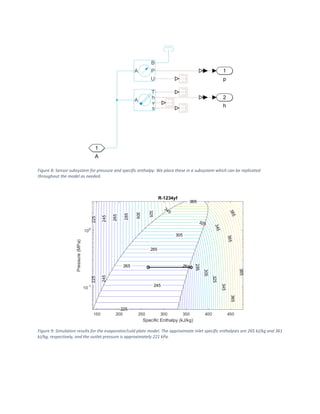
process to come. The pressure/specific enthalpy (p/h) sensor subsystem is shown in Figure 8.
The complete evaporator/cold plate test harness model with sensors is named
step1_EvaporatorHarness.slx and its parameterization can be set up by running
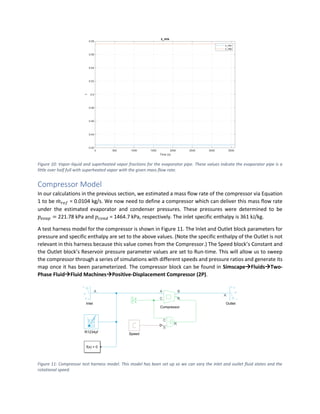
evaporatorParams.m. Running the script and then playing the model produces the p/h diagram shown
in Figure 9. Here we can see that the inlet specific enthalpy falls under the vapor-liquid dome indicating it
is a partially evaporated fluid and that the outlet specific enthalpy indicates the fluid is superheated. The
pipe pressure drop is around 5 kPa over its length, which is reasonable for an evaporator of this size with
the provided mass flow rate. We can also check to see the evaporator is sized appropriately by looking at
a plot of its vapor-liquid and superheated vapor fractions. We can find plots of these quantities in the
Simscape Results Explorer after playing the model and selecting the Evaporator→z_mix and
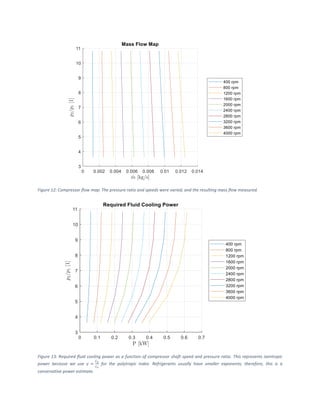
Evaporator→z_vap entries. A plot of the quantities is shown in Figure 10. From the figure we can deduce
the evaporator is about half full of fluid at vapor-liquid equilibrium (at constant temperature) for the given
mass flow rate. This indicates the size we have chosen has a reasonable value because the phase boundary
line will move back and forth from this point with changes in mass flow, i.e., more mass flow produces
more vapor-liquid and vice-versa.
Figure 8: Sensor subsystem for pressure and specific enthalpy. We place these in a subsystem which can be replicated
throughout the model as needed.
Figure 9: Simulation results for the evaporator/cold plate model. The approximate inlet specific enthalpies are 265 kJ/kg and 361
kJ/kg, respectively, and the outlet pressure is approximately 221 kPa.
Figure 10: Vapor-liquid and superheated vapor fractions for the evaporator pipe. These values indcate the evaporator pipe is a
little over half full with superheated vapor with the given mass flow rate.
Compressor Model
In our calculations in the previous section, we estimated a mass flow rate of the compressor via Equation
1 to be 𝑚
̇ 𝑟𝑒𝑓 = 0.0104 kg/s. We now need to define a compressor which can deliver this mass flow rate
under the estimated evaporator and condenser pressures. These pressures were determined to be
𝑝𝑒𝑣𝑎𝑝 = 221.78 kPa and 𝑝𝑐𝑜𝑛𝑑 = 1464.7 kPa, respectively. The inlet specific enthalpy is 361 kJ/kg.
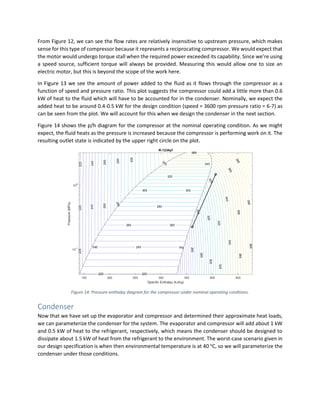
A test harness model for the compressor is shown in Figure 11. The Inlet and Outlet block parameters for
pressure and specific enthalpy are set to the above values. (Note the specific enthalpy of the Outlet is not
relevant in this harness because this value comes from the Compressor.) The Speed block’s Constant and
the Outlet block’s Reservoir pressure parameter values are set to Run-time. This will allow us to sweep
the compressor through a series of simulations with different speeds and pressure ratios and generate its
map once it has been parameterized. The compressor block can be found in Simscape→Fluids→Two-
Phase Fluid→Fluid Machines→Positive-Displacement Compressor (2P).
Figure 11: Compressor test harness model. This model has been set up so we can vary the inlet and outlet fluid states and the
rotational speed.
The model for the complete compressor test harness can be found in step2_CompressorHarness.slx
and its parameters can be loaded with the compressorParams.m routine. The parameters are
summarized in Table 3. At these settings, the compressor adds about 0.5 kW of heat to the fluid.
Block(s) Model Parameter/Variable MATLAB Variable Value Unit
Inlet Reservoir pressure p1_comp 221.78 kPa
Inlet Reservoir specific enthalpy h1_comp 265.17 kJ/kg
Outlet Reservoir pressure p2_comp 1464.7 kPa
Compressor Nominal mass flow rate mdot_comp 0.0104 kg/s
Compressor Nominal shaft speed N_comp 3600 rpm
Compressor Nominal inlet pressure p_nom_in 221 kPa
Compressor Nominal inlet temperature T_nom_in 278.15 K
Compressor Nominal volumetric efficiency eta_v 0.95 -
Compressor Nominal pressure ratio pr_nom 6 -
Compressor Polytropic exponent gamma1234yf 1.14 -
Compressor Mechanical efficiency eta_m 0.9 -
Compressor
Speed Constant N_0 3600 rpm
Solver Configuration Start from steady state - true(checked) -
Table 3: Compressor model parameters.
Compressor Map
To see what the compressor map looks like based on the given parameters, we can write a script to
exercise the harness model we created across a range of shaft speeds and pressure ratios. The code for
performing this parameter sweep is given in the file compressorSweep.m. We will analyze the relevant
parts of this script in this section.
To begin, we open the model and set up its parameters in the MATLAB workspace. This is on lines 1-8:
% Build compressor map
% Open the model in case it is not.
mdl = 'CompressorHarness';
open_system(mdl);
% Load the parameters
compressorParams;
Next, we set up the design of experiments (DOE) for the parameter sweep. The goal is to sweep the
compressor speed from 400 to 4000 rpm and the outlet pressure from 800 to 2400 kPa. This will exercise
the compressor across pressure ratios from about 3 to 11, which should provide a reasonable map for the
expected operating conditions. The key lines for setting up the DOE are 12-13 and 21:
N_lis = 0:400:4000; % [rpm]
p2_lis = 800:400:2400; % [kPa]
[N_mat, p2_mat] = ndgrid(N_lis, p2_lis);
Once the DOE is formulated, we can create a Simulink.SimulationInput object, which will be used
to set the parameters of the model during a sequence of Simulink runs. This is done on lines 24-32 of the
script:
simin(1:N_sim) = Simulink.SimulationInput(mdl);
% Setup the parameters used by the model
for k = 1:N_sim
simin(k) = simin(k).setBlockParameter([mdl '/Speed'], ...
'constant', num2str(N_mat(k)));
simin(k) = simin(k).setBlockParameter([mdl '/Outlet'], ...
'reservoir_pressure', num2str(p2_mat(k)));
end
With the simulation inputs defined, we can now execute them. This happens on line 36:
simout = sim(simin, 'ShowSimulationManager', 'off', 'UseFastRestart', 'on');
The code sweeps across 10 speeds and 5 pressure ratios for a total of 50 simulations. These simulations
can be performed in under a minute on a modest workstation with Simulink’s Fast Restart capability. Once
the code is finished with the sweep, we can extract the parameters and plot them. The code for parameter
extraction is on lines 39-47:
mdot = N_mat*0;
fp = mdot;
for k = 1:N_sim
% Get the last elements of the mass flow and fluid power vars
mlog = simout(k).simlog.Compressor.mdot_A.series.values('kg/s');
mdot(k) = mlog(end);
fplog = simout(k).simlog.Compressor.fluid_power.series.values('kW');
fp(k) = fplog(end);
end
Note the destination arrays (mdot and fp) have been allocated to be the same shape as the input grids.
This will allow us to easily extract the speed lines for the sweeps when we plot the data. The plotting code
is on lines 50-74. The resulting plots can be seen in Figure 12 and Figure 13.
Figure 12: Compressor flow map. The pressure ratio and speeds were varied, and the resulting mass flow measured.
Figure 13: Required fluid cooling power as a function of compressor shaft speed and pressure ratio. This represents isentropic
power because we use 𝛾 =
𝐶𝑝
𝐶𝑣
for the polytropic index. Refrigerants usually have smaller exponents; therefore, this is a
conservative power estimate.
From Figure 12, we can see the flow rates are relatively insensitive to upstream pressure, which makes
sense for this type of compressor because it represents a reciprocating compressor. We would expect that
the motor would undergo torque stall when the required power exceeded its capability. Since we’re using
a speed source, sufficient torque will always be provided. Measuring this would allow one to size an
electric motor, but this is beyond the scope of the work here.
In Figure 13 we see the amount of power added to the fluid as it flows through the compressor as a
function of speed and pressure ratio. This plot suggests the compressor could add a little more than 0.6
kW of heat to the fluid which will have to be accounted for in the condenser. Nominally, we expect the
added heat to be around 0.4-0.5 kW for the design condition (speed = 3600 rpm pressure ratio = 6-7) as
can be seen from the plot. We will account for this when we design the condenser in the next section.
Figure 14 shows the p/h diagram for the compressor at the nominal operating condition. As we might
expect, the fluid heats as the pressure is increased because the compressor is performing work on it. The
resulting outlet state is indicated by the upper right circle on the plot.
Figure 14: Pressure-enthalpy diagram for the compressor under nominal operating condtions.
Condenser
Now that we have set up the evaporator and compressor and determined their approximate heat loads,
we can parameterize the condenser for the system. The evaporator and compressor will add about 1 kW
and 0.5 kW of heat to the refrigerant, respectively, which means the condenser should be designed to
dissipate about 1.5 kW of heat from the refrigerant to the environment. The worst-case scenario given in
our design specification is when then environmental temperature is at 40 o
C, so we will parameterize the
condenser under those conditions.
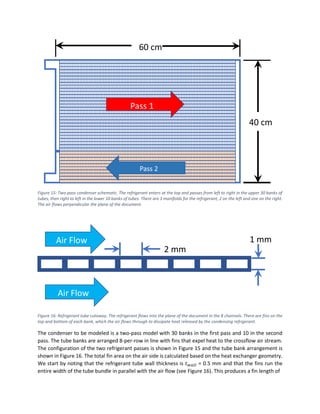
Figure 15: Two-pass condenser schematic. The refrigerant enters at the top and passes from left to right in the upper 30 banks of
tubes, then right to left in the lower 10 banks of tubes. There are 3 manifolds for the refrigerant, 2 on the left and one on the right.
The air flows perpendicular the plane of the document.
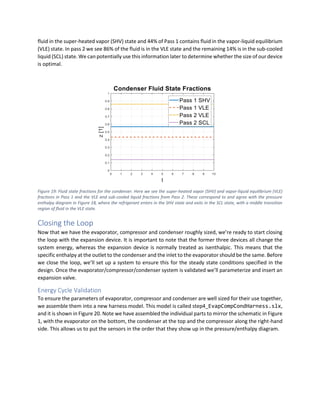
Figure 16: Refrigerant tube cutaway. The refrigerant flows into the plane of the document in the 8 channels. There are fins on the
top and bottom of each bank, which the air flows through to dissipate heat released by the condensing refrigerant.
The condenser to be modeled is a two-pass model with 30 banks in the first pass and 10 in the second
pass. The tube banks are arranged 8-per-row in line with fins that expel heat to the crossflow air stream.
The configuration of the two refrigerant passes is shown in Figure 15 and the tube bank arrangement is
shown in Figure 16. The total fin area on the air side is calculated based on the heat exchanger geometry.
We start by noting that the refrigerant tube wall thickness is 𝑡𝑤𝑎𝑙𝑙 = 0.5 mm and that the fins run the
entire width of the tube bundle in parallel with the air flow (see Figure 16). This produces a fin length of
60 cm
40 cm
Pass 1
Pass 2
2 mm
1 mm
Air Flow
Air Flow
𝑙𝑓𝑖𝑛 = 𝑁𝑡𝑝𝑟 ⋅ (𝑤𝑡𝑢𝑏𝑒 + 𝑡𝑤𝑎𝑙𝑙) + 𝑡𝑤𝑎𝑙𝑙,
where 𝑤𝑡𝑢𝑏𝑒 is the tube width (2 mm), and 𝑁𝑡𝑝𝑟 is the number of tubes per row in the condenser. The
fins span the gaps between the tube banks perpendicular to the airflow and, therefore, have widths of
𝑤𝑓𝑖𝑛 = ℎ𝑐𝑜𝑛𝑑 − 𝑁𝑟𝑜𝑤 ⋅ (ℎ𝑡𝑢𝑏𝑒 + 2 ⋅ 𝑡𝑤𝑎𝑙𝑙),
where ℎ𝑐𝑜𝑛𝑑 is the condenser height, 𝑁𝑟𝑜𝑤 is the total number of tube banks, and ℎ𝑡𝑢𝑏𝑒 is the tube height
(1 mm). This along with the fin length gives the fin area to be approximately
𝑎𝑓𝑖𝑛 = 𝑙𝑓𝑖𝑛 ⋅ 𝑤𝑓𝑖𝑛.
Here we assume the fins are independent of each other and aligned vertically with a density of 5 fins per
cm (𝜌𝑓𝑖𝑛), which is a reasonable approximation for this type of condenser hardware. With this assumption,
we calculate the total fin area, 𝑎𝑓𝑖𝑛𝑡𝑜𝑡, to be
𝑎𝑓𝑖𝑛𝑡𝑜𝑡 = 𝑁𝑟𝑜𝑤 ⋅ 𝑎𝑓𝑖𝑛 ⋅ 𝜌𝑓𝑖𝑛 ⋅ 𝑙𝑡𝑢𝑏𝑒,
where 𝑙𝑡𝑢𝑏𝑒 is the tube length, which is equal to the condenser width minus the side manifold widths (1
cm each).
The entrance and exits of the condenser and the connection between its two passes are represented as
pipes. These pipes are not thermally connected, but serve to add capacitance to the condenser, which is
key to preventing the tubes from flooding during high temperature operations once the condenser is
placed into the closed-loop system.
The condenser model can be found in Condenser_2Pass.slx. This model is located in a Subsystem
Reference, which we can instantiate inside the test harness (step3_CondenserHarness.slx) to
evaluate its performance. Later we will use this same Subsystem Reference in the complete model. This
is good practice because we will be able to reuse the same condenser model inside other models and
ensure changes to the test harness model are reflected in the main model. Note that in this case, we have
promoted only the parameters we will need for our exercises, i.e., the initial pressure and energy settings
for the manifolds and heat exchangers. The layout of the condenser is shown in Figure 17. It uses two
Condenser-Evaporator (2P-MA) blocks, one for each of the two passes, and three pipe blocks to represent
the manifolds. These blocks can be found in the libraries under Simscape→Fluids→Fluid Network
Interfaces→Heat Exchangers→Condenser-Evaporator (2P-MA) and Simscape→Foundation
Library→Two-Phase Fluid→Elements→Pipe (2P).
The initialization of the fin area plus the other parameters for the condenser unit are performed in the
condenserParams.m MATLAB script. This script handles the air-side and refrigerant-side parameters as
well as the initial conditions for the model step3_CondenserHarness.slx. The parameters for the
condenser harness are shown in Table 4. The condenser model parameters are given in Table 5.
Block(s) Model Parameter/Variable MATLAB Variable Value Unit
Inlet, Outlet Reservoir pressure p0_cond 1464.7 kPa
Inlet Reservoir specific enthalpy h0_cond 425 kJ/kg
Ref Flow Mass flow rate mdot_cond 0.0104 kg/s
Air In1, Air In2 Temperature T_air_cond 40 degC
Air Flow(1,2) Mixture mass flow rate mdot_air_cond(1,2) [0.15, 0.05] kg/s
Table 4:Condenser test harness parameters. The air flow and environment temperature are set to the
worst-case scenario outlined above.
Figure 17: Simscape layout for the 2-pass condenser. The refrigerant passes are in series and the air passes are in parallel.
Block(s) Model Parameter/Variable MATLAB Variable Value Unit
Pass(1,2) Flow arrangement - Crossflow -
Pass(1,2) Cross-sectional area A1,B1 a_cond 0.4418 cm^2
Pass(1,2) Cross-sectional area A2,B2 a_x_cond(1,2) [1800, 600] cm^2
Pass(1,2) TPF: Number of tubes N_tube_pass(1,2) [240 80] -
Pass(1,2) TPF: Total length of each tube l_tube 56 cm
Pass(1,2) TPF: Tube cross section - Rectangular -
Pass(1,2) TPF: Tube width w_tube 2 mm
Pass(1,2) TPF: Tube height h_tube 1 mm
Pass(1,2) TPF: Initial fluid energy
specification
- Specific
enthalpy -
Pass(1,2) TPF: Initial two-phase fluid
pressure
p0_cond
1464.7 kPa
Pass(1,2) TPF: Initial two-phase fluid specific
enthalpy
h0_cond
425 kJ/kg
Pass(1,2) MA: Flow geometry - Generic -
Pass(1,2) MA: Minimum free-flow area a_maflow(1,2) [913.5
304.5] cm^2
Block(s) Model Parameter/Variable MATLAB Variable Value Unit
Pass(1,2) MA: Heat transfer surface area
without fins
a_x_httubes(1,2)
[4611 1537] cm^2
Pass(1,2) MA: Moist air volume inside heat
exchanger
v_ma(1,2) [1872.7
624.23] cm^2
Pass(1,2) MA: Coefficients [a,b,c] for
a*Re^b*Pr^c
REPRabc
[0.12 1 0.4] -
Pass(1,2) MA: Total fin surface area a_fins(1,2) [1.4268
0.4756] m^2
Pass(1,2) MA: Initial moist air temperature T_air_cond 40 degC
Manifold(1,2,3) Pipe length lman(1,2,3) [30 40 10] cm
Manifold(1,2,3) Cross-sectional area a_man 5 cm^2
Manifold(1,2,3) Hydraulic diameter d_man 2.222 cm
Solver Configuration Start from steady state - true -
Table 5: Model parameters for the 2-pass condenser. The numbers in parentheses indicate block identities or array elements. For
example, Pass 1 uses a_x_cond(1) for its Cross-sectional areas A2 and B2 and Pass 2 uses a_x_cond(2). For cases where the
MATLAB variable is a scalar, all elements use the same value, e.g., Pass 1 and Pass 2 both use a_cond for their refrigerant port
areas A1, and B1.
To validate the condenser model for the above parameters, we can examine the pressure-enthalpy
diagram in Figure 18. Under the given conditions, the fluid state starts on the right end of the segment as
a super-heated vapor and ends on the left end of the segment as sub-cooled liquid.
Figure 18: Condenser pressure/enthalpy diagram at steady state for the design case scenario. Fluid enters the condenser in the
state indicated by the circle on the right end of the line segment (as super-heated vapor) and leaves at the state indicated by
the circle on the left end of the segment (sub-cooled liquid).
As the fluid moves through the first pass of the condenser tubes, it begins to condense and enters the
vapor-liquid equilibrium dome. In the second pass, the fluid crosses the saturated liquid boundary and
leaves as a sub-cooled liquid. To ensure the latter is true, we plot selected state fractions of the fluids in
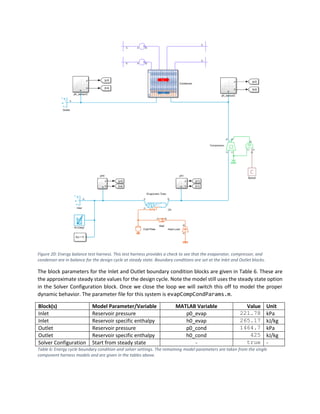
the condenser passes in Figure 19. From this figure we can see about 56% of the length of Pass 1 contains
fluid in the super-heated vapor (SHV) state and 44% of Pass 1 contains fluid in the vapor-liquid equilibrium
(VLE) state. In pass 2 we see 86% of the fluid is in the VLE state and the remaining 14% is in the sub-cooled
liquid (SCL) state. We can potentially use this information later to determine whether the size of our device
is optimal.
Figure 19: Fluid state fractions for the condenser. Here we see the super-heated vapor (SHV) and vapor-liquid equilibrium (VLE)
fractions in Pass 1 and the VLE and sub-cooled liquid fractions from Pass 2. These correspond to and agree with the pressure
enthalpy diagram in Figure 18, where the refrigerant enters in the SHV state and exits in the SCL state, with a middle transition
region of fluid in the VLE state.
Closing the Loop
Now that we have the evaporator, compressor and condenser roughly sized, we’re ready to start closing
the loop with the expansion device. It is important to note that the former three devices all change the
system energy, whereas the expansion device is normally treated as isenthalpic. This means that the
specific enthalpy at the outlet to the condenser and the inlet to the evaporator should be the same. Before
we close the loop, we’ll set up a system to ensure this for the steady state conditions specified in the
design. Once the evaporator/compressor/condenser system is validated we’ll parameterize and insert an
expansion valve.
Energy Cycle Validation
To ensure the parameters of evaporator, compressor and condenser are well sized for their use together,
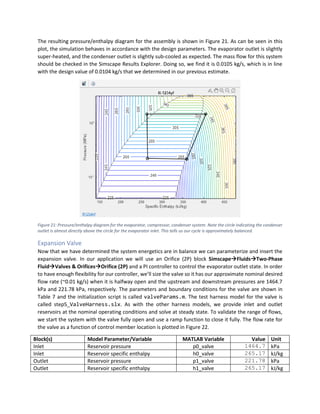
we assemble them into a new harness model. This model is called step4_EvapCompCondHarness.slx,
and it is shown in Figure 20. Note we have assembled the individual parts to mirror the schematic in Figure
1, with the evaporator on the bottom, the condenser at the top and the compressor along the right-hand
side. This allows us to put the sensors in the order that they show up in the pressure/enthalpy diagram.
Figure 20: Energy balance test harness. This test harness provides a check to see that the evaporator, compressor, and
condenser are in balance for the design cycle at steady state. Boundary conditions are set at the Inlet and Outlet blocks.
The block parameters for the Inlet and Outlet boundary condition blocks are given in Table 6. These are
the approximate steady state values for the design cycle. Note the model still uses the steady state option
in the Solver Configuration block. Once we close the loop we will switch this off to model the proper
dynamic behavior. The parameter file for this system is evapCompCondParams.m.
Block(s) Model Parameter/Variable MATLAB Variable Value Unit
Inlet Reservoir pressure p0_evap 221.78 kPa
Inlet Reservoir specific enthalpy h0_evap 265.17 kJ/kg
Outlet Reservoir pressure p0_cond 1464.7 kPa
Outlet Reservoir specific enthalpy h0_cond 425 kJ/kg
Solver Configuration Start from steady state - true -
Table 6: Energy cycle boundary condition and solver settings. The remaining model parameters are taken from the single
component harness models and are given in the tables above.
The resulting pressure/enthalpy diagram for the assembly is shown in Figure 21. As can be seen in this
plot, the simulation behaves in accordance with the design parameters. The evaporator outlet is slightly
super-heated, and the condenser outlet is slightly sub-cooled as expected. The mass flow for this system
should be checked in the Simscape Results Explorer. Doing so, we find it is 0.0105 kg/s, which is in line
with the design value of 0.0104 kg/s that we determined in our previous estimate.
Figure 21: Pressure/enthalpy diagram for the evaporator, compressor, condenser system. Note the circle indicating the condenser
outlet is almost directly above the circle for the evaporator inlet. This tells us our cycle is approximately balanced.
Expansion Valve
Now that we have determined the system energetics are in balance we can parameterize and insert the
expansion valve. In our application we will use an Orifice (2P) block Simscape→Fluids→Two-Phase
Fluid→Valves & Orifices→Orifice (2P) and a PI controller to control the evaporator outlet state. In order
to have enough flexibility for our controller, we’ll size the valve so it has our approximate nominal desired
flow rate (~0.01 kg/s) when it is halfway open and the upstream and downstream pressures are 1464.7
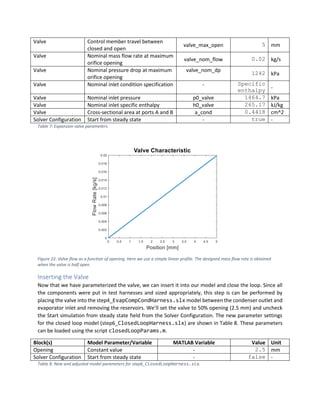
kPa and 221.78 kPa, respectively. The parameters and boundary conditions for the valve are shown in
Table 7 and the initialization script is called valveParams.m. The test harness model for the valve is
called step5_ValveHarness.slx. As with the other harness models, we provide inlet and outlet
reservoirs at the nominal operating conditions and solve at steady state. To validate the range of flows,
we start the system with the valve fully open and use a ramp function to close it fully. The flow rate for
the valve as a function of control member location is plotted in Figure 22.
Block(s) Model Parameter/Variable MATLAB Variable Value Unit
Inlet Reservoir pressure p0_valve 1464.7 kPa
Inlet Reservoir specific enthalpy h0_valve 265.17 kJ/kg
Outlet Reservoir pressure p1_valve 221.78 kPa
Outlet Reservoir specific enthalpy h1_valve 265.17 kJ/kg
Valve Control member travel between
closed and open
valve_max_open 5 mm
Valve Nominal mass flow rate at maximum
orifice opening
valve_nom_flow 0.02 kg/s
Valve Nominal pressure drop at maximum
orifice opening
valve_nom_dp
1242 kPa
Valve Nominal inlet condition specification - Specific
enthalpy -
Valve Nominal inlet pressure p0_valve 1464.7 kPa
Valve Nominal inlet specific enthalpy h0_valve 265.17 kJ/kg
Valve Cross-sectional area at ports A and B a_cond 0.4418 cm^2
Solver Configuration Start from steady state - true -
Table 7: Expansion valve parameters.
Figure 22: Valve flow as a function of opening. Here we use a simple linear profile. The designed mass flow rate is obtained
when the valve is half open.
Inserting the Valve
Now that we have parameterized the valve, we can insert it into our model and close the loop. Since all
the components were put in test harnesses and sized appropriately, this step is can be performed by
placing the valve into the step4_EvapCompCondHarness.slx model between the condenser outlet and
evaporator inlet and removing the reservoirs. We’ll set the valve to 50% opening (2.5 mm) and uncheck
the Start simulation from steady state field from the Solver Configuration. The new parameter settings
for the closed loop model (step6_ClosedLoopHarness.slx) are shown in Table 8. These parameters
can be loaded using the script closedLoopParams.m.
Block(s) Model Parameter/Variable MATLAB Variable Value Unit
Opening Constant value - 2.5 mm
Solver Configuration Start from steady state - false -
Table 8: New and adjusted model parameters for step6_ClosedLoopHarness.slx.
When we run the model, we note that it quickly diverges, and we get a simulation failure at around 0.8
seconds. The error message mentions that we have exceeded the maximum valid specific internal energy
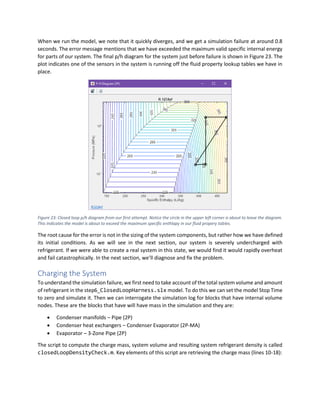
for parts of our system. The final p/h diagram for the system just before failure is shown in Figure 23. The
plot indicates one of the sensors in the system is running off the fluid property lookup tables we have in
place.
Figure 23: Closed loop p/h diagram from our first attempt. Notice the circle in the upper left corner is about to leave the diagram.
This indicates the model is about to exceed the maximum specific enthlapy in our fluid propery tables.
The root cause for the error is not in the sizing of the system components, but rather how we have defined
its initial conditions. As we will see in the next section, our system is severely undercharged with
refrigerant. If we were able to create a real system in this state, we would find it would rapidly overheat
and fail catastrophically. In the next section, we’ll diagnose and fix the problem.
Charging the System
To understand the simulation failure, we first need to take account of the total system volume and amount
of refrigerant in the step6_ClosedLoopHarness.slx model. To do this we can set the model Stop Time
to zero and simulate it. Then we can interrogate the simulation log for blocks that have internal volume
nodes. These are the blocks that have will have mass in the simulation and they are:
• Condenser manifolds – Pipe (2P)
• Condenser heat exchangers – Condenser Evaporator (2P-MA)
• Evaporator – 3-Zone Pipe (2P)
The script to compute the charge mass, system volume and resulting system refrigerant density is called
closedLoopDensityCheck.m. Key elements of this script are retrieving the charge mass (lines 10-18):
% Condenser masses for manifolds and heat exchanger blocks
mm1 = out.simlog.Condenser.Manifold_1.mass.series.values('kg');
mm2 = out.simlog.Condenser.Manifold_2.mass.series.values('kg');
mm3 = out.simlog.Condenser.Manifold_3.mass.series.values('kg');
mp1 = out.simlog.Condenser.Pass_1.two_phase_fluid.mass.series.values('kg');
mp2 = out.simlog.Condenser.Pass_2.two_phase_fluid.mass.series.values('kg');
% Evaporator tube mass
me = out.simlog.Evaporator_Tube.mass.series.values('kg');
The total mass of the system can be computed by summing these variables as on line 21. The remainder
of the script computes the volume of the above blocks and the total system density. For the system as it
is currently parameterized, we arrive at a total mass of 0.648 kg, volume of 0.00115 m^3 and density of
56.3 kg/m^3. A realistic value for the charge density in a R1234yf refrigerant system is about 200-300
kg/m^3, so we can conclude our system is undercharged2
.
To compute the correct system density for the system at rest in some ambient condition, we need to
consult the property tables for the fluid. In our case, we’ll start our system out in the worst-case
environment at T=40 o
C. The pressure of R1234yf under this condition can be found from a
pressure/temperature table at vapor-liquid phase coexistence to be 1018.4 kPa. This gives us the initial
pressure condition for the pipes and heat exchangers.
Before we compute the system density, we must first observe that to be effective, when the system is at
rest the refrigerant must be in vapor-liquid coexistence in all its elements. Being completely liquid or
completely vapor would not allow the fluid to undergo sufficient phase transition (either because it can’t
vaporize or because it can’t form enough liquid) to perform its cooling task. With this in mind, we will
specify the initial vapor quality in the pipes and heat exchangers.
To compute the initial system quality, we can query a thermal properties database (e.g., REFPROP) as we
demonstrated earlier, with temperature T=40 o
C and density=200 kg/m^3. Alternately, we can get the
vapor and liquid densities at the given temperature and interpolate. For R1234yf at 40 o
C we have a liquid
density of 𝜌𝑙=1034 kg/m^3 and a vapor density of 𝜌𝑣=57.75 kg/m^3. To compute the vapor quality
required to achieve our target density of 𝜌𝑟𝑒𝑓=200 kg/m we can use the following equation
𝜌𝑟𝑒𝑓 =
1
𝑥0
𝜌𝑣
+
1 − 𝑥0
𝜌𝑙
,
and solve for 𝑥0 which is our vapor quality. We can perform this calculation in MATLAB by evaluating the
following commands:
rho_l = 1034; % [kg/m^3]
rho_v = 57.75; % [kg/m^3]
rho_ref = 200; % [kg/m^3]
2
Note we use charge density instead of charge mass because our system geometry is much simpler than the real
system it represents, and therefore, would not account for the absolute amount of mass the real system would
contain. Instead, the charge density or mass per volume serves as a more accurate representation and is
independent of the approximations made by the model.
fun = @(x)rho_ref-1/(x/rho_v + (1-x)/rho_l);
x0 = fzero(fun, 0.5)
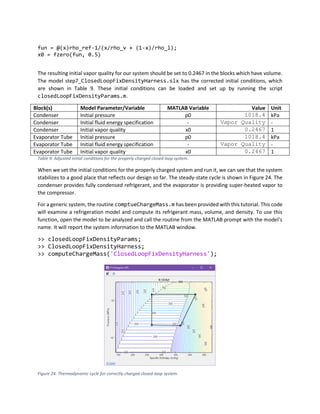
The resulting initial vapor quality for our system should be set to 0.2467 in the blocks which have volume.
The model step7_ClosedLoopFixDensityHarness.slx has the corrected initial conditions, which
are shown in Table 9. These initial conditions can be loaded and set up by running the script
closedLoopFixDensityParams.m.
Block(s) Model Parameter/Variable MATLAB Variable Value Unit
Condenser Initial pressure p0 1018.4 kPa
Condenser Initial fluid energy specification - Vapor Quality -
Condenser Initial vapor quality x0 0.2467 1
Evaporator Tube Initial pressure p0 1018.4 kPa
Evaporator Tube Initial fluid energy specification - Vapor Quality -
Evaporator Tube Initial vapor quality x0 0.2467 1
Table 9: Adjusted initial conditions for the properly charged closed loop system.
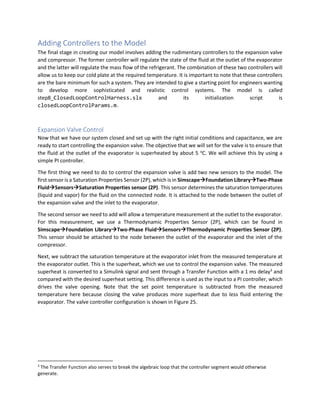
When we set the initial conditions for the properly charged system and run it, we can see that the system
stabilizes to a good place that reflects our design so far. The steady-state cycle is shown in Figure 24. The
condenser provides fully condensed refrigerant, and the evaporator is providing super-heated vapor to
the compressor.
For a generic system, the routine comptueChargeMass.m has been provided with this tutorial. This code
will examine a refrigeration model and compute its refrigerant mass, volume, and density. To use this
function, open the model to be analyzed and call the routine from the MATLAB prompt with the model’s
name. It will report the system information to the MATLAB window.
>> closedLoopFixDensityParams;
>> ClosedLoopFixDensityHarness;
>> computeChargeMass('ClosedLoopFixDensityHarness');
Figure 24: Thermodynamic cycle for correctly charged closed-loop system.
Adding Controllers to the Model
The final stage in creating our model involves adding the rudimentary controllers to the expansion valve
and compressor. The former controller will regulate the state of the fluid at the outlet of the evaporator
and the latter will regulate the mass flow of the refrigerant. The combination of these two controllers will
allow us to keep our cold plate at the required temperature. It is important to note that these controllers
are the bare minimum for such a system. They are intended to give a starting point for engineers wanting
to develop more sophisticated and realistic control systems. The model is called
step8_ClosedLoopControlHarness.slx and its initialization script is
closedLoopControlParams.m.
Expansion Valve Control
Now that we have our system closed and set up with the right initial conditions and capacitance, we are
ready to start controlling the expansion valve. The objective that we will set for the valve is to ensure that
the fluid at the outlet of the evaporator is superheated by about 5 o
C. We will achieve this by using a
simple PI controller.
The first thing we need to do to control the expansion valve is add two new sensors to the model. The
first sensor is a Saturation Properties Sensor (2P), which is in Simscape→Foundation Library→Two-Phase
Fluid→Sensors→Saturation Properties sensor (2P). This sensor determines the saturation temperatures
(liquid and vapor) for the fluid on the connected node. It is attached to the node between the outlet of
the expansion valve and the inlet to the evaporator.
The second sensor we need to add will allow a temperature measurement at the outlet to the evaporator.
For this measurement, we use a Thermodynamic Properties Sensor (2P), which can be found in
Simscape→Foundation Library→Two-Phase Fluid→Sensors→Thermodynamic Properties Sensor (2P).
This sensor should be attached to the node between the outlet of the evaporator and the inlet of the
compressor.
Next, we subtract the saturation temperature at the evaporator inlet from the measured temperature at
the evaporator outlet. This is the superheat, which we use to control the expansion valve. The measured
superheat is converted to a Simulink signal and sent through a Transfer Function with a 1 ms delay3
and
compared with the desired superheat setting. This difference is used as the input to a PI controller, which
drives the valve opening. Note that the set point temperature is subtracted from the measured
temperature here because closing the valve produces more superheat due to less fluid entering the
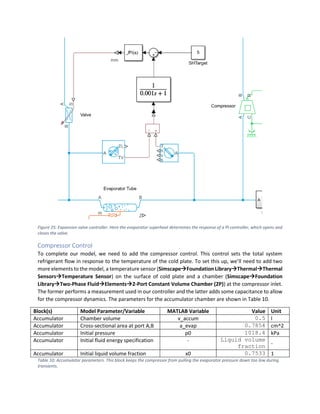
evaporator. The valve controller configuration is shown in Figure 25.
3
The Transfer Function also serves to break the algebraic loop that the controller segment would otherwise
generate.
Figure 25: Expansion valve controller. Here the evaporator superheat determines the response of a PI controller, which opens and
closes the valve.
Compressor Control
To complete our model, we need to add the compressor control. This control sets the total system
refrigerant flow in response to the temperature of the cold plate. To set this up, we’ll need to add two
more elements to the model, a temperature sensor (Simscape→Foundation Library→Thermal→Thermal
Sensors→Temperature Sensor) on the surface of cold plate and a chamber (Simscape→Foundation
Library→Two-Phase Fluid→Elements→2-Port Constant Volume Chamber (2P)) at the compressor inlet.
The former performs a measurement used in our controller and the latter adds some capacitance to allow
for the compressor dynamics. The parameters for the accumulator chamber are shown in Table 10.
Block(s) Model Parameter/Variable MATLAB Variable Value Unit
Accumulator Chamber volume v_accum 0.5 l
Accumulator Cross-sectional area at port A,B a_evap 0.7854 cm^2
Accumulator Initial pressure p0 1018.4 kPa
Accumulator Initial fluid energy specification - Liquid volume
fraction -
Accumulator Initial liquid volume fraction x0 0.7533 1
Table 10: Accumulator parameters. This block keeps the compressor from pulling the evaporator pressure down too low during
transients.
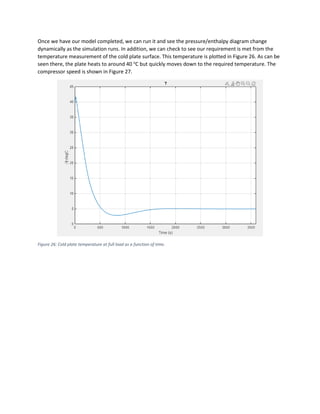
Once we have our model completed, we can run it and see the pressure/enthalpy diagram change
dynamically as the simulation runs. In addition, we can check to see our requirement is met from the
temperature measurement of the cold plate surface. This temperature is plotted in Figure 26. As can be
seen there, the plate heats to around 40 o
C but quickly moves down to the required temperature. The
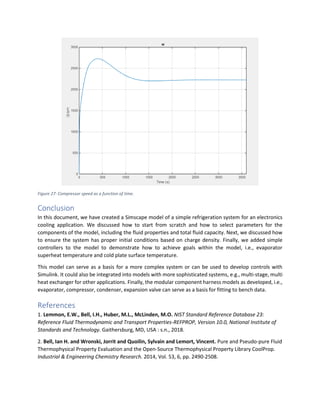
compressor speed is shown in Figure 27.
Figure 26: Cold plate temperature at full load as a function of time.
Figure 27: Compressor speed as a function of time.
Conclusion
In this document, we have created a Simscape model of a simple refrigeration system for an electronics
cooling application. We discussed how to start from scratch and how to select parameters for the
components of the model, including the fluid properties and total fluid capacity. Next, we discussed how
to ensure the system has proper initial conditions based on charge density. Finally, we added simple
controllers to the model to demonstrate how to achieve goals within the model, i.e., evaporator
superheat temperature and cold plate surface temperature.
This model can serve as a basis for a more complex system or can be used to develop controls with
Simulink. It could also be integrated into models with more sophisticated systems, e.g., multi-stage, multi
heat exchanger for other applications. Finally, the modular component harness models as developed, i.e.,
evaporator, compressor, condenser, expansion valve can serve as a basis for fitting to bench data.
References
1. Lemmon, E.W., Bell, I.H., Huber, M.L., McLinden, M.O. NIST Standard Reference Database 23:
Reference Fluid Thermodynamic and Transport Properties-REFPROP, Version 10.0, National Institute of
Standards and Technology. Gaithersburg, MD, USA : s.n., 2018.
2. Bell, Ian H. and Wronski, Jorrit and Quoilin, Sylvain and Lemort, Vincent. Pure and Pseudo-pure Fluid
Thermophysical Property Evaluation and the Open-Source Thermophysical Property Library CoolProp.
Industrial & Engineering Chemistry Research. 2014, Vol. 53, 6, pp. 2490-2508.

Modeling Refrigeration Systems in Simscape.pdf

  • 1.
    Modeling Refrigeration Systemswith Simscape Fluids E.S. McGarrity 1-Apr-22 Introduction In this tutorial we will create a closed-loop refrigeration system with the goal of keeping a thermal mass within a certain temperature range for a prescribed heat load. An example of such a system is a battery chiller cold plate. A schematic for this system is shown in Figure 1. This system is composed of four primary components which convey a working fluid (refrigerant), and with it, heat from the cold plate to the environment. Figure 1: System model overview. The cold plate, which is heated externally is in thermal contact with a refrigeration loop, which expels its heat to the environment. The refrigeration loop contains four main components, an evaporator, a condenser a compressor and an expansion valve.
  • 2.
    System Components Overview Thecold plate for this example is tied to a heat source, which we will model as a boundary condition. In a larger scale model, the heat would likely come from another fluid like ethylene glycol or oil circulating through the heat generating devices. In our model, the cold plate will be represented by a 10 kg thermal mass made from aluminum. The evaporator is a device which conveys heat to a refrigerant at low temperature, pressure, and quality to vaporize it. The refrigerant typically enters the evaporator in a vapor-liquid equilibrium state and leaves it as a super-heated vapor. Often the evaporator consists of two isolated working fluid channels in thermal contact via a highly conductive wall. Here, however, we will represent the other “side” of the evaporator as the cold plate connected to a 1 kW heat load. The compressor heats the cold, evaporated fluid, pressurizes and transports it to the condenser side where the fluid can give up its heat to the environment. The refrigerant enters and leaves the compressor as super-heated vapor. The compressor we will model will be capable of running at different speeds and will have a flow rate that depends on the operating speed and the pressure ratio between the condenser and evaporator. Our compressor will be regulated by a PI controller which responds to the cold plate temperature. The condenser is a device that allows the high-pressure refrigerant to phase change to liquid by exchanging heat to another cooler stream. The refrigerant enters the condenser as a super-heated vapor and exits as a sub-cooled liquid. Like an evaporator, this device consists of two working fluid channels separated by a thin conductive wall. In this case, the fluid will exchange heat with a moist air stream, which has a constant entrance temperature, humidity, and flow rate. The expansion valve regulates the mass flow and pressure difference between the condenser and evaporator. Expansion valves can either be of the Thermal Expansion type (TXV) or Electronic Expansion type (EEV) The refrigerant enters the valve as a sub-cooled liquid and exits in a vapor-liquid equilibrium state. The expansion valve opening is typically controlled to maintain a slightly super-heated vapor at the evaporator exit. Our valve (EEV type) will accomplish this by measuring the evaporator exit state and use the value to adjust a PI controller which sets the valve’s cross-sectional area. Simulation Goal Our specific objective is to build a refrigeration system which can maintain a 10 kg aluminum cold plate at 5 o C. This cold plate will be attached to a heat source with a nominal value of 1 kW. The system needs to be able to operate between environmental temperatures of 15 o C and 40 o C. The Working Fluid The first step in the process of modeling a refrigeration system is to choose the working fluid. This choice depends on many factors, including the expected operating range, cost, and environmental considerations. In this example, we will use R-1234yf for the refrigerant, which is commonly used in automotive applications for systems within our range of temperatures. The pressure enthalpy diagram for this fluid is shown in Figure 2. From this diagram we can see the refrigerant has vapor-liquid states for temperatures above our maximum expected environmental temperature of 40 o C (315.15 K), which will allow the condenser to operate properly below its critical point.
  • 3.
    Figure 2: Pressure-enthalpydiagram for the R-1234yf working fluid. To simulate a fluid network, it is necessary to provide Simscape with the properties for the fluid to be used. For a refrigerant these properties include the temperature/pressure phase coexistence curve, the specific energy, specific enthalpy, specific volume, viscosity, etc. These properties must be provided in the liquid, vapor, and vapor-liquid coexistence regions as they determine the flow and heat transfer of the fluid according to the local thermodynamic state. For two-phase systems in Simscape we use a mean-field model for all thermodynamic computations with pressure and specific internal energy as the state variables. All other properties are computed by interpolation on the tables provided. There are several ways to begin using the R-1234yf refrigerant in a Simscape model. The first is to use the Two-Phase Fluid Predefined Properties block from the Simscape Fluids library. This block can be found in Simscape→Fluids→Two-Phase Fluid→Utilities→Two-Phase Fluid Predefined Properties (2P). This is the most convenient option because the refrigerant exists as a pull-down option in the block mask. The block and its dialog are shown in Figure 3.
  • 4.
    Figure 3: Two-PhaseFluid Predefined Properties block (left) and dialog (right). Here we select R-1234yf to automatically define the fluid property tables. Alternately, if we have access to REFPROP (1) or CoolProp (2) software, we can use the twoPhaseFluidTables() function to retrieve the properties as a struct in MATLAB and push this into the Two-Phase Fluid Properties block. This block can be found in Simscape→Foundation Library→Two- Phase Fluid→Utilities→Two-Phase Fluid Properties (2P). To get started, place this block into an empty Simscape model, and name it R1234yf. Save your Simulink model as FluidProps.slx. Next, retrieve the properties from the fluid database with the command1 : R1234yf_Props = ... twoPhaseFluidTables([140,450],[0,1.3],25,25,60,'R1234yf',... 'C:Program Files (x86)REFPROP10'); This will create a variable in the MATLAB workspace with the required properties. Finally, push the properties into the fluid properties block with a second execution of the command: twoPhaseFluidTables('FluidProps/R1234yf', R1234yf_Props); The resulting Parameters tab in the Two-Phase Fluid Properties block will appear as shown in Figure 4. Figure 4: Fluid properties dialog for the R-1234yf working fluid. 1 The final argument to the twoPhaseFluidTables() command is the path to your REFPROP or CoolProp installation. This will vary from computer to computer.
  • 5.
    If you don'thave REFPROP or CoolProp installed it's possible to create your own fluid property tables if you have another source. See the documentation for details (docsearch('Manually Generate Fluid Property Tables')). Modeling the Cold Plate and Evaporator Figure 5: Cold plate cut-away. The cold plate consists of a 50 cm x 31 cm x 2.4 cm aluminum block with 1 cm diameter channels bored through it. These channels are connected in a serpentine path with brazed copper tubing. The total tube length is approximately 5 m. The refrigerant enters one end in a vapor-liquid equilibrium state and leaves the other as super-heated vapor. To determine whether our cold plate/evaporator assembly has a 1 kW capacity we will use the geometry information provided in Figure 5 and Table 1 to create and parameterize a test harness model. The evaporator will be based on a 3-Zone Pipe (2P) block from Simscape→Fluids→Two-Phase Fluid→Pipes & Fittings. To this we will add a Thermal Mass block to represent the aluminum plate and a Conductive Heat Transfer block to represent the conduction from the plate to the heat load which is represented by a Heat Flow Rate Source block. The latter three blocks can be found in Simscape→Foundation Library→Thermal→Elements and Simscape→Foundation Library→Thermal→Sources. The layout for the model is shown in Figure 6. Note we have set the external heat transfer coefficient for the evaporator pipe to be infinity because the refrigerant is in direct contact with the cold plate. Block Model Parameter MATLAB Variable Value Unit Evaporator Pipe length l_evap 5 m 50 cm 31 cm 1 cm
  • 6.
    Block Model ParameterMATLAB Variable Value Unit Evaporator Hydraulic diameter d_evap 1 cm Evaporator Cross-sectional area a_evap pi*d_evap^2/4 cm^2 Evaporator External environment heat transfer coefficient - inf - Evaporator Wall thickness t_wall 1 mm Evaporator Wall thermal conductivity k_plate 237 W/m/k Evaporator Wall specific heat cp_plate 910 J/kg/K Evaporator Wall density rho_plate 2.7 g/cm^3 Cold Plate Mass m_plate 10 kg Cold Plate Specific heat cp_plate 910 J/kg/K Wall Area a_plate 3488.8 cm^2 Wall Thermal conductivity k_plate 237 W/m/K Heat Load Heat flow rate heat_load 1 kW Table 1: Cold plate and evaporator parameters. Parameter values not listed in this, and the subsequent parameter tables should be left at their default settings. Note cp_plate is the specific heat for the material used in the evaporator wall and cold plate, and thus, it is listed twice. Figure 6: Evaporator/cold plate model with attached heat load. On the left is a cutaway of the cold plate looking down the refrigerant tubes. These are represented by the Evaporator block. The Cold Plate thermal mass represents the metal of the cold plate, and the Wall block represents the conduction of the heat from the Heat Load through the plate. Once we have the blocks assembled for the cold plate, we need to provide boundary conditions, initial conditions, and a flow rate to ensure the heat exchange is 1 kW in the worst-case scenario, i.e., when the environmental temperature is 40 o C. We can use either thermodynamic tables, REFPROP or CoolProp to determine the initial and boundary conditions by making some static assumptions. These assumptions are: • The condensing temperature is 55 o C (sufficiently high to expel enough heat to the environment) • The condenser output is 8 o C subcooled
  • 7.
    • The evaporatingtemperature is -10 o C (Sufficiently low to transfer heat from the plate at 5 o C) • The evaporator outlet temperature has 5 o C superheat Referring to the properties database, we can find that the evaporator pressure should be 221.78 kPa and the inlet specific enthalpy should be 265.17 kJ/kg. The former can be found from the temperature/pressure relationship directly. The latter comes from first finding pressure at the condensing temperature (𝑇𝑐𝑜𝑛𝑑 = 328.15), then computing the specific enthalpy for the refrigerant at 8 o C sub-cool (𝑇𝑠𝑐 = 320.15 K, 𝑝𝑐𝑜𝑛𝑑 = 1464.7 kPa). In addition, we should determine the specific enthalpy for the evaporator outlet with a 5 o C super-heat (𝑇𝑠ℎ = 268.15, 𝑝𝑒𝑣𝑎𝑝 = 221.78 kPa). It is 361.16 kJ/kg for our R1234yf refrigerant. Once we have the initial and boundary conditions, we must determine the approximate mass flow we expect in the system at steady state. We can compute this with the standard formula for heat transfer in an evaporating fluid 𝑄 = 𝑚 ̇ 𝑟𝑒𝑓(ℎ𝑜𝑢𝑡 − ℎ𝑖𝑛) 1 Substituting our values for the desired heat transfer, 𝑄 (1 kW), and the inlet and outlet specific enthalpies, ℎ𝑖𝑛 and ℎ𝑜𝑢𝑡, respectively, we arrive at a mass flow of 𝑚𝑟𝑒𝑓 ̇ ≈ 0.0104 kg/s. With this information, we are ready to build the test harness model for our evaporative cold plate model. The initial conditions are summarized in Table 2. Block(s) Model Parameter/Variable MATLAB Variable Value Unit Inlet, Outlet, Evaporator Reservoir pressure p0_evap 221.78 kPa Inlet, Outlet, Evaporator Reservoir specific enthalpy h0_evap 265.17 kJ/kg All 2P Cross-sectional area a_evap pi*d_evap^2/4 cm^2 Mass Flow Mass flow rate mdot_evap 0.0104 kg/s Mass Flow Power added - none - Solver Configuration Start from steady state - true(checked) - Table 2: Initial and boundary conditions for the evaporator/cold plate test harness model. The complete evaporator/cold plate assembly with test harness is shown in Figure 7. Here the mass flow is pulled from the inlet boundary and pushed through the evaporator pipe to the outlet. Heat is exchanged with the cold plate via the H port in the pipe. The important flow boundary conditions are the pressure at the outlet and the specific enthalpy at the inlet. These values determine the steady-state solution of the system since we are controlling the mass flow directly. Note also, we represent the first 1 mm of the cold plate with the pipe parameters for the wall. This allows for a small gradient between the pipe wall temperature at its interior and its exterior. It is also important to note we have set the Solver Configuration block to solve for steady state since we’re trying to compute the static condition. This speeds up the simulation and would be helpful if we were performing resizing with parameter estimation.
  • 8.
    Figure 7: Testharness assembly for the evaporator/cold plate. Now we have a test harness model for the evaporator/cold plate assembly, we need to simulate it and evaluate the results to ensure our model is plausible. A good place to start is by adding pressure and specific enthalpy sensors at the A and B ports of the evaporator pipe and sending these to a P-H Diagram (2P) block. This will allow us to determine if the evaporator is functioning properly. In our model, we’ll create a subsystem for these sensors because we’ll be using them extensively throughout the modeling process to come. The pressure/specific enthalpy (p/h) sensor subsystem is shown in Figure 8. The complete evaporator/cold plate test harness model with sensors is named step1_EvaporatorHarness.slx and its parameterization can be set up by running evaporatorParams.m. Running the script and then playing the model produces the p/h diagram shown in Figure 9. Here we can see that the inlet specific enthalpy falls under the vapor-liquid dome indicating it is a partially evaporated fluid and that the outlet specific enthalpy indicates the fluid is superheated. The pipe pressure drop is around 5 kPa over its length, which is reasonable for an evaporator of this size with the provided mass flow rate. We can also check to see the evaporator is sized appropriately by looking at a plot of its vapor-liquid and superheated vapor fractions. We can find plots of these quantities in the Simscape Results Explorer after playing the model and selecting the Evaporator→z_mix and Evaporator→z_vap entries. A plot of the quantities is shown in Figure 10. From the figure we can deduce the evaporator is about half full of fluid at vapor-liquid equilibrium (at constant temperature) for the given mass flow rate. This indicates the size we have chosen has a reasonable value because the phase boundary line will move back and forth from this point with changes in mass flow, i.e., more mass flow produces more vapor-liquid and vice-versa.
  • 9.
    Figure 8: Sensorsubsystem for pressure and specific enthalpy. We place these in a subsystem which can be replicated throughout the model as needed. Figure 9: Simulation results for the evaporator/cold plate model. The approximate inlet specific enthalpies are 265 kJ/kg and 361 kJ/kg, respectively, and the outlet pressure is approximately 221 kPa.
  • 10.
    Figure 10: Vapor-liquidand superheated vapor fractions for the evaporator pipe. These values indcate the evaporator pipe is a little over half full with superheated vapor with the given mass flow rate. Compressor Model In our calculations in the previous section, we estimated a mass flow rate of the compressor via Equation 1 to be 𝑚 ̇ 𝑟𝑒𝑓 = 0.0104 kg/s. We now need to define a compressor which can deliver this mass flow rate under the estimated evaporator and condenser pressures. These pressures were determined to be 𝑝𝑒𝑣𝑎𝑝 = 221.78 kPa and 𝑝𝑐𝑜𝑛𝑑 = 1464.7 kPa, respectively. The inlet specific enthalpy is 361 kJ/kg. A test harness model for the compressor is shown in Figure 11. The Inlet and Outlet block parameters for pressure and specific enthalpy are set to the above values. (Note the specific enthalpy of the Outlet is not relevant in this harness because this value comes from the Compressor.) The Speed block’s Constant and the Outlet block’s Reservoir pressure parameter values are set to Run-time. This will allow us to sweep the compressor through a series of simulations with different speeds and pressure ratios and generate its map once it has been parameterized. The compressor block can be found in Simscape→Fluids→Two- Phase Fluid→Fluid Machines→Positive-Displacement Compressor (2P). Figure 11: Compressor test harness model. This model has been set up so we can vary the inlet and outlet fluid states and the rotational speed.
  • 11.
    The model forthe complete compressor test harness can be found in step2_CompressorHarness.slx and its parameters can be loaded with the compressorParams.m routine. The parameters are summarized in Table 3. At these settings, the compressor adds about 0.5 kW of heat to the fluid. Block(s) Model Parameter/Variable MATLAB Variable Value Unit Inlet Reservoir pressure p1_comp 221.78 kPa Inlet Reservoir specific enthalpy h1_comp 265.17 kJ/kg Outlet Reservoir pressure p2_comp 1464.7 kPa Compressor Nominal mass flow rate mdot_comp 0.0104 kg/s Compressor Nominal shaft speed N_comp 3600 rpm Compressor Nominal inlet pressure p_nom_in 221 kPa Compressor Nominal inlet temperature T_nom_in 278.15 K Compressor Nominal volumetric efficiency eta_v 0.95 - Compressor Nominal pressure ratio pr_nom 6 - Compressor Polytropic exponent gamma1234yf 1.14 - Compressor Mechanical efficiency eta_m 0.9 - Compressor Speed Constant N_0 3600 rpm Solver Configuration Start from steady state - true(checked) - Table 3: Compressor model parameters. Compressor Map To see what the compressor map looks like based on the given parameters, we can write a script to exercise the harness model we created across a range of shaft speeds and pressure ratios. The code for performing this parameter sweep is given in the file compressorSweep.m. We will analyze the relevant parts of this script in this section. To begin, we open the model and set up its parameters in the MATLAB workspace. This is on lines 1-8: % Build compressor map % Open the model in case it is not. mdl = 'CompressorHarness'; open_system(mdl); % Load the parameters compressorParams; Next, we set up the design of experiments (DOE) for the parameter sweep. The goal is to sweep the compressor speed from 400 to 4000 rpm and the outlet pressure from 800 to 2400 kPa. This will exercise the compressor across pressure ratios from about 3 to 11, which should provide a reasonable map for the expected operating conditions. The key lines for setting up the DOE are 12-13 and 21: N_lis = 0:400:4000; % [rpm] p2_lis = 800:400:2400; % [kPa] [N_mat, p2_mat] = ndgrid(N_lis, p2_lis);
  • 12.
    Once the DOEis formulated, we can create a Simulink.SimulationInput object, which will be used to set the parameters of the model during a sequence of Simulink runs. This is done on lines 24-32 of the script: simin(1:N_sim) = Simulink.SimulationInput(mdl); % Setup the parameters used by the model for k = 1:N_sim simin(k) = simin(k).setBlockParameter([mdl '/Speed'], ... 'constant', num2str(N_mat(k))); simin(k) = simin(k).setBlockParameter([mdl '/Outlet'], ... 'reservoir_pressure', num2str(p2_mat(k))); end With the simulation inputs defined, we can now execute them. This happens on line 36: simout = sim(simin, 'ShowSimulationManager', 'off', 'UseFastRestart', 'on'); The code sweeps across 10 speeds and 5 pressure ratios for a total of 50 simulations. These simulations can be performed in under a minute on a modest workstation with Simulink’s Fast Restart capability. Once the code is finished with the sweep, we can extract the parameters and plot them. The code for parameter extraction is on lines 39-47: mdot = N_mat*0; fp = mdot; for k = 1:N_sim % Get the last elements of the mass flow and fluid power vars mlog = simout(k).simlog.Compressor.mdot_A.series.values('kg/s'); mdot(k) = mlog(end); fplog = simout(k).simlog.Compressor.fluid_power.series.values('kW'); fp(k) = fplog(end); end Note the destination arrays (mdot and fp) have been allocated to be the same shape as the input grids. This will allow us to easily extract the speed lines for the sweeps when we plot the data. The plotting code is on lines 50-74. The resulting plots can be seen in Figure 12 and Figure 13.
  • 13.
    Figure 12: Compressorflow map. The pressure ratio and speeds were varied, and the resulting mass flow measured. Figure 13: Required fluid cooling power as a function of compressor shaft speed and pressure ratio. This represents isentropic power because we use 𝛾 = 𝐶𝑝 𝐶𝑣 for the polytropic index. Refrigerants usually have smaller exponents; therefore, this is a conservative power estimate.
  • 14.
    From Figure 12,we can see the flow rates are relatively insensitive to upstream pressure, which makes sense for this type of compressor because it represents a reciprocating compressor. We would expect that the motor would undergo torque stall when the required power exceeded its capability. Since we’re using a speed source, sufficient torque will always be provided. Measuring this would allow one to size an electric motor, but this is beyond the scope of the work here. In Figure 13 we see the amount of power added to the fluid as it flows through the compressor as a function of speed and pressure ratio. This plot suggests the compressor could add a little more than 0.6 kW of heat to the fluid which will have to be accounted for in the condenser. Nominally, we expect the added heat to be around 0.4-0.5 kW for the design condition (speed = 3600 rpm pressure ratio = 6-7) as can be seen from the plot. We will account for this when we design the condenser in the next section. Figure 14 shows the p/h diagram for the compressor at the nominal operating condition. As we might expect, the fluid heats as the pressure is increased because the compressor is performing work on it. The resulting outlet state is indicated by the upper right circle on the plot. Figure 14: Pressure-enthalpy diagram for the compressor under nominal operating condtions. Condenser Now that we have set up the evaporator and compressor and determined their approximate heat loads, we can parameterize the condenser for the system. The evaporator and compressor will add about 1 kW and 0.5 kW of heat to the refrigerant, respectively, which means the condenser should be designed to dissipate about 1.5 kW of heat from the refrigerant to the environment. The worst-case scenario given in our design specification is when then environmental temperature is at 40 o C, so we will parameterize the condenser under those conditions.
  • 15.
    Figure 15: Two-passcondenser schematic. The refrigerant enters at the top and passes from left to right in the upper 30 banks of tubes, then right to left in the lower 10 banks of tubes. There are 3 manifolds for the refrigerant, 2 on the left and one on the right. The air flows perpendicular the plane of the document. Figure 16: Refrigerant tube cutaway. The refrigerant flows into the plane of the document in the 8 channels. There are fins on the top and bottom of each bank, which the air flows through to dissipate heat released by the condensing refrigerant. The condenser to be modeled is a two-pass model with 30 banks in the first pass and 10 in the second pass. The tube banks are arranged 8-per-row in line with fins that expel heat to the crossflow air stream. The configuration of the two refrigerant passes is shown in Figure 15 and the tube bank arrangement is shown in Figure 16. The total fin area on the air side is calculated based on the heat exchanger geometry. We start by noting that the refrigerant tube wall thickness is 𝑡𝑤𝑎𝑙𝑙 = 0.5 mm and that the fins run the entire width of the tube bundle in parallel with the air flow (see Figure 16). This produces a fin length of 60 cm 40 cm Pass 1 Pass 2 2 mm 1 mm Air Flow Air Flow
  • 16.
    𝑙𝑓𝑖𝑛 = 𝑁𝑡𝑝𝑟⋅ (𝑤𝑡𝑢𝑏𝑒 + 𝑡𝑤𝑎𝑙𝑙) + 𝑡𝑤𝑎𝑙𝑙, where 𝑤𝑡𝑢𝑏𝑒 is the tube width (2 mm), and 𝑁𝑡𝑝𝑟 is the number of tubes per row in the condenser. The fins span the gaps between the tube banks perpendicular to the airflow and, therefore, have widths of 𝑤𝑓𝑖𝑛 = ℎ𝑐𝑜𝑛𝑑 − 𝑁𝑟𝑜𝑤 ⋅ (ℎ𝑡𝑢𝑏𝑒 + 2 ⋅ 𝑡𝑤𝑎𝑙𝑙), where ℎ𝑐𝑜𝑛𝑑 is the condenser height, 𝑁𝑟𝑜𝑤 is the total number of tube banks, and ℎ𝑡𝑢𝑏𝑒 is the tube height (1 mm). This along with the fin length gives the fin area to be approximately 𝑎𝑓𝑖𝑛 = 𝑙𝑓𝑖𝑛 ⋅ 𝑤𝑓𝑖𝑛. Here we assume the fins are independent of each other and aligned vertically with a density of 5 fins per cm (𝜌𝑓𝑖𝑛), which is a reasonable approximation for this type of condenser hardware. With this assumption, we calculate the total fin area, 𝑎𝑓𝑖𝑛𝑡𝑜𝑡, to be 𝑎𝑓𝑖𝑛𝑡𝑜𝑡 = 𝑁𝑟𝑜𝑤 ⋅ 𝑎𝑓𝑖𝑛 ⋅ 𝜌𝑓𝑖𝑛 ⋅ 𝑙𝑡𝑢𝑏𝑒, where 𝑙𝑡𝑢𝑏𝑒 is the tube length, which is equal to the condenser width minus the side manifold widths (1 cm each). The entrance and exits of the condenser and the connection between its two passes are represented as pipes. These pipes are not thermally connected, but serve to add capacitance to the condenser, which is key to preventing the tubes from flooding during high temperature operations once the condenser is placed into the closed-loop system. The condenser model can be found in Condenser_2Pass.slx. This model is located in a Subsystem Reference, which we can instantiate inside the test harness (step3_CondenserHarness.slx) to evaluate its performance. Later we will use this same Subsystem Reference in the complete model. This is good practice because we will be able to reuse the same condenser model inside other models and ensure changes to the test harness model are reflected in the main model. Note that in this case, we have promoted only the parameters we will need for our exercises, i.e., the initial pressure and energy settings for the manifolds and heat exchangers. The layout of the condenser is shown in Figure 17. It uses two Condenser-Evaporator (2P-MA) blocks, one for each of the two passes, and three pipe blocks to represent the manifolds. These blocks can be found in the libraries under Simscape→Fluids→Fluid Network Interfaces→Heat Exchangers→Condenser-Evaporator (2P-MA) and Simscape→Foundation Library→Two-Phase Fluid→Elements→Pipe (2P). The initialization of the fin area plus the other parameters for the condenser unit are performed in the condenserParams.m MATLAB script. This script handles the air-side and refrigerant-side parameters as well as the initial conditions for the model step3_CondenserHarness.slx. The parameters for the condenser harness are shown in Table 4. The condenser model parameters are given in Table 5. Block(s) Model Parameter/Variable MATLAB Variable Value Unit Inlet, Outlet Reservoir pressure p0_cond 1464.7 kPa Inlet Reservoir specific enthalpy h0_cond 425 kJ/kg Ref Flow Mass flow rate mdot_cond 0.0104 kg/s Air In1, Air In2 Temperature T_air_cond 40 degC Air Flow(1,2) Mixture mass flow rate mdot_air_cond(1,2) [0.15, 0.05] kg/s
  • 17.
    Table 4:Condenser testharness parameters. The air flow and environment temperature are set to the worst-case scenario outlined above. Figure 17: Simscape layout for the 2-pass condenser. The refrigerant passes are in series and the air passes are in parallel. Block(s) Model Parameter/Variable MATLAB Variable Value Unit Pass(1,2) Flow arrangement - Crossflow - Pass(1,2) Cross-sectional area A1,B1 a_cond 0.4418 cm^2 Pass(1,2) Cross-sectional area A2,B2 a_x_cond(1,2) [1800, 600] cm^2 Pass(1,2) TPF: Number of tubes N_tube_pass(1,2) [240 80] - Pass(1,2) TPF: Total length of each tube l_tube 56 cm Pass(1,2) TPF: Tube cross section - Rectangular - Pass(1,2) TPF: Tube width w_tube 2 mm Pass(1,2) TPF: Tube height h_tube 1 mm Pass(1,2) TPF: Initial fluid energy specification - Specific enthalpy - Pass(1,2) TPF: Initial two-phase fluid pressure p0_cond 1464.7 kPa Pass(1,2) TPF: Initial two-phase fluid specific enthalpy h0_cond 425 kJ/kg Pass(1,2) MA: Flow geometry - Generic - Pass(1,2) MA: Minimum free-flow area a_maflow(1,2) [913.5 304.5] cm^2
  • 18.
    Block(s) Model Parameter/VariableMATLAB Variable Value Unit Pass(1,2) MA: Heat transfer surface area without fins a_x_httubes(1,2) [4611 1537] cm^2 Pass(1,2) MA: Moist air volume inside heat exchanger v_ma(1,2) [1872.7 624.23] cm^2 Pass(1,2) MA: Coefficients [a,b,c] for a*Re^b*Pr^c REPRabc [0.12 1 0.4] - Pass(1,2) MA: Total fin surface area a_fins(1,2) [1.4268 0.4756] m^2 Pass(1,2) MA: Initial moist air temperature T_air_cond 40 degC Manifold(1,2,3) Pipe length lman(1,2,3) [30 40 10] cm Manifold(1,2,3) Cross-sectional area a_man 5 cm^2 Manifold(1,2,3) Hydraulic diameter d_man 2.222 cm Solver Configuration Start from steady state - true - Table 5: Model parameters for the 2-pass condenser. The numbers in parentheses indicate block identities or array elements. For example, Pass 1 uses a_x_cond(1) for its Cross-sectional areas A2 and B2 and Pass 2 uses a_x_cond(2). For cases where the MATLAB variable is a scalar, all elements use the same value, e.g., Pass 1 and Pass 2 both use a_cond for their refrigerant port areas A1, and B1. To validate the condenser model for the above parameters, we can examine the pressure-enthalpy diagram in Figure 18. Under the given conditions, the fluid state starts on the right end of the segment as a super-heated vapor and ends on the left end of the segment as sub-cooled liquid. Figure 18: Condenser pressure/enthalpy diagram at steady state for the design case scenario. Fluid enters the condenser in the state indicated by the circle on the right end of the line segment (as super-heated vapor) and leaves at the state indicated by the circle on the left end of the segment (sub-cooled liquid). As the fluid moves through the first pass of the condenser tubes, it begins to condense and enters the vapor-liquid equilibrium dome. In the second pass, the fluid crosses the saturated liquid boundary and leaves as a sub-cooled liquid. To ensure the latter is true, we plot selected state fractions of the fluids in the condenser passes in Figure 19. From this figure we can see about 56% of the length of Pass 1 contains
  • 19.
    fluid in thesuper-heated vapor (SHV) state and 44% of Pass 1 contains fluid in the vapor-liquid equilibrium (VLE) state. In pass 2 we see 86% of the fluid is in the VLE state and the remaining 14% is in the sub-cooled liquid (SCL) state. We can potentially use this information later to determine whether the size of our device is optimal. Figure 19: Fluid state fractions for the condenser. Here we see the super-heated vapor (SHV) and vapor-liquid equilibrium (VLE) fractions in Pass 1 and the VLE and sub-cooled liquid fractions from Pass 2. These correspond to and agree with the pressure enthalpy diagram in Figure 18, where the refrigerant enters in the SHV state and exits in the SCL state, with a middle transition region of fluid in the VLE state. Closing the Loop Now that we have the evaporator, compressor and condenser roughly sized, we’re ready to start closing the loop with the expansion device. It is important to note that the former three devices all change the system energy, whereas the expansion device is normally treated as isenthalpic. This means that the specific enthalpy at the outlet to the condenser and the inlet to the evaporator should be the same. Before we close the loop, we’ll set up a system to ensure this for the steady state conditions specified in the design. Once the evaporator/compressor/condenser system is validated we’ll parameterize and insert an expansion valve. Energy Cycle Validation To ensure the parameters of evaporator, compressor and condenser are well sized for their use together, we assemble them into a new harness model. This model is called step4_EvapCompCondHarness.slx, and it is shown in Figure 20. Note we have assembled the individual parts to mirror the schematic in Figure 1, with the evaporator on the bottom, the condenser at the top and the compressor along the right-hand side. This allows us to put the sensors in the order that they show up in the pressure/enthalpy diagram.
  • 20.
    Figure 20: Energybalance test harness. This test harness provides a check to see that the evaporator, compressor, and condenser are in balance for the design cycle at steady state. Boundary conditions are set at the Inlet and Outlet blocks. The block parameters for the Inlet and Outlet boundary condition blocks are given in Table 6. These are the approximate steady state values for the design cycle. Note the model still uses the steady state option in the Solver Configuration block. Once we close the loop we will switch this off to model the proper dynamic behavior. The parameter file for this system is evapCompCondParams.m. Block(s) Model Parameter/Variable MATLAB Variable Value Unit Inlet Reservoir pressure p0_evap 221.78 kPa Inlet Reservoir specific enthalpy h0_evap 265.17 kJ/kg Outlet Reservoir pressure p0_cond 1464.7 kPa Outlet Reservoir specific enthalpy h0_cond 425 kJ/kg Solver Configuration Start from steady state - true - Table 6: Energy cycle boundary condition and solver settings. The remaining model parameters are taken from the single component harness models and are given in the tables above.
  • 21.
    The resulting pressure/enthalpydiagram for the assembly is shown in Figure 21. As can be seen in this plot, the simulation behaves in accordance with the design parameters. The evaporator outlet is slightly super-heated, and the condenser outlet is slightly sub-cooled as expected. The mass flow for this system should be checked in the Simscape Results Explorer. Doing so, we find it is 0.0105 kg/s, which is in line with the design value of 0.0104 kg/s that we determined in our previous estimate. Figure 21: Pressure/enthalpy diagram for the evaporator, compressor, condenser system. Note the circle indicating the condenser outlet is almost directly above the circle for the evaporator inlet. This tells us our cycle is approximately balanced. Expansion Valve Now that we have determined the system energetics are in balance we can parameterize and insert the expansion valve. In our application we will use an Orifice (2P) block Simscape→Fluids→Two-Phase Fluid→Valves & Orifices→Orifice (2P) and a PI controller to control the evaporator outlet state. In order to have enough flexibility for our controller, we’ll size the valve so it has our approximate nominal desired flow rate (~0.01 kg/s) when it is halfway open and the upstream and downstream pressures are 1464.7 kPa and 221.78 kPa, respectively. The parameters and boundary conditions for the valve are shown in Table 7 and the initialization script is called valveParams.m. The test harness model for the valve is called step5_ValveHarness.slx. As with the other harness models, we provide inlet and outlet reservoirs at the nominal operating conditions and solve at steady state. To validate the range of flows, we start the system with the valve fully open and use a ramp function to close it fully. The flow rate for the valve as a function of control member location is plotted in Figure 22. Block(s) Model Parameter/Variable MATLAB Variable Value Unit Inlet Reservoir pressure p0_valve 1464.7 kPa Inlet Reservoir specific enthalpy h0_valve 265.17 kJ/kg Outlet Reservoir pressure p1_valve 221.78 kPa Outlet Reservoir specific enthalpy h1_valve 265.17 kJ/kg
  • 22.
    Valve Control membertravel between closed and open valve_max_open 5 mm Valve Nominal mass flow rate at maximum orifice opening valve_nom_flow 0.02 kg/s Valve Nominal pressure drop at maximum orifice opening valve_nom_dp 1242 kPa Valve Nominal inlet condition specification - Specific enthalpy - Valve Nominal inlet pressure p0_valve 1464.7 kPa Valve Nominal inlet specific enthalpy h0_valve 265.17 kJ/kg Valve Cross-sectional area at ports A and B a_cond 0.4418 cm^2 Solver Configuration Start from steady state - true - Table 7: Expansion valve parameters. Figure 22: Valve flow as a function of opening. Here we use a simple linear profile. The designed mass flow rate is obtained when the valve is half open. Inserting the Valve Now that we have parameterized the valve, we can insert it into our model and close the loop. Since all the components were put in test harnesses and sized appropriately, this step is can be performed by placing the valve into the step4_EvapCompCondHarness.slx model between the condenser outlet and evaporator inlet and removing the reservoirs. We’ll set the valve to 50% opening (2.5 mm) and uncheck the Start simulation from steady state field from the Solver Configuration. The new parameter settings for the closed loop model (step6_ClosedLoopHarness.slx) are shown in Table 8. These parameters can be loaded using the script closedLoopParams.m. Block(s) Model Parameter/Variable MATLAB Variable Value Unit Opening Constant value - 2.5 mm Solver Configuration Start from steady state - false - Table 8: New and adjusted model parameters for step6_ClosedLoopHarness.slx.
  • 23.
    When we runthe model, we note that it quickly diverges, and we get a simulation failure at around 0.8 seconds. The error message mentions that we have exceeded the maximum valid specific internal energy for parts of our system. The final p/h diagram for the system just before failure is shown in Figure 23. The plot indicates one of the sensors in the system is running off the fluid property lookup tables we have in place. Figure 23: Closed loop p/h diagram from our first attempt. Notice the circle in the upper left corner is about to leave the diagram. This indicates the model is about to exceed the maximum specific enthlapy in our fluid propery tables. The root cause for the error is not in the sizing of the system components, but rather how we have defined its initial conditions. As we will see in the next section, our system is severely undercharged with refrigerant. If we were able to create a real system in this state, we would find it would rapidly overheat and fail catastrophically. In the next section, we’ll diagnose and fix the problem. Charging the System To understand the simulation failure, we first need to take account of the total system volume and amount of refrigerant in the step6_ClosedLoopHarness.slx model. To do this we can set the model Stop Time to zero and simulate it. Then we can interrogate the simulation log for blocks that have internal volume nodes. These are the blocks that have will have mass in the simulation and they are: • Condenser manifolds – Pipe (2P) • Condenser heat exchangers – Condenser Evaporator (2P-MA) • Evaporator – 3-Zone Pipe (2P) The script to compute the charge mass, system volume and resulting system refrigerant density is called closedLoopDensityCheck.m. Key elements of this script are retrieving the charge mass (lines 10-18):
  • 24.
    % Condenser massesfor manifolds and heat exchanger blocks mm1 = out.simlog.Condenser.Manifold_1.mass.series.values('kg'); mm2 = out.simlog.Condenser.Manifold_2.mass.series.values('kg'); mm3 = out.simlog.Condenser.Manifold_3.mass.series.values('kg'); mp1 = out.simlog.Condenser.Pass_1.two_phase_fluid.mass.series.values('kg'); mp2 = out.simlog.Condenser.Pass_2.two_phase_fluid.mass.series.values('kg'); % Evaporator tube mass me = out.simlog.Evaporator_Tube.mass.series.values('kg'); The total mass of the system can be computed by summing these variables as on line 21. The remainder of the script computes the volume of the above blocks and the total system density. For the system as it is currently parameterized, we arrive at a total mass of 0.648 kg, volume of 0.00115 m^3 and density of 56.3 kg/m^3. A realistic value for the charge density in a R1234yf refrigerant system is about 200-300 kg/m^3, so we can conclude our system is undercharged2 . To compute the correct system density for the system at rest in some ambient condition, we need to consult the property tables for the fluid. In our case, we’ll start our system out in the worst-case environment at T=40 o C. The pressure of R1234yf under this condition can be found from a pressure/temperature table at vapor-liquid phase coexistence to be 1018.4 kPa. This gives us the initial pressure condition for the pipes and heat exchangers. Before we compute the system density, we must first observe that to be effective, when the system is at rest the refrigerant must be in vapor-liquid coexistence in all its elements. Being completely liquid or completely vapor would not allow the fluid to undergo sufficient phase transition (either because it can’t vaporize or because it can’t form enough liquid) to perform its cooling task. With this in mind, we will specify the initial vapor quality in the pipes and heat exchangers. To compute the initial system quality, we can query a thermal properties database (e.g., REFPROP) as we demonstrated earlier, with temperature T=40 o C and density=200 kg/m^3. Alternately, we can get the vapor and liquid densities at the given temperature and interpolate. For R1234yf at 40 o C we have a liquid density of 𝜌𝑙=1034 kg/m^3 and a vapor density of 𝜌𝑣=57.75 kg/m^3. To compute the vapor quality required to achieve our target density of 𝜌𝑟𝑒𝑓=200 kg/m we can use the following equation 𝜌𝑟𝑒𝑓 = 1 𝑥0 𝜌𝑣 + 1 − 𝑥0 𝜌𝑙 , and solve for 𝑥0 which is our vapor quality. We can perform this calculation in MATLAB by evaluating the following commands: rho_l = 1034; % [kg/m^3] rho_v = 57.75; % [kg/m^3] rho_ref = 200; % [kg/m^3] 2 Note we use charge density instead of charge mass because our system geometry is much simpler than the real system it represents, and therefore, would not account for the absolute amount of mass the real system would contain. Instead, the charge density or mass per volume serves as a more accurate representation and is independent of the approximations made by the model.
  • 25.
    fun = @(x)rho_ref-1/(x/rho_v+ (1-x)/rho_l); x0 = fzero(fun, 0.5) The resulting initial vapor quality for our system should be set to 0.2467 in the blocks which have volume. The model step7_ClosedLoopFixDensityHarness.slx has the corrected initial conditions, which are shown in Table 9. These initial conditions can be loaded and set up by running the script closedLoopFixDensityParams.m. Block(s) Model Parameter/Variable MATLAB Variable Value Unit Condenser Initial pressure p0 1018.4 kPa Condenser Initial fluid energy specification - Vapor Quality - Condenser Initial vapor quality x0 0.2467 1 Evaporator Tube Initial pressure p0 1018.4 kPa Evaporator Tube Initial fluid energy specification - Vapor Quality - Evaporator Tube Initial vapor quality x0 0.2467 1 Table 9: Adjusted initial conditions for the properly charged closed loop system. When we set the initial conditions for the properly charged system and run it, we can see that the system stabilizes to a good place that reflects our design so far. The steady-state cycle is shown in Figure 24. The condenser provides fully condensed refrigerant, and the evaporator is providing super-heated vapor to the compressor. For a generic system, the routine comptueChargeMass.m has been provided with this tutorial. This code will examine a refrigeration model and compute its refrigerant mass, volume, and density. To use this function, open the model to be analyzed and call the routine from the MATLAB prompt with the model’s name. It will report the system information to the MATLAB window. >> closedLoopFixDensityParams; >> ClosedLoopFixDensityHarness; >> computeChargeMass('ClosedLoopFixDensityHarness'); Figure 24: Thermodynamic cycle for correctly charged closed-loop system.
  • 26.
    Adding Controllers tothe Model The final stage in creating our model involves adding the rudimentary controllers to the expansion valve and compressor. The former controller will regulate the state of the fluid at the outlet of the evaporator and the latter will regulate the mass flow of the refrigerant. The combination of these two controllers will allow us to keep our cold plate at the required temperature. It is important to note that these controllers are the bare minimum for such a system. They are intended to give a starting point for engineers wanting to develop more sophisticated and realistic control systems. The model is called step8_ClosedLoopControlHarness.slx and its initialization script is closedLoopControlParams.m. Expansion Valve Control Now that we have our system closed and set up with the right initial conditions and capacitance, we are ready to start controlling the expansion valve. The objective that we will set for the valve is to ensure that the fluid at the outlet of the evaporator is superheated by about 5 o C. We will achieve this by using a simple PI controller. The first thing we need to do to control the expansion valve is add two new sensors to the model. The first sensor is a Saturation Properties Sensor (2P), which is in Simscape→Foundation Library→Two-Phase Fluid→Sensors→Saturation Properties sensor (2P). This sensor determines the saturation temperatures (liquid and vapor) for the fluid on the connected node. It is attached to the node between the outlet of the expansion valve and the inlet to the evaporator. The second sensor we need to add will allow a temperature measurement at the outlet to the evaporator. For this measurement, we use a Thermodynamic Properties Sensor (2P), which can be found in Simscape→Foundation Library→Two-Phase Fluid→Sensors→Thermodynamic Properties Sensor (2P). This sensor should be attached to the node between the outlet of the evaporator and the inlet of the compressor. Next, we subtract the saturation temperature at the evaporator inlet from the measured temperature at the evaporator outlet. This is the superheat, which we use to control the expansion valve. The measured superheat is converted to a Simulink signal and sent through a Transfer Function with a 1 ms delay3 and compared with the desired superheat setting. This difference is used as the input to a PI controller, which drives the valve opening. Note that the set point temperature is subtracted from the measured temperature here because closing the valve produces more superheat due to less fluid entering the evaporator. The valve controller configuration is shown in Figure 25. 3 The Transfer Function also serves to break the algebraic loop that the controller segment would otherwise generate.
  • 27.
    Figure 25: Expansionvalve controller. Here the evaporator superheat determines the response of a PI controller, which opens and closes the valve. Compressor Control To complete our model, we need to add the compressor control. This control sets the total system refrigerant flow in response to the temperature of the cold plate. To set this up, we’ll need to add two more elements to the model, a temperature sensor (Simscape→Foundation Library→Thermal→Thermal Sensors→Temperature Sensor) on the surface of cold plate and a chamber (Simscape→Foundation Library→Two-Phase Fluid→Elements→2-Port Constant Volume Chamber (2P)) at the compressor inlet. The former performs a measurement used in our controller and the latter adds some capacitance to allow for the compressor dynamics. The parameters for the accumulator chamber are shown in Table 10. Block(s) Model Parameter/Variable MATLAB Variable Value Unit Accumulator Chamber volume v_accum 0.5 l Accumulator Cross-sectional area at port A,B a_evap 0.7854 cm^2 Accumulator Initial pressure p0 1018.4 kPa Accumulator Initial fluid energy specification - Liquid volume fraction - Accumulator Initial liquid volume fraction x0 0.7533 1 Table 10: Accumulator parameters. This block keeps the compressor from pulling the evaporator pressure down too low during transients.
  • 28.
    Once we haveour model completed, we can run it and see the pressure/enthalpy diagram change dynamically as the simulation runs. In addition, we can check to see our requirement is met from the temperature measurement of the cold plate surface. This temperature is plotted in Figure 26. As can be seen there, the plate heats to around 40 o C but quickly moves down to the required temperature. The compressor speed is shown in Figure 27. Figure 26: Cold plate temperature at full load as a function of time.
  • 29.
    Figure 27: Compressorspeed as a function of time. Conclusion In this document, we have created a Simscape model of a simple refrigeration system for an electronics cooling application. We discussed how to start from scratch and how to select parameters for the components of the model, including the fluid properties and total fluid capacity. Next, we discussed how to ensure the system has proper initial conditions based on charge density. Finally, we added simple controllers to the model to demonstrate how to achieve goals within the model, i.e., evaporator superheat temperature and cold plate surface temperature. This model can serve as a basis for a more complex system or can be used to develop controls with Simulink. It could also be integrated into models with more sophisticated systems, e.g., multi-stage, multi heat exchanger for other applications. Finally, the modular component harness models as developed, i.e., evaporator, compressor, condenser, expansion valve can serve as a basis for fitting to bench data. References 1. Lemmon, E.W., Bell, I.H., Huber, M.L., McLinden, M.O. NIST Standard Reference Database 23: Reference Fluid Thermodynamic and Transport Properties-REFPROP, Version 10.0, National Institute of Standards and Technology. Gaithersburg, MD, USA : s.n., 2018. 2. Bell, Ian H. and Wronski, Jorrit and Quoilin, Sylvain and Lemort, Vincent. Pure and Pseudo-pure Fluid Thermophysical Property Evaluation and the Open-Source Thermophysical Property Library CoolProp. Industrial & Engineering Chemistry Research. 2014, Vol. 53, 6, pp. 2490-2508.