MICROSOFT
MATHEMATICS
OBJECTIVES:
The participants will know the element
displayed in Microsoft Mathematics.
The participants will know the Math tools.
The participants will know how to create a
graph
The participant will know how to use the
Inking Capabilities and Solving Equations
Step-by-Step
INTRODUCTION
 Microsoft Mathematics
(formerly Microsoft Math) is a freely downloadable
educational program, designed for Microsoft
Windows, that allows users to solve math and
science problems. Developed and maintained
by Microsoft, it is primarily targeted at students as a
learning tool.
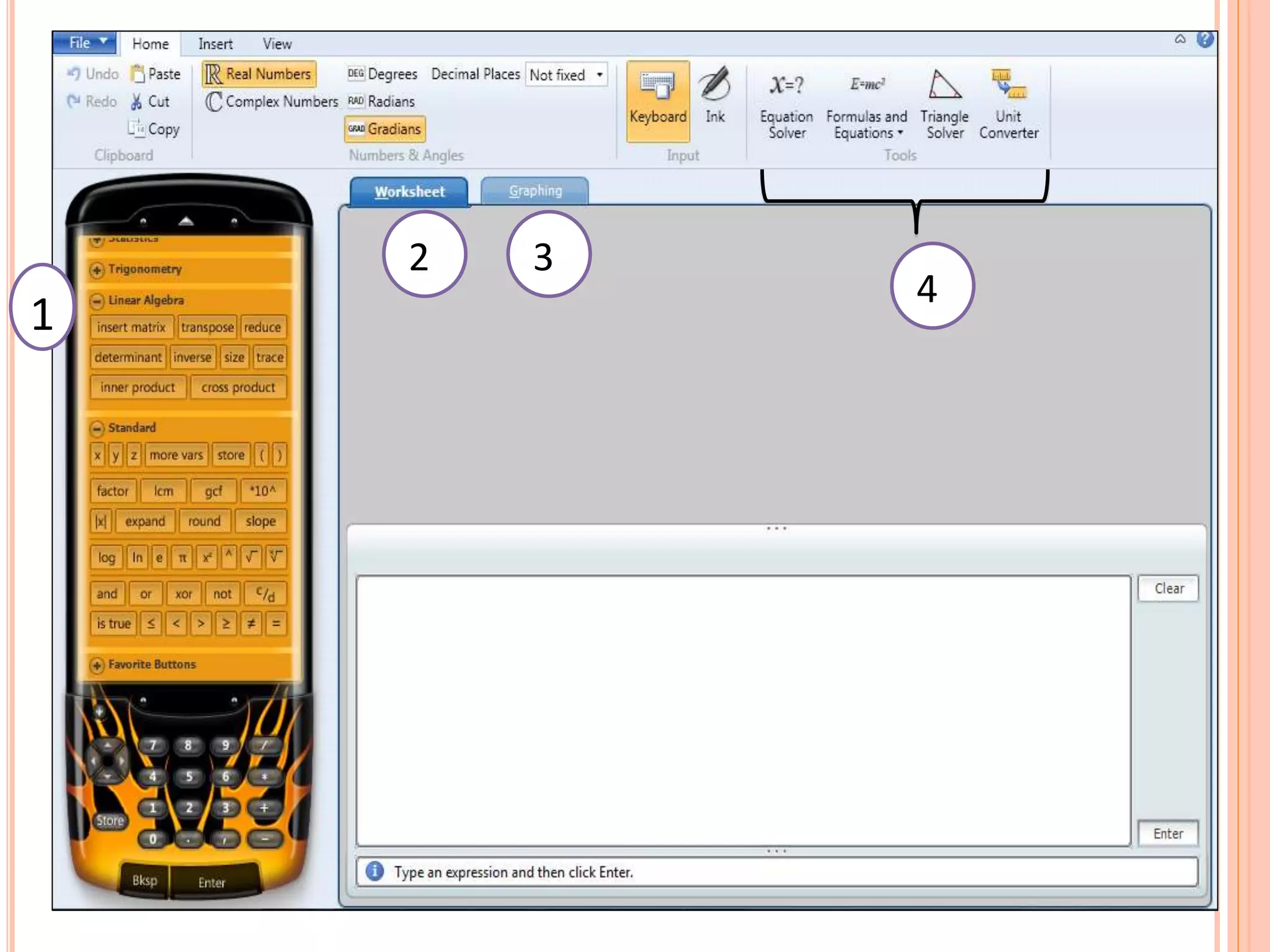
1
2 3
4
ELEMENTS DISPLAYED IN MICROSOFT
MATHEMATICS:
1. The Calculator Pad which includes a number pad and the
following button groups: Statistics, Trigonometry, Linear
Algebra, Calculus, Standard, and Favorite Buttons.
2. The Worksheet tab is displayed by default, and is where
you will do most of your numerical computing. This tab
includes both an input and output pane. The input pane
gives you the option of using the graphing calculator,
keyboard or ink input. When you click buttons on the
calculator pad, you construct a mathematical expression
in the keyboard input pane.
3. The Graphing tab can be used to create most
mathematical graphs. This tab includes an input pane to
enter the function equation, inequality, data sets, or
parametric equations that you want to plot.
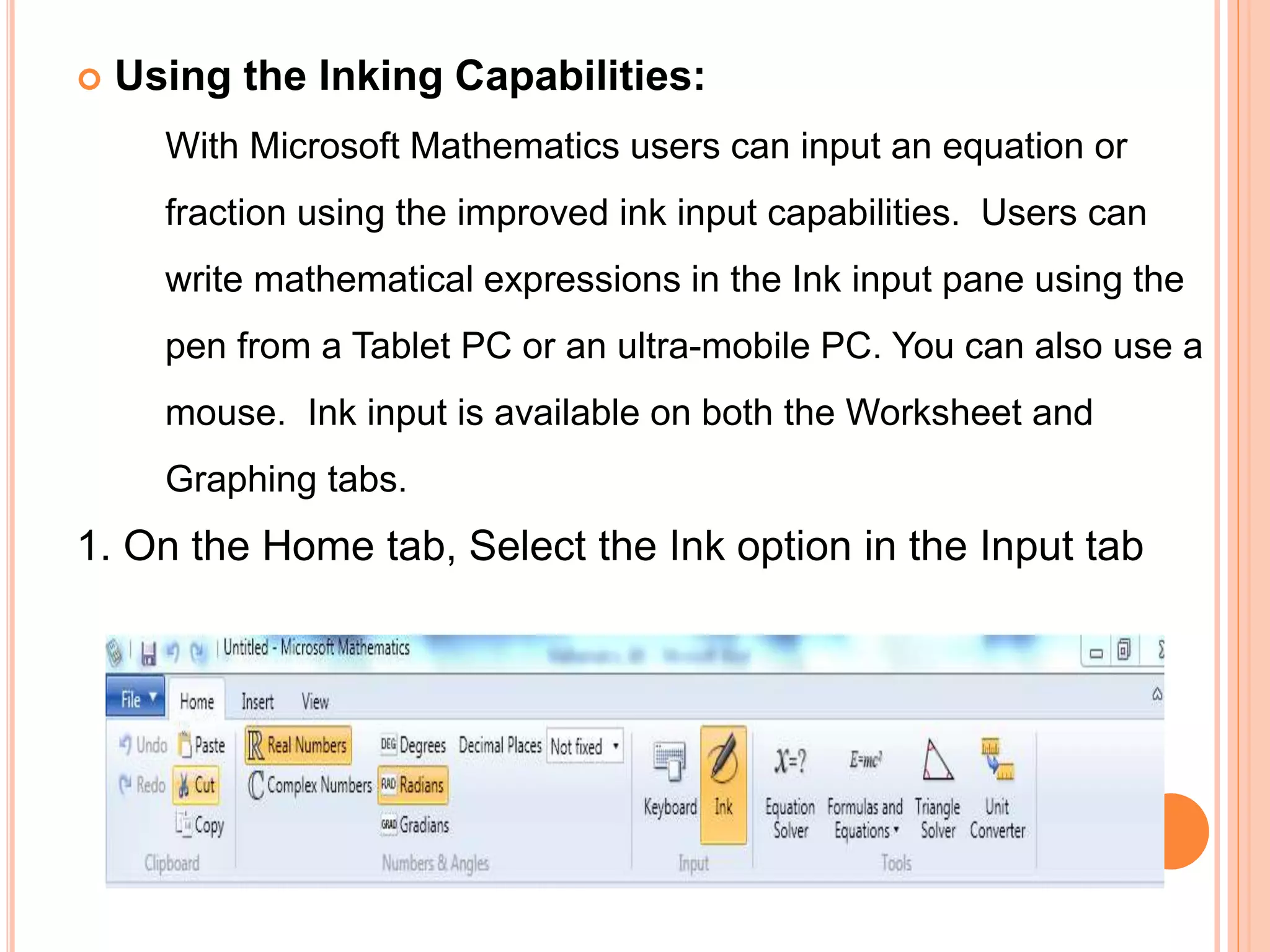
4. Math Tools : On the Home tab, in the Tools group, you'll
see buttons for additional math tools:
 Equation Solver to solve a single equation or a
system of equations.
 Formulas and Equations to find frequently
used equations from science and math, and
explore them graphically or by solving for a
particular variable.
 Triangle Solver to find the measures of the
remaining sides and angles of a triangle when
some sides and angles are known.
 Unit Conversion Tool to convert
measurements in one system of units to
another.
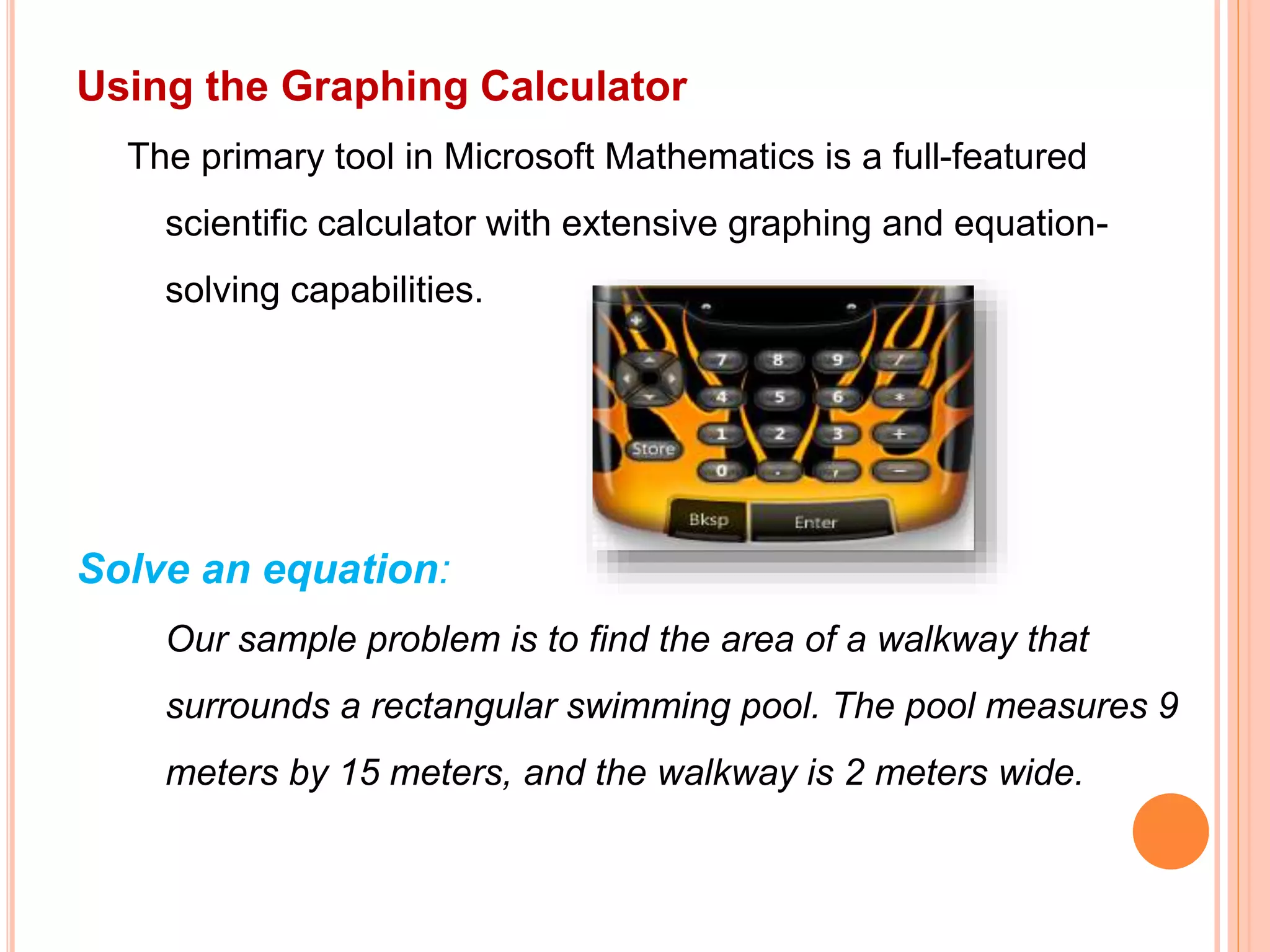
Using the Graphing Calculator
The primary tool in Microsoft Mathematics is a full-featured
scientific calculator with extensive graphing and equation-
solving capabilities.
Solve an equation:
Our sample problem is to find the area of a walkway that
surrounds a rectangular swimming pool. The pool measures 9
meters by 15 meters, and the walkway is 2 meters wide.
 Using the Inking Capabilities:
With Microsoft Mathematics users can input an equation or
fraction using the improved ink input capabilities. Users can
write mathematical expressions in the Ink input pane using the
pen from a Tablet PC or an ultra-mobile PC. You can also use a
mouse. Ink input is available on both the Worksheet and
Graphing tabs.
1. On the Home tab, Select the Ink option in the Input tab
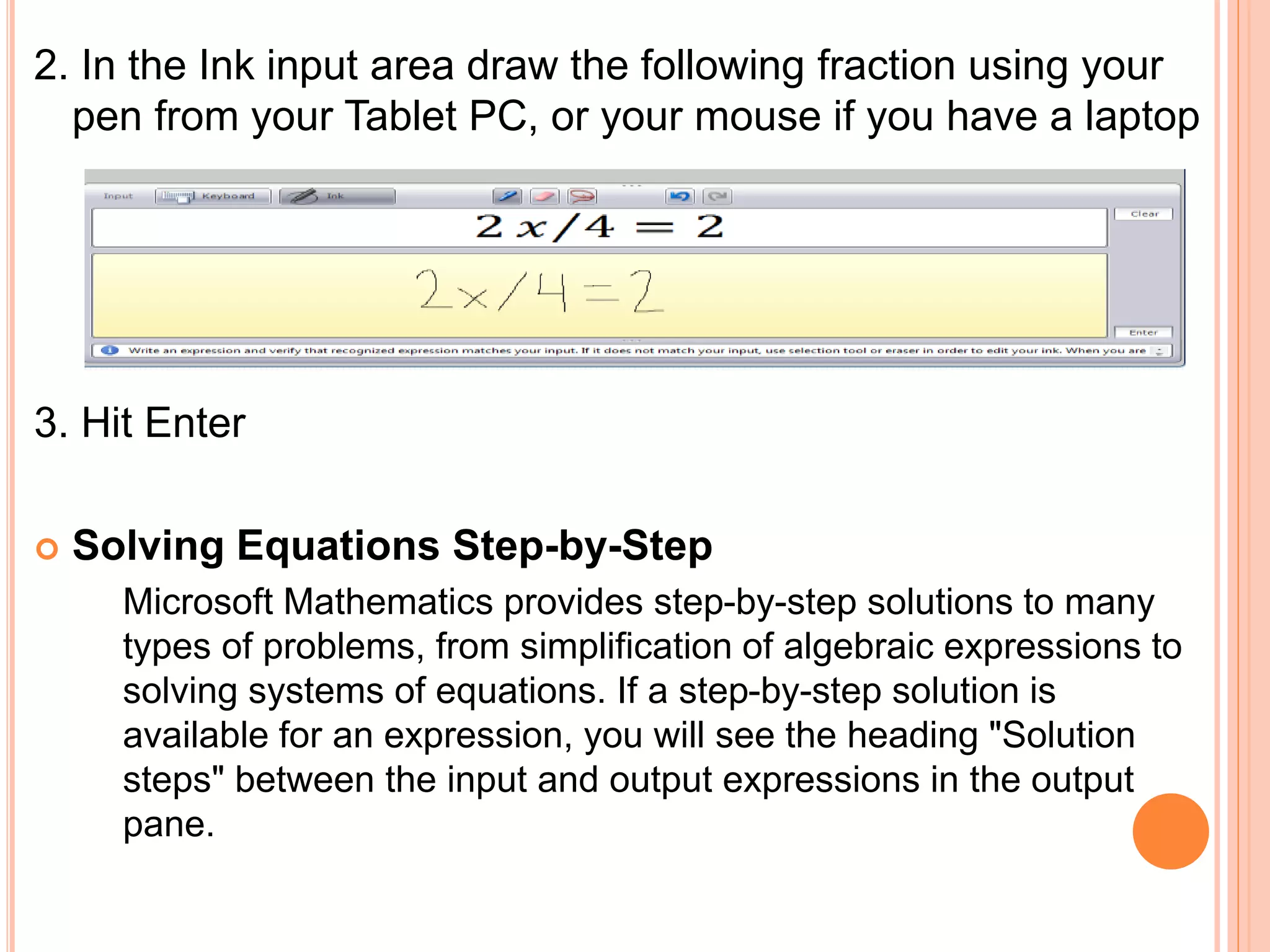
2. In the Ink input area draw the following fraction using your
pen from your Tablet PC, or your mouse if you have a laptop
3. Hit Enter
 Solving Equations Step-by-Step
Microsoft Mathematics provides step-by-step solutions to many
types of problems, from simplification of algebraic expressions to
solving systems of equations. If a step-by-step solution is
available for an expression, you will see the heading "Solution
steps" between the input and output expressions in the output
pane.
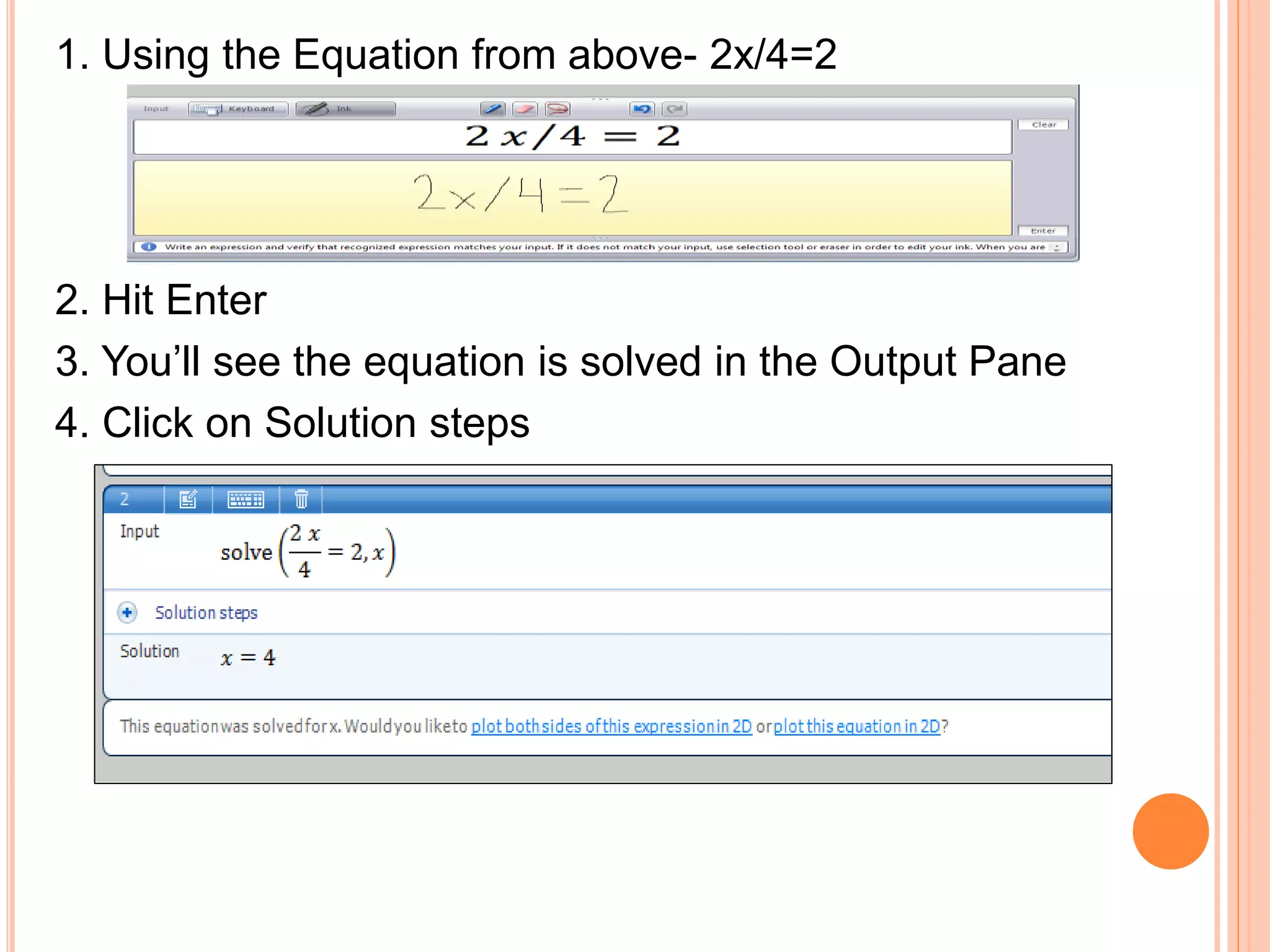
1. Using the Equation from above- 2x/4=2
2. Hit Enter
3. You’ll see the equation is solved in the Output Pane
4. Click on Solution steps
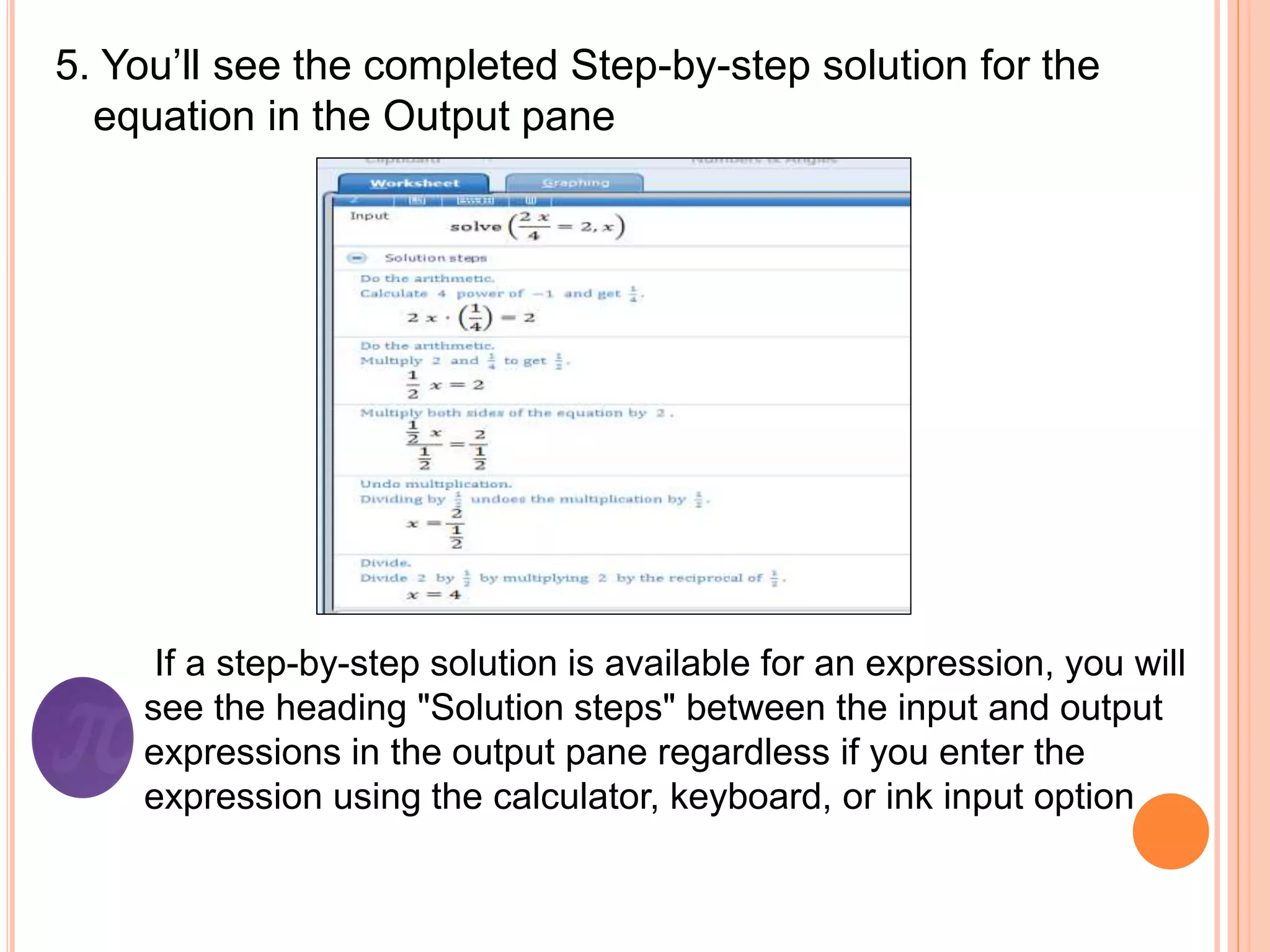
5. You’ll see the completed Step-by-step solution for the
equation in the Output pane
If a step-by-step solution is available for an expression, you will
see the heading "Solution steps" between the input and output
expressions in the output pane regardless if you enter the
expression using the calculator, keyboard, or ink input option
 How to Create a Graph
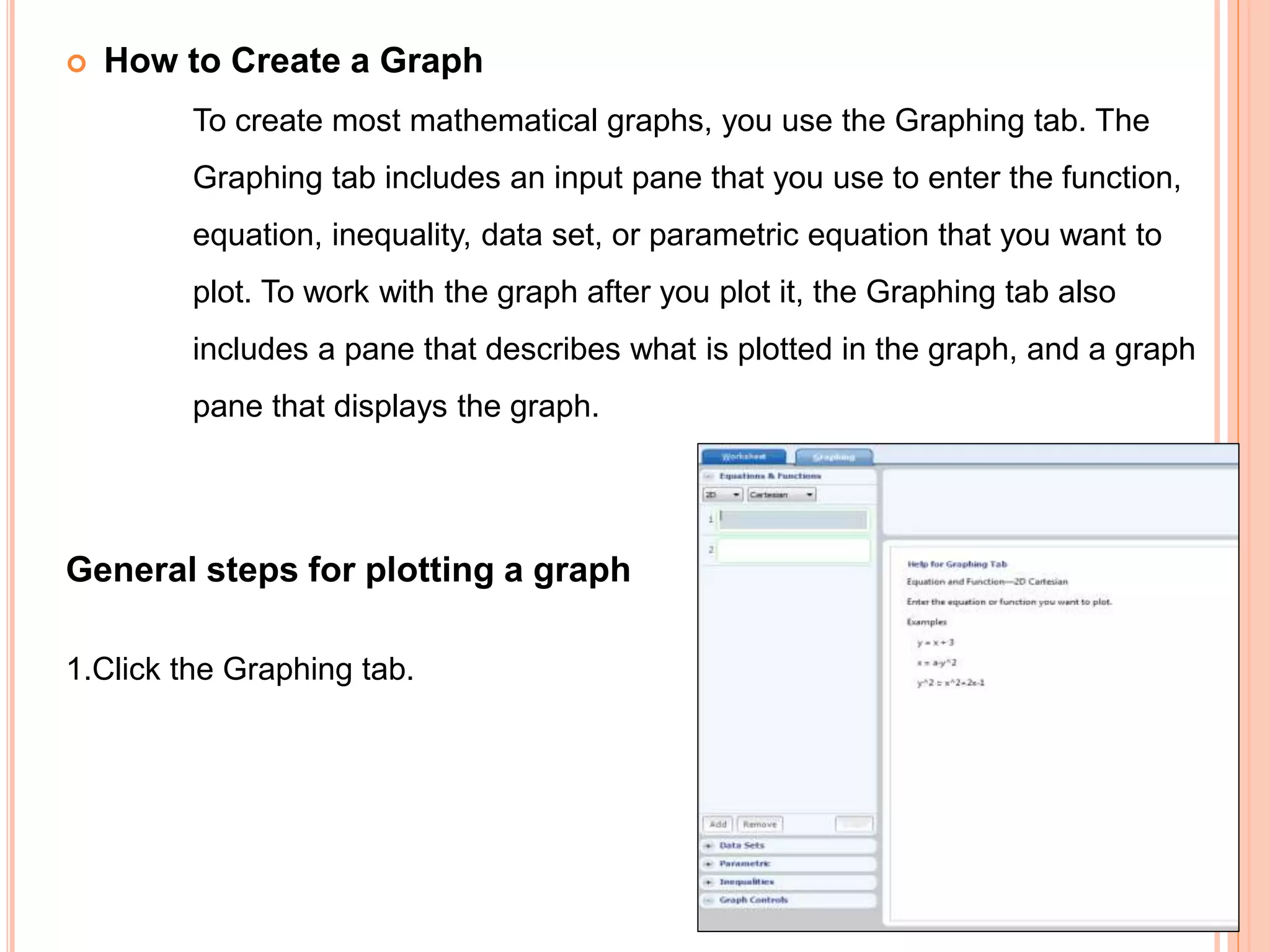
To create most mathematical graphs, you use the Graphing tab. The
Graphing tab includes an input pane that you use to enter the function,
equation, inequality, data set, or parametric equation that you want to
plot. To work with the graph after you plot it, the Graphing tab also
includes a pane that describes what is plotted in the graph, and a graph
pane that displays the graph.
General steps for plotting a graph
1.Click the Graphing tab.
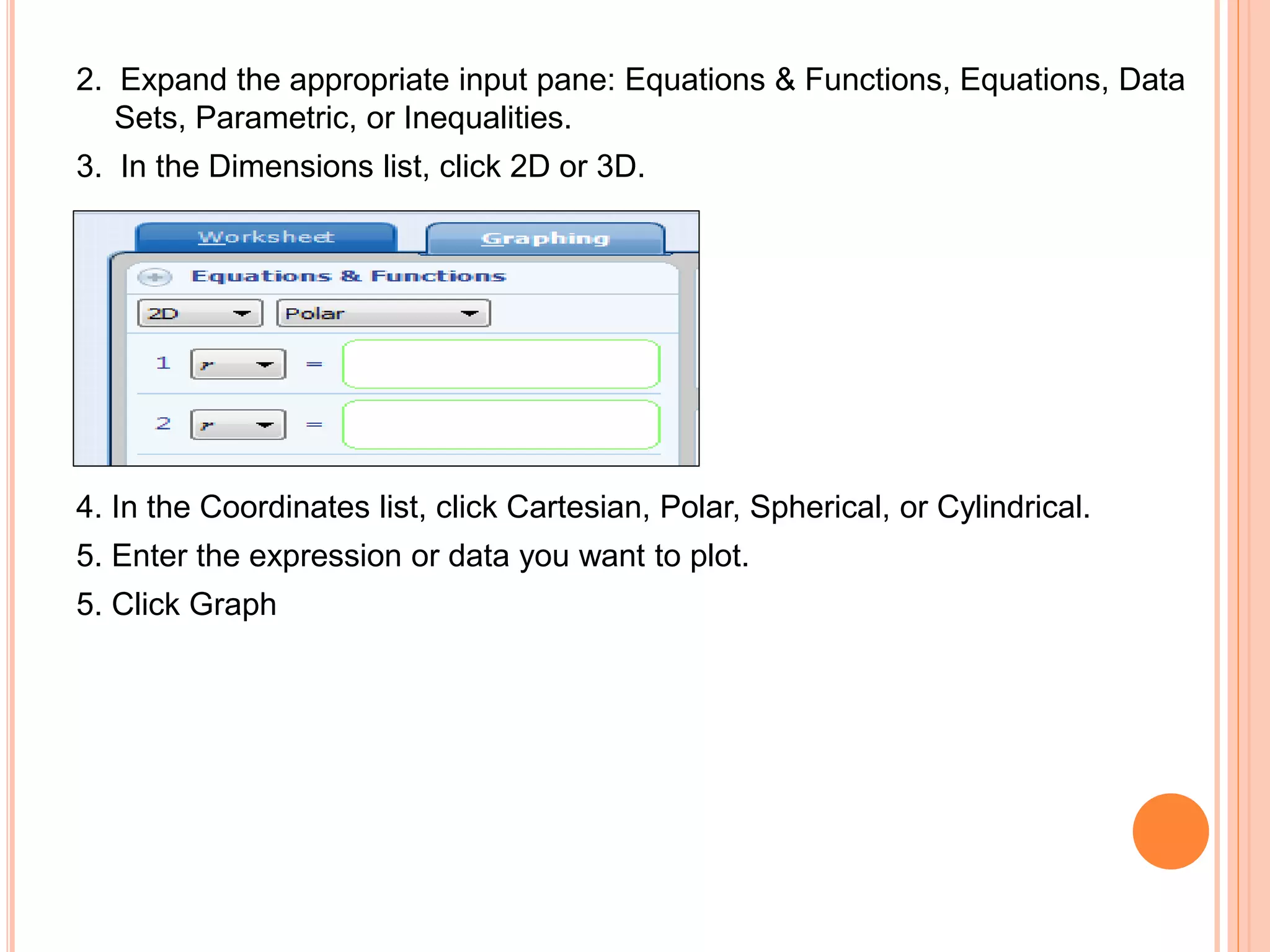
2. Expand the appropriate input pane: Equations & Functions, Equations, Data
Sets, Parametric, or Inequalities.
3. In the Dimensions list, click 2D or 3D.
4. In the Coordinates list, click Cartesian, Polar, Spherical, or Cylindrical.
5. Enter the expression or data you want to plot.
5. Click Graph
MATH TOOLS
MICROSOFT MATHEMATICS INCLUDES A NUMBER OF TOOLS TO
PERFORM SPECIFIC TYPES OF CALCULATIONS. ON THE HOME
TAB, IN THE TOOLS GROUP, THERE ARE BUTTONS FOR THE
FOLLOWING TOOLS:
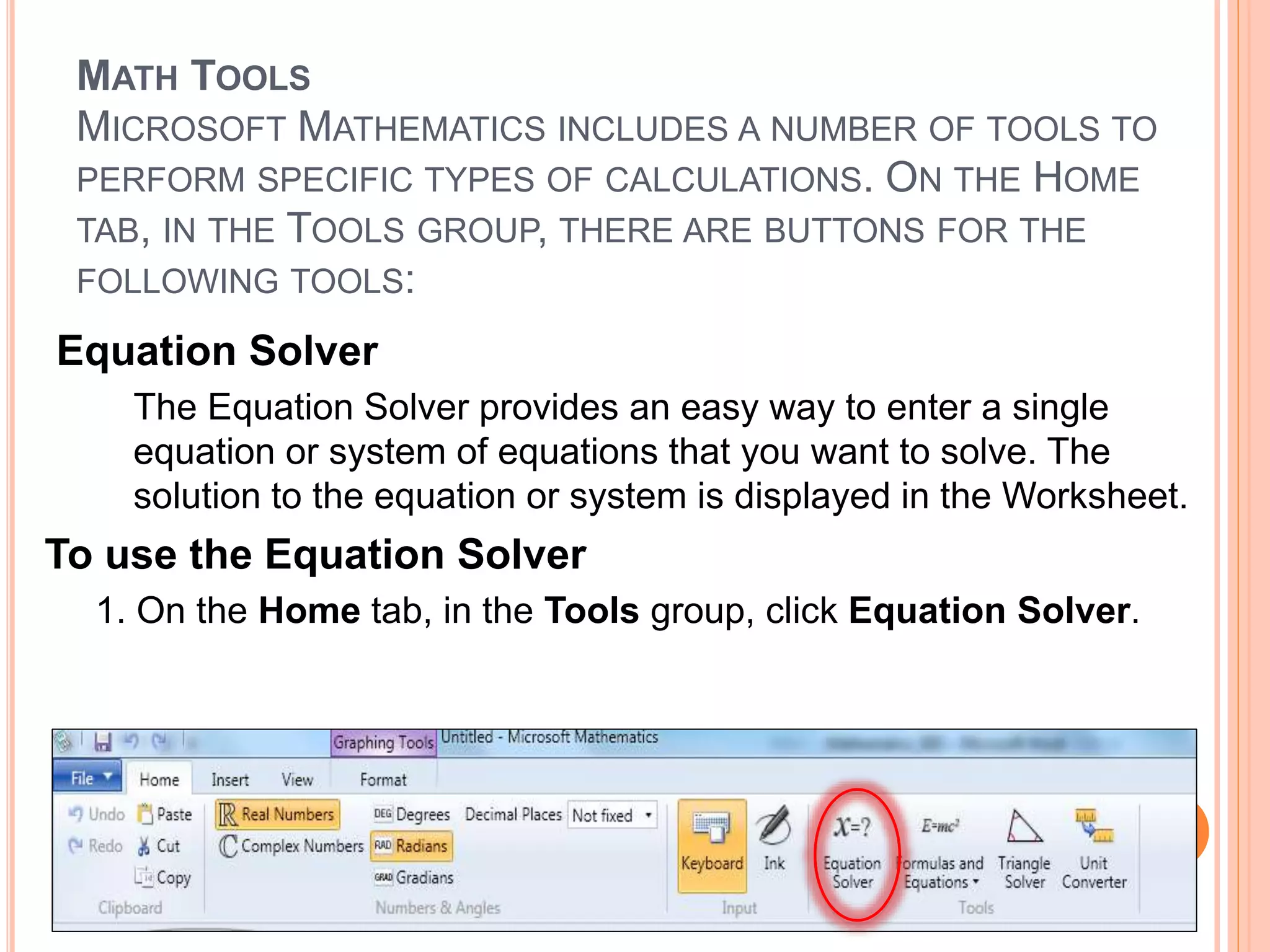
Equation Solver
The Equation Solver provides an easy way to enter a single
equation or system of equations that you want to solve. The
solution to the equation or system is displayed in the Worksheet.
To use the Equation Solver
1. On the Home tab, in the Tools group, click Equation Solver.
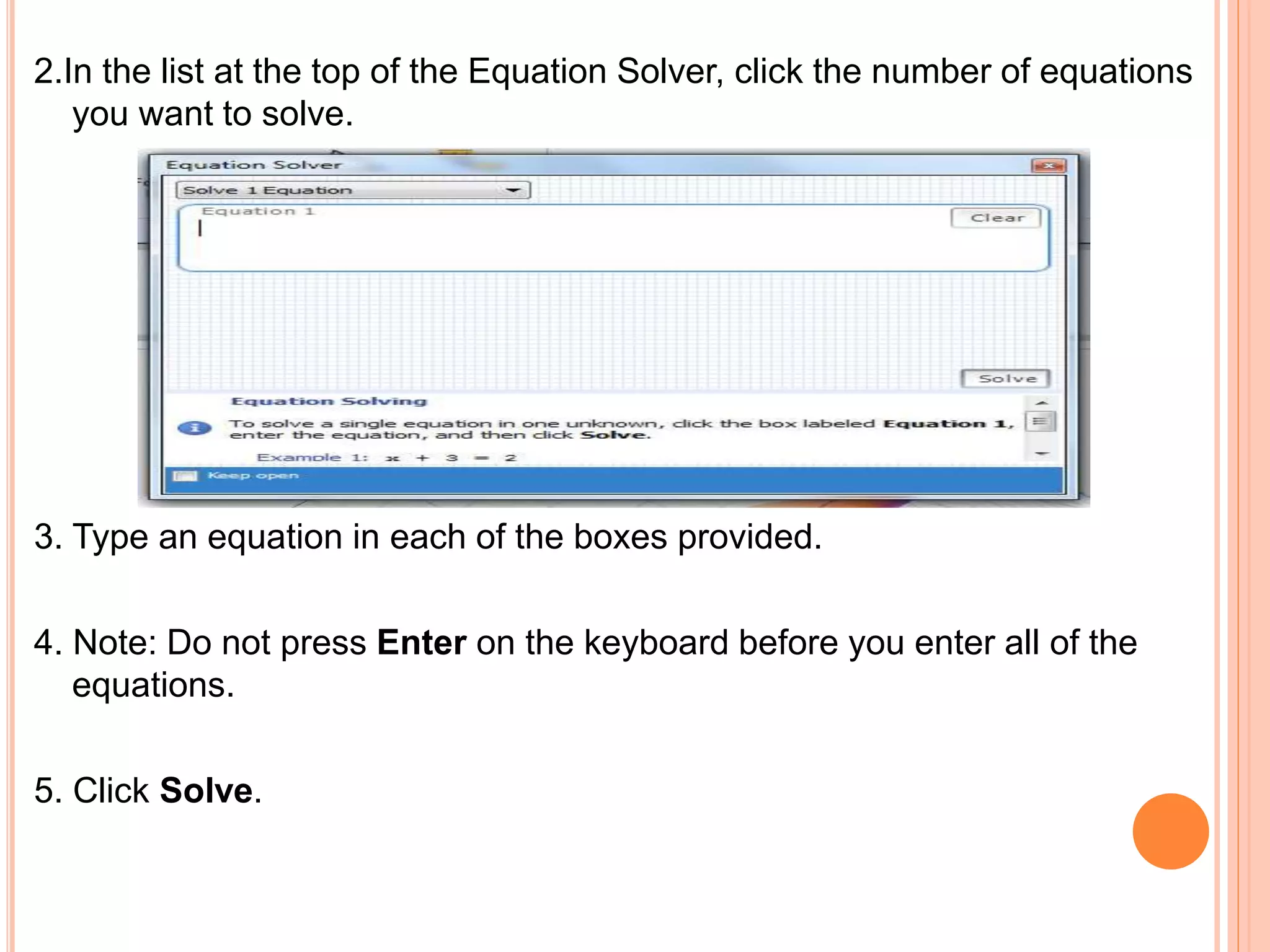
2.In the list at the top of the Equation Solver, click the number of equations
you want to solve.
3. Type an equation in each of the boxes provided.
4. Note: Do not press Enter on the keyboard before you enter all of the
equations.
5. Click Solve.
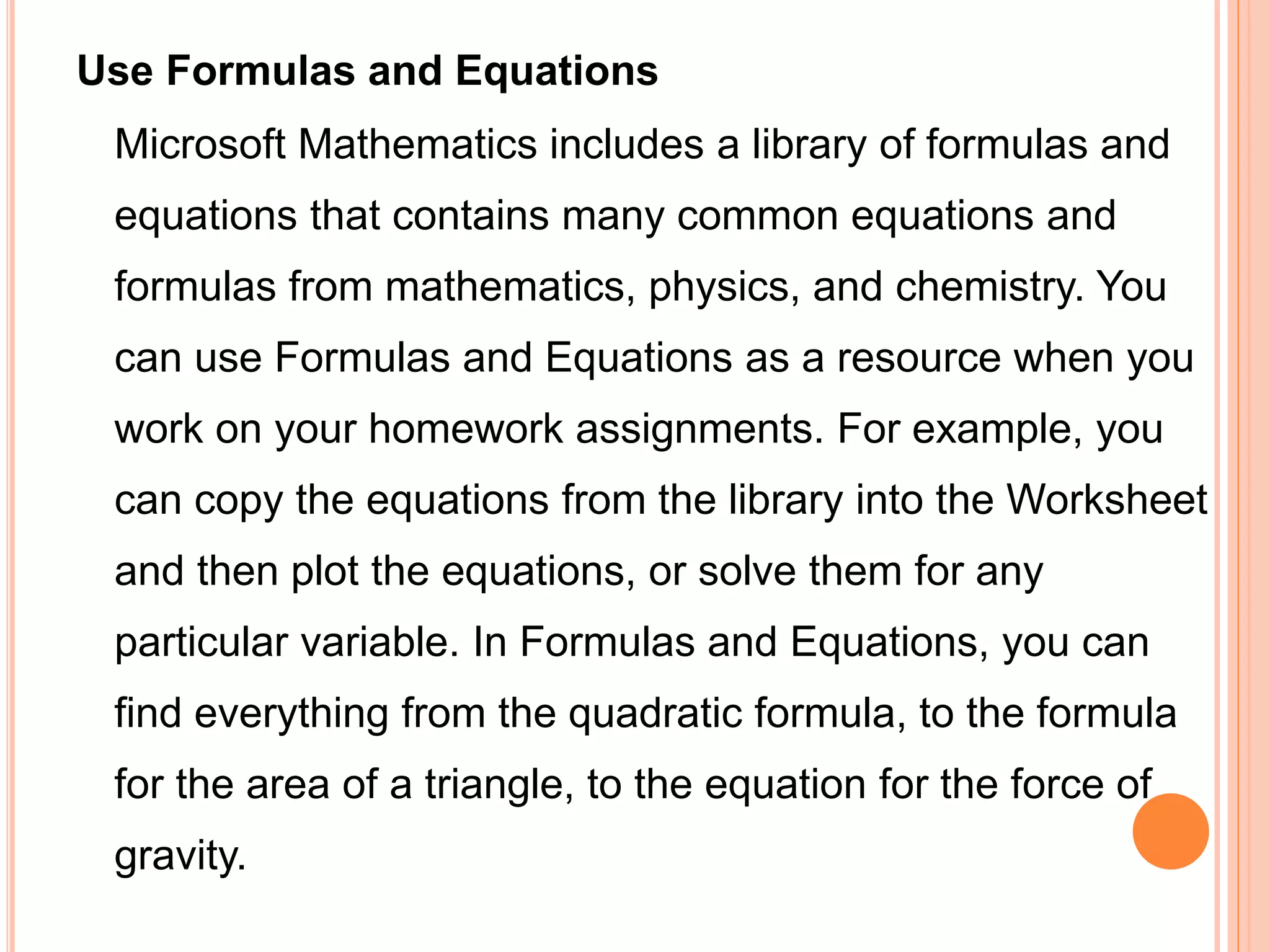
Use Formulas and Equations
Microsoft Mathematics includes a library of formulas and
equations that contains many common equations and
formulas from mathematics, physics, and chemistry. You
can use Formulas and Equations as a resource when you
work on your homework assignments. For example, you
can copy the equations from the library into the Worksheet
and then plot the equations, or solve them for any
particular variable. In Formulas and Equations, you can
find everything from the quadratic formula, to the formula
for the area of a triangle, to the equation for the force of
gravity.
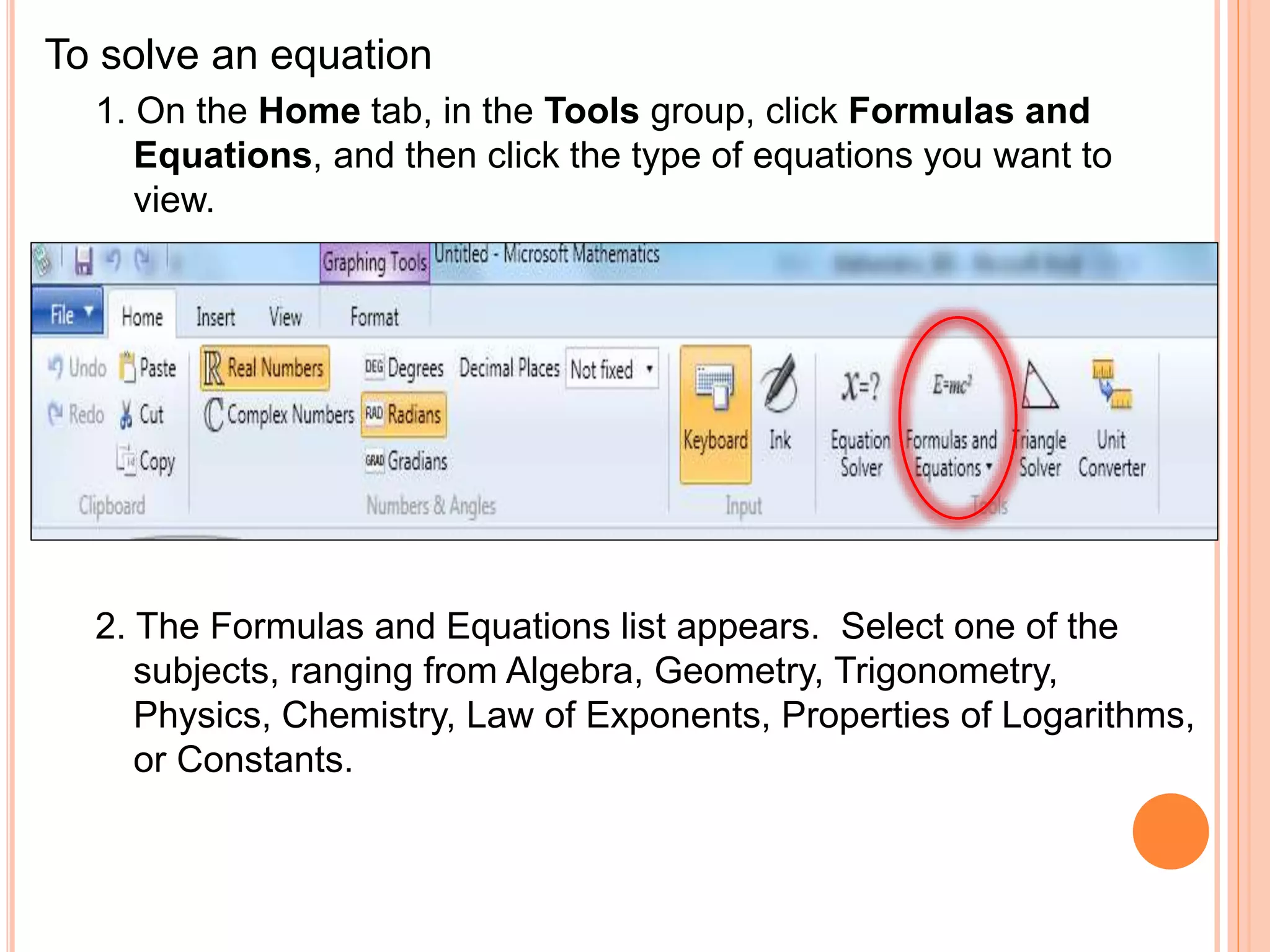
To solve an equation
1. On the Home tab, in the Tools group, click Formulas and
Equations, and then click the type of equations you want to
view.
2. The Formulas and Equations list appears. Select one of the
subjects, ranging from Algebra, Geometry, Trigonometry,
Physics, Chemistry, Law of Exponents, Properties of Logarithms,
or Constants.
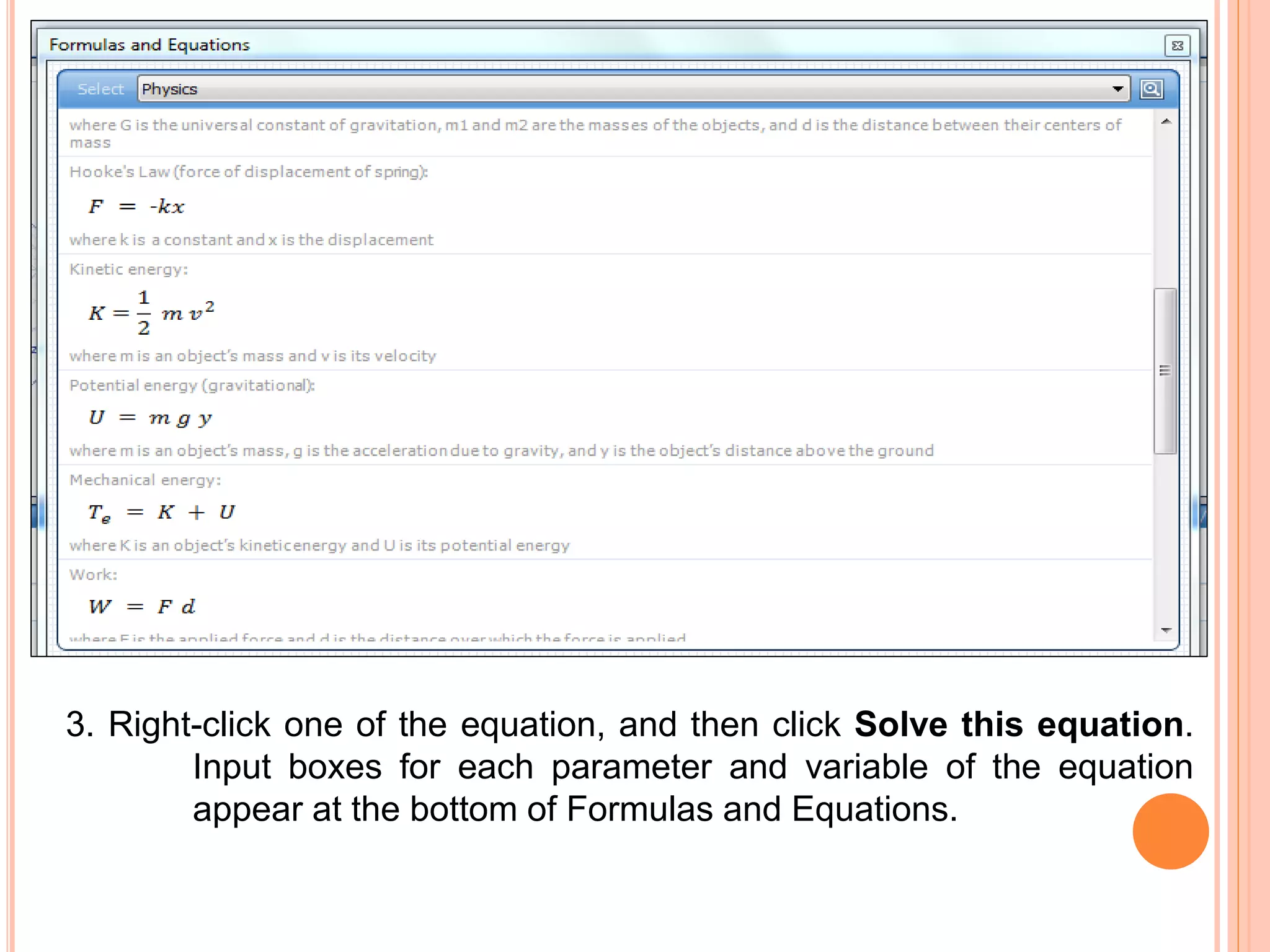
3. Right-click one of the equation, and then click Solve this equation.
Input boxes for each parameter and variable of the equation
appear at the bottom of Formulas and Equations.
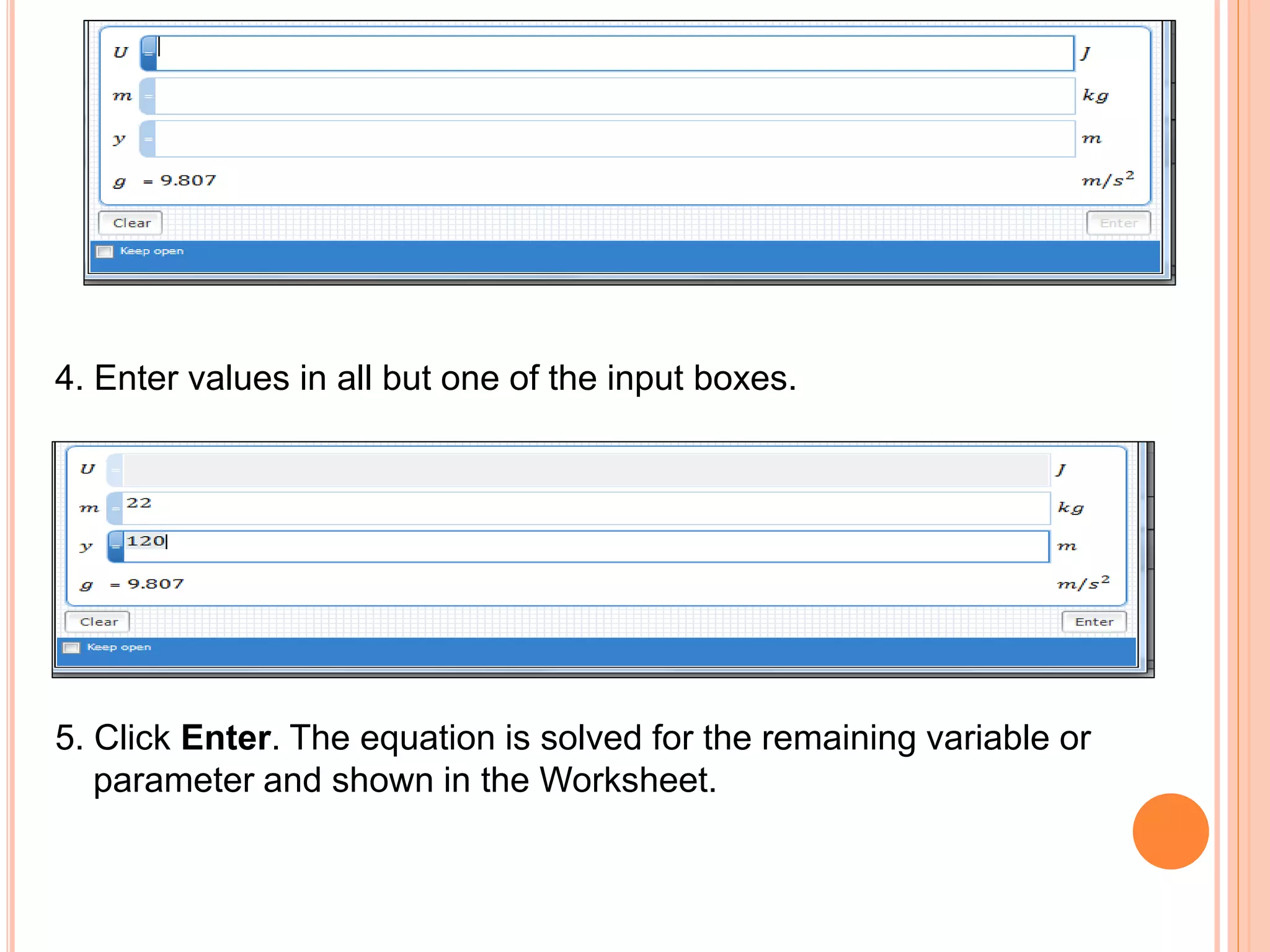
4. Enter values in all but one of the input boxes.
5. Click Enter. The equation is solved for the remaining variable or
parameter and shown in the Worksheet.
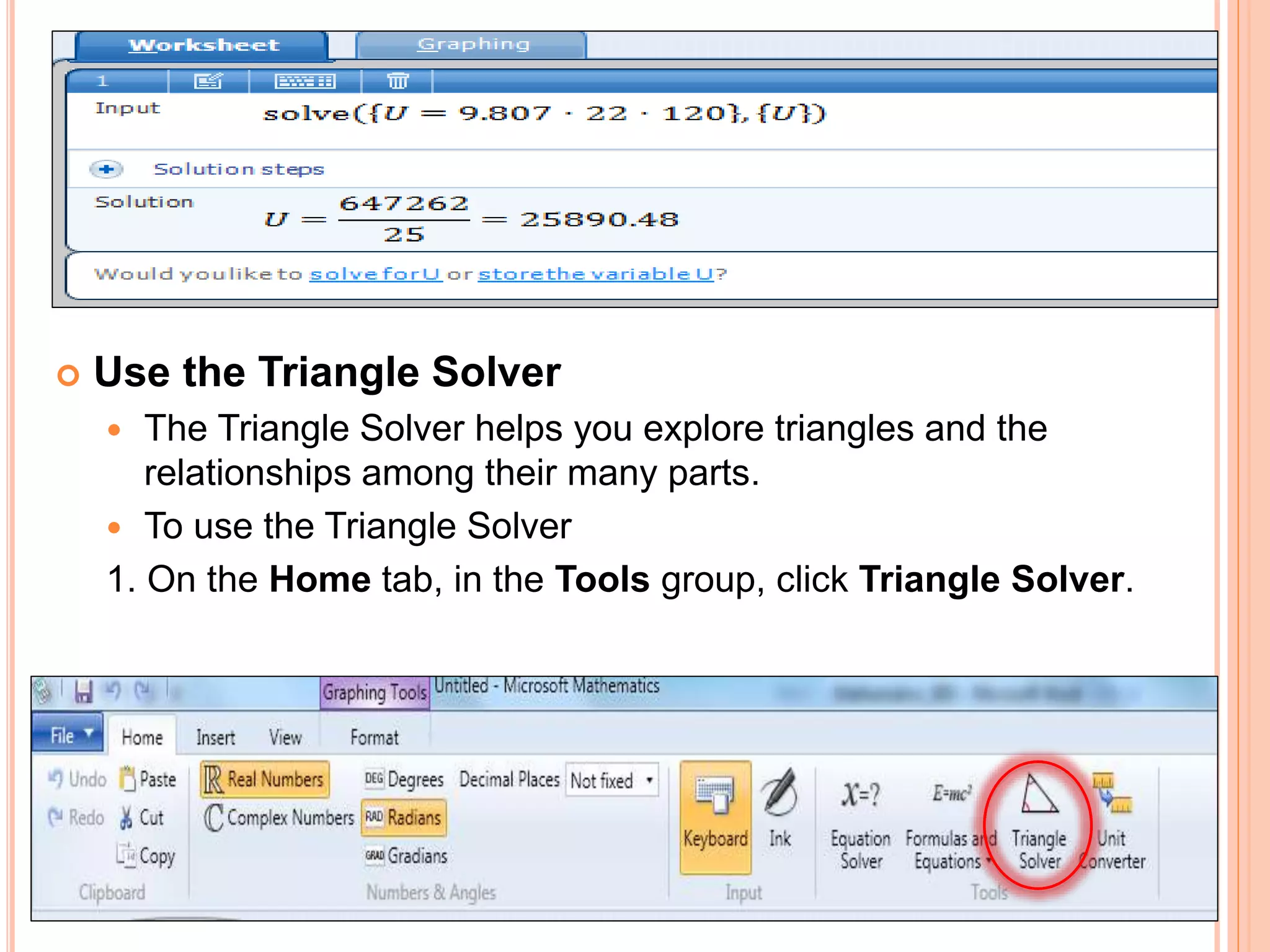
 Use the Triangle Solver
 The Triangle Solver helps you explore triangles and the
relationships among their many parts.
 To use the Triangle Solver
1. On the Home tab, in the Tools group, click Triangle Solver.
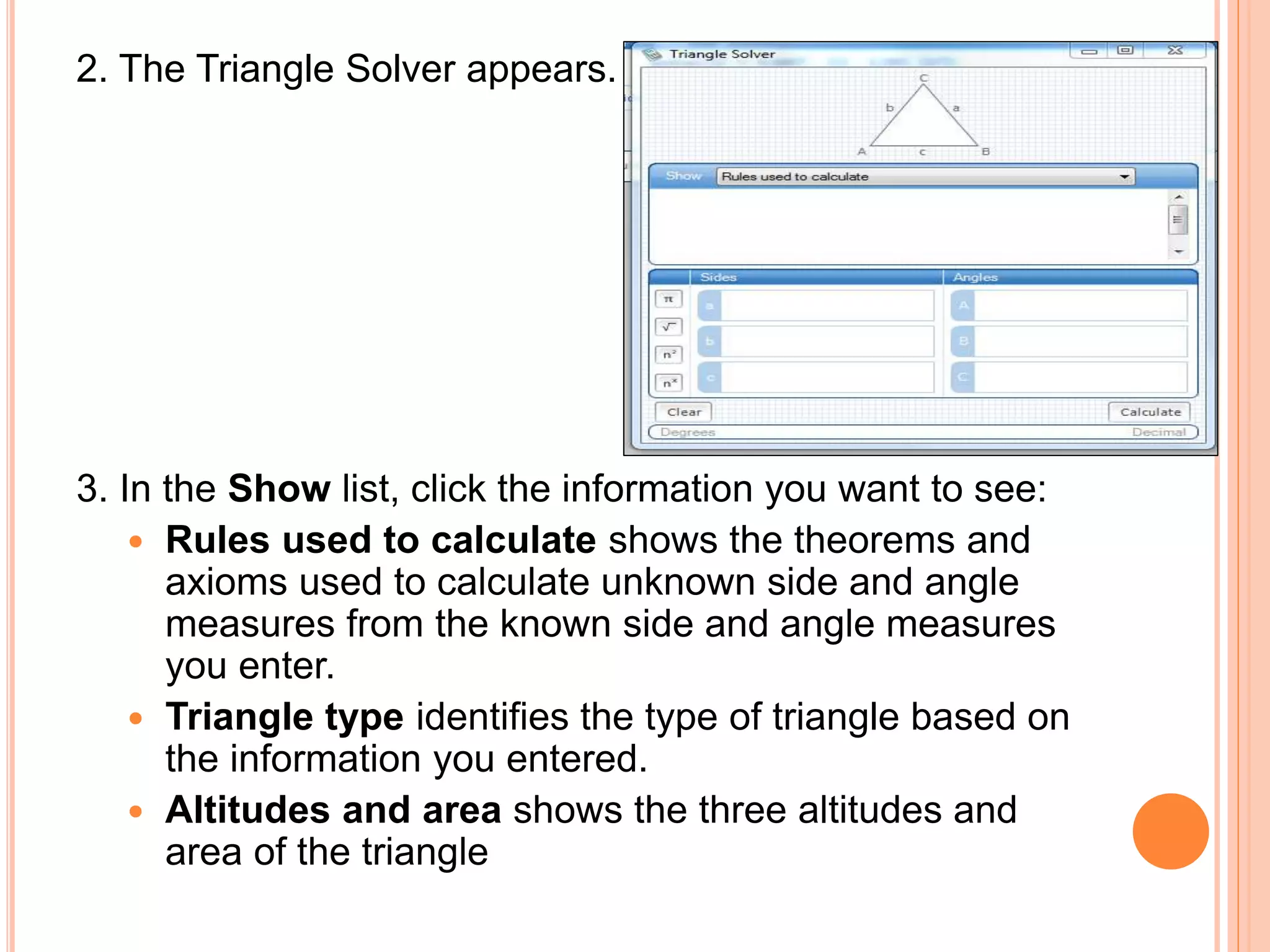
2. The Triangle Solver appears.
3. In the Show list, click the information you want to see:
 Rules used to calculate shows the theorems and
axioms used to calculate unknown side and angle
measures from the known side and angle measures
you enter.
 Triangle type identifies the type of triangle based on
the information you entered.
 Altitudes and area shows the three altitudes and
area of the triangle
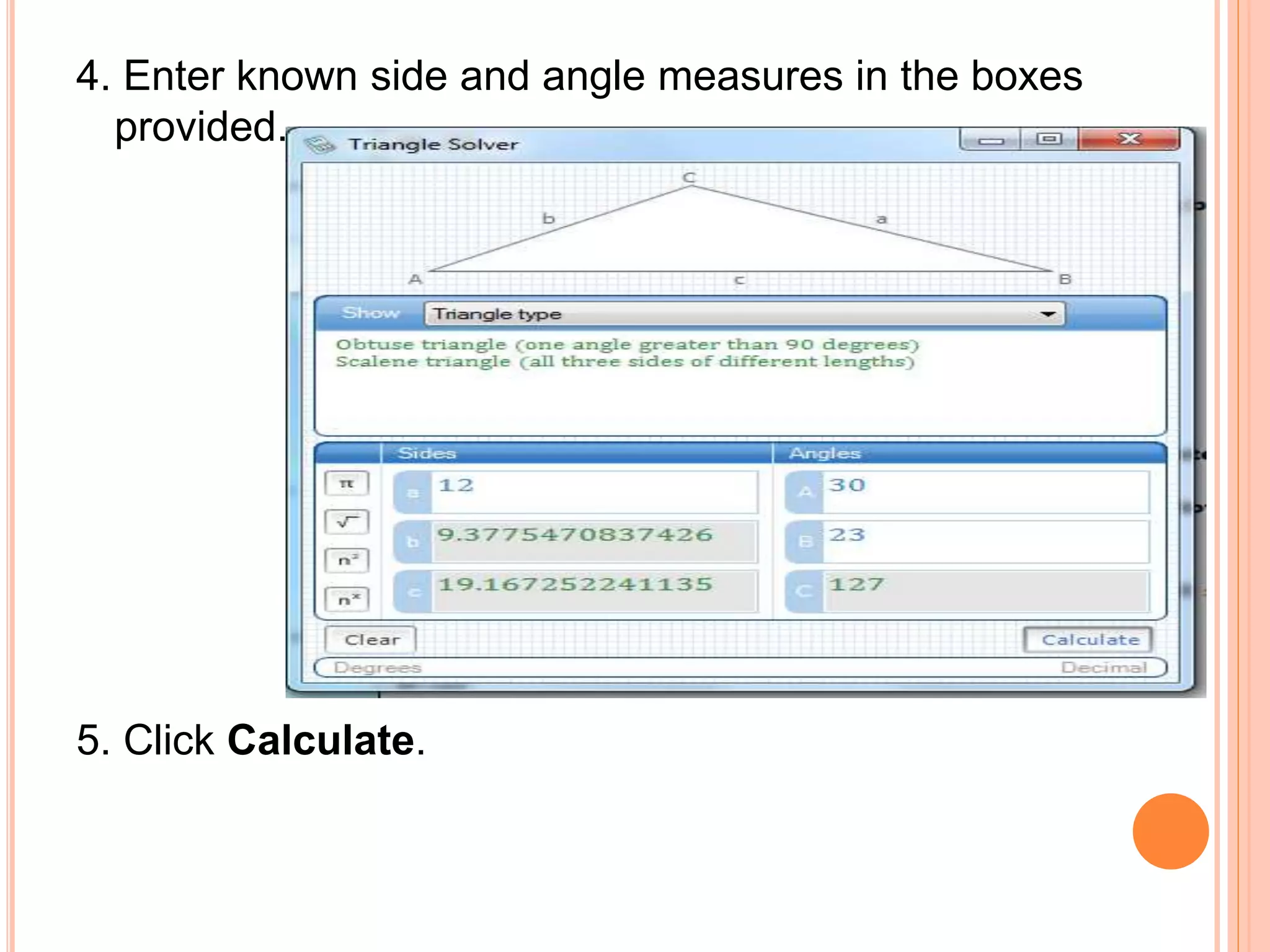
4. Enter known side and angle measures in the boxes
provided.
5. Click Calculate.
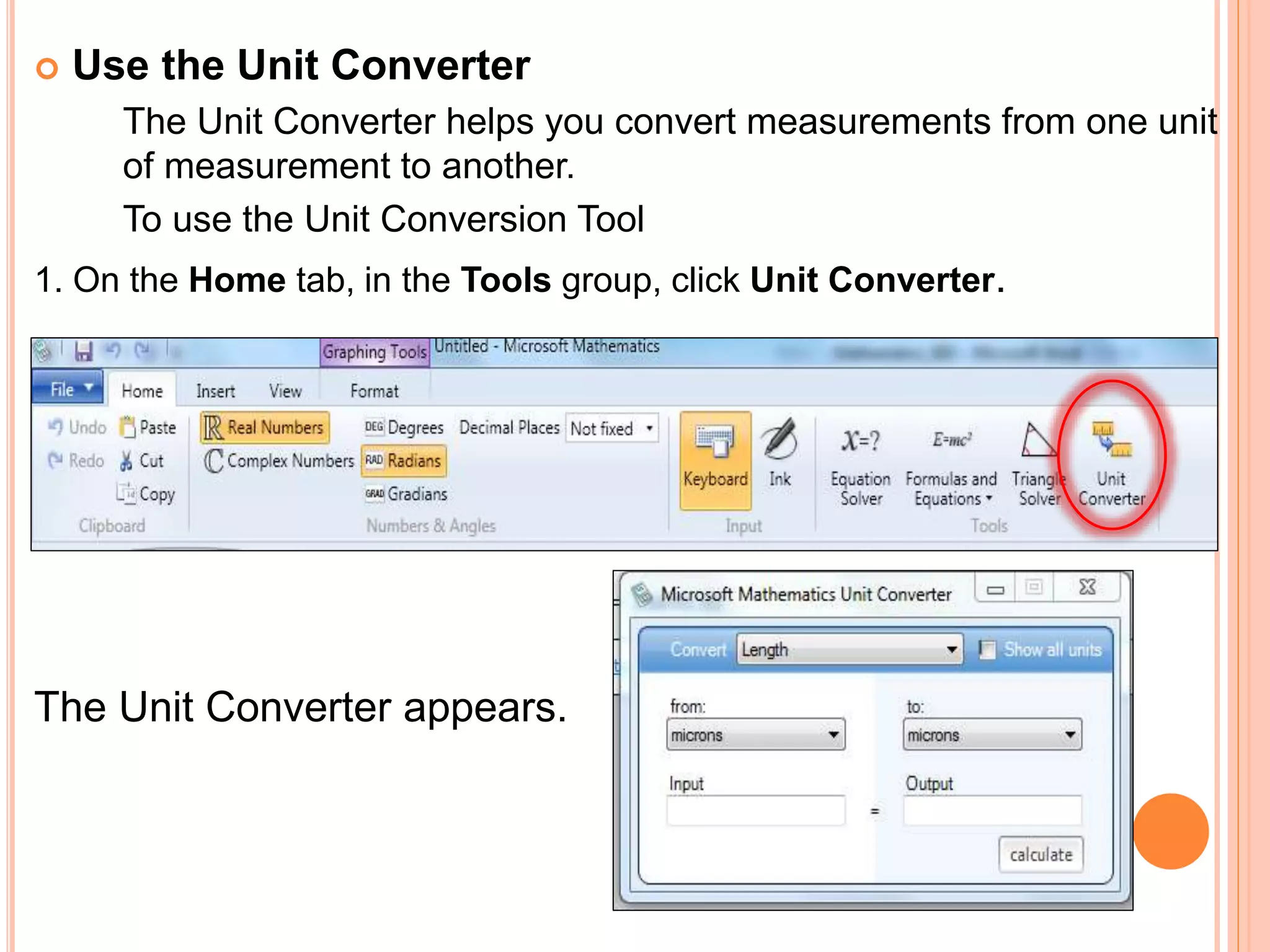
 Use the Unit Converter
The Unit Converter helps you convert measurements from one unit
of measurement to another.
To use the Unit Conversion Tool
1. On the Home tab, in the Tools group, click Unit Converter.
The Unit Converter appears.
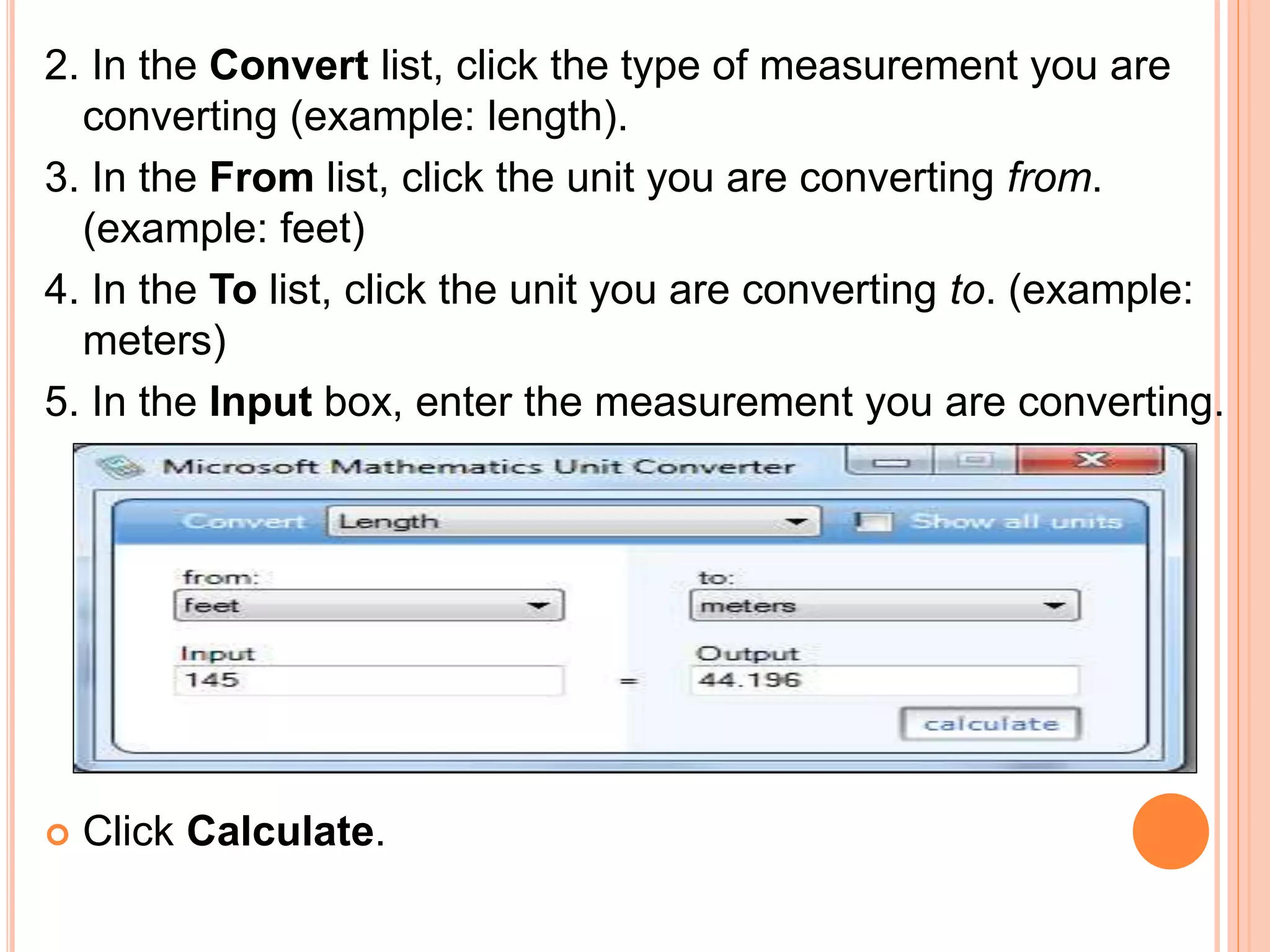
2. In the Convert list, click the type of measurement you are
converting (example: length).
3. In the From list, click the unit you are converting from.
(example: feet)
4. In the To list, click the unit you are converting to. (example:
meters)
5. In the Input box, enter the measurement you are converting.
 Click Calculate.
Microsoft mathematicsrevised

Microsoft mathematicsrevised

  • 1.
  • 2.
    OBJECTIVES: The participants willknow the element displayed in Microsoft Mathematics. The participants will know the Math tools. The participants will know how to create a graph The participant will know how to use the Inking Capabilities and Solving Equations Step-by-Step
  • 3.
    INTRODUCTION  Microsoft Mathematics (formerlyMicrosoft Math) is a freely downloadable educational program, designed for Microsoft Windows, that allows users to solve math and science problems. Developed and maintained by Microsoft, it is primarily targeted at students as a learning tool.
  • 4.
  • 5.
    ELEMENTS DISPLAYED INMICROSOFT MATHEMATICS: 1. The Calculator Pad which includes a number pad and the following button groups: Statistics, Trigonometry, Linear Algebra, Calculus, Standard, and Favorite Buttons. 2. The Worksheet tab is displayed by default, and is where you will do most of your numerical computing. This tab includes both an input and output pane. The input pane gives you the option of using the graphing calculator, keyboard or ink input. When you click buttons on the calculator pad, you construct a mathematical expression in the keyboard input pane.
  • 6.
    3. The Graphingtab can be used to create most mathematical graphs. This tab includes an input pane to enter the function equation, inequality, data sets, or parametric equations that you want to plot. 4. Math Tools : On the Home tab, in the Tools group, you'll see buttons for additional math tools:  Equation Solver to solve a single equation or a system of equations.
  • 7.
     Formulas andEquations to find frequently used equations from science and math, and explore them graphically or by solving for a particular variable.  Triangle Solver to find the measures of the remaining sides and angles of a triangle when some sides and angles are known.  Unit Conversion Tool to convert measurements in one system of units to another.
  • 8.
    Using the GraphingCalculator The primary tool in Microsoft Mathematics is a full-featured scientific calculator with extensive graphing and equation- solving capabilities. Solve an equation: Our sample problem is to find the area of a walkway that surrounds a rectangular swimming pool. The pool measures 9 meters by 15 meters, and the walkway is 2 meters wide.
  • 9.
     Using theInking Capabilities: With Microsoft Mathematics users can input an equation or fraction using the improved ink input capabilities. Users can write mathematical expressions in the Ink input pane using the pen from a Tablet PC or an ultra-mobile PC. You can also use a mouse. Ink input is available on both the Worksheet and Graphing tabs. 1. On the Home tab, Select the Ink option in the Input tab
  • 10.
    2. In theInk input area draw the following fraction using your pen from your Tablet PC, or your mouse if you have a laptop 3. Hit Enter  Solving Equations Step-by-Step Microsoft Mathematics provides step-by-step solutions to many types of problems, from simplification of algebraic expressions to solving systems of equations. If a step-by-step solution is available for an expression, you will see the heading "Solution steps" between the input and output expressions in the output pane.
  • 11.
    1. Using theEquation from above- 2x/4=2 2. Hit Enter 3. You’ll see the equation is solved in the Output Pane 4. Click on Solution steps
  • 12.
    5. You’ll seethe completed Step-by-step solution for the equation in the Output pane If a step-by-step solution is available for an expression, you will see the heading "Solution steps" between the input and output expressions in the output pane regardless if you enter the expression using the calculator, keyboard, or ink input option
  • 13.
     How toCreate a Graph To create most mathematical graphs, you use the Graphing tab. The Graphing tab includes an input pane that you use to enter the function, equation, inequality, data set, or parametric equation that you want to plot. To work with the graph after you plot it, the Graphing tab also includes a pane that describes what is plotted in the graph, and a graph pane that displays the graph. General steps for plotting a graph 1.Click the Graphing tab.
  • 14.
    2. Expand theappropriate input pane: Equations & Functions, Equations, Data Sets, Parametric, or Inequalities. 3. In the Dimensions list, click 2D or 3D. 4. In the Coordinates list, click Cartesian, Polar, Spherical, or Cylindrical. 5. Enter the expression or data you want to plot. 5. Click Graph
  • 15.
    MATH TOOLS MICROSOFT MATHEMATICSINCLUDES A NUMBER OF TOOLS TO PERFORM SPECIFIC TYPES OF CALCULATIONS. ON THE HOME TAB, IN THE TOOLS GROUP, THERE ARE BUTTONS FOR THE FOLLOWING TOOLS: Equation Solver The Equation Solver provides an easy way to enter a single equation or system of equations that you want to solve. The solution to the equation or system is displayed in the Worksheet. To use the Equation Solver 1. On the Home tab, in the Tools group, click Equation Solver.
  • 16.
    2.In the listat the top of the Equation Solver, click the number of equations you want to solve. 3. Type an equation in each of the boxes provided. 4. Note: Do not press Enter on the keyboard before you enter all of the equations. 5. Click Solve.
  • 17.
    Use Formulas andEquations Microsoft Mathematics includes a library of formulas and equations that contains many common equations and formulas from mathematics, physics, and chemistry. You can use Formulas and Equations as a resource when you work on your homework assignments. For example, you can copy the equations from the library into the Worksheet and then plot the equations, or solve them for any particular variable. In Formulas and Equations, you can find everything from the quadratic formula, to the formula for the area of a triangle, to the equation for the force of gravity.
  • 18.
    To solve anequation 1. On the Home tab, in the Tools group, click Formulas and Equations, and then click the type of equations you want to view. 2. The Formulas and Equations list appears. Select one of the subjects, ranging from Algebra, Geometry, Trigonometry, Physics, Chemistry, Law of Exponents, Properties of Logarithms, or Constants.
  • 19.
    3. Right-click oneof the equation, and then click Solve this equation. Input boxes for each parameter and variable of the equation appear at the bottom of Formulas and Equations.
  • 20.
    4. Enter valuesin all but one of the input boxes. 5. Click Enter. The equation is solved for the remaining variable or parameter and shown in the Worksheet.
  • 21.
     Use theTriangle Solver  The Triangle Solver helps you explore triangles and the relationships among their many parts.  To use the Triangle Solver 1. On the Home tab, in the Tools group, click Triangle Solver.
  • 22.
    2. The TriangleSolver appears. 3. In the Show list, click the information you want to see:  Rules used to calculate shows the theorems and axioms used to calculate unknown side and angle measures from the known side and angle measures you enter.  Triangle type identifies the type of triangle based on the information you entered.  Altitudes and area shows the three altitudes and area of the triangle
  • 23.
    4. Enter knownside and angle measures in the boxes provided. 5. Click Calculate.
  • 24.
     Use theUnit Converter The Unit Converter helps you convert measurements from one unit of measurement to another. To use the Unit Conversion Tool 1. On the Home tab, in the Tools group, click Unit Converter. The Unit Converter appears.
  • 25.
    2. In theConvert list, click the type of measurement you are converting (example: length). 3. In the From list, click the unit you are converting from. (example: feet) 4. In the To list, click the unit you are converting to. (example: meters) 5. In the Input box, enter the measurement you are converting.  Click Calculate.