Mastering Excel Formatting Techniques
Presenter
Dennis Taylor
Follow us :
Its various formatting tools, techniques and shortcuts, Excel lets you invigorate a worksheet by
helping you emphasize on specific cells, and help you present information attractively and in an
informative manner.
2
Formatting Tips & Shortcuts
 Modify columns and rows to fit various formatting needs
Multiple column/row selection techniques, quick column-width and row height adjustments, double-
spaced printing shortcut…
 Insert/delete columns, rows, and cells with speed and assurance
Use right-click and Ctrl+click for the fastest reformatting available
Use Shift+click to move and insert cells and entire rows and columns
 Adjust display inconsistencies
Displaying negatives, floating dollar signs, trailing half-spaces…
 Apply and Remove cell colors, font colors, and borders
Activate the Font group in the Ribbon’s Home tab – Ctrl+Shift+F
 Instantly activate the Format Cells dialog box
3
Formatting Tips & Shortcuts (continued)
 Use angled or vertical text displays for variety and greater readability
Master Excel’s many alignment tools
 Newer shortcuts in Excel: Save time with these keystrokes
Print preview – Ctrl+F2
Expand/collapse ribbon – Ctrl+F1
Instant on-sheet charts – Alt+F1
Expand formula bar – Ctrl+Shift+U
Paste Special dialog box – Ctrl+Alt+V
 Format painter tools: Ensure your spreadsheets are consistent
Use right-click and Format Painter shortcuts
 Hiding/unhiding rows, columns, and worksheets
Hide rows, columns, sheets, use the Ctrl key, copy just visible data…
4
Fast, Efficient Formatting Techniques
 Apply borders creatively: make important data jump off the page
Use the Border buttons as well as the extensive Border commands
 Apply or remove perimeter borders with keystroke shortcuts
 Apply or remove strikethrough formatting in an instant
 Create custom formats for dates, times, phone numbers, and more
Simple techniques for using your own special formats
 Use keystroke shortcuts to instantly apply number, time, date,
currency, percent, and scientific formats
 Ctrl+Shift+!, Ctrl+Shift+@, Ctrl+Shift+#, Ctrl+Shift+$, Ctrl+Shift+%, Ctrl+Shift+^…
 Quickly convert a row/column layout onto a column/row layout
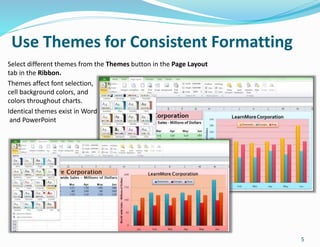
Use Themes for Consistent Formatting
5
Select different themes from the Themes button in the Page Layout
tab in the Ribbon.
Themes affect font selection,
cell background colors, and
colors throughout charts.
Identical themes exist in Word
and PowerPoint
To see the complete presentation check the below link:
https://www.audiosolutionz.com/microsoft-excel/mastering-excel-formatting-
techniques.html

Mastering Excel Formatting Techniques

  • 1.
    Mastering Excel FormattingTechniques Presenter Dennis Taylor Follow us : Its various formatting tools, techniques and shortcuts, Excel lets you invigorate a worksheet by helping you emphasize on specific cells, and help you present information attractively and in an informative manner.
  • 2.
    2 Formatting Tips &Shortcuts  Modify columns and rows to fit various formatting needs Multiple column/row selection techniques, quick column-width and row height adjustments, double- spaced printing shortcut…  Insert/delete columns, rows, and cells with speed and assurance Use right-click and Ctrl+click for the fastest reformatting available Use Shift+click to move and insert cells and entire rows and columns  Adjust display inconsistencies Displaying negatives, floating dollar signs, trailing half-spaces…  Apply and Remove cell colors, font colors, and borders Activate the Font group in the Ribbon’s Home tab – Ctrl+Shift+F  Instantly activate the Format Cells dialog box
  • 3.
    3 Formatting Tips &Shortcuts (continued)  Use angled or vertical text displays for variety and greater readability Master Excel’s many alignment tools  Newer shortcuts in Excel: Save time with these keystrokes Print preview – Ctrl+F2 Expand/collapse ribbon – Ctrl+F1 Instant on-sheet charts – Alt+F1 Expand formula bar – Ctrl+Shift+U Paste Special dialog box – Ctrl+Alt+V  Format painter tools: Ensure your spreadsheets are consistent Use right-click and Format Painter shortcuts  Hiding/unhiding rows, columns, and worksheets Hide rows, columns, sheets, use the Ctrl key, copy just visible data…
  • 4.
    4 Fast, Efficient FormattingTechniques  Apply borders creatively: make important data jump off the page Use the Border buttons as well as the extensive Border commands  Apply or remove perimeter borders with keystroke shortcuts  Apply or remove strikethrough formatting in an instant  Create custom formats for dates, times, phone numbers, and more Simple techniques for using your own special formats  Use keystroke shortcuts to instantly apply number, time, date, currency, percent, and scientific formats  Ctrl+Shift+!, Ctrl+Shift+@, Ctrl+Shift+#, Ctrl+Shift+$, Ctrl+Shift+%, Ctrl+Shift+^…  Quickly convert a row/column layout onto a column/row layout
  • 5.
    Use Themes forConsistent Formatting 5 Select different themes from the Themes button in the Page Layout tab in the Ribbon. Themes affect font selection, cell background colors, and colors throughout charts. Identical themes exist in Word and PowerPoint
  • 6.
    To see thecomplete presentation check the below link: https://www.audiosolutionz.com/microsoft-excel/mastering-excel-formatting- techniques.html