PropertyEDGE
Quick Reference Guide
• Works in latest and popular
browsers (Chrome, Firefox and
Safari)
• Single line address look-up
• General look-up capabilities
• Visually and easily locate WSRB
rated buildings
• View wildfire boundaries,
earthquake fault lines, tsunami
and FEMA flood zones
• Measuring tools for distance and
area as well as calculating slope
PropertyEDGE Features
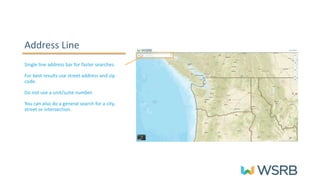
Address Line
Single line address bar for faster searches.
For best results use street address and zip
code.
Do not use a unit/suite number.
You can also do a general search for a city,
street or intersection.
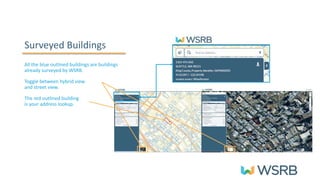
Surveyed Buildings
All the blue outlined buildings are buildings
already surveyed by WSRB.
Toggle between hybrid view
and street view.
The red outlined building
is your address lookup.
Protection
Information
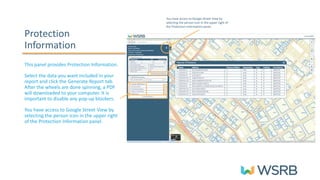
This panel provides Protection Information.
Select the data you want included in your
report and click the Generate Report tab.
After the wheels are done spinning, a PDF
will downloaded to your computer. It is
important to disable any pop-up blockers.
You have access to Google Street View by
selecting the person icon in the upper right
of the Protection Information panel.
You have access to Google Street View by
selecting the person icon in the upper right of
the Protection Information panel.
Surveyed Buildings
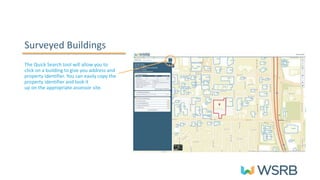
The Quick Search tool will allow you to
click on a building to give you address and
property identifier. You can easily copy the
property identifier and look it
up on the appropriate assessor site.
Options Panel
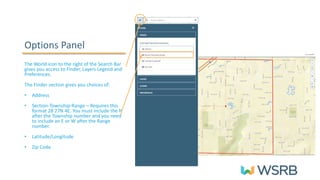
The World icon to the right of the Search Bar
gives you access to Finder, Layers Legend and
Preferences.
The Finder section gives you choices of:
• Address
• Section-Township-Range – Requires this
format 28 27N 4E. You must include the N
after the Township number and you need
to include an E or W after the Range
number.
• Latitude/Longitude
• Zip Code
Layers Panel
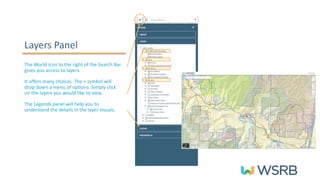
The World icon to the right of the Search Bar
gives you access to layers.
It offers many choices. The + symbol will
drop down a menu of options. Simply click
on the layers you would like to view.
The Legends panel will help you to
understand the details in the layer visuals.
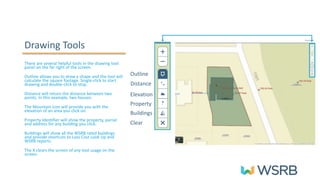
Drawing Tools
There are several helpful tools in the drawing tool
panel on the far right of the screen.
Outline allows you to draw a shape and the tool will
calculate the square footage. Single-click to start
drawing and double-click to stop.
Distance will return the distance between two
points. In this example, two houses.
The Mountain icon will provide you with the
elevation of an area you click on.
Property Identifier will show the property, parcel
and address for any building you click.
Buildings will show all the WSRB rated buildings
and provide shortcuts to Loss Cost Look Up and
WSRB reports.
The X clears the screen of any tool usage on the
screen.
Outline
Distance
Elevation
Property
Buildings
Clear
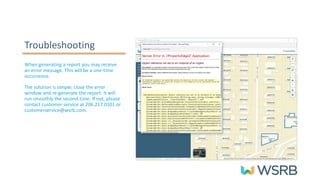
Troubleshooting
When generating a report you may receive
an error message. This will be a one-time
occurrence.
The solution is simple; close the error
window and re-generate the report. It will
run smoothly the second time. If not, please
contact customer service at 206.217.0101 or
customerservice@wsrb.com.
PropertyEDGE
Use PropertyEDGE like a Pro

WSRB PropertyEDGE Quick Reference Guide

  • 1.
  • 2.
    • Works inlatest and popular browsers (Chrome, Firefox and Safari) • Single line address look-up • General look-up capabilities • Visually and easily locate WSRB rated buildings • View wildfire boundaries, earthquake fault lines, tsunami and FEMA flood zones • Measuring tools for distance and area as well as calculating slope PropertyEDGE Features
  • 3.
    Address Line Single lineaddress bar for faster searches. For best results use street address and zip code. Do not use a unit/suite number. You can also do a general search for a city, street or intersection.
  • 4.
    Surveyed Buildings All theblue outlined buildings are buildings already surveyed by WSRB. Toggle between hybrid view and street view. The red outlined building is your address lookup.
  • 5.
    Protection Information This panel providesProtection Information. Select the data you want included in your report and click the Generate Report tab. After the wheels are done spinning, a PDF will downloaded to your computer. It is important to disable any pop-up blockers. You have access to Google Street View by selecting the person icon in the upper right of the Protection Information panel. You have access to Google Street View by selecting the person icon in the upper right of the Protection Information panel.
  • 6.
    Surveyed Buildings The QuickSearch tool will allow you to click on a building to give you address and property identifier. You can easily copy the property identifier and look it up on the appropriate assessor site.
  • 7.
    Options Panel The Worldicon to the right of the Search Bar gives you access to Finder, Layers Legend and Preferences. The Finder section gives you choices of: • Address • Section-Township-Range – Requires this format 28 27N 4E. You must include the N after the Township number and you need to include an E or W after the Range number. • Latitude/Longitude • Zip Code
  • 8.
    Layers Panel The Worldicon to the right of the Search Bar gives you access to layers. It offers many choices. The + symbol will drop down a menu of options. Simply click on the layers you would like to view. The Legends panel will help you to understand the details in the layer visuals.
  • 9.
    Drawing Tools There areseveral helpful tools in the drawing tool panel on the far right of the screen. Outline allows you to draw a shape and the tool will calculate the square footage. Single-click to start drawing and double-click to stop. Distance will return the distance between two points. In this example, two houses. The Mountain icon will provide you with the elevation of an area you click on. Property Identifier will show the property, parcel and address for any building you click. Buildings will show all the WSRB rated buildings and provide shortcuts to Loss Cost Look Up and WSRB reports. The X clears the screen of any tool usage on the screen. Outline Distance Elevation Property Buildings Clear
  • 10.
    Troubleshooting When generating areport you may receive an error message. This will be a one-time occurrence. The solution is simple; close the error window and re-generate the report. It will run smoothly the second time. If not, please contact customer service at 206.217.0101 or customerservice@wsrb.com.
  • 11.