MANTAINING OPERATING SYSTEM
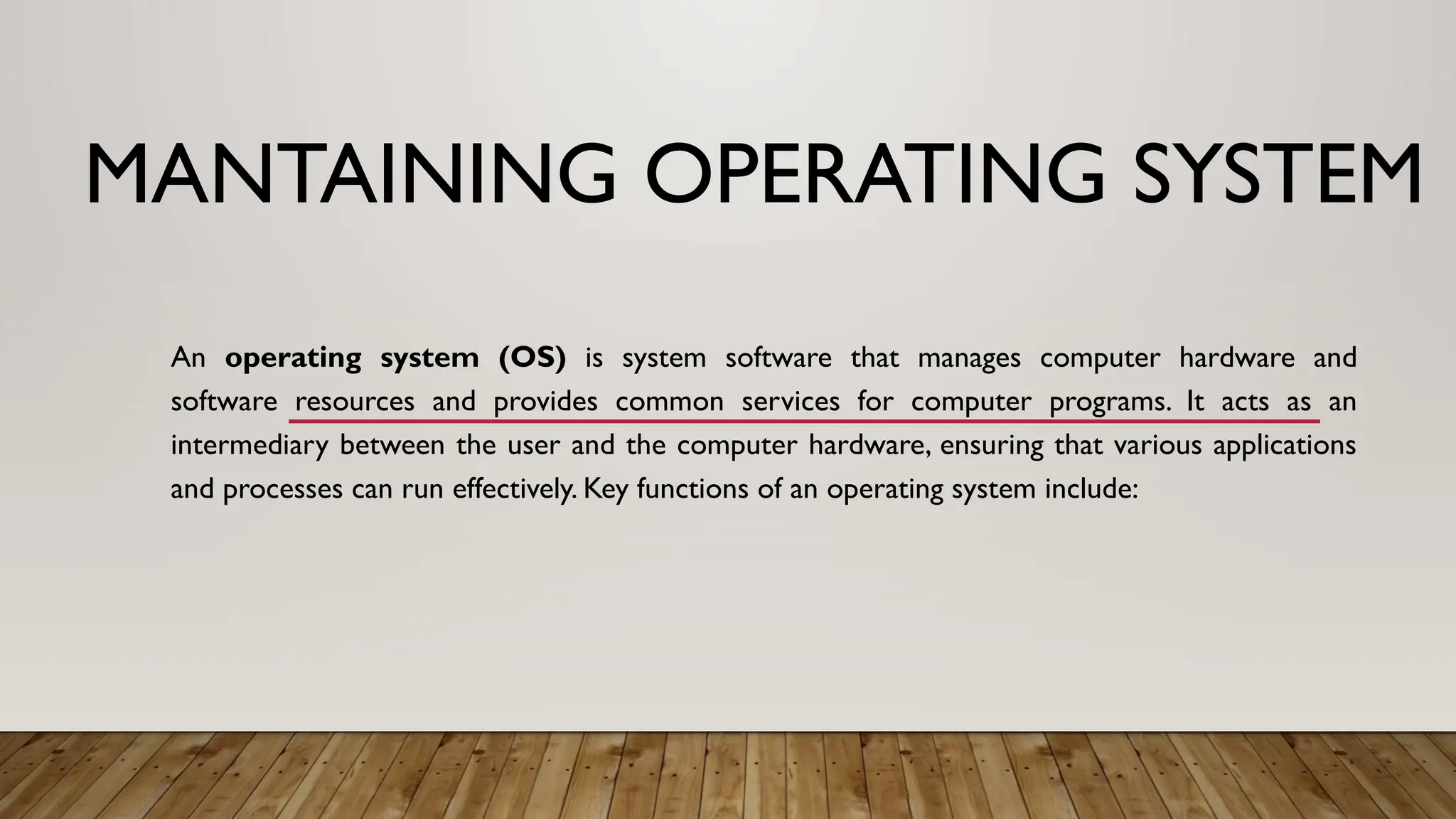
An operating system (OS) is system software that manages computer hardware and
software resources and provides common services for computer programs. It acts as an
intermediary between the user and the computer hardware, ensuring that various applications
and processes can run effectively. Key functions of an operating system include:
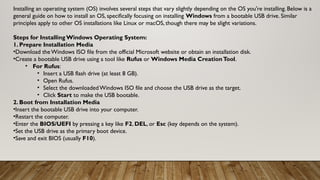
Installing an operating system (OS) involves several steps that vary slightly depending on the OS you're installing. Below is a
general guide on how to install an OS, specifically focusing on installing Windows from a bootable USB drive. Similar
principles apply to other OS installations like Linux or macOS, though there may be slight variations.
Steps for Installing Windows Operating System:
1. Prepare Installation Media
•Download the Windows ISO file from the official Microsoft website or obtain an installation disk.
•Create a bootable USB drive using a tool like Rufus or Windows Media CreationTool.
• For Rufus:
• Insert a USB flash drive (at least 8 GB).
• Open Rufus.
• Select the downloadedWindows ISO file and choose the USB drive as the target.
• Click Start to make the USB bootable.
2. Boot from Installation Media
•Insert the bootable USB drive into your computer.
•Restart the computer.
•Enter the BIOS/UEFI by pressing a key like F2, DEL, or Esc (key depends on the system).
•Set the USB drive as the primary boot device.
•Save and exit BIOS (usually F10).
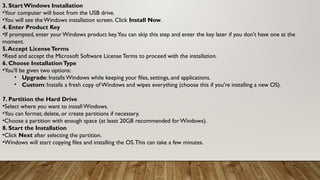
3. Start Windows Installation
•Your computer will boot from the USB drive.
•You will see the Windows installation screen. Click Install Now.
4. Enter Product Key
•If prompted, enter yourWindows product key.You can skip this step and enter the key later if you don't have one at the
moment.
5.Accept LicenseTerms
•Read and accept the Microsoft Software License Terms to proceed with the installation.
6. Choose InstallationType
•You'll be given two options:
• Upgrade: Installs Windows while keeping your files, settings, and applications.
• Custom: Installs a fresh copy of Windows and wipes everything (choose this if you're installing a new OS).
7. Partition the Hard Drive
•Select where you want to install Windows.
•You can format, delete, or create partitions if necessary.
•Choose a partition with enough space (at least 20GB recommended forWindows).
8. Start the Installation
•Click Next after selecting the partition.
•Windows will start copying files and installing the OS.This can take a few minutes.
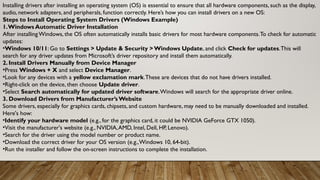
Installing drivers after installing an operating system (OS) is essential to ensure that all hardware components, such as the display,
audio, network adapters, and peripherals, function correctly. Here’s how you can install drivers on a new OS:
Steps to Install Operating System Drivers (Windows Example)
1.Windows Automatic Driver Installation
After installing Windows, the OS often automatically installs basic drivers for most hardware components.To check for automatic
updates:
•Windows 10/11: Go to Settings > Update & Security > Windows Update, and click Check for updates.This will
search for any driver updates from Microsoft’s driver repository and install them automatically.
2. Install Drivers Manually from Device Manager
•Press Windows + X and select Device Manager.
•Look for any devices with a yellow exclamation mark.These are devices that do not have drivers installed.
•Right-click on the device, then choose Update driver.
•Select Search automatically for updated driver software.Windows will search for the appropriate driver online.
3. Download Drivers from Manufacturer’s Website
Some drivers, especially for graphics cards, chipsets, and custom hardware, may need to be manually downloaded and installed.
Here's how:
•Identify your hardware model (e.g., for the graphics card, it could be NVIDIA GeForce GTX 1050).
•Visit the manufacturer's website (e.g., NVIDIA,AMD, Intel, Dell, HP, Lenovo).
•Search for the driver using the model number or product name.
•Download the correct driver for your OS version (e.g.,Windows 10, 64-bit).
•Run the installer and follow the on-screen instructions to complete the installation.
7. Install Peripheral Drivers
For printers, scanners, or external devices:
•Go to the device manufacturer’s website (e.g., HP, Canon, etc.).
•Download the specific drivers for the device and OS.
•Run the installation package and follow the on-screen instructions.
Verifying Driver Installation
After completing the steps:
•Return to Device Manager and check for any remaining devices with yellow exclamation marks. If none exist, all drivers have
been installed successfully.
•You can also verify the system's performance to ensure hardware functions as expected (e.g., high-resolution display, working
sound, fast network).
Important Drivers to Install
•Chipset Drivers: Essential for motherboard components.
•Graphics Drivers: For optimal display and gaming performance.
•Audio Drivers:To enable sound output.
•Network/Wi-Fi Drivers: For internet and local network connections.
•Peripheral Drivers: For external devices like printers or webcams.
Once all drivers are installed and up-to-date, your system will be fully operational.
9. Configure Windows Settings
•After installation, your computer will reboot, and you’ll be prompted to configure basic settings:
• Choose your region, language, and time zone.
• Set up a user account and password.
• Connect to a Wi-Fi network if prompted.
• Choose privacy settings.
10. Install Drivers and Updates
•After the installation is complete, it’s important to install any missing hardware drivers.
•Go to Settings > Update & Security > Windows Update to download and install the latest updates.
•If necessary, download drivers for your system from the manufacturer’s website.
11. Install Applications
•Once the OS is installed, you can begin installing your applications and configuring the system to your preferences.
After these steps, your computer will be ready to use with the new operating system installed.
If you're installing another OS (like Linux), the process is similar, but the setup screens and steps for partitioning may vary
slightly.
1.Hardware Control:The OS manages hardware resources like the CPU, memory, and storage, allowing
multiple programs to use the hardware efficiently without interfering with each other.
2.Process Management: It controls the execution of programs, manages process scheduling, and ensures that
each program gets enough CPU time.
3.Memory Management:The OS allocates memory to different programs, tracks its use, and reclaims it when
no longer needed.
4.File System Management:The OS organizes data into files and directories on storage devices, providing
easy access to information while ensuring data security and reliability.
5.Security and Access Control: It controls access to the system's resources, ensuring that users can only
access what they are permitted to.This also involves protecting the system from external threats like viruses.
6.User Interface:The OS provides a user interface, either command-line-based (CLI) or graphical (GUI), that
allows users to interact with the system and perform tasks like opening files, running programs, or configuring
system settings.
Popular operating systems include Windows, macOS, Linux, and Android, each designed for different types of
devices (e.g., desktops, servers, mobile phones).They make computing more accessible by abstracting the
complex operations of hardware and providing a platform for applications.
Managing an operating system (OS) involves overseeing and optimizing the core functions that the OS provides to ensure that
computer hardware and software run efficiently. Key aspects of managing an operating system include:
1.Resource Management:The OS allocates resources such as CPU, memory, disk space, and input/output devices among
multiple applications and processes. It ensures that resources are used efficiently and prevents conflicts.
2.Process Management:The OS handles the creation, scheduling, and termination of processes. It ensures that multiple
applications can run simultaneously (multitasking) without causing issues.
3.Memory Management:The OS manages the system's memory by allocating and deallocating space for programs as needed.
It ensures that each process has enough memory and prevents memory leaks or corruption.
4.File System Management:The OS provides a file system to organize, store, retrieve, and secure files on storage devices. It
manages file access, permissions, and storage efficiency.
5.Security and Access Control:The OS manages user accounts, permissions, and security protocols. It ensures that
unauthorized users cannot access sensitive data and protects the system from malware or viruses.
6.Device Management:The OS manages communication between hardware devices (like printers, keyboards, and network
cards) and software. It ensures that hardware functions properly with the correct drivers.
7.Error Detection and Handling:The OS monitors system performance and errors, correcting them when possible or
reporting them to the user or administrator.
8.User Interface: Managing the OS also involves configuring and optimizing the user interface (UI), whether it's a command-line
interface (CLI) or a graphical user interface (GUI).
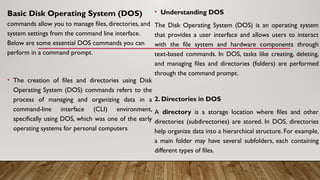
Basic Disk Operating System (DOS)
commands allow you to manage files, directories, and
system settings from the command line interface.
Below are some essential DOS commands you can
perform in a command prompt.
• The creation of files and directories using Disk
Operating System (DOS) commands refers to the
process of managing and organizing data in a
command-line interface (CLI) environment,
specifically using DOS, which was one of the early
operating systems for personal computers
• Understanding DOS
The Disk Operating System (DOS) is an operating system
that provides a user interface and allows users to interact
with the file system and hardware components through
text-based commands. In DOS, tasks like creating, deleting,
and managing files and directories (folders) are performed
through the command prompt.
2. Directories in DOS
A directory is a storage location where files and other
directories (subdirectories) are stored. In DOS, directories
help organize data into a hierarchical structure. For example,
a main folder may have several subfolders, each containing
different types of files.
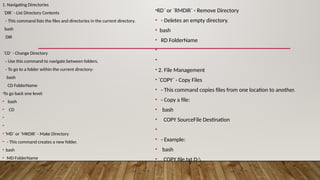
1. Navigating Directories
`DIR` - List Directory Contents
- This command lists the files and directories in the current directory.
bash
DIR
`CD` - Change Directory
- Use this command to navigate between folders.
- To go to a folder within the current directory:
bash
CD FolderName
•To go back one level:
• bash
• CD
•
•
•`MD` or `MKDIR` - Make Directory
• - This command creates a new folder.
• bash
• MD FolderName
•RD` or `RMDIR` - Remove Directory
• - Deletes an empty directory.
• bash
• RD FolderName
•
•
• 2. File Management
• `COPY` - Copy Files
• - This command copies files from one location to another.
• - Copy a file:
• bash
• COPY SourceFile Destination
•
• - Example:
• bash
• COPY file.txt D:
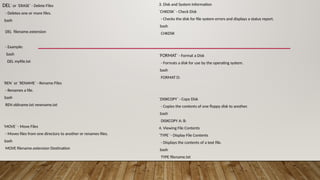
DEL` or `ERASE` - Delete Files
- Deletes one or more files.
bash
DEL filename.extension
- Example:
bash
DEL myfile.txt
`REN` or `RENAME` - Rename Files
- Renames a file.
bash
REN oldname.txt newname.txt
`MOVE` - Move Files
- Moves files from one directory to another or renames files.
bash
MOVE filename.extension Destination
3. Disk and System Information
`CHKDSK` - Check Disk
- Checks the disk for file system errors and displays a status report.
bash
CHKDSK
`FORMAT` - Format a Disk
- Formats a disk for use by the operating system.
bash
FORMAT D:
`DISKCOPY` - Copy Disk
- Copies the contents of one floppy disk to another.
bash
DISKCOPY A: B:
4. Viewing File Contents
`TYPE` - Display File Contents
- Displays the contents of a text file.
bash
TYPE filename.txt
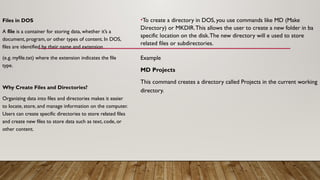
Files in DOS
A file is a container for storing data, whether it’s a
document, program, or other types of content. In DOS,
files are identified by their name and extension
(e.g. myfile.txt) where the extension indicates the file
type.
Why Create Files and Directories?
Organizing data into files and directories makes it easier
to locate, store, and manage information on the computer.
Users can create specific directories to store related files
and create new files to store data such as text, code, or
other content.
•To create a directory in DOS, you use commands like MD (Make
Directory) or MKDIR.This allows the user to create a new folder in ba
specific location on the disk.The new directory will e used to store
related files or subdirectories.
Example
MD Projects
This command creates a directory called Projects in the current working
directory.
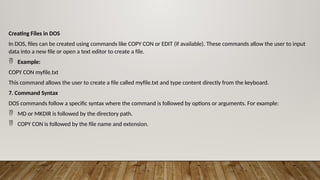
Creating Files in DOS
In DOS, files can be created using commands like COPY CON or EDIT (if available). These commands allow the user to input
data into a new file or open a text editor to create a file.
 Example:
COPY CON myfile.txt
This command allows the user to create a file called myfile.txt and type content directly from the keyboard.
7. Command Syntax
DOS commands follow a specific syntax where the command is followed by options or arguments. For example:
 MD or MKDIR is followed by the directory path.
 COPY CON is followed by the file name and extension.
To create files and directories using DOS (Disk Operating System) commands, you can follow these steps:
1. Creating Directories
To create a directory, use the `MD` or `MKDIR` command.
Syntax:
MD [drive:][path]directory_name
or
MKDIR [drive:][path]directory_name
Example:
dos
MD C:UsersGraceDocumentsNewFolder
This creates a directory named `NewFolder` inside the `Documents` folder.
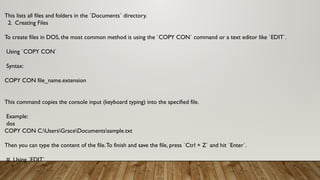
This lists all files and folders in the `Documents` directory.
2. Creating Files
To create files in DOS, the most common method is using the `COPY CON` command or a text editor like `EDIT`.
Using `COPY CON`
Syntax:
COPY CON file_name.extension
This command copies the console input (keyboard typing) into the specified file.
Example:
dos
COPY CON C:UsersGraceDocumentssample.txt
Then you can type the content of the file.To finish and save the file, press `Ctrl + Z` and hit `Enter`.
# Using `EDIT`
If the DOS environment has the `EDIT` command installed, you can create a file directly in a text editor.
Syntax:
dos
EDIT file_name.extension
Example:
dos
EDIT C:UsersGraceDocumentsreport.txt
3. Displaying Files and Directories
To view files and directories in a folder, you can use the `DIR` command.
Syntax:
DIR [drive:][path]
Example:
dos
DIR C:UsersGraceDocuments
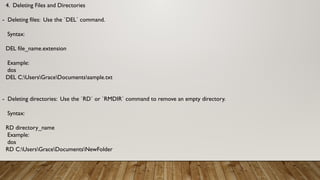
4. Deleting Files and Directories
- Deleting files: Use the `DEL` command.
Syntax:
DEL file_name.extension
Example:
dos
DEL C:UsersGraceDocumentssample.txt
- Deleting directories: Use the `RD` or `RMDIR` command to remove an empty directory.
Syntax:
RD directory_name
Example:
dos
RD C:UsersGraceDocumentsNewFolder
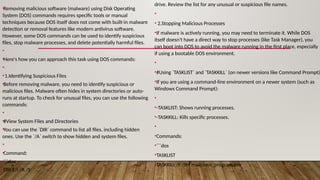
•Removing malicious software (malware) using Disk Operating
System (DOS) commands requires specific tools or manual
techniques because DOS itself does not come with built-in malware
detection or removal features like modern antivirus software.
However, some DOS commands can be used to identify suspicious
files, stop malware processes, and delete potentially harmful files.
•
•Here's how you can approach this task using DOS commands:
•
•1.Identifying Suspicious Files
•Before removing malware, you need to identify suspicious or
malicious files. Malware often hides in system directories or auto-
runs at startup. To check for unusual files, you can use the following
commands:
•
•#View System Files and Directories
•You can use the `DIR` command to list all files, including hidden
ones. Use the `/A` switch to show hidden and system files.
•
•Command:
•```dos
•DIR C: /A /S
drive. Review the list for any unusual or suspicious file names.
•
• 2.Stopping Malicious Processes
•If malware is actively running, you may need to terminate it. While DOS
itself doesn't have a direct way to stop processes (like Task Manager), you
can boot into DOS to avoid the malware running in the first place, especially
if using a bootable DOS environment.
•
•#Using `TASKLIST` and `TASKKILL` (on newer versions like Command Prompt)
•If you are using a command-line environment on a newer system (such as
Windows Command Prompt):
•
•-TASKLIST: Shows running processes.
•-TASKKILL: Kills specific processes.
•
•Commands:
•```dos
•TASKLIST
•TASKKILL /F /IM malicious_program.exe
3. Deleting Suspicious or Malicious Files
•Once you've identified a malicious file, you can delete it using the `DEL`
command. To ensure that a file is not read-only or hidden, use the `ATTRIB`
command first to change its attributes.
•Remove File Attributes
•Before deleting system or hidden files, you must remove their attributes.
•Command:
•```dos
•ATTRIB -H -R -S C:pathtomalicious_file.exe
•```
This removes the hidden (`-H`), read-only (`-R`), and system (`-S`) attributes
from the file.
•
Delete the Malicious File
Once the attributes are removed, use the `DEL` command to delete the file.
•Command:
•```dos
•DEL C:pathtomalicious_file.exe
Delete Entire Folders
If the malicious software is in a folder, you can delete the entire folder with the `RD`
(remove directory) command.
•Command:
•```dos
•RD /S /Q C:pathtomalicious_folder
•```
•- `/S`: Removes the folder and all its contents.
•- `/Q`: Quiet mode (no prompts).
4.Removing Malicious Files from Startup
Malware often configures itself to start automatically when the system boots. You can
check the `AUTOEXEC.BAT` or `CONFIG.SYS` files for suspicious entries in older DOS
environments. In Windows, you can use the `MSCONFIG` tool or check the registry for
suspicious startup entries.
Check and Edit AUTOEXEC.BAT
•Command:
•```dos
•EDIT C:AUTOEXEC.BAT
•Look for suspicious programs or commands that auto-run on startup and
delete the entries.
• 5.Using Antivirus Tools with DOS
•In some cases, DOS-based antivirus tools likeF-PROT orMcAfee's VirusScan
were used for detecting and removing malware in older systems. These tools
run from DOS and can scan for and remove infections.
•Example of running an antivirus scan:
•```dos
•F-PROT /DISINF
•```
•This command runs a scan and attempts to disinfect any infected files.
•Limitations
•-Manual Detection: Since DOS lacks built-in antivirus capabilities, manual
detection and removal are not foolproof.
•-Outdated Tools: Modern malware is more complex, and DOS commands
may not be enough to deal with these threats. Current antivirus software is
strongly recommended.
•Summary of DOS Commands for Malware Removal:
•1. `DIR /A /S` – List all files, including hidden ones, to spot
suspicious files.
•2. `ATTRIB -H -R -S` – Remove attributes to make suspicious
files deletable.
•3. `DEL` – Delete suspicious files.
•4. `RD /S /Q` – Remove entire directories of malicious files.
•5. `TASKLIST` and `TASKKILL` (for newer systems) – Stop
running malicious processes.
For complete malware removal, using modern antivirus tools is
a better option, but these DOS commands can assist in
identifying and removing simple malware files manually.

MANTAINING OPERATING SYSTEM analysis.pptx

  • 1.
    MANTAINING OPERATING SYSTEM Anoperating system (OS) is system software that manages computer hardware and software resources and provides common services for computer programs. It acts as an intermediary between the user and the computer hardware, ensuring that various applications and processes can run effectively. Key functions of an operating system include:
  • 2.
    Installing an operatingsystem (OS) involves several steps that vary slightly depending on the OS you're installing. Below is a general guide on how to install an OS, specifically focusing on installing Windows from a bootable USB drive. Similar principles apply to other OS installations like Linux or macOS, though there may be slight variations. Steps for Installing Windows Operating System: 1. Prepare Installation Media •Download the Windows ISO file from the official Microsoft website or obtain an installation disk. •Create a bootable USB drive using a tool like Rufus or Windows Media CreationTool. • For Rufus: • Insert a USB flash drive (at least 8 GB). • Open Rufus. • Select the downloadedWindows ISO file and choose the USB drive as the target. • Click Start to make the USB bootable. 2. Boot from Installation Media •Insert the bootable USB drive into your computer. •Restart the computer. •Enter the BIOS/UEFI by pressing a key like F2, DEL, or Esc (key depends on the system). •Set the USB drive as the primary boot device. •Save and exit BIOS (usually F10).
  • 3.
    3. Start WindowsInstallation •Your computer will boot from the USB drive. •You will see the Windows installation screen. Click Install Now. 4. Enter Product Key •If prompted, enter yourWindows product key.You can skip this step and enter the key later if you don't have one at the moment. 5.Accept LicenseTerms •Read and accept the Microsoft Software License Terms to proceed with the installation. 6. Choose InstallationType •You'll be given two options: • Upgrade: Installs Windows while keeping your files, settings, and applications. • Custom: Installs a fresh copy of Windows and wipes everything (choose this if you're installing a new OS). 7. Partition the Hard Drive •Select where you want to install Windows. •You can format, delete, or create partitions if necessary. •Choose a partition with enough space (at least 20GB recommended forWindows). 8. Start the Installation •Click Next after selecting the partition. •Windows will start copying files and installing the OS.This can take a few minutes.
  • 4.
    Installing drivers afterinstalling an operating system (OS) is essential to ensure that all hardware components, such as the display, audio, network adapters, and peripherals, function correctly. Here’s how you can install drivers on a new OS: Steps to Install Operating System Drivers (Windows Example) 1.Windows Automatic Driver Installation After installing Windows, the OS often automatically installs basic drivers for most hardware components.To check for automatic updates: •Windows 10/11: Go to Settings > Update & Security > Windows Update, and click Check for updates.This will search for any driver updates from Microsoft’s driver repository and install them automatically. 2. Install Drivers Manually from Device Manager •Press Windows + X and select Device Manager. •Look for any devices with a yellow exclamation mark.These are devices that do not have drivers installed. •Right-click on the device, then choose Update driver. •Select Search automatically for updated driver software.Windows will search for the appropriate driver online. 3. Download Drivers from Manufacturer’s Website Some drivers, especially for graphics cards, chipsets, and custom hardware, may need to be manually downloaded and installed. Here's how: •Identify your hardware model (e.g., for the graphics card, it could be NVIDIA GeForce GTX 1050). •Visit the manufacturer's website (e.g., NVIDIA,AMD, Intel, Dell, HP, Lenovo). •Search for the driver using the model number or product name. •Download the correct driver for your OS version (e.g.,Windows 10, 64-bit). •Run the installer and follow the on-screen instructions to complete the installation.
  • 5.
    7. Install PeripheralDrivers For printers, scanners, or external devices: •Go to the device manufacturer’s website (e.g., HP, Canon, etc.). •Download the specific drivers for the device and OS. •Run the installation package and follow the on-screen instructions. Verifying Driver Installation After completing the steps: •Return to Device Manager and check for any remaining devices with yellow exclamation marks. If none exist, all drivers have been installed successfully. •You can also verify the system's performance to ensure hardware functions as expected (e.g., high-resolution display, working sound, fast network). Important Drivers to Install •Chipset Drivers: Essential for motherboard components. •Graphics Drivers: For optimal display and gaming performance. •Audio Drivers:To enable sound output. •Network/Wi-Fi Drivers: For internet and local network connections. •Peripheral Drivers: For external devices like printers or webcams. Once all drivers are installed and up-to-date, your system will be fully operational.
  • 6.
    9. Configure WindowsSettings •After installation, your computer will reboot, and you’ll be prompted to configure basic settings: • Choose your region, language, and time zone. • Set up a user account and password. • Connect to a Wi-Fi network if prompted. • Choose privacy settings. 10. Install Drivers and Updates •After the installation is complete, it’s important to install any missing hardware drivers. •Go to Settings > Update & Security > Windows Update to download and install the latest updates. •If necessary, download drivers for your system from the manufacturer’s website. 11. Install Applications •Once the OS is installed, you can begin installing your applications and configuring the system to your preferences. After these steps, your computer will be ready to use with the new operating system installed. If you're installing another OS (like Linux), the process is similar, but the setup screens and steps for partitioning may vary slightly.
  • 7.
    1.Hardware Control:The OSmanages hardware resources like the CPU, memory, and storage, allowing multiple programs to use the hardware efficiently without interfering with each other. 2.Process Management: It controls the execution of programs, manages process scheduling, and ensures that each program gets enough CPU time. 3.Memory Management:The OS allocates memory to different programs, tracks its use, and reclaims it when no longer needed. 4.File System Management:The OS organizes data into files and directories on storage devices, providing easy access to information while ensuring data security and reliability. 5.Security and Access Control: It controls access to the system's resources, ensuring that users can only access what they are permitted to.This also involves protecting the system from external threats like viruses. 6.User Interface:The OS provides a user interface, either command-line-based (CLI) or graphical (GUI), that allows users to interact with the system and perform tasks like opening files, running programs, or configuring system settings. Popular operating systems include Windows, macOS, Linux, and Android, each designed for different types of devices (e.g., desktops, servers, mobile phones).They make computing more accessible by abstracting the complex operations of hardware and providing a platform for applications.
  • 8.
    Managing an operatingsystem (OS) involves overseeing and optimizing the core functions that the OS provides to ensure that computer hardware and software run efficiently. Key aspects of managing an operating system include: 1.Resource Management:The OS allocates resources such as CPU, memory, disk space, and input/output devices among multiple applications and processes. It ensures that resources are used efficiently and prevents conflicts. 2.Process Management:The OS handles the creation, scheduling, and termination of processes. It ensures that multiple applications can run simultaneously (multitasking) without causing issues. 3.Memory Management:The OS manages the system's memory by allocating and deallocating space for programs as needed. It ensures that each process has enough memory and prevents memory leaks or corruption. 4.File System Management:The OS provides a file system to organize, store, retrieve, and secure files on storage devices. It manages file access, permissions, and storage efficiency. 5.Security and Access Control:The OS manages user accounts, permissions, and security protocols. It ensures that unauthorized users cannot access sensitive data and protects the system from malware or viruses. 6.Device Management:The OS manages communication between hardware devices (like printers, keyboards, and network cards) and software. It ensures that hardware functions properly with the correct drivers. 7.Error Detection and Handling:The OS monitors system performance and errors, correcting them when possible or reporting them to the user or administrator. 8.User Interface: Managing the OS also involves configuring and optimizing the user interface (UI), whether it's a command-line interface (CLI) or a graphical user interface (GUI).
  • 9.
    Basic Disk OperatingSystem (DOS) commands allow you to manage files, directories, and system settings from the command line interface. Below are some essential DOS commands you can perform in a command prompt. • The creation of files and directories using Disk Operating System (DOS) commands refers to the process of managing and organizing data in a command-line interface (CLI) environment, specifically using DOS, which was one of the early operating systems for personal computers • Understanding DOS The Disk Operating System (DOS) is an operating system that provides a user interface and allows users to interact with the file system and hardware components through text-based commands. In DOS, tasks like creating, deleting, and managing files and directories (folders) are performed through the command prompt. 2. Directories in DOS A directory is a storage location where files and other directories (subdirectories) are stored. In DOS, directories help organize data into a hierarchical structure. For example, a main folder may have several subfolders, each containing different types of files.
  • 10.
    1. Navigating Directories `DIR`- List Directory Contents - This command lists the files and directories in the current directory. bash DIR `CD` - Change Directory - Use this command to navigate between folders. - To go to a folder within the current directory: bash CD FolderName •To go back one level: • bash • CD • • •`MD` or `MKDIR` - Make Directory • - This command creates a new folder. • bash • MD FolderName •RD` or `RMDIR` - Remove Directory • - Deletes an empty directory. • bash • RD FolderName • • • 2. File Management • `COPY` - Copy Files • - This command copies files from one location to another. • - Copy a file: • bash • COPY SourceFile Destination • • - Example: • bash • COPY file.txt D:
  • 11.
    DEL` or `ERASE`- Delete Files - Deletes one or more files. bash DEL filename.extension - Example: bash DEL myfile.txt `REN` or `RENAME` - Rename Files - Renames a file. bash REN oldname.txt newname.txt `MOVE` - Move Files - Moves files from one directory to another or renames files. bash MOVE filename.extension Destination 3. Disk and System Information `CHKDSK` - Check Disk - Checks the disk for file system errors and displays a status report. bash CHKDSK `FORMAT` - Format a Disk - Formats a disk for use by the operating system. bash FORMAT D: `DISKCOPY` - Copy Disk - Copies the contents of one floppy disk to another. bash DISKCOPY A: B: 4. Viewing File Contents `TYPE` - Display File Contents - Displays the contents of a text file. bash TYPE filename.txt
  • 12.
    Files in DOS Afile is a container for storing data, whether it’s a document, program, or other types of content. In DOS, files are identified by their name and extension (e.g. myfile.txt) where the extension indicates the file type. Why Create Files and Directories? Organizing data into files and directories makes it easier to locate, store, and manage information on the computer. Users can create specific directories to store related files and create new files to store data such as text, code, or other content. •To create a directory in DOS, you use commands like MD (Make Directory) or MKDIR.This allows the user to create a new folder in ba specific location on the disk.The new directory will e used to store related files or subdirectories. Example MD Projects This command creates a directory called Projects in the current working directory.
  • 13.
    Creating Files inDOS In DOS, files can be created using commands like COPY CON or EDIT (if available). These commands allow the user to input data into a new file or open a text editor to create a file.  Example: COPY CON myfile.txt This command allows the user to create a file called myfile.txt and type content directly from the keyboard. 7. Command Syntax DOS commands follow a specific syntax where the command is followed by options or arguments. For example:  MD or MKDIR is followed by the directory path.  COPY CON is followed by the file name and extension.
  • 14.
    To create filesand directories using DOS (Disk Operating System) commands, you can follow these steps: 1. Creating Directories To create a directory, use the `MD` or `MKDIR` command. Syntax: MD [drive:][path]directory_name or MKDIR [drive:][path]directory_name Example: dos MD C:UsersGraceDocumentsNewFolder This creates a directory named `NewFolder` inside the `Documents` folder.
  • 15.
    This lists allfiles and folders in the `Documents` directory. 2. Creating Files To create files in DOS, the most common method is using the `COPY CON` command or a text editor like `EDIT`. Using `COPY CON` Syntax: COPY CON file_name.extension This command copies the console input (keyboard typing) into the specified file. Example: dos COPY CON C:UsersGraceDocumentssample.txt Then you can type the content of the file.To finish and save the file, press `Ctrl + Z` and hit `Enter`. # Using `EDIT`
  • 16.
    If the DOSenvironment has the `EDIT` command installed, you can create a file directly in a text editor. Syntax: dos EDIT file_name.extension Example: dos EDIT C:UsersGraceDocumentsreport.txt 3. Displaying Files and Directories To view files and directories in a folder, you can use the `DIR` command. Syntax: DIR [drive:][path] Example: dos DIR C:UsersGraceDocuments
  • 17.
    4. Deleting Filesand Directories - Deleting files: Use the `DEL` command. Syntax: DEL file_name.extension Example: dos DEL C:UsersGraceDocumentssample.txt - Deleting directories: Use the `RD` or `RMDIR` command to remove an empty directory. Syntax: RD directory_name Example: dos RD C:UsersGraceDocumentsNewFolder
  • 18.
    •Removing malicious software(malware) using Disk Operating System (DOS) commands requires specific tools or manual techniques because DOS itself does not come with built-in malware detection or removal features like modern antivirus software. However, some DOS commands can be used to identify suspicious files, stop malware processes, and delete potentially harmful files. • •Here's how you can approach this task using DOS commands: • •1.Identifying Suspicious Files •Before removing malware, you need to identify suspicious or malicious files. Malware often hides in system directories or auto- runs at startup. To check for unusual files, you can use the following commands: • •#View System Files and Directories •You can use the `DIR` command to list all files, including hidden ones. Use the `/A` switch to show hidden and system files. • •Command: •```dos •DIR C: /A /S drive. Review the list for any unusual or suspicious file names. • • 2.Stopping Malicious Processes •If malware is actively running, you may need to terminate it. While DOS itself doesn't have a direct way to stop processes (like Task Manager), you can boot into DOS to avoid the malware running in the first place, especially if using a bootable DOS environment. • •#Using `TASKLIST` and `TASKKILL` (on newer versions like Command Prompt) •If you are using a command-line environment on a newer system (such as Windows Command Prompt): • •-TASKLIST: Shows running processes. •-TASKKILL: Kills specific processes. • •Commands: •```dos •TASKLIST •TASKKILL /F /IM malicious_program.exe
  • 19.
    3. Deleting Suspiciousor Malicious Files •Once you've identified a malicious file, you can delete it using the `DEL` command. To ensure that a file is not read-only or hidden, use the `ATTRIB` command first to change its attributes. •Remove File Attributes •Before deleting system or hidden files, you must remove their attributes. •Command: •```dos •ATTRIB -H -R -S C:pathtomalicious_file.exe •``` This removes the hidden (`-H`), read-only (`-R`), and system (`-S`) attributes from the file. • Delete the Malicious File Once the attributes are removed, use the `DEL` command to delete the file. •Command: •```dos •DEL C:pathtomalicious_file.exe Delete Entire Folders If the malicious software is in a folder, you can delete the entire folder with the `RD` (remove directory) command. •Command: •```dos •RD /S /Q C:pathtomalicious_folder •``` •- `/S`: Removes the folder and all its contents. •- `/Q`: Quiet mode (no prompts). 4.Removing Malicious Files from Startup Malware often configures itself to start automatically when the system boots. You can check the `AUTOEXEC.BAT` or `CONFIG.SYS` files for suspicious entries in older DOS environments. In Windows, you can use the `MSCONFIG` tool or check the registry for suspicious startup entries. Check and Edit AUTOEXEC.BAT •Command: •```dos •EDIT C:AUTOEXEC.BAT
  • 20.
    •Look for suspiciousprograms or commands that auto-run on startup and delete the entries. • 5.Using Antivirus Tools with DOS •In some cases, DOS-based antivirus tools likeF-PROT orMcAfee's VirusScan were used for detecting and removing malware in older systems. These tools run from DOS and can scan for and remove infections. •Example of running an antivirus scan: •```dos •F-PROT /DISINF •``` •This command runs a scan and attempts to disinfect any infected files. •Limitations •-Manual Detection: Since DOS lacks built-in antivirus capabilities, manual detection and removal are not foolproof. •-Outdated Tools: Modern malware is more complex, and DOS commands may not be enough to deal with these threats. Current antivirus software is strongly recommended. •Summary of DOS Commands for Malware Removal: •1. `DIR /A /S` – List all files, including hidden ones, to spot suspicious files. •2. `ATTRIB -H -R -S` – Remove attributes to make suspicious files deletable. •3. `DEL` – Delete suspicious files. •4. `RD /S /Q` – Remove entire directories of malicious files. •5. `TASKLIST` and `TASKKILL` (for newer systems) – Stop running malicious processes. For complete malware removal, using modern antivirus tools is a better option, but these DOS commands can assist in identifying and removing simple malware files manually.