Chapter 8
Operating
Systems and
Utility Programs
Chapter 8 Objectives
Identify the types of system software
Describe the functions of an operating system
Discuss ways that some operating
systems help administrators control a
network and administer security
Explain the purpose of the utilities
included with most operating systems
Summarize the features of several
stand-alone operating systems
Identify various network operating systems
Identify devices that use several
embedded operating systems
Explain the purpose of various
stand-alone utility programs
Next
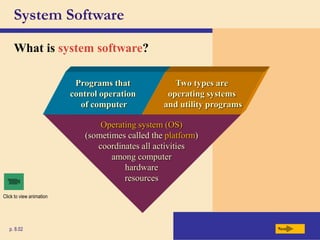
System Software
What is system software?
Next
p. 8.02
Operating system (OS)
(sometimes called the platform)
coordinates all activities
among computer
hardware
resources
Programs that
control operation
of computer
Two types are
operating systems
and utility programs
Click to view animation
Operating Systems
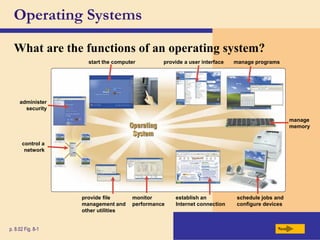
What are the functions of an operating system?
Next
p. 8.02 Fig. 8-1
monitor
performance
provide a user interface
provide file
management and
other utilities
establish an
Internet connection
control a
network
administer
security
start the computer manage programs
schedule jobs and
configure devices
manage
memory
Operating Systems
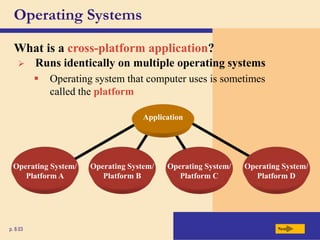
What is a cross-platform application?
Next
p. 8.03
Operating System/
Platform A
Operating System/
Platform B
Operating System/
Platform C
Operating System/
Platform D
Application
 Runs identically on multiple operating systems
 Operating system that computer uses is sometimes
called the platform
Operating System Functions
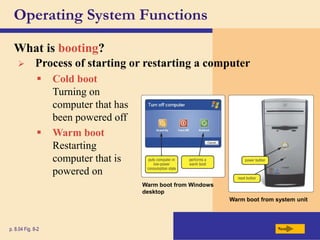
What is booting?
Next
p. 8.04 Fig. 8-2
 Cold boot
Turning on
computer that has
been powered off
 Warm boot
Restarting
computer that is
powered on
Warm boot from Windows
desktop
Warm boot from system unit
 Process of starting or restarting a computer
Operating System Functions
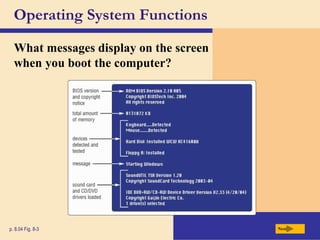
What messages display on the screen
when you boot the computer?
Next
p. 8.04 Fig. 8-3
Operating System Functions
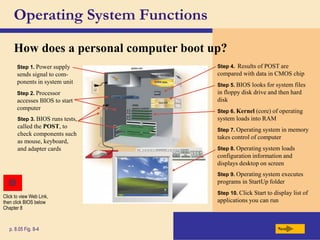
How does a personal computer boot up?
Next
p. 8.05 Fig. 8-4
Step 1. Power supply
sends signal to com-
ponents in system unit
Step 4. Results of POST are
compared with data in CMOS chip
Step 2. Processor
accesses BIOS to start
computer
Step 3. BIOS runs tests,
called the POST, to
check components such
as mouse, keyboard,
and adapter cards
Step 5. BIOS looks for system files
in floppy disk drive and then hard
disk
Step 6. Kernel (core) of operating
system loads into RAM
Step 7. Operating system in memory
takes control of computer
Step 8. Operating system loads
configuration information and
displays desktop on screen
Step 9. Operating system executes
programs in StartUp folder
Step 10. Click Start to display list of
applications you can run
Click to view Web Link,
then click BIOS below
Chapter 8
Operating System Functions
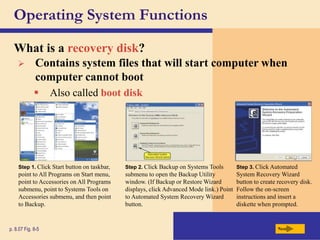
What is a recovery disk?
Next
p. 8.07 Fig. 8-5
Step 1. Click Start button on taskbar,
point to All Programs on Start menu,
point to Accessories on All Programs
submenu, point to Systems Tools on
Accessories submenu, and then point
to Backup.
Step 2. Click Backup on Systems Tools
submenu to open the Backup Utility
window. (If Backup or Restore Wizard
displays, click Advanced Mode link.) Point
to Automated System Recovery Wizard
button.
Step 3. Click Automated
System Recovery Wizard
button to create recovery disk.
Follow the on-screen
instructions and insert a
diskette when prompted.
 Contains system files that will start computer when
computer cannot boot
 Also called boot disk
Operating System Functions
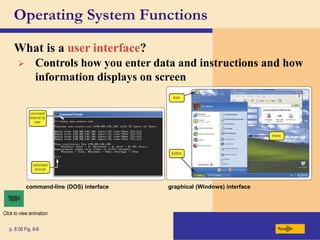
What is a user interface?
Next
p. 8.08 Fig. 8-6
command-line (DOS) interface graphical (Windows) interface
Click to view animation
 Controls how you enter data and instructions and how
information displays on screen
Operating System Functions
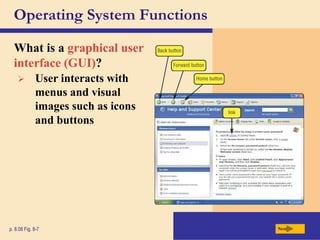
What is a graphical user
interface (GUI)?
Next
p. 8.08 Fig. 8-7
 User interacts with
menus and visual
images such as icons
and buttons
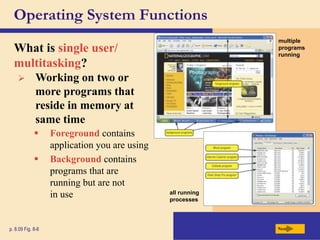
 Foreground contains
application you are using
 Background contains
programs that are
running but are not
in use
Operating System Functions
What is single user/
multitasking?
Next
p. 8.09 Fig. 8-8
 Working on two or
more programs that
reside in memory at
same time
multiple
programs
running
all running
processes
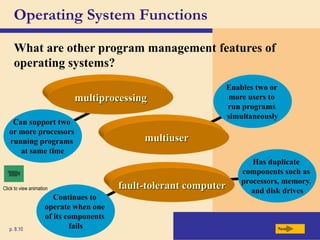
Has duplicate
components such as
processors, memory,
and disk drives
Enables two or
more users to
run programs
simultaneously
Continues to
operate when one
of its components
fails
Operating System Functions
What are other program management features of
operating systems?
Next
p. 8.10
Can support two
or more processors
running programs
at same time
fault-tolerant computer
multiuser
multiprocessing
Click to view animation
Operating System Functions
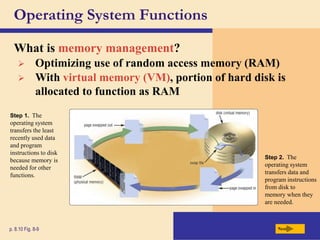
What is memory management?
Next
p. 8.10 Fig. 8-9
Step 1. The
operating system
transfers the least
recently used data
and program
instructions to disk
because memory is
needed for other
functions.
Step 2. The
operating system
transfers data and
program instructions
from disk to
memory when they
are needed.
 Optimizing use of random access memory (RAM)
 With virtual memory (VM), portion of hard disk is
allocated to function as RAM
Operating System Functions
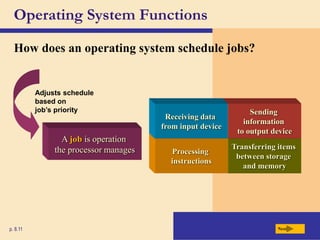
How does an operating system schedule jobs?
Next
p. 8.11
Transferring items
between storage
and memory
Sending
information
to output device
Processing
instructions
Receiving data
from input device
Adjusts schedule
based on
job’s priority
A job is operation
the processor manages
Operating System Functions
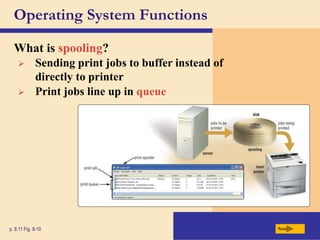
What is spooling?
Next
p. 8.11 Fig. 8-10
 Sending print jobs to buffer instead of
directly to printer
 Print jobs line up in queue
Operating System Functions
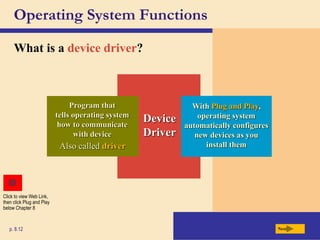
What is a device driver?
Next
p. 8.12
Device
Driver
Program that
tells operating system
how to communicate
with device
With Plug and Play,
operating system
automatically configures
new devices as you
install them
Also called driver
Click to view Web Link,
then click Plug and Play
below Chapter 8
Operating System Functions
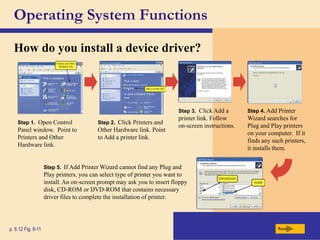
How do you install a device driver?
Next
p. 8.12 Fig. 8-11
Step 1. Open Control
Panel window. Point to
Printers and Other
Hardware link.
Step 2. Click Printers and
Other Hardware link. Point
to Add a printer link.
Step 3. Click Add a
printer link. Follow
on-screen instructions.
Step 4. Add Printer
Wizard searches for
Plug and Play printers
on your computer. If it
finds any such printers,
it installs them.
Step 5. If Add Printer Wizard cannot find any Plug and
Play printers, you can select type of printer you want to
install. An on-screen prompt may ask you to insert floppy
disk, CD-ROM or DVD-ROM that contains necessary
driver files to complete the installation of printer.
Operating System Functions
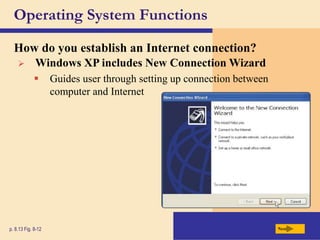
How do you establish an Internet connection?
Next
p. 8.13 Fig. 8-12
 Windows XP includes New Connection Wizard
 Guides user through setting up connection between
computer and Internet
Operating System Functions
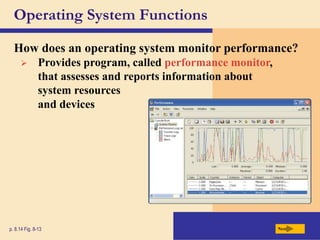
How does an operating system monitor performance?
Next
p. 8.14 Fig. 8-13
 Provides program, called performance monitor,
that assesses and reports information about
system resources
and devices
Operating System Functions
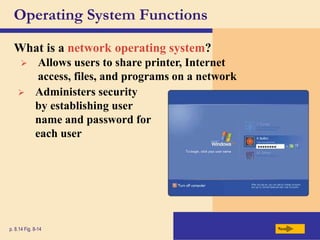
What is a network operating system?
Next
p. 8.14 Fig. 8-14
 Allows users to share printer, Internet
access, files, and programs on a network
 Administers security
by establishing user
name and password for
each user
Utility Programs
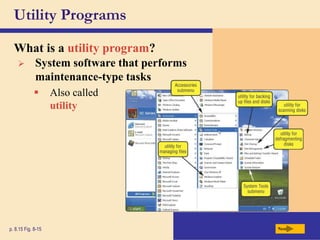
What is a utility program?
Next
p. 8.15 Fig. 8-15
 System software that performs
maintenance-type tasks
 Also called
utility
Operating System Utility Programs
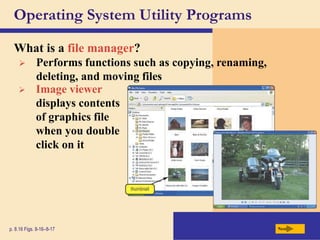
What is a file manager?
Next
p. 8.16 Figs. 8-16–8-17
 Performs functions such as copying, renaming,
deleting, and moving files
 Image viewer
displays contents
of graphics file
when you double
click on it
Operating System Utility Programs
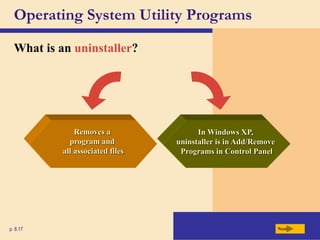
What is an uninstaller?
Next
p. 8.17
In Windows XP,
uninstaller is in Add/Remove
Programs in Control Panel
Removes a
program and
all associated files
Operating System Utility Programs
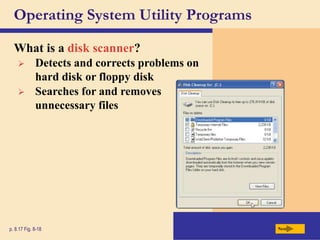
What is a disk scanner?
Next
p. 8.17 Fig. 8-18
 Detects and corrects problems on
hard disk or floppy disk
 Searches for and removes
unnecessary files
Operating System Utility Programs
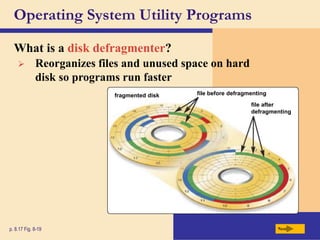
What is a disk defragmenter?
Next
p. 8.17 Fig. 8-19
file before defragmenting
fragmented disk
file after
defragmenting
 Reorganizes files and unused space on hard
disk so programs run faster
Operating System Utility Programs
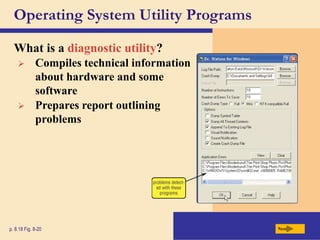
What is a diagnostic utility?
Next
p. 8.18 Fig. 8-20
 Compiles technical information
about hardware and some
software
 Prepares report outlining
problems
Operating System Utility Programs
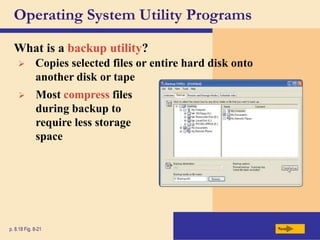
What is a backup utility?
Next
p. 8.18 Fig. 8-21
 Copies selected files or entire hard disk onto
another disk or tape
 Most compress files
during backup to
require less storage
space
Operating System Utility Programs
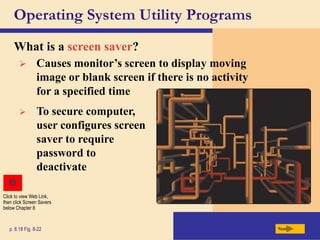
What is a screen saver?
Next
p. 8.18 Fig. 8-22
 Causes monitor’s screen to display moving
image or blank screen if there is no activity
for a specified time
 To secure computer,
user configures screen
saver to require
password to
deactivate
Click to view Web Link,
then click Screen Savers
below Chapter 8
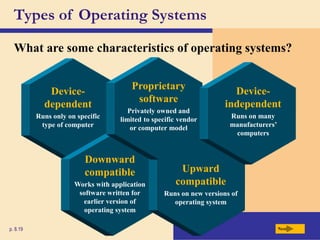
Device-
dependent
Runs only on specific
type of computer
Types of Operating Systems
What are some characteristics of operating systems?
Next
p. 8.19
Downward
compatible
Works with application
software written for
earlier version of
operating system
Upward
compatible
Runs on new versions of
operating system
Proprietary
software
Privately owned and
limited to specific vendor
or computer model
Device-
independent
Runs on many
manufacturers’
computers
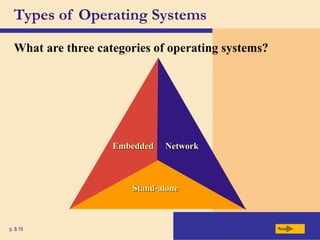
Stand-alone
Types of Operating Systems
What are three categories of operating systems?
Next
p. 8.19
Embedded Network
Stand-Alone Operating Systems
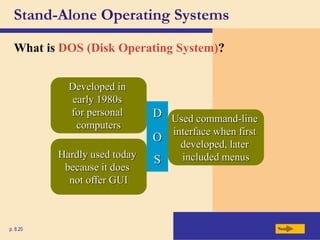
What is DOS (Disk Operating System)?
Next
p. 8.20
D
Developed in
early 1980s
for personal
computers
O
Used command-line
interface when first
developed, later
included menus
S
Hardly used today
because it does
not offer GUI
Stand-Alone Operating Systems
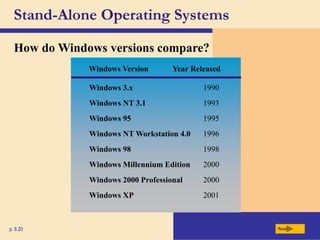
How do Windows versions compare?
Next
p. 8.20
Windows Version Year Released
Windows 3.x 1990
Windows NT 3.1 1993
Windows 95 1995
Windows NT Workstation 4.0 1996
Windows 98 1998
Windows Millennium Edition 2000
Windows 2000 Professional 2000
Windows XP 2001
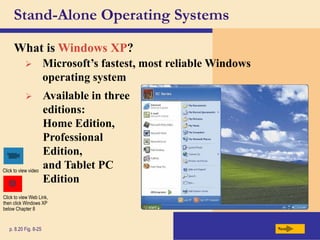
 Microsoft’s fastest, most reliable Windows
operating system
Stand-Alone Operating Systems
What is Windows XP?
Next
p. 8.20 Fig. 8-25
 Available in three
editions:
Home Edition,
Professional
Edition,
and Tablet PC
Edition
Click to view video
Click to view Web Link,
then click Windows XP
below Chapter 8
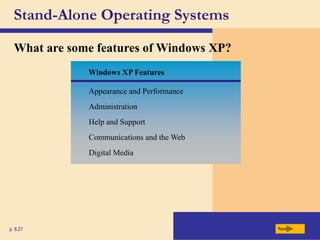
Windows XP Features
Appearance and Performance
Administration
Help and Support
Communications and the Web
Digital Media
Stand-Alone Operating Systems
What are some features of Windows XP?
Next
p. 8.21
Stand-Alone Operating Systems
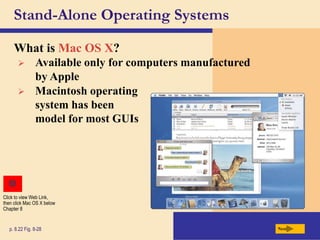
What is Mac OS X?
Next
p. 8.22 Fig. 8-28
 Available only for computers manufactured
by Apple
 Macintosh operating
system has been
model for most GUIs
Click to view Web Link,
then click Mac OS X below
Chapter 8
Stand-Alone Operating Systems
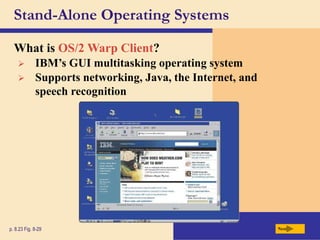
What is OS/2 Warp Client?
Next
p. 8.23 Fig. 8-29
 IBM’s GUI multitasking operating system
 Supports networking, Java, the Internet, and
speech recognition
Stand-Alone Operating Systems
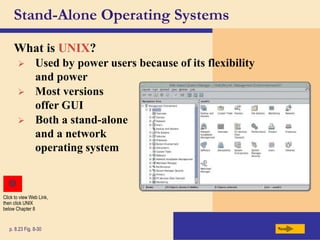
What is UNIX?
Next
p. 8.23 Fig. 8-30
 Used by power users because of its flexibility
and power
 Most versions
offer GUI
 Both a stand-alone
and a network
operating system
Click to view Web Link,
then click UNIX
below Chapter 8
Stand-Alone Operating Systems
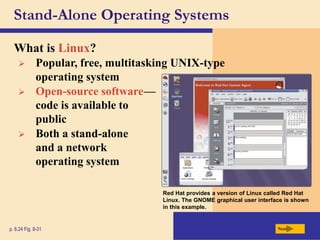
What is Linux?
Next
p. 8.24 Fig. 8-31
Red Hat provides a version of Linux called Red Hat
Linux. The GNOME graphical user interface is shown
in this example.
 Popular, free, multitasking UNIX-type
operating system
 Open-source softwaree—
code is available to
public
 Both a stand-alone
and a network
operating system
Network Operating Systems
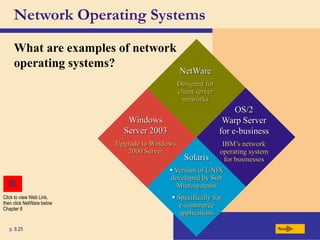
What are examples of network
operating systems?
Next
p. 8.25
NetWare
Designed for
client/server
networks
Windows
Server 2003
Upgrade to Windows
2000 Server
OS/2
Warp Server
for e-business
IBM’s network
operating system
for businesses
Solaris
 Version of UNIX
developed by Sun
Microsystems
 Specifically for
e-commerce
applications
Click to view Web Link,
then click NetWare below
Chapter 8
Embedded Operating Systems
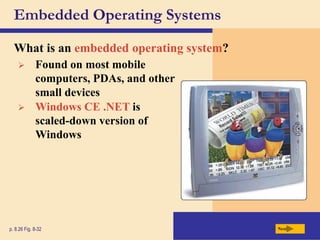
What is an embedded operating system?
Next
p. 8.26 Fig. 8-32
 Found on most mobile
computers, PDAs, and other
small devices
 Windows CE .NET is
scaled-down version of
Windows
Embedded Operating Systems
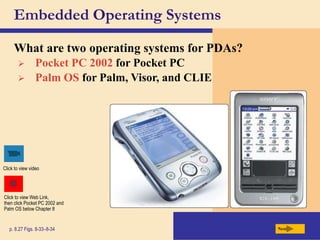
What are two operating systems for PDAs?
Next
p. 8.27 Figs. 8-33–8-34
Click to view video
 Pocket PC 2002 for Pocket PC
 Palm OS for Palm, Visor, and CLIE
Click to view Web Link,
then click Pocket PC 2002 and
Palm OS below Chapter 8
Embedded Operating Systems
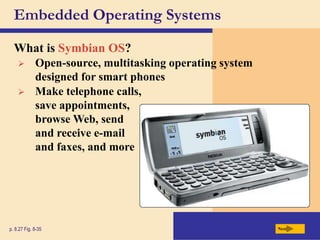
What is Symbian OS?
Next
p. 8.27 Fig. 8-35
 Open-source, multitasking operating system
designed for smart phones
 Make telephone calls,
save appointments,
browse Web, send
and receive e-mail
and faxes, and more
Stand-Alone Utility Programs
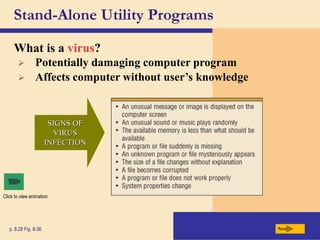
What is a virus?
Next
p. 8.28 Fig. 8-36
SIGNS OF
VIRUS
INFECTION
Click to view animation
 Potentially damaging computer program
 Affects computer without user’s knowledge
Stand-Alone Utility Programs
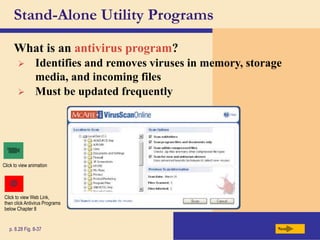
What is an antivirus program?
Next
p. 8.28 Fig. 8-37
Click to view animation
 Identifies and removes viruses in memory, storage
media, and incoming files
 Must be updated frequently
Click to view Web Link,
then click Antivirus Programs
below Chapter 8
Stand-Alone Utility Programs
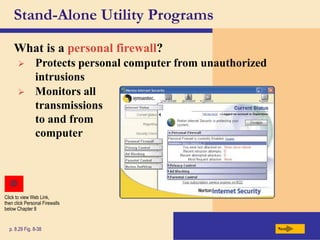
What is a personal firewall?
Next
p. 8.29 Fig. 8-38
 Protects personal computer from unauthorized
intrusions
 Monitors all
transmissions
to and from
computer
Click to view Web Link,
then click Personal Firewalls
below Chapter 8
Stand-Alone Utility Programs
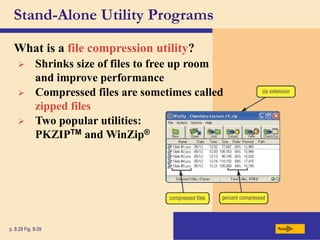
What is a file compression utility?
Next
p. 8.29 Fig. 8-39
 Shrinks size of files to free up room
and improve performance
 Compressed files are sometimes called
zipped files
 Two popular utilities:
PKZIPTM and WinZip®
Stand-Alone Utility Programs
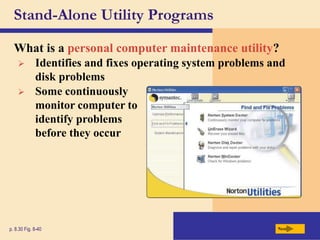
What is a personal computer maintenance utility?
Next
p. 8.30 Fig. 8-40
 Identifies and fixes operating system problems and
disk problems
 Some continuously
monitor computer to
identify problems
before they occur
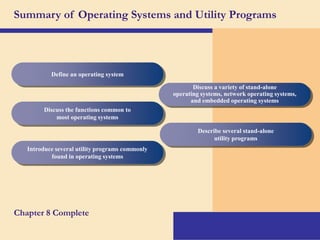
Summary of Operating Systems and Utility Programs
Chapter 8 Complete
Define an operating system
Discuss the functions common to
most operating systems
Introduce several utility programs commonly
found in operating systems
Discuss a variety of stand-alone
operating systems, network operating systems,
and embedded operating systems
Describe several stand-alone
utility programs

Chapter08-OS.ppt

  • 1.
  • 2.
    Chapter 8 Objectives Identifythe types of system software Describe the functions of an operating system Discuss ways that some operating systems help administrators control a network and administer security Explain the purpose of the utilities included with most operating systems Summarize the features of several stand-alone operating systems Identify various network operating systems Identify devices that use several embedded operating systems Explain the purpose of various stand-alone utility programs Next
  • 3.
    System Software What issystem software? Next p. 8.02 Operating system (OS) (sometimes called the platform) coordinates all activities among computer hardware resources Programs that control operation of computer Two types are operating systems and utility programs Click to view animation
  • 4.
    Operating Systems What arethe functions of an operating system? Next p. 8.02 Fig. 8-1 monitor performance provide a user interface provide file management and other utilities establish an Internet connection control a network administer security start the computer manage programs schedule jobs and configure devices manage memory
  • 5.
    Operating Systems What isa cross-platform application? Next p. 8.03 Operating System/ Platform A Operating System/ Platform B Operating System/ Platform C Operating System/ Platform D Application  Runs identically on multiple operating systems  Operating system that computer uses is sometimes called the platform
  • 6.
    Operating System Functions Whatis booting? Next p. 8.04 Fig. 8-2  Cold boot Turning on computer that has been powered off  Warm boot Restarting computer that is powered on Warm boot from Windows desktop Warm boot from system unit  Process of starting or restarting a computer
  • 7.
    Operating System Functions Whatmessages display on the screen when you boot the computer? Next p. 8.04 Fig. 8-3
  • 8.
    Operating System Functions Howdoes a personal computer boot up? Next p. 8.05 Fig. 8-4 Step 1. Power supply sends signal to com- ponents in system unit Step 4. Results of POST are compared with data in CMOS chip Step 2. Processor accesses BIOS to start computer Step 3. BIOS runs tests, called the POST, to check components such as mouse, keyboard, and adapter cards Step 5. BIOS looks for system files in floppy disk drive and then hard disk Step 6. Kernel (core) of operating system loads into RAM Step 7. Operating system in memory takes control of computer Step 8. Operating system loads configuration information and displays desktop on screen Step 9. Operating system executes programs in StartUp folder Step 10. Click Start to display list of applications you can run Click to view Web Link, then click BIOS below Chapter 8
  • 9.
    Operating System Functions Whatis a recovery disk? Next p. 8.07 Fig. 8-5 Step 1. Click Start button on taskbar, point to All Programs on Start menu, point to Accessories on All Programs submenu, point to Systems Tools on Accessories submenu, and then point to Backup. Step 2. Click Backup on Systems Tools submenu to open the Backup Utility window. (If Backup or Restore Wizard displays, click Advanced Mode link.) Point to Automated System Recovery Wizard button. Step 3. Click Automated System Recovery Wizard button to create recovery disk. Follow the on-screen instructions and insert a diskette when prompted.  Contains system files that will start computer when computer cannot boot  Also called boot disk
  • 10.
    Operating System Functions Whatis a user interface? Next p. 8.08 Fig. 8-6 command-line (DOS) interface graphical (Windows) interface Click to view animation  Controls how you enter data and instructions and how information displays on screen
  • 11.
    Operating System Functions Whatis a graphical user interface (GUI)? Next p. 8.08 Fig. 8-7  User interacts with menus and visual images such as icons and buttons
  • 12.
     Foreground contains applicationyou are using  Background contains programs that are running but are not in use Operating System Functions What is single user/ multitasking? Next p. 8.09 Fig. 8-8  Working on two or more programs that reside in memory at same time multiple programs running all running processes
  • 13.
    Has duplicate components suchas processors, memory, and disk drives Enables two or more users to run programs simultaneously Continues to operate when one of its components fails Operating System Functions What are other program management features of operating systems? Next p. 8.10 Can support two or more processors running programs at same time fault-tolerant computer multiuser multiprocessing Click to view animation
  • 14.
    Operating System Functions Whatis memory management? Next p. 8.10 Fig. 8-9 Step 1. The operating system transfers the least recently used data and program instructions to disk because memory is needed for other functions. Step 2. The operating system transfers data and program instructions from disk to memory when they are needed.  Optimizing use of random access memory (RAM)  With virtual memory (VM), portion of hard disk is allocated to function as RAM
  • 15.
    Operating System Functions Howdoes an operating system schedule jobs? Next p. 8.11 Transferring items between storage and memory Sending information to output device Processing instructions Receiving data from input device Adjusts schedule based on job’s priority A job is operation the processor manages
  • 16.
    Operating System Functions Whatis spooling? Next p. 8.11 Fig. 8-10  Sending print jobs to buffer instead of directly to printer  Print jobs line up in queue
  • 17.
    Operating System Functions Whatis a device driver? Next p. 8.12 Device Driver Program that tells operating system how to communicate with device With Plug and Play, operating system automatically configures new devices as you install them Also called driver Click to view Web Link, then click Plug and Play below Chapter 8
  • 18.
    Operating System Functions Howdo you install a device driver? Next p. 8.12 Fig. 8-11 Step 1. Open Control Panel window. Point to Printers and Other Hardware link. Step 2. Click Printers and Other Hardware link. Point to Add a printer link. Step 3. Click Add a printer link. Follow on-screen instructions. Step 4. Add Printer Wizard searches for Plug and Play printers on your computer. If it finds any such printers, it installs them. Step 5. If Add Printer Wizard cannot find any Plug and Play printers, you can select type of printer you want to install. An on-screen prompt may ask you to insert floppy disk, CD-ROM or DVD-ROM that contains necessary driver files to complete the installation of printer.
  • 19.
    Operating System Functions Howdo you establish an Internet connection? Next p. 8.13 Fig. 8-12  Windows XP includes New Connection Wizard  Guides user through setting up connection between computer and Internet
  • 20.
    Operating System Functions Howdoes an operating system monitor performance? Next p. 8.14 Fig. 8-13  Provides program, called performance monitor, that assesses and reports information about system resources and devices
  • 21.
    Operating System Functions Whatis a network operating system? Next p. 8.14 Fig. 8-14  Allows users to share printer, Internet access, files, and programs on a network  Administers security by establishing user name and password for each user
  • 22.
    Utility Programs What isa utility program? Next p. 8.15 Fig. 8-15  System software that performs maintenance-type tasks  Also called utility
  • 23.
    Operating System UtilityPrograms What is a file manager? Next p. 8.16 Figs. 8-16–8-17  Performs functions such as copying, renaming, deleting, and moving files  Image viewer displays contents of graphics file when you double click on it
  • 24.
    Operating System UtilityPrograms What is an uninstaller? Next p. 8.17 In Windows XP, uninstaller is in Add/Remove Programs in Control Panel Removes a program and all associated files
  • 25.
    Operating System UtilityPrograms What is a disk scanner? Next p. 8.17 Fig. 8-18  Detects and corrects problems on hard disk or floppy disk  Searches for and removes unnecessary files
  • 26.
    Operating System UtilityPrograms What is a disk defragmenter? Next p. 8.17 Fig. 8-19 file before defragmenting fragmented disk file after defragmenting  Reorganizes files and unused space on hard disk so programs run faster
  • 27.
    Operating System UtilityPrograms What is a diagnostic utility? Next p. 8.18 Fig. 8-20  Compiles technical information about hardware and some software  Prepares report outlining problems
  • 28.
    Operating System UtilityPrograms What is a backup utility? Next p. 8.18 Fig. 8-21  Copies selected files or entire hard disk onto another disk or tape  Most compress files during backup to require less storage space
  • 29.
    Operating System UtilityPrograms What is a screen saver? Next p. 8.18 Fig. 8-22  Causes monitor’s screen to display moving image or blank screen if there is no activity for a specified time  To secure computer, user configures screen saver to require password to deactivate Click to view Web Link, then click Screen Savers below Chapter 8
  • 30.
    Device- dependent Runs only onspecific type of computer Types of Operating Systems What are some characteristics of operating systems? Next p. 8.19 Downward compatible Works with application software written for earlier version of operating system Upward compatible Runs on new versions of operating system Proprietary software Privately owned and limited to specific vendor or computer model Device- independent Runs on many manufacturers’ computers
  • 31.
    Stand-alone Types of OperatingSystems What are three categories of operating systems? Next p. 8.19 Embedded Network
  • 32.
    Stand-Alone Operating Systems Whatis DOS (Disk Operating System)? Next p. 8.20 D Developed in early 1980s for personal computers O Used command-line interface when first developed, later included menus S Hardly used today because it does not offer GUI
  • 33.
    Stand-Alone Operating Systems Howdo Windows versions compare? Next p. 8.20 Windows Version Year Released Windows 3.x 1990 Windows NT 3.1 1993 Windows 95 1995 Windows NT Workstation 4.0 1996 Windows 98 1998 Windows Millennium Edition 2000 Windows 2000 Professional 2000 Windows XP 2001
  • 34.
     Microsoft’s fastest,most reliable Windows operating system Stand-Alone Operating Systems What is Windows XP? Next p. 8.20 Fig. 8-25  Available in three editions: Home Edition, Professional Edition, and Tablet PC Edition Click to view video Click to view Web Link, then click Windows XP below Chapter 8
  • 35.
    Windows XP Features Appearanceand Performance Administration Help and Support Communications and the Web Digital Media Stand-Alone Operating Systems What are some features of Windows XP? Next p. 8.21
  • 36.
    Stand-Alone Operating Systems Whatis Mac OS X? Next p. 8.22 Fig. 8-28  Available only for computers manufactured by Apple  Macintosh operating system has been model for most GUIs Click to view Web Link, then click Mac OS X below Chapter 8
  • 37.
    Stand-Alone Operating Systems Whatis OS/2 Warp Client? Next p. 8.23 Fig. 8-29  IBM’s GUI multitasking operating system  Supports networking, Java, the Internet, and speech recognition
  • 38.
    Stand-Alone Operating Systems Whatis UNIX? Next p. 8.23 Fig. 8-30  Used by power users because of its flexibility and power  Most versions offer GUI  Both a stand-alone and a network operating system Click to view Web Link, then click UNIX below Chapter 8
  • 39.
    Stand-Alone Operating Systems Whatis Linux? Next p. 8.24 Fig. 8-31 Red Hat provides a version of Linux called Red Hat Linux. The GNOME graphical user interface is shown in this example.  Popular, free, multitasking UNIX-type operating system  Open-source softwaree— code is available to public  Both a stand-alone and a network operating system
  • 40.
    Network Operating Systems Whatare examples of network operating systems? Next p. 8.25 NetWare Designed for client/server networks Windows Server 2003 Upgrade to Windows 2000 Server OS/2 Warp Server for e-business IBM’s network operating system for businesses Solaris  Version of UNIX developed by Sun Microsystems  Specifically for e-commerce applications Click to view Web Link, then click NetWare below Chapter 8
  • 41.
    Embedded Operating Systems Whatis an embedded operating system? Next p. 8.26 Fig. 8-32  Found on most mobile computers, PDAs, and other small devices  Windows CE .NET is scaled-down version of Windows
  • 42.
    Embedded Operating Systems Whatare two operating systems for PDAs? Next p. 8.27 Figs. 8-33–8-34 Click to view video  Pocket PC 2002 for Pocket PC  Palm OS for Palm, Visor, and CLIE Click to view Web Link, then click Pocket PC 2002 and Palm OS below Chapter 8
  • 43.
    Embedded Operating Systems Whatis Symbian OS? Next p. 8.27 Fig. 8-35  Open-source, multitasking operating system designed for smart phones  Make telephone calls, save appointments, browse Web, send and receive e-mail and faxes, and more
  • 44.
    Stand-Alone Utility Programs Whatis a virus? Next p. 8.28 Fig. 8-36 SIGNS OF VIRUS INFECTION Click to view animation  Potentially damaging computer program  Affects computer without user’s knowledge
  • 45.
    Stand-Alone Utility Programs Whatis an antivirus program? Next p. 8.28 Fig. 8-37 Click to view animation  Identifies and removes viruses in memory, storage media, and incoming files  Must be updated frequently Click to view Web Link, then click Antivirus Programs below Chapter 8
  • 46.
    Stand-Alone Utility Programs Whatis a personal firewall? Next p. 8.29 Fig. 8-38  Protects personal computer from unauthorized intrusions  Monitors all transmissions to and from computer Click to view Web Link, then click Personal Firewalls below Chapter 8
  • 47.
    Stand-Alone Utility Programs Whatis a file compression utility? Next p. 8.29 Fig. 8-39  Shrinks size of files to free up room and improve performance  Compressed files are sometimes called zipped files  Two popular utilities: PKZIPTM and WinZip®
  • 48.
    Stand-Alone Utility Programs Whatis a personal computer maintenance utility? Next p. 8.30 Fig. 8-40  Identifies and fixes operating system problems and disk problems  Some continuously monitor computer to identify problems before they occur
  • 49.
    Summary of OperatingSystems and Utility Programs Chapter 8 Complete Define an operating system Discuss the functions common to most operating systems Introduce several utility programs commonly found in operating systems Discuss a variety of stand-alone operating systems, network operating systems, and embedded operating systems Describe several stand-alone utility programs