
HTML & Websites

LIS 3353 – 1/17/12
Administrivia

   Grading
    – HW #1 before the weekend; I will post an announcement on
      Blackboard
    – Quiz #2 will be graded & handed out on Thursday
    – Office hours today postponed – Wednesday 10am-2pm
      instead

   Today’s agenda
    – News
    – Group Assignment #1 – check wikispaces page for group
      assignments
    – Group leaders, please confirm your group (edit the
      wikispaces page directly) by Tuesday 4pm
    – HTML and websites
Assignment #3

  Assignment #3
    • Seminoles Future Careers Exposition
      Thursday, January 26, 2012
      9 am-noon and 1-3 pm
      Leon County Civic Center

                        OR
    • Seminole Success Night
      Wednesday, January 25, 2012
      5:30 p.m. - 7:00 p.m.
      Dunlap Success Center
Assignment #3

   250 word response to your experience at either (or both!) event
    in your wordpress BLOG.

   Address any or all of the following topics:
     – what you did to prepare for the event;
     – what companies piqued your interest;
     – what companies you talked to or submitted resumes to;
     – what technology companies were represented OR what companies were
       looking for in terms of technology skills;
     – what you learned from attending the event.

This assignment is due by Thursday, February 2, 2012 at 10AM. 50
   points. Submit your completed write-up at the following URL.
   http://bit.ly/lis3353-a3
In the news…

   Wifi/USB cufflinks
   http://mashable.com/2012/01/20/wi-fi-hots
SOCIAL MEDIA, WEB 2.0
HTML

   HTML – hypertext markup language
   HTML provides a framework for
    browsers to display images and text
    on webpages
   Invented in 1990 by Tim Berners-Lee
    for scientists to share information
    online with each other
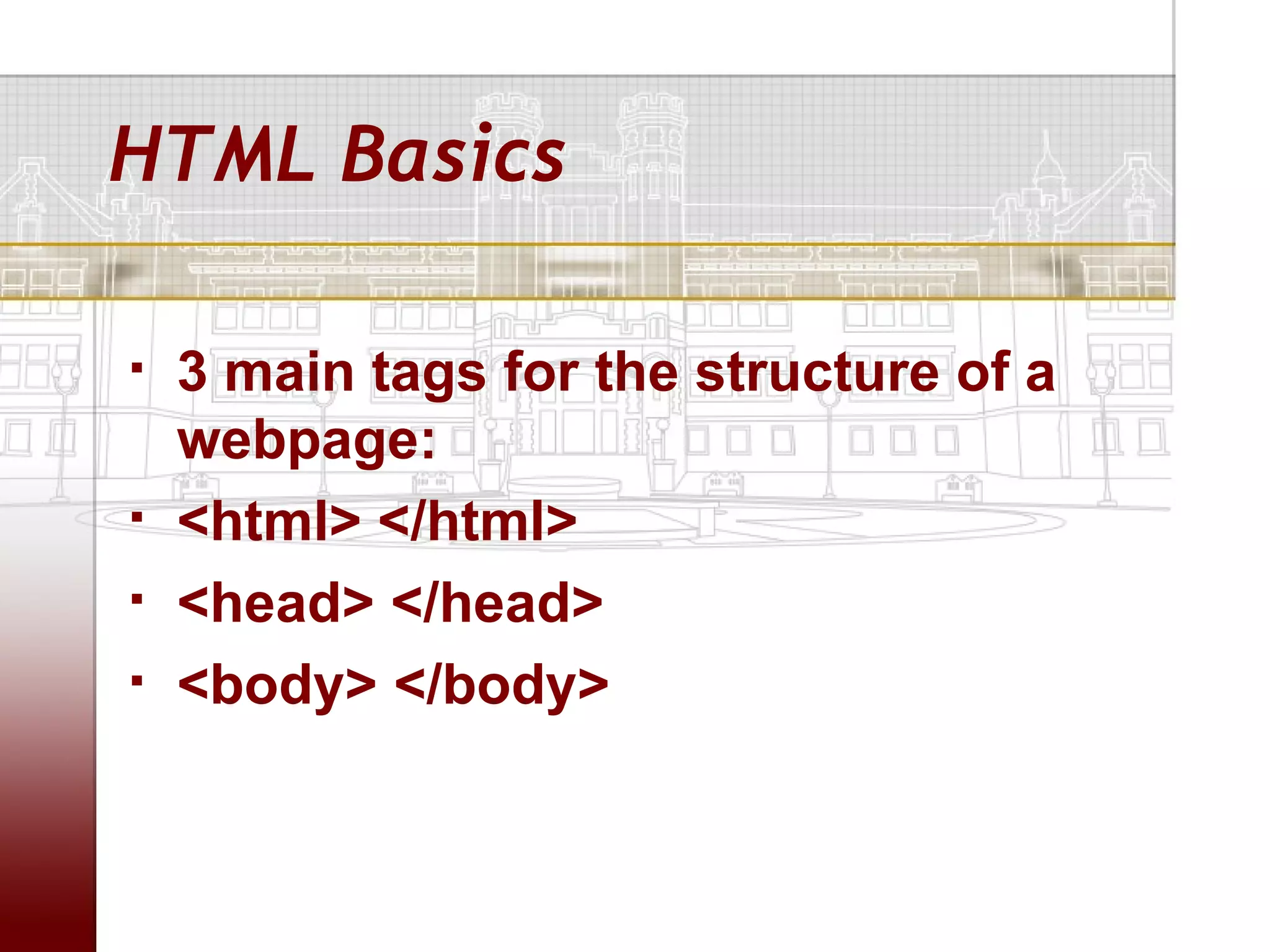
HTML Basics

   3 main tags for the structure of a
    webpage:
   <html> </html>
   <head> </head>
   <body> </body>
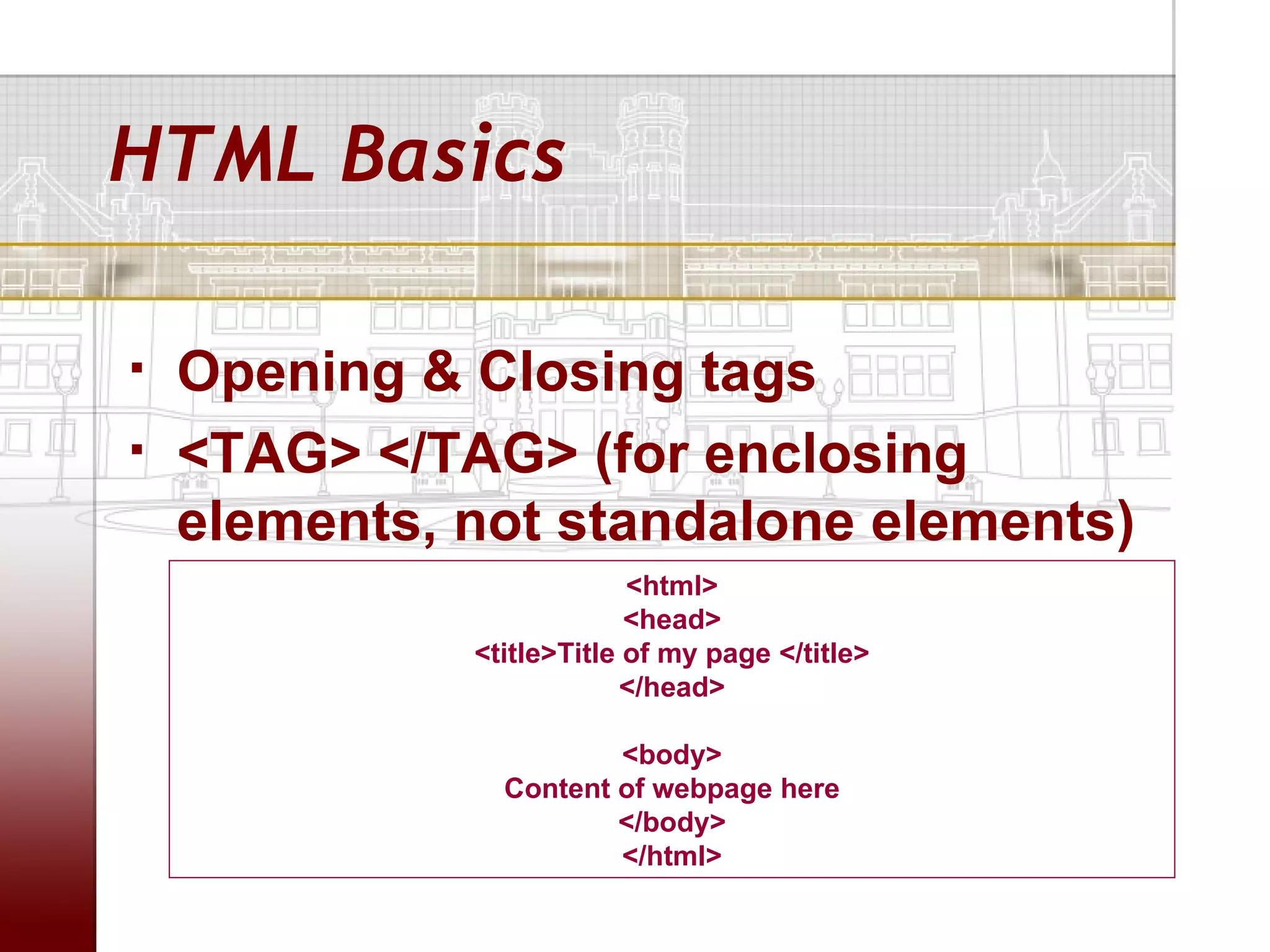
HTML Basics

   Opening & Closing tags
   <TAG> </TAG> (for enclosing
    elements, not standalone elements)
                           <html>
                           <head>
              <title>Title of my page </title>
                          </head>

                        <body>
                Content of webpage here
                        </body>
                        </html>
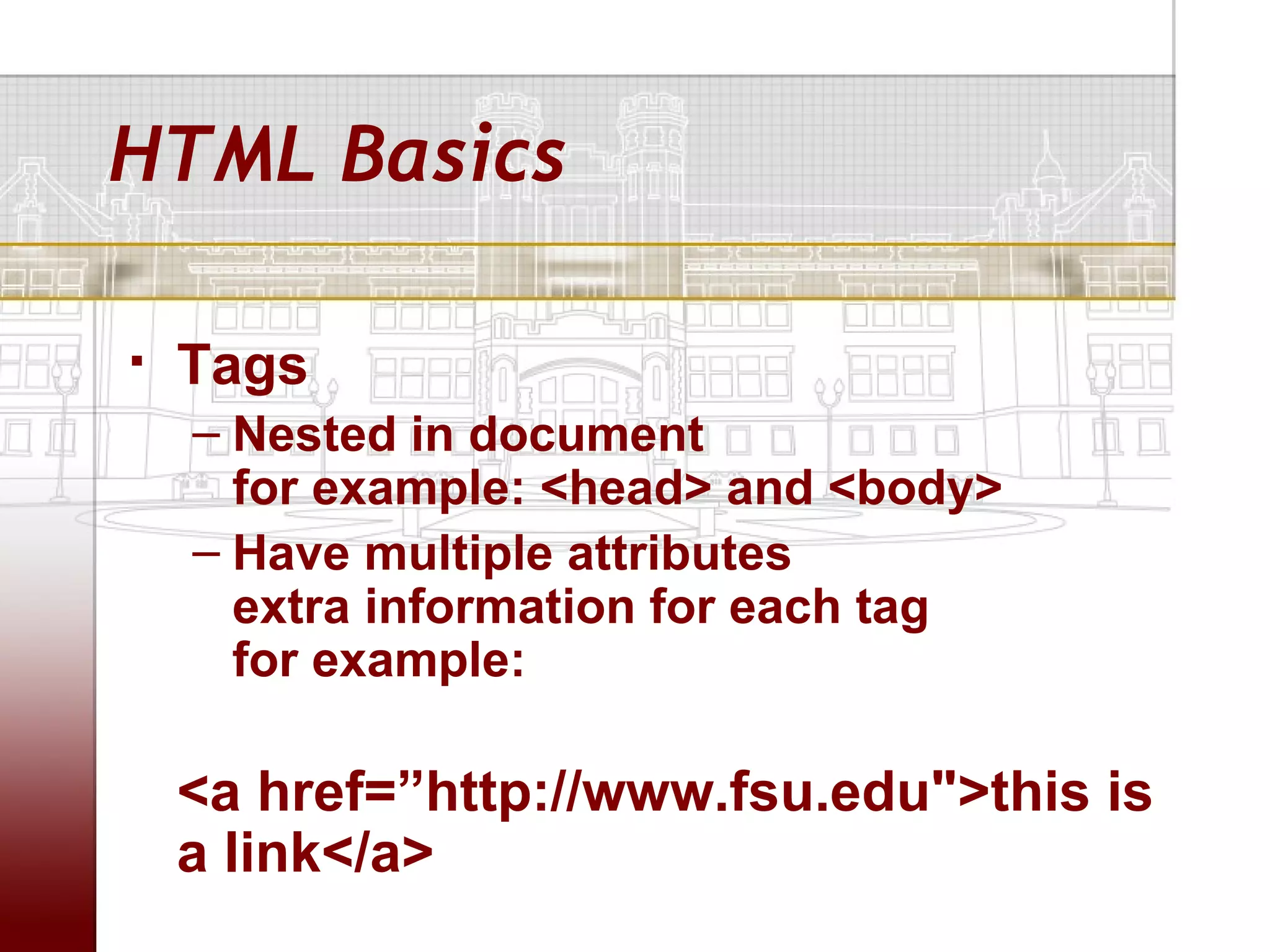
HTML Basics

   Tags
    – Nested in document
      for example: <head> and <body>
    – Have multiple attributes
      extra information for each tag
      for example:

    <a href=”http://www.fsu.edu">this is
    a link</a>
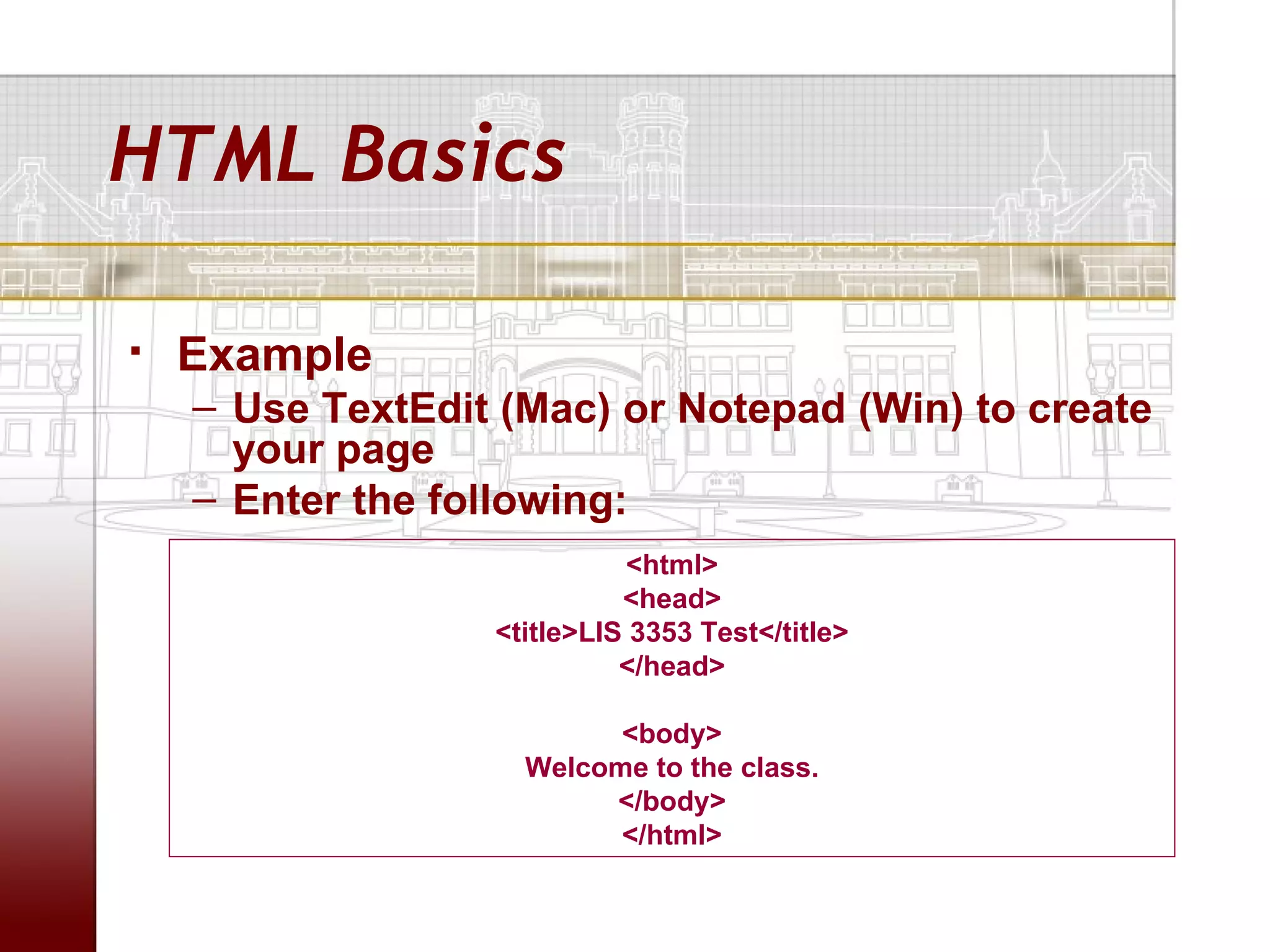
HTML Basics

   Example
    – Use TextEdit (Mac) or Notepad (Win) to create
      your page
    – Enter the following:
                            <html>
                            <head>
                  <title>LIS 3353 Test</title>
                            </head>

                          <body>
                    Welcome to the class.
                         </body>
                          </html>
HTML Basics

   Save the text file with a .html file
    extension
   Open text file in a web browser
   What are deprecated tags?
HTML Basics

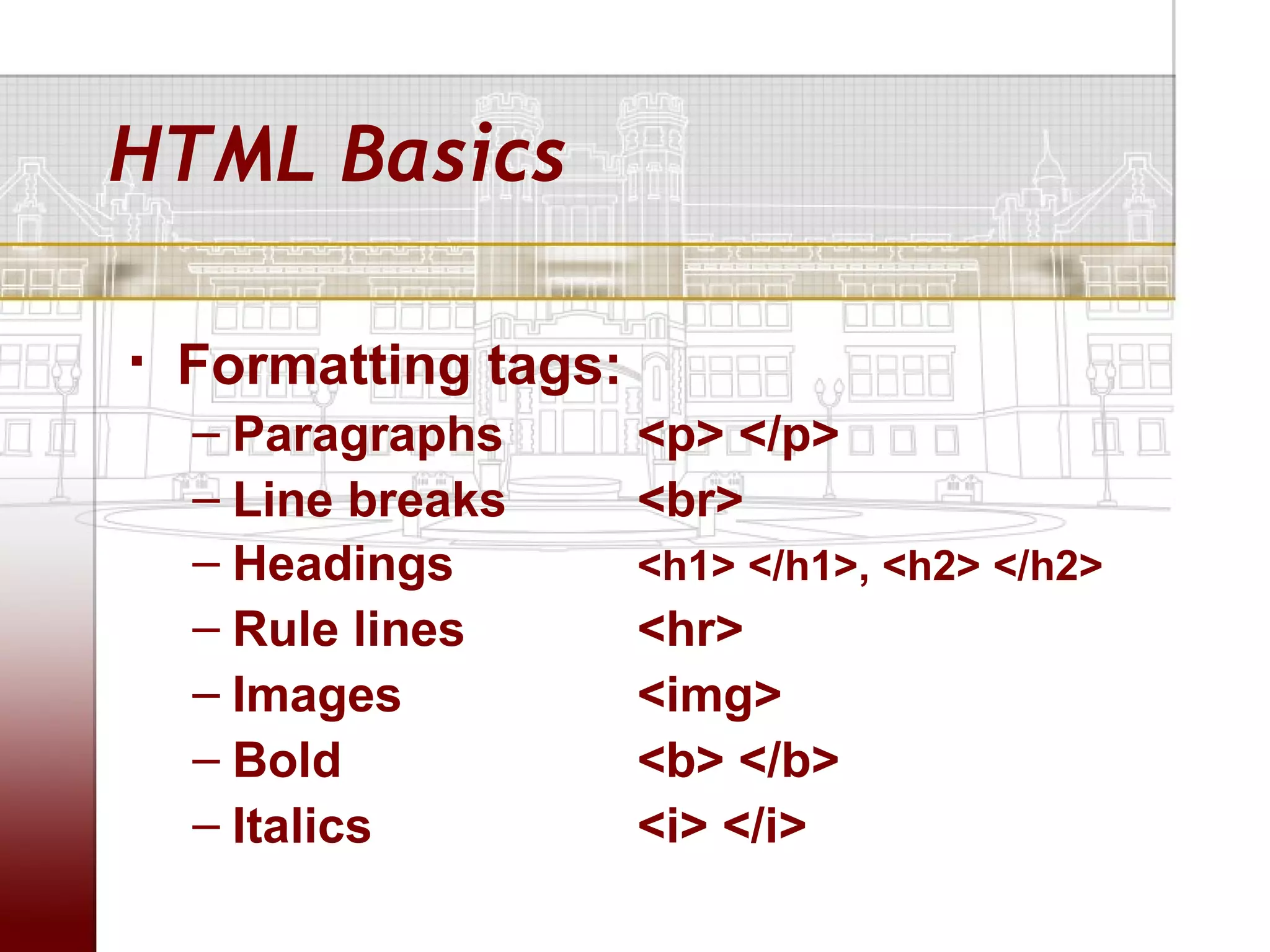
   Formatting tags:
    – Paragraphs       <p> </p>
    – Line breaks      <br>
    – Headings         <h1> </h1>, <h2> </h2>
    – Rule lines       <hr>
    – Images           <img>
    – Bold             <b> </b>
    – Italics          <i> </i>
HTML Basics

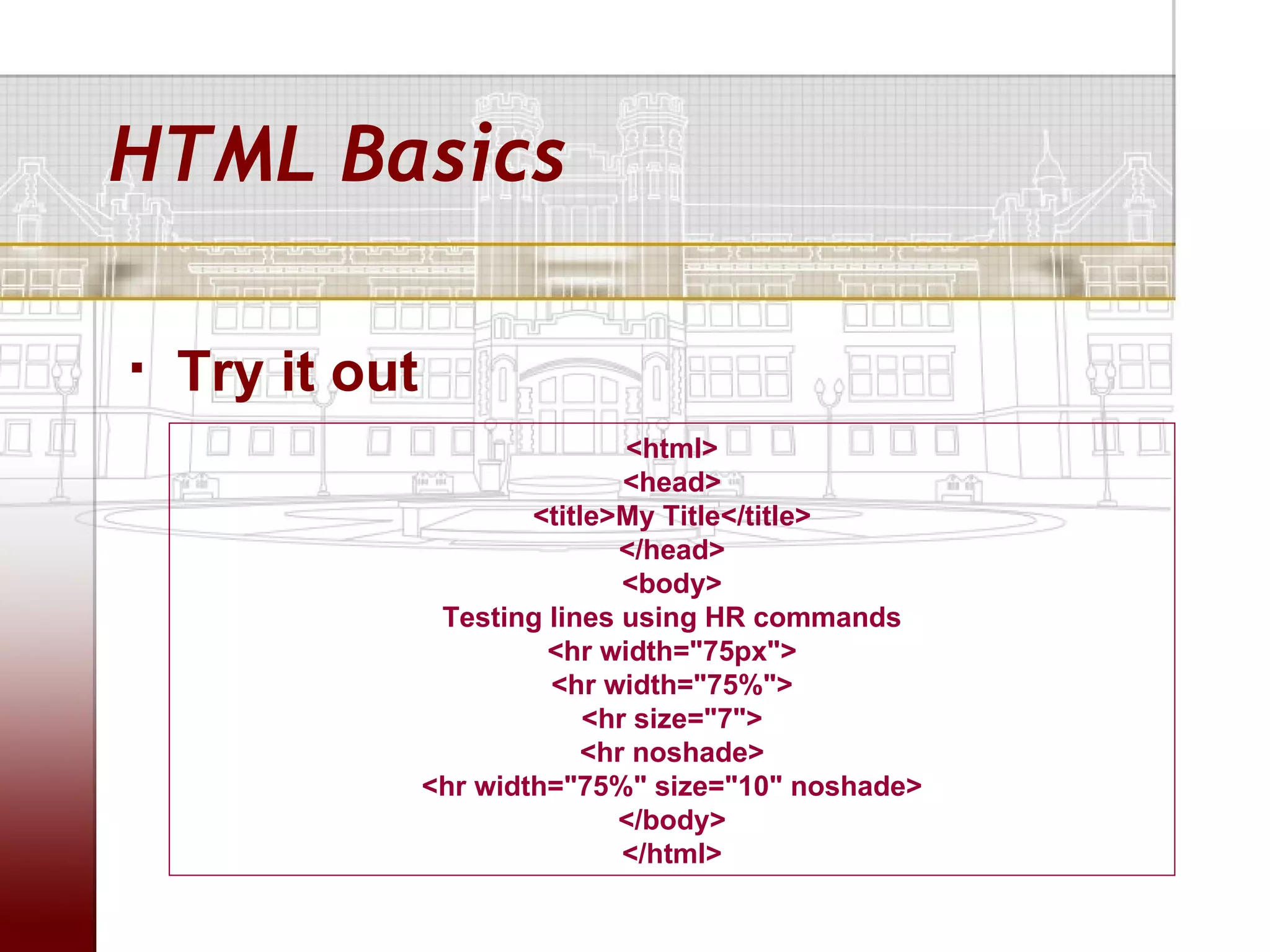
   Try it out
                                 <html>
                                 <head>
                         <title>My Title</title>
                                </head>
                                 <body>
                  Testing lines using HR commands
                          <hr width="75px">
                          <hr width="75%">
                              <hr size="7">
                              <hr noshade>
                 <hr width="75%" size="10" noshade>
                                </body>
                                 </html>
HTML Basics

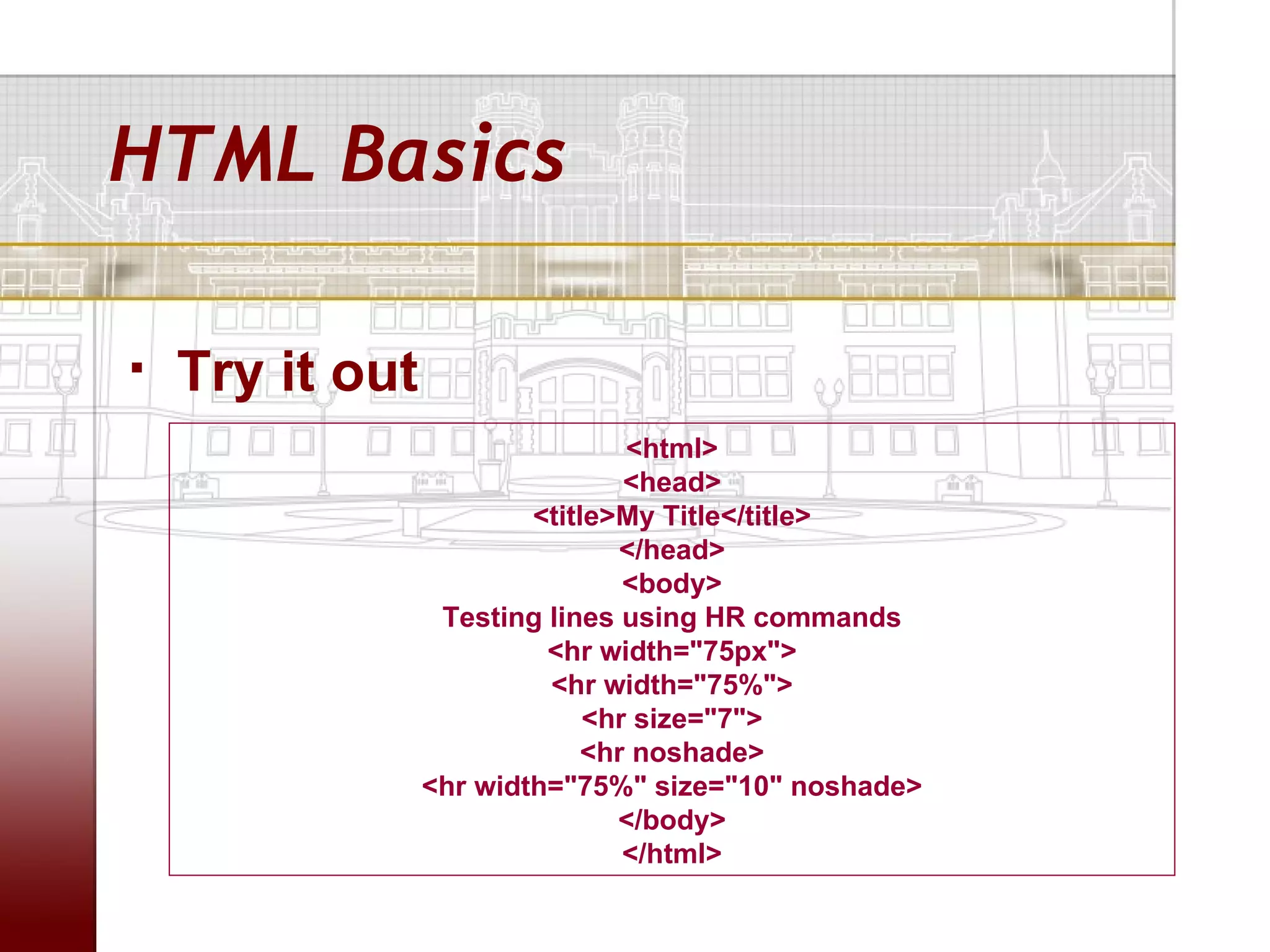
   Try it out
                                 <html>
                                 <head>
                         <title>My Title</title>
                                </head>
                                 <body>
                  Testing lines using HR commands
                          <hr width="75px">
                          <hr width="75%">
                              <hr size="7">
                              <hr noshade>
                 <hr width="75%" size="10" noshade>
                                </body>
                                 </html>
HTML Basics

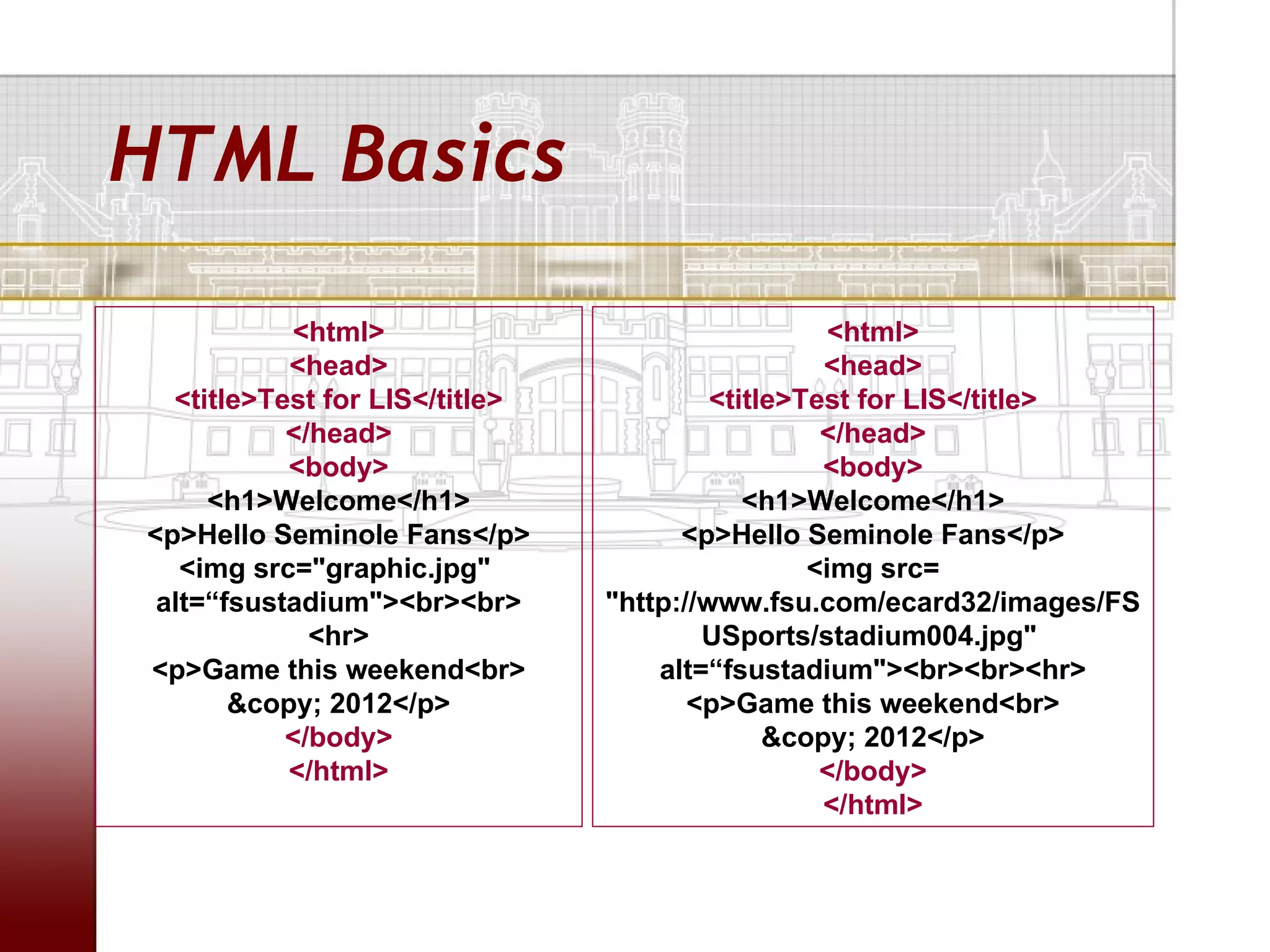
           <html>                                  <html>
           <head>                                 <head>
  <title>Test for LIS</title>            <title>Test for LIS</title>
           </head>                                </head>
           <body>                                 <body>
     <h1>Welcome</h1>                       <h1>Welcome</h1>
<p>Hello Seminole Fans</p>            <p>Hello Seminole Fans</p>
   <img src="graphic.jpg"                        <img src=
 alt=“fsustadium"><br><br>      "http://www.fsu.com/ecard32/images/FS
             <hr>                       USports/stadium004.jpg"
<p>Game this weekend<br>            alt=“fsustadium"><br><br><hr>
       &copy; 2012</p>                 <p>Game this weekend<br>
           </body>                            &copy; 2012</p>
           </html>                                </body>
                                                  </html>
HTML Basics

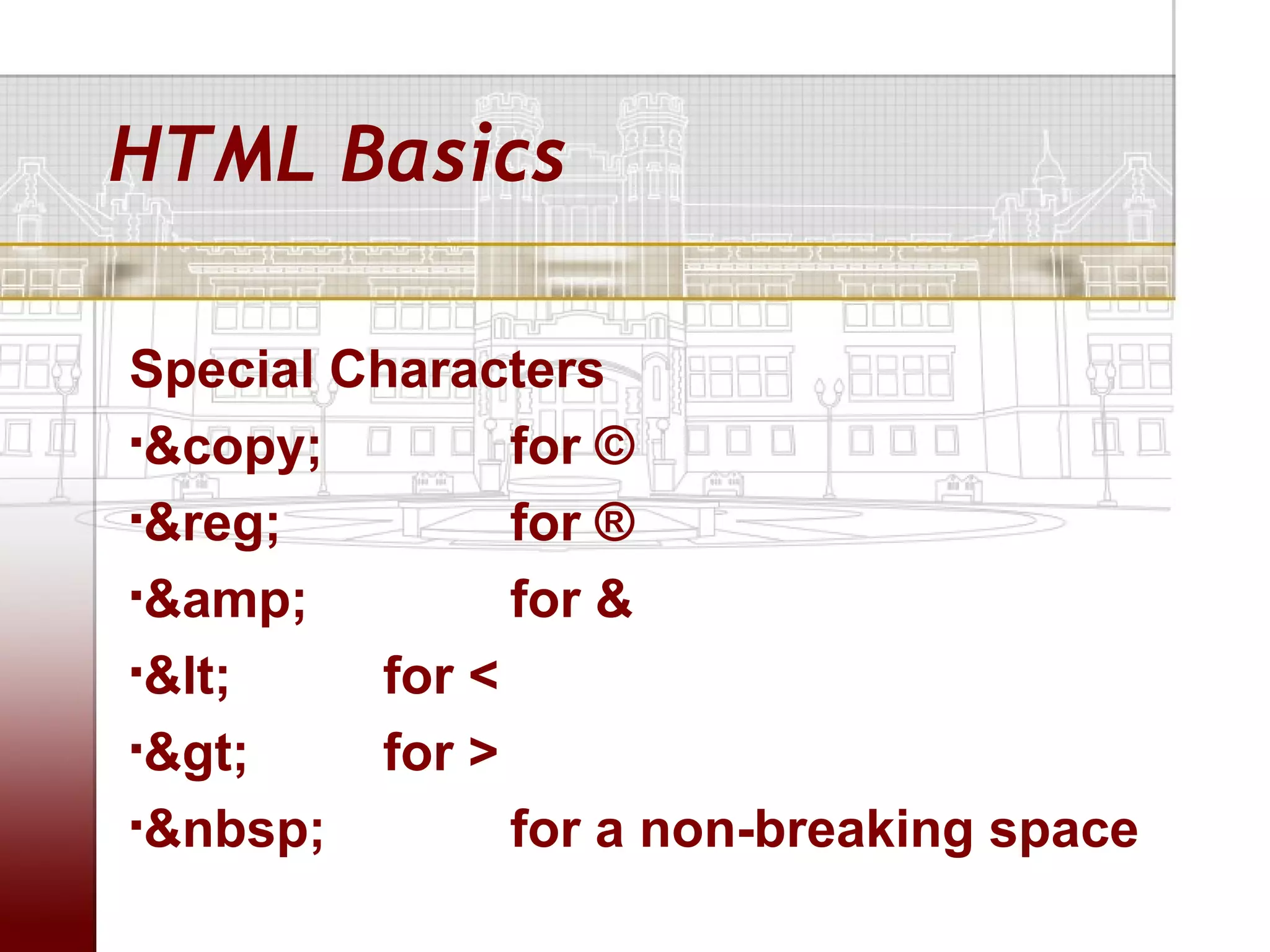
Special Characters
&copy;        for ©
&reg;         for ®
&amp;         for &
&lt;    for <
&gt;    for >
&nbsp;        for a non-breaking space
HTML Basics

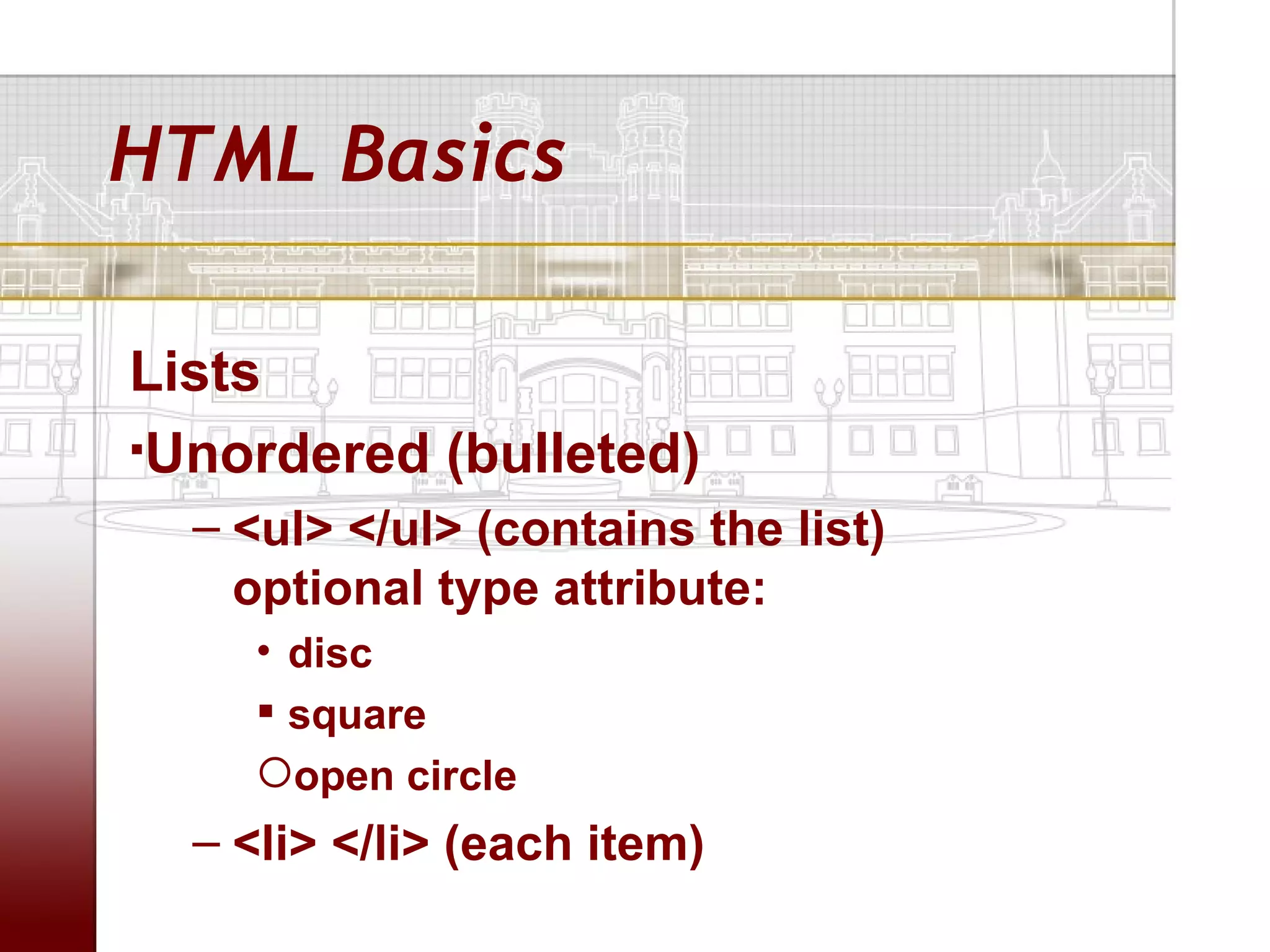
Lists
Unordered (bulleted)

  – <ul> </ul> (contains the list)
    optional type attribute:
    • disc
     square
    open circle
  – <li> </li> (each item)
HTML Basics

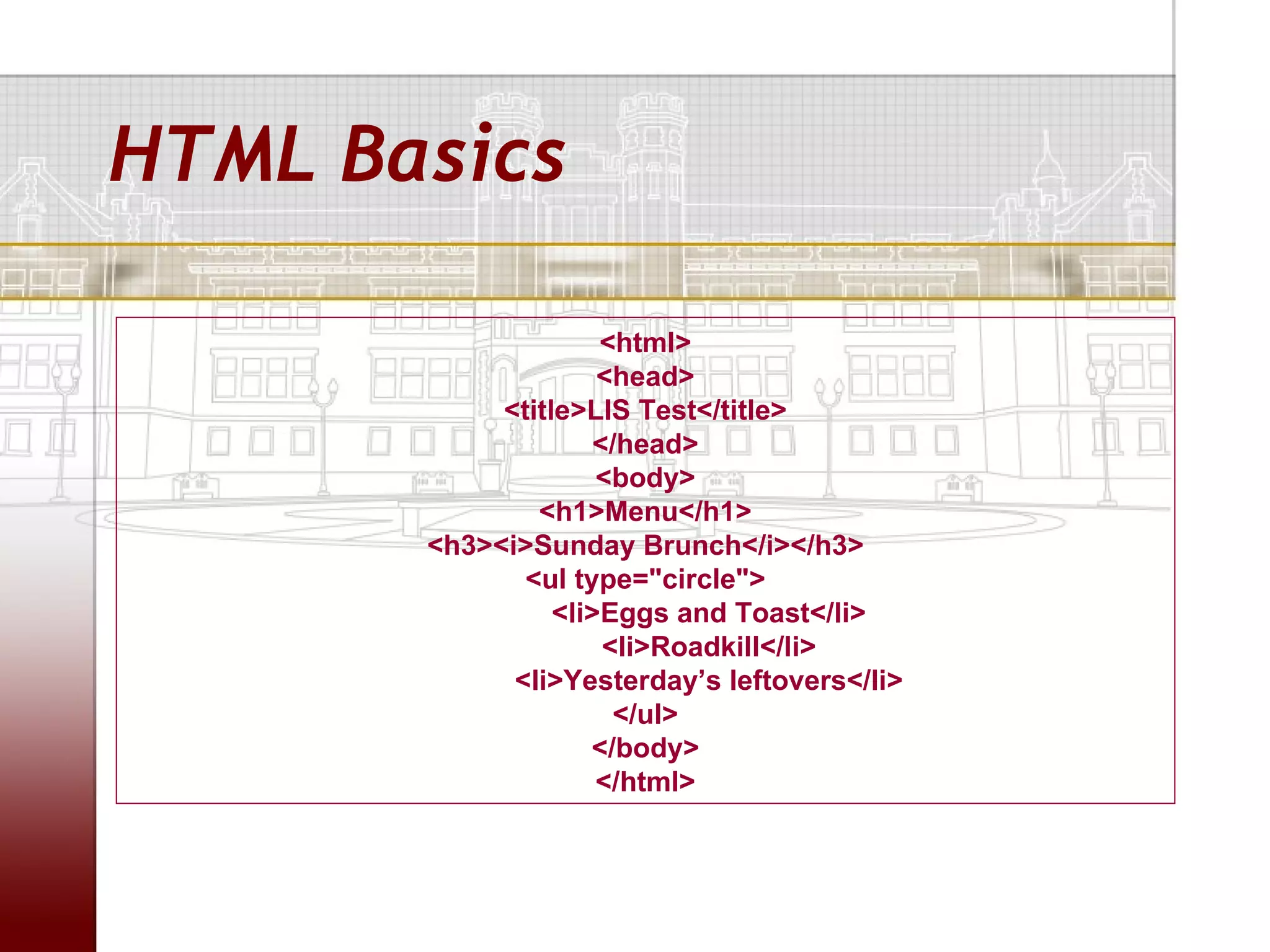
                     <html>
                     <head>
            <title>LIS Test</title>
                    </head>
                     <body>
               <h1>Menu</h1>
       <h3><i>Sunday Brunch</i></h3>
              <ul type="circle">
                 <li>Eggs and Toast</li>
                     <li>Roadkill</li>
             <li>Yesterday’s leftovers</li>
                      </ul>
                    </body>
                     </html>
HTML Basics

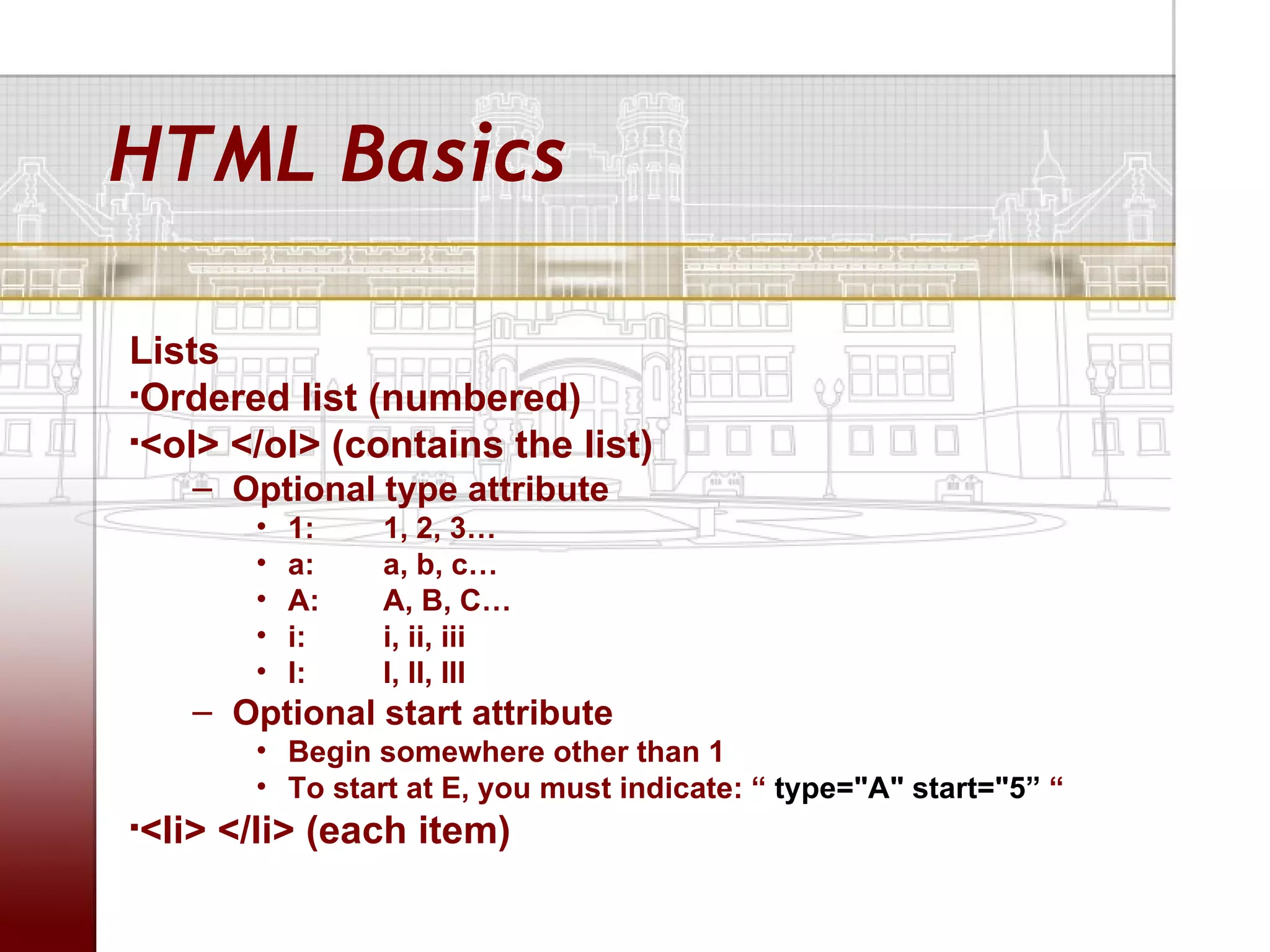
Lists
Ordered list (numbered)

<ol> </ol> (contains the list)

    – Optional type attribute
       •   1:   1, 2, 3…
       •   a:   a, b, c…
       •   A:   A, B, C…
       •   i:   i, ii, iii
       •   I:   I, II, III
    – Optional start attribute
       • Begin somewhere other than 1
       • To start at E, you must indicate: “ type="A" start="5” “
<li> </li> (each item)

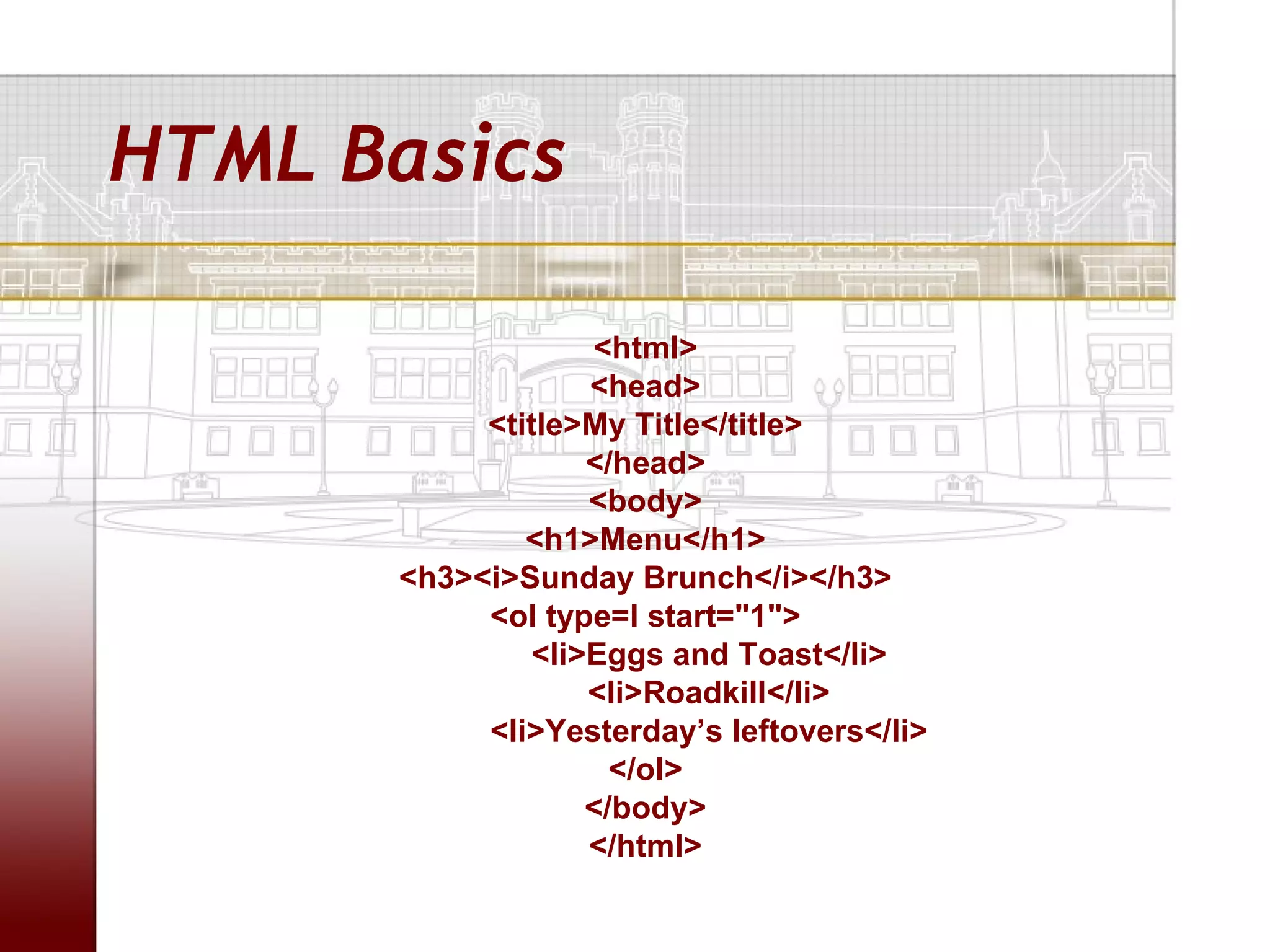
HTML Basics

                  <html>
                  <head>
           <title>My Title</title>
                  </head>
                  <body>
              <h1>Menu</h1>
      <h3><i>Sunday Brunch</i></h3>
           <ol type=I start="1">
              <li>Eggs and Toast</li>
                  <li>Roadkill</li>
           <li>Yesterday’s leftovers</li>
                    </ol>
                  </body>
                  </html>
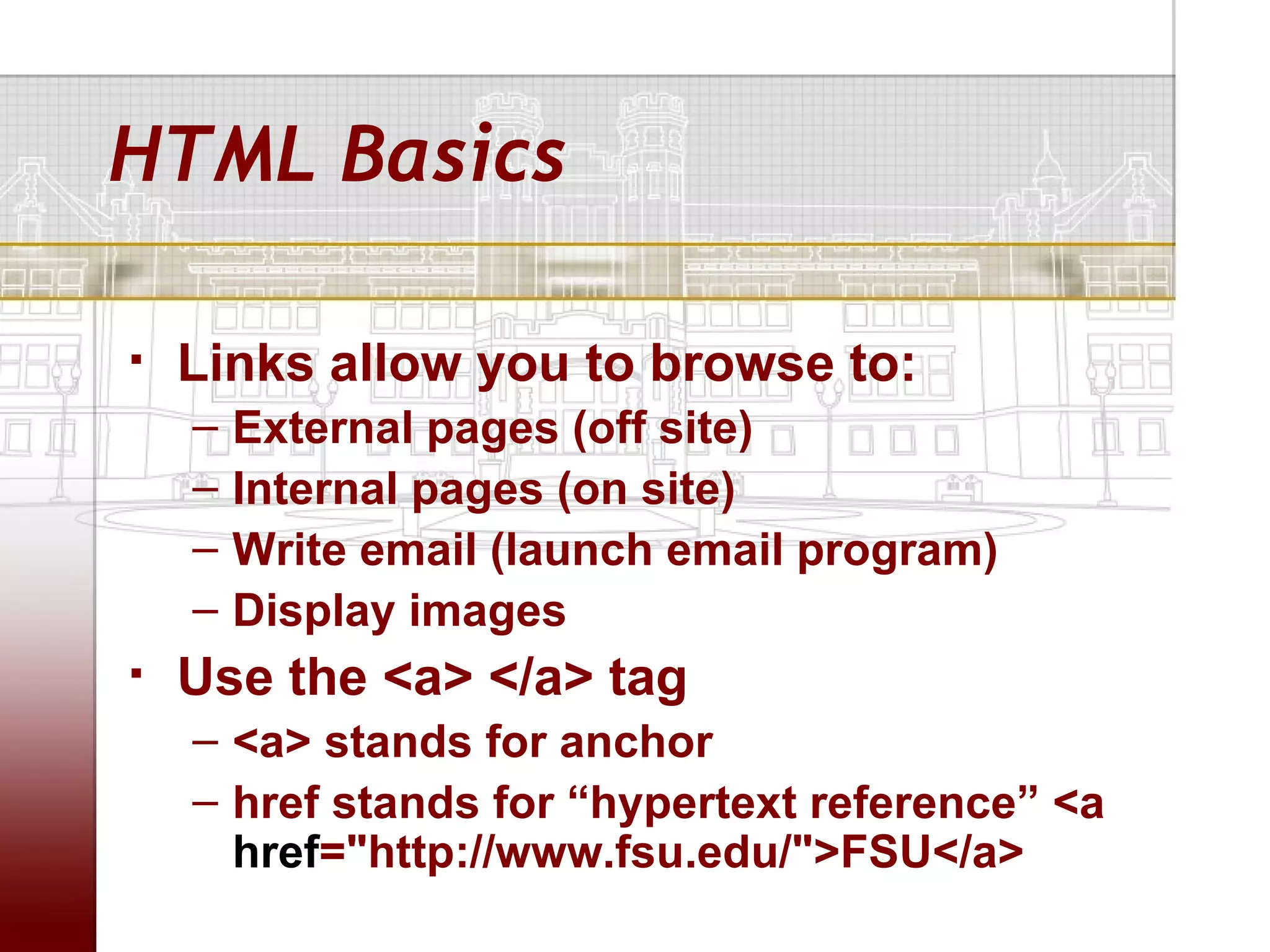
HTML Basics

   Links allow you to browse to:
    –   External pages (off site)
    –   Internal pages (on site)
    –   Write email (launch email program)
    –   Display images
   Use the <a> </a> tag
    – <a> stands for anchor
    – href stands for “hypertext reference” <a
      href="http://www.fsu.edu/">FSU</a>
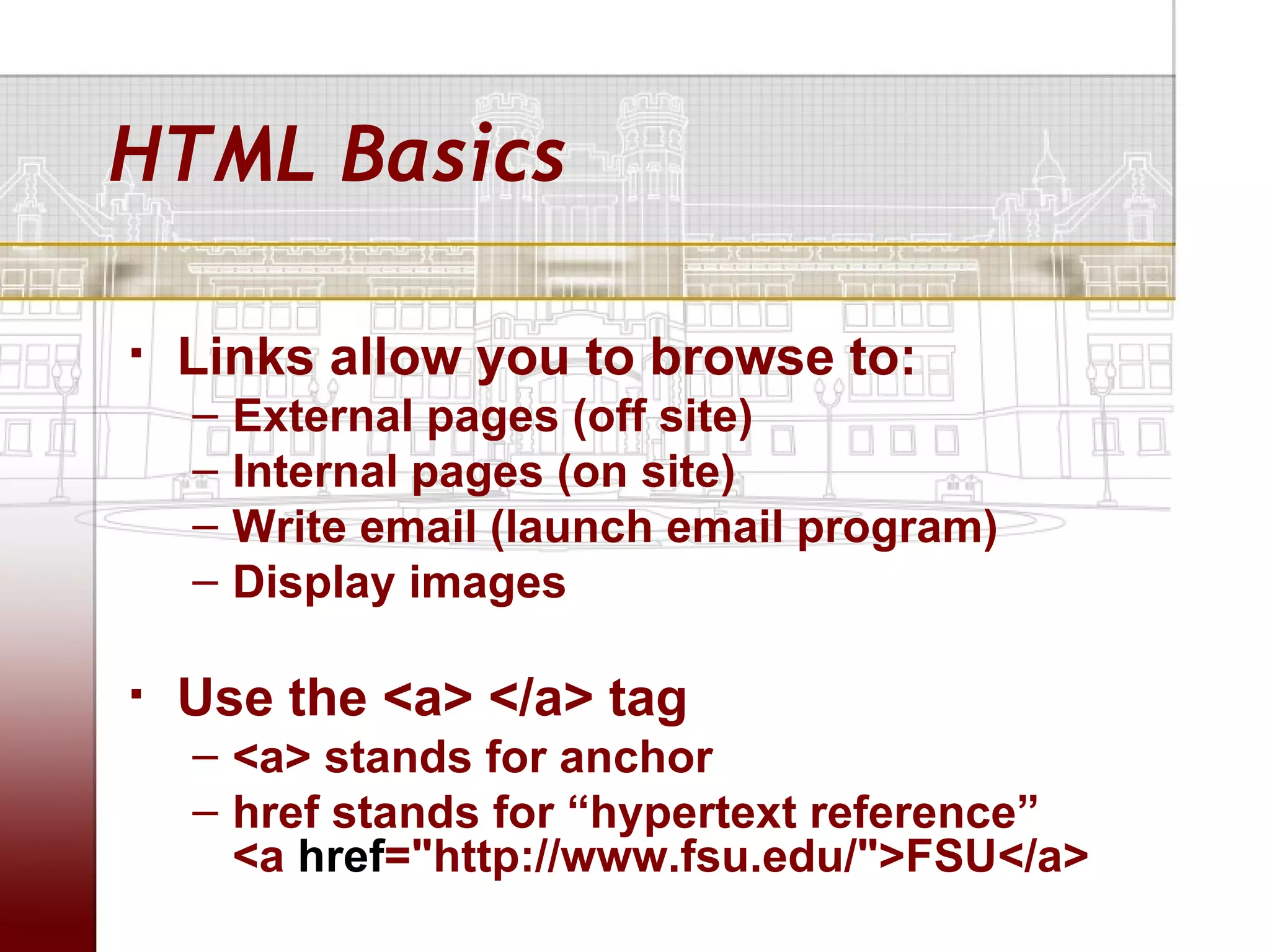
HTML Basics

   Links allow you to browse to:
    –   External pages (off site)
    –   Internal pages (on site)
    –   Write email (launch email program)
    –   Display images

   Use the <a> </a> tag
    – <a> stands for anchor
    – href stands for “hypertext reference”
      <a href="http://www.fsu.edu/">FSU</a>
HTML Basics

   Links to outside pages:
    – text within the tags is what is displayed
      in browser
    – the href attribute contains the URL for
      the link


<a href="http://www.fsu.edu">FSU
 Home Page</a>
HTML Basics

   Links to inside/internal pages/resources:
    – Linking within same file (page.html)
        • <a href="#target”>go to target on the page</a>
        • <a name="target">target point</a>
    – Example:
        <h1>Table of Contents</h1>
        <p><a href="#section1">Introduction</a><br>
        <a href="#section2">Main body of the paper</a><br>
        <a href="#section3">Conclusion</a><br></p>
        …
        In document file:
        <h2><a name="section1">Introduction</a></h2> (intro text, etc.)
        <h2><a name="section2">Main body</a></h2> (main body text, etc.)
        <h2><a name="section3">Conclusion</a></h2> (conclusion text, etc.)
HTML Basics - Tables

   Useful in controlling page layout
   Manual coding can be difficult
   Tables behave differently in different browsers
   Current trend is away from tables.

<table>
   <tr>                             row
        <th>Heading</th>            row heading
        <td>cell 1</td>             column, cell
        <td>cell 2</td>
   </tr>
</table>
HTML Basics - Images

   Embed graphics (PNG, JPG, GIF) into your page using the
    <img> tag
   Watch loading performance, you may need to optimize the
    image. Try to keep photos under 100kb.
   You can make a picture “linkable”


                      <img src="hello.gif”>
    <img src="hellofsu.gif" width="30" height="40" alt="FSU
                              logo">
     <a href="http://www.fsu.edu/"><img src="hellofsu.gif"
      width="30" height="40" border="0" alt="FSU logo"></a>
HTML Basics - Images

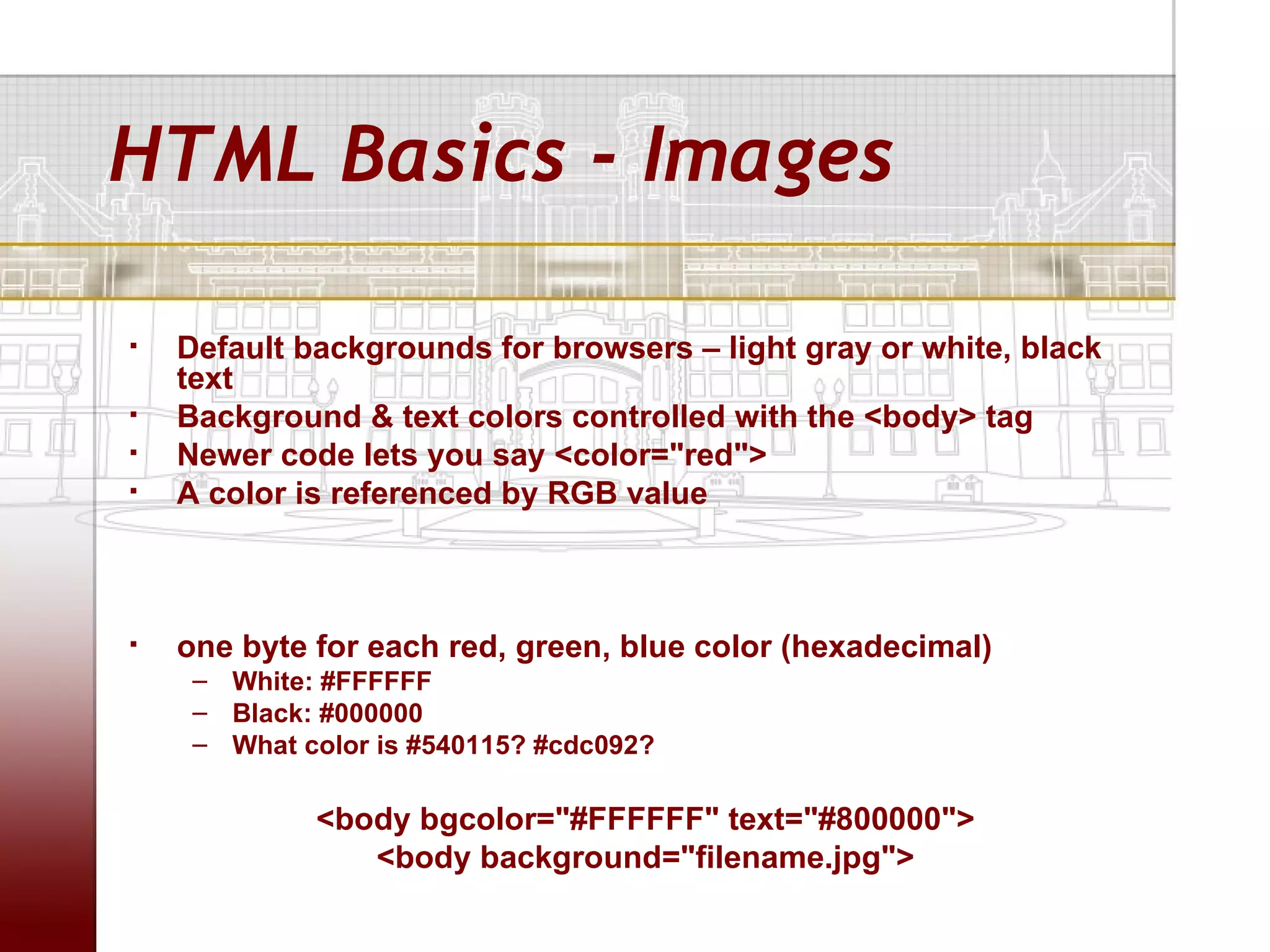
   Default backgrounds for browsers – light gray or white, black
    text
   Background & text colors controlled with the <body> tag
   Newer code lets you say <color="red">
   A color is referenced by RGB value


   one byte for each red, green, blue color (hexadecimal)
     – White: #FFFFFF
     – Black: #000000
     – What color is #540115? #cdc092?

             <body bgcolor="#FFFFFF" text="#800000">
                <body background="filename.jpg">
iSpace

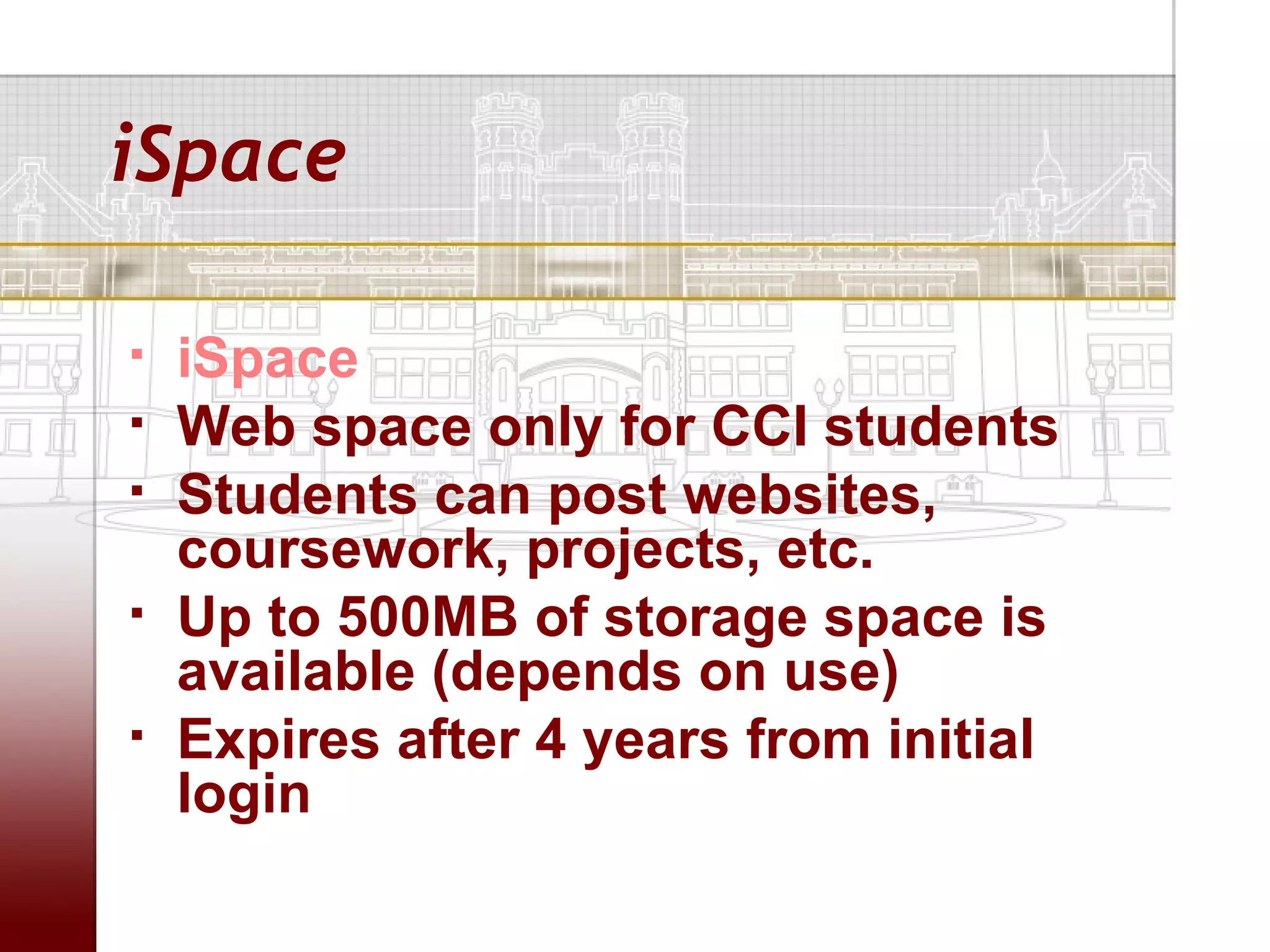
   iSpace
   Web space only for CCI students
   Students can post websites,
    coursework, projects, etc.
   Up to 500MB of storage space is
    available (depends on use)
   Expires after 4 years from initial
    login
iSpace

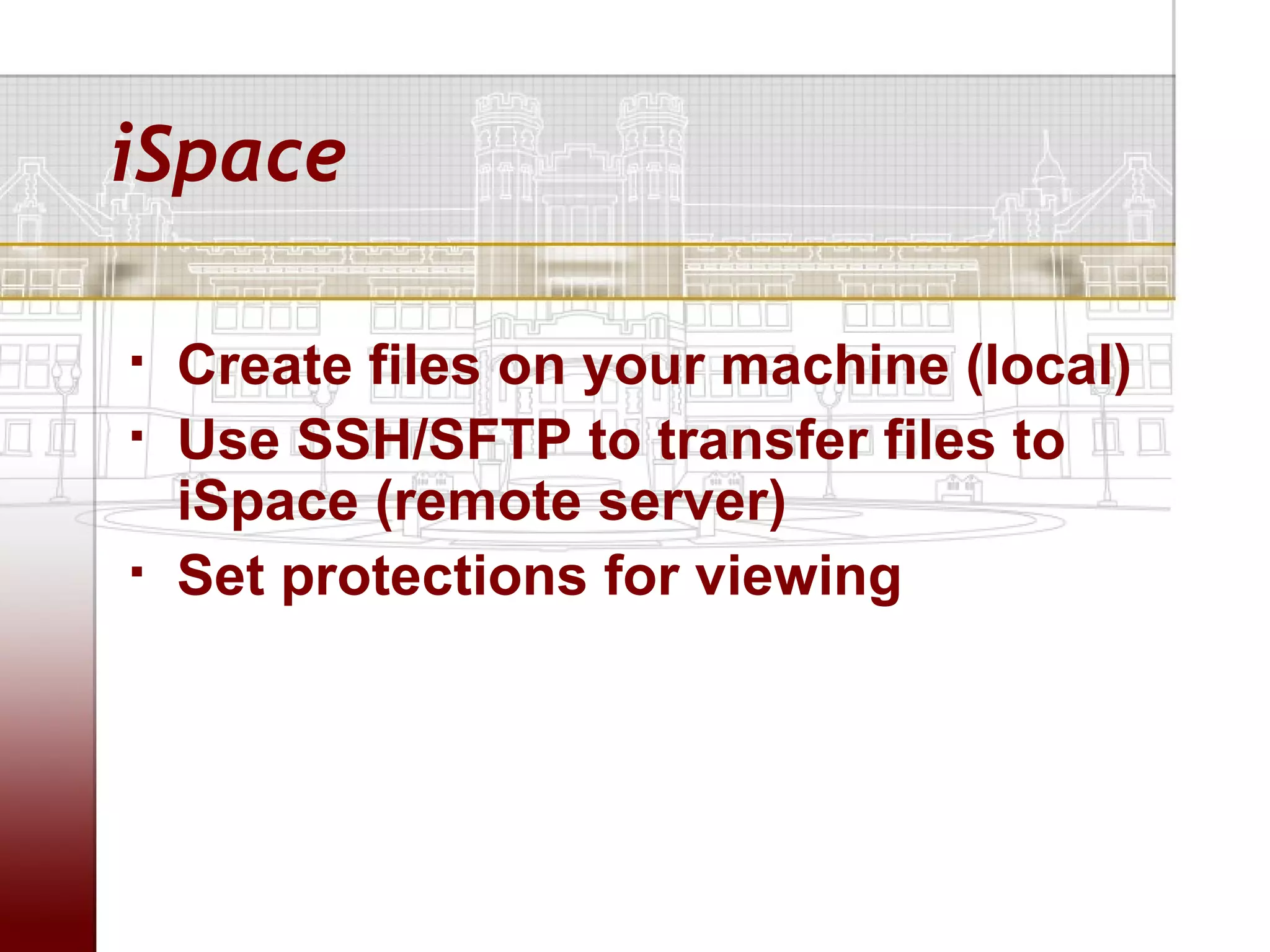
   Create files on your machine (local)
   Use SSH/SFTP to transfer files to
    iSpace (remote server)
   Set protections for viewing
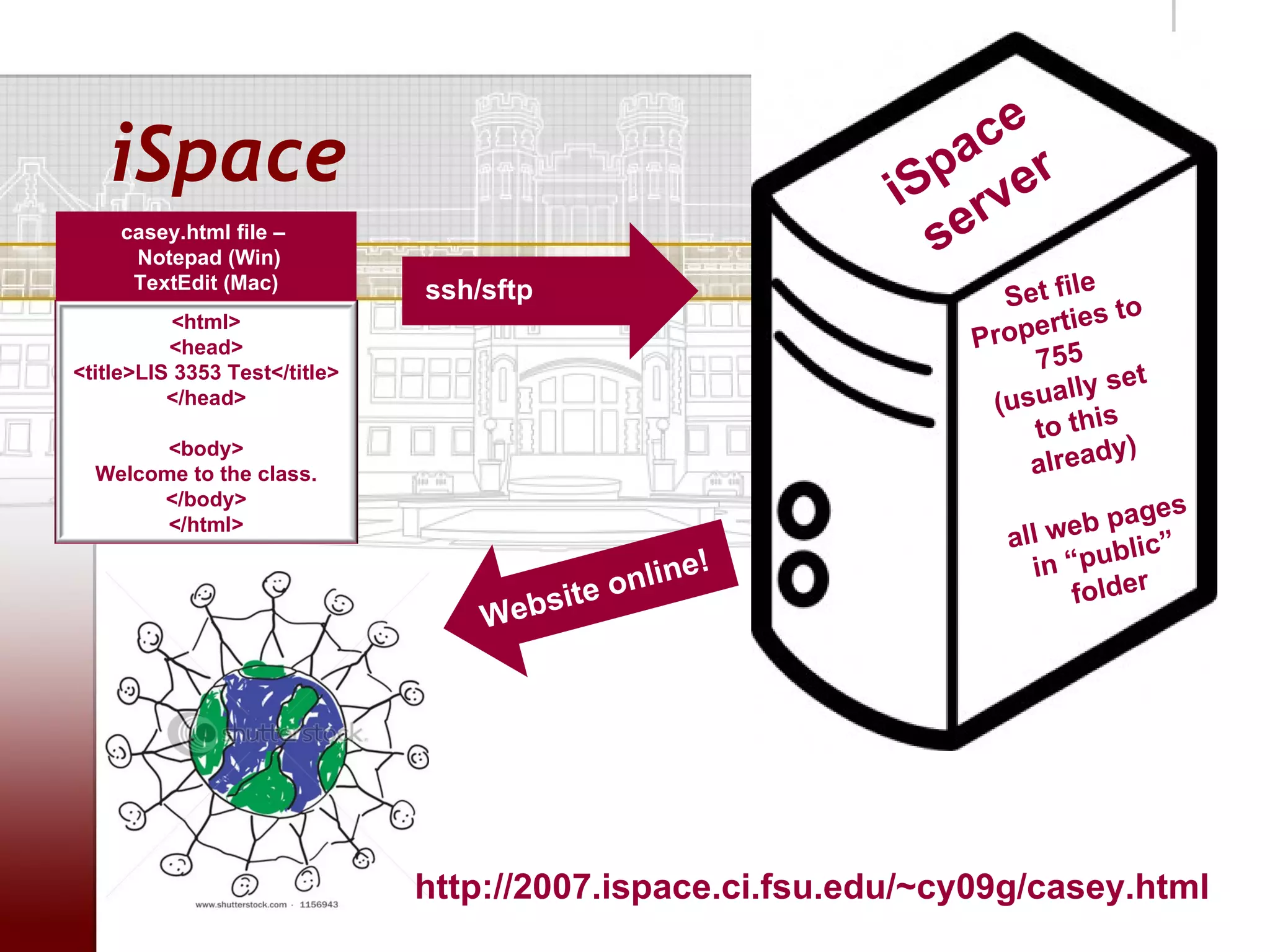
ce
   iSpace                                                        pa er
                                                               iS r v
     casey.html file –
      Notepad (Win)
                                                                 se
                                                                            e
                                                                     Set fil to
      TextEdit (Mac)           ssh/sftp
                                                                          ties
                                                                    roper
           <html>
          <head>                                                  P
                                                                       755
<title>LIS 3353 Test</title>
                                                                              set
          </head>                                                   (usually
                                                                       to this
                                                                               y)
                                                                       alread
        <body>
  Welcome to the class.
       </body>
                                                                              ages
        </html>
                                                                     all web p ”
                                                                             blic
                                                   li n   e!           in “pu r
                                          si te on                        folde
                                   Web


                               http://2007.ispace.ci.fsu.edu/~cy09g/casey.html

LIS3353 SP12 Week 4

  • 1.
    HTML & Websites LIS3353 – 1/17/12
  • 2.
    Administrivia  Grading – HW #1 before the weekend; I will post an announcement on Blackboard – Quiz #2 will be graded & handed out on Thursday – Office hours today postponed – Wednesday 10am-2pm instead  Today’s agenda – News – Group Assignment #1 – check wikispaces page for group assignments – Group leaders, please confirm your group (edit the wikispaces page directly) by Tuesday 4pm – HTML and websites
  • 3.
    Assignment #3 Assignment #3 • Seminoles Future Careers Exposition Thursday, January 26, 2012 9 am-noon and 1-3 pm Leon County Civic Center OR • Seminole Success Night Wednesday, January 25, 2012 5:30 p.m. - 7:00 p.m. Dunlap Success Center
  • 4.
    Assignment #3  250 word response to your experience at either (or both!) event in your wordpress BLOG.  Address any or all of the following topics: – what you did to prepare for the event; – what companies piqued your interest; – what companies you talked to or submitted resumes to; – what technology companies were represented OR what companies were looking for in terms of technology skills; – what you learned from attending the event. This assignment is due by Thursday, February 2, 2012 at 10AM. 50 points. Submit your completed write-up at the following URL. http://bit.ly/lis3353-a3
  • 5.
    In the news…  Wifi/USB cufflinks  http://mashable.com/2012/01/20/wi-fi-hots
  • 6.
  • 7.
  • 8.
  • 9.
    HTML  HTML – hypertext markup language  HTML provides a framework for browsers to display images and text on webpages  Invented in 1990 by Tim Berners-Lee for scientists to share information online with each other
  • 10.
    HTML Basics  3 main tags for the structure of a webpage:  <html> </html>  <head> </head>  <body> </body>
  • 11.
    HTML Basics  Opening & Closing tags  <TAG> </TAG> (for enclosing elements, not standalone elements) <html> <head> <title>Title of my page </title> </head> <body> Content of webpage here </body> </html>
  • 12.
    HTML Basics  Tags – Nested in document for example: <head> and <body> – Have multiple attributes extra information for each tag for example: <a href=”http://www.fsu.edu">this is a link</a>
  • 13.
    HTML Basics  Example – Use TextEdit (Mac) or Notepad (Win) to create your page – Enter the following: <html> <head> <title>LIS 3353 Test</title> </head> <body> Welcome to the class. </body> </html>
  • 14.
    HTML Basics  Save the text file with a .html file extension  Open text file in a web browser  What are deprecated tags?
  • 15.
    HTML Basics  Formatting tags: – Paragraphs <p> </p> – Line breaks <br> – Headings <h1> </h1>, <h2> </h2> – Rule lines <hr> – Images <img> – Bold <b> </b> – Italics <i> </i>
  • 16.
    HTML Basics  Try it out <html> <head> <title>My Title</title> </head> <body> Testing lines using HR commands <hr width="75px"> <hr width="75%"> <hr size="7"> <hr noshade> <hr width="75%" size="10" noshade> </body> </html>
  • 17.
    HTML Basics  Try it out <html> <head> <title>My Title</title> </head> <body> Testing lines using HR commands <hr width="75px"> <hr width="75%"> <hr size="7"> <hr noshade> <hr width="75%" size="10" noshade> </body> </html>
  • 18.
    HTML Basics <html> <html> <head> <head> <title>Test for LIS</title> <title>Test for LIS</title> </head> </head> <body> <body> <h1>Welcome</h1> <h1>Welcome</h1> <p>Hello Seminole Fans</p> <p>Hello Seminole Fans</p> <img src="graphic.jpg" <img src= alt=“fsustadium"><br><br> "http://www.fsu.com/ecard32/images/FS <hr> USports/stadium004.jpg" <p>Game this weekend<br> alt=“fsustadium"><br><br><hr> &copy; 2012</p> <p>Game this weekend<br> </body> &copy; 2012</p> </html> </body> </html>
  • 19.
    HTML Basics Special Characters &copy; for © &reg; for ® &amp; for & &lt; for < &gt; for > &nbsp; for a non-breaking space
  • 20.
    HTML Basics Lists Unordered (bulleted) – <ul> </ul> (contains the list) optional type attribute: • disc  square open circle – <li> </li> (each item)
  • 21.
    HTML Basics <html> <head> <title>LIS Test</title> </head> <body> <h1>Menu</h1> <h3><i>Sunday Brunch</i></h3> <ul type="circle"> <li>Eggs and Toast</li> <li>Roadkill</li> <li>Yesterday’s leftovers</li> </ul> </body> </html>
  • 22.
    HTML Basics Lists Ordered list(numbered) <ol> </ol> (contains the list) – Optional type attribute • 1: 1, 2, 3… • a: a, b, c… • A: A, B, C… • i: i, ii, iii • I: I, II, III – Optional start attribute • Begin somewhere other than 1 • To start at E, you must indicate: “ type="A" start="5” “ <li> </li> (each item) 
  • 23.
    HTML Basics <html> <head> <title>My Title</title> </head> <body> <h1>Menu</h1> <h3><i>Sunday Brunch</i></h3> <ol type=I start="1"> <li>Eggs and Toast</li> <li>Roadkill</li> <li>Yesterday’s leftovers</li> </ol> </body> </html>
  • 24.
    HTML Basics  Links allow you to browse to: – External pages (off site) – Internal pages (on site) – Write email (launch email program) – Display images  Use the <a> </a> tag – <a> stands for anchor – href stands for “hypertext reference” <a href="http://www.fsu.edu/">FSU</a>
  • 25.
    HTML Basics  Links allow you to browse to: – External pages (off site) – Internal pages (on site) – Write email (launch email program) – Display images  Use the <a> </a> tag – <a> stands for anchor – href stands for “hypertext reference” <a href="http://www.fsu.edu/">FSU</a>
  • 26.
    HTML Basics  Links to outside pages: – text within the tags is what is displayed in browser – the href attribute contains the URL for the link <a href="http://www.fsu.edu">FSU Home Page</a>
  • 27.
    HTML Basics  Links to inside/internal pages/resources: – Linking within same file (page.html) • <a href="#target”>go to target on the page</a> • <a name="target">target point</a> – Example: <h1>Table of Contents</h1> <p><a href="#section1">Introduction</a><br> <a href="#section2">Main body of the paper</a><br> <a href="#section3">Conclusion</a><br></p> … In document file: <h2><a name="section1">Introduction</a></h2> (intro text, etc.) <h2><a name="section2">Main body</a></h2> (main body text, etc.) <h2><a name="section3">Conclusion</a></h2> (conclusion text, etc.)
  • 28.
    HTML Basics -Tables  Useful in controlling page layout  Manual coding can be difficult  Tables behave differently in different browsers  Current trend is away from tables. <table> <tr> row <th>Heading</th> row heading <td>cell 1</td> column, cell <td>cell 2</td> </tr> </table>
  • 29.
    HTML Basics -Images  Embed graphics (PNG, JPG, GIF) into your page using the <img> tag  Watch loading performance, you may need to optimize the image. Try to keep photos under 100kb.  You can make a picture “linkable” <img src="hello.gif”> <img src="hellofsu.gif" width="30" height="40" alt="FSU logo"> <a href="http://www.fsu.edu/"><img src="hellofsu.gif" width="30" height="40" border="0" alt="FSU logo"></a>
  • 30.
    HTML Basics -Images  Default backgrounds for browsers – light gray or white, black text  Background & text colors controlled with the <body> tag  Newer code lets you say <color="red">  A color is referenced by RGB value  one byte for each red, green, blue color (hexadecimal) – White: #FFFFFF – Black: #000000 – What color is #540115? #cdc092? <body bgcolor="#FFFFFF" text="#800000"> <body background="filename.jpg">
  • 31.
    iSpace  iSpace  Web space only for CCI students  Students can post websites, coursework, projects, etc.  Up to 500MB of storage space is available (depends on use)  Expires after 4 years from initial login
  • 32.
    iSpace  Create files on your machine (local)  Use SSH/SFTP to transfer files to iSpace (remote server)  Set protections for viewing
  • 33.
    ce iSpace pa er iS r v casey.html file – Notepad (Win) se e Set fil to TextEdit (Mac) ssh/sftp ties roper <html> <head> P 755 <title>LIS 3353 Test</title> set </head> (usually to this y) alread <body> Welcome to the class. </body> ages </html> all web p ” blic li n e! in “pu r si te on folde Web http://2007.ispace.ci.fsu.edu/~cy09g/casey.html