UNIX ENVIRONMENT
DESIGNED BY :
MITTINPREET SINGH NAYYAR
VIKAS K PRASAD
 Introduction to Unix
 History of Unix
 Salient features of Unix
 SHELL
 Distributions
 Basic Unix Commands
 Q&A
 References
Roadmap
INTRODUCTION TO UNIX
 A multi-tasking and multi-user Operating System
 Developed in 1969 at AT&T’s Bell Labs by
 Ken Thompson (Unix)
 Dennis Ritchie (C)
 Peter Neumann suggested their project is given the name UNIX.
 It is a portable operating system that is designed for both efficient
multi-tasking and multi-user functions. Its portability allows it to run on
different hardware platforms. It was written is C and lets user do
processing and control under a shell.
 Unix is case sensitive
HISTORY OF UNIX
 The history of UNIX starts from the project MULTICS (Multiplexed
Information and Computing Service) in 1965 conducted by AT&T,GE
& MIT funded by DOD(Dept. of Defense)USA.
 The main aim to develop UNIX was to develop and operating
system that could serve large Community of users and allow them to
share data if needed be. This never to be enterprise called MULTICS
 In 1969, ken Thompson and Dennis Ritchie released the first version
of Multiuser System Called UNIX. At that time Unix was not portable.
To remedy this Ken Thompson created a new language “B” but
language lacked some aspects. So in 1973 UNIX was Rewritten in
“C” Language by Ken Thompson. C Language was developed by
Dennis Ritchie.
SALIENT FEATURE OF UNIX
 Multiuser Capability
 Multitasking Capability
 Communication
 Security
 Portability
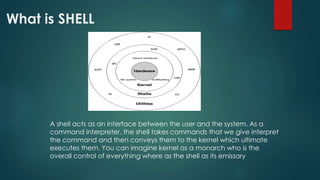
What is SHELL
A shell acts as an interface between the user and the system. As a
command interpreter, the shell takes commands that we give interpret
the command and then conveys them to the kernel which ultimate
executes them. You can imagine kernel as a monarch who is the
overall control of everything where as the shell as its emissary
TYPES Of SHELLS
 BOURNE SHELL
Steve Bourne Creation, known after him Bourne Shell is the most
popular. It comes with every Unix System
 C SHELL
This shell is a hit with those who are seriously into Unix programming,
created by Bill Joy, it had two advantage over Bourne Shell. It allows aliasing of
commands the other one is history feature.
 KORN SHELL
it is not widely used but is a powerful and superset of Bourne shell,
created by David Korn.
OTHER SHELLS
 ZSHELL
 BASH SHELL
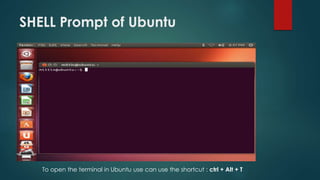
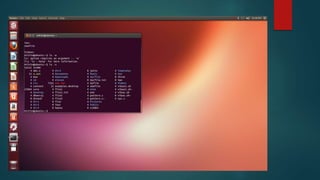
SHELL Prompt of Ubuntu
To open the terminal in Ubuntu use can use the shortcut : ctrl + Alt + T
DISTRIBUTIONS
 Linux
 Minix
 FreeBSD
 OpenBSD
 NetBSD
 GNU Hurd
 Solaris
 SCO Unix
Conclusion
There are many free Unix like operating systems floating around out there and most if not all
of them can be found quickly with a simple internet search. The OS's I have listed above are,
in my opinion, the best. They are also all available to use for free unlike most of the others.
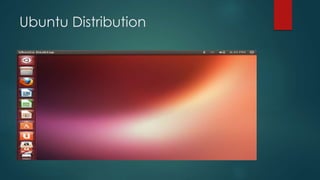
Ubuntu Distribution
BASIC COMMANDS
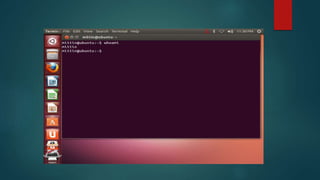
This command returns your username. Sounds useless, but
isn't. You may need to find out who it is who forgot to log
out somewhere, and make sure *you* have logged out.
Example: whoami
whoami
Man - Manual
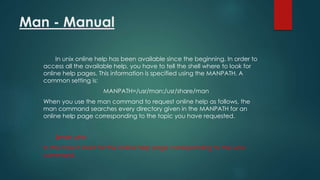
In unix online help has been available since the beginning. In order to
access all the available help, you have to tell the shell where to look for
online help pages. This information is specified using the MANPATH. A
common setting is:
MANPATH=/usr/man:/usr/share/man
When you use the man command to request online help as follows, the
man command searches every directory given in the MANPATH for an
online help page corresponding to the topic you have requested.
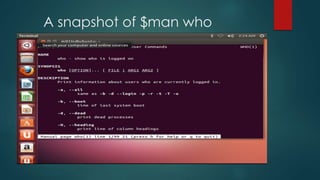
$man who
In this case it looks for the online help page corresponding to the who
command
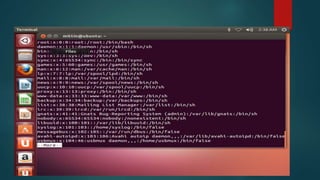
A snapshot of $man who
Passwd
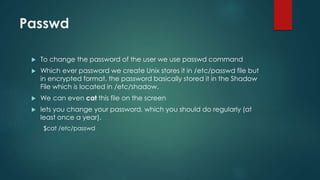
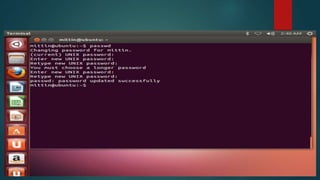
 To change the password of the user we use passwd command
 Which ever password we create Unix stores it in /etc/passwd file but
in encrypted format, the password basically stored it in the Shadow
File which is located in /etc/shadow.
 We can even cat this file on the screen
 lets you change your password, which you should do regularly (at
least once a year).
$cat /etc/passwd
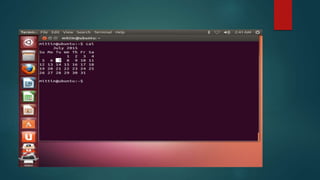
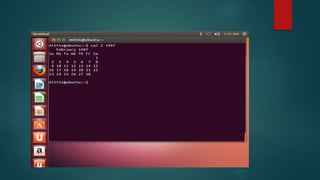
cal - Calender
Display a conveniently-formatted calendar from the command line.
In general, if no options are given, cal displays the current month at the
command line.
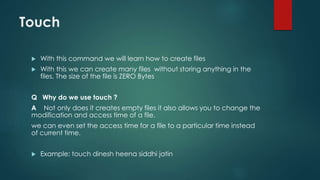
Touch
 With this command we will learn how to create files
 With this we can create many files without storing anything in the
files. The size of the file is ZERO Bytes
Q Why do we use touch ?
A Not only does it creates empty files it also allows you to change the
modification and access time of a file.
we can even set the access time for a file to a particular time instead
of current time.
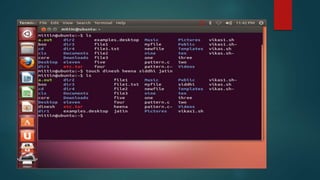
 Example: touch dinesh heena siddhi jatin
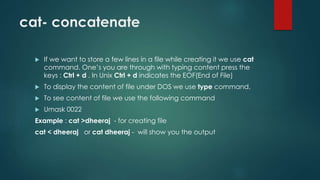
cat- concatenate
 If we want to store a few lines in a file while creating it we use cat
command. One’s you are through with typing content press the
keys : Ctrl + d . In Unix Ctrl + d indicates the EOF(End of File)
 To display the content of file under DOS we use type command.
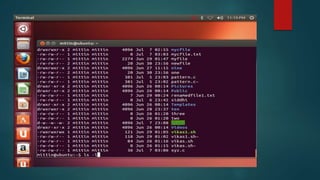
 To see content of file we use the following command
 Umask 0022
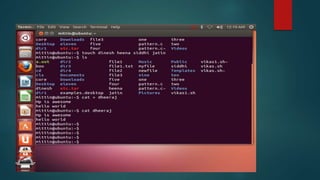
Example : cat >dheeraj - for creating file
cat < dheeraj or cat dheeraj - will show you the output
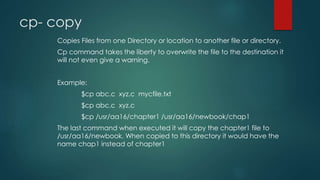
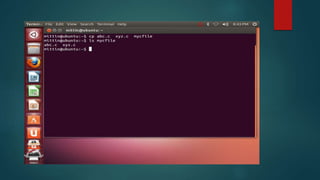
cp- copy
Copies Files from one Directory or location to another file or directory.
Cp command takes the liberty to overwrite the file to the destination it
will not even give a warning.
Example:
$cp abc.c xyz.c mycfile.txt
$cp abc.c xyz.c
$cp /usr/aa16/chapter1 /usr/aa16/newbook/chap1
The last command when executed it will copy the chapter1 file to
/usr/aa16/newbook. When copied to this directory it would have the
name chap1 instead of chapter1
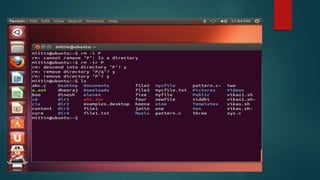
rm - remove
The rm command removes (deletes) files or directories. It is wise to use the option rm -i, which will ask you
for confirmation before actually deleting anything.
The removal process unlinks a filename in a filesystem from data on the storage device, and marks that
space as usable by future writes. In other words, removing files increases the amount of available space
on your disk.
The data itself is not destroyed, but after being unlinked, it becomes inaccessible. Remove your files wisely!
The effects of an rm operation cannot be undone.
Note: If what you want is to completely, unrecoverable erase the data on the disk, use the shred
command instead. This will overwrite the file's contents so that they cannot be reconstructed later by any
means.
options of rm command:
-i -> it is used for interactive deletion of files and directory
-r-> it will recusively delete the items. It means if there is a sub directory inside the directory
-f-> it will forcibly remove the directory
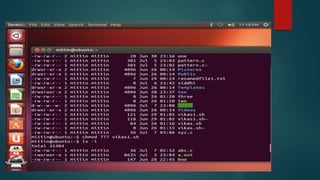
Ls-list
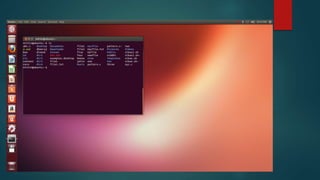
ls --- lists your files
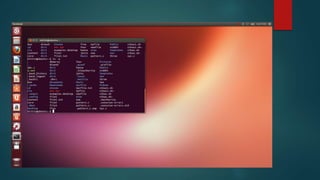
ls -l --- lists your files in 'long format', which contains lots of useful
information, e.g. the exact size of the file, who owns the file and who
has the right to look at it, and when it was last modified.
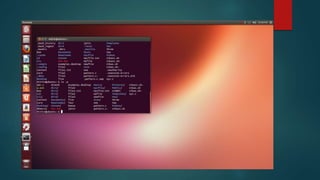
ls -a --- lists all files, including the ones whose filenames begin in a dot,
which you do not always want to see.
There are many more options, for example to list files by size, by date,
recursively etc.
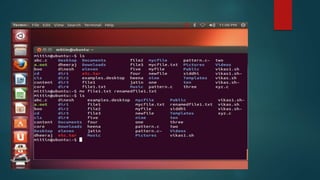
mv - move or rename
 moves a file (i.e. gives it a different name, or moves it into a different
directory
mkdir – make directory
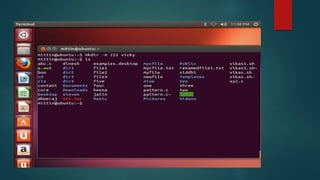
Create the DIRECTORY(ies), if they do not already exist.
Mandatory arguments to long options are mandatory for short options too.
-m, --mode=MODE
set permission mode (as in chmod), not rwxrwxrwx - umask
-p, --parents
no error if existing, make parent directories as needed
-v, --verbose
print a message for each created directory
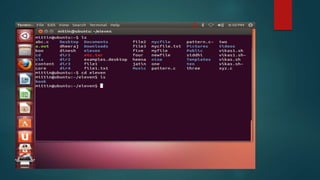
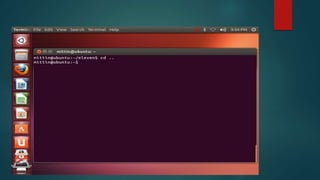
cd – change directory
 change directory. You basically 'go' to another directory, and you
will see the files in that directory when you do 'ls'. You always start
out in your 'home directory', and you can get back there by typing
'cd' without arguments. 'cd ..' will get you one level up from your
current position. You don't have to walk along step by step - you
can make big leaps or avoid walking around by specifying
pathnames.
Example: $cd eleven
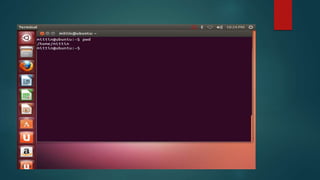
Pwd- print working directory
pwd prints the full pathname of the current working directory.
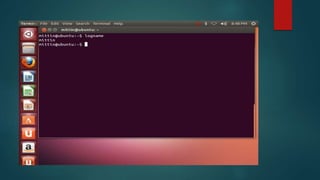
logname
 Logname prints the user login name who is logged in .
 Print the name of the current user.
 Example: logname
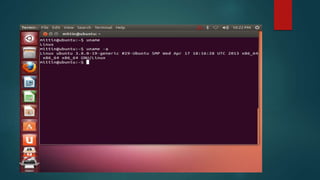
uname
 Print certain system information. If no OPTION is specified, uname
assumes the -s option.
Example:
 Uname –a
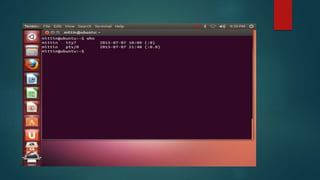
who
The who command prints information about all users who are currently
logged in.
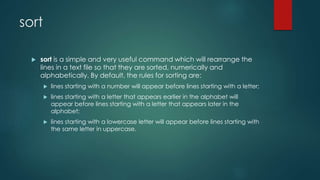
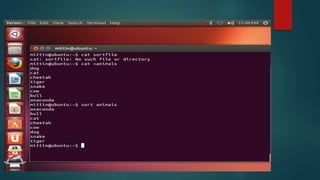
sort
 sort is a simple and very useful command which will rearrange the
lines in a text file so that they are sorted, numerically and
alphabetically. By default, the rules for sorting are:
 lines starting with a number will appear before lines starting with a letter;
 lines starting with a letter that appears earlier in the alphabet will
appear before lines starting with a letter that appears later in the
alphabet;
 lines starting with a lowercase letter will appear before lines starting with
the same letter in uppercase.
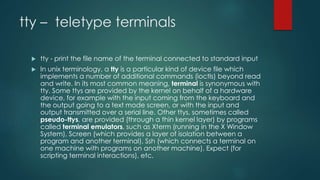
tty – teletype terminals
 tty - print the file name of the terminal connected to standard input
 In unix terminology, a tty is a particular kind of device file which
implements a number of additional commands (ioctls) beyond read
and write. In its most common meaning, terminal is synonymous with
tty. Some ttys are provided by the kernel on behalf of a hardware
device, for example with the input coming from the keyboard and
the output going to a text mode screen, or with the input and
output transmitted over a serial line. Other ttys, sometimes called
pseudo-ttys, are provided (through a thin kernel layer) by programs
called terminal emulators, such as Xterm (running in the X Window
System), Screen (which provides a layer of isolation between a
program and another terminal), Ssh (which connects a terminal on
one machine with programs on another machine), Expect (for
scripting terminal interactions), etc.
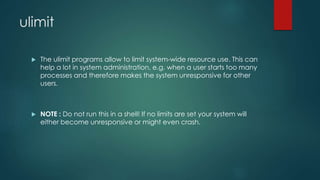
ulimit
 The ulimit programs allow to limit system-wide resource use. This can
help a lot in system administration, e.g. when a user starts too many
processes and therefore makes the system unresponsive for other
users.
 NOTE : Do not run this in a shell! If no limits are set your system will
either become unresponsive or might even crash.
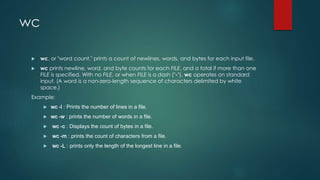
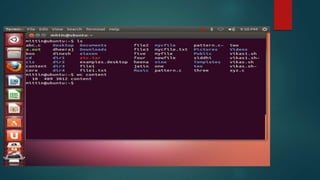
wc
 wc, or "word count," prints a count of newlines, words, and bytes for each input file.
 wc prints newline, word, and byte counts for each FILE, and a total if more than one
FILE is specified. With no FILE, or when FILE is a dash ("-"), wc operates on standard
input. (A word is a non-zero-length sequence of characters delimited by white
space.)
Example:
 wc -l : Prints the number of lines in a file.
 wc -w : prints the number of words in a file.
 wc -c : Displays the count of bytes in a file.
 wc -m : prints the count of characters from a file.
 wc -L : prints only the length of the longest line in a file.
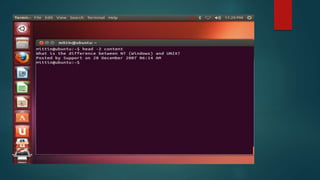
Head
head, by default, prints the first 10 lines of each FILE to standard output.
With more than one FILE, it precedes each set of output with a header
identifying the file name. If no FILE is specified, or when FILE is specified
as a dash ("-"), head reads from standard input.
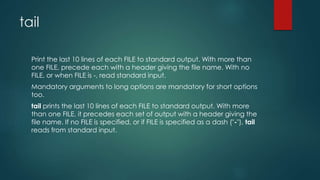
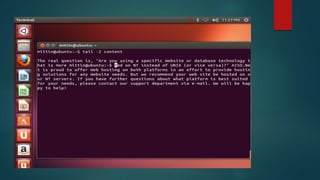
tail
Print the last 10 lines of each FILE to standard output. With more than
one FILE, precede each with a header giving the file name. With no
FILE, or when FILE is -, read standard input.
Mandatory arguments to long options are mandatory for short options
too.
tail prints the last 10 lines of each FILE to standard output. With more
than one FILE, it precedes each set of output with a header giving the
file name. If no FILE is specified, or if FILE is specified as a dash ("-"), tail
reads from standard input.
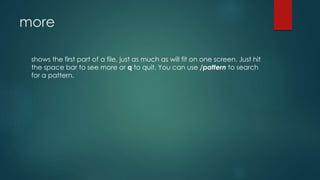
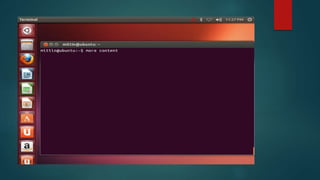
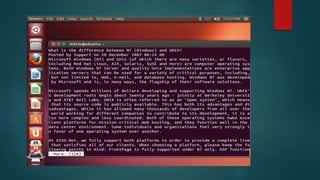
more
shows the first part of a file, just as much as will fit on one screen. Just hit
the space bar to see more or q to quit. You can use /pattern to search
for a pattern.
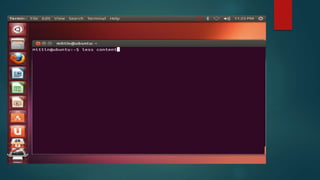
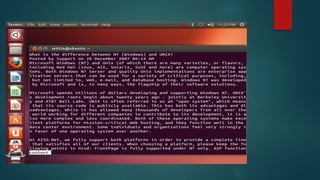
less
Less is a program similar to more (1), but which allows backward movement
in the file as well as forward movement. Also, less does not have to read the
entire input file before starting, so with large input files it starts up faster than
text editors like vi (1). Less uses term cap (or term info on some systems), so it
can run on a variety of terminals. There is even limited support for hardcopy
terminals. (On a hardcopy terminal, lines which should be printed at the top
of the screen are prefixed with a caret.)
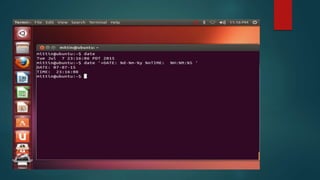
date
Shows the current date and time.
chmod - change mode as permission
lets you change the read, write, and execute permissions on your files.
The default is that only you can look at them and change them, but
you may sometimes want to change these permissions.
For example, chmod o+r filename will make the file readable for
everyone, and chmod o-r filename will make it unreadable for others
again. Note that for someone to be able to actually look at the file the
directories it is in need to be at least executable. See help protection
for more details.
References
 Unix Shell Programming By Yashavant Kanetkar.
 Unix Concept and Application by Sumitabha Das.
 http://www.tutorialspoint.com/unix
 https://www.youtube.com/watch?v=nVt3Rst-
2H8&list=PL7B7FA4E693D8E790
Q&A SESSION
Thank you for your Patience

Unix environment [autosaved]

  • 1.
    UNIX ENVIRONMENT DESIGNED BY: MITTINPREET SINGH NAYYAR VIKAS K PRASAD
  • 2.
     Introduction toUnix  History of Unix  Salient features of Unix  SHELL  Distributions  Basic Unix Commands  Q&A  References Roadmap
  • 3.
    INTRODUCTION TO UNIX A multi-tasking and multi-user Operating System  Developed in 1969 at AT&T’s Bell Labs by  Ken Thompson (Unix)  Dennis Ritchie (C)  Peter Neumann suggested their project is given the name UNIX.  It is a portable operating system that is designed for both efficient multi-tasking and multi-user functions. Its portability allows it to run on different hardware platforms. It was written is C and lets user do processing and control under a shell.  Unix is case sensitive
  • 4.
    HISTORY OF UNIX The history of UNIX starts from the project MULTICS (Multiplexed Information and Computing Service) in 1965 conducted by AT&T,GE & MIT funded by DOD(Dept. of Defense)USA.  The main aim to develop UNIX was to develop and operating system that could serve large Community of users and allow them to share data if needed be. This never to be enterprise called MULTICS  In 1969, ken Thompson and Dennis Ritchie released the first version of Multiuser System Called UNIX. At that time Unix was not portable. To remedy this Ken Thompson created a new language “B” but language lacked some aspects. So in 1973 UNIX was Rewritten in “C” Language by Ken Thompson. C Language was developed by Dennis Ritchie.
  • 5.
    SALIENT FEATURE OFUNIX  Multiuser Capability  Multitasking Capability  Communication  Security  Portability
  • 6.
    What is SHELL Ashell acts as an interface between the user and the system. As a command interpreter, the shell takes commands that we give interpret the command and then conveys them to the kernel which ultimate executes them. You can imagine kernel as a monarch who is the overall control of everything where as the shell as its emissary
  • 7.
    TYPES Of SHELLS BOURNE SHELL Steve Bourne Creation, known after him Bourne Shell is the most popular. It comes with every Unix System  C SHELL This shell is a hit with those who are seriously into Unix programming, created by Bill Joy, it had two advantage over Bourne Shell. It allows aliasing of commands the other one is history feature.  KORN SHELL it is not widely used but is a powerful and superset of Bourne shell, created by David Korn. OTHER SHELLS  ZSHELL  BASH SHELL
  • 8.
    SHELL Prompt ofUbuntu To open the terminal in Ubuntu use can use the shortcut : ctrl + Alt + T
  • 9.
    DISTRIBUTIONS  Linux  Minix FreeBSD  OpenBSD  NetBSD  GNU Hurd  Solaris  SCO Unix Conclusion There are many free Unix like operating systems floating around out there and most if not all of them can be found quickly with a simple internet search. The OS's I have listed above are, in my opinion, the best. They are also all available to use for free unlike most of the others.
  • 10.
  • 11.
    BASIC COMMANDS This commandreturns your username. Sounds useless, but isn't. You may need to find out who it is who forgot to log out somewhere, and make sure *you* have logged out. Example: whoami whoami
  • 13.
    Man - Manual Inunix online help has been available since the beginning. In order to access all the available help, you have to tell the shell where to look for online help pages. This information is specified using the MANPATH. A common setting is: MANPATH=/usr/man:/usr/share/man When you use the man command to request online help as follows, the man command searches every directory given in the MANPATH for an online help page corresponding to the topic you have requested. $man who In this case it looks for the online help page corresponding to the who command
  • 14.
    A snapshot of$man who
  • 15.
    Passwd  To changethe password of the user we use passwd command  Which ever password we create Unix stores it in /etc/passwd file but in encrypted format, the password basically stored it in the Shadow File which is located in /etc/shadow.  We can even cat this file on the screen  lets you change your password, which you should do regularly (at least once a year). $cat /etc/passwd
  • 18.
    cal - Calender Displaya conveniently-formatted calendar from the command line. In general, if no options are given, cal displays the current month at the command line.
  • 21.
    Touch  With thiscommand we will learn how to create files  With this we can create many files without storing anything in the files. The size of the file is ZERO Bytes Q Why do we use touch ? A Not only does it creates empty files it also allows you to change the modification and access time of a file. we can even set the access time for a file to a particular time instead of current time.  Example: touch dinesh heena siddhi jatin
  • 23.
    cat- concatenate  Ifwe want to store a few lines in a file while creating it we use cat command. One’s you are through with typing content press the keys : Ctrl + d . In Unix Ctrl + d indicates the EOF(End of File)  To display the content of file under DOS we use type command.  To see content of file we use the following command  Umask 0022 Example : cat >dheeraj - for creating file cat < dheeraj or cat dheeraj - will show you the output
  • 25.
    cp- copy Copies Filesfrom one Directory or location to another file or directory. Cp command takes the liberty to overwrite the file to the destination it will not even give a warning. Example: $cp abc.c xyz.c mycfile.txt $cp abc.c xyz.c $cp /usr/aa16/chapter1 /usr/aa16/newbook/chap1 The last command when executed it will copy the chapter1 file to /usr/aa16/newbook. When copied to this directory it would have the name chap1 instead of chapter1
  • 27.
    rm - remove Therm command removes (deletes) files or directories. It is wise to use the option rm -i, which will ask you for confirmation before actually deleting anything. The removal process unlinks a filename in a filesystem from data on the storage device, and marks that space as usable by future writes. In other words, removing files increases the amount of available space on your disk. The data itself is not destroyed, but after being unlinked, it becomes inaccessible. Remove your files wisely! The effects of an rm operation cannot be undone. Note: If what you want is to completely, unrecoverable erase the data on the disk, use the shred command instead. This will overwrite the file's contents so that they cannot be reconstructed later by any means. options of rm command: -i -> it is used for interactive deletion of files and directory -r-> it will recusively delete the items. It means if there is a sub directory inside the directory -f-> it will forcibly remove the directory
  • 29.
    Ls-list ls --- listsyour files ls -l --- lists your files in 'long format', which contains lots of useful information, e.g. the exact size of the file, who owns the file and who has the right to look at it, and when it was last modified. ls -a --- lists all files, including the ones whose filenames begin in a dot, which you do not always want to see. There are many more options, for example to list files by size, by date, recursively etc.
  • 34.
    mv - moveor rename  moves a file (i.e. gives it a different name, or moves it into a different directory
  • 36.
    mkdir – makedirectory Create the DIRECTORY(ies), if they do not already exist. Mandatory arguments to long options are mandatory for short options too. -m, --mode=MODE set permission mode (as in chmod), not rwxrwxrwx - umask -p, --parents no error if existing, make parent directories as needed -v, --verbose print a message for each created directory
  • 38.
    cd – changedirectory  change directory. You basically 'go' to another directory, and you will see the files in that directory when you do 'ls'. You always start out in your 'home directory', and you can get back there by typing 'cd' without arguments. 'cd ..' will get you one level up from your current position. You don't have to walk along step by step - you can make big leaps or avoid walking around by specifying pathnames. Example: $cd eleven
  • 41.
    Pwd- print workingdirectory pwd prints the full pathname of the current working directory.
  • 43.
    logname  Logname printsthe user login name who is logged in .  Print the name of the current user.  Example: logname
  • 45.
    uname  Print certainsystem information. If no OPTION is specified, uname assumes the -s option. Example:  Uname –a
  • 47.
    who The who commandprints information about all users who are currently logged in.
  • 49.
    sort  sort isa simple and very useful command which will rearrange the lines in a text file so that they are sorted, numerically and alphabetically. By default, the rules for sorting are:  lines starting with a number will appear before lines starting with a letter;  lines starting with a letter that appears earlier in the alphabet will appear before lines starting with a letter that appears later in the alphabet;  lines starting with a lowercase letter will appear before lines starting with the same letter in uppercase.
  • 51.
    tty – teletypeterminals  tty - print the file name of the terminal connected to standard input  In unix terminology, a tty is a particular kind of device file which implements a number of additional commands (ioctls) beyond read and write. In its most common meaning, terminal is synonymous with tty. Some ttys are provided by the kernel on behalf of a hardware device, for example with the input coming from the keyboard and the output going to a text mode screen, or with the input and output transmitted over a serial line. Other ttys, sometimes called pseudo-ttys, are provided (through a thin kernel layer) by programs called terminal emulators, such as Xterm (running in the X Window System), Screen (which provides a layer of isolation between a program and another terminal), Ssh (which connects a terminal on one machine with programs on another machine), Expect (for scripting terminal interactions), etc.
  • 52.
    ulimit  The ulimitprograms allow to limit system-wide resource use. This can help a lot in system administration, e.g. when a user starts too many processes and therefore makes the system unresponsive for other users.  NOTE : Do not run this in a shell! If no limits are set your system will either become unresponsive or might even crash.
  • 53.
    wc  wc, or"word count," prints a count of newlines, words, and bytes for each input file.  wc prints newline, word, and byte counts for each FILE, and a total if more than one FILE is specified. With no FILE, or when FILE is a dash ("-"), wc operates on standard input. (A word is a non-zero-length sequence of characters delimited by white space.) Example:  wc -l : Prints the number of lines in a file.  wc -w : prints the number of words in a file.  wc -c : Displays the count of bytes in a file.  wc -m : prints the count of characters from a file.  wc -L : prints only the length of the longest line in a file.
  • 55.
    Head head, by default,prints the first 10 lines of each FILE to standard output. With more than one FILE, it precedes each set of output with a header identifying the file name. If no FILE is specified, or when FILE is specified as a dash ("-"), head reads from standard input.
  • 57.
    tail Print the last10 lines of each FILE to standard output. With more than one FILE, precede each with a header giving the file name. With no FILE, or when FILE is -, read standard input. Mandatory arguments to long options are mandatory for short options too. tail prints the last 10 lines of each FILE to standard output. With more than one FILE, it precedes each set of output with a header giving the file name. If no FILE is specified, or if FILE is specified as a dash ("-"), tail reads from standard input.
  • 59.
    more shows the firstpart of a file, just as much as will fit on one screen. Just hit the space bar to see more or q to quit. You can use /pattern to search for a pattern.
  • 62.
    less Less is aprogram similar to more (1), but which allows backward movement in the file as well as forward movement. Also, less does not have to read the entire input file before starting, so with large input files it starts up faster than text editors like vi (1). Less uses term cap (or term info on some systems), so it can run on a variety of terminals. There is even limited support for hardcopy terminals. (On a hardcopy terminal, lines which should be printed at the top of the screen are prefixed with a caret.)
  • 65.
    date Shows the currentdate and time.
  • 67.
    chmod - changemode as permission lets you change the read, write, and execute permissions on your files. The default is that only you can look at them and change them, but you may sometimes want to change these permissions. For example, chmod o+r filename will make the file readable for everyone, and chmod o-r filename will make it unreadable for others again. Note that for someone to be able to actually look at the file the directories it is in need to be at least executable. See help protection for more details.
  • 70.
    References  Unix ShellProgramming By Yashavant Kanetkar.  Unix Concept and Application by Sumitabha Das.  http://www.tutorialspoint.com/unix  https://www.youtube.com/watch?v=nVt3Rst- 2H8&list=PL7B7FA4E693D8E790
  • 71.
  • 72.
    Thank you foryour Patience